
Advanced configuration
Guide Overview
The screens below hold technical settings. The ready-made values work with the vendors of the ready-made connections. Leave them as they are unless one of the reasons given for that list applies to you. A wrong value in a technical list can stop the assistant from answering through a vendor, and the defaults need no maintenance.
Before You Start
Access right |
What it allows here |
|---|---|
AI Administrator or system administrator |
Edit Models, Model Lines, Message Adapters and Speech Pronunciations. |
System administrator |
Edit Screen Capabilities. An AI Administrator sees the list but cannot change it. |
Any other internal user |
None of these menus appear under Configuration. |
Models
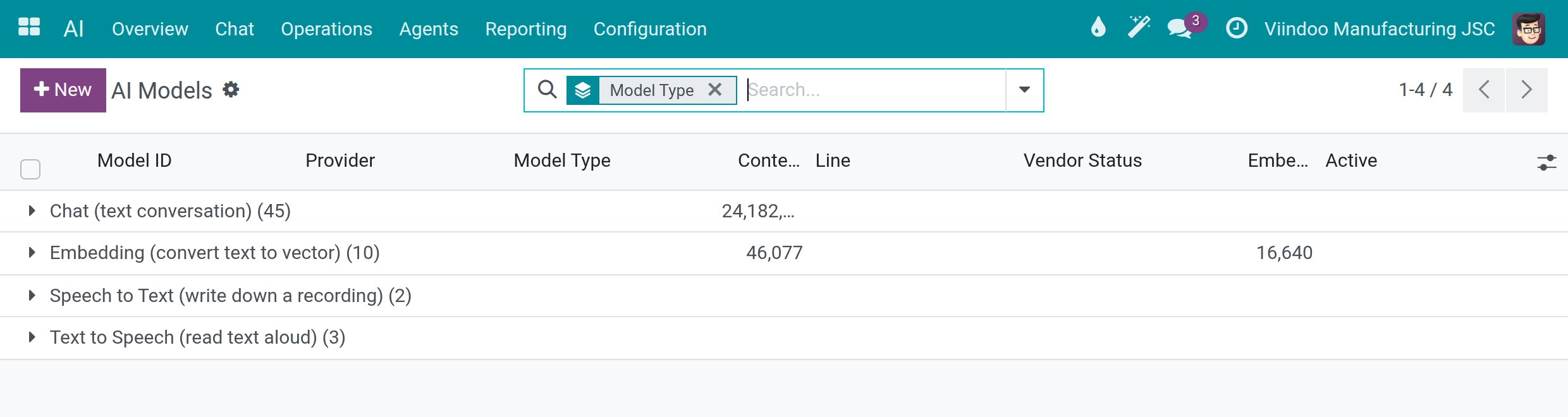
Go to . Each line is a model of a connection, with its Model Type (chat, embedding, speech to text, text to speech), Context Window (tokens), Line, Vendor Status and Embedding Dimension. Optional columns show the cost per 1,000 tokens that the spend limits use.
![The list of AI models grouped by model type with the number of models in each group]()
Touch it in three cases only:
A vendor releases a model that is not listed. Click New, pick the connection in Provider and type the exact Model ID of the vendor, as the vendor’s own documentation spells it.
The prices of your contract with the vendor differ from the ones recorded for a model.
You want to stop using a model: untick Active. It is kept but no longer offered.
Model Lines
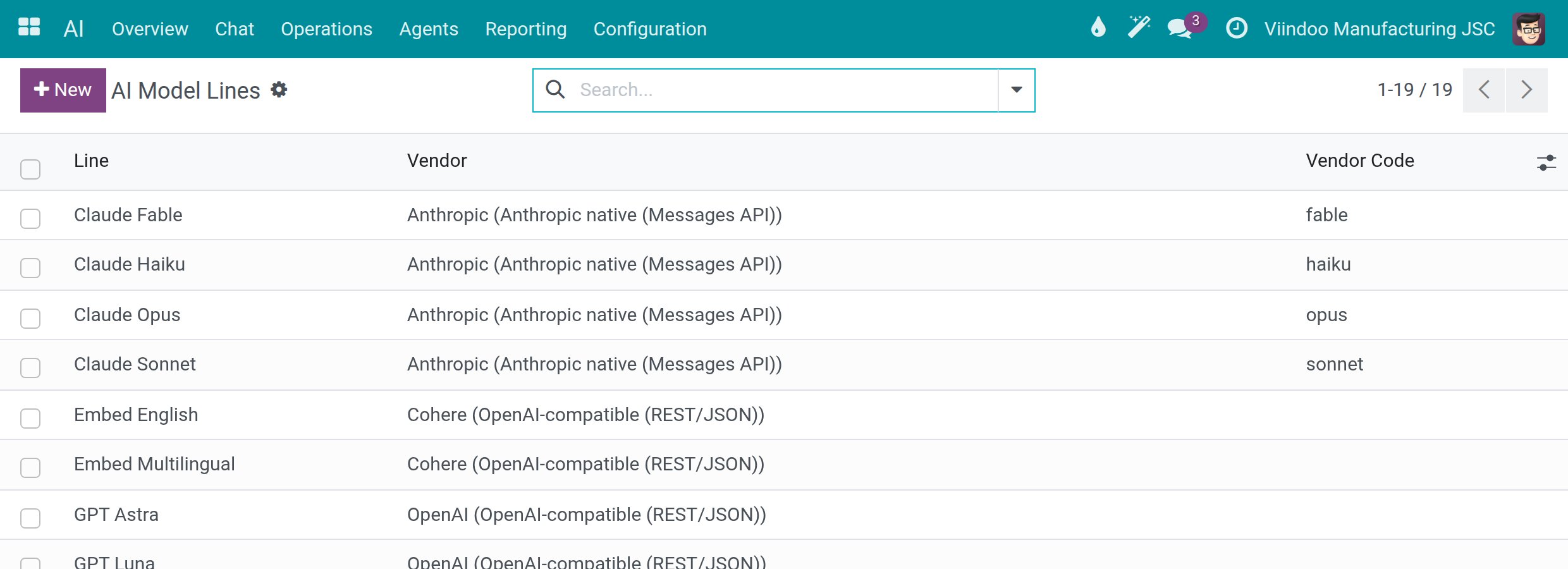
Go to . A line is the vendor’s own name for a family of models, such as Claude Sonnet. A choice made on a line answers with the newest model of that line, so settings and assistants that pick a line follow the vendor’s releases.
![The list of model lines with their vendor and vendor code]()
Leave it alone unless a vendor starts a new family that you want settings and assistants to follow.
Message Adapters
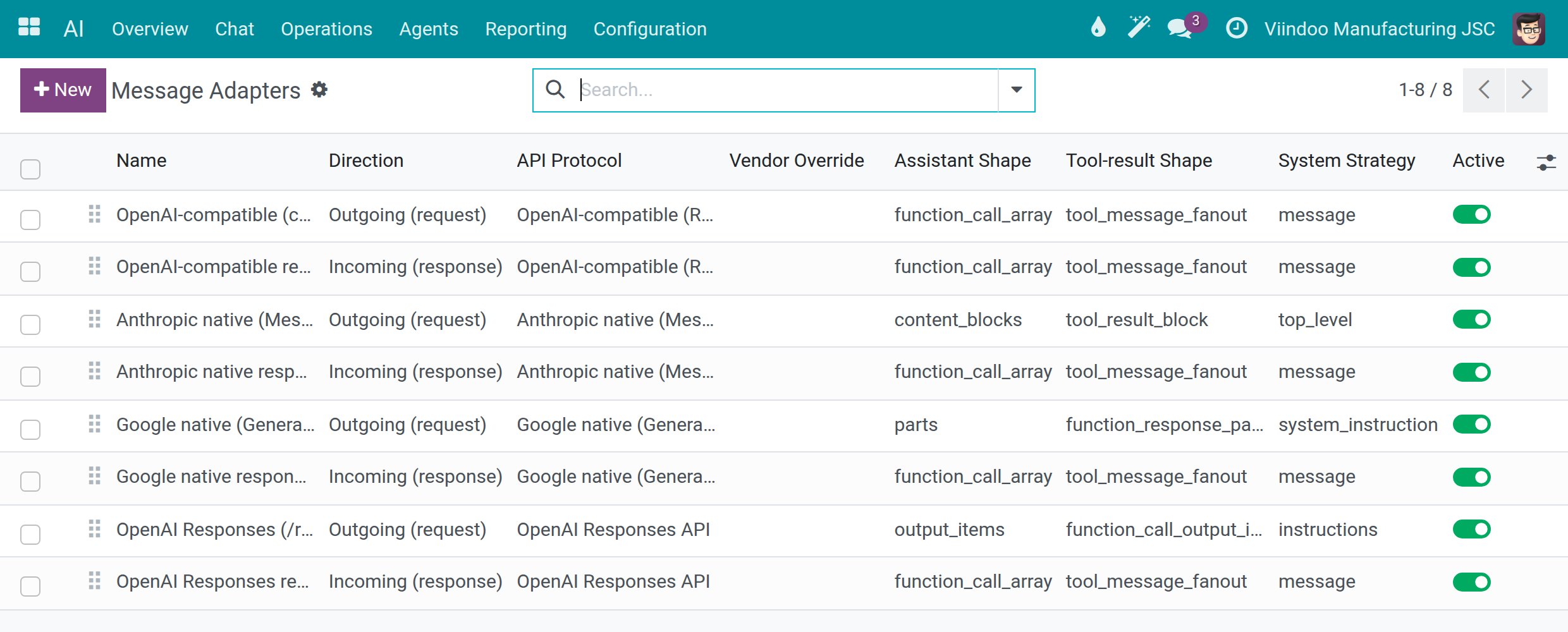
Go to . Each line describes how messages are shaped for one vendor protocol, Outgoing (request) or Incoming (response). A protocol has a default, and a vendor can override it in Vendor Override.
![The list of message adapters with their direction, API protocol and shapes]()
Keep them as they are. A change matters only for a vendor whose interface departs from its protocol, and a wrong value stops the answers from that vendor.
Screen Capabilities
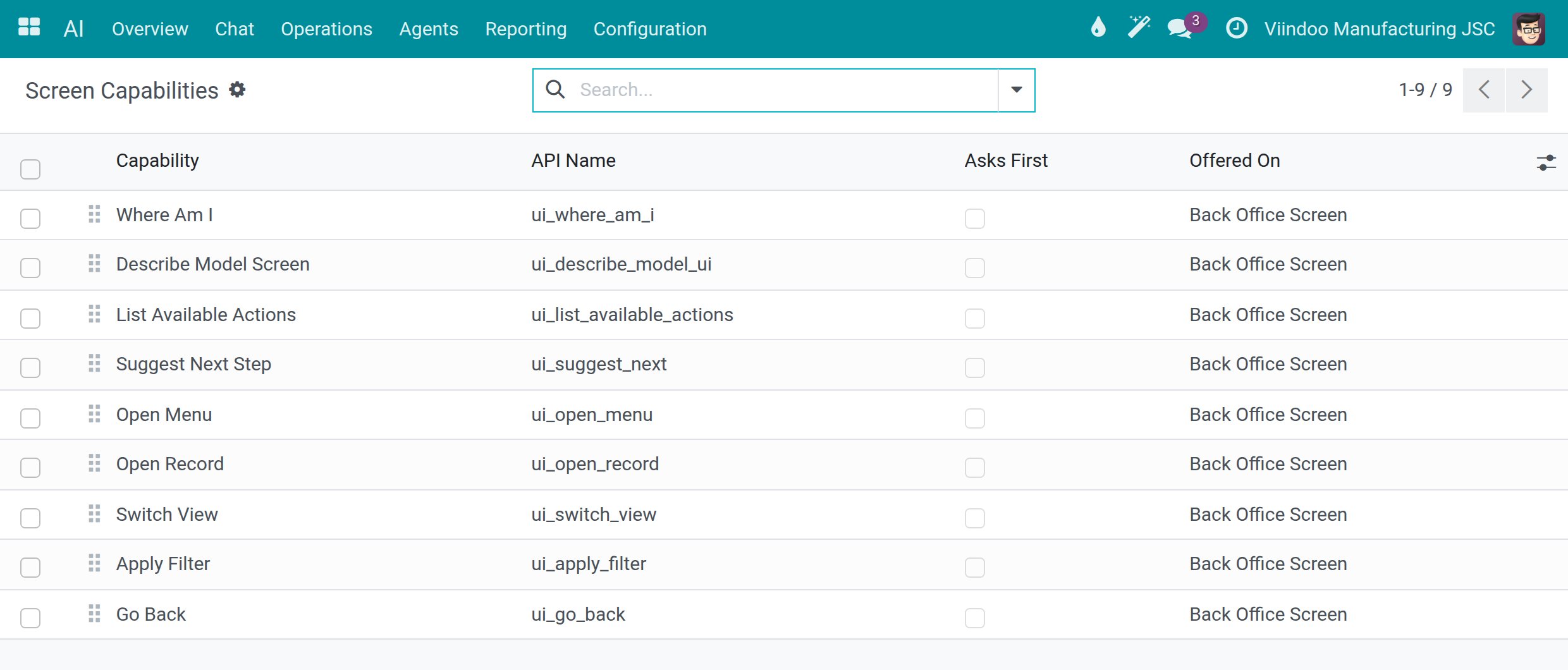
Go to . Each line is something the assistant can do on a screen (Where Am I, Open Menu, Apply Filter and so on), with its API Name, Asks First and Offered On.
![The list of screen capabilities with their API name, whether they ask first and where they are offered]()
Open a capability and tick Ask User Before Running when you want the chat to ask for a confirmation before the assistant uses it. The filters Asks Before Running and Runs Without Asking split the list. By default none of them asks first.
Speech Pronunciations
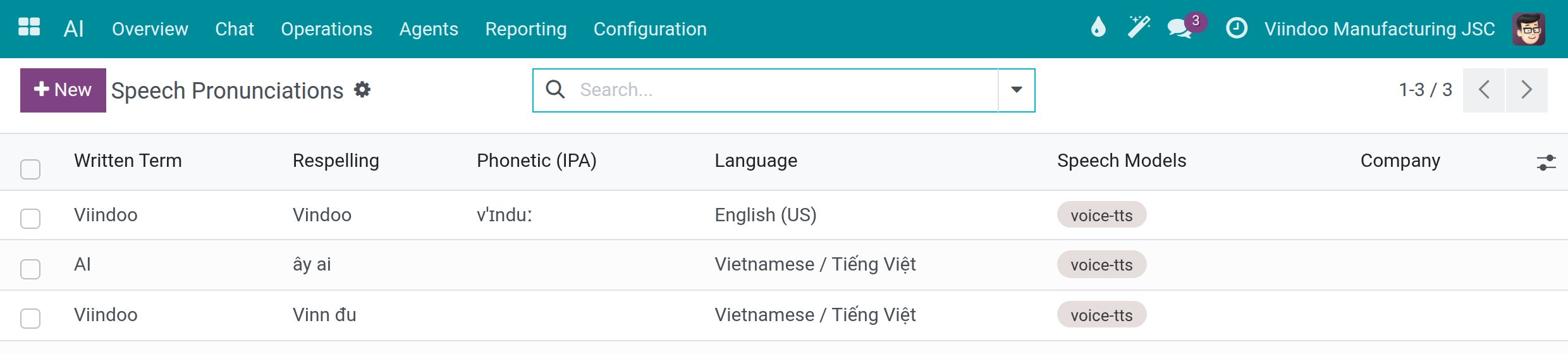
Go to . Each line teaches the voice how to say a term, with the Written Term, a Respelling, the Phonetic (IPA) form, the Language, the Speech Models and the Company.
![The list of speech pronunciations with the written term, respelling, language and speech model]()
Click New when the voice says a company or product name wrongly. Type the Written Term exactly as written (the match is case-sensitive and finds whole words only), the Respelling the way that language’s voice reads it aloud, and the Language. Leave Company empty to apply the entry in every company.
Success Checkpoint
You changed a list only for one of the reasons above, or you left it as it was.
After a change, the assistant still answers through your connection (ask it a question in Use the AI assistant).
Common Problems
Problem |
What to do |
|---|---|
The assistant stopped answering through a vendor after a change. |
Restore the previous value of the list you changed, then test the connection again (see Connect AI vendors and choose data location). |
A new model does not appear in a conversation. |
Check that the Model ID is the vendor’s exact identifier and that Active is ticked. |
You cannot edit Screen Capabilities. |
Only a system administrator can. |
Next Steps
Spend limits, usage and audit - set spend limits and read what AI costs.
Connect AI vendors and choose data location - connect a vendor before you tune its models.