
AI Document Parsing
Guide information
Required modules
An AI provider configured by your system administrator (see Admin Setup at the end of this guide).
Note for administrators
AI Document Parsing requires Developer Mode to configure the AI provider. Users do not need Developer Mode to use the feature day-to-day — only for initial setup.
AI Document Parsing lets you upload a PDF document (Booking Confirmation, Shipping Instruction, Bill of Lading, or Arrival Notice) and have the system extract and fill the relevant fields on the shipment or booking record automatically. Instead of reading a 3-page PDF and manually copying booking reference, vessel name, cutoff times and cargo details — the AI reads the document and proposes the values. You review and apply.
Why this matters: A typical Booking Confirmation has 15–25 fields the Booking Officer must manually enter into Viindoo. A B/L Amendment has 8–12 fields to update. Each manual entry takes 3–7 minutes and introduces transcription error risk. Incorrect B/L data costs USD 25–50 per amendment. AI Document Parsing reduces the entry time to 1–2 minutes per document and catches typos by showing the extracted value alongside the source field.
Scenario used throughout this guide: Nguyen Van C (Booking Officer, Hai Long Logistics) receives a PDF Booking Confirmation from COSCO for shipment SHP/202505/00042 (Booking Reference: BK-20250502-001, vessel COSCO SHIPPING UNIVERSE voyage 025E, route VNHPH → CNSHA, ETD 15/05/2025, CY Cutoff 12/05/2025, VGM Cutoff 11/05/2025).
See also
Carrier Booking workflow: Carrier Booking (Sea)
Document management (SI, HBL, MBL, D/O): Document Management (SI, B/L, D/O)
The 5 supported document templates
The system comes with 5 pre-configured document templates. Each template maps the document’s text fields to the corresponding record fields in Viindoo.
Template name |
Target record |
Key fields extracted |
|---|---|---|
Booking Confirmation |
|
Booking Reference, vessel (Feeder Name), voyage, ETD, ETA, CY Cutoff, SI Cutoff, VGM Cutoff, container type/qty. |
Shipping Instruction (FCL) |
|
Shipper, consignee, notify party, vessel, voyage, POL, POD, ETD, cargo description, container count. |
Shipping Instruction (LCL) |
|
Same as FCL SI, plus marks & numbers, packing. |
Bill of Lading (Ocean) |
|
MBL No., HBL No., shipper, consignee, vessel, voyage, POL, POD, cargo, weight, volume. |
Arrival Notice |
|
ETA, ATA, vessel, consignee, notify party, container number. |
Choosing the correct template is critical. If you upload a B/L but select the “Booking Confirmation” template, the AI reads the document correctly but maps the values to the wrong fields. The result: correct extraction, wrong record update.
Step 1: Open the AI Document Parsing wizard
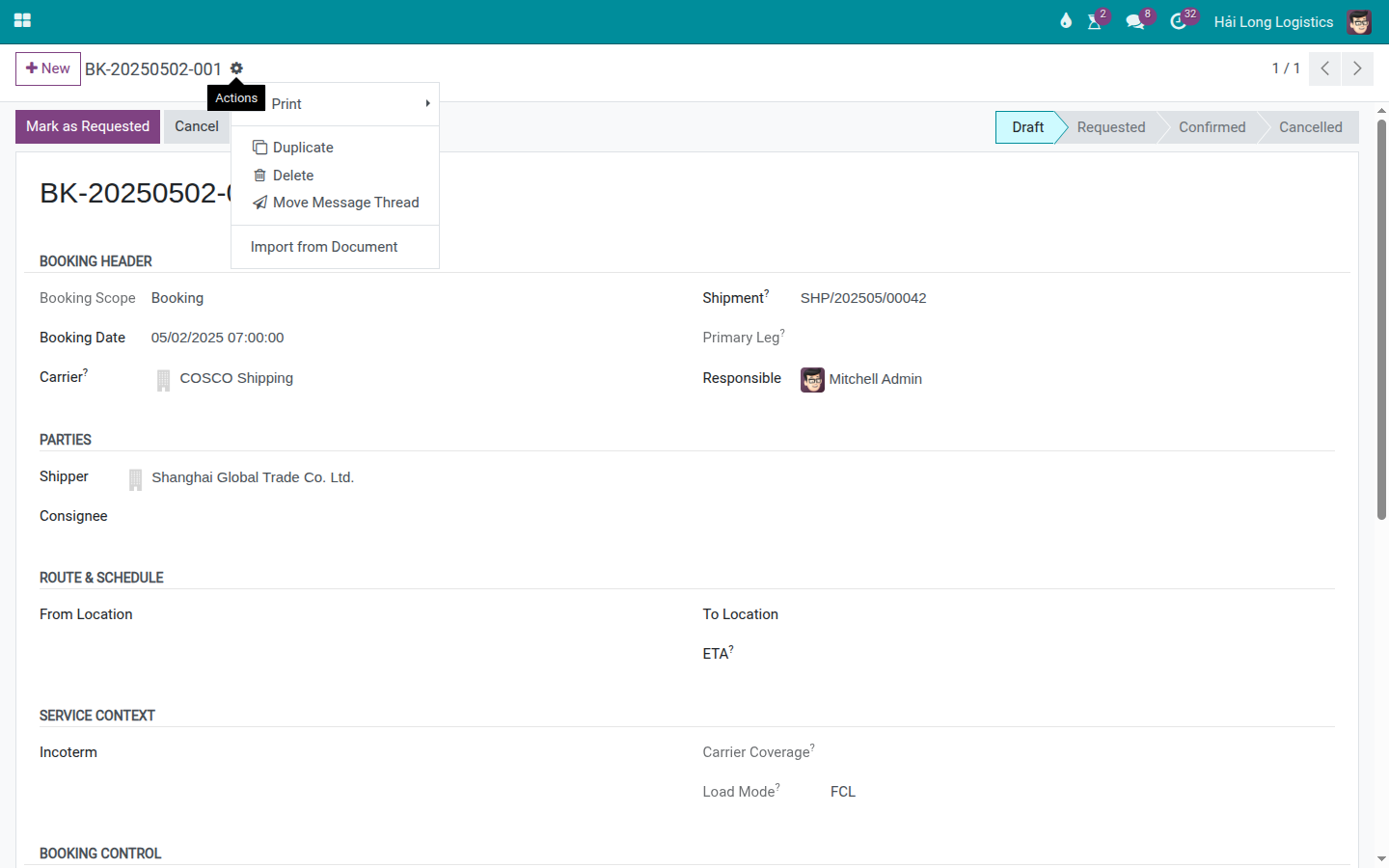
The AI Document Parsing wizard is accessed through the Action menu — not from a dedicated menu item. It is available on both Freight Booking forms and Logistics Shipment forms.
Open the target record in Viindoo. For this scenario: open booking BK-20250502-001 on shipment SHP/202505/00042.
Go to:
The Import from Document wizard opens.
Step 2: Upload the PDF and select the template
In the wizard:
Click Upload and select the COSCO Booking Confirmation PDF file.
In the Document Template field, select: Booking Confirmation.
If the PDF is a text-searchable PDF (created digitally), the system may auto-detect the correct template and pre-select it. Verify it is correct before proceeding.
If the PDF is a scanned image or photo, the system cannot auto-detect — select the template manually.
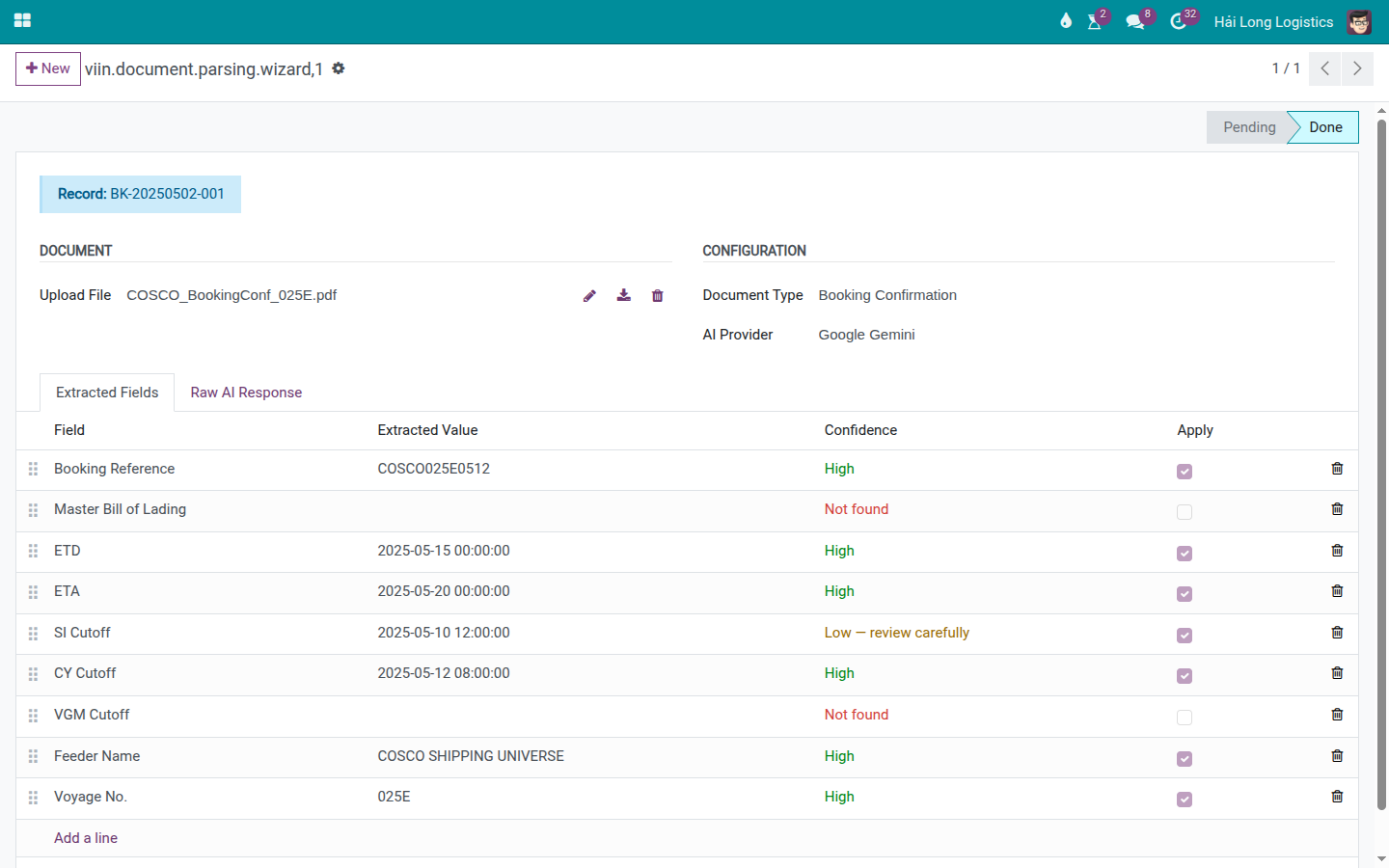
Click Analyze Document.
Warning
Each click of Analyze Document makes one API call to the AI provider — this has a cost.
For Google Gemini (the default provider), each analysis call consumes API credits. If you click Analyze Document, then change the template and click again, you are billed twice. Select the correct template before analyzing. If you uploaded the wrong file, close the wizard and reopen — do not click Analyze again on the wrong file.
After the analysis completes (typically 3–8 seconds):
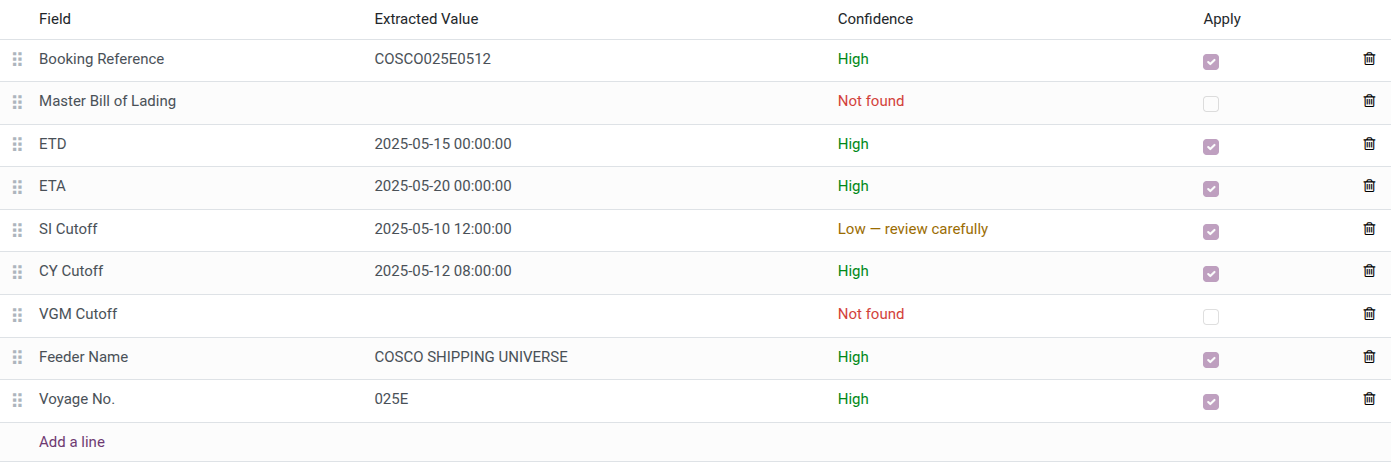
The Extracted Fields tab shows a list of fields with proposed values.
Each field shows a Confidence level: - High — AI found a clear, unambiguous value in the document. - Low — review carefully — AI found a value but it may be ambiguous or partially extracted. - Not found — the field was not found in the document.
Tip
Step 2 complete when:
The Extracted Fields tab shows values.
For a Booking Confirmation: Booking Reference and ETD must be at High confidence. If either is Not found, the document may not match the template, or the PDF is a scanned image that the AI could not read clearly.
At least 70% of the key fields are at High confidence before proceeding to Apply.
Step 3: Review extracted fields and correct Low confidence values
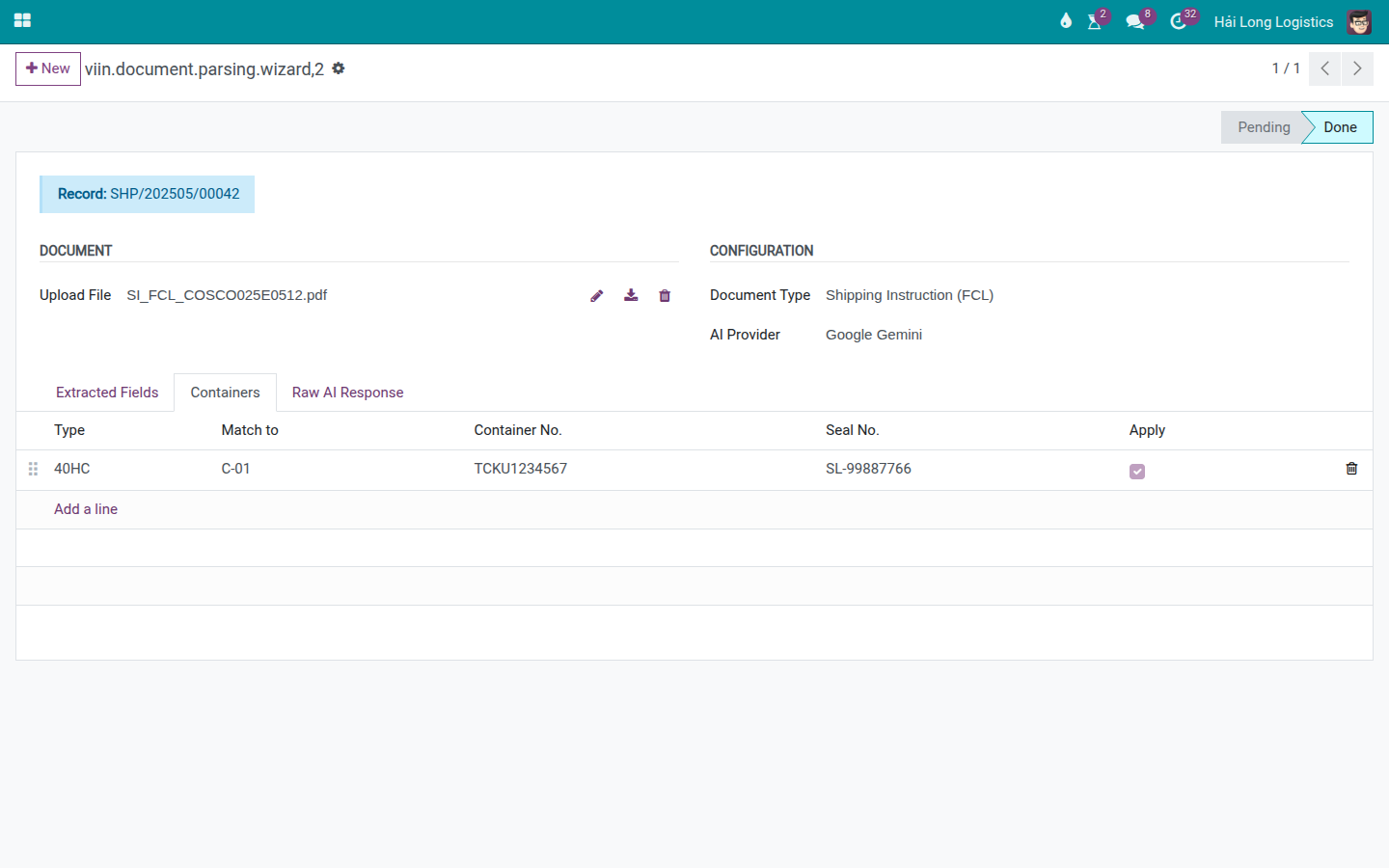
Before applying the extracted values to the record, review every field — especially those at Low or Not found confidence.
For each field in the Extracted Fields tab:
High confidence, value looks correct: leave it as-is.
High confidence, but value seems wrong (e.g., a date extracted from a different section): manually correct the value in the wizard before applying.
Low confidence: check the proposed value against the source PDF. Correct if wrong.
Not found: decide whether to fill it in manually in the wizard or leave it blank and fill in the record directly after applying.
For this scenario, verify:
Booking Reference: BK-20250502-001 — should match COSCO’s email header exactly.
Feeder Name (Vessel): COSCO SHIPPING UNIVERSE — verify spelling.
Voyage No.: 025E.
VGM Cutoff: 11/05/2025 09:00 — verify the time component (AI sometimes misreads time from a date-only field).
CY Cutoff: 12/05/2025.
Warning
Never click Apply without reviewing — especially for dates and reference numbers.
A B/L amendment caused by an incorrect field applied from AI costs USD 25–50 and takes 1–3 business days to resolve. The AI extraction is accurate 85–95% of the time on clean PDFs; it is not 100% reliable. Your review is the last line of defense before wrong data enters the record.
Step 4: Apply the extracted values to the record
After reviewing all fields, click Apply to write the extracted values to the target record.
After applying:
The wizard closes.
The values are written to the booking or shipment record.
A yellow notification toast appears in the top-right corner of the screen confirming the import was applied.
Open the booking BK-20250502-001 and verify:
Booking Reference: BK-20250502-001 (from COSCO — this is the number needed for the SI).
Feeder Name: COSCO SHIPPING UNIVERSE.
Voyage No.: 025E.
VGM Cutoff, SI Cutoff, CY Cutoff: all three cutoff dates are now populated.
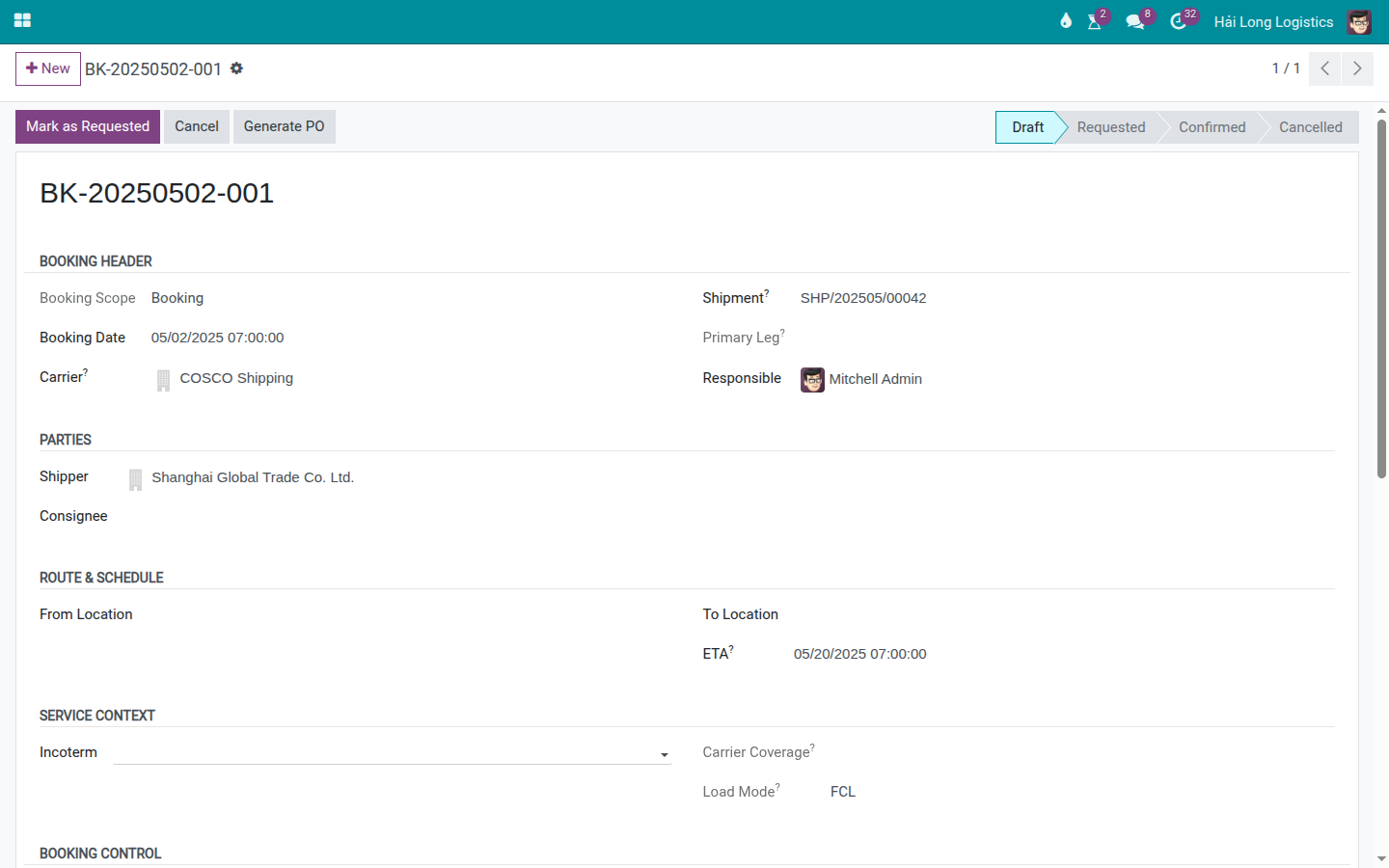
Tip
Step 4 complete when:
All key fields on the booking match the COSCO Booking Confirmation PDF exactly.
All three cutoffs (CY, SI, VGM) are recorded — verify the dates are for this sailing, not a previous one.
Operations has been notified of the confirmed cutoff dates.
Important
The uploaded PDF is NOT automatically saved to the record’s Attachments.
After clicking Apply, the wizard closes and the file is discarded. If you need to keep the original PDF for the audit trail:
Use the Chatter’s attachment function to attach the PDF to the shipment or booking.
Or save it to your shared drive and reference the location in a Chatter note.
This is a current system limitation. Until resolved in a future version, attaching the source document is a manual step.
Admin setup: Configuring the AI provider
AI Document Parsing requires an AI provider (LLM with vision capability) to be configured in Viindoo. This is a one-time setup by the system administrator.
To access the settings: enable Developer Mode first, then go to:
The default provider is Google Gemini (is_default = True). Click Test Connection
to verify the API key is valid — a green success notification should appear.
Supported providers and their capabilities:
Provider |
Vision (PDF/image) |
Notes |
|---|---|---|
Google Gemini |
Yes |
Default provider. Recommended for scanned PDFs and photos. |
OpenAI (GPT-4o) |
Yes |
Strong accuracy on complex layouts. |
Groq |
No (text-only) |
Fast, low cost, but cannot read PDF scans or image files — only text-searchable PDFs. |
OpenRouter |
No (depends on model) |
Use only with vision-capable models. |
Ollama (local) |
No (text-only) |
On-premises option; no API cost, but limited vision support. |
For scanned documents or photos of B/Ls, use Google Gemini or OpenAI only.
Troubleshooting
Template was wrong — wrong fields were populated
Symptom: After applying, the wrong fields were filled (e.g., a B/L was parsed as a Booking Confirmation and some fields are now incorrect on the booking).
Resolution:
Manually correct each affected field on the record.
Post a Chatter note: “Fields corrected after wrong template selected in AI parsing wizard. Original values: [list old values].”
For future uploads of this document type: select the template manually — do not rely on auto-detection for scanned PDFs.
AI connection error during Analyze Document
Symptom: Clicking Analyze Document returns a network error or “AI provider not responding.”
Resolution:
Check your internet connection.
Ask the administrator to go to and click Test Connection to verify the API key is still valid.
If the API key has expired or hit a quota limit, the administrator must update the key or increase the quota in the provider’s dashboard.
Retry after the provider issue is resolved.
Field is blank after Apply — not found in the document
Symptom: Some expected fields (e.g., VGM Cutoff) are blank after applying.
Cause: The AI could not find the value in the document (confidence = Not found), and blank values are applied (not overwritten with the existing record value).
Resolution: Fill in the missing fields manually on the record after applying. Check the original PDF for the value. If the same field is consistently Not found across multiple documents of the same type, the template may need customization — contact your administrator.
See also
Carrier Booking (Sea) — Carrier Booking where the extracted values are applied
Document Management (SI, B/L, D/O) — Managing SI, HBL, MBL and D/O manually