
Log In to Portal with Zalo
Guide Info
When to Use This Feature
Customers often forget their portal passwords — especially if they log in only a few times per month to check orders or invoices. Each forgotten password means customers wait for a reset email, and your support team handles one unnecessary ticket.
Example used throughout this guide: Chị Phạm Thị Mai — a buyer who logs into the portal two or three times a month to check invoices — clicks Login with Zalo, confirms on her Zalo app, and is inside the portal in under 30 seconds. She no longer needs to remember a portal password or wait for a reset email — saving the support team one password-reset ticket per such login.
The Login with Zalo feature solves this: customers click a button, confirm on their Zalo app (already installed on their phone), and enter the portal directly. No need to remember a password. No need to create a new account.
This feature is a good fit when:
Your company already uses Zalo OA for customer support (customers have messaged you via Zalo OA).
Your team wants to reduce “forgot portal password” tickets.
Customers mainly use phones to check orders, invoices, and shipment tracking.
Prerequisites
All three conditions must be met — missing one means the button won’t appear:
Module ``viin_zalo`` is installed and OA is in Connected status — see Configure Zalo OA.
OA has both App ID and App Secret (verify in the OA record).
Module ``viin_zalo_auth_oauth`` is installed.
Configure Zalo Login for Portal
(Portal Admin)
Once the three prerequisites are ready, setup takes just one step:
Note
If your company operates multiple OAs (e.g., separate sales and support OAs), you can only select one OA for portal login. Choose the OA your customers message most frequently — the system uses message history to auto-identify customers on their first login.
Go to and find the OA Account field in the Zalo settings section.
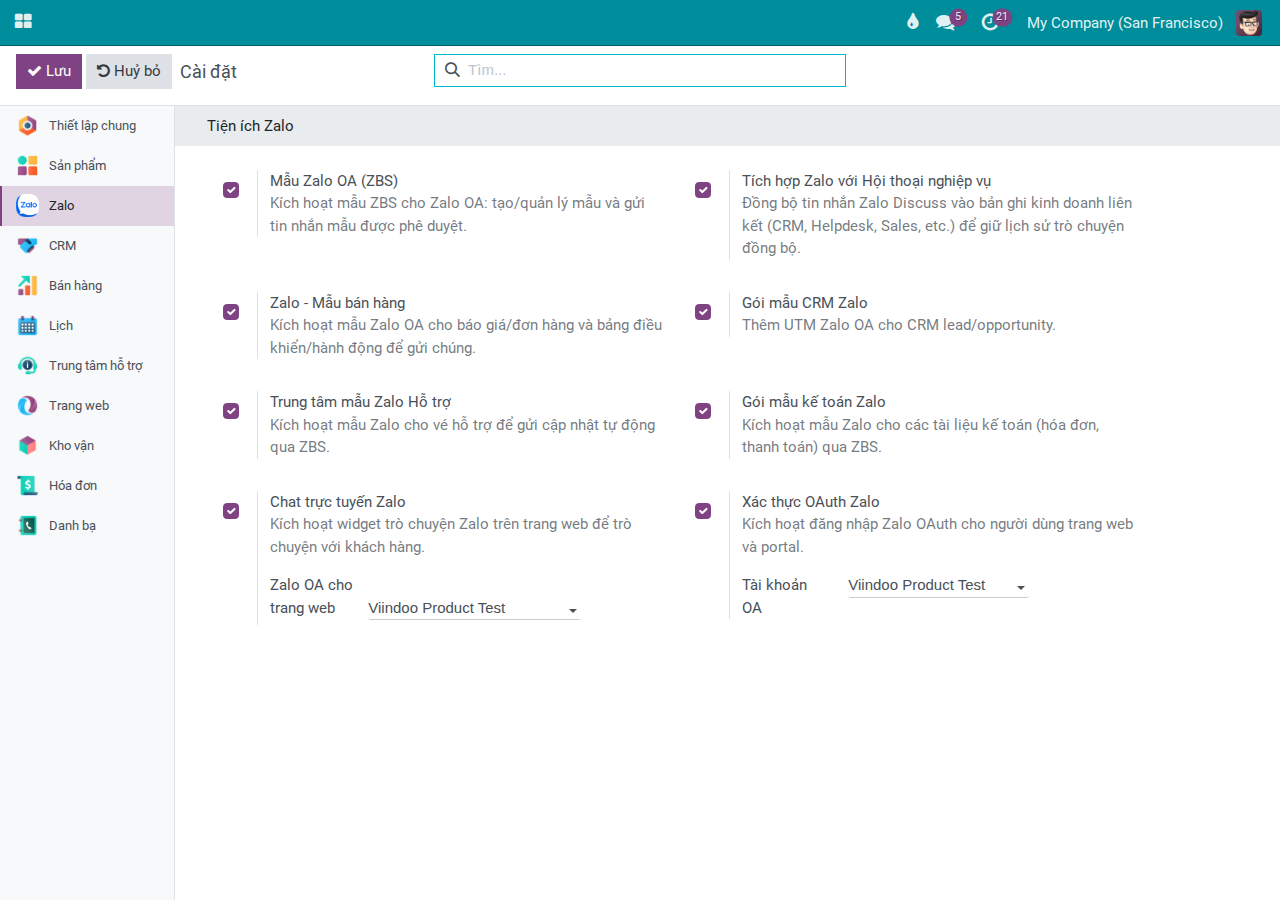
Select the correct OA connected to your current company, then click Save.
After saving, the system automatically creates the internal authentication connection for the company — no additional setup needed.
Checkpoint — Verify Zalo Button on Portal
Tip
Signs of successful configuration:
“Login with Zalo” button appears on the portal login page, next to email/password fields.
Clicking the button → browser redirects to Zalo authentication (no errors, no redirect loops back to portal).
After customer agrees on Zalo → portal auto-logs them in without asking for password.
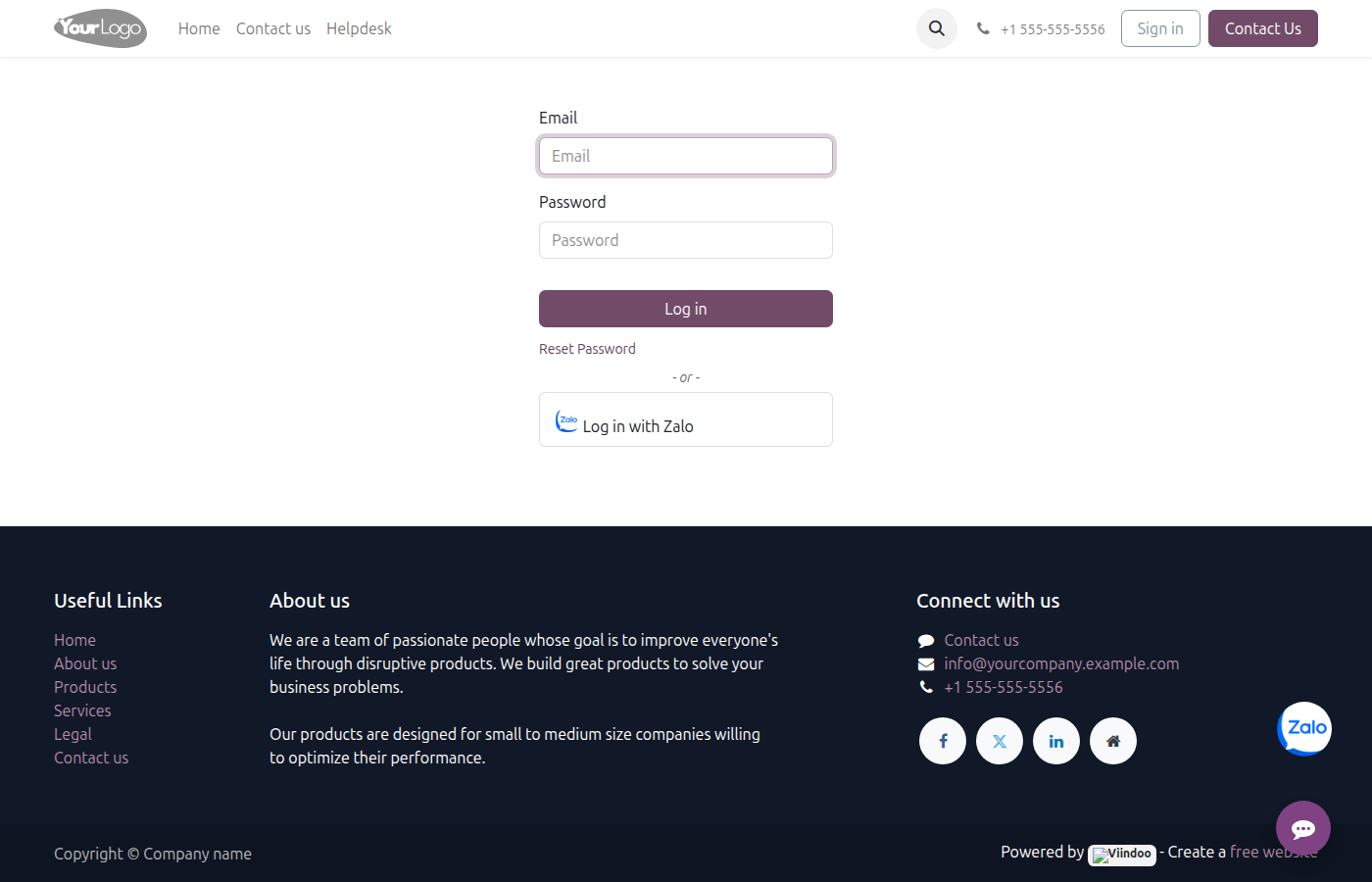
Quick check: open a private browser window, visit your company’s portal address, and verify the Zalo button appears.
If the button doesn’t show, see the section “Login with Zalo” Button Not Appearing below.
Customer First-Time Login Flow
(Customer)
Customer opens the portal login page on a phone or computer browser.
Customer sees the “Login with Zalo” button with the Zalo icon and clicks it.
Browser redirects to Zalo’s authentication page. If the customer is already logged into Zalo in the browser, Zalo asks to confirm access to profile information. If not, they must enter their Zalo phone number first.
Customer clicks “Agree” on Zalo’s confirmation screen.
Zalo redirects the customer back to the portal. Portal auto-identifies them and logs them into the correct account.
Customer enters the portal — sees orders, invoices, and related information immediately without entering a password.
Note
The confirmation screen in steps 3-4 is shown by Zalo (not Viindoo). It displays the app name, a list of profile information the app requests (display name, avatar), and Agree / Decline buttons. If the customer is not logged into Zalo in the browser, Zalo first asks for their phone number and verification code before showing the confirmation screen.
The entire flow from step 2 to step 6 typically takes under 30 seconds if the customer is already logged into Zalo.
Note
If the customer logs in but sees no old orders or invoices, see the section Customer Logs In but Doesn’t See Old Data below.
Common Issues and Solutions
Authentication Error When Redirecting Back from Zalo to Portal
Symptom: Customer clicks “Agree” on Zalo but gets an error page instead of entering the portal. Browser may display “invalid state”, “redirect mismatch”, or a blank error.
Common causes:
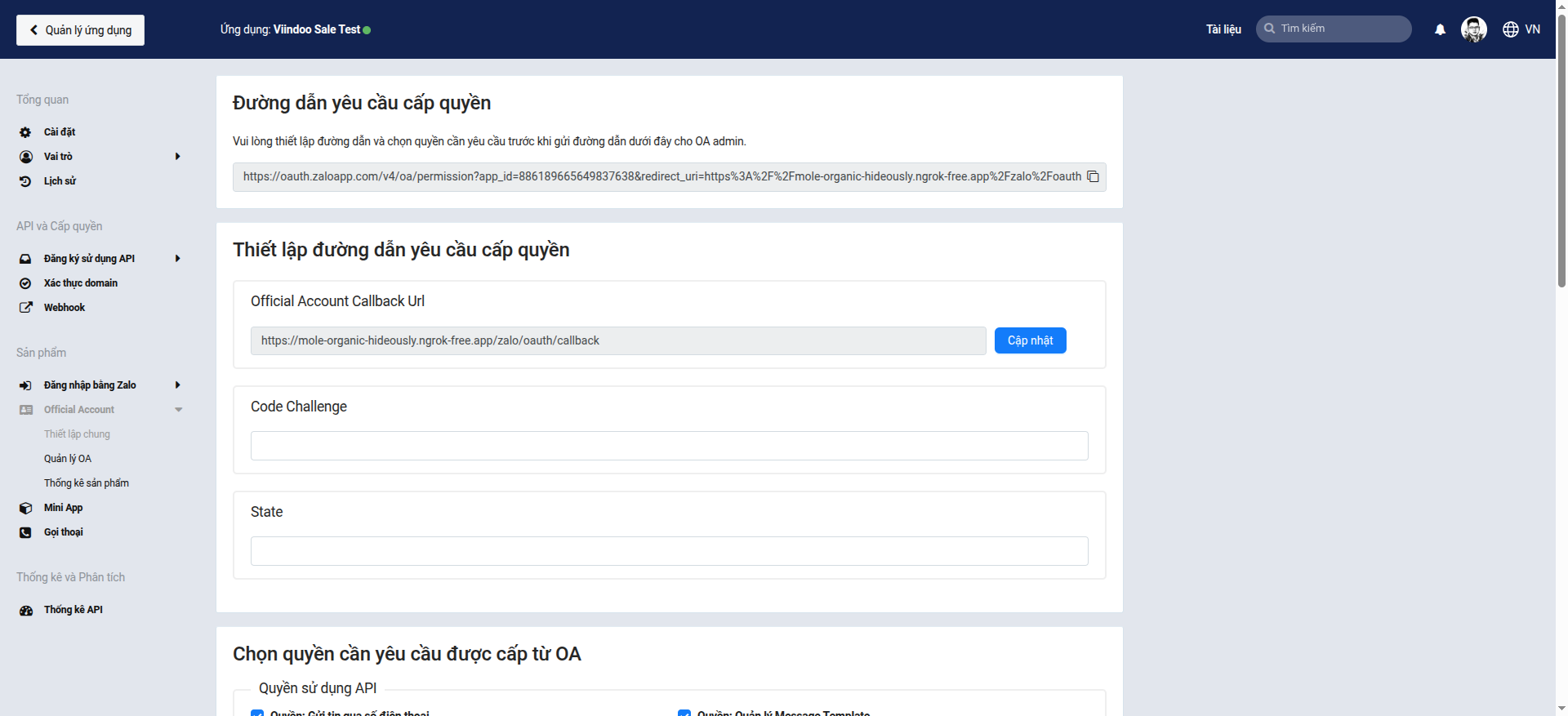
The redirect URL configured in Viindoo doesn’t match the URL registered in Zalo OA Console.
The OA’s App Secret was changed in Zalo but not updated in Viindoo.
Solution:
Go to and open the OA record used for portal login.
Find the OAuth Callback URL field and copy the entire URL.
Log in to Zalo OA Console → open the corresponding app → Redirect URI section → confirm the copied URL is in the list. If not, add it and save.
If the App Secret was changed: update the App Secret field in the OA record → click Save → re-authenticate the connection.
Warning
The redirect URL must match character-for-character — including http:// or https://, and whether or not it has a trailing /. A single character difference causes Zalo to reject the entire authentication flow.
Customer Logs In but Doesn’t See Old Data
Symptom: Customer successfully logs in via Zalo but lands in an empty account — no orders, invoices, or existing information.
Common cause: The customer’s Zalo account hasn’t been linked to their existing customer record in Viindoo — the system creates a new record instead of matching the old one.
Solution (Portal Admin):
Follow the guide at Manage Zalo Partner Links.
After linking, have the customer log out and log back in via Zalo — this time the system will recognize them correctly and open the existing account.
For new customers who haven’t messaged via Zalo OA yet, Admin should link them immediately after their first login — rather than waiting for them to report the issue.