
Create Quotations Directly from Zalo Chat
Guide Info
When to Use This Guide
Use this guide when a customer is discussing within a Zalo conversation and sales staff need to create a quotation immediately, without navigating through multiple screens.
Example used throughout this guide: Minh Châu — a repeat buyer — sends a Zalo message asking for a quote on 50 units of a packaging product. Sales staff Hùng opens the Cart panel directly from the conversation, adds the product, and sends ZBS order confirmation S00025 back without leaving the chat. Creating the order from inside the conversation eliminates the copy-paste round-trip (customer name, phone, product code, quantity) that typically adds 5–10 minutes of error-prone manual work per quote.
Prerequisites
The OA is in Connected status.
The customer conversation appears in the menu.
User has Sales permissions.
The customer in the conversation has been correctly identified (see Manage Zalo Partner Links if verification is needed).
How to Create and Send
Go to and open the correct customer conversation.
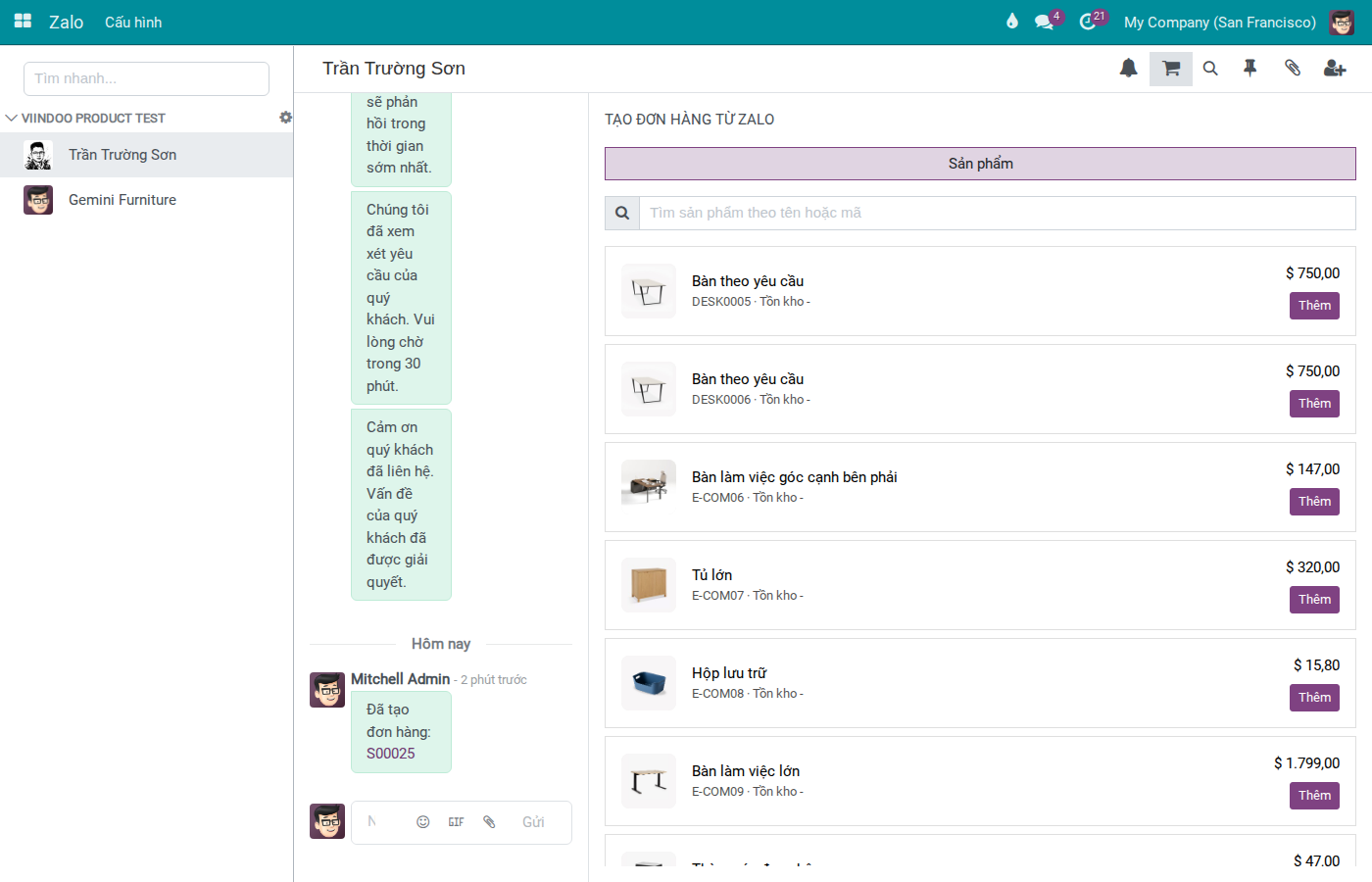
Click the Cart icon on the conversation toolbar to open the Create Order from Zalo panel.
In the Products tab, search for a product by name or code and click Add.
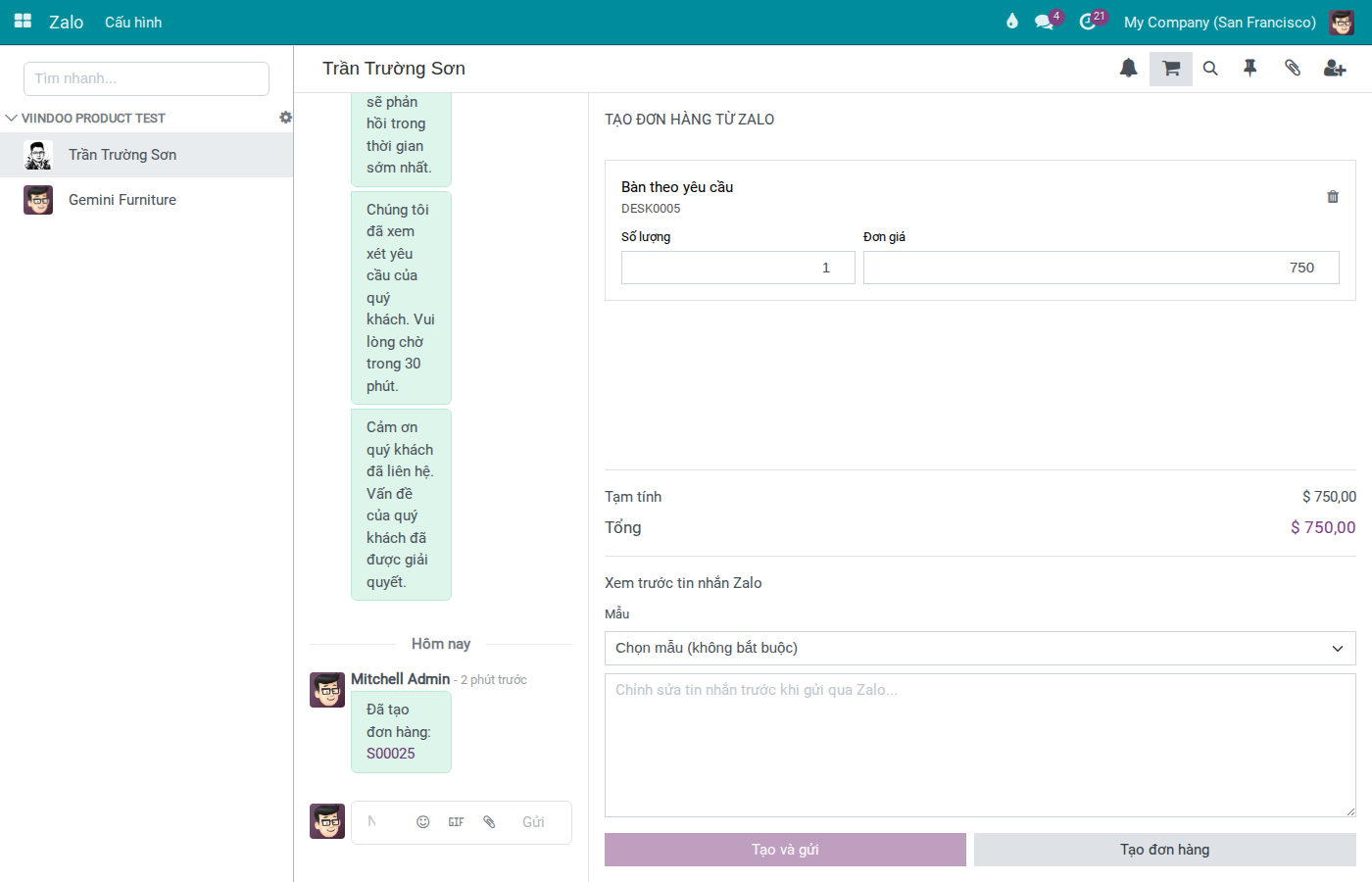
Switch to the Order tab and verify quantity, unit price, subtotal, and total.
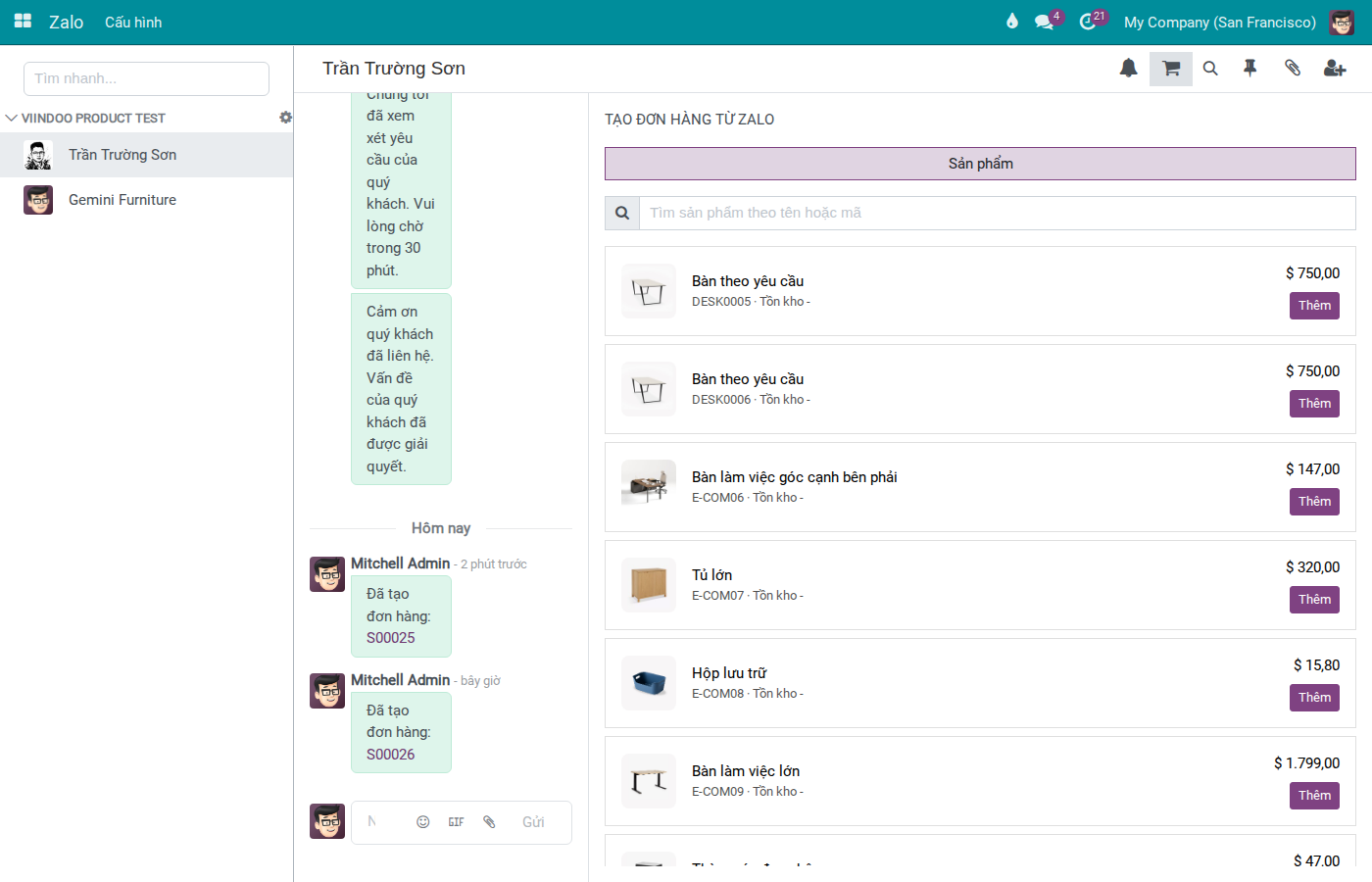
Click Create Order to create a quotation (in draft status).
To send immediately to the customer: select a ZBS template in the Zalo Message Preview section, then click Create and Send.
Success Checkpoint
Tip
Task completed correctly when:
Quotation created successfully and linked to the correct customer from the conversation.
Conversation shows a log of the create/send action.
ZBS message content sent matches the quotation’s business context.
Common Issues and Solutions
Cart icon not visible: - Common cause: missing module/permission or wrong conversation type opened (panel only appears on Zalo conversations). - Solution: verify Sales permissions and reopen the conversation from the Zalo menu.
Order creation fails: - Common cause: invalid product data or customer information. - Solution: review product lines, quantity, unit price, and customer record.
ZBS send fails: - Common cause: template not approved, recipient lacks valid send routing. - Solution: verify template at Create and Manage ZBS Message Templates (Admin/IT) and recipient routing.
Quotation created for wrong customer: - Common cause: conversation has incorrect partner link. - Solution: stop sending; verify the link at Manage Zalo Partner Links.
See also
Send ZBS Message Templates from Sales Orders — Send ZBS message templates from created sales orders
Reply to Zalo OA Messages — Reply to Advisory Messages and switch to ZBS after the 7-day window closes