
Submit and approve page changes
Guide Overview
Before You Start
You need |
Why |
|---|---|
Role Space admin in the Space |
To choose how the Space handles changes. |
Role Editor in the Space |
To write a change or a new page that waits as a draft. |
Page owner, Space admin of the Space or wiki admin (Brain / Brain Admin) |
To approve a draft or send it back. |
Note
Approval is a rule of one Space. Pages of the other Spaces keep publishing as soon as they are edited.
Choose How a Space Handles Changes
Open the Space and click the gear button in the Space header. The Space settings dialog opens.
In the Review section, open Changes needing review and choose one of the three rules:
Rule
What happens
No review
Nothing waits. Every edit is published at once.
AI changes
A page an assistant changed stays published, and its owner is asked to verify it (see Own and verify a page). The default.
All changes
The text a writer edits, and every new page, waits as a draft until the page owner or a Space admin approves it. Renames, moves, Trash and properties never wait.
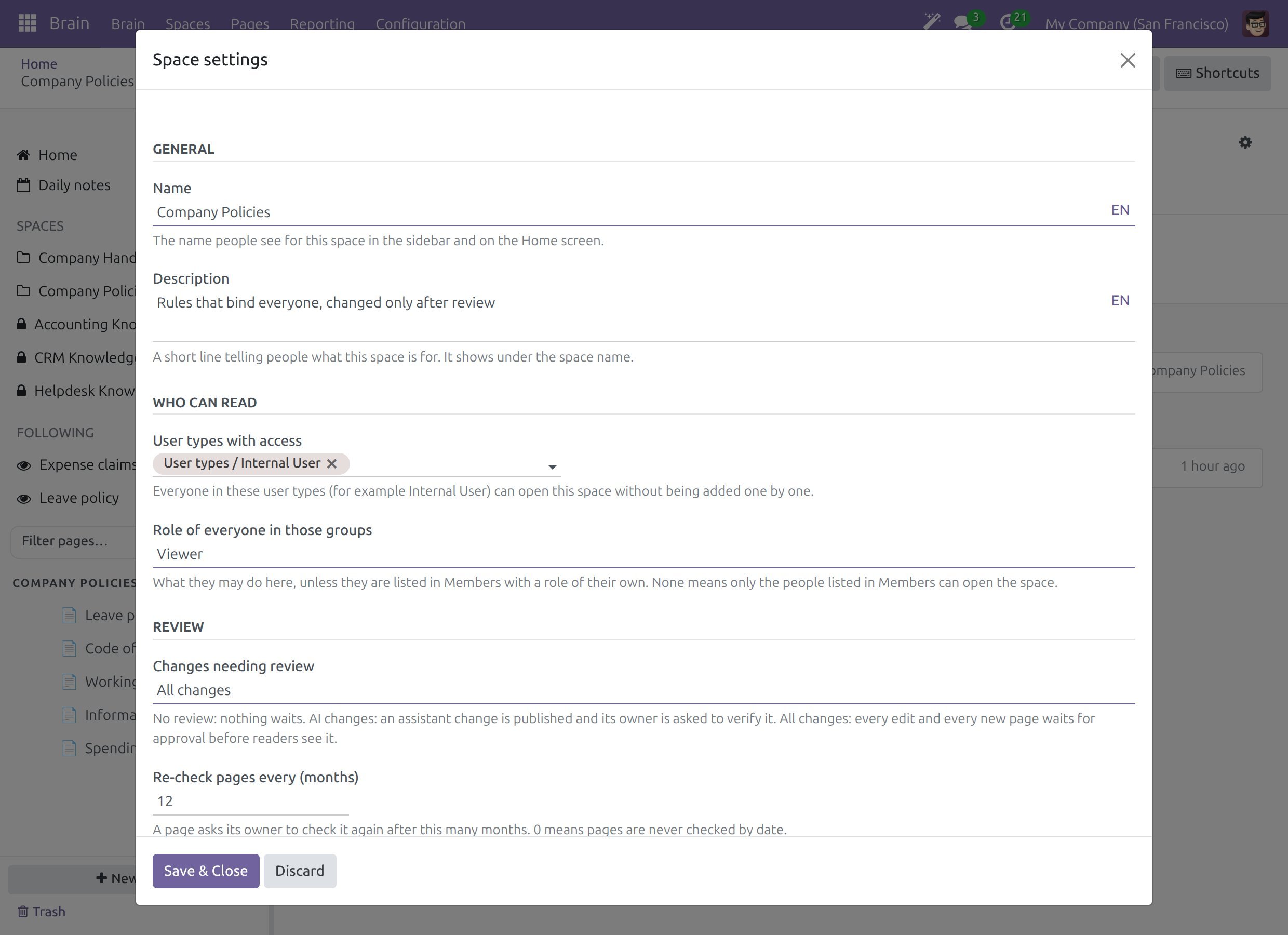
Click Save & Close. The rule applies at once.
Who Is Held and Who Publishes at Once
In a Space set to All changes:
Who edits |
What happens |
|---|---|
A writer who is not the page owner, a Space admin or a wiki admin |
The change is a draft. Readers keep seeing the published text. |
The page owner, a Space admin or a wiki admin |
The change is published at once. |
Anyone who creates a page, except a Space admin or a wiki admin |
The new page is a draft. Readers do not see it until it is approved. |
Submit a Change for Approval
Edit the page as usual. A banner says Your draft and reminds you that readers still see the published page.
For a new page, the banner says This page is a draft: readers do not see the page until it is approved.
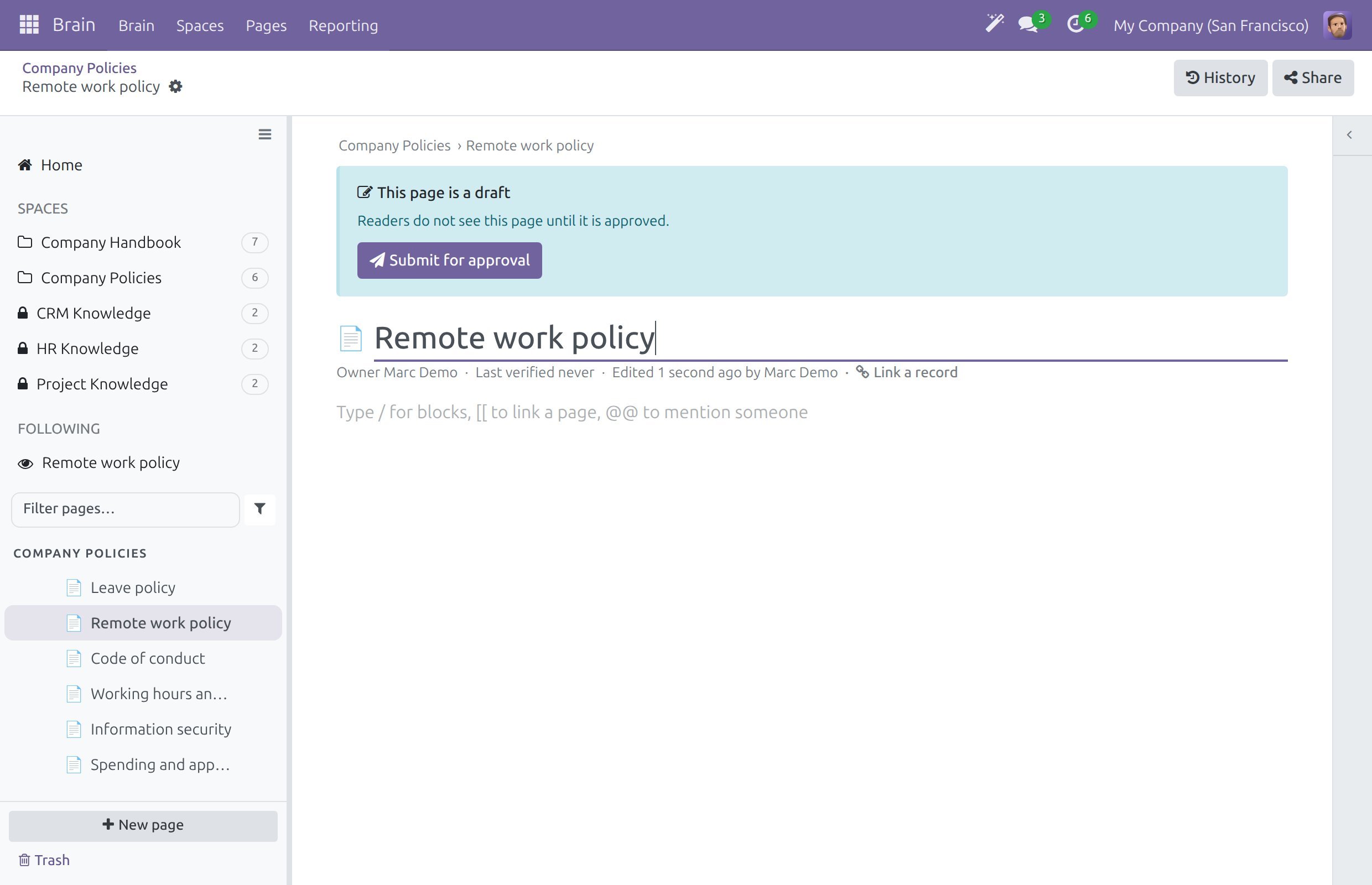
Click Submit for approval. A message confirms that your changes were sent, and the banner names who has to approve, for example “Your changes wait for the approval of Mitchell Admin.”
Wait for the answer. You keep working in your draft: your own text stays in front of you while readers see the published page.
Who is asked to approve: the page owner. When you are the owner of the page, or the owner no longer works in the company, the Space admins are asked instead, and the wiki admins when the Space has none.
Note
Nobody approves the first publication of their own page. A new page you wrote needs another person: the Space admins, or a wiki admin.
Approve a Draft
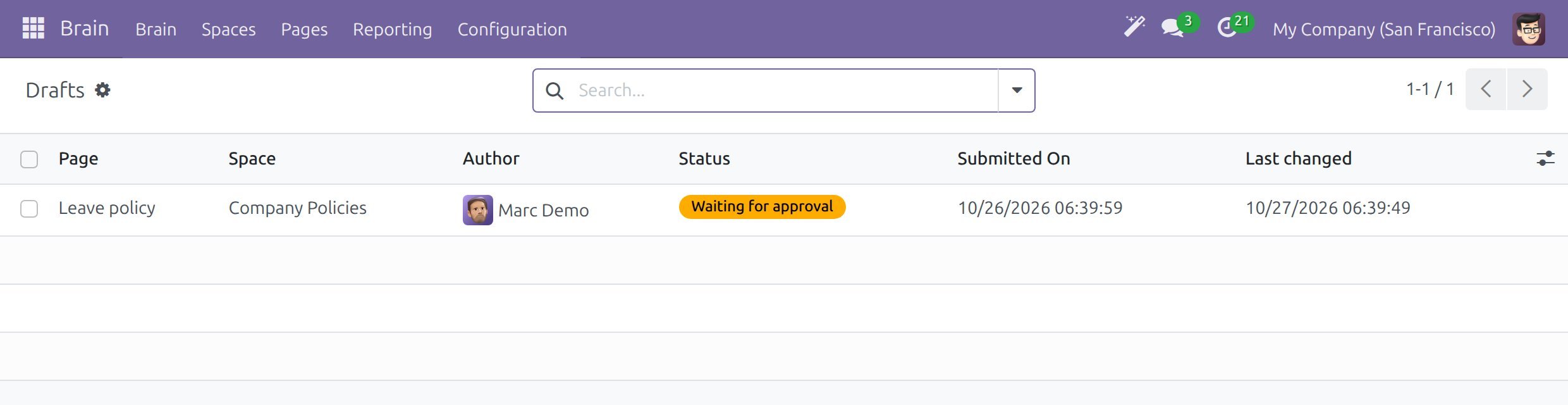
An approver sees the draft in three places: a to-do in the activities, Approvals in the Waiting for you strip of Home, and the list . The author finds a draft under My drafts on Home and in the Space.
Open the page. A banner says “<author> proposes changes to this page.” (for a new page, “<author> asks to publish this new page.”).
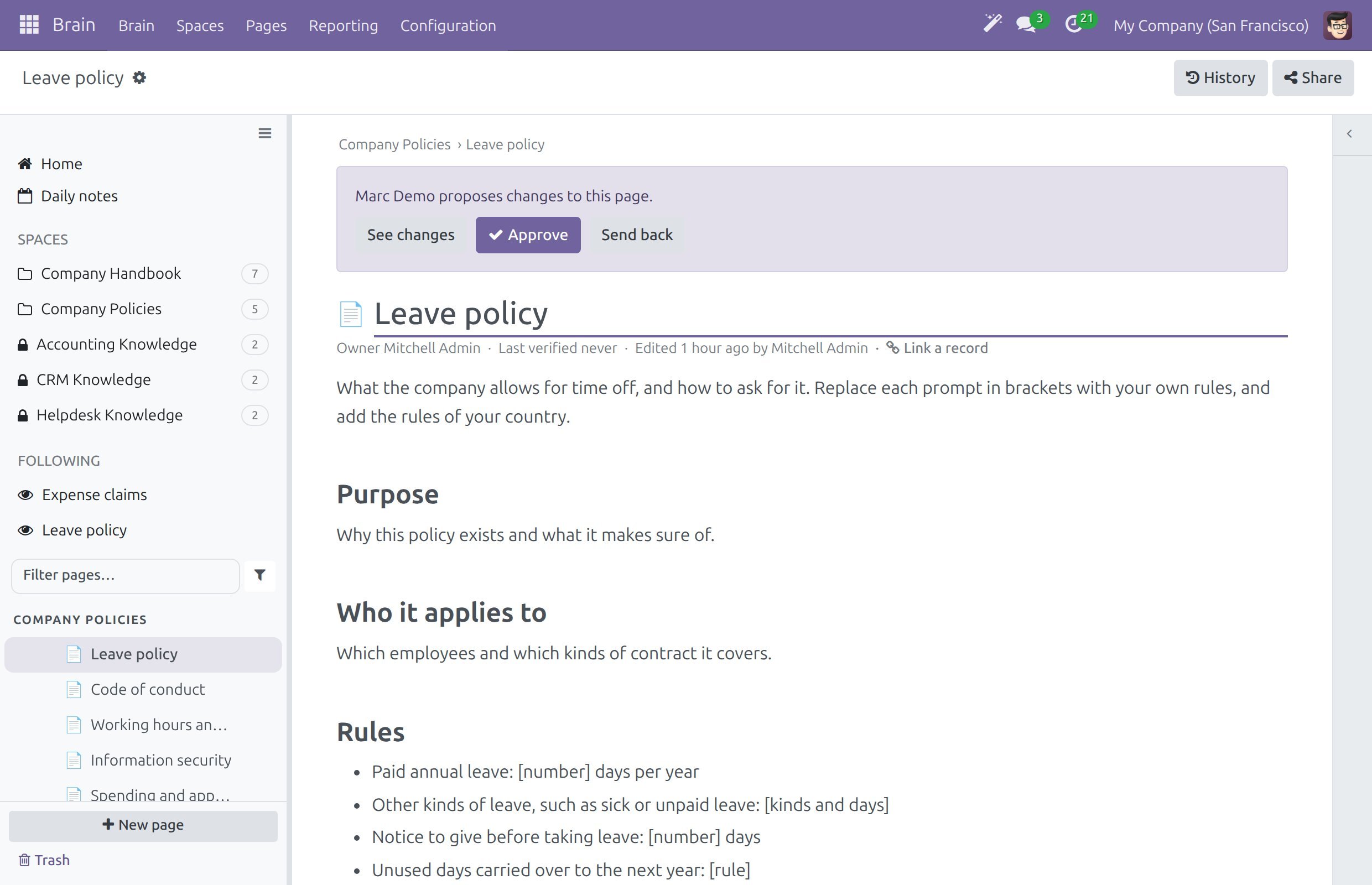
Click See changes, or open and click the draft.
In the draft form, read the three tabs:
Draft shows the text the author proposes.
Changes shows where the two texts differ.
Published shows the text readers see.
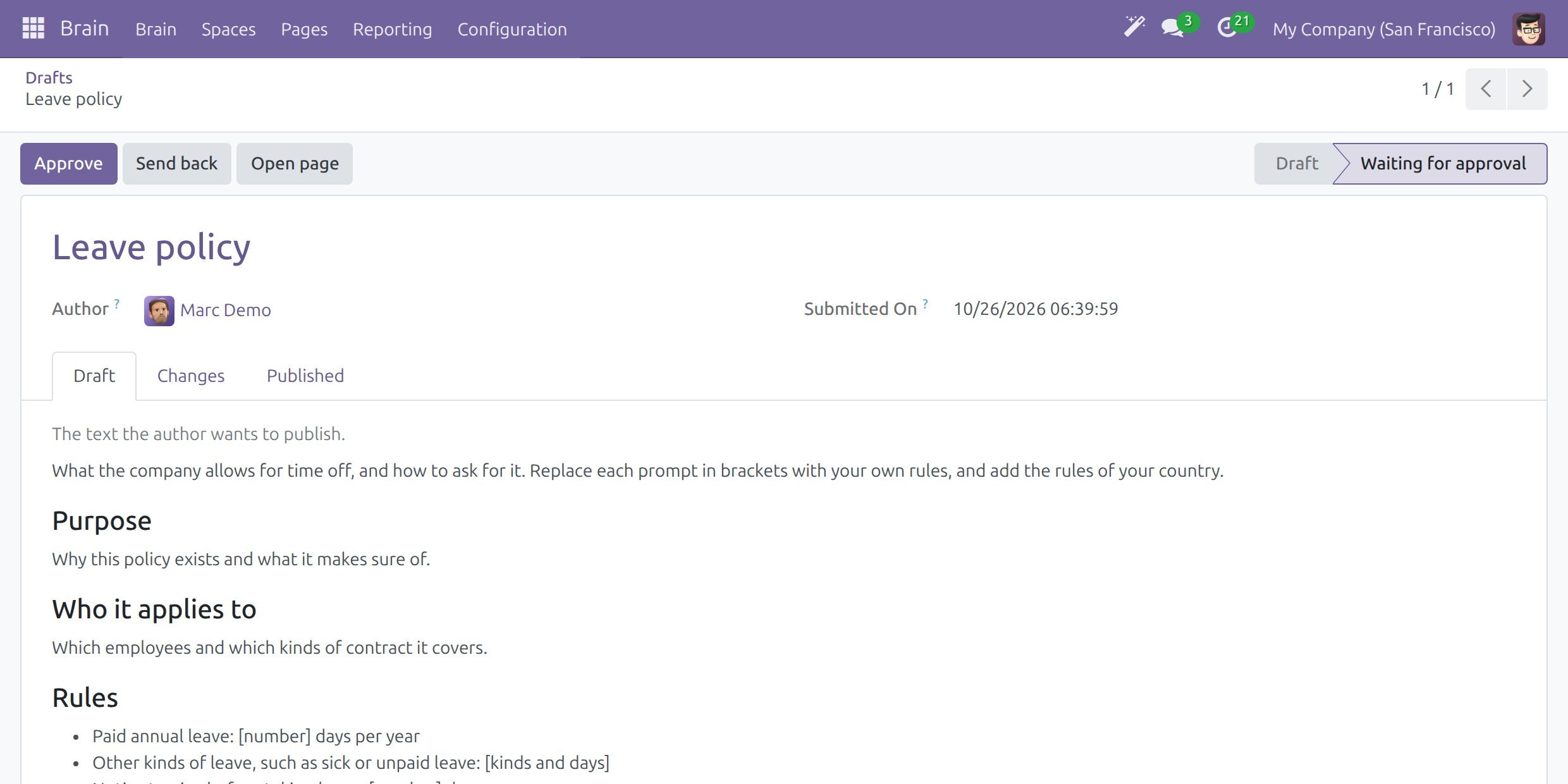
Click Approve to publish the text. The page is published and marked as verified by you (“The page is published and verified.”), and the to-do is closed.
Open page takes you back to the page itself.
Send a Draft Back
In the banner or in the draft form, click Send back.
Write why in Reason, for example what the author should change. A reason is required.
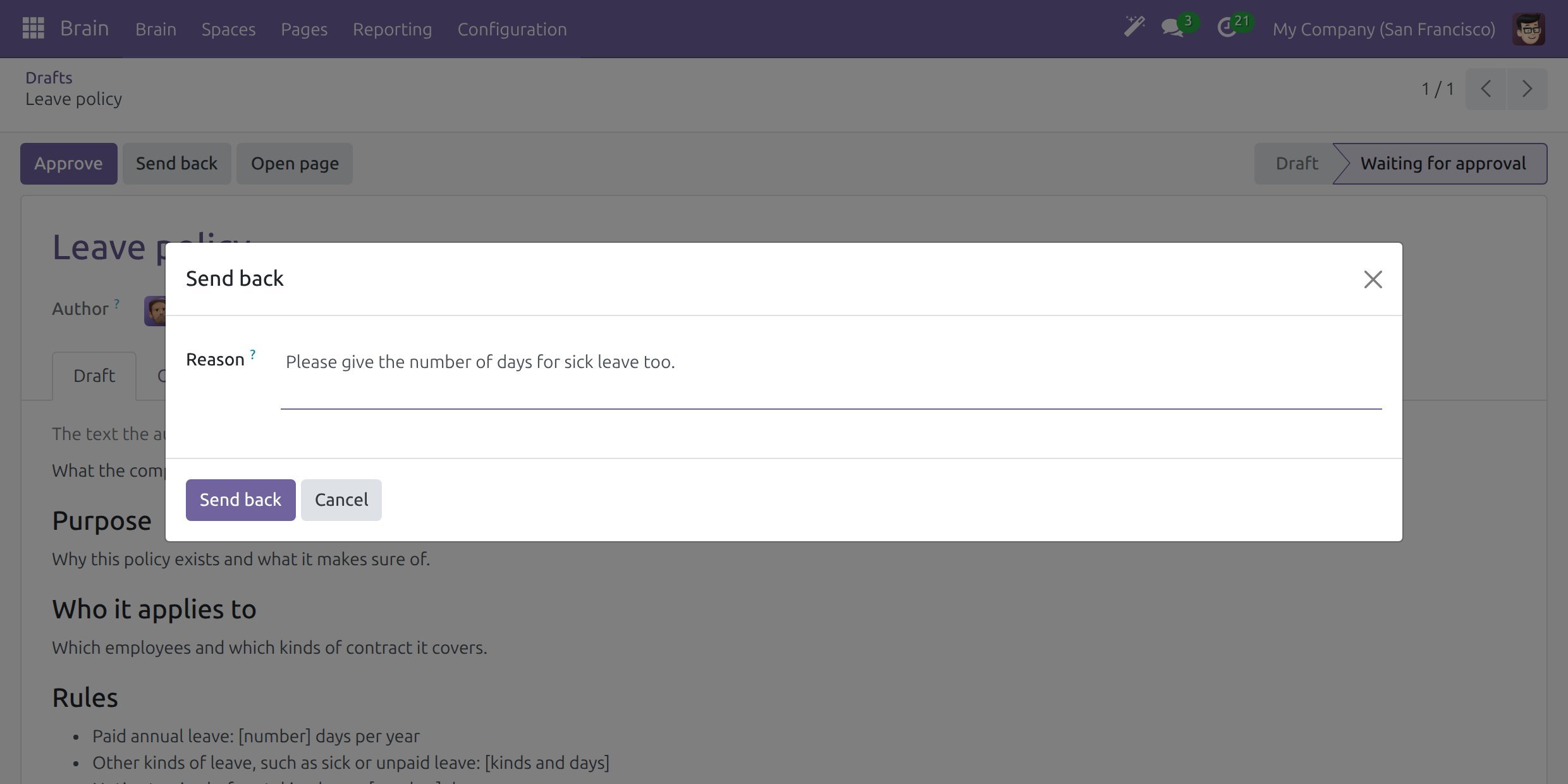
Click Send back. The author is told, and the draft stays editable.
The author sees the reason in the banner: “Sent back by <name>: <reason>. Change the page and submit again.” The author changes the page and clicks Submit for approval again.
What Readers See
Until a change is approved, readers see the published page. They never see a draft.
A new page in an approval Space does not appear for readers until it is approved.
After approval, readers see the new text, and the page shows the approver as its last verification.
Limits
A page that is a draft cannot be shared. Share answers that the page is a draft and can be shared once its owner approves it (see Share a page with people inside and outside).
A page that is a draft cannot be archived. Submit it for approval, or delete it (see Delete, restore and archive pages).
A draft page can be deleted. It goes to Trash like any page.
Success Checkpoint
A writer’s edit in an All changes Space shows Your draft, and readers still see the published text.
The approver finds the draft in and can read the Draft, Changes and Published tabs.
After Approve, the page shows the new text and the date and name of the approver in Last verified.
After Send back, the author reads the reason in the banner.
Common Problems
Problem |
What to do |
|---|---|
Readers still see the old text after I edited the page. |
The Space asks for approval of all changes. Click Submit for approval, then ask the approver. |
Send back asks for a reason. |
Write why the changes are sent back. The author reads it in the draft banner. |
I cannot approve my own new page. |
The author of a new page cannot approve it. Ask the page owner, another Space admin or a wiki admin. |
Share or Archive says the page is a draft. |
Submit the page for approval first, or delete it. |
There is no Approve button. |
Only the page owner, a Space admin of the Space or a wiki admin can approve, and only once the author has submitted the draft. |
Next Steps
Own and verify a page - keep approved pages correct over time.
Set up Spaces, templates and access - the other settings of a Space.
Read, create and edit pages - write and edit pages.