
Search the wiki
Guide Overview
You only ever see pages you are allowed to read, in every Space you can read.
Before You Start
You need |
Why |
|---|---|
A role in at least one Space |
Search covers the Spaces you may read. |
Role Editor in a Space |
To create the page that Create a page named offers. |
Search from Home
Go to .
Type a word or a phrase in the search box and click Search, or press Enter.
The results page opens. Its breadcrumb reads Home / Search.
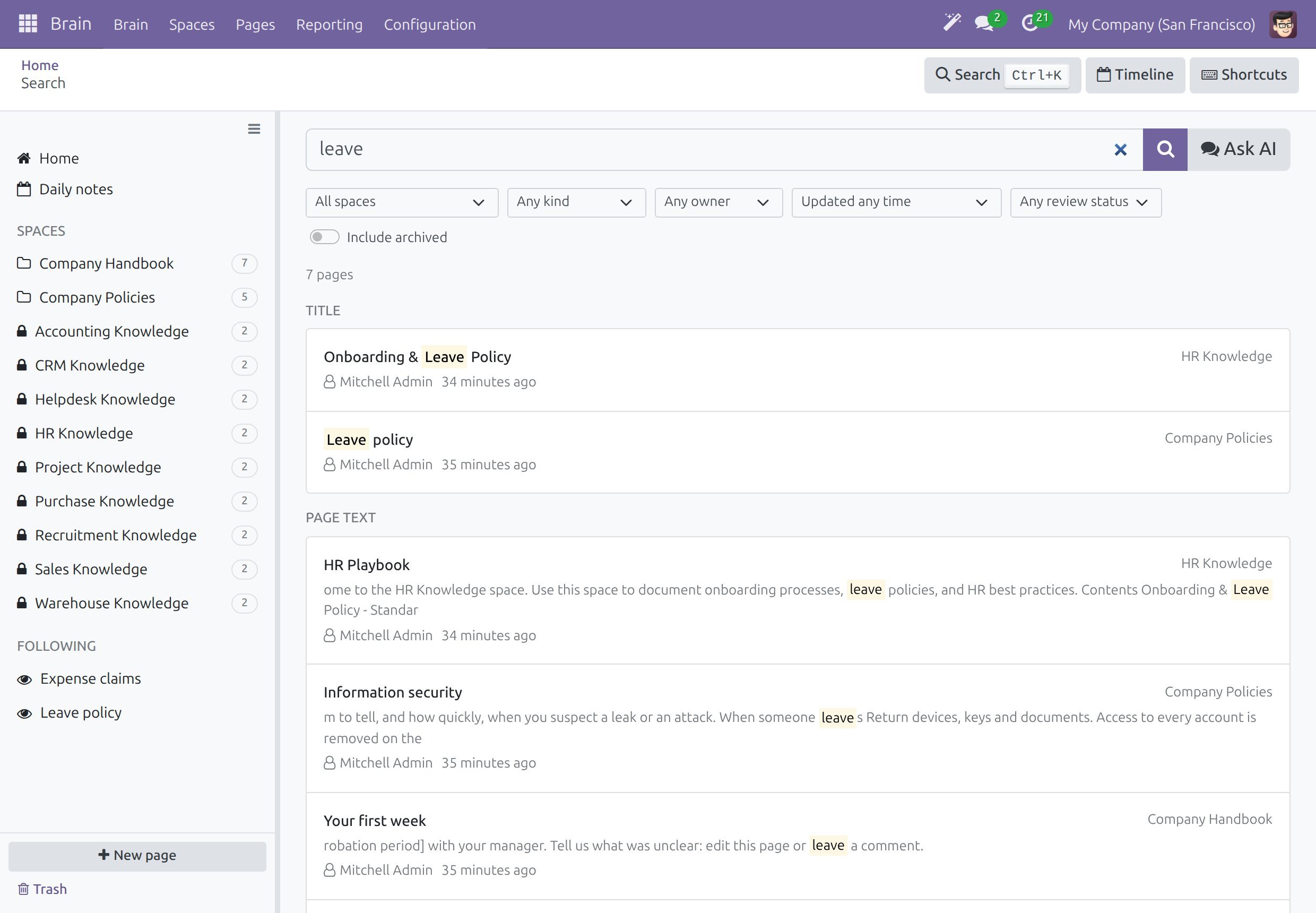
Read the result count under the filters, for example “2 pages”, then read the groups:
Group
What it lists
Title
Pages whose title contains the words. The group appears when a title matches.
Page text
Pages whose body contains the words, with a snippet and the matching text highlighted.
Related by meaning
Pages that talk about the same thing in other words, marked with a magic-wand icon. It needs the AI add-on (see Search by Meaning and the AI Add-on).
Each result shows the title, the Space, the owner and when the page changed. A Needs review mark and the name of the assistant appear on a result when they apply.
Click a result to open the page.
Narrow the Results
Use the filters under the search box. On a phone the row of filters scrolls sideways.
Filter |
What it does |
|---|---|
All spaces |
Keeps one Space. |
Any kind |
Keeps one kind of page: Note, Success, Failure, Lesson Learned, Post-mortem or Reference. |
Any owner |
Switch to Owned by me to see your own pages. |
Updated any time |
Keeps the pages updated in the last 7 days, 30 days or year. |
Any review status |
Switch to Needs review to keep the pages that are due for verification. |
Include archived |
Adds the pages that were archived. Switch it on when a page you know exists is missing. |
Search Inside One Space
Open a Space (see Find your way around Brain).
Type your words in the search box under the Space header and click Search. The box is limited to this Space. When the AI add-on is installed, Ask AI sits beside Search.
The results page opens with the Space filter set to this Space, and the chip Space: <name> under the filters shows it. Click the cross of the chip, or change the filter, to look in every Space.
When Nothing Matches
Search for words that no page contains and that no page is close to in meaning. The page says “No page matches” followed by your words.
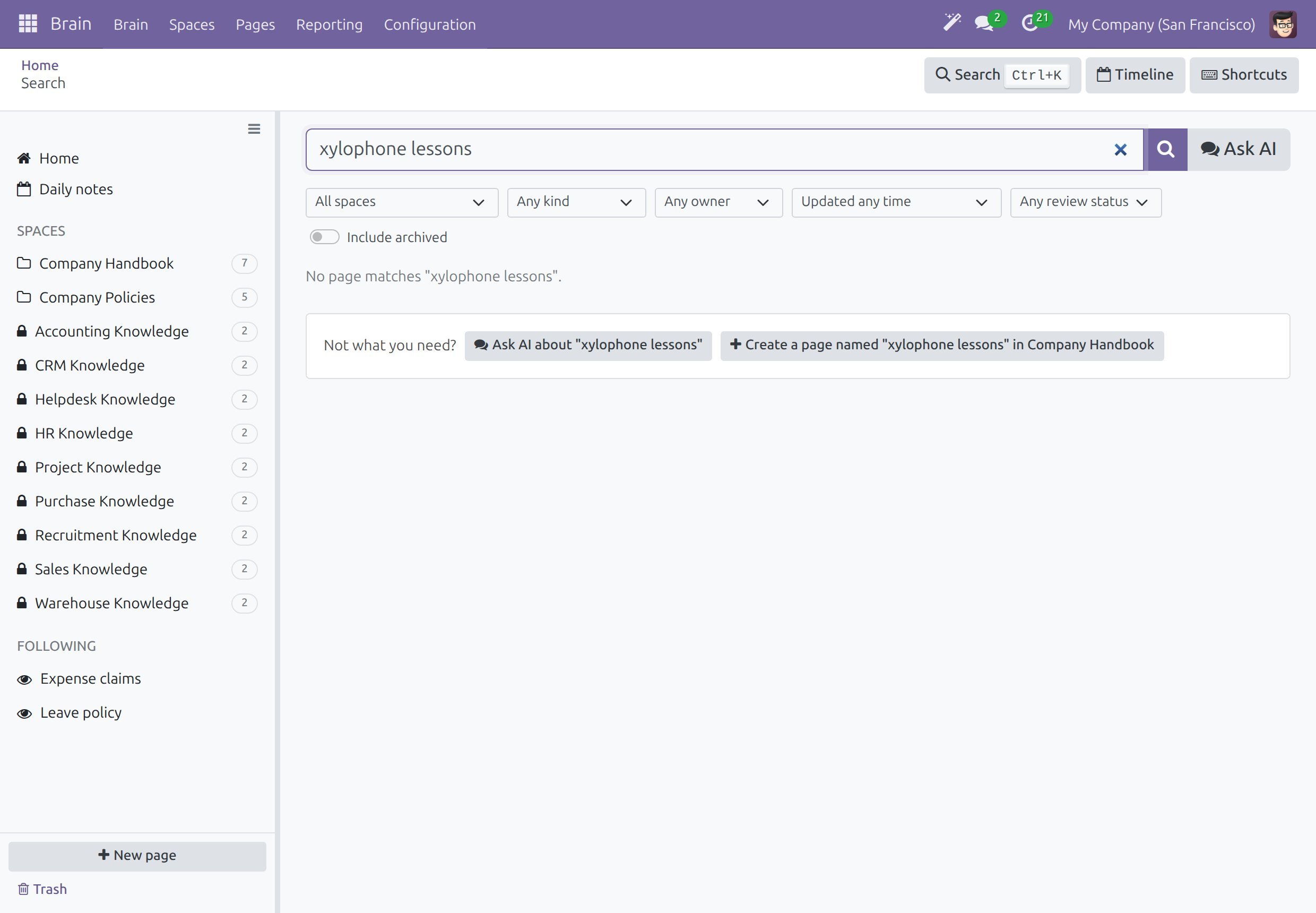
Under Not what you need?, choose what to do next:
Create a page named “…” in <Space> creates a page titled with your words, so a missing answer becomes a new page in one click (see Read, create and edit pages).
Ask AI about “…” sends your words to the AI assistant. It appears when the Viindoo AI - Brain Bridge add-on is installed (see Use the AI assistant in Brain).
A search that finds nothing is kept for the wiki admins, one line per person, query and day, for 90 days. They read these lines in to learn which pages are missing (see Watch the health of the wiki).
Open Any Page with Ctrl+K
Press Ctrl+K (Cmd+K on macOS) and start typing.
The list shows the pages that match first, then Search the wiki for “…” and Create a page named “…”.
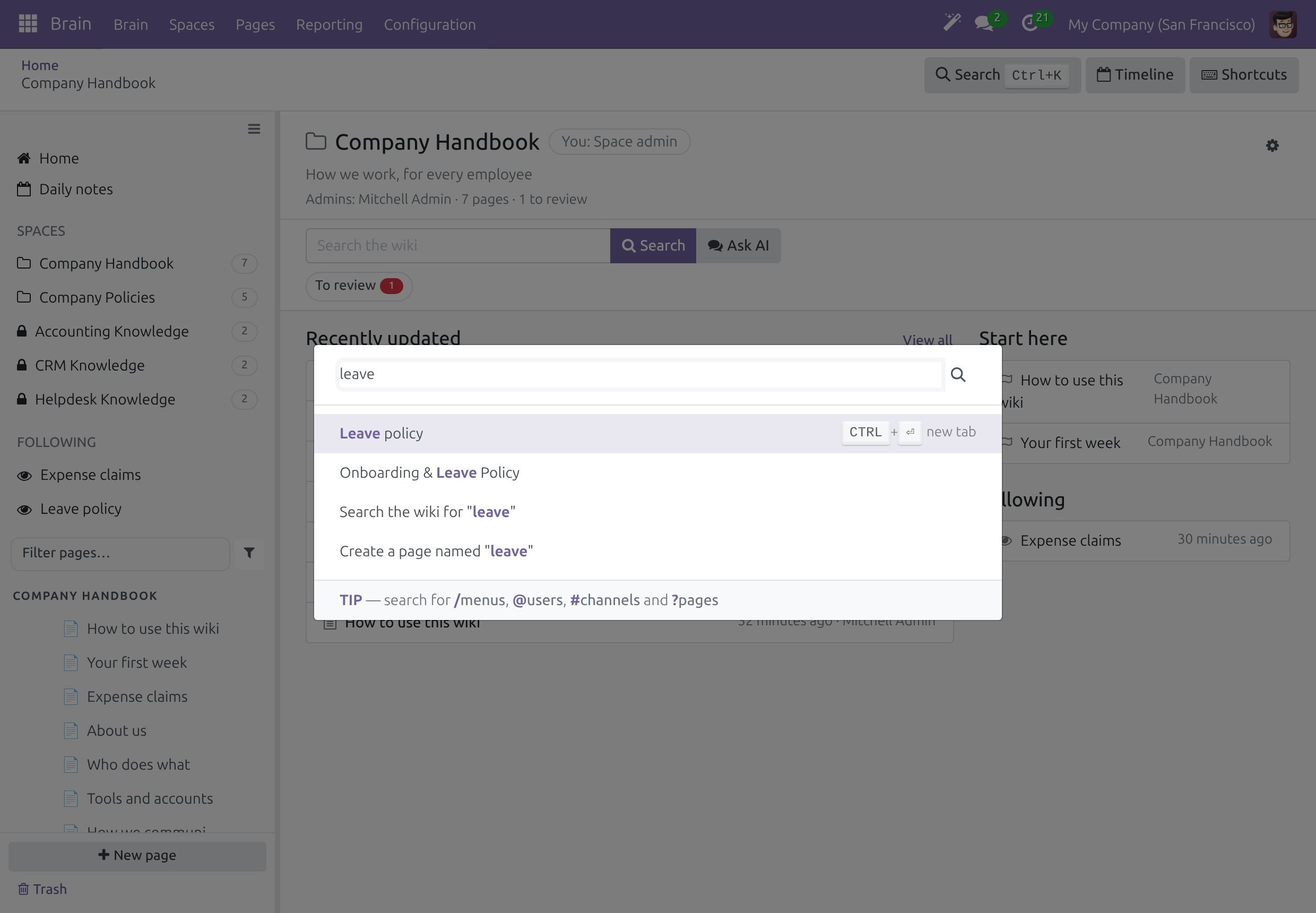
Press Enter to open the highlighted line. Choosing Search the wiki for “…” opens the results page described above.
From any other screen of the system, type ? first to search the wiki pages.
Search by Meaning and the AI Add-on
Search by title and by text is part of Viindoo Brain. The Related by meaning group comes from the Viindoo AI - Brain Bridge add-on. It lists pages that are close in meaning to your words, even when they do not contain them, and it can find pages written in another language. A page is found even when the matching sentence lives only in a bulleted or numbered list.
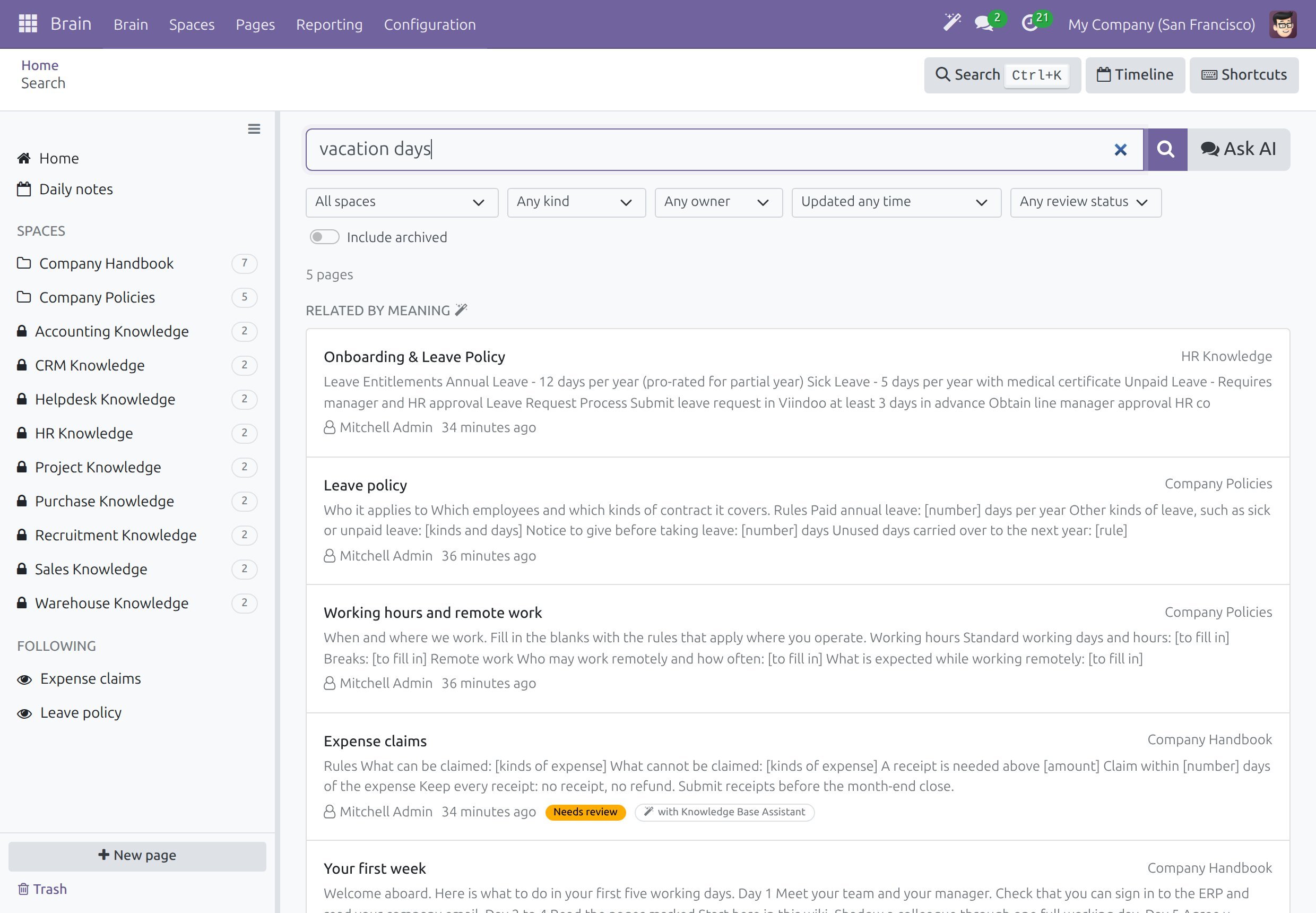
The group appears once a wiki admin has made the Spaces searchable by the assistant, and it lists only the pages that score high enough for the assistant that serves the wiki. When the group cannot run, the page says that the search by meaning is unavailable and shows the title and text matches only. The setup is described in Review AI changes and set up the wiki, and what the assistant offers in the wiki is described in Use the AI assistant in Brain.
Success Checkpoint
A search lists the matching pages under Title and Page text.
The filters narrow the list without leaving the page.
A search with no result offers Create a page named “…”.
Ctrl+K opens a page from any Brain screen.
Common Problems
Problem |
What to do |
|---|---|
A search finds nothing, but the page exists. |
Switch on Include archived if the page was archived, and check that you may read its Space. |
There is no Related by meaning group. |
The AI add-on is not installed, or no Space is searchable by the assistant yet. Ask a wiki admin (see Review AI changes and set up the wiki). |
There is no Ask AI button. |
The AI add-on is not installed. |
Next Steps
Read, create and edit pages - create the page a search did not find.
Find your way around Brain - the other ways to move around Brain.