
Get started with Viindoo AI
Guide Overview
Viindoo AI is ready to answer questions right after installation. A connection named Viindoo is created for you, so the assistant works before you choose an AI vendor. This guide takes you from the installation to a first successful test of that connection.
Before You Start
You need |
Why |
|---|---|
The Settings access right (system administrator) |
Installing apps and opening are reserved for system administrators. |
The PostgreSQL extension pgvector on your database |
Viindoo AI requires it. Your hosting provider can confirm that it is available. |
Developer mode, to assign the AI access rights |
The AI access rights appear on the user form only while developer mode is active. |
Install Viindoo AI
Open Apps, search for Viindoo AI and click Install.
Wait for the installation to finish. The apps that Viindoo AI needs, such as Discuss and API Request Logger, are installed with it.
Open the AI app from the home menu.
Give People the Right Access
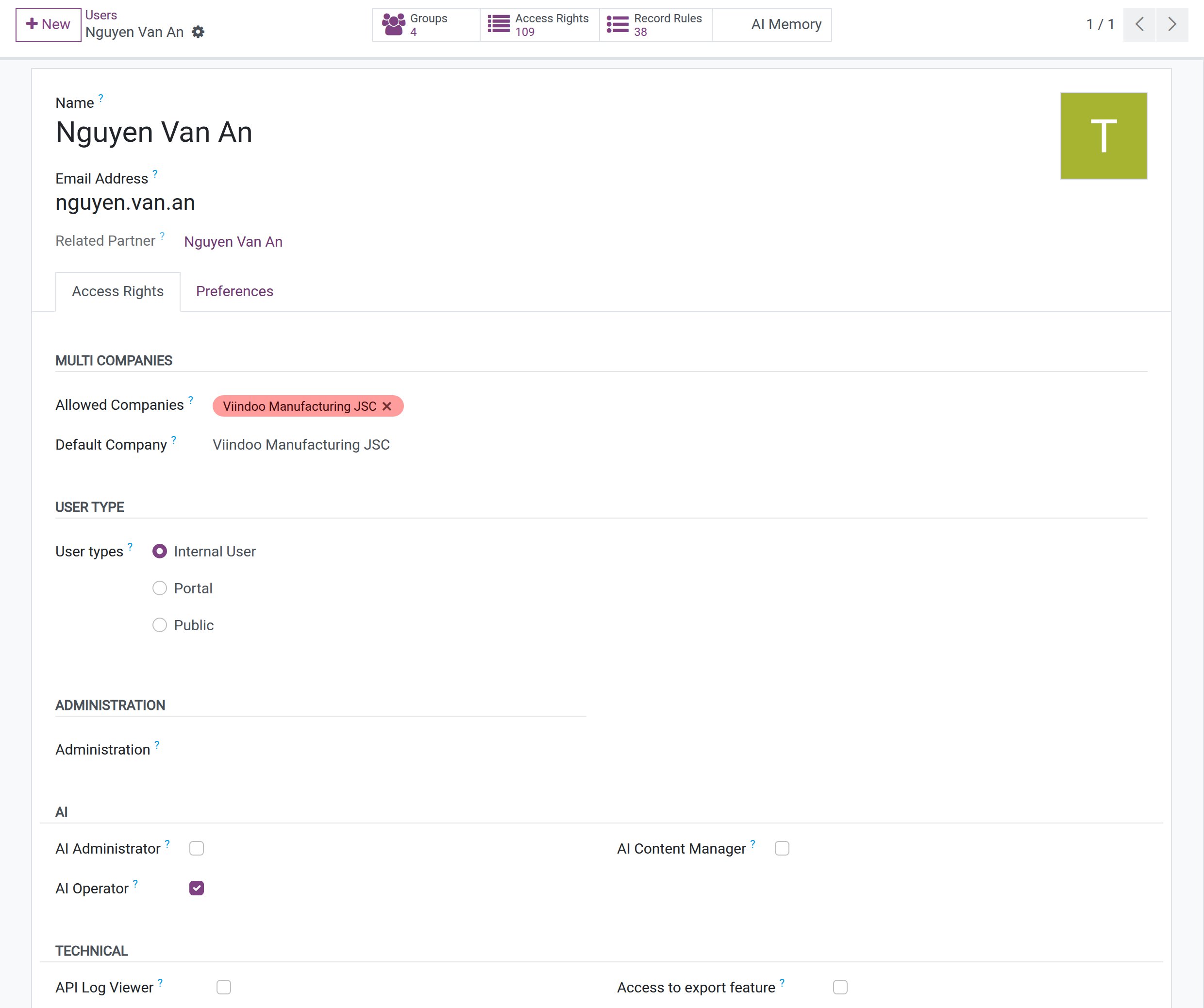
Every internal user can chat with the assistant and see their own AI calls. The extra rights below are assigned user by user.
Access right |
What it allows |
Section of the user form |
|---|---|---|
AI Operator |
See the AI calls and the cost report of the whole company, not only your own. |
AI |
AI Administrator |
Everything the AI Operator can do, plus maintain the lists under : vendors, providers, models, model lines, message adapters, speech pronunciations, skills and screen capabilities. The API key, the endpoint and the Settings screen stay with the system administrator. |
AI |
AI Content Manager |
Edit the knowledge sources and website crawls the assistant draws on. |
AI |
API Log Viewer |
Open the raw HTTP record of an AI call and the API Logs app. |
Technical |
To assign a right:
Activate developer mode.
Go to and open the user.
Open the Access Rights tab. The AI section lists AI Administrator, AI Operator and AI Content Manager; API Log Viewer is in the Technical section.
Tick the right and click Save.
Find Your Way in the AI App
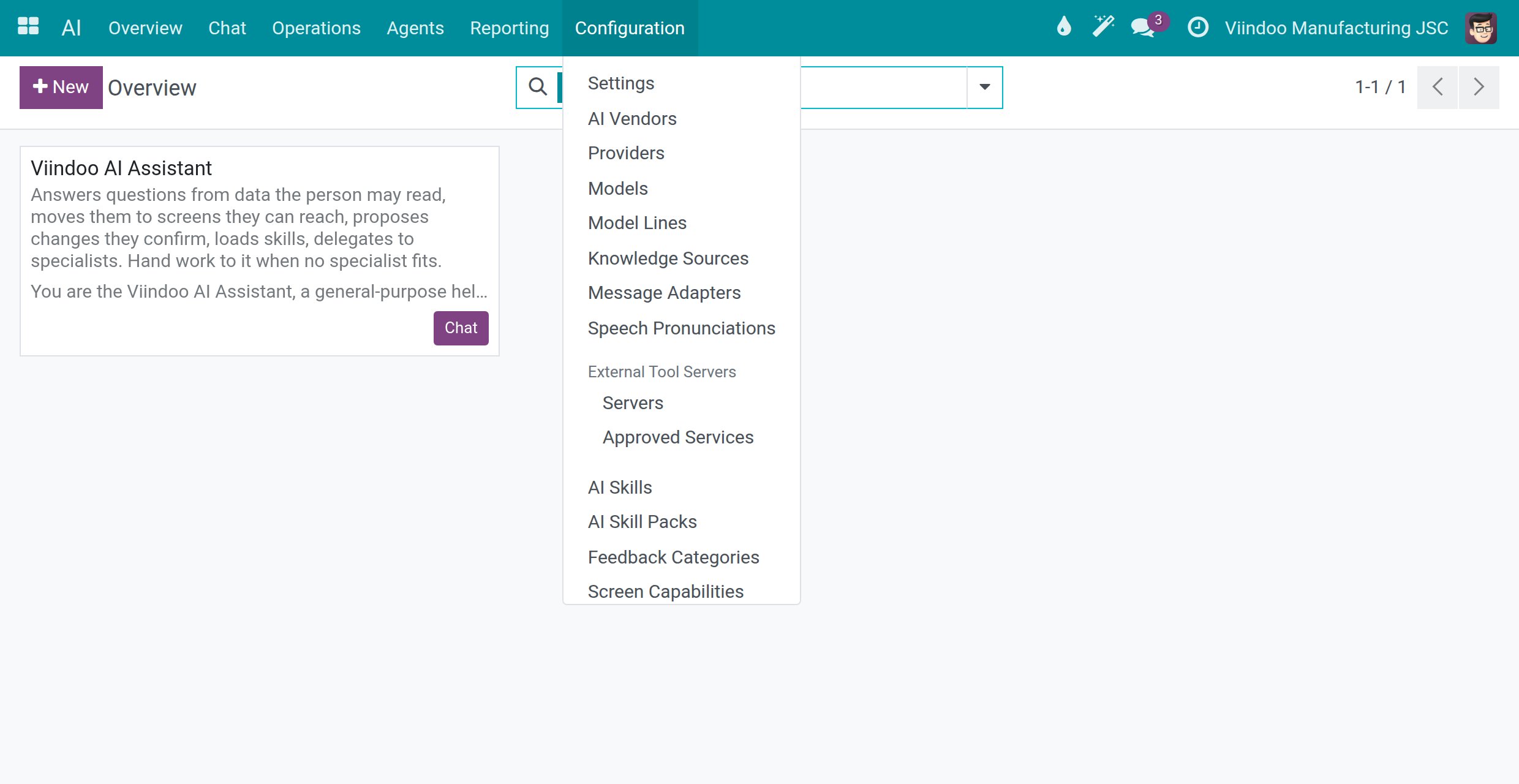
The AI app has six menus: Overview, Chat, Operations, Agents, Reporting and Configuration. Everything an administrator sets up lives under Configuration.
Note
Only users with the AI Administrator right or the system administrator see the Configuration menu. Within it, Settings, Knowledge Sources and Feedback Categories open for the system administrator only. The API Logs app appears for users with API Log Viewer and for the system administrator.
Check the Ready-Made Viindoo Connection
Use this check any time you want to know whether a connection works.
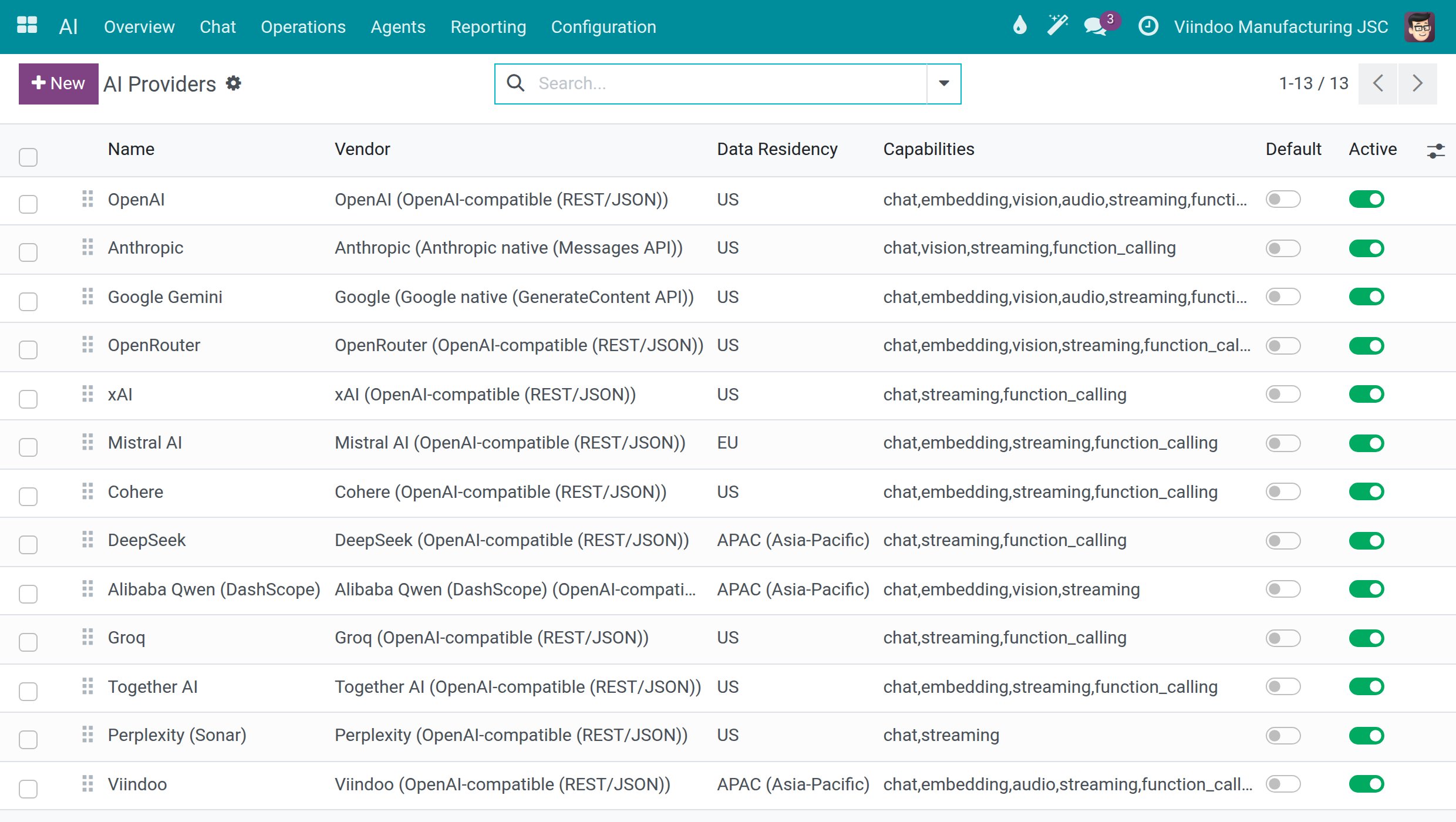
Go to . Each row is a connection to an AI vendor, with its Vendor, Data Residency and Capabilities. Thirteen connections are ready: OpenAI, Anthropic, Google Gemini, OpenRouter, xAI, Mistral AI, Cohere, DeepSeek, Alibaba Qwen (DashScope), Groq, Together AI, Perplexity (Sonar) and Viindoo.
![List of AI connections with the Vendor, Data Residency and Capabilities columns]()
Open the connection Viindoo. A blue notice explains that it is meant for a quick start and evaluation: it has daily token limits and small models. For production, connect your own AI vendor (see Connect AI vendors and choose data location).
Click Test Connection. The test sends a tiny request through the connection, which the service behind it bills under that key (a negligible amount). A green Connection successful message shows the round-trip latency and the models the vendor reports.
![The Viindoo connection after clicking Test Connection, with the message Connection successful and the API Key field blurred]()
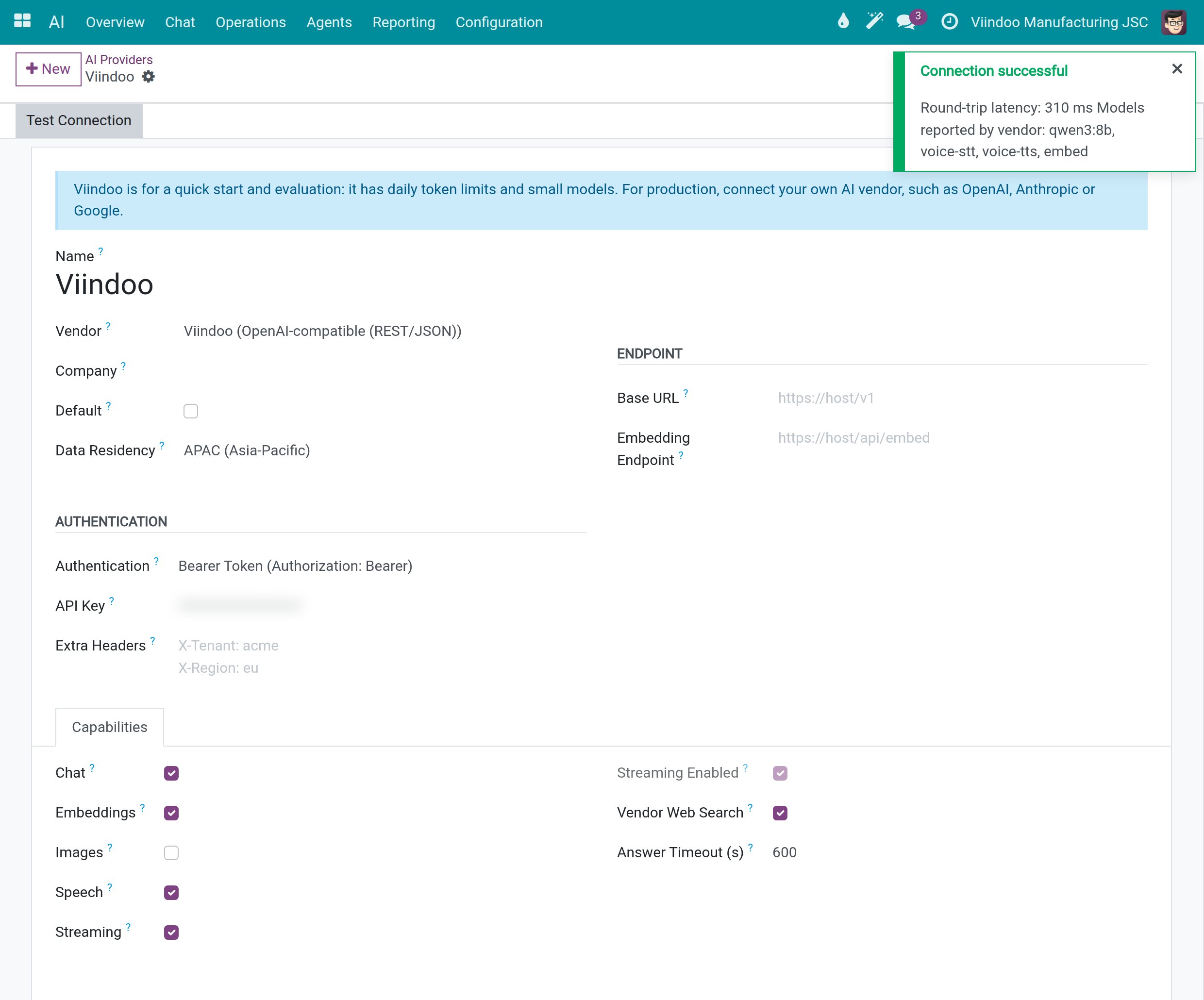
The API Key field shows dots instead of the key, so the key is never readable on screen.
Success Checkpoint
The Viindoo connection shows Connection successful after Test Connection.
The call you just made is recorded: it appears in , as explained in Spend limits, usage and audit.
Common Problems
Problem |
What to do |
|---|---|
The AI section is missing on the Access Rights tab. |
Activate developer mode, then open the user again. |
A user does not see Configuration in the AI app. |
Give the user the AI Administrator right, or make the user a system administrator. |
A user cannot open Settings under Configuration. |
Settings is reserved for system administrators. |
A question in the chat ends with the card The assistant could not answer. |
No AI connection is available to the company. Click Check AI setup (administrators only) to open the AI settings, fix the connection, then click Try again on the card. |
Next Steps
Connect AI vendors and choose data location - connect your own AI vendor and choose where data may be processed.
Spend limits, usage and audit - set spend limits and find the record of every AI call.