
Set up HS codes, dangerous goods, cargo types and Incoterms
Guide information
Requirements
This tutorial requires the installation of the following applications/modules:
Logistics Shipment - HS codes, cargo types, DG classes and UN numbers
Freight Forwarder Management (installs Logistics Accounting automatically, which adds the Incoterm field on the shipment)
Use this page when a cargo line needs a classification. HS Code, DG Class, UN Number and Cargo Type on a cargo line are not free text: each one references a catalog set up here. Miss an entry, and Operations must leave the matching field blank on the cargo line, and Import Tax Rate or Packaging Group never fill in. These values are used on the shipment cargo lines. If a term here is new to you, see the Freight forwarding glossary.
HS codes and cargo types
Label on screen |
What it means |
Where you see it |
Filled by |
|---|---|---|---|
HS Code (Code, Description) |
The Harmonized System code used on the customs declaration for a commodity, e.g. 6404.19.90. |
Administrator |
|
Cargo Type (Code, Description) |
An internal classification by commodity (Footwear, Electronics…), not a customs code. |
Administrator |

Note
Import Tax Rate on a cargo line only appears once both HS Code and Country of Origin (C/O) are filled in - selecting only the HS code is not enough to reveal it.
Tip
The setup is correct when: on the cargo line of the Nhat Long Footwear shipment, HS Code offers 6404.19.90 and Cargo Type offers Footwear, and Import Tax Rate appears once Country of Origin (C/O) is set to Vietnam.
See also
Carriers, agents and ports are set up before these catalogs in the recommended master data order: Set up carriers, agents, ports, airports and border crossings.
Dangerous goods: DG Class and UN Number
The example below (DG Class 3, UN 1263) illustrates the setup only - it does not belong to any of Hai Long Logistics’s own shipments in this guide; none of the five running shipments carries dangerous goods.
Label on screen |
What it means |
Where you see it |
Filled by |
|---|---|---|---|
DG Class (Class Code, Class Name, Special Handling Instructions) |
Groups hazardous cargo by its IMDG/IATA class, e.g. Class 3 - Flammable Liquids. |
Administrator |
|
UN Number (UN Number, Proper Shipping Name, Packaging Group, Flash Point) |
Identifies the exact dangerous substance within a DG Class, e.g. UN 1263 - Paint. |
Administrator |
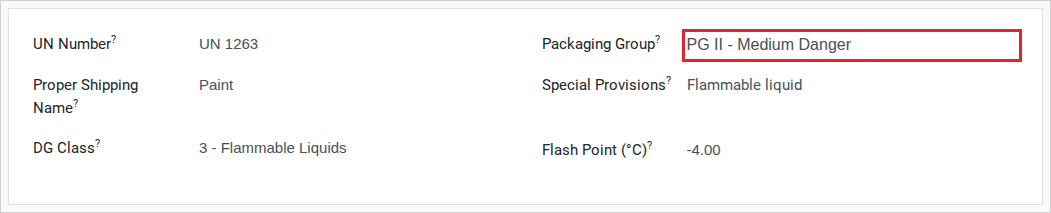
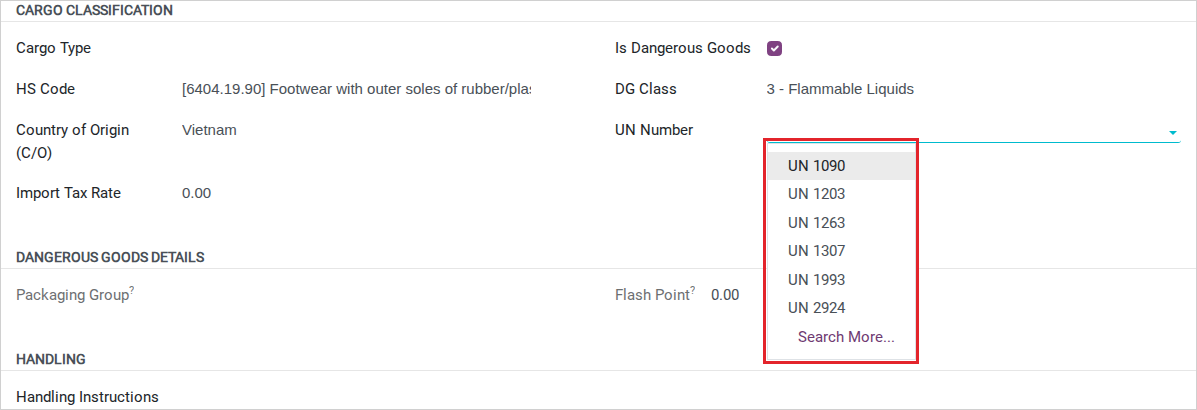
On a cargo line, ticking Is Dangerous Goods reveals DG Class; choosing a DG Class then limits UN Number to the numbers registered under that class, and Packaging Group and Flash Point fill in by themselves, read-only, from the UN Number you pick.
Tip
The setup is correct when: on a cargo line with DG Class Class 3, the UN Number list offers UN 1263, and picking it fills Packaging Group with III. Confirm the DG Class before Operations declares a dangerous-goods cargo line - do not add a new UN Number on the fly if you are not sure of the classification.
Incoterms
Incoterm is not a Freight-specific catalog - it is Odoo’s standard Incoterms list from the Accounting app; Freight only adds a reference field on the shipment. You can open the list from either app’s Configuration menu: or - both point to the same list.
The Incoterm on a shipment is filled by Sales or Operations when the shipment is created, not re-entered as part of this one-time setup.
Tip
The setup is correct when: the Incoterm field of a shipment offers the terms Hai Long trades under - CFR for the Nhat Long Footwear export, FOB for the Minh Phat Engineering import. This is standard Odoo data and rarely needs a new entry.
Troubleshooting
Import Tax Rate doesn’t show up despite selecting an HS Code
Symptom: you selected an HS Code on a cargo line, but the Import Tax Rate field still doesn’t appear.
Cause: the field only shows once both HS Code and Country of Origin (C/O) are filled in on the same line.
Fix: fill in Country of Origin (C/O) on the same cargo line.
Can’t select a UN Number despite ticking Is Dangerous Goods
Symptom: the UN Number field is empty or shows no options.
Cause: UN Number is filtered to the DG Class already chosen on the line; with no DG Class selected, the list has nothing to show.
Fix: choose the DG Class first, then pick the matching UN Number.
A cargo type or HS code doesn’t look like what you typed
Symptom: you typed a lower-case code (e.g. ftw) but the saved record shows FTW.
Cause: both HS Code and Cargo Type upper-case their Code field automatically on save.
Fix: nothing to fix - this is expected. Reference the code in upper case in quotations, reports and other pages that mention it.