
Prerequisites
All three conditions must be met — missing one means the button won’t appear:
Condition |
Check Here |
|---|---|
Zalo OA is connected (status Connected) |
|
Website has Live Chat channel enabled |
→ Live Chat field |
Module viin_zalo_website_livechat is installed |
→ search “Zalo Website Livechat” |
Install Module
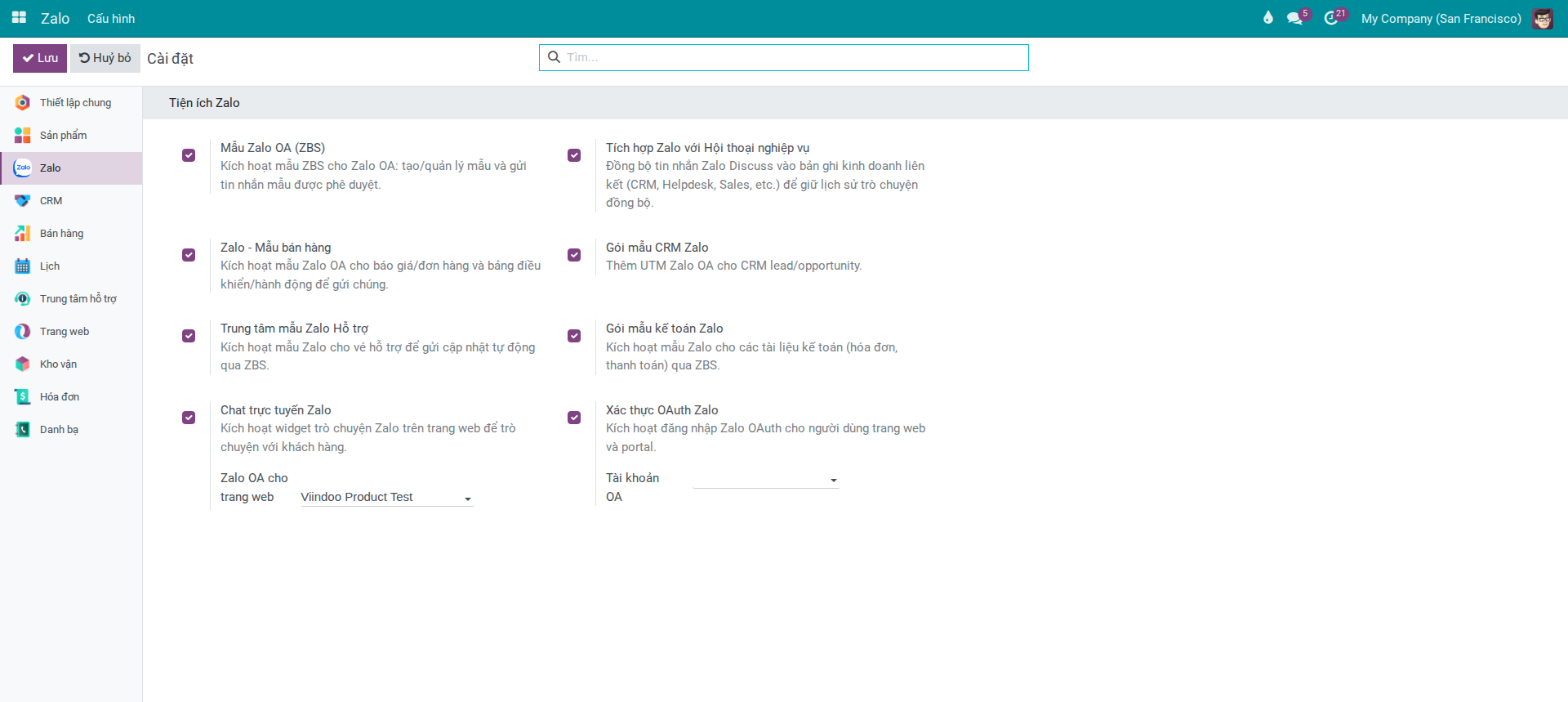
Go to and in the Zalo Extensions section, verify that Zalo Website Livechat is enabled.
Configure Zalo Chat Button
Two methods available — both give the same result, choose whichever is easier.
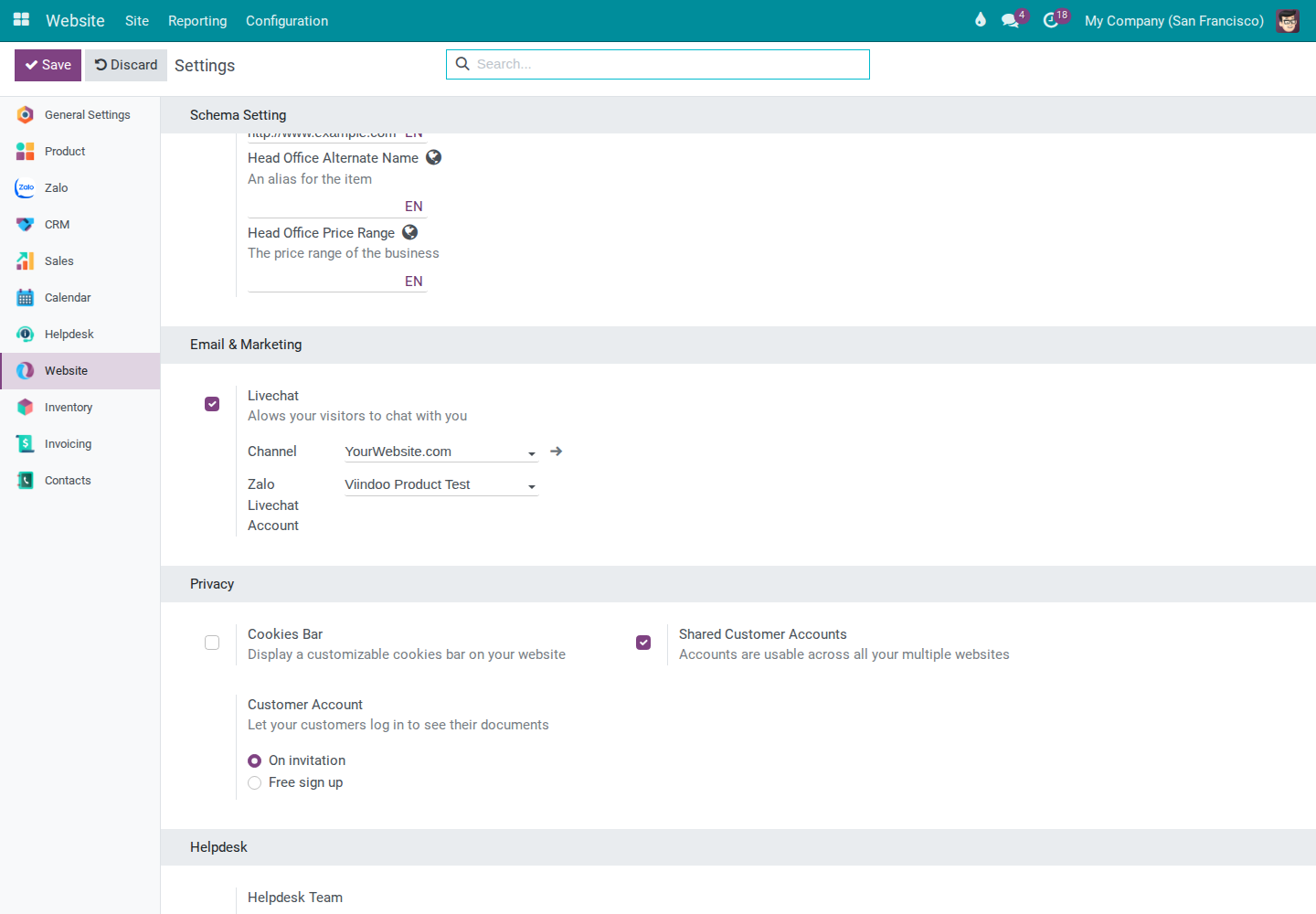
Method 1 — Via Website Settings (use if you have multiple websites)
→ click the website name (example: minchau.vn).
Website tab → Livechat section → “Zalo Livechat Account” field.
Select the OA to link (example: Minh Chau Official) → Save.
Note
The “Zalo Livechat Account” field only appears if the website already has Live Chat channel enabled.
Method 2 — Via Zalo Settings (faster if you have only one website)
→ Zalo Extensions section.
“Zalo OA for website” field → select OA → Save.
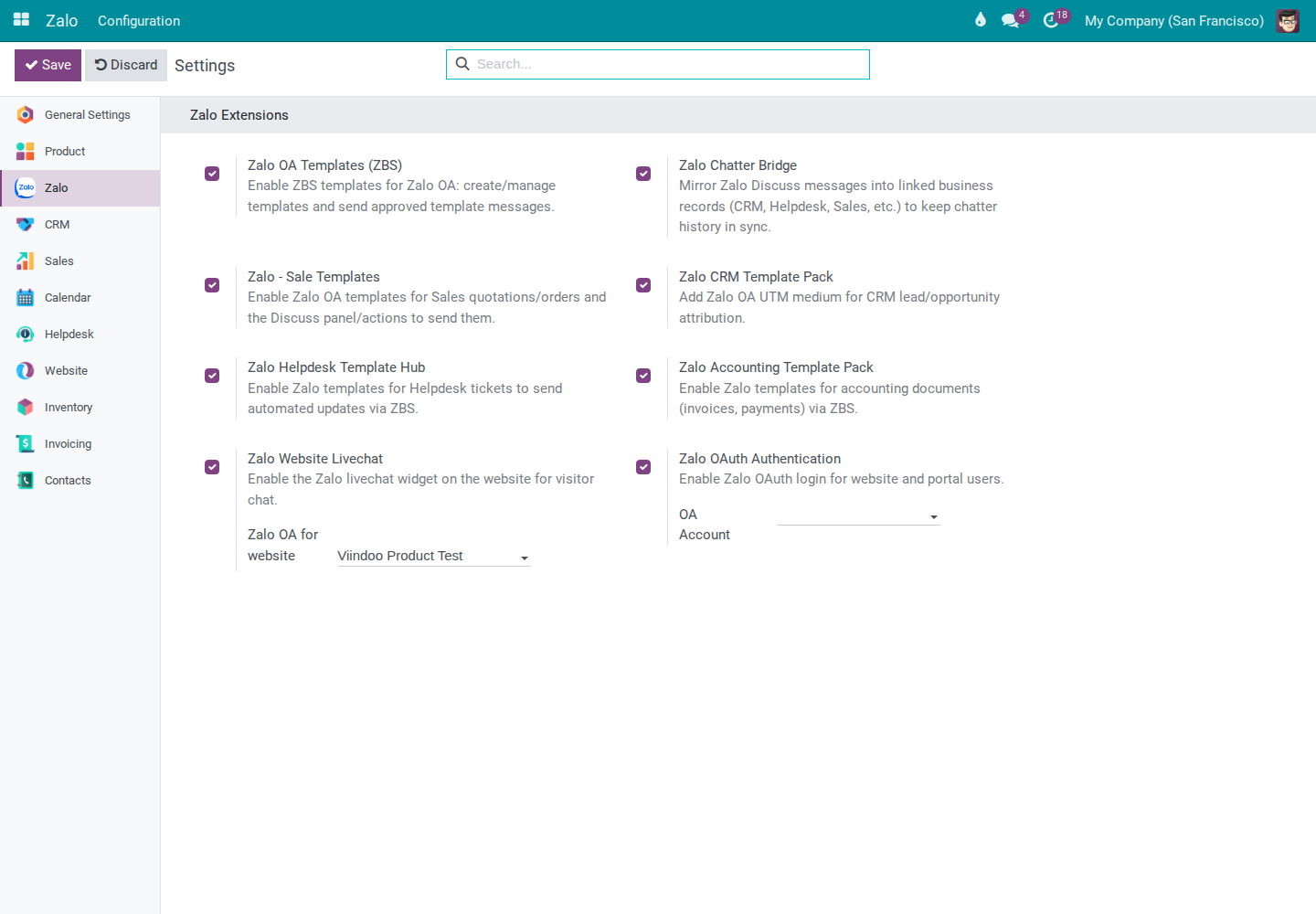
The button appears immediately after Save — no restart needed.
Verify the Result
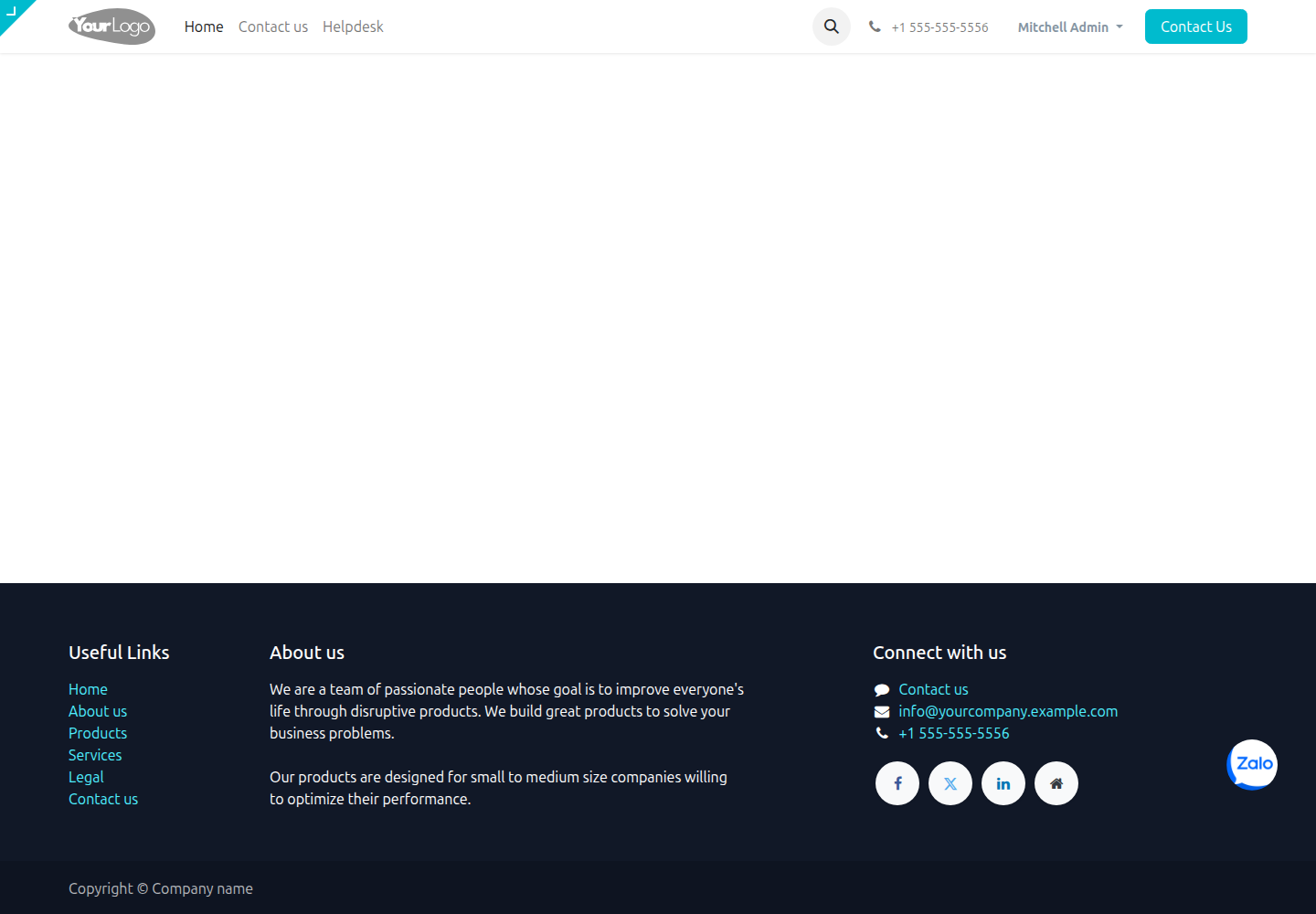
Open a private browser window and visit your website. Verify:
Round Zalo button floats in the bottom-right corner, above the Live Chat button.
Clicking the button → opens Zalo, not a pop-up on the page.
Zalo opens the correct configured OA, not a different one.
Multi-Website Setup
Each website has its own OA field — assign independently, no cross-interference:
Sales website → sales team OA
Customer support website → support team OA
Use Method 1 to open each website record and assign the appropriate OA.
Note
In a multi-company environment: the dropdown only shows OAs belonging to that website’s company. OAs from other companies don’t appear — that’s correct behavior, not an error.
Common Issues
Symptom |
Common Cause |
Solution |
|---|---|---|
Zalo button not showing |
Missing Live Chat channel, OA not assigned, OA not Connected, or module not installed |
Check the three prerequisites in the table above; confirm module is installed in Apps |
OA dropdown is empty or missing expected OA |
OA not added to Allowed Companies for the website’s company, or OA not Connected |
→ open OA → check Allowed Companies and connection status |
Zalo button opens wrong OA |
Website assigned the wrong OA |
→ open each website → check and correct the “Zalo Livechat Account” field |