
Digitally Sign with Viettel SIM CA
Viettel SIM CA stores a digital certificate on the signer’s Viettel SIM card. The signer enters a phone number in Viindoo, picks a certificate and confirms the signature with a PIN on the phone, without any USB Token or software on the computer.
This article will provide you with guidance on the following subjects:
What you need from Viettel;
Setting up the Viettel Sim CA signing method;
Signing a document with Viettel SIM CA;
Solving common errors.
Requirements
This tutorial requires the installation of the following applications/modules:
How signing with Viettel SIM CA works
Viindoo connects to the Viettel SIM CA gateway on behalf of the signer: it asks Viettel for the certificates linked to the signer’s phone number, sends the signature request, and embeds the returned signature into the PDF. The signer’s phone receives the request and the signer confirms it with the SIM PIN.
Computer: Nothing to install. A web browser logged in to Viindoo is enough;
Phone: A Viettel SIM registered for the SIM CA service. Displaying and confirming the request on the phone is handled by the SIM and Viettel. If your Viettel SIM CA plan requires a phone application, install it as Viettel instructs.
What you need from Viettel
Your company signs a SIM CA service contract with Viettel, which provides:
An AP ID: Your company’s identifier on the SIM CA gateway;
A Private Key: The key Viindoo uses to authenticate its requests to the gateway;
For each signer, a Viettel SIM registered for SIM CA, with an issued certificate and a PIN.
Setting up the Viettel Sim CA signing method
Installing the module creates the Viettel Sim CA signing method. Fill in its credentials. You need the Administrator access right of the Sign app.
Navigate to Sign > Settings > Signing Methods and open Viettel Sim CA.
In the Configuration tab, fill in:
AP ID: The AP ID provided by Viettel;
Private Key: The private key provided by Viettel, in the format described below. The field hides its content.
Save the signing method.
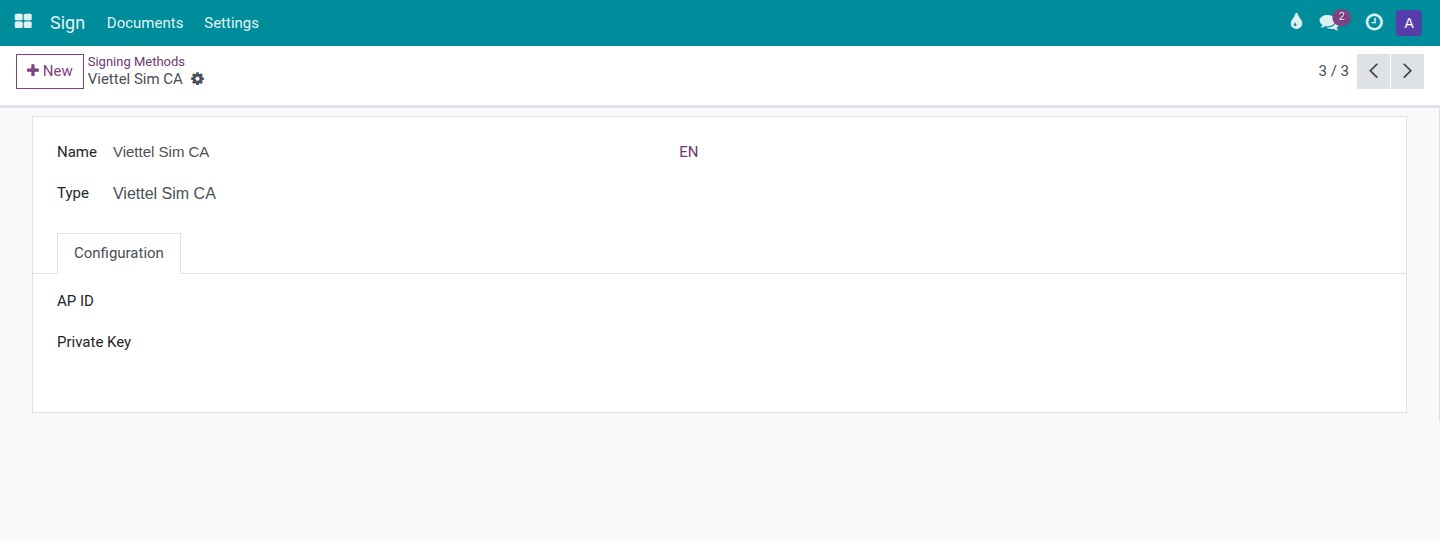
Only one active Viettel Sim CA method can exist. To replace the key, edit this method instead of creating a new one.
Private key format
The Private Key field expects the key as a base64 text without password protection. When Viettel provides a text key file (.pem or .key), open it in a text editor:
-----BEGIN PRIVATE KEY-----
MIIEvQIBADANBgkqhkiG9w0BAQEFAASC...
-----END PRIVATE KEY-----
Copy the lines between the BEGIN and END lines, without these two lines, and paste them into Private Key. Both BEGIN PRIVATE KEY and BEGIN RSA PRIVATE KEY files work.
Warning
A password-protected key (BEGIN ENCRYPTED PRIVATE KEY) or a binary file (.p12, .pfx, .der) cannot be pasted as it is. Convert it first, and never send the key through unsecured email or chat.
Gateway address
The address of the Viettel SIM CA gateway is built into the module, so there is nothing to set up. It cannot be changed from the user interface: if Viettel gives you a different address, contact your Viindoo support team.
Signer’s phone number
When signing, the phone number field is pre-filled with the Mobile number of the signer’s contact. Enter each signer’s SIM CA number there to save them typing it. If it is empty, the signer types the number when signing.
Signing a document with Viettel SIM CA
Upload the PDF and place the signature field as described in Sign Documents and Set Up Signing Methods.
In the Edit Signature Field dialog, set Signature Type to Digital Signature and Signing Method to Viettel Sim CA, then press Sign now.
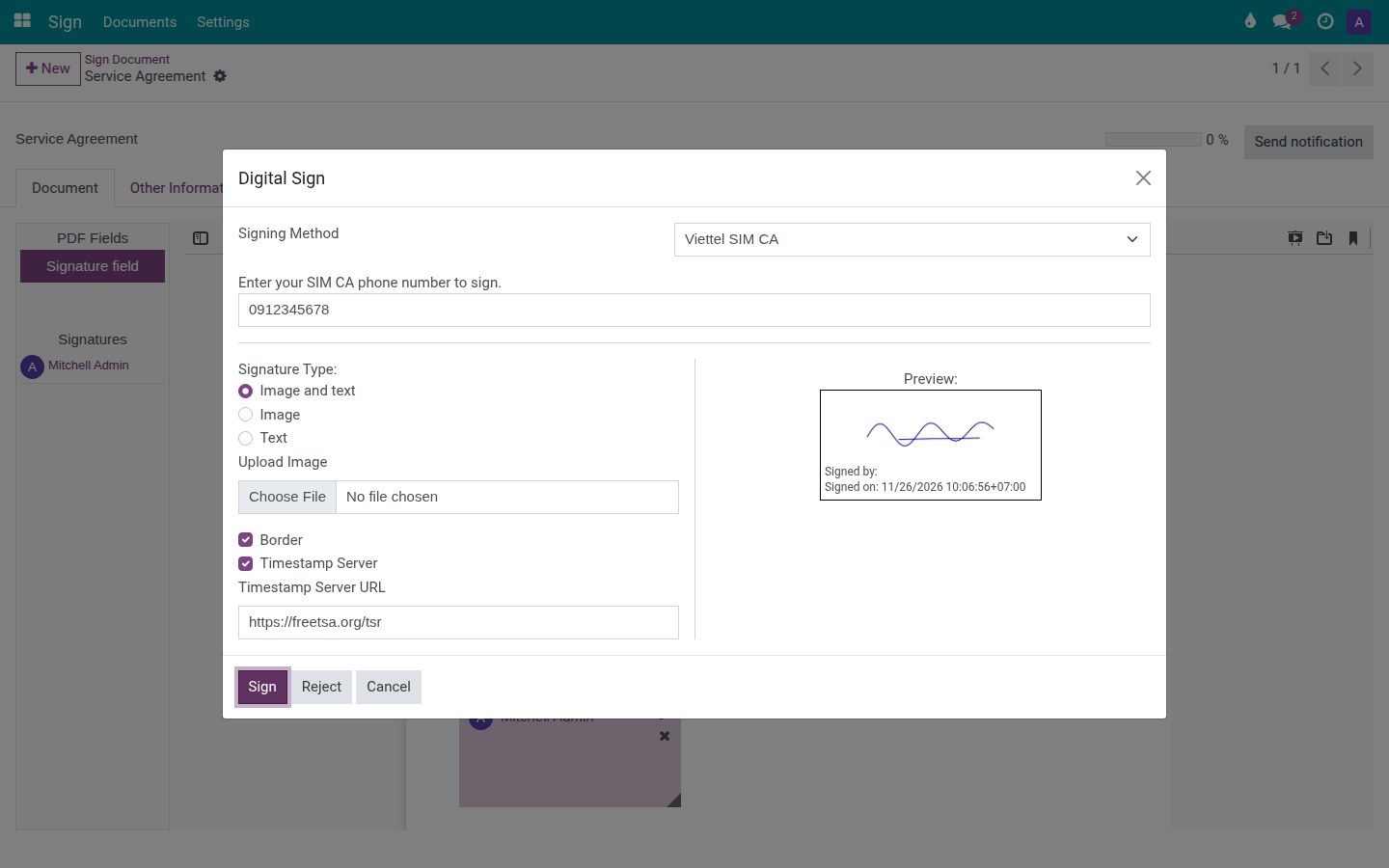
The Digital Sign dialog opens with Viettel SIM CA selected. Check the phone number below “Enter your SIM CA phone number to sign.”. Both
0912345678and+84912345678are accepted.Press Sign. Viindoo asks Viettel for the certificates linked to this phone number.
Select the certificate to use. Expired certificates are greyed out. The name on the certificate appears in the signature preview.
Press Sign.
Your phone receives the signature request, showing the document name without Vietnamese accents. Check that it is the right document, then enter your PIN.
Important
Confirm the request on your phone within 2 minutes. After that, the request expires and you have to press Sign again.
Once you confirm, the signature appears on the page and the sign progress increases. The signature appearance options are the same as for a USB Token, see Customizing the signature appearance.
Solving common errors
Please enter your phone number first.: The phone number is empty. Enter it and press Sign again;
Phone Number: … is not valid.: The number is not a valid Vietnamese phone number. Check it;
Please configure AP ID on authentication. or Please configure Private Key on authentication.: The signing method has no credentials. Ask your administrator to set it up;
Private key is invalid. Please check the settings and try again.: The pasted key is incomplete, wrong, or password-protected. Paste it again as described in the private key format;
Invalid signing method: …: No active Viettel Sim CA signing method exists. Restore it from the archived signing methods;
ERROR: …: The Viettel gateway refused the request, for example because the request expired, was cancelled on the phone, the PIN was wrong, or the number is not registered for SIM CA. Read the message: press Sign again for an expired or cancelled request, and contact Viettel for subscription or certificate problems.
See also
Related article
Optional module