

Social Marketing
by Viindoo
| Lines of Code | 4948 |
| Technical name | viin_social |
| License | OPL-1 |
| Website | https://viindoo.com/apps/modules/17.0/viin_social |
| Read description for | v 13.0 v 14.0 v 15.0 v 16.0 v 18.0 v 19.0 |
| Required Apps | Discuss (mail) |
| Included Dependencies | Viindoo Base API Request Logger |
| Extensions | Facebook Social Marketing LinkedIn Social Marketing Social Marketing - CRM |
One article, approved once, published on every page you manage
For marketing teams that publish on several company pages
Integration and management of social networks.
Odoo Community · OPL-1 license · English, Vietnamese
Builds on API Request Logger: every call made to a network is recorded for review.
What changes for your team
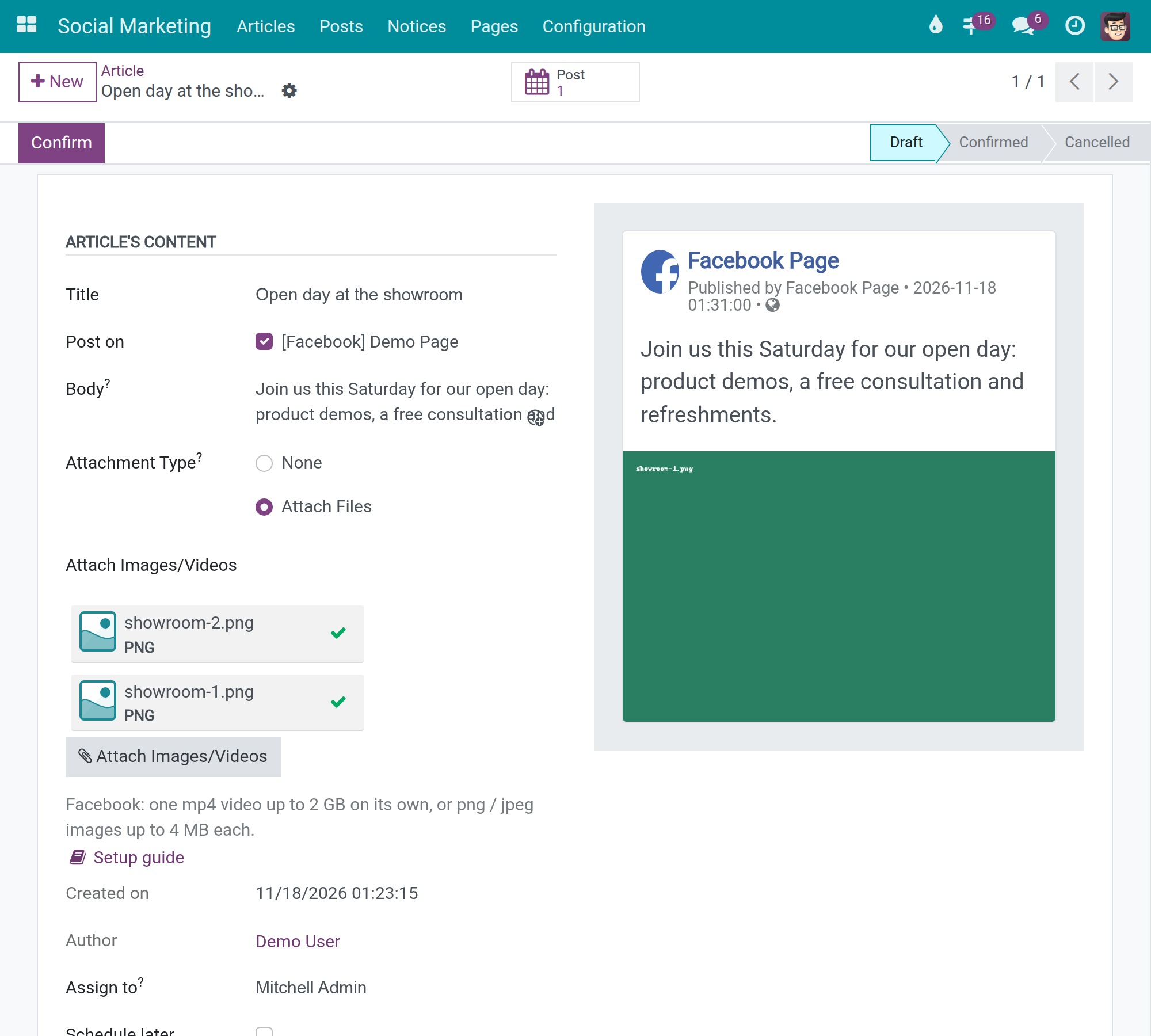
Write once, publish to every page
Today the same text is pasted page by page, and approval happens in a chat.
→ An editor writes one article with its images, video or link, previews it and confirms it; an approver publishes it to every chosen page in one step.
A failed post is seen, explained and retried
Today a post that did not go out is noticed late, by someone looking at the page.
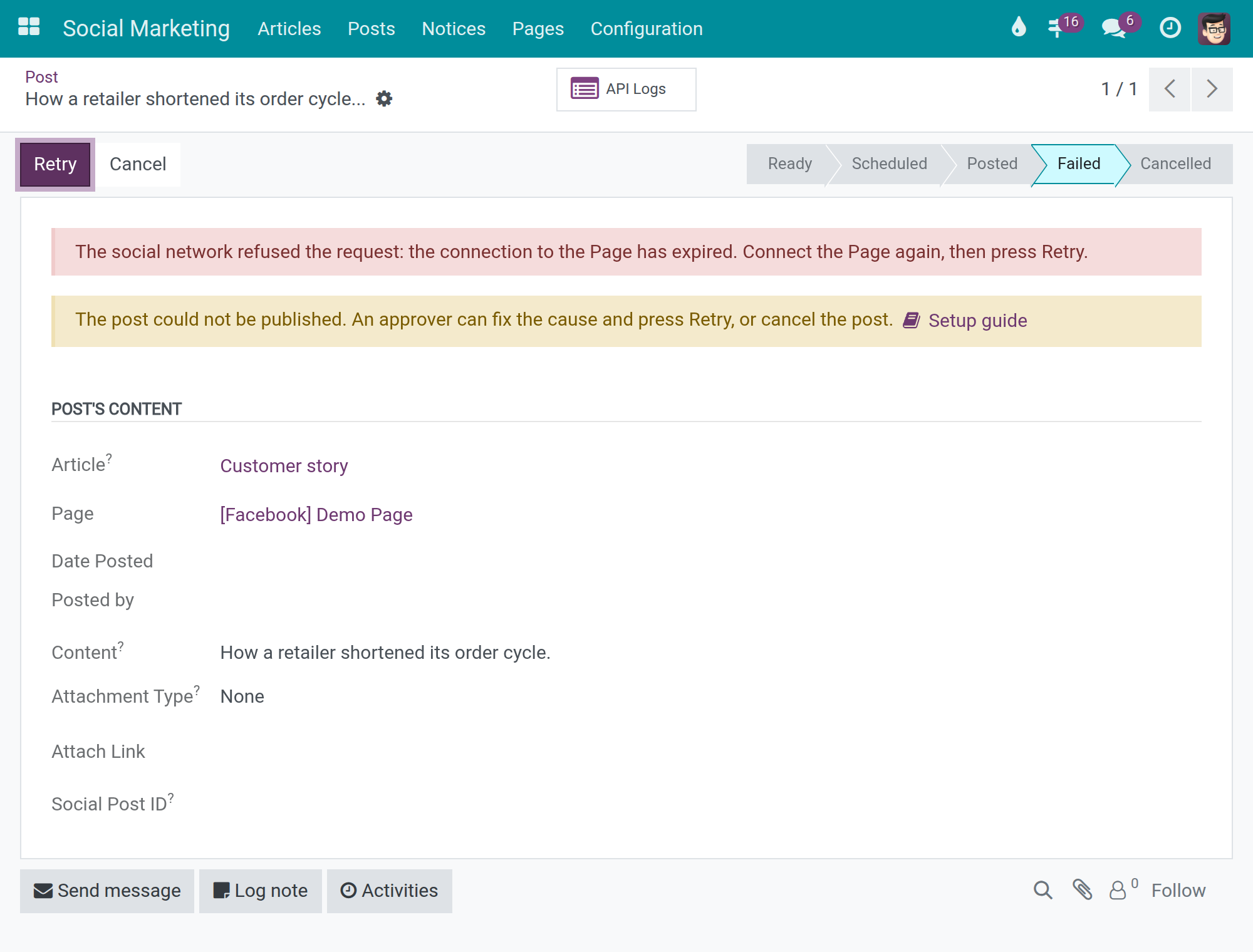
→ Every post shows its state. A failed one shows the reason, the people concerned are notified, and an approver fixes the cause and presses Retry.
Connecting a network without guesswork
Today connecting a page means hunting for the right addresses and hoping comments arrive.
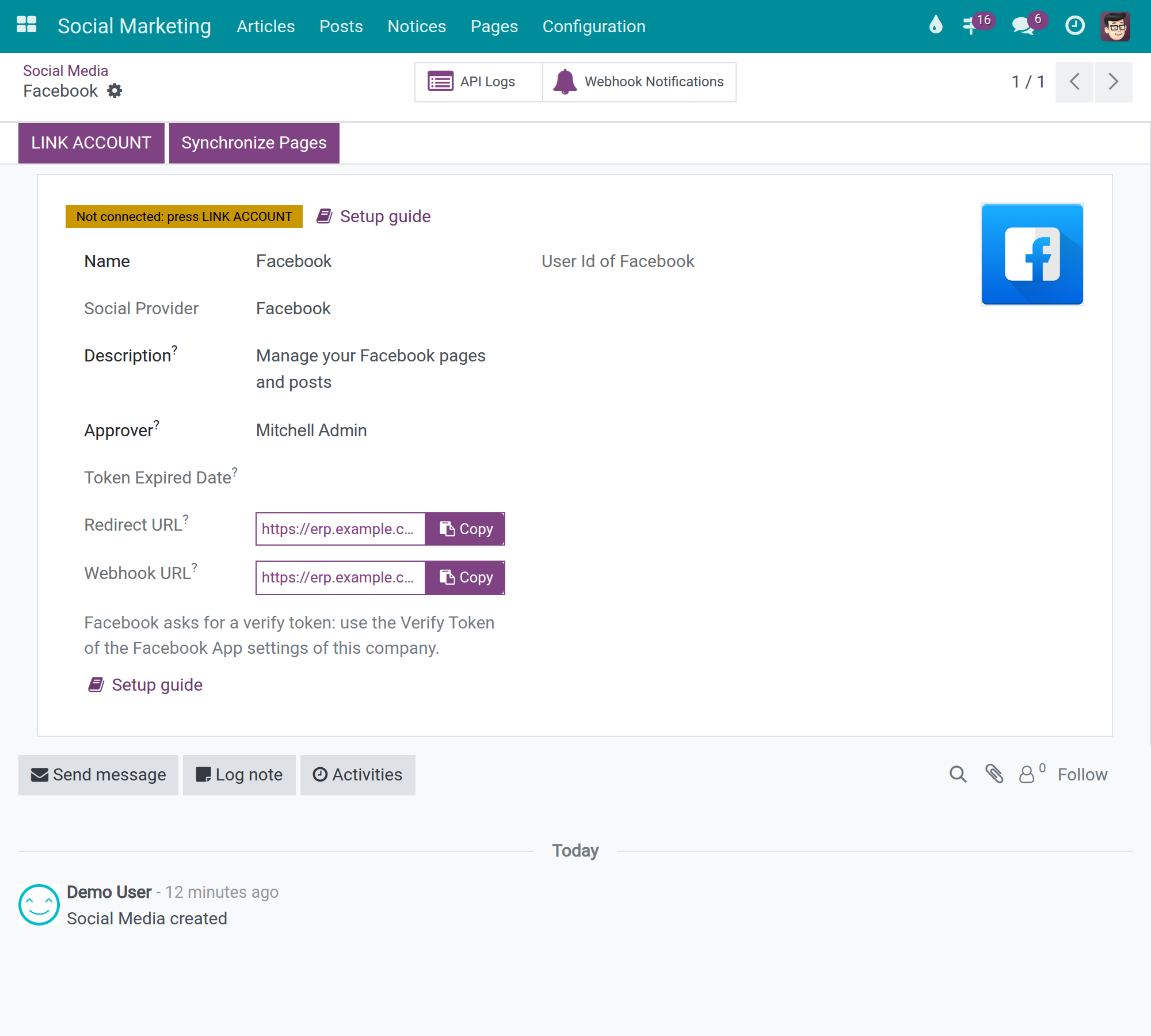
→ Each network shows whether it is connected, the two addresses to copy into your app on the network, a setup guide, and the queue of notifications it sent.
Features
Writing and approval
- ✓ One article, posted on every page you tick
- ✓ Images, one video, or a link with its preview card
- ✓ Live preview of the post as the network shows it
- ✓ Publication scheduled for a chosen date and time
- ✓ Editors confirm; only approvers publish
Publishing and follow-up
- ✓ Each post's state, from Ready to Posted or Failed
- ✓ Videos upload in the background; nobody waits on the screen
- ✓ Failure reason on the post, Retry for approvers
- ✓ Edit or delete a published post from Odoo
- ✓ Likes, comments, shares and views on each post card
Pages and their audience
- ✓ Comments, reactions and messages arrive as notices
- ✓ Each page has its approver and its members
- ✓ Notifications for comments and reactions switched on or off
- ✓ Incoming notifications retried automatically, then by hand
Built for control
- ✓ Three access levels: Editor, Approver, Administrator
- ✓ Articles, posts and pages kept apart per company
- ✓ Call history per record, with tokens and secrets masked
Ready on day one
Roles
Editor, Approver and Administrator ship ready; each includes the one before it.
Background jobs
Synchronization of pages and posts and processing of incoming notifications run on a schedule.
First set up
Enable a network module in Settings, then link the account from the network's record.
Extend it
Facebook Social Marketing
Connects your Facebook Pages to Social Marketing.
LinkedIn Social Marketing
Connects your LinkedIn organisation pages to Social Marketing.
Social Marketing - CRM
Creates leads from the conversations held on your pages.
Before you decide
Does this module publish on its own?
No. It is the common part: articles, posts, pages, notices and roles. Each network is connected by its own module, Facebook Social Marketing or LinkedIn Social Marketing.
Where does our data go?
Articles, posts and notices stay in your database. A network receives only what an approver publishes, and returns the statistics, comments and messages of the pages you connect.
Who can publish, and who sees what?
Editors write and confirm. Only approvers and administrators publish, retry and delete posts. Only system administrators and API log viewers read the call history. Each company sees its own records.
Can it run beside Odoo's own Social Marketing app?
No. If that app is installed, uninstall it before installing this one.
What does it take to run?
A public HTTPS address for your database, since the networks accept only HTTPS, and an app on each network you connect. Uploads and incoming notifications are processed by scheduled jobs.
Try it, then ask us
The Documentation tab of this listing walks each role through the module, and the live demo linked from this listing lets you try it.
Pre-sales & partnership
viindoo.com/contactusTechnical support
viindoo.com/ticketOverview
Social Marketing lets a team prepare a post once, have it approved, and publish it on one or several pages of the connected networks from Odoo. The posts stay linked to their article, so the team sees in one place what was published, what is on its way and what failed.
The process is:
- An editor writes an article and chooses the pages it is for, then confirms it.
- An approver publishes the confirmed article. Each chosen page gets one post.
- The network answers. The post becomes Posted, or Failed with the reason; an approver corrects the cause and retries.
- Comments, reactions and messages sent to the page arrive as notices.
| Role | What they do | Access right to assign |
|---|---|---|
| Editor | Writes and confirms the articles assigned to them; reads posts, pages and notices | Social Marketing: Editor |
| Approver | Publishes articles, retries failed posts, deletes posts from the network | Social Marketing: Approver |
| Social Marketing administrator | Connects the networks, manages the pages, reads the queue of notifications from the networks | Social Marketing: Administrator |
| System administrator | Installs the module, sets the public address of the database and reads the history of calls to the networks | Settings: Administration / Settings |
Setup (for the administrators)
Install the module
- Open Apps, search for Social Marketing and press Install.
- To publish on a network, enable its module in Social Marketing > Configuration > Settings (block Facebook or LinkedIn, setting Enable Social Facebook or Enable Social LinkedIn). Only the system administrator sees the Settings menu.
Give each person an access right
Open Settings > Users & Companies > Users, select the person and choose in the Social Marketing section one of Editor, Approver or Administrator. Each right includes the previous one: an approver can do what an editor does, an administrator what an approver does.
Choose which notifications you receive
In Social Marketing > Configuration > Settings, the block Social Notification holds two settings: Receive Comment Notification and Receive Reactive Notification (reactions to your posts).
Connect a network
Open Social Marketing > Configuration > Social Media and select the network. The card of each network tells whether it is connected. Inside the record:
- A green badge Connected, or a yellow badge Not connected: press LINK ACCOUNT. While the network is not connected, a Setup guide button next to the badge opens the step-by-step instructions in the documentation, in your language.
- Redirect URL: the address your application on the network must declare before you press LINK ACCOUNT. Use the copy button next to it.
- Webhook URL: the address your application must declare to send Odoo the comments, reactions and messages of your pages. Use the copy button. The Setup guide button below the two addresses explains where to paste them.
- A warning is shown above the form when the public address of the database does not start with https://: the networks accept only HTTPS addresses. The system administrator sets the system parameter web.base.url to the public HTTPS address; the Setup guide button of the warning explains how.
- LINK ACCOUNT starts the connection; Synchronize Pages reads the pages the connected account manages. The connection date is shown as Connected until on the card when the network gives one.
When the network limits the calls of your application (it answers that the application made too many), a yellow alert at the top of the record reads The social network limited the calls of this app. Scheduled synchronizations resume after followed by the time the pause ends and the words of the network. While the pause lasts, the scheduled synchronizations and the processing of waiting notifications leave this connection alone; the alert disappears by itself once the time has passed. The alert and the fields Calls Paused, Calls Paused Until and Pause Reason are visible to the Social Marketing administrator only.
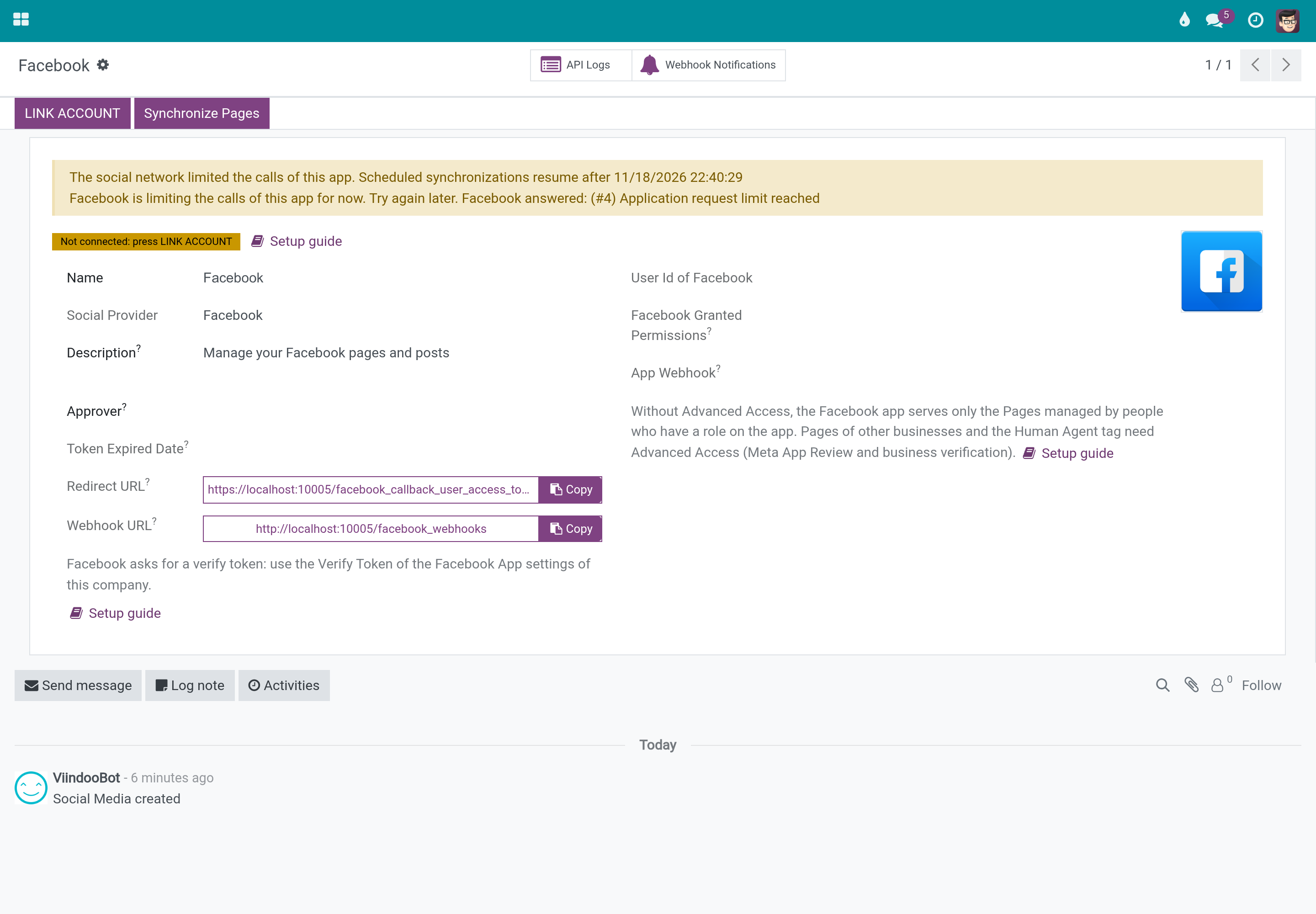
The buttons API Logs and Webhook Notifications at the top of the record are described in the chapters of the Social Marketing administrator and of the system administrator.
Editor: write and confirm articles
An article is the text and the files you want to publish. It is written once and can be posted on several pages.
Create an article
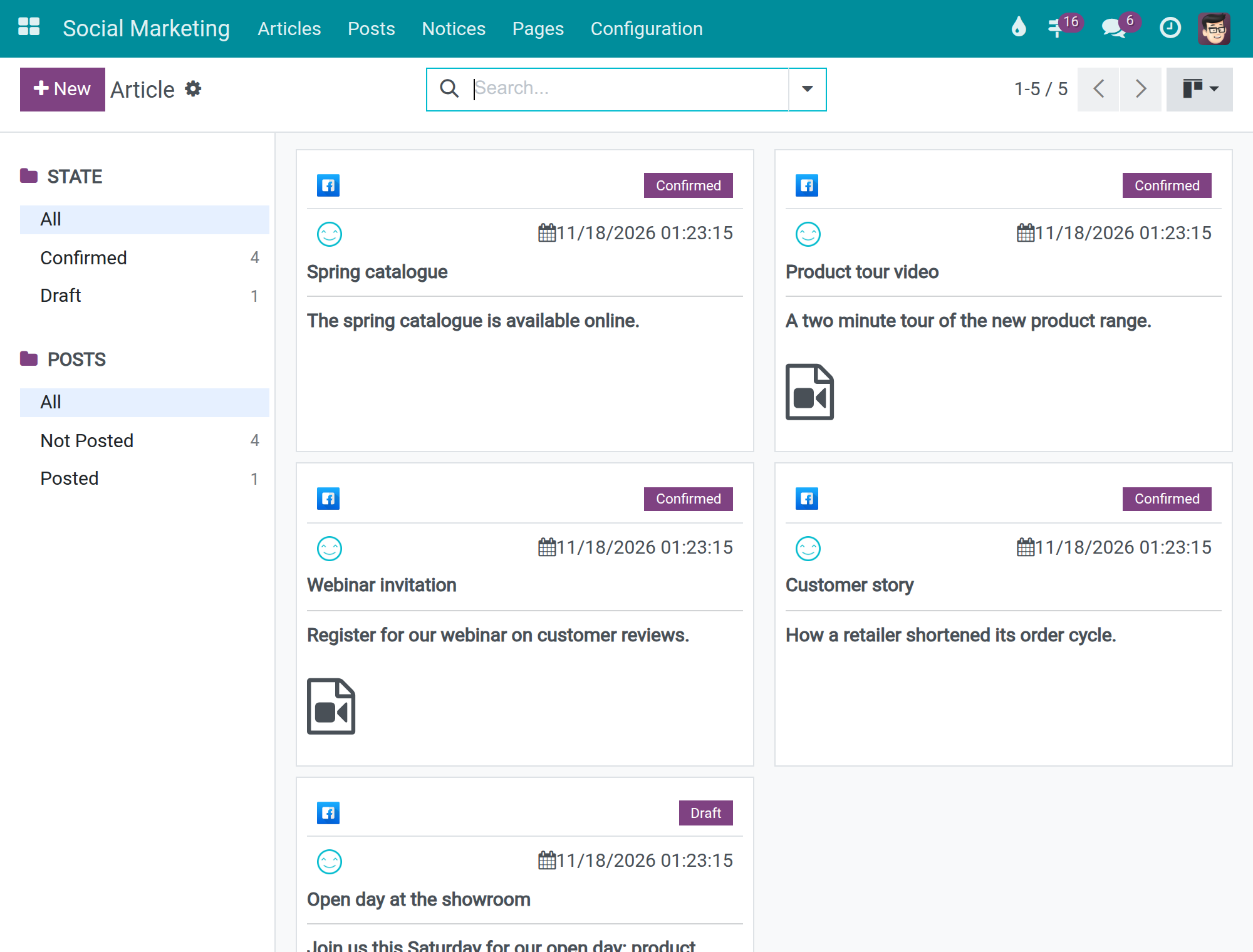
- Open Social Marketing > Articles and press New. The kanban cards show the state of each article (Draft, Confirmed, Cancelled); an article with a video shows a video icon, an article with images shows up to three thumbnails followed by More+.
- Fill Title, Body and tick the pages in Post on. The preview on the right shows how the post looks on the network.
- In Attachment Type choose Attach Files to add images or one video, or leave None and fill Attach Link to share a link. When a link is typed, its title and picture are read once and stored with the article; a link that cannot be reached simply shows no card.
- Under the files, one line per network of the chosen pages states what that network accepts (for example the size and format of a video). The Setup guide button next to it opens the detailed rules.
- Tick Schedule later and fill Scheduled Post Date to publish at a given time. The network states the accepted range under the date.
- Press Save, then Confirm. Use Set to Draft to edit a confirmed or cancelled article again.
The video of a published article
The social networks keep the video of a published post. To save space, the video file leaves the Odoo storage 7 days after every post of the article reached a final state (a daily scheduled action, Social: Remove Published Videos From Storage, does it). The article, its posts, their video icon, their links and their windows stay as they are; images are never removed. On the form of such an article an alert reads The video file of this article was deleted to save storage space; the published posts keep the video on the social networks. To publish it on another page, attach the video again. and Video Removed From Storage On shows the date. The article's chatter keeps a note: The video file was deleted to save storage space; the published posts keep the video on the social networks.
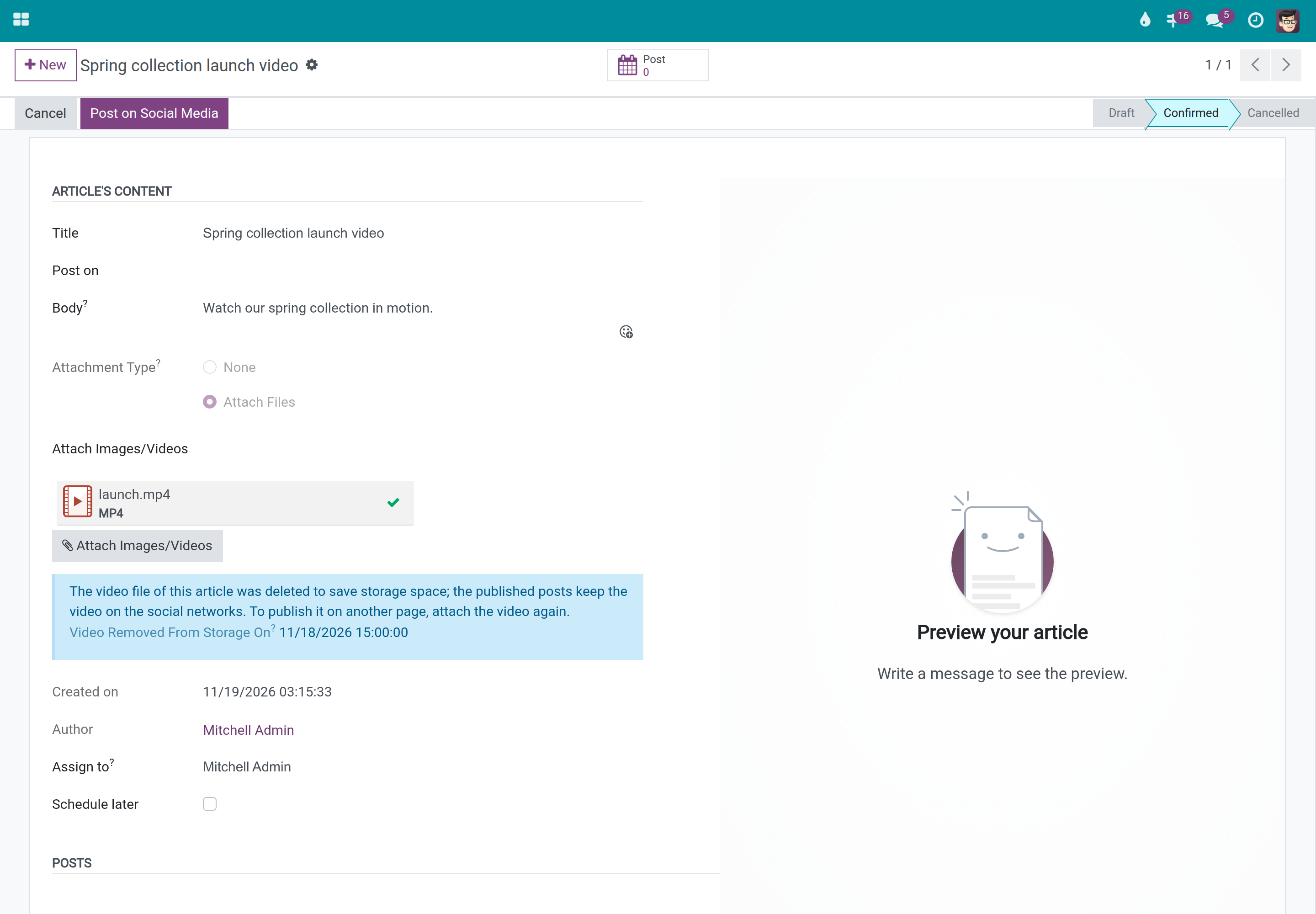
To publish the article on another page, to confirm a copy of it or to retry one of its posts, the video is needed again. Otherwise Odoo refuses with The video <name> of this article has no content. Remove it from the article, attach the video again, then publish. In the field of the files (it can be edited once the video was deleted), remove the emptied video, attach the video again, save, then publish. A new clip attached beside the emptied one does not publish: the video must be the only file of the article. A video attached again is kept for at least 7 days from the day it was attached, even when no post is made with it.
Approver: publish and follow the posts
Publish an article
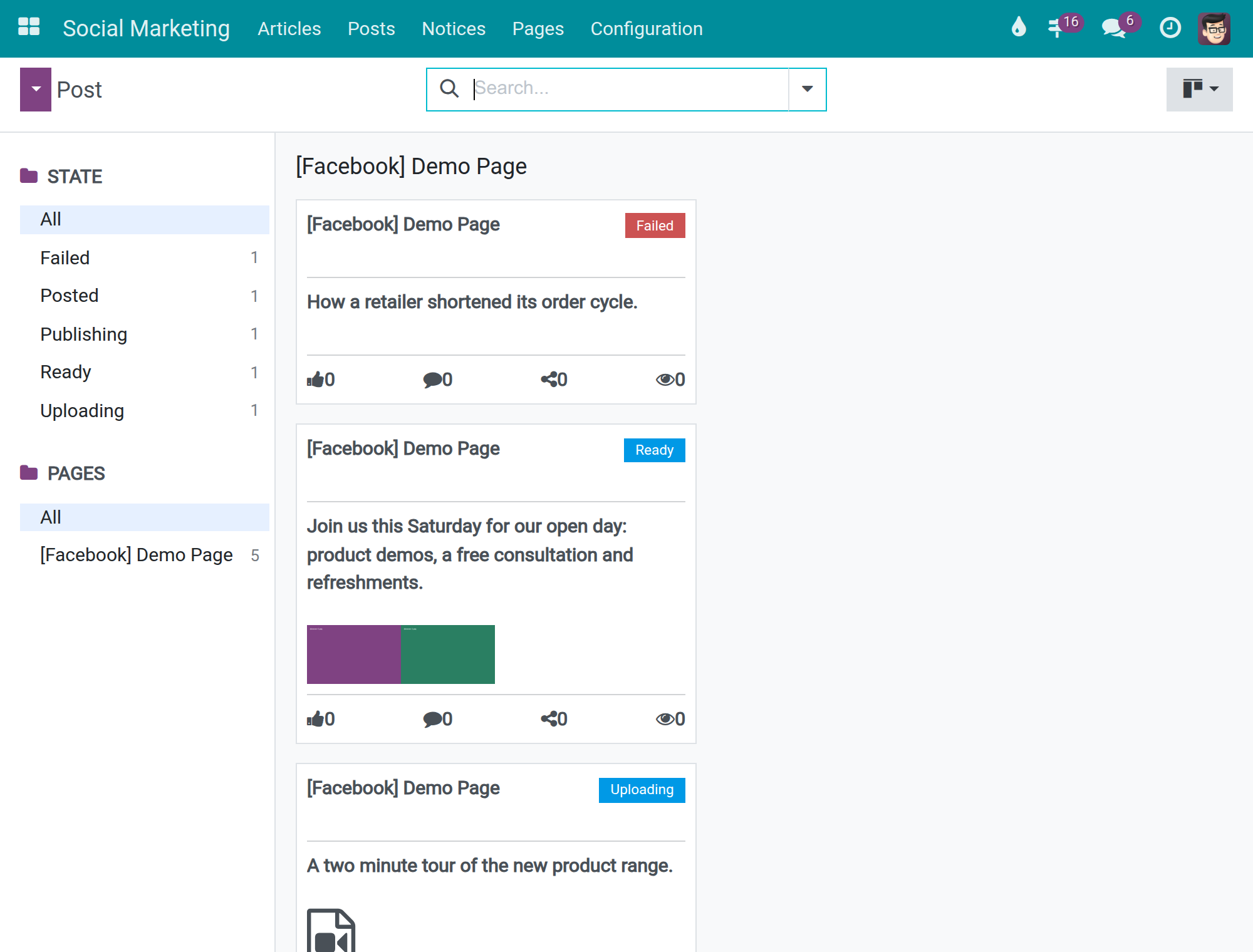
Open a confirmed article and press Post on Social Media. Each chosen page receives one post. The Post smart button of the article lists them; the Posts list at Social Marketing > Posts shows all posts, grouped by page, with the filters Ready, Posted, Failed and Cancelled.
The states of a post
| State | Meaning |
|---|---|
| Ready | The post is waiting to be published. Confirm / Post publishes it, Cancel drops it. |
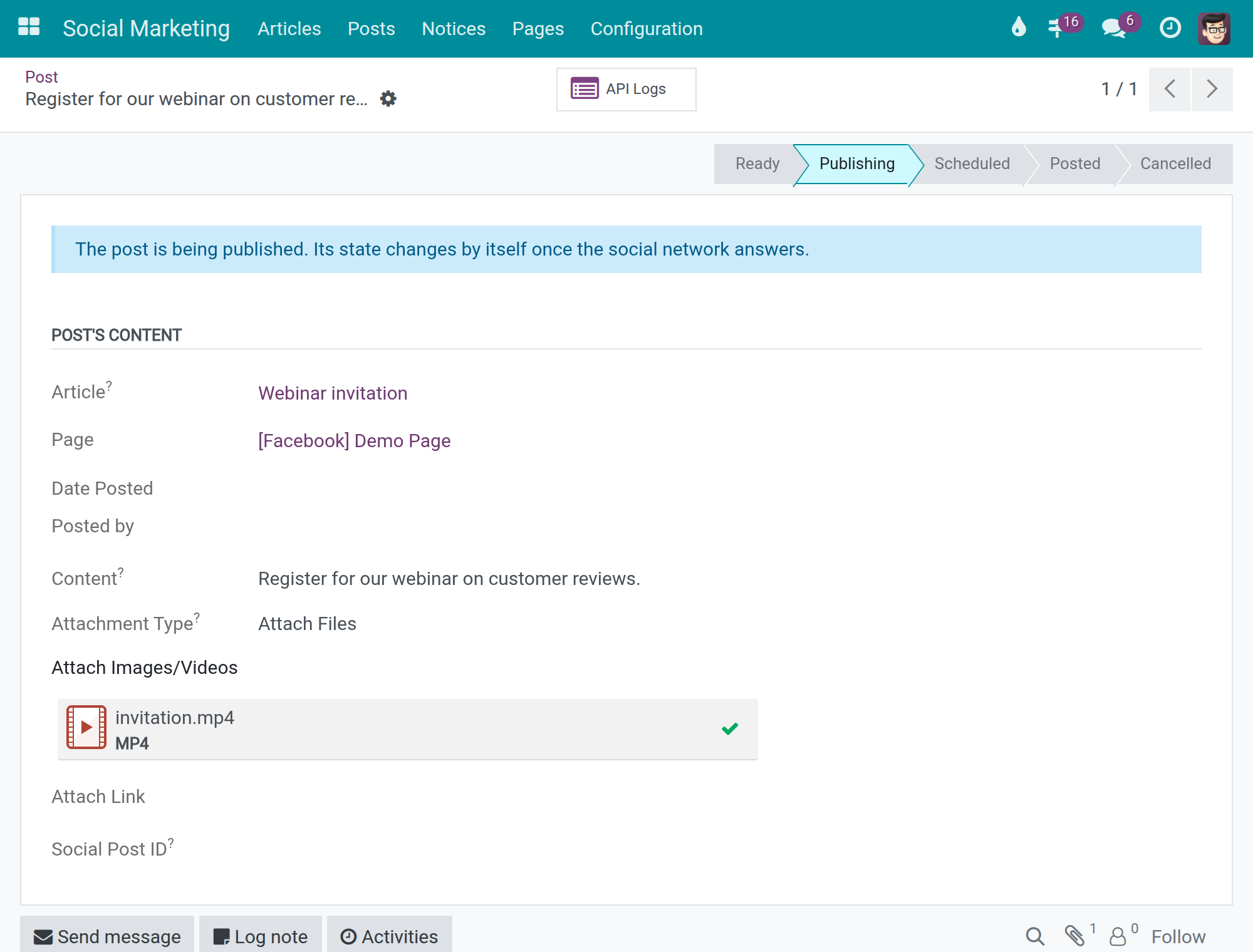
| Uploading | A video is being sent to the network in the background. You can keep working; the page does not wait. While Facebook limits the calls of the application, the upload of a Facebook video or Reel waits in this state and continues when the pause is over. |
| Publishing | The video is sent and the network is processing it. The message The post is being published. Its state changes by itself once the social network answers. is shown. |
| Scheduled | The network will publish the post at the chosen time. |
| Posted | The post is on the network. View on Social opens it, Edit Post changes its text. |
| Failed | The post could not be published. The reason is shown at the top of the post. |
| Cancelled | The post was dropped. Set To Ready puts it back. |
Videos are published in several steps (Uploading, then Publishing, then Posted or Failed). A post that is being published cannot be cancelled, archived, edited or deleted; wait until it is Posted or Failed. A post that is already on the network cannot be cancelled either: use Delete, which removes it from the network too. If you cancel or delete a post while its video is being uploaded, the upload is dropped and nothing is published later.
When a post fails
When a video post fails, the author and the assignee of the article, and the person who asked to publish, are notified in the chatter of the article. Open the post:
- Read the red message at the top: it is the Failure Reason given by the network or by Odoo.
- Fix the cause (for example reconnect the network, shorten or replace the video).
- Press Retry. Only approvers see this button. Press Cancel instead to give the post up.
The Setup guide button of the yellow message opens the troubleshooting section of the documentation.
When a network limits the calls
When Facebook or LinkedIn refuse an action because the application made too many calls, you see an ordinary warning that tells how long to wait (about that many minutes, or Try again later when the network gives no duration). Nothing is lost: try the action again after the wait. In the meantime the scheduled synchronizations of that connection are paused for the same time (one hour when the network gives no duration), the connections of the other networks and companies carry on, and notifications that arrive from the network wait without counting as a failed attempt. The Social Marketing administrator sees the pause on the record of the network (see Connect a network).
Delete a post
On a posted, cancelled, scheduled or failed post of an article, Delete Post removes the post from Odoo and from the network after a confirmation.
Notices
Social Marketing > Notices lists the comments, reactions and messages members of a page receive. Filters Seen and Not Seen separate what was read. Notices reach Odoo after a short delay, because the networks' notifications are processed in the background, and a notification the network sends twice is shown once.
Social Marketing administrator: pages and notifications
Pages
Social Marketing > Pages lists the pages found by Synchronize Pages on a network. On a page, choose the Approver, the Members (who receive its notices and answer its comments), and press Synchronize Page to refresh it. The page shows its figures in the Insights tab.
Webhook notifications
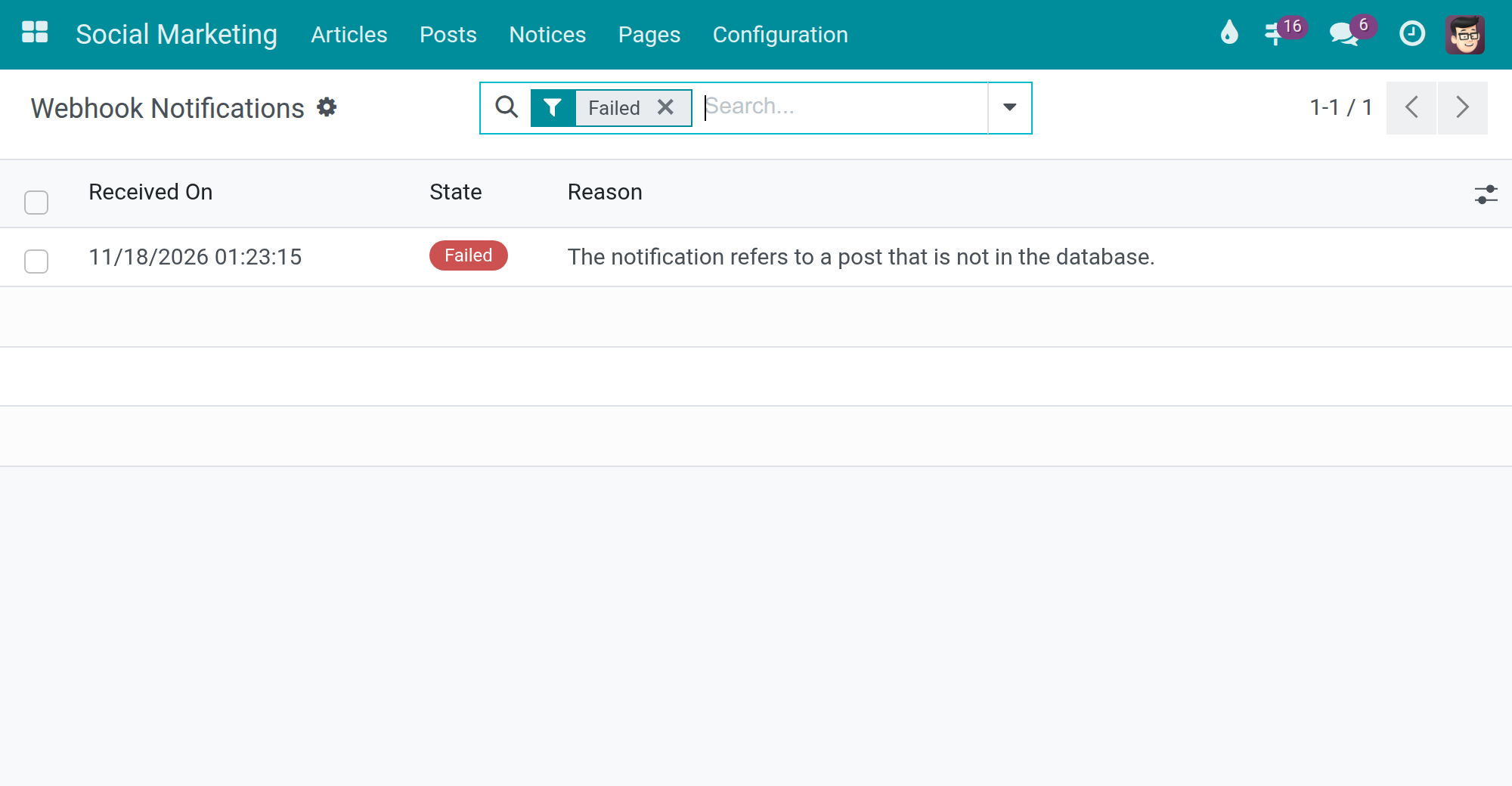
On the record of a network, the Webhook Notifications smart button opens the notifications the network sent to Odoo. The list opens on the failed ones and offers the filters Failed, Pending and Done; columns show Received On, State, Attempts and Reason.
- Pending: waiting to be processed. A notification is processed again automatically; after five unsuccessful attempts it becomes Failed.
- Done: processed (the form shows Processed On and the content received).
- Failed: select it and press Retry (in the list header, or in the form) to put it back to Pending once the cause is fixed. Only a Social Marketing administrator can retry.
An empty list reads No notification from the social network is waiting or has failed. and offers the Setup guide button for troubleshooting.
System administrator: calls to the networks
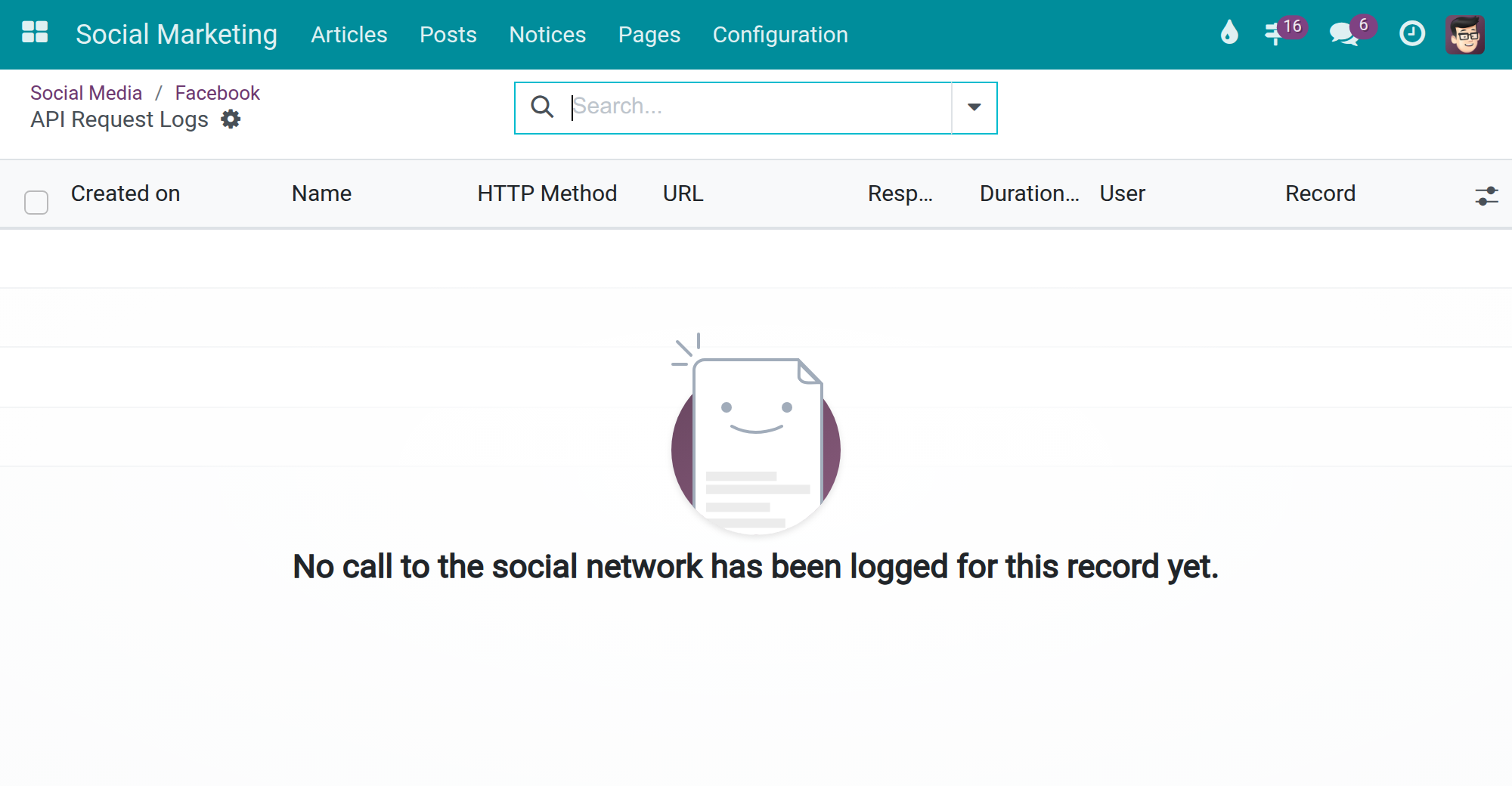
On a network, a page or a post, the API Logs smart button opens the calls Odoo made to the network for that record only. It is shown to the system administrator and to the users who may read the API logs. Each line gives the HTTP method, the response status, the error message and the duration. Tokens, secrets and codes appear masked, in the address, the request and the response alike. A call is logged even when the user's action failed and was rolled back, so a failed action leaves its trace here. A record with no call yet shows the message No call to the social network has been logged for this record yet.
The secrets of the connections (access tokens, application secrets) are visible in the settings only to the system administrator.
Troubleshooting
- The network cannot be connected: check that the database address is HTTPS and that the Redirect URL is declared exactly as shown; use the Setup guide buttons.
- No comment or message arrives: check the Webhook URL is declared, then open Webhook Notifications for a failed line and read its reason.
- A post stays in Publishing: the network has not answered yet; reload later. It becomes Posted or Failed by itself.
- A warning says the network limits the calls: wait the time it states, then try again. The scheduled synchronizations resume by themselves; the alert on the network record shows when.
- A Facebook video or Reel stays in Uploading: check the record of the Facebook connection; while an alert shows that the calls are paused, the upload waits for the end of the pause.
- The video of an old article is refused: it was deleted from the storage after publication; attach it again (it then stays for at least 7 days).
- A post is Failed: read its failure reason, fix it, press Retry; the API Logs of the post show what the network answered.
FAQ
Who can retry a failed post? Approvers and administrators.
Can I change the text of a post already published? Yes: use Edit Post on the posted post.
Does a posted article show its results? Yes: likes, comments, shares and views are shown on the post cards.
This software and associated files (the "Software") may only be used (executed, modified, executed after modifications) if you have purchased a valid license from the authors, typically via Odoo Apps, or if you have received a written agreement from the authors of the Software (see the COPYRIGHT file).
You may develop Odoo modules that use the Software as a library (typically by depending on it, importing it and using its resources), but without copying any source code or material from the Software. You may distribute those modules under the license of your choice, provided that this license is compatible with the terms of the Odoo Proprietary License (For example: LGPL, MIT, or proprietary licenses similar to this one).
It is forbidden to publish, distribute, sublicense, or sell copies of the Software or modified copies of the Software.
The above copyright notice and this permission notice must be included in all copies or substantial portions of the Software.
THE SOFTWARE IS PROVIDED "AS IS", WITHOUT WARRANTY OF ANY KIND, EXPRESS OR IMPLIED, INCLUDING BUT NOT LIMITED TO THE WARRANTIES OF MERCHANTABILITY, FITNESS FOR A PARTICULAR PURPOSE AND NONINFRINGEMENT. IN NO EVENT SHALL THE AUTHORS OR COPYRIGHT HOLDERS BE LIABLE FOR ANY CLAIM, DAMAGES OR OTHER LIABILITY, WHETHER IN AN ACTION OF CONTRACT, TORT OR OTHERWISE, ARISING FROM, OUT OF OR IN CONNECTION WITH THE SOFTWARE OR THE USE OR OTHER DEALINGS IN THE SOFTWARE.
Social Marketing - user guide
Who this guide is for: the people who write and approve posts for company pages on social networks (editors and approvers), the Social Marketing administrator who connects the networks, and the system administrator who installs the module and reads the call history. It describes what each of them sees and does; it does not require any knowledge of the software's internals.
Note
Social Marketing is the common part of the social network integration. The networks themselves are provided by their own modules: Facebook Social Marketing and LinkedIn Social Marketing. The history of calls made to the networks relies on API Request Logger; see its documentation for the log screens in general.