

Foreign Trade, Logistics
by Viindoo
| Lines of Code | 3118 |
| Technical name | viin_foreign_trade |
| License | OPL-1 |
| Website | https://viindoo.com/apps/modules/19.0/viin_foreign_trade |
| Read description for | v 10.0 v 11.0 v 12.0 v 13.0 v 14.0 v 15.0 v 16.0 v 17.0 v 18.0 |
| Required Apps | Invoicing (account) Purchase (purchase) Discuss (mail) Inventory (stock) |
| Included Dependencies | Viindoo Base Accounting Foundation Payment with Payment Lines |
| Extensions | Foreign Trade & Electronic Invoicing (UBL/CII) Foreign Trade & Logistics Currency Rate Vietnam - Foreign Trade Foreign Trade Export, Logistics Foreign Trade Import, Logistics |

Customs zones, customs taxes and payment rules, ready before your first import
For Vietnamese companies doing import/export and international companies on the generic chart
Customs zones, customs authorities and duty taxes - the base for import and export
Is this you?
Imported goods reach the warehouse before anyone knows whether customs have cleared them.
Import duty and import VAT are booked by hand, and the accounts differ from one entry to the next.
Customs taxes sit among your ordinary taxes, so they can end up on an invoice or be picked when an electronic invoice is imported.
Every purchase follows one route, so you cannot send only some products through the import customs zone.
Paying customs takes several entries, and it is unclear which taxes are still open on a declaration.
What changes
Imported goods reach the warehouse before anyone knows whether customs have cleared them.
→ Goods leave the customs zone only after customs have confirmed the declaration that covers them: a transfer out of the zone is refused until then.
Import duty and import VAT are booked by hand, and the accounts differ from one entry to the next.
→ Each customs tax carries both accounts of its entry on the tax itself, and one customs voucher per tax is posted from it - no counterpart account to choose.
Customs taxes sit among your ordinary taxes, so they can end up on an invoice or be picked when an electronic invoice is imported.
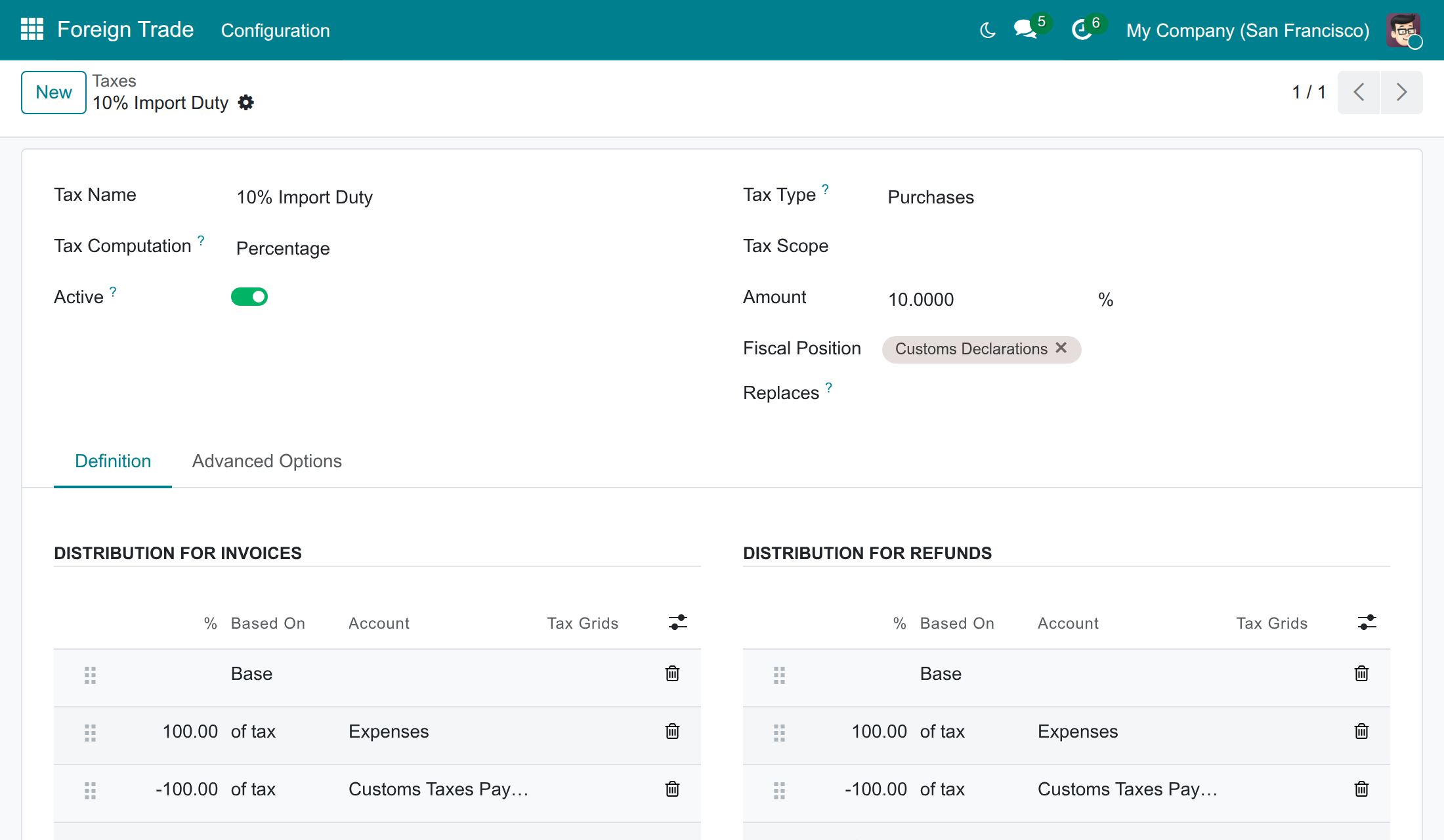
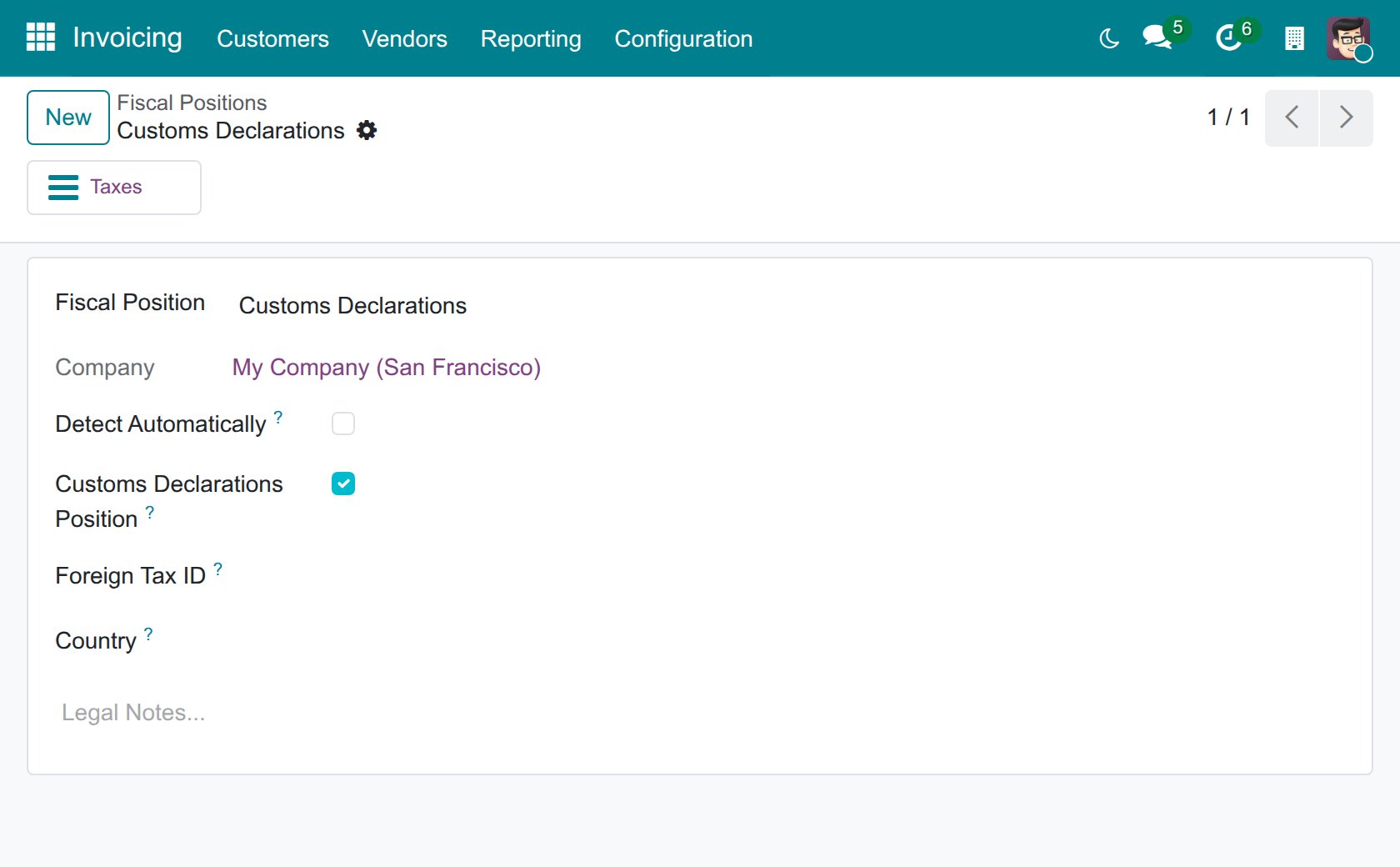
→ A dedicated Customs Declarations fiscal position keeps customs taxes out of invoice tax pickers and out of UBL/CII document imports.
Every purchase follows one route, so you cannot send only some products through the import customs zone.
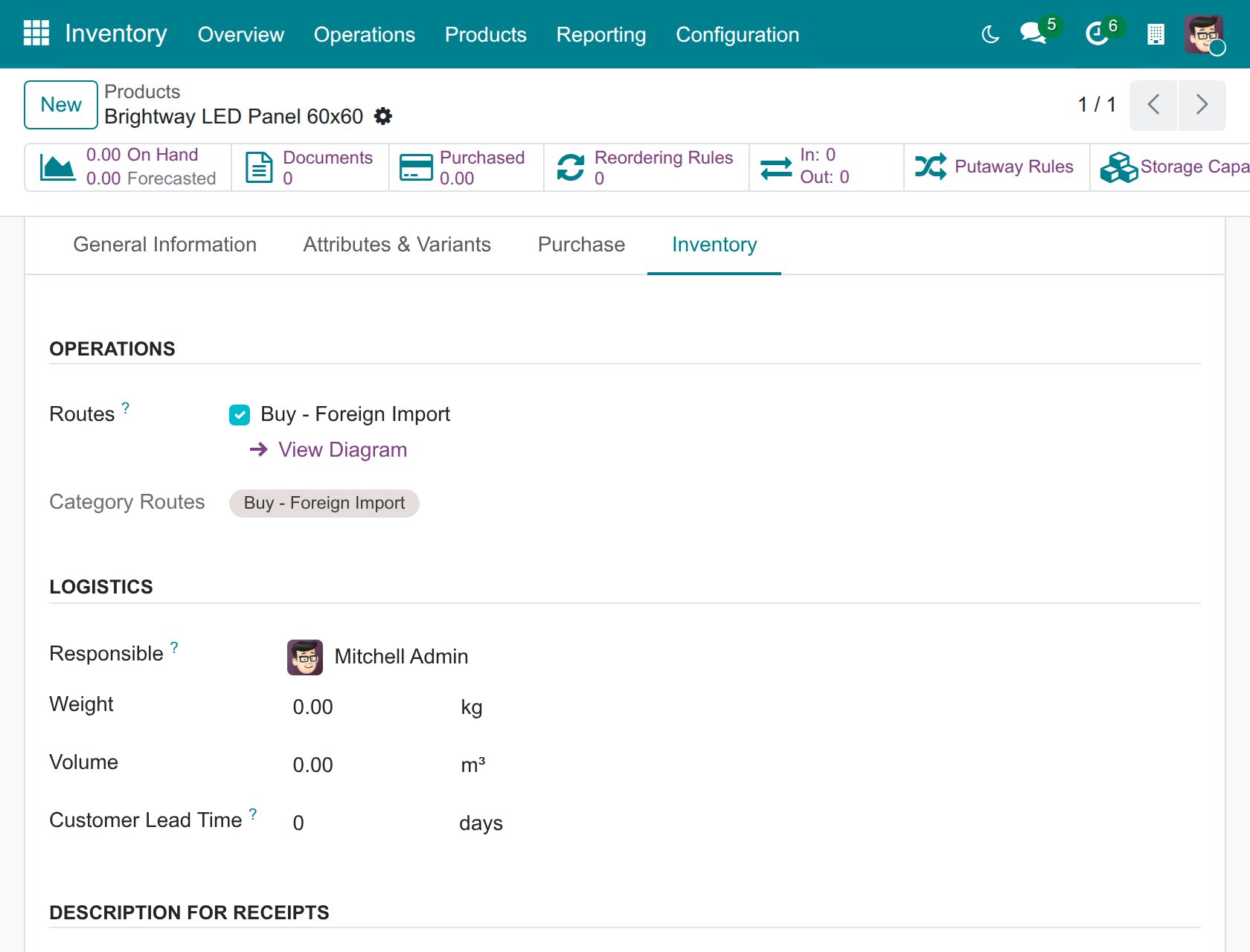
→ Foreign import is chosen per product or per category with the Buy - Foreign Import route; every other product is bought the usual way.
Paying customs takes several entries, and it is unclear which taxes are still open on a declaration.
→ One Taxes Payment per declaration, a paid status per tax, and a declaration that is locked once customs confirm it, so posted amounts never drift.
How it works
Draft
The import/export specialist prepares the declaration from the transfers of the goods and opens it.
Waiting Confirmation by Custom
The declaration is with customs. Once customs accept it, the specialist confirms the clearance: the customs vouchers are posted and the declaration is locked.
Confirmed by Custom
An accountant with the Invoicing rights pays every tax in one Taxes Payment; once it is posted and every tax is paid, the declaration moves to Done by itself.
Done
All taxes are paid and posted. The declaration is closed as a record of the clearance.
The declaration screens come with Foreign Trade Import, Logistics and Foreign Trade Export, Logistics; this module provides the foundation they share.
Key Features
Customs zones on every warehouse
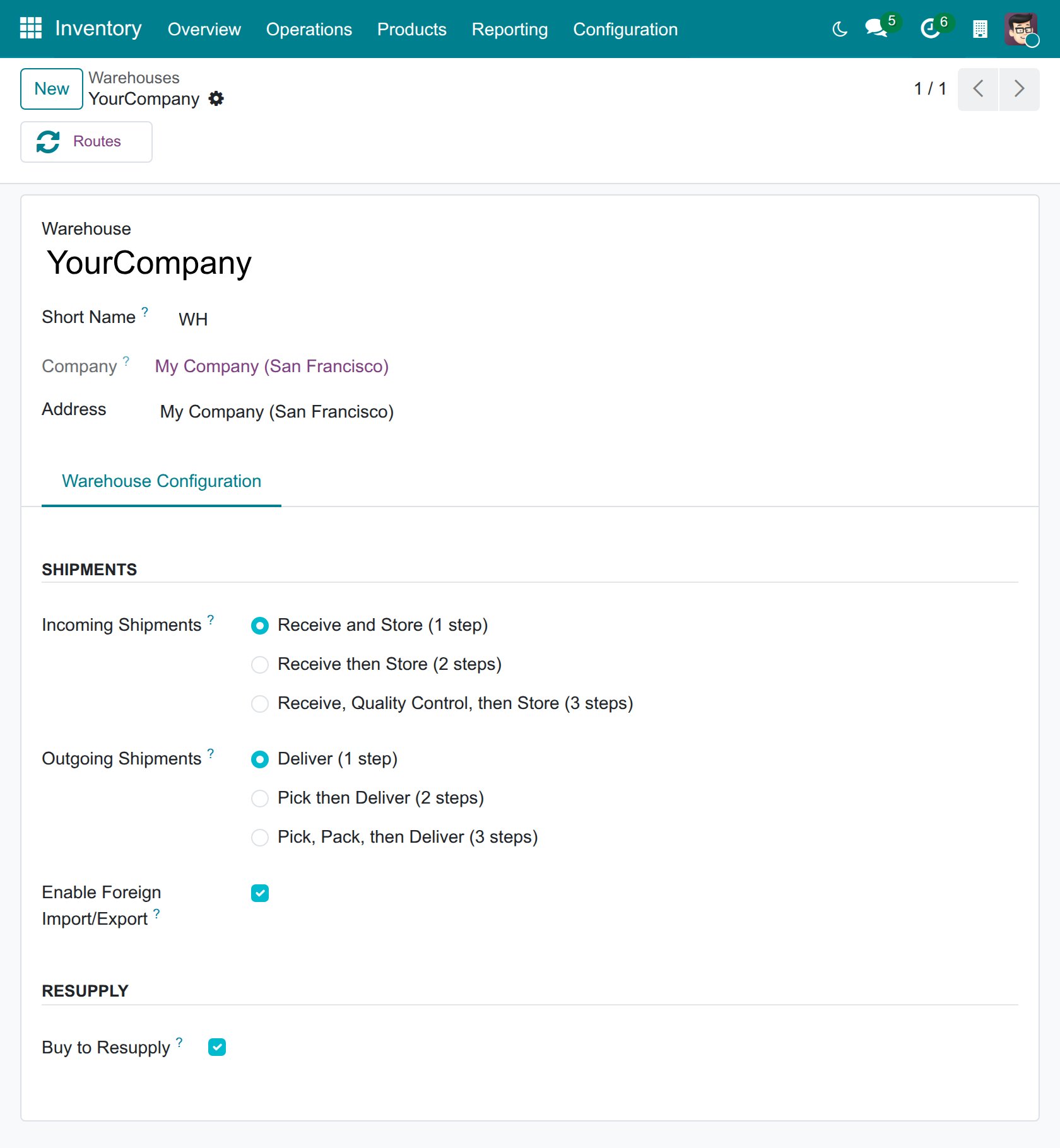
One tick gives a warehouse its import and export customs zones, four customs operation types and the routes that make goods stop there.
Customs taxes with both sides built in
Import duty, import VAT and export duty are ordinary taxes whose +100% and -100% lines carry the accounts of the customs voucher.
Customs taxes kept off your invoices
A dedicated fiscal position keeps customs taxes out of invoice pickers and electronic-document imports.
Foreign import only where you choose
Tick Buy - Foreign Import on a product or a category; everything else keeps the standard Buy route.
A gate before goods leave the zone
Goods stay in the customs zone until the declaration that covers them is confirmed by customs.
One payment per declaration
Pay what is owed to the customs authority in a single window, see each tax as paid or open, and lock the declaration once customs confirm it.
Who it is for
Owner or finance director
Wants customs duty and VAT booked on the right accounts every time, and goods held until customs clear them.
Import/export manager
Wants one set of rules for every declaration: the same stages, the same locks, the same payment.
Chief accountant and accountants
Want each customs tax posted as its own voucher on accounts taken from the tax, and customs taxes kept out of invoices.
Warehouse staff
Want a clear customs zone where goods wait, and a transfer that tells them which declaration is missing.
System administrator
Wants the defaults in one Settings page, opt-in routes and a fiscal position instead of custom code.
Best for: companies that import or export goods and want the customs zones, customs taxes and payment rules of their warehouse and accounting set up once, as the base for their import and export declarations.
Switch foreign trade on for a warehouse
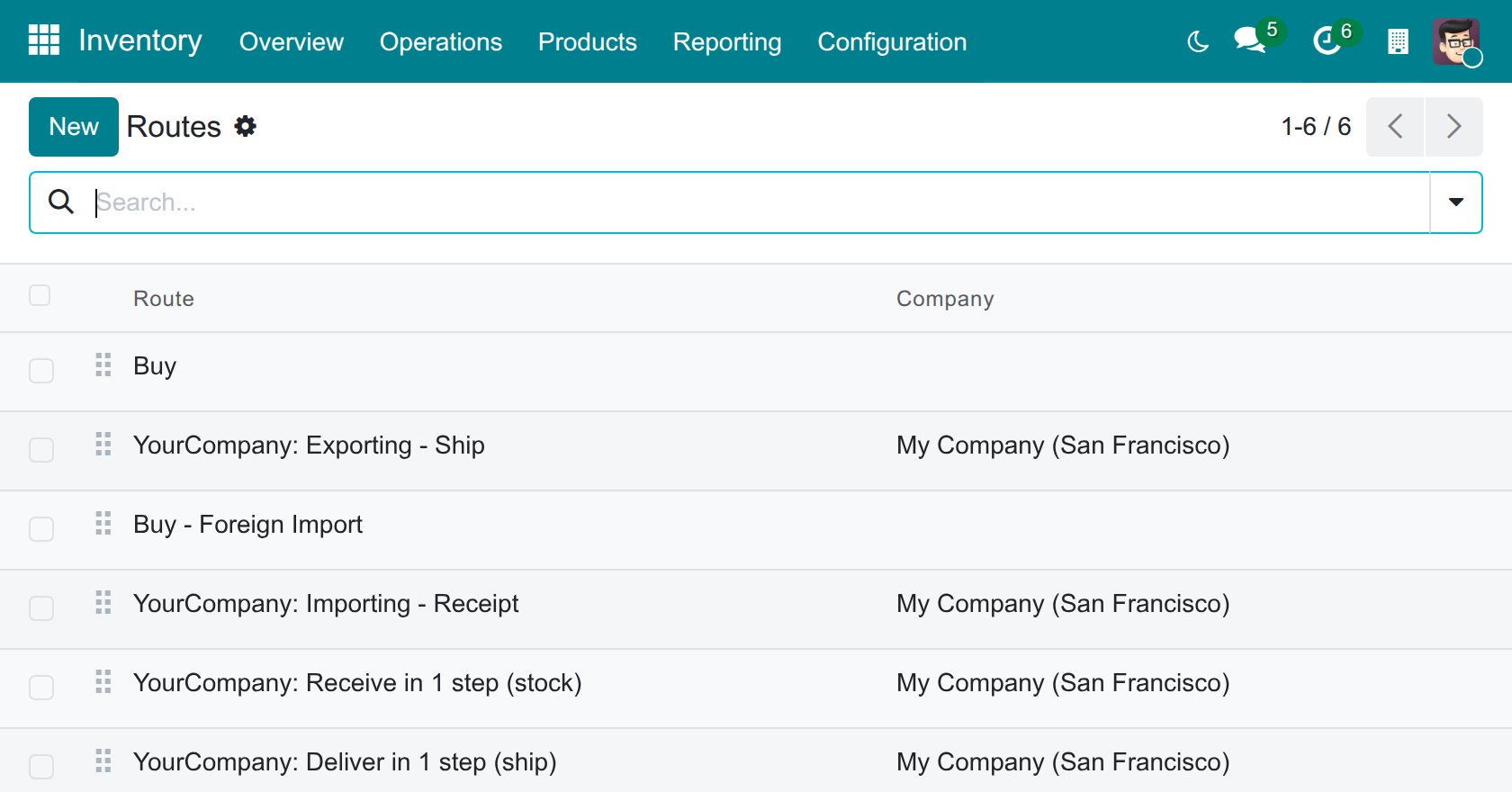
See the customs routes created for you
Choose which products are bought abroad
Keep customs taxes out of invoices
Frequently Asked Questions
Can I create customs declarations with this module alone?
No. Foreign Trade, Logistics is the base: customs zones, customs taxes, accounts and the rules every declaration follows. The declaration screens come with Foreign Trade Import, Logistics and Foreign Trade Export, Logistics, which build on it.
Will it change how we buy ordinary products?
No. Only products and categories that carry the route Buy - Foreign Import are bought through the import customs zone. Every other product keeps the standard Buy route, even on a warehouse with foreign trade enabled.
Does it fit the Vietnamese charts of accounts?
Yes. The Vietnamese charts (Circular 99 and Circular 133) bring their own customs taxes, and Vietnam - Foreign Trade installs by itself with them: it adds the Customs Declarations fiscal position and an immediate payment term for customs taxes.
Does it work on the generic chart of accounts?
Yes. The generic chart receives the account Customs Taxes Payable (2530), the Customs Declarations fiscal position and three customs taxes: 10% Import Duty, 15% Import VAT and 0% Export Duty. They are created when the tax country of the company is the country of the generic chart; otherwise you create the taxes by hand.
Can customs taxes slip into invoices or imported electronic invoices?
Customs taxes sit on the Customs Declarations fiscal position, so they are not offered in the tax picker of invoice and bill lines, and UBL/CII imports never match them. The picker is a convenience, not a lock: Search More... can still show them.
Can the declaration be changed after customs confirm it?
No, by design. Lines, taxes, currency, rate and dates are locked once customs have confirmed the declaration, because the customs vouchers are posted with those values.
Who needs which access right?
People who handle declarations get Foreign Trade: User, which includes the Inventory user rights and reads vendor bills and customer invoices, but no journal entry or accounting report; paying the customs taxes needs the Invoicing rights. Accountants read the declarations from Invoicing > Customs Declarations. Changing settings, taxes, warehouses and fiscal positions also needs the Administrator role and the Accounting and Inventory administrator rights.
Need help with Foreign Trade, Logistics?
Pre-Sales & Partnership
sales@viindoo.comTechnical Support
apps.support@viindoo.comQuote the Odoo version and the technical name viin_foreign_trade.
Technical Requirement
- Odoo version: 19.0
- Editions: Odoo Community, Odoo Enterprise
- Required modules: stock_account, stock_landed_costs, to_base, viin_account, to_account_payment
- License: OPL-1
Changelog
- 2026-10-23 Improved 1.1.2: the Foreign Trade User role no longer includes Invoicing and has no accounting right of its own. It reads vendor bills and customer invoices (to link a bill to a declaration and to open the foreign orders), but no other journal entry, customs voucher, tax account or accounting report, and it still prepares, confirms, sets done and cancels declarations. Existing Foreign Trade users lose the Invoicing rights unless they hold them through another role: give Invoicing to those who pay customs taxes. Accountants (Basic level or above, the Accounting Administrator and the read-only auditor) read every declaration, read-only, from Invoicing > Customs Declarations. The Taxes menu of the Foreign Trade app is removed: configure customs taxes in Invoicing > Configuration > Accounting > Taxes.
- 2026-10-22 Fixed 1.1.2: cancelling a declaration cancels only its own customs vouchers, like cancelling a sales order: a payment of its taxes, even a part payment, is no longer cancelled with it; it stays posted and unreconciled for an accountant to reallocate or refund.
- 2026-10-22 Improved 1.1.2: the tax rows of a declaration show the tax’s current name in the reader’s language, on existing declarations too; the declaration statuses and the Foreign Trade heading of the access rights are translated.
- 2026-10-22 Improved 1.1.2: the Foreign Trade User role no longer includes Invoicing; it can no longer edit purchase orders (like any Inventory user it can still update sales orders from the warehouse side), and Taxes Payment is an Invoicing user’s action. The Foreign Trade Administrator role is unchanged.
- 2026-10-22 Fixed 1.1.2: on the partner form, changing the country to a foreign one, or ticking Foreign Trade Partner, moves the partner’s customer stock location to Foreign Customer (and back to Customers when cleared); a location you set yourself is kept.
- 2026-10-21 New The Buy - Foreign Import route: foreign import is opt-in per product or product category; other products keep the standard Buy route.
- 2026-10-21 New The Customs Declarations fiscal position keeps customs taxes out of invoice pickers and electronic-document imports.
- 2026-10-20 New Generic chart: the account Customs Taxes Payable (2530) and three customs taxes (10% Import Duty, 15% Import VAT, 0% Export Duty).
- 2026-10-20 Improved Each customs tax posts both sides of its customs voucher from its own +100% and -100% distribution lines; no counterpart account to configure.
- 2026-10-20 Improved Once customs have confirmed a declaration, its rate, clearance date, currency, transfers, lines and taxes are locked; a fully paid declaration closes by itself, and Set Done remains for a confirmed, paid declaration that did not close (for example nothing to pay).
- 2026-10-20 Improved Roles are chosen under the Foreign Trade access right (User or Administrator).
Foreign Trade, Logistics
Who this guide is for. The Administrator who sets foreign trade up, the import/export specialists who prepare customs declarations, the chief accountant and the accountants who pay and check customs taxes, the purchasing and sales staff who keep vendors, customers and products up to date, and the warehouse staff who receive and ship goods through the customs zones.
Note
This guide covers the foundation shared by importing and exporting: setup, customs taxes, accounts and the rules every customs declaration follows. The step-by-step declaration screens are in the guides of Foreign Trade Import, Logistics and Foreign Trade Export, Logistics.
Overview
When you buy goods from abroad or sell goods to a customer abroad, the goods have to be declared to the customs authority, duties and VAT (or export duty) are owed to that authority, and the goods must not move on until customs have cleared them. Foreign Trade, Logistics prepares your warehouses, contacts, products and accounts for this and holds the rules that every customs declaration follows:
- each warehouse can have an import customs zone and an export customs zone, with their own operation types and routes;
- import duty, import VAT and export duty are set up as ordinary taxes whose distribution carries both sides of the accounting entry;
- a customs declaration moves through fixed stages, posts one customs voucher per tax, is paid in one payment and is locked once customs have confirmed it;
- goods cannot leave a customs zone before customs have confirmed the declaration that covers them.
The declaration itself is created with the Import and Export modules, which add their entries under Foreign Trade ‣ Customs Clearance Document. With this module alone the menu Customs Clearance Document stays empty.
The life of a customs declaration
| Stage | Status shown | Who acts | What happens |
|---|---|---|---|
| 1 | Draft | Import/Export Specialist | Prepares the declaration from the transfers of the goods and presses Open. |
| 2 | Waiting Confirmation by Custom | Import/Export Specialist | The declaration is with customs. Once customs accept it, the specialist presses Confirm Customs Clearance: the customs vouchers are posted and the declaration is locked. |
| 3 | Confirmed by Custom | Accountant | The taxes owed are paid with Taxes Payment; once the payment is posted and every tax is paid, the declaration moves to Done by itself. |
| 4 | Done | The declaration is closed. A declaration can also end as Cancelled. |
Who does what
| Role | What they do | Access right to assign |
|---|---|---|
| Administrator | Installs the module, sets the defaults, enables foreign trade on warehouses, defines customs taxes and gives each person their access right. | Administrator role, plus the Administrator access rights of Foreign Trade, Accounting and Inventory |
| Import/Export Specialist | Prepares, confirms, sets done and cancels customs declarations; reads the foreign sales and purchase orders, the transfers, the vendor bills and the customer invoices, without changing the purchase orders; has no other journal entry, no customs voucher and no accounting report; like any Inventory user, can update sales orders from the warehouse side. | Foreign Trade: User (it includes Inventory: User, not Invoicing) |
| Chief Accountant, Accountant | Reads every customs declaration, with its customs vouchers, its tax accounts and, on an import, its landed costs, from Invoicing ‣ Customs Declarations; pays the customs taxes. | Accounting: Basic, Show Full Accounting Features or Administrator to read and pay; Show Accounting Features - Readonly (auditor) to read only |
| Purchasing and sales staff | Keep foreign vendors, customers and products up to date. | The Purchase or Sales access right of their job |
| Warehouse staff | Receive goods into the import customs zone and ship them from the export customs zone. | Inventory: User (also included in Foreign Trade: User) |
Setup (for the Administrator)
Install the module
- Open Apps.
- Search for Foreign Trade, Logistics and press Install. The Inventory and Invoicing apps it relies on are installed with it.
- To create declarations, also install Foreign Trade Import, Logistics (goods you buy) and Foreign Trade Export, Logistics (goods you sell).
After the installation the Foreign Trade app appears in the main menu, foreign trade is enabled on the first warehouse of every company, and Storage Locations and Multi-Step Routes are switched on in the Inventory settings.
Two more modules install by themselves when they are needed: Foreign Trade & Electronic Invoicing (UBL/CII) with the electronic invoicing (UBL/CII) features, and Vietnam - Foreign Trade with the Vietnamese charts of accounts. They are described at the end of this section.
Give people their access right
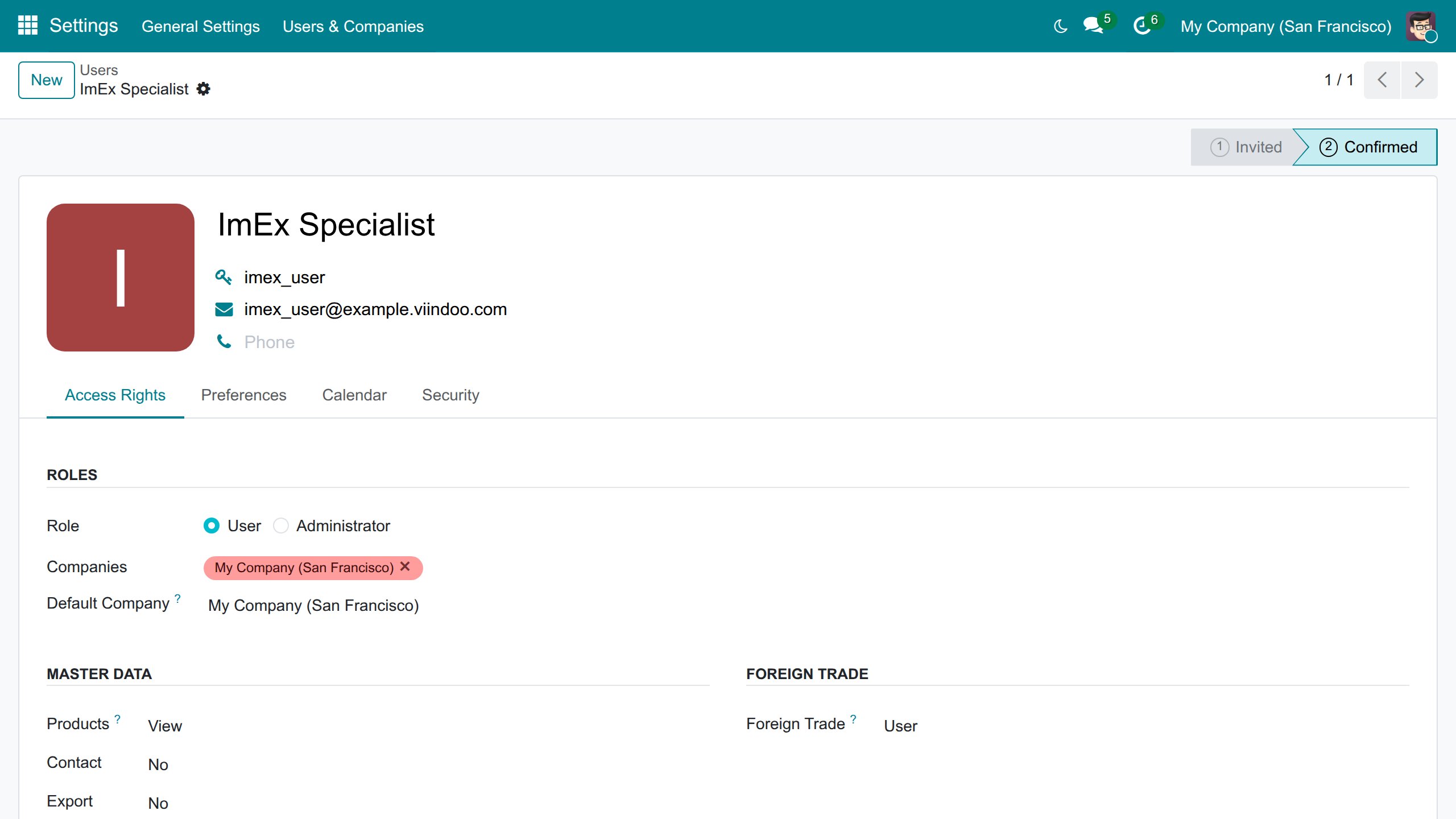
- Open Settings ‣ Users & Companies ‣ Users and select the person.
- On the Access Rights tab, in the Foreign Trade group, choose User or Administrator.
Note
Foreign Trade: User includes Inventory: User, not Invoicing and not any accounting right. A Foreign Trade user reads the vendor bills and the customer invoices (to link a bill or a carrier bill line to a declaration and to open the foreign purchase and sales orders), but no other journal entry, no customs voucher, no Journal Entries button, no tax accounts on the tax rows and no accounting report. He still prepares, confirms, sets done and cancels declarations. Paying the customs taxes (Taxes Payment) needs the Invoicing rights. A Foreign Trade user only sees foreign sales and purchase orders; he changes no purchase order and, like any Inventory user, he can update sales orders from the warehouse side. With Invoicing or an Accounting access right he sees every purchase order, but still only the foreign sales orders unless he also has a Sales role that shows all orders. As a salesman limited to his own documents he still reads every export declaration. Inventory, Purchase and Sales users open the declarations read-only, without their accounting fields and buttons. The update of the module removes Invoicing from the Foreign Trade users who hold it through this role only: give Invoicing to those who pay customs taxes. A Foreign Trade user who also holds a role that reads journal entries without a record rule of its own (credit follow-up, for example) reads only invoices there: give such a user Invoicing or an accounting role.
Accountants read every customs declaration, read-only, under Invoicing ‣ Customs Declarations ‣ Import / Export: users with Accounting: Basic, the read-only auditor (Show Accounting Features - Readonly), the bookkeeper or accountant (Show Full Accounting Features) and the Accounting Administrator. They see the Journal Entries button, the tax accounts of the tax rows and, on an import declaration, the landed costs, but they cannot create, change, confirm or cancel a declaration: that stays with Foreign Trade. Users with Invoicing only do not read declarations. Users with Basic or above and the Accounting Administrator open the Taxes Payment window and pay; a Foreign Trade user pays when he also has Invoicing; the read-only auditor cannot pay.
Foreign Trade: Administrator includes Foreign Trade: User and adds the Foreign Trade block of the settings. As everywhere in Odoo, each configuration stays with the role that owns it: the settings open with the Administration: Settings right; customs taxes and fiscal positions are accounting configuration, changed with the Accounting: Administrator right; warehouses, customs zones and operation types are changed with the Inventory: Administrator right. Give those rights to the person who sets foreign trade up.
Set the customs defaults
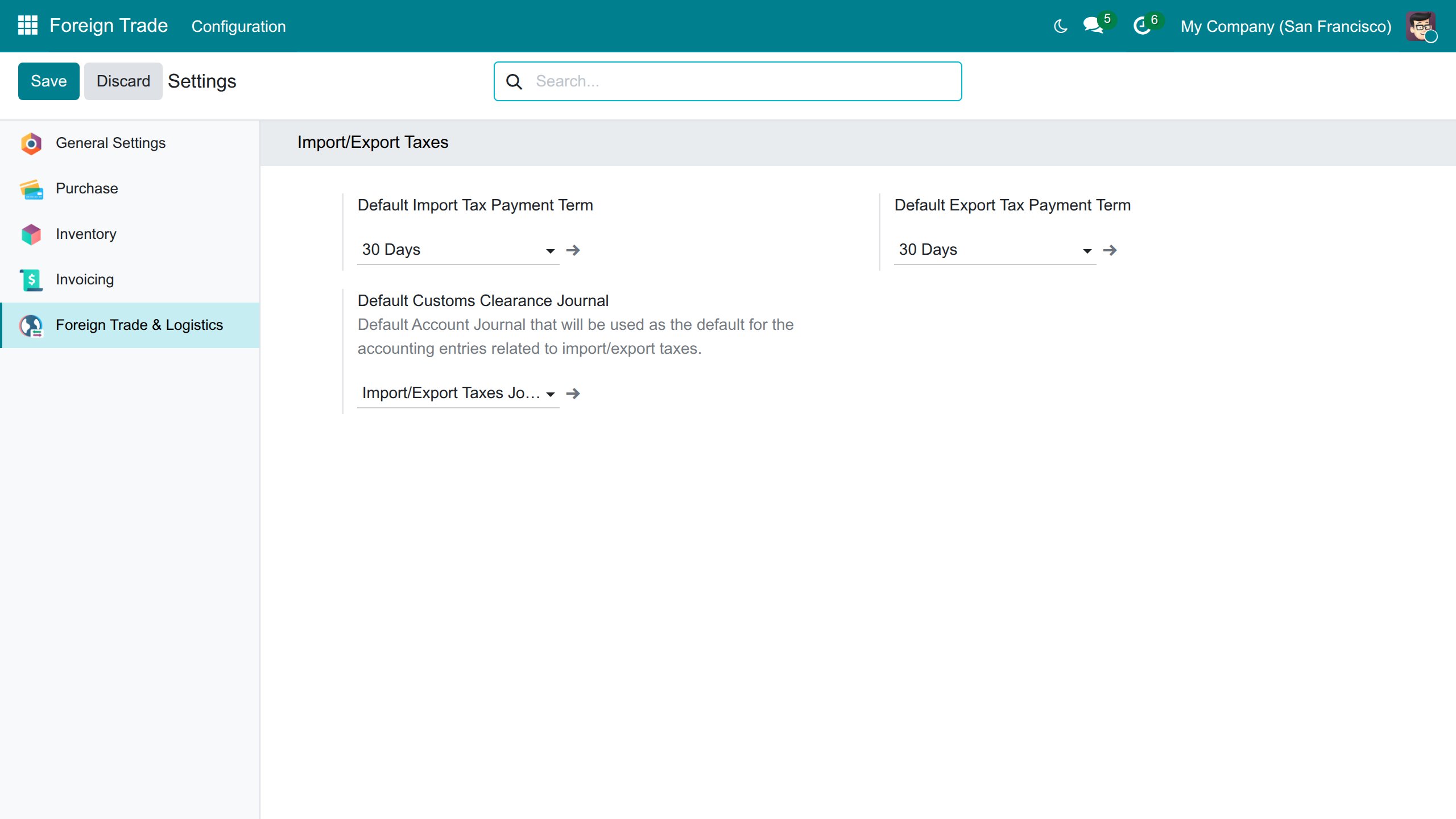
- Open Foreign Trade ‣ Configuration ‣ Settings. The Foreign Trade & Logistics page opens on the block Import/Export Taxes.
- In Default Import Tax Payment Term and Default Export Tax Payment Term, choose the payment term applied to the customs taxes of a new declaration. It is used unless the contact of the customs authority has its own vendor payment term. A new company starts with 30 Days; the Vietnamese charts set Immediate Payment.
- In Default Customs Clearance Journal, choose the journal that records the customs vouchers. The chart of accounts provides Import/Export Taxes Journal.
- Press Save.
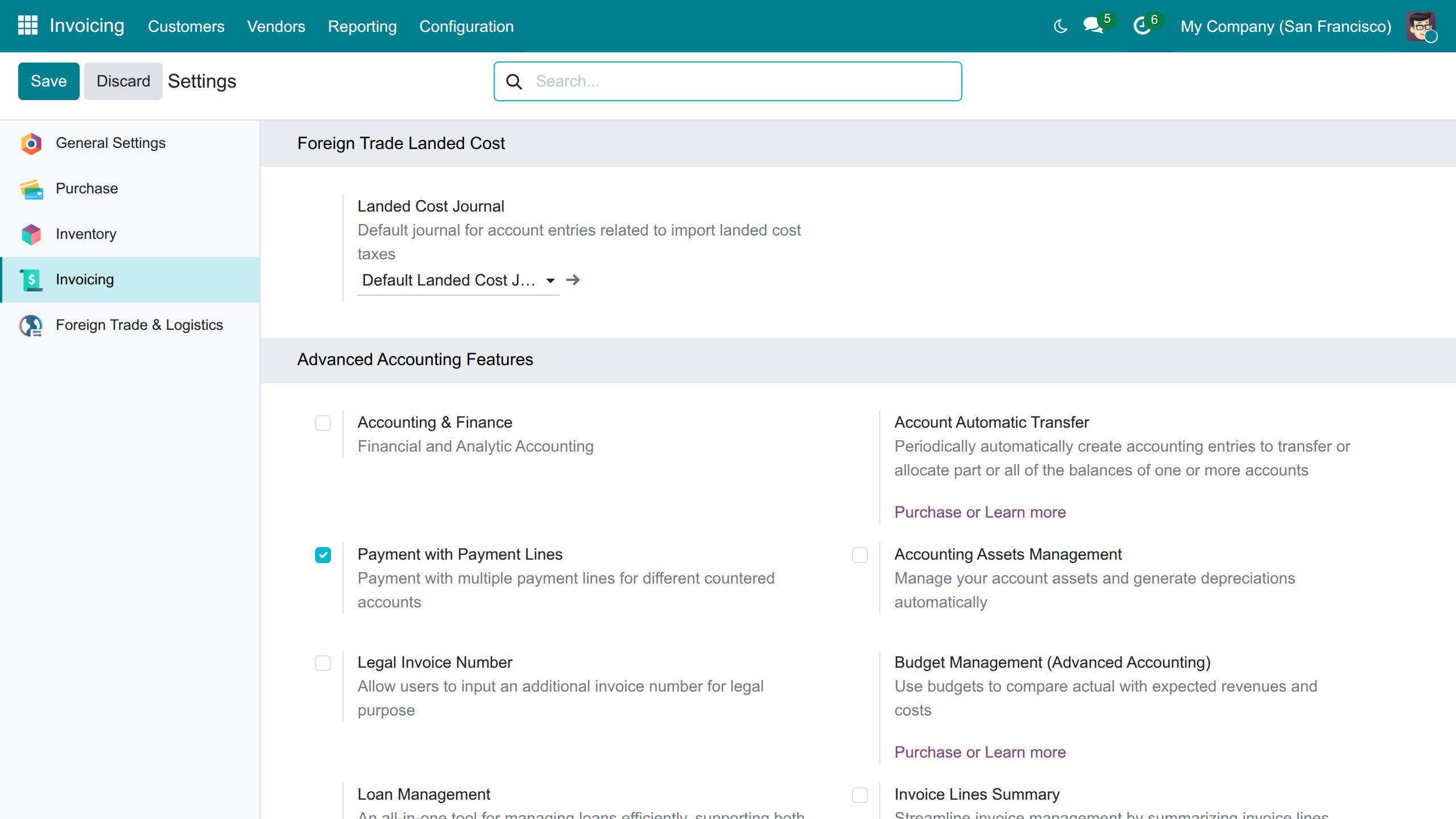
Then open Invoicing ‣ Configuration ‣ Settings. In the block Foreign Trade Landed Cost, Landed Cost Journal is the journal that records the landed costs an import declaration creates. The chart of accounts provides Default Landed Cost Journal.
Enable foreign trade on a warehouse
- Open Inventory ‣ Configuration ‣ Warehouse Management ‣ Warehouses and select the warehouse.
- On the Warehouse Configuration tab, tick Enable Foreign Import/Export.
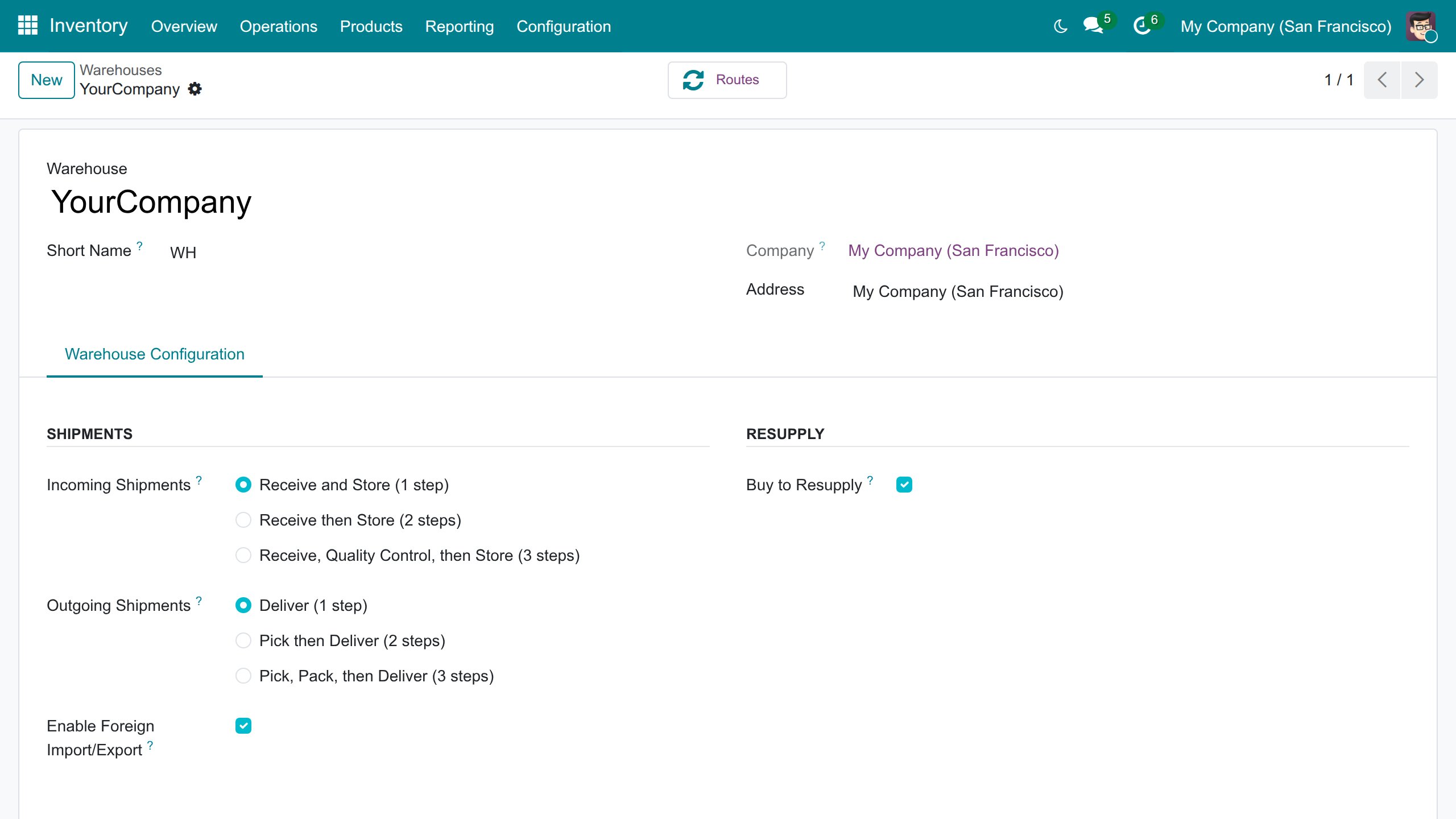
The tick gives the warehouse:
- two customs zones inside it, Import - Custom Zone and Export - Custom Zone;
- four operation types: Import - Custom Zone (goods from the vendor into the import zone), Import - Receipt (from the import zone into the warehouse), Export - Custom Zone (from the warehouse into the export zone) and Export - Delivery (from the export zone to the foreign customer);
- two routes, Importing - Receipt and Exporting - Ship, named after the warehouse. They follow the receiving and delivery steps of the warehouse: with more steps, the goods pass through Input, Quality Control, Pick or Pack as usual, and always stop in the customs zone.
You find the routes in Inventory ‣ Configuration ‣ Warehouse Management ‣ Routes. The route Buy - Foreign Import is in the same list; it is described in the next section.
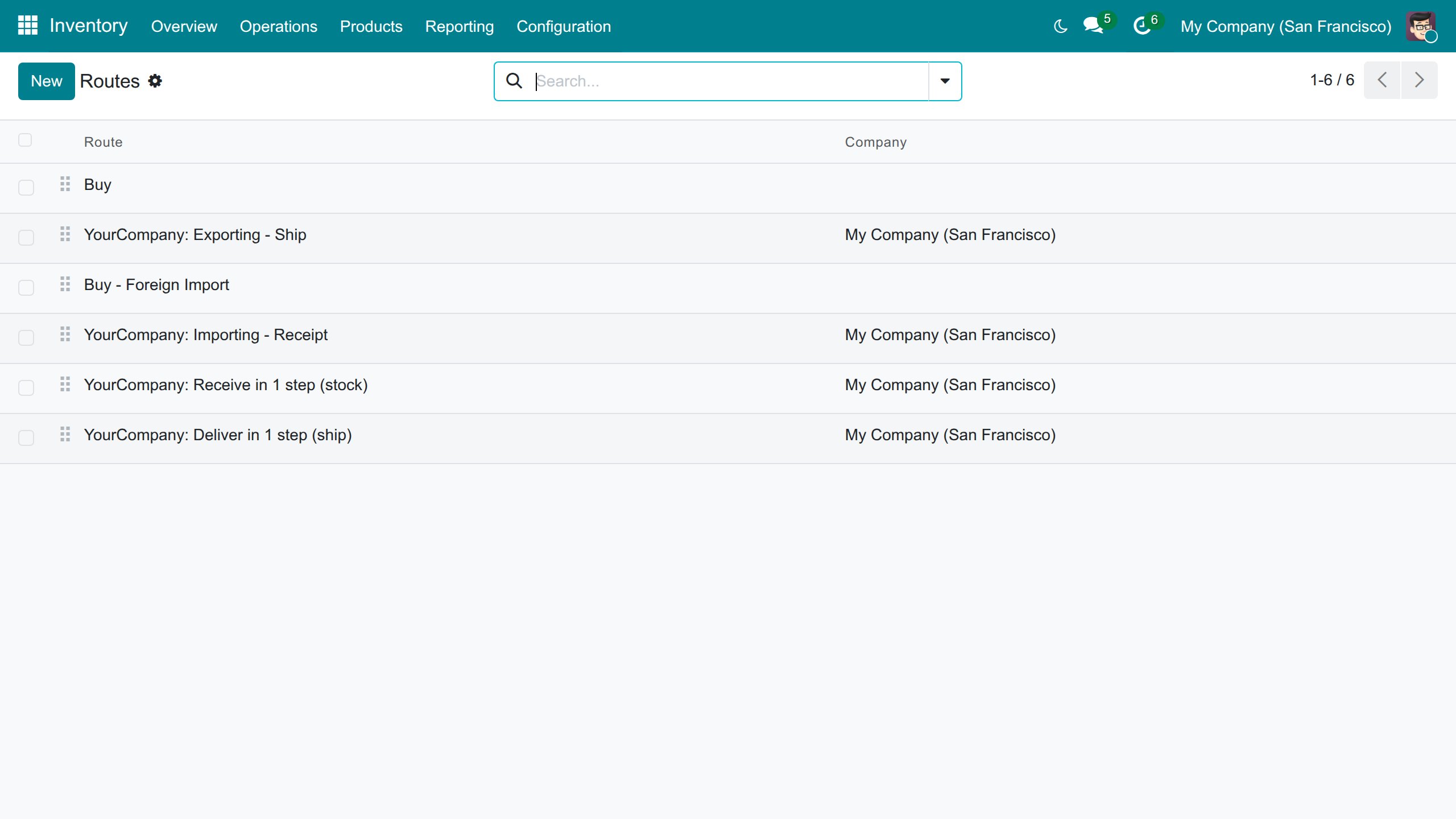
Unticking Enable Foreign Import/Export hides the zones, the routes and the operation types that have no transfer ready.
Name the customs authority
The customs authority is a contact, usually a company. Create one contact for each authority you deal with.
- Open Inventory ‣ Configuration ‣ Warehouse Management ‣ Locations and select Import - Custom Zone. Is Customs Clearance Location is ticked; choose the Customs Authority that serves this zone. Do the same for Export - Custom Zone.
- Open Inventory ‣ Configuration ‣ Warehouse Management ‣ Operations Types and select Import - Custom Zone. Foreign Trade is ticked and, in the Destination Location row, the clearance type (Import) and the Customs Authority appear next to the location.
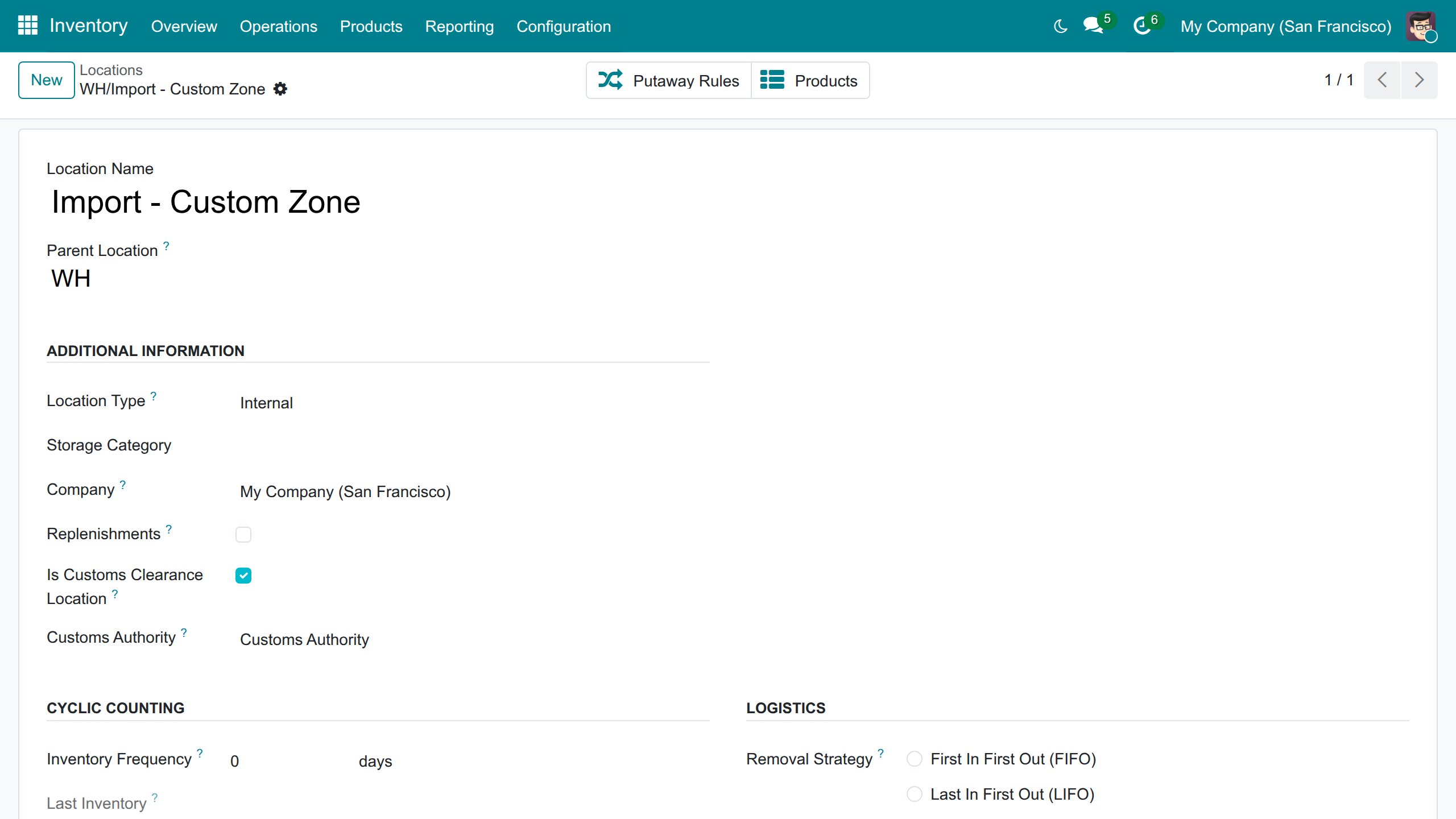
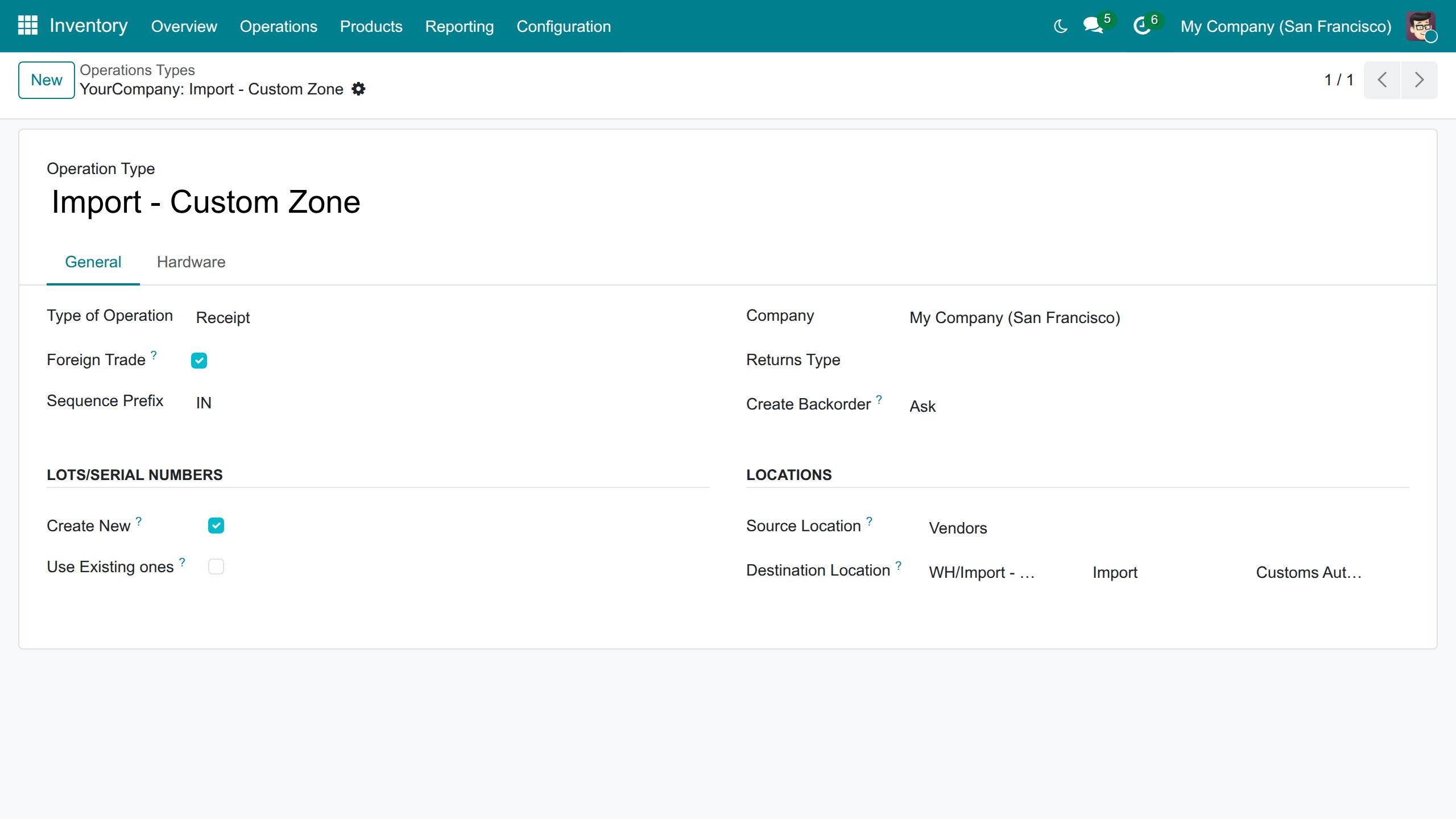
The authority of the location becomes the default of the operation types that end in it. When you pick the authority on a declaration whose operation type has none yet, it is remembered on that operation type for the next declarations.
On Inventory ‣ Operations ‣ Transfers, the filter Customs Declaration Required lists the transfers that end in a customs zone and therefore need a declaration.
Buy a product or a category through the import zone
Foreign import is opt-in. The route Buy - Foreign Import sorts after the standard Buy route and is chosen on the product or on its category, never on the warehouse:
- Open Inventory ‣ Products ‣ Products and select the product.
- On the Inventory tab, in Routes, tick Buy - Foreign Import. To apply it to a whole category, tick the same route in the Routes of the product category (Inventory ‣ Configuration ‣ Products ‣ Categories); the product then shows it in Category Routes.
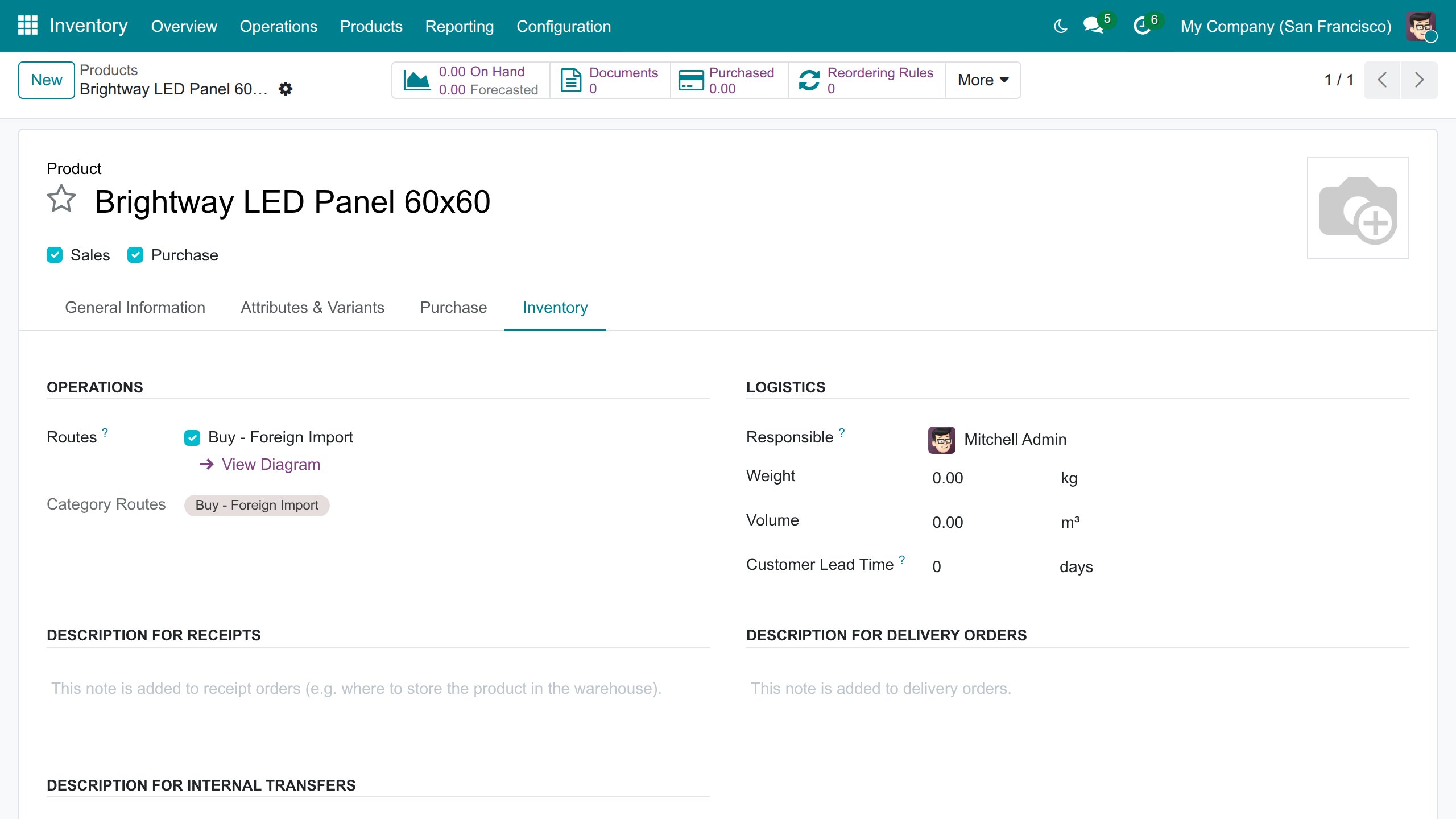
A product that carries the route is bought from the vendor into Import - Custom Zone and then moves to the warehouse stock. Every other product keeps following the standard Buy route into the warehouse, even on a warehouse with foreign trade enabled. The replenishment window offers Buy - Foreign Import only to the products and categories that carry it. A purchase order created by hand on the operation type Import - Custom Zone works the same way; the route only lets replenishment raise such orders for the products that carry it.
Mark the foreign trade partners
- Open the contact (for example in Invoicing ‣ Vendors ‣ Vendors).
- On the Sales & Purchase tab, in the group Foreign Trade, check Foreign Trade Partner.
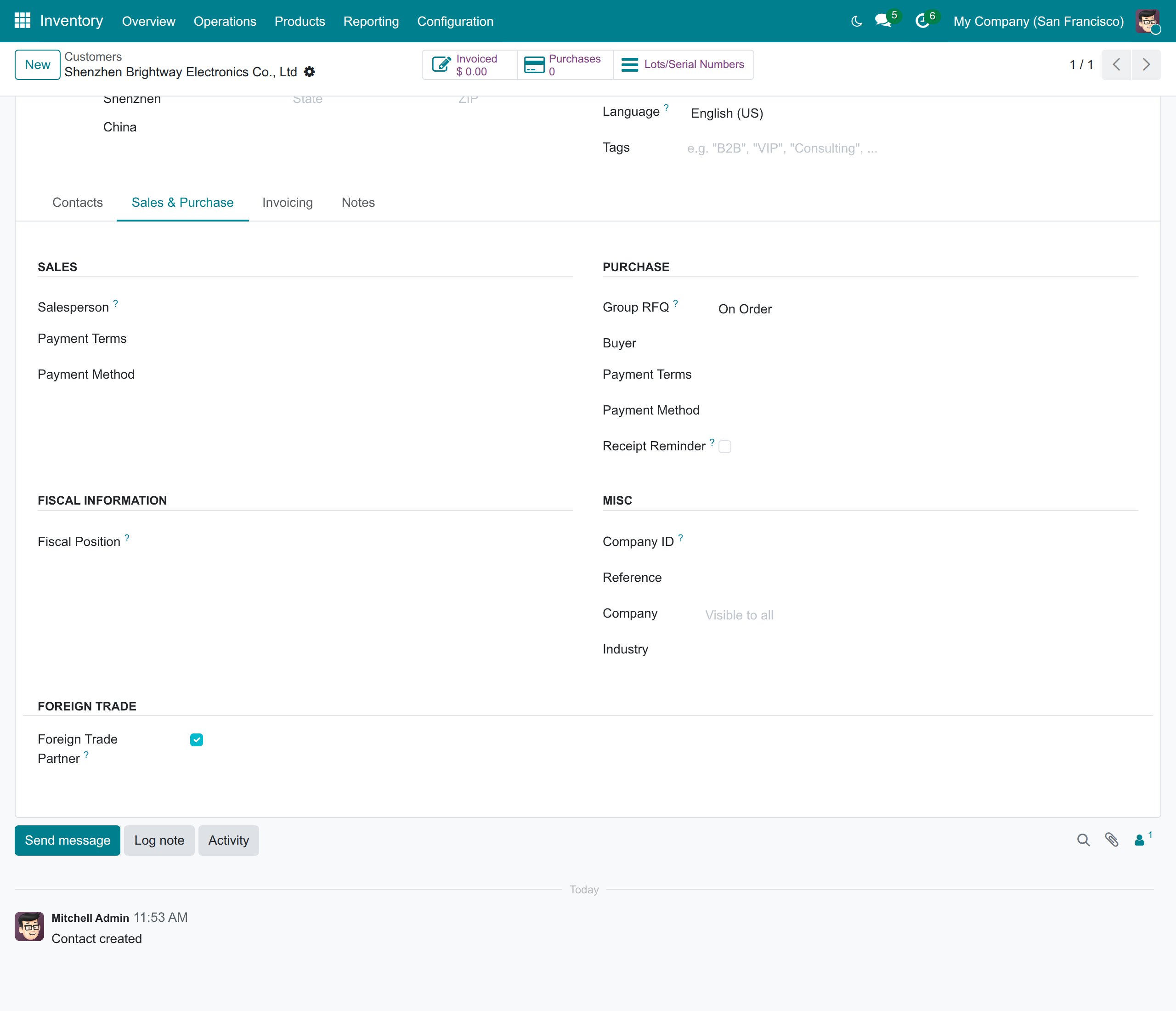
The box is checked for you when the country of the contact differs from the country of your company. When it is checked, goods delivered to the contact go to the stock location Customers / Foreign Customer, and purchases from the contact are foreign imports. Whether a sales order is an export is decided by its delivery address. Changing the country of the contact to a foreign one, or checking the box, and saving moves the contact to Customers / Foreign Customer; going back to your country, or clearing the box, moves it back to Customers. When you change the country of your company, the contacts are re-evaluated. In both cases a customer location you set by hand on a contact is kept.
Set up the customs taxes
Import duty, import VAT and export duty are ordinary taxes, configured by the accountants (Accounting: Administrator) in Invoicing ‣ Configuration ‣ Accounting ‣ Taxes. What makes them customs taxes is their Distribution for Invoices: exactly one +100% tax line and one -100% tax line, each with its own account. A customs declaration posts both sides from them, so no counterpart account is chosen on the declaration or in the settings.
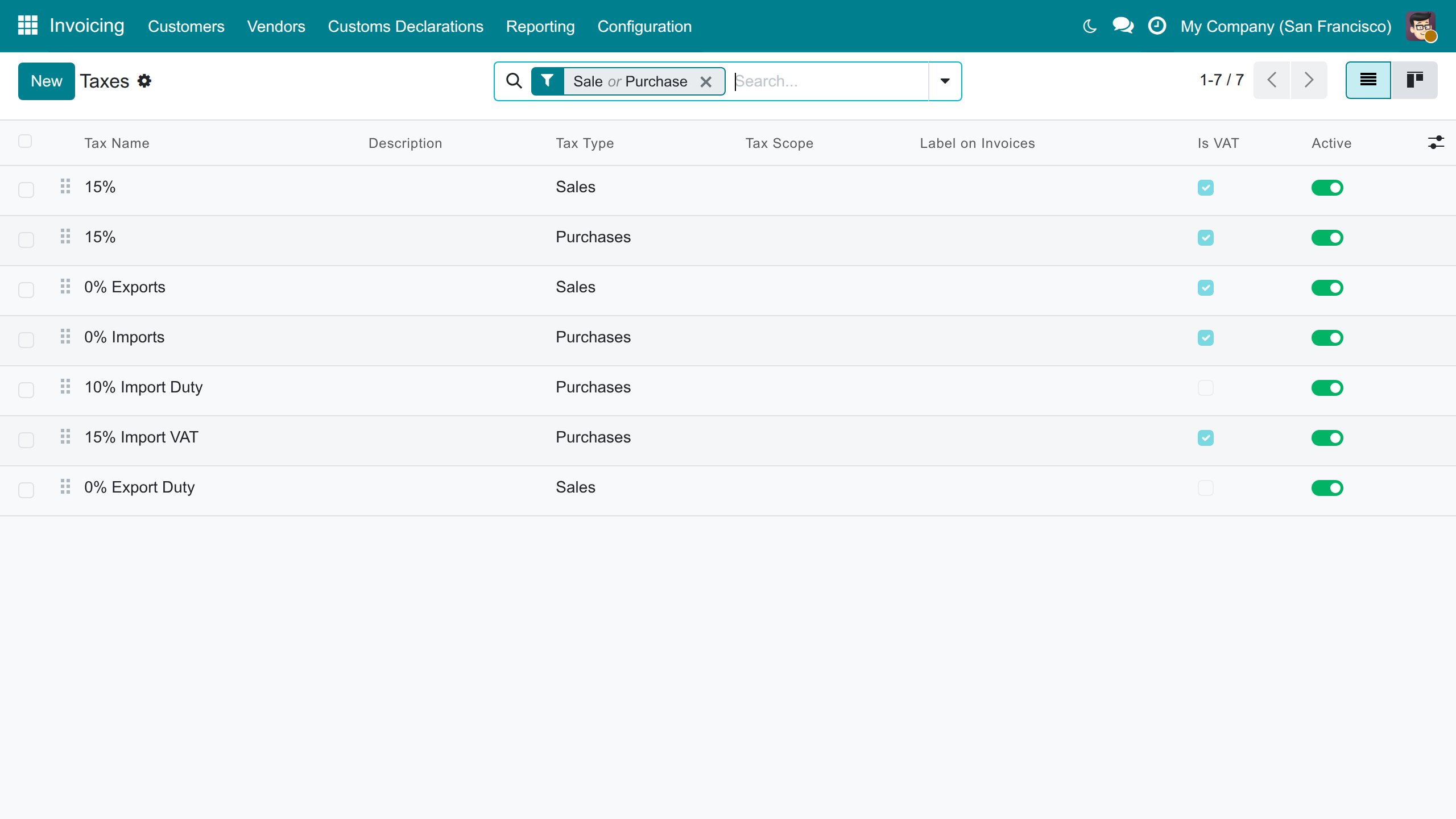
| Tax type | Line owed to the customs authority (credited) | Other line (debited) |
|---|---|---|
| Purchases (import duty, import VAT) | The -100% line, on the customs payable account | The +100% line: for example an expense account for duty, the deductible VAT account for import VAT |
| Sales (export duty) | The +100% line, on the customs payable account | The -100% line |
| None | Follows the declaration: as a purchase tax on an import, as a sales tax on an export | The other line |
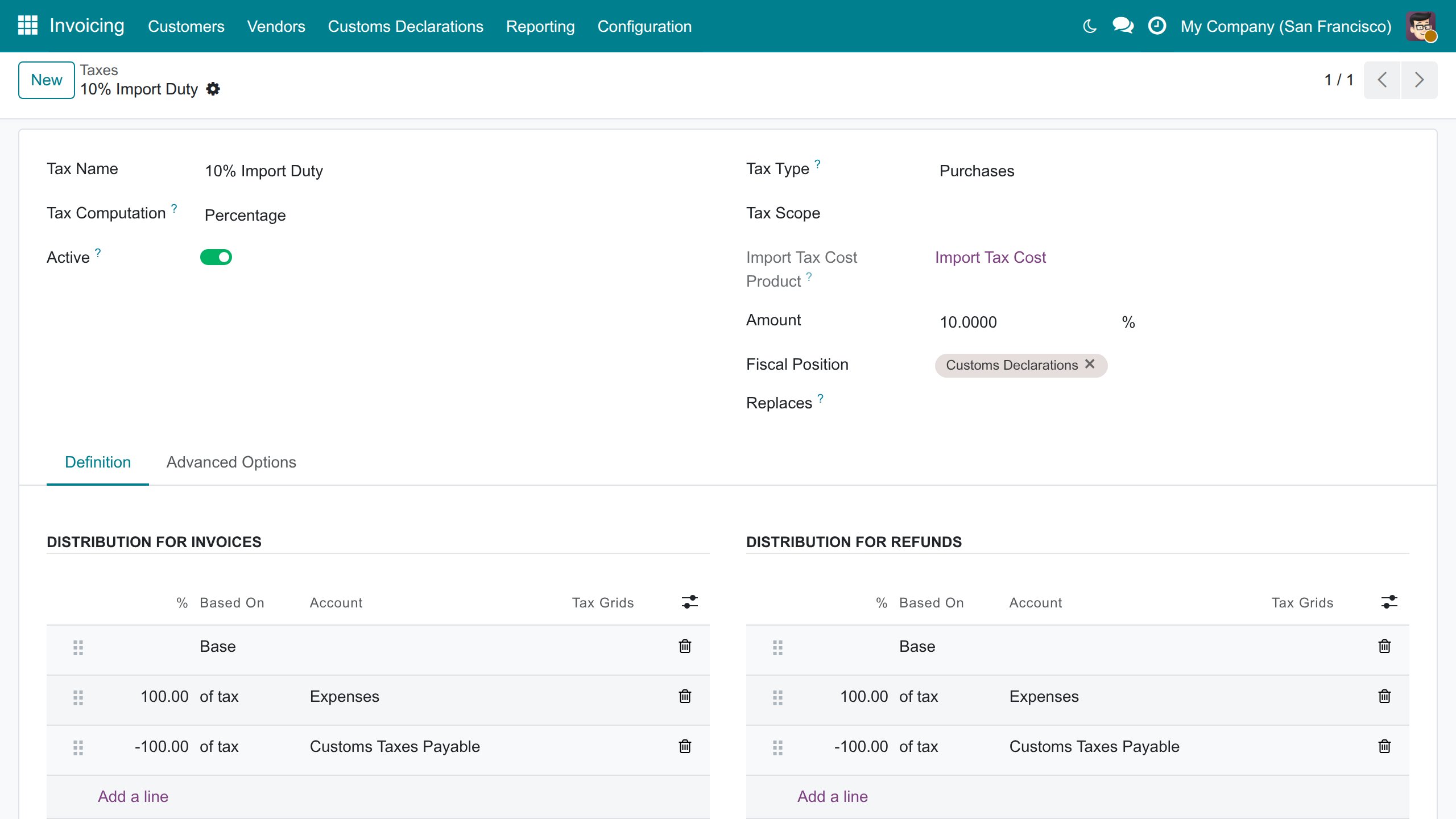
When you create a customs tax by hand, respect these rules, otherwise the declaration refuses to confirm and names the tax:
- exactly one +100% and one -100% tax line, for invoices and for refunds;
- an account on both lines, and two different accounts;
- the line owed to the customs authority must not be a tax closing line: leave Tax Closing Entry unticked on it (Odoo ticks it by default on liability accounts);
- the account owed to the customs authority must have Allow Reconciliation on, because the payment is reconciled with it;
- to add the duty to the base of the VAT, set Affect Base of Subsequent Taxes on the duty and give it a smaller sequence than the VAT.
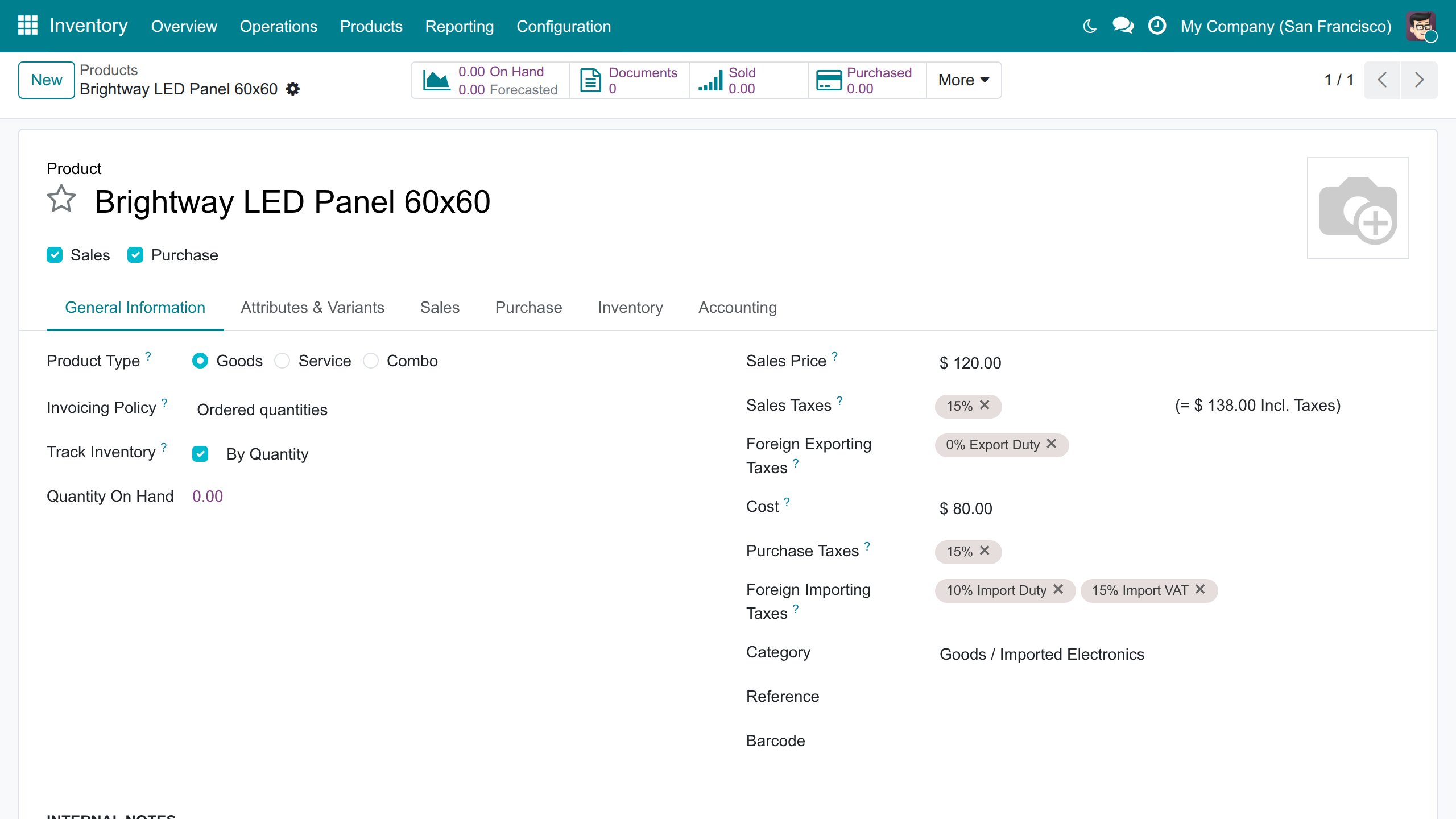
Each product carries the taxes of its declarations on the General Information tab of the product: Foreign Exporting Taxes on its own row below the sales taxes, and Foreign Importing Taxes on its own row below the purchase taxes. A combo product has neither, and a product that cannot be purchased has no Foreign Importing Taxes. A new product receives the defaults of the company, which you set in the Invoicing settings under Default Import/Export Taxes. A declaration line takes its taxes from the product.
Keep customs taxes out of invoices: the Customs Declarations fiscal position
Customs taxes belong to declarations, not to invoices. They are therefore placed on a dedicated fiscal position, Customs Declarations, which is never applied automatically (Invoicing ‣ Configuration ‣ Accounting ‣ Fiscal Positions). On it, Customs Declarations Position is ticked.
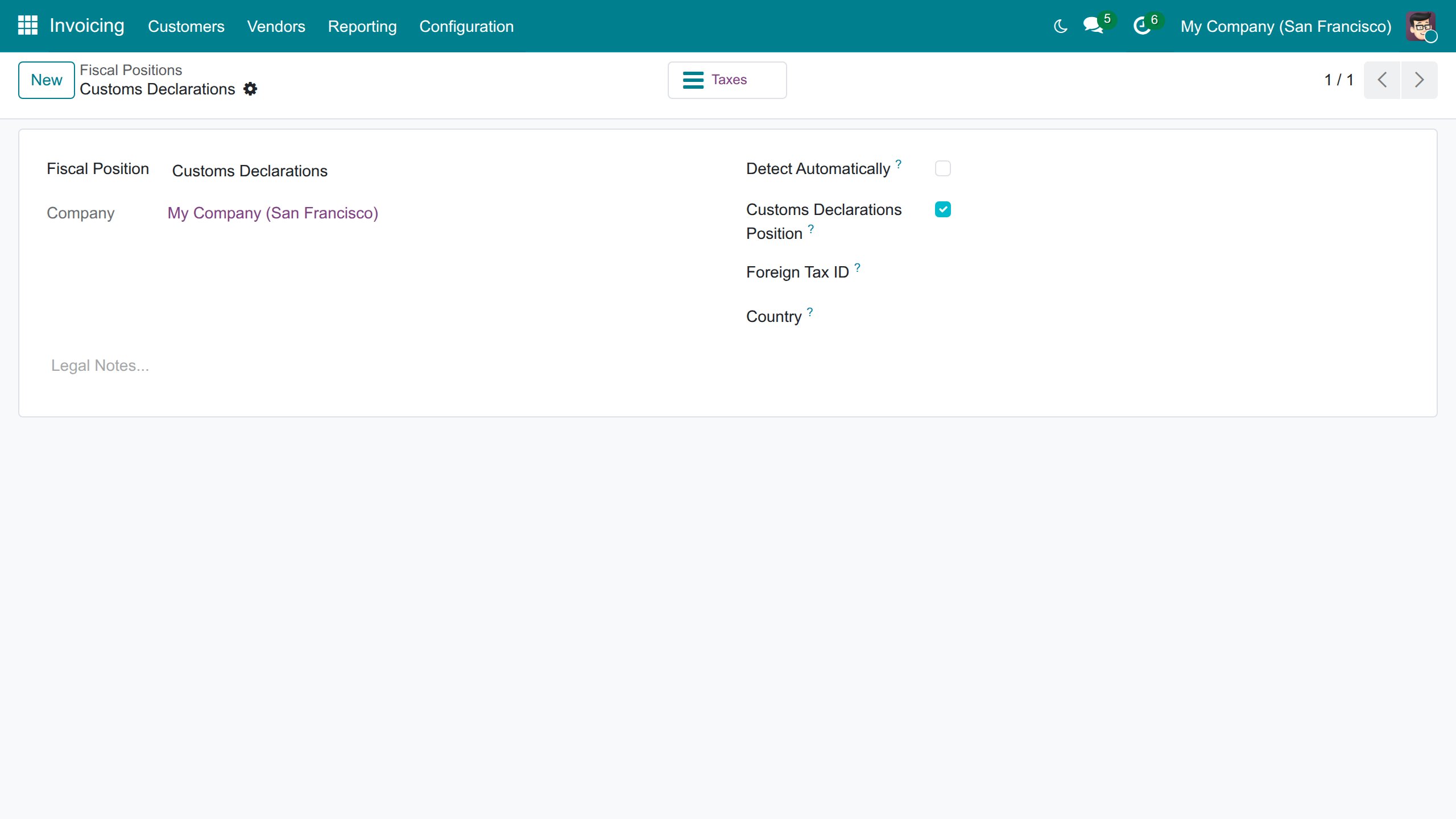
Because of this flag:
- the customs taxes are not offered in the tax picker of invoice and bill lines. This is a convenience, not a lock: Search More... and the order line pickers can still show them;
- electronic documents (UBL/CII invoices, bills and orders) and other document imports never match a customs tax, whatever its rate: a line whose rate matches only a customs tax gets no tax and the import log says so;
- a vendor bill for goods under a customs declaration that carries that declaration's customs tax is refused, when the bill is posted and when the declaration is confirmed, because the declaration posts that tax itself (this check comes with Foreign Trade Import, Logistics).
Keep the customs taxes you create by hand on this position, or tick Customs Declarations Position on a position of your own. A position you delete, or a flag you clear, stays that way.
Customs Taxes Payable: the generic chart of accounts
On the generic chart of accounts, installing the module adds the account Customs Taxes Payable, number 2530 (shown with the number of digits of your chart, for example 253000), a reconcilable current liability. The customs taxes owe their amount to this account and the payment of the declaration reconciles it. The chart also receives the fiscal position above, the tax group Customs Duties and three taxes: 10% Import Duty, 15% Import VAT and 0% Export Duty, which are the default import and export taxes of the company.
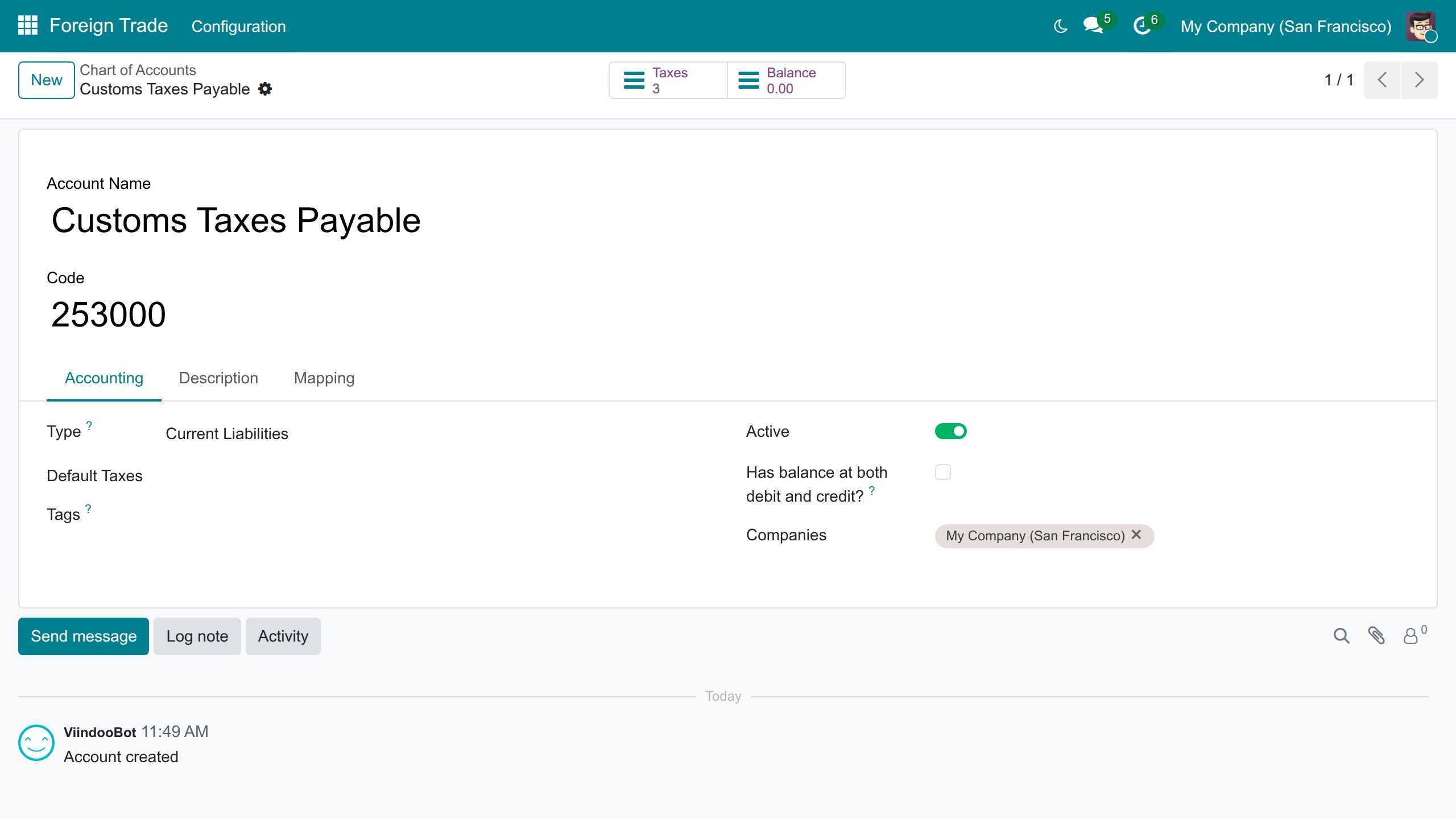
- If your chart already has an account numbered 2530, it is used as the customs payable; make sure it allows reconciliation and is a current liability.
- The taxes are created only when the tax country of the company is the country of the generic chart (United States). Otherwise, create them by hand as described above.
- Other charts bring their own customs taxes and accounts. With the Vietnamese charts, Vietnam - Foreign Trade adds the position Customs Declarations and the payment term Immediate Payment for customs taxes.
The two bridge modules
- Foreign Trade & Electronic Invoicing (UBL/CII) installs by itself with the electronic invoicing (UBL/CII) features. It makes sure orders and invoices imported from UBL or CII files never receive a customs tax.
- Vietnam - Foreign Trade installs by itself with the Vietnamese charts of accounts (Circular 99 and Circular 133). It adds the position Customs Declarations and the immediate payment term for customs taxes.
Import/Export Specialist: how a customs declaration behaves
This chapter describes the rules shared by import and export declarations. Create and complete a declaration with the screens of the Import and Export guides (import, export).
Before the declaration
- A declaration is made for transfers that end in a customs zone. The transfers of one declaration must have the same operation type and the same company.
- Open is refused when the declaration has no operation line, when a transfer is not yet validated, or when another declaration that is not cancelled already covers a transfer.
- The Customs Authority comes from the operation type; the Clearance Date and the Currency Rate (rate to the currency of your company on that date) are computed and can be changed while the declaration is a draft.
The buttons
- Open (Draft): sends the declaration to Waiting Confirmation by Custom.
- Confirm Customs Clearance: needs a Customs Clearance Journal; posts the customs vouchers; on an import it also creates the landed costs.
- Taxes Payment: opens the payment window (see the next chapter); visible to users with the Invoicing rights (Invoicing, Basic, Show Full Accounting Features or Administrator) while some tax is unpaid.
- Set Done: visible when a confirmed declaration is fully paid but has not closed by itself, for example when there was nothing to pay or after the declaration was reopened.
- Reset to Draft and Cancel are available in different statuses on import and on export; see their guides.
What is locked after customs confirmation
Once the declaration is confirmed (and also when it is Done or Cancelled), its transfers, lines, taxes, currency, Currency Rate and Clearance Date cannot be changed: its taxes are posted with those values. The message names the field. Reset the declaration to draft first, when its guide allows it, to change them. Only a draft declaration can be deleted.
The customs gate on transfers
A transfer that takes goods out of a customs zone is refused until the declaration of the goods that entered it is Confirmed by Custom or Done; a cancelled declaration no longer counts. The message names the transfer and the declaration. A return to the vendor is not stopped. The same rule holds for imports and exports, and one confirmed declaration is enough for the goods it covers.
Cancelling
Cancel removes the customs vouchers it created (a posted voucher is reset to draft and cancelled) and, on import, the landed costs. It never cancels a payment of the customs taxes: the payment stays posted and is no longer reconciled with the cancelled vouchers, so its amount is outstanding for an accountant to reallocate or refund, the way cancelling a sales order leaves its posted invoices and payments to accounting. A declaration whose landed costs are already posted cannot be cancelled: the message names them. The Import guide explains what to do then.
Chief Accountant and Accountant: customs vouchers and payment
One customs voucher per tax
Accountants open the declarations, read-only, from Invoicing ‣ Customs Declarations ‣ Import / Export. When a declaration is confirmed, each tax row of the declaration posts its own journal entry, the customs voucher, in the Customs Clearance Journal (open them with the Journal Entries button of the declaration). The voucher has two lines:
- the amount owed to the customs authority, credited to the Tax Account of the row, with the customs authority as partner and the maturity date given by the Tax Payment Term; a payment term with several instalments gives several lines;
- the same amount debited to the account of the other distribution line of the tax: for example an expense account for duty and the deductible VAT account for import VAT.
The lines carry the tax grids of their distribution lines, so the VAT reports pick them up. All amounts are in the currency of the company.
Pay the taxes
Paying needs the Invoicing access right, together with a right that opens the declaration: Foreign Trade: User, Accounting: Basic or above, the Accounting Administrator, or the read-only accounting right. The read-only auditor without Invoicing cannot pay.
- On a declaration Confirmed by Custom, press Taxes Payment.
- In the window Taxes Payment, check the Partner (the customs authority), choose the Journal (a bank or cash journal with a manual outgoing payment method), the Payment Type and the Payment Date. Memo is the name of the declaration.
- Group (ticked by default) gathers the amounts per account into one line; untick it to pay each voucher line separately. Each line shows its Account, Ref and Amount; you can remove a line you do not want to pay now.
- Press Pay.
The payment is posted and reconciled with the amounts owed. You cannot pay more than what is still owed to the customs authority. When every tax is paid, Taxes Payment disappears and, as soon as the payment is posted, the declaration moves to Done by itself.
Set Done and what reopens a declaration
A declaration closes by itself: when a tax payment or a customs voucher is posted and the declaration is Confirmed by Custom, fully paid and without any unposted customs voucher, it moves to Done. Set Done is only needed when a confirmed declaration is paid but did not close by itself, for example when there is nothing to pay (all taxes at 0%) or after the declaration was reopened. It is refused while a tax is unpaid or a customs voucher is not posted.
A Done declaration goes back to Confirmed by Custom when the payment of its taxes is unreconciled or cancelled, or when one of its vouchers is reset to draft. When that voucher is posted again and everything is paid, the declaration returns to Done by itself.
Reversing a voucher
A voucher can be reversed with the usual Reverse Entry action of a journal entry; both of its lines are kept. A voucher settled by its own reversal is voided, not paid: its tax row reads unpaid and the declaration cannot be set done. To void a whole declaration, use Cancel instead.
Troubleshooting
- "The tax ... cannot be declared to the customs authority". The tax distribution breaks one of the rules of the section on customs taxes. Open the tax named in the message and correct its lines.
- "You must set Allow Reconciliation for the account ...". Open the account named in the message and allow reconciliation on it.
- "Please select a customs clearance journal before you can confirm it". Choose a Default Customs Clearance Journal in Foreign Trade ‣ Configuration ‣ Settings, or on the declaration.
- A customs tax is missing from the tax picker of an invoice. This is intended: customs taxes belong to declarations. See the fiscal position Customs Declarations.
- The generic customs taxes were not created. The tax country of your company differs from the country of the generic chart; create the taxes by hand.
- You cannot process the transfer ... while its original transfer requires a customs declaration document. Create the declaration for the receipt in the customs zone; the transfer out of the zone needs it to be confirmed by customs first.
- "There is no account journal defined on the Landed Cost Journal for current company". Choose a Landed Cost Journal in the Invoicing settings.
FAQ
Can I use foreign trade on a warehouse and keep buying some products the normal way? Yes. Only products and categories that carry the route Buy - Foreign Import are bought through the import customs zone.
Do I have to flag every foreign contact by hand? No. The flag follows the country of the contact; set it by hand only to override the country rule.
Where do I choose the counterpart account of a customs tax? On the tax itself: its +100% and -100% lines. There is no counterpart account to choose on the declaration.
Which guide shows how to create a declaration? The guides of Foreign Trade Import, Logistics and Foreign Trade Export, Logistics.
This software and associated files (the "Software") may only be used (executed, modified, executed after modifications) if you have purchased a valid license from the authors, typically via Odoo Apps, or if you have received a written agreement from the authors of the Software (see the COPYRIGHT file).
You may develop Odoo modules that use the Software as a library (typically by depending on it, importing it and using its resources), but without copying any source code or material from the Software. You may distribute those modules under the license of your choice, provided that this license is compatible with the terms of the Odoo Proprietary License (For example: LGPL, MIT, or proprietary licenses similar to this one).
It is forbidden to publish, distribute, sublicense, or sell copies of the Software or modified copies of the Software.
The above copyright notice and this permission notice must be included in all copies or substantial portions of the Software.
THE SOFTWARE IS PROVIDED "AS IS", WITHOUT WARRANTY OF ANY KIND, EXPRESS OR IMPLIED, INCLUDING BUT NOT LIMITED TO THE WARRANTIES OF MERCHANTABILITY, FITNESS FOR A PARTICULAR PURPOSE AND NONINFRINGEMENT. IN NO EVENT SHALL THE AUTHORS OR COPYRIGHT HOLDERS BE LIABLE FOR ANY CLAIM, DAMAGES OR OTHER LIABILITY, WHETHER IN AN ACTION OF CONTRACT, TORT OR OTHERWISE, ARISING FROM, OUT OF OR IN CONNECTION WITH THE SOFTWARE OR THE USE OR OTHER DEALINGS IN THE SOFTWARE.
