


Manufacturing Quality Control
| Lines of Code | 895 |
| Technical name | to_quality_mrp |
| License | OPL-1 |
| Website | https://viindoo.com/apps/modules/18.0/to_quality_mrp |
| Read description for | v 10.0 v 11.0 v 12.0 v 13.0 v 14.0 v 15.0 v 16.0 v 17.0 |
| Required Apps | Manufacturing (mrp) Discuss (mail) Inventory (stock) |
| Included Dependencies | Stock Quality Control Quality |
| Extensions | Shop Floor Control - Quality Quality Control IoT for Manufacturing |
No order closes on a skipped check, and no operation starts on unchecked parts.
Viindoo Manufacturing Quality Control creates finished-product and component checks the moment a manufacturing order is confirmed, then holds the line at every gate: work order start, work order finish and order closing.
Extends to_quality_stock - see its documentation.
Key Features
Checks created for you
The moment a manufacturing order is confirmed, it gets its finished-product checks and each work order gets the component checks for the materials it consumes, from the matching control points, with no duplicates. A backorder gets its own checks.
Gates at start, finish and close
A work order cannot start or finish, and the order cannot close, while a check is still to do or a No Proceed if Failed check has failed. The message names each check.
Check from the work order
Operators press Quality Checks on the work order line and the touch dialog moves straight to the next check after each Pass or Fail.
Alert in one click
Raise a quality alert from an order or a work order, already filled with the product, lot, work order or work center, and see the alert count on the order and the work center card.
Quality history follows the unit
The lot or serial number produced is stamped onto the order's checks and alerts, so every result stays with the unit it belongs to.
Find the work that is ready
Search and group checks and alerts by order, work order and work center; the Ready to Check filter lists the checks waiting for you or for nobody.
Gates at start, finish and close
A work order cannot start while its component checks are still to do, and cannot be finished while any of its checks is to do or a check of a No Proceed if Failed point has failed. Closing the manufacturing order is refused until every check is done, with a message that names each pending check and who it is waiting for.
Checks where the work happens
Operators press Quality Checks on the work order and step through each check in a touch dialog that moves straight to the next one after a Pass or Fail, with quality buttons enlarged to at least 56 px on touch screens. Manufacturing users record results without Quality User rights, and once the work order or order is done, only a Quality User can change them.
Problems traced to the order, the work order and the lot
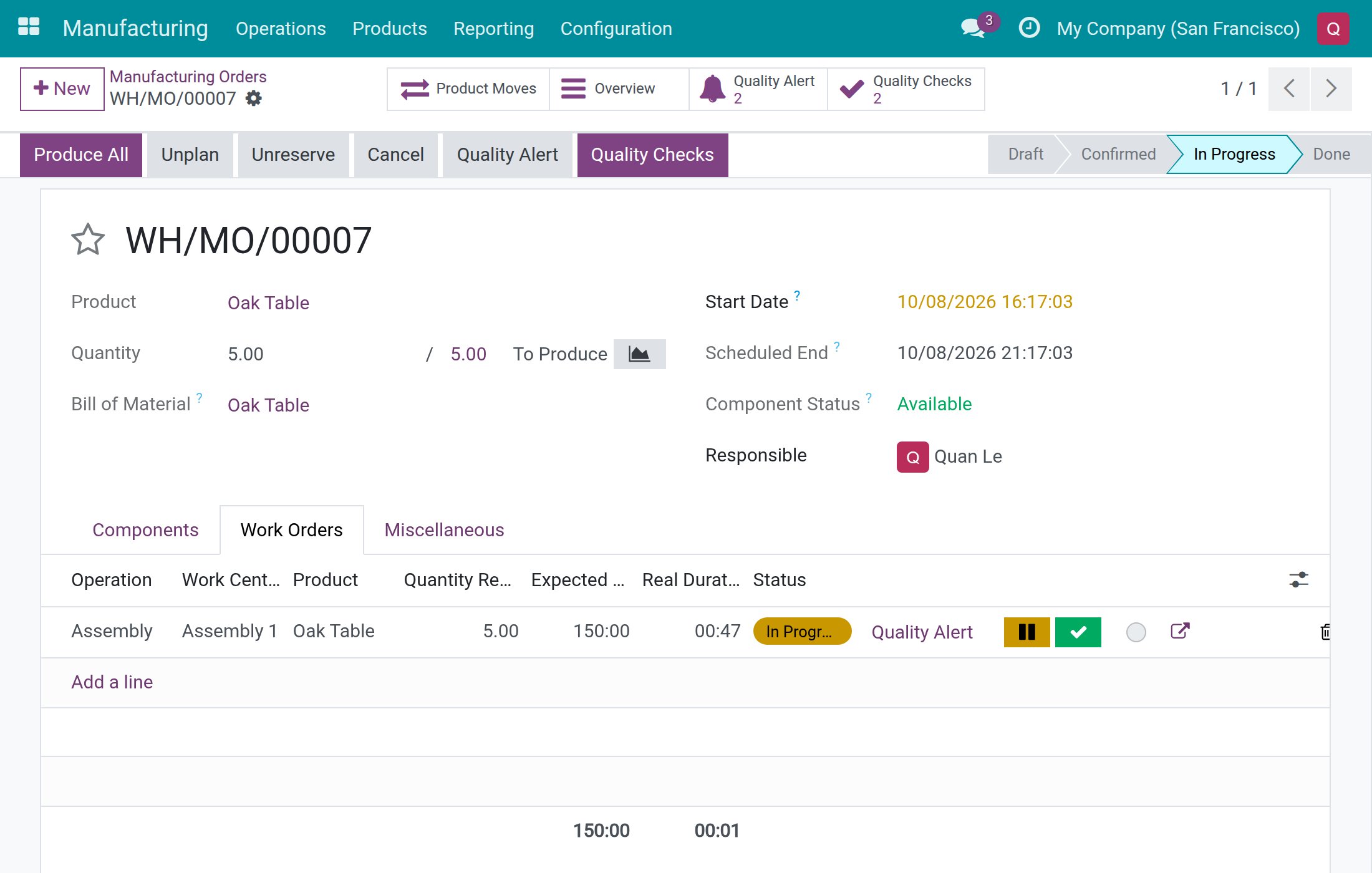
Quality Alert on an order or a work order opens an alert already filled with what you were working on - product, lot, work order or work center - and alert counts show on the order, in the order list and on the work center card. The lot or serial number produced is stamped onto the order's checks and alerts, so the quality history follows the unit.
Questions buyers ask
Which checks are created, and when?
When you confirm a manufacturing order, it gets its finished-product checks, and each work order gets the component checks for the materials it consumes, from the control points matching the product and the manufacturing operation type. No check is created twice, and a backorder gets its own checks for the remaining quantity.
How does the quality team find the work that is ready for them?
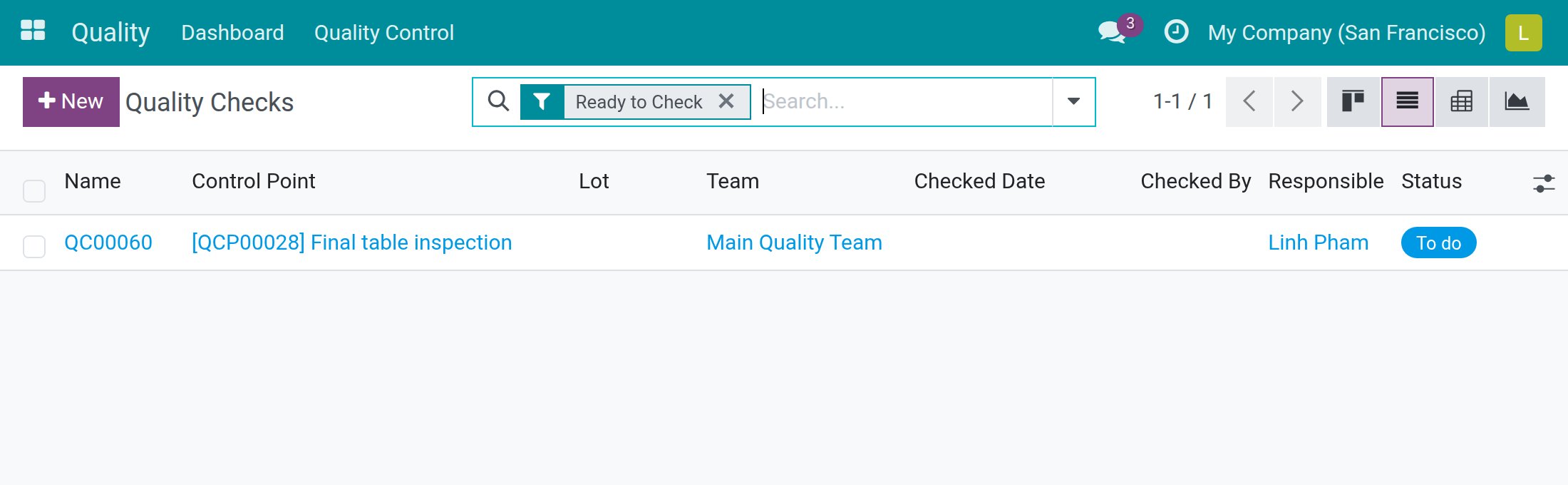
The Ready to Check filter on Quality Checks lists the checks still to do that are assigned to you or to nobody, on orders that already have output recorded. Checks and alerts can also be searched and grouped by manufacturing order, work order and work center, which brings recurring problems on one machine to the surface.
Can the shop floor overrule a failed check?
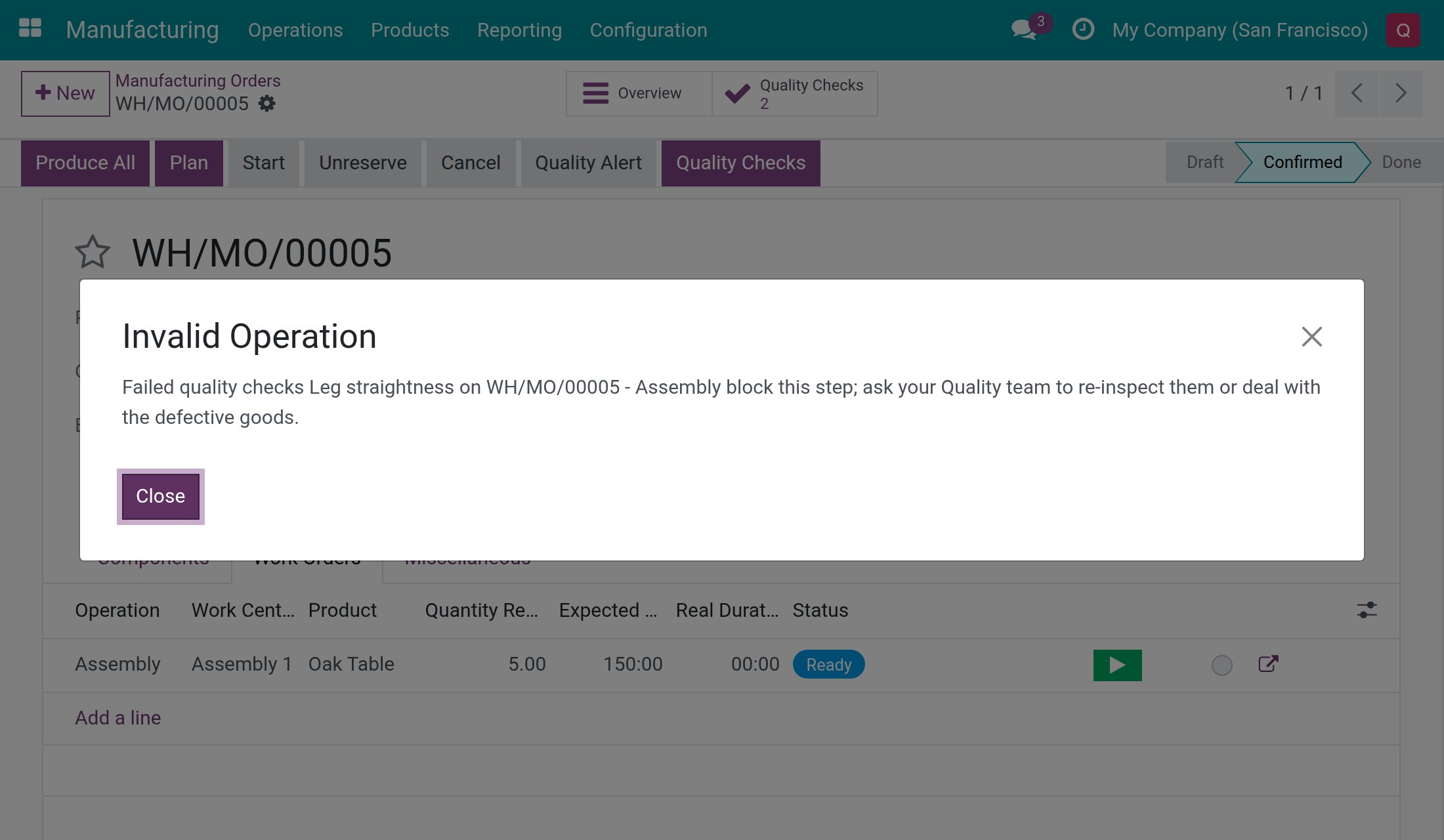
No. Only a Quality User takes a check out of Failed. While a check of a No Proceed if Failed point is failed, the work order and the order stay blocked, and the message asks the Quality team to re-inspect the check or deal with the defective goods.
Do I need work orders?
Finished-product checks and the closing gate work on the manufacturing order itself. Component checks and the start and finish gates apply when you use work orders, and the work-order fields on checks and alerts appear only when Work Orders are enabled.
What else do I need?
Viindoo Stock Quality Control and Manufacturing. Installing Viindoo Manufacturing Quality Control adds them, and Viindoo Quality, if they are not installed yet.
Compatibility
Works with Odoo 18.0 Community Edition and Viindoo Cloud.
Not supported on Odoo Enterprise.
Make every finished unit pass through quality, not around it.
Manufacturing Quality Control
Note
Extends to_quality_stock - see its documentation.
This module brings quality checks into the manufacturing order. When an order is confirmed, the system creates the quality checks that apply to it. From then on the order holds at every gate:
- a work order does not start while the checks on its components are still to do, or while one of them has failed on a control point that does not let you go on;
- a work order does not finish while a check is still to do or a blocking check has failed;
- the manufacturing order does not close while a finished-product check is still to do or a blocking check has failed.
Recording the produced quantity is never blocked. Only closing the order is.
This guide is written for the people who work on the desktop:
- the production lead (Manufacturing / User, without Quality rights), who confirms and closes orders and runs their work orders;
- the QC inspector (Quality / User), who works from the Ready to Check filter;
- the Quality User who releases a failed check;
- the Quality Administrator, who sets the control points.
The tablet screens belong to another module and are not covered here.
Installation
- Navigate to Apps.
- Search with the keyword Manufacturing Quality Control (technical name to_quality_mrp).
- Press Install.
The Quality, Inventory and Manufacturing apps that this module relies on are installed together with it.
Configuration
Before you start
- Navigate to Manufacturing ‣ Configuration ‣ Settings and tick Work Orders, so that operations and work centers are used on your manufacturing orders.
- Make sure each product you make has a bill of materials with at least one operation, and that each component line that must be checked has its Consumed in Operation filled in. A component check is created only for the component lines tied to the operation of a work order.
Who may do what
- A production lead (Manufacturing / User) sees the checks of manufacturing orders and work orders and records Pass or Fail on them. A production lead cannot create or delete checks, and cannot bring a failed check back to To do.
- A Quality User can also reopen a failed check, re-check it, and change results on orders and work orders that are already done or cancelled.
- A Quality Administrator sets up the control points.
- The Ready to Check filter is offered to users who hold both Quality and Manufacturing rights.
Set the control points
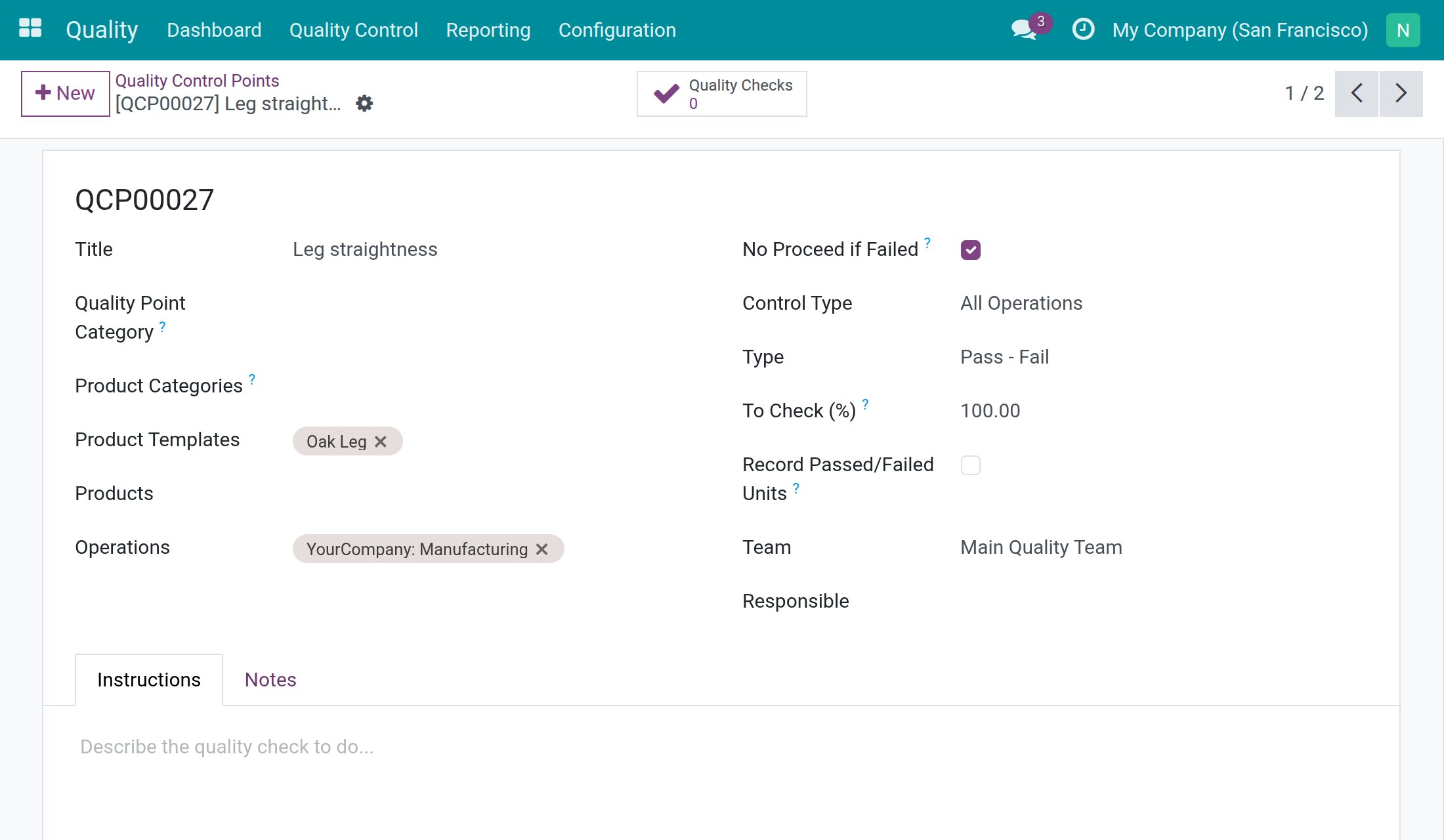
A control point tells the system which checks to create, for which product, and who waits for them. Create one for a finished product and one for each component to be checked.
- Navigate to Quality ‣ Quality Control ‣ Quality Controls ‣ Control Points and press New.
- Give the point a clear Title, for example Leg straightness. The title is the name of the check in the messages that refuse an action, so choose a name your team recognizes.
- In Product Templates, pick the product to check. Pick the component for a component check, or the finished product for a finished-product check.
- In Operations, pick the Manufacturing operation type of your warehouse, so that the point applies to manufacturing orders. With several warehouses, each one has its own Manufacturing entry, prefixed with the warehouse name.
- Set Type to Pass - Fail.
- Tick No Proceed if Failed if a failed result must stop the work order or the order until a Quality User releases the check.
- Optionally pick a Responsible. Checks created from the point then wait for that person.
- Save.
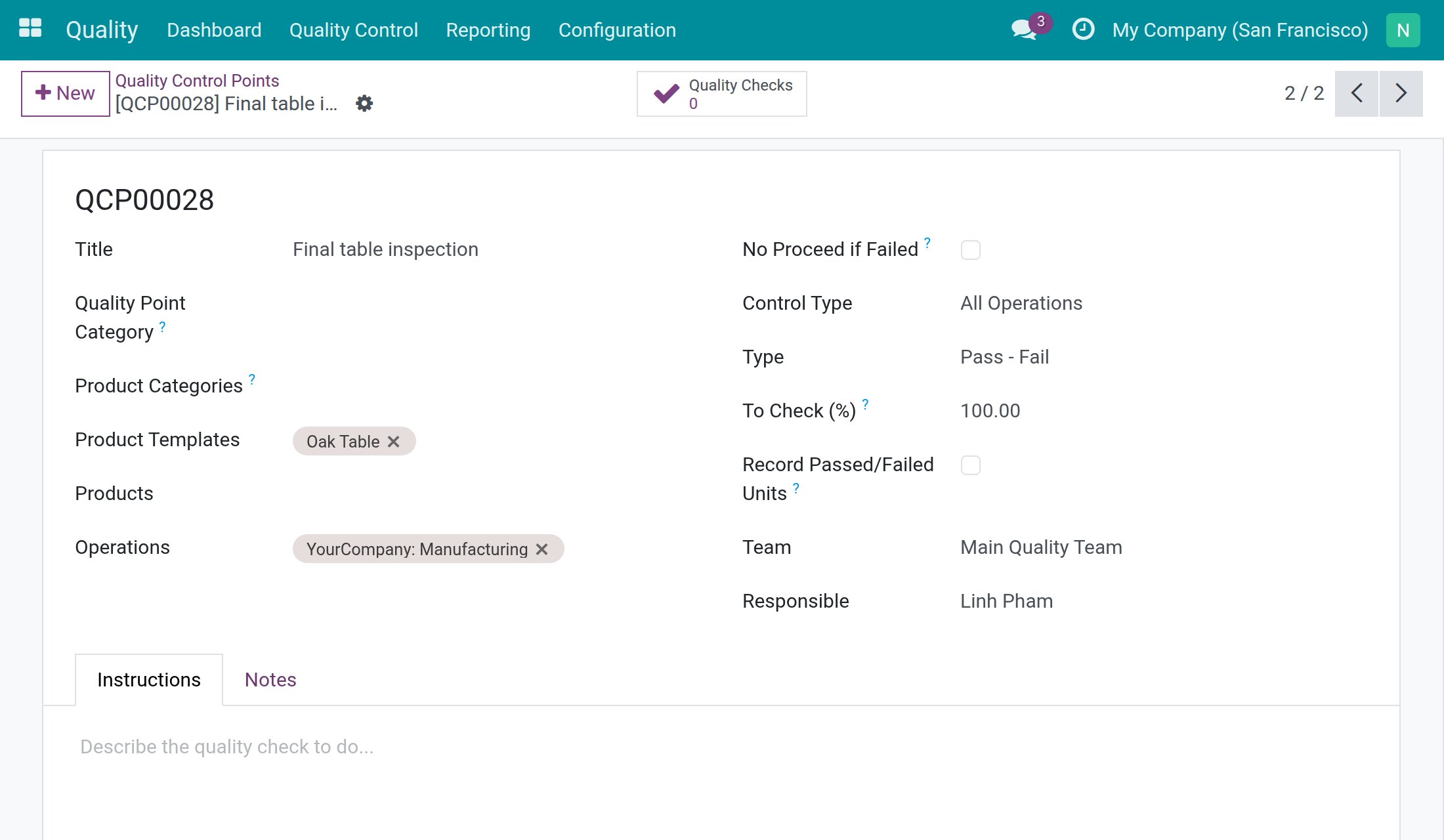
A finished-product point looks the same, with the finished product in Product Templates and, here, a Responsible who inspects it:
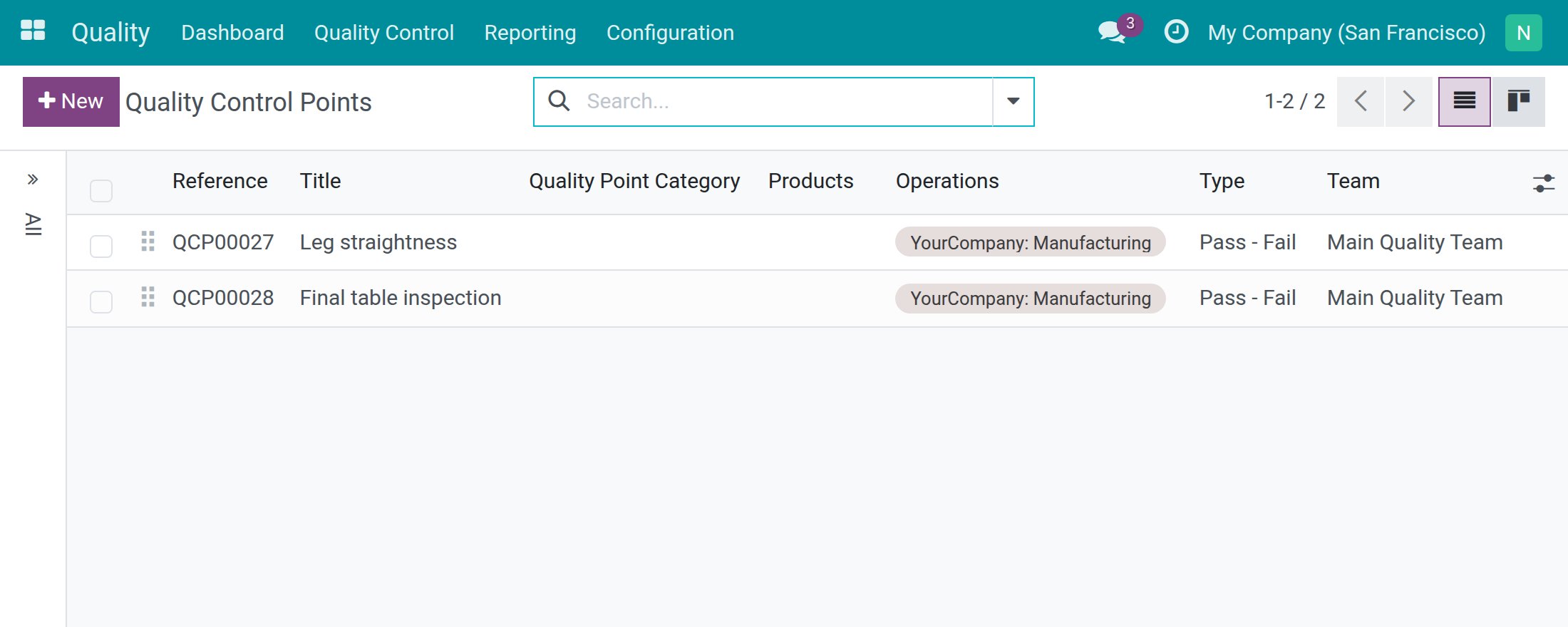
Both points appear in the list of control points:
Usage
The examples below use an Oak Table made of four Oak Leg and one Oak Plank, with an Assembly operation on the work center Assembly 1. The control points are Leg straightness on the component (No Proceed if Failed ticked) and Final table inspection on the table (Responsible: Linh Pham).
Confirm the order and see its checks
- Navigate to Manufacturing ‣ Operations ‣ Manufacturing Orders and press New.
- Pick the Product, check the Quantity, then press Confirm.
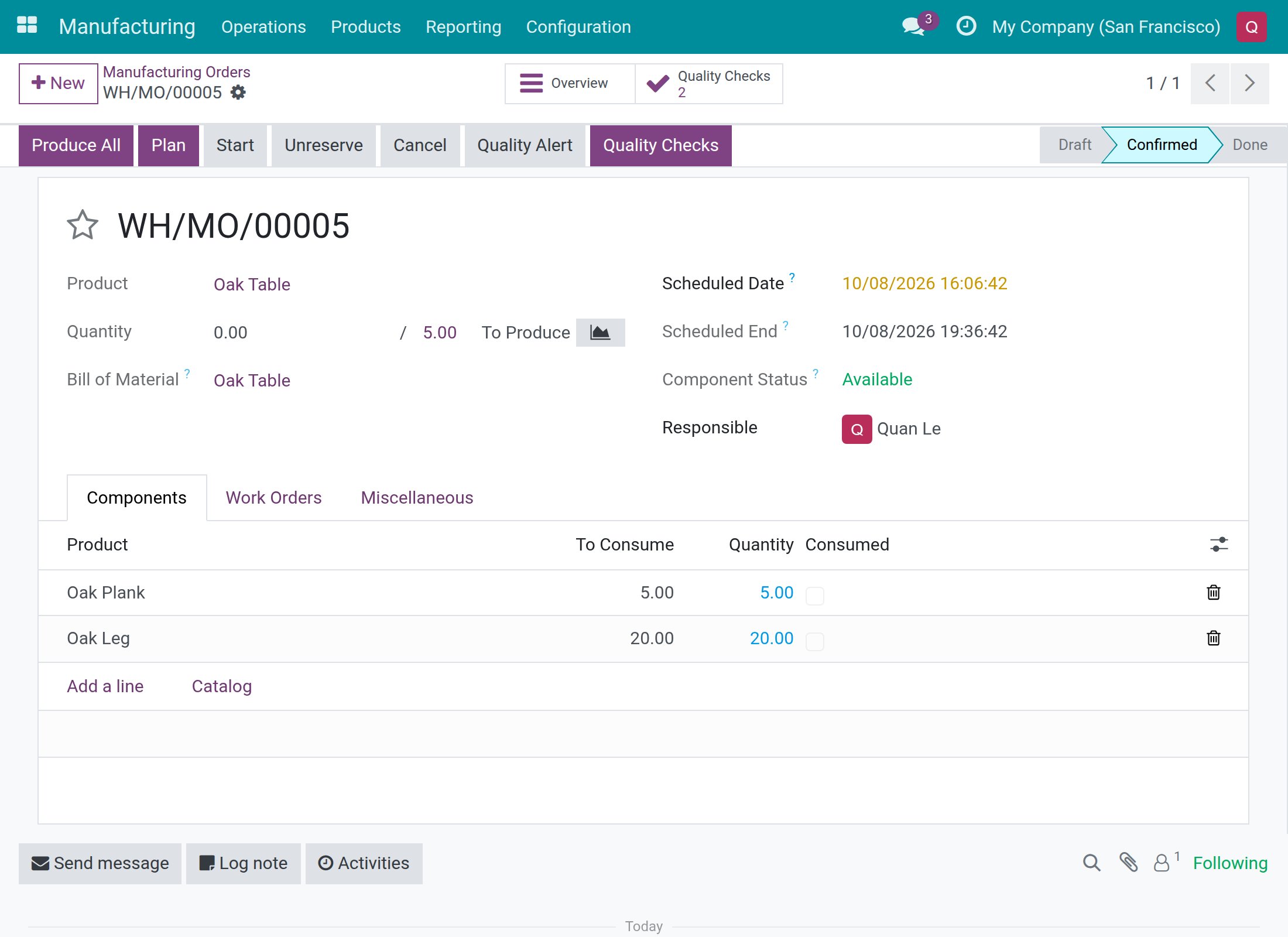
The system creates the checks from the control points that match the product and the Manufacturing operation type: a finished-product check on the order, and a component check on each work order for the components it consumes. A check is never created twice for the same control point.
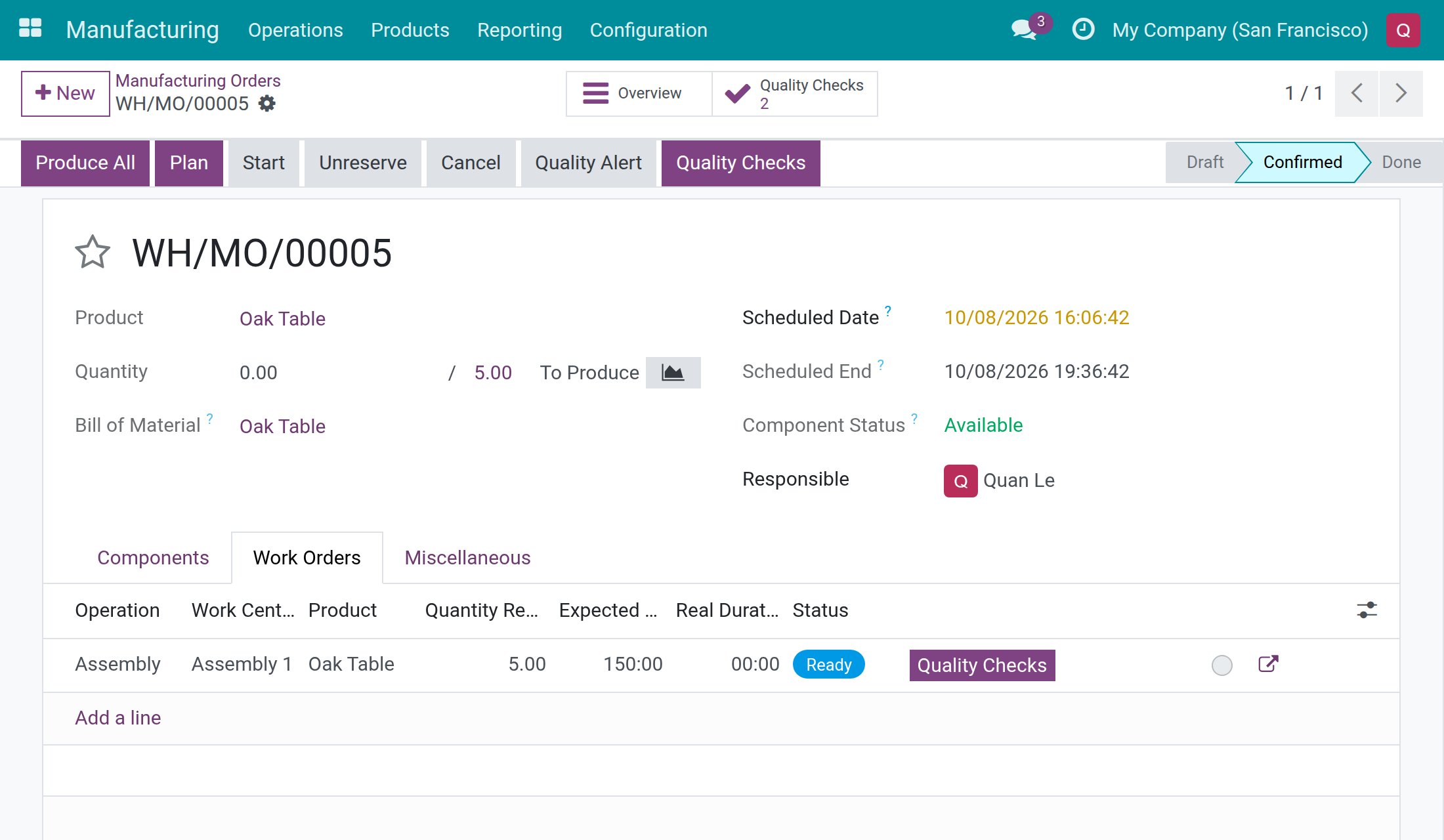
The order now shows a Quality Checks smart button with the number of checks, and a Quality Checks button in the header while a check is still to do.
Do the checks from the order
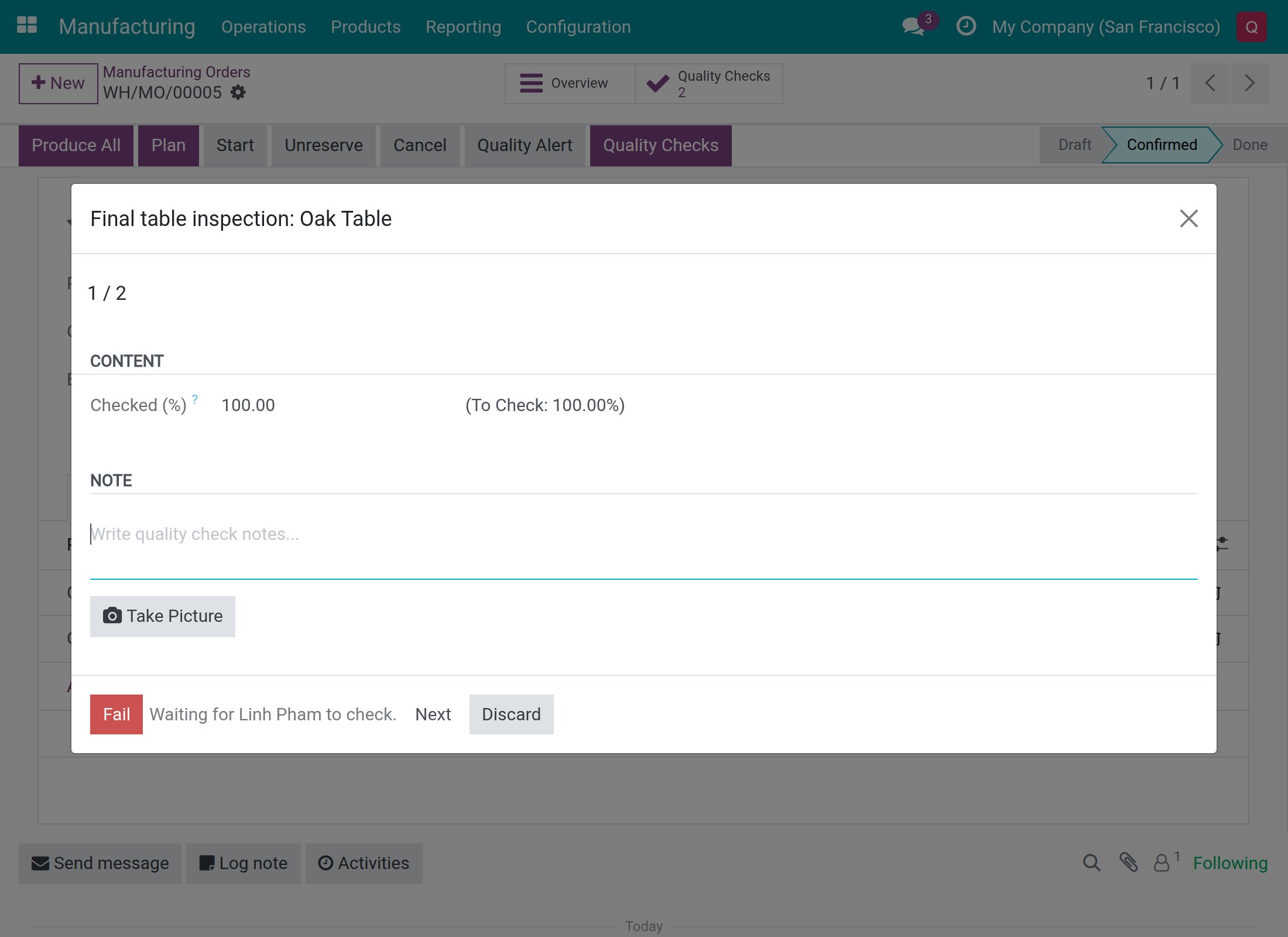
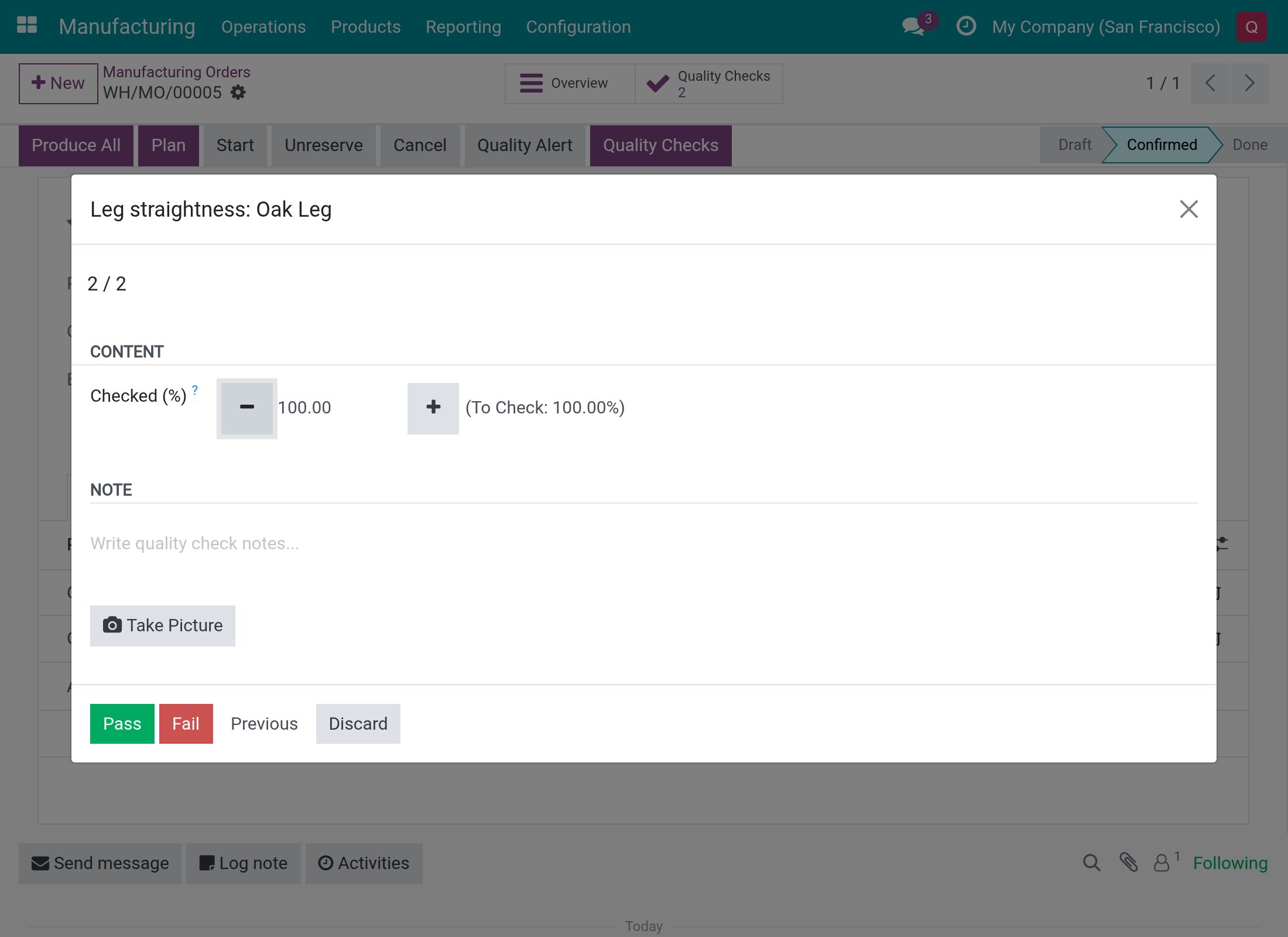
- On the order, press Quality Checks in the header. The checks still to do open one after the other.
- When a check names a Responsible, you see only the Fail button and the message Waiting for Linh Pham to check. The Pass is left to that person. Press Next to move on.
- For a check without a Responsible, press Pass or Fail.
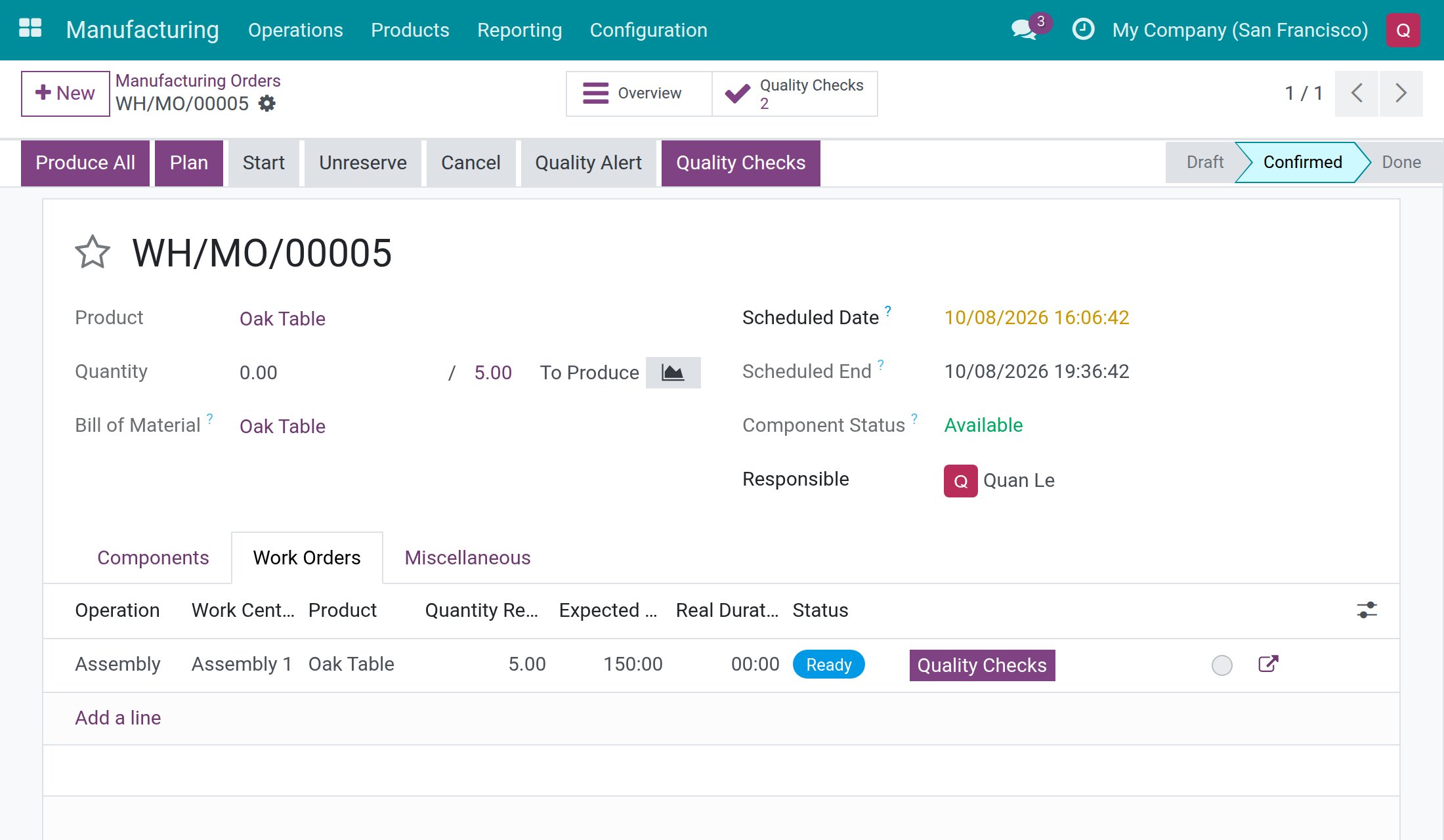
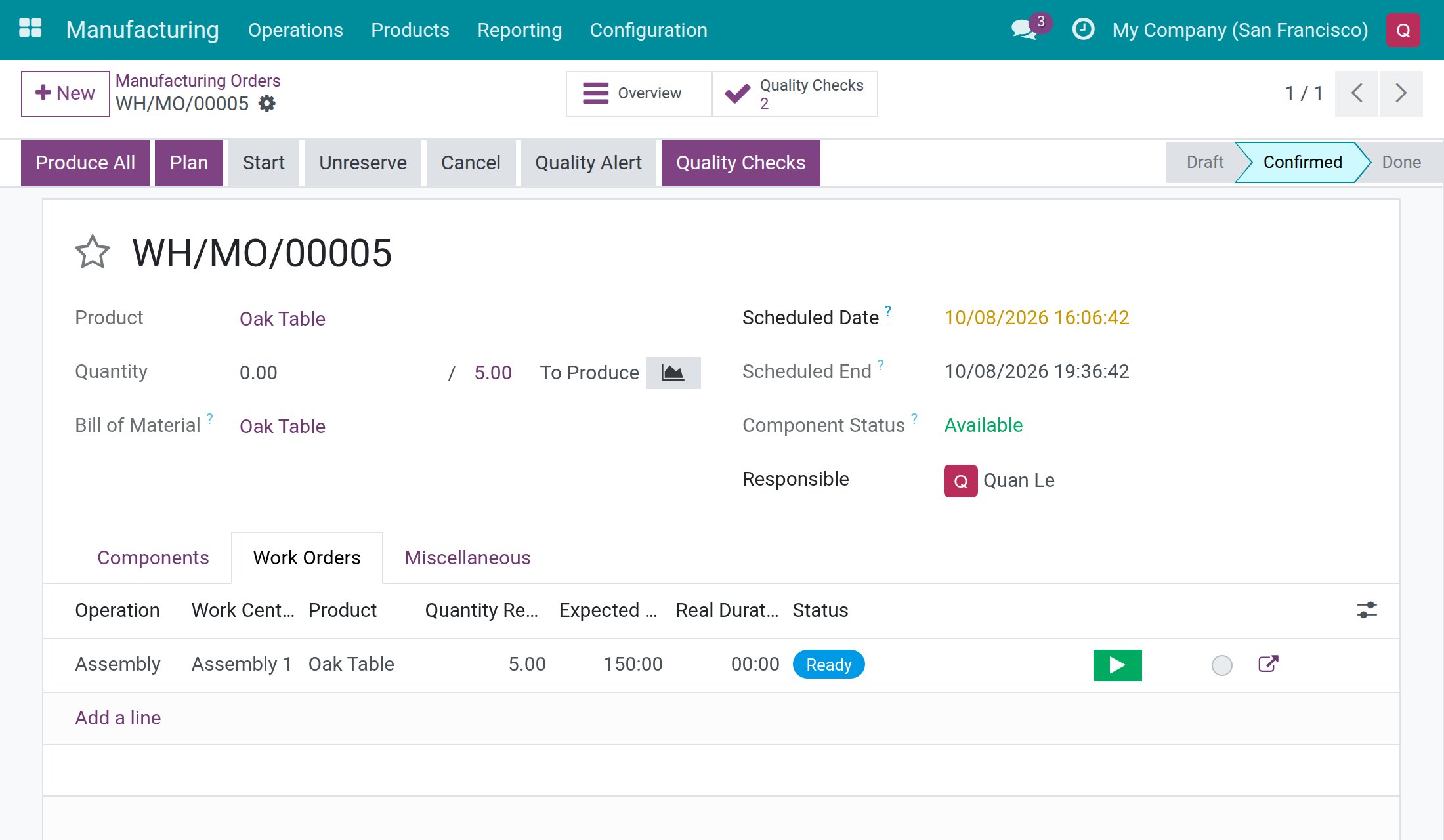
You can also do the component check from the Work Orders tab. Each work order row shows a Quality Checks button while a check is still to do, and no Start button yet.
A failed component check blocks Start
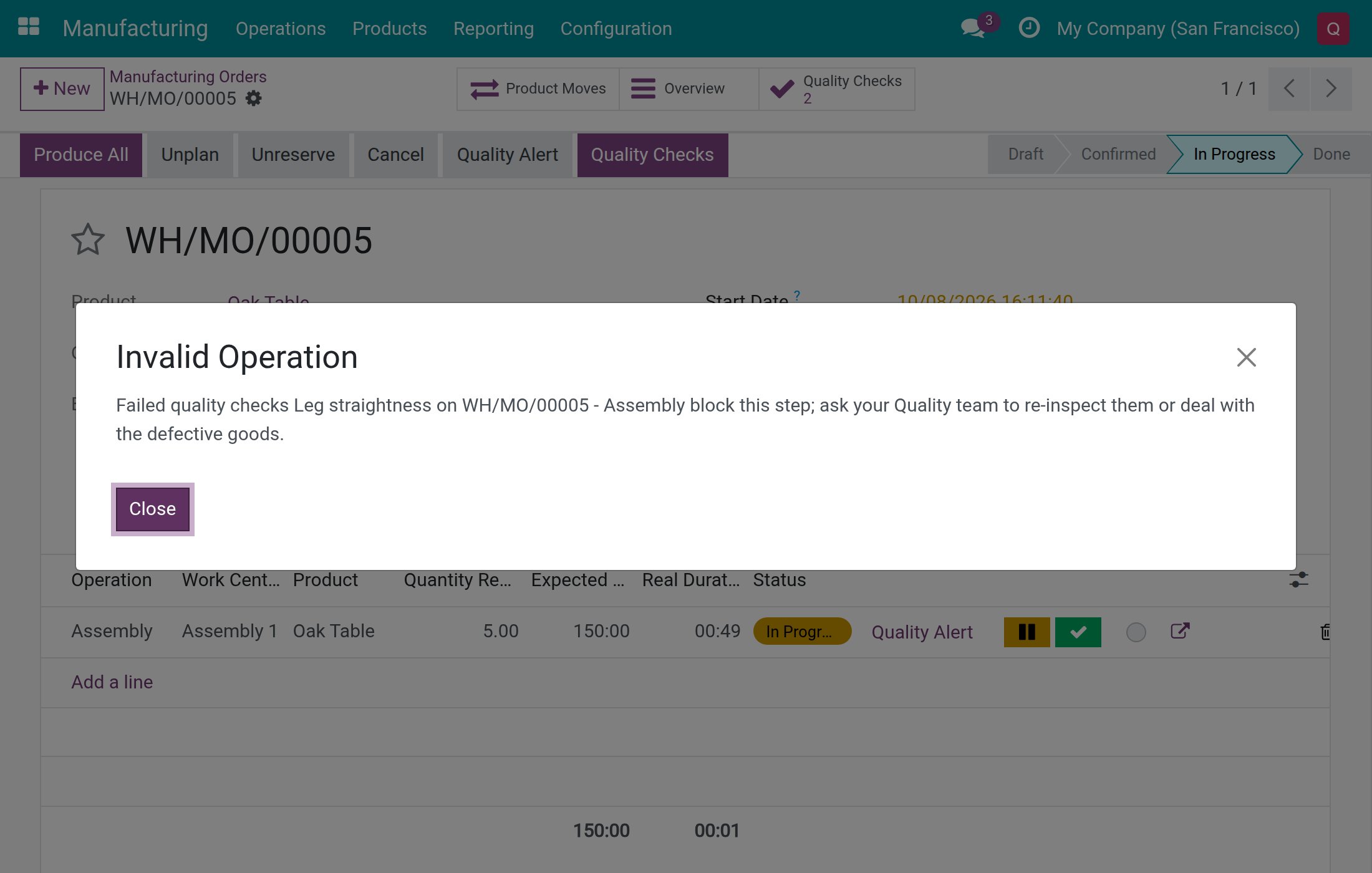
Suppose the production lead finds the legs bent and presses Fail on Leg straightness. Because the control point has No Proceed if Failed ticked, the work order cannot start. The row offers Start again, because no check is left to do, but pressing it is refused.
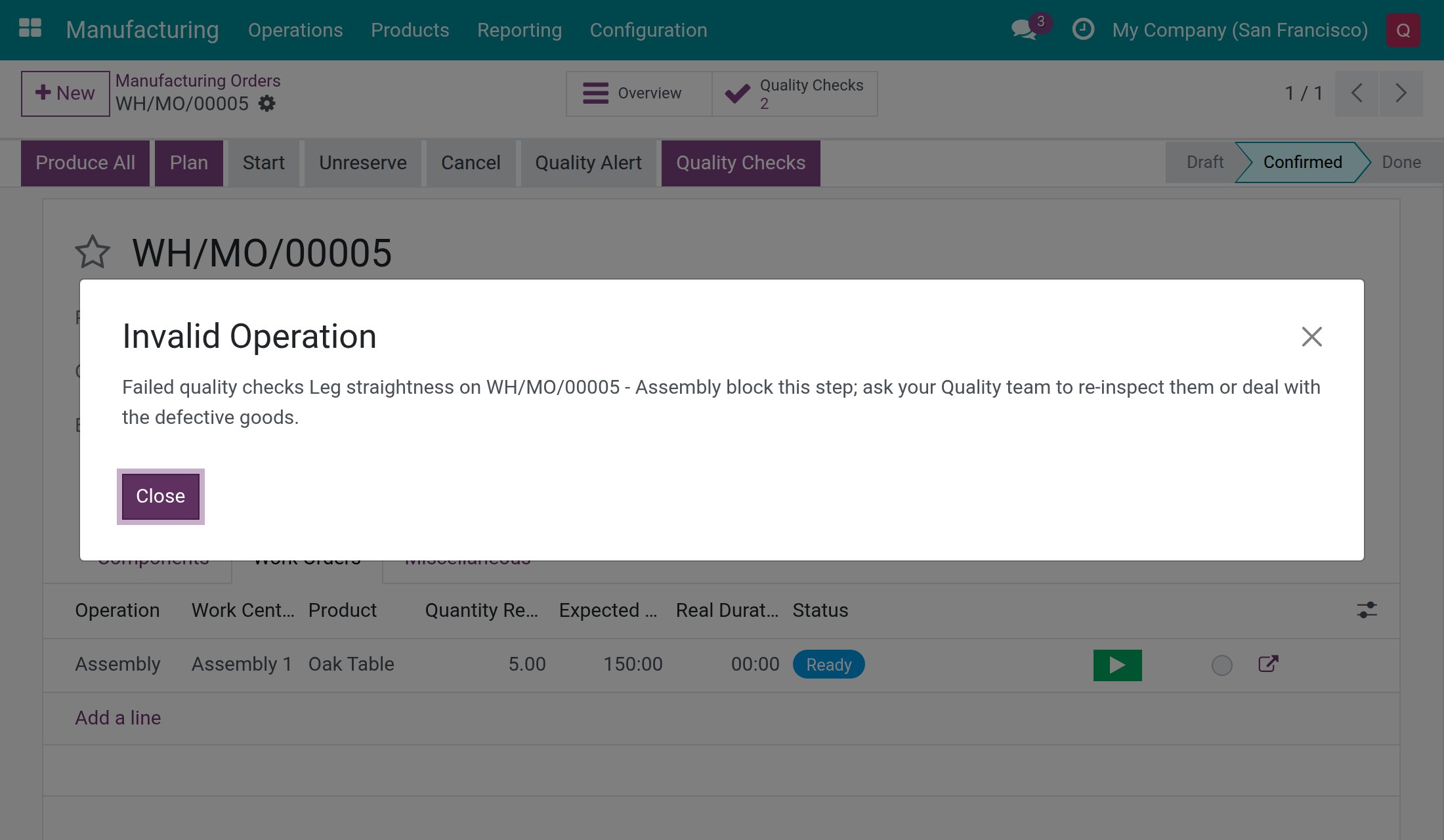
The message names the failed check by its title and says that it blocks the step. The work order stays unstarted.
Release a failed check
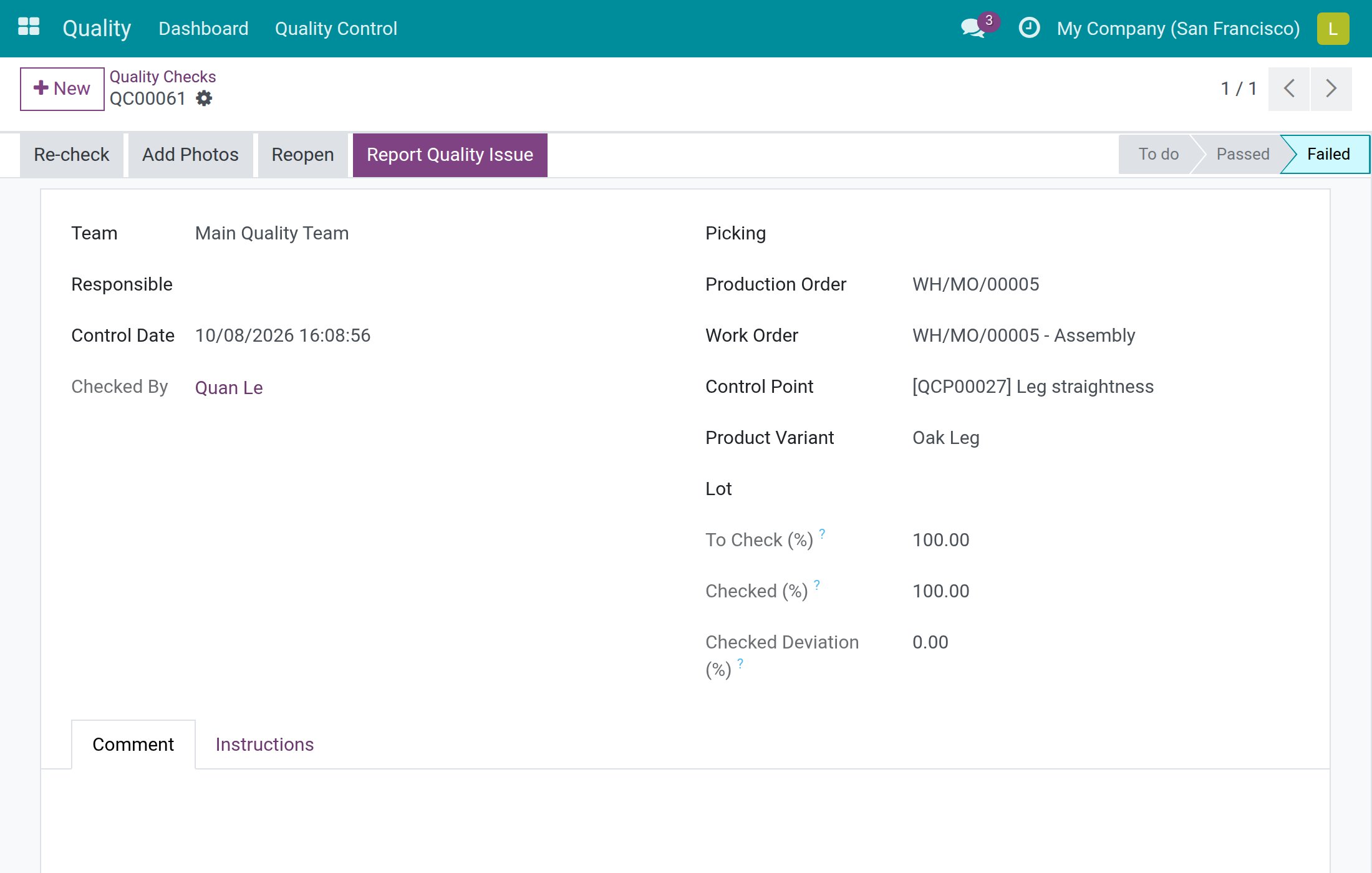
Only a Quality User can bring a failed check back to To do. The production lead sees the failed check without a Reopen button:
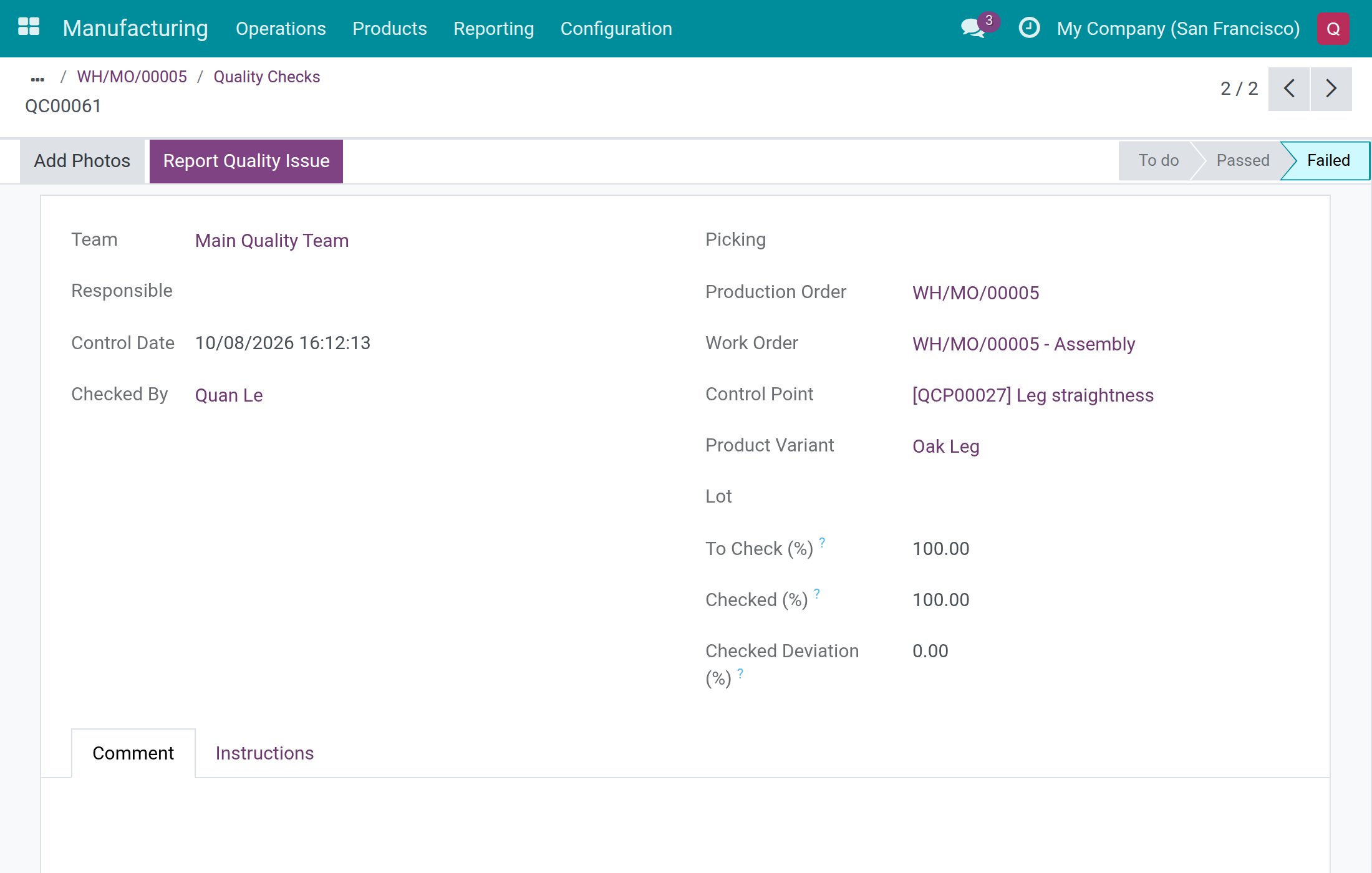
To release it, a Quality User:
Navigates to Quality ‣ Quality Control ‣ Quality Controls ‣ Quality Checks.
Opens Filters and picks Failed, to list the failed checks only.
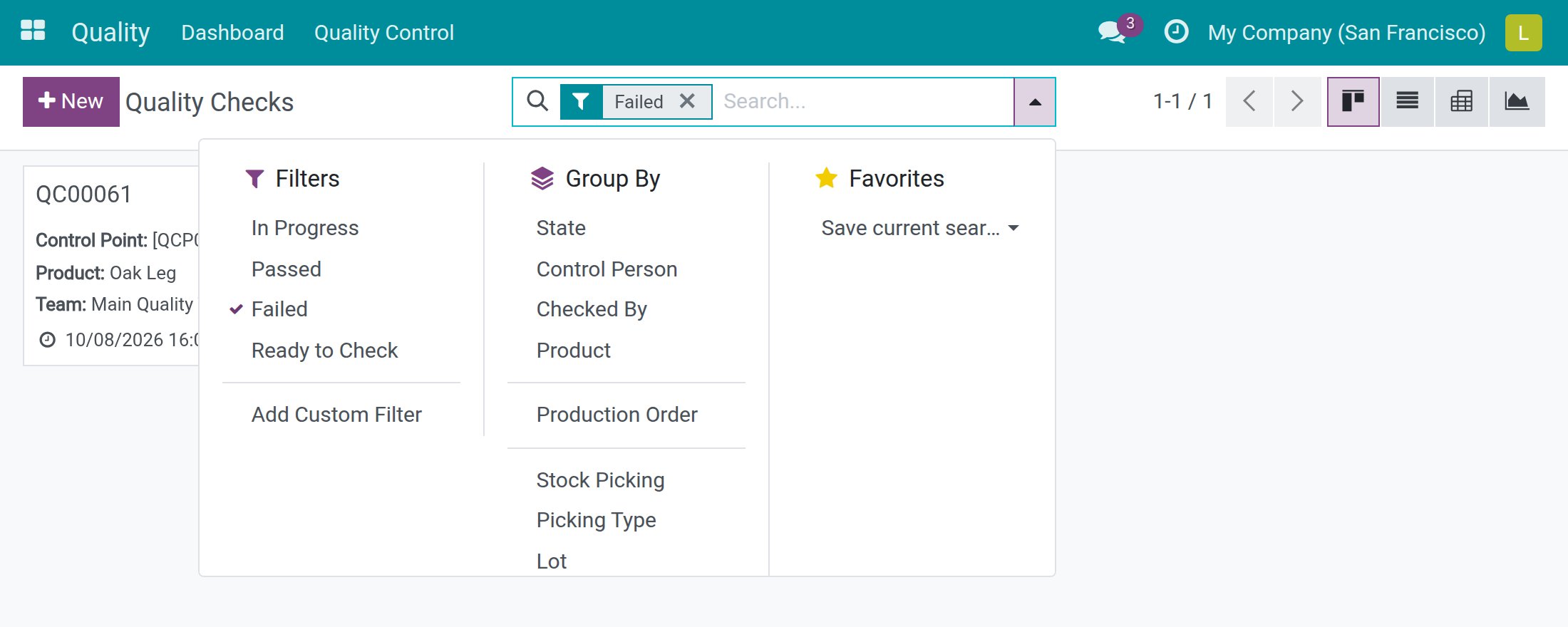
Opens the check and presses Reopen. The status goes back to To do.
After inspecting the goods again, presses Pass (or Fail if the problem remains).
The production lead can now press Start, and the work order shows In Progress.
A failed check blocks Finish
The same rule holds while the operation runs. If a check fails during the work, for example a cracked leg found during assembly, pressing the check mark on the work order row is refused until a Quality User has released the check:
A work order is also refused when one of its checks is still to do. The message then reads You still need to do the quality checks!
Record the output and close the order
- On the manufacturing order, fill in the Quantity produced. This is never refused, even while a finished-product check is still to do.
- Press Produce All (or Produce when the quantity differs from the demand).
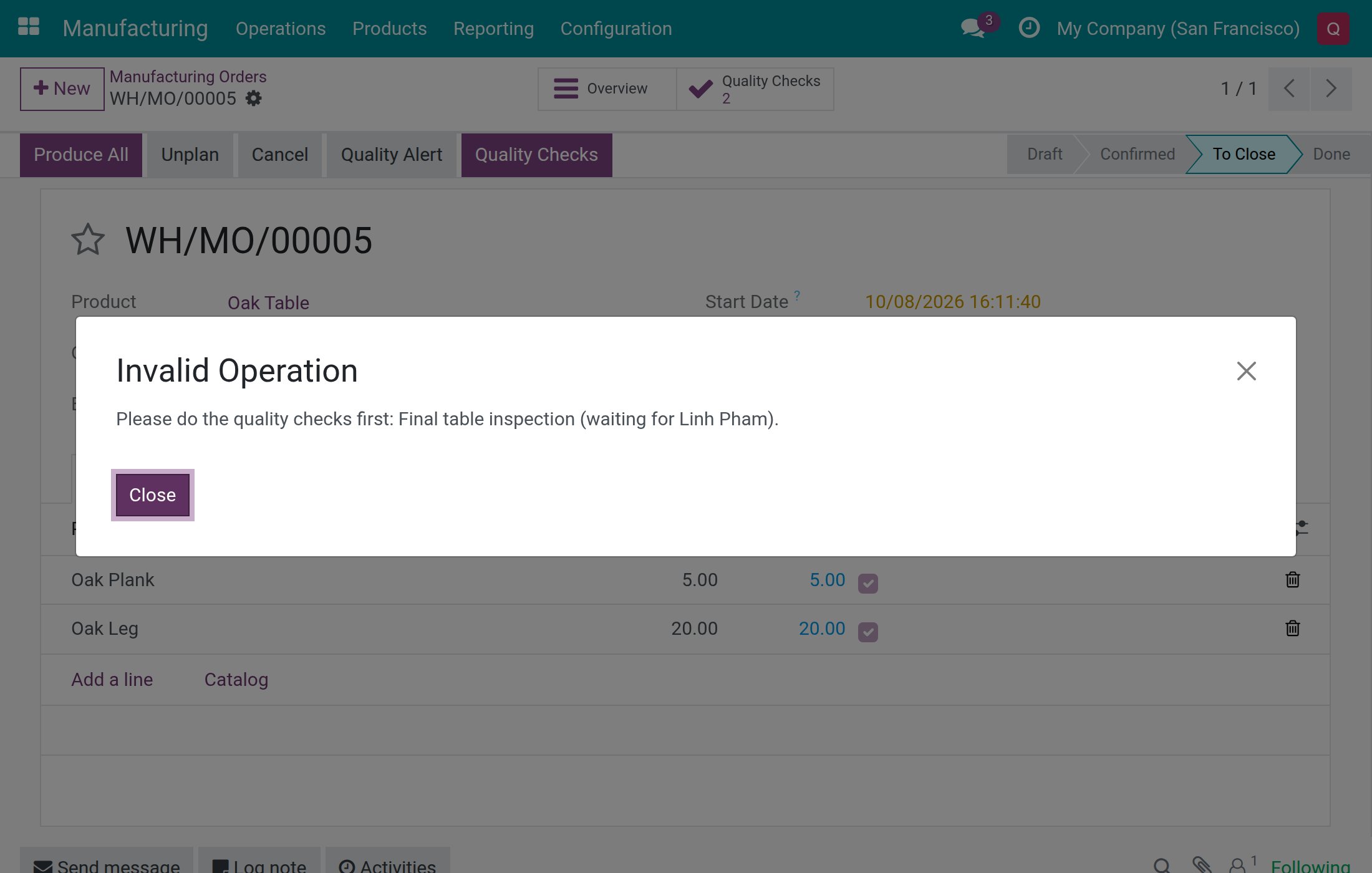
If a finished-product check is still to do, closing is refused. The message lists each pending check by its control point title, and the person it waits for:
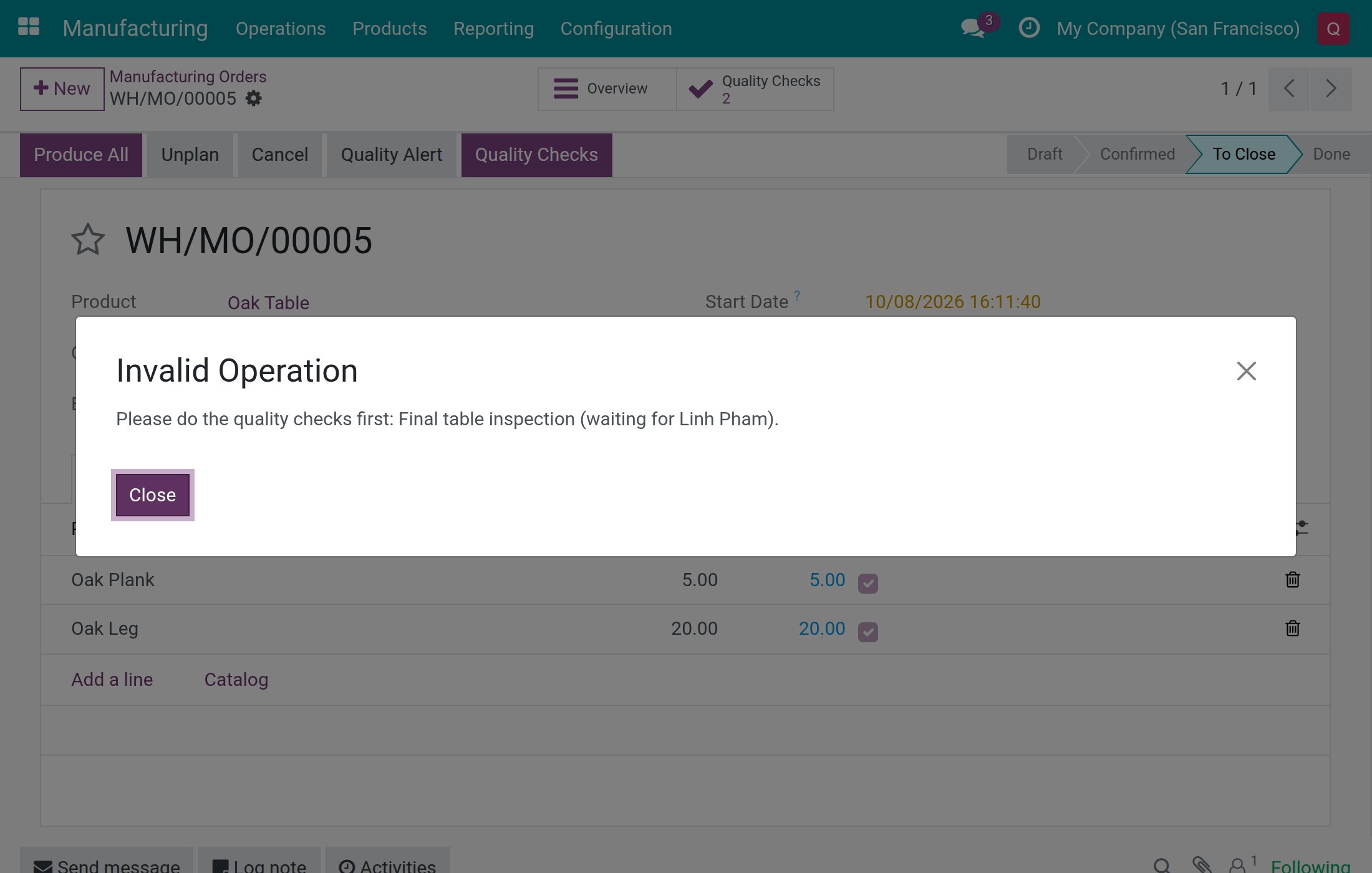
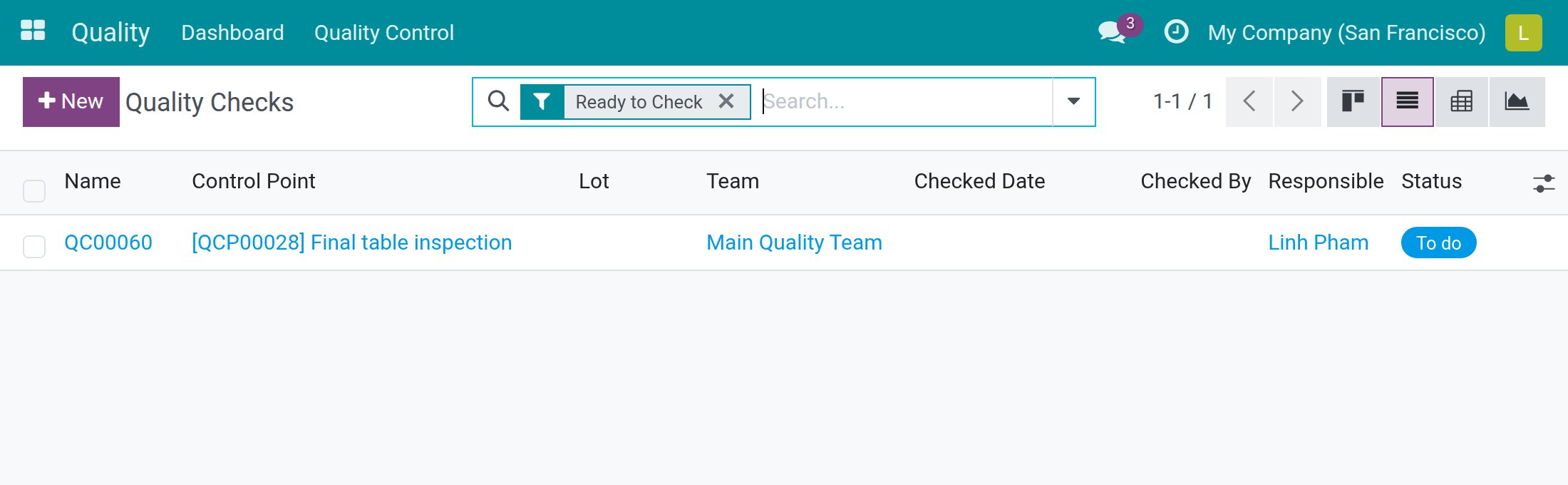
The inspector finds the check from the Ready to Check filter:
- Navigate to Quality ‣ Quality Control ‣ Quality Controls ‣ Quality Checks.
- Open Filters and pick Ready to Check. The list shows the checks to do that are assigned to you or to nobody, on orders where output has been recorded.
- Open the check and press Pass.
Back on the order, Produce All now closes it and the order shows Done.
A failed finished-product check
When the control point of the finished product has No Proceed if Failed ticked, a failed check blocks the closing in the same way:
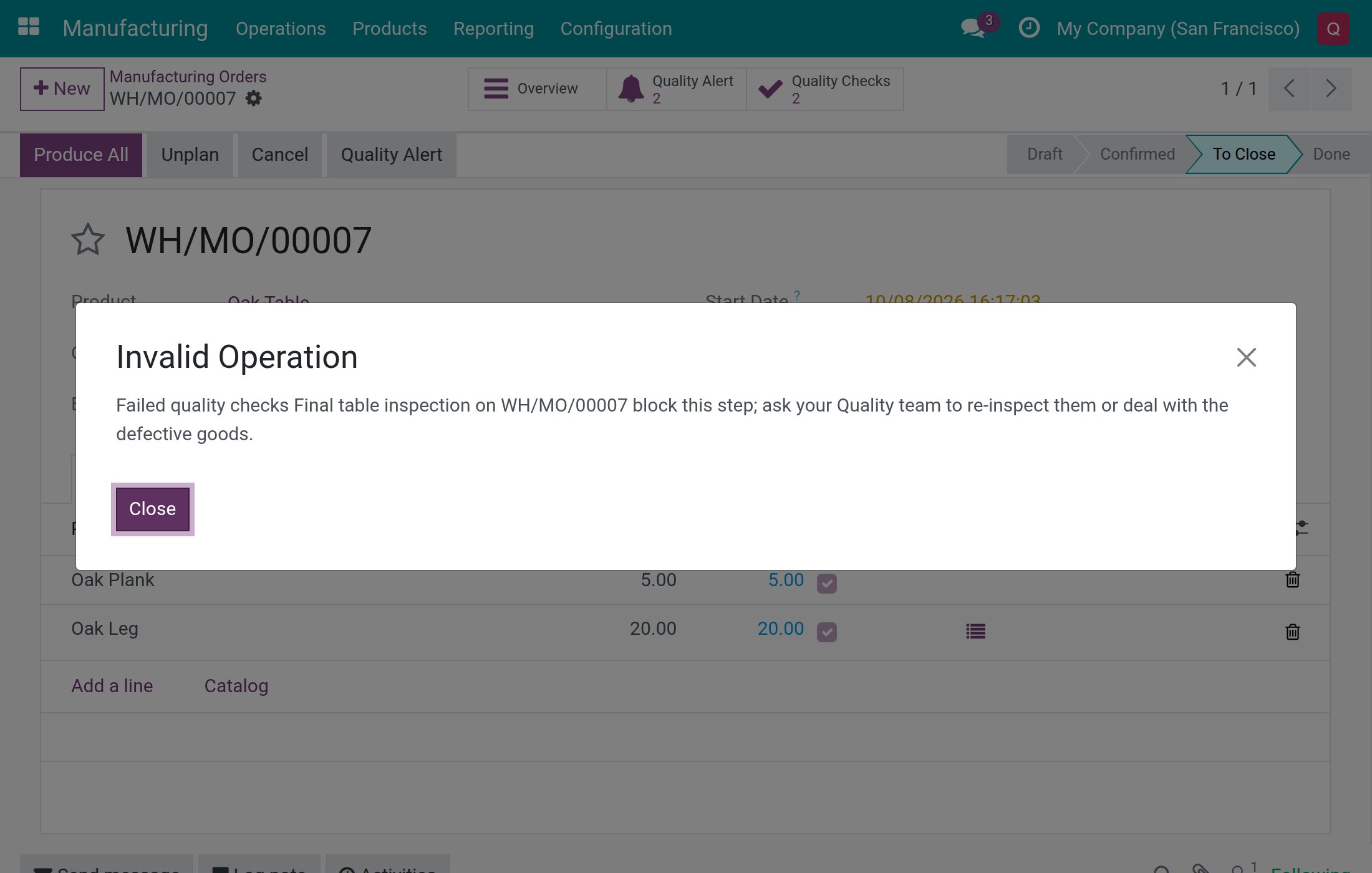
A Quality User reopens and passes the check as described above, and the order can then be closed. Without No Proceed if Failed, a failed finished-product check does not block the closing; only a check still to do does.
Close an order partially and get a backorder
- On the order, fill in the quantity actually finished, for example 3 of 5, and press Produce.
- If the system asks you to confirm the consumed quantities, confirm them when they are right.
- In the window You produced less than initial demand, press Create backorder.
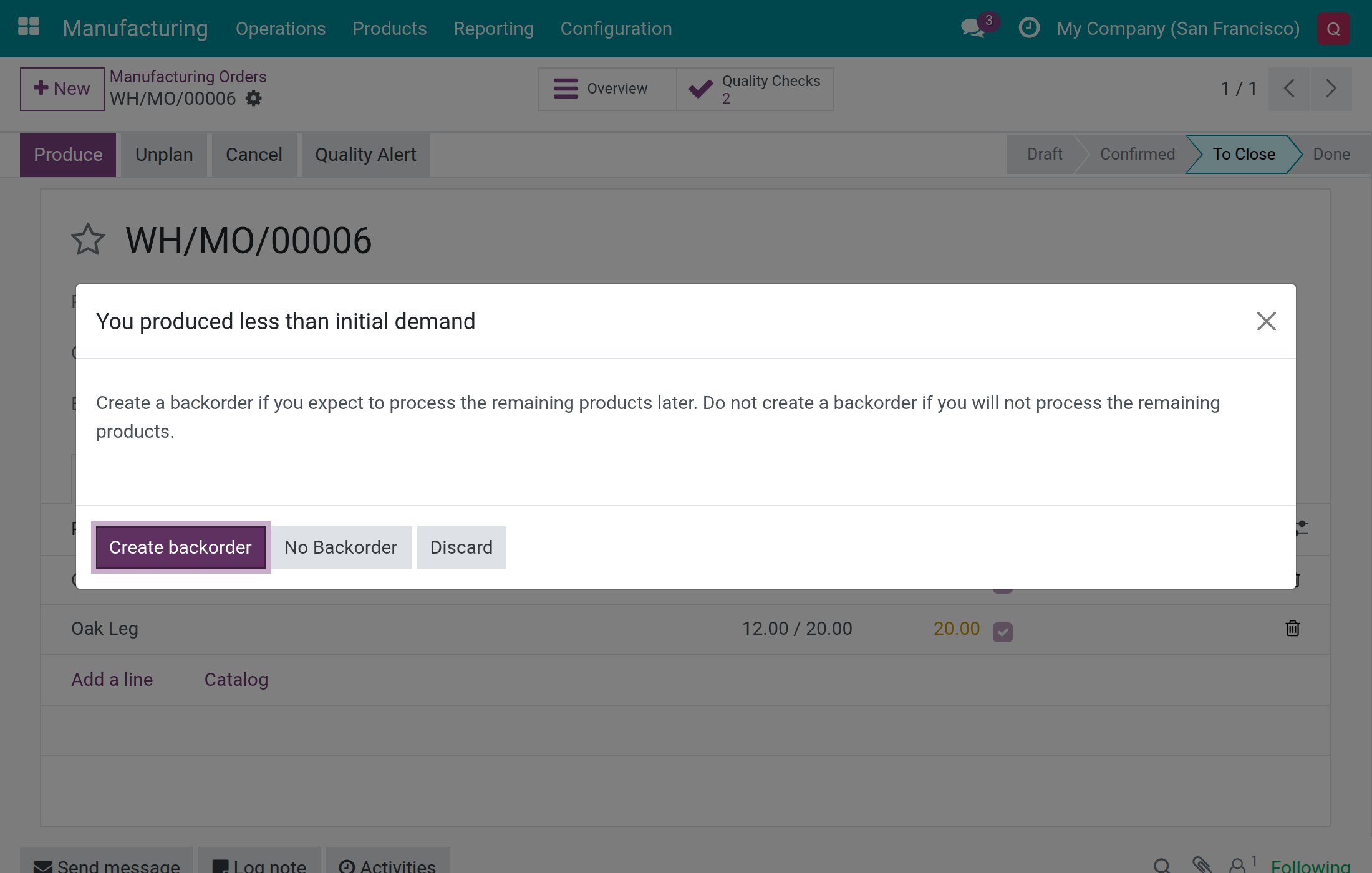
The order for the remaining quantity gets its own checks, created from the same control points: the Quality Checks smart button shows them, and the Quality Checks button in the header stays visible while they are to do.
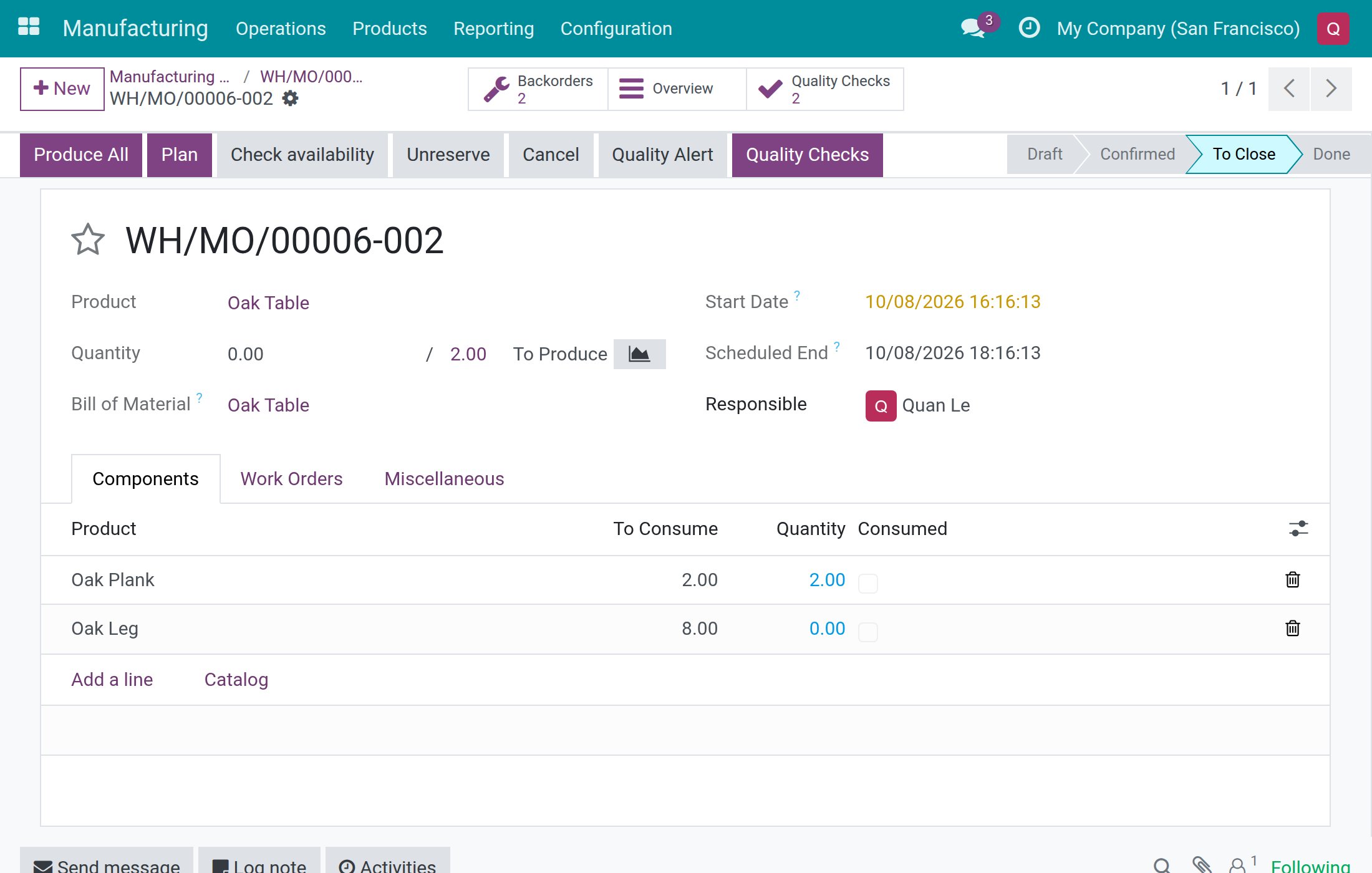
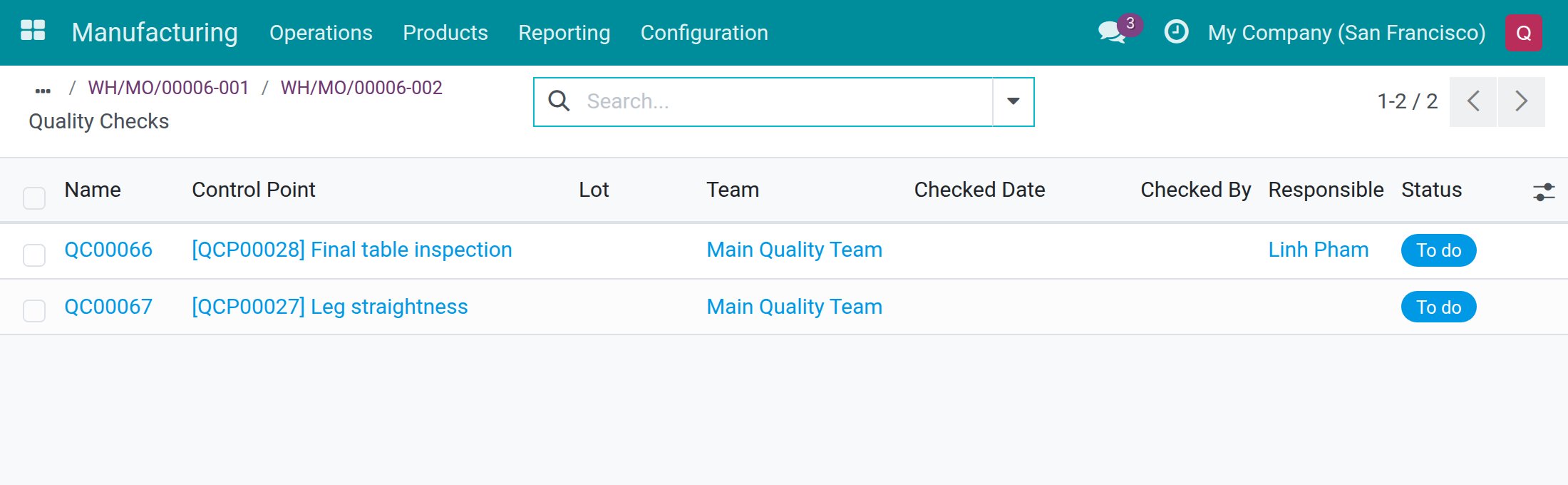
The rules above apply to the backorder as they did to the first order. If the work order of the backorder is shown as Cancelled, only a Quality User can record its component check (see the next section).
Checks are locked once the order is done
Once the manufacturing order or the work order is Done or Cancelled, a production lead can no longer change the recorded results of its checks: the Reopen and Re-check buttons are not offered.
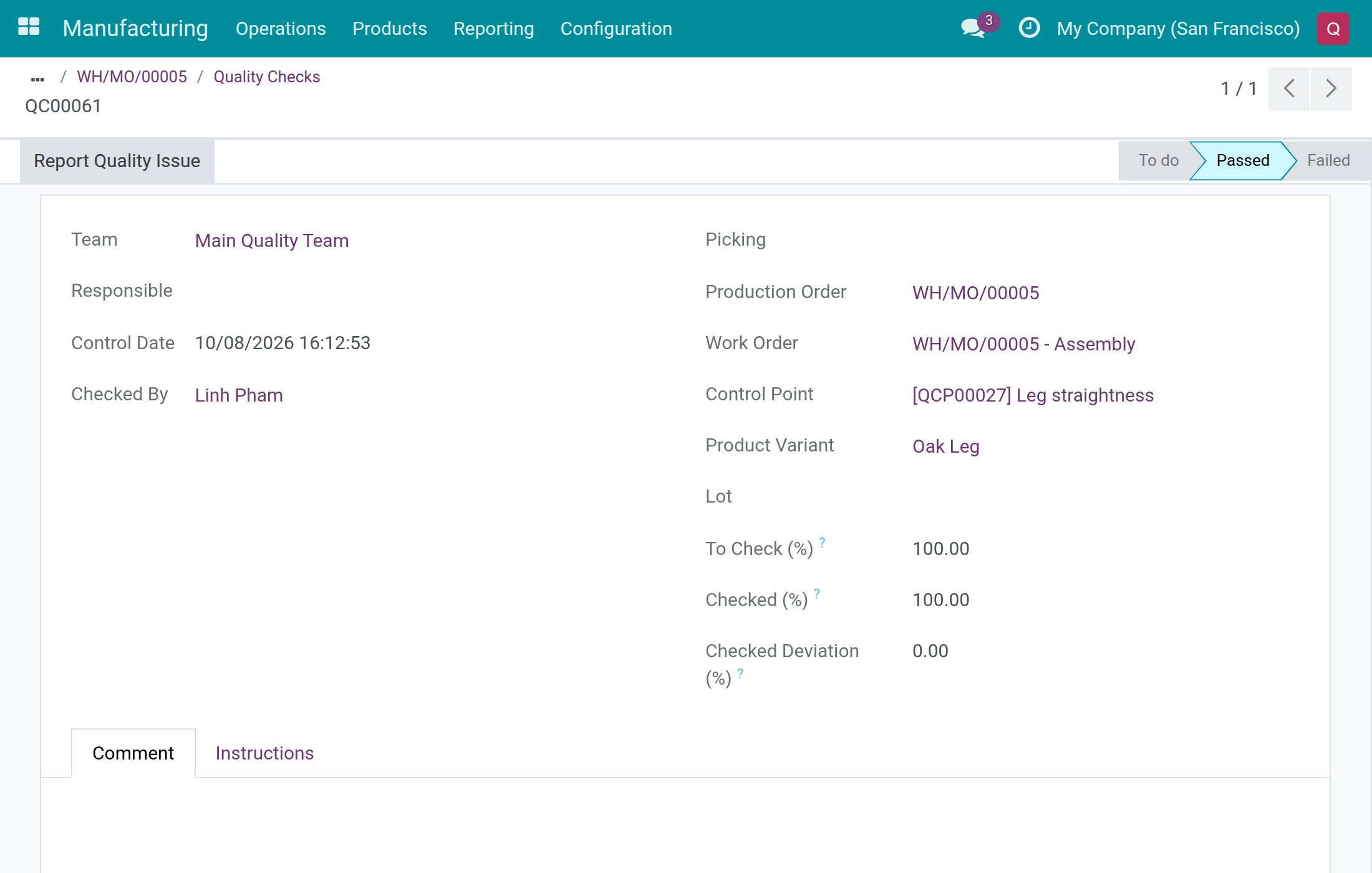
A Quality User still sees both buttons on the same check:
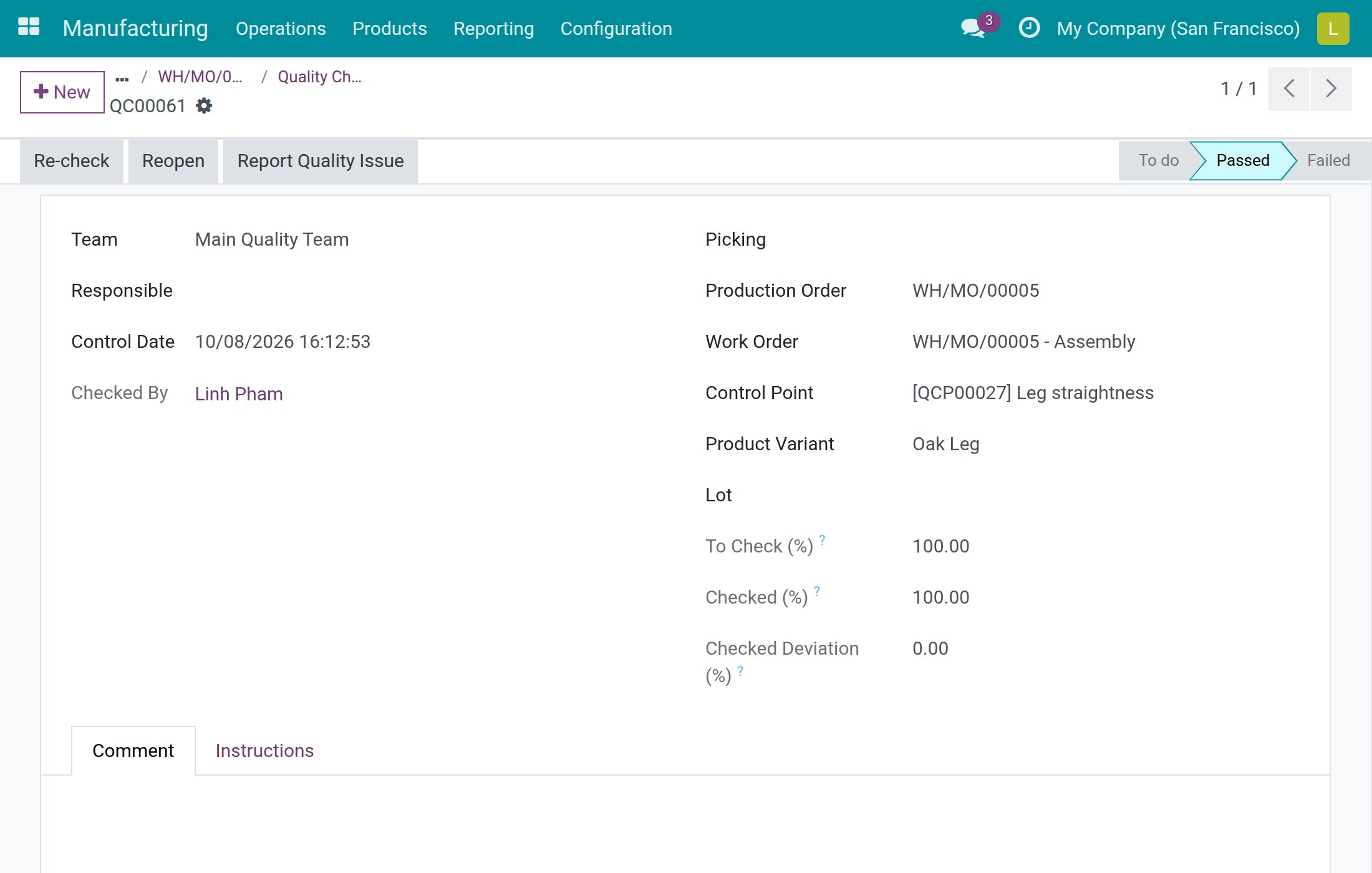
The check form shows the Production Order once, followed by the Work Order and the Control Point the check comes from.
Raise quality alerts from the order
When a material or a product does not meet the requirements, raise an alert without leaving the order.
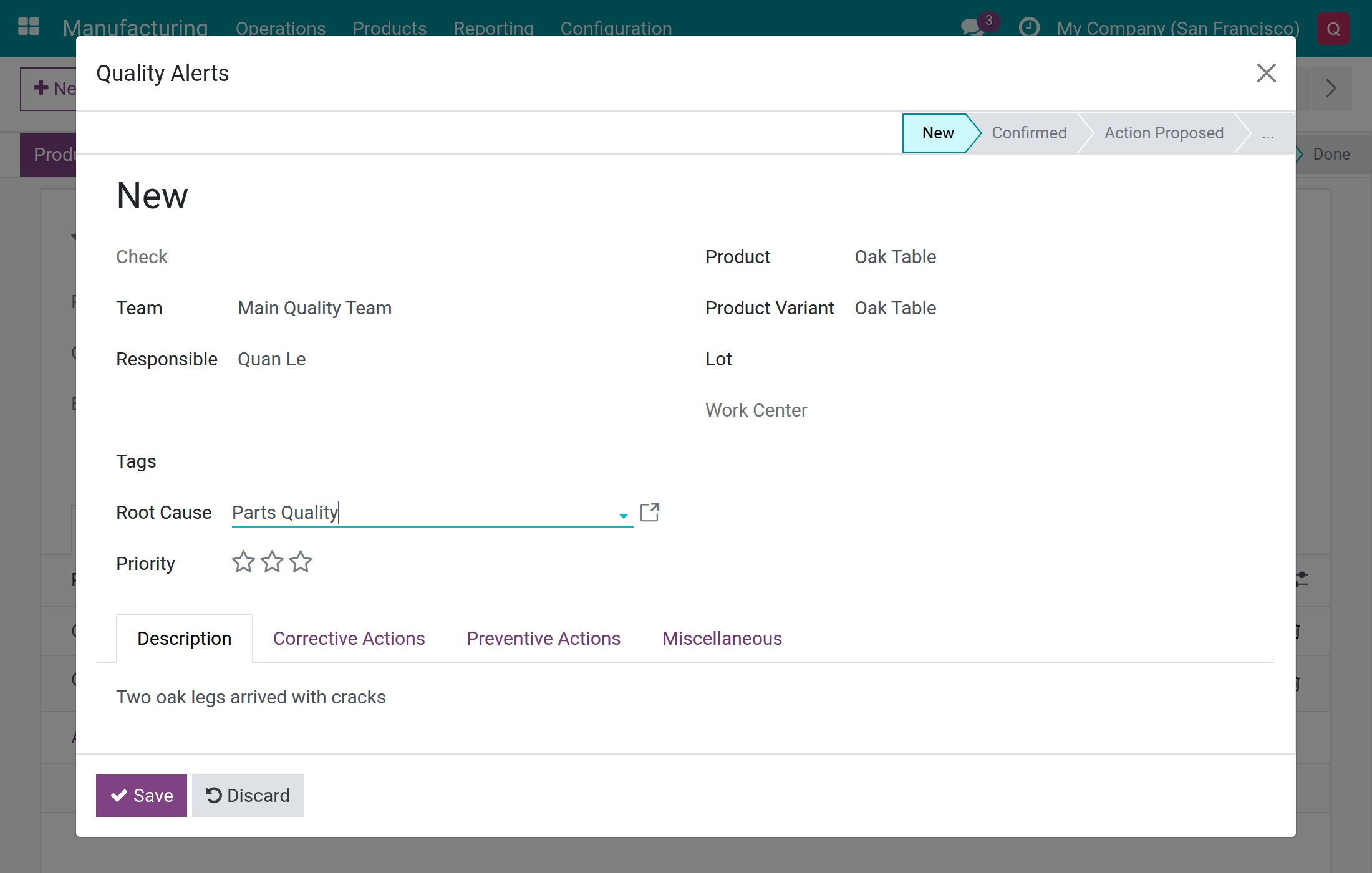
- On the manufacturing order, press Quality Alert in the header. The alert opens with the product already filled in.
- Pick a Root Cause, write the Description, and press Save.
- To tie an alert to one operation, open the Work Orders tab and press Quality Alert on the row of the work order in progress.
The order now shows a Quality Alert smart button with the number of alerts, and the work order row keeps its own Quality Alert button:
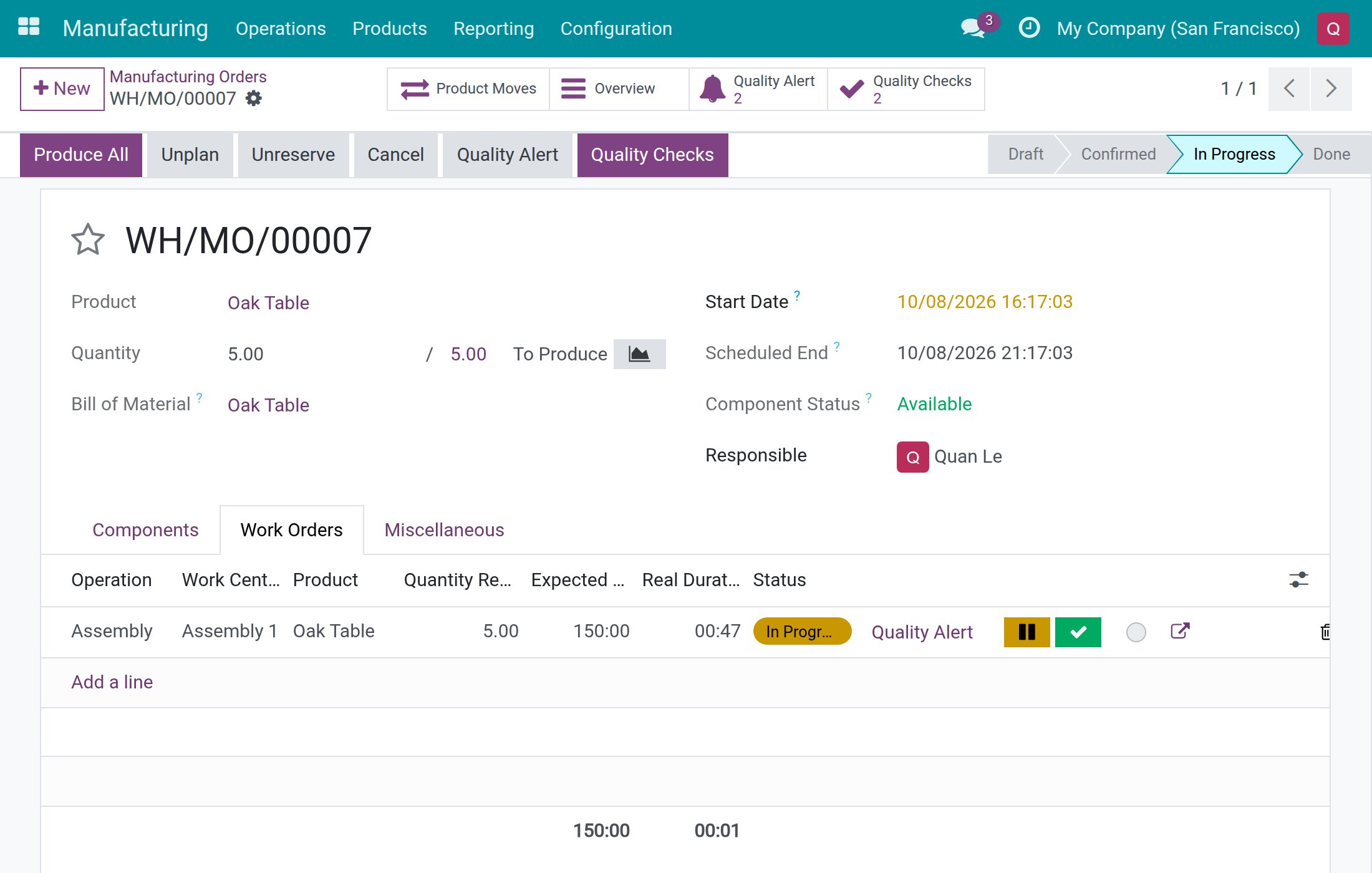
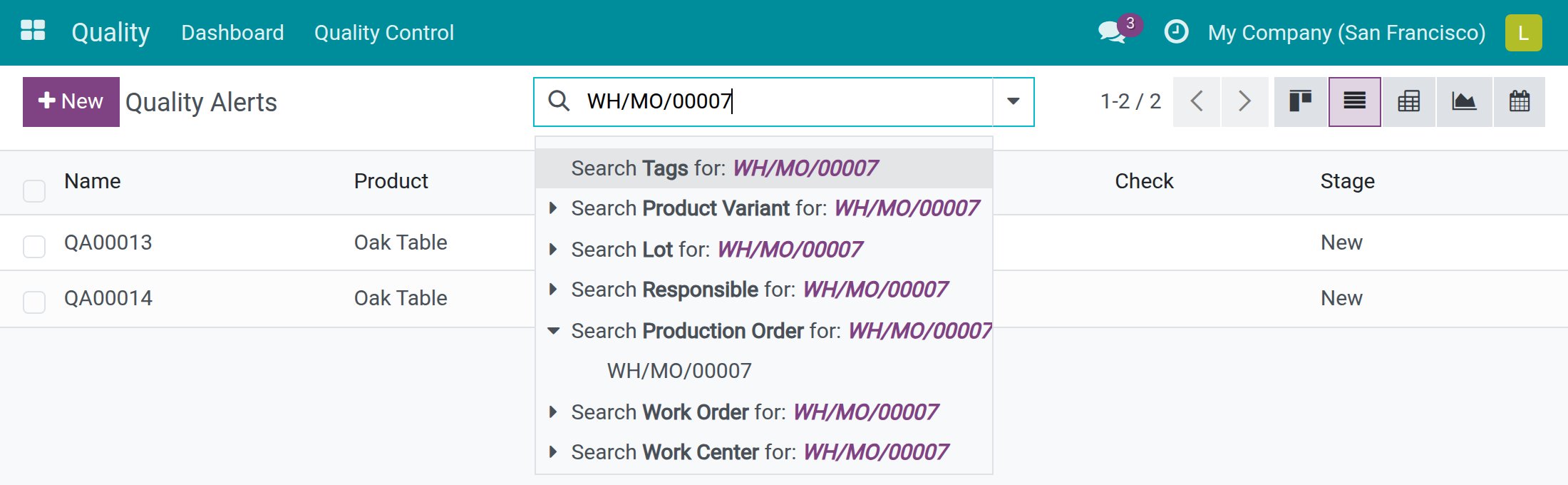
The Quality team reviews them in Quality ‣ Quality Control ‣ Alerts ‣ Quality Alerts. Search by Production Order, Work Order or Work Center to find the alerts of one order. New alerts are in the New stage.
The work center card in Manufacturing ‣ Configuration ‣ Work Centers also has a Quality Alert link to the alerts of that work center.
Find checks quickly
In Quality ‣ Quality Control ‣ Quality Controls ‣ Quality Checks you can search by Production Order, Work Order and Work Center, and group by Production Order. The Failed and Ready to Check filters answer the two questions most teams ask: what must be released, and what must be inspected now.
Troubleshooting
- The work order has no Start button.
- A check of its components is still to do. Press Quality Checks on the row and record the result.
- Start or Finish is refused with a message about failed quality checks.
- A check failed on a control point with No Proceed if Failed. Ask a Quality User to reopen and re-inspect it, as described in Release a failed check.
- Closing the order is refused with "Please do the quality checks first".
- Each pending check is listed by its control point title, with the person it waits for. Ask that person to do it, or do it yourself if it has no Responsible.
- I cannot create or delete a quality check.
- Production users record results only. Checks are created by the system when the order is confirmed, from the control points.
- The order has no checks.
- No control point matches the product and the Manufacturing operation type of the order, or the component line has no Consumed in Operation. Check the control point, then confirm a new order.
- I cannot change the result of a check on a finished order.
- Once the order or the work order is done or cancelled, only a Quality User can change the result.
FAQ
- Does a pending check stop me from recording the produced quantity?
- No. Recording output is never blocked. Only closing the order is.
- Who can pass a check that names a Responsible?
- The check waits for that person. Others see the message Waiting for ... to check. and can only record a Fail.
- Does a backorder get its own checks?
- Yes. The order for the remaining quantity gets its own finished-product and component checks.
- Does a failed check always block the order?
- Only when its control point has No Proceed if Failed ticked. Otherwise a failed check is recorded but does not stop the work order or the order.
This software and associated files (the "Software") may only be used (executed, modified, executed after modifications) if you have purchased a valid license from the authors, typically via Odoo Apps, or if you have received a written agreement from the authors of the Software (see the COPYRIGHT file).
You may develop Odoo modules that use the Software as a library (typically by depending on it, importing it and using its resources), but without copying any source code or material from the Software. You may distribute those modules under the license of your choice, provided that this license is compatible with the terms of the Odoo Proprietary License (For example: LGPL, MIT, or proprietary licenses similar to this one).
It is forbidden to publish, distribute, sublicense, or sell copies of the Software or modified copies of the Software.
The above copyright notice and this permission notice must be included in all copies or substantial portions of the Software.
THE SOFTWARE IS PROVIDED "AS IS", WITHOUT WARRANTY OF ANY KIND, EXPRESS OR IMPLIED, INCLUDING BUT NOT LIMITED TO THE WARRANTIES OF MERCHANTABILITY, FITNESS FOR A PARTICULAR PURPOSE AND NONINFRINGEMENT. IN NO EVENT SHALL THE AUTHORS OR COPYRIGHT HOLDERS BE LIABLE FOR ANY CLAIM, DAMAGES OR OTHER LIABILITY, WHETHER IN AN ACTION OF CONTRACT, TORT OR OTHERWISE, ARISING FROM, OUT OF OR IN CONNECTION WITH THE SOFTWARE OR THE USE OR OTHER DEALINGS IN THE SOFTWARE.
