Manufacturing Quality Control
| Lines of Code | 1181 |
| Technical name | to_quality_mrp |
| License | OPL-1 |
| Website | https://viindoo.com/apps/modules/19.0/to_quality_mrp |
| Read description for | v 10.0 v 11.0 v 12.0 v 13.0 v 14.0 v 15.0 v 16.0 v 17.0 v 18.0 |
| Required Apps | Manufacturing (mrp) Discuss (mail) Inventory (stock) |
| Included Dependencies | Stock Quality Control Quality |
| Extensions | Shop Floor Control - Quality |

No manufacturing order closes with a quality check left undone
For manufacturers that inspect finished products and the components they consume
Create quality checks on manufacturing orders; work orders and order closing wait for their results.
Odoo Community Edition · Viindoo Cloud · License OPL-1 · English, Vietnamese
Extends Stock Quality Control: the same control points, checks, decisions and alerts, on manufacturing orders.
What changes for your team
Checks come with the order
Inspection sheets sit at the work center, filled in on paper and typed in later, if at all.
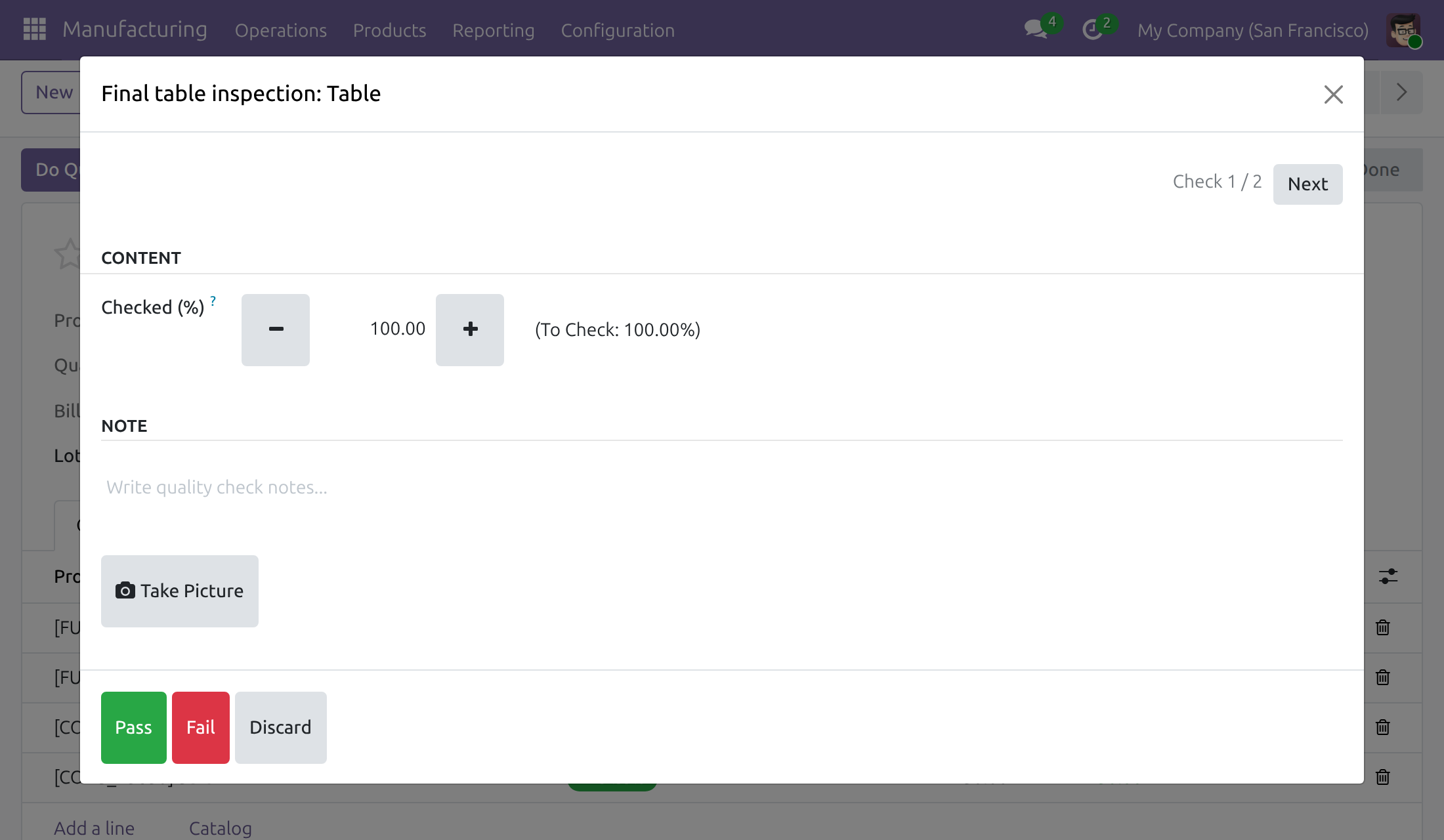
→ Confirming an order creates its finished-product checks, and each work order gets the checks of the components it consumes. Do Quality Checks steps through them by touch.
No step skips its check
An order is closed and its goods put away before the final inspection is done.
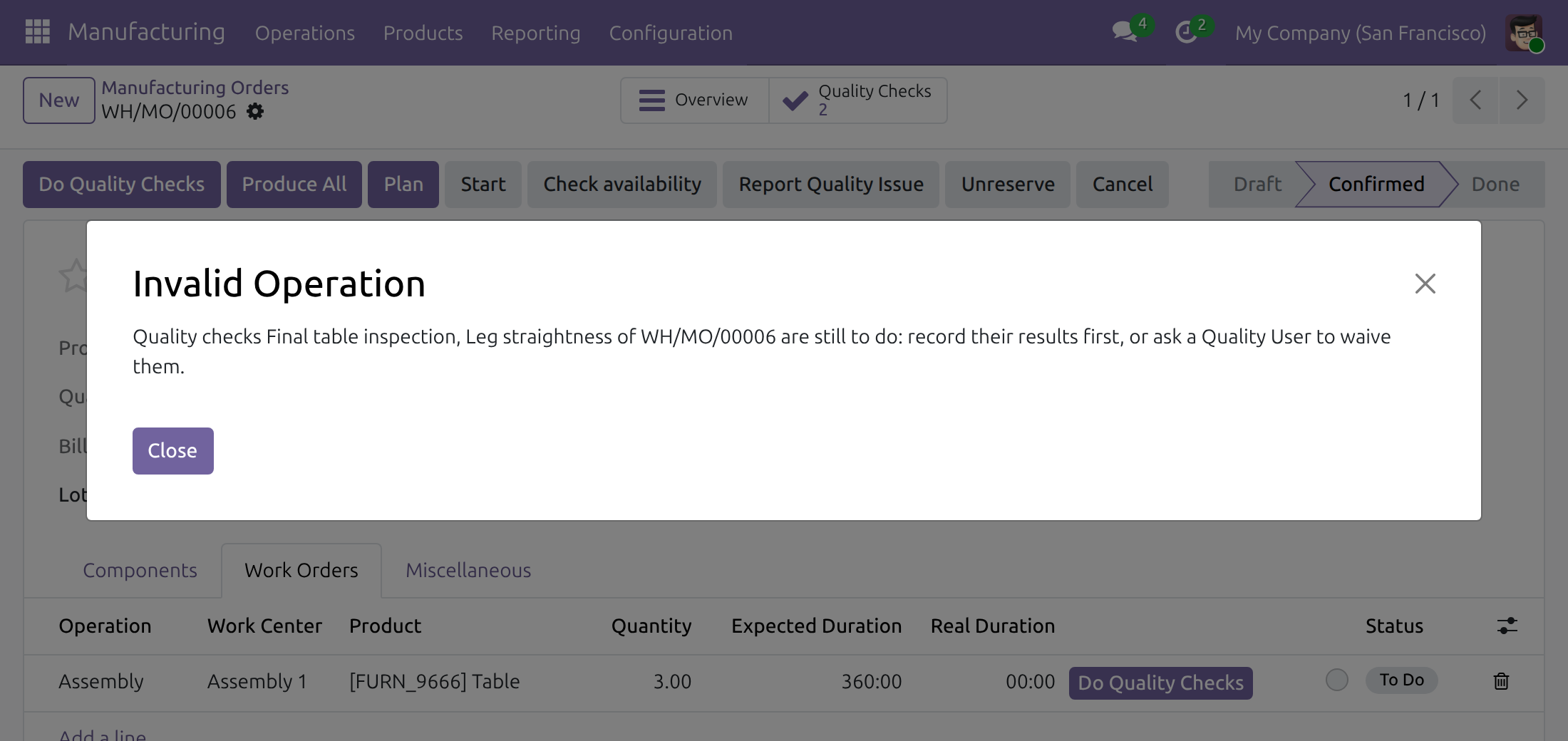
→ A work order starts once its components are checked; it finishes, and the order closes, once every check is recorded. The message names each check.
A failed check waits for a decision
A part fails inspection and goes into the product anyway, because the line cannot wait.
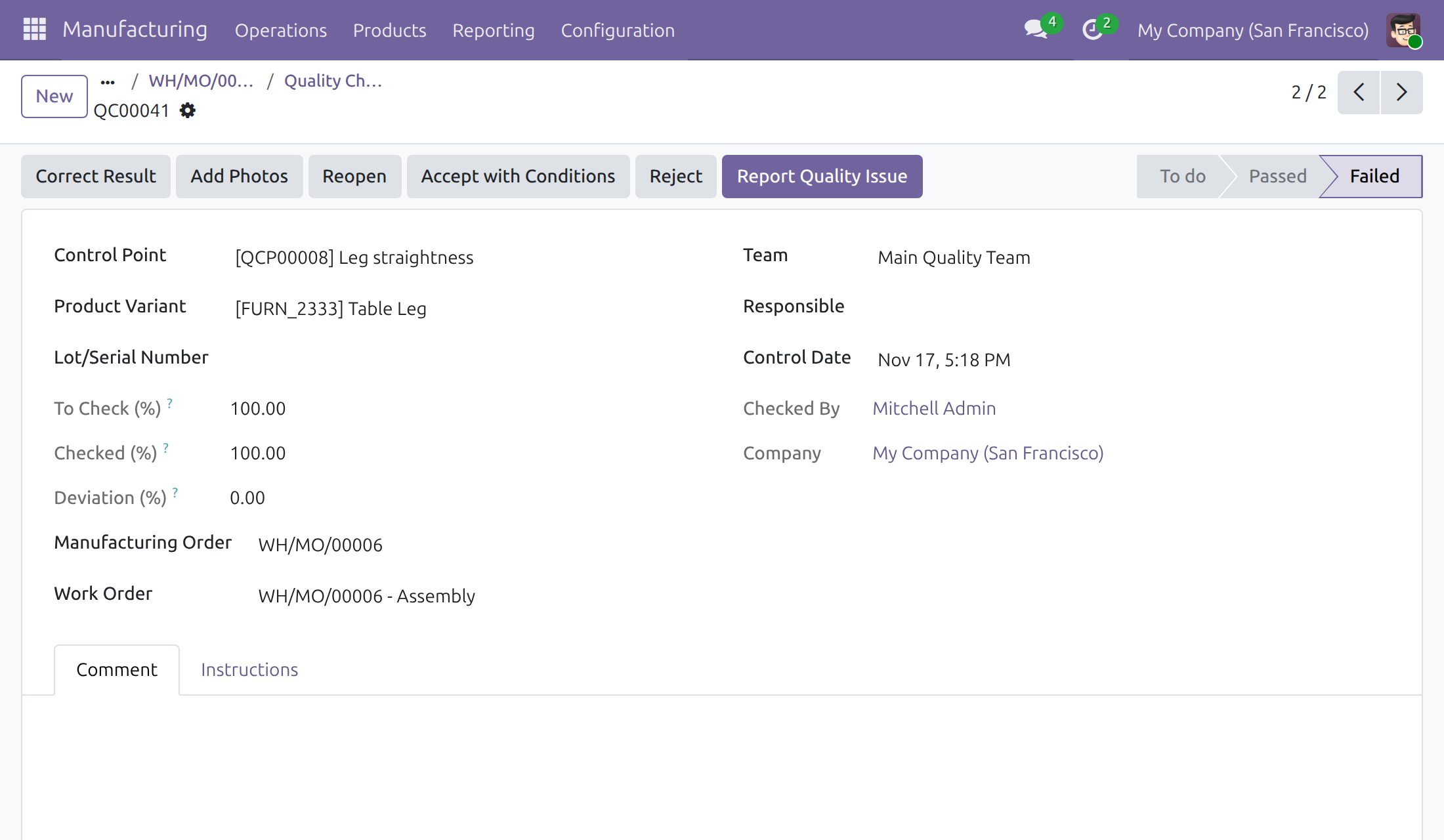
→ A failed check of a No Proceed if Failed point holds the order until a Quality User accepts it with conditions or reopens it.
Features
Plan what to inspect
- ✓ Control points on the manufacturing operation type choose the products
- ✓ Mark the control points whose failed check holds the order
Inspect during production
- ✓ Finished-product checks created when the order is confirmed
- ✓ Component checks on the work order that consumes the component
- ✓ Do Quality Checks on the order and each work order, one after another
- ✓ A backorder gets its own checks
Hold what is not cleared
- ✓ A work order starts once its component checks are recorded
- ✓ Work orders finish and orders close once every check is recorded
- ✓ One message names every check that holds the step
- ✓ Checks follow the order through BoM updates, merges and cancellation
Trace problems
- ✓ Report Quality Issue fills the alert with product, order and work center
- ✓ Alert counts on the order and in the order list
- ✓ The lot of a single-lot order goes on its checks and alerts
- ✓ Checks and alerts searched and grouped by order, work order, work center
- ✓ Ready to Check and Waiting for Quality Checks filters
Built for daily use
- ✓ Production staff record results but cannot create or delete checks
- ✓ Results lock once the work order or the order is done or cancelled
- ✓ Each company's orders use that company's control points
Ready on day one
Your production flow, unchanged
Orders run as before; checks appear only where a control point matches the product and the manufacturing operation type.
What you set up first
Control points on the manufacturing operation type, the points that hold failed goods, work orders for component checks, and each person's access right; the Documentation tab covers each step.
Extend it
Shop Floor Control - Quality
Operators record the checks of a work order on the shop floor tablet - pass, fail, measurements and photos - before the job starts and before it finishes.
Before you decide
Do production staff need a Quality access right?
No. With the Manufacturing access right they record the results of the checks of the orders they can read and read their alerts; they cannot create or delete checks, nor reopen a failed one.
Who releases an order held by a check?
A Quality User. Accept with Conditions releases a failed check, Reopen sends it back for inspection, and Waive, with a reason, clears a check that does not apply. The order can also be cancelled.
Do I need work orders?
Finished-product checks and the closing hold work on the order itself. Component checks and the start and finish holds need work orders, with each component tied to the operation that consumes it.
Will it stop production for nothing?
Only checks still to do, and failed checks of No Proceed if Failed points, hold a step. Recording the quantity produced is never held. A control point added after an order is confirmed adds no check to that order.
What does it take to install and run?
Manufacturing and Stock Quality Control, installed with it if missing; no extra Python package or server program. Results stay in your own database; the module calls no outside service. It does not run on Odoo Enterprise.
Try it, then ask us
Read the Documentation tab above, then try the live demo: v19demo-int.viindoo.com
Pre-sales & partnership
viindoo.com/contactusTechnical support
viindoo.com/ticketManufacturing Quality Control
Note
Extends Stock Quality Control - see its documentation. It builds on Quality, which explains the control points, the test types, the decisions about a failed check and the quality alerts that this guide relies on.
This guide is for the people who run inspections inside manufacturing: the quality administrator who decides what is inspected, the production lead who confirms and closes manufacturing orders and records the results of their checks, and the quality user who decides what happens to goods held by a failed check. The shop-floor tablet screens belong to another module and are not covered here.
Overview
Manufacturing Quality Control puts the quality checks on the manufacturing order. Confirming an order creates the checks of the finished product and, on each work order, the checks of the components that the operation consumes. From then on the order holds at three gates:
- a work order does not start while the checks of its components are still to do, or while a failed check holds the goods;
- a work order does not finish while one of its checks is still to do or a failed check holds the goods;
- the manufacturing order does not close while a check of the order or of one of its work orders is still to do, or while a failed check holds the goods.
Recording the quantity produced is never refused. Only closing the order is.
The process runs in these stages:
- The Quality Administrator chooses, on each control point, the product to inspect on the Manufacturing operation type, and whether a failed check holds the order.
- The Production lead confirms the manufacturing order and finds its checks.
- The Production lead records Pass or Fail for each check, starts and finishes the work orders, then closes the order.
- When a failed check holds the order, the Quality User decides: accept the goods with conditions, reject them, reopen the check for a new inspection, or waive a check that does not apply. The production lead goes on once nothing holds the order, or cancels the order.
- Anyone who works on the order raises a quality alert when something is wrong.
| Role | What they do | Access right to assign |
|---|---|---|
| Quality Administrator | Chooses which products are inspected on the Manufacturing operation type, and which failed checks hold the order. | Quality: Administrator |
| Quality User | Decides about failed and waived checks, changes the results of finished orders, follows the quality alerts. | Quality: User |
| Production lead | Confirms and closes manufacturing orders, runs their work orders, records the results of their checks and raises quality alerts. | Manufacturing: User (no Quality access right needed) |
Setup (for the Administrator)
Install the app
- Open Apps.
- Search for Manufacturing Quality Control.
- Click Install. The Quality, Inventory and Manufacturing apps it needs are installed with it.
Turn on work orders
- Open Manufacturing ‣ Configuration ‣ Settings and tick Work Orders, so that operations and work centers are used on your manufacturing orders.
- On the bill of materials of each product you make, give each component line that must be checked its Consumed in Operation. A component check is created only for a component line tied to an operation, because the check waits on the work order of that operation.
Give people their access right
- Open Settings ‣ Users & Companies ‣ Users and open the user.
- On the Access Rights tab, choose User in the Manufacturing line for a production lead.
- For a Quality User, also choose User in the Quality line. For a Quality Administrator, choose Administrator in the Quality line.
- Click Save.
A production lead needs no Quality access right: they read and record the results of the checks of the orders they can read, but they cannot create or delete a check. In the Quality app they see only Quality Control ‣ Quality Controls ‣ Quality Checks.
Quality Administrator: choose what is inspected on manufacturing
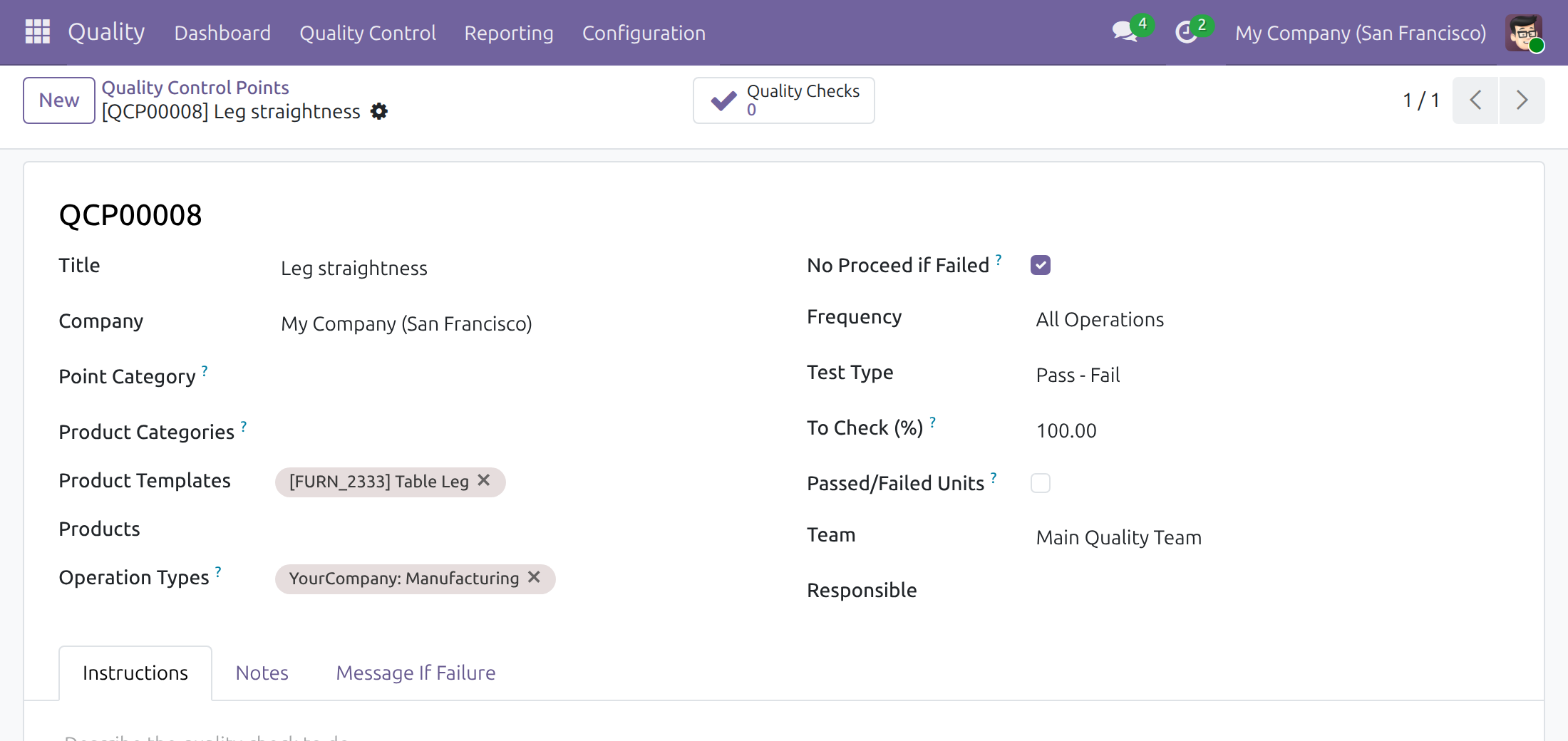
A control point tells the system which product to inspect and on which operation types. The Quality guide explains the other fields of a control point, such as the test type, the frequency and the team. This app uses the fields Operation Types and No Proceed if Failed that the Stock Quality Control guide describes, with the Manufacturing operation type.
Set a control point for a finished product or a component
- Open Quality ‣ Quality Control ‣ Quality Controls ‣ Control Points and click New.
- Give the point a clear Title, for example Leg straightness. The title is the name of the check in the messages that refuse an action, so choose a name your team recognizes.
- In Product Templates, choose the product to check: the finished product for a finished-product check, a component for a component check.
- In Operation Types, choose the Manufacturing operation type of your warehouse, so that the point applies to manufacturing orders. With several warehouses, each one has its own Manufacturing entry, prefixed with the warehouse name.
- Tick No Proceed if Failed when a failed result must hold the work order and the order until a Quality User decides. The option appears as soon as an operation type is chosen.
- Optionally choose a Responsible: the checks created from the point are then assigned to that person. Anyone who can read the order may still record the result.
- Click Save.
Note
The system judges a product against its control points once, when the order starts producing or consuming it. A control point created after an order was confirmed adds no check to that order. A control point without an operation type is never applied to a manufacturing order, and a control point of another company is never applied to the orders of this company.
The examples below use a Table assembled in the operation Assembly from Table Leg and other components. The control points are Leg straightness on the component Table Leg (No Proceed if Failed ticked) and Final table inspection on the Table.
Production lead: confirm, check and close orders
Confirm the order and see its checks
- Open Manufacturing ‣ Operations ‣ Manufacturing Orders and click New.
- Choose the Product, check the Quantity, then click Confirm.
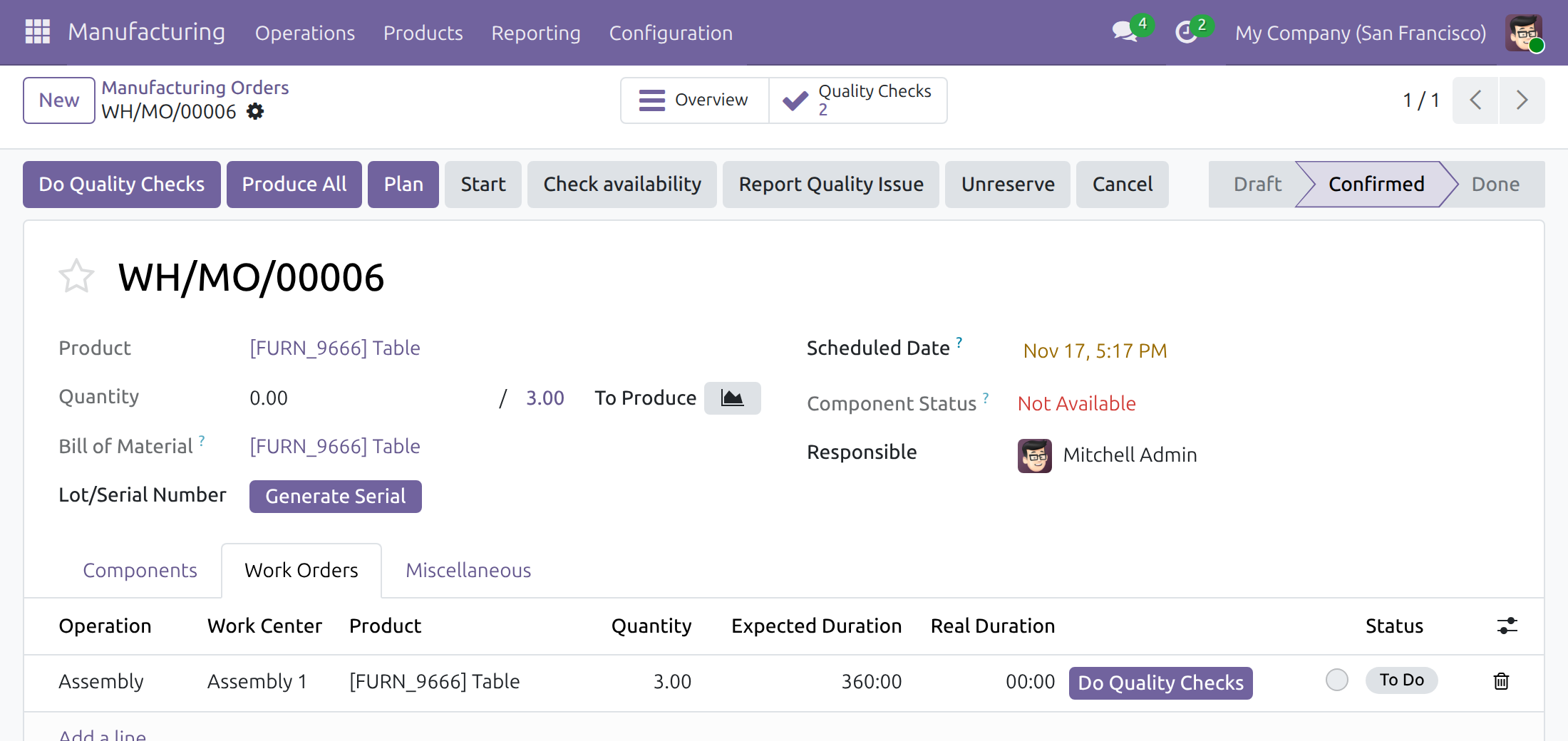
The system creates the checks from the control points that match the product and the Manufacturing operation type: a check of the finished product on the order, and a check on each work order for the components it consumes. A check is never created twice for the same control point and product. A backorder gets its own checks, see below.
The order now shows a Quality Checks button with the number of checks, and a highlighted Do Quality Checks button in the header while a check is still to do.
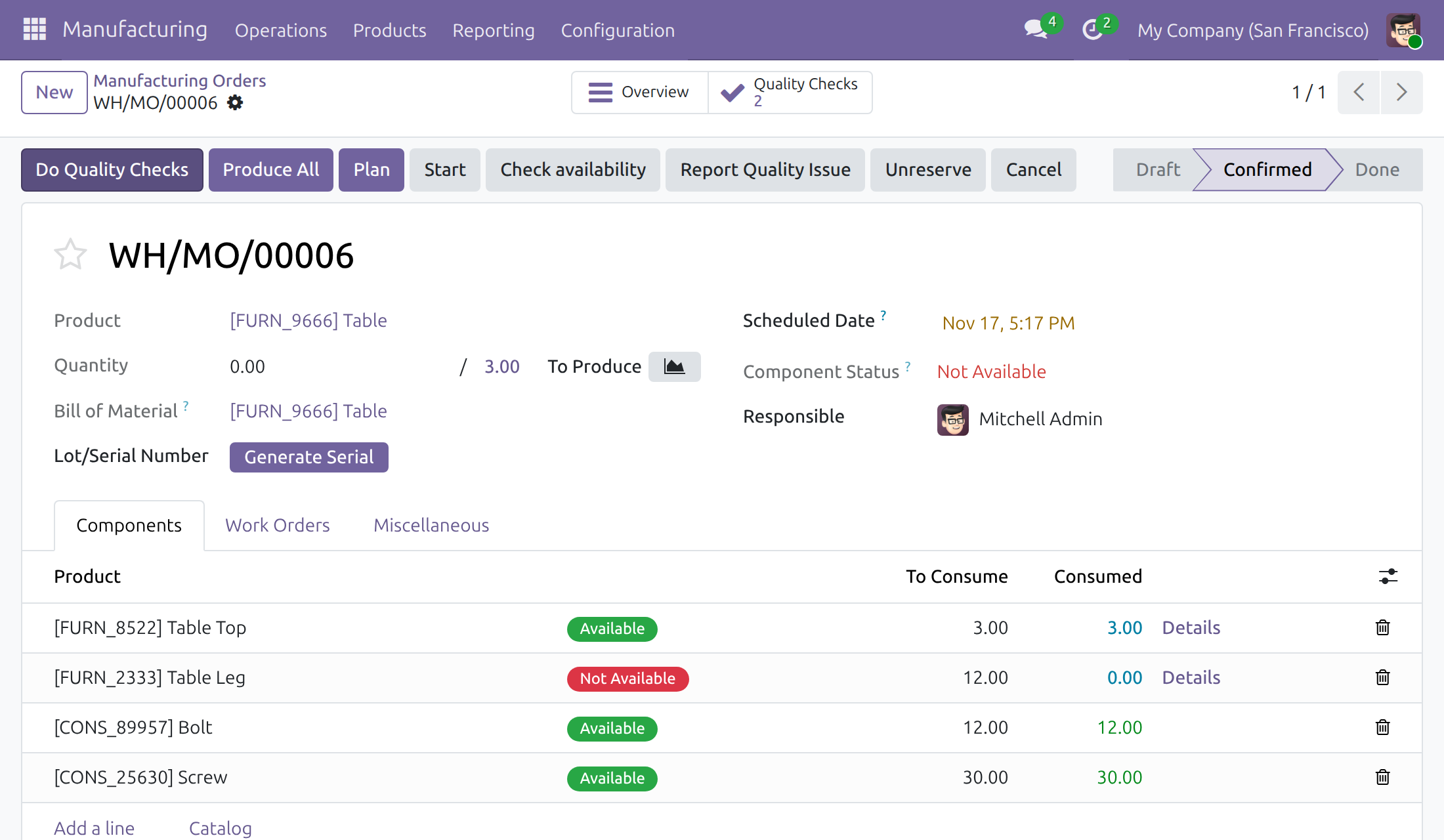
The checks follow the order while it changes. A component the order stops consuming loses its checks still to do, and a component it starts consuming is judged then. Update BoM keeps the checks in step with the new bill of materials, merging orders gives the merged order the checks of the orders it replaces, and cancelling an order deletes its checks still to do. Checks that already have a result stay.
Record the checks
- On the order, click Do Quality Checks. A dialog opens with the control point and the product in its title and the position of the check, for example Check 1 / 2.
- Inspect the goods and click Pass when they are good or Fail when they are not. Use Take Picture to attach a photo and the note area to write what you saw.
- The dialog moves on to the next check after each result. Next moves on without a result, and Discard closes the dialog.
A check of another test type, such as a measure or a scorecard, offers the controls of its type in the same dialog. The Quality guide explains them.
You can also work from the checks themselves. On the Work Orders tab, the row of a work order shows Do Quality Checks while one of its checks is still to do, and no Start button yet:
The Quality Checks button of the order opens the list of its checks:
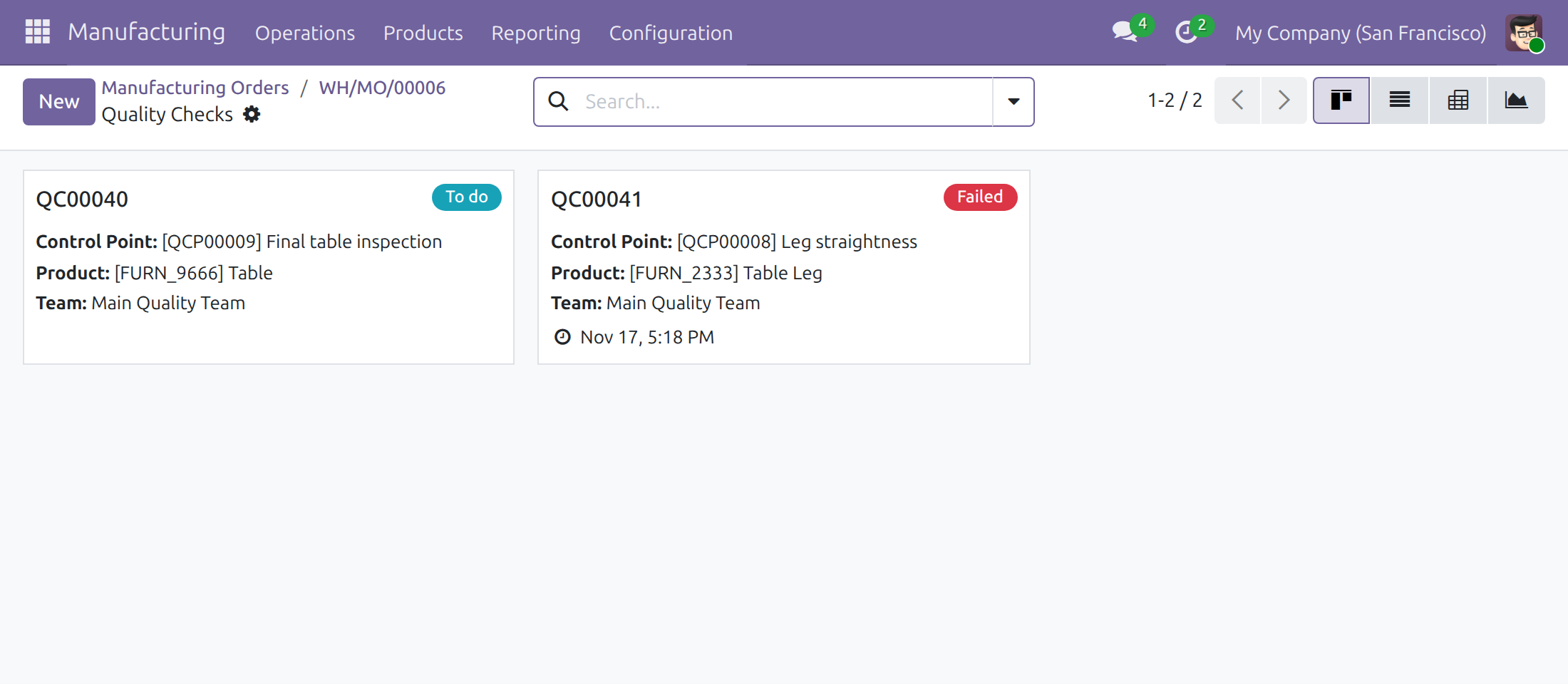
Any production lead records the results of the checks of the orders they can read, whoever the control point names as Responsible.
Start a work order
A work order starts once the checks of its components are recorded and no failed check holds the goods. A check of the finished product does not hold the start of a work order.
If a component check failed on a control point with No Proceed if Failed, the row offers Start again, because no check is left to do, but starting is refused. The message names the failed check by its title:
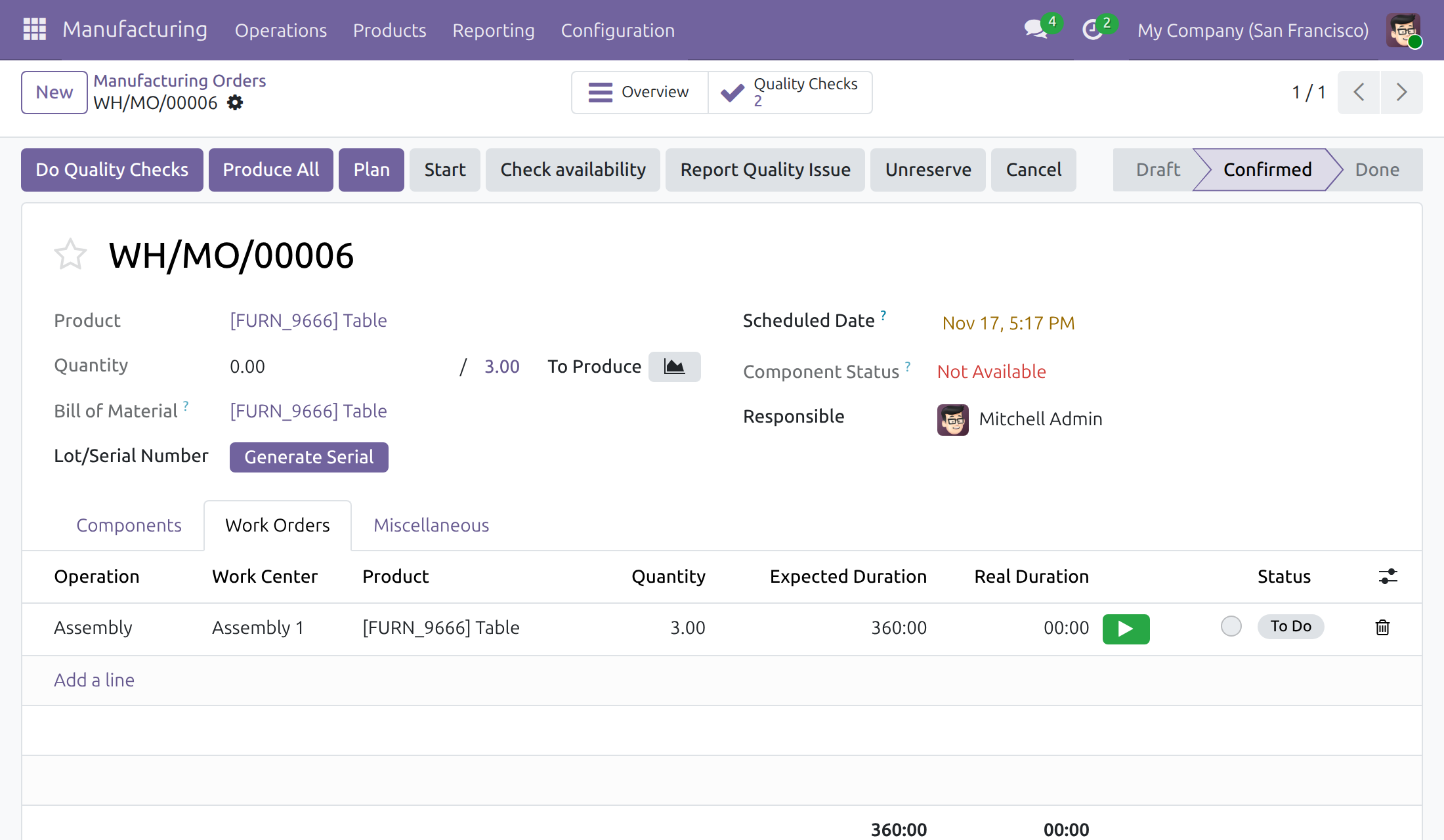
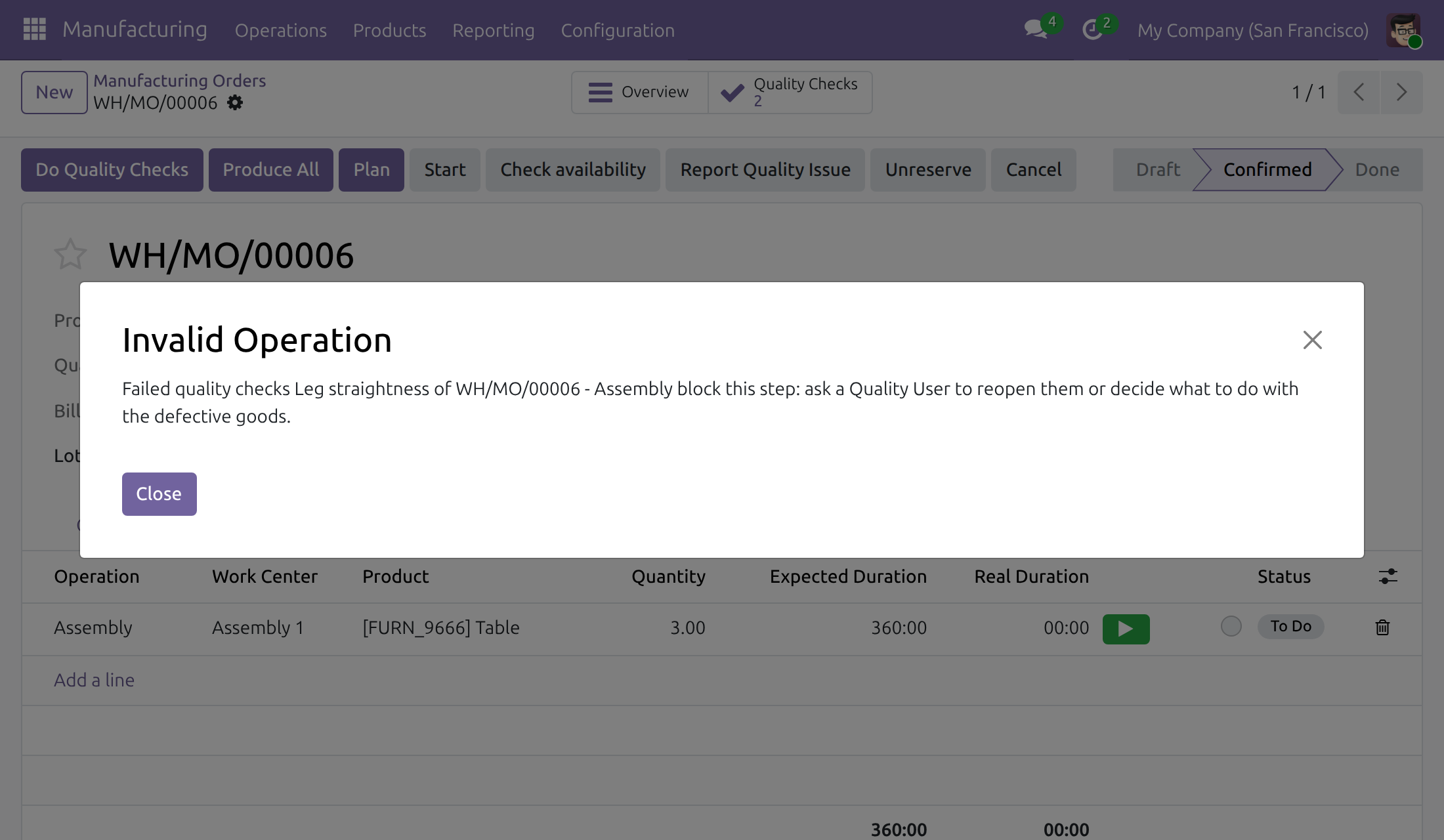
The work order stays unstarted until a Quality User decides about the check, see "Quality User" below. The refusal names every check that holds the step: the checks still to do, with the way out "record their results first, or ask a Quality User to waive them", and the failed checks that hold the goods, with the way out "ask a Quality User to reopen them or decide what to do with the defective goods".
When you start several work orders at once, for example from the list of work orders, the free ones start and a notification names the ones that are held and the checks that hold them.
Finish a work order
A work order does not finish while one of its checks is still to do, or while a failed check holds the goods. Click the check mark on the row of the work order in progress: if a check holds it, the message names the check.
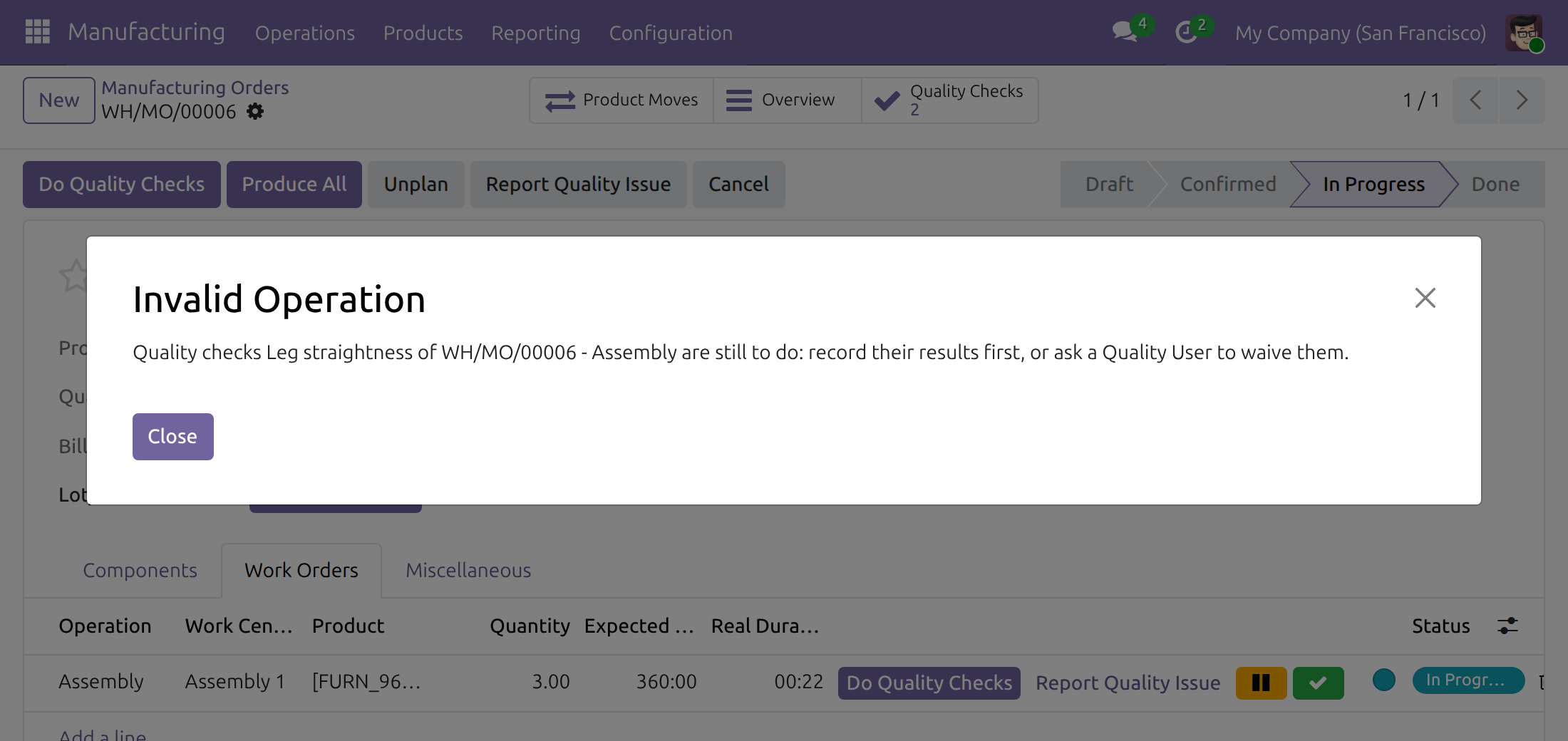
Record the result of the check, then finish the work order.
Close the order
- On the manufacturing order, fill in the quantity produced. This is never refused, even while a check is still to do.
- Click Produce All (or Produce when the quantity differs from the demand).
Closing is refused while a check of the order or of one of its work orders is still to do, or while a failed check holds the goods. One message names everything that holds the order:
Record the results, or ask a Quality User to waive the checks that do not apply, then click Produce All again. The order shows Done.
A failed check of a control point without No Proceed if Failed is recorded but holds nothing: only a check still to do stops the closing. When a failed check of a control point with No Proceed if Failed holds the order and the goods are not to be accepted, you can click Cancel on the order instead of waiting for the decision.
Close an order partially and get a backorder
- Record the checks.
- Fill in the quantity actually produced, for example 2 of 3. For a product tracked by serial number, assign as many serial numbers as units produced.
- Click Produce. In the window that asks what to do with the remaining quantity, click Create backorder.
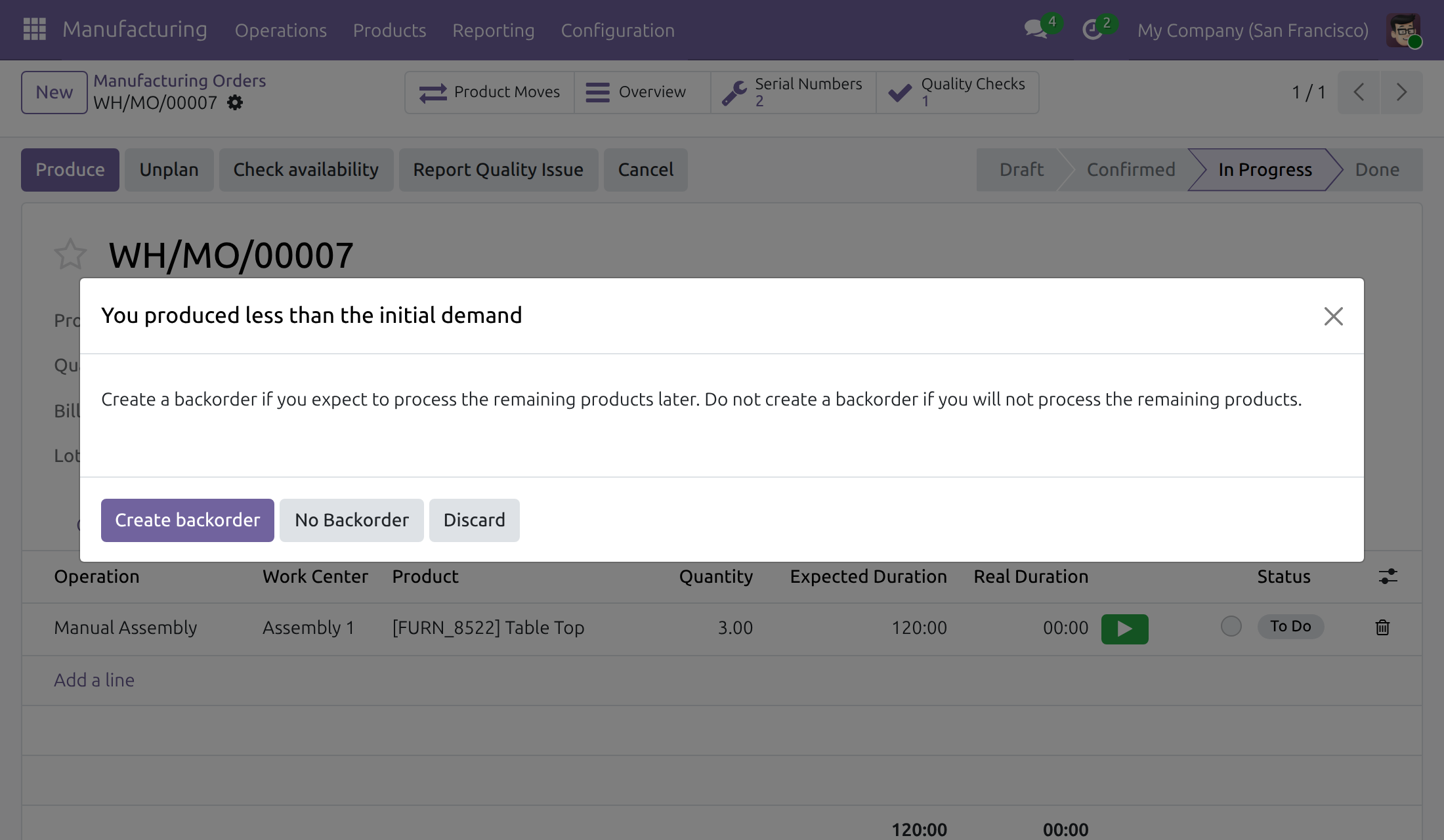
The order for the remaining quantity is judged on its own and gets its own checks, created from the same control points. Its Quality Checks button shows them and its Do Quality Checks button stays visible while they are to do:
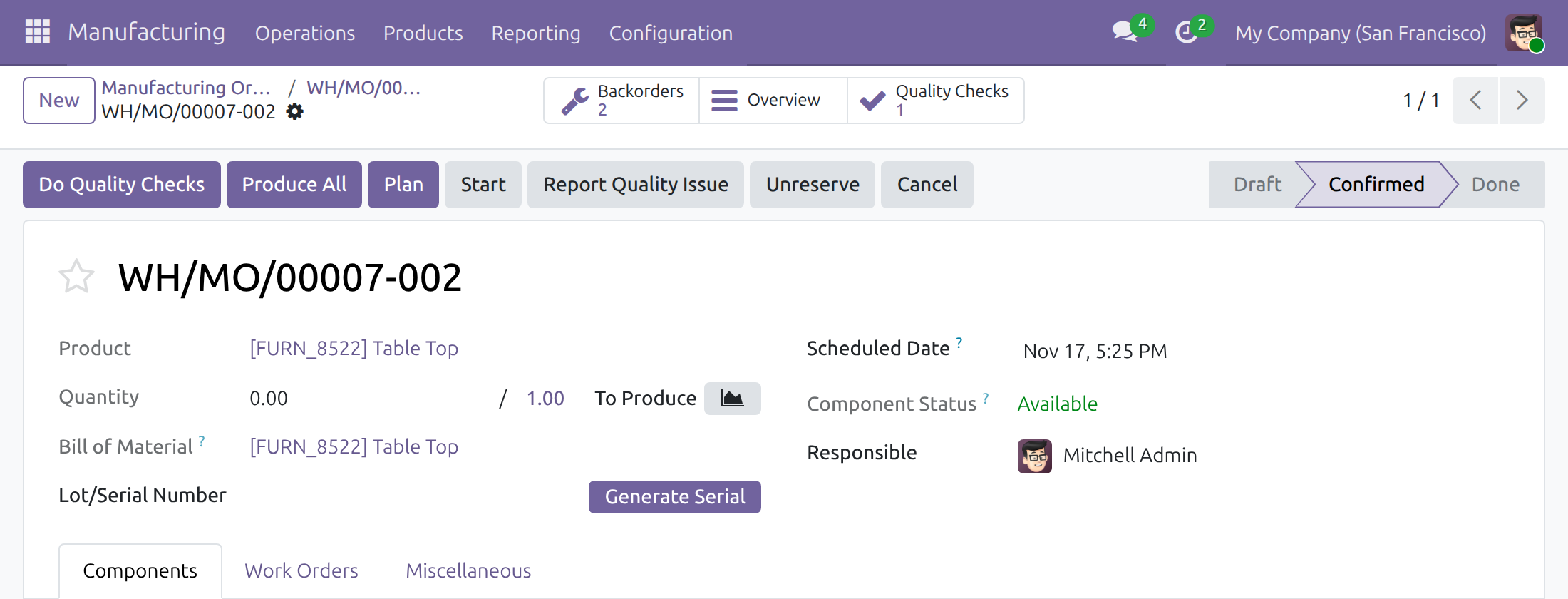
The rules above apply to the backorder as they did to the first order.
Report a quality issue
When a material or a product does not meet the requirements, raise an alert without leaving the order.
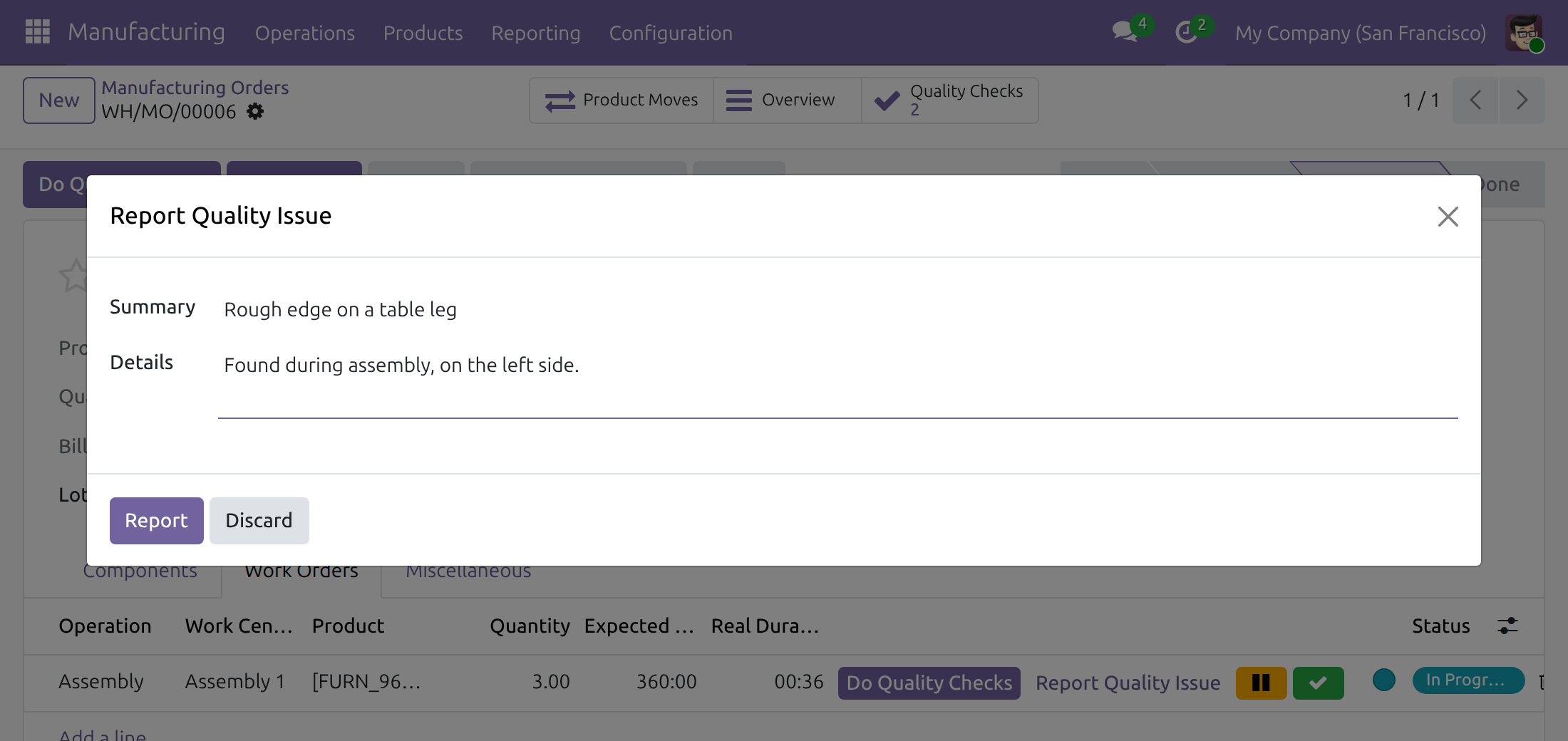
- On the manufacturing order, click Report Quality Issue in the header. On a work order in progress, click Report Quality Issue on its row to tie the alert to the operation.
- In Summary, write what is wrong in a few words. Add Details if they help.
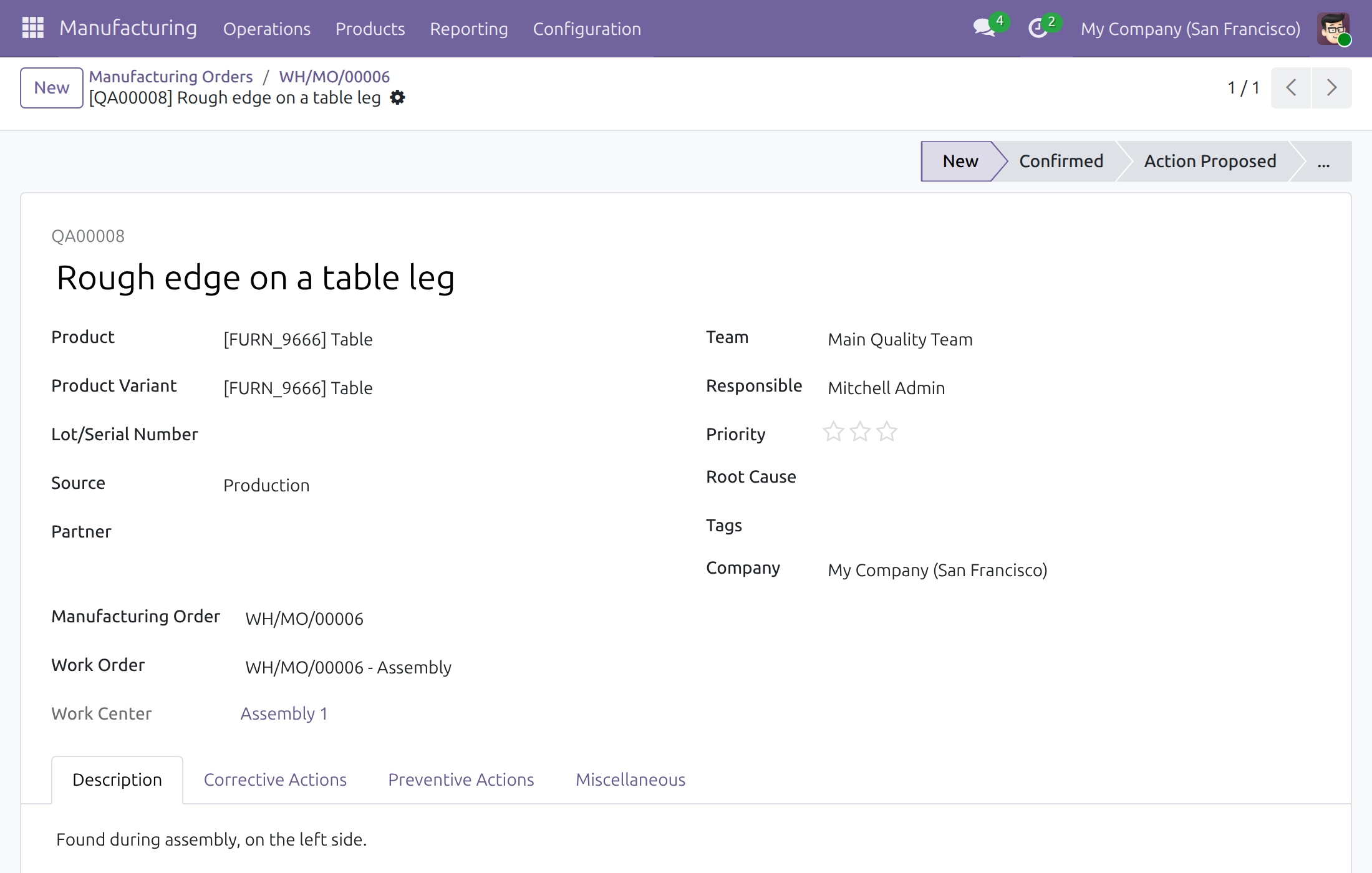
- Click Report. The alert opens already saved, with the product, the order, the work order and the work center filled in.
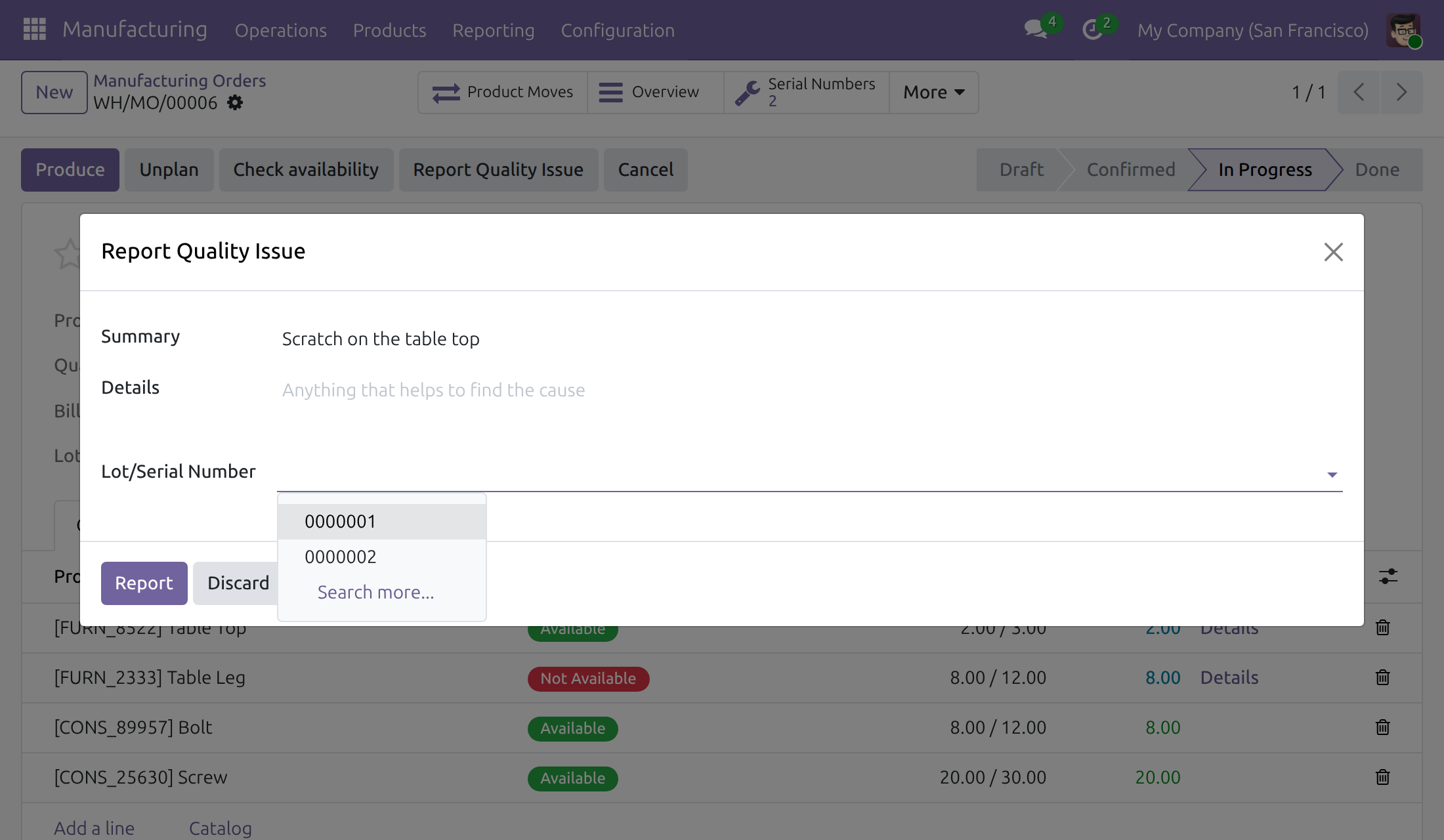
On an order that produces several serial numbers, the dialog also asks for the Lot/Serial Number: choose the serial number the issue is about among the serial numbers of the order. When the order produces exactly one lot, the lot is filled in and not asked. When a check of the order has failed, the alert takes that check and its goods.
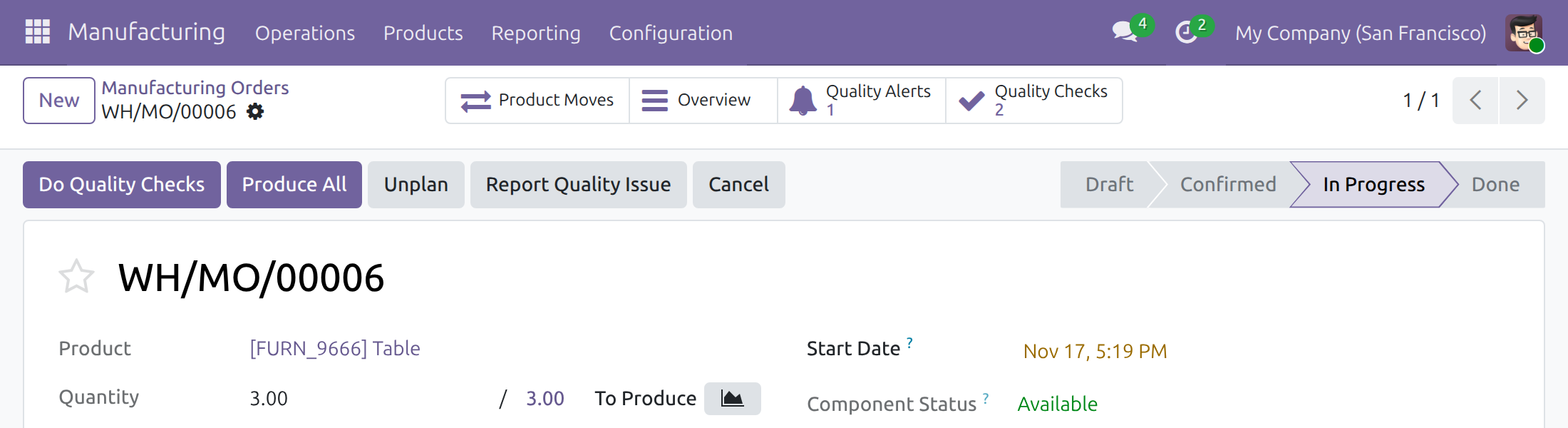
The lot of an order that produces exactly one lot is also stamped on the checks of the finished product and on the alerts of the order. On an order that produces several serial numbers, the inspector chooses the serial number on the check.
The order now shows a Quality Alerts button with the number of alerts, and the list of orders has a Quality Alerts column.
The Work Centers Overview screen shows a card for each work center, and its Quality Alerts line opens the alerts of that work center. The Manufacturing app has no menu entry for this screen: it is reachable only where another module of your installation adds one.
A production lead reads the alerts of the orders they can read, writes in the discussion and attaches files, but does not change the alert itself. The Quality team works through the alerts as the Quality guide explains.
Find what waits for a check
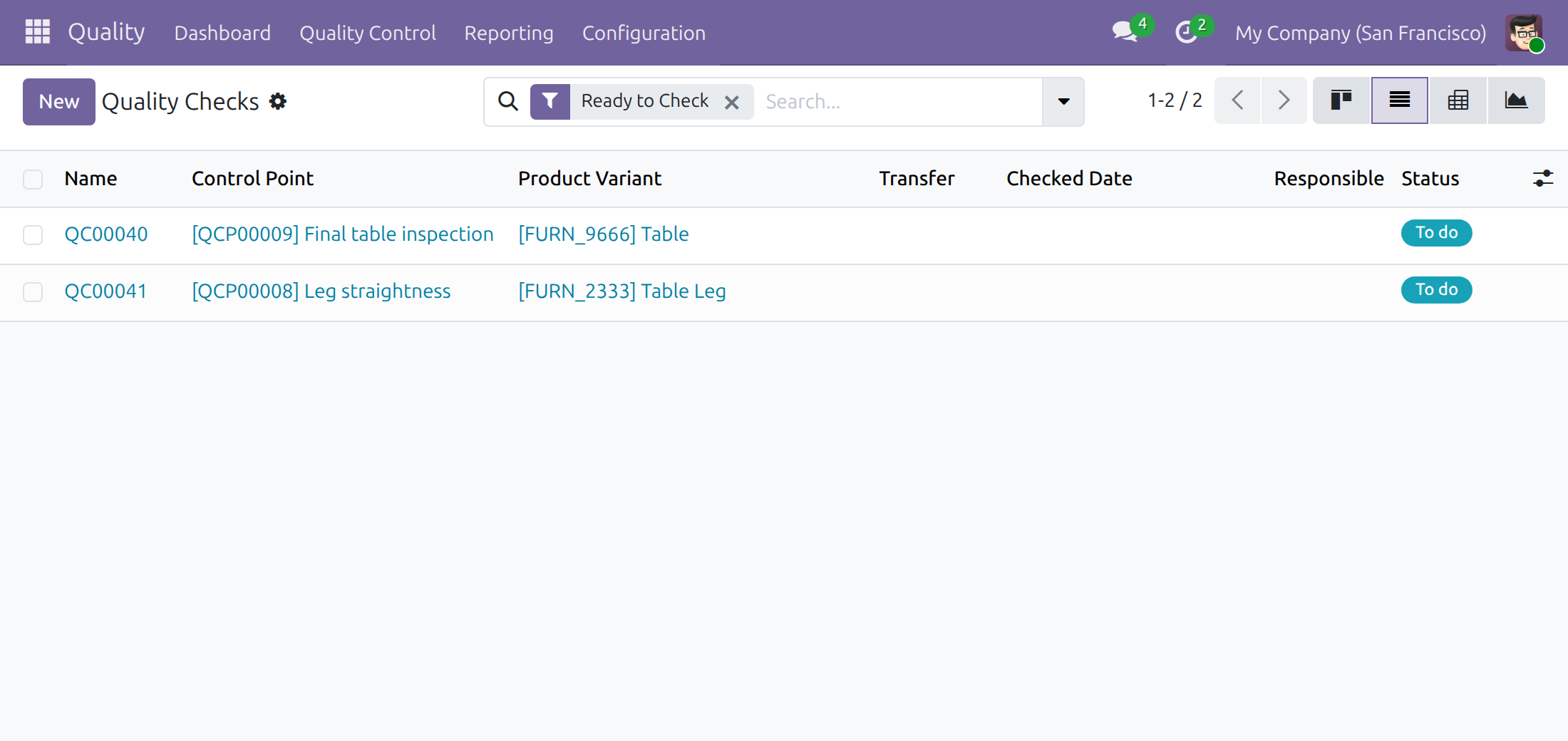
In Quality ‣ Quality Control ‣ Quality Controls ‣ Quality Checks, open Filters and choose Ready to Check. The list shows the checks to do that are assigned to you or to nobody, on orders whose output is recorded. The filter is offered to users who hold the Manufacturing access right.
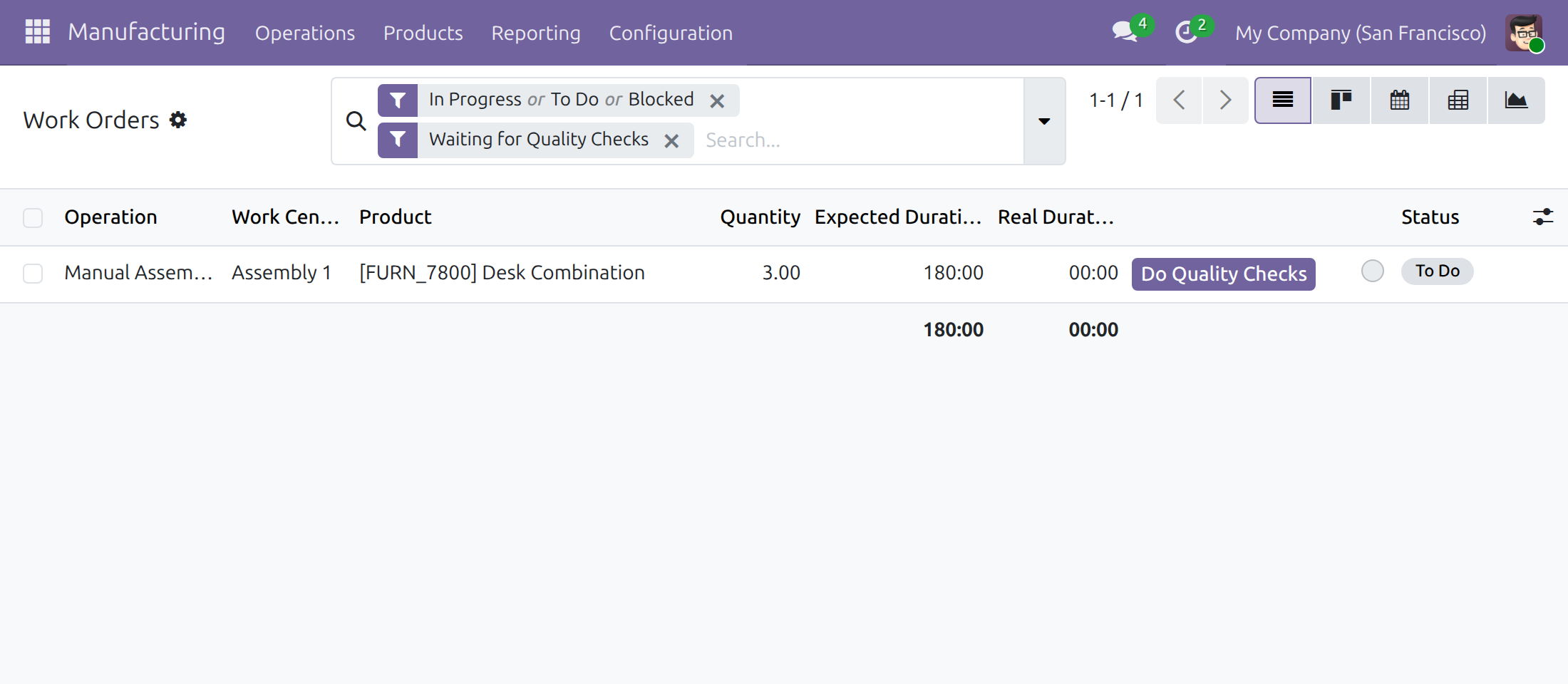
In Manufacturing ‣ Operations ‣ Work Orders, the filter Waiting for Quality Checks lists the work orders whose checks are still to do:
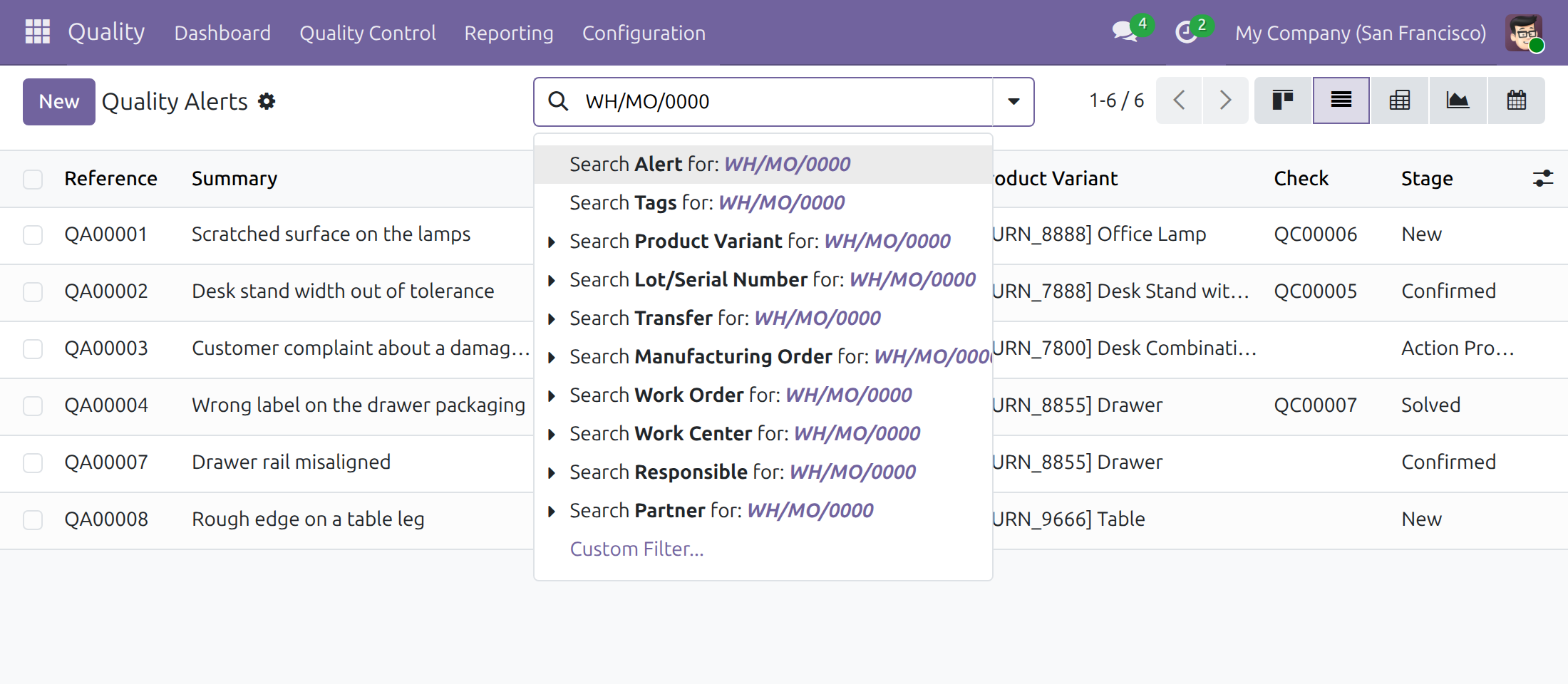
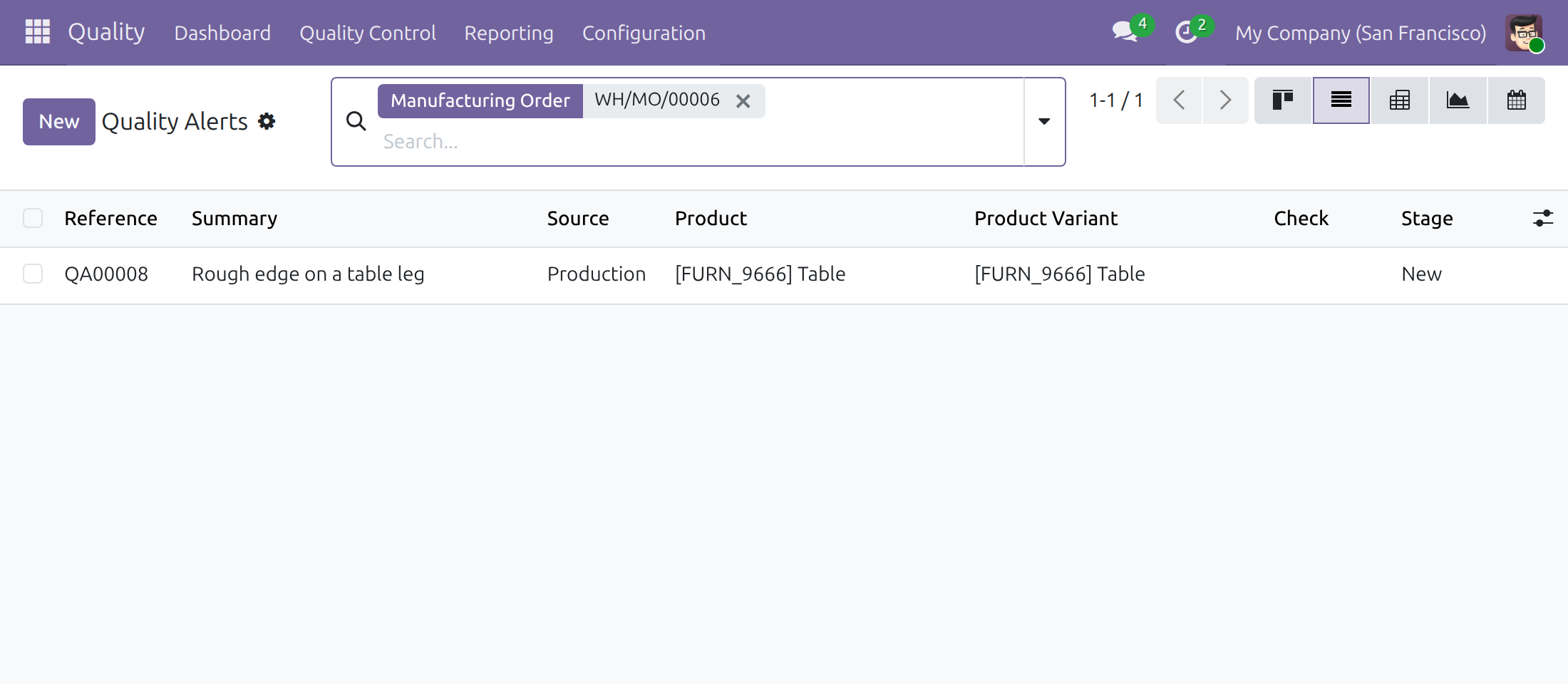
To find the checks or the alerts of one order, type its reference in the search box and choose Search Manufacturing Order for. With work orders turned on you can search by Work Order and Work Center the same way, and group the checks by Manufacturing Order, Work Order or Work Center. The form of a check and of an alert shows the manufacturing order and the work order it comes from.
What a production lead cannot change
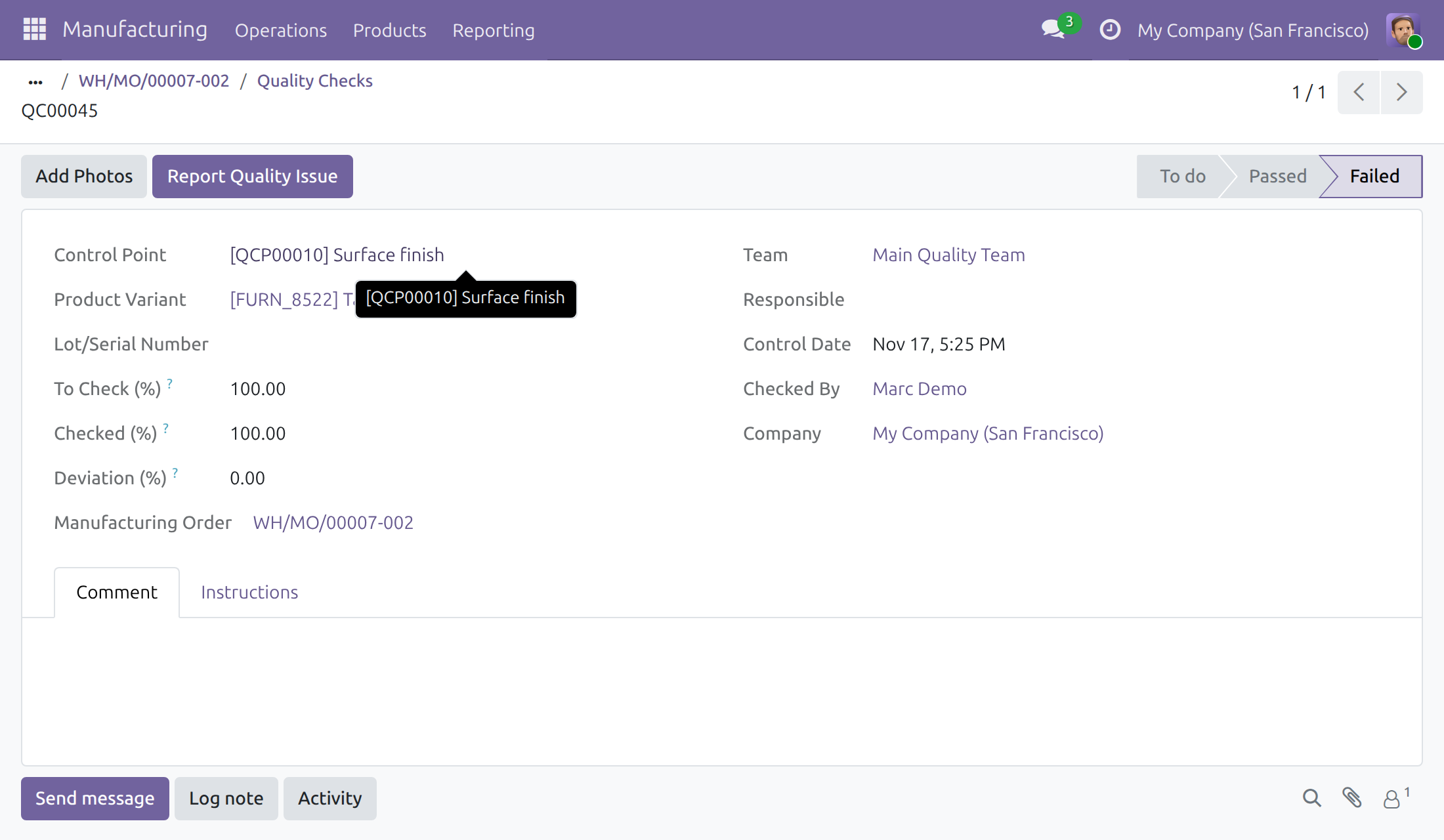
A failed check cannot be taken out of Failed by a production lead. Open it to see that only Add Photos and Report Quality Issue are offered, and ask a Quality User.
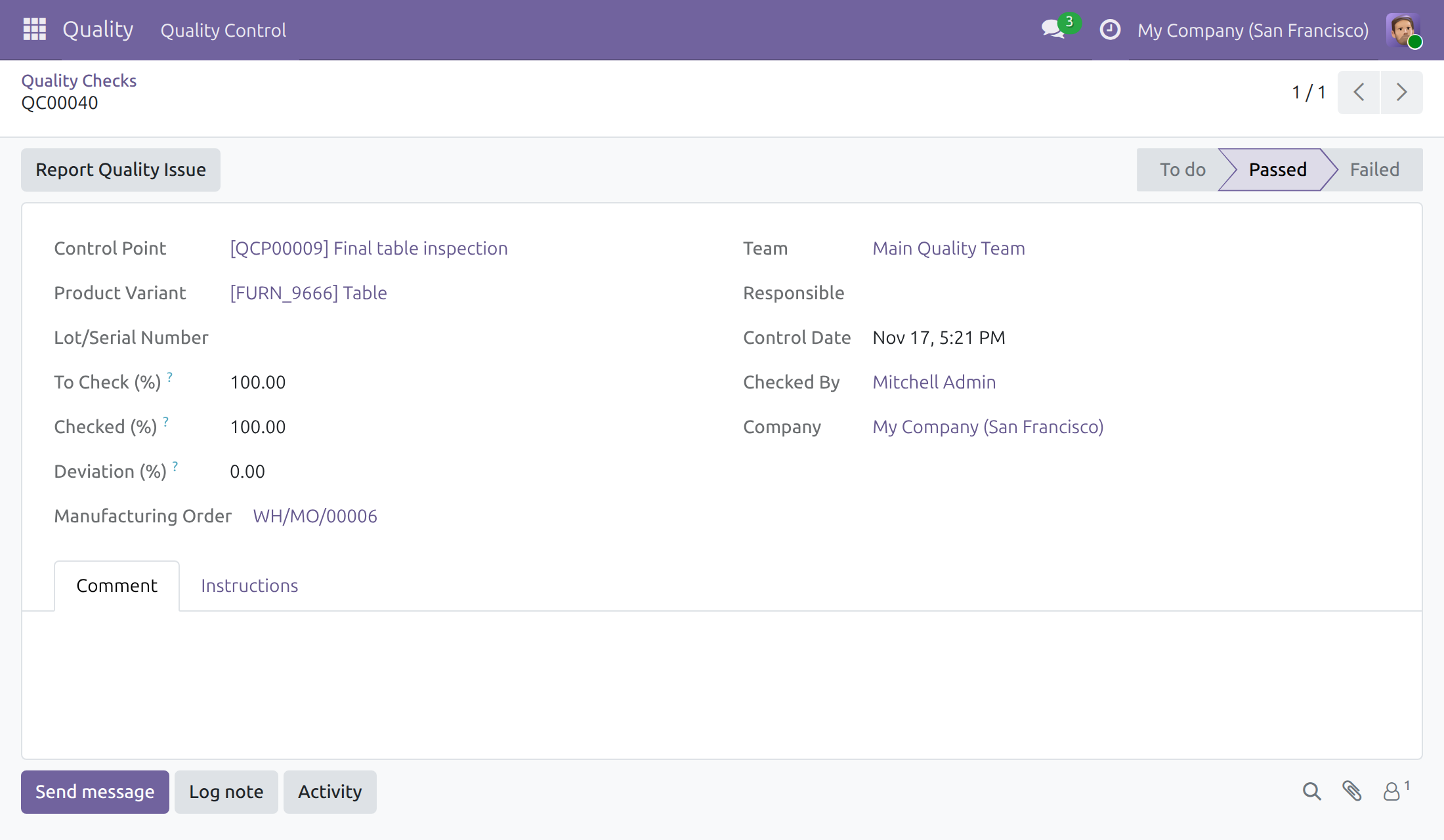
Once the manufacturing order or the work order is Done or Cancelled, a production lead can open its checks and read them, but cannot change the recorded result: Reopen and Correct Result are not offered. A production lead cannot create or delete a check either: the system creates them from the control points.
Quality User: release the order and revise results
Decide about a failed check
A Quality User decides, from the check, what happens to goods held by a failed check. Open the check from the Quality Checks button of the order, or from Quality ‣ Quality Control ‣ Quality Controls ‣ Quality Checks with the Failed filter. The decision dialogs are explained in the Quality guide:
- Accept with Conditions releases the goods: the work order can start or finish and the order can close.
- Reject keeps the failure and the hold. The order stays held and the production lead cancels the order.
- Reopen sends the check back to To do for a new inspection. Record Pass to release the goods or Fail to confirm the defect.
Waive a check that does not apply
On a check that is still to do, a Quality User clicks Waive and gives a reason. The check becomes Waived, is no longer counted as to do and does not hold the work order or the order. A production lead who meets "ask a Quality User to waive them" in a refusal asks for this.
Revise the results of a finished order
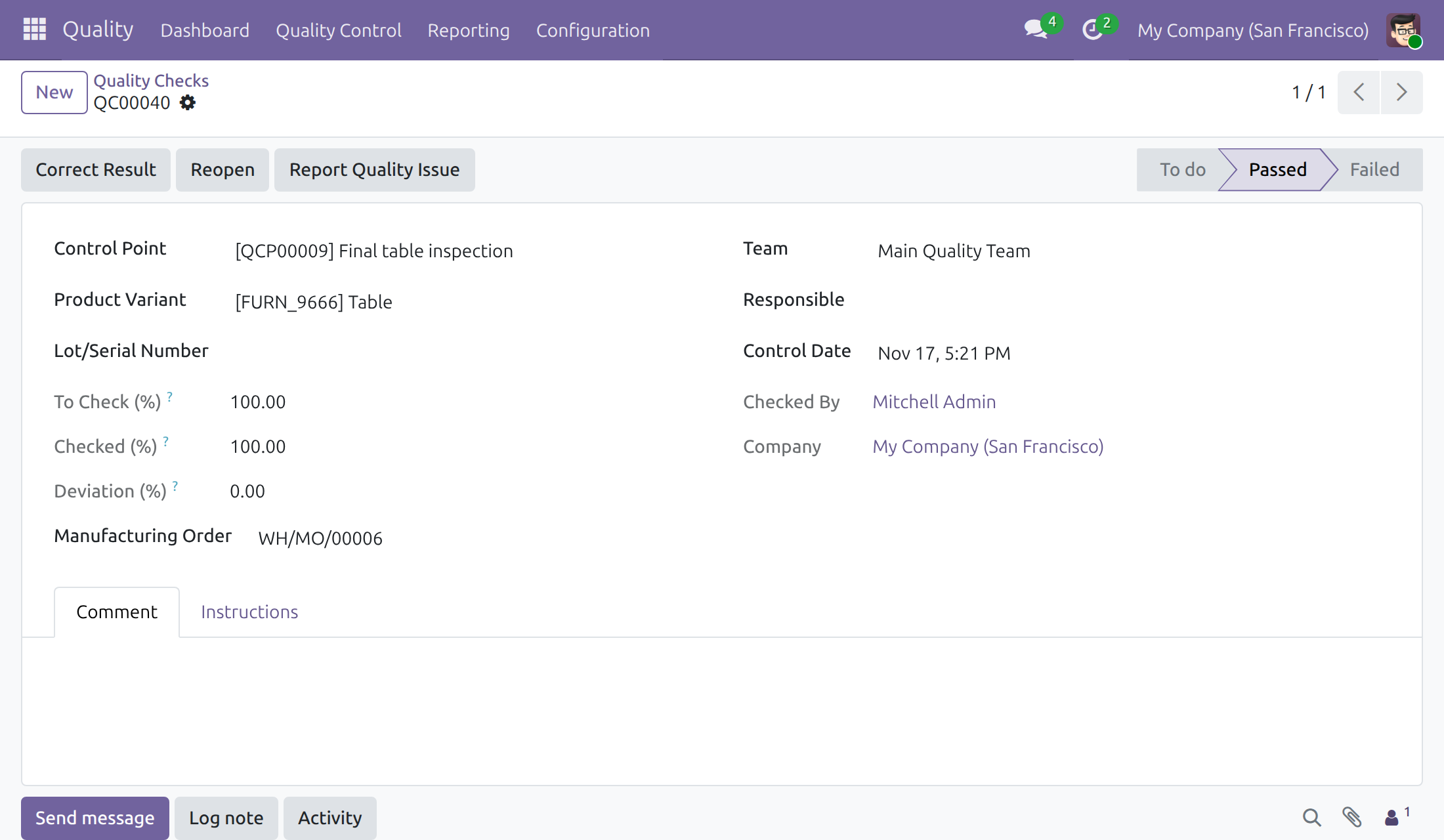
Once the order or the work order is Done or Cancelled, only a Quality User changes the results of its checks. The same check as above, seen by a Quality User, still offers Correct Result and Reopen:
Limits
- The finished-product check is not attached to a work order. It belongs to the order and is recorded from the order. It holds the closing of the order, never the start or the finish of a work order. A component check waits on the first open work order that consumes the component.
- A component check needs a component line tied to an operation. A component line without a Consumed in Operation gets no check.
- Subcontracting. When the Subcontracting app is installed, a receipt from a subcontractor closes the subcontracting order, so the checks that hold the order hold the receipt. A warehouse operator who receives the goods cannot record the checks of the subcontracting order. The Stock Quality Control guide mentions it from the receipt side.
- Shop-floor tablet. The checks of the tablet screens belong to another module, which follows the same rules of start, finish and closing.
- Alerts of a lot. A person without a Quality access right reads the alerts of an order they can read; the Stock Quality Control guide explains who reads the alerts of a lot.
Troubleshooting
- The work order has no Start button.
- A check of its components is still to do. Click Do Quality Checks on the row and record the result.
- Starting or finishing is refused with a message about failed quality checks.
- A check failed on a control point with No Proceed if Failed. Ask a Quality User to reopen the check or to accept it with conditions.
- Closing the order is refused with a message about checks still to do.
- The message names each check by its control point title. Record each result, or ask a Quality User to waive the check.
- The order has no checks.
- No control point matches the product and the Manufacturing operation type of the order, the control point was created after the order was confirmed, or the component line has no Consumed in Operation. Check the control point, then confirm a new order.
- I cannot create or delete a quality check.
- Production leads record results only. The system creates the checks from the control points.
- I cannot change the result of a check on a finished order.
- Once the order or the work order is done or cancelled, only a Quality User can change it.
- The Ready to Check filter is not offered.
- It is offered to users who hold the Manufacturing access right.
FAQ
- Does a pending check stop me from recording the produced quantity?
- No. Recording the quantity is never refused. Only closing the order is.
- Does a failed check always hold the order?
- Only when its control point has No Proceed if Failed ticked. Otherwise a failed check is recorded but does not stop the work order or the order.
- Does the production lead need access to the Quality app?
- No. The production lead records results from the order and sees only Quality Control ‣ Quality Controls ‣ Quality Checks in the Quality app.
- Does a backorder get its own checks?
- Yes. The order for the remaining quantity gets its own checks from the same control points.
- What happens to the checks when I cancel an order?
- Its checks that are still to do are deleted. Checks that already have a result stay.
This software and associated files (the "Software") may only be used (executed, modified, executed after modifications) if you have purchased a valid license from the authors, typically via Odoo Apps, or if you have received a written agreement from the authors of the Software (see the COPYRIGHT file).
You may develop Odoo modules that use the Software as a library (typically by depending on it, importing it and using its resources), but without copying any source code or material from the Software. You may distribute those modules under the license of your choice, provided that this license is compatible with the terms of the Odoo Proprietary License (For example: LGPL, MIT, or proprietary licenses similar to this one).
It is forbidden to publish, distribute, sublicense, or sell copies of the Software or modified copies of the Software.
The above copyright notice and this permission notice must be included in all copies or substantial portions of the Software.
THE SOFTWARE IS PROVIDED "AS IS", WITHOUT WARRANTY OF ANY KIND, EXPRESS OR IMPLIED, INCLUDING BUT NOT LIMITED TO THE WARRANTIES OF MERCHANTABILITY, FITNESS FOR A PARTICULAR PURPOSE AND NONINFRINGEMENT. IN NO EVENT SHALL THE AUTHORS OR COPYRIGHT HOLDERS BE LIABLE FOR ANY CLAIM, DAMAGES OR OTHER LIABILITY, WHETHER IN AN ACTION OF CONTRACT, TORT OR OTHERWISE, ARISING FROM, OUT OF OR IN CONNECTION WITH THE SOFTWARE OR THE USE OR OTHER DEALINGS IN THE SOFTWARE.