

Helpdesk & Odoo Module
by Viindoo
| Lines of Code | 482 |
| Technical name | viin_helpdesk_odoo_module |
| License | OPL-1 |
| Website | https://viindoo.com/apps/modules/19.0/viin_helpdesk_odoo_module |
| Read description for | v 15.0 v 16.0 v 17.0 v 18.0 |
| Required Apps | Invoicing (account) Discuss (mail) |
| Included Dependencies | Odoo Apps Management Helpdesk Git Management Viindoo Base Odoo Versions Management SSH Keys Management Product Licenses Product Odoo Version Helpdesk & Odoo Version Config Management Git Branch Odoo Version Token Expiration |

Know which Odoo module each request is about, and where the support load sits
For support teams that answer questions about Odoo modules
Add Odoo module field and category fields to Ticket
Odoo 19.0 · Community and Enterprise · OPL-1
Extends Helpdesk & Odoo Version: next to the Odoo version, a ticket records the module and its version.
Built on Helpdesk: teams, stages and assignment work as they do there.
What changes for your team
The module is named on the ticket, not buried in its text
Which app a customer means, and which release of it, sits somewhere in the description or is asked again in a reply.
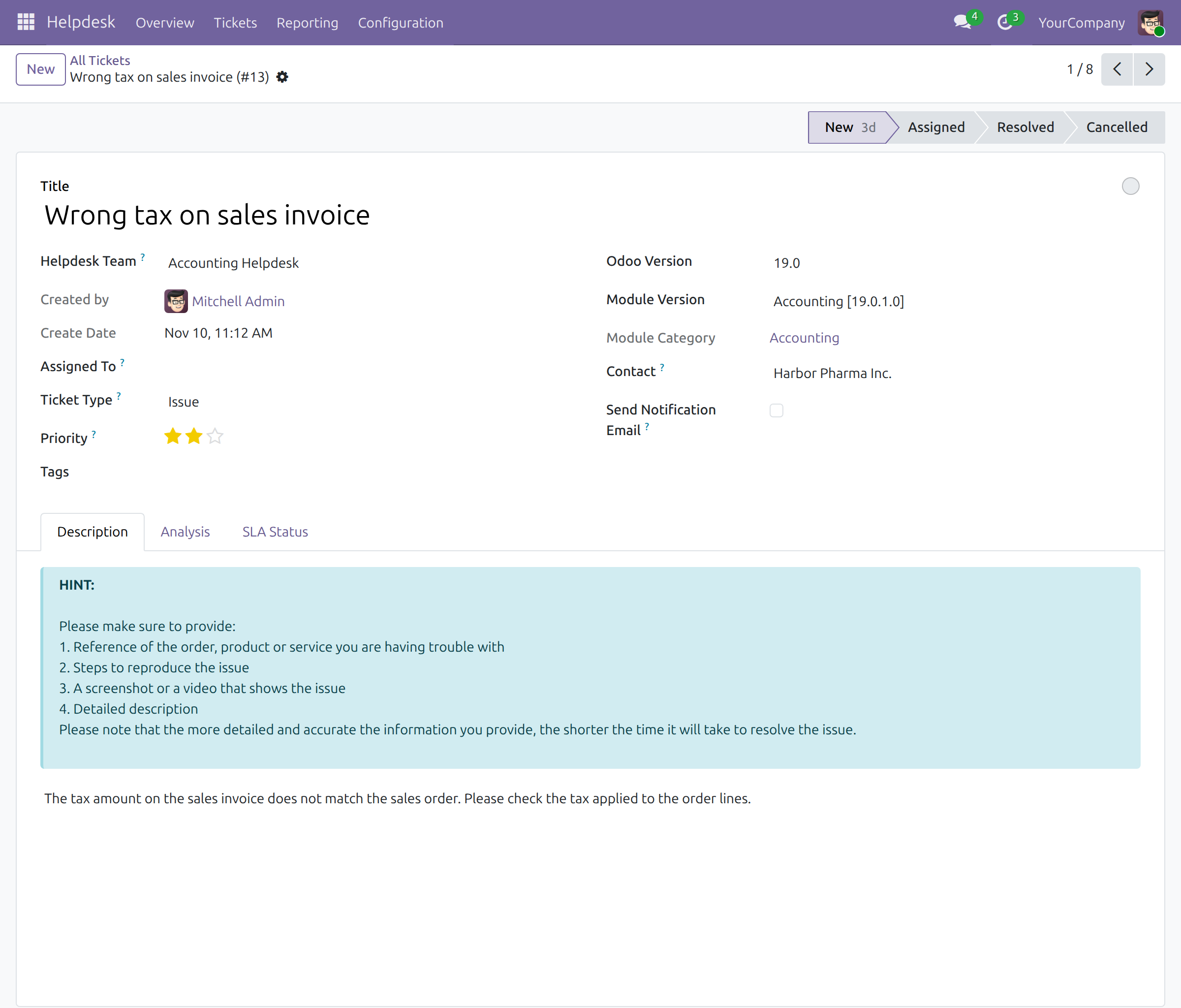
→ Agents choose the Module Version from your module catalog, limited to the ticket's Odoo version. The Module Category fills itself in, and every change is logged in the chatter.
Managers see which modules generate the work
How many requests each module brings is counted by hand when someone needs the figure.
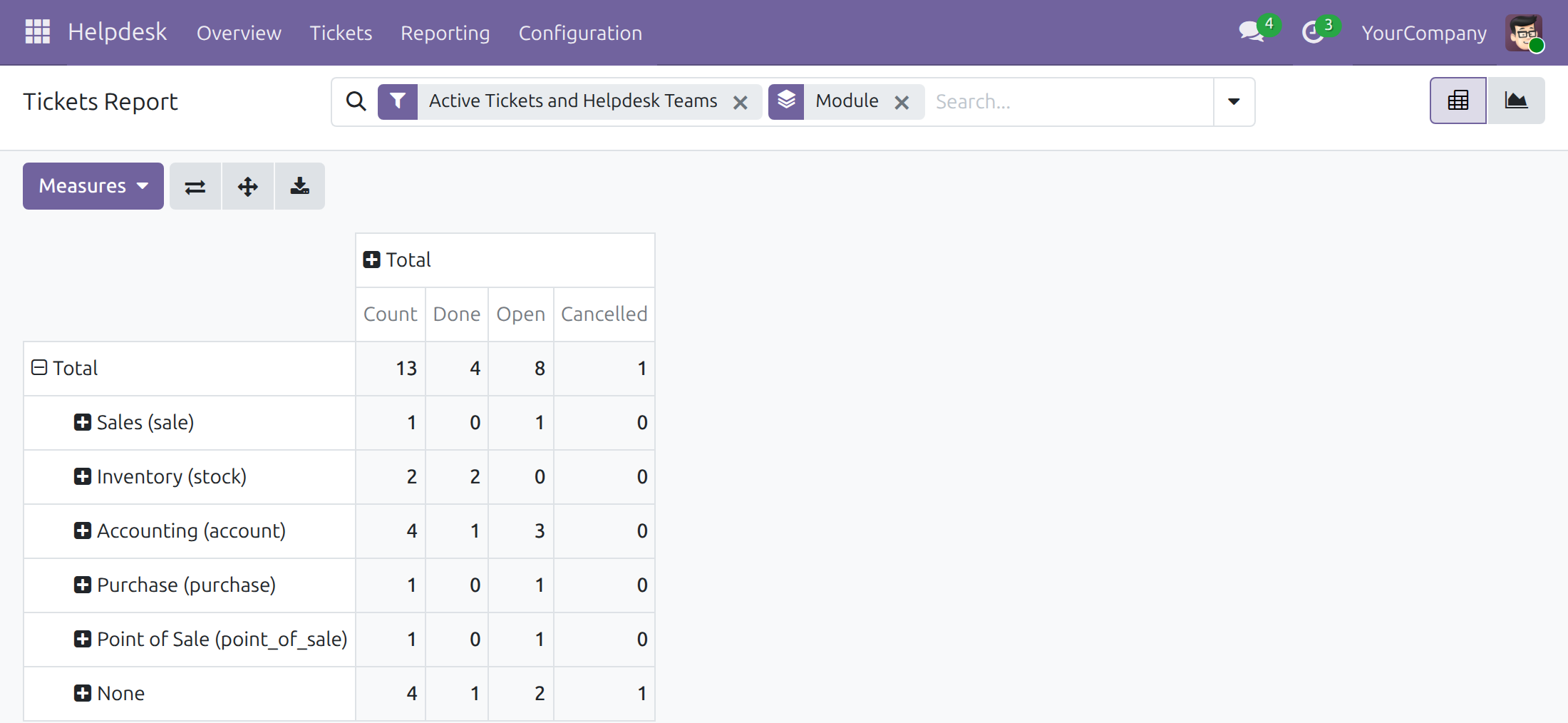
→ The Tickets Report groups and searches by module, module version or module category: per module, how many tickets arrived and how many are done, open or cancelled.
From a module, straight to its tickets
Whoever maintains a module asks the support team what is open on it.
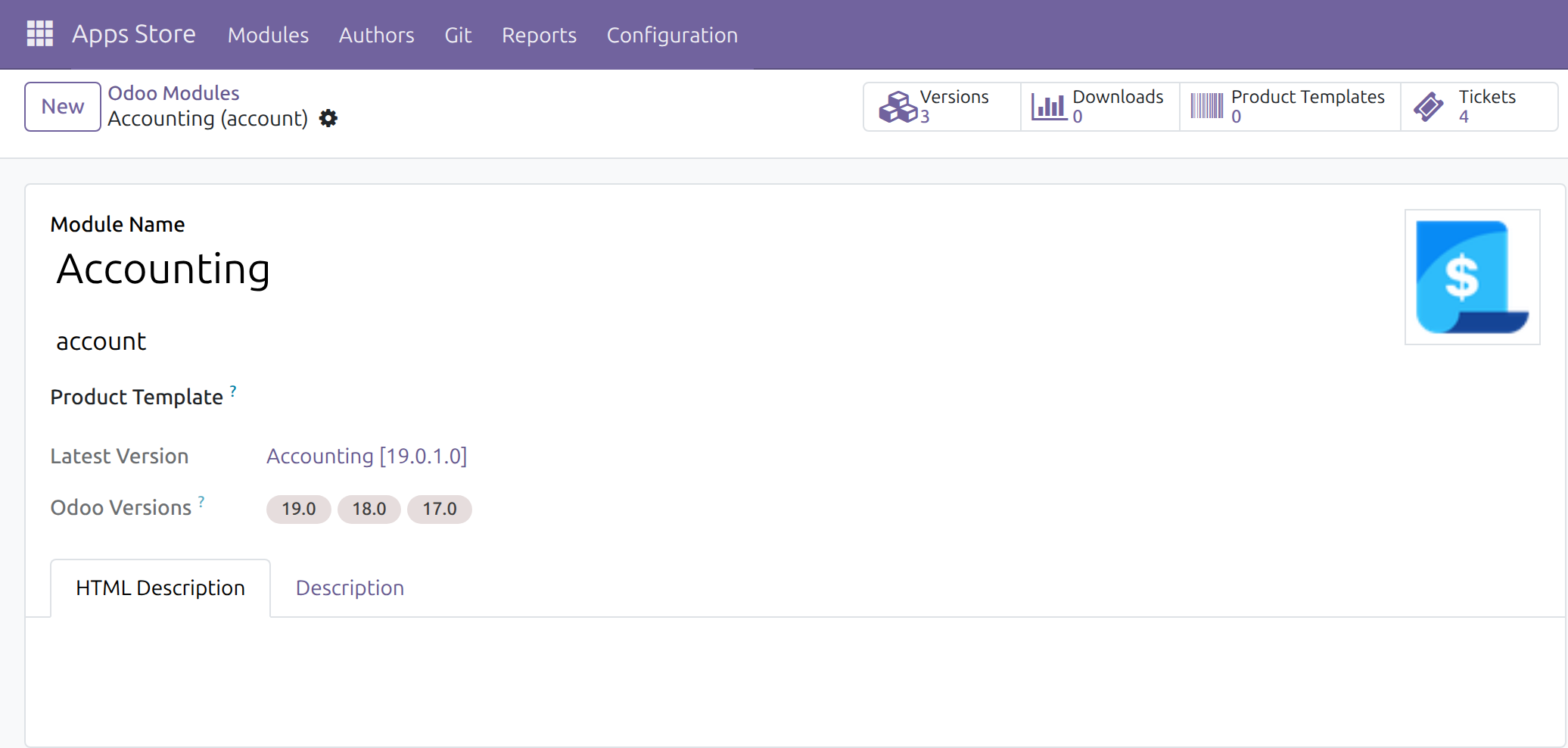
→ A module in the catalog shows a Tickets button with its ticket count; one click lists exactly those tickets, whatever their stage.
Ready on day one
Installs itself
Once Helpdesk & Odoo Version and Odoo Apps Management are both installed, this module is installed with them.
Your catalog is the list
Agents choose from the modules and versions of Odoo Apps Management, which discovers them from the git branches you register there.
What you set up first
The branches of your modules in Odoo Apps Management. The tickets need no setup.
What is included
The module version and module category on the ticket form, the module on the quick-create card, columns in the ticket list, search entries and Group By options for all three, the same three dimensions in the Tickets Report, and the Tickets button on each module of the catalog. Teams, stages and assignment come from Helpdesk, the Odoo version from Helpdesk & Odoo Version, the module catalog from Odoo Apps Management.
Before you decide
Must agents fill in the module?
No. The field is optional; a ticket without a module is handled like any other and appears under None when you group by module.
What if the customer's Odoo version is not set yet?
Choosing a module version also sets the module and the Odoo version of the ticket, so an agent can start from the module version alone.
Who sees the module and the report?
Everyone who can open a ticket sees its module. The Tickets Report is in the Reporting menu, which Helpdesk shows to its administrators. Editing the module catalog needs the Apps Store user right.
What if a module is missing from the list?
The list shows the modules the catalog holds for the ticket's Odoo version. A user with the Apps Store right adds the missing one; until then the ticket can stay without a module.
Which languages does it ship?
English and Vietnamese.
Try it, then ask us
The Documentation tab walks the support agent, the helpdesk manager and the catalog keeper through daily use; Live Preview opens a demo database.
Pre-sales & partnership
viindoo.com/contactusTechnical support
viindoo.com/ticketTechnical requirements
- Odoo version: 19.0
- Editions: Community, Enterprise
- Required modules: Helpdesk & Odoo Version, Odoo Apps Management
- License: OPL-1
- Languages: English, Vietnamese
Helpdesk and Odoo Module
Note
This guide is for support agents who handle tickets, for helpdesk managers who follow the results and for the people who keep the list of Odoo modules.
Note
Extends viin_helpdesk_odoo_version - see its documentation for the Odoo Version of a ticket. The base app is documented in viin_helpdesk (tickets, teams and stages).
Overview
A request about Odoo is answered faster when you know which module and which version of it the customer means. This module adds the Module Version and the Module Category to every ticket, next to the Odoo Version. The module is recorded once, is visible in the form and in the list, and can be used to search, group and report. The module is installed automatically together with Helpdesk and Odoo Version, once the Odoo module list of the Apps Store is available.
| Role | What they do | Access right to assign |
|---|---|---|
| Support agent | Sets the module version of a ticket and finds or groups tickets by module. | User, in the Helpdesk field of the user |
| Helpdesk manager | Everything an agent does, and analyses tickets by module in the Tickets Report. | Administrator, in the Helpdesk field of the user |
| Module list keeper | Keeps the list of Odoo modules and opens the tickets of a module from it. | User, in the Apps Store field of the user |
Setup
The module needs no setup. The modules and module versions you can choose from come from the Odoo module list of the Apps Store app; a user with the Apps Store access right keeps that list up to date. A ticket can be linked to a module only when that module exists in the list.
Support agent: record and find the module
Set the module of a ticket
- Go to Helpdesk ‣ Tickets ‣ All Tickets and open a ticket. The list starts with the Open filter, which hides resolved and cancelled tickets; remove the filter to see them.
- Set the Odoo Version of the ticket, then, in the Module Version field below it, choose the module and its version, for example Purchase [19.0.1.0]. The versions offered match the Odoo Version of the ticket.
- The Module Category below it fills in by itself and cannot be edited.
- The change is saved with the ticket and each change of the module version is recorded in the chatter.
Choosing a module version also sets the module and the Odoo Version of the ticket, so you can start from the module version alone.
When you create a ticket from a kanban column with the + button, the quick-create card offers the Module field after the Odoo Version field. The module version is then found from the module and the Odoo Version.
Read the module in the list
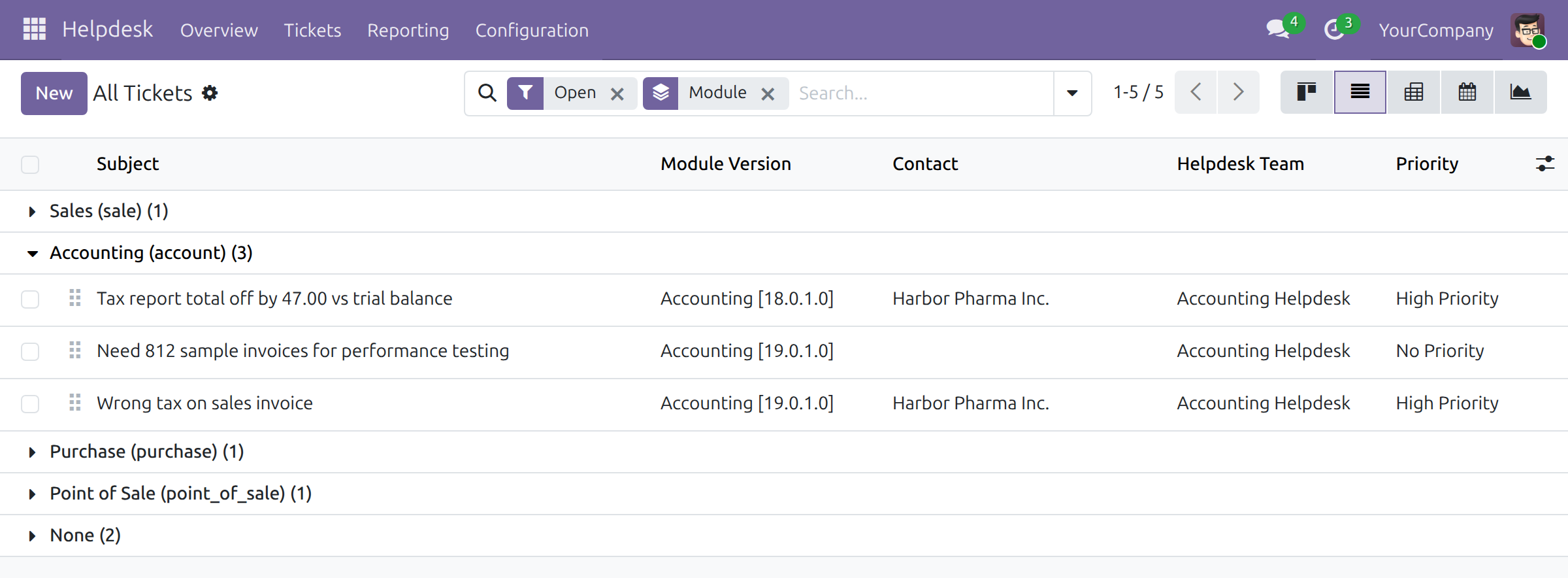
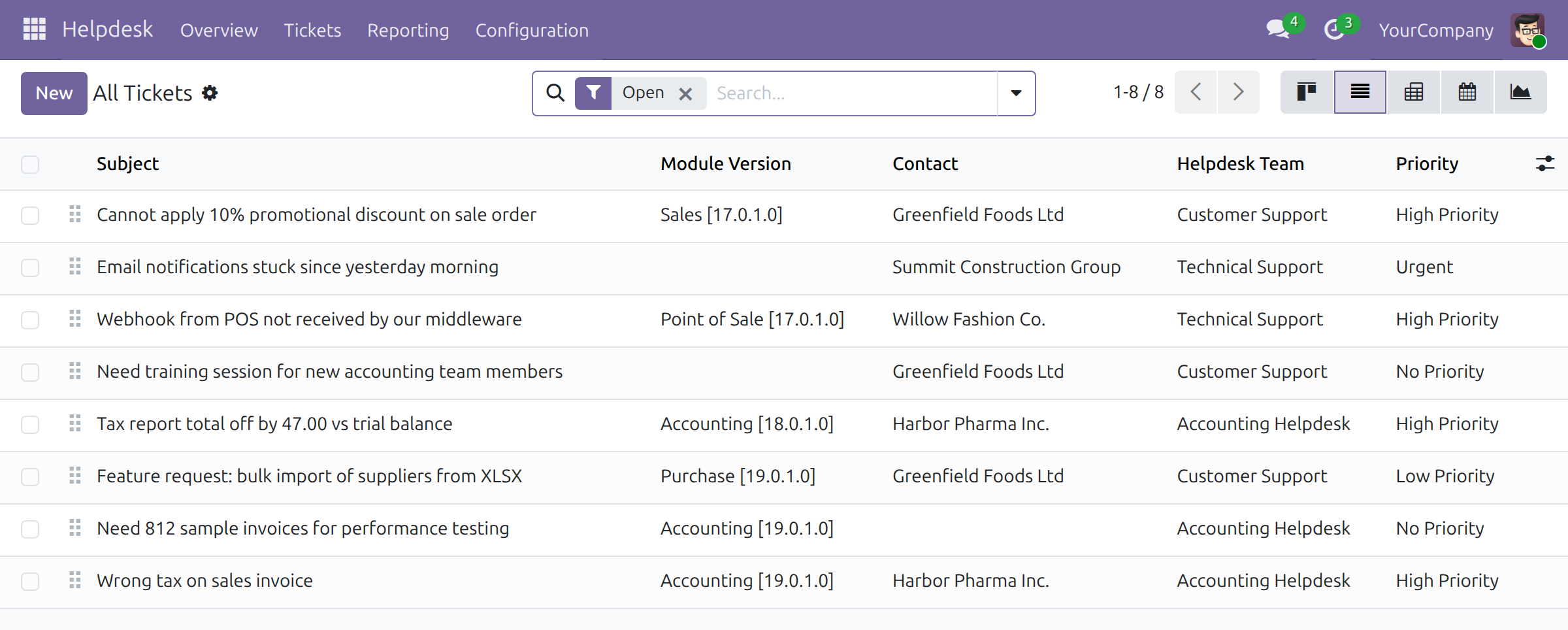
The list of All Tickets (with its Open filter) shows the Module Version column. Open the optional columns menu at the right end of the header and tick Module or Module Category to show them too.
Search and group tickets by module
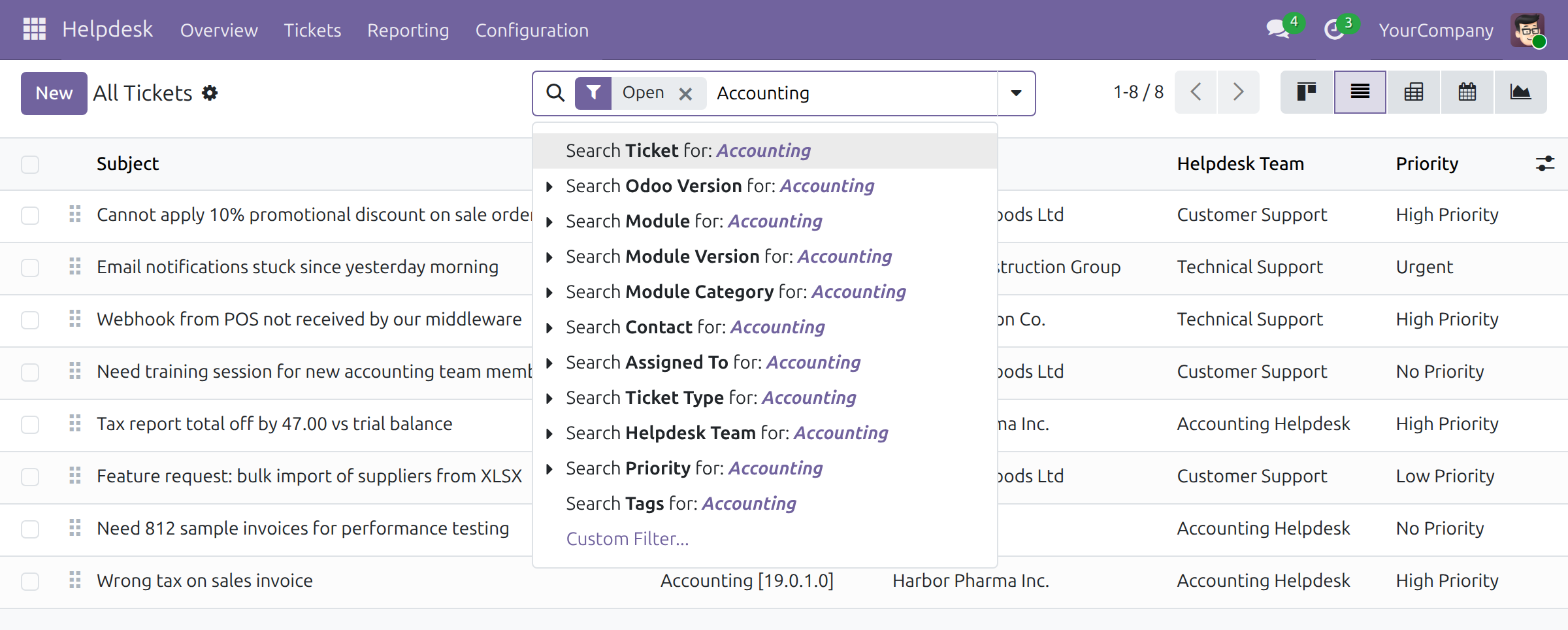
In the search bar of All Tickets, next to the Open filter, type a module, for example Accounting, and choose Search Module for: Accounting. Module Version and Module Category have the same kind of search entry.
To see every module at once, open the search options and, under Group By, choose Module. Each group counts the open tickets of that module, because the Open filter stays on; click a group to unfold its tickets. Module Version and Module Category are available in the same menu.
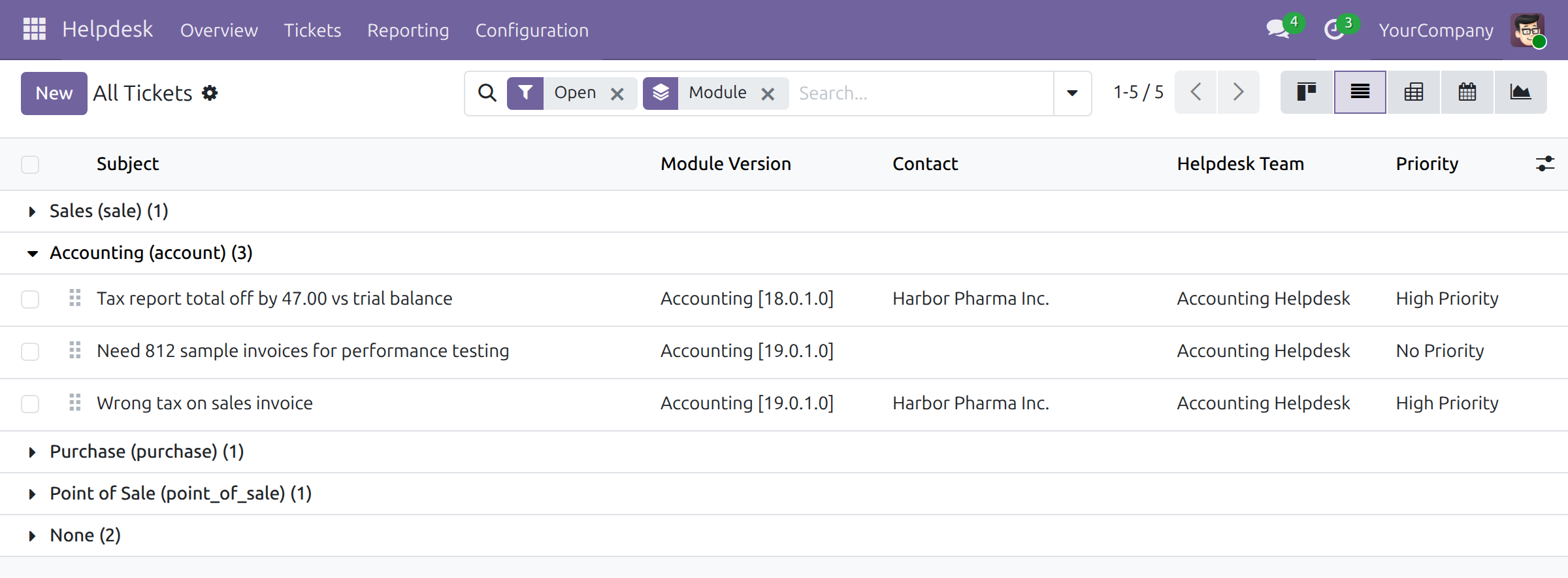
A ticket without a module appears in the group None.
Helpdesk manager: analyse tickets by module
- Go to Helpdesk ‣ Reporting ‣ Tickets Report.
- Open the search options and, under Group By, choose Module. Each row is a module. The columns show Count (all tickets) and Done; open Measures and tick Open and Cancelled to add the open and the cancelled tickets. Module Version and Module Category can be used the same way.
- To search the report for one module, type it in the search bar and choose the matching Search ... for entry.
Module list keeper: open the tickets of a module
- Go to Apps Store ‣ Modules ‣ Modules and open a module.
- The Tickets button shows the number of tickets linked to the module. It appears only when the module has at least one ticket. Click it.
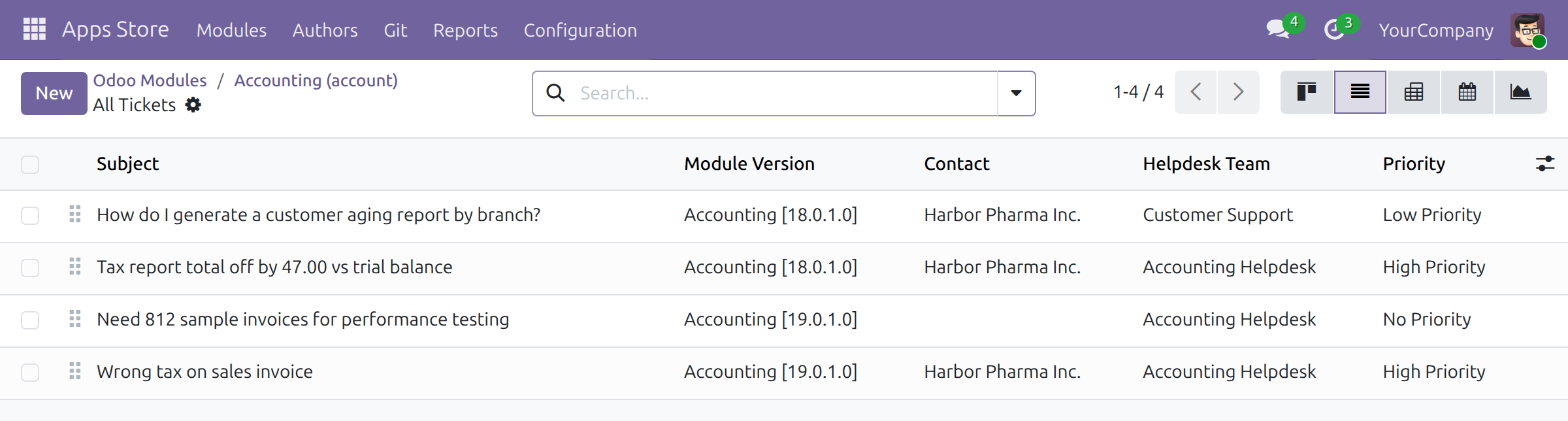
- All Tickets opens with exactly the tickets of this module, the number shown on the button, whatever their stage; there is no Open filter. The board shows the resolved tickets in a folded column, so click the list view button to see every ticket in one table.
Troubleshooting
- A resolved or cancelled ticket is missing from All Tickets.
- The list starts with the Open filter. Remove the filter to see every ticket.
- The module I need is not offered.
- The module is not in the Odoo module list for the Odoo Version of the ticket. Ask the person who keeps the Apps Store list to add it, or change the Odoo Version of the ticket.
- The Module Category is empty.
- The category comes from the module version. A module version without a category leaves it empty.
- I cannot see the Apps Store menu.
- It needs the User access right in the Apps Store field of your user. Support agents do not need it for the tickets.
FAQ
- Can I choose the module without the version?
- The ticket keeps one module version. Choose the module version; the module follows from it.
- Does a change of the Odoo Version change the module version?
- The module version is looked up again from the module and the Odoo Version of the ticket. When the module has no version for the new Odoo Version, the Module Version stays empty.
This software and associated files (the "Software") may only be used (executed, modified, executed after modifications) if you have purchased a valid license from the authors, typically via Odoo Apps, or if you have received a written agreement from the authors of the Software (see the COPYRIGHT file).
You may develop Odoo modules that use the Software as a library (typically by depending on it, importing it and using its resources), but without copying any source code or material from the Software. You may distribute those modules under the license of your choice, provided that this license is compatible with the terms of the Odoo Proprietary License (For example: LGPL, MIT, or proprietary licenses similar to this one).
It is forbidden to publish, distribute, sublicense, or sell copies of the Software or modified copies of the Software.
The above copyright notice and this permission notice must be included in all copies or substantial portions of the Software.
THE SOFTWARE IS PROVIDED "AS IS", WITHOUT WARRANTY OF ANY KIND, EXPRESS OR IMPLIED, INCLUDING BUT NOT LIMITED TO THE WARRANTIES OF MERCHANTABILITY, FITNESS FOR A PARTICULAR PURPOSE AND NONINFRINGEMENT. IN NO EVENT SHALL THE AUTHORS OR COPYRIGHT HOLDERS BE LIABLE FOR ANY CLAIM, DAMAGES OR OTHER LIABILITY, WHETHER IN AN ACTION OF CONTRACT, TORT OR OTHERWISE, ARISING FROM, OUT OF OR IN CONNECTION WITH THE SOFTWARE OR THE USE OR OTHER DEALINGS IN THE SOFTWARE.
