


Polar Payment Provider
| Lines of Code | 1852 |
| Technical name | payment_polar |
| License | OPL-1 |
| Website | https://viindoo.com/apps/modules/19.0/payment_polar |
| Read description for | v 17.0 v 18.0 |
| Required Apps | Invoicing (account) Discuss (mail) |
Every Polar payment, fee and refund - already in your Odoo books
For software and SaaS companies that sell through Polar as merchant of record.
Accept online payments through Polar.sh as Merchant-of-Record
Is this you?
The Polar payout never quite matches what Odoo shows, and month-end turns into a reconciliation hunt.
Polar's platform fee is buried in revenue instead of sitting on its own expense account.
You copy webhook secrets between Polar and Odoo by hand, and you are never sure the setup is complete.
A notice says "paid", but nothing proves it really came from Polar.
Refunds made in the Polar dashboard are missing from Odoo, and refunds made in Odoo hide the fee Polar keeps.
What you get instead
Payout and ledger drift apart
→ Each payment is booked at the net amount with the platform fee on its own expense account, in one balanced journal entry, and Polar cash sits in a dedicated clearing account
Fees hidden in revenue
→ The fee gets its own expense account, set once in the provider settings
Hand-copied secrets and guesswork
→ One click creates the webhook in Polar and stores its signing secret; one click prepares the shared Polar product; a warnings list names every open problem with the action that fixes it
Unverified payment notices
→ Every notice is checked against the provider secret before Odoo confirms a payment or refund
Refunds in two systems
→ Refund part or all from Odoo with the Polar-kept fee shown first; refunds issued in Polar appear in Odoo too
How it works
Buyer pays (Draft)
Customer - the customer pays on Polar's hosted checkout in any of the 126 currencies Polar supports, then returns to Odoo.
Polar confirms (Pending)
Polar - Polar's webhook confirms the payment in near real time, and the customer's return from the checkout confirms it too. No Odoo button is needed.
Booked (Confirmed)
Accounts Receivable Clerk - sees the payment in Odoo, booked at the net amount with the fee on its own account, and can refund part or all of it.
Refund confirmed (Refund pending)
Polar - Polar confirms the refund by webhook, and Odoo records it.
Before the first payment, the Payments Systems Administrator adds the Polar access token, clicks Generate your webhook and Prepare Polar Product, sets the fee expense and clearing accounts, and switches the provider from test to enabled. The Finance Manager reviews the provider and its configuration warnings under Invoicing > Online Payments > Payment Providers.
Key Features
Generate Polar webhook
One click creates the webhook endpoint in Polar and stores its signing secret, so no secret is copied by hand
Platform-fee write-off on payment
Records a Polar payment at the net amount and the platform fee on an expense account, in one balanced journal entry
Refund a Polar payment
Refund part or all of what the customer paid, with the fee Polar keeps shown before you confirm
Refunds made in Polar recorded in Odoo
Refunds issued directly in the Polar dashboard appear in Odoo too, so the books match what the processor paid out
Polar configuration warnings
Lists each open problem (bank journal, product, webhook secret) with the one action that fixes it
Who it is for
Finance Manager
You want the Polar provider, its warnings and its payment method in one place, and books that match the processor.
Gain: every open setup problem listed with the one action that fixes it.
Accounts Receivable Clerk
You refund customers and check that payments and refunds are booked.
Gain: refund part or all from Odoo, with the fee Polar keeps shown before you confirm.
Payments Systems Administrator
You connect and maintain the integration.
Gain: one-click webhook, one-click product, verified notices.
Founder or CFO
You want fewer manual entries at close.
Gain: payments, fees and refunds recorded as they happen.
Best for: software and SaaS companies that sell through Polar as merchant of record and want every payment, fee and refund reflected in Odoo accounting.
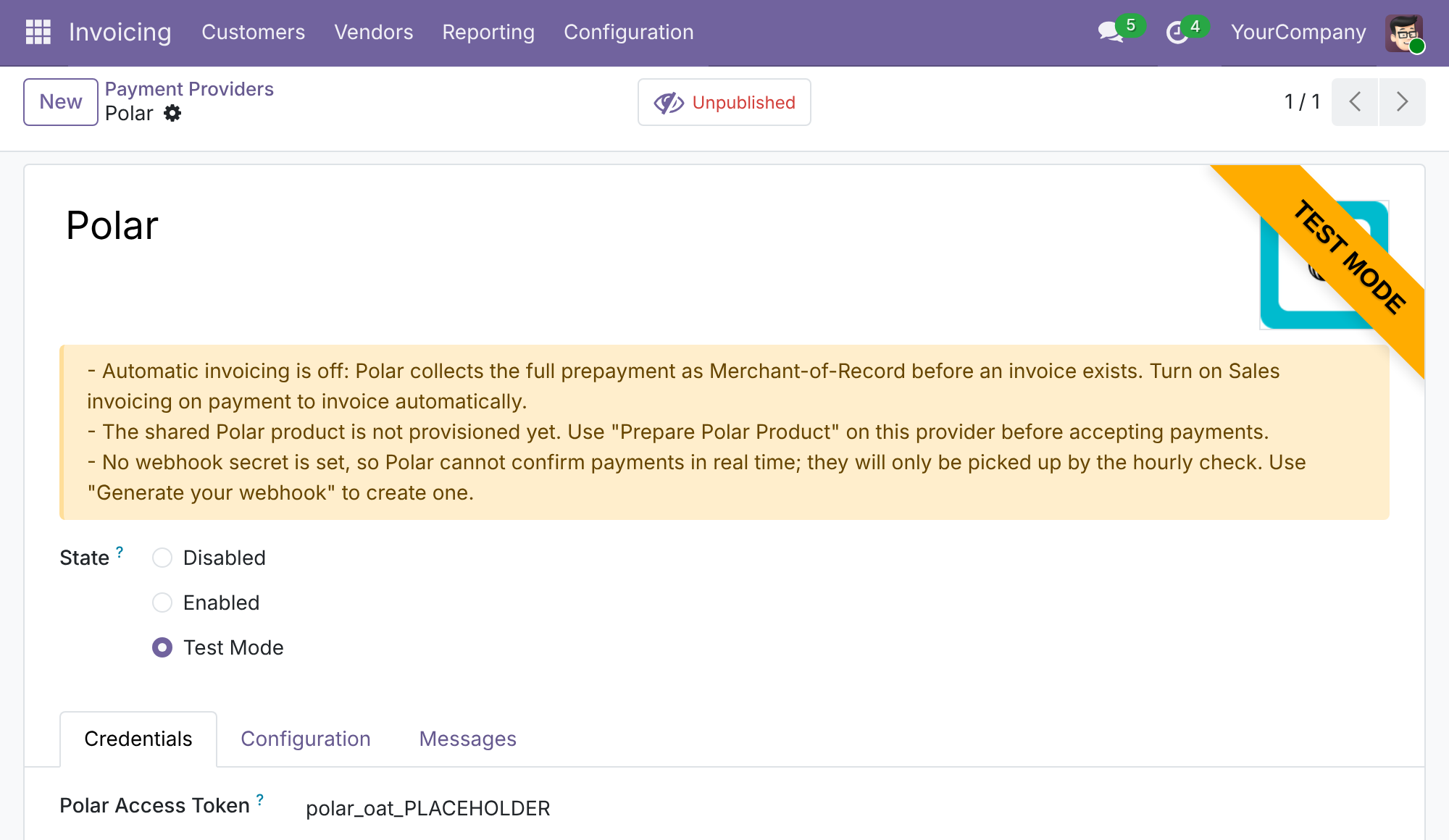
See every open setup problem at a glance
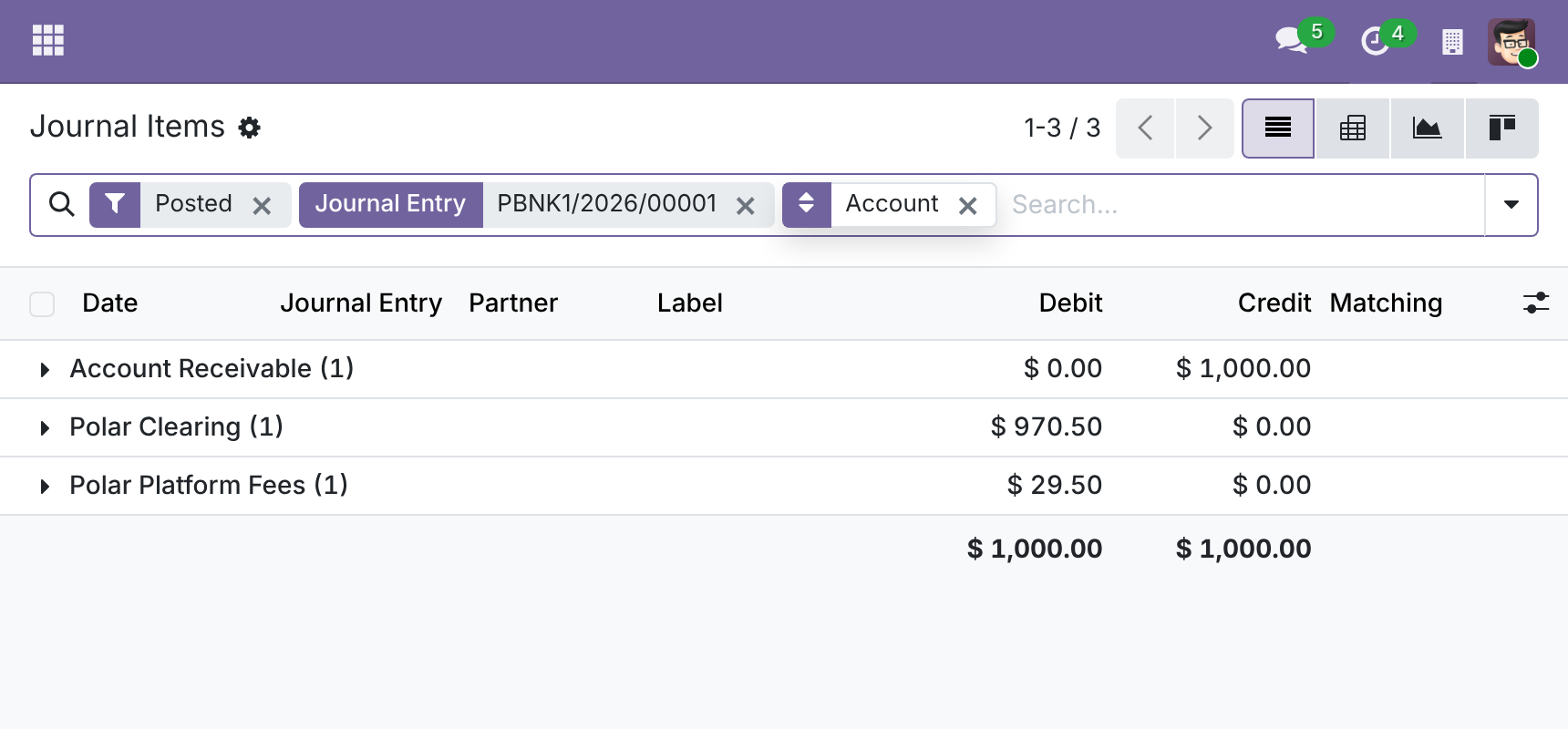
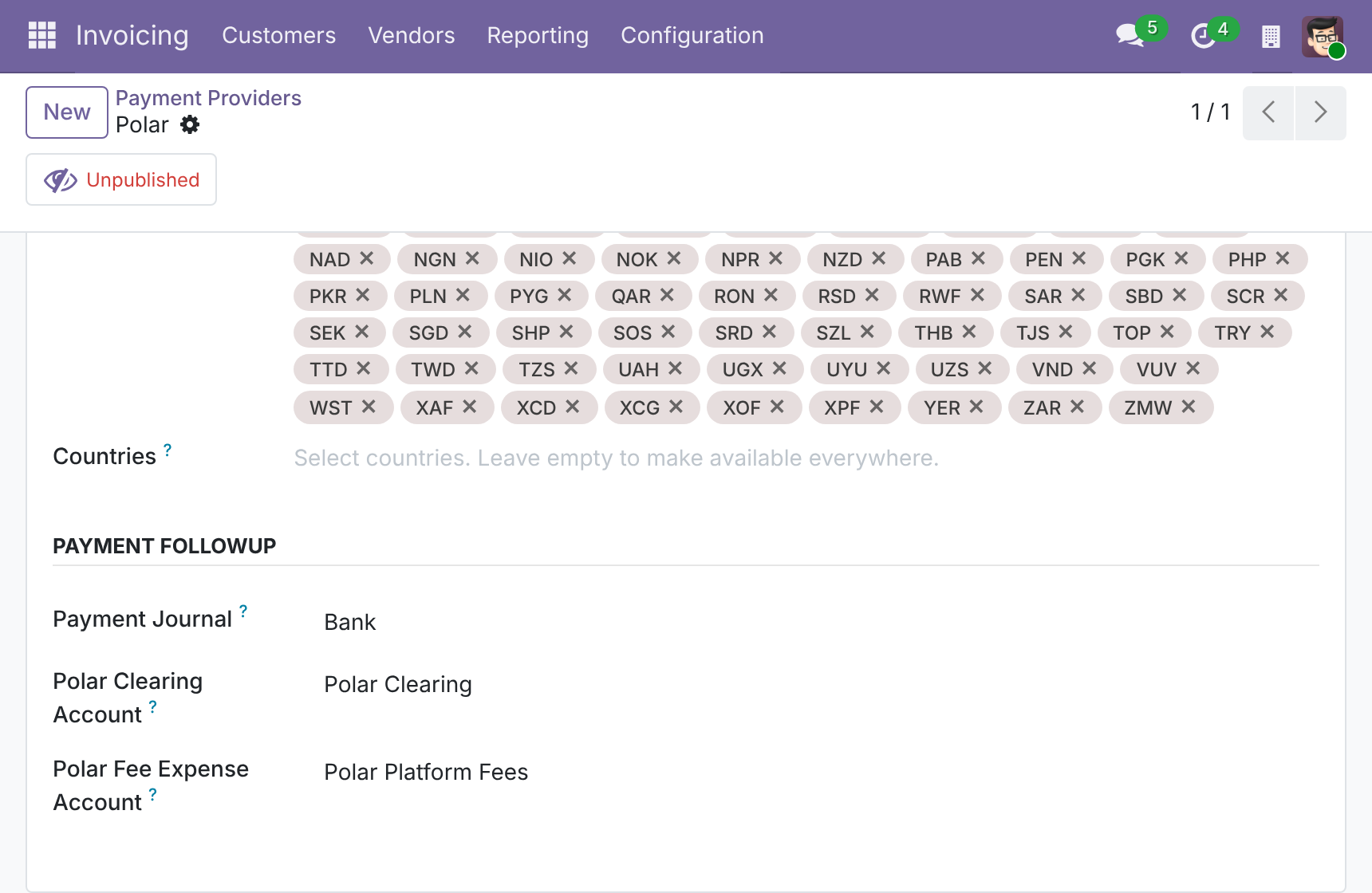
Set the clearing and fee expense accounts once
Refund part or all with the Polar-kept fee shown first
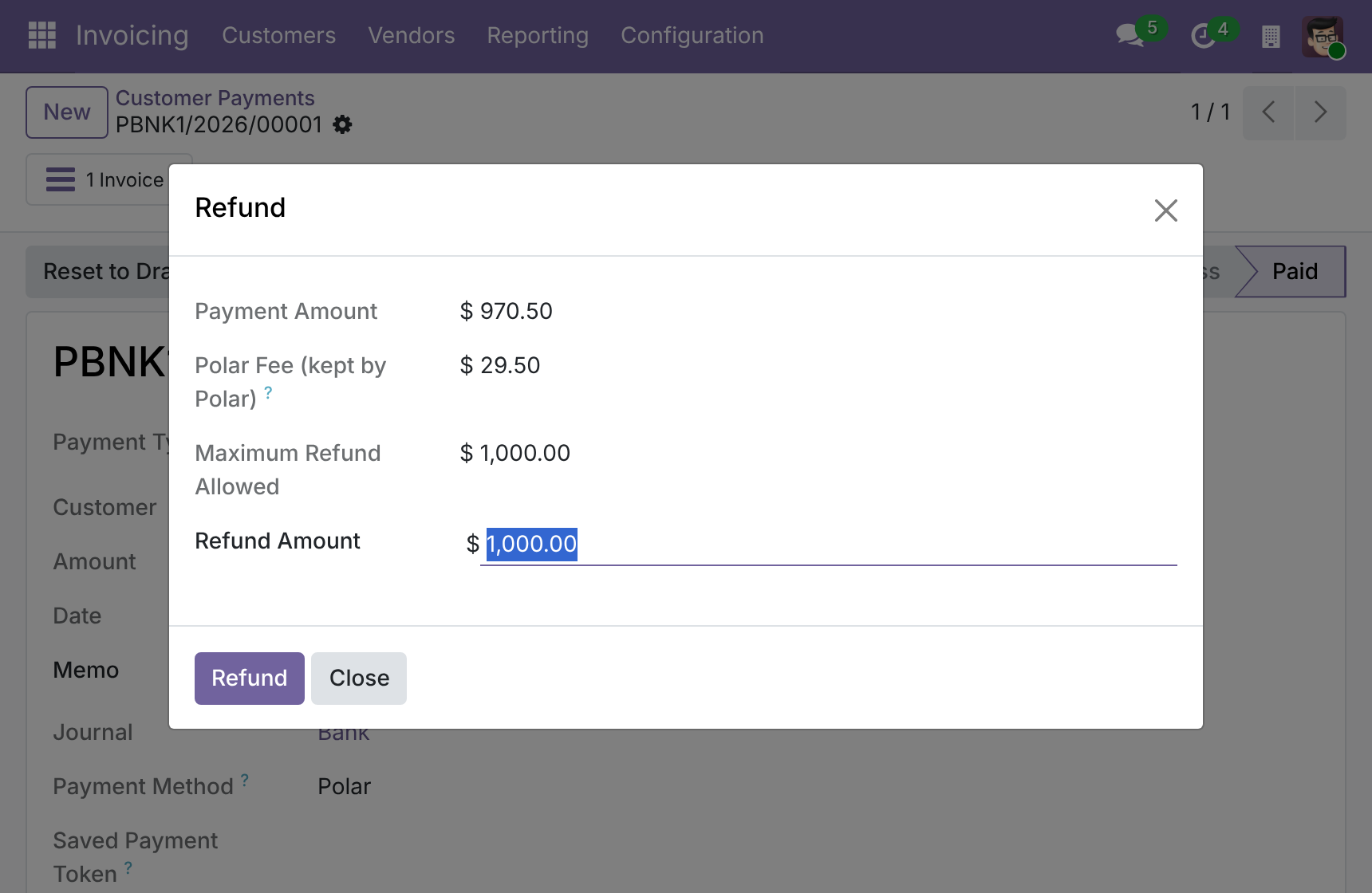
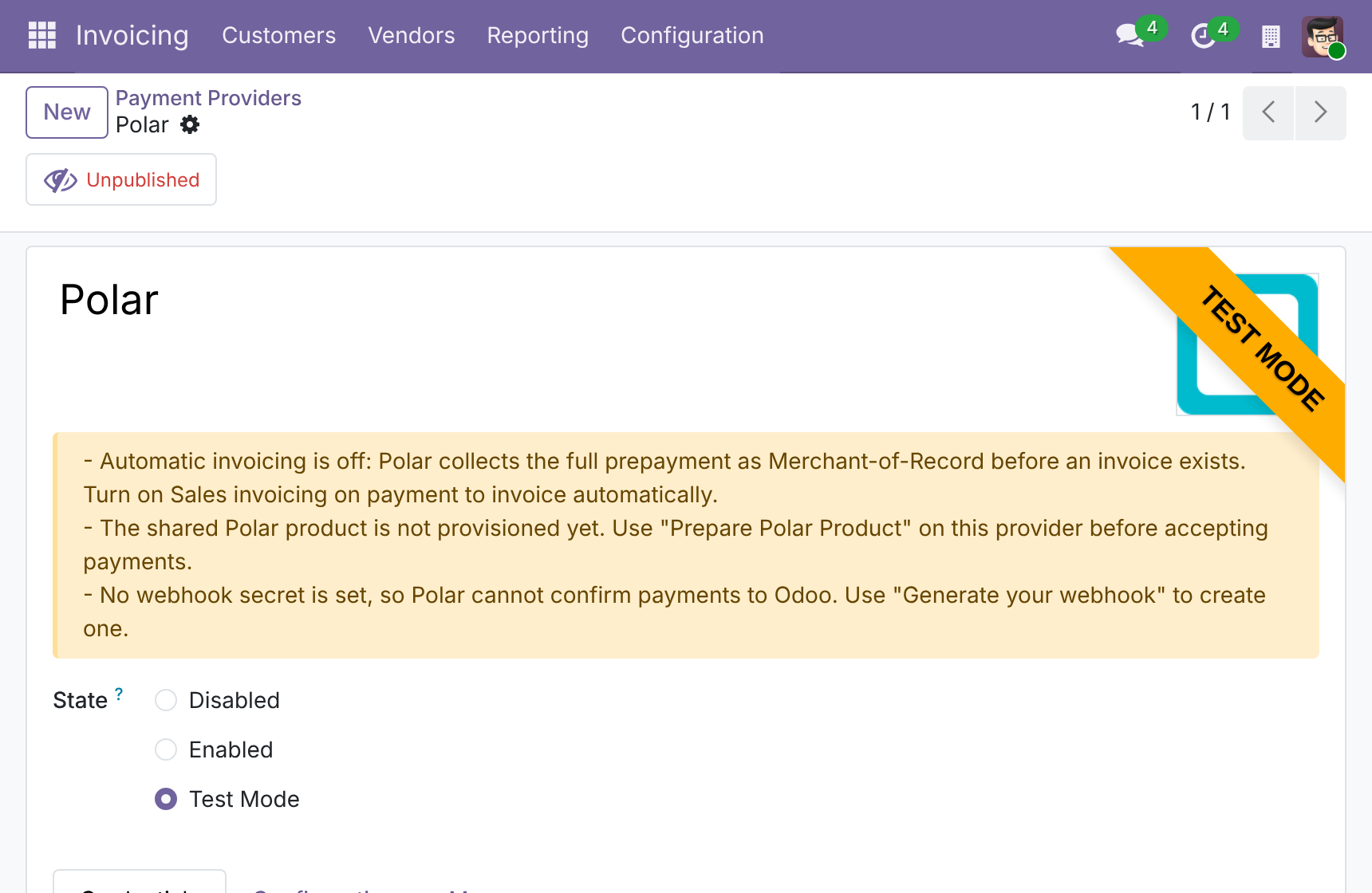
Find Polar next to your other payment providers
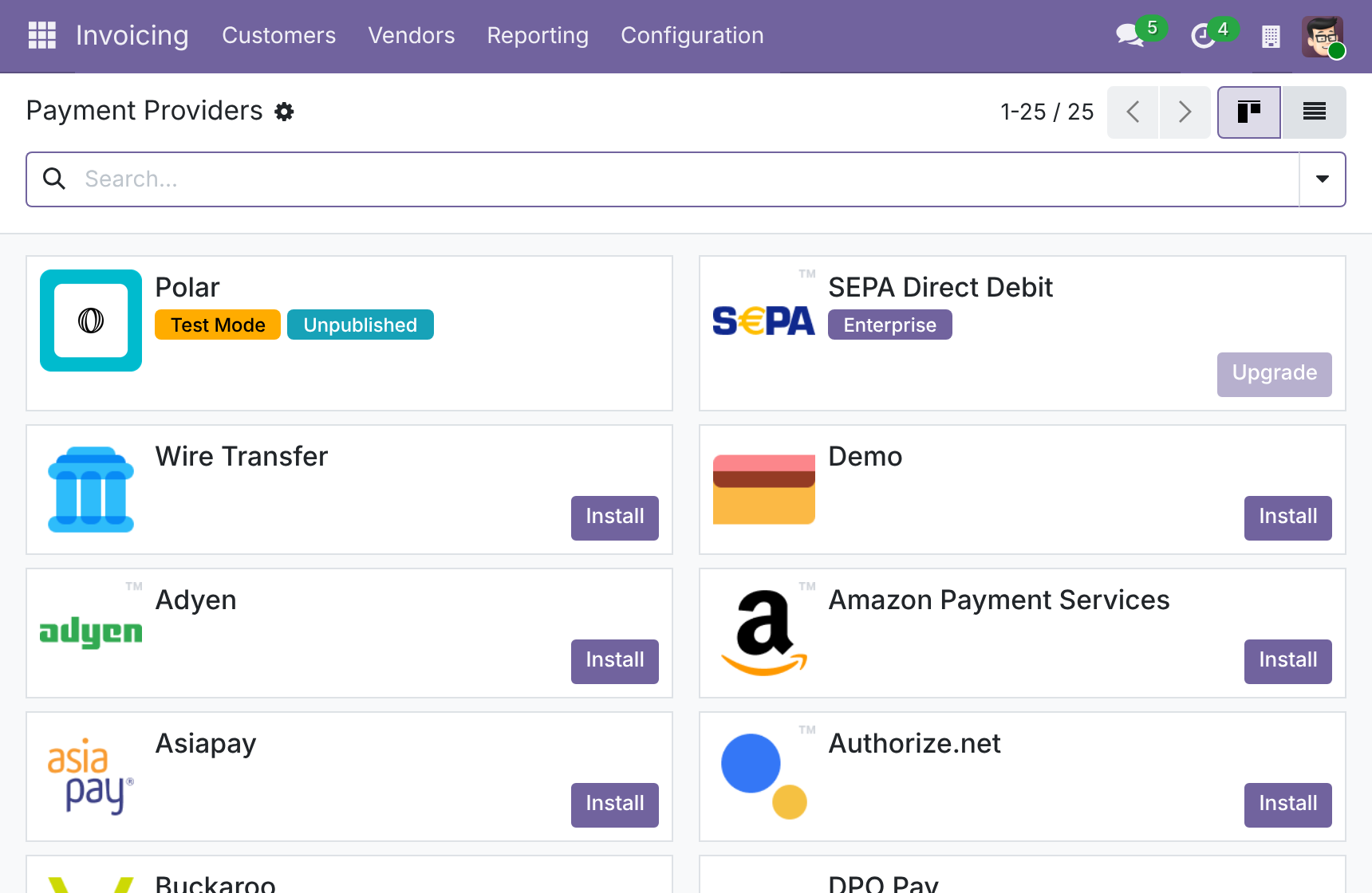
Frequently Asked Questions
Can I trust a notice that says a payment was made?
Odoo checks each webhook signature against the provider secret before it acts. A notice that fails the check is not processed.
Will my books match the Polar payout?
When a fee expense account is set, the payment is booked at the net amount and the platform fee goes to that account in one balanced entry. Without it the payment is booked at the gross amount.
Can I refund from Odoo?
Yes. Refund part or all of what the customer paid. The fee Polar keeps is shown before you confirm.
What about refunds issued directly in Polar?
They are recorded in Odoo too, so the books match what the processor paid out.
Is setup complicated?
You add the Polar access token, then use the one-click buttons for the webhook and the shared Polar product. The warnings list tells you what is left.
Which editions are supported?
Community and Enterprise.
Need help with Polar Payment Provider?
Technical Support
apps.support@viindoo.comTechnical Requirement
- Odoo version: 19.0
- Editions: Odoo Community, Odoo Enterprise
- Required modules: payment, account_payment, account
- License: OPL-1
User Guide: Polar Payment Provider
Overview
Polar Payment Provider lets your customers pay online through Polar, on Polar's own hosted checkout page, and records each payment and refund in Odoo.
Polar acts as the Merchant of Record: it collects the full amount from the buyer, deducts its platform fee and pays you the remainder. Odoo never sees the buyer's card details. Its job is to record the payment against your accounts, check that every notice really came from Polar, and let you refund from Odoo.
What the module does for you:
- Customers pay on Polar's hosted checkout page, in any of the 126 currencies Polar supports, and come back to Odoo afterwards.
- One click on the provider form creates the webhook in Polar and stores its signing secret, so nothing is copied by hand.
- Each Polar payment is booked in Odoo automatically. If you set a fee expense account, the payment is booked at the net amount with Polar's fee on its own line.
- Refunds can be made from Odoo (in part or up to the full amount the customer paid), and refunds made directly in Polar are recorded in Odoo when Polar notifies them by webhook.
The business process
- Checkout - the customer pays on Polar's hosted page. This is a customer action, there is no button in Odoo.
- Payment confirmed - Polar tells Odoo that the payment succeeded (by webhook, or when the customer comes back from the checkout page). Odoo books the payment and reconciles the invoice. The record then passes to the Accounts Receivable Clerk.
- Refund - the Accounts Receivable Clerk refunds the payment from Odoo, in part or in full.
- Refund confirmed - Polar confirms the refund, and Odoo records it.
Who uses this module
| Role | What they do | Access right to assign |
|---|---|---|
| Payments Systems Administrator | Creates the Polar token, generates the webhook and the product, sets the fee and clearing accounts and switches the provider between Test Mode and Enabled. | Role / Administrator |
| Finance Manager | Opens the Online Payments menu to review the Polar provider, its warnings and the Polar payment method. | Accounting / Administrator |
| Accounts Receivable Clerk | Refunds a Polar payment in part or in full and checks that Polar payments and refunds are booked. | Accounting / Invoicing |
The Accounting / Administrator access right includes everything the Accounting / Invoicing access right allows.
Setup (for the Administrator)
Installation
- Go to Apps.
- Search for Polar Payment Provider.
- Click Install.
The accounting and online payment features it relies on are installed automatically with it.
Before you start
Have the following ready:
- A Polar account. Polar's sandbox is a separate server with its own account, organization and access token, so create one account for testing and one for real payments.
- A usable bank journal for your company. Odoo refuses to switch Polar on when the company has no active bank journal (or only an archived one). If the bank journal is archived, unarchive it rather than creating a second one.
- Recommended: automatic invoicing turned on in the Sales settings (Invoicing section). Polar collects the full payment before an invoice may exist, and the provider form shows a warning until automatic invoicing is on.
Configure the provider
Go to Invoicing ‣ Configuration ‣ Online Payments ‣ Payment Providers and open Polar. Polar is delivered Disabled.
Work through the steps in this order.
- Set the State to Test Mode (Polar sandbox) or Enabled (Polar production). Do this first: while the provider is Disabled, Odoo cannot tell which Polar server to talk to, so it refuses to create anything in Polar.
- On the Credentials tab, fill in the Polar Access Token. Create it in your Polar dashboard as an Organization Access Token and give it the webhooks:write scope, otherwise the next step fails. The sandbox and production each need their own token.
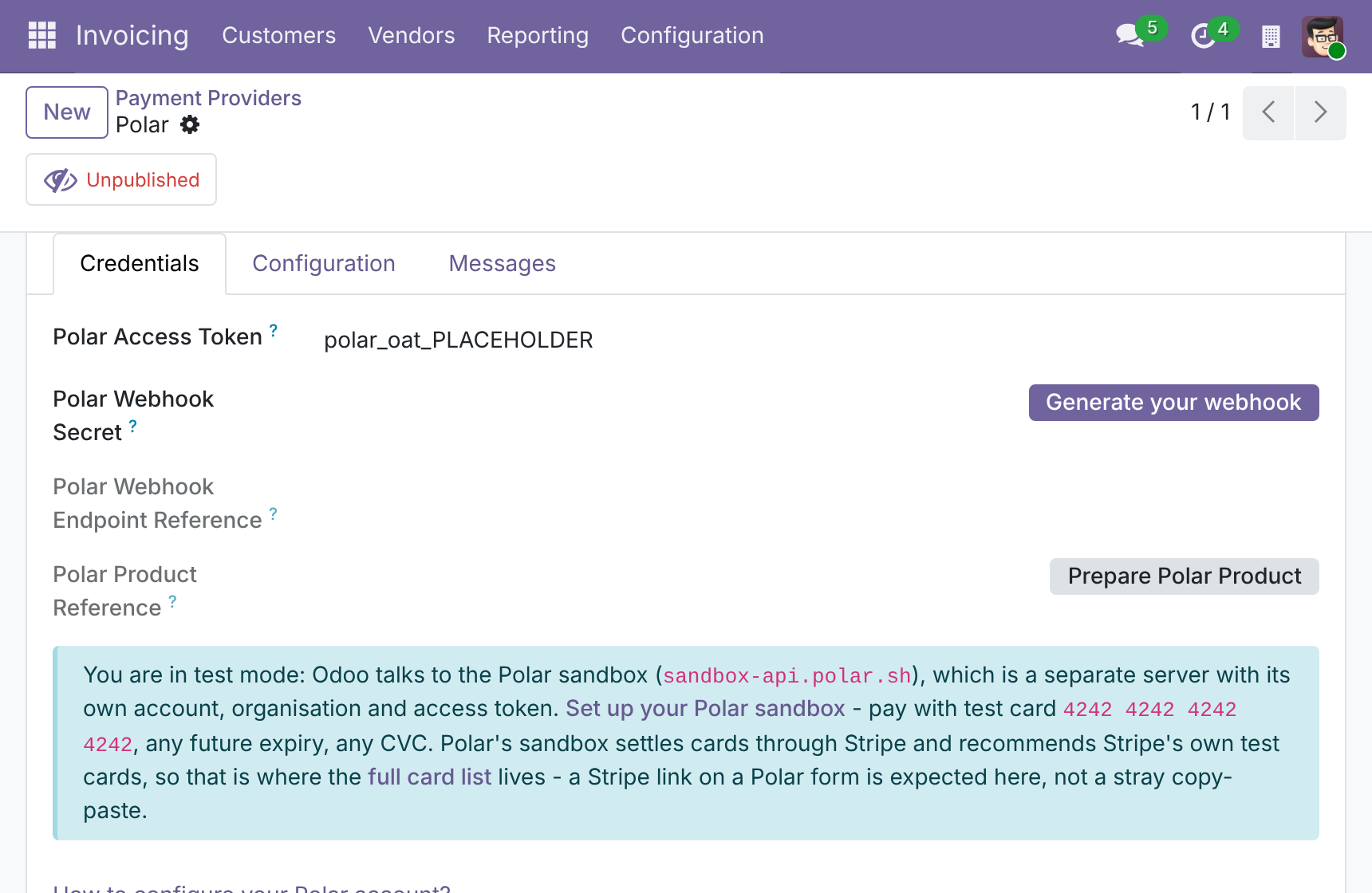
- Save, then click Generate your webhook. Odoo creates the webhook in Polar for this database and fills in the Polar Webhook Secret and the Polar Webhook Endpoint Reference for you. You never have to find or copy your Odoo webhook address.
- Click Prepare Polar Product. This creates the one shared product that every checkout reuses. Do it once, before the first payment. After it succeeds the Polar Product Reference is filled in and the button disappears.
The two buttons are available to administrators only. The access token in the screenshot is a placeholder.
Webhook secret formats
The Polar Webhook Secret is how Odoo tells a real Polar notice from a forged one. Polar has two secret formats and Odoo accepts both:
- Secrets created before 8 September 2026 (older Polar webhooks).
- Secrets created from that date on (the Standard Webhooks format).
Both start with whsec_. In both cases you only need to use Generate your webhook. If you paste a secret yourself (for example from a webhook you created in the Polar dashboard), copy it exactly as Polar shows it, including the whsec_ prefix. Odoo also checks that each notice is recent (within five minutes), so make sure the server clock is correct.
The configuration warning
A yellow banner at the top of the form lists every open problem, one per line, each with the action that fixes it: automatic invoicing is off, the bank journal is archived or missing, the shared product is not prepared, or no webhook secret is set. When the banner is gone, the provider is ready.
Set the fee expense account and the clearing account
Both accounts are optional. They are set on the Configuration tab of the Polar provider, in the section next to the Payment Journal, and they apply to the whole company.
Polar Fee Expense Account - pick an expense account.
- When it is set, every Polar payment is booked at the net amount (what Polar pays out) and Polar's platform fee is posted as a separate line on this account. The invoice is still settled for the full gross amount the customer paid.
- When it is empty, the payment is booked at the gross amount and the fee is matched later, when Polar's payout appears on your bank statement, like with other payment providers.
Polar Clearing Account - pick a current asset or current liability account that allows reconciliation.
- When it is set, it becomes the outstanding account of the Polar payment method on the payment journal: Polar money waits in this dedicated account until the payout is reconciled with your bank statement.
- When it is empty, Polar uses the company's default outstanding receipts account, like other payment providers.
For example, a customer pays 1,000.00 and Polar keeps a fee of 29.50. With a fee expense account set, the payment is booked as follows:
| Account | Debit | Credit |
|---|---|---|
| Polar Clearing Account (or outstanding receipts) | 970.50 | |
| Polar Fee Expense Account | 29.50 | |
| Accounts Receivable | 1,000.00 |
Change the accounts at any time. The change applies to the payments booked afterwards, and the Polar payment method follows the new clearing account.
Assign the access rights
Give each person the access right that matches their work, under Settings ‣ Users & Companies ‣ Users (the Accounting line of the user form):
- Accounting / Invoicing for the Accounts Receivable Clerk.
- Accounting / Administrator for the Finance Manager.
The Payments Systems Administrator needs the Role / Administrator access right to see the token, the webhook and the product buttons.
Finance Manager: review the Polar provider
Go to Invoicing ‣ Configuration ‣ Online Payments ‣ Payment Providers to open the Polar provider and read its warning banner. If something is missing, ask the Payments Systems Administrator to fix it.
Go to Invoicing ‣ Configuration ‣ Online Payments ‣ Payment Methods to check the Polar payment method. It is offered to customers on payment links and at the online checkout once the provider is in Test Mode or Enabled. It supports partial refunds.
Customer checkout
Nothing to do in Odoo: a customer who pays an invoice or an order online chooses Polar and is sent to Polar's hosted checkout page.
- The amount shown to the customer is the amount of the invoice or order. It already includes taxes, and Polar is told that the price is tax-inclusive, so Polar does not add tax on top.
- The customer pays in the currency of the invoice or order.
- Polar has a minimum charge per currency. A payment below it is refused immediately with a message, and the customer can choose another payment method.
- In Test Mode, pay with the test card 4242 4242 4242 4242, any future expiry date and any security code.
- After paying, the customer returns to Odoo.
Accounts Receivable Clerk: refund a Polar payment
Refunds
You can refund a Polar payment in part or in full, up to the gross amount the customer paid, even if the payment is booked net of Polar's fee.
- Go to Invoicing ‣ Customers ‣ Payments and open the Polar payment.
- Click Refund.
- In the window that opens, check the amounts and enter the Refund Amount.
- Click Refund.
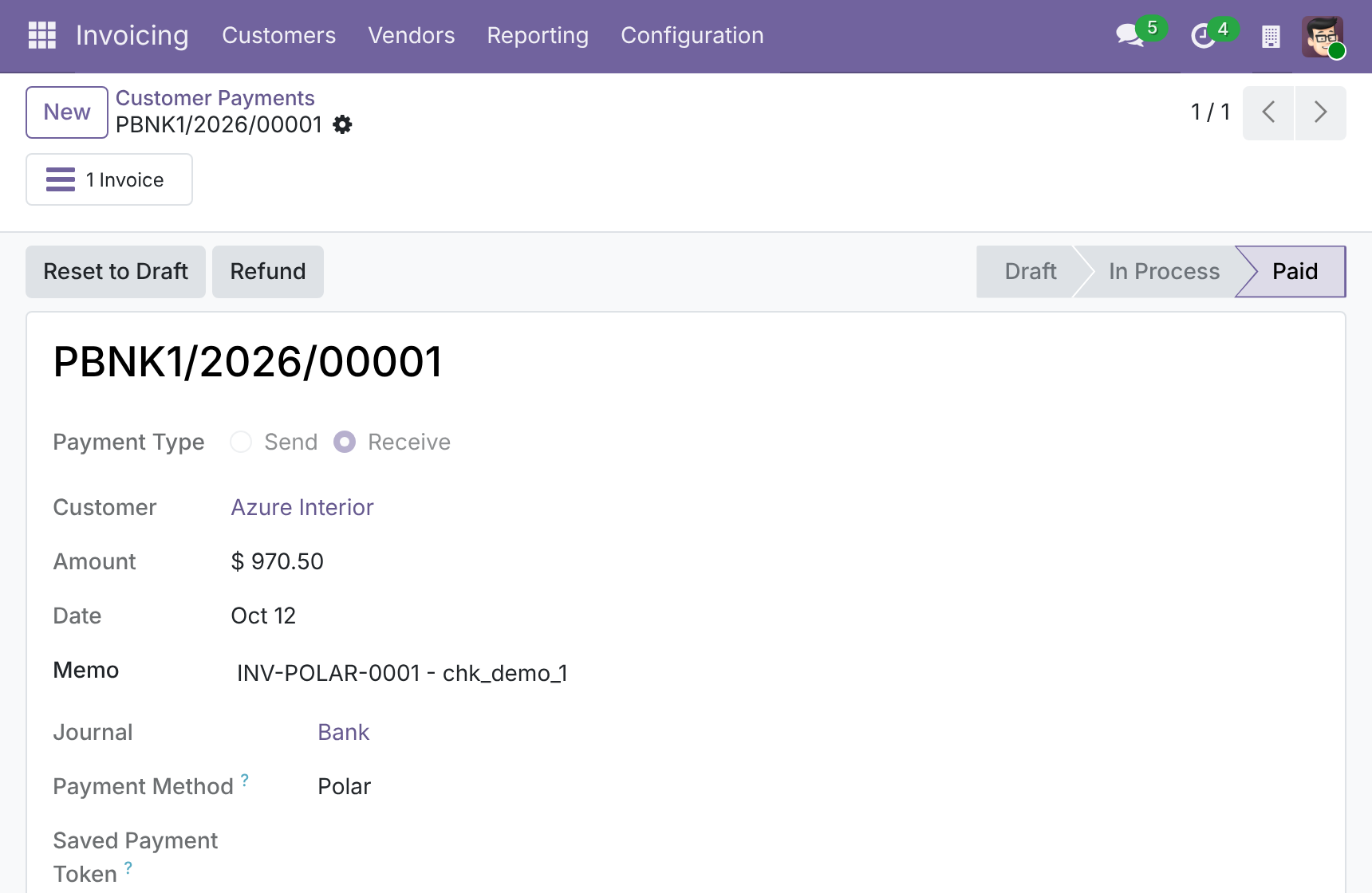
The window shows:
- Payment Amount - the amount booked in Odoo. It is net of the fee when a fee expense account is set.
- Polar Fee (kept by Polar) - the fee Polar deducted from this payment. It appears only when the payment was booked net.
- Maximum Refund Allowed - the gross amount the customer paid, less any earlier refunds.
- Refund Amount - the amount you give back to the customer. It cannot exceed the maximum.
Note
Polar keeps its platform fee when it refunds a customer. Odoo does not reverse the fee: the fee line of the original payment stays as it is, and the full refund amount is returned to the customer. In the example above, you can refund up to 1,000.00 although the payment shows 970.50.
The refund stays pending until Polar confirms it, then it is recorded as done. Refunds made directly in the Polar dashboard are recorded in Odoo too, as refund transactions linked to the original payment, so your books match what Polar paid out.
How payments and refunds are confirmed
Odoo learns about payments and refunds in two ways.
Webhook
Polar calls Odoo as soon as something happens. Odoo checks the signature of every notice with the Polar Webhook Secret and ignores a notice that fails the check. Six events are handled: checkout created, updated and expired, order paid, and refund created and updated. Payments and refunds are confirmed in near real time. A refund made directly in Polar is recorded in Odoo from its refund notice, provided Odoo already recorded the payment it refunds.
Return from the checkout
When the customer comes back from Polar's checkout page, Odoo reads the checkout and its paid order from Polar and confirms the payment if the webhook has not done it yet.
Troubleshooting
| Problem | What to do |
|---|---|
| Odoo refuses to switch Polar to Test Mode or Enabled and names a bank journal. | The company needs an active bank journal. Unarchive the archived journal, or create one if the company has none. |
| Generate your webhook or Prepare Polar Product says Odoo cannot tell which Polar environment to use. | Set the State to Test Mode or Enabled first, then click the button again. |
| Generate your webhook fails. | Check that the Polar Access Token belongs to the right environment (sandbox for Test Mode, production for Enabled) and has the webhooks:write scope. |
| The buttons are not visible. | They appear only when the Polar Access Token is filled in, and only for administrators. Generate your webhook disappears once a secret exists, and Prepare Polar Product once the product exists. |
| A payment fails immediately with a message about the shared product. | Click Prepare Polar Product on the provider. |
| A payment fails immediately with a message about Polar's minimum charge. | The amount is below Polar's minimum for that currency. Ask the customer to pay a higher amount or use another method. |
| Payments stay pending although the customer paid. | The webhook is not working. Check that no webhook secret warning is shown, and that Polar has not disabled the endpoint. Re-enable it in the Polar dashboard. |
| The refund window does not show a Polar fee. | The payment was booked at the gross amount (no fee expense account was set), so there is no fee to show. |
| A refund stays pending. | Polar has not confirmed it yet. It is settled when Polar sends the refund webhook. |
| The invoice is not created after payment. | Turn on automatic invoicing in the Sales settings, Invoicing section. |
FAQ
- Which currencies can I use?
- Any of the 126 currencies Polar supports. The customer is charged in the currency of the invoice or order, and no currency conversion is configured on a Polar provider.
- Does Odoo calculate taxes on a Polar sale?
- Odoo books the invoice with its own taxes. The amount sent to Polar already includes them, and Polar is told the price is tax-inclusive.
- Do I need to set the fee expense account?
- No. It is optional. Without it, the payment is booked at the gross amount and the fee is matched when Polar's payout is reconciled with your bank statement.
- Can I refund more than the payment shows in Odoo?
- Yes, up to the gross amount the customer paid, because Polar refunds the customer in full and keeps its fee.
- Can I test without real money?
- Yes. Set the provider to Test Mode and use a Polar sandbox account and token. Payments are made with a test card.
This software and associated files (the "Software") may only be used (executed, modified, executed after modifications) if you have purchased a valid license from the authors, typically via Odoo Apps, or if you have received a written agreement from the authors of the Software (see the COPYRIGHT file).
You may develop Odoo modules that use the Software as a library (typically by depending on it, importing it and using its resources), but without copying any source code or material from the Software. You may distribute those modules under the license of your choice, provided that this license is compatible with the terms of the Odoo Proprietary License (For example: LGPL, MIT, or proprietary licenses similar to this one).
It is forbidden to publish, distribute, sublicense, or sell copies of the Software or modified copies of the Software.
The above copyright notice and this permission notice must be included in all copies or substantial portions of the Software.
THE SOFTWARE IS PROVIDED "AS IS", WITHOUT WARRANTY OF ANY KIND, EXPRESS OR IMPLIED, INCLUDING BUT NOT LIMITED TO THE WARRANTIES OF MERCHANTABILITY, FITNESS FOR A PARTICULAR PURPOSE AND NONINFRINGEMENT. IN NO EVENT SHALL THE AUTHORS OR COPYRIGHT HOLDERS BE LIABLE FOR ANY CLAIM, DAMAGES OR OTHER LIABILITY, WHETHER IN AN ACTION OF CONTRACT, TORT OR OTHERWISE, ARISING FROM, OUT OF OR IN CONNECTION WITH THE SOFTWARE OR THE USE OR OTHER DEALINGS IN THE SOFTWARE.
