

OmniApproval™ - Overtime Approvals
by Viindoo
| Lines of Code | 2033 |
| Technical name | viin_hr_overtime_approval |
| License | OPL-1 |
| Website | https://viindoo.com/apps/modules/19.0/viin_hr_overtime_approval |
| Read description for | v 13.0 v 14.0 v 15.0 v 16.0 v 17.0 v 18.0 |
| Required Apps | Discuss (mail) Employees (hr) |
| Included Dependencies | Viindoo Base OmniApproval™: One platform. Every approval. Overtime Advanced HR Management HR Contracts (Viindoo) Work Entry Work Entry - Contract Base Addendum Viindoo Holiday & WorkDay Manager Safe IR Metadata Proxies |
| Extensions | Overtime Approval Payroll Overtime Timesheet Approval Overtime Approval - Compensatory Time Off |
Overtime that is approved, within limits, on the record
For HR teams, department managers and finance leads who need overtime planned and signed off before it is worked
Integrate Overtime Management and Approval for overtime approval process
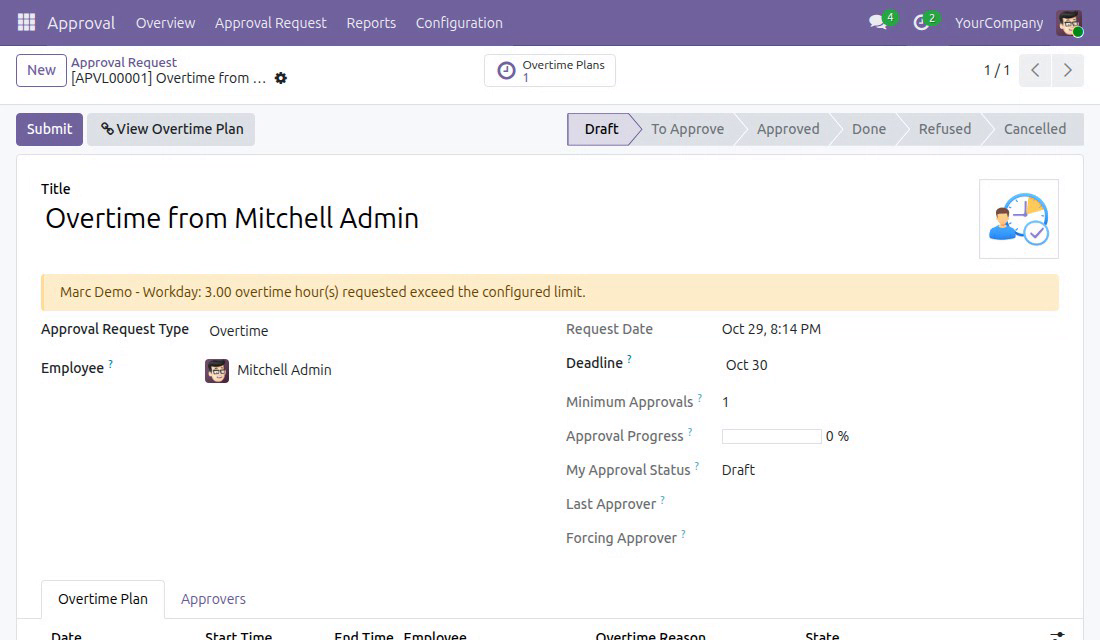
Extends Overtime with the approval engine of OmniApproval™.
Is this you?
Overtime is agreed in chat or on paper, and nobody can say afterwards who approved what.
Managers find out an employee went over the weekly or monthly cap only when payroll is already closing.
Approvers are buried in requests that are not theirs, and a decision takes a hunt through the inbox.
A team lead has to file the same overtime form again and again for every person on the team.
What changes
Overtime agreed in chat, with no trail
→ Every overtime plan goes through one approval request, so who asked, who decided and when is on the record.
Surprise overruns at month end
→ Set the hours limit per workday, holiday, week, month and year once, and see a warning the moment a request goes over it.
Approvers lost in the noise
→ Each approver opens their own queue and sees only the requests waiting for them.
The same form, filed again and again
→ Schedule a whole team in one pass; the plans travel together in one request instead of a pile of separate forms.
How it works
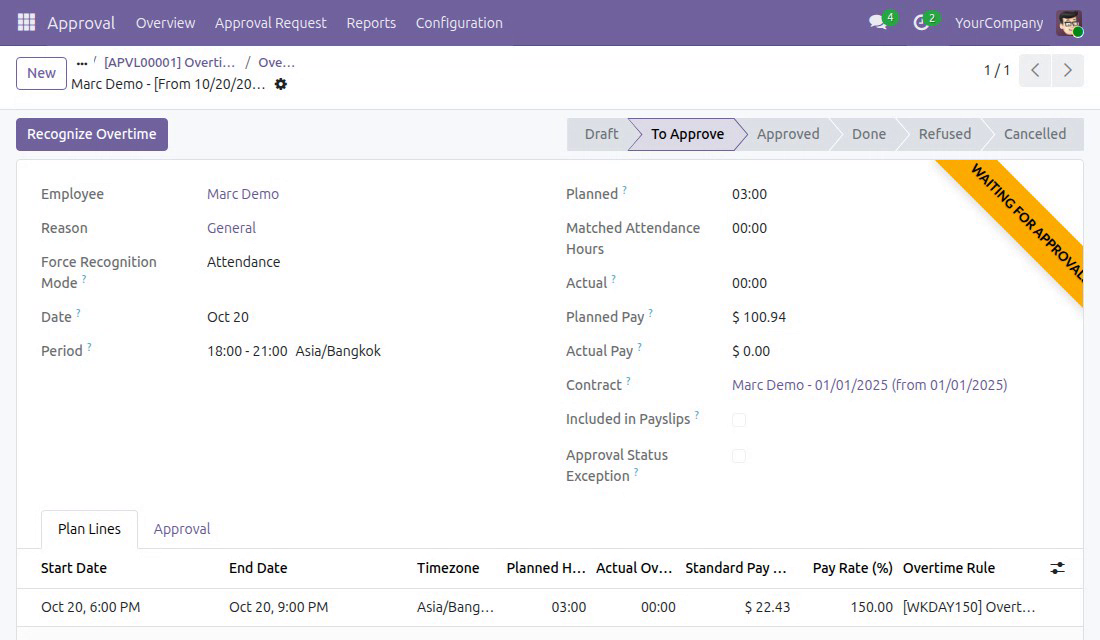
Draft
The employee, or a team approver on behalf of the team, plans the overtime. The plans are gathered into one draft request.
To Approve
The request is submitted. If it exceeds a limit, the warning has to be confirmed first. It then waits for its approvers.
Approved
The approver approves or refuses. Approving an overrun shows the warning again, so nobody signs it unseen.
Done
The approved hours are marked as done and recognized as actual overtime.
Key Features
Overtime Hours Limit
Cap the overtime hours one employee may work per workday, holiday, week, month and year.
Approval engine
Overtime requests follow the approval engine, with company-wide approvers by default.
My Overtime Plan
Employees schedule their own overtime; plans go into one draft approval request.
Mass Schedule
Schedule a team's overtime in one pass; officers choose whether approval is needed.
Limit warning
See at a glance which employee and period go over the limit, and confirm an overrun before the request is submitted or approved.
Overrun on the record
Who accepted an overrun, when and what stays on the request. Each plan shows where its approval stands, and its hours are locked while a request holds it.
Who it is for
HR and overtime officers
You own the rules. Set the limits once, decide when approval is required, and keep access to every overtime request.
Department managers
You plan overtime for your team in one pass and see which people would go over the limit before you submit.
Approvers
You decide on one request per plan set, see only what waits for you, and are warned before you approve an overrun.
Employees
You plan your own overtime and follow where its approval stands.
Best for: organizations with fluctuating workloads, in manufacturing, services or projects, that want overtime to be planned, limited and approved before it is worked.
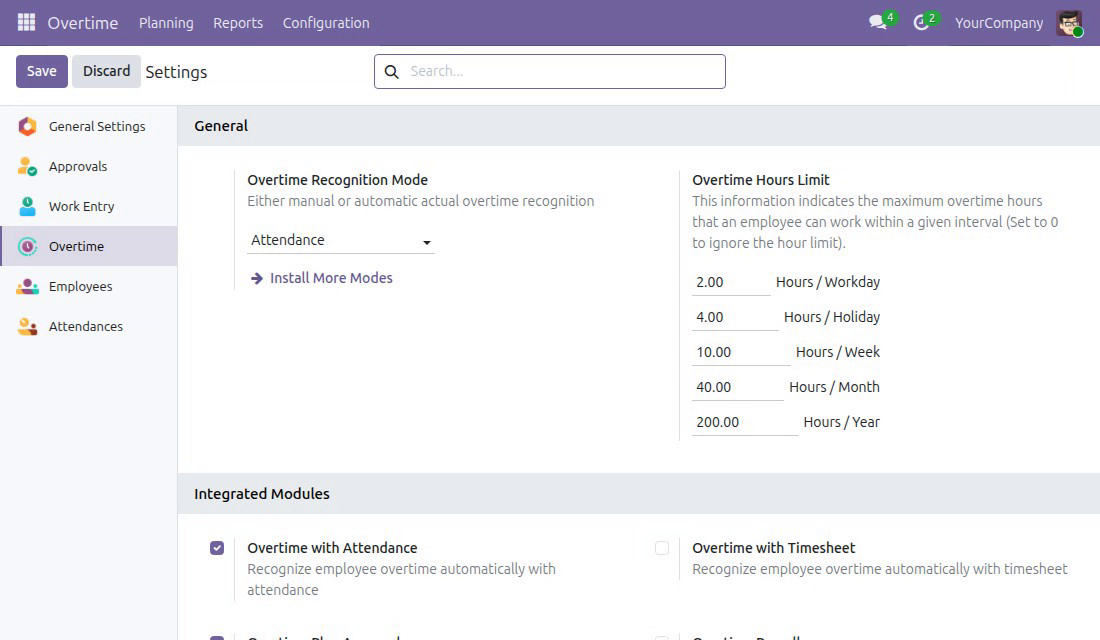
Set the overtime hours limit
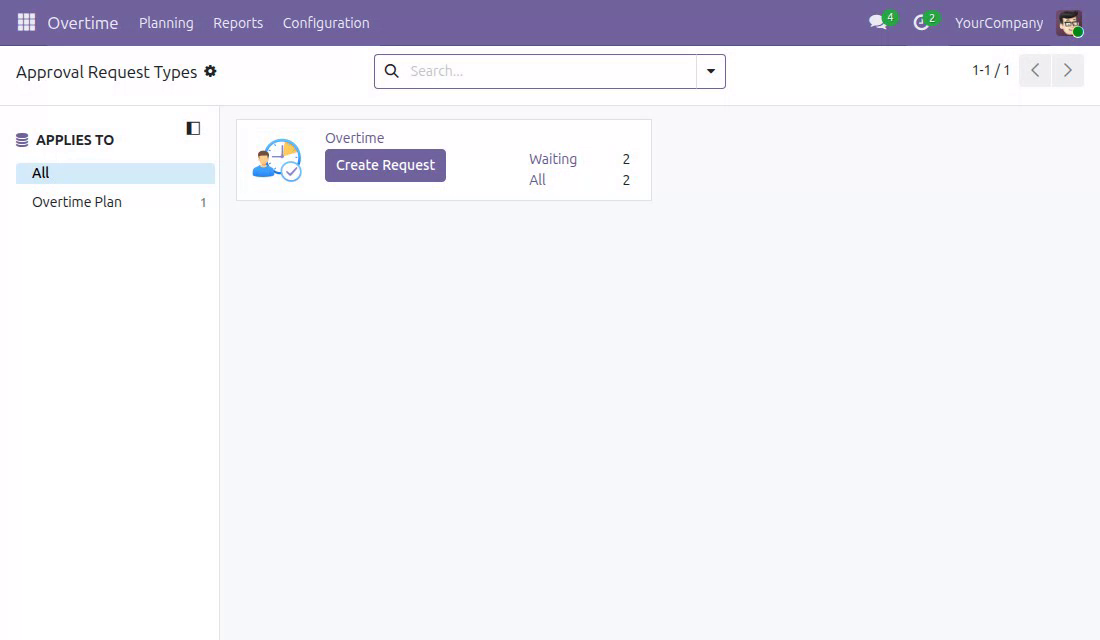
Start a request from the Overtime approval type
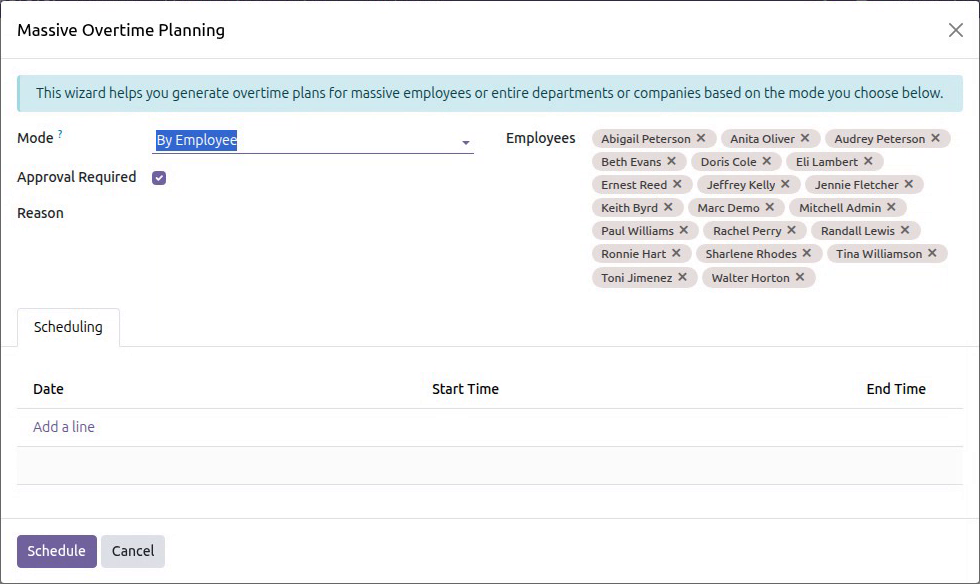
Schedule a team, with approval required
See the limit warning on the request
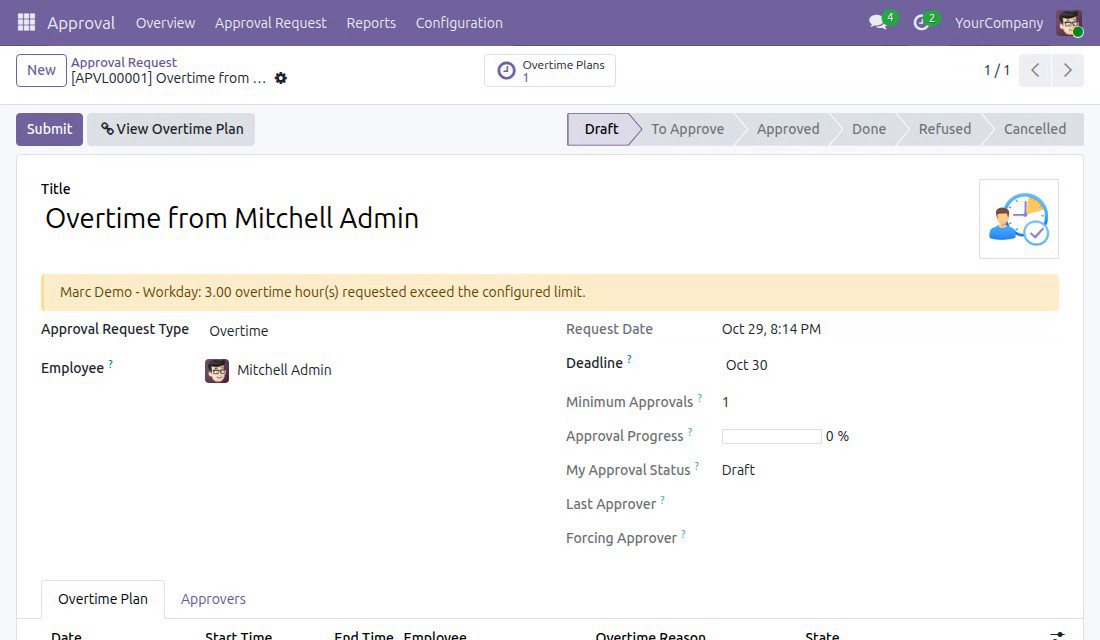
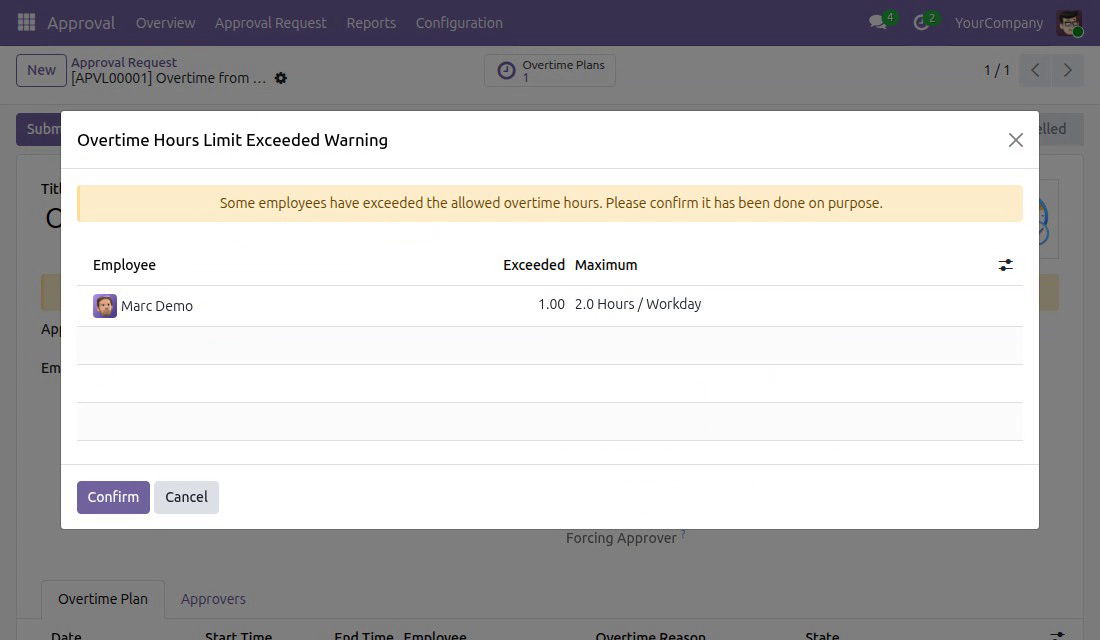
Confirm the overrun before submitting or approving
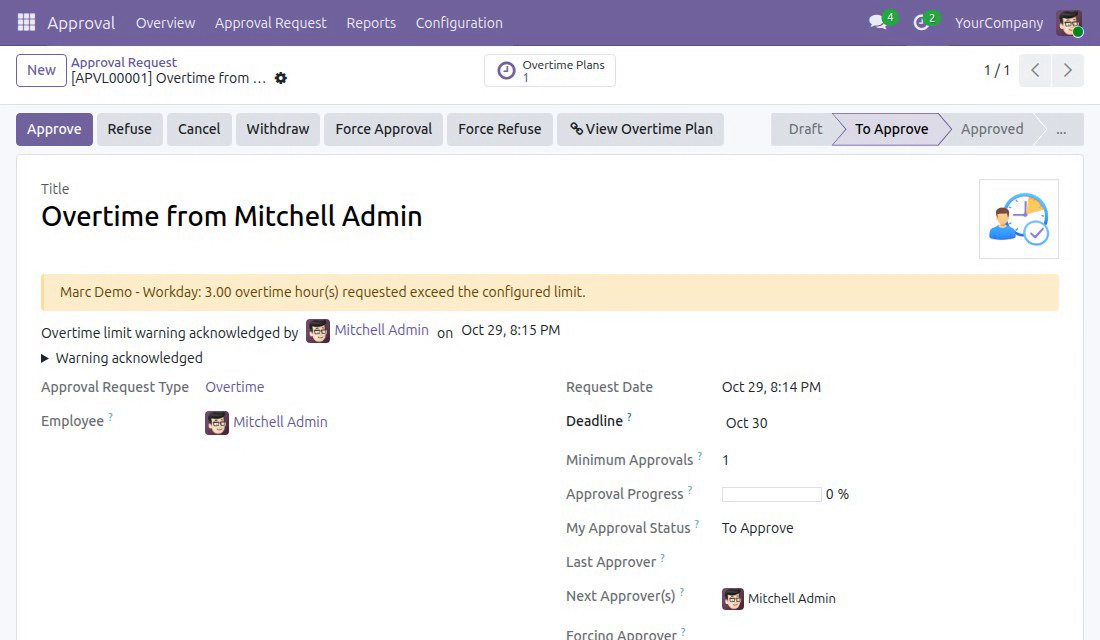
Read who accepted the overrun, and when
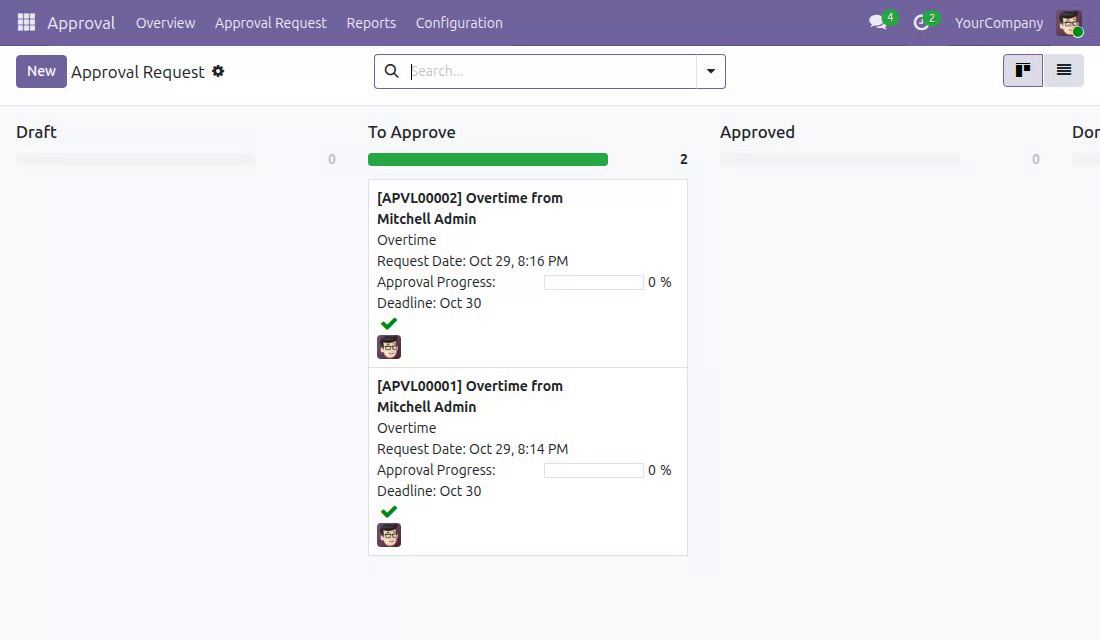
Approvers see their own queue
Follow each plan's approval state
Frequently Asked Questions
Can an overrun still be approved?
Yes. The approver sees the warning with the exceeded hours per employee and period, confirms it, and the request records who accepted the overrun, when and what.
Who sees the requests?
Approvers see only the requests waiting for them. An overtime officer keeps access to every overtime request, even a draft request that has been emptied.
Can we plan overtime without approval?
Officers can untick Approval Required when they schedule a team in one pass. Employees planning their own overtime always go through approval.
Can a request be changed after submission?
The date, hours and employee of a plan are locked while its request is waiting, approved or done. Withdraw the request to edit the plans, then submit again.
Do we need to rebuild approval rules?
No. The Overtime approval type is created for each company when the module is installed, and its approvers and steps can be edited like any other approval type.
Need help with OmniApproval™ - Overtime Approvals?
Pre-Sales & Partnership
viindoo.com/contactusTechnical Support
viindoo.com/ticketTechnical Requirement
- Odoo version: 19.0
- Editions: Community Edition and Enterprise Edition
- Required modules: OmniApproval™, Overtime
- License: OPL-1
Extend it further
Carry approved overtime into the rest of your HR and project stack.
Overtime Approval - Compensatory Time Off
Allow the conversion of overtime hours into compensatory time off.
Overtime Approval Payroll
Bridges Overtime, Approval and Payroll.
Overtime Timesheet Approval
Bridges overtime timesheets and timesheet approval.
Overtime Approval - User Guide
For employees, team approvers, overtime officers and administrators.
Note
Extends viin_hr_overtime - see its documentation for overtime planning, rules and recognition.
Overview
Overtime that is planned has to be approved before the company counts on it. With this module, overtime plans are submitted to the approval process of the Approval app: every plan set travels in one approval request, approvers decide on it, and each plan shows where its request stands. Plans that exceed the overtime hours limit set by the company are flagged before anybody decides, and whoever accepts the overrun is recorded on the request.
The process, from the plan to the paid hours:
- An employee, or a team approver on behalf of the team, schedules overtime. The plans are collected in one draft approval request.
- The request is submitted. If it goes over an overtime hours limit, a warning must be confirmed first.
- The approvers approve or refuse the request. Approving a request that is over the limit shows the warning again.
- The approved overtime is marked as done and its hours are recognized, ready for payroll.
| Role | What they do | Access right to assign |
|---|---|---|
| Employee | Schedules overtime for themselves and follows its approval. | Any internal user |
| Team approver | Schedules overtime for the team they manage and sees the warnings on the requests. | Overtime / Team Approval |
| Overtime officer | Plans overtime for anyone, decides whether a mass schedule needs approval, and keeps access to every overtime request. | Overtime / Officer |
| Approver | Approves or refuses the requests waiting for them. | Listed as an approver of the Overtime approval type |
| Administrator | Installs the module, sets the overtime hours limits and manages the approval type. | Overtime / Administrator |
Setup (for the Administrator)
Install the module
- Go to Apps.
- Search for Overtime Approvals.
- Press Install. The Overtime and Approval apps it relies on are installed with it.
Check the Overtime approval type
Installing the module creates an approval type named Overtime for each company. Open it from Overtime > Planning > Request: the card shows how many requests wait for approval and holds the Create Request button.
By default the manager of each employee and the users holding the Overtime / Administrator access right are the approvers. To change the approvers or the approval steps, open the type from Approval > Configuration and edit it like any other approval type.
Give each person their access right
Go to Settings > Users & Companies > Users, open a user and set the Overtime access right:
- Team Approval for people who schedule overtime for the team they manage.
- Officer for the people who plan overtime for everyone.
- Administrator for those who configure the application.
Everybody else only needs to be an internal user.
Set the overtime hours limits
Go to Overtime > Configuration > Settings and open the Overtime Hours Limit section. Fill in the maximum overtime hours one employee may work in each period: Hours / Workday, Hours / Holiday, Hours / Week, Hours / Month and Hours / Year. A period left at 0 has no limit. Press Save.
Overtime on a holiday or a weekend is measured against Hours / Holiday, and overtime on a normal working day against Hours / Workday, so a day is measured against one of the two and never both.
Employee: ask for overtime
Schedule your own overtime
- Go to Overtime > Planning > My Overtime Plan.
- Choose the Reason.
- In the Scheduling tab press Add a line for each day and enter the Date, Start Time and End Time.
- Press Schedule.
The plans are gathered in one approval request in the draft state, and the request opens. You can also start from Overtime > Planning > Request and press Create Request.
Submit the request
Open the request, check the lines of the Overtime Plan tab and press Submit. The request moves to To Approve. Every plan of the request now shows the same approval status in its status bar.
While the request is pending, approved or done, the date, hours and employee of its plans cannot be changed. Press Withdraw on the request to change a plan, then submit again.
Team approver and officer: schedule overtime for a team
Go to Overtime > Planning > Mass Schedule, choose the Mode (by employee, department or company), the employees, the Reason and the days with their start and end times, then press Schedule. One draft overtime request is created for each company concerned and opens (a list of requests when there are several).
Officers also see the Approval Required box, ticked by default. Untick it to create plans that do not need approval. Without the Team Approval access right, an employee can only schedule their own overtime through My Overtime Plan.
When a request exceeds the overtime limit
Read the warning banner
On a draft or pending request, a warning banner appears as soon as the hours asked for go over one of the limits. It names the employee, the period that is over and the number of overtime hours requested. The team approvers and officers who prepare and approve requests see it; one line appears for each employee and each period concerned.
The banner follows the lines of the request: it disappears when you bring the hours back under the limit, and it is not shown once the request is settled.
Confirm the warning
Press Submit on a request that is over the limit and the Overtime Hours Limit Exceeded Warning window opens instead of sending the request on. It lists the Employee, the hours Exceeded and the Maximum allowed for the period. Use the column selector to also show the Time period, the hours Worked, Planned and Requesting.
Press Cancel to go back and adjust the request, or Confirm to accept the overrun and carry on. The same window opens when an approver presses Approve, so whoever approves is shown the overrun before the request goes through.
Check what the confirmation records
The person who confirmed and the date are shown under the banner, with a Warning acknowledged section that you can expand to read the figures accepted. A message is also added to the history of the request. In the Approval Request list you can filter on Overtime limit acknowledged to find these requests.
Two points are worth knowing:
- The banner stays on the form after the warning is confirmed. It reports that the request is still over the limit, not whether somebody accepted it.
- Duplicating a request does not copy the confirmation. The copy is checked again on its own.
Approver: decide on requests
Go to Approval > Approval Request. Use the For My Approval filter to list the requests waiting for your decision - you only see your own queue. They sit in the To Approve column; open one to read its plans. Press Approve or Refuse. A refusal may ask for a reason. A request that is over the limit shows the warning window first, and your confirmation is recorded on the request.
Once the request is approved, Mark as Done confirms that the overtime has been worked and recognizes its hours, which payroll then uses. Use Cancel to take back an approved request.
Follow the approval on the plans
Each overtime plan shows its approval status in the status bar of its form, and the Approval tab lists the request it belongs to. The same status can be shown as a column and filtered on in the list of plans (Draft, To Approve, Approved, Done, Refused, Cancelled). When a request is refused or cancelled, the work entries of its plans are removed; when it is approved they are generated.
Note
A plan can only be deleted while its approval requests are in the draft state. Set the request back to draft first.
This software and associated files (the "Software") may only be used (executed, modified, executed after modifications) if you have purchased a valid license from the authors, typically via Odoo Apps, or if you have received a written agreement from the authors of the Software (see the COPYRIGHT file).
You may develop Odoo modules that use the Software as a library (typically by depending on it, importing it and using its resources), but without copying any source code or material from the Software. You may distribute those modules under the license of your choice, provided that this license is compatible with the terms of the Odoo Proprietary License (For example: LGPL, MIT, or proprietary licenses similar to this one).
It is forbidden to publish, distribute, sublicense, or sell copies of the Software or modified copies of the Software.
The above copyright notice and this permission notice must be included in all copies or substantial portions of the Software.
THE SOFTWARE IS PROVIDED "AS IS", WITHOUT WARRANTY OF ANY KIND, EXPRESS OR IMPLIED, INCLUDING BUT NOT LIMITED TO THE WARRANTIES OF MERCHANTABILITY, FITNESS FOR A PARTICULAR PURPOSE AND NONINFRINGEMENT. IN NO EVENT SHALL THE AUTHORS OR COPYRIGHT HOLDERS BE LIABLE FOR ANY CLAIM, DAMAGES OR OTHER LIABILITY, WHETHER IN AN ACTION OF CONTRACT, TORT OR OTHERWISE, ARISING FROM, OUT OF OR IN CONNECTION WITH THE SOFTWARE OR THE USE OR OTHER DEALINGS IN THE SOFTWARE.
