

Foreign Trade Import, Logistics
by Viindoo
| Lines of Code | 2248 |
| Technical name | viin_foreign_trade_import |
| License | OPL-1 |
| Website | https://viindoo.com/apps/modules/19.0/viin_foreign_trade_import |
| Read description for | v 17.0 v 18.0 |
| Required Apps | Invoicing (account) Purchase (purchase) Discuss (mail) Inventory (stock) |
| Included Dependencies | Foreign Trade, Logistics Viindoo Base Accounting Foundation Payment with Payment Lines |
| Extensions | Foreign Trade Import & Logistics Currency Rate Accounting Reports - Vietnam Accounting - Foreign Trade |

Clear imported goods through customs and see the true cost of every shipment
For importers and distributors that buy from abroad - in Vietnam and worldwide
Declare, clear and pay customs on imports; duty and costs land in your stock value.
Is this you?
Goods arrive from abroad and nobody is sure whether they may leave the customs zone yet.
Duty and import VAT are worked out in a spreadsheet and typed into the books by hand.
Freight, insurance and brokerage never reach the cost of the goods, so margins look better than they are.
The supplier bill, the customs rate and the stock value tell three different stories.
A declaration entered by mistake cannot simply be deleted, and nobody is sure how to undo it.
What changes
Goods arrive from abroad and nobody is sure whether they may leave the customs zone yet.
→ Keep goods in the customs zone until customs confirm the declaration; the warehouse cannot move them out before.
Duty and import VAT are worked out in a spreadsheet and typed into the books by hand.
→ Get duty and import VAT computed per product from the customs value, with one customs voucher posted per tax.
Freight, insurance and brokerage never reach the cost of the goods, so margins look better than they are.
→ Add freight, insurance and brokerage, with the duty, to the cost of the goods; import VAT stays deductible.
The supplier bill, the customs rate and the stock value tell three different stories.
→ Value goods at the supplier bill's rate, and let the bill default to the customs rate only when your policy allows it; the declaration books no exchange difference.
A declaration entered by mistake cannot simply be deleted, and nobody is sure how to undo it.
→ Void a wrong declaration by reversing its vouchers and offsetting the landed cost, with every entry traceable from the declaration.
How it works
Order
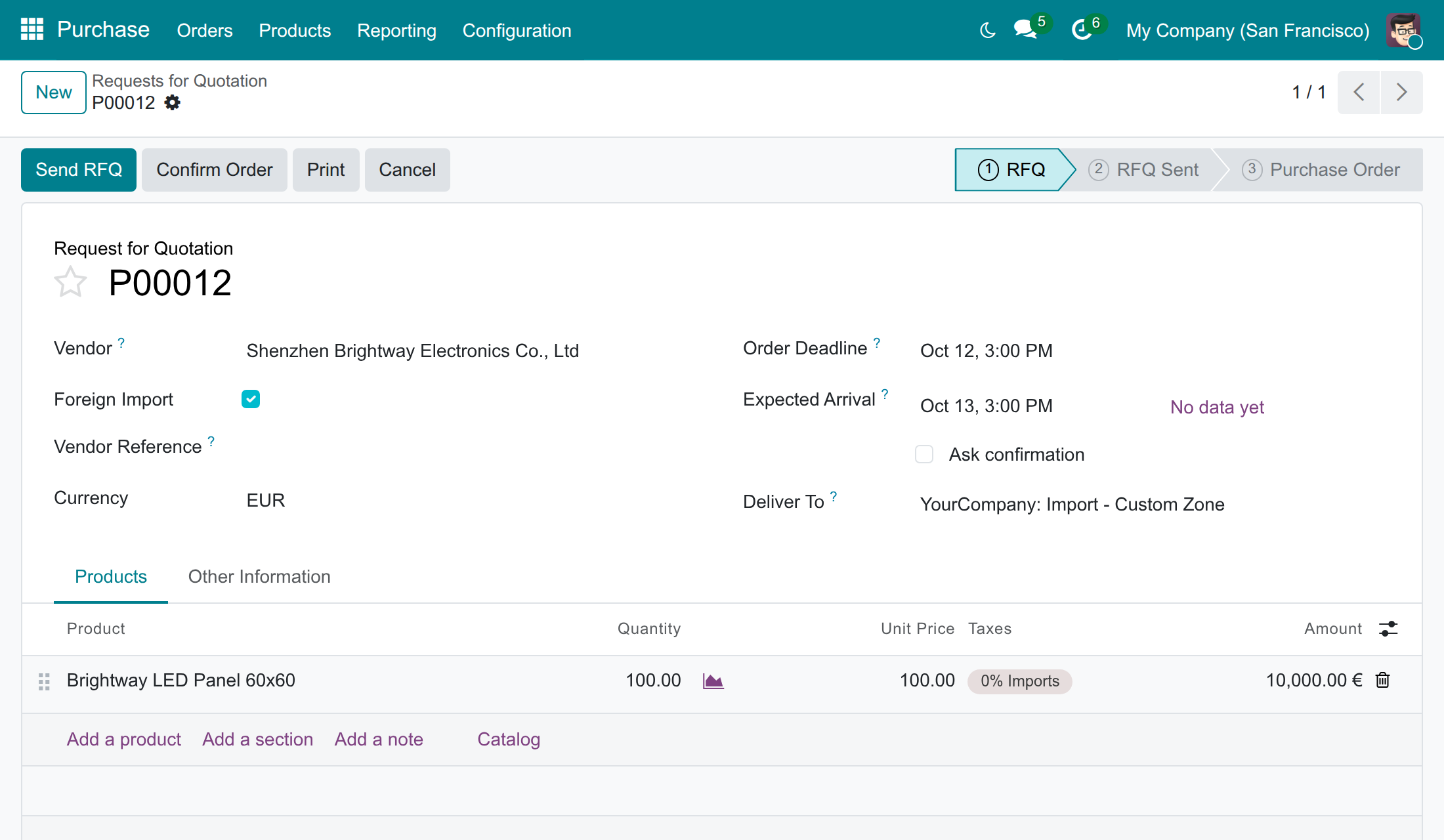
The Purchasing Officer creates the order for the foreign vendor, flagged Foreign Import, and confirms it. The receipt into the customs zone follows.
Receive
The Warehouse Keeper validates the receipt into the customs zone. The goods cannot leave it yet.
Declare
The Import/Export Specialist creates the declaration, checks lines and taxes, adds freight and other expenses, and opens it.
Confirm
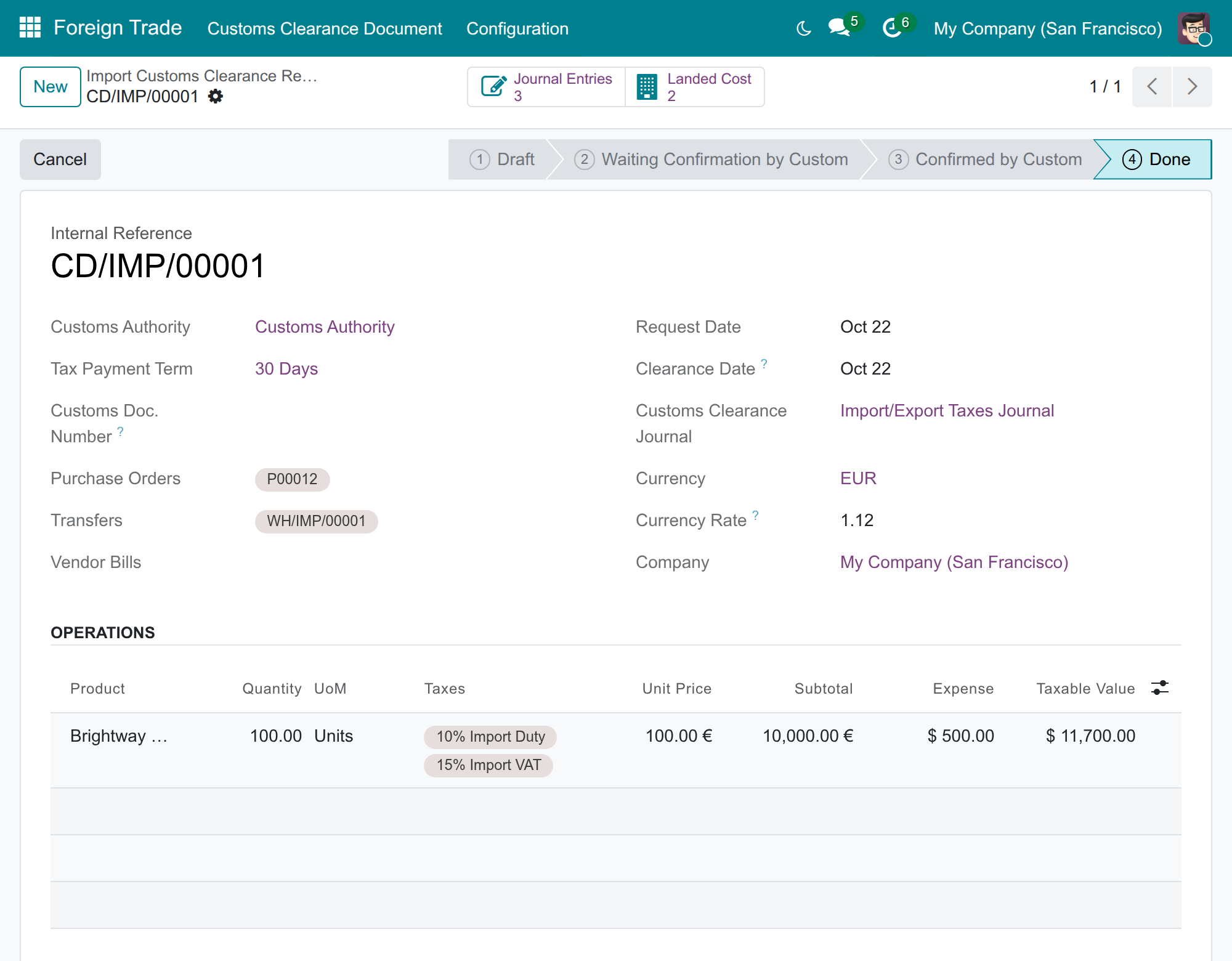
The Import/Export Specialist confirms the clearance once customs accept it: vouchers and landed costs are booked and the goods are released.
Pay
An accountant with the Invoicing rights pays all customs taxes in one payment. The declaration is done.
Book
The Accountant books the supplier bill and checks the customs vouchers and the landed costs.
Key Features
Foreign import orders
Orders from foreign vendors are flagged and sent to the customs zone, with a warning when the setup is incomplete.
Declaration in one click
Created from the order or the receipt, with lines, customs value, duty and VAT already computed.
Freight and expenses
Taken from vendor bills and spread over the goods by quantity, by value or equally.
Confirm Customs Clearance
One customs voucher per tax, landed costs for duty and expenses, and the goods released from the customs zone.
Taxes Payment
One payment for all the customs taxes of the declaration, which then closes by itself.
Bill Rate from Customs Declaration
An optional default rate for the supplier bill, editable, under the control of your accounting policy.
Who it is for
Purchasing Officer
Orders from abroad without tracking customs by hand.
→ Imports are flagged and routed to the customs zone.
Warehouse Keeper
Needs to know when goods may leave the customs zone.
→ The transfer out is blocked until customs confirm.
Import/Export Specialist
Prepares and clears every declaration.
→ Taxes are computed and confirmed in one place.
Accountant and Chief Accountant
Needs a reliable stock value and clean entries.
→ Landed costs, vouchers and the payment are traceable from the declaration.
Best for: companies that import regularly - in Vietnam and in any country on the generic chart.
Flag the order as a foreign import
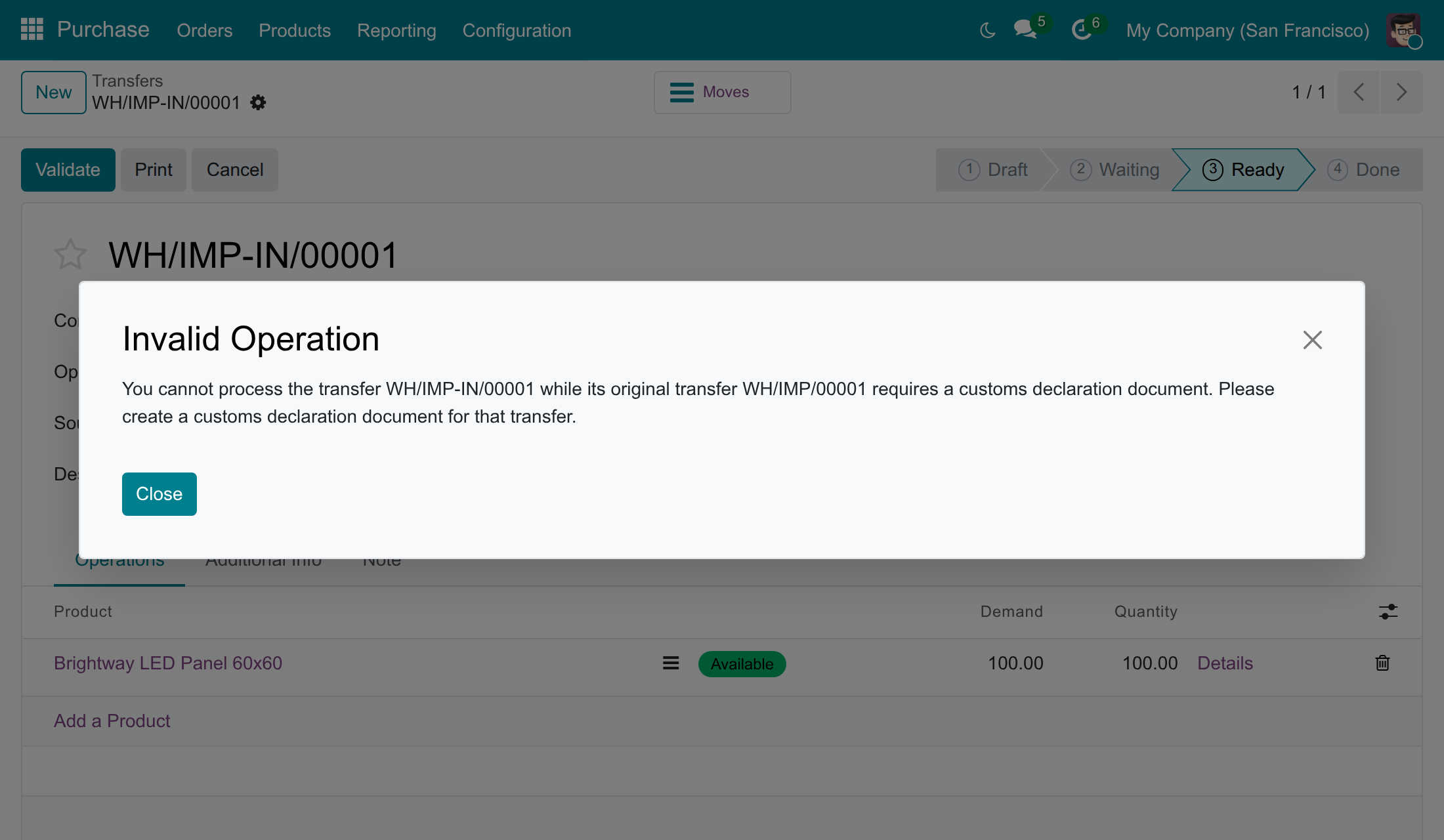
Keep the goods in the customs zone until customs confirm
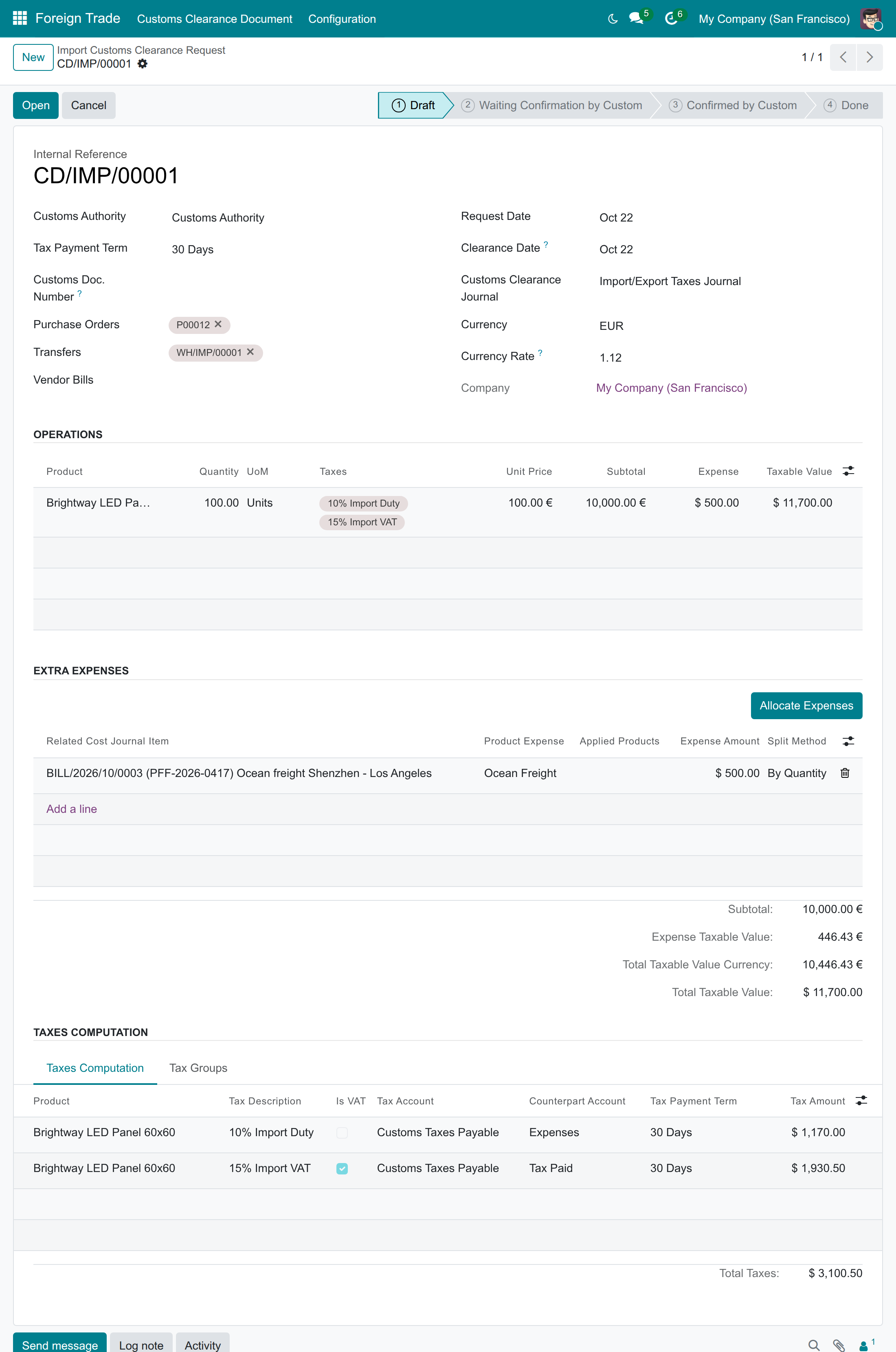
Prepare the declaration with duty and VAT computed
Confirm the clearance
See one customs voucher per tax
Pay all customs taxes at once
Add the duty to the cost of the goods
Book the supplier bill at the customs rate
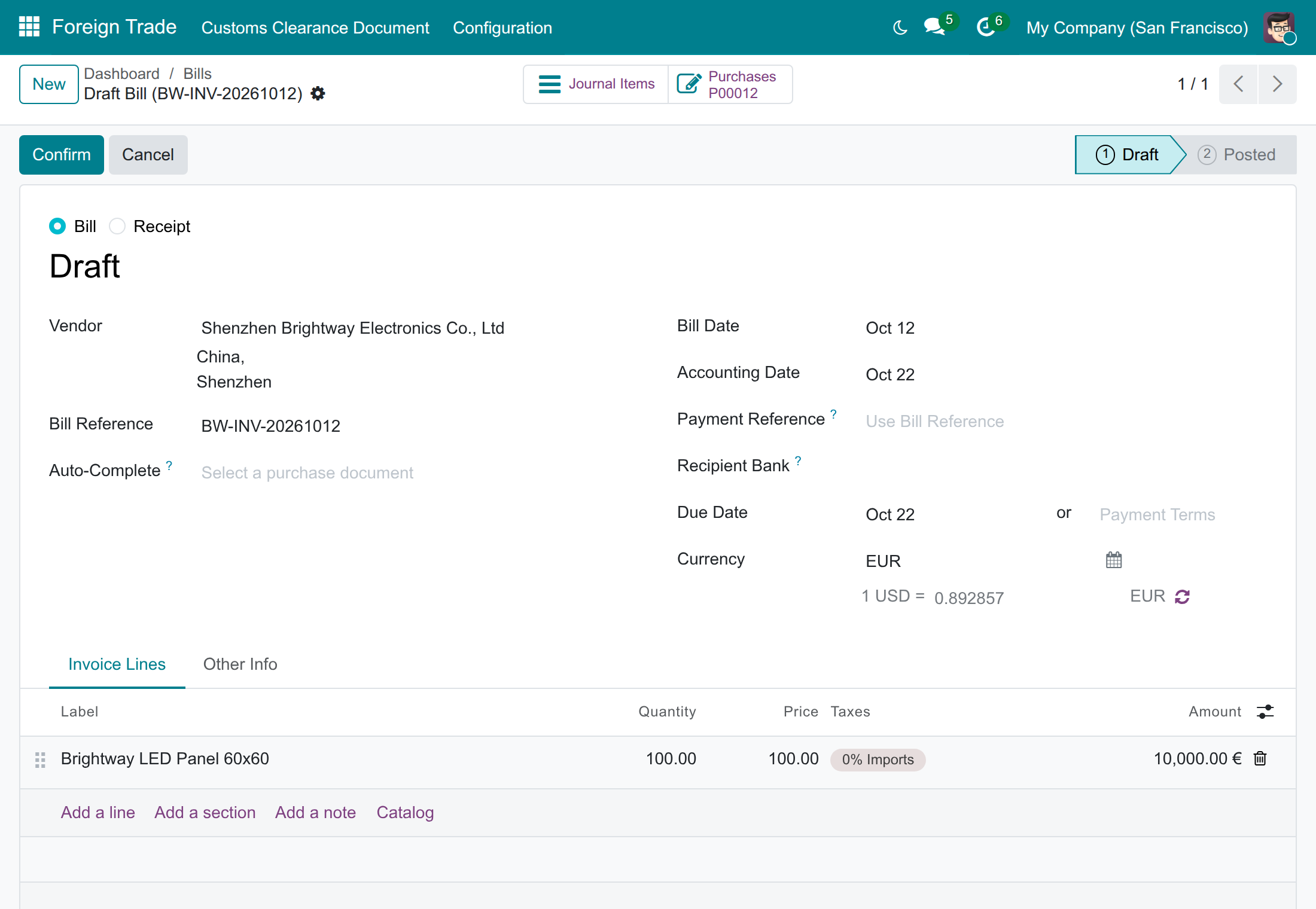
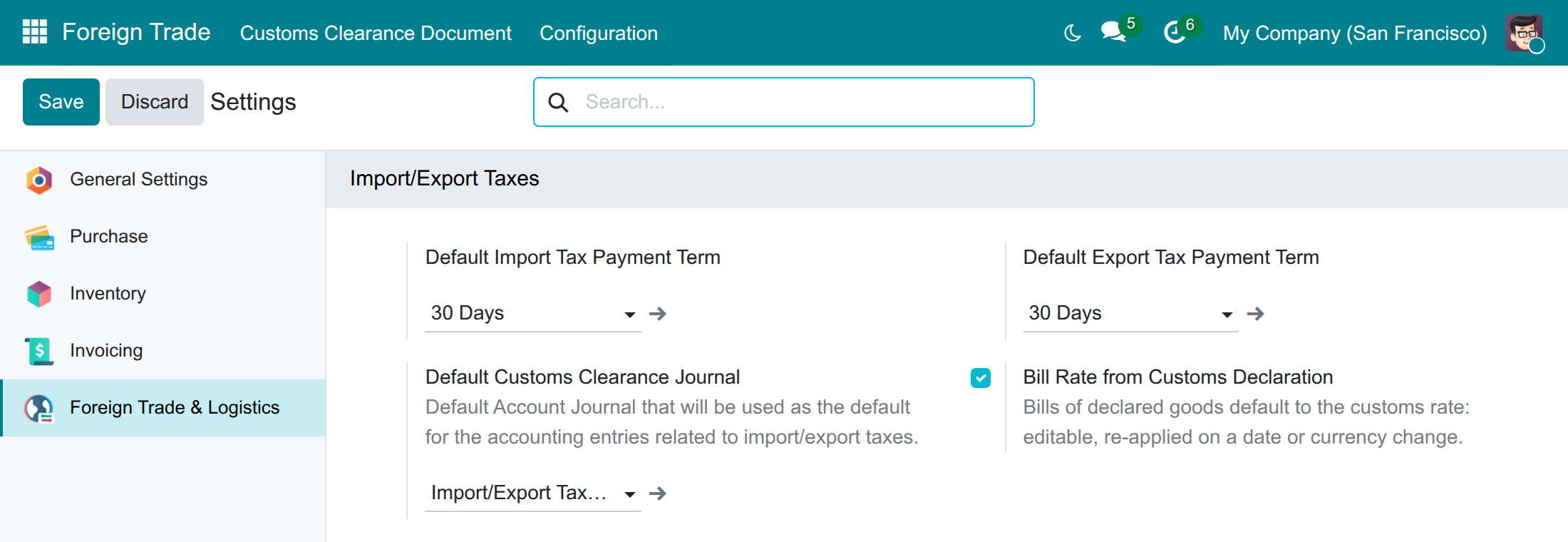
Choose how supplier bills are rated
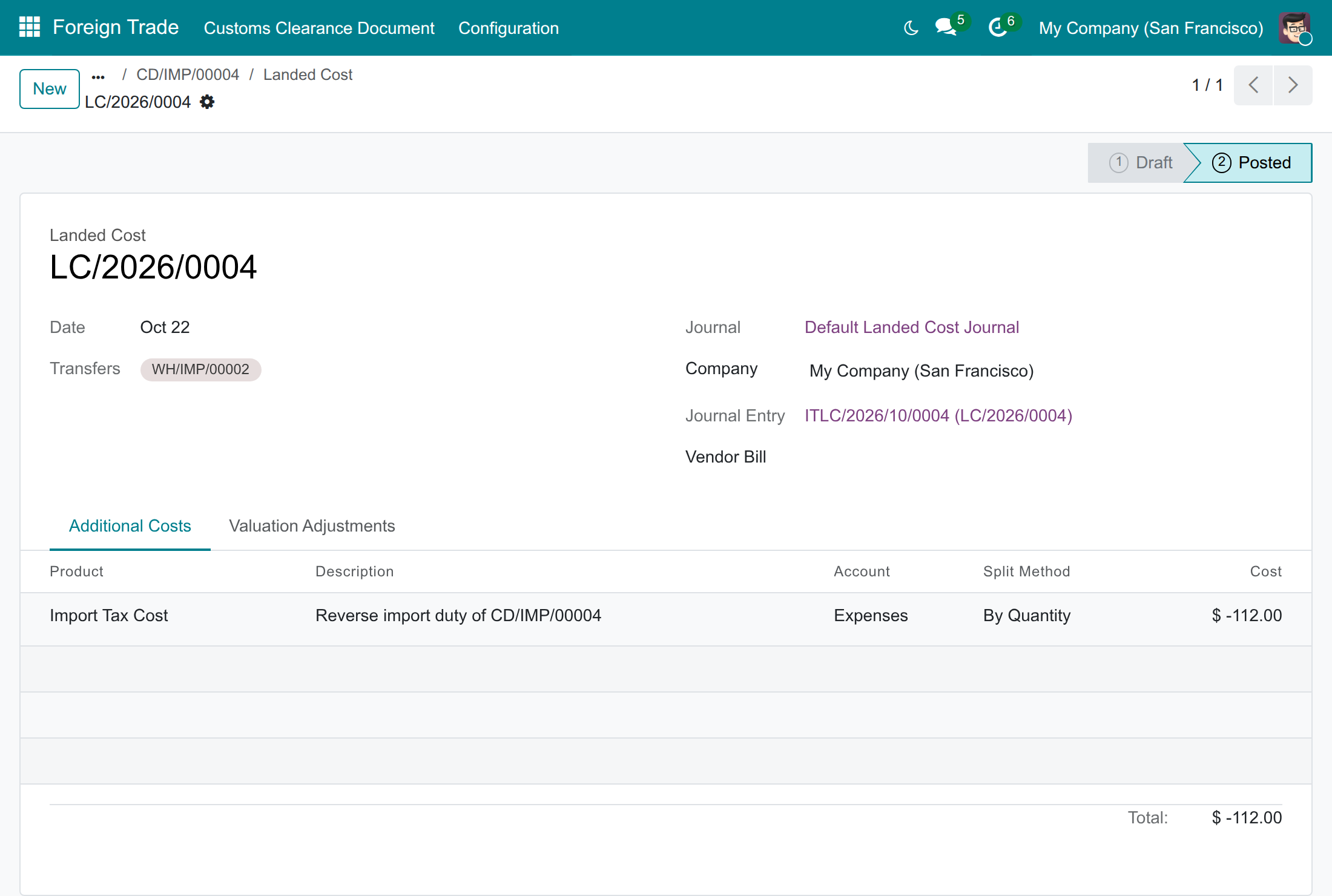
Offset the capitalised cost when you void a declaration
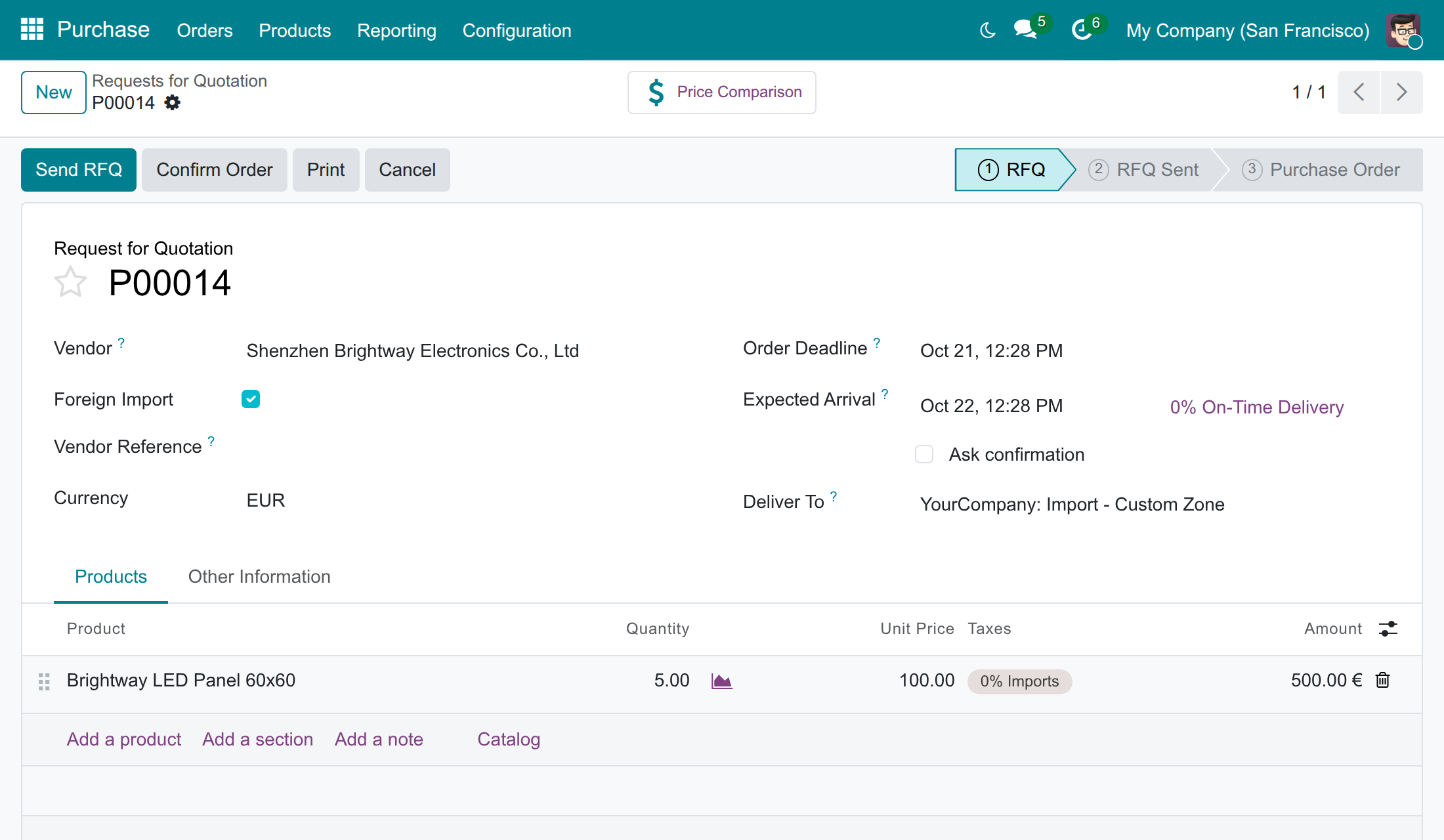
Let replenishment raise import orders
Frequently Asked Questions
Does it work outside Vietnam?
Yes. It works on the generic chart of accounts. The Vietnamese charts (Circular 99 and Circular 133) get their customs taxes and accounts from the app Vietnam - Foreign Trade, which installs by itself with them.
Which rate values my goods?
The rate of the supplier bill, as Circular 99/2025/TT-BTC requires. The declaration adds only duty and customs expenses; exchange differences are booked when you pay the supplier. Optionally, the bill takes the customs rate by default.
Will import VAT inflate my stock value?
No. Only duty and customs expenses are added to the cost of the goods. The VAT is deductible and posted on its own.
Can a wrong declaration be undone?
Yes: reverse its customs vouchers and offset the landed cost with a negative one. A declaration whose landed costs are posted cannot be cancelled, so it stays Confirmed as the record of the clearance.
Do I have to change how I buy?
No. The import route is opt-in per product or category, and an order you create by hand on the customs zone works the same way; the route only lets replenishment raise such orders.
What does it need?
Foreign Trade, Logistics, Purchase and Inventory, and imported goods valued perpetually (FIFO or AVCO).
Who can do what?
Purchasing staff order, warehouse staff receive, the import/export specialist (access right Foreign Trade: User) declares and confirms, and accountants read every declaration from Invoicing > Customs Declarations, pay the taxes, book the bill and check the entries.
Need help with Foreign Trade Import, Logistics?
For questions, implementation support or a custom feature, contact Viindoo.
Pre-Sales & Partnership
sales@viindoo.comTechnical Support
apps.support@viindoo.comAll Viindoo apps: Viindoo Apps
Technical Requirement
- Odoo version: 19.0
- Editions: Odoo Community, Odoo Enterprise, Viindoo Cloud
- Required modules: Purchase and Inventory (purchase_stock) and Foreign Trade, Logistics (viin_foreign_trade); Odoo installs them with it.
- Works with: Foreign Trade Export, Logistics, for the sales side.
- Prerequisite: imported goods valued perpetually (at invoicing) with the costing method FIFO or AVCO.
- License: OPL-1
Changelog
- 2026-10-23 Improved 0.0.4: accountants (Basic level or above, the Accounting Administrator and the read-only auditor) read every import declaration and its landed costs from Invoicing > Customs Declarations; the customs team reads vendor bills and customer invoices only, no journal entry.
- 2026-10-23 Fixed 0.0.4: journal entries, landed costs, declaration lines, extra expenses and customs tax rows are indexed by their declaration, so opening a declaration stays fast on large databases.
- 2026-10-22 Fixed 0.0.4: cancelling a paid or part-paid declaration leaves the payment of its import taxes posted and unreconciled for an accountant to reallocate or refund.
- 2026-10-22 Improved 0.0.4: Taxes Payment is shown to Invoicing users only. A Foreign Trade user who is also an Invoicing user or an accountant reads every purchase order, not only foreign ones. Inventory and Purchase users open the import declarations read-only, without their accounting fields and buttons.
- 2026-10-20 New Customs tax vouchers follow the distribution lines of each tax: no counterpart account to configure.
- 2026-10-20 New Import duty and customs expenses are added to the cost of the goods by landed costs; the declaration books no customs value difference and no exchange difference.
- 2026-10-20 New Goods keep the vendor bill's transaction rate; an optional company setting defaults vendor bills of declared goods to the customs rate (editable).
- 2026-10-20 New A confirmed declaration is locked: its rate, dates, lines, tax rows and extra expenses cannot change.
- 2026-10-20 New A vendor bill that carries a customs tax of its declaration is refused; a bill line is capitalised only once.
- 2026-10-20 New The Set Done button closes a declaration that has nothing to pay; paying the taxes closes the others by itself.
- 2026-10-20 Improved Foreign Trade users can read the landed costs of their declarations.
Foreign Trade Import, Logistics
Who this guide is for. The purchasing officers who order goods from abroad, the warehouse staff who receive them into the customs zone, the import/export specialists who declare them to customs, the chief accountant and the accountants who pay the customs taxes, book the supplier bill, check the entries and void a declaration, and the Administrator who prepares the app. It is also written for the managers who want to see what the import process looks like before they buy.
Note
Extends Foreign Trade, Logistics - see its documentation for the setup shared by import and export (customs zones, customs taxes, accounts, the rules every declaration follows).
Overview
When you buy goods from a vendor abroad, the goods arrive in a customs zone and wait there until customs clear them. You declare them to the customs authority, you owe it import duty and import VAT, and the duty and the costs of bringing the goods in (freight, insurance, brokerage) belong in the cost of the goods you stock. With Foreign Trade Import, Logistics you do all this from the purchase order to the stock value without leaving Odoo:
- a purchase order from a foreign vendor is flagged Foreign Import and sends its goods to the customs zone of your warehouse;
- the import customs declaration is created from the order or from the receipt, with its lines, its customs value, and the duty and VAT of each product already computed;
- extra expenses (freight, insurance, brokerage) are taken from the vendor bills and spread over the goods;
- when customs confirm the declaration, Odoo posts one customs voucher per tax, adds the duty and the expenses to the cost of the goods through landed costs, and releases the goods from the customs zone;
- the taxes are paid in one payment, which closes the declaration;
- the vendor bill of the goods can take the customs rate, if your accounting policy allows it;
- a declaration entered by mistake can be voided by reversing its entries.
The process
| Stage | Who acts | What happens | Hand-off |
|---|---|---|---|
| 1 | Purchasing Officer | Creates the purchase order for the foreign vendor and confirms it. The receipt into the customs zone is created. | To the Warehouse Keeper |
| 2 | Warehouse Keeper | Validates the receipt: the goods are in the customs zone and cannot leave it yet. | To the Import/Export Specialist |
| 3 | Import/Export Specialist | Creates the customs declaration, checks the lines and the taxes, adds the extra expenses, presses Open, then Confirm Customs Clearance once customs accept it. | To the Accountant, and back to the Warehouse Keeper |
| 4 | Accountant | Pays the customs taxes with Taxes Payment. The declaration is Done. | |
| 5 | Accountant | Books the vendor bill of the goods (at the customs rate if the option is on), checks the entries and the landed costs. | |
| 6 | Warehouse Keeper | Once the declaration is confirmed by customs, moves the goods from the customs zone to the stock. |
Who does what
| Role | What they do | Access right to assign |
|---|---|---|
| Administrator | Installs the app, prepares the products, taxes, journals and the optional bill-rate setting, and gives each person their access right. | Administrator role, plus the Administrator access rights of Foreign Trade, Accounting and Inventory |
| Purchasing Officer | Orders goods from foreign vendors and lets replenishment raise import orders. | Purchase: User |
| Warehouse Keeper | Receives goods into the customs zone and moves them to stock once customs have cleared them. | Inventory: User (also included in Foreign Trade: User) |
| Import/Export Specialist | Creates, confirms, sets done and cancels import customs declarations; reads the foreign purchase orders without changing them, and the vendor bills; has no other journal entry and no accounting report. | Foreign Trade: User (it includes Inventory: User, not Invoicing) |
| Accountant | Reads every import declaration, its customs vouchers and its landed costs from Invoicing ‣ Customs Declarations ‣ Import; pays the customs taxes, books the vendor bill, checks the entries and the landed costs, voids a declaration. | Accounting: Basic, Show Full Accounting Features or Administrator to read and pay; Show Accounting Features - Readonly (auditor) to read only |
The example of this guide. The company works in US dollars. It buys 100 Brightway LED Panel 60x60 from Shenzhen Brightway Electronics Co., Ltd at EUR 100 each (EUR 10,000 in total). The customs rate is 1 EUR = 1.12 USD, the ocean freight forwarder bills USD 500, import duty is 10% and import VAT is 15%. Every amount you see in the screens and in the tables below comes from this one shipment.
Setup (for the Administrator)
Install the app
- Open Apps.
- Search for Foreign Trade Import, Logistics and press Install. The apps it relies on (Foreign Trade, Logistics, Purchase and Inventory) are installed with it.
When Foreign Trade & Logistics Currency Rate is installed too, a small module, Foreign Trade Import & Logistics Currency Rate, installs itself. It adds no screen and no setting; it only makes the rate of an import declaration follow the bank transfer rate, as described in the specialist chapter below.
Prepare the base setup
Everything that import and export share is set up as the guide of Foreign Trade, Logistics describes (open it): Enable Foreign Import/Export on the warehouse, the customs authority on the customs zone, the Foreign Trade Partner flag of the vendors, the Customs Clearance Journal and the Landed Cost Journal, and the customs taxes. A declaration cannot be confirmed without the two journals.
Give people their access right
- Open Settings ‣ Users & Companies ‣ Users and select the person.
- On the Access Rights tab, choose the access right of their job from the table of the overview. The import specialists get Foreign Trade: User.
Purchasing officers and warehouse keepers open the import declarations read-only, without their accounting fields and buttons. A Foreign Trade user who also has Invoicing or an Accounting access right sees every purchase order, not only the foreign ones.
A Foreign Trade user reads vendor bills and customer invoices, but no other journal entry, and has no Journal Entries button on the declaration. Accountants (Basic level or above, the Accounting Administrator and the read-only auditor) find the import declarations under Invoicing ‣ Customs Declarations ‣ Import and read them only; they cannot create, change, confirm or cancel a declaration. Paying the customs taxes needs the Invoicing rights, which Foreign Trade: User does not include.
Value the imported goods
Duty and expenses reach the value of the goods through landed costs, and Odoo books a landed cost only for goods valued perpetually. A transfer whose products do not have this valuation cannot be declared.
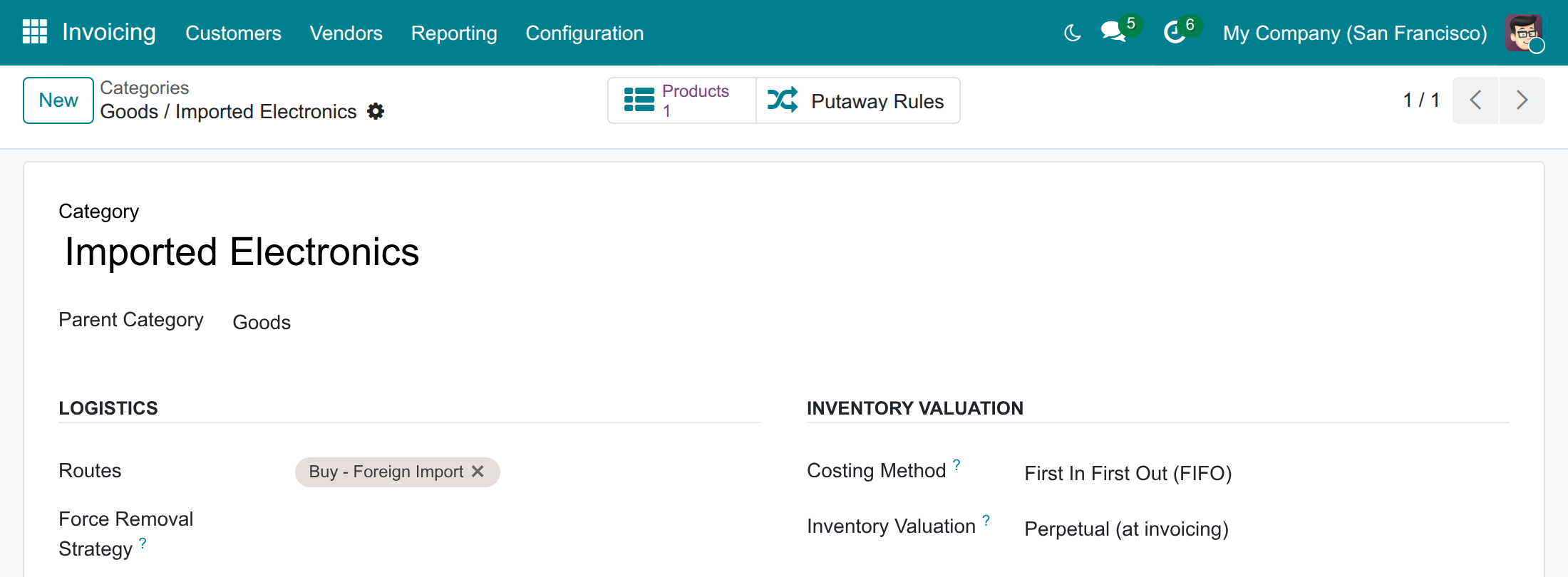
- Open Inventory ‣ Configuration ‣ Products ‣ Categories and select the category of the imported products.
- Set Costing Method to First In First Out (FIFO) (or Average Cost (AVCO)) and Inventory Valuation to Perpetual (at invoicing).
Set the customs taxes of the product
A declaration line takes the customs taxes of its product.
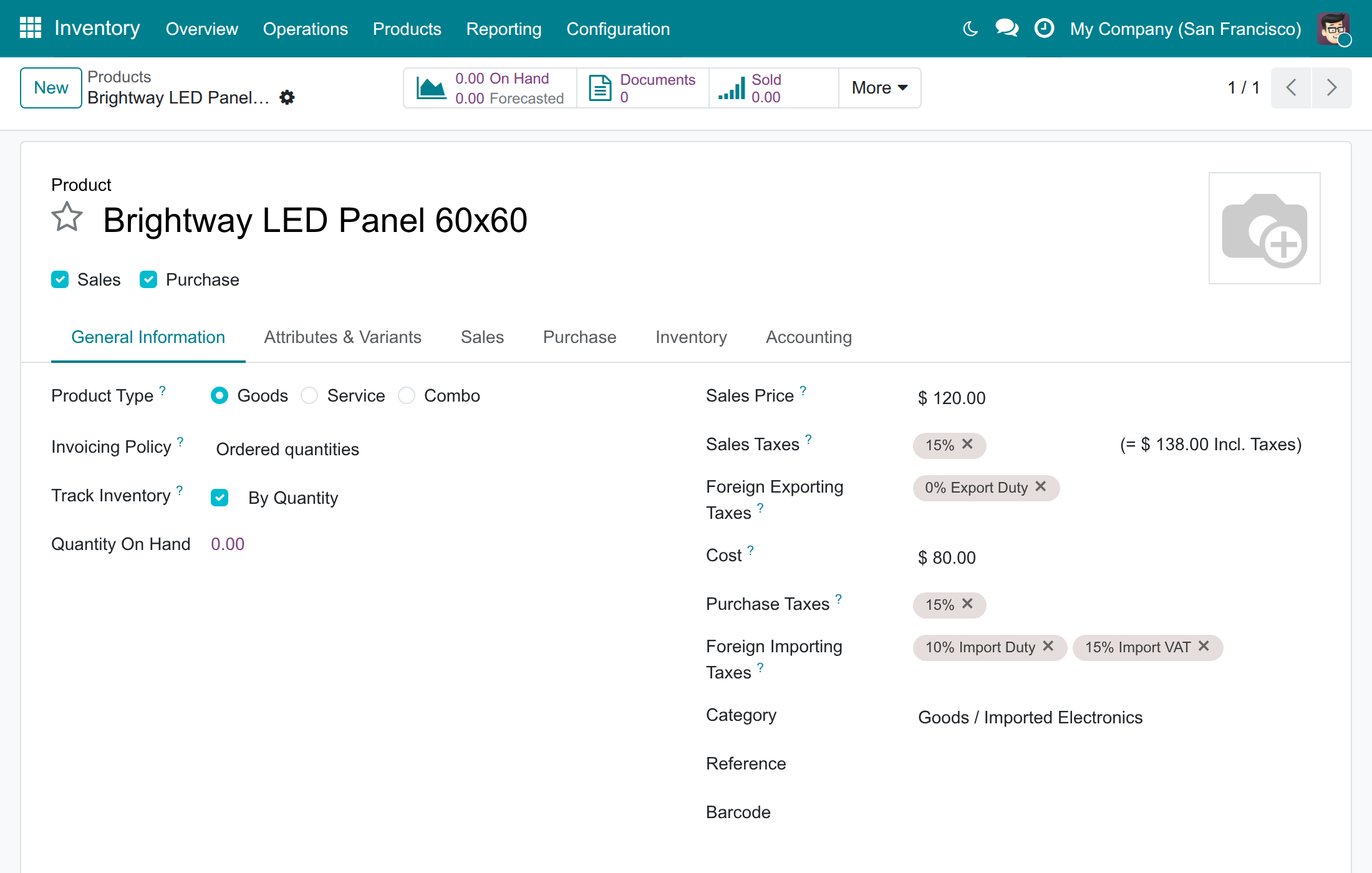
- Open Inventory ‣ Products ‣ Products and select the product.
- On the General Information tab, fill Foreign Importing Taxes, for example 10% Import Duty and 15% Import VAT.
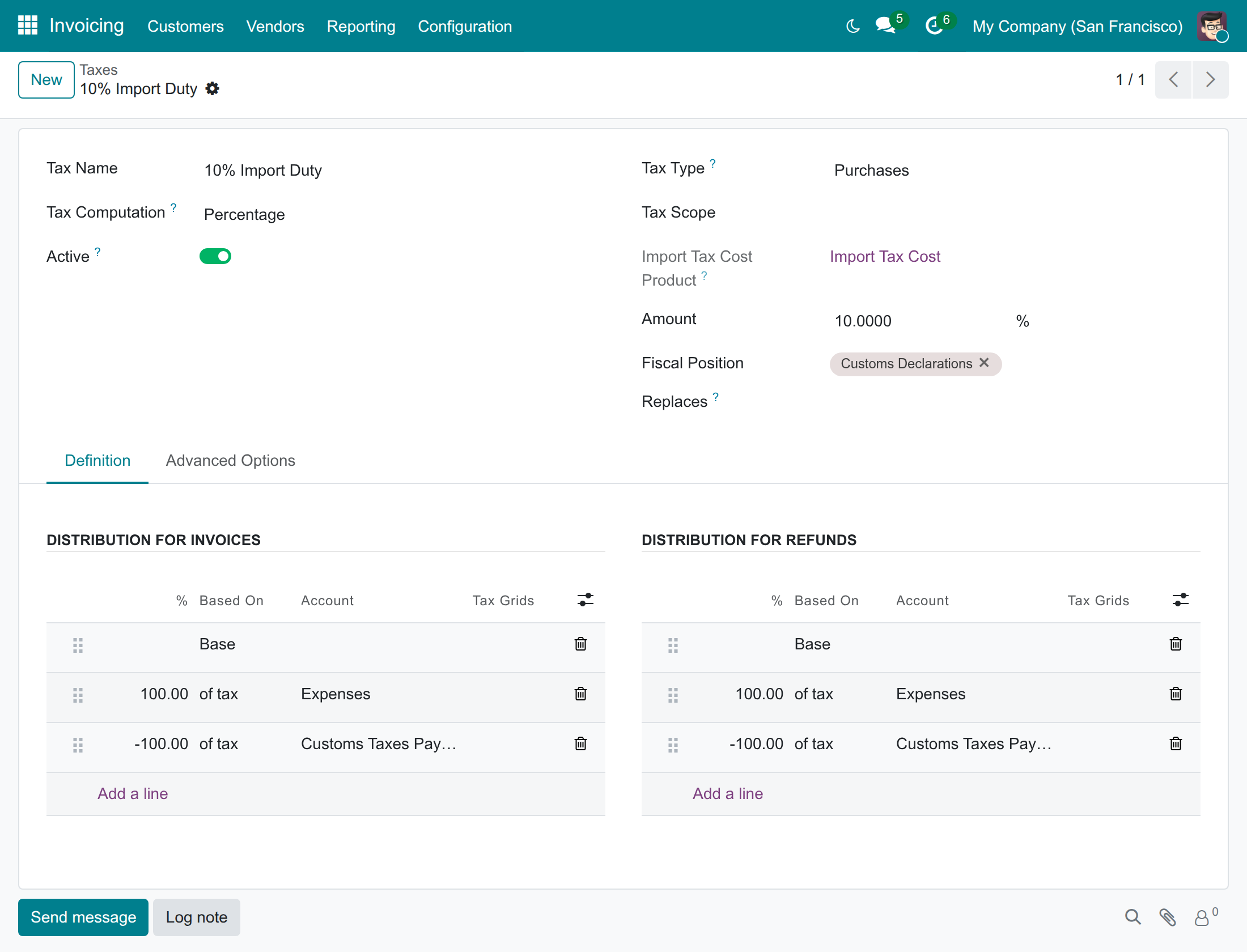
The customs taxes themselves are ordinary taxes that the accountants configure in Invoicing ‣ Configuration ‣ Accounting ‣ Taxes. Each has two tax lines in Distribution for Invoices: +100% and -100% of the tax, on two different accounts. The -100% line is the amount owed to the customs authority (here Customs Taxes Payable); the +100% line is where the other side goes, for example Expenses for the duty and Tax Paid for the VAT. The declaration posts both sides from this pair, so there is no counterpart account to choose later. The duty adds to the base of the VAT, which is why the VAT of the example is computed on the customs value plus the duty. On the tax form, Import Tax Cost Product shows the product that carries the duty on the landed cost; you cannot delete it.
Choose how the vendor bill is rated
- Open Foreign Trade ‣ Configuration ‣ Settings. The block Import/Export Taxes is open.
- Tick Bill Rate from Customs Declaration if your accounting policy treats the customs rate as the approximate transaction rate of the supplier bill, then press Save.
Note
The option is off by default and applies to the company. Use it only when your accounting policy treats the customs rate as the approximate transaction rate (within 1% of your bank's average transfer rate, disclosed). The example of this guide uses rates about 2% apart on purpose, so that the effect is visible.
Purchasing Officer: order the goods from abroad
Order the goods
- Open Purchase ‣ Orders ‣ Requests for Quotation and press New.
- Choose the Vendor. When the vendor is abroad (its country differs from the country of your company, or it is flagged Foreign Trade Partner), Foreign Import is ticked for you and Deliver To switches to the operation type Import - Custom Zone of the warehouse.
- Choose the Currency and add the products with their quantity and unit price.
If the warehouse or the operation type is not ready for customs, a yellow banner at the top of the order says what is missing; ask the Administrator to correct it before you go on. You can change Foreign Import only while the order is a request for quotation.
Note
On the generic chart of accounts the lines show the tax 0% Imports instead of your domestic VAT: the import VAT is not charged by the vendor, it is declared to customs and posted by the customs declaration.
Confirm the order
Press Confirm Order. The order becomes a purchase order and its receipt into the customs zone is created. The button Create Customs Clearance Request appears for the people who hold the Foreign Trade right; the Import/Export Specialist uses it in the next chapters.
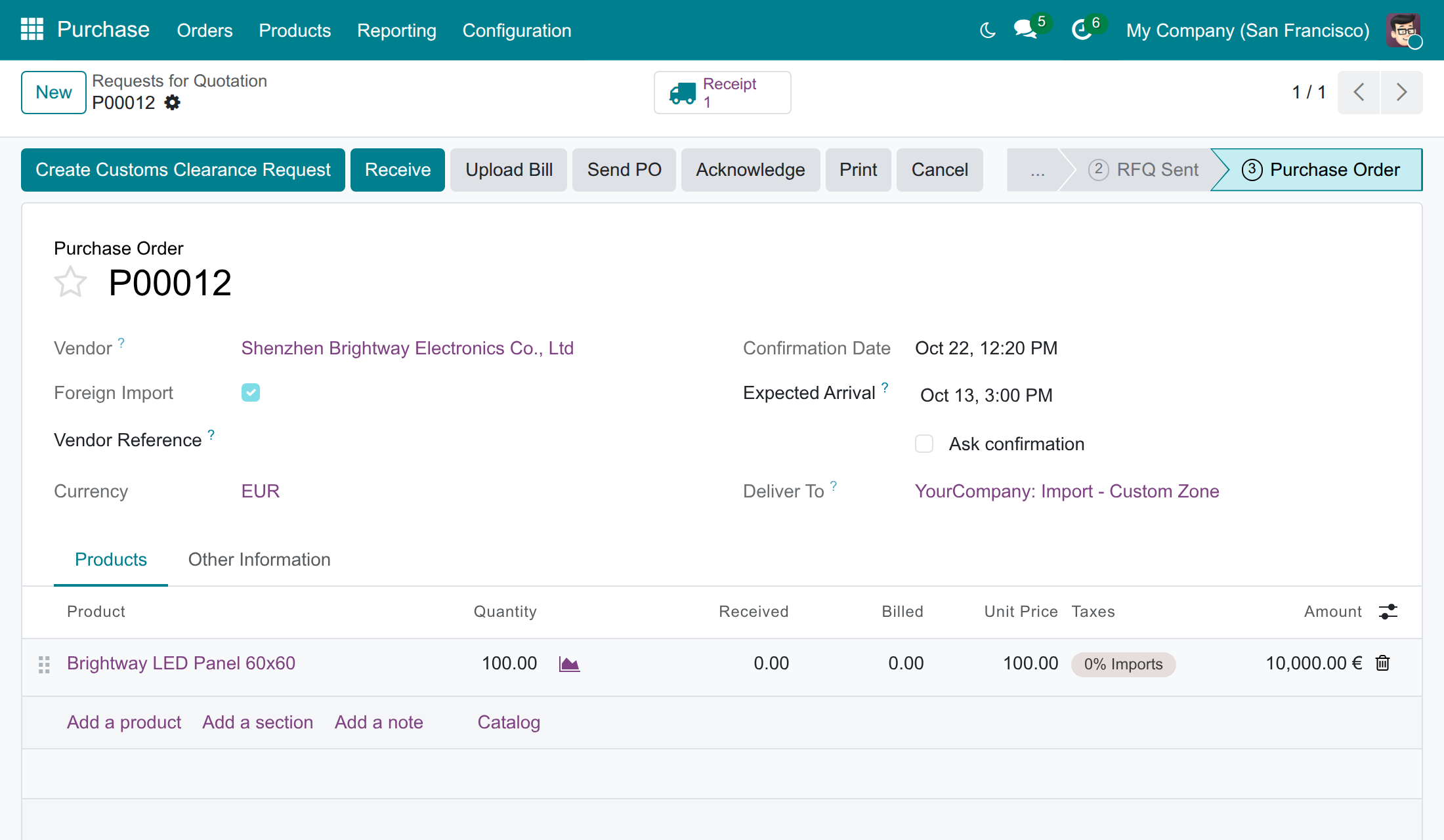
On Purchase ‣ Orders ‣ Purchase Orders, the filter Import Orders lists all the foreign import orders.
Let replenishment raise the import orders
Buying through the customs zone is opt-in. A product or a product category carries the route Buy - Foreign Import only when the Administrator (or you, with the right) ticks it; every other product keeps the standard Buy route.
- Open Inventory ‣ Products ‣ Products and select the product.
- On the Inventory tab, Routes shows Buy - Foreign Import when it is ticked. When the whole category carries it, the product shows it in Category Routes.
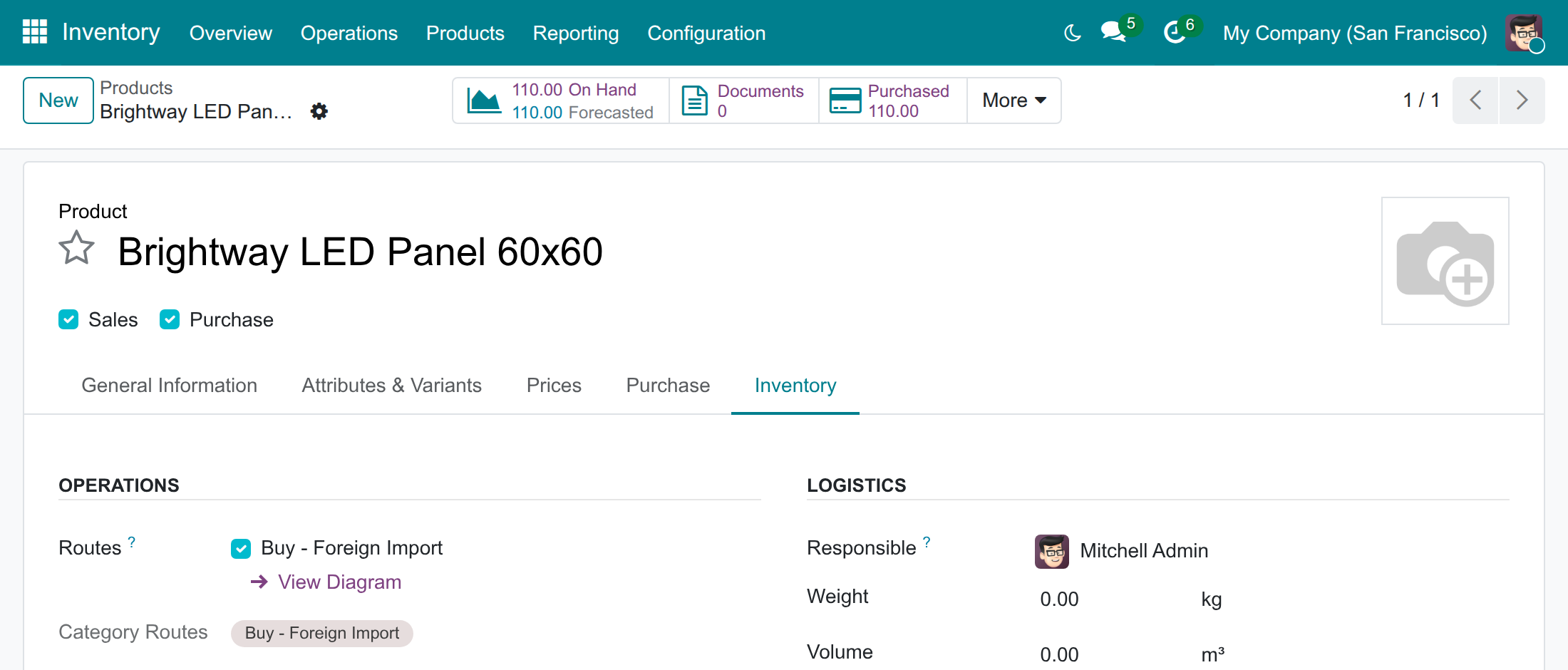
Replenishment proposes this route for such a product, in the replenishment window of the product and on Inventory ‣ Operations ‣ Procurement ‣ Replenishment. Replenishing 5 units of the example product with this route created a request for quotation to Shenzhen Brightway Electronics Co., Ltd, in euros, with Foreign Import ticked and Deliver To set to the customs zone. You then confirm it like any other order.
Warehouse Keeper: receive the goods into the customs zone
Receive the goods
- Open Inventory ‣ Operations ‣ Transfers ‣ Receipts and select the receipt of the order (its Operation Type is Import - Custom Zone, its Destination Location the customs zone).
- Check the quantities and press Validate.
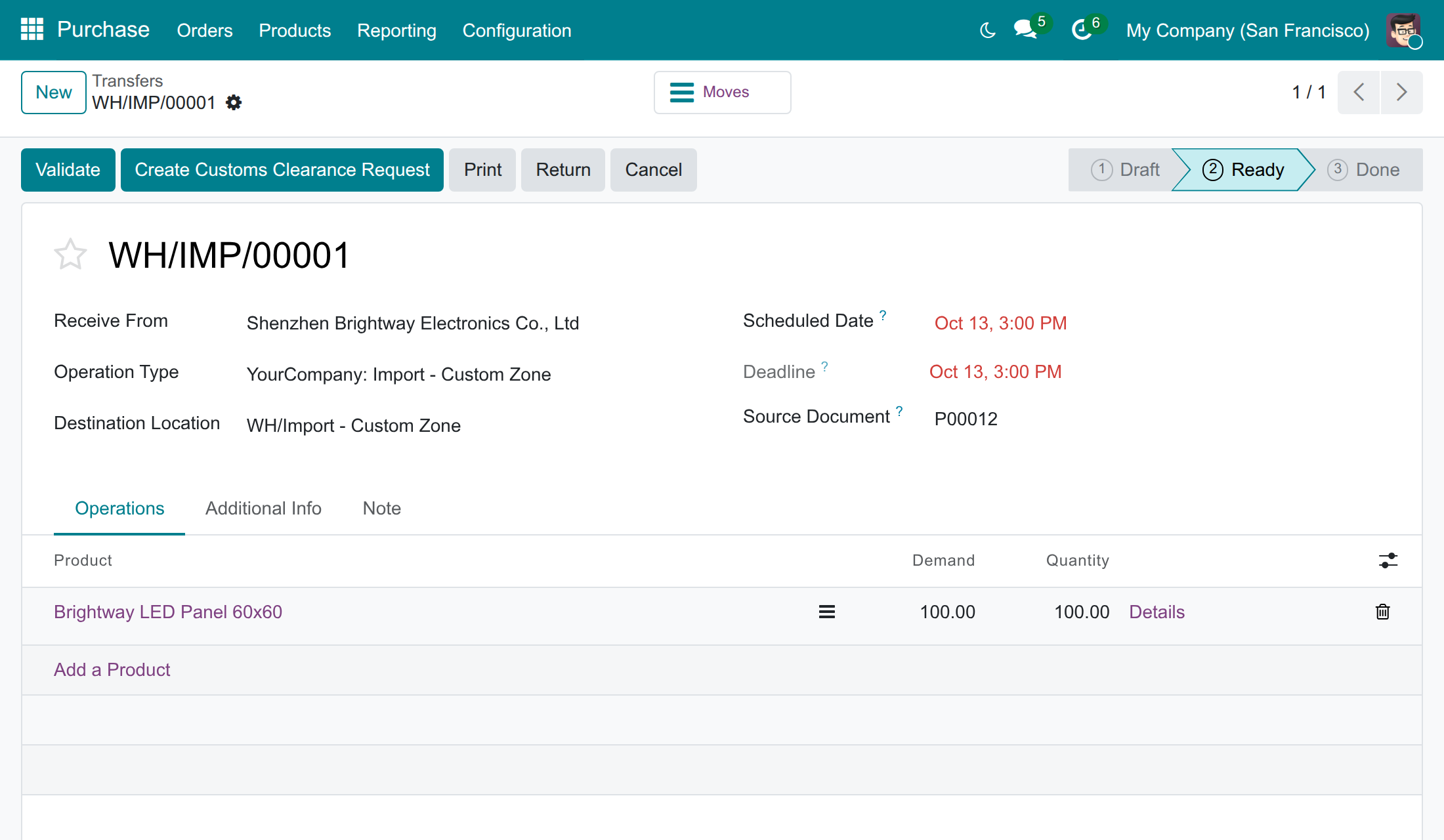
The goods are now in the customs zone of the warehouse. The Import/Export Specialist can declare them: the button Create Customs Clearance Request is also on the receipt.
The goods cannot leave the zone yet
Validating the receipt creates the onward transfer from the customs zone to the stock (Import - Receipt). Until customs have confirmed the declaration of the goods, validating it is refused, and the message names both transfers. Wait for the declaration to be Confirmed by Custom, then validate the transfer: the goods are in stock.
A return to the vendor is not stopped by this rule.
Import/Export Specialist: declare the goods and clear them
Create the declaration
- On the confirmed order, press Create Customs Clearance Request. You can also press the same button on the receipt, or open Foreign Trade ‣ Customs Clearance Document ‣ Import Customs Clearance Request and press New.
- The Customs Authority comes from the customs zone; choose it once if it is empty, Odoo remembers it for the next declarations. The Tax Payment Term and the Customs Clearance Journal are filled with the defaults of the Settings.
- Fill Customs Doc. Number with the number customs gave to the declaration, and adjust Request Date and Clearance Date (the date customs cleared the goods).
- Press Save.
The declaration takes the order, the receipt and the currency of the order. One declaration can cover several orders of the same vendor and currency, and several receipts of the same operation type. The Vendor Bills field is optional.
Check the lines, the rate and the taxes
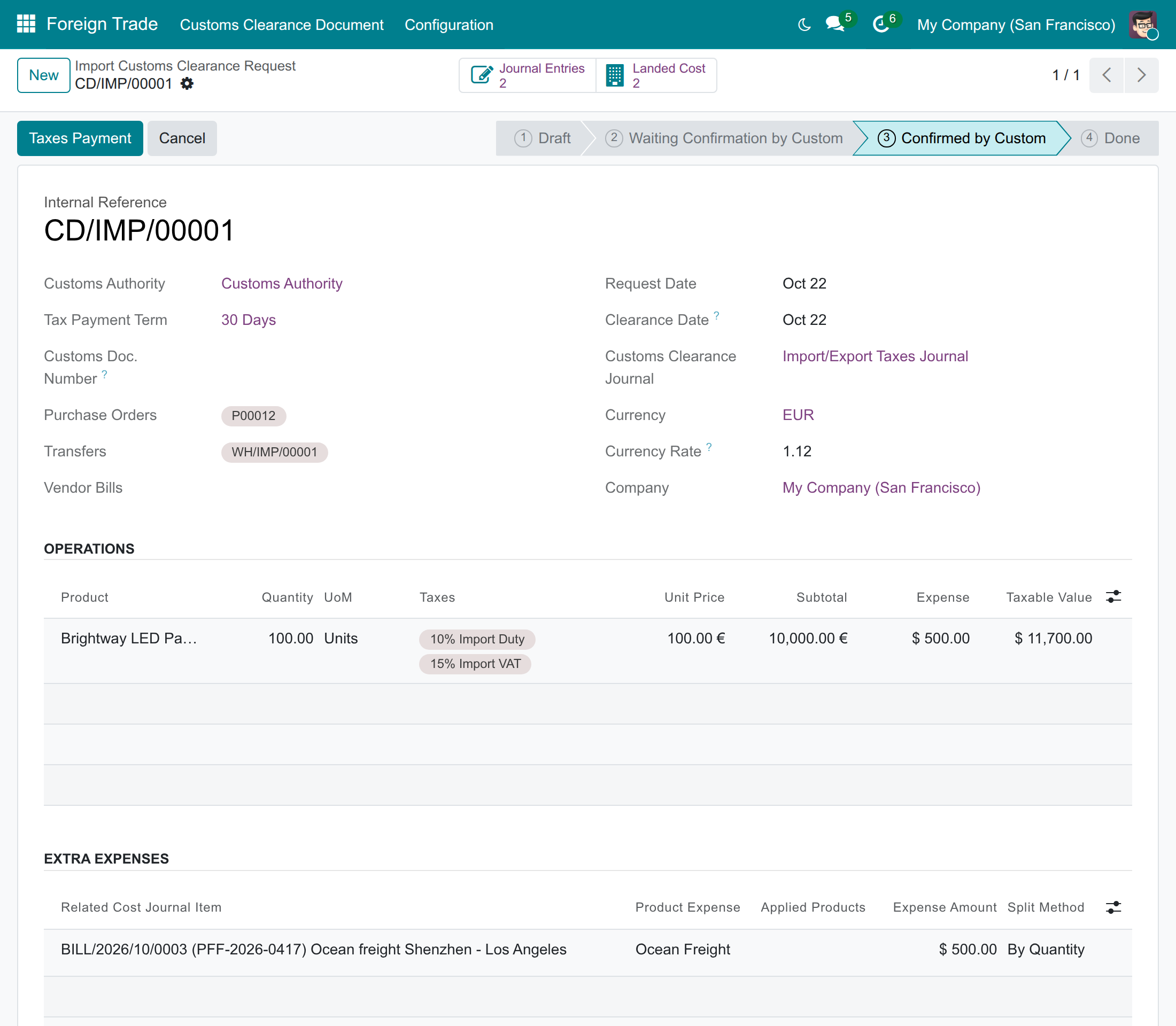
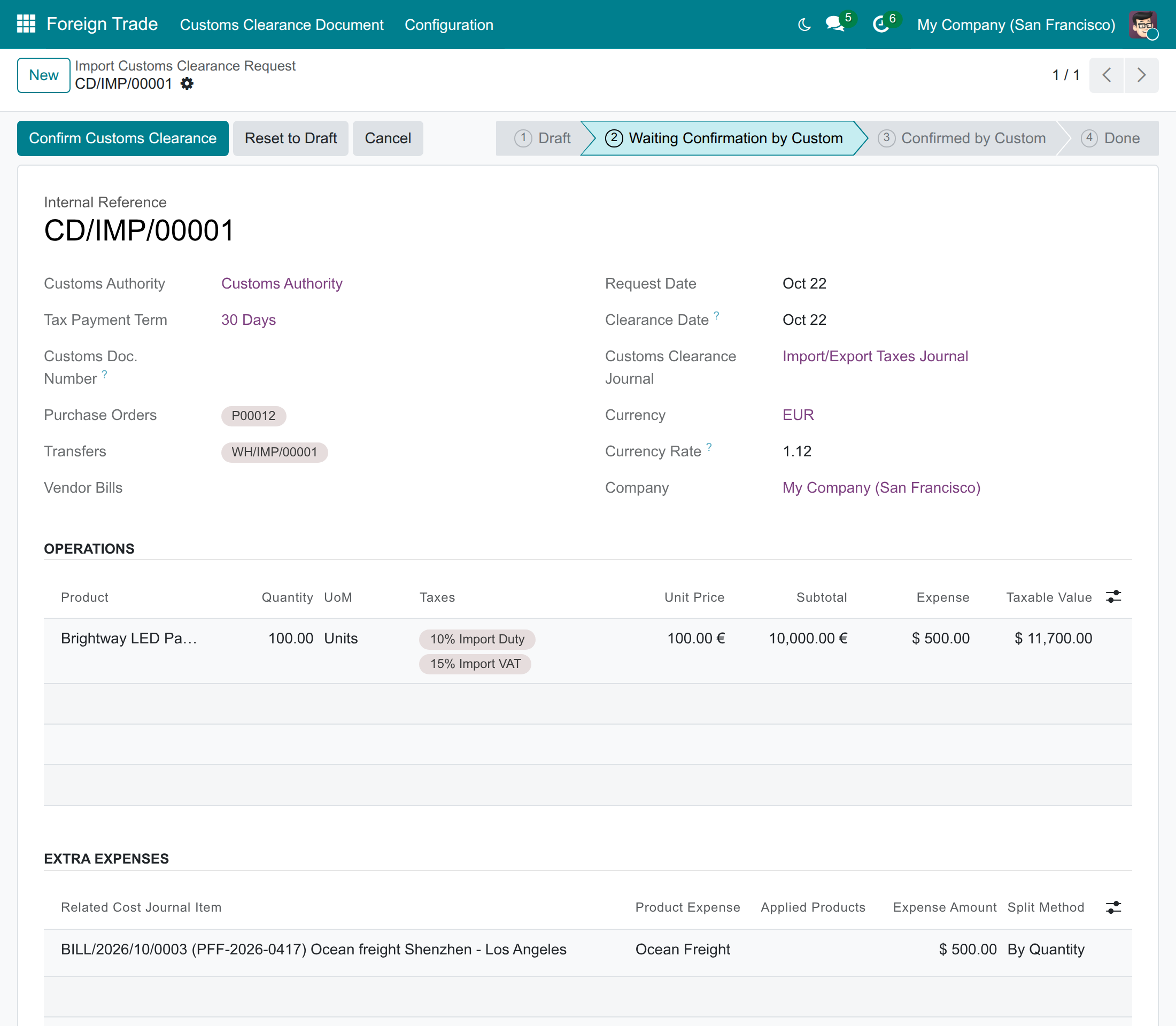
The lines of Operations come from the receipt: each line shows the product, the quantity, the unit of measure, the customs taxes of the product, the Unit Price and the Subtotal of the purchase order, the Expense allocated to it and its Taxable Value in the currency of your company. You do not add or delete lines: add or remove transfers on the declaration to change them.
When the order is in a foreign currency, the field Currency Rate shows the rate to your currency on the Clearance Date (here 1 EUR = 1.12 USD). You can correct it while the declaration is a draft; the taxes follow.
Note
Foreign Trade Import & Logistics Currency Rate (Foreign Trade & Logistics Currency Rate with this app) is a small bridge module that installs by itself when both are installed. With it, the rate of a declaration is the transfer rate of the bank of the Customs Clearance Journal, otherwise of the company's main bank, on the Clearance Date; without it, the standard currency rate of that date is used, as in the screens of this guide. The extra expenses keep the rate of their vendor bill line, or the rate you type.
The Taxes Computation tab shows one row per product and per customs tax, in the currency of your company: the tax, named in the language of the person reading the declaration, whether it is VAT (Is VAT), the Tax Account owed to customs, the Counterpart Account, the Tax Payment Term and the Tax Amount. The Tax Groups tab totals them per tax group. In the example, the taxable value is 100 x EUR 100 x 1.12 plus the freight USD 500, that is USD 11,700.00; the duty is 10% of it (USD 1,170.00) and the VAT is 15% of the taxable value plus the duty (USD 1,930.50), that is USD 3,100.50 of customs taxes.
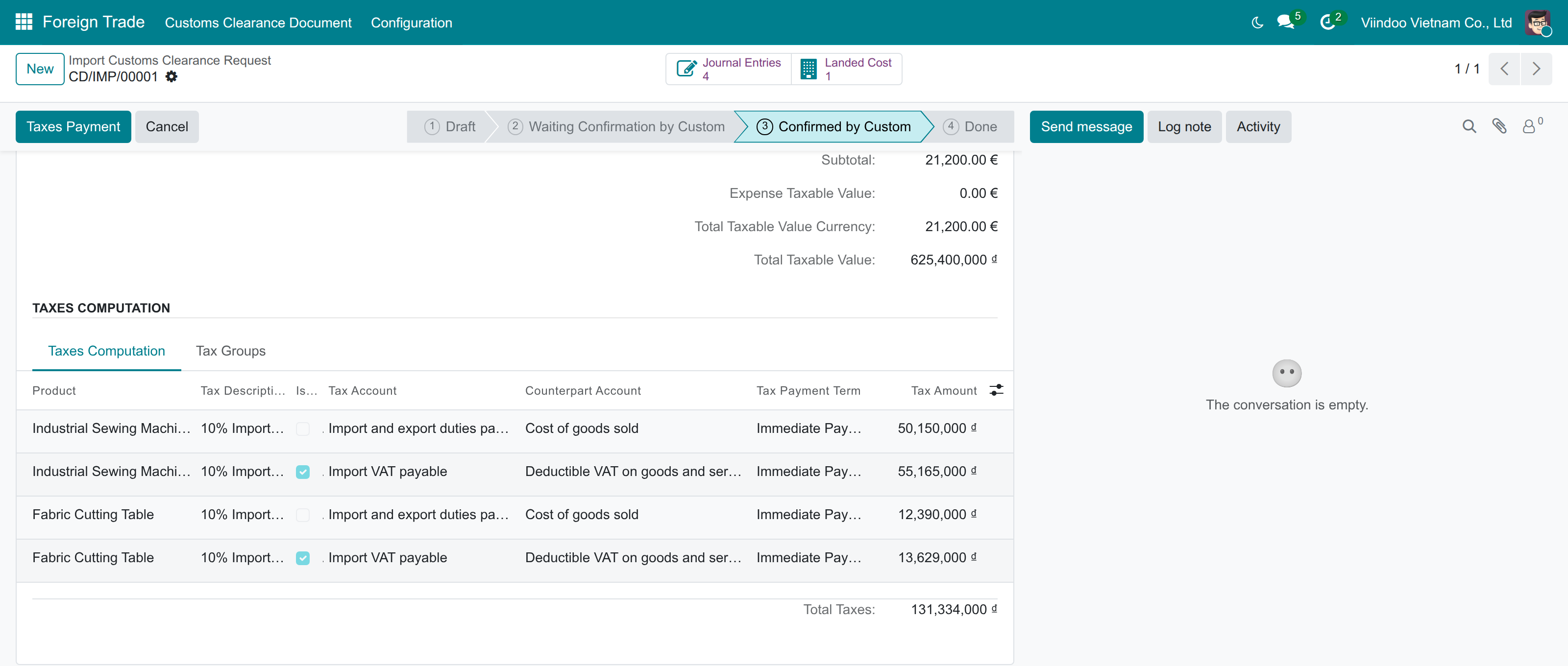
Add the extra expenses
Freight, insurance and brokerage increase the taxable value and, once the declaration is confirmed, the cost of the goods.
- In Extra Expenses, press Add a line.
- Pick the Related Cost Journal Item: the posted vendor bill line of the forwarder, marked as a landed cost line. Product Expense, the amount and the currency come from it. Without a bill, choose the Product Expense (a service) and type the amount.
- Leave Applied Products empty to spread the expense over all the products, or choose some of them.
- Choose the Split Method: Equal, By Quantity or By Taxable Value.
- Press Allocate Expenses.
A bill line can be capitalised only once: either by a declaration or by a landed cost of the bill, never both. Open allocates the expenses again for you.
Open the declaration
Press Open: the declaration is Waiting Confirmation by Custom. Open is refused when there is no line, when a receipt is not validated, or when another declaration that is not cancelled already covers a transfer; the message says which. A transfer whose product is not valued perpetually in FIFO or AVCO cannot be put on a declaration at all. In this status you can still press Reset to Draft to change the declaration, or Cancel it.
Confirm the clearance
When customs accept the declaration, press Confirm Customs Clearance. Odoo then, in one step:
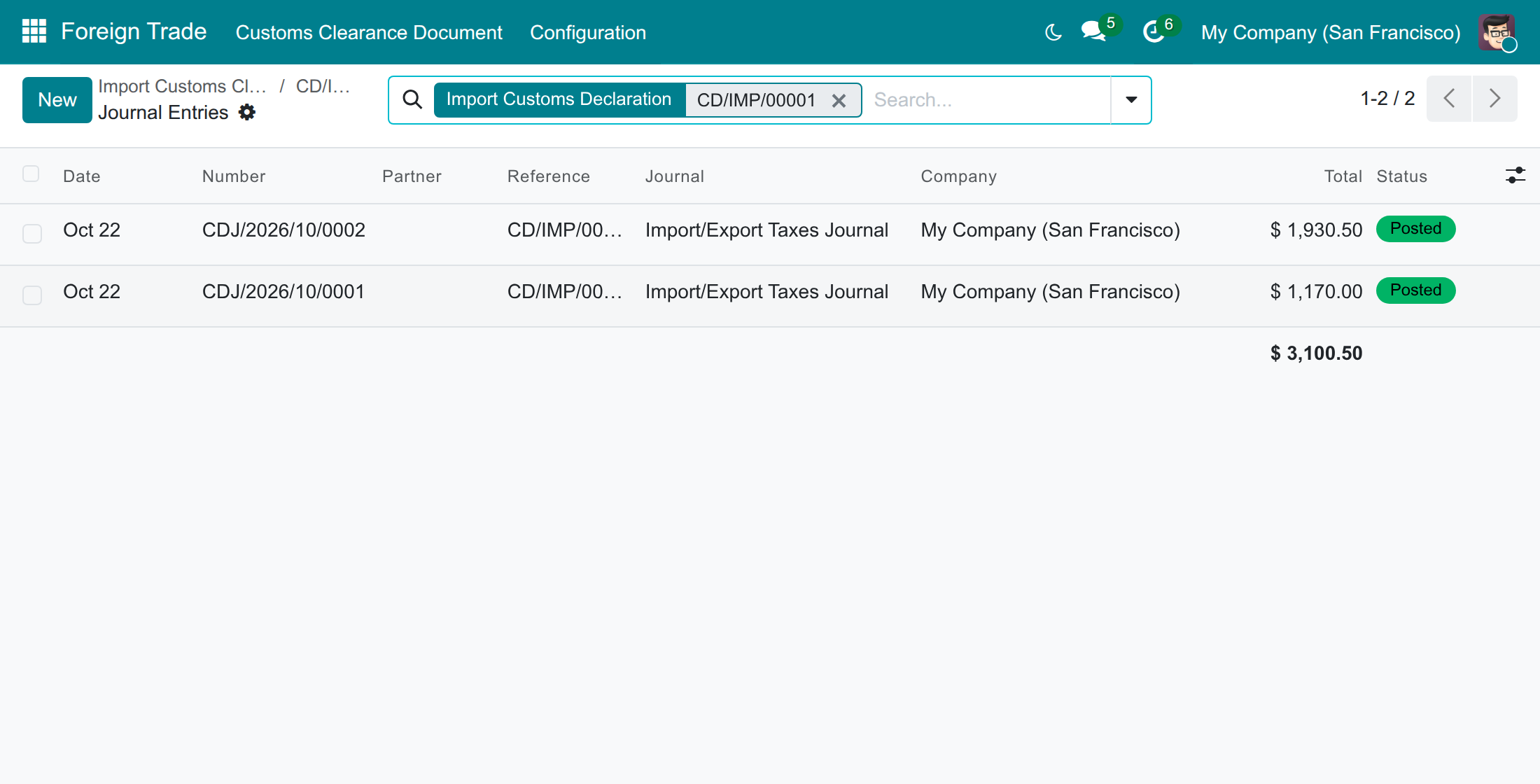
- posts one customs voucher per customs tax in the Customs Clearance Journal (the Journal Entries button): in the example, one for the duty and one for the VAT, each crediting Customs Taxes Payable and debiting the other side of the tax;
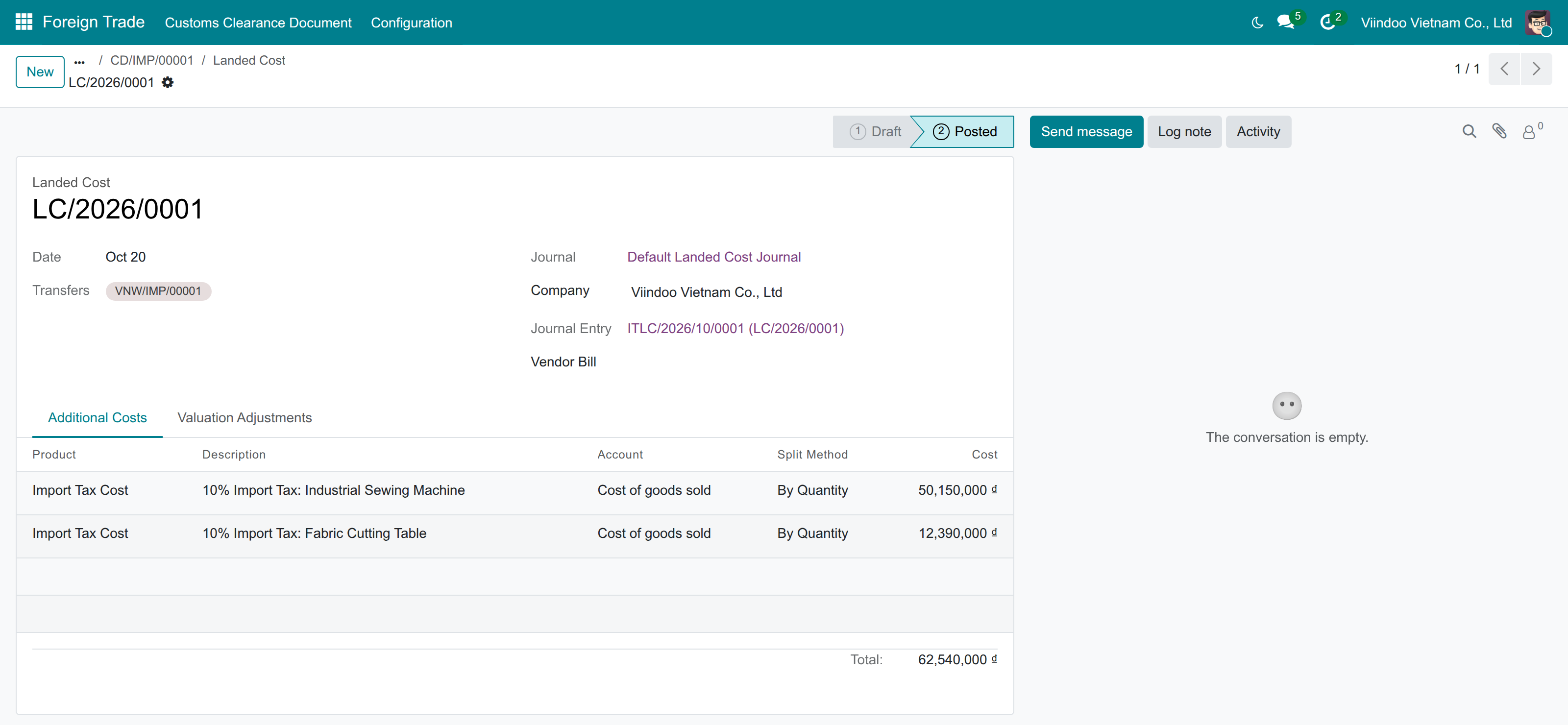
- creates and posts the landed costs (the Landed Cost button): one for the duty (the customs taxes that are not VAT) and one for each vendor bill of the extra expenses, so that the duty and the expenses become part of the cost of the goods;
- moves the declaration to Confirmed by Custom, which releases the goods: the onward transfer of the warehouse can now be validated.
The VAT is not added to the cost of the goods: it is deductible and posted to its own account.
Confirmation is refused when a live vendor bill of the declared goods carries a customs tax, because the declaration posts that tax itself: remove the tax from the bill.
What is locked after the confirmation
The taxes are posted with the values of the moment, so from now on the Clearance Date, the Currency, the Currency Rate, the receipts, the lines and the taxes cannot be changed, and no extra expense can be added, changed or removed. The screen shows them read-only; any other way of writing them, such as an import file, is refused with a message that names the field. Only a Draft declaration can be deleted.
Pay the taxes and close the declaration
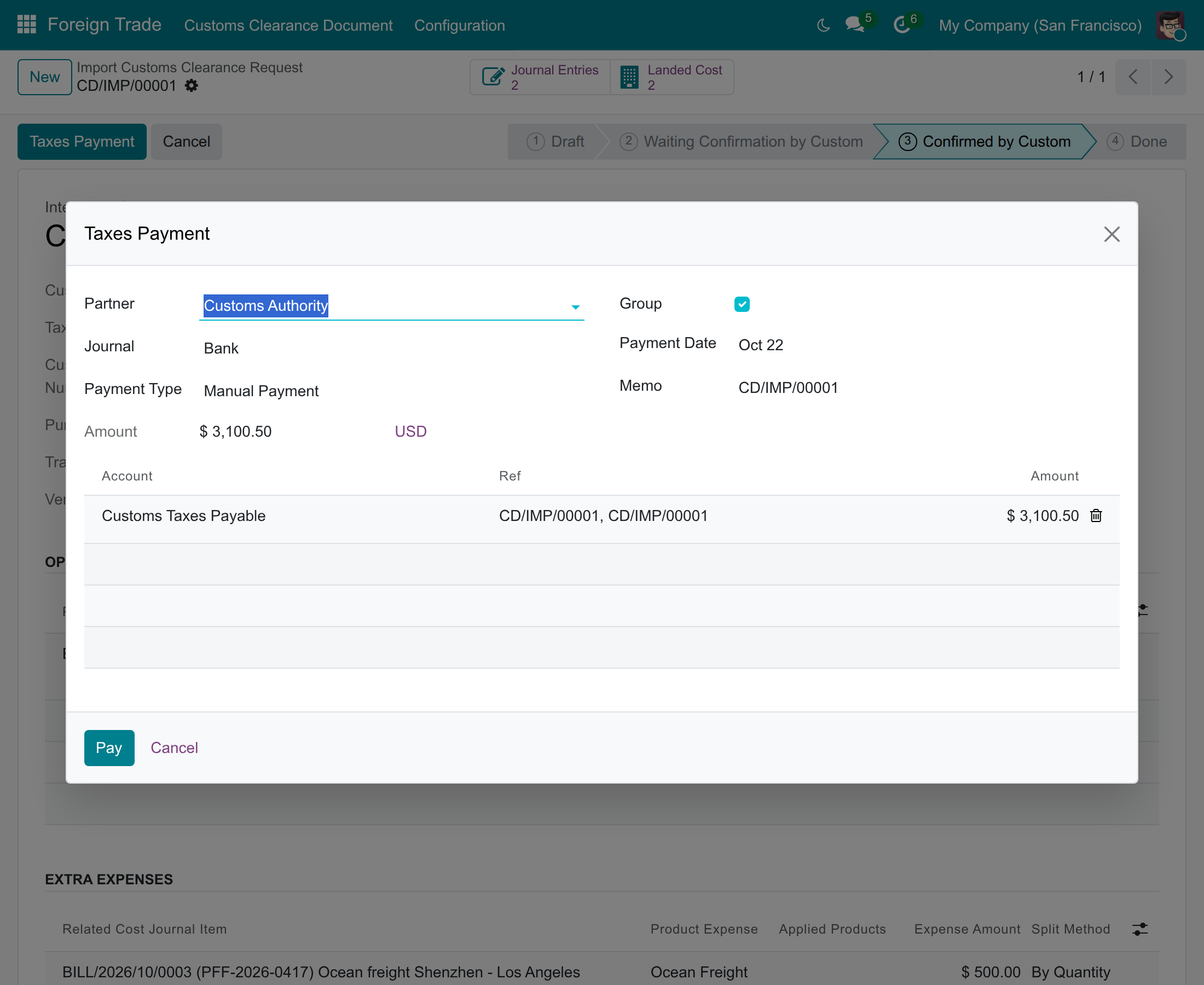
- On the declaration Confirmed by Custom, press Taxes Payment.
- In the window, check the Partner (the customs authority), the Journal (a bank or cash journal with a manual outgoing payment method), the Payment Type, the Payment Date and the Amount. The line shows Customs Taxes Payable for all the open customs vouchers.
- Press Pay.
Taxes Payment needs the Invoicing rights: the specialist pays when he also holds Invoicing, otherwise an accountant (Basic level or above, or the Accounting Administrator) does. The payment is posted and reconciled with the customs payables, and the declaration becomes Done by itself: Taxes Payment disappears and nothing is left to do. Set Done is for the declaration that has nothing to pay (all its customs taxes are 0%): it shows right after the confirmation, and you press it to close the declaration. Set Done is refused while a tax is unpaid or a customs voucher is not posted.
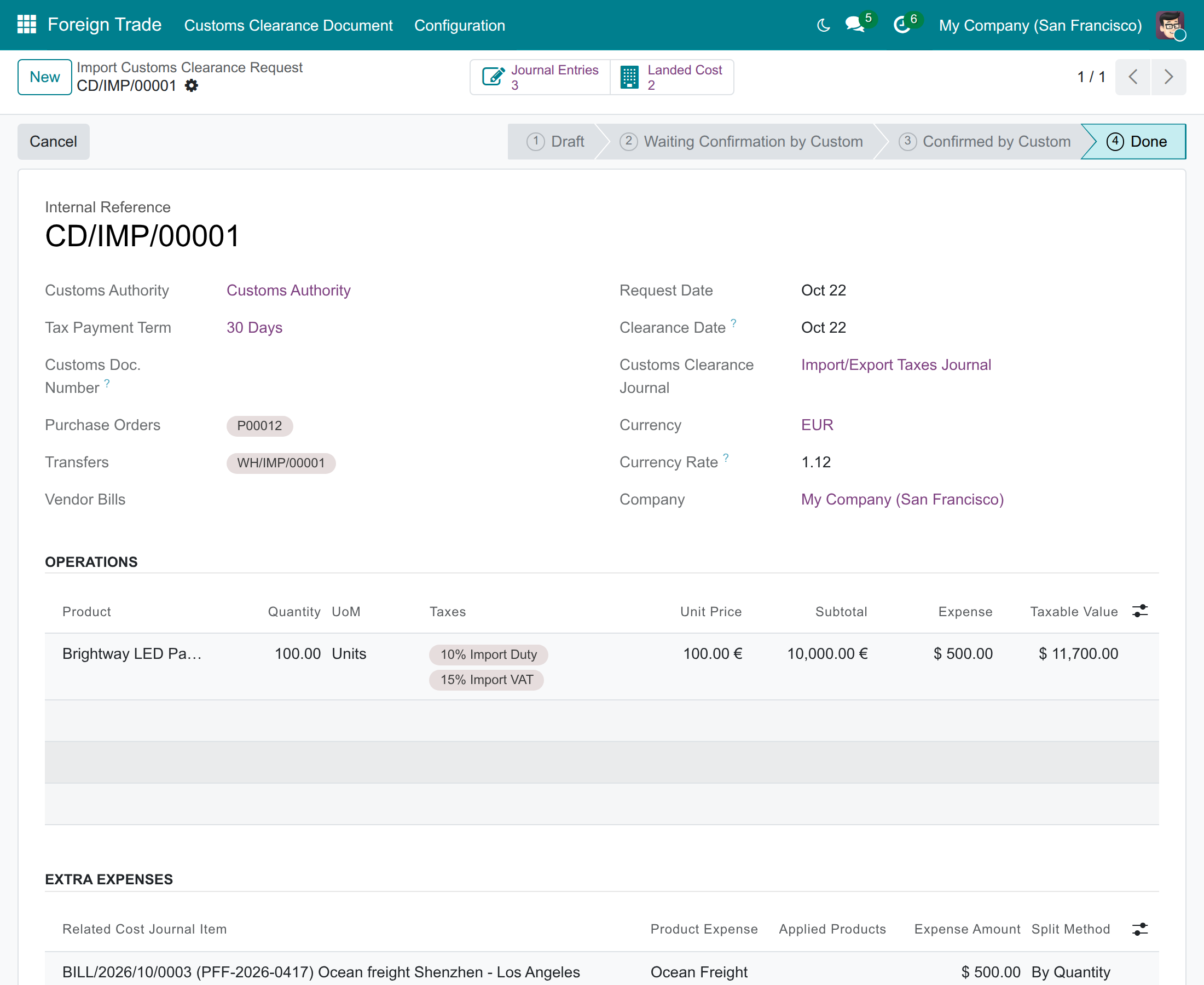
If the payment is later cancelled or unreconciled, or a voucher is reset to draft, the declaration goes back to Confirmed by Custom.
Accountant: book the bill, check the entries and void a declaration
Book the vendor bill of the goods
Odoo values the imported goods at the transaction rate of the vendor bill, as Circular 99/2025/TT-BTC requires, and the customs declaration adds only the customs duty and the customs expenses by landed cost. The exchange difference between the bill and the payment of the supplier is yours to book when you pay the supplier; the declaration books none.
- Open Invoicing ‣ Vendors ‣ Bills and press New. Choose the Vendor and, in Auto-Complete, select the purchase order: the lines are filled. Set the Bill Date.
- Look at the rate under Currency.
Without the option Bill Rate from Customs Declaration, the bill takes the bank rate of its date, here 1 USD = 0.909091 EUR, so the goods are booked at USD 11,000.00.
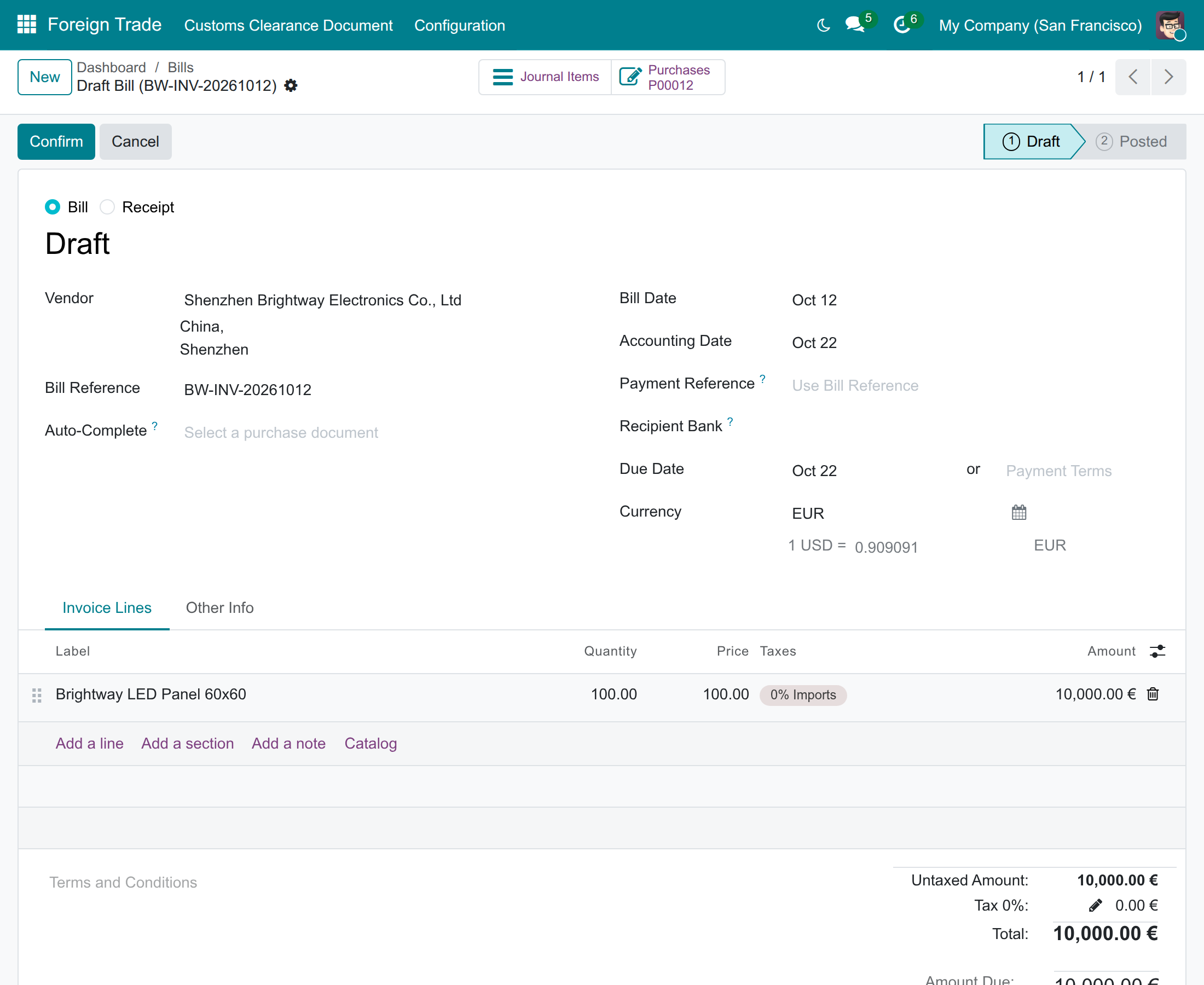
With the option, a draft bill of declared goods in the currency of the declaration takes the customs rate, here 1 USD = 0.892857 EUR (that is 1 EUR = 1.12 USD), so the goods are booked at USD 11,200.00. The rate stays editable; the circular arrow next to the currency puts the bank rate back. Changing the date or the currency of the bill applies the default again, as for any bill; a rate you typed is not overwritten by adding lines.
Never add a customs tax of the declaration to the vendor bill: it is refused when the bill is posted, and when the declaration is confirmed. Credit notes are allowed. On a forwarder bill whose costs a declaration capitalises, the button Create Landed Costs is refused, and so is a landed cost created by hand for it.
Check the entries of the declaration
Accountants open the declaration, read-only, from Invoicing ‣ Customs Declarations ‣ Import. The Journal Entries button of the declaration lists its customs vouchers, its payment and any reversal; the Landed Cost button lists its landed costs. The entries of the example, on the generic chart of accounts, are the following.
| Entry | Account | Debit (USD) | Credit (USD) |
|---|---|---|---|
| Forwarder bill (before the declaration) | Expenses | 500.00 | |
| Account Payable | 500.00 | ||
| Customs voucher, 10% Import Duty | Expenses | 1,170.00 | |
| Customs Taxes Payable | 1,170.00 | ||
| Customs voucher, 15% Import VAT | Tax Paid | 1,930.50 | |
| Customs Taxes Payable | 1,930.50 | ||
| Landed cost of the duty | Stock Valuation | 1,170.00 | |
| Expenses | 1,170.00 | ||
| Landed cost of the freight (account of the bill line) | Stock Valuation | 500.00 | |
| Expenses | 500.00 | ||
| Payment of the customs taxes | Customs Taxes Payable | 3,100.50 | |
| Outstanding Payments | 3,100.50 | ||
| Vendor bill of the goods (customs rate) | Stock Valuation | 11,200.00 | |
| Account Payable | 11,200.00 |
The receipt itself books no entry, because the goods are valued at invoicing. After the whole process, Stock Valuation holds USD 12,870.00, that is the goods at the bill (USD 11,200.00) plus the duty (USD 1,170.00) plus the freight (USD 500.00); the VAT is not part of it. Expenses is back to zero for the duty and for the freight: the vouchers and the bill debit it, the landed costs credit it. Customs Taxes Payable is empty once the payment is posted. On the Vietnamese charts, the same entries use the accounts of that chart.
Open a landed cost to see what it capitalised: its Additional Costs tab shows the product Import Tax Cost and the duty, split by quantity; the one of the freight shows its Vendor Bill. You cannot recompute a landed cost created by a declaration.
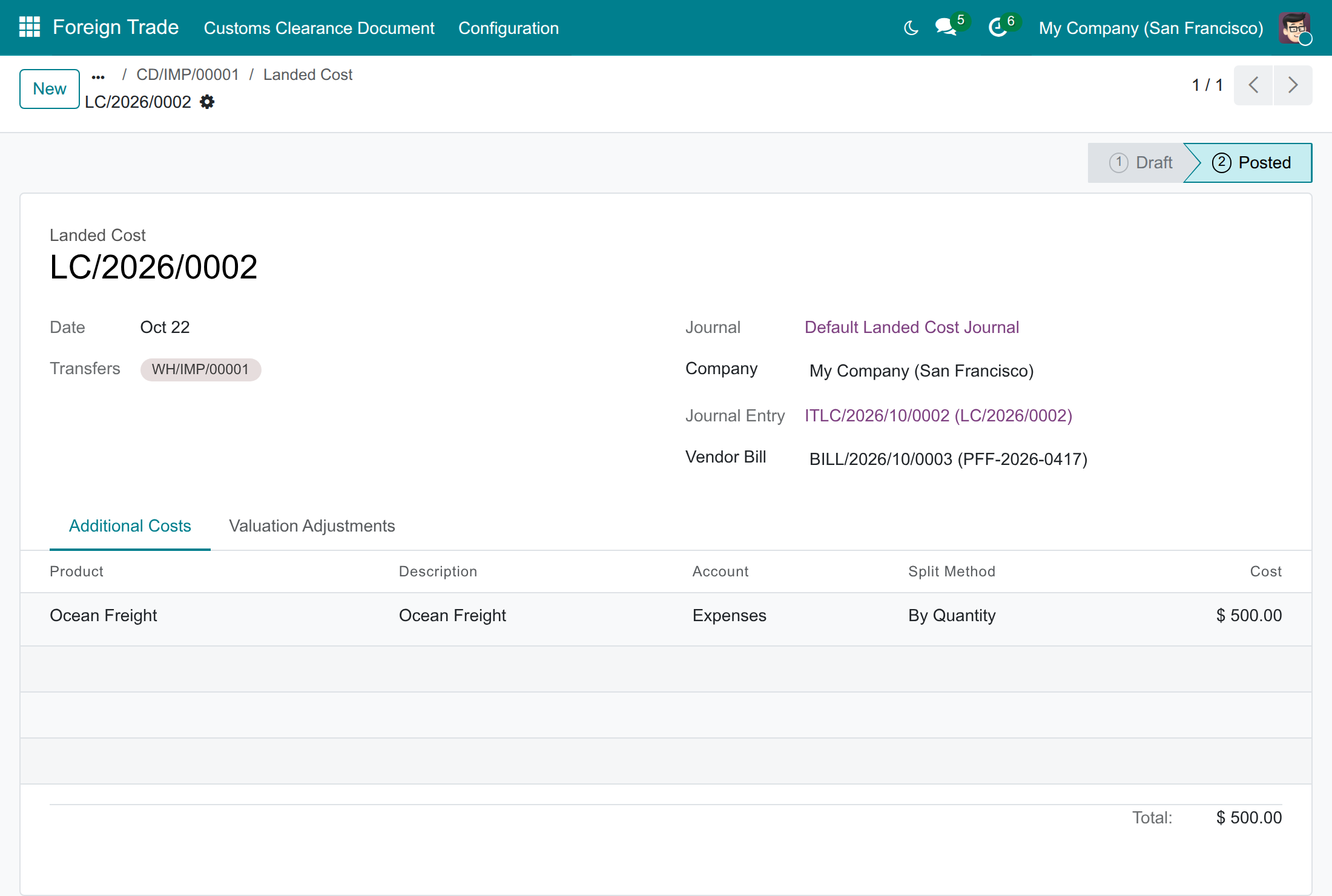
Void a declaration whose costs were capitalised
A declaration entered by mistake is normally cancelled with Cancel. Once its landed costs are posted, Cancel is refused: a posted landed cost cannot be cancelled, only offset. Otherwise a paid declaration is cancelled the same way, even when only part of its taxes is paid: like a cancelled sales order, it never touches the payment. The payment stays posted and is no longer reconciled with the cancelled vouchers, so its amount is outstanding on the customs taxes payable account for an accountant to reallocate or refund.
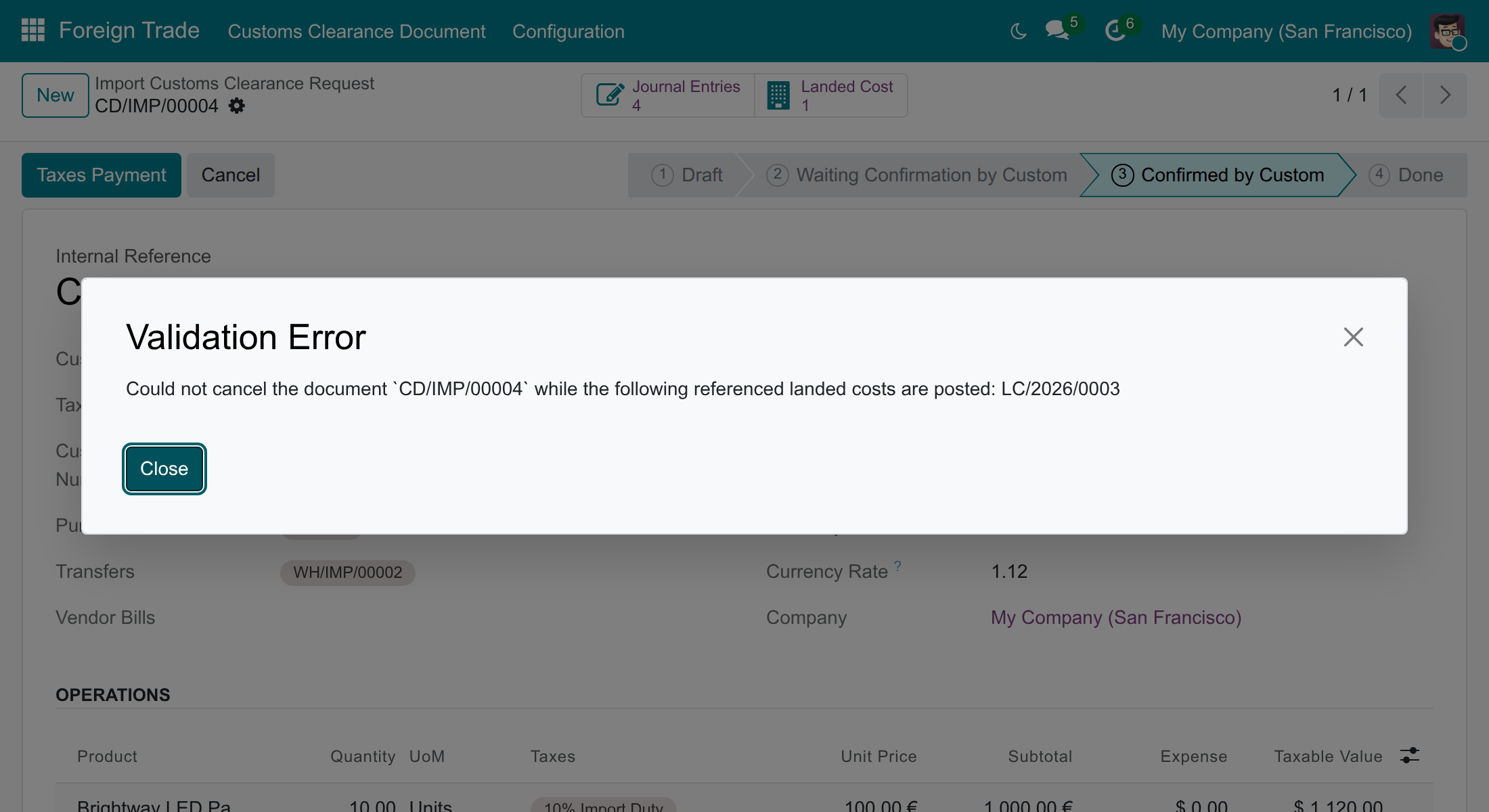
Void the declaration like this:
- If the taxes were already paid, ask an accountant to unreconcile the payment from the customs vouchers; do not cancel the payment. It stays posted and its amount is outstanding on the customs taxes payable account for the accountant to reallocate or refund, and the declaration goes back to Confirmed by Custom.
- Open the declaration, press Journal Entries and open each customs voucher.
- Press Reverse Entry, keep the Reversal date as today and press Reverse.
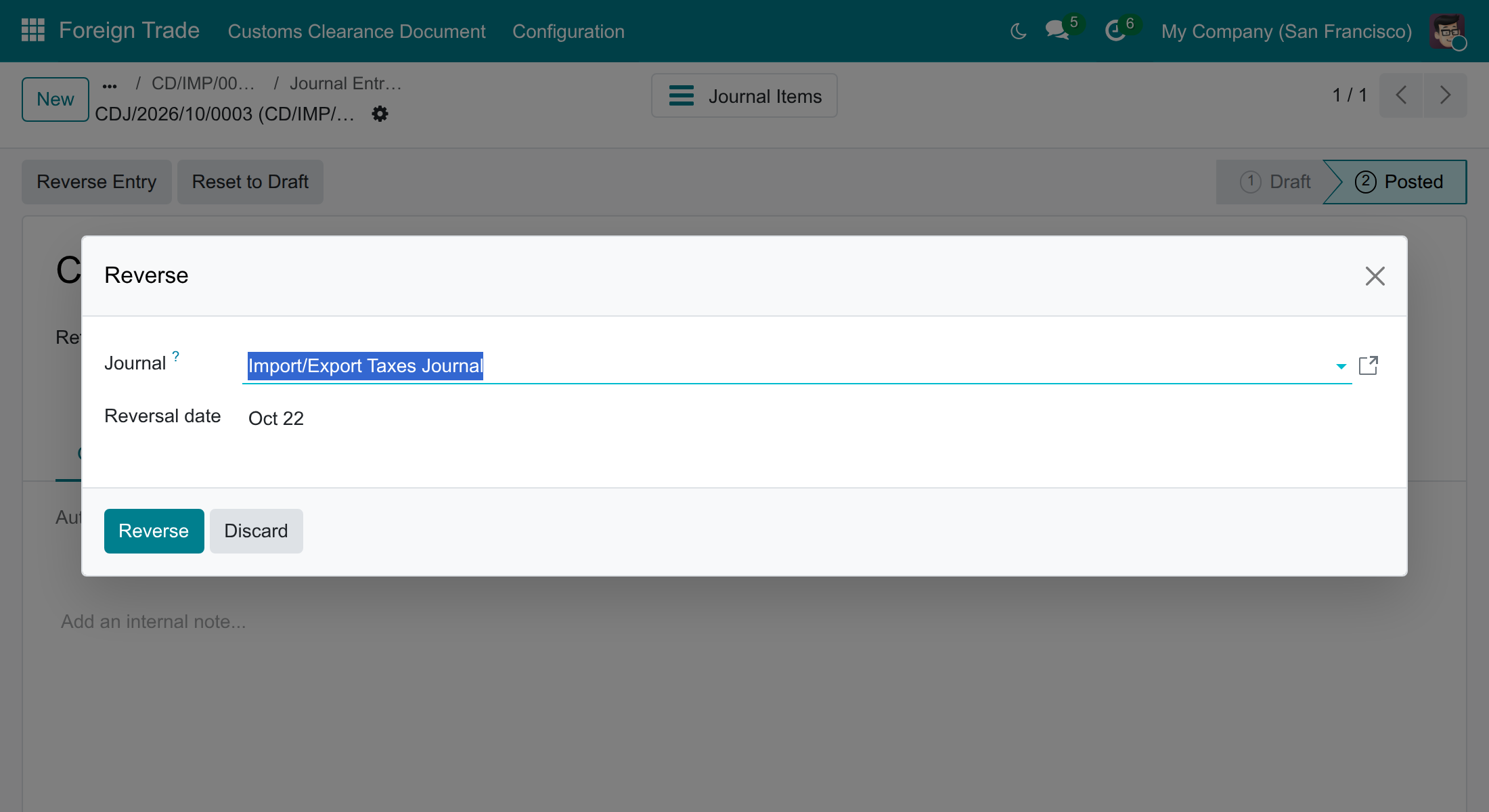
A voucher reversed with today's date is voided: its payable is settled by the reversal, its tax row reads unpaid, the declaration stays Confirmed by Custom and cannot be set done. A reversal dated in the future is posted later by the scheduler and leaves the voucher in force until then.
- Reverse the capitalisation. Open Inventory ‣ Operations ‣ Adjustments ‣ Landed Costs, press New, choose the receipt of the goods in Transfers, add the product Import Tax Cost under Additional Costs with the duty as a negative amount (split by quantity), press Compute and then Validate. Do the same for each landed cost of the expenses you want to offset.
In the example of the smaller declaration voided this way, the landed cost posts Expenses to the debit and Stock Valuation to the credit, and the value of the goods returns to the purchase value.
Note
There is no Cancelled status for a declaration whose landed costs are posted: after these steps it stays Confirmed by Custom as the record of the clearance, with its entries and their reversals. If your reports read declarations that are Confirmed, ask your accountant how a voided declaration must be excluded.
Troubleshooting
- The button Create Customs Clearance Request is not there. Check that the order is confirmed, that Foreign Import is ticked, that it has a stockable or consumable product, that no declaration exists yet for it, and that you hold the right Foreign Trade: User. On a receipt, it also needs the receipt to be Ready or Done and to end in a customs zone.
- "The selected purchase orders should have the same commercial partner" / "same currency". A declaration covers orders of one vendor in one currency; split the shipment into two declarations.
- "Please validate the transfer ... before you can open this request!" The receipt is not validated yet. Validate it, then press Open.
- "Customs clearance document for transfer ... exists". Another declaration that is not cancelled already covers the transfer: use it, or cancel or delete it.
- "Please create some operations." The declaration has no line: select the order and the receipt.
- "The transfer ... cannot be declared: the product ... must have the inventory valuation 'Perpetual (at invoicing)' ..." Change the category as described in the setup.
- "The vendor bill ... carries the customs tax ..., which the customs declaration ... posts." Remove that customs tax from the vendor bill, then confirm or post again.
- "The costs of the bill ... are capitalised by the customs declaration ..." The bill line of the forwarder is already an extra expense of a declaration: do not capitalise it twice.
- "The field ... of the customs declaration ... cannot be changed once it is confirmed" / "The extra expenses ... cannot be added, changed or removed once it is confirmed". The declaration is locked; see the section on the locks. Before the confirmation, press Reset to Draft to change it.
- "Could not cancel the document ... while the following referenced landed costs are posted". Void the declaration as described in the accountant chapter.
- "There is no account journal defined on the Landed Cost Journal for current company". Choose a Landed Cost Journal in the settings of Invoicing.
- "You cannot process the transfer ... while its original transfer ... requires a customs declaration document". Create and confirm the declaration of the receipt before you validate the transfer to the stock.
- "... customs declaration document ... has not been confirmed by the customs authority. Please get it confirmed first!" The declaration exists but is not Confirmed by Custom yet: press Confirm Customs Clearance on it, then validate the transfer.
FAQ
Is the import VAT added to the cost of my goods? No. Only the customs taxes that are not VAT (the duty) and the extra expenses are added, through landed costs. The VAT is posted to its own account and is deductible.
Can one declaration cover several purchase orders? Yes, when they have the same vendor and the same currency. The receipts of one declaration must have the same operation type and company.
Why is there no entry when I validate the receipt? The goods are valued "at invoicing": the vendor bill books the value of the goods, the declaration adds the duty and the expenses.
Which rate values my goods, the customs rate or the bank rate? The rate of the vendor bill. Customs rate is only the default of the bill when the option Bill Rate from Customs Declaration is on, and it is the rate of the taxes of the declaration. Exchange differences are booked when you pay the supplier.
Can I change the rate or a line after customs confirmation? No. Before the confirmation, press Reset to Draft; after it, void the declaration as described and create a new one.
Where are the entries of a declaration? On the declaration: Journal Entries (vouchers, payment, reversals) and Landed Cost. On an entry, the search field Import Customs Declaration finds them from the accounting side.
Does the order have to be created from the Foreign Import route? No. A purchase order you create by hand on the operation type Import - Custom Zone works the same way; the route only lets replenishment raise such orders for the products that carry it.
This software and associated files (the "Software") may only be used (executed, modified, executed after modifications) if you have purchased a valid license from the authors, typically via Odoo Apps, or if you have received a written agreement from the authors of the Software (see the COPYRIGHT file).
You may develop Odoo modules that use the Software as a library (typically by depending on it, importing it and using its resources), but without copying any source code or material from the Software. You may distribute those modules under the license of your choice, provided that this license is compatible with the terms of the Odoo Proprietary License (For example: LGPL, MIT, or proprietary licenses similar to this one).
It is forbidden to publish, distribute, sublicense, or sell copies of the Software or modified copies of the Software.
The above copyright notice and this permission notice must be included in all copies or substantial portions of the Software.
THE SOFTWARE IS PROVIDED "AS IS", WITHOUT WARRANTY OF ANY KIND, EXPRESS OR IMPLIED, INCLUDING BUT NOT LIMITED TO THE WARRANTIES OF MERCHANTABILITY, FITNESS FOR A PARTICULAR PURPOSE AND NONINFRINGEMENT. IN NO EVENT SHALL THE AUTHORS OR COPYRIGHT HOLDERS BE LIABLE FOR ANY CLAIM, DAMAGES OR OTHER LIABILITY, WHETHER IN AN ACTION OF CONTRACT, TORT OR OTHERWISE, ARISING FROM, OUT OF OR IN CONNECTION WITH THE SOFTWARE OR THE USE OR OTHER DEALINGS IN THE SOFTWARE.
