


Shop Floor Control
| Lines of Code | 12819 |
| Technical name | viin_mrp_workorder |
| License | OPL-1 |
| Website | https://viindoo.com/apps/modules/18.0/viin_mrp_workorder |
| Read description for | v 10.0 v 11.0 v 12.0 v 13.0 v 14.0 v 15.0 v 16.0 v 17.0 |
| Required Apps | Manufacturing (mrp) Invoicing (account) Discuss (mail) Employees (hr) Inventory (stock) |
| Included Dependencies | Advanced MRP Accounting Viindoo Manufacturing Viindoo Base Viin Warehouse Web Gantt Viin Warehouse Accounting |
| Extensions | Shop Floor Control - Backdate Shop Floor Control - Maintenance Shop Floor Control - Quality |
Run every work order from a tablet at the machine - even with gloves on.
Viindoo Shop Floor Control puts the job board, output, materials, stops and order closing on one touch screen. The figures in your system are the ones your operators just made, and labour cost is counted for the person who did the work.
Why plants choose it
Built for gloved hands
Controls are large and labelled, quantities go in on a number pad and choices are tiles, so operators rarely type. Only a labelled button starts the clock, so a hand resting on a card never starts a job by accident.
Output and materials recorded as they happen
Operators record the quantity they just made and the components they actually used, by lot or serial number, at the machine. Each recording is its own entry, and a retry on a weak Wi-Fi never records twice.
True labour cost, person by person
Each time line names the employee it is credited to and freezes that employee's hourly rate when the line closes, with the work centre rate as a flagged fallback. Stops such as breakdowns stay out of product cost, and a later pay rise never re-prices finished work.
What your operators and managers get
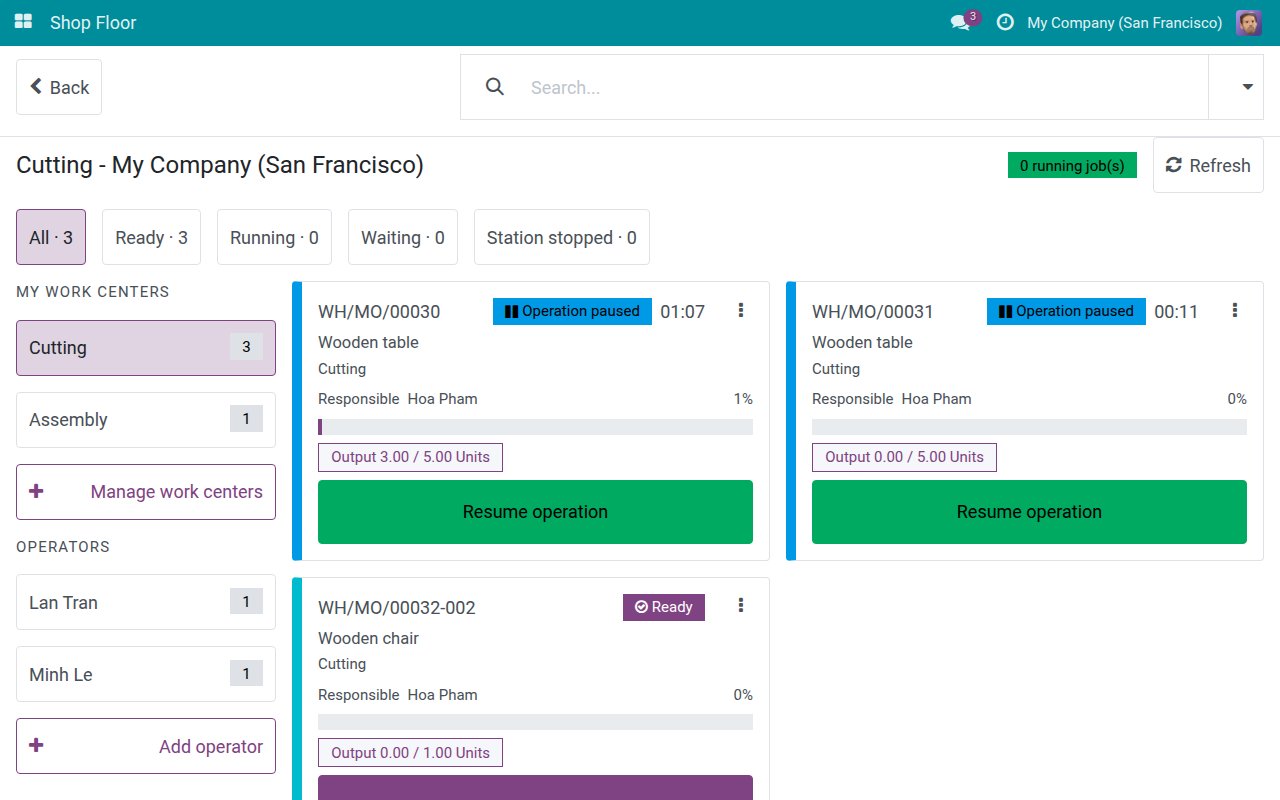
A job board for every station
Operators pick the work centres they work at once; the next shift opens straight on their board. Each work order is a card with its state, live timer, progress and output, plus the reason when a start is held. Tabs for Ready, Running, Waiting and Station stopped show where every job stands.
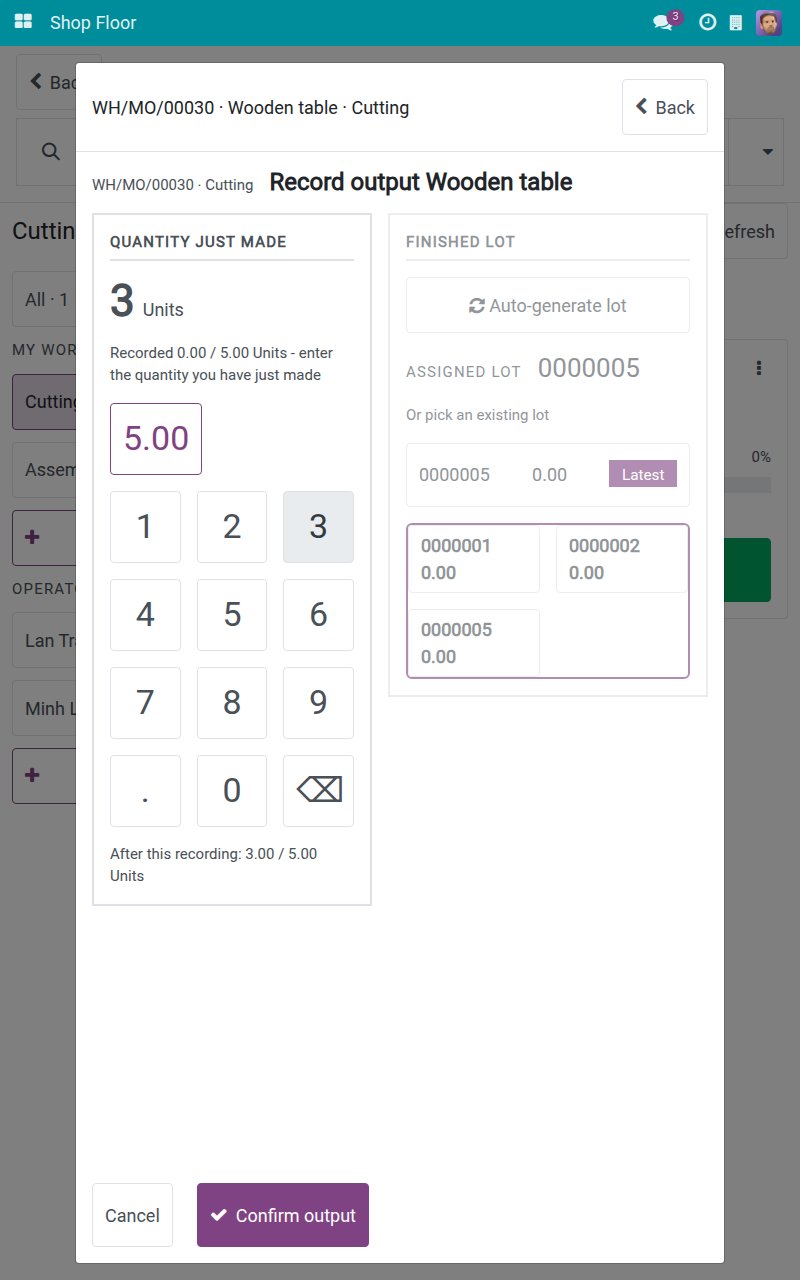
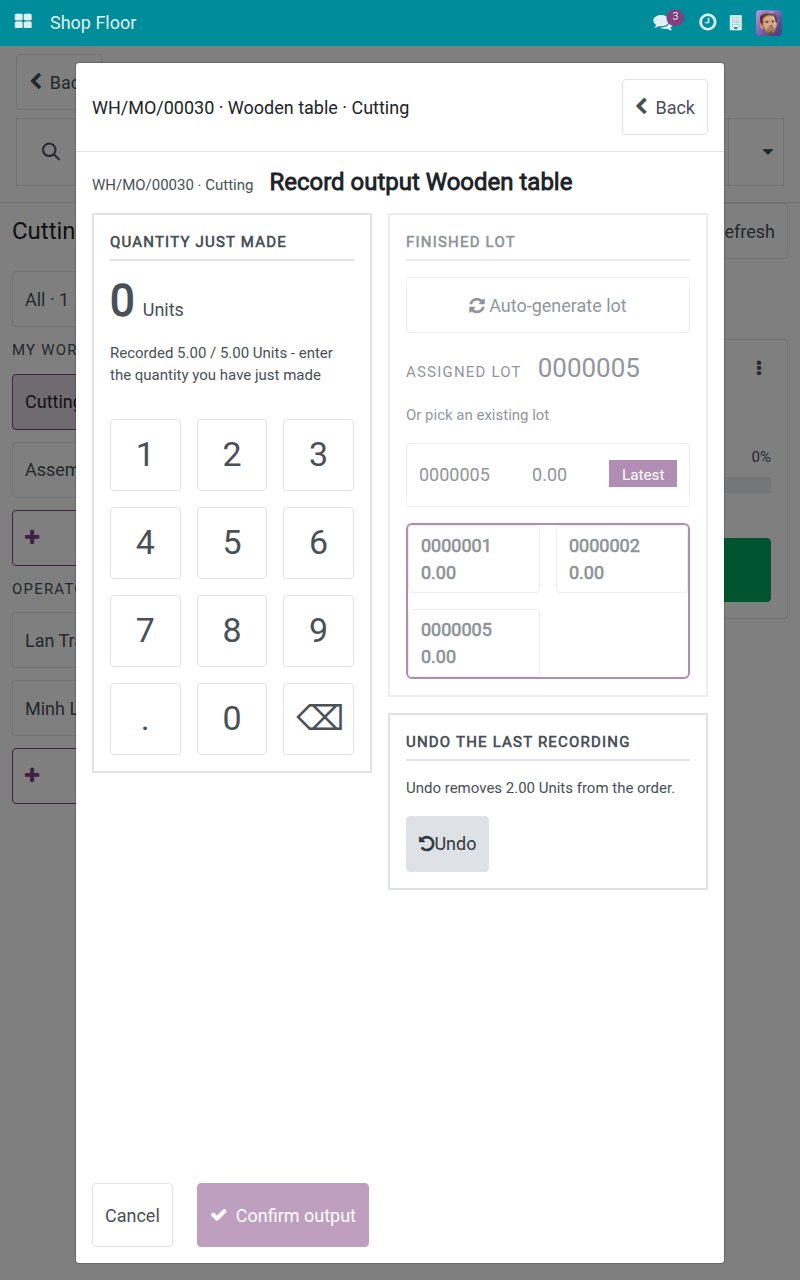
Record output in two taps
Tap the quantity just made, confirm, and it is added to the order ("Recorded x / y"). For lot or serial tracked products, generate the finished lot or take the latest one in a single tap. Drawings and work instructions open full screen from the same card.
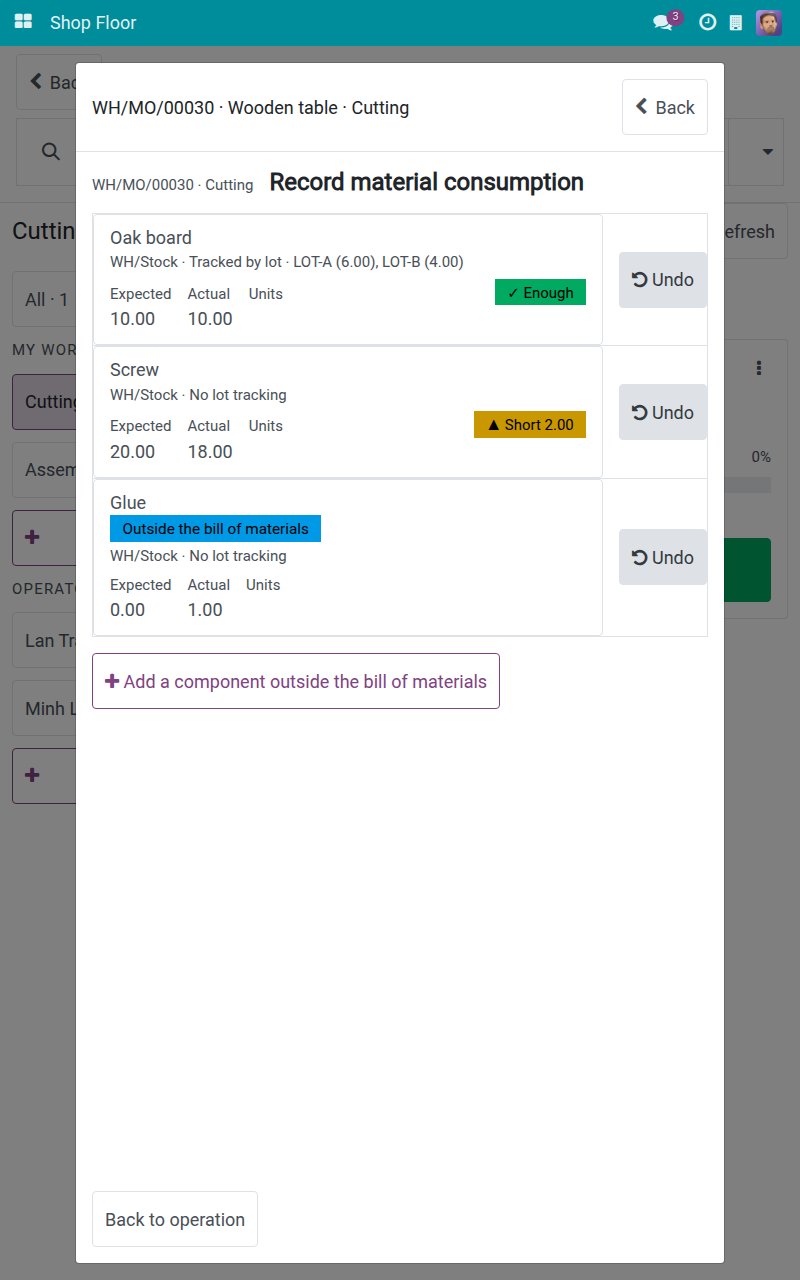
Actual consumption, not the bill of materials
Every component shows expected against actual, with "Not recorded yet", "Short" or "Enough" at a glance. Scan a lot label or pick from lots in stock, add a component that is not in the bill of materials, or record scrap with stock deducted on confirm.
Undo a mistake, safely
Each output recording can be taken back on its own: undo removes exactly that quantity and leaves later recordings untouched. A materials recording returns the component row exactly to what it was. Only the person who recorded it or a Manufacturing Manager can undo, and only while the order is still open.
A manager can record for someone else
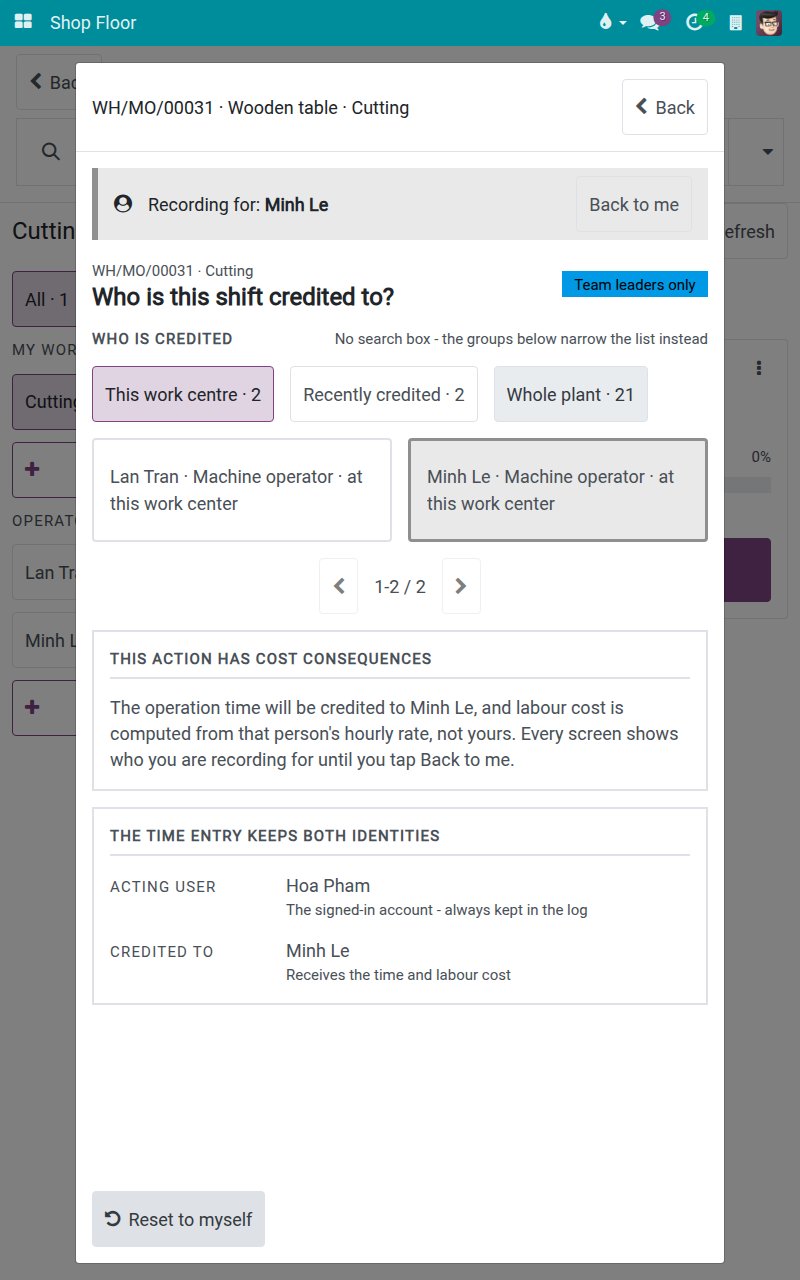
A Manufacturing Manager picks the employee a shift is credited to and sees the labour-cost consequence before choosing. Every screen then shows a "Recording for" banner with a "Back to me" button, so nobody records for the wrong person by accident.
Every stop measured, with its reason
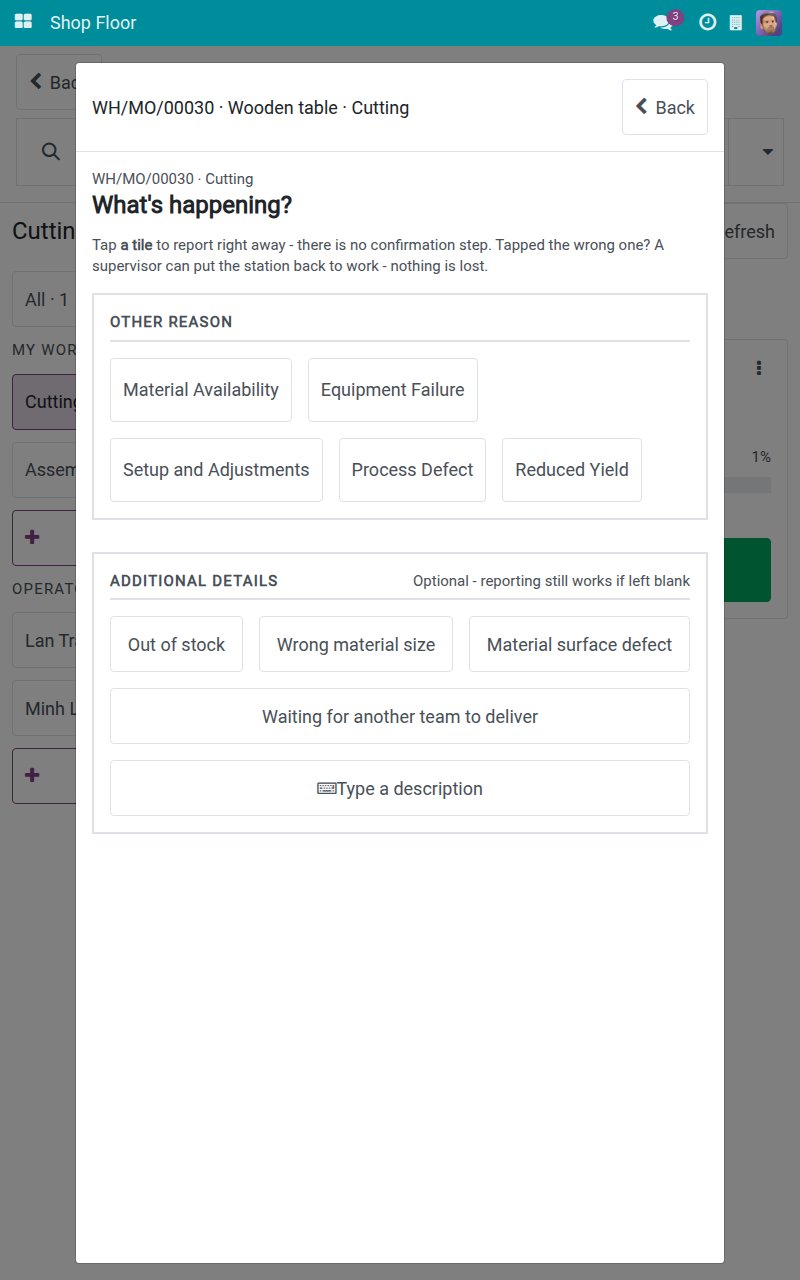
"Stop machine" is one tap on a reason tile - no form, no confirmation step. The stop is timed from that tap until the station is restarted, with the reason and the person it was reported for. Only a Manufacturing Manager restarts a station; everyone else sees "Waiting for a supervisor" with the next step.
Close the order at the machine
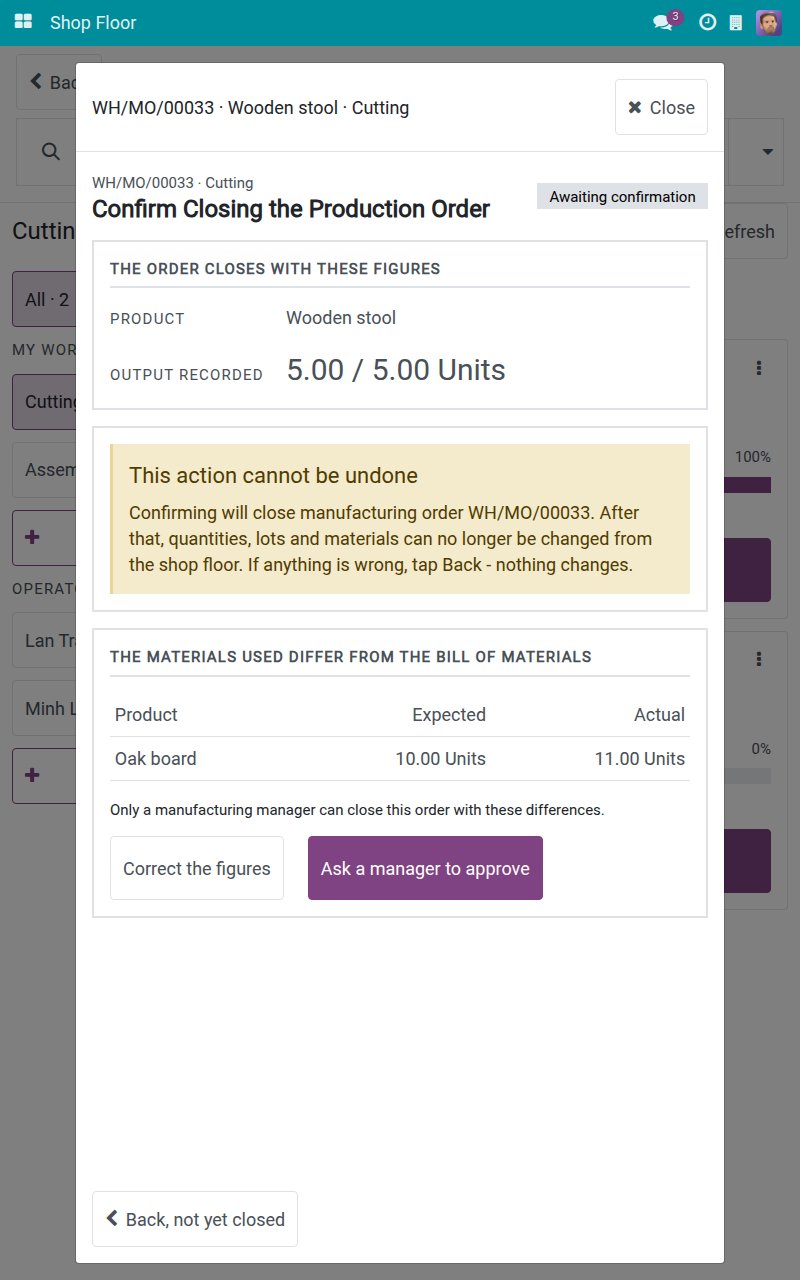
The closing screen shows the output recorded and the quantity the order closes with, then runs the standard manufacturing close, so every rule installed on your database still applies. Consumption differences and the backorder question are answered on screen, or sent to a manager for approval.
A full audit trail
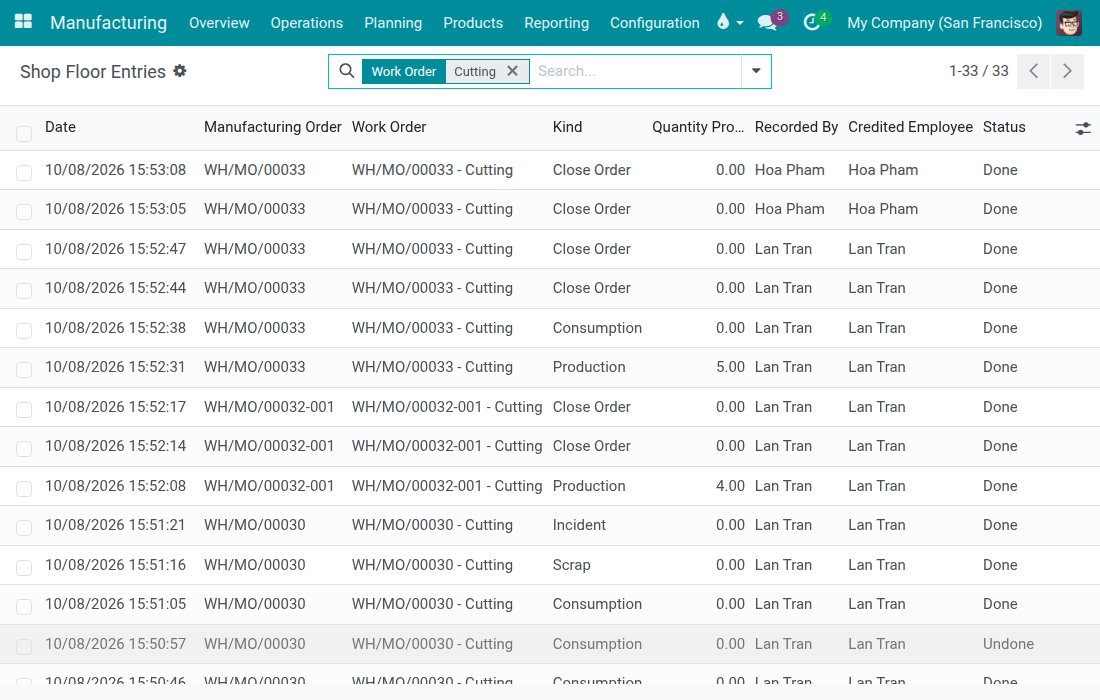
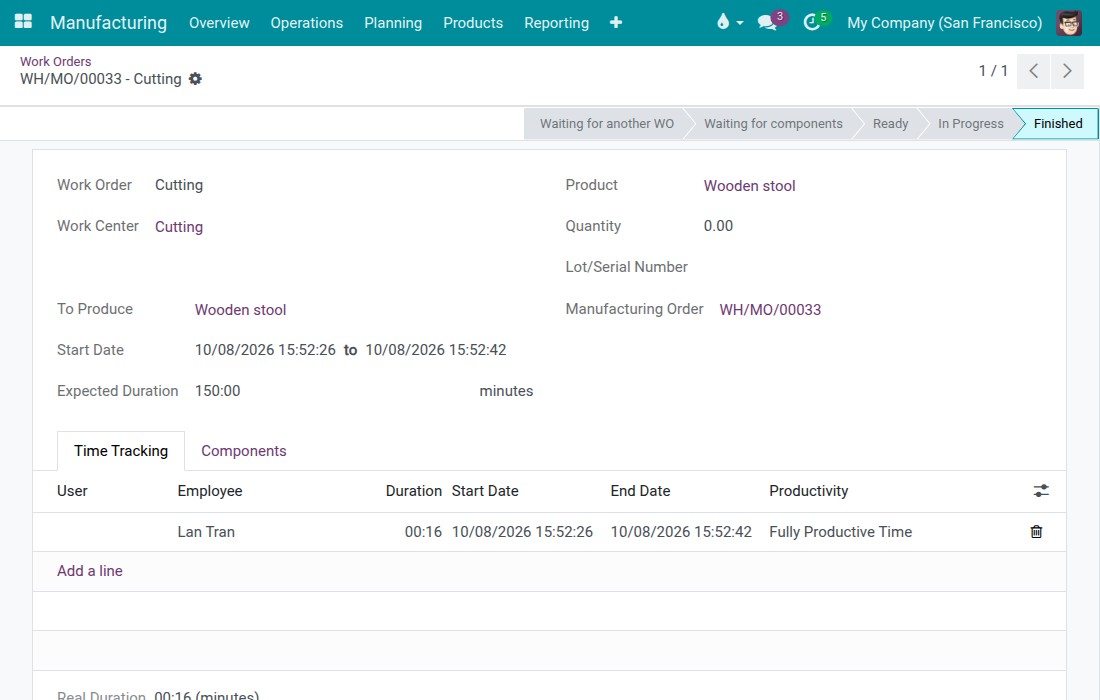
Manufacturing > Reporting > Shop Floor Entries lists every output, consumption, scrap, stop and order close recorded on tablets: who recorded it, for whom, and whether it was undone. Time lines on each work order name the credited employee, so labour cost can be traced back to the person.
Ready for quality and maintenance
With Viindoo Manufacturing Quality Control installed, quality steps appear on the same tablet; with Viindoo Maintenance - MRP, a breakdown calls a technician in one tap. The connecting modules install automatically when both apps are present.
Everything else in the box
Open Shop Floor from a work centre card
One tap from the desktop work centre card opens the Shop Floor on that station.
Open Shop Floor from a work order card
The Open button on a desktop work order card jumps straight to that single job on the tablet.
Operation instructions viewer
Show the operation's PDF, slide deck or written note full screen from the card menu or the execute panel.
Post Consumption
Post the consumption of components now; a component already partly posted gets only what is left to consume on later output.
Work centre costing fields
Set the hourly cost per employee, the direct labour cost type shown on the production cost report, and an optional WIP analytic account.
Production cost report: direct labour rows
One direct labour row per work order: hours, average rate and total from the frozen per-line rates.
Questions buyers ask
Does every operator need a user account?
Work is recorded under a user account linked to an employee, because labour time and cost are credited to that employee. Each account remembers its own work centres, so people sharing a tablet never overwrite each other's selection.
What happens if the Wi-Fi drops while an operator is recording?
The screen says in plain words what went wrong and offers Retry. A retried recording is applied once, never twice.
Can an operator fix a wrong entry?
Yes - an output or materials recording can be undone by the person who made it or by a Manufacturing Manager, while the order is open. Scrap is the exception: stock is deducted the moment it is confirmed, so it cannot be undone from the shop floor.
Does the tablet bypass our manufacturing rules?
No. Closing an order runs the standard manufacturing close, so consumption checks against the bill of materials, backorders and any other installed rules still apply.
Who can restart a stopped station or record work for a colleague?
A Manufacturing Manager. Other users see why the station is stopped and that it is waiting for a supervisor, and see a read-only note instead of the "On behalf" choice.
Compatibility
Works with Odoo 18.0 Community Edition.
Not supported on Odoo Enterprise.
Put the shop floor on one touch screen.
See how your operators would run a work order, record output and close an order on a tablet.
Shop Floor Control
Shop Floor Control puts the work orders of your plant on one touch screen at the machine. Operators open their jobs from a tablet, record the quantity they have just made and the materials they really used, report machine stops with their reason and close the manufacturing order on screen. The labour cost is credited to the employee who did the work.
The application is called Shop Floor on the home menu. This guide is organized by the person who uses it:
- Machine operators work on a tablet at the work center. See "Tasks for machine operators".
- Production leads (Manufacturing Administrators) restart stopped stations, approve consumption differences, record work on behalf of someone else and audit what was recorded. See "Tasks for production leads".
- Cost accountants check the labour cost per employee. See "Tasks for the cost accountant".
The screenshots show a sample plant: Lan Tran is the machine operator, Hoa Pham is the production lead and Minh Le is another operator whose rate is used for the labour cost.
Installation
- Open Apps.
- Search for Shop Floor Control.
- Click Install.
The apps and modules it needs are installed automatically: Manufacturing, Advanced MRP Accounting and Employee Hourly Wage. When the installation is done, the Shop Floor app appears on the home menu, and Shop Floor Entries appears in the Manufacturing reports.
Configuration
Access rights
- Give each operator the access right Manufacturing / User. Operators see the Shop Floor app and their own lines in Shop Floor Entries.
- Give each production lead the access right Manufacturing / Administrator. Only they can restart a stopped station, record work on behalf of someone else, approve consumption differences and see all lines in Shop Floor Entries.
- Link the user of each operator to an employee (field Related User of the employee). The work and the labour cost are credited to that employee.
Hourly cost of each employee
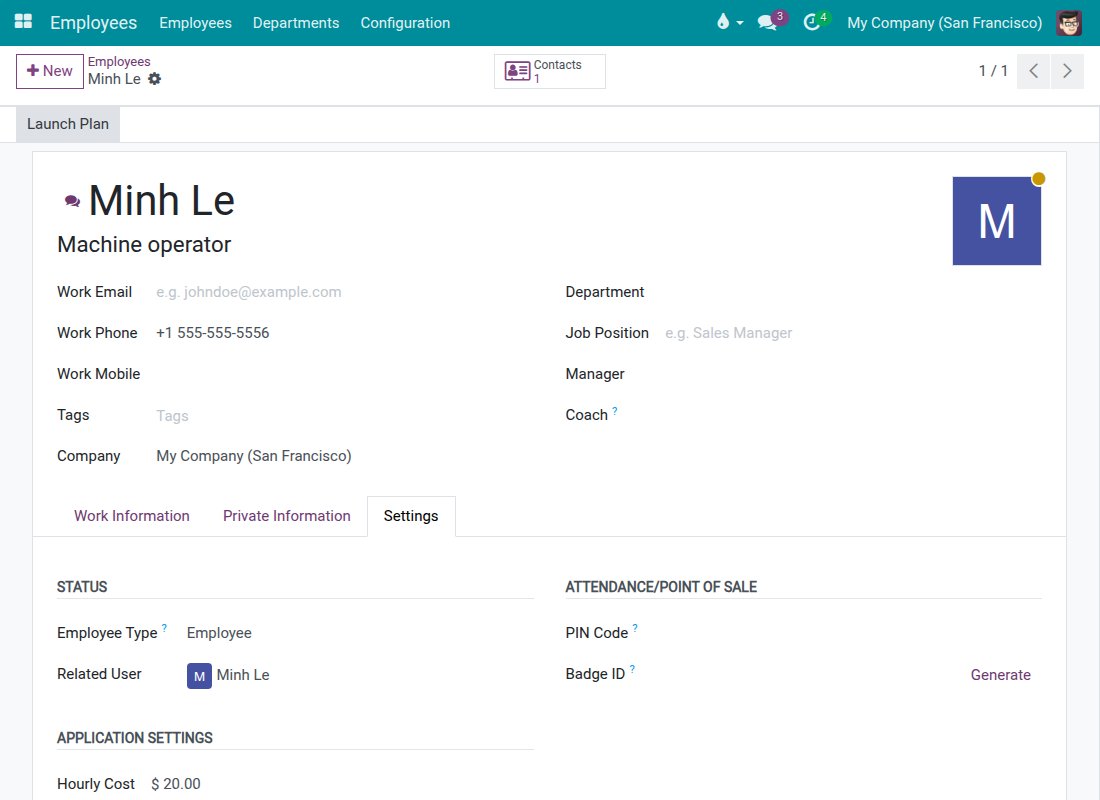
The labour cost of a job is the time worked multiplied by the hourly cost of the credited employee. You need access to the employee settings to enter it.
Open the employee in the Employees app and click the Settings tab.
Check that Related User is the operator's user, and enter the Hourly Cost under APPLICATION SETTINGS.
Work centers and operations
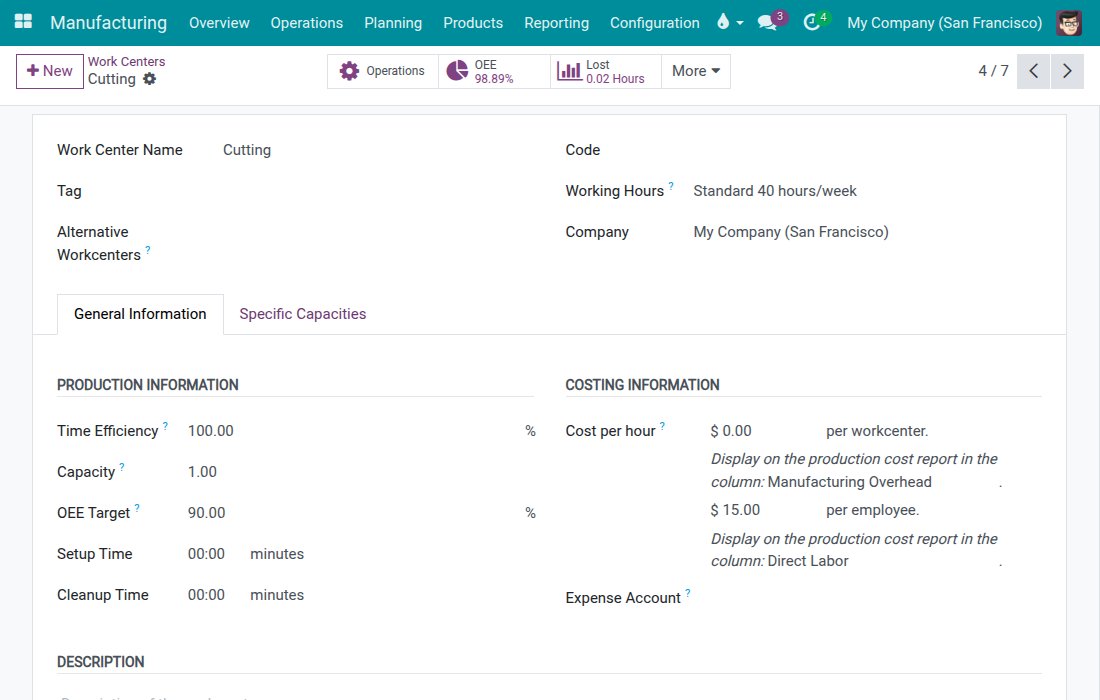
Open Manufacturing ‣ Configuration ‣ Work Centers and open a work center.
Under COSTING INFORMATION, the amount followed by per employee. is the fallback hourly cost. It is used only when the credited employee has no hourly cost of their own, and the report flags it. Below it, Display on the production cost report in the column shows where the labour is reported (Direct Labor).
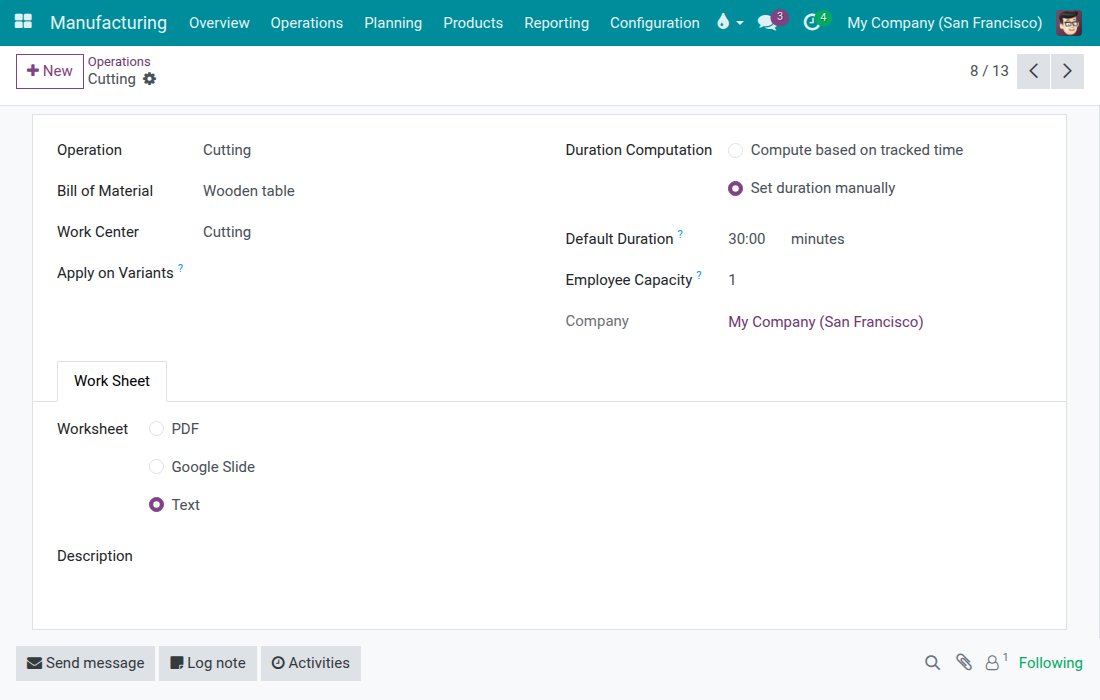
Open Manufacturing ‣ Configuration ‣ Operations and open an operation. In Employee Capacity, enter how many employees the operation needs.
The tablet
Each operator signs in on the tablet with their own account. The work centers and the operators that you choose are remembered per account and per company, so people who share a tablet never overwrite each other's choice. The controls are large so that they can be used with gloves on.
Usage
Tasks for machine operators
Choose your work centers and open the job board
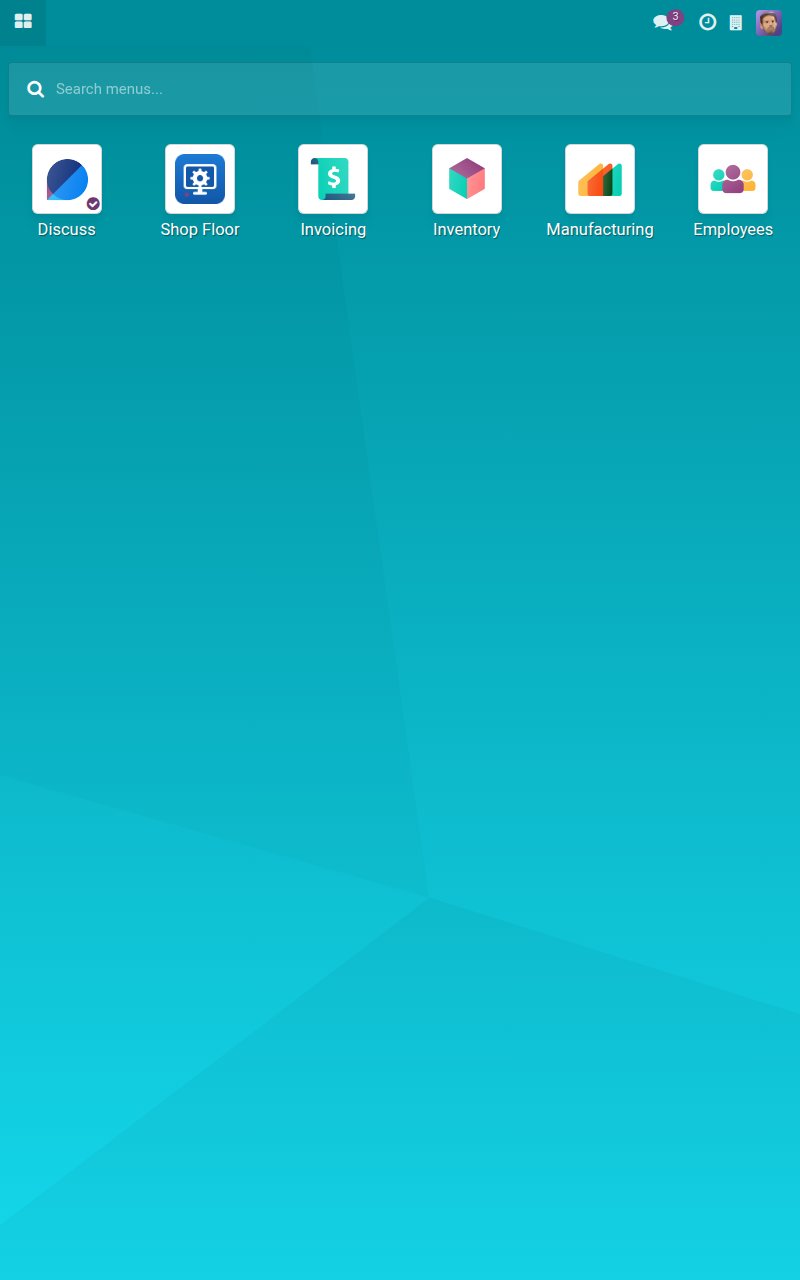
On the home menu, tap Shop Floor. If you have not chosen any work center yet, the selection screen opens.
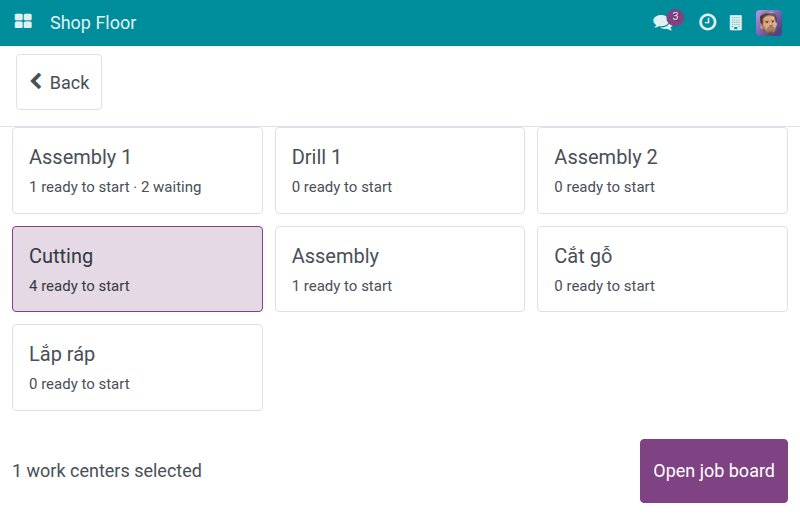
Tap the card of the work center you work at, for example Cutting. The card shows how many jobs are ready to start or waiting, and it is highlighted.
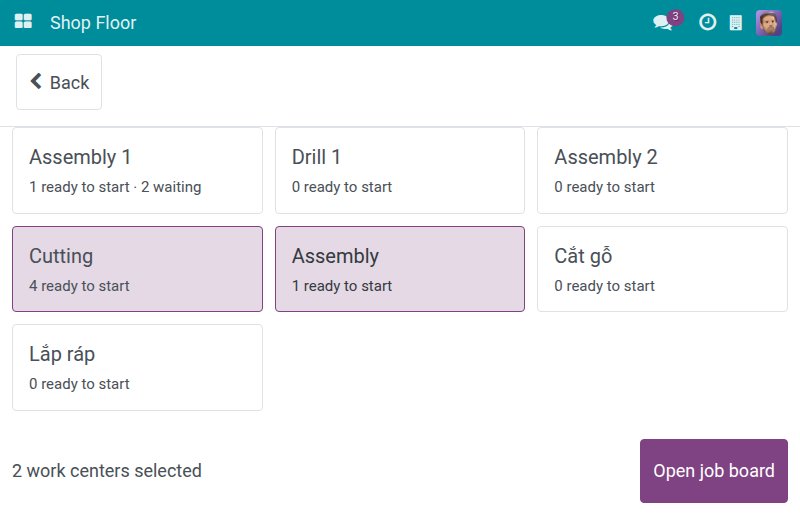
If you work at another station too, tap its card as well, for example Assembly. The counter at the bottom reads 2 work centers selected.
Tap Open job board. Your choice is saved for your account and company, so the next shift opens straight on the board.
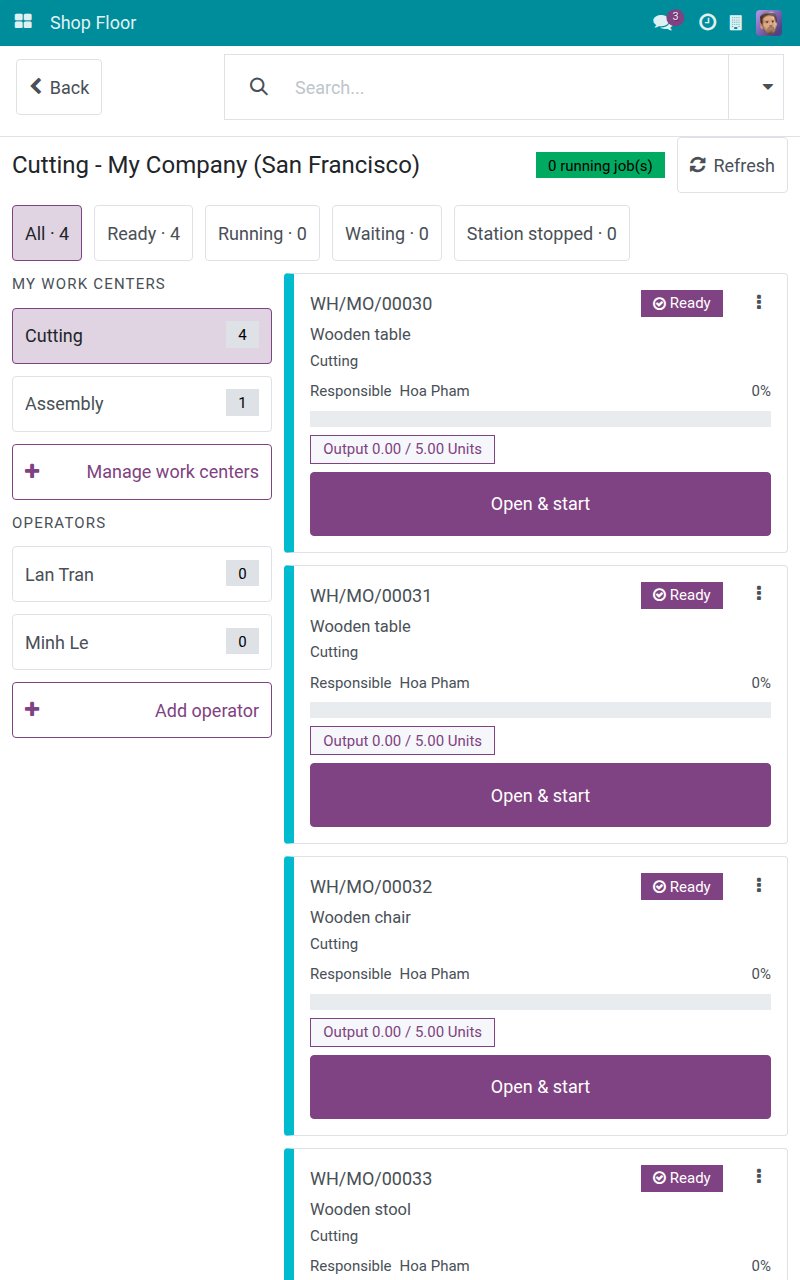
To look at another station you chose, tap its name under MY WORK CENTERS. Each name carries its number of jobs. Tap Manage work centers to add or drop stations without leaving the board.
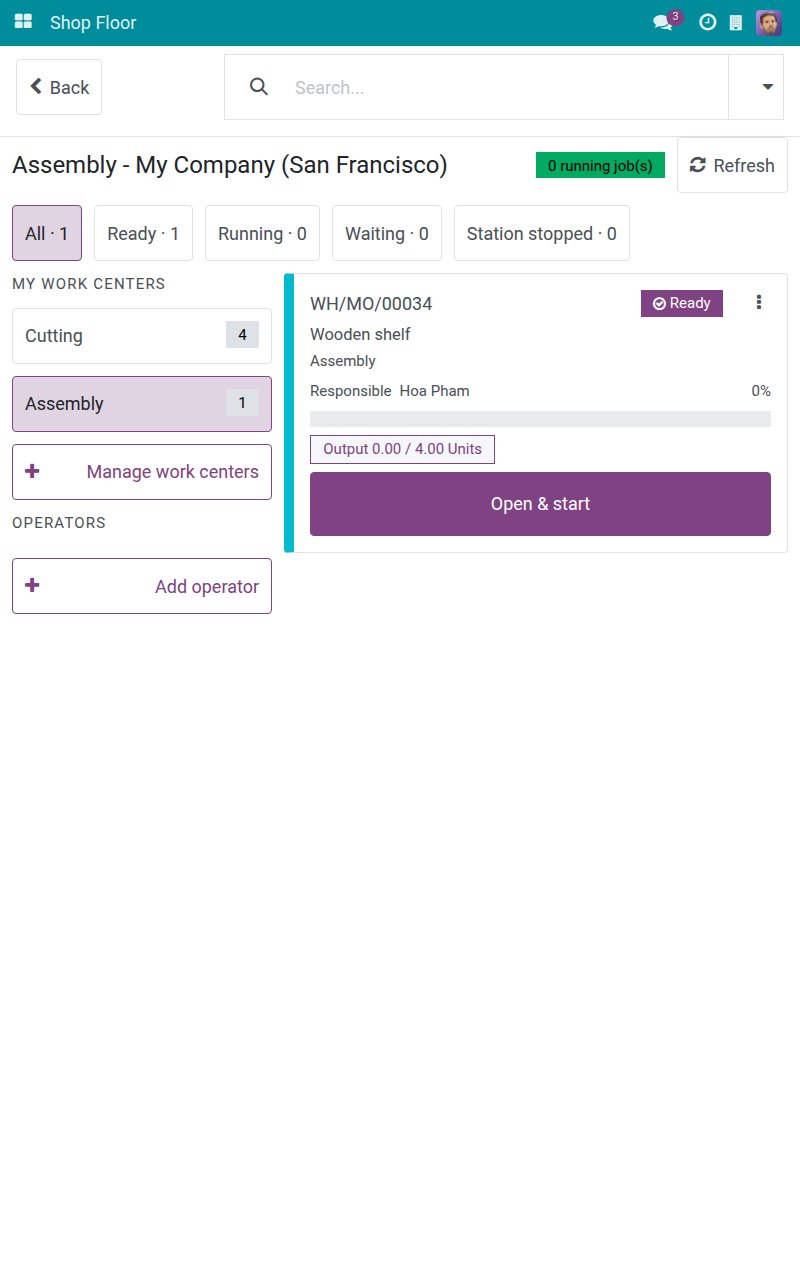
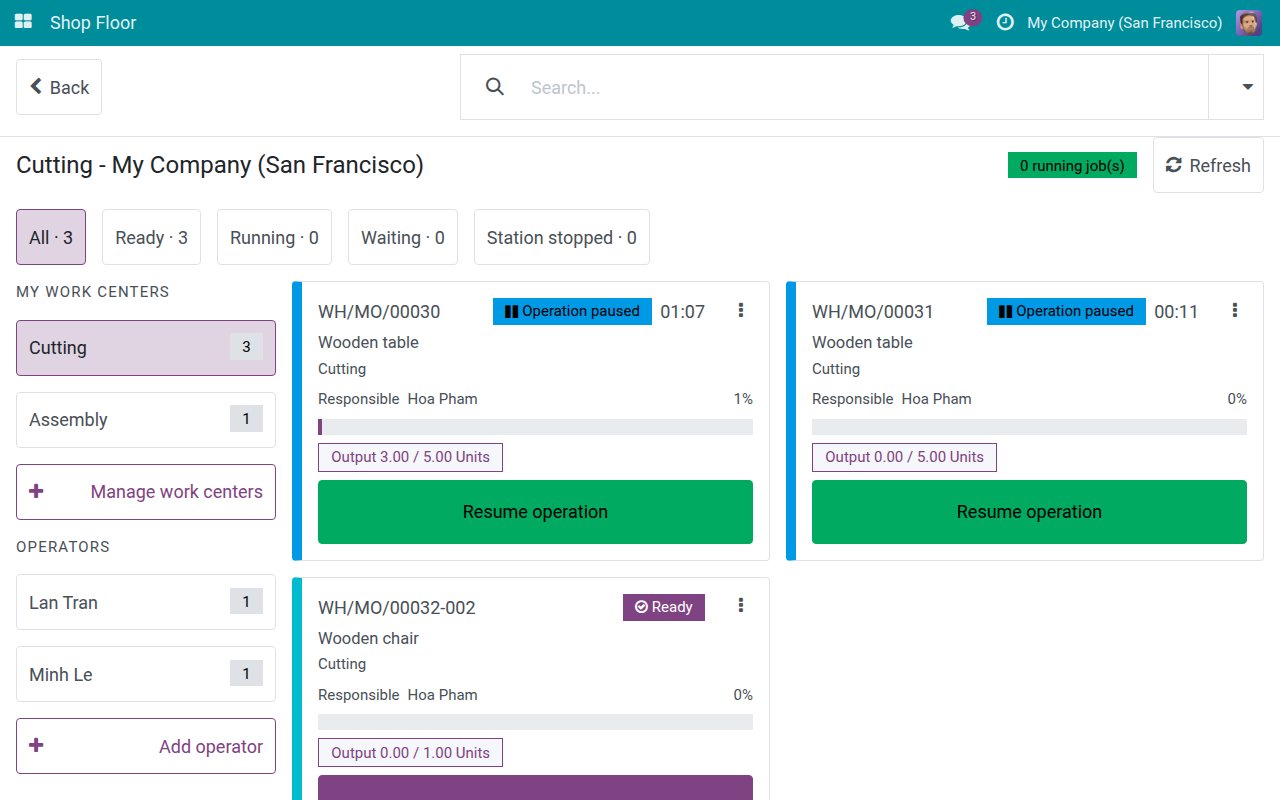
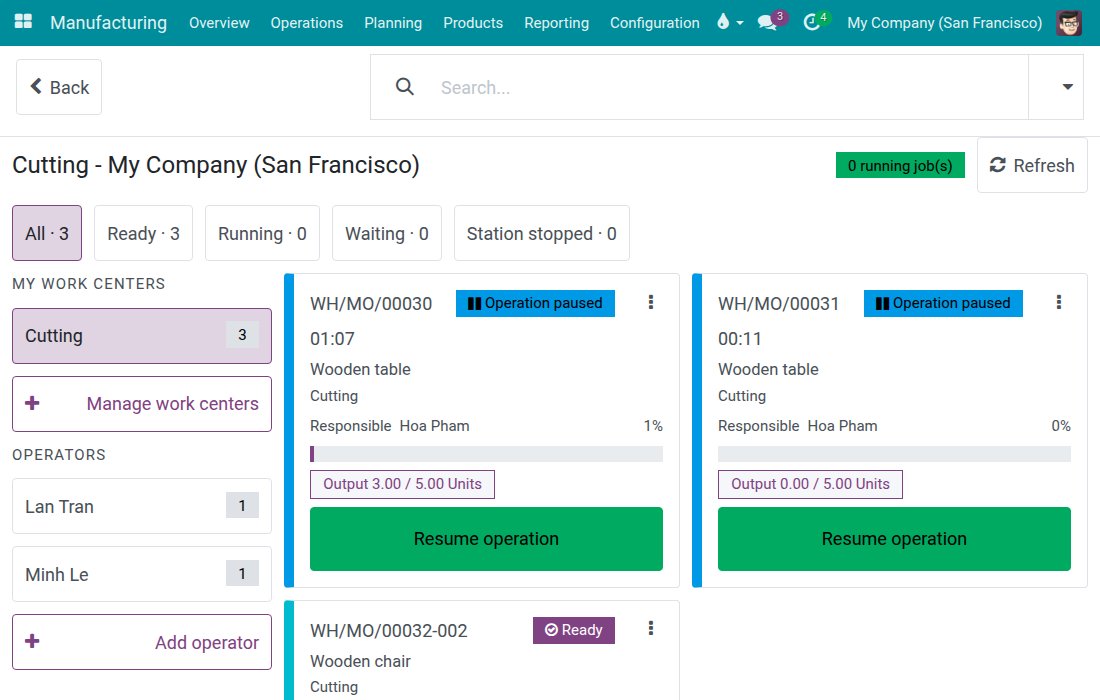
The board shows one card per work order: the manufacturing order, the product, the operation, a state badge, the person responsible, a progress bar and the output recorded so far. The tabs All, Ready, Running, Waiting and Station stopped each show a live count; Ready also lists the paused jobs. Use the search bar to narrow the cards by order reference. On a landscape tablet the board looks like this:
Find a job, start it, pause it and resume it
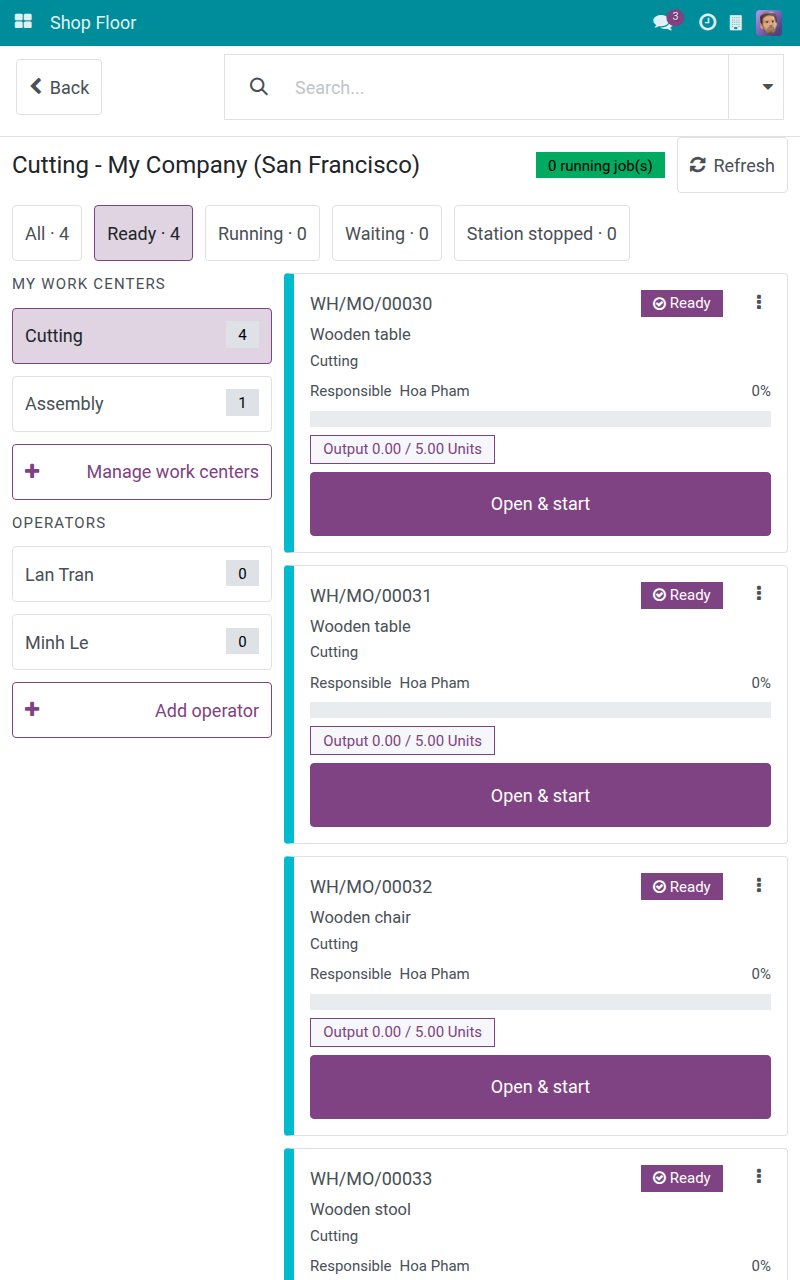
Tap the Ready tab to see the jobs that can be started.
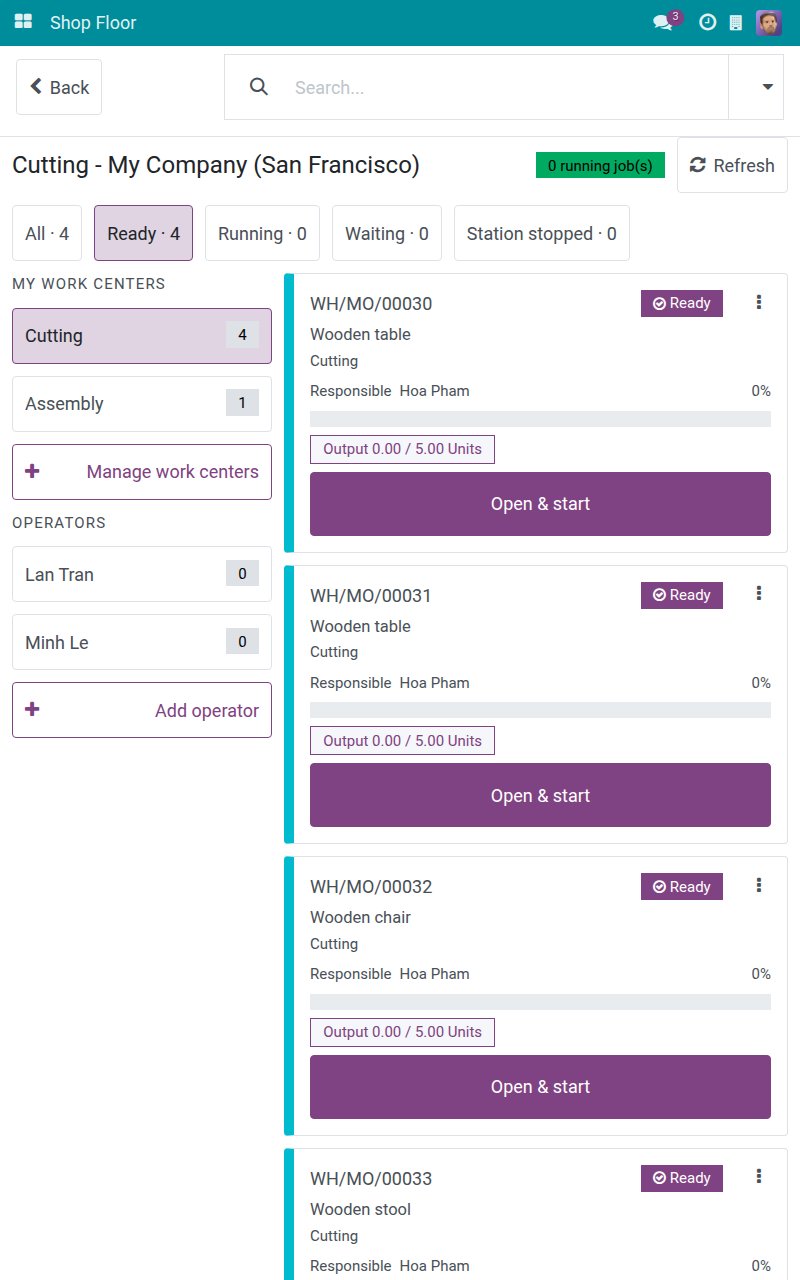
Type part of the order reference in the search bar, for example WH/MO/00030, and press Enter. Only the matching cards remain.
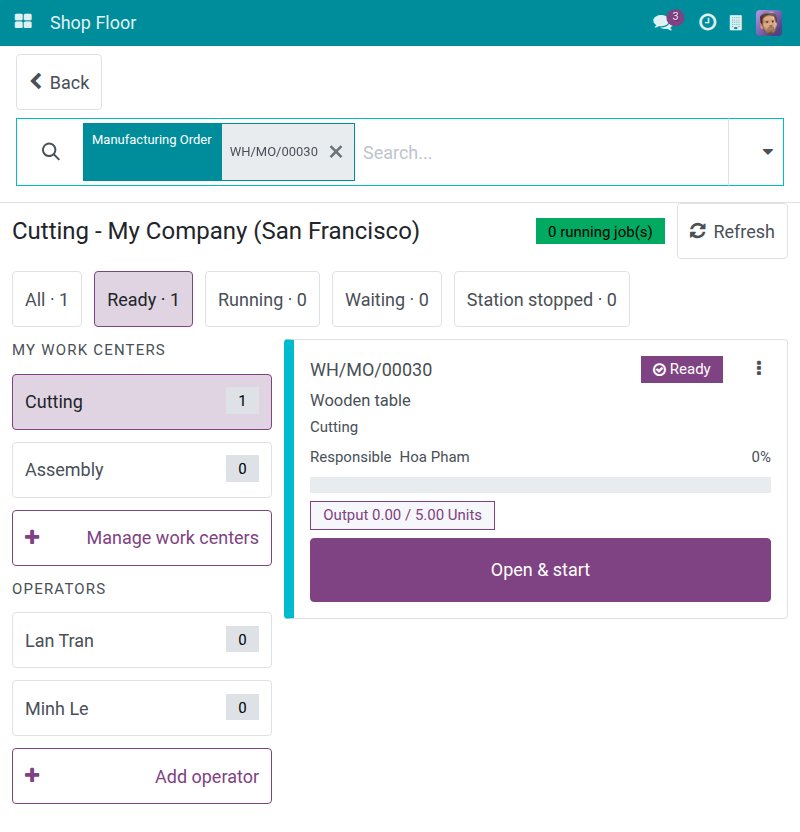
Tap Open & start on the card. It opens the operation and starts the clock. The state turns to Running and the timer counts. Tapping anywhere else on the card only opens the job; it never starts the clock.
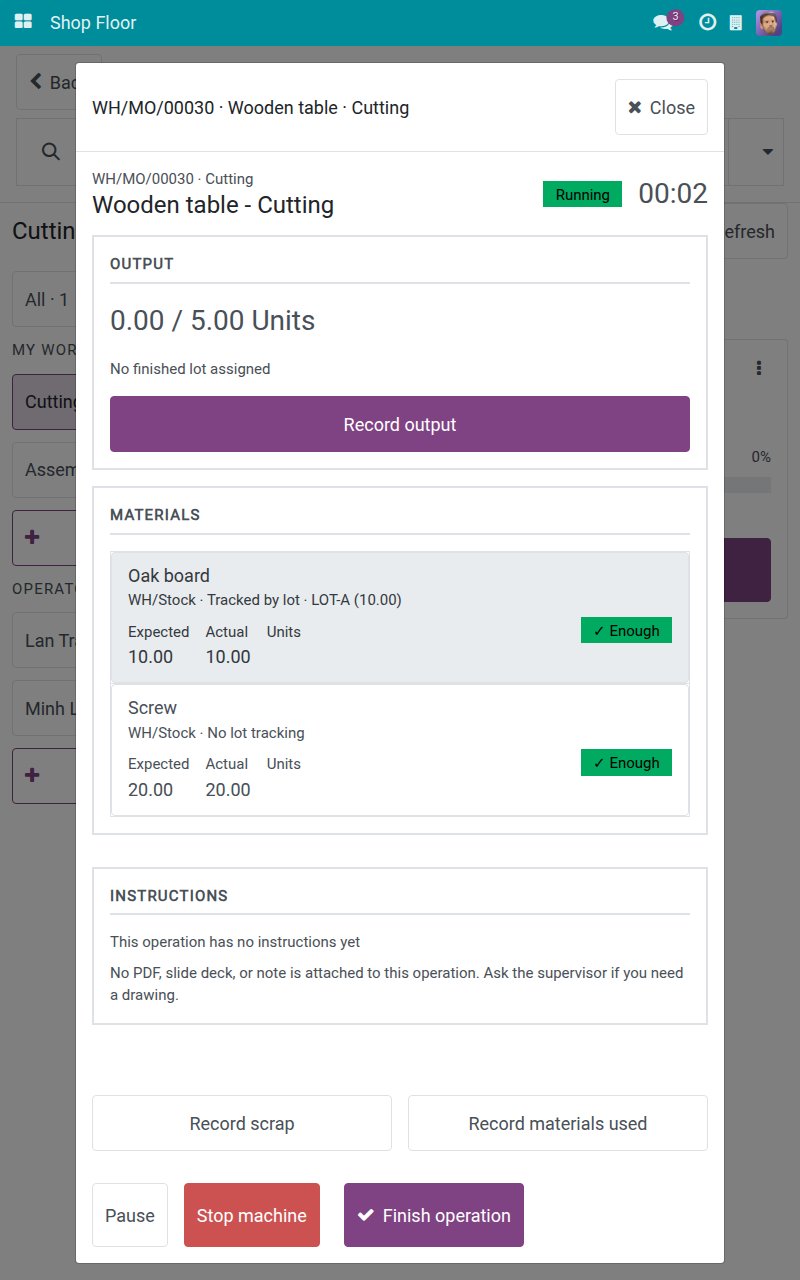
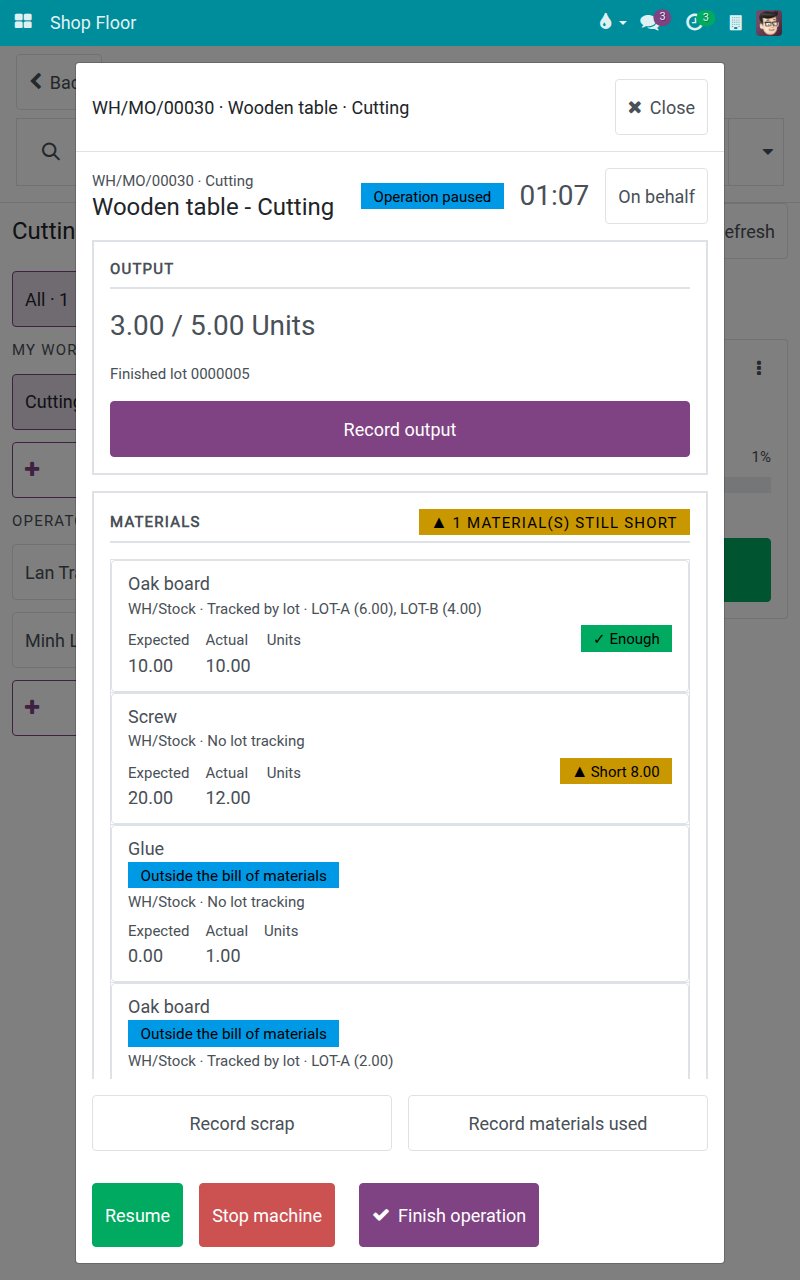
To take a break, tap Pause. The state becomes Operation paused and the button becomes Resume.
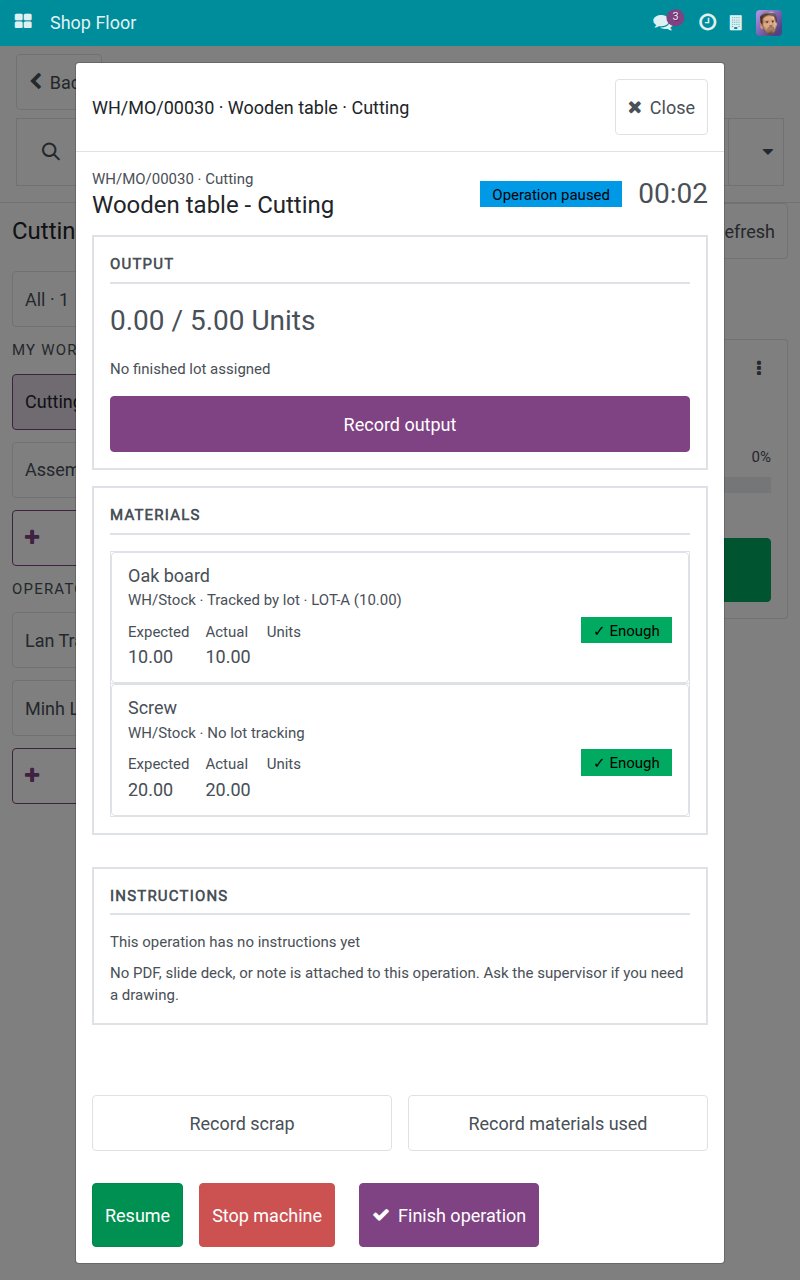
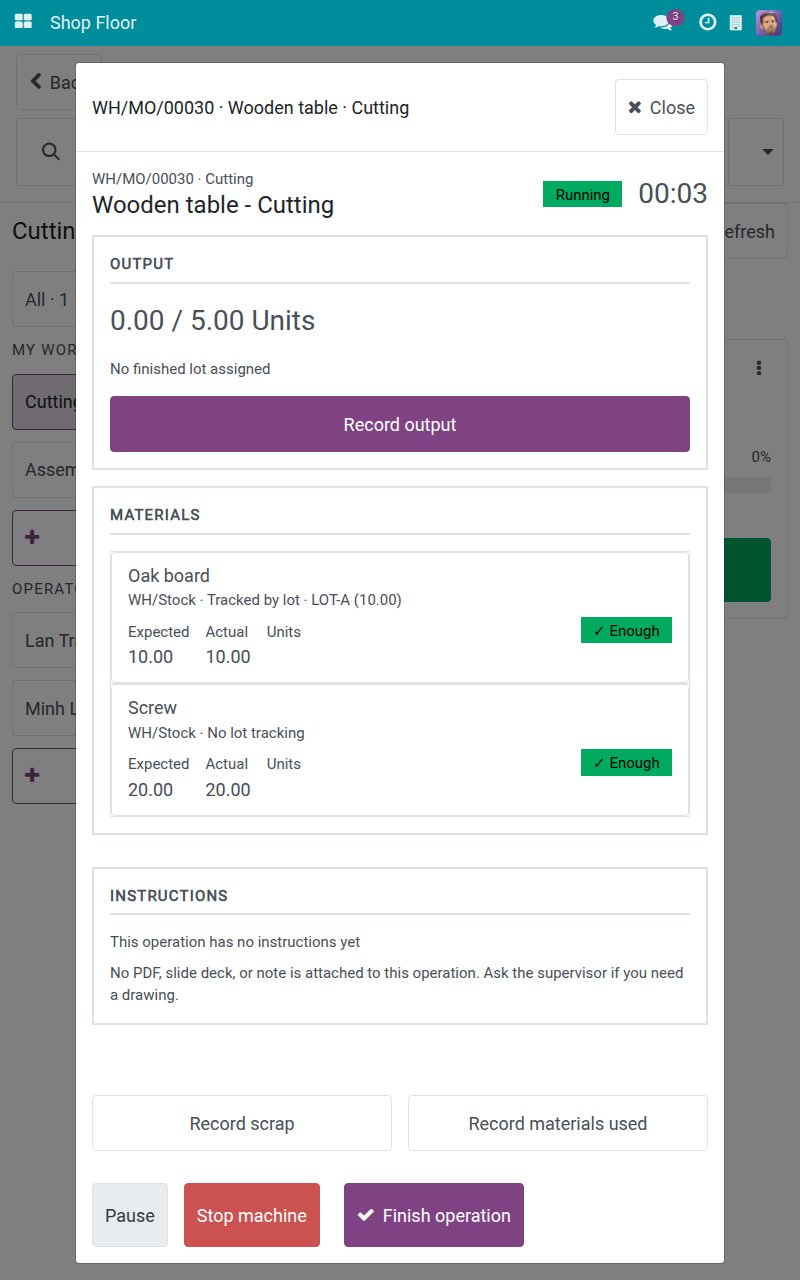
Tap Resume when you are back. The clock starts again for you.
Note
On the board, the card of a running job offers Continue operation and the card of a paused job offers Resume operation. When the previous operation of the order is not finished yet, the card says so and you can still start.
Record the quantity you have just made
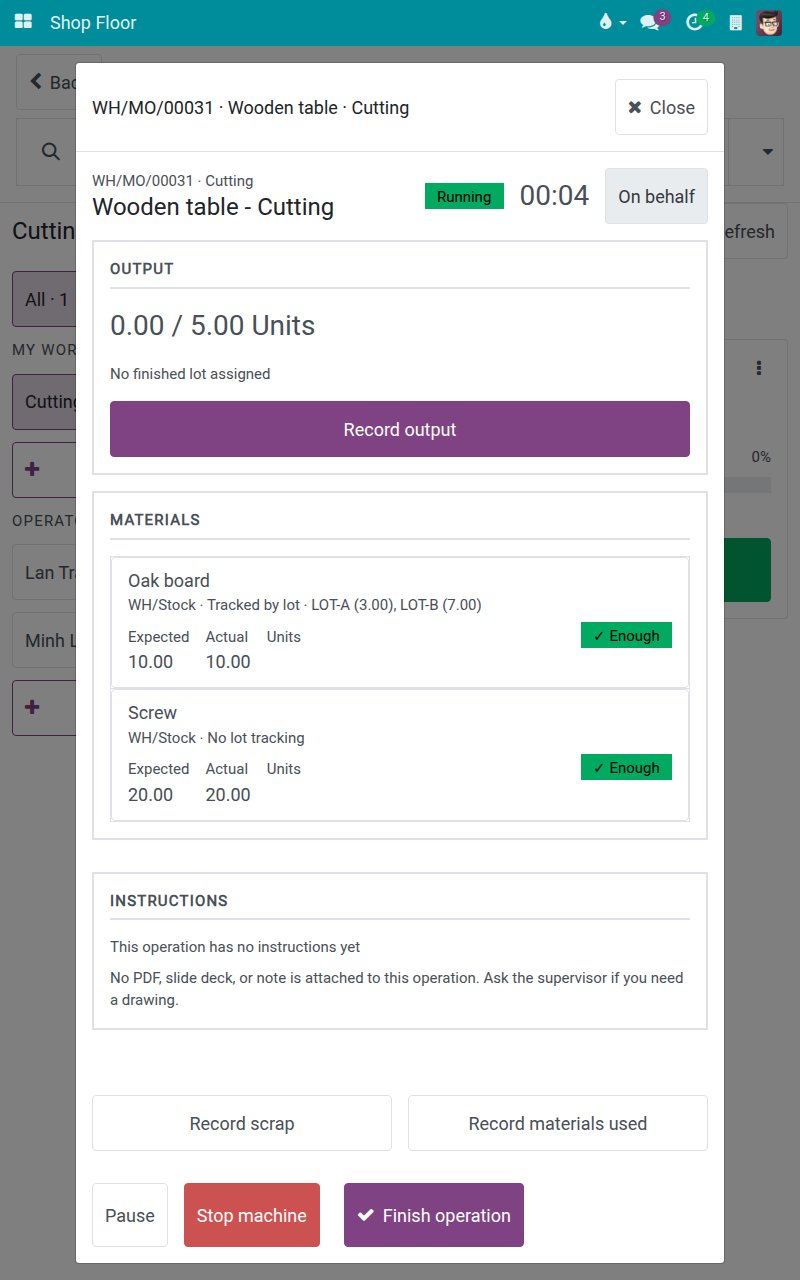
On the operation screen, tap Record output. The screen reads "Recorded 0.00 / 5.00 Units - enter the quantity you have just made". When the finished product is tracked by lot, the screen first asks for the FINISHED LOT.
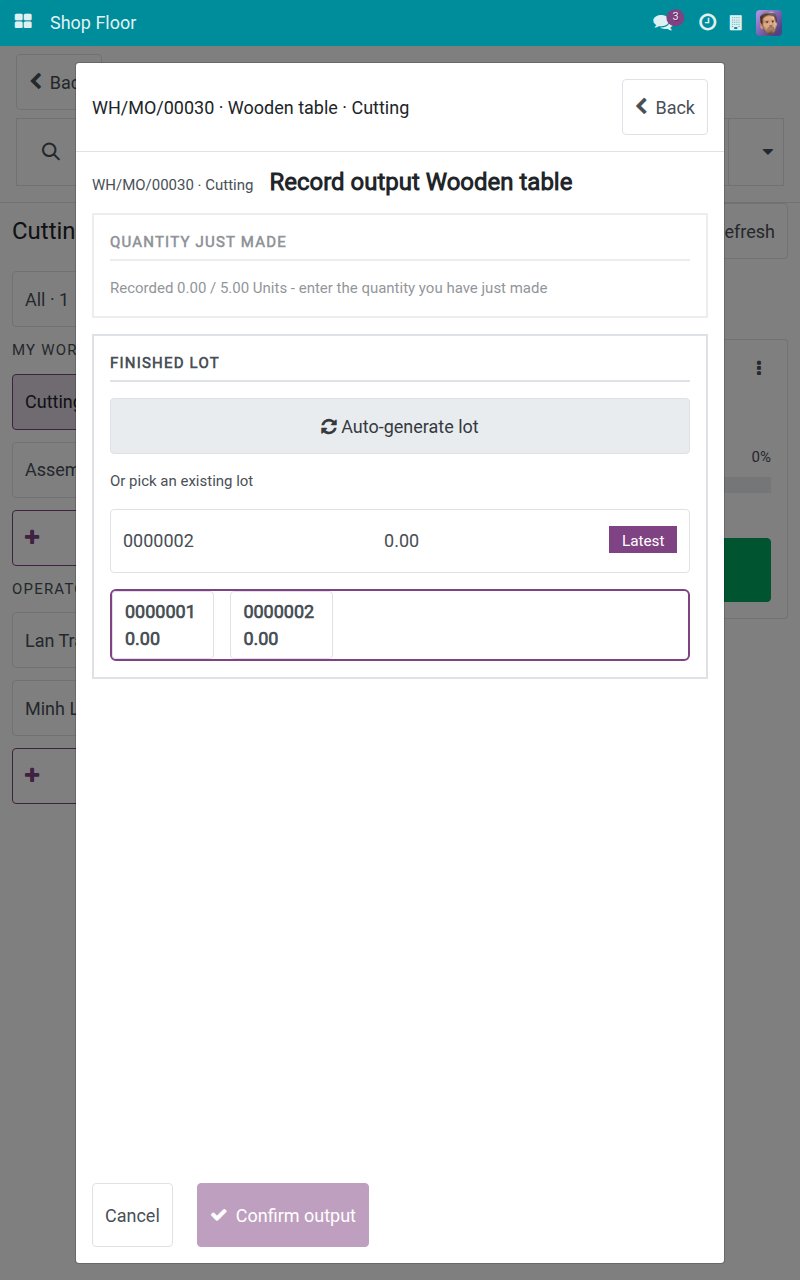
Tap Auto-generate lot. The lot appears under ASSIGNED LOT and the number pad opens. You can also pick an existing lot from the list; Latest marks the newest one.
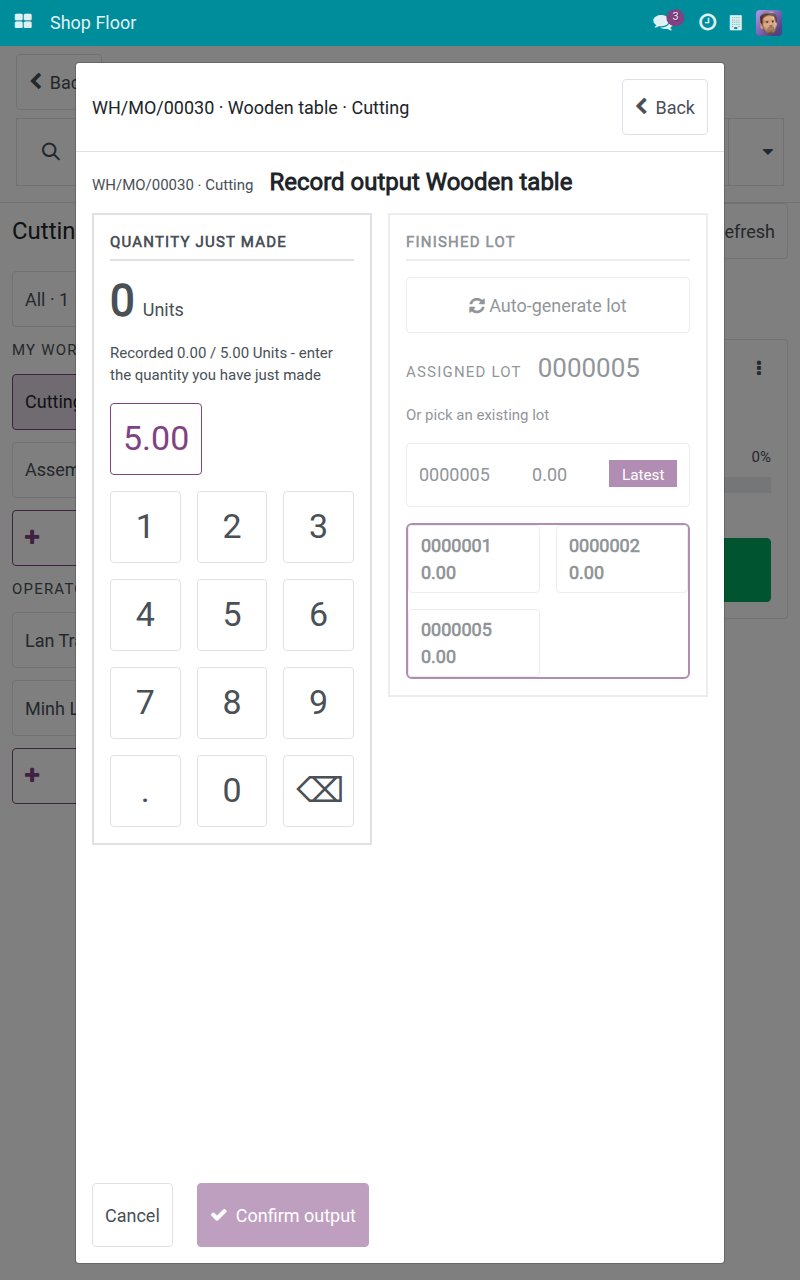
Tap the digits of the quantity you have just made, for example 3. No keyboard opens. The pad states "After this recording: 3.00 / 5.00 Units".
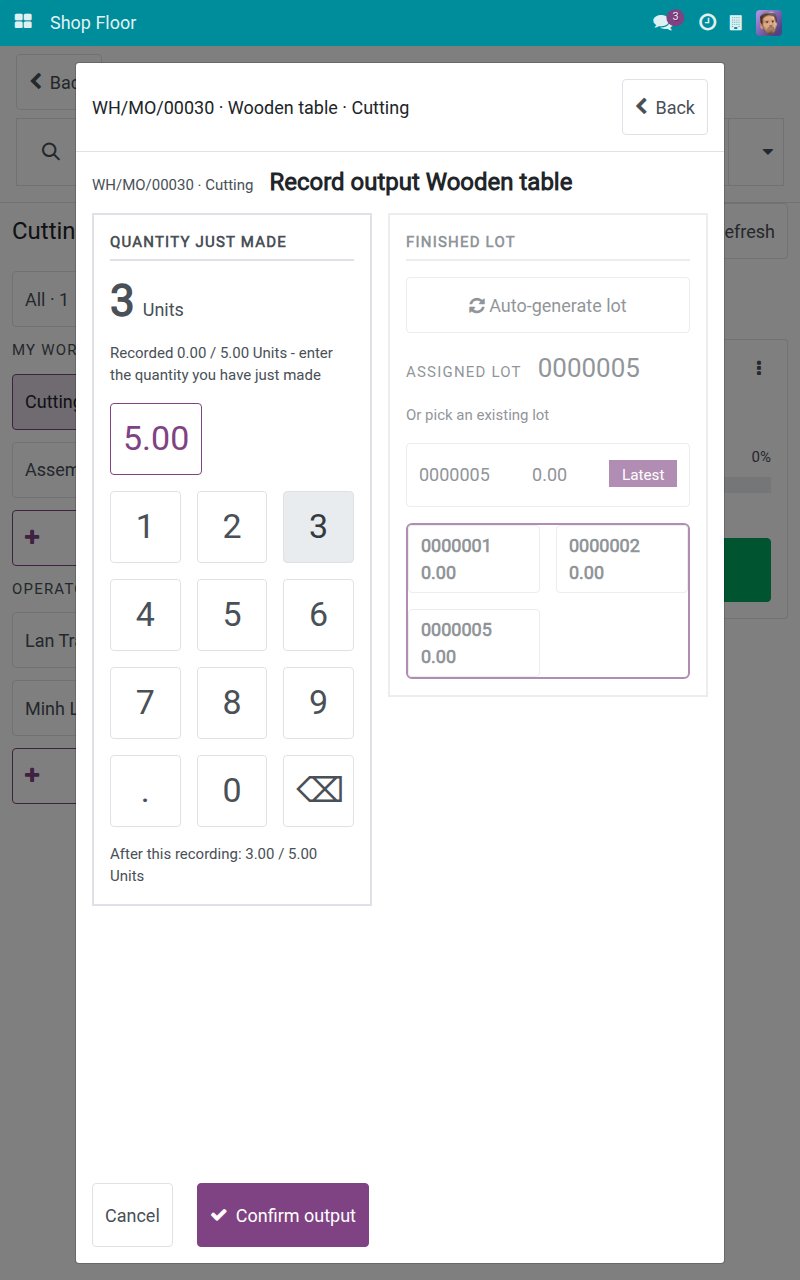
Tap Confirm output. The quantity is added to the order as its own recording and the screen now reads "Recorded 3.00 / 5.00 Units".
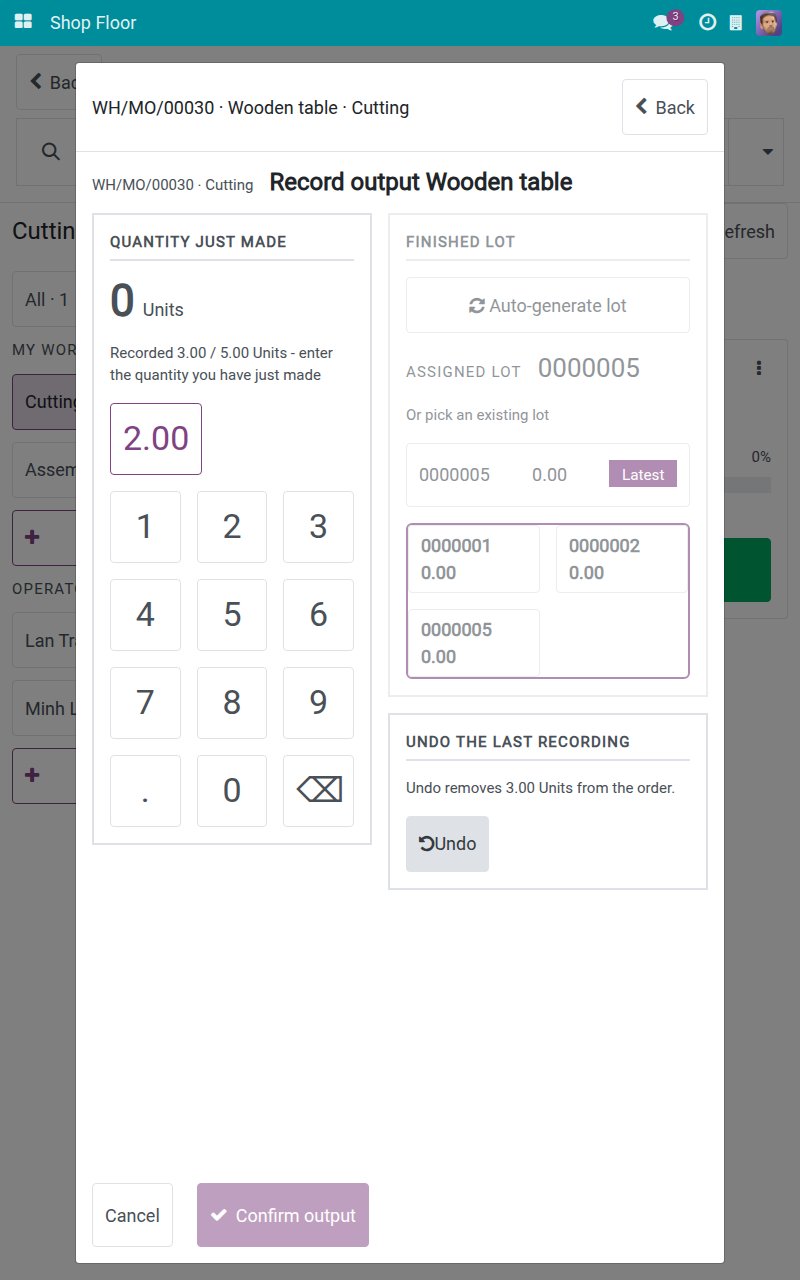
Next time, enter only what you made since then, for example 2, and confirm. The new figure is always added on top of the earlier ones, never a new total. The order now reads 5.00 / 5.00.
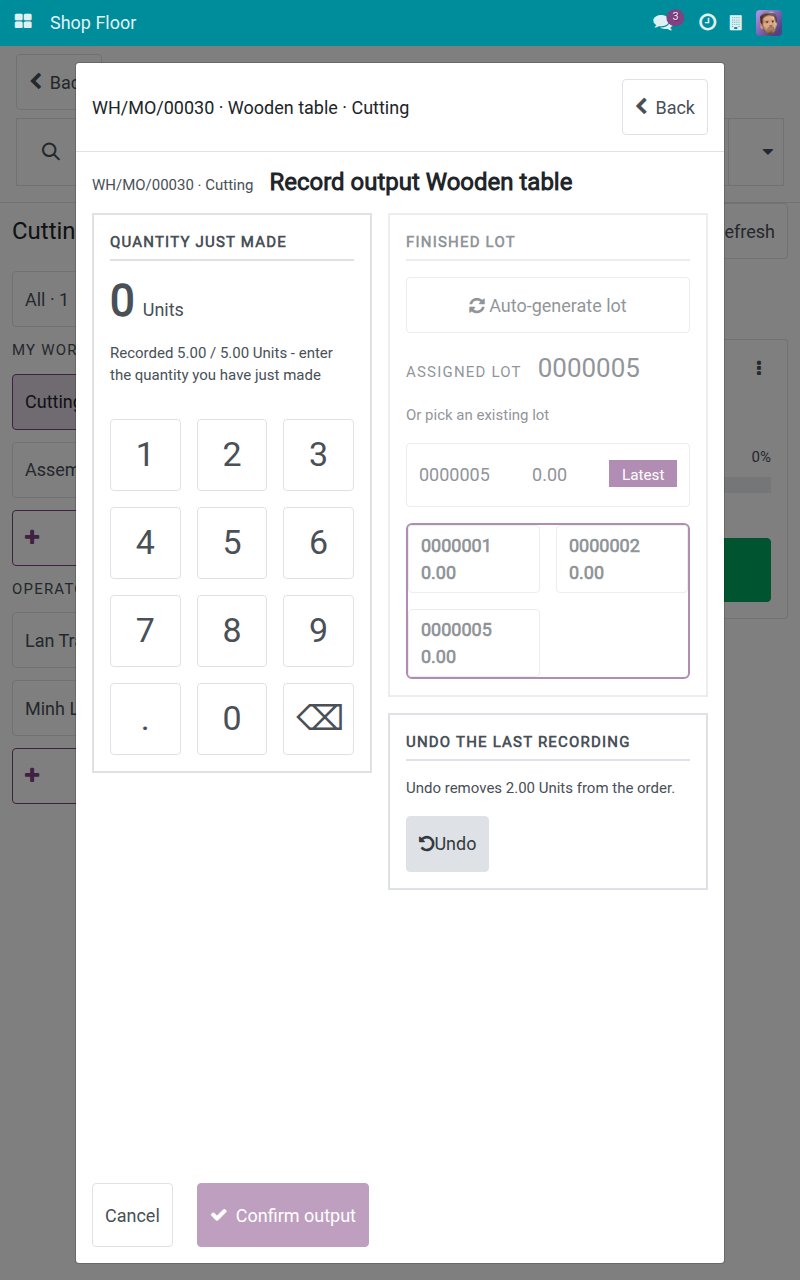
Made a mistake? Under UNDO THE LAST RECORDING, tap Undo. It takes back exactly the latest recording, without a confirmation. The earlier recording and its lot are untouched.
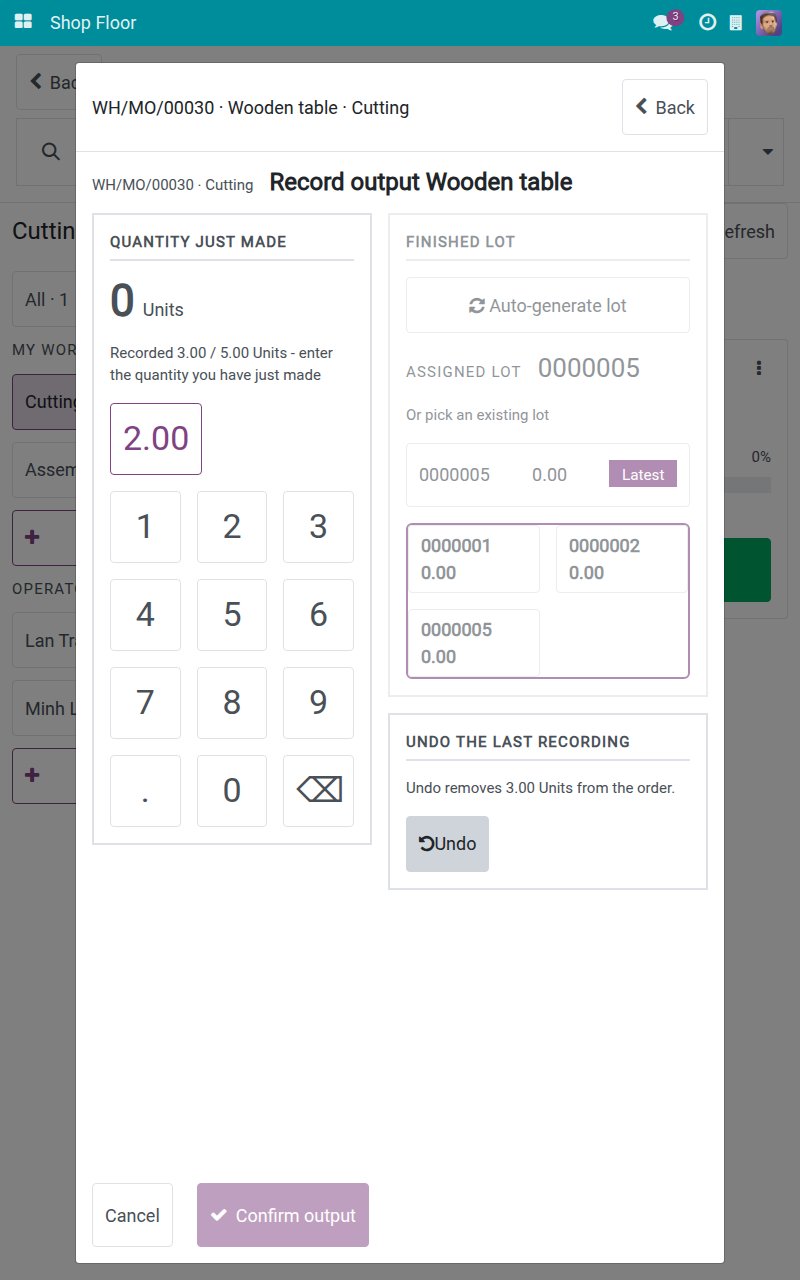
Tap Back. The OUTPUT panel of the operation screen shows the recorded quantity and the finished lot.
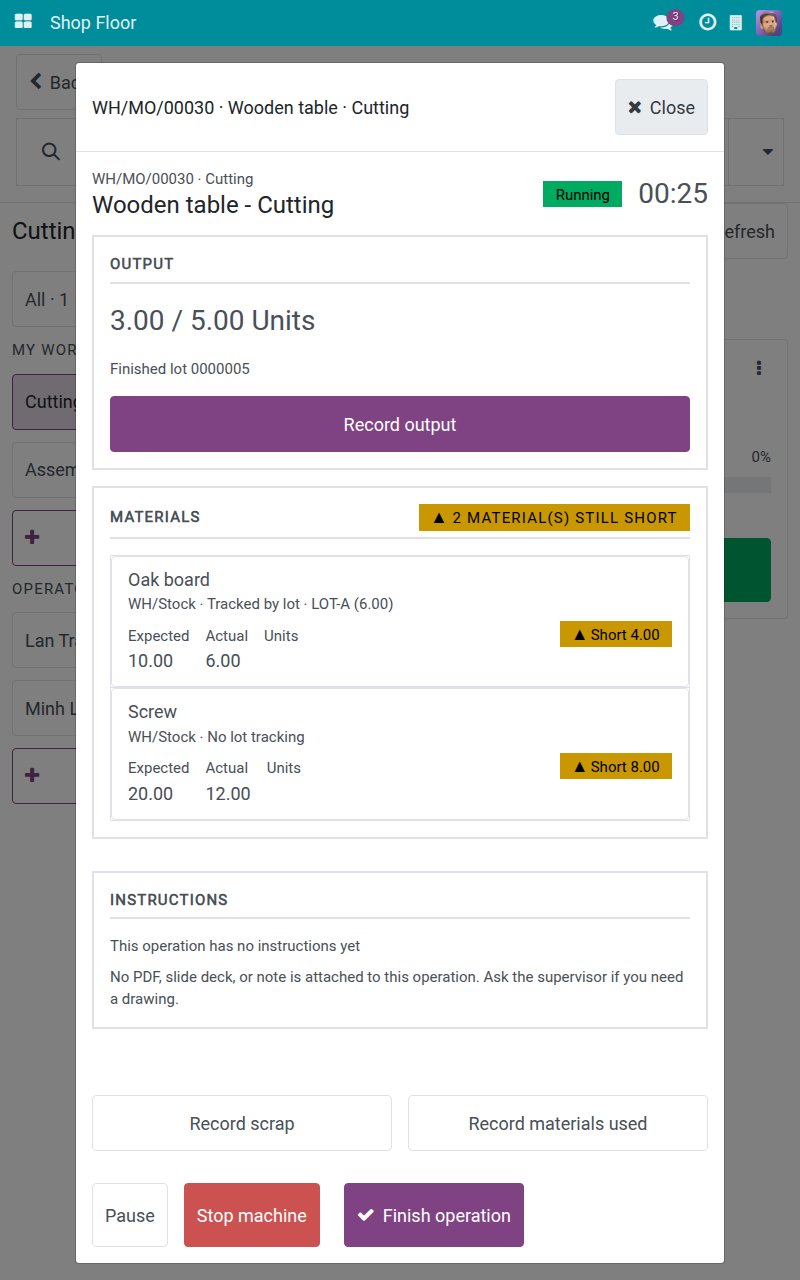
Note
You can undo only your own recordings, and only while the operation and the order are still open. A Manufacturing Administrator can undo anyone's recording. For a product that is not tracked by lot, the lot area does not appear and the number pad opens directly.
Record the materials you really used
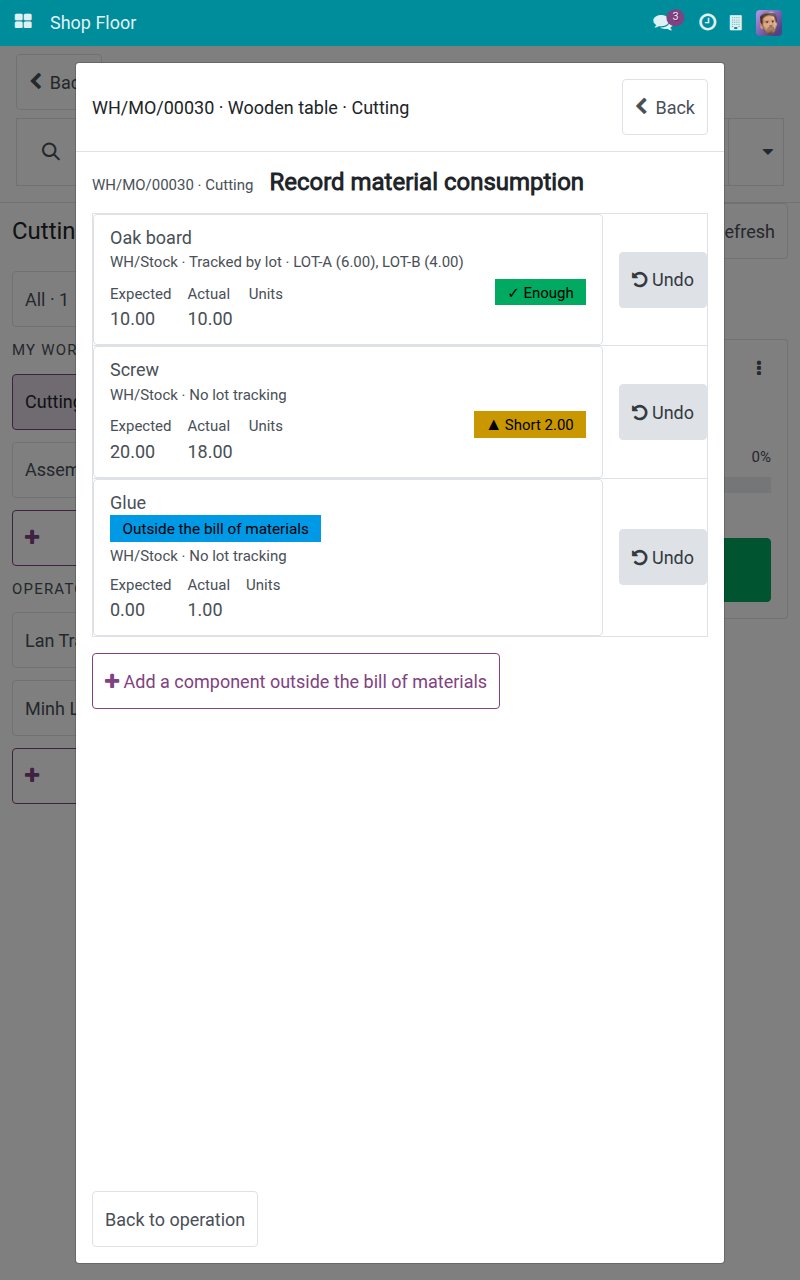
On the operation screen, tap Record materials used. Every component is a row with the Expected and Actual quantities and a chip such as Short or Enough.
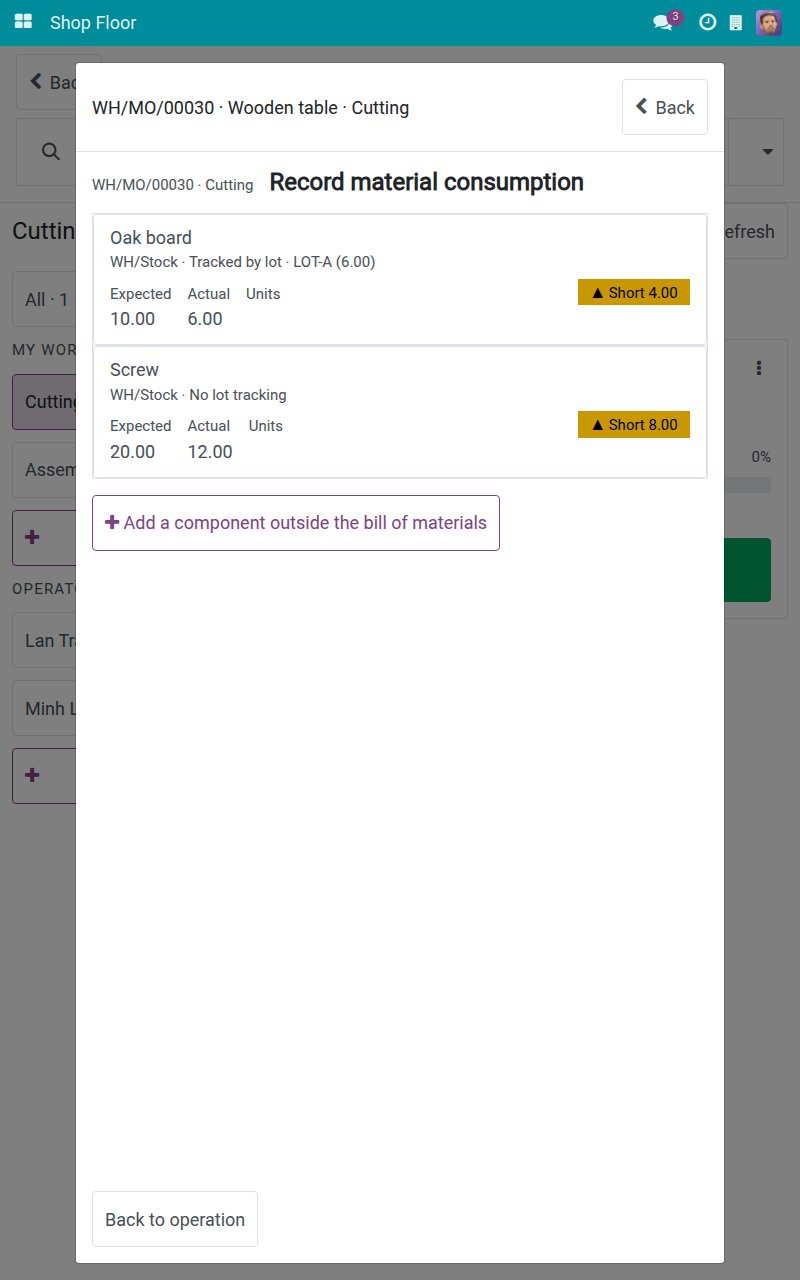
Tap a component tracked by lot, for example Oak board. The list of lot and quantity pairs shows what is already recorded.
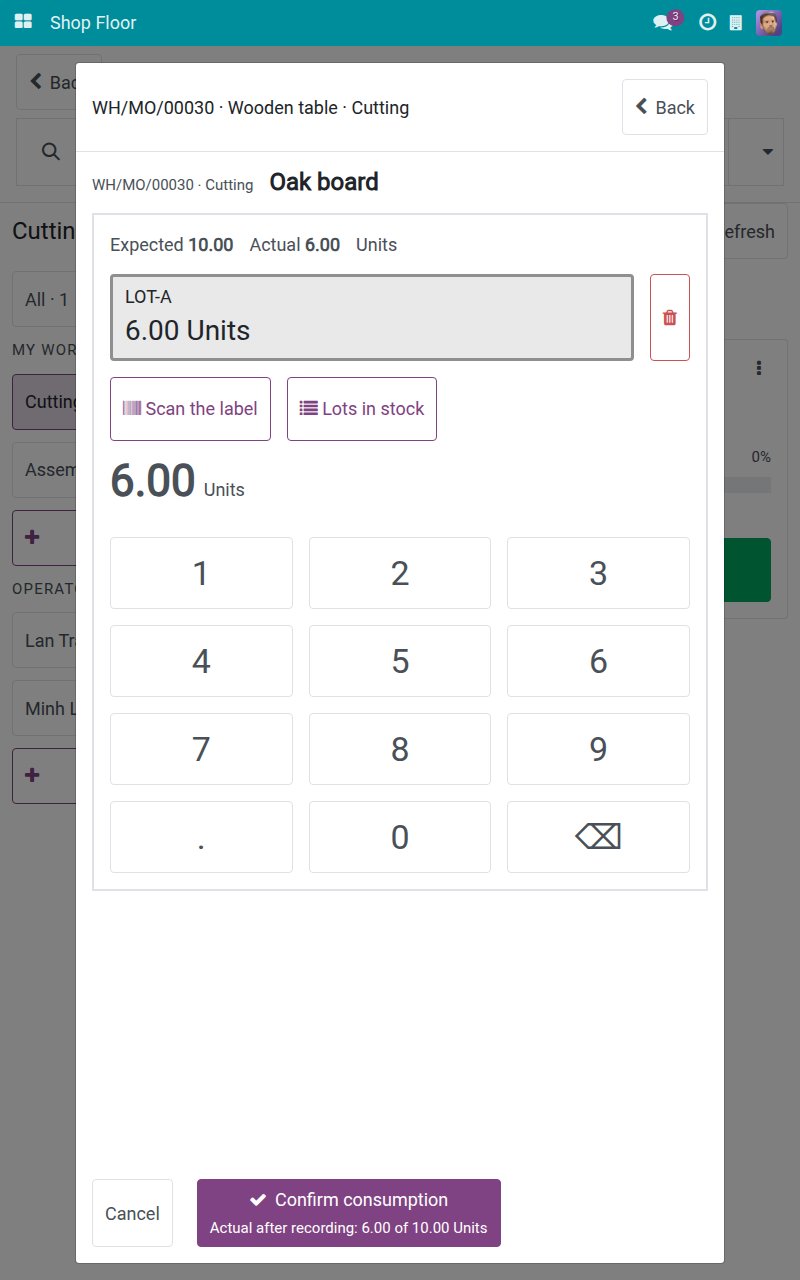
Tap Lots in stock to see the lots with their quantity on hand. Where the device can scan, Scan the label adds a lot from its label.
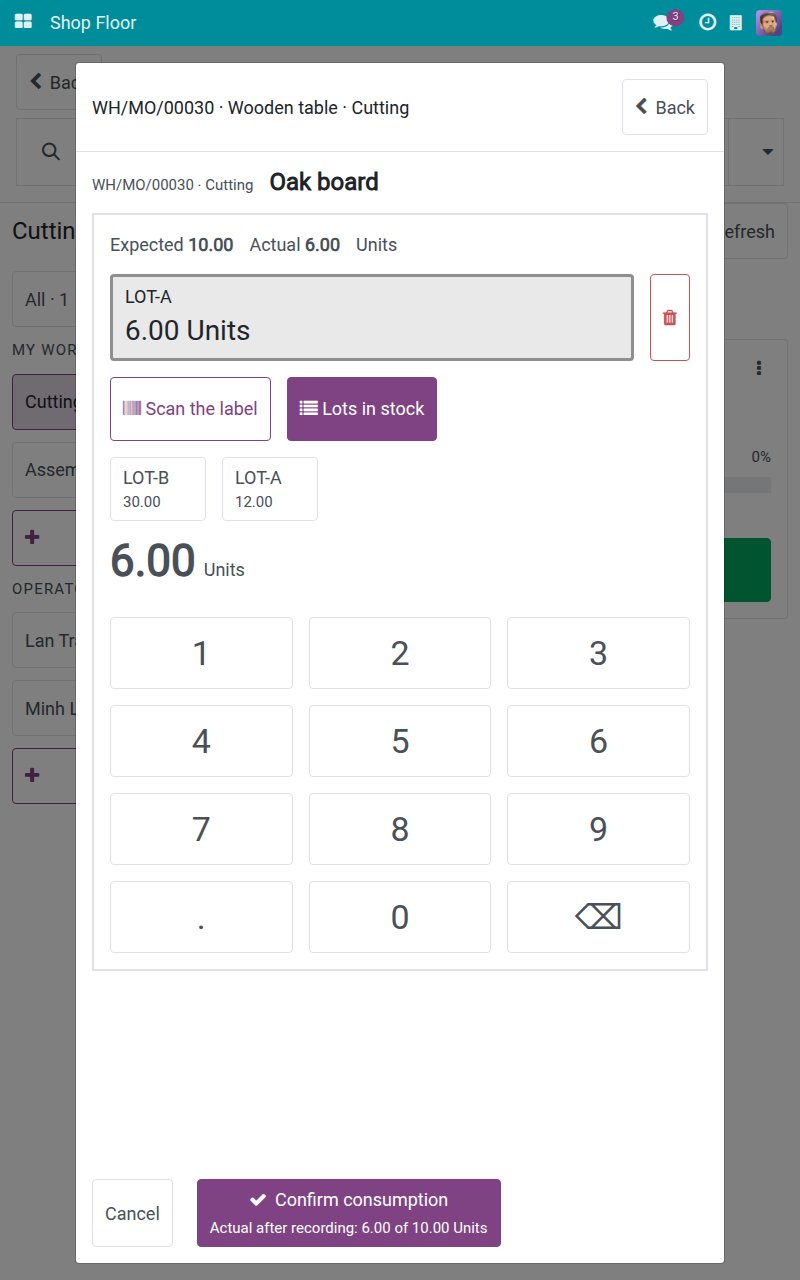
Tap the lot you used, for example LOT-B, and tap the digits of the quantity used from that lot. Under the Confirm consumption button, the screen shows the resulting "Actual after recording".
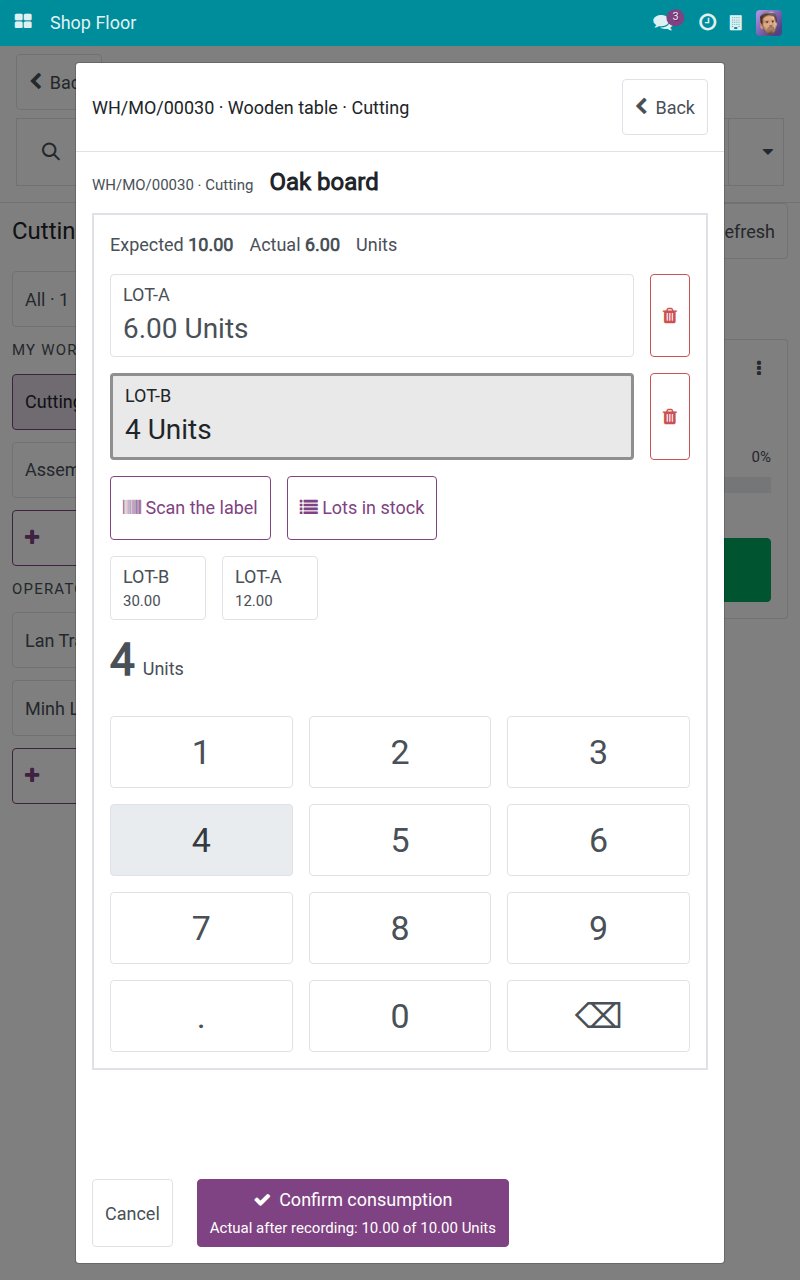
Tap Confirm consumption. The row now shows the new Actual quantity, the lots used and an Undo button.
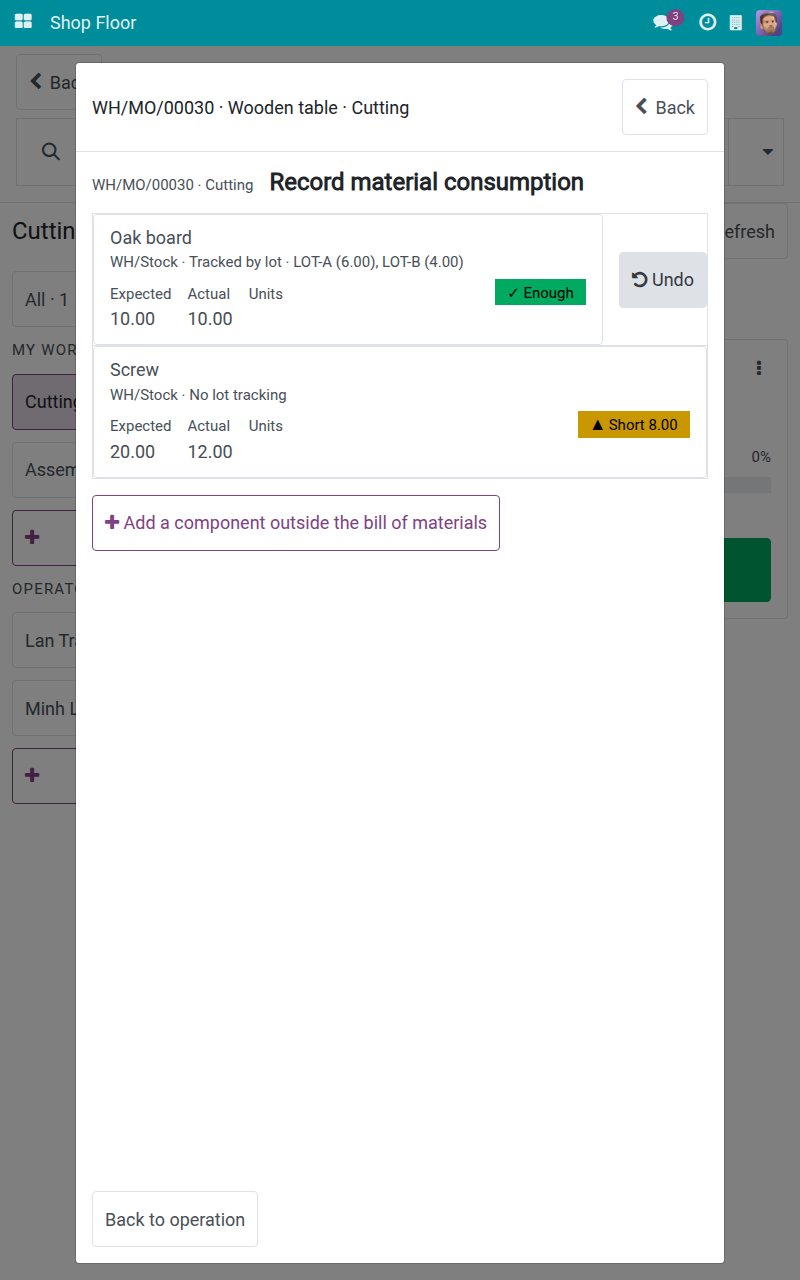
For a component without lots, for example Screw, tap its row, tap the digits of the quantity used and confirm. Zero is allowed, and As expected fills in the planned quantity with one tap.
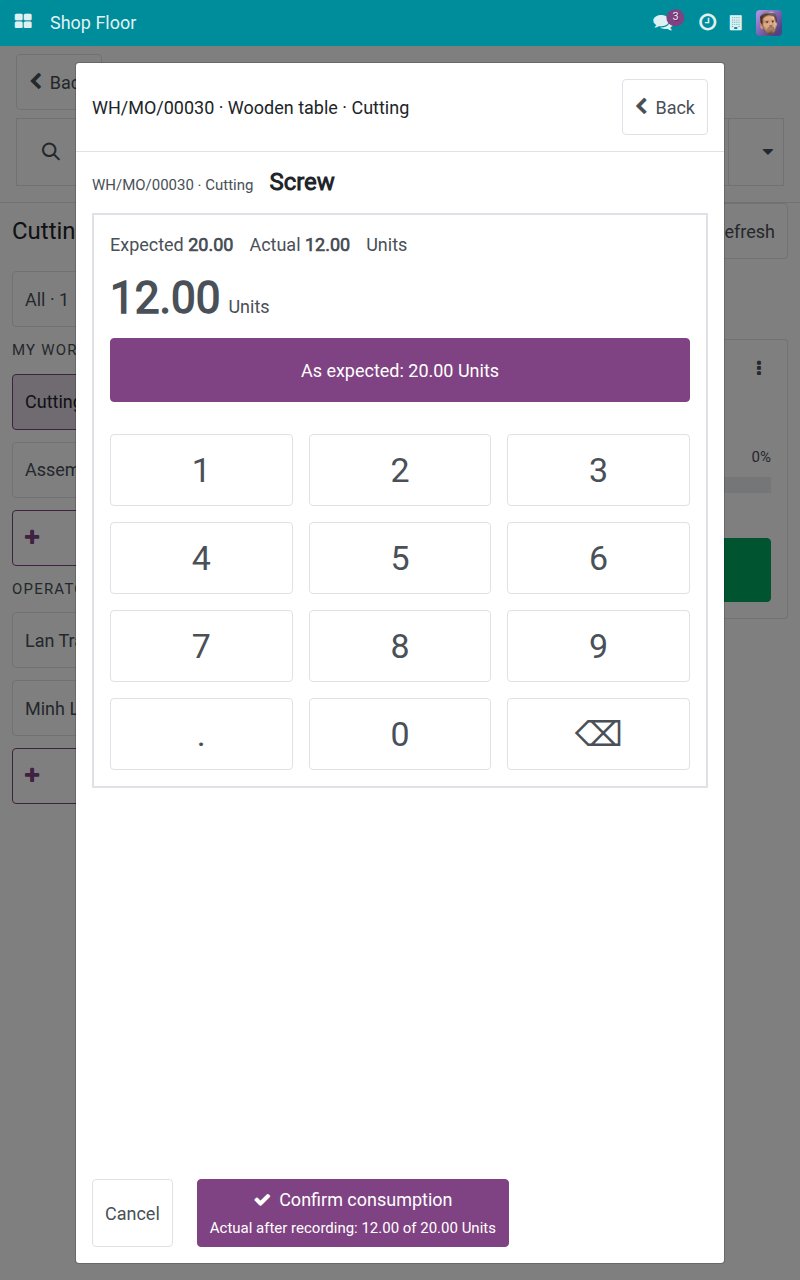
After confirming, the row shows the quantity you entered. Later output recordings do not rescale it.
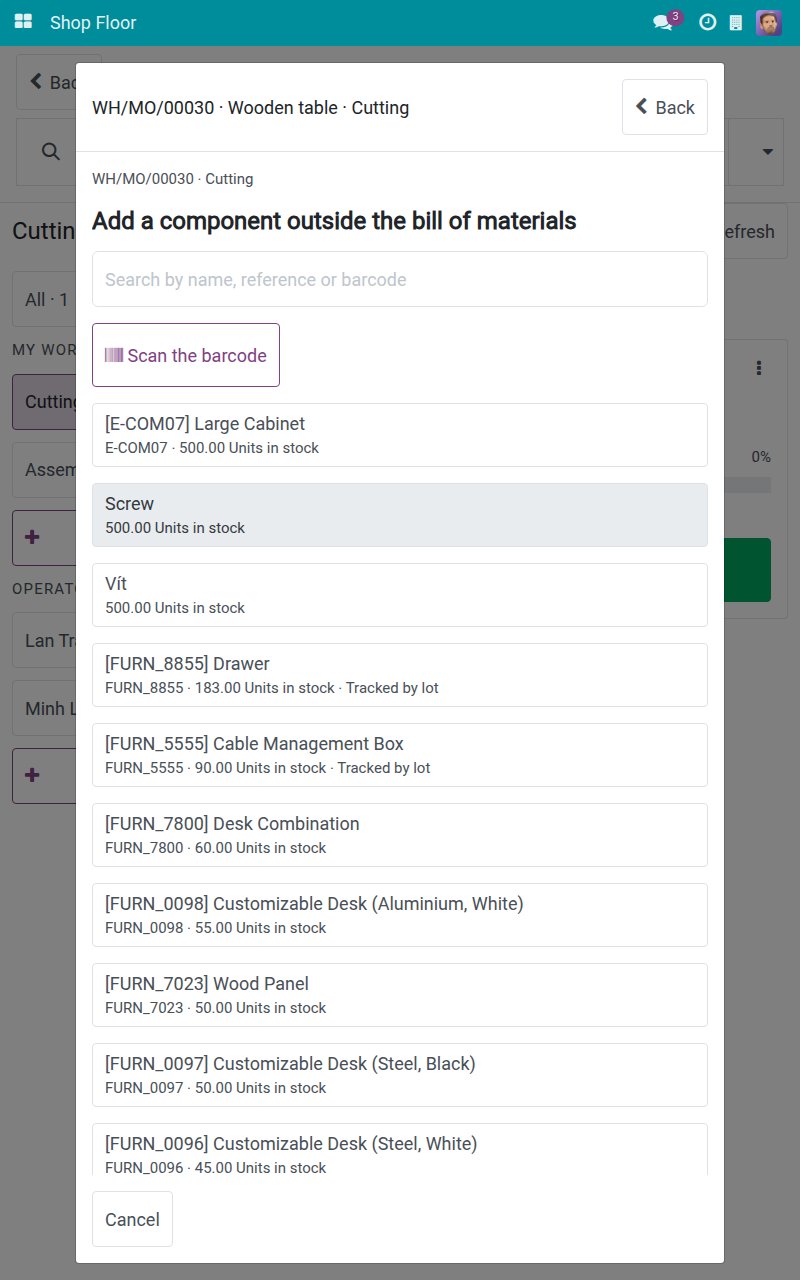
If you used something that is not in the bill of materials, tap Add a component outside the bill of materials. Search by name, reference or barcode and tap the product.
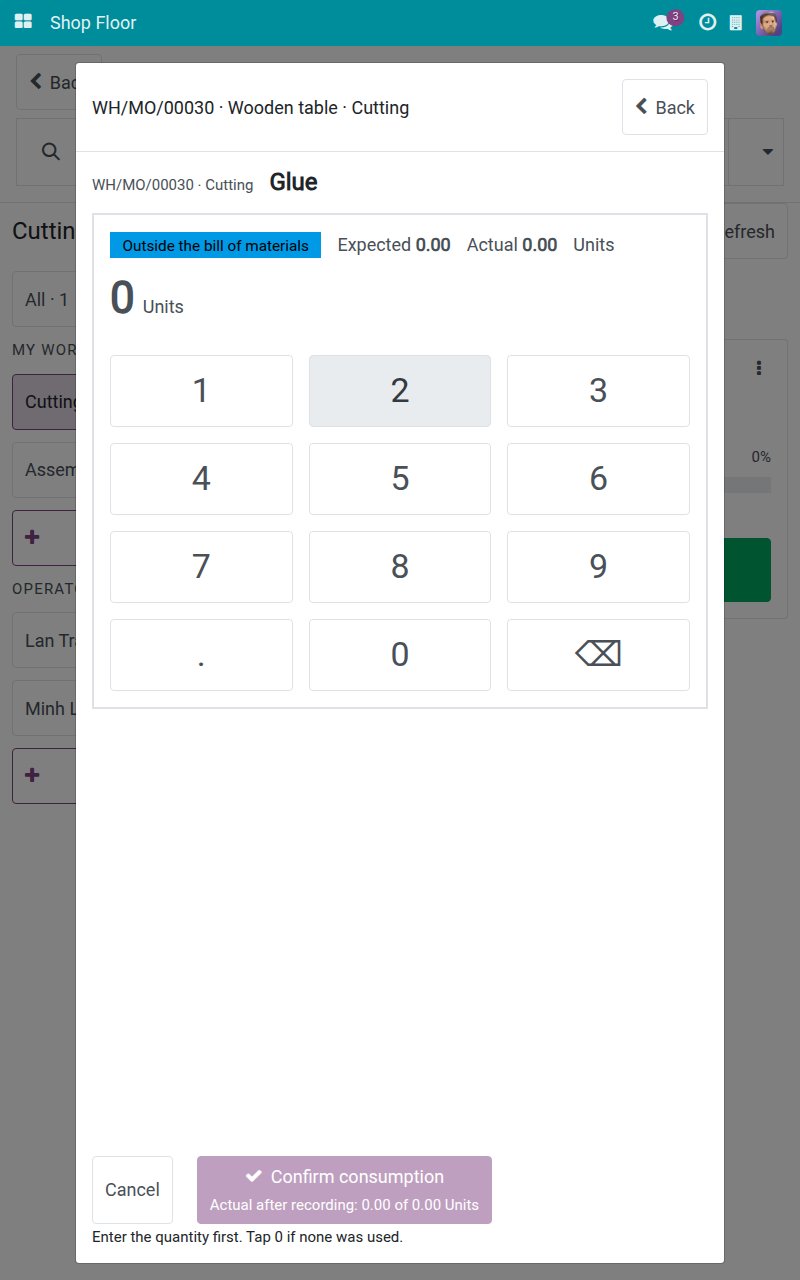
The product opens with the badge Outside the bill of materials. Tap the digits of the quantity used, for example 1, and confirm.
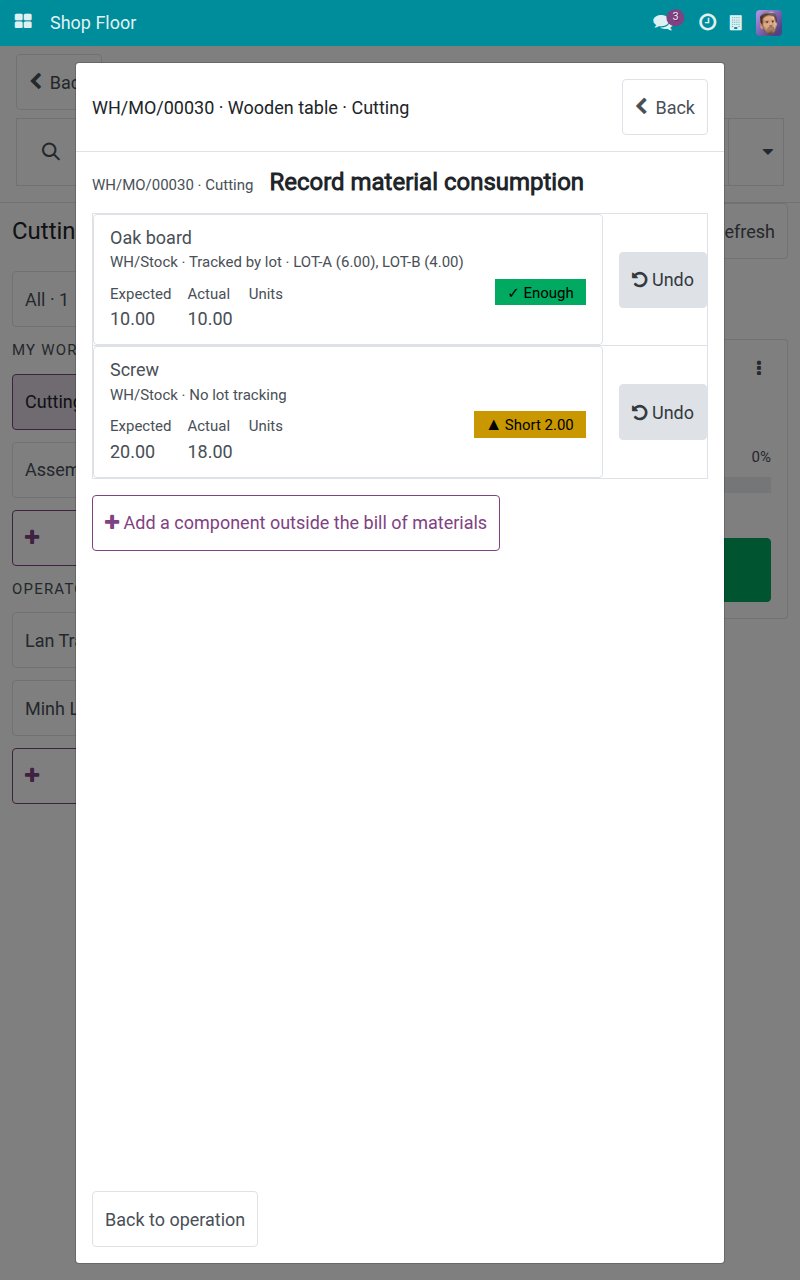
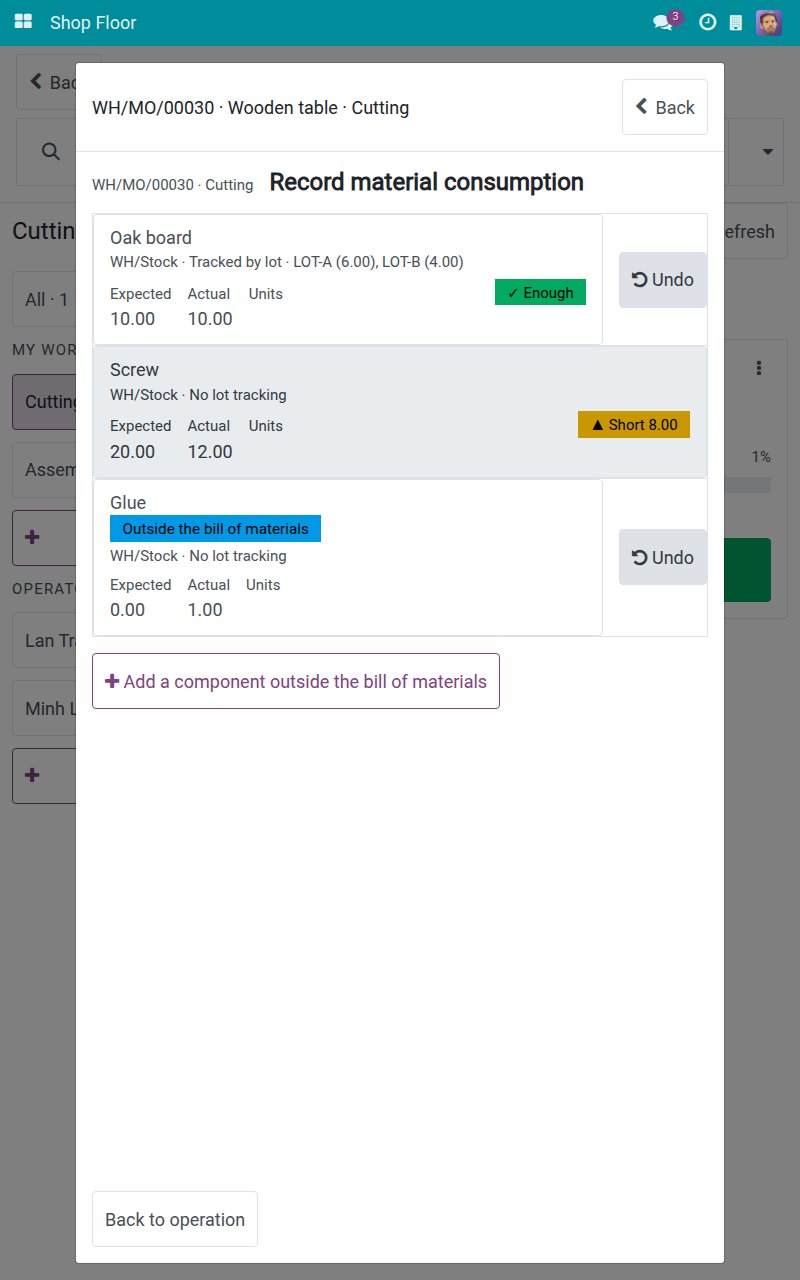
The list now includes the extra component. Tap Undo on a row to restore its earlier figures. Only the latest standing entry of a row can be undone, by its author or by a Manufacturing Administrator.
After an undo, the row returns to its earlier figures.
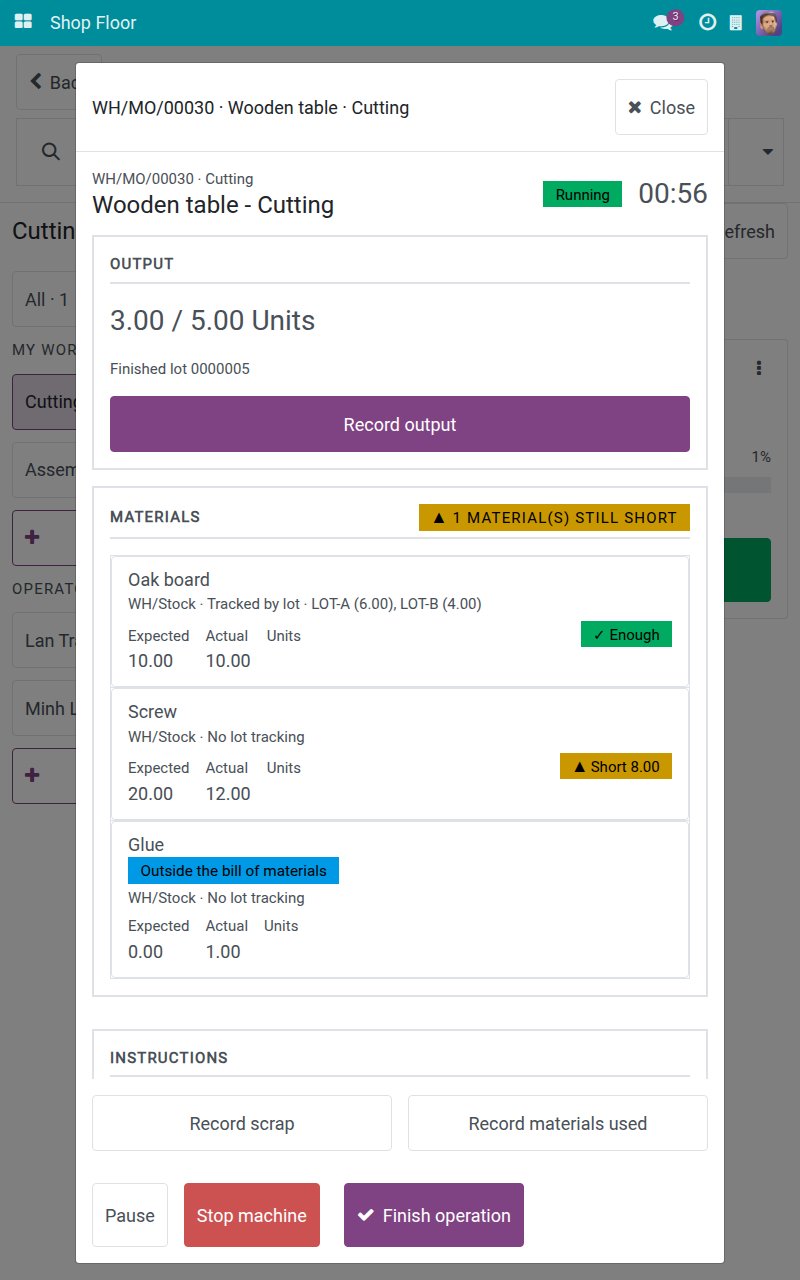
Tap Back to operation. The MATERIALS panel counts only the components that are still short.
Note
Until you enter a figure yourself, Actual is an estimate based on the reserved quantity that follows the output you record. Once you confirm a figure, it stays as you entered it.
Record scrap
From the bottom of the operation screen, tap Record scrap. Tap the product that was spoilt, for example Oak board.
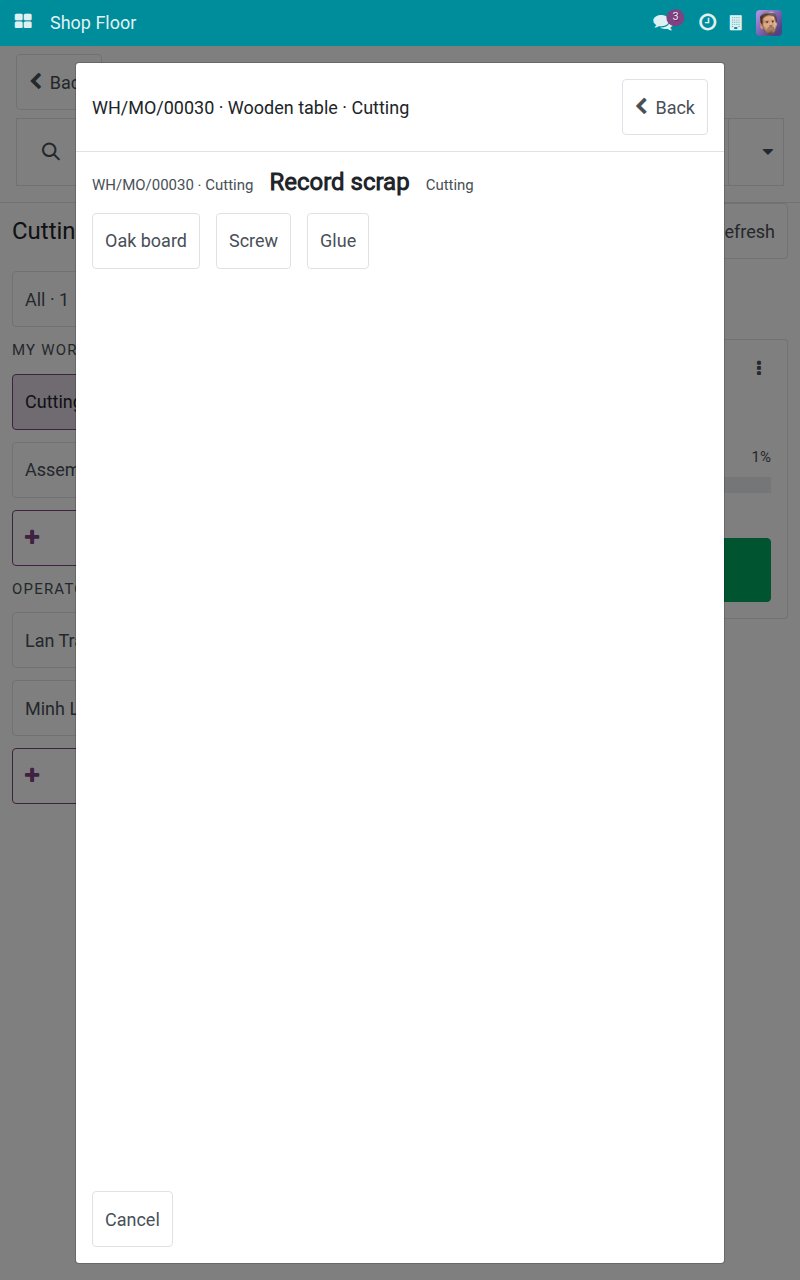
Because the product is tracked by lot, the screen asks "Which lot is this scrap from?". Tap the lot.
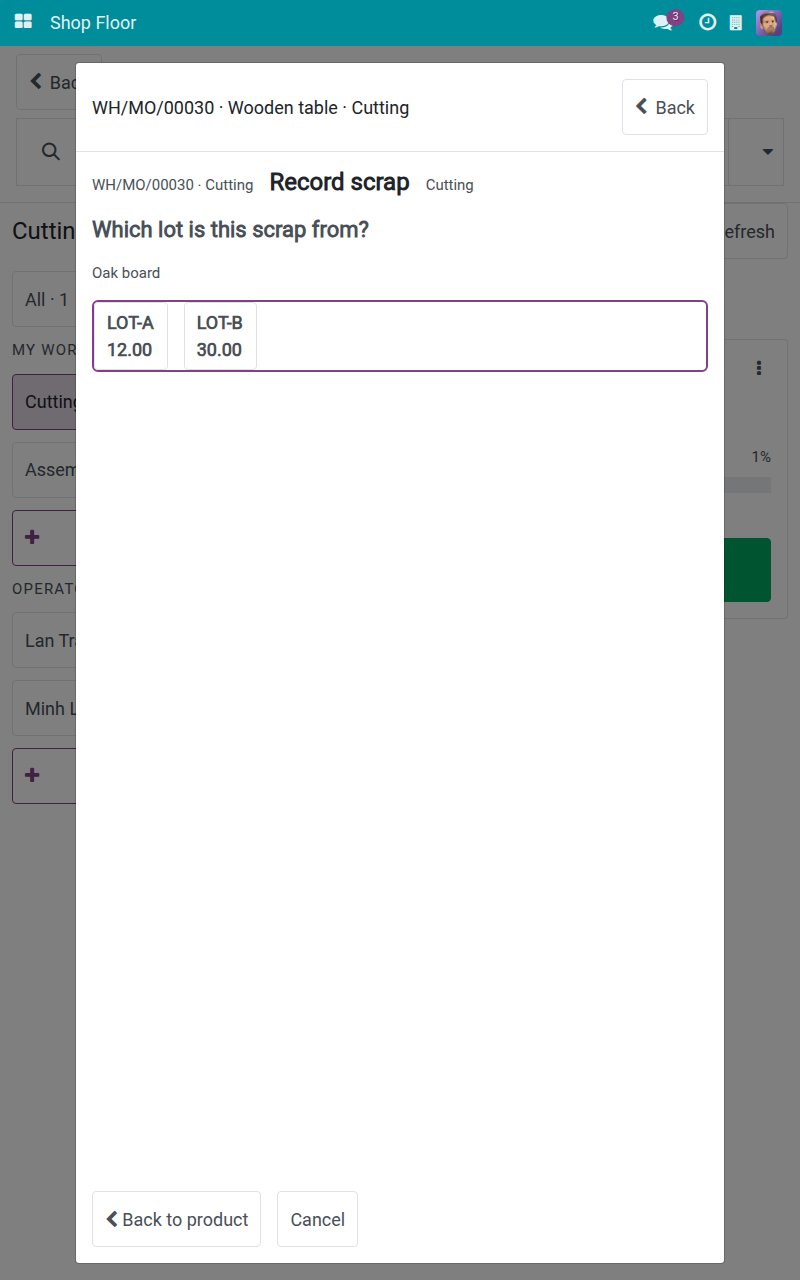
Read the warning: recording scrap cannot be undone from the shop floor, and the stock is deducted the moment you confirm.
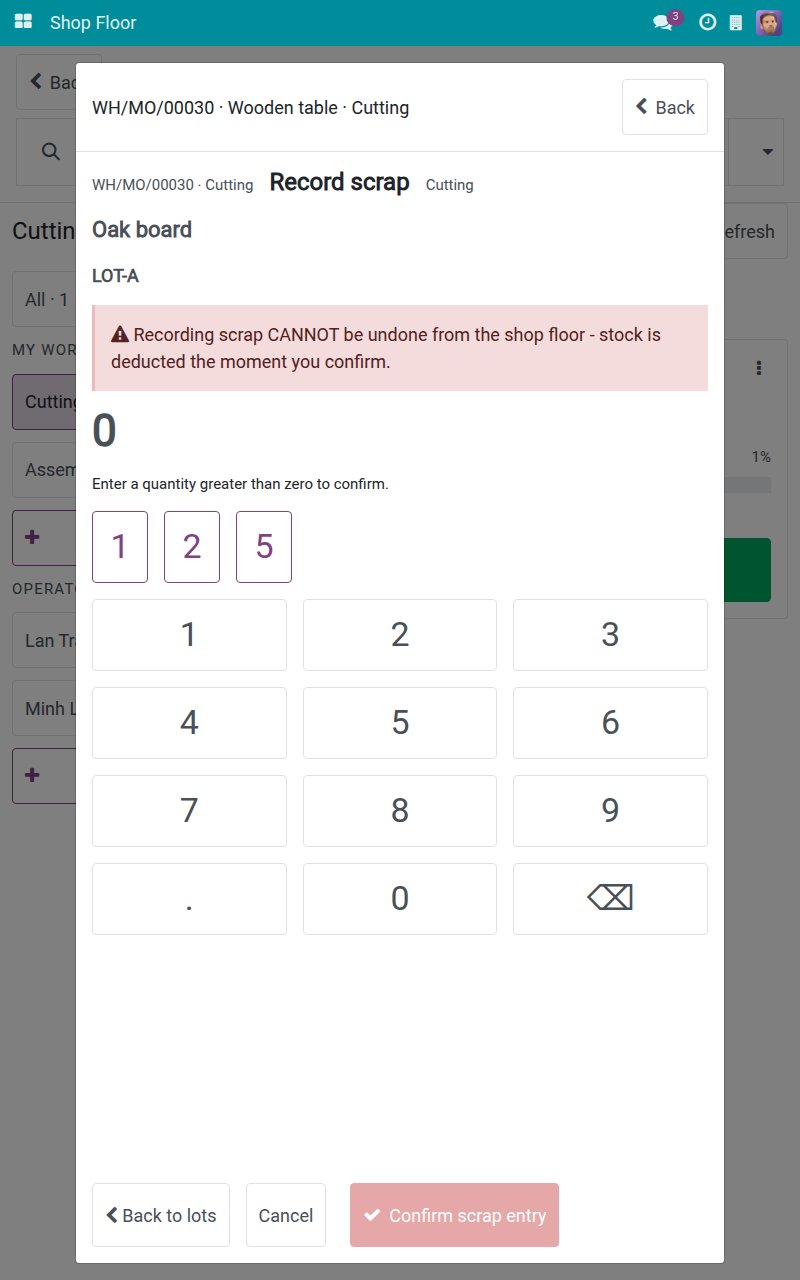
Tap the digits of the quantity, for example 2. The quick keys never exceed what the chosen lot holds.
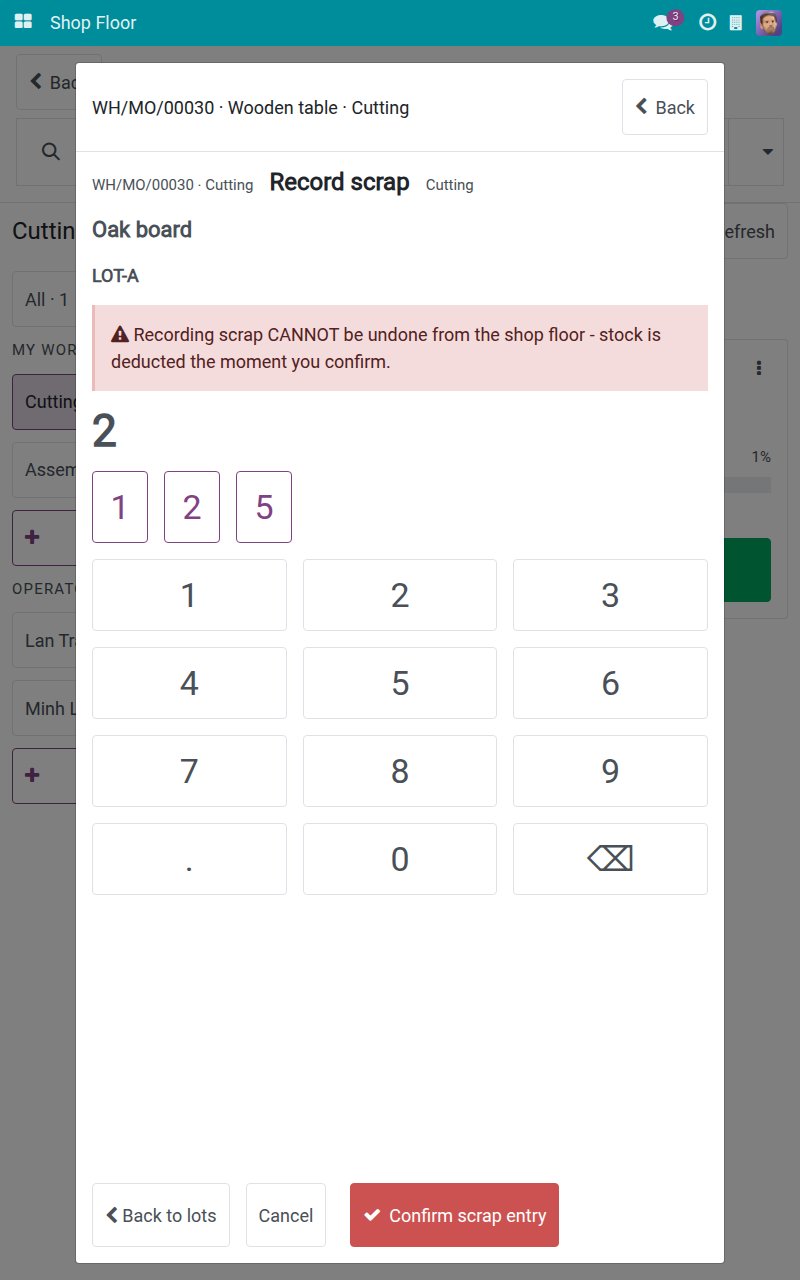
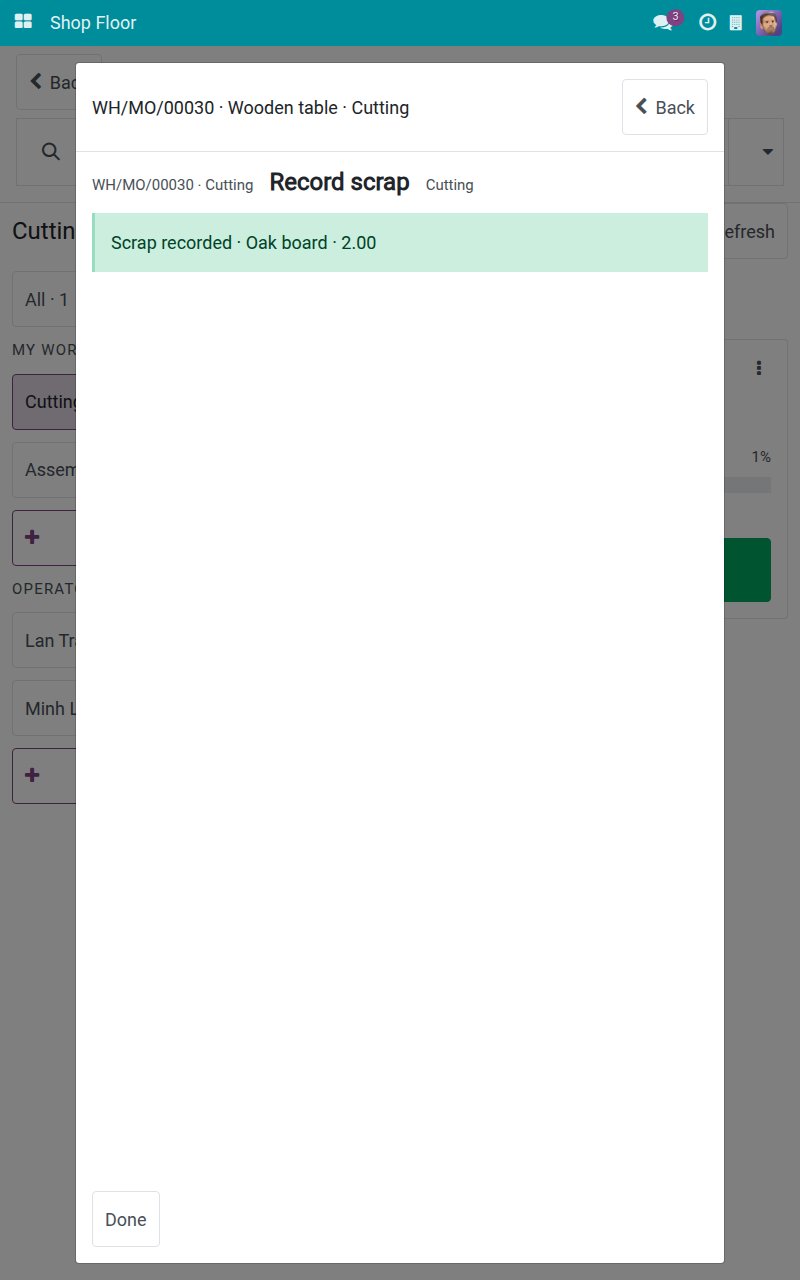
Tap Confirm scrap entry. The result screen confirms what was booked. Tap Done to go back to the operation.
If the lot holds less than the quantity you enter, the tablet warns you and lets you discard the entry or confirm to scrap anyway.
Stop the machine
On the operation screen, tap Stop machine. The screen says "Tap a tile to report right away - there is no confirmation step".
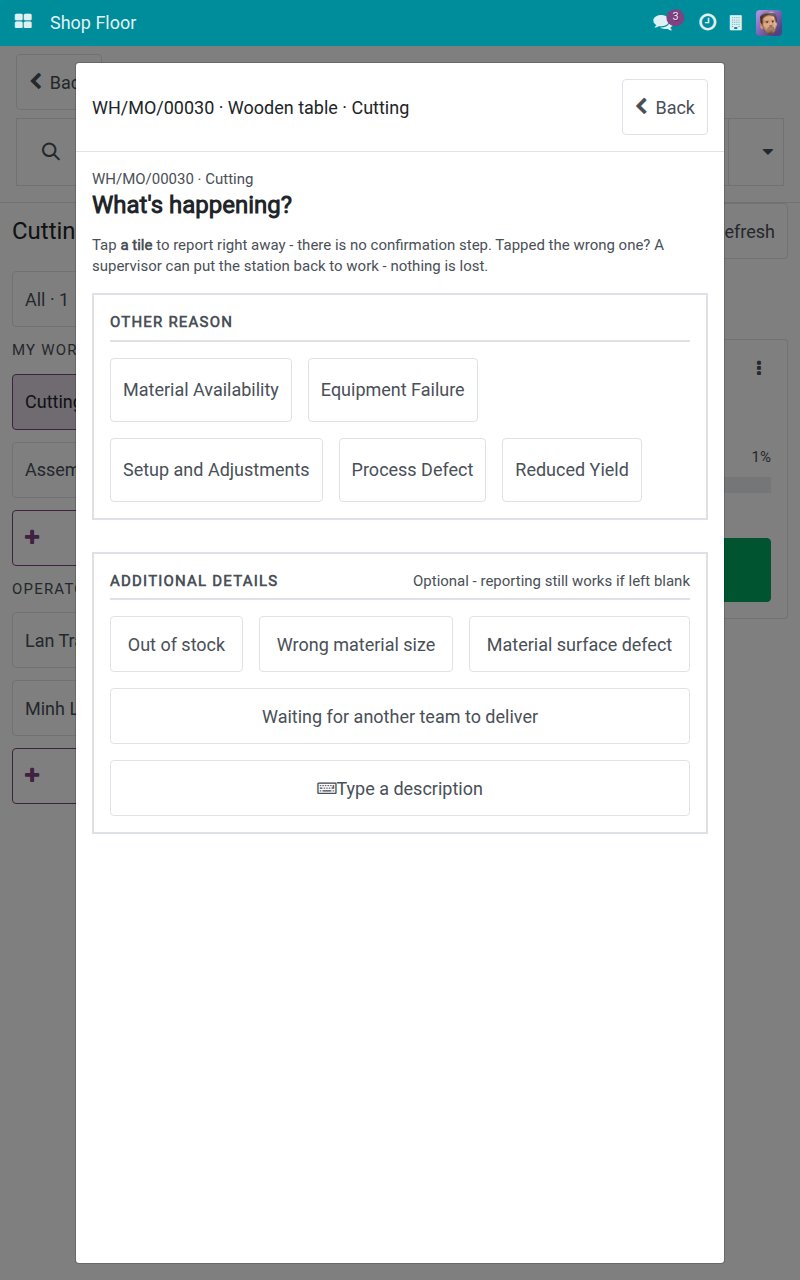
Tap the tile of the reason, for example Equipment Failure. One tap stops the work center and ends every running timer at that moment. You can optionally tap a tile under ADDITIONAL DETAILS, or Type a description. The banner reads Station stopped: Equipment Failure and "Waiting for a supervisor".
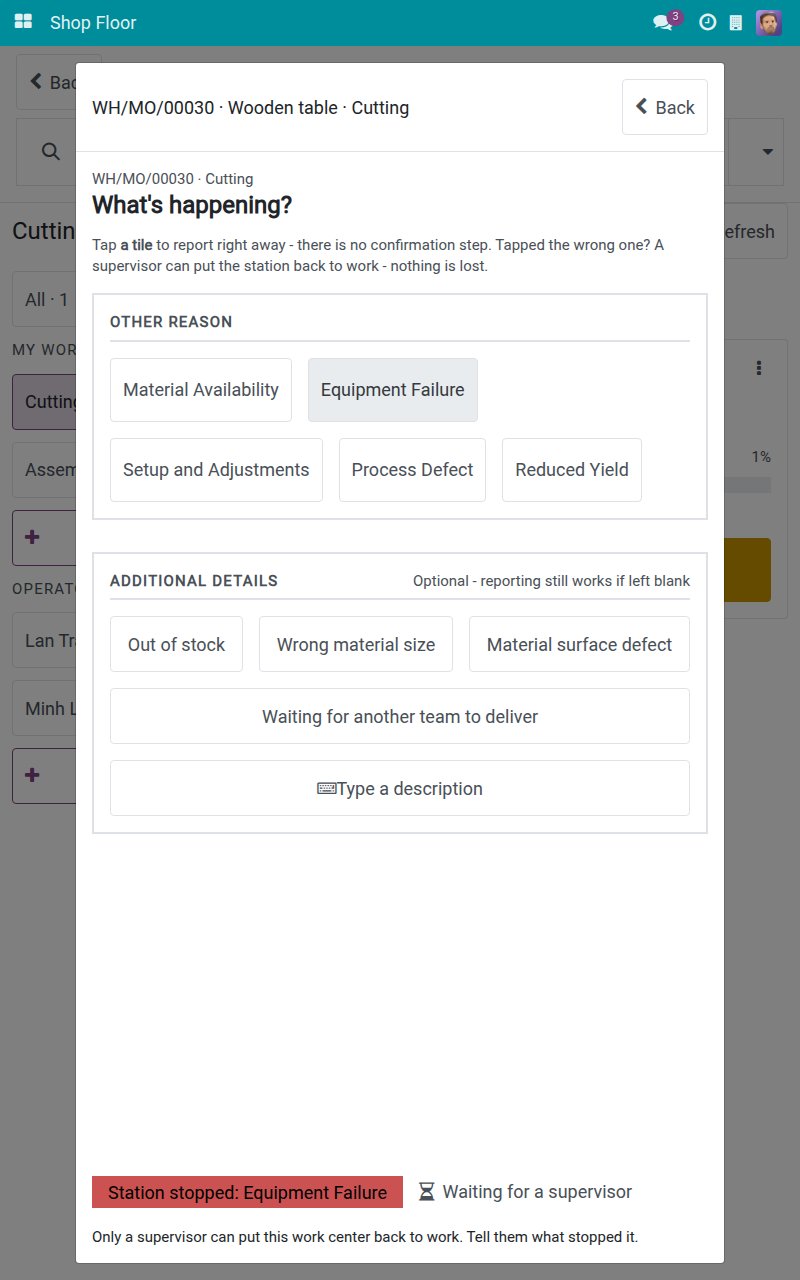
Only the reasons that really stop a station are offered. While the station is stopped, Start, Pause, Finish operation and Record output are refused and the screen shows why. Only a production lead can put the station back to work, so tell them what stopped it.
Finish the last operation and close the manufacturing order
Make sure the output and the materials are recorded. Here 4 of 5 pieces are recorded.
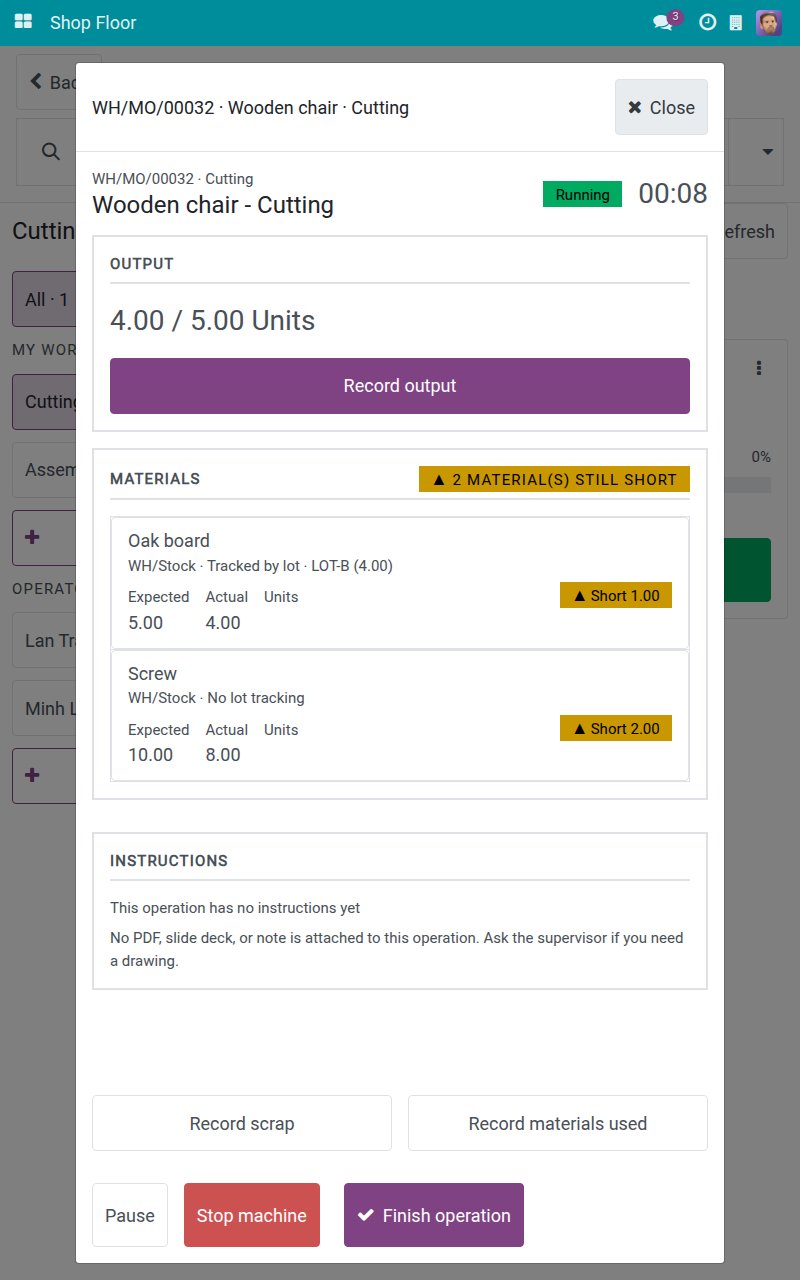
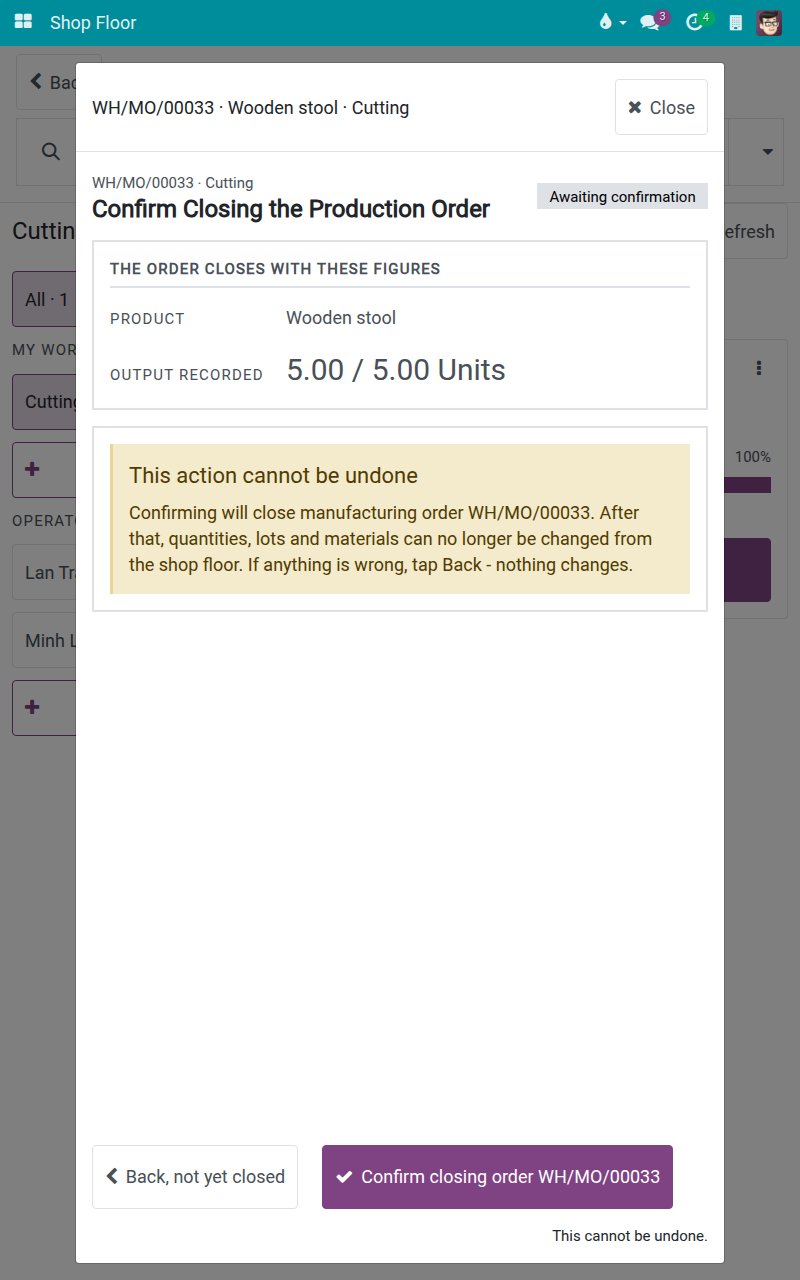
Tap Finish operation. It closes your timer and finishes the operation. Because it is the last operation, the tablet moves on to Confirm Closing the Production Order. The screen shows the product and the output recorded, and warns that this cannot be undone.
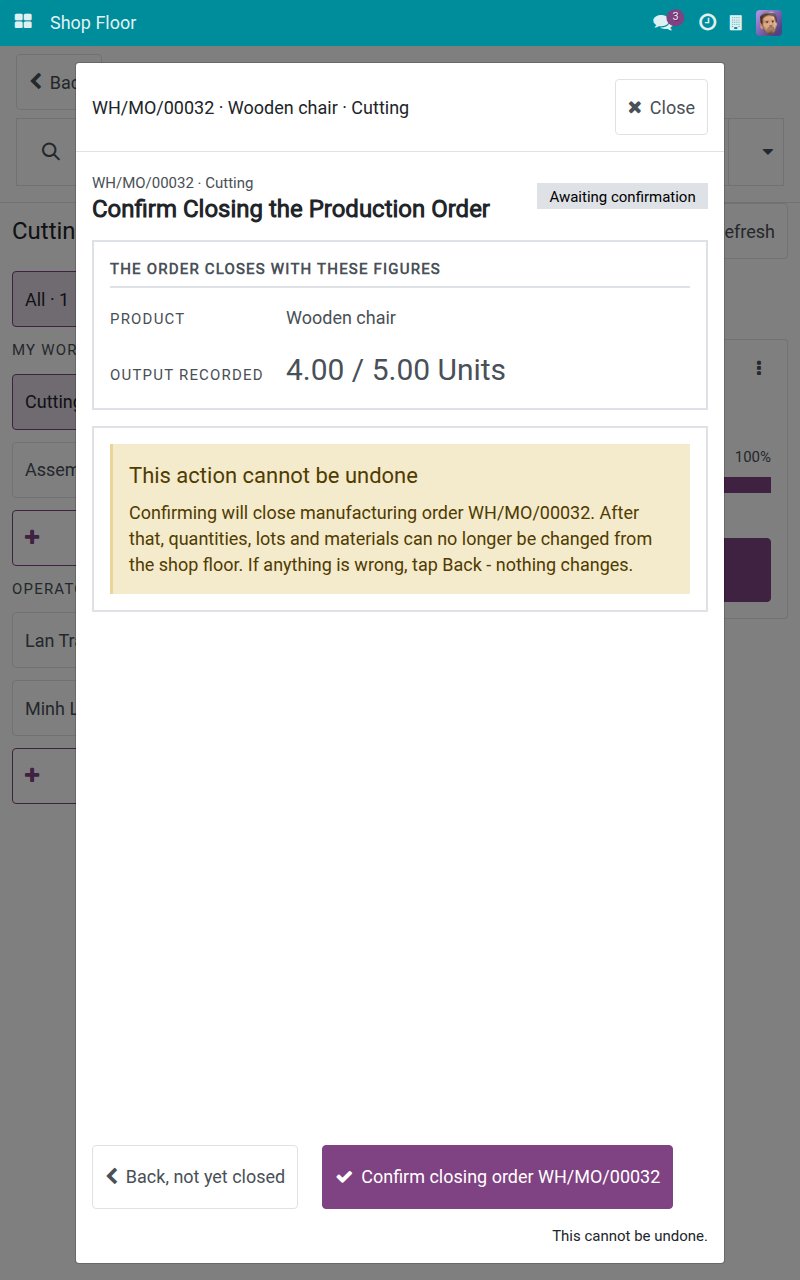
Tap Confirm closing order, followed by the order reference. The manufacturing order is closed through the standard rules, so every rule installed in your system still applies. When only part of the ordered quantity was produced, the screen asks what to do with the rest.
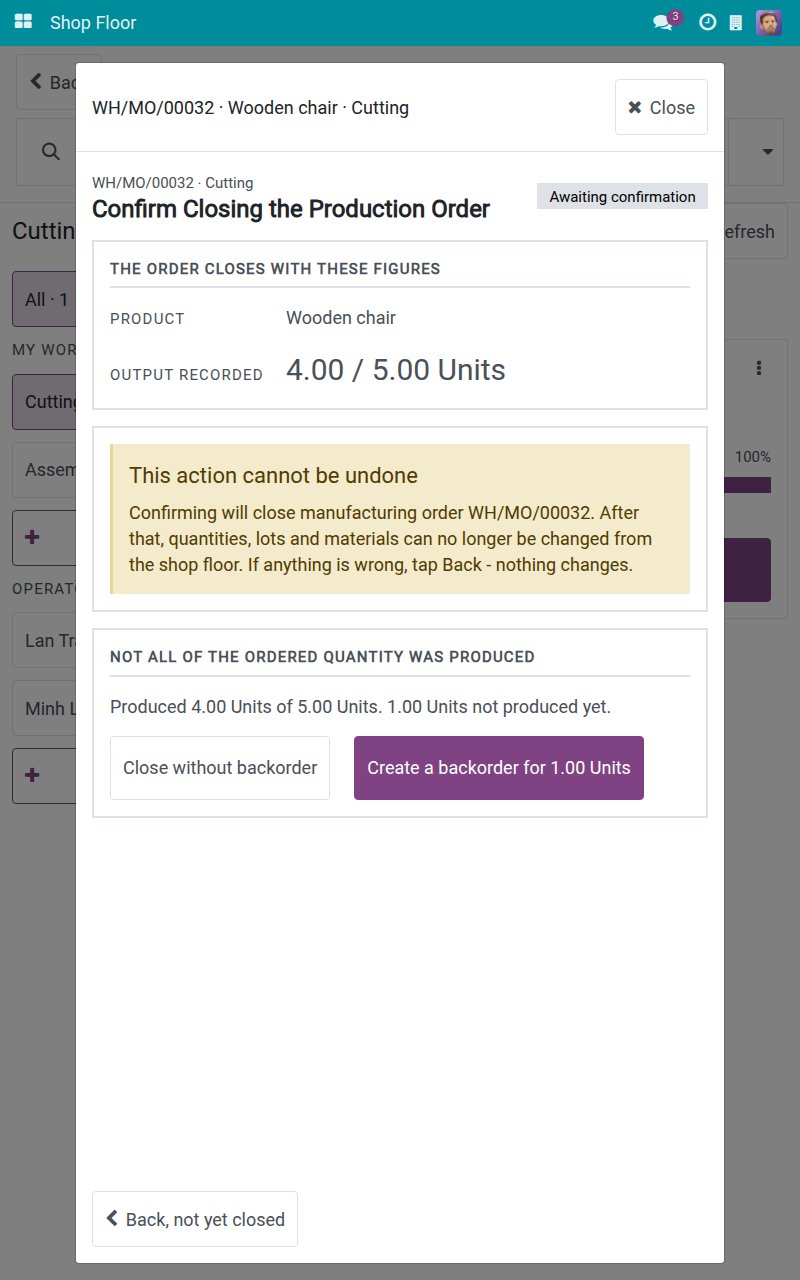
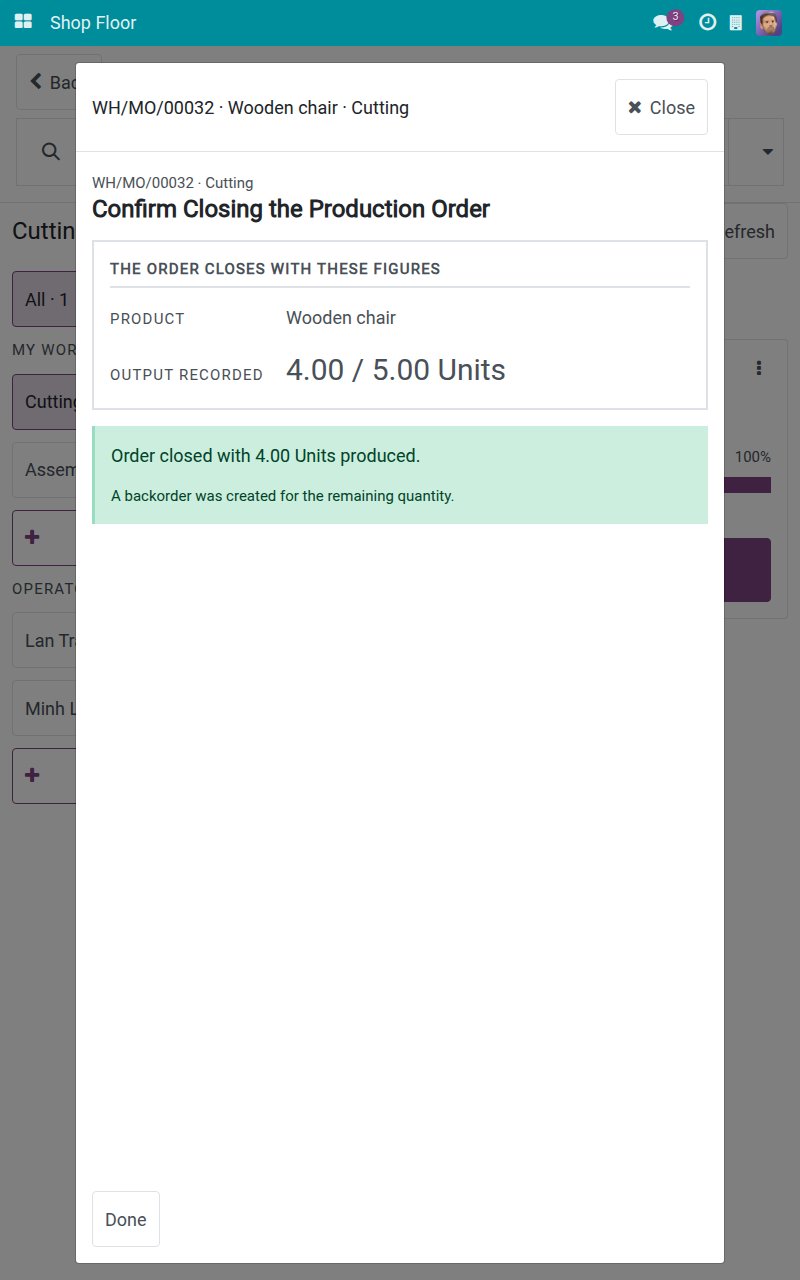
Tap Create a backorder for 1.00 Units to produce the rest later, or Close without backorder. The screen confirms "Order closed with 4.00 Units produced." and "A backorder was created for the remaining quantity."
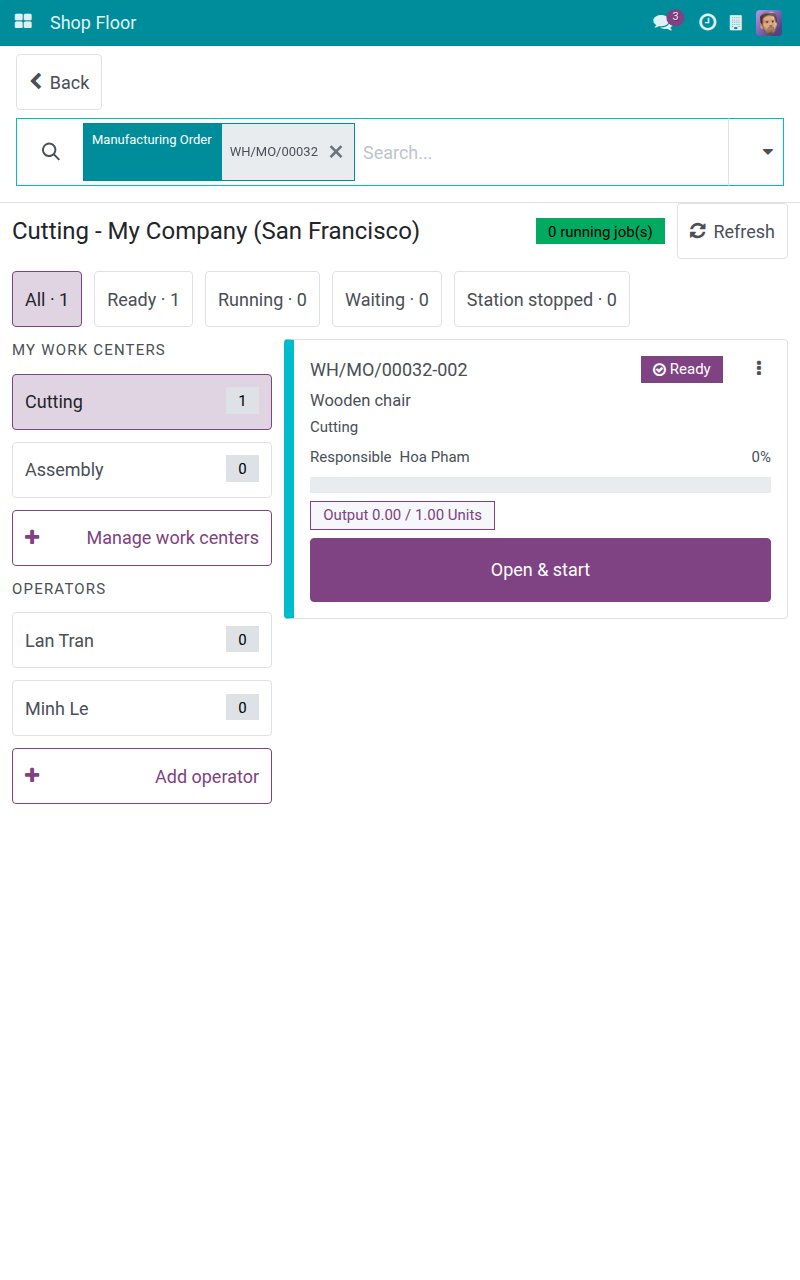
Tap Done to return to the board. The finished order is gone from the work to do, and the backorder shows up as a new Ready card.
If you are not sure, tap Back, not yet closed on the closing screens: nothing changes.
When the materials differ from the bill of materials
Some bills of materials do not allow consuming more or less than expected (Flexible Consumption set to Blocked). In that case an operator cannot close the order with a difference. The sample below records 11 of Oak board where the bill of materials expects 10.
Record the output and the materials as usual, then tap Finish operation. The last operation leads to the closing screen.
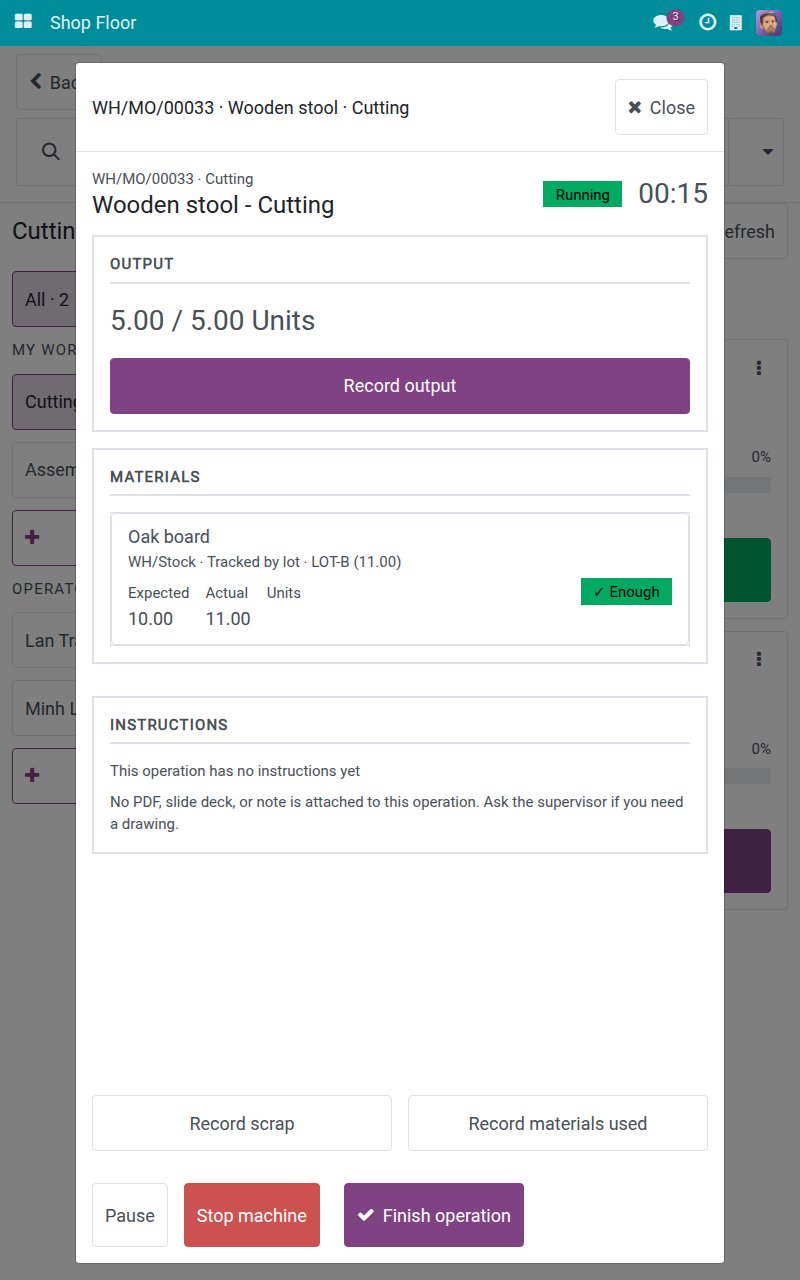
Tap Confirm closing order. The table THE MATERIALS USED DIFFER FROM THE BILL OF MATERIALS lists Product, Expected and Actual for each difference. You can tap Correct the figures to reopen the materials list, or Ask a manager to approve.
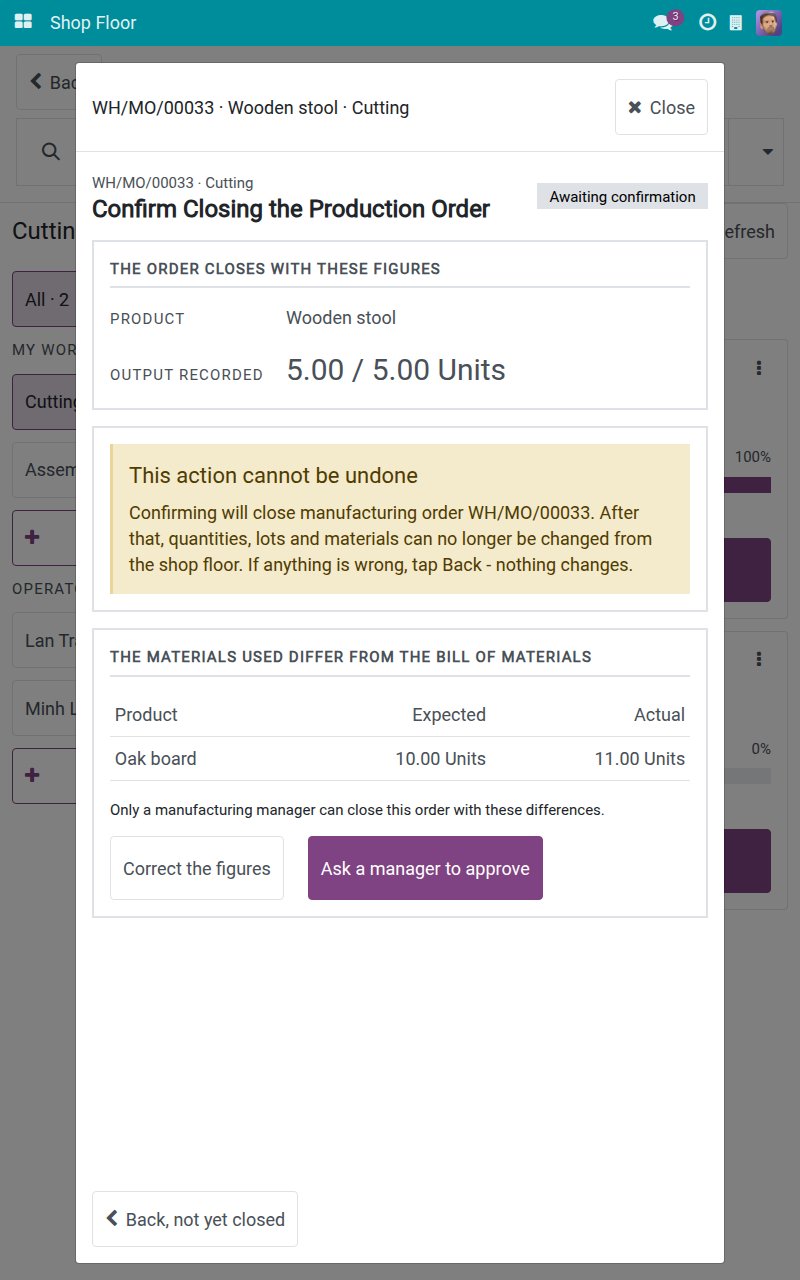
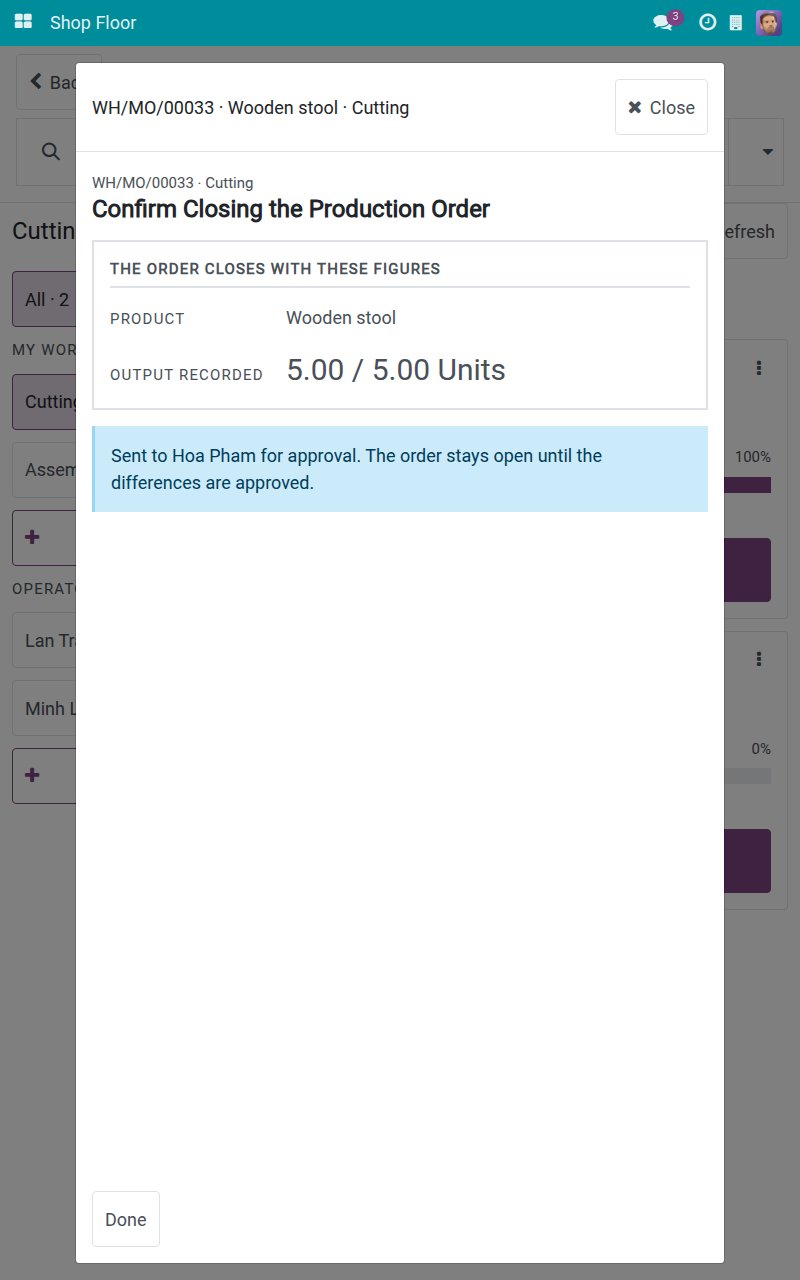
Tap Ask a manager to approve. A to-do is scheduled for the person responsible for the order (or a manager) and the differences are logged. The screen says "Sent to ... for approval. The order stays open until the differences are approved."
Tasks for production leads
The tasks below need the access right Manufacturing / Administrator. You work on a tablet or on the desktop.
Restart a stopped station
Open the Shop Floor and find the card of the job. Its badge reads Station stopped and its button reads Open to handle incident.
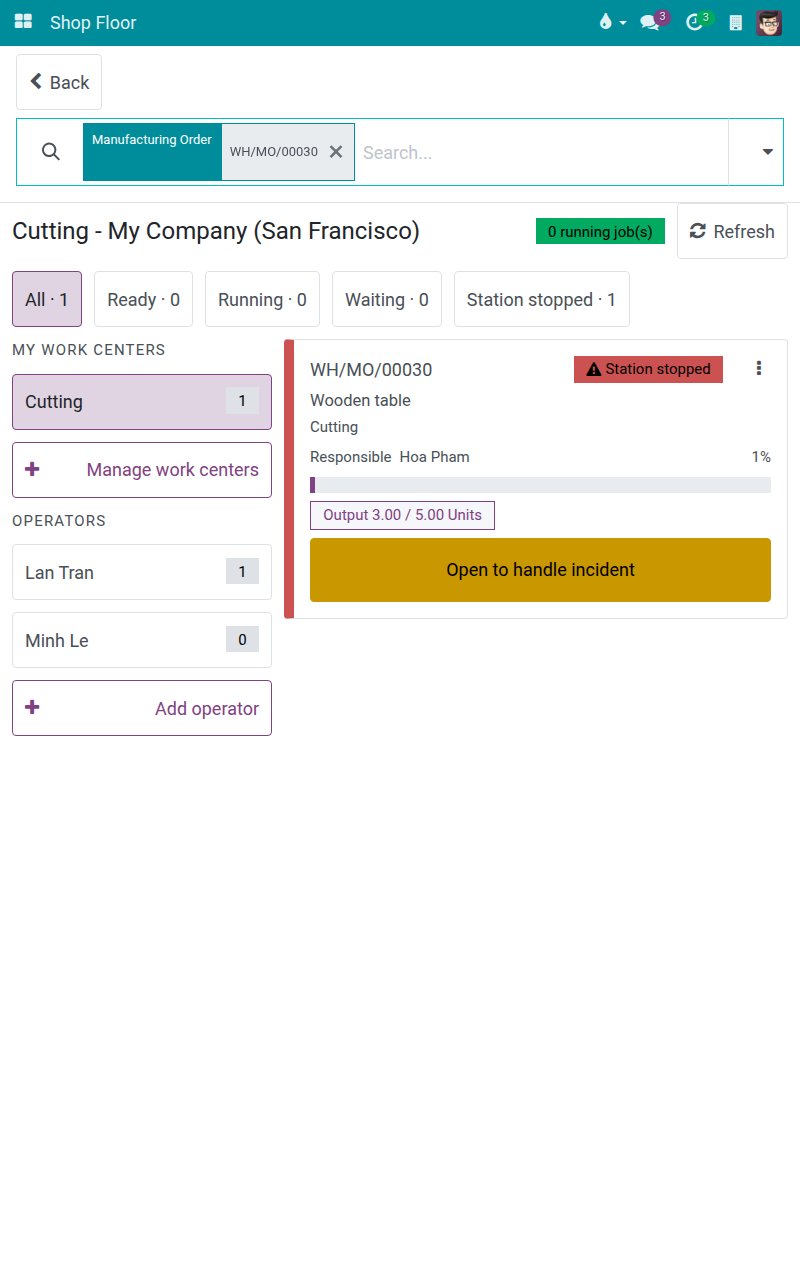
Tap Open to handle incident. The screen shows the reason of the stop in red, with Restart station. Start, Pause, Finish and Record output stay refused until the station restarts.
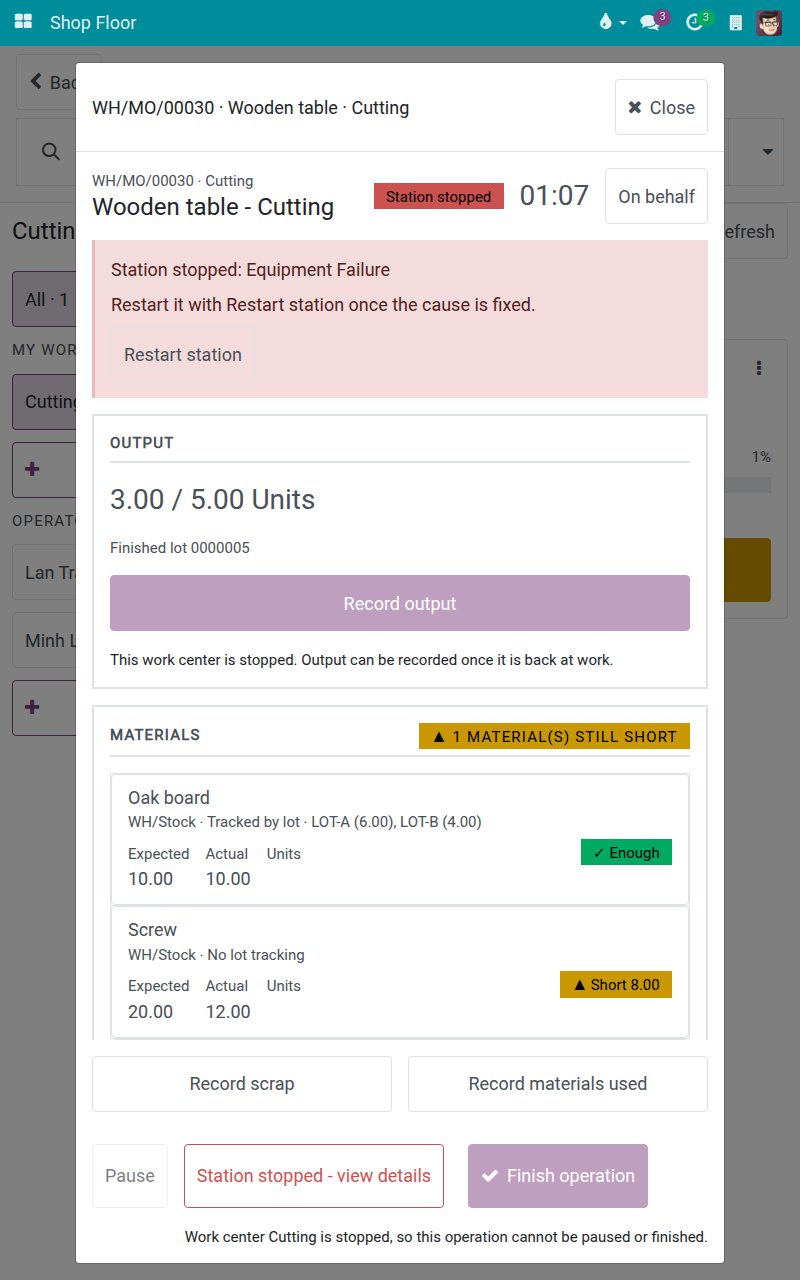
Tap Restart station. The question "Restart this station?" appears. Keep it stopped leaves things as they were.
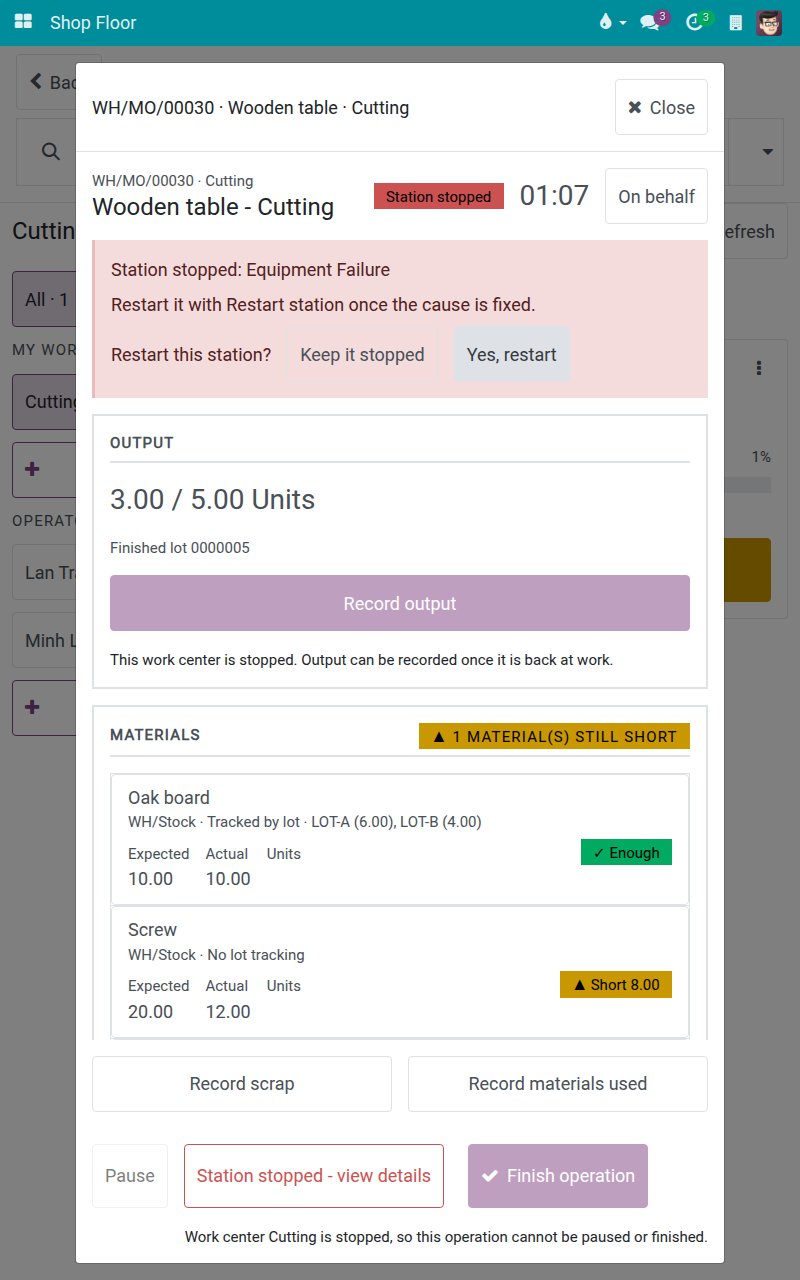
Tap Yes, restart. The work center works again. The stop is logged from the moment the operator tapped the reason until your restart, and no time is credited to anyone in between. The job shows Operation paused: the operator taps Resume to continue.
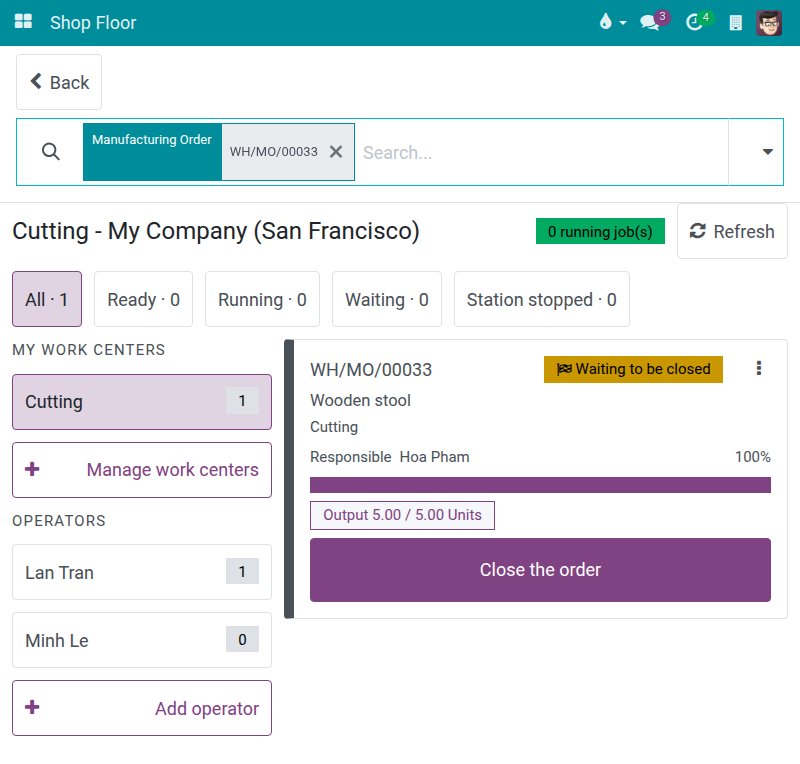
Approve a consumption difference
Find the card whose badge reads Waiting to be closed and tap Close the order.
On the closing screen, tap Confirm closing order, followed by the order reference.
Review the differences. As a manager you are offered Confirm and close, which an operator does not get on a bill of materials set to Blocked. Correct the figures reopens the materials list instead.
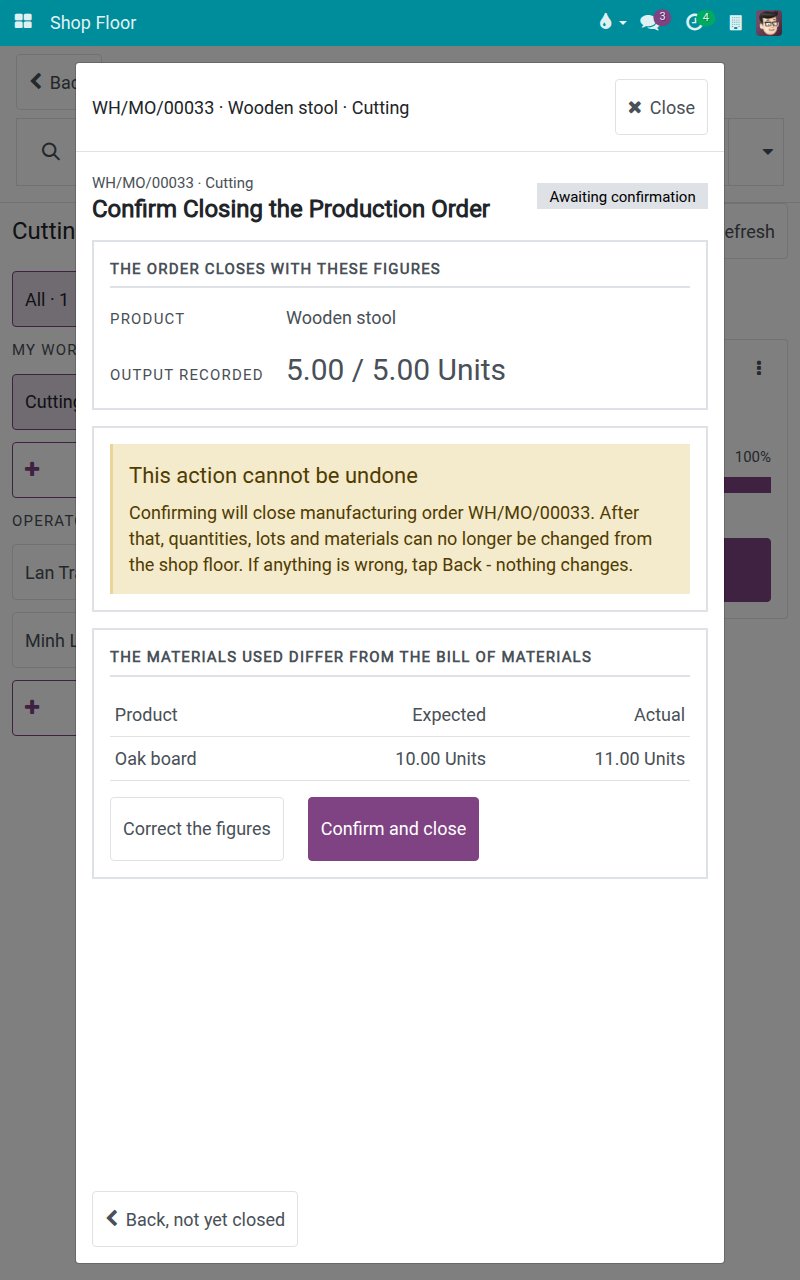
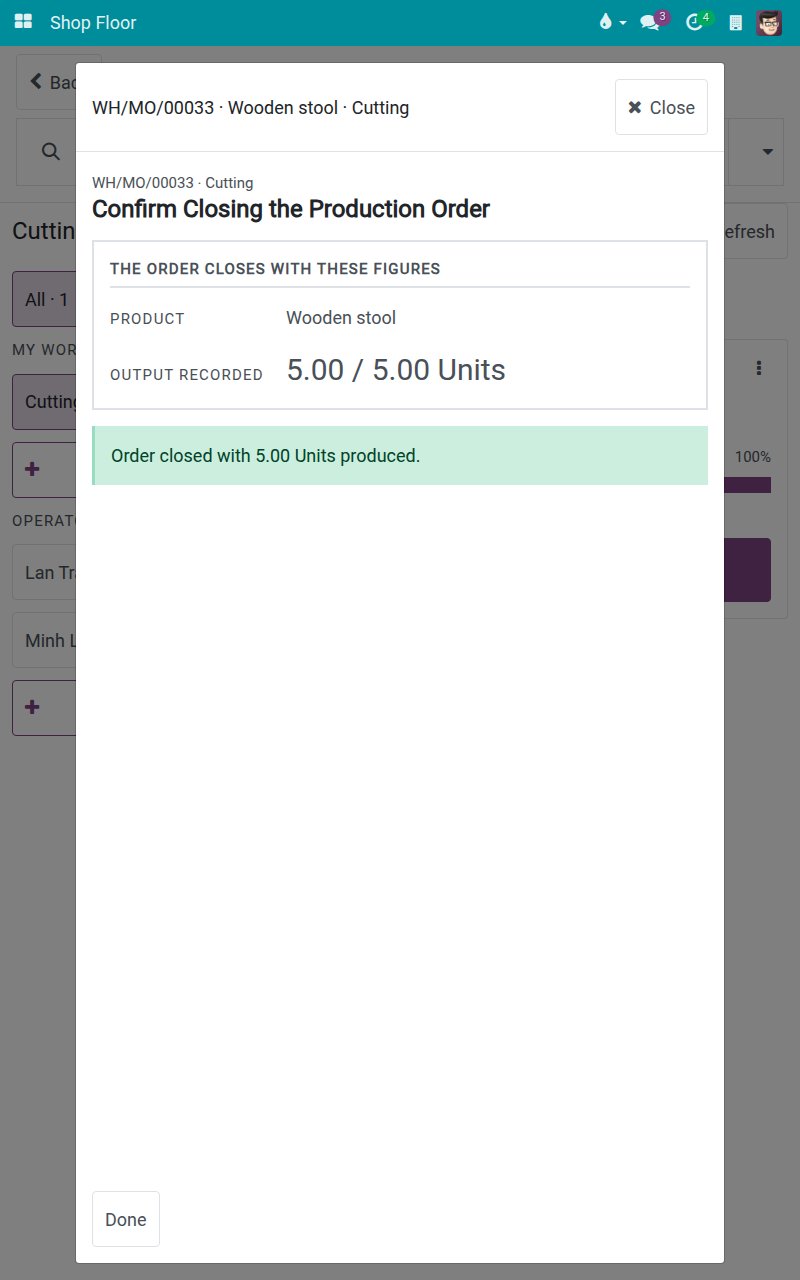
Tap Confirm and close. The extra consumption is accepted and kept, and the order is done. The approval request is recorded in the log of the order.
Credit a shift to another employee (On behalf)
Use this when someone else actually works the job at the station, for example because their own tablet is not at hand. The time and the labour cost go to that person's hourly rate.
Find the card of the job. Here the job is Ready.
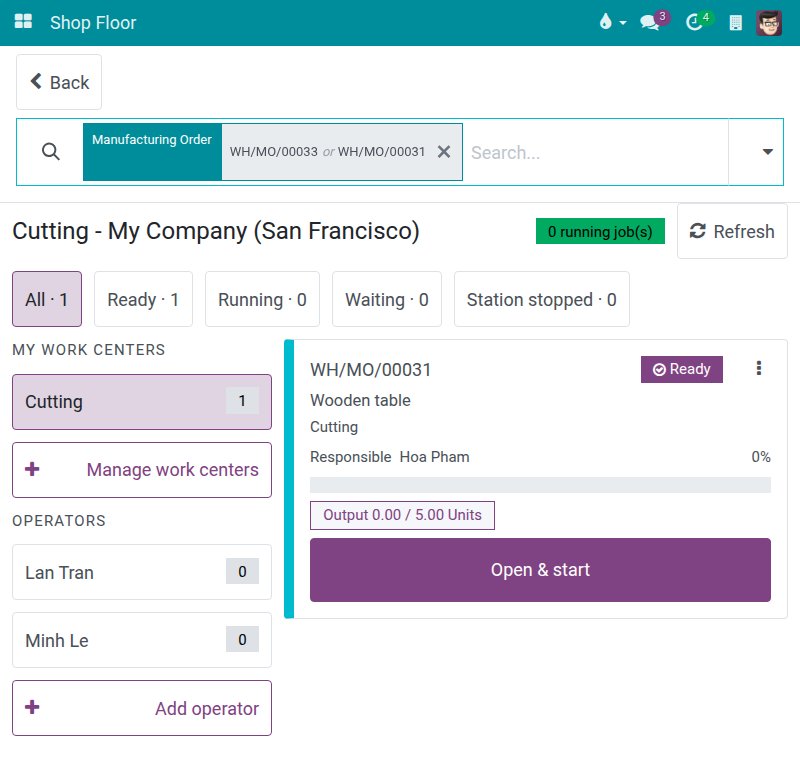
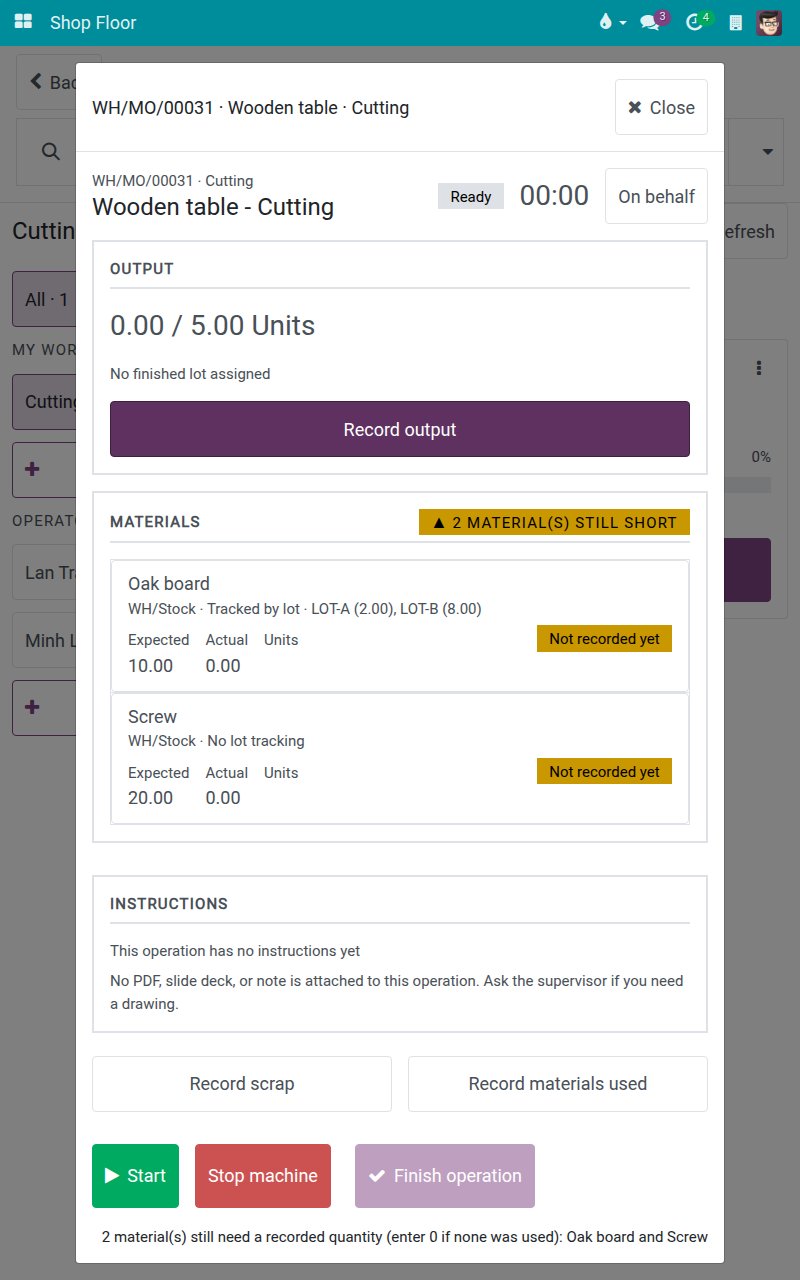
Tap the body of the card, not its labelled button: the operation opens without starting the clock. Tap On behalf. Only a Manufacturing Administrator sees this button.
The screen "Who is this shift credited to?" splits the people into This work centre, Recently credited and Whole plant. There is no search box; use the groups to narrow the list.
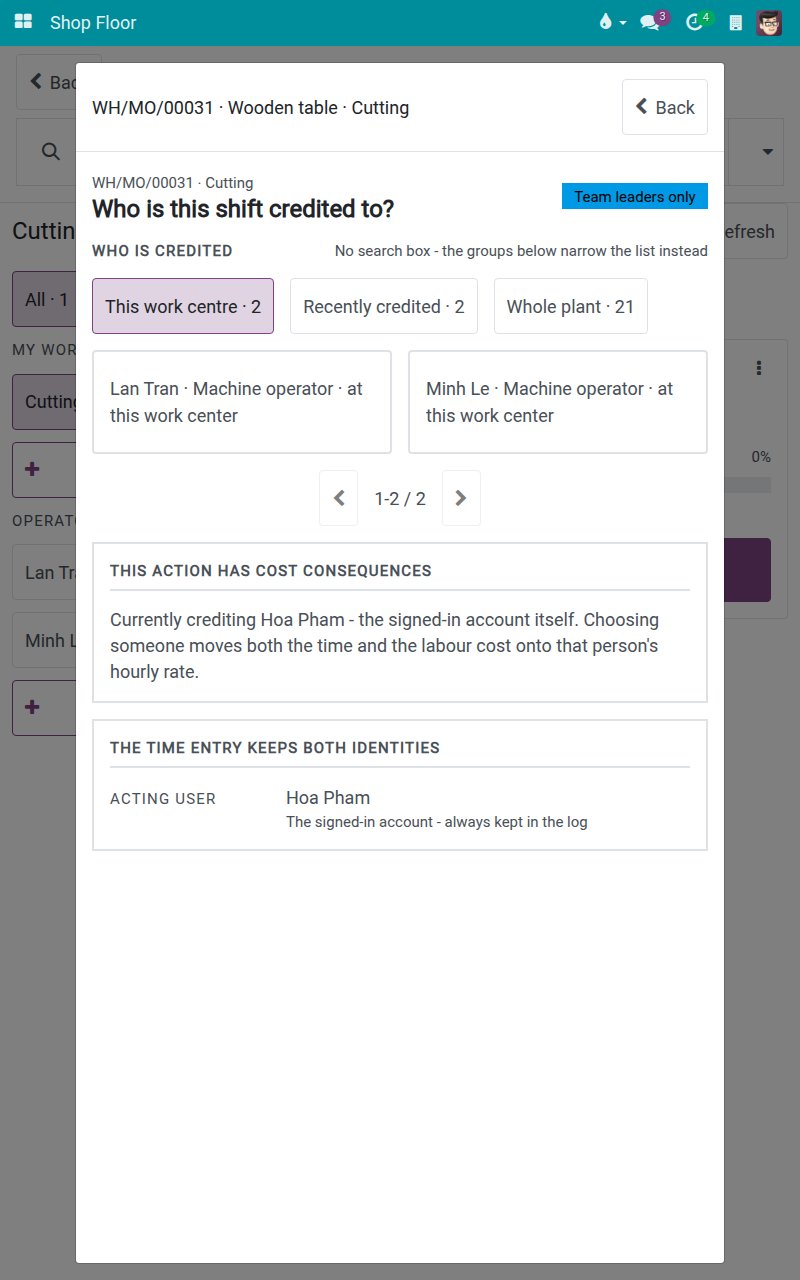
Tap the employee, for example Minh Le. A card THIS ACTION HAS COST CONSEQUENCES first states the effect. Reset to myself at the bottom undoes the choice.
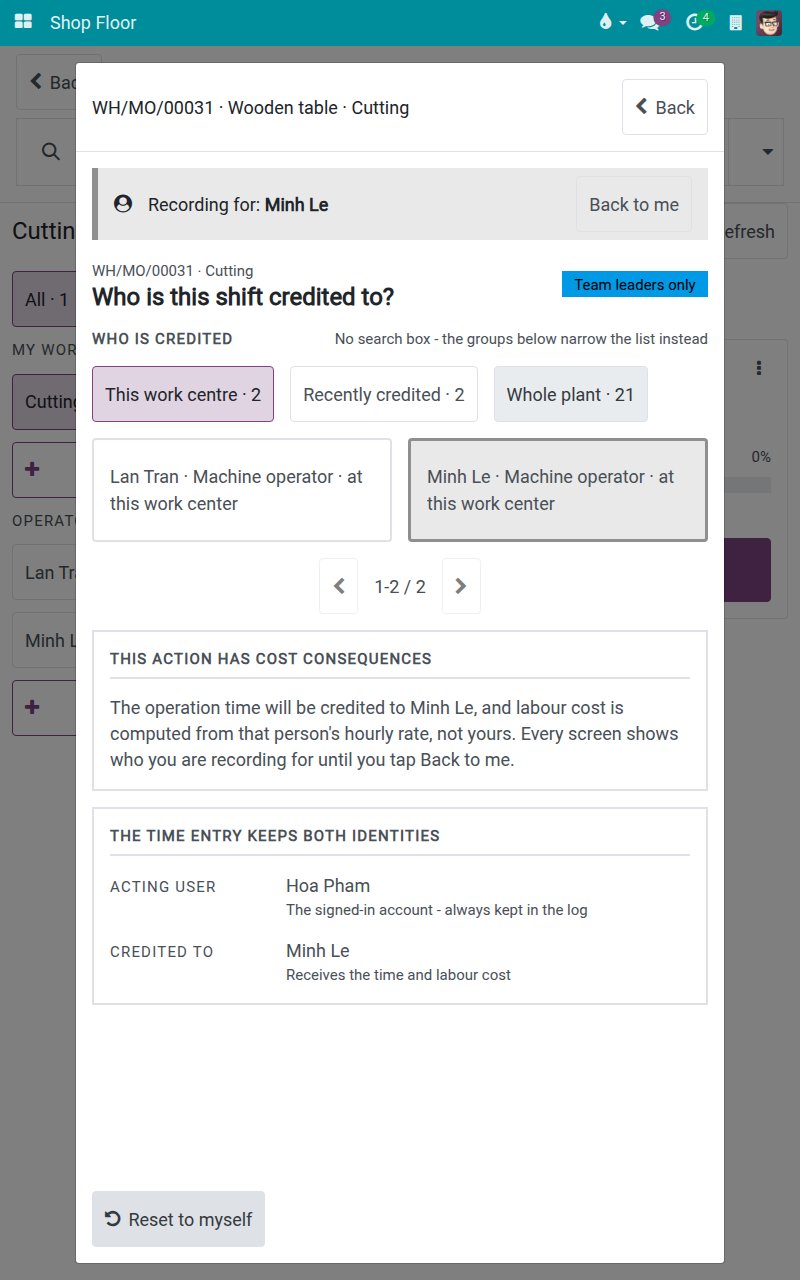
Tap Back. Every screen now carries the banner Recording for with the button Back to me. Nothing is written until work is recorded.
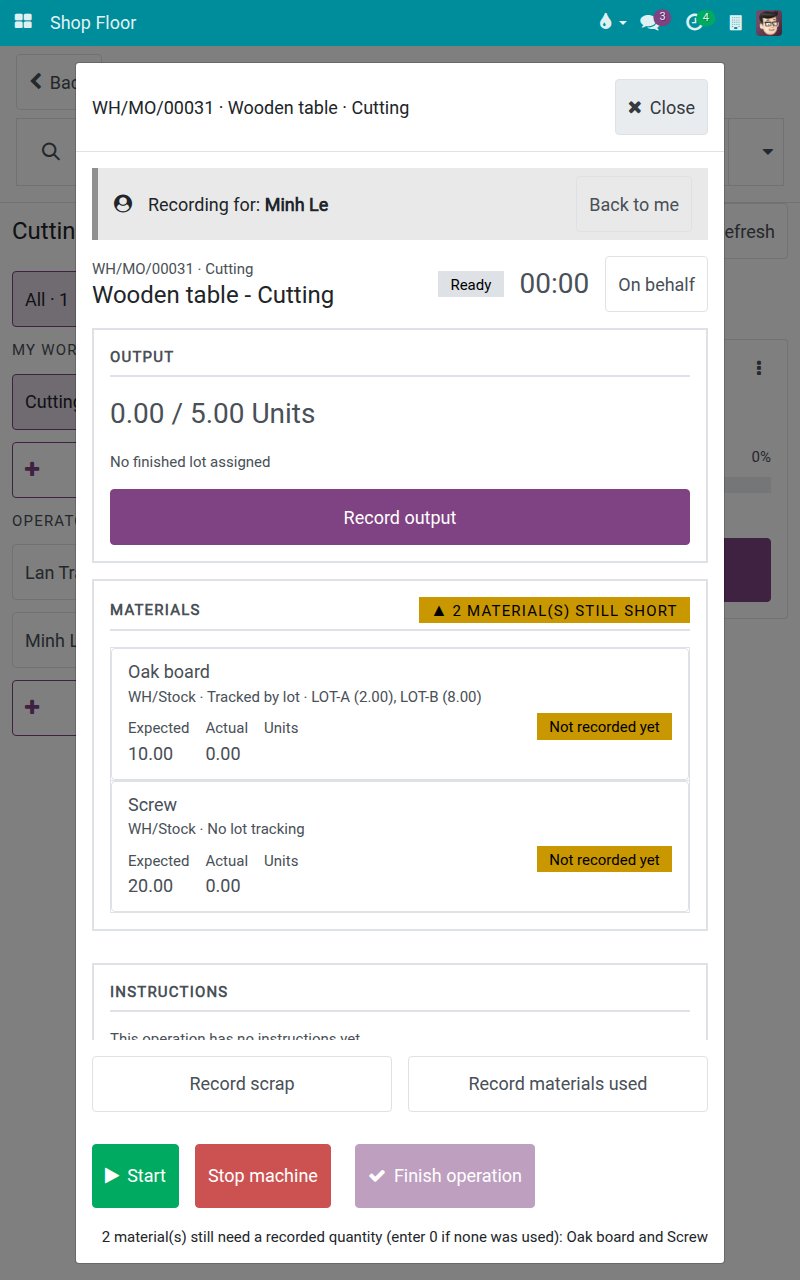
Tap Start. The time line is credited to the chosen employee, while your own account stays in the log.
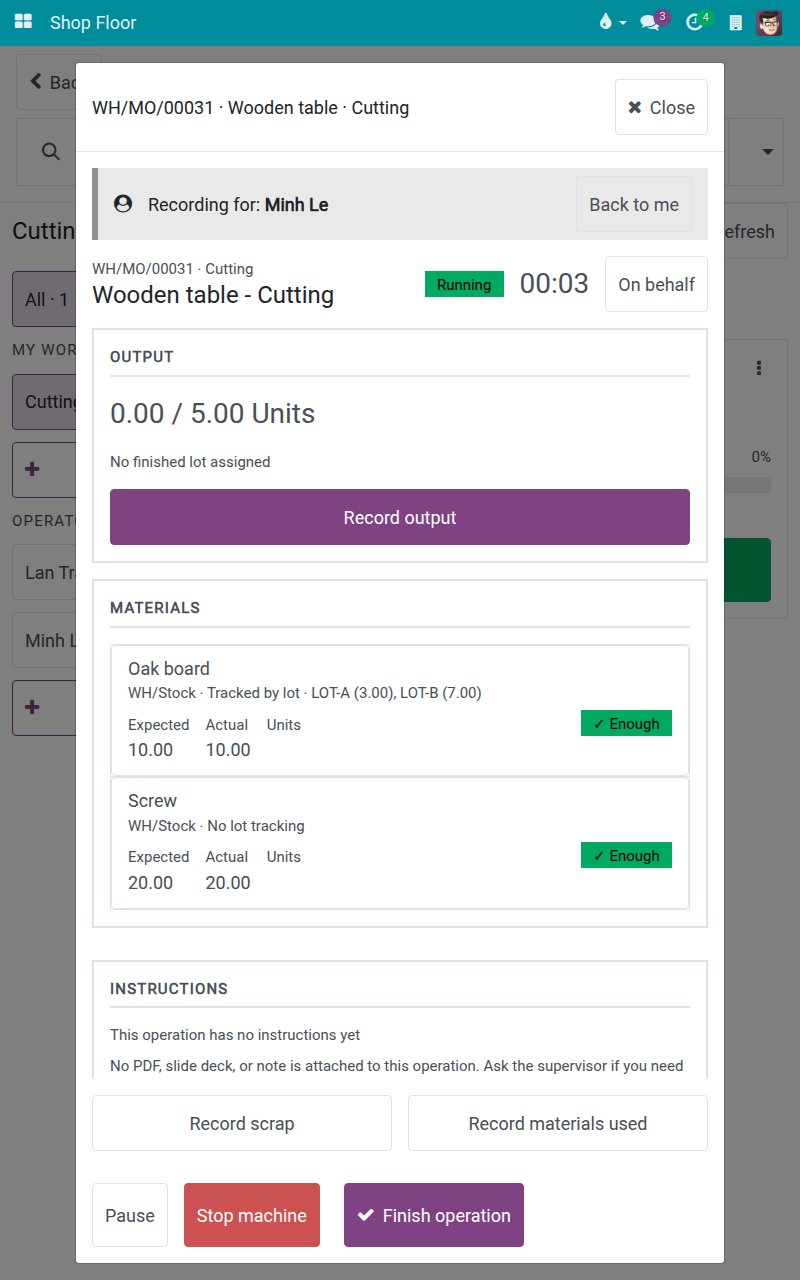
When you are done, tap Back to me to put the recording back on your own account. The banner is gone.
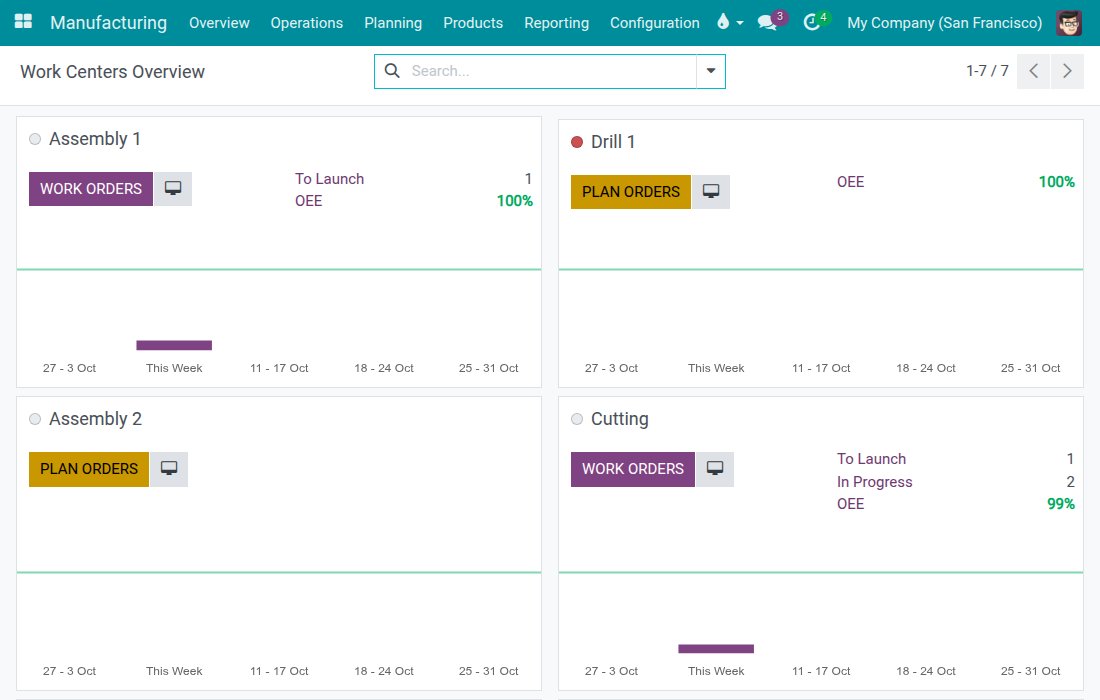
Open the Shop Floor from the desktop
Open Manufacturing ‣ Overview. Each work center is a card. The small screen button next to the main button of the card is Open Shop Floor.
Click it. The Shop Floor opens on that station: the board shows your saved stations plus this one, focused on it, without saving it.
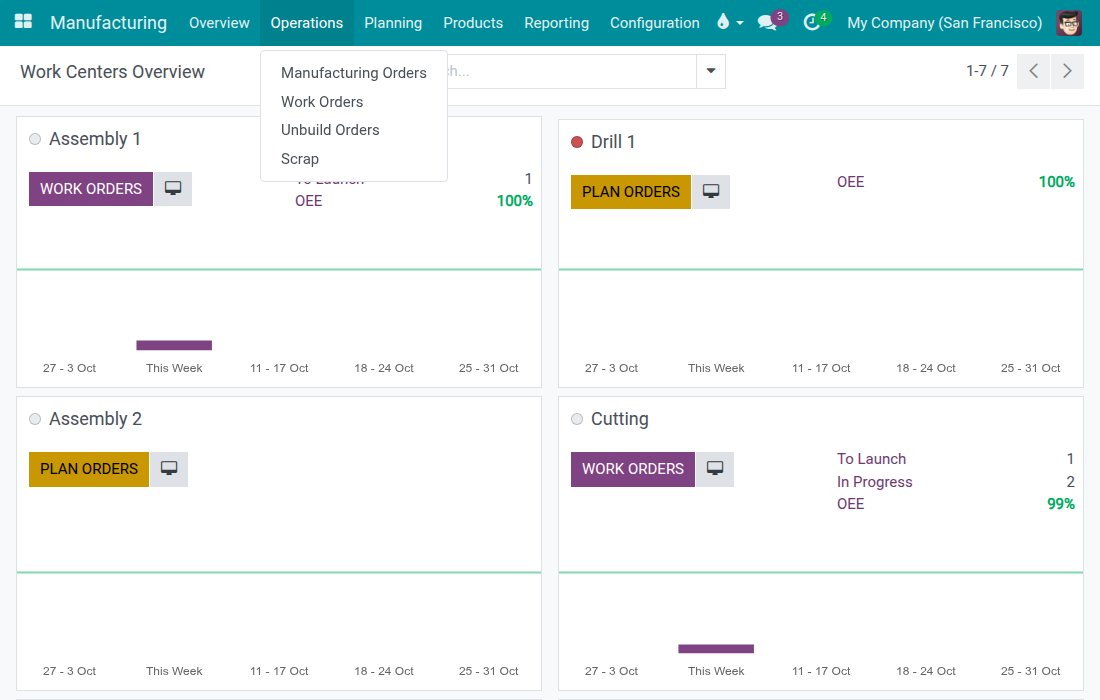
To jump to a single job, open Manufacturing ‣ Operations ‣ Work Orders.
Switch to the Kanban view. Each work order is a card with an Open button.
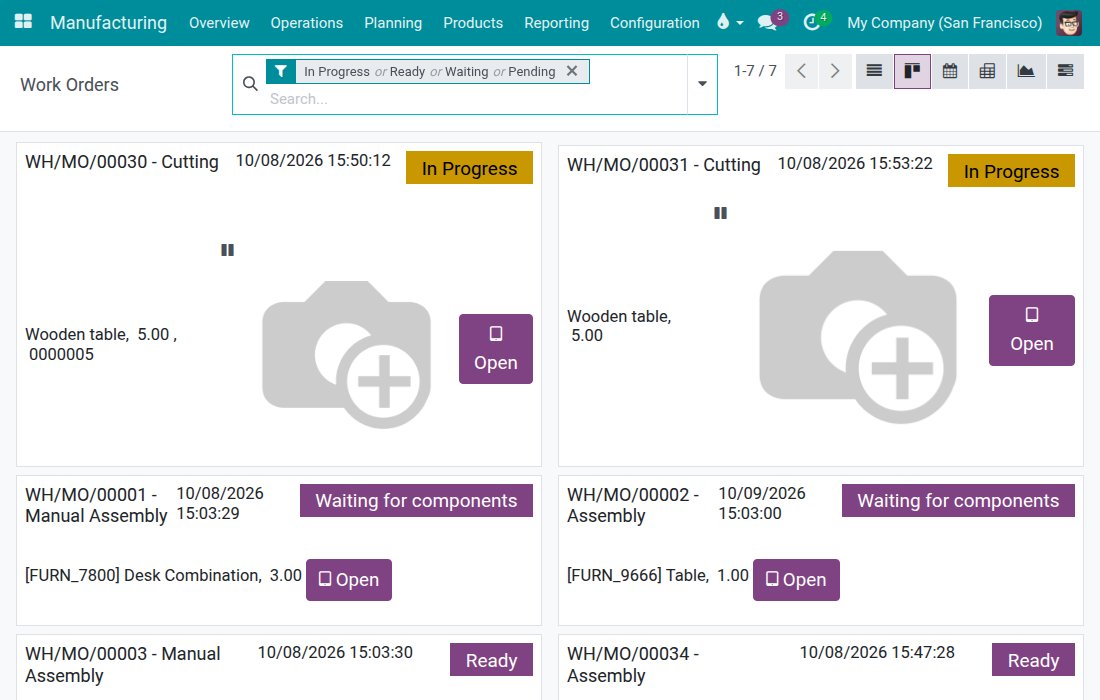
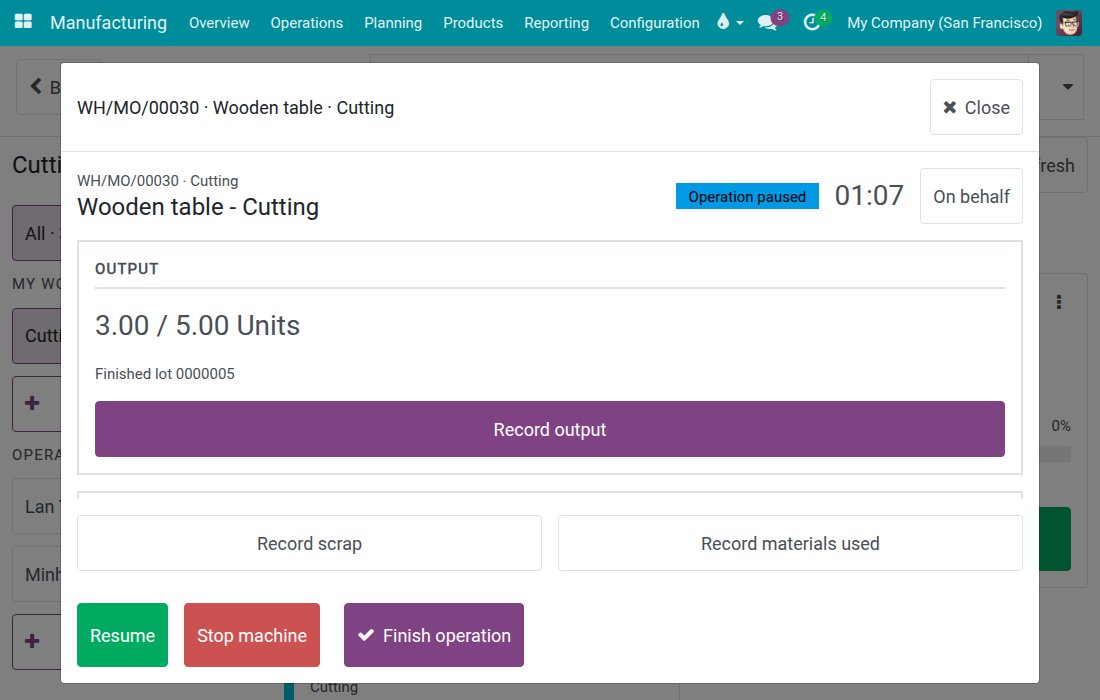
Click Open. The Shop Floor opens directly on the operation screen of that job, or on the closing screen when its order waits to be closed.
Post the consumption of components early
By default the consumption is booked when the order is closed. You can book it earlier from the work order form.
Open Manufacturing ‣ Operations ‣ Work Orders and open the work order. While it is in progress, the Components tab is editable.
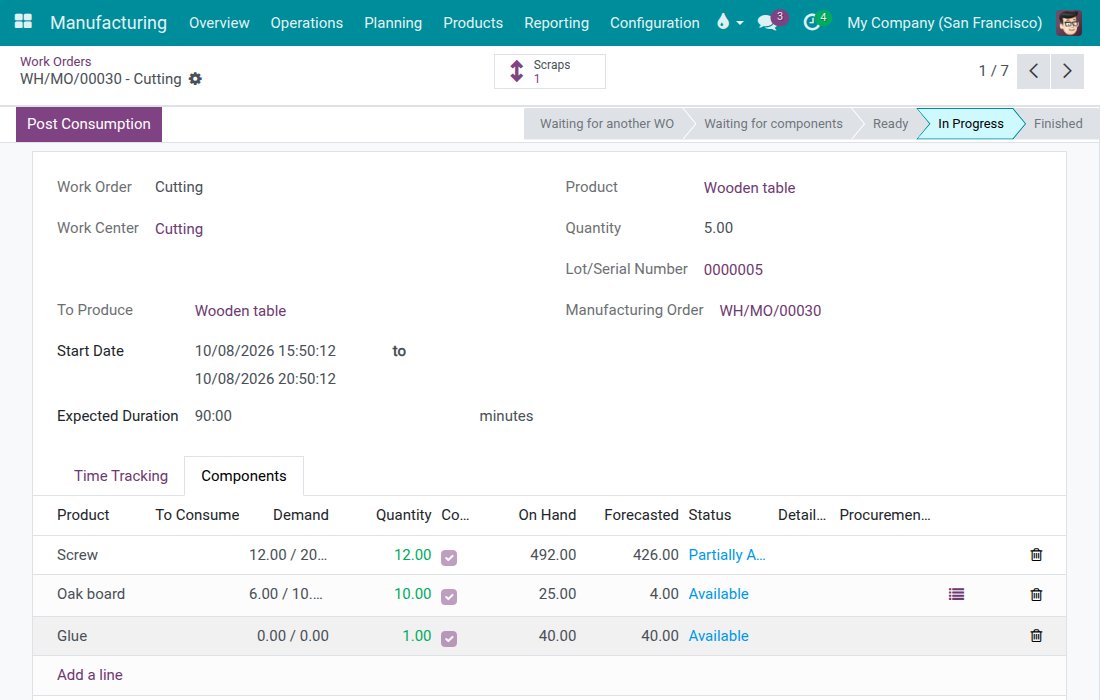
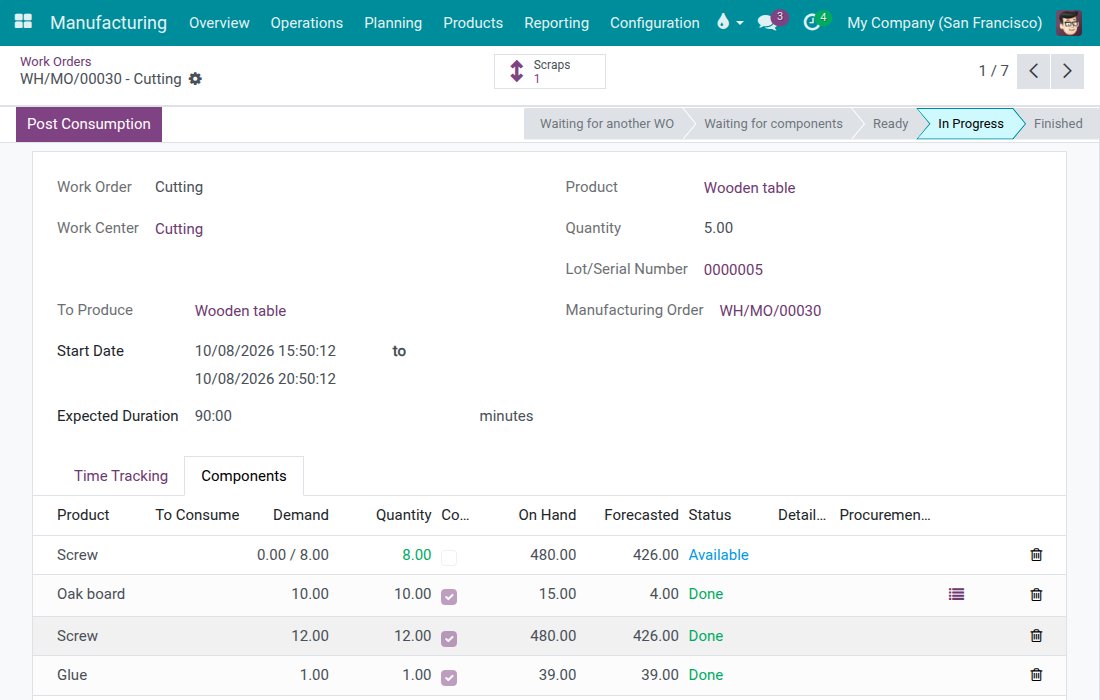
Click Post Consumption in the header. The button is shown only when there is consumption that can be posted. The consumed components move to Done and the stock is credited now, not at order close. Output recorded later only consumes what is left of a partly posted component.
Audit what was recorded on the tablets
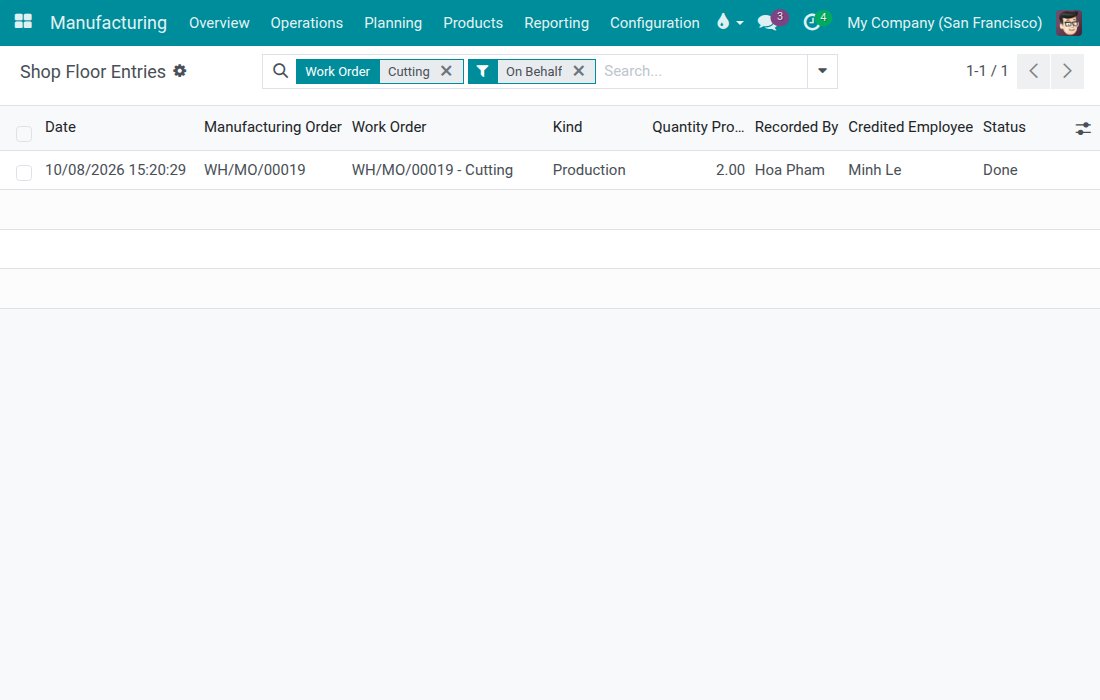
Open Manufacturing ‣ Reporting ‣ Shop Floor Entries. The read-only list shows every recording. A Manufacturing User sees own lines, a Manufacturing Administrator sees all of them.
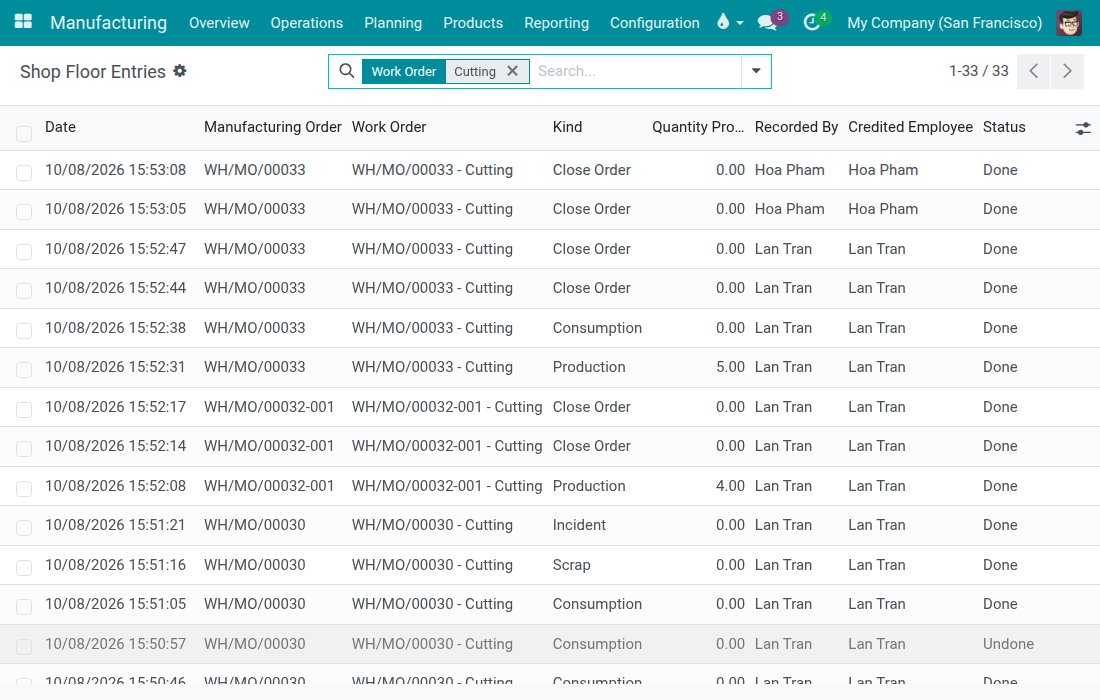
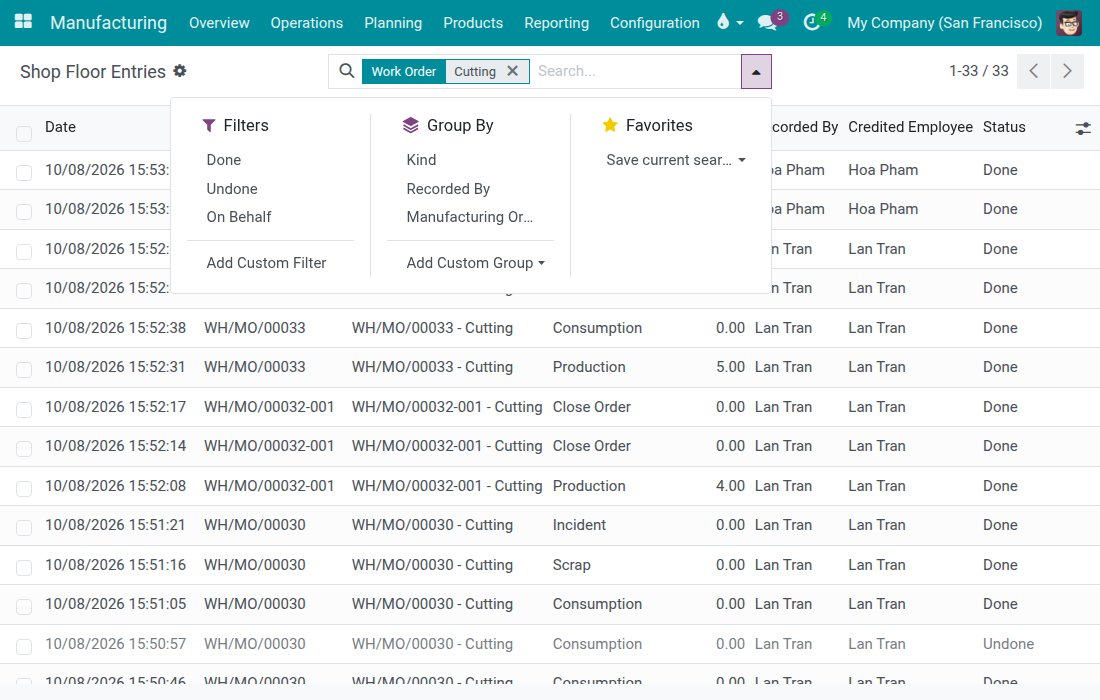
Open the filter menu. Filters has Done, Undone and On Behalf; Group By has Kind, Recorded By and Manufacturing Order.
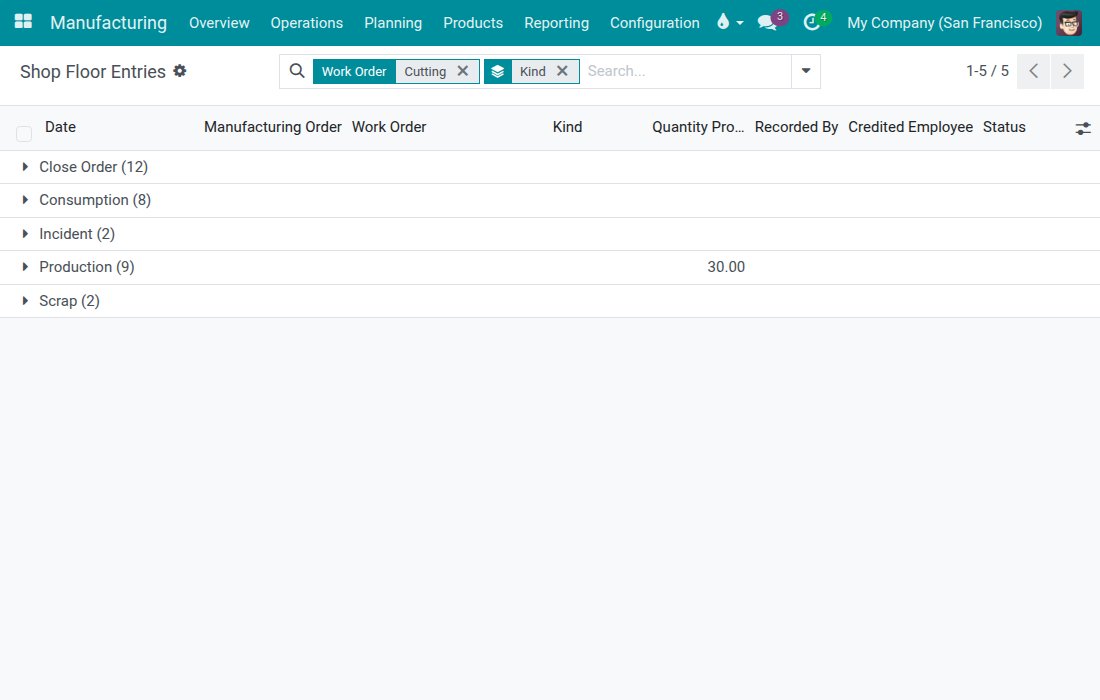
Choose Group By ‣ Kind to group the lines by production, consumption, scrap, incident and order close.
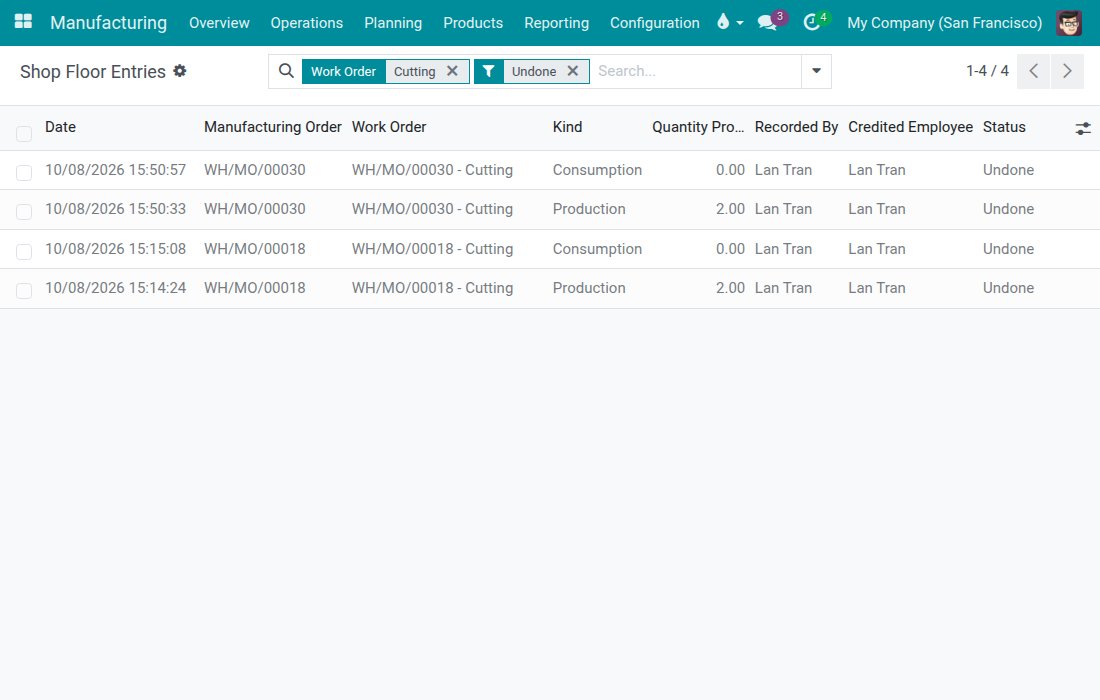
Choose the filter Undone to show only the recordings that were taken back.
Choose the filter On Behalf to show the lines recorded for another employee.
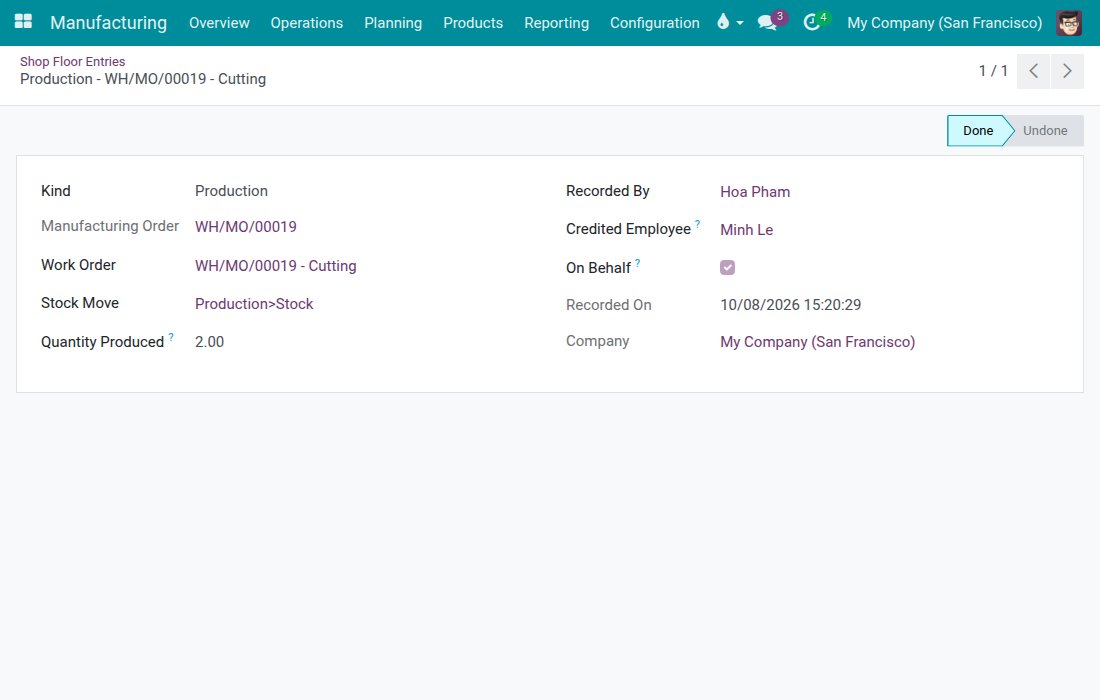
Click a line to open it. The read-only form shows the kind, the order, the work order, who recorded it, the credited employee, whether it was on behalf and, for an undone line, who undid it and when. Lines can be neither edited nor deleted.
Tasks for the cost accountant
Check the labour cost
Each time line of a work order names the employee it is credited to and freezes that employee's hourly cost when the line closes. A later pay rise never re-prices a finished order. Time lost to a stop, such as a breakdown, is not part of the labour cost.
Make sure the hourly cost of each employee, the work center costing and the employee capacity are set, as described in "Configuration".
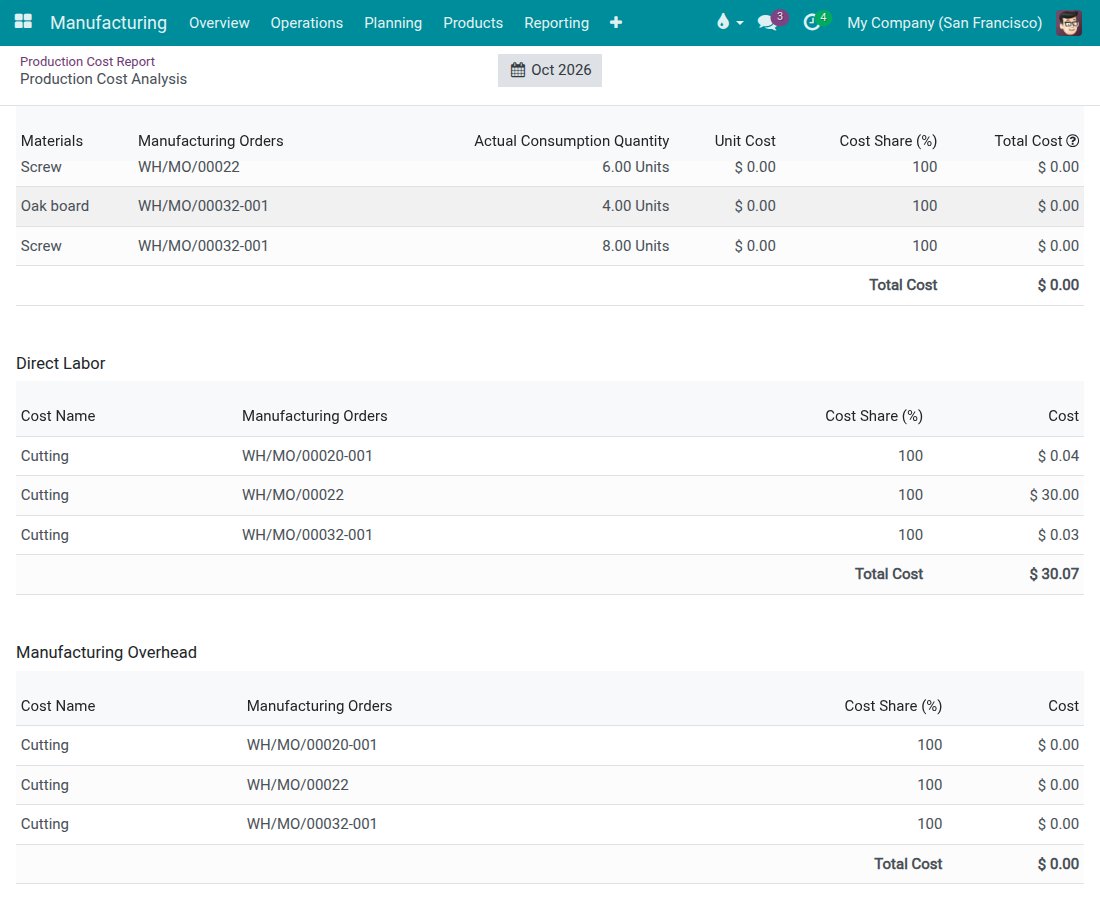
Open Manufacturing ‣ Reporting ‣ Production Cost Report and choose the period.
Click the finished product to expand it. Under Direct Labor, each row names the work center, the manufacturing order and the cost. Here the order that was worked 90 minutes by an employee whose hourly cost is 20.00 shows a labour cost of 30.00.
Troubleshooting
- Tapping a card did not start the job. This is intended: tapping the body of a card only opens the job, so a hand resting on a card never puts you on the clock. Tap Open & start, Continue operation, Resume operation or the Start button of the operation screen.
- Start, Pause, Finish operation or Record output are refused. The work center is stopped. The screen shows the reason of the stop. Ask a production lead to restart the station.
- The screen says "Enter the quantity first. Tap 0 if none was used." A materials row needs a quantity before you can confirm. Enter 0 if nothing was used.
- "Every lot needs a quantity above zero." Remove the lot you do not use with the red bin button, or enter a quantity for it.
- I recorded scrap by mistake. Scrap cannot be undone from the shop floor. Ask a production lead or stock manager to correct it.
- I cannot close an order because of a difference in materials. Tap Correct the figures if a figure is wrong, or Ask a manager to approve when the bill of materials does not allow differences.
- I cannot see On behalf or Restart station. These controls are for Manufacturing Administrators only.
- My connection dropped while I was recording. Tap again when the connection is back. A recording that is retried is applied once, never twice.
FAQ
Do operators need to type?
Rarely. Quantities go in on a number pad and choices are tiles. Only the search and a free description of a stop use the keyboard.
Whose labour cost does a job use?
The employee the time is credited to: the signed-in operator, or the employee chosen with On behalf.
Can several people share one tablet?
Yes. Each person signs in with their own account, and the work centers and operators are remembered per account.
Can I undo a recording after the order is closed?
No. Undo works only while the operation and the order are open.
Where do I see who recorded what?
In Manufacturing ‣ Reporting ‣ Shop Floor Entries. See "Audit what was recorded on the tablets".
This software and associated files (the "Software") may only be used (executed, modified, executed after modifications) if you have purchased a valid license from the authors, typically via Odoo Apps, or if you have received a written agreement from the authors of the Software (see the COPYRIGHT file).
You may develop Odoo modules that use the Software as a library (typically by depending on it, importing it and using its resources), but without copying any source code or material from the Software. You may distribute those modules under the license of your choice, provided that this license is compatible with the terms of the Odoo Proprietary License (For example: LGPL, MIT, or proprietary licenses similar to this one).
It is forbidden to publish, distribute, sublicense, or sell copies of the Software or modified copies of the Software.
The above copyright notice and this permission notice must be included in all copies or substantial portions of the Software.
THE SOFTWARE IS PROVIDED "AS IS", WITHOUT WARRANTY OF ANY KIND, EXPRESS OR IMPLIED, INCLUDING BUT NOT LIMITED TO THE WARRANTIES OF MERCHANTABILITY, FITNESS FOR A PARTICULAR PURPOSE AND NONINFRINGEMENT. IN NO EVENT SHALL THE AUTHORS OR COPYRIGHT HOLDERS BE LIABLE FOR ANY CLAIM, DAMAGES OR OTHER LIABILITY, WHETHER IN AN ACTION OF CONTRACT, TORT OR OTHERWISE, ARISING FROM, OUT OF OR IN CONNECTION WITH THE SOFTWARE OR THE USE OR OTHER DEALINGS IN THE SOFTWARE.
