


Maintenance - MRP
| Lines of Code | 1231 |
| Technical name | to_mrp_maintenance |
| License | OPL-1 |
| Website | https://viindoo.com/apps/modules/18.0/to_mrp_maintenance |
| Read description for | v 11.0 v 12.0 v 13.0 v 14.0 v 15.0 v 16.0 v 17.0 |
| Required Apps | Manufacturing (mrp) Discuss (mail) Inventory (stock) Maintenance (maintenance) |
| Extensions | Shop Floor Control - Maintenance |
When a machine breaks down, report it in a few taps - and get the line back once it is truly fixed.
Viindoo Maintenance - MRP ties every maintenance request to the work centre, work order and manufacturing order it stopped. Operators pick a reason instead of typing, the right technician closes the repair, and MTBF and MTTR on each machine show where preventive work pays off.
Why plants choose it
Report a breakdown without typing
Click Maintenance Request on a stuck work order or manufacturing order and a request opens already linked to it, with its title filled in. The operator picks a reason such as Machine Jammed or Overheating and a machine of that work centre - nothing to type.
The work centre runs again when the repair is done - not before
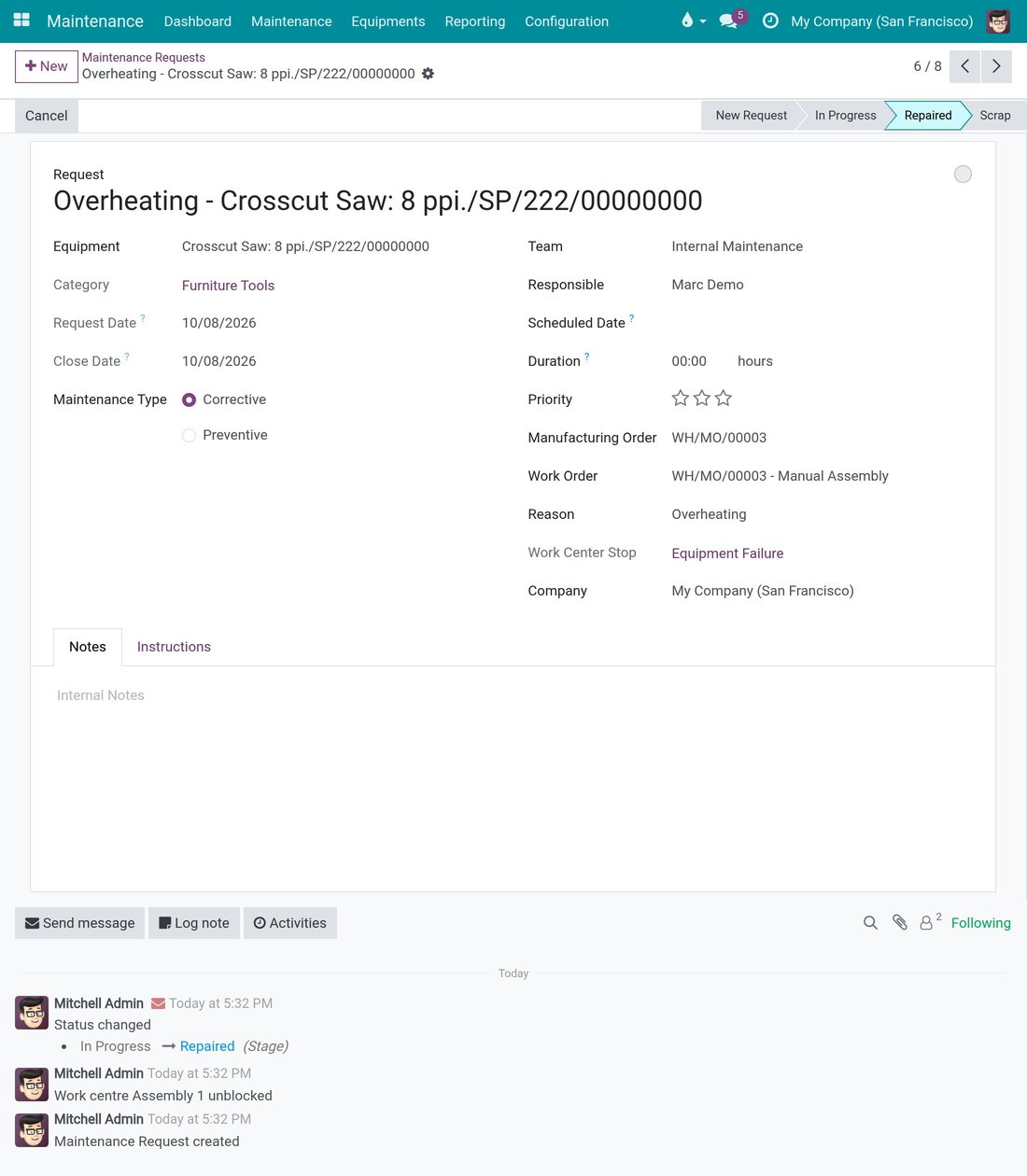
A work centre stopped for a breakdown is released the moment the technician closes its request at a repairing stage. Close it at Scrap and the machine stays stopped until a supervisor releases it. Only the assigned technician or a maintenance manager can close it.
Plan upkeep from real failures
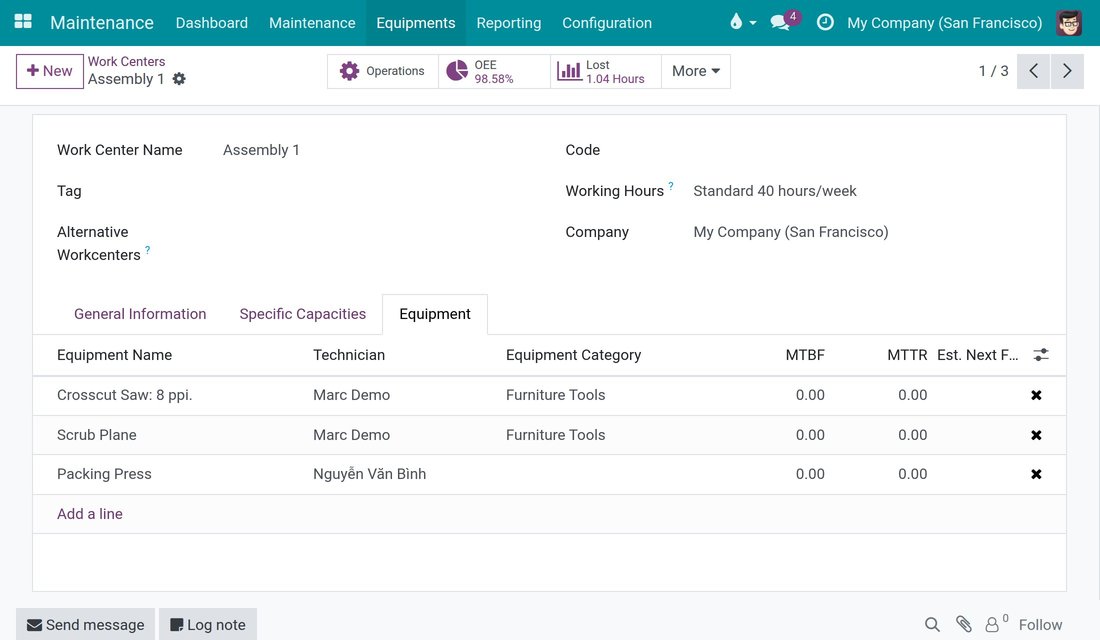
Every machine is tied to the work centre it serves. The work centre lists its machines with technician, MTBF, MTTR and estimated next failure, all computed from the corrective requests your technicians really closed.
From the stuck work order to the repaired machine
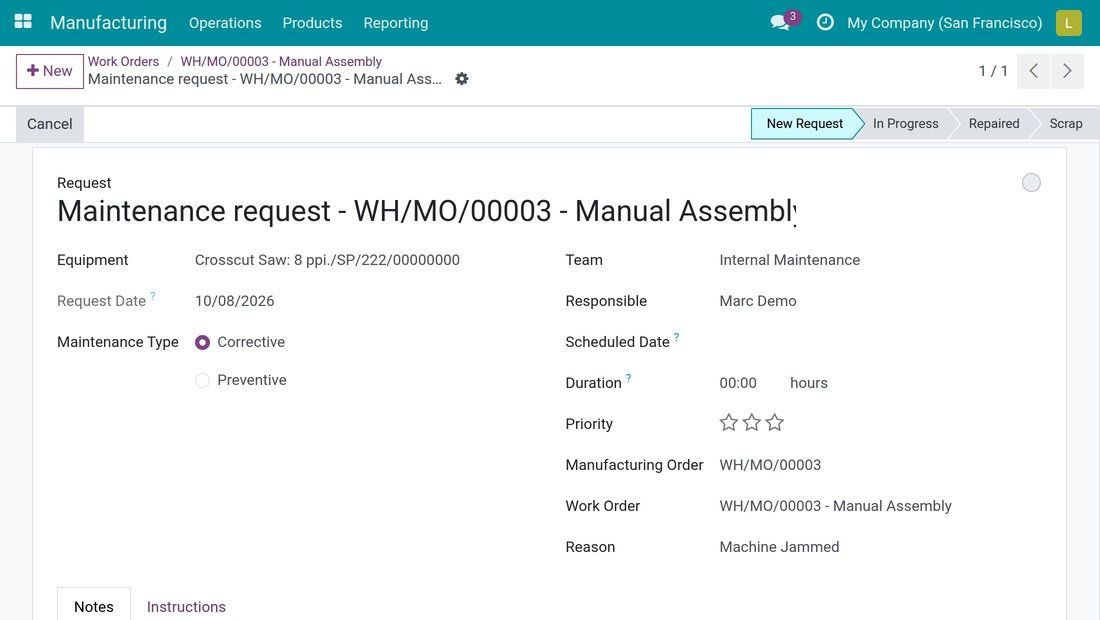
Raise a request from the work order that is stuck
The Maintenance Request button sits at the top of every work order and manufacturing order. It opens a request already linked to the manufacturing order and the work order, with its title already written. Once requests exist, the button shows how many were filed, and one click opens them.
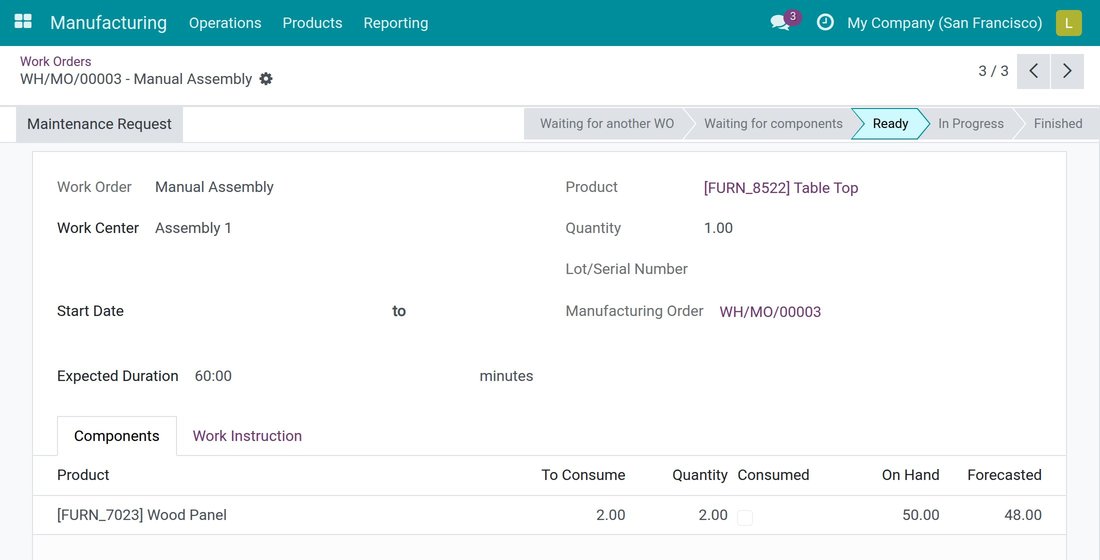
Pick a reason, never type a title
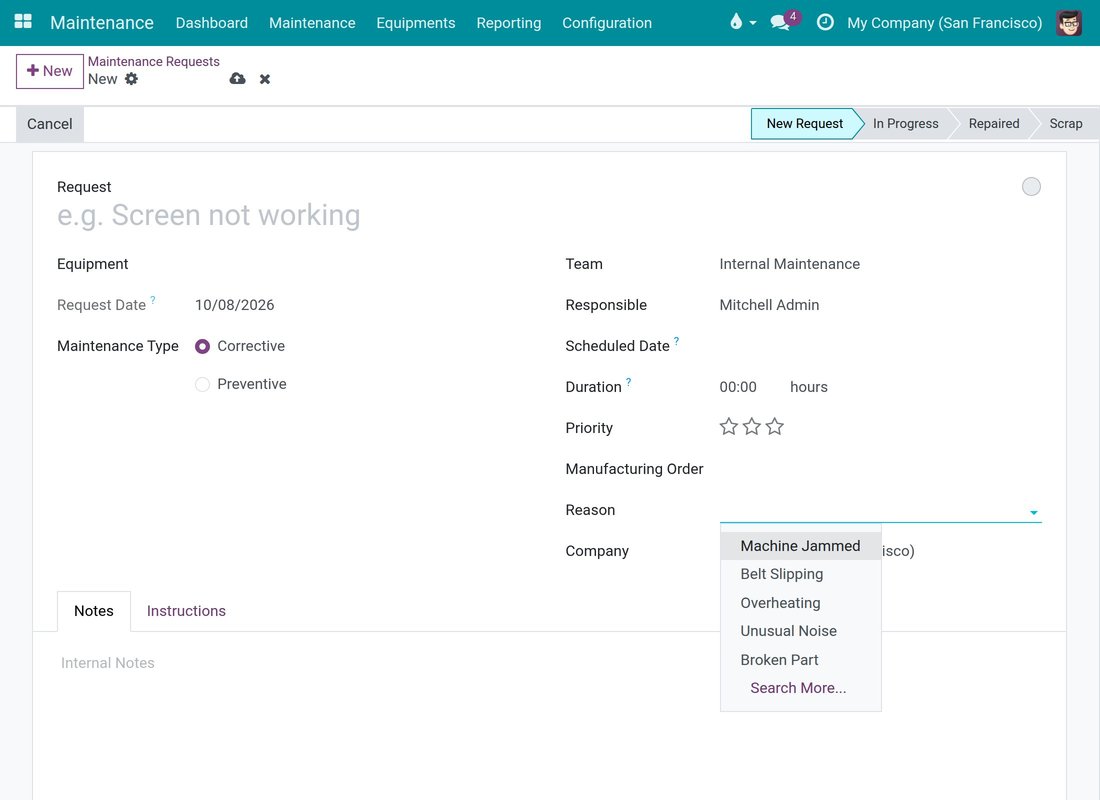
Operators choose what happened from a list - Machine Jammed, Overheating, Unusual Noise, Broken Part, or reasons of your own. On a blank request, picking a reason is enough: the title is the reason. Whoever raises a request keeps access to it, so they can follow the repair.
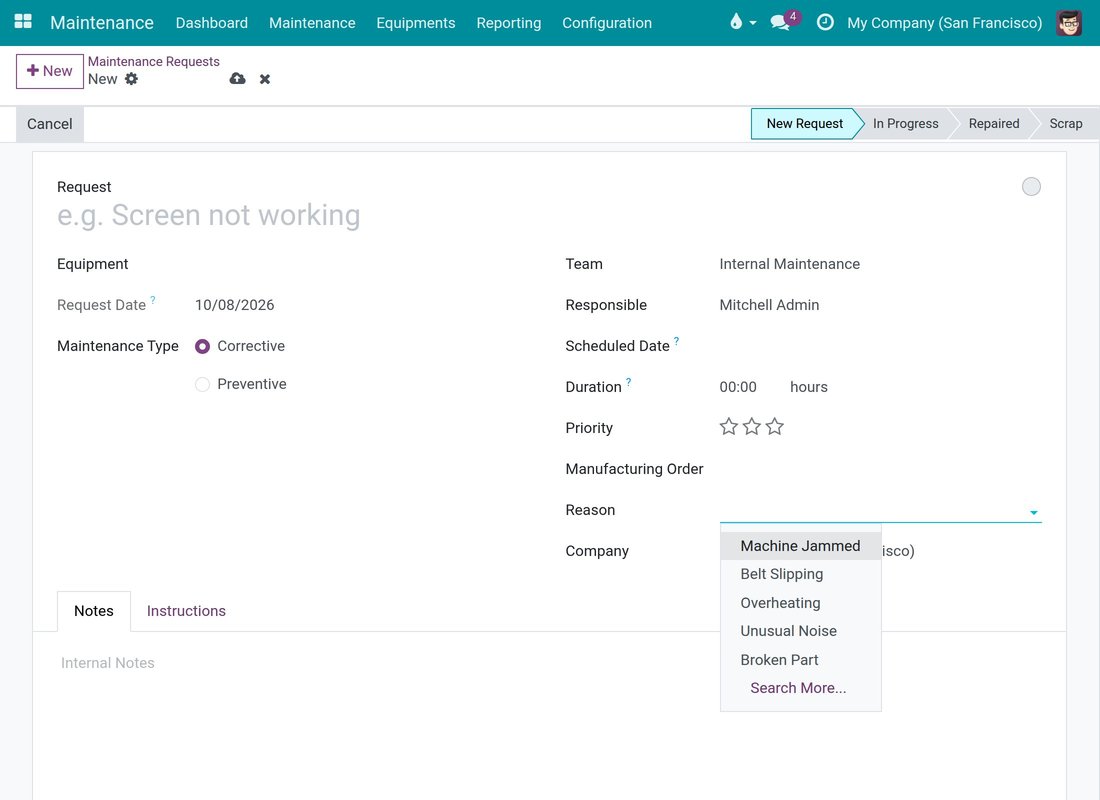
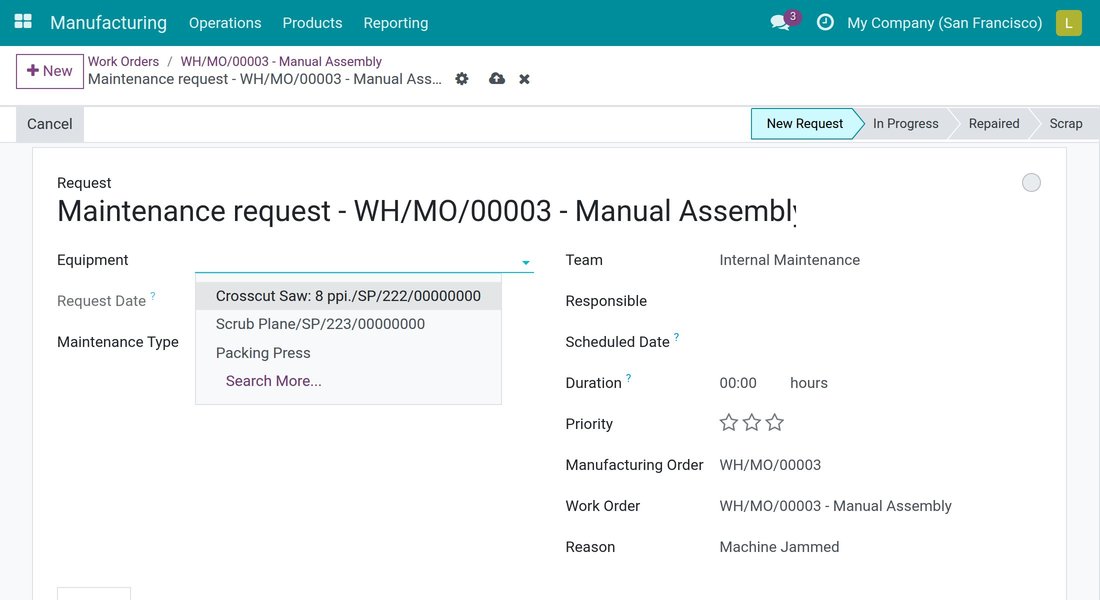
The breakdown lands on the right machine
Once a work order is chosen, the equipment list is narrowed to the machines of its work centre, so a machine of another work centre cannot be picked by mistake. The machine's technician becomes the person responsible for the request.
The work centre runs again as soon as the repair is closed
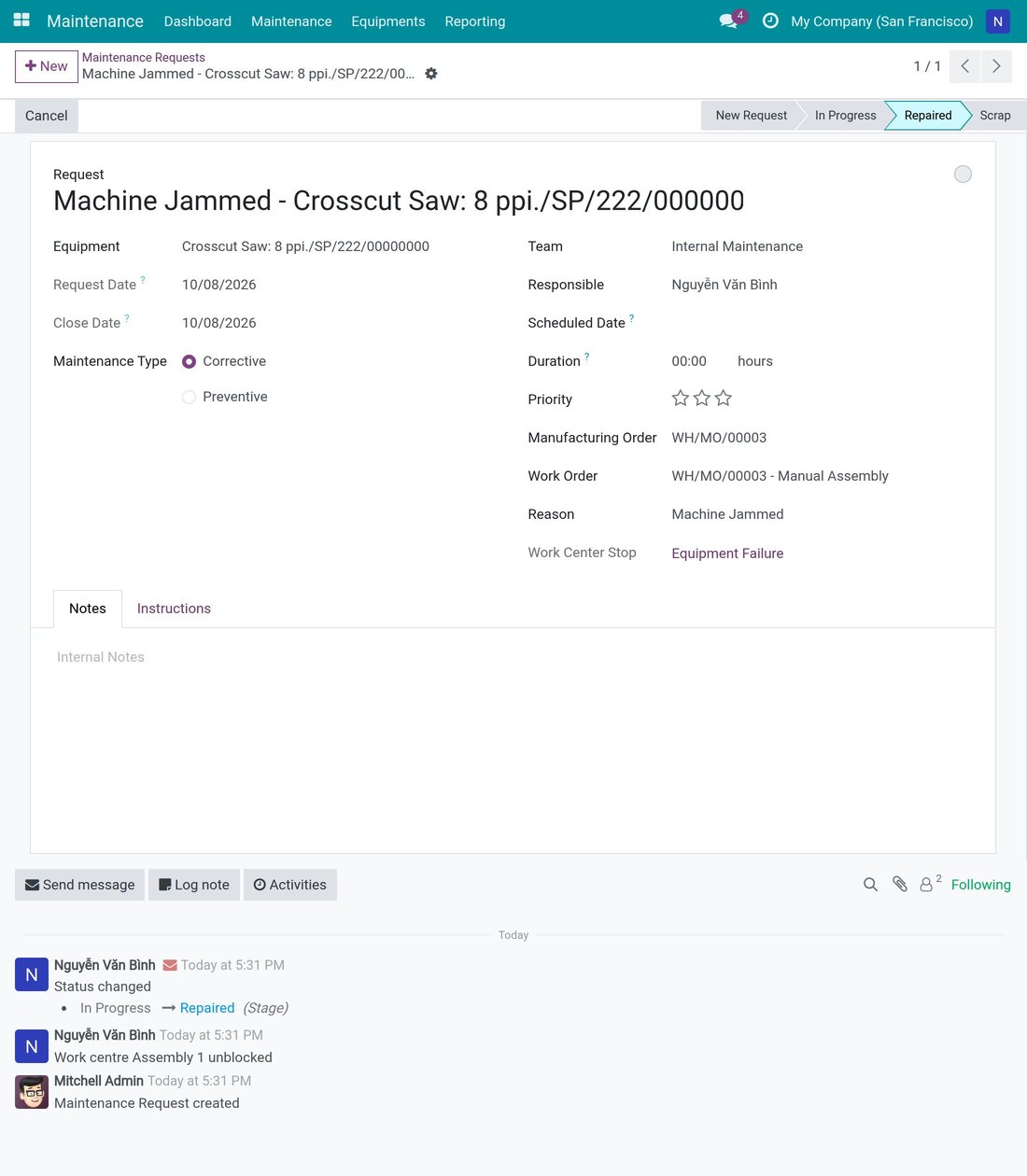
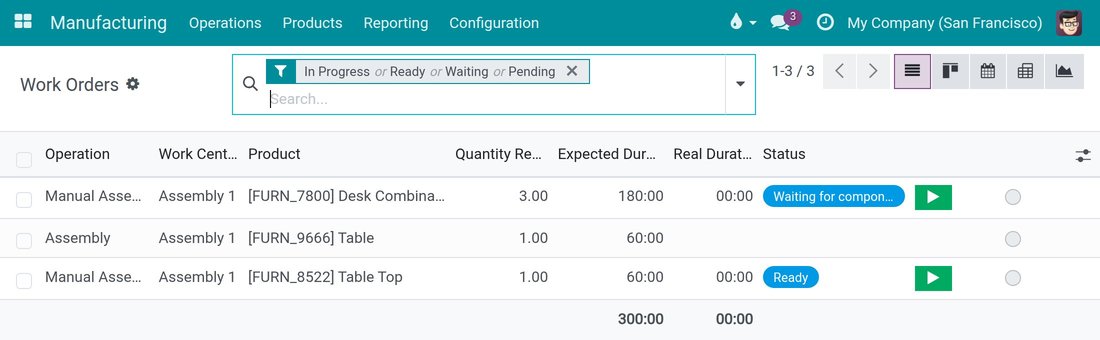
A request raised for a work centre stop shows a Work Center Stop link and its loss, for example Equipment Failure. When the technician moves the request to Repaired, the stop ends, the request notes that the work centre is unblocked, and the start buttons of its work orders are available again. Any other stop of the same work centre is left untouched.
Scrap closes the request, not the stop
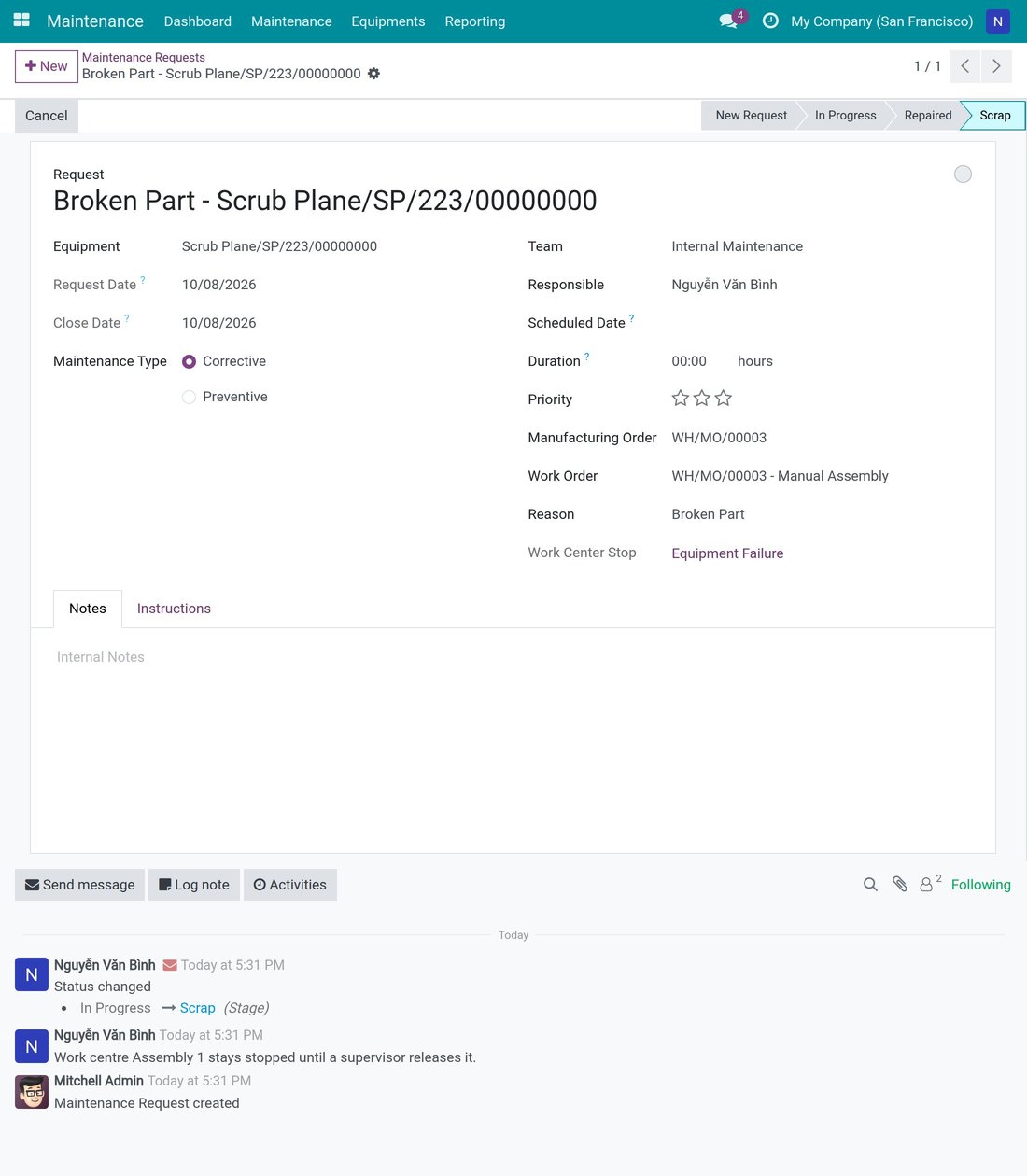
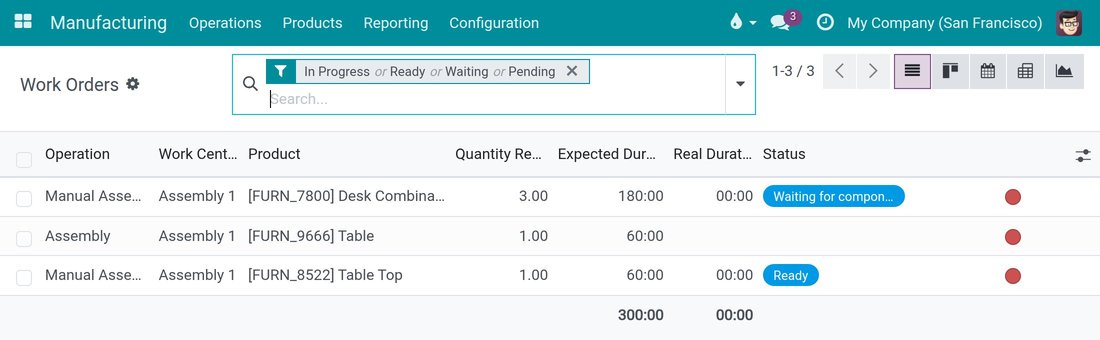
When a machine cannot be repaired, closing the request at Scrap does not free the work centre. The request notes that it stays stopped until a supervisor releases it, and its work orders show a red status dot instead of a start button, so nobody restarts a dead machine by accident.
Only the technician or a manager closes a request holding a stop
A request that keeps a work centre stopped can be closed only by its assigned technician or by a maintenance manager. Anyone else is refused, which stops a bystander from restarting a machine; when the technician is away, the manager covers.
Your reasons, your closing stages
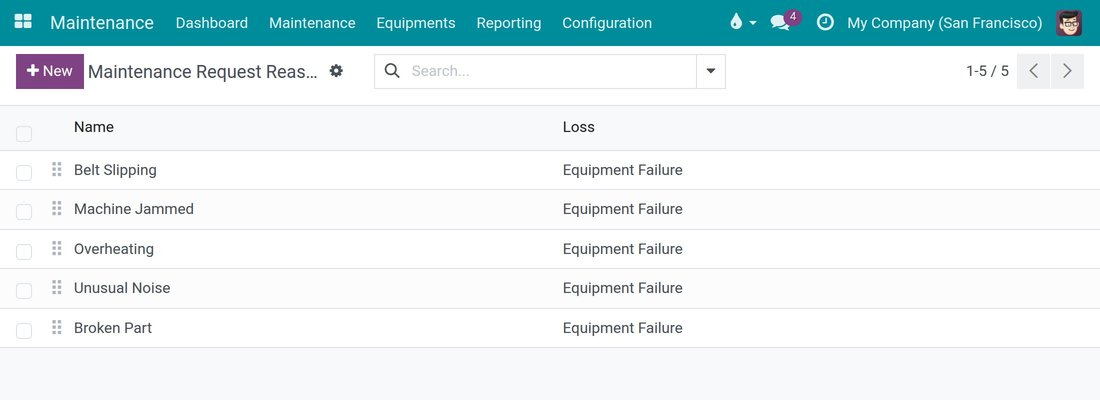
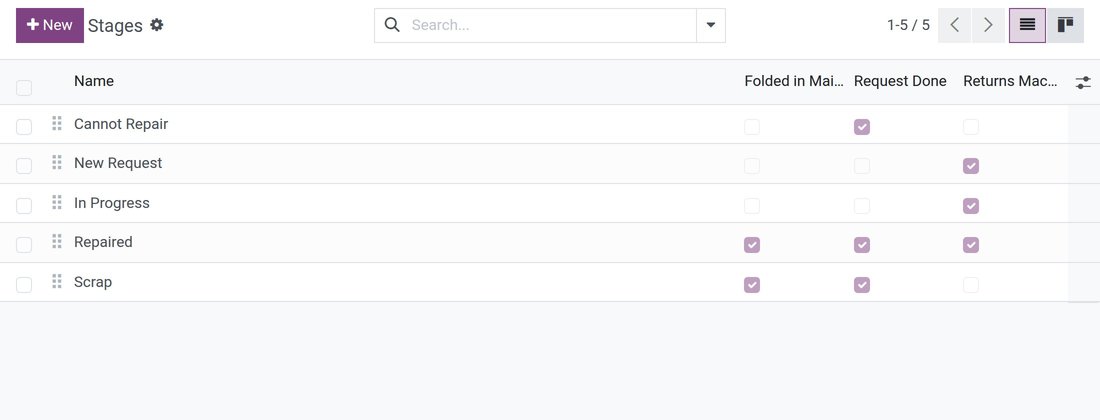
Maintenance managers keep the list of breakdown reasons, and each reason can point to the productivity loss a stopped work centre is booked under. For every closing stage they decide with one tick, Returns Machine to Service, whether closing a request frees the work centre: on for Repaired, off for Scrap, and your own stages can follow either rule.
Every machine tied to the work centre it serves
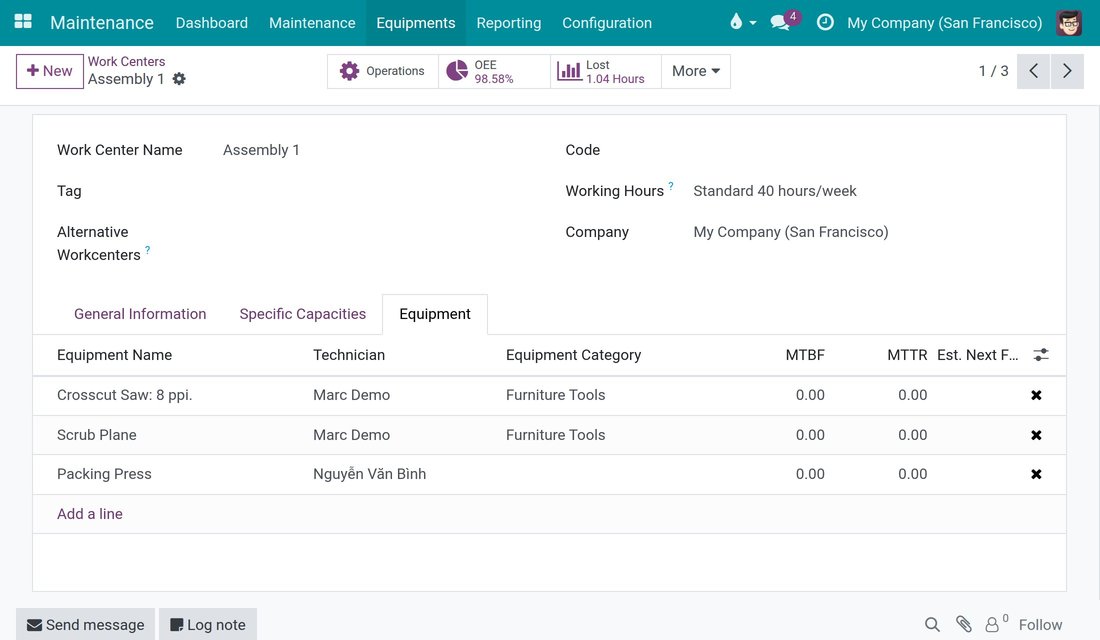
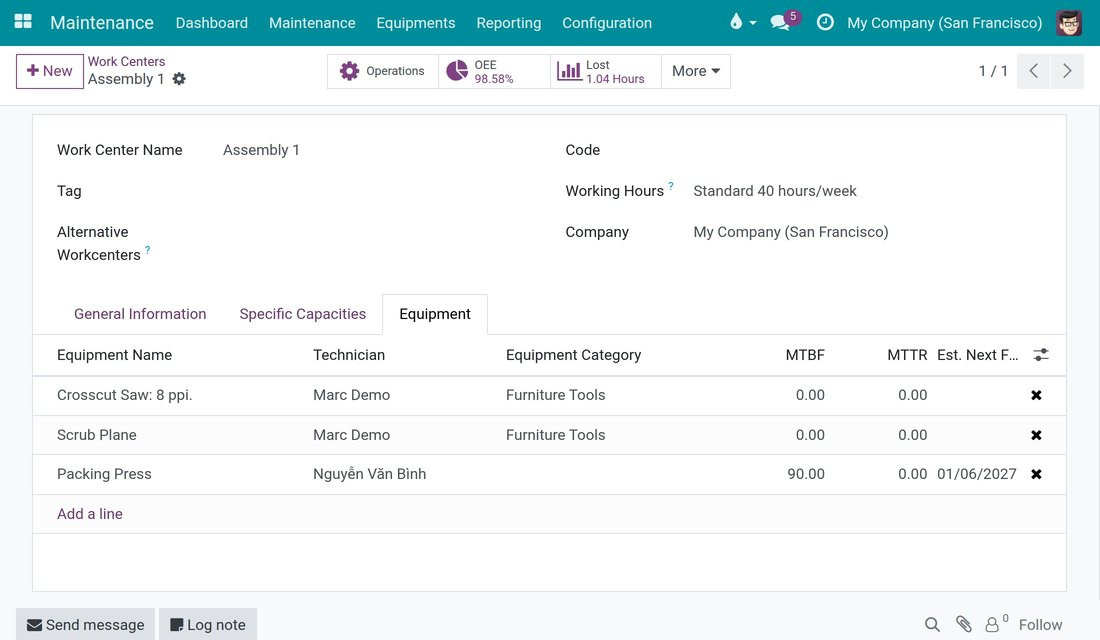
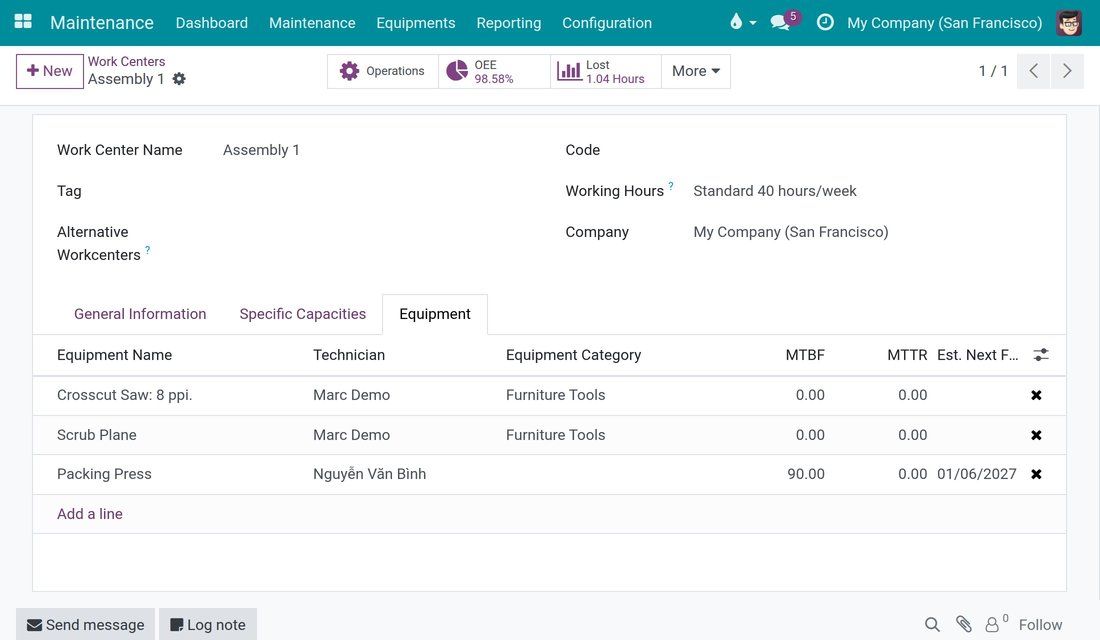
Link each machine or tool to its work centre and name its technician. The work centre then lists its equipment with technician, equipment category, MTBF, MTTR and estimated next failure - on the Equipment tab of the work centre, whether you open it from Manufacturing or from Maintenance.
MTBF and MTTR from real failures
Mean time between failures and mean time to repair are computed from the done corrective requests of each machine and shown in days with decimals, so you can schedule upkeep before the next failure instead of after it.
Operators can report a breakdown by touch, right at the machine
With Viindoo Shop Floor Control - Maintenance added to Shop Floor Control, operators report a breakdown on the Shop Floor tablet: one action stops the work centre and raises the maintenance request, and the downtime is timed from that tap. Everything on this page then applies to that request - the Work Center Stop link, the release at a repairing stage, Scrap holding the machine and technician-only closing. It installs automatically when both apps are present. Without it, requests are raised from the desktop as shown above.
Everything else in the box
Work centres inside Maintenance
Open the work centres from Maintenance > Equipments, right next to the machines that run in them.
Maintenance link on the work centre card
A Maintenance link on each work centre card in Manufacturing jumps to the maintenance requests.
Button and counter on manufacturing orders
Raise a request from a manufacturing order and see how many requests it has, just as on work orders.
Find requests by order, work order or stop
Search maintenance requests by manufacturing order, work order or work centre stop.
Reasons without opening Maintenance
Manufacturing managers keep the same reason list under Manufacturing > Configuration > Request Reasons.
A loss for every reason
Each reason can point to the productivity loss under which the stop of a work centre is booked.
Questions buyers ask
Do operators have to type anything to raise a request?
No. A request opened from a work order or a manufacturing order arrives linked to it and already titled, and on a blank request picking a reason titles it. Whoever raises a request can open it afterwards to follow the repair.
Do I need Viindoo Shop Floor Control?
Not to raise and follow requests: reasons, titles, the equipment list, the Maintenance Request buttons and MTBF / MTTR all work on their own. Reporting a breakdown by touch on the tablet, with the work centre stopped at that moment, comes with Viindoo Shop Floor Control - Maintenance; the release and closing rules of this app then apply to every request linked to that stop.
Who can close a request that stopped production?
The technician assigned to the request or a maintenance manager. Anyone else is refused when they try to move such a request to a done stage, so a machine cannot be restarted by mistake.
Who releases a work centre after Scrap?
A supervisor. The request notes in its history that the work centre stays stopped until a supervisor releases it.
Does closing a request free every stop of the work centre?
No. Only the stop linked to that request is ended; other stops of the same work centre stay as they are.
How are MTBF and MTTR calculated?
From the done corrective requests of each machine, in days. MTTR is the average time from request to close; MTBF is the time in service up to the latest failure, counted from the machine's effective date, divided by the number of failures, and the estimated next failure is the latest failure plus MTBF.
Can we use our own breakdown reasons?
Yes. The list starts with Machine Jammed, Overheating, Unusual Noise and Broken Part, and you can rename, reorder or add reasons under Maintenance > Configuration > Request Reasons.
Compatibility
Works with Odoo 18.0 Community Edition and Viindoo Cloud. Requires the Manufacturing and Maintenance apps, with work orders enabled in the Manufacturing settings.
Not supported on Odoo Enterprise.
Keep breakdowns short and your machines on plan.
See how a breakdown travels from the work order to the technician and back to production in a guided tour.
Maintenance - MRP
Maintenance - MRP connects the Maintenance app to Manufacturing. Every machine is tied to the work center it serves, every maintenance request can point to the manufacturing order, the work order and the work center stop it concerns, and a stopped work center runs again only when the repair is really finished.
This guide follows three people:
- the maintenance manager, who keeps the list of machines per work center, the breakdown reasons and the closing stages, and who reads MTBF and MTTR;
- the production lead (or any operator), who raises a request from a stuck work order or reports a breakdown by tapping a reason, without typing a title;
- the technician, who closes a request at Repaired so that the stopped work center can run again, or at Scrap when the machine cannot be repaired.
Installation
The module installs itself as soon as both Manufacturing and Maintenance are installed. If it is not installed yet:
- Open the Apps menu.
- Search for Maintenance - MRP.
- Click Install.
The apps Manufacturing and Maintenance are required. Odoo installs them for you when they are missing.
Configuration
Enable work orders
Work centers are only available when work orders are enabled.
- Open Manufacturing ‣ Configuration ‣ Settings.
- In the Operations block, tick Work Orders.
- Click Save.
Give people the right access
- The maintenance manager needs the access right Maintenance / Equipment Manager. Managers can edit machines, reasons and stages, and can close any request.
- The production lead and the operators need the access right Manufacturing / User. They can raise requests from work orders and manufacturing orders, and they can always open the requests they created.
- The technician is any internal user. The technician is named in the Responsible field of the request.
Note
Every user who saves a request needs an email address on their user record. Without it, saving stops with the message "Unable to send message, please configure the sender's email address."
Check the reasons and the closing stages
Four breakdown reasons are ready to use: Machine Jammed, Overheating, Unusual Noise and Broken Part. The stages of a request are New Request, In Progress, Repaired and Scrap. Closing a request at Repaired puts the work center back in service. Closing it at Scrap does not. You can change both lists, see the sections "Add a breakdown reason" and "Choose which closing stages put the machine back in service" below.
Usage
Link a machine to the work center it serves
Role: maintenance manager.
Open Maintenance ‣ Equipments ‣ Machines & Tools.
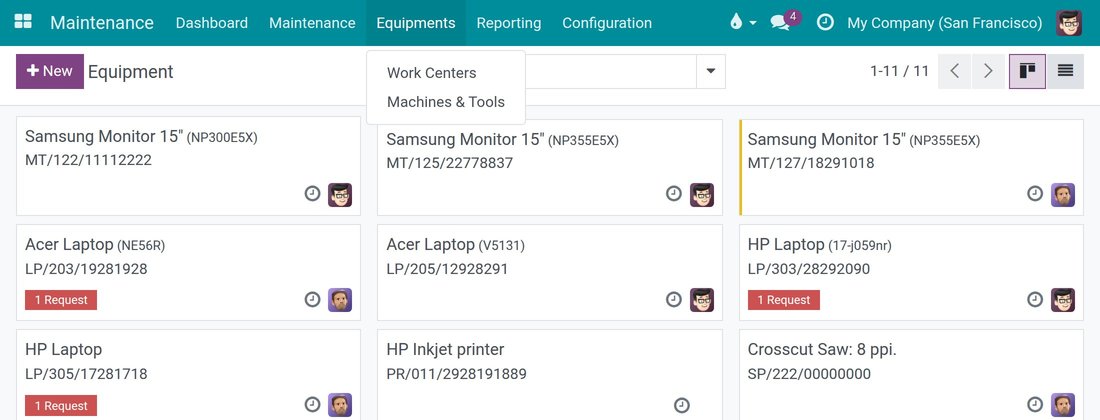
Click New.
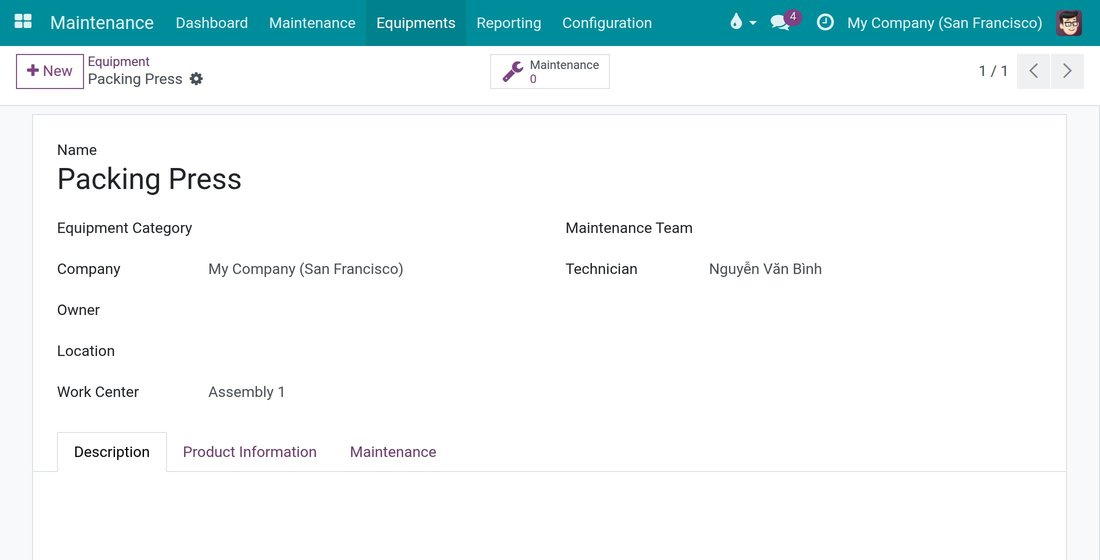
In Name, type the machine name, for example Packing Press.
In Work Center, pick the work center where the machine runs, for example Assembly 1.
In Technician, pick the person who repairs this machine.
Click the save icon.
To check the result, open Maintenance ‣ Equipments ‣ Work Centers and open the work center. On the Equipment tab you see every machine tied to this work center, with its technician, its equipment category, its MTBF, its MTTR and its estimated next failure.
Note
The same Equipment tab is on the work center form under Manufacturing ‣ Configuration ‣ Work Centers.
Raise a maintenance request from a work order
Role: production lead.
Open Manufacturing ‣ Operations ‣ Work Orders.
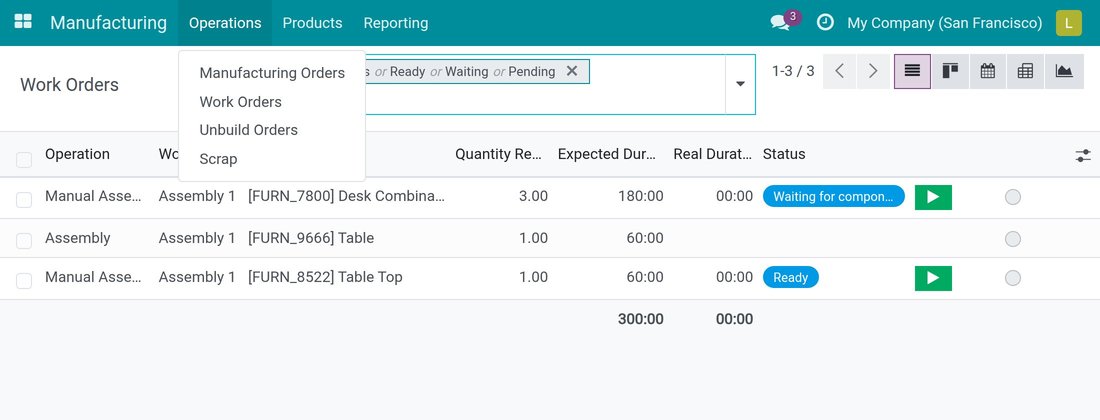
Open the work order that is stuck.
Click Maintenance Request at the top of the work order.
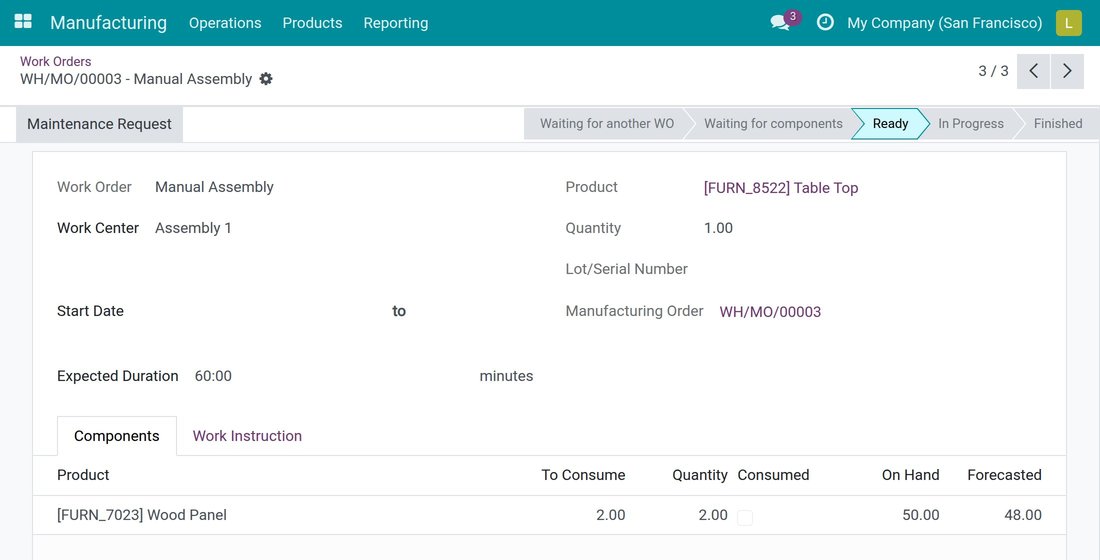
A new request opens, already linked to the manufacturing order and to the work order. The title is already filled in as Maintenance request - followed by the work order name. You type nothing.
In Reason, pick what happened, for example Machine Jammed. You can only pick a reason from the list.
Click Equipment. Only the machines of the work center of this work order are offered, so a machine of another work center cannot be chosen by mistake.
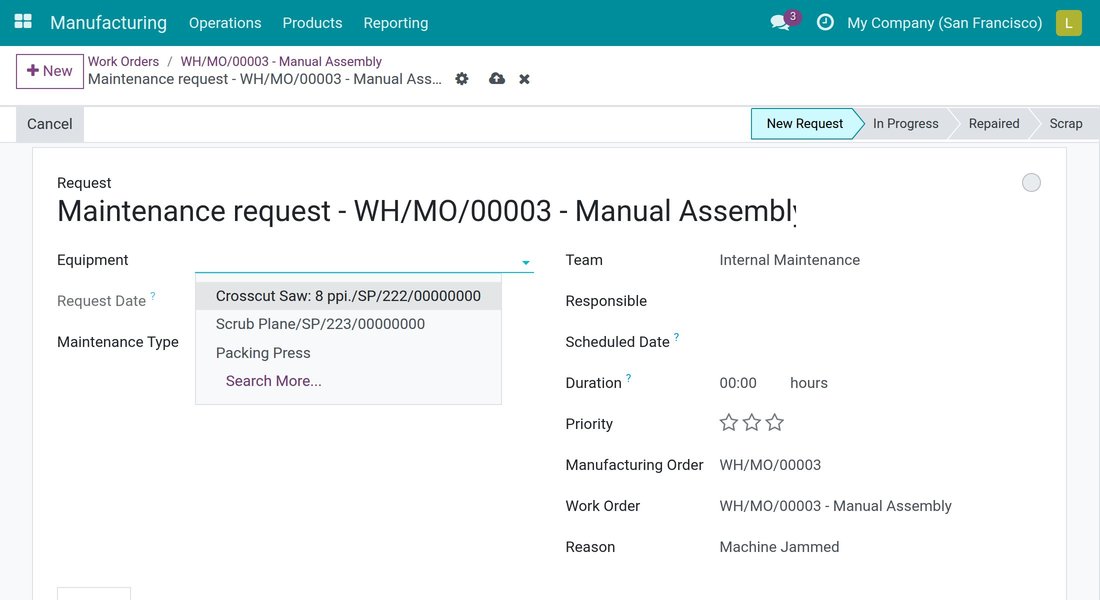
Click the save icon.
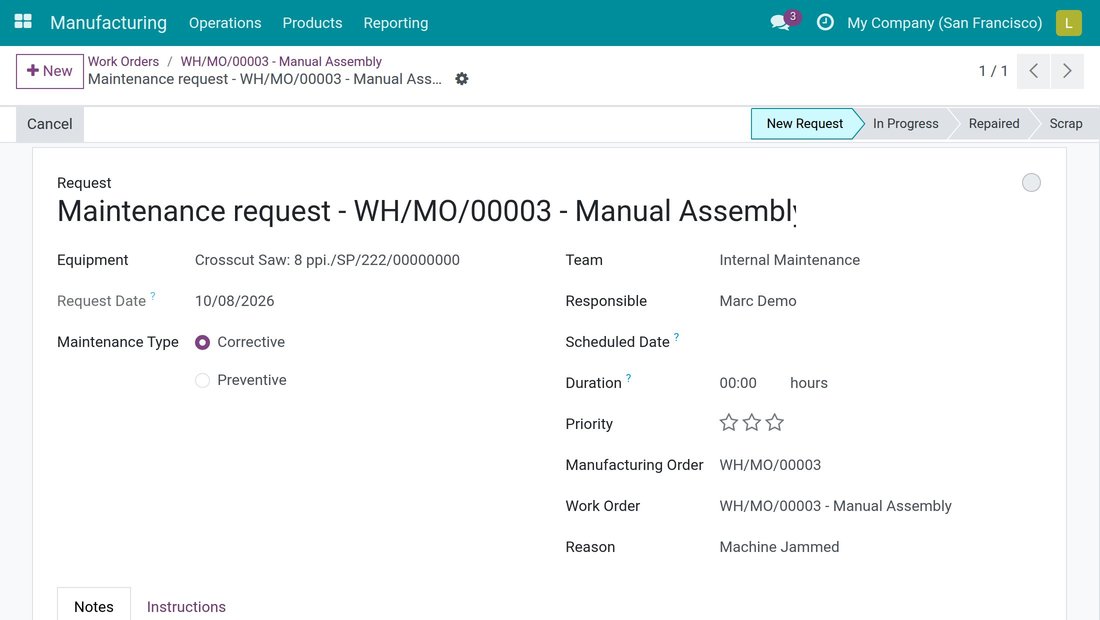
The request is saved with Manufacturing Order and Work Order filled in. When the machine has a technician, that person becomes the Responsible of the request.
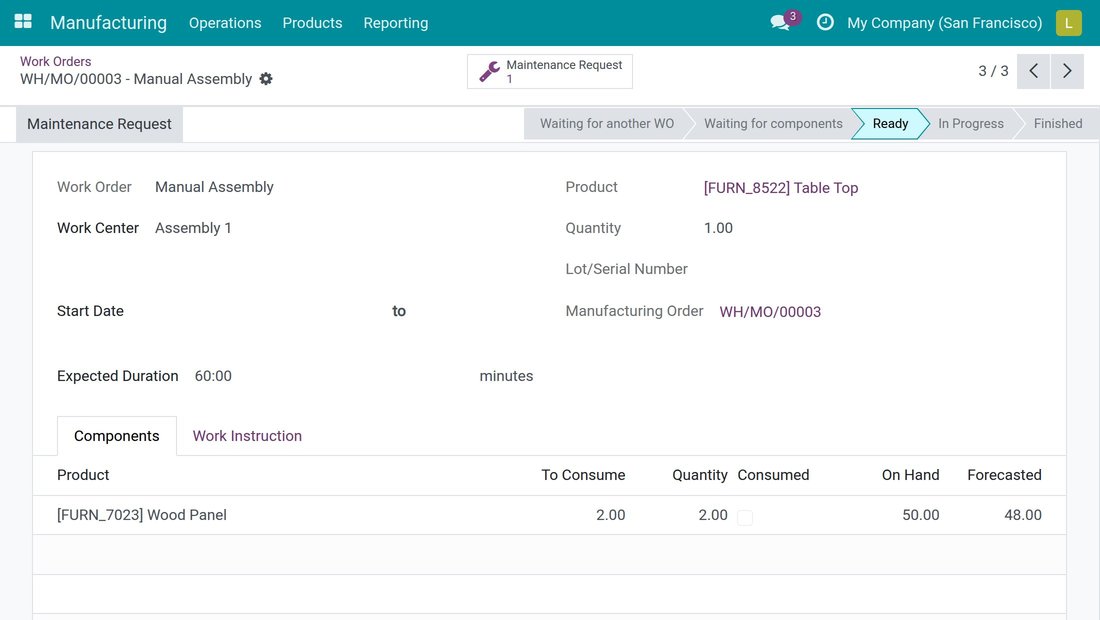
Back on the work order, the button Maintenance Request now shows the number of requests filed for this work order. Click it to open them.
Note
Manufacturing orders have the same Maintenance Request button and counter, in Manufacturing ‣ Operations ‣ Manufacturing Orders.
Report a breakdown by tapping a reason
Role: production lead or operator.
Open Maintenance ‣ Maintenance ‣ Maintenance Requests.
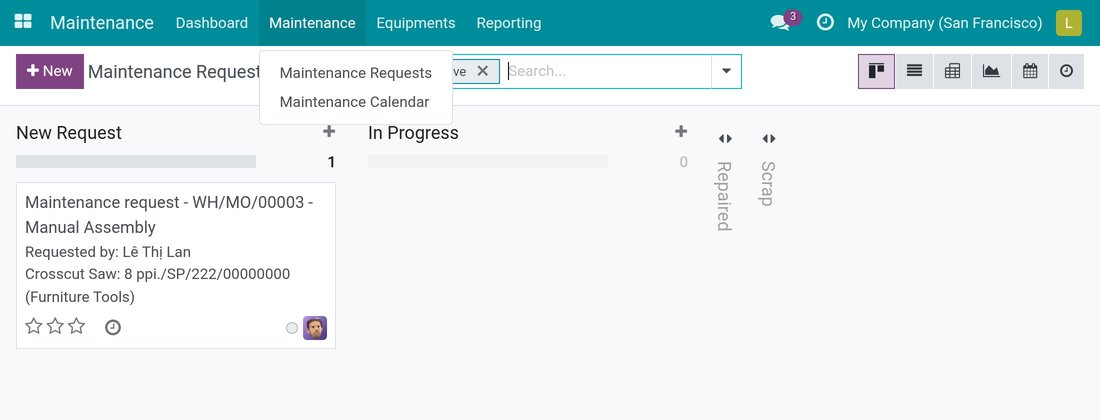
Click New.
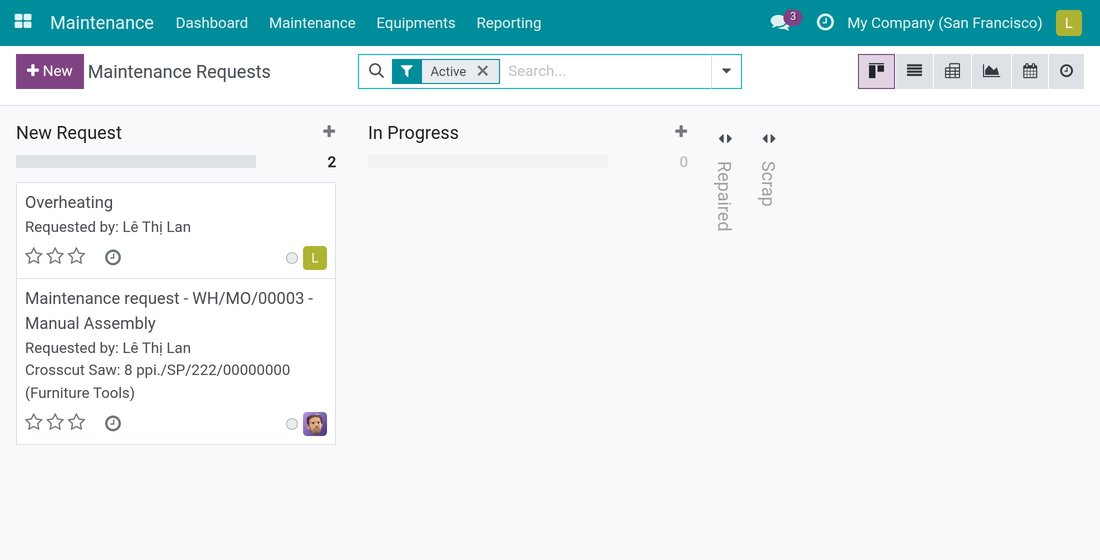
In Reason, pick one reason, for example Overheating. Leave the title empty: the Request field fills itself with the name of the reason.
Click the save icon.
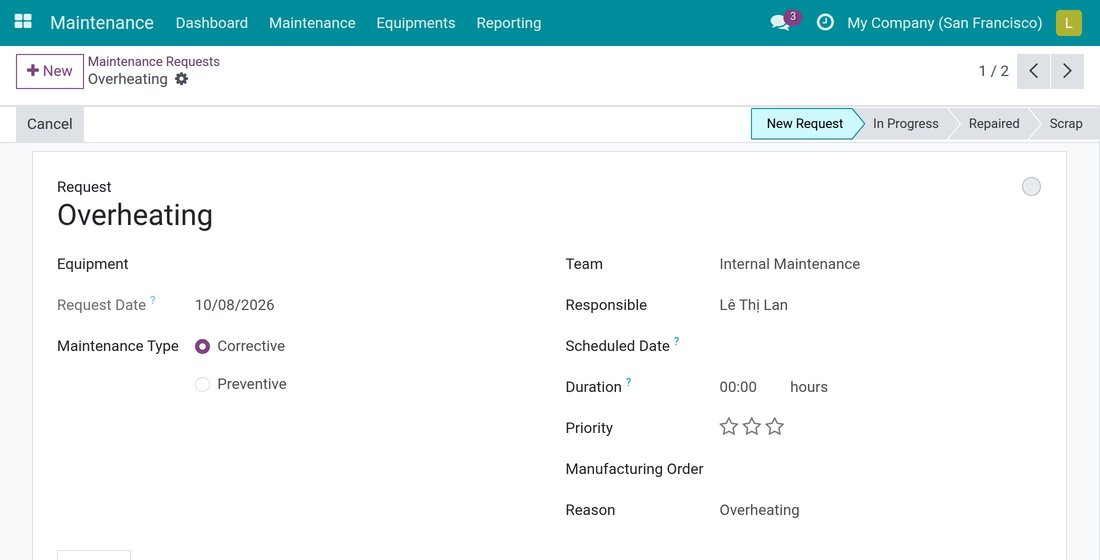
Come back to Maintenance ‣ Maintenance ‣ Maintenance Requests later: your request is still there and you can open it and edit it. Whoever creates a request keeps access to it, even without being the owner, a follower or the technician of the machine.
Note
The title is composed once, from the first thing you pick while the title is empty. Picking an equipment afterwards does not rewrite it. You can always type another title.
Close a breakdown request at Repaired
Role: assigned technician.
When a work center is stopped because of a breakdown (for example when the breakdown is reported from the shop floor with Viindoo Shop Floor Control), the corrective request raised for that stop shows a read-only Work Center Stop field. It is the link to that stop and shows its loss, for example Equipment Failure.
Open Maintenance ‣ Maintenance ‣ Maintenance Requests.
Open the request assigned to you.
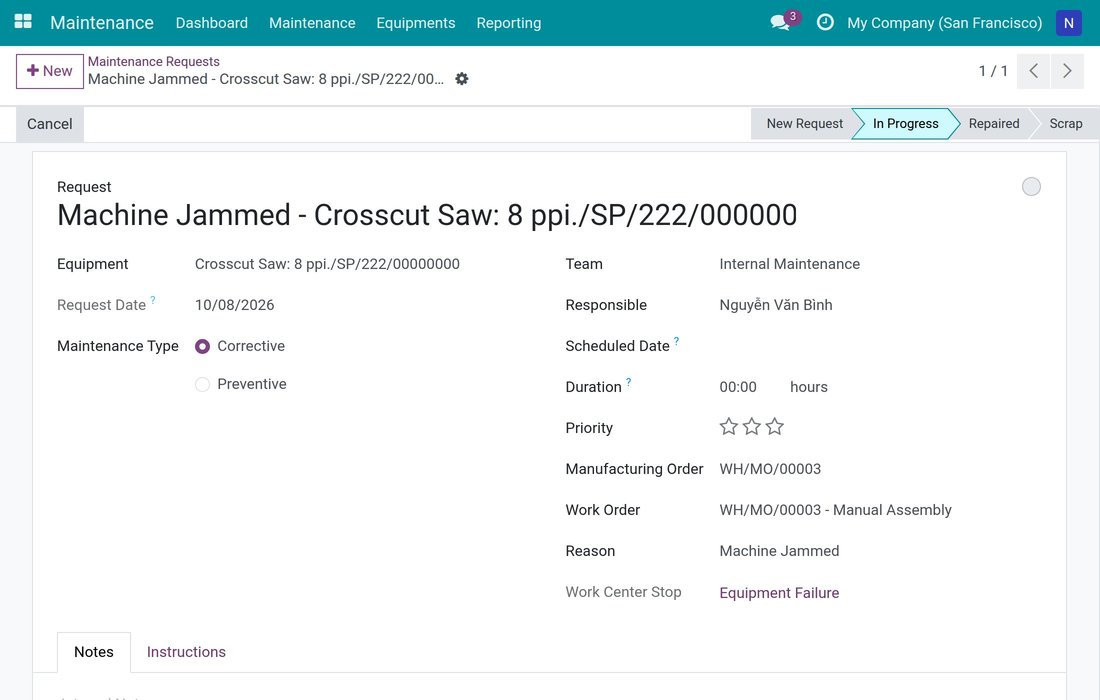
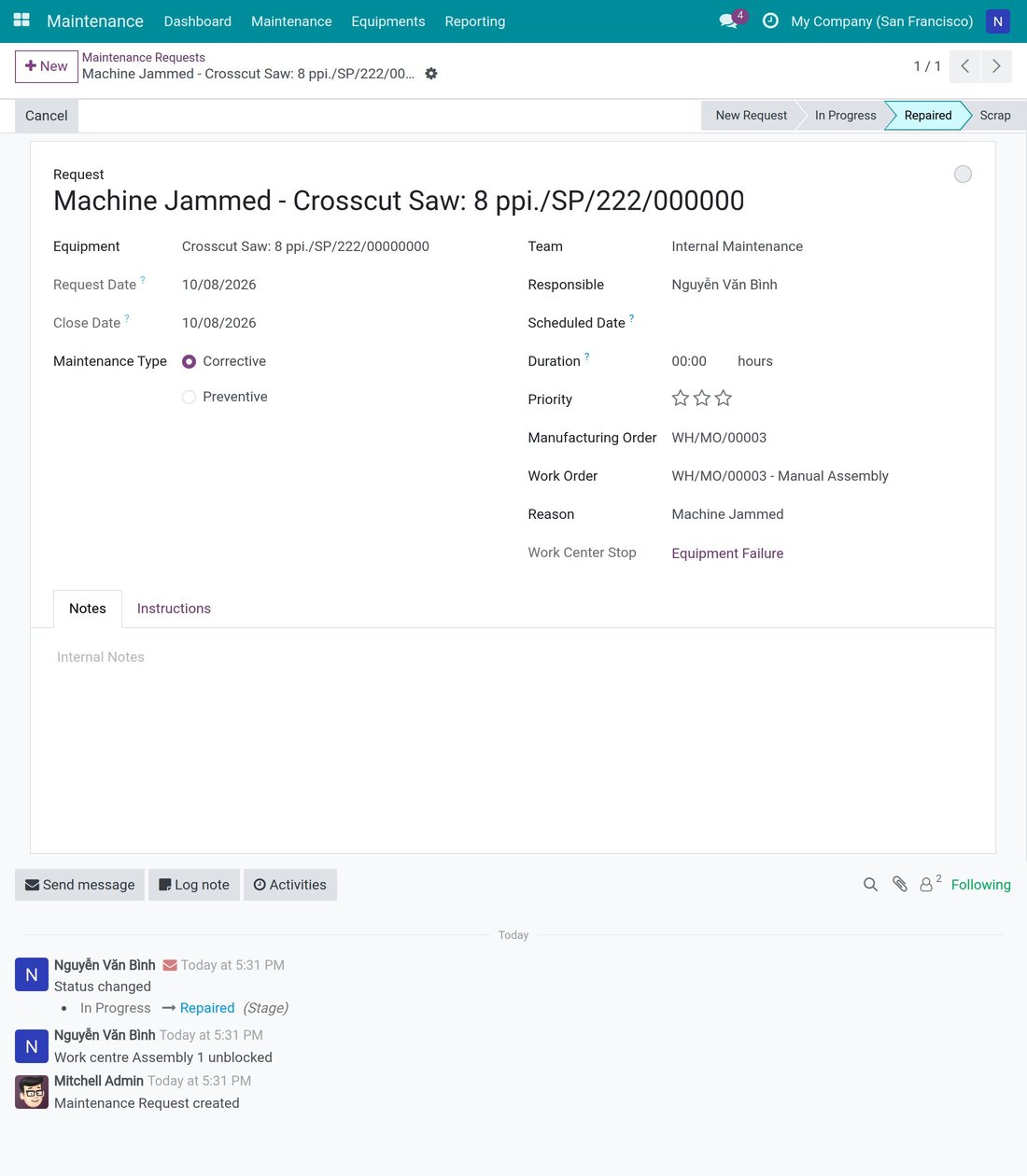
Click Repaired in the status bar.
The request is closed and gets a Close Date. The chatter notes Work centre Assembly 1 unblocked: the work center is no longer stopped. Any other stop of the same work center is left untouched.
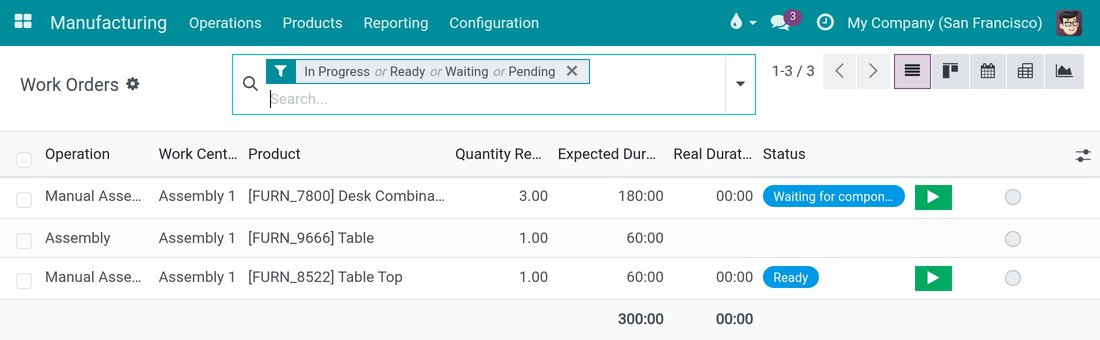
In Manufacturing ‣ Operations ‣ Work Orders, the green start button of the work orders of that work center is available again.
Scrap a machine: the request closes but the work center stays stopped
Role: assigned technician.
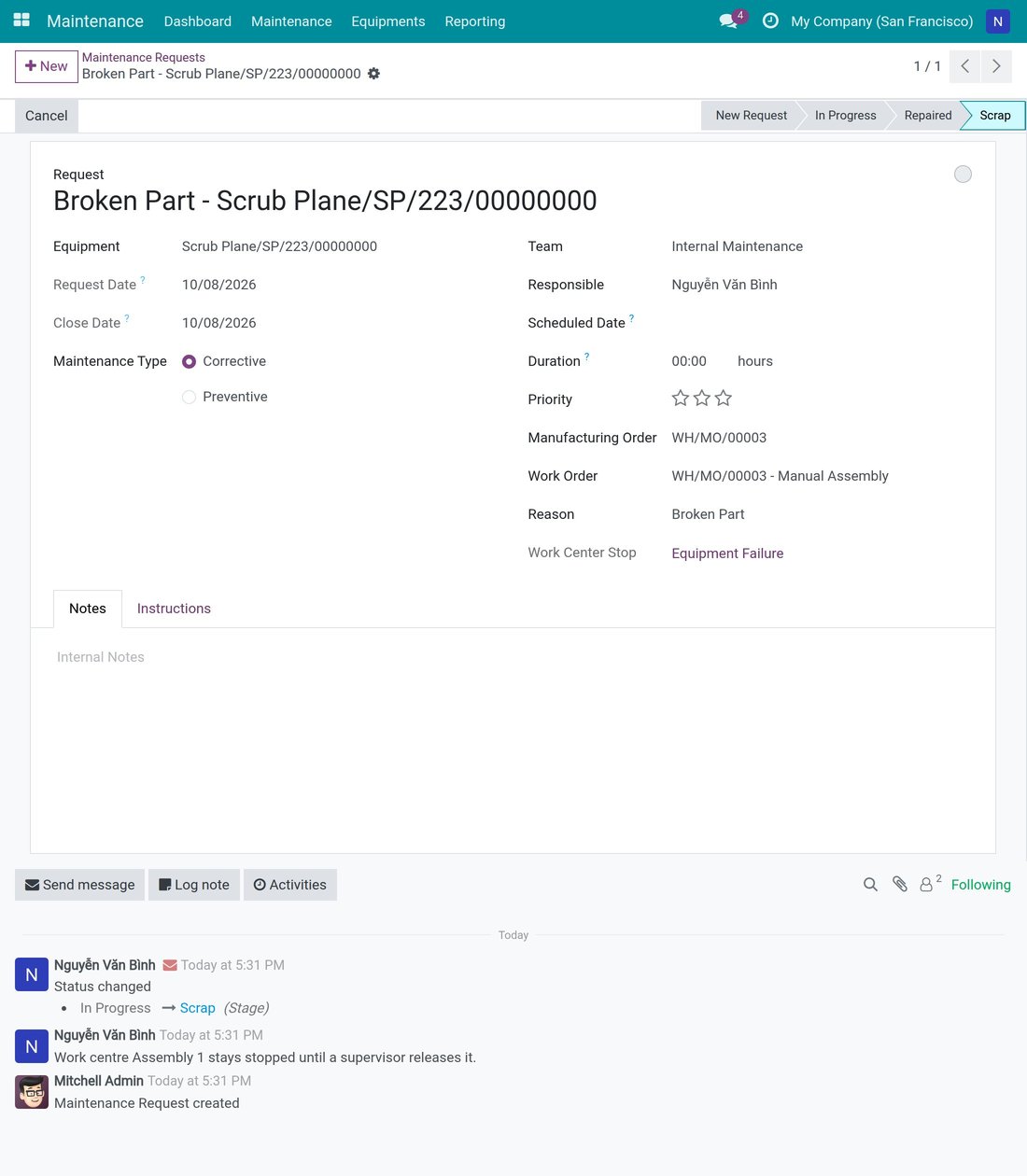
When the machine cannot be repaired, close the request at Scrap.
- Open Maintenance ‣ Maintenance ‣ Maintenance Requests.
- Open the request assigned to you.
- Click Scrap in the status bar.
The request is closed, but the chatter notes Work centre Assembly 1 stays stopped until a supervisor releases it. The work center is still stopped and waits for a supervisor to release it.
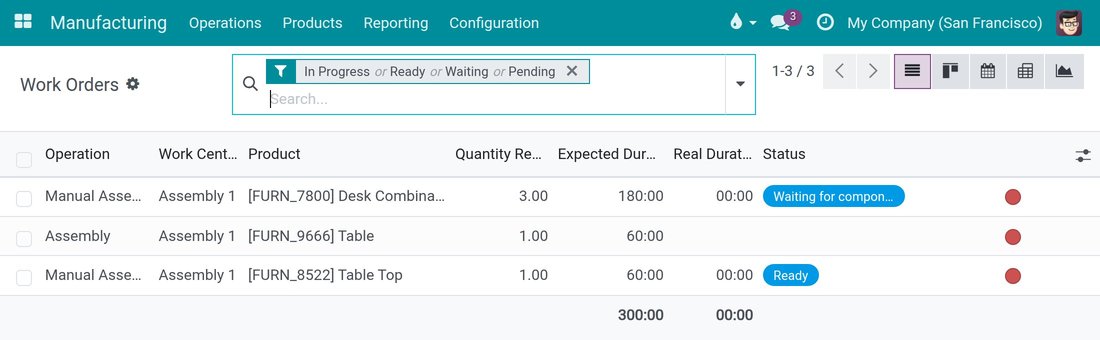
In Manufacturing ‣ Operations ‣ Work Orders, a red status dot replaces the start button of the work orders of that work center.
Let a maintenance manager close a request for a colleague
Role: maintenance manager.
A request that holds a stopped work center can be closed only by its Responsible technician or by a maintenance manager. This prevents a bystander from restarting a machine. When the technician is away, the manager covers.
- Open Maintenance ‣ Maintenance ‣ Maintenance Requests.
- Open the request, even though another technician is Responsible.
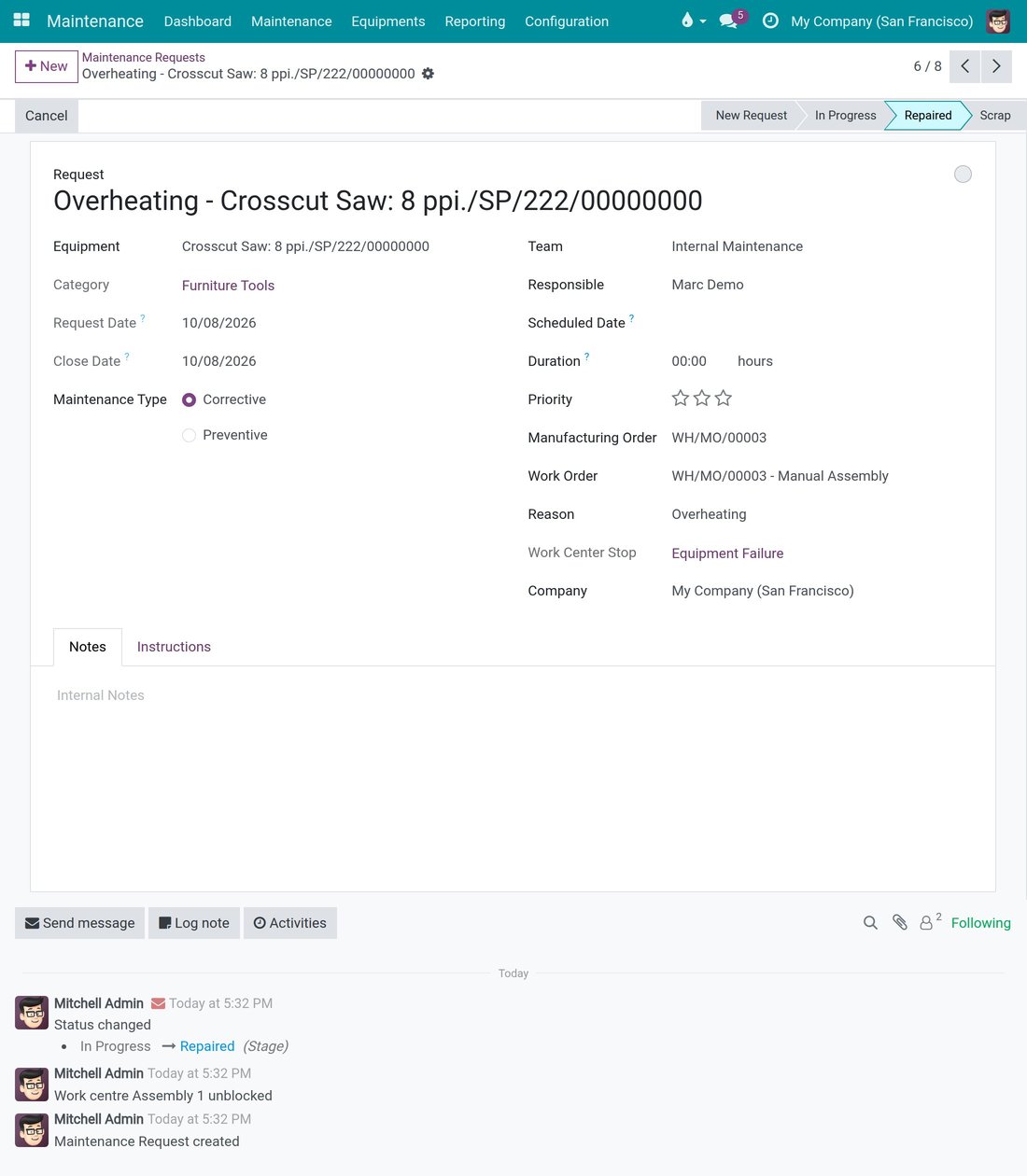
- Click Repaired in the status bar.
The move is accepted, the work center is released and the chatter notes Work centre Assembly 1 unblocked.
Add a breakdown reason
Role: maintenance manager.
The reasons are the choices that operators tap instead of typing.
- Open Maintenance ‣ Configuration ‣ Request Reasons. Managers of Manufacturing can open the same list in Manufacturing ‣ Configuration ‣ Request Reasons.
- Click New. A line is added at the top of the list.
- In Name, type the label that operators will see, for example Belt Slipping.
- In Loss, pick the productivity loss under which the stop of a work center is booked for this reason. Each ready-made reason uses Equipment Failure.
- Click Save.
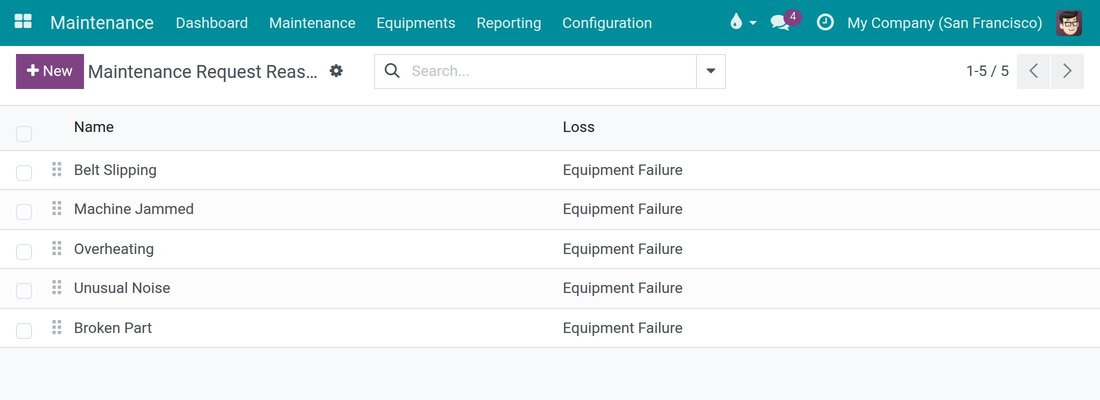
The new reason is offered in the Reason field of every new request. Drag the handle at the start of a line to change the order of the reasons.
Choose which closing stages put the machine back in service
Role: maintenance manager.
This setting is on a screen that only shows in developer mode.
Activate the developer mode: open Settings, scroll down to Developer Tools and click Activate the developer mode.
Open Maintenance ‣ Configuration ‣ Maintenance Stages.
The list has the columns Name, Folded in Maintenance Pipe, Request Done and Returns Machine to Service. Returns Machine to Service is ticked for Repaired and not ticked for Scrap.
To add a closing stage that does not free the machine, click New.
In Name, type the stage name, for example Cannot Repair.
Tick Request Done: a request counts as closed in this stage.
Untick Returns Machine to Service: closing a request in this stage must not free the work center.
Click Save.
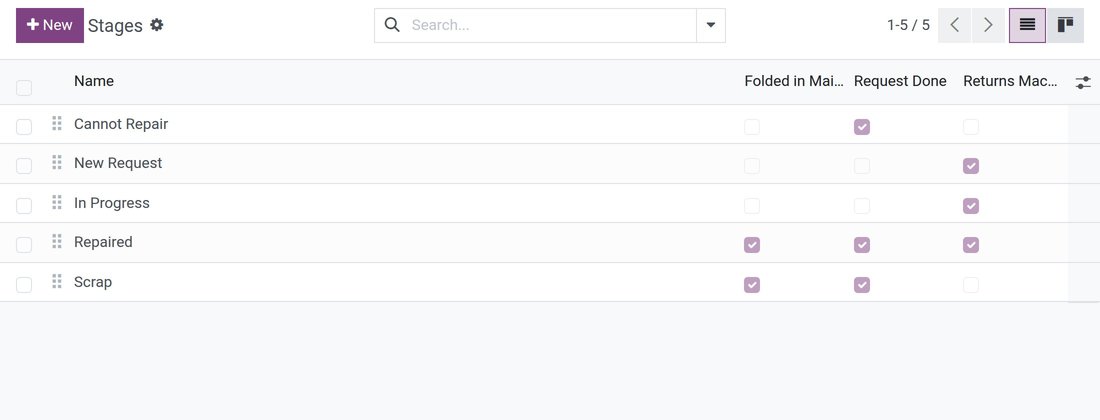
From now on, a breakdown request moved to Cannot Repair is closed but leaves its work center stopped, and the chatter says that a supervisor must release it, exactly as for Scrap.
Note
A new stage is added at the top of the list. Drag it to the place you want: the order of the list is the order of the status bar of a request. Returns Machine to Service only matters for stages where Request Done is ticked.
Read the MTBF and the MTTR of a machine
Role: maintenance manager.
MTBF is the mean time between failures and MTTR is the mean time to repair. Both are computed from the requests of type Corrective that are closed, and are shown in days with decimals.
- Close the corrective request of the machine at Repaired (see "Close a breakdown request at Repaired" above).
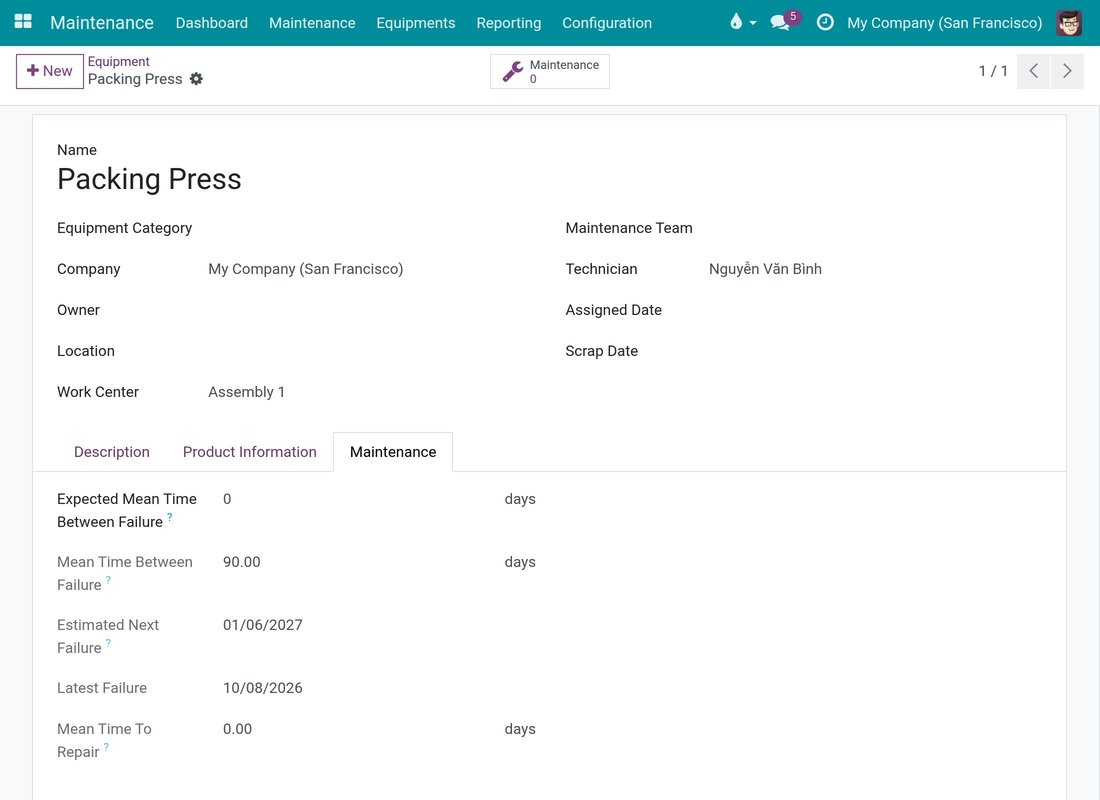
- Open Maintenance ‣ Equipments ‣ Machines & Tools and open the machine.
- Open the Maintenance tab.
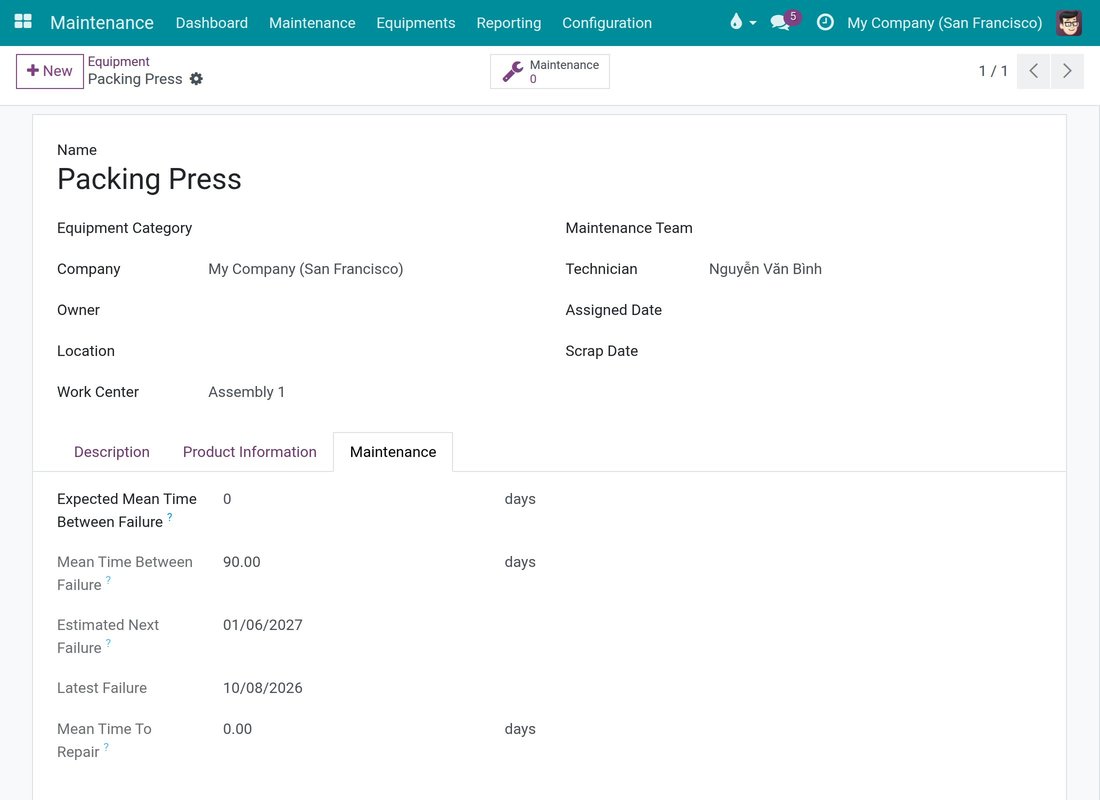
In this example the machine has an Effective Date (tab Product Information) 90 days in the past and one closed corrective request, raised and closed today:
- Mean Time Between Failure is 90.00 days: the days between the effective date and the latest failure, divided by the number of closed corrective requests.
- Mean Time To Repair is 0.00 days: the request was raised and closed the same day.
- Latest Failure is today.
- Estimated Next Failure is about 90 days later.
The same figures are listed as MTBF, MTTR and the estimated next failure on the Equipment tab of the work center.
Troubleshooting
- I cannot find Work Centers in the menu.
- Work orders are not enabled. Follow "Enable work orders" in the Configuration section.
- Saving a request shows "Unable to send message, please configure the sender's email address."
- Your user has no email address. Ask an administrator to fill in the email address of your user, then save again.
- The equipment list of a request is empty or too short.
- Only the machines of the work center of the chosen work order are offered. As a production user you also only see machines that are tied to a work center. Ask the maintenance manager to link the machine to its work center (see "Link a machine to the work center it serves").
- I closed the request, but the work center is still stopped.
- Check, in this order: the request shows a Work Center Stop field (the link to the stop it was raised for); the stage you used has Request Done ticked and Returns Machine to Service ticked (Scrap does not free the machine); no other stop is open on the same work center, because other stops are never released by this request.
- Closing a request shows "Only the assigned technician or a maintenance manager can close a request that is holding a work centre stopped."
- You are neither the Responsible technician of the request nor a maintenance manager. Ask the technician or a manager to close it.
- I cannot see a request that a colleague raised.
- You see the requests you created, the ones you follow and the ones assigned to you. A maintenance manager sees every request.
- The title did not change when I picked the equipment.
- The title is composed once. Type the title you want in the Request field.
FAQ
- Do I have to type a title?
- No. Pick a reason, or open the request from a work order or a manufacturing order: the title is composed for you.
- Can I add my own reasons?
- Yes. A maintenance manager adds them in Maintenance ‣ Configuration ‣ Request Reasons.
- What is the Loss of a reason?
- It is the productivity loss under which the time a work center stays stopped is booked. The ready-made reasons use Equipment Failure.
- Who releases a work center after Scrap?
- A supervisor. The module only notes it in the chatter of the request.
- Does closing a request free every stop of the work center?
- No. Only the stop linked to that request is ended. Other stops of the same work center stay as they are.
- Where do I find the machines of a work center?
- On the Equipment tab of the work center, in Maintenance ‣ Equipments ‣ Work Centers or in Manufacturing ‣ Configuration ‣ Work Centers.
This software and associated files (the "Software") may only be used (executed, modified, executed after modifications) if you have purchased a valid license from the authors, typically via Odoo Apps, or if you have received a written agreement from the authors of the Software (see the COPYRIGHT file).
You may develop Odoo modules that use the Software as a library (typically by depending on it, importing it and using its resources), but without copying any source code or material from the Software. You may distribute those modules under the license of your choice, provided that this license is compatible with the terms of the Odoo Proprietary License (For example: LGPL, MIT, or proprietary licenses similar to this one).
It is forbidden to publish, distribute, sublicense, or sell copies of the Software or modified copies of the Software.
The above copyright notice and this permission notice must be included in all copies or substantial portions of the Software.
THE SOFTWARE IS PROVIDED "AS IS", WITHOUT WARRANTY OF ANY KIND, EXPRESS OR IMPLIED, INCLUDING BUT NOT LIMITED TO THE WARRANTIES OF MERCHANTABILITY, FITNESS FOR A PARTICULAR PURPOSE AND NONINFRINGEMENT. IN NO EVENT SHALL THE AUTHORS OR COPYRIGHT HOLDERS BE LIABLE FOR ANY CLAIM, DAMAGES OR OTHER LIABILITY, WHETHER IN AN ACTION OF CONTRACT, TORT OR OTHERWISE, ARISING FROM, OUT OF OR IN CONNECTION WITH THE SOFTWARE OR THE USE OR OTHER DEALINGS IN THE SOFTWARE.
