


Helpdesk Timesheet Timer
by Viindoo
| Lines of Code | 477 |
| Technical name | viin_helpdesk_timesheet_timer |
| License | OPL-1 |
| Website | https://viindoo.com/apps/modules/19.0/viin_helpdesk_timesheet_timer |
| Read description for | v 17.0 v 18.0 |
| Required Apps | Project (project) Discuss (mail) Employees (hr) |
| Included Dependencies | Helpdesk Viindoo Base Helpdesk Timesheet Integration HR Timesheet Timer Countup Timer Widget Helpdesk Project Integration |

Support time is measured while the work happens
For support teams that record their hours in timesheets
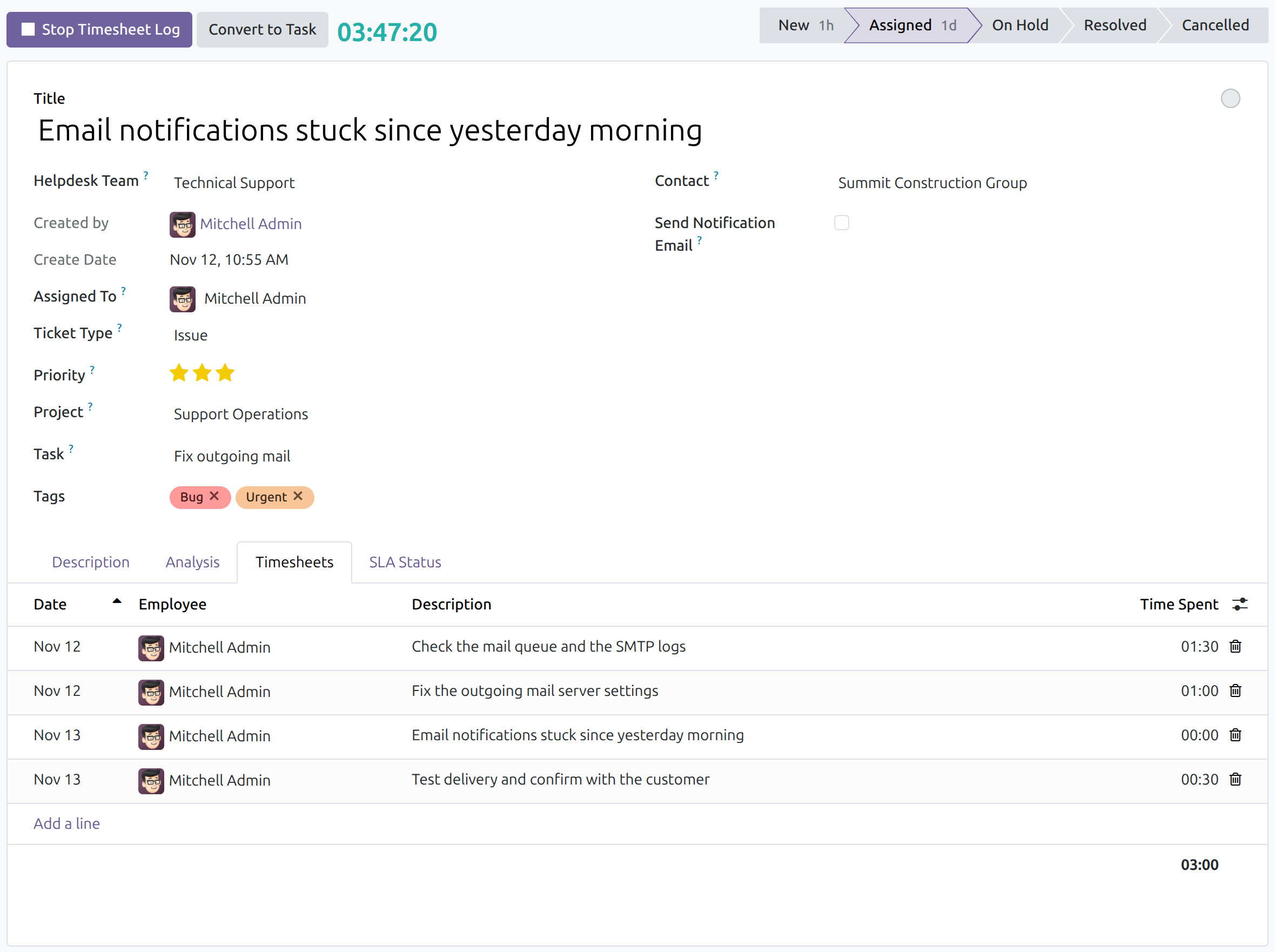
A start and stop timesheet timer on every helpdesk ticket
Odoo 19.0 · Community and Enterprise · OPL-1
Extends Helpdesk Timesheet Integration: the timed hours land in the Timesheets tab of the ticket.
Extends HR Timesheet Timer: the same timer as on project tasks, on every ticket.
What changes for your team
One click starts the clock, one click stops it
Agents note when they start and stop, then type the hours in later, often rounded.
→ Log Timesheet in the ticket header starts a clock; Stop Timesheet Log ends it. The clock keeps counting when the agent leaves the ticket or reloads the page.
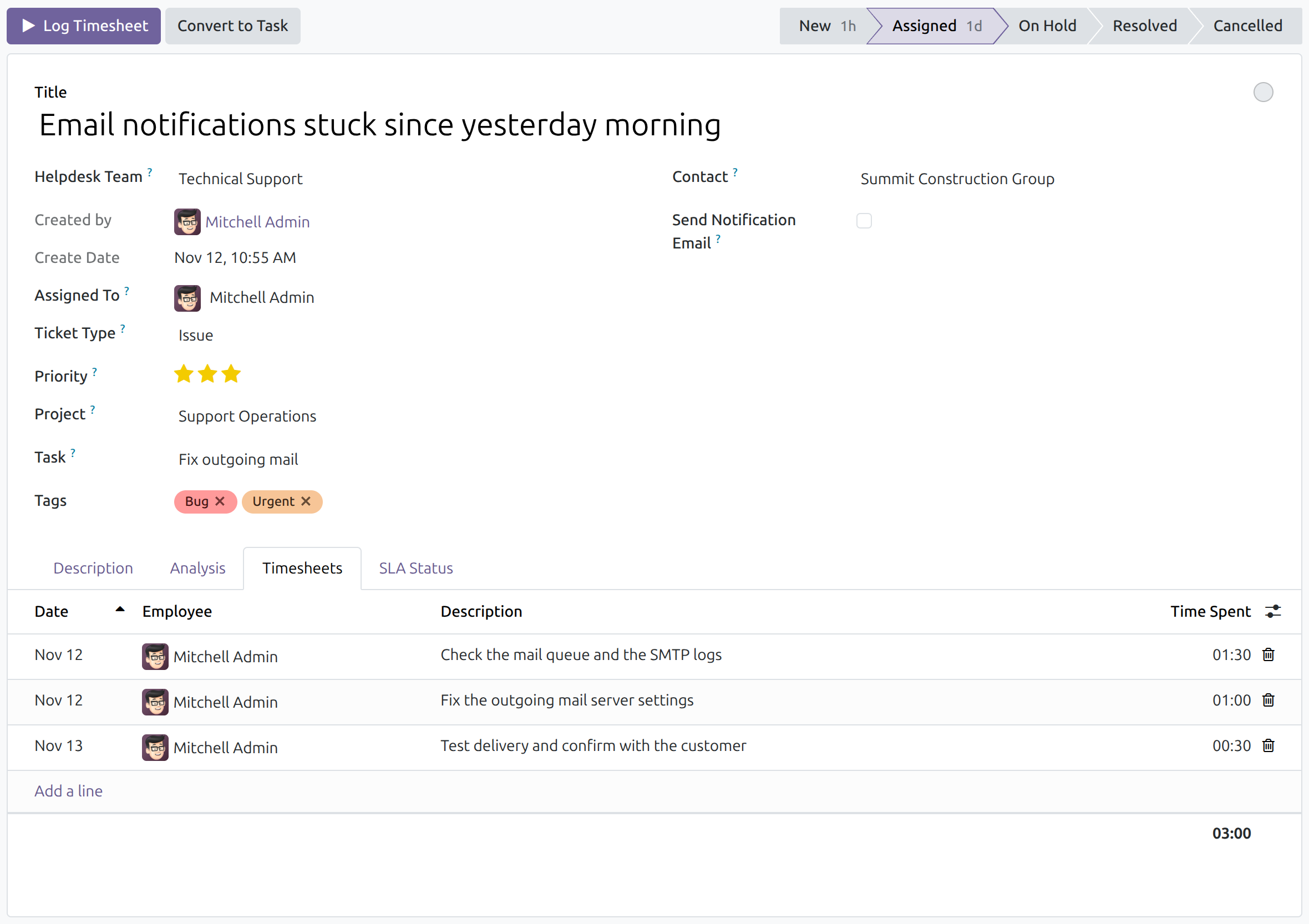
The hours are recorded on the ticket, without typing
The time a ticket took is reconstructed from memory, if anyone records it at all.
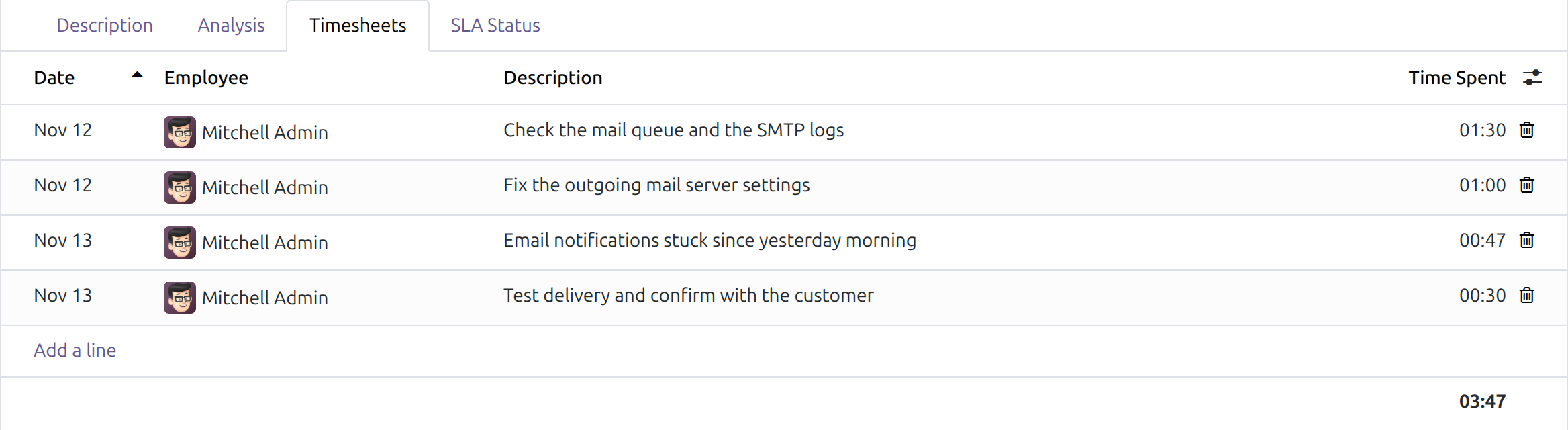
→ Stopping the timer saves a timesheet line on the ticket: the date, the agent, the ticket title as description and the time spent, counted with the rest of the ticket's hours.
Everyone sees which tickets are being worked on now
Knowing who is on which ticket at this moment means asking around.
→ The My WIP Timesheet and All WIP Timesheet filters list the tickets with a running timer, and the timer menu of the top bar shows your running tickets from any screen.

Ready on day one
Installs itself
Once Helpdesk Timesheet Integration is installed, this module is installed with it, together with HR Timesheet Timer.
Your access rights as they are
Users with a Timesheets access right get the timer; everyone else sees the ticket as before.
Forgotten timers are not guessed
A timer left running past midnight asks the agent, when stopped, what they remember before any hours are saved.
What you set up first
Timesheets on the projects your tickets belong to, and a Timesheets access right for each agent.
What is included
The start and stop buttons and the running clock on the ticket, the timesheet line saved on stop, the two work-in-progress filters and the Tickets section of the timer menu. The Timesheets tab comes from Helpdesk Timesheet Integration; the timer and its forgotten-timer dialog from HR Timesheet Timer.
Before you decide
Can an agent run two timers at once?
No. Each user has one running timer. Starting one on another ticket or task stops the first and saves its line.
Can two agents time the same ticket?
Yes. Each agent has their own timer and their own line.
Does every ticket get a timer?
No. Only tickets whose project accepts timesheets. A timer does not start on an archived ticket or on a ticket of an archived project; the user is told why.
What does not stop a running timer?
Archiving the ticket, or the agent unfollowing it. Stop the timer first; the All WIP Timesheet filter finds any left running.
Which languages does it ship?
English and Vietnamese.
Try it, then ask us
The Documentation tab walks through the setup and the work of the support agent and the team leader, screen by screen.
Pre-sales & partnership
viindoo.com/contactusTechnical support
viindoo.com/ticketTechnical requirements
- Odoo version: 19.0
- Editions: Community, Enterprise
- Required modules: Helpdesk Timesheet Integration, HR Timesheet Timer
- License: OPL-1
- Languages: English, Vietnamese
Helpdesk Timesheet Timer
Who this guide is for: support agents who time their work on tickets, team leaders and timesheet approvers who follow the work in progress, and the administrator who installs the module.
Note
Extends the Helpdesk Timesheet Integration - see the viin_helpdesk_timesheet documentation for the Timesheets tab of a ticket, and the HR Timesheet Timer - see the viin_hr_timesheet_timer documentation for the timer itself, the forgotten-timer dialog and the work-in-progress filters.
Overview
Typing hours by hand after the fact is slow and inexact. This module puts a timer on the ticket: the agent presses Log Timesheet when starting to work and Stop Timesheet Log when finishing or pausing, and the elapsed time becomes a line of the ticket's Timesheets tab, named after the ticket. The same hours show on the ticket's task and in the company's timesheets.
How the work flows:
- The support agent opens a ticket and presses Log Timesheet. A clock counts the time.
- The agent works on the ticket, then presses Stop Timesheet Log: the time is saved as a timesheet line.
- The team leader or approver finds the tickets being timed with the work-in-progress filters and reviews the saved lines.
| Who | What they do | Access right to assign |
|---|---|---|
| Support agent | Starts and stops the timer on the tickets they work on | Helpdesk / User and Timesheets / User: own timesheets only |
| Team leader, timesheet approver | Sees the tickets being timed by anyone and reviews the lines | Timesheets / User: all timesheets |
| Administrator | Installs the module and chooses which projects accept timesheets | Project / Administrator |
Setup (for the administrator)
Installation
- Open Apps.
- Search for Helpdesk Timesheet Timer and press Install. The Helpdesk Timesheet Integration and the HR Timesheet Timer are required; they are installed with it if they are missing. It is also installed automatically, together with the HR Timesheet Timer it needs, as soon as the Helpdesk Timesheet Integration is installed.
Let a project accept timesheets
The timer buttons appear only on tickets whose project accepts timesheets. Open Project ‣ Projects, select the project, tick Timesheets in the Time Management section of the Settings tab and save (see the Helpdesk Timesheet Integration guide).
Assign the access rights
Open Settings ‣ Users & Companies ‣ Users, select the user and set Timesheets to User: own timesheets only (support agents) or User: all timesheets (team leaders and approvers). A user without a Timesheets access right does not see the timer buttons, the clock or the work-in-progress filters.
Support agent
Time your work on a ticket
- Open Helpdesk ‣ Tickets ‣ All Tickets and select the ticket. Its Project must be filled and accept timesheets.
- Press Log Timesheet in the header of the ticket.
- A clock next to the button counts hours, minutes and seconds. It includes the time you have already logged on this ticket.
- Press Stop Timesheet Log when you finish or pause. The elapsed time is saved as a line of the Timesheets tab.
While the timer runs, the button reads Stop Timesheet Log and the clock shows the time of the running timer added to the time already logged on the ticket (here 03:00 already logged plus 47 minutes running, so 03:47:20). The running timer also appears in the Timesheets tab as a line at 00:00 until you stop it.
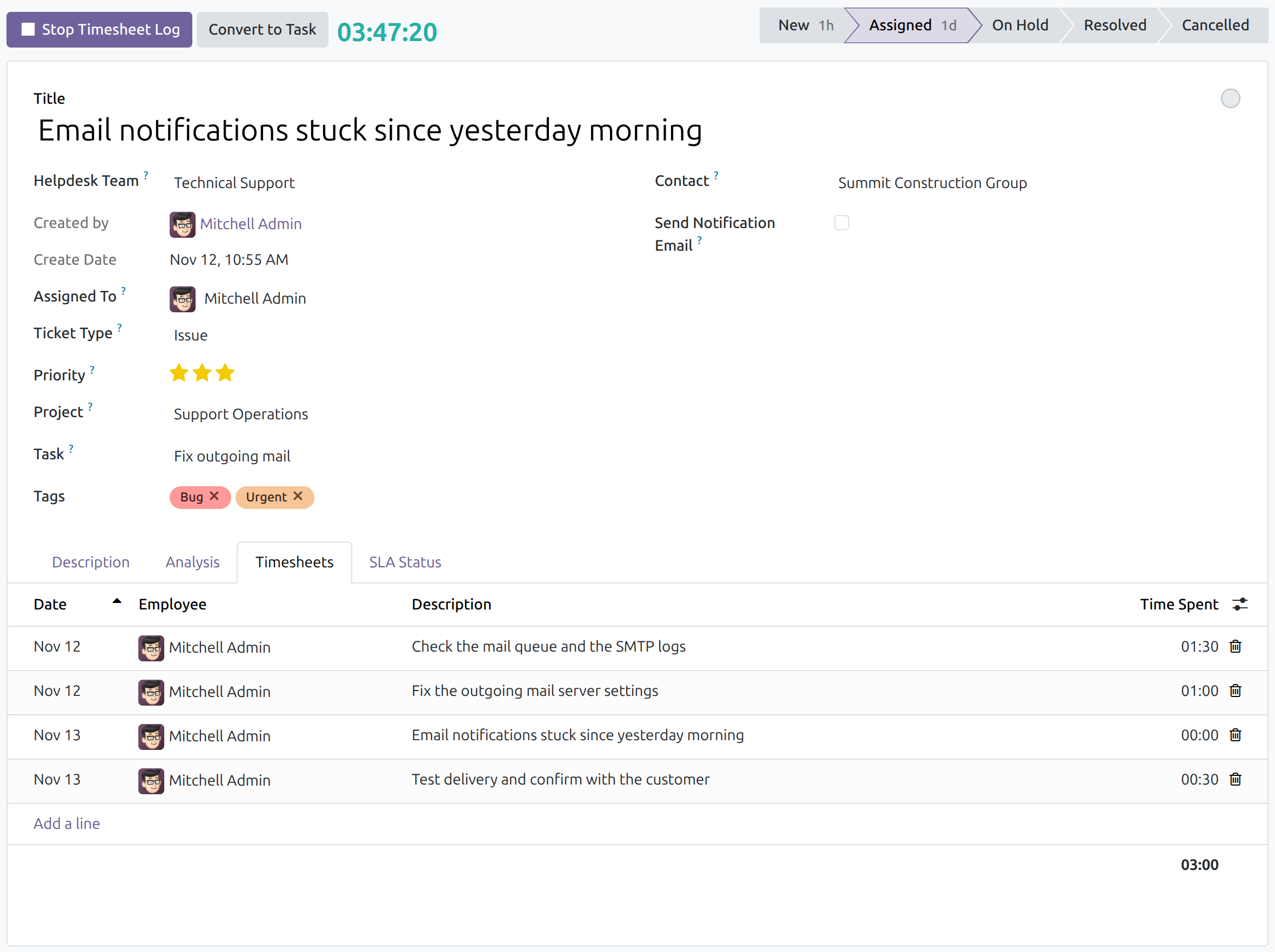
You can leave the ticket, or even close the page, while the timer runs: the clock keeps counting. You have one running timer at a time; pressing Log Timesheet on another ticket or task stops the previous one. Press the timer icon in the top menu bar to see what you are timing: running tickets are listed under Tickets.
A timer cannot be started on a ticket that is archived, whose project is archived, or whose project does not accept timesheets; the system tells you why.
Check the saved line
Open the Timesheets tab of the ticket. The new line shows the date, you as the Employee, the ticket title as the Description and the Time Spent. The total of the hours is shown under the list.
A timer left running past midnight is not guessed: when you press Stop Timesheet Log the next day, the system asks what you remember (see the HR Timesheet Timer guide, Stop a timer that was left running past midnight).
Note
Archive a ticket only after its timers are stopped. Unlike a task, a ticket can be archived while someone is timing it, and the timer then keeps running. Likewise, an agent who stops following a ticket keeps the timer running: ask the agent to press Stop Timesheet Log first.
Team leader and timesheet approver
Find the tickets being timed
Open Helpdesk ‣ Tickets ‣ All Tickets and switch to the list view. The list opens with the Open filter on, so closed tickets (Resolved, Cancelled) are not listed; remove it to include them. Open the filter menu of the search box and choose one of the work-in-progress filters:
- My WIP Timesheet: the tickets on which you have a running timer.
- All WIP Timesheet: the tickets on which anyone has a running timer.
Review the lines of a ticket in its Timesheets tab, or in Timesheets ‣ Timesheets ‣ All Timesheets grouped by Project and Helpdesk Ticket (see the Helpdesk Timesheet Integration guide).
Troubleshooting
- There is no Log Timesheet button on the ticket.
- The ticket has no project, its project does not accept timesheets, or you hold no Timesheets access right. Ask the administrator.
- The system refuses to start the timer.
- The ticket or its project is archived. Unarchive it first.
- A timer is still running on a ticket nobody works on.
- The owner of the timer presses Stop Timesheet Log on the ticket. The All WIP Timesheet filter finds such tickets.
FAQ
- Can two agents time the same ticket together?
- Yes. Each agent has their own timer and their own line.
- Does the timer replace typing hours by hand?
- No. Adding a line in the Timesheets tab still works; the timer is a faster way to fill the same list.
This software and associated files (the "Software") may only be used (executed, modified, executed after modifications) if you have purchased a valid license from the authors, typically via Odoo Apps, or if you have received a written agreement from the authors of the Software (see the COPYRIGHT file).
You may develop Odoo modules that use the Software as a library (typically by depending on it, importing it and using its resources), but without copying any source code or material from the Software. You may distribute those modules under the license of your choice, provided that this license is compatible with the terms of the Odoo Proprietary License (For example: LGPL, MIT, or proprietary licenses similar to this one).
It is forbidden to publish, distribute, sublicense, or sell copies of the Software or modified copies of the Software.
The above copyright notice and this permission notice must be included in all copies or substantial portions of the Software.
THE SOFTWARE IS PROVIDED "AS IS", WITHOUT WARRANTY OF ANY KIND, EXPRESS OR IMPLIED, INCLUDING BUT NOT LIMITED TO THE WARRANTIES OF MERCHANTABILITY, FITNESS FOR A PARTICULAR PURPOSE AND NONINFRINGEMENT. IN NO EVENT SHALL THE AUTHORS OR COPYRIGHT HOLDERS BE LIABLE FOR ANY CLAIM, DAMAGES OR OTHER LIABILITY, WHETHER IN AN ACTION OF CONTRACT, TORT OR OTHERWISE, ARISING FROM, OUT OF OR IN CONNECTION WITH THE SOFTWARE OR THE USE OR OTHER DEALINGS IN THE SOFTWARE.
