


Documents - Payroll
by Viindoo
| Lines of Code | 518 |
| Technical name | viin_document_hr_payroll |
| License | OPL-1 |
| Website | https://viindoo.com/apps/modules/19.0/viin_document_hr_payroll |
| Read description for | v 14.0 v 15.0 v 16.0 v 17.0 v 18.0 |
| Required Apps | Time Off (hr_holidays) Discuss (mail) Employees (hr) Calendar (calendar) |
| Included Dependencies | Payroll Employee Relatives Viindoo Base Documents Management Advanced HR Management HR Contracts (Viindoo) Work Entry Viin Time-Off Work Entry - Contract Viin - Holiday Work Entry Base Addendum Documents - HR Multilingual Tracking Viindoo Holiday & WorkDay Manager Safe IR Metadata Proxies Token Expiration |

Keep every signed payslip next to the payslip it belongs to
For HR and payroll teams, finance controllers and the employees they pay
The signed payslip that belongs with the payslip, filed for you.
Extends Payroll (to_hr_payroll).
Is this you?
Signed payslips come back as scans in e-mail and chat threads, and nobody knows where the final copy is.
At audit time the payroll team spends days matching files to payslips and employees.
Employees ask for a copy of their payslip, and you cannot hand over theirs without risking showing someone else's.
Folders for payroll files are set up by hand, department by department, and drift out of order.
What changes
Signed payslips come back as scans in e-mail and chat threads, and nobody knows where the final copy is.
→ The file stays with the payslip. Attach the signed copy on the payslip and it is filed in the Documents app by itself, with a link back to the payslip.
At audit time the payroll team spends days matching files to payslips and employees.
→ Files are found by department. Each department gets its own workspace under Payroll, created the first time a payslip file of that department arrives.
Employees ask for a copy of their payslip, and you cannot hand over theirs without risking showing someone else's.
→ Employees read their own file. An employee opening the Documents app sees the file of their own payslip and no colleague's file.
Folders for payroll files are set up by hand, department by department, and drift out of order.
→ Ready on day one. A Payroll workspace, tags, a team and the filing rule come with the module; files already attached to payslips are filed at installation.
How it works
Set up
The administrator installs the module and gives each person an access right.
Attach
A payroll officer attaches the signed payslip to the payslip. It is filed in the Documents app within seconds.
Find
The payroll team opens the files from the payslip or browses them by department.
Read
The employee opens the file of their own payslip; a team leader opens the files of the team members.
Key Features
Automatic filing
Every file attached to a payslip becomes a document of the Documents app, with a link back to the payslip.
Department workspaces
Files are sorted into a sub-workspace under Payroll named after the payslip department.
Documents button on the payslip
A button on each payslip shows how many files it has and opens them in one click.
Payroll tags and review actions
Tags such as Payslip and Payslip Batch, and the actions Ask to Review and Approve, are ready on the Payroll workspace.
Own file for each employee
Employees see only the file of their own payslip, team leaders see their team's, and the payroll team sees the payslip files of its companies.
Ready-made set-up
Workspace, tags, team and filing rule are delivered; files attached before installation are filed too.
Who it is for
HR and payroll manager
Wants the signed payslip kept with the payslip and found in seconds.
Finance controller or auditor
Wants payslip files grouped by department and traceable to their payslip at audit time.
System administrator
Wants a set-up that works on installation and is controlled through access rights.
Employee
Wants to open the file of their own payslip without asking HR. Team leaders open the files of their team members.
Best for: Companies that already run Odoo payroll and want signed payslips kept with the payslips in the Documents app.
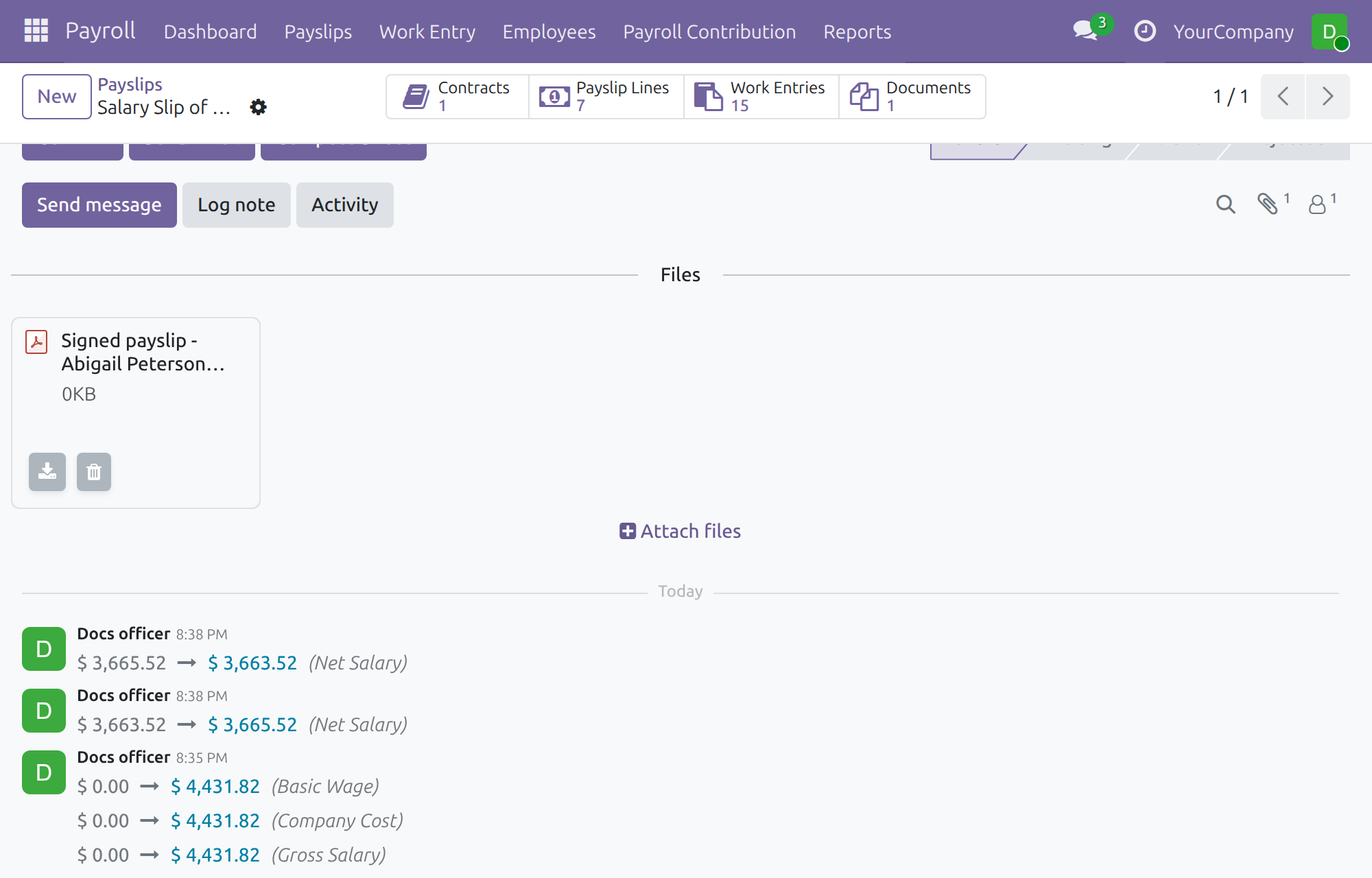
Attach the signed payslip
The payroll officer attaches the signed copy in the payslip chatter.
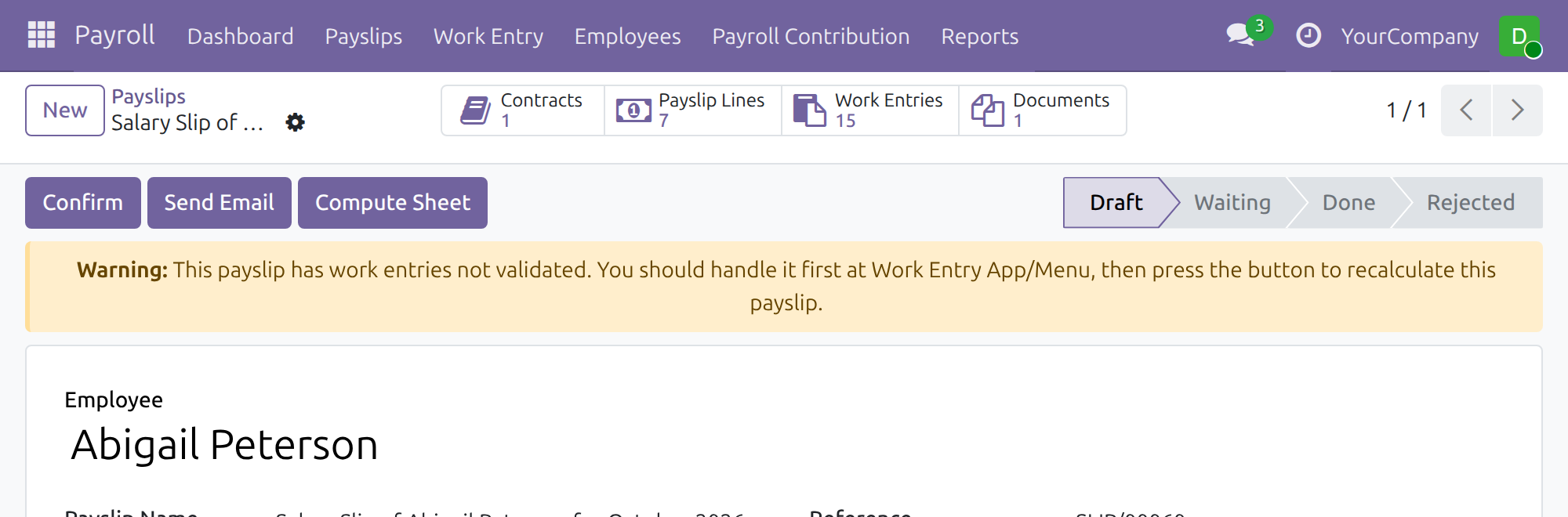
See the files of a payslip
The Documents button shows how many files the payslip has.
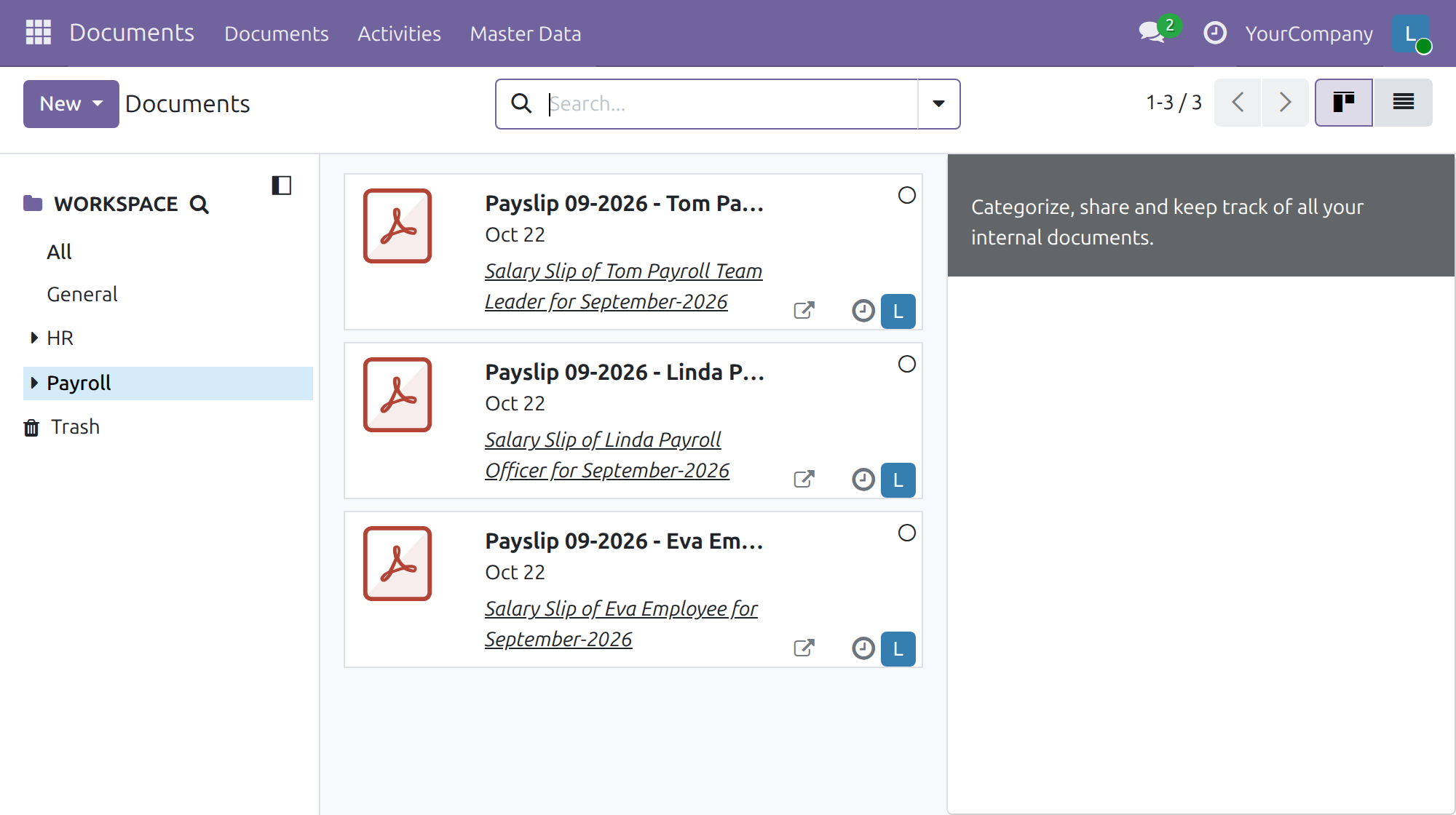
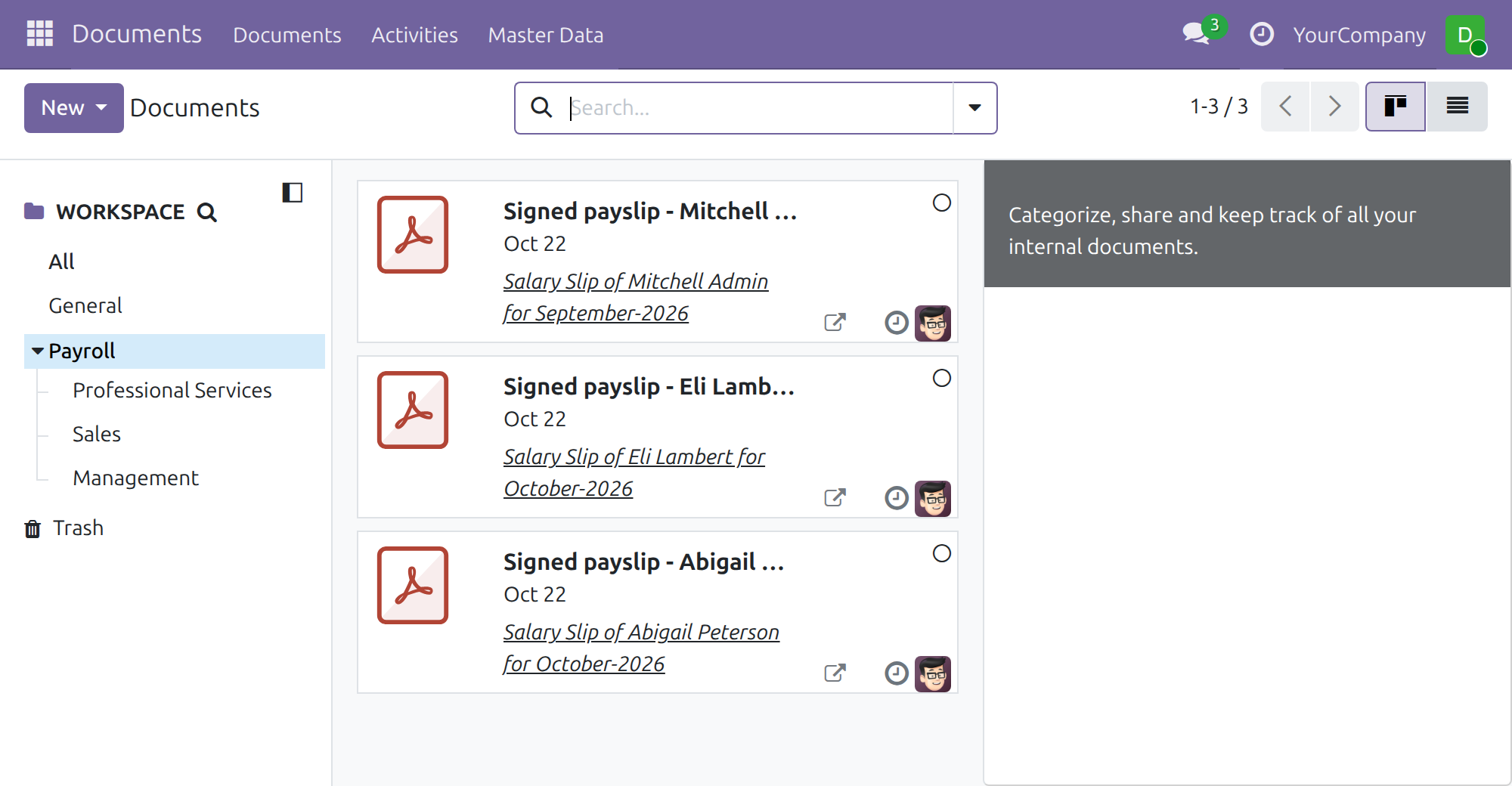
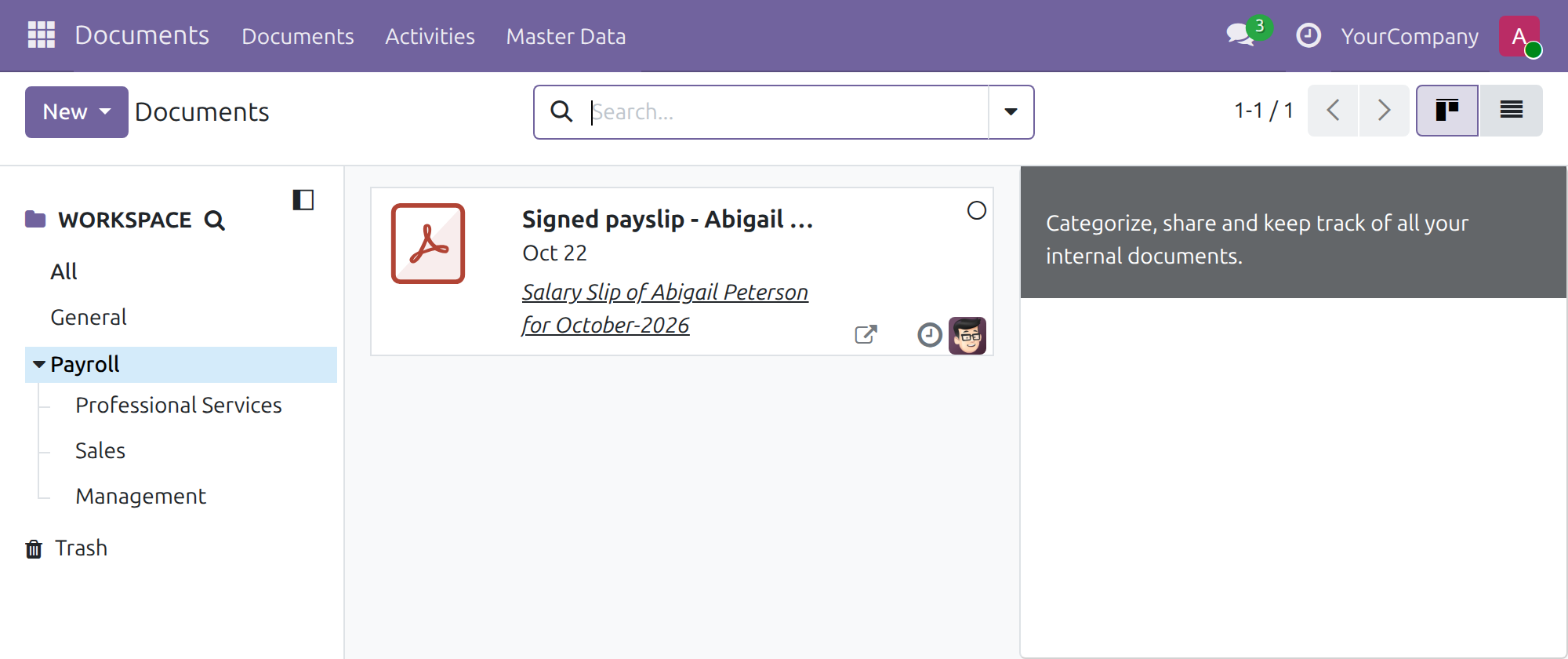
Browse payslip files by department
The Payroll workspace lists the payslip files, with a sub-workspace per department.
An employee reads their own file
The employee sees only the file of their own payslip.
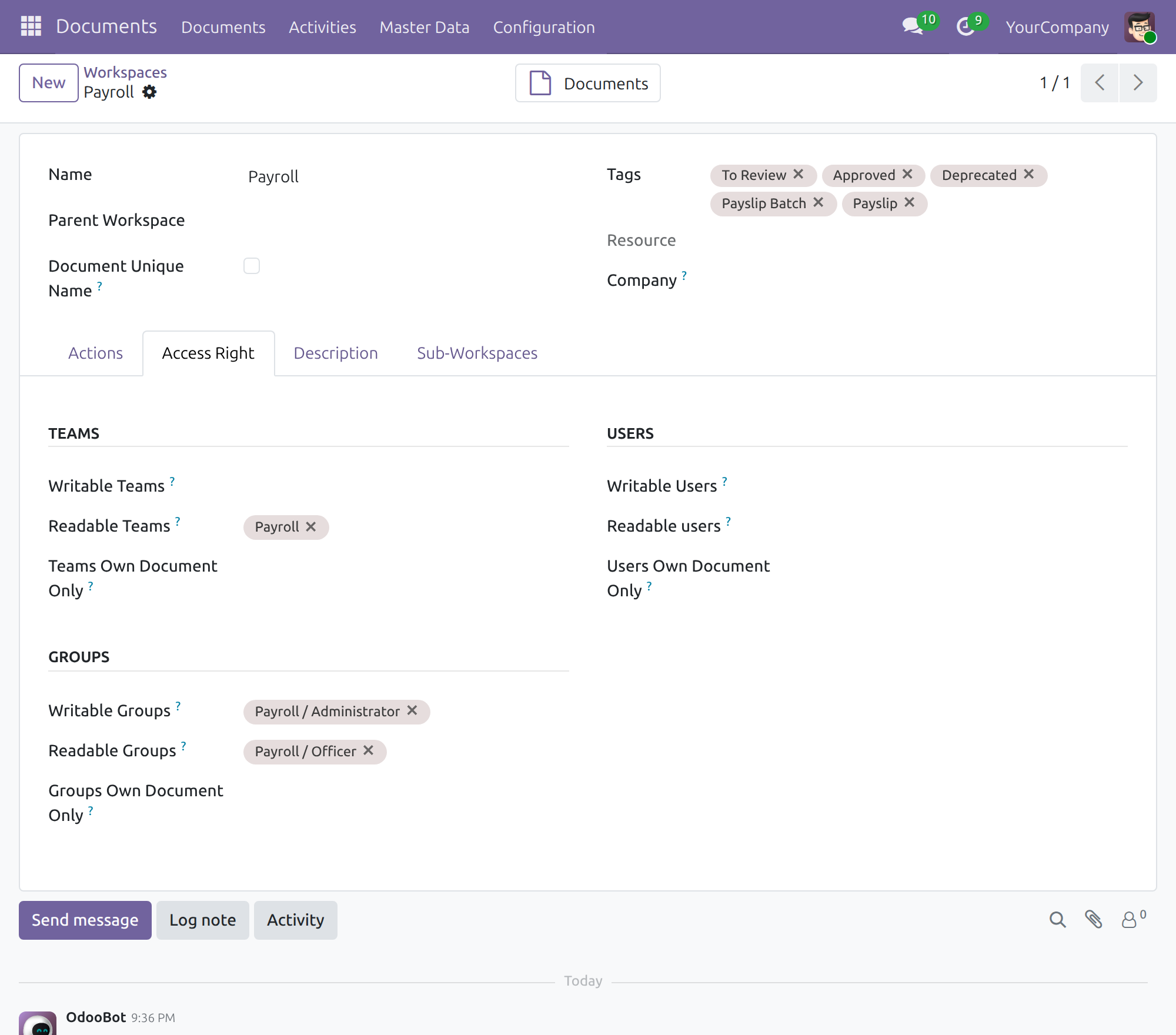
Access rights of the Payroll workspace
Payroll / Officer reads the workspace and Payroll / Administrator writes to it.
Frequently Asked Questions
Does it replace the payroll app?
No. It adds the filing of payslip files to the payroll app and the Documents app you already use.
What happens to files already attached to payslips?
They are filed in the Documents app when the module is installed.
Who can open the payslip files?
Payroll officers and administrators open the files of every employee of their companies, a payroll team leader opens the files of the team members, and an employee opens only their own. A Documents right alone never opens a payslip file: a Documents administrator without a Payroll right sees no payslip file.
Which editions are supported?
Odoo Community and Viindoo Cloud.
Can I try it first?
Yes. The Live Preview button of this page opens the Documents app on a working database.
Need help with Documents - Payroll?
Technical Requirement
- Odoo version: 19.0
- Editions: Community, Viindoo Cloud
- Required modules: Documents - HR (viin_document_hr) and Payroll (to_hr_payroll)
- License: OPL-1
Documents - Payroll
Who this guide is for. Payroll officers and payroll administrators who keep the signed payslip with the payslip, payroll team leaders who read the payslip files of their team, administrators who set the module up, and employees who read their own payslip files.
Note
Extends Payroll - see the to_hr_payroll documentation.
Overview
A payslip is only half of the record: the signed or stamped copy that the employee returns has to be kept next to it, found again at audit time, and shown only to the people who may read that payslip. This module files every file attached to a payslip in the Documents app automatically, in a workspace named after the employee's department, and controls who may open it.
The process has three stages:
- The administrator installs the module and gives each person an access right.
- A payroll officer attaches the signed payslip to the payslip. The file is filed in the Documents app by itself.
- The payroll team finds the file again from the payslip or from the Documents app, a team leader opens the files of the team members' payslips, and the employee opens only the file of their own payslip.
| Role | What they do | Access right to assign |
|---|---|---|
| Administrator | Installs the module, checks the workspace, tags and generation rule, gives each person an access right. Without a Payroll right, sees no payslip file | Documents / Administrator (sees no payslip file without a Payroll right) |
| Payroll officer | Attaches signed payslips, opens and edits the payslip files of every employee of their companies | Payroll / Officer |
| Payroll administrator | Same as the payroll officer; the Payroll workspace lists this right as writable | Payroll / Administrator |
| Payroll team leader | Opens the payslip files of their own payslip and of their team members | Payroll / Team Leader |
| Employee | Opens the file of their own payslip, nothing else | None beyond the internal user right |
People who need to handle both salaries and accounting receive both access rights; an accounting right alone does not open payslip files, and a payroll right alone does not open accounting.
Note
A Documents access right alone never opens a payslip file. A payslip file can be read by the Payroll officers and administrators of the payslip's company, by the employee the payslip belongs to, and by a Payroll team leader for the payslip of the team members. A Documents administrator who holds no Payroll right sees the Payroll workspace but none of its payslip files.
Setup (for the Administrator)
Install
- Open Apps, search for Documents - Payroll and press Install. The module installs together with the Documents and Payroll apps it needs, and installs by itself when both are present.
- Files already attached to payslips are filed in the Documents app at installation.
Check what the module provides
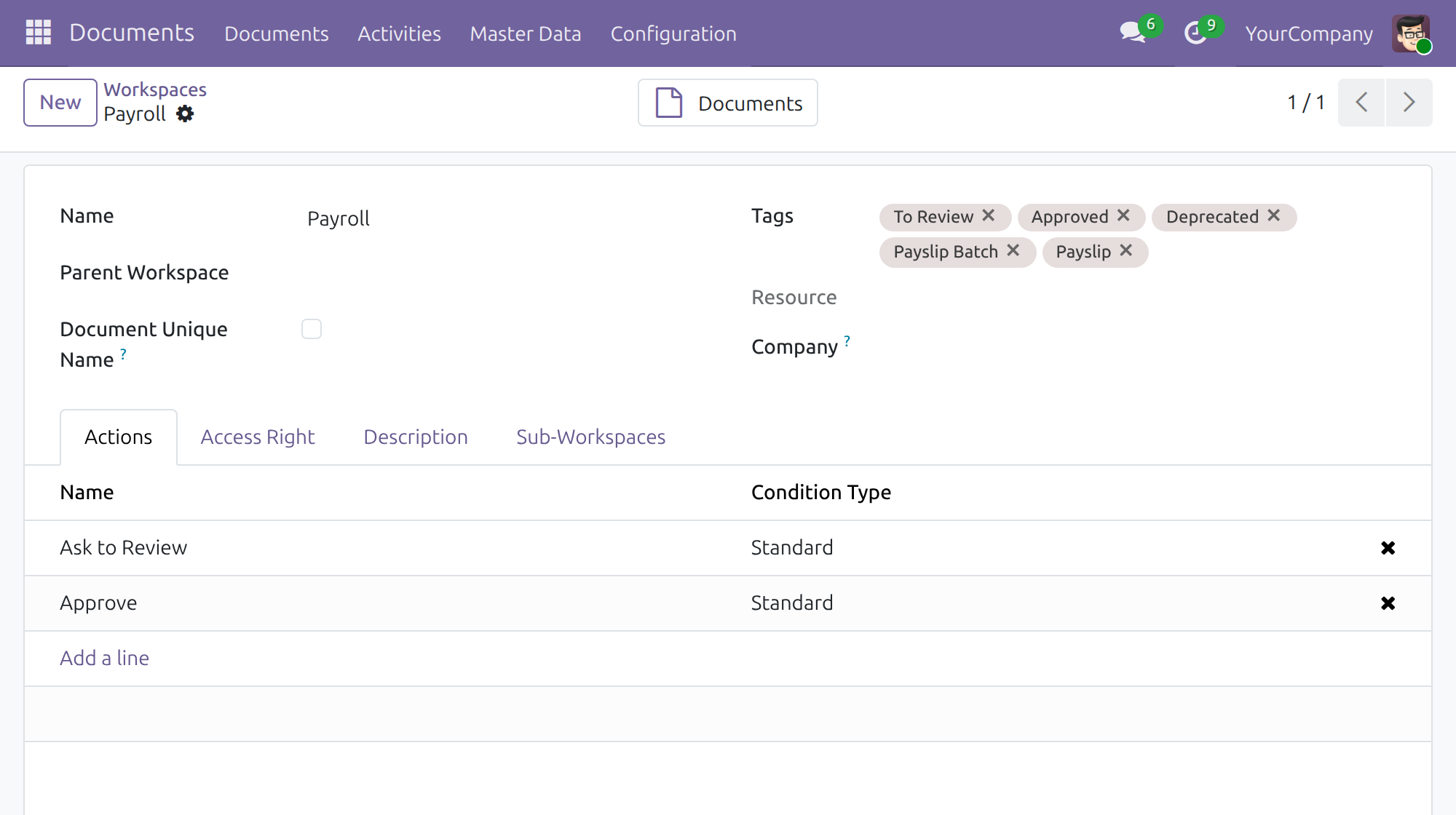
- Open Documents ‣ Master Data ‣ Workspaces and open the Payroll workspace. It offers the tags Payslip Batch, Payslip, To Review, Approved and Deprecated and the actions Ask to Review and Approve.
- Open the Access Right tab. The right Payroll / Officer may read the workspace and the right Payroll / Administrator may write to it; the Payroll team may read it.
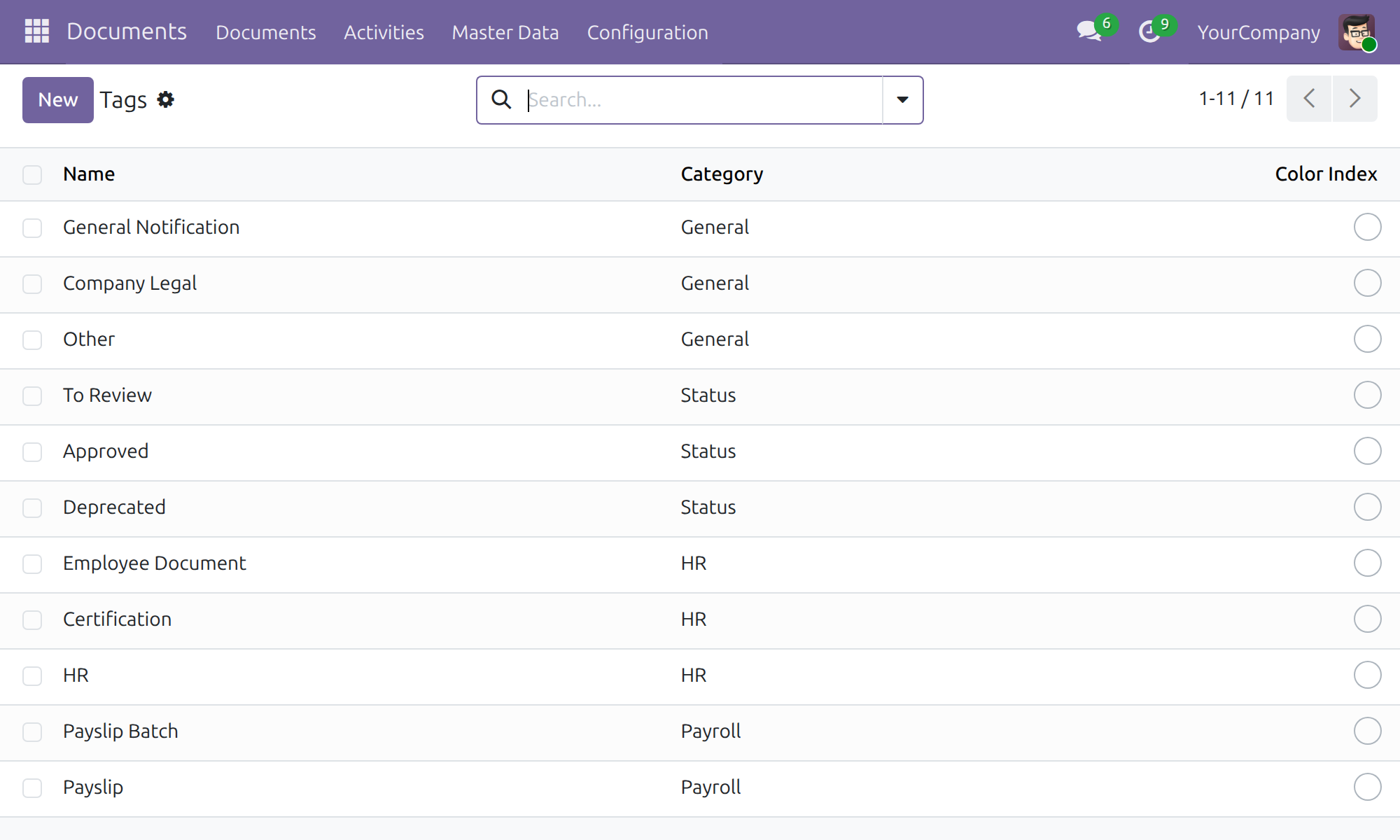
- Open Documents ‣ Master Data ‣ Tags. The tags Payslip Batch and Payslip belong to the category Payroll. Tags are not put on a generated document for you; people choose them on the document.
- Open Documents ‣ Configuration ‣ Document Generation Rule and open the rule Pay Slip. It files every file attached to a payslip in a sub-workspace of Payroll named after the department of the payslip.
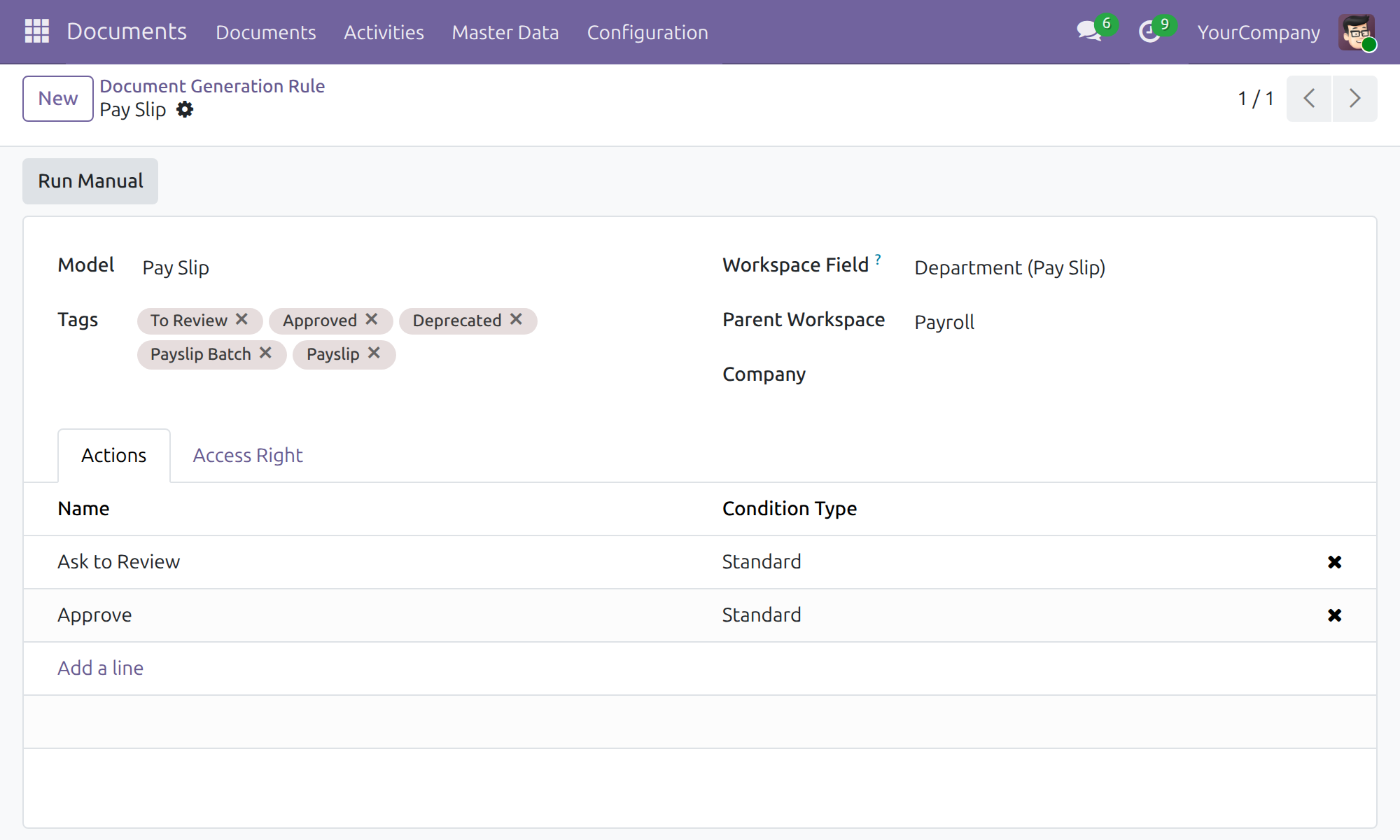
A payslip without a department is filed in a sub-workspace of Payroll that is named Payroll. Fill in the department of the employee so that files land in the department workspace.
A payslip file is filed in the company of its payslip, whatever company the person who attached it is working in. A payroll officer therefore finds the payslip files of each of their companies, and only of those companies.
Give each person an access right
- Open Settings ‣ Users & Companies ‣ Users and open the user.
- In the Access Rights tab choose Payroll / Officer or Payroll / Administrator for the people who handle payslips.
- Choose Payroll / Team Leader for the people who read the payslips of their team members. Employees need no extra right.
- Choose Documents / Officer or Documents / Administrator for the people who manage documents in general; these rights give access to the Documents app but never to payslip files, so a person who must open payslip files also needs a Payroll right.
To file attachments that were added before the module was installed, open the rule Pay Slip again and press Run Manual.
Payroll officer: file and find payslips
Attach the signed payslip
- Open Payroll ‣ Payslips ‣ Payslips and open a payslip.
- In the chatter press the paperclip, then Attach files, and choose the signed copy. The file appears under Files.
- The file is filed in the Documents app within seconds. The Documents button at the top of the payslip shows how many files the payslip has.
Open the files of one payslip
- Press the Documents button of the payslip. The Documents app opens on a list limited to the files of that payslip. The list is titled with the name of the payslip and has no search filter.
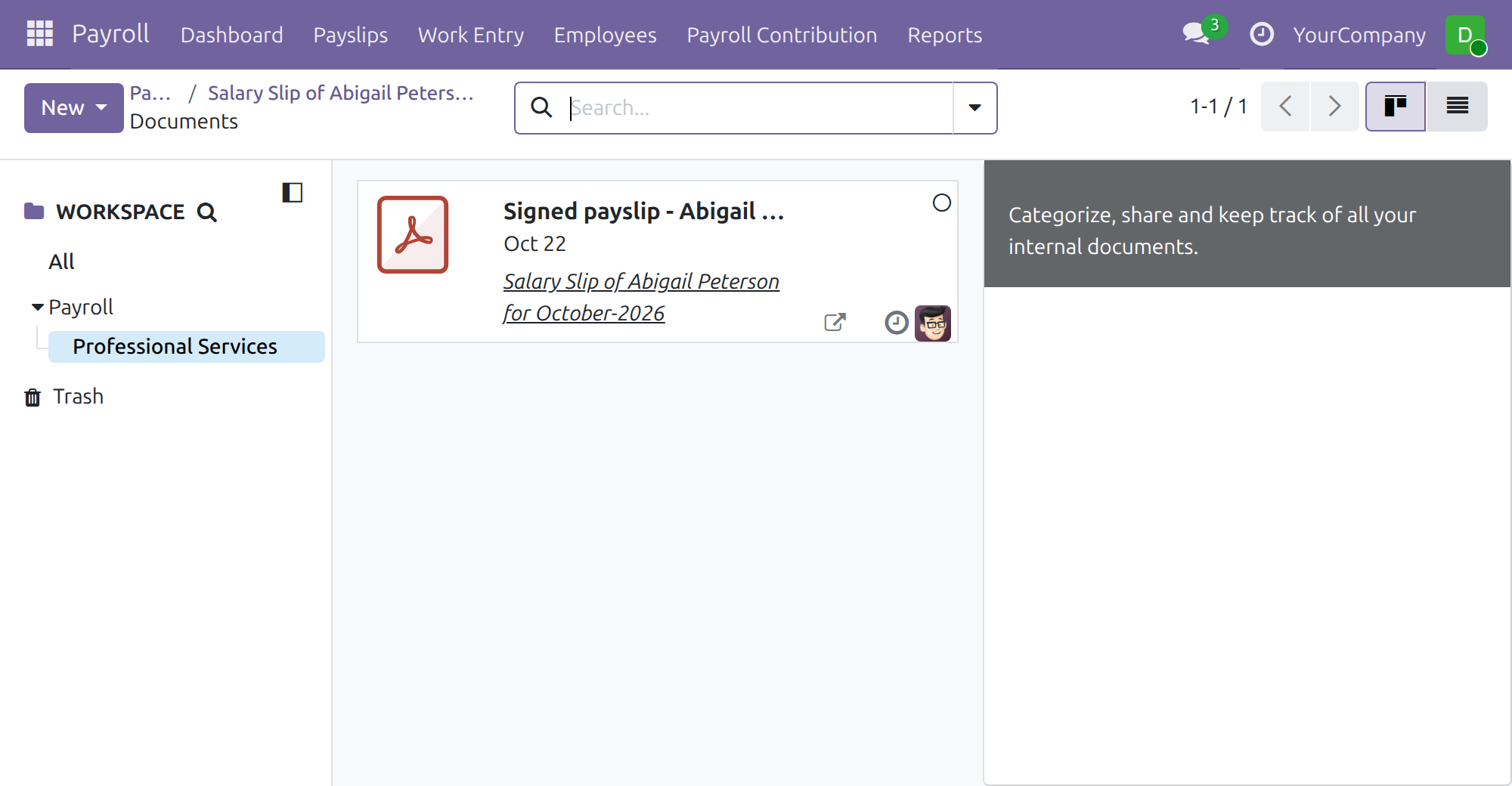
The other files of the workspace are reached through the Documents menu, as described in the next section.
Browse all payslip files
- Open Documents ‣ Documents and choose Payroll in the workspace tree. The department workspaces are listed under it.
- Choose a department to see its payslip files. Each file links back to its payslip. Only the files of the companies you work in are listed.
A payroll officer does not see the Configuration menu of the Documents app.
Payroll administrator: what changes
The payroll administrator works the same way as the payroll officer. The only difference in this module is that the Payroll workspace lists Payroll / Administrator as its writable right and Payroll / Officer as its readable right.
Payroll team leader: read the files of my team
- Open Documents ‣ Documents and choose Payroll in the workspace tree.
- The files of your own payslip and of the payslips of your team members are listed. Open a file to read or download it.
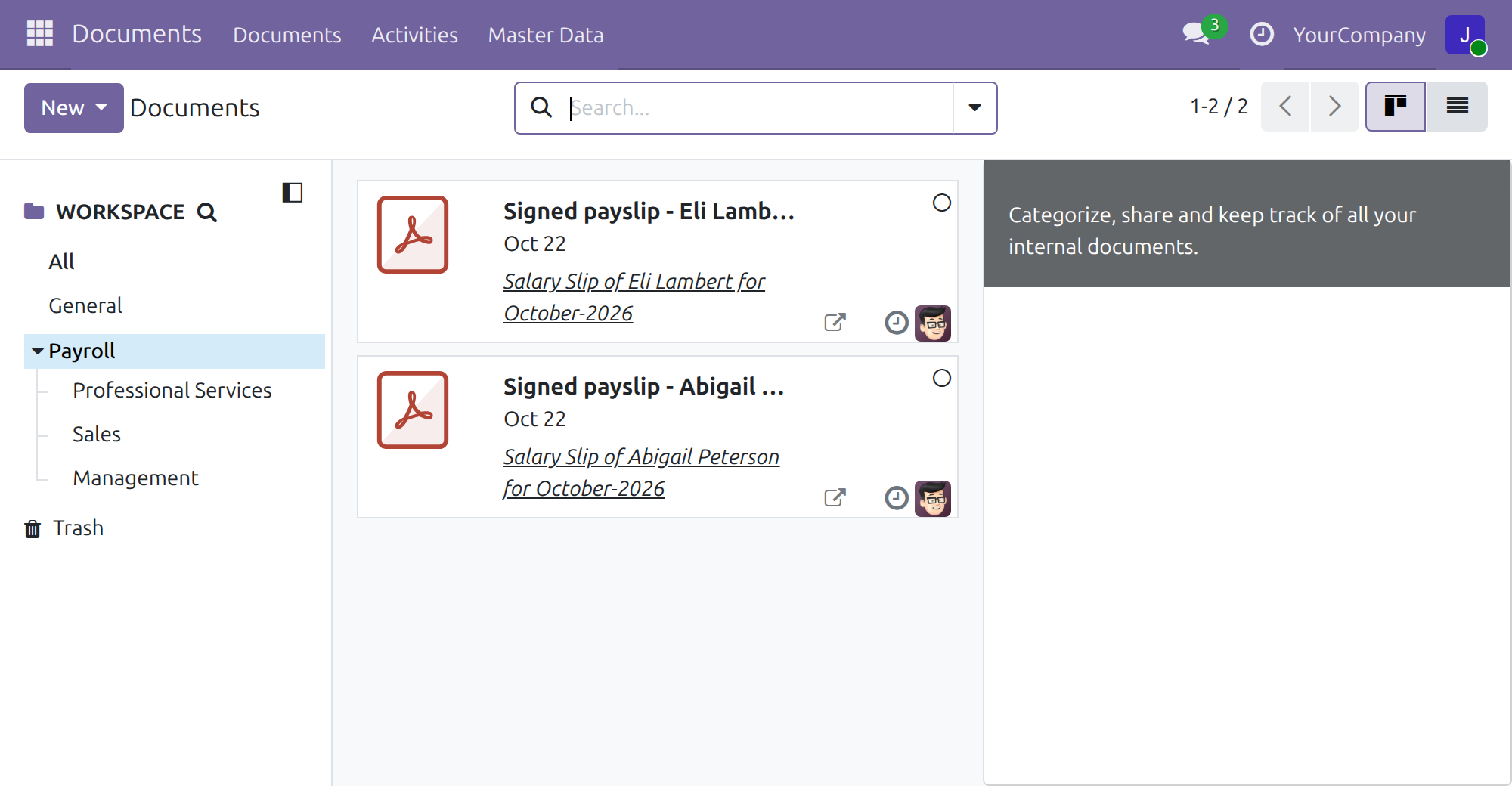
You cannot edit these files, and you cannot open the files of people outside your team. The same list is reached from the Documents button of a team member's payslip.
Employee: read my own payslip file
- Open Documents ‣ Documents and choose Payroll in the workspace tree.
- Only the file of your own payslip is listed. Open it to read or download it.
You cannot edit the file, and you cannot open the payslips or the files of your colleagues. The workspace tree lists the names of the department workspaces, but not the files in them.
Troubleshooting
I cannot see a payslip file
- Check that the file is attached to the payslip: open the payslip and look under Files.
- Check your access right: open Settings ‣ Users & Companies ‣ Users, open your user and look in the Access Rights tab. A Documents right alone does not open payslip files; a Payroll right (Officer, Administrator or Team Leader) does, or the payslip must be your own.
- Check the company: a payroll officer sees the payslip files of the companies they work in. Switch company in the top bar to see the files of another company.
The file is not in the department workspace
- Open the payslip and check its Department. A payslip without a department is filed under the workspace named Payroll inside Payroll.
- Files attached before the module was installed are filed by opening the rule Pay Slip in Documents ‣ Configuration ‣ Document Generation Rule and pressing Run Manual.
FAQ
- Can an employee see the payslip files of colleagues?
- No. An employee opens only the file of their own payslip. The workspace tree lists the names of the department workspaces, not the files inside them.
- Can the Documents administrator read payslip files?
- Not with a Documents right alone. The administrator needs a Payroll right as well, such as Payroll / Officer.
- In which company is a payslip file filed?
- In the company of the payslip, whatever company the person who attached the file is working in.
- Where do I change who may write to the Payroll workspace?
- In Documents ‣ Master Data ‣ Workspaces, in the Access Right tab of the Payroll workspace.
This software and associated files (the "Software") may only be used (executed, modified, executed after modifications) if you have purchased a valid license from the authors, typically via Odoo Apps, or if you have received a written agreement from the authors of the Software (see the COPYRIGHT file).
You may develop Odoo modules that use the Software as a library (typically by depending on it, importing it and using its resources), but without copying any source code or material from the Software. You may distribute those modules under the license of your choice, provided that this license is compatible with the terms of the Odoo Proprietary License (For example: LGPL, MIT, or proprietary licenses similar to this one).
It is forbidden to publish, distribute, sublicense, or sell copies of the Software or modified copies of the Software.
The above copyright notice and this permission notice must be included in all copies or substantial portions of the Software.
THE SOFTWARE IS PROVIDED "AS IS", WITHOUT WARRANTY OF ANY KIND, EXPRESS OR IMPLIED, INCLUDING BUT NOT LIMITED TO THE WARRANTIES OF MERCHANTABILITY, FITNESS FOR A PARTICULAR PURPOSE AND NONINFRINGEMENT. IN NO EVENT SHALL THE AUTHORS OR COPYRIGHT HOLDERS BE LIABLE FOR ANY CLAIM, DAMAGES OR OTHER LIABILITY, WHETHER IN AN ACTION OF CONTRACT, TORT OR OTHERWISE, ARISING FROM, OUT OF OR IN CONNECTION WITH THE SOFTWARE OR THE USE OR OTHER DEALINGS IN THE SOFTWARE.
