


Payment Gateway Currency Conversion
| Lines of Code | 1438 |
| Technical name | to_currency_conversion_diff |
| License | OPL-1 |
| Website | https://viindoo.com/apps/modules/19.0/to_currency_conversion_diff?force_show=1 |
| Read description for | v 12.0 v 13.0 v 14.0 v 15.0 v 16.0 v 17.0 v 18.0 |
| Required Apps | Invoicing (account) Discuss (mail) |
| Included Dependencies | Viindoo Base Accounting Foundation |
| Extensions | Paypal - Enhanced Currency Support VNPay Payment Acquirer ZaloPay Payment Provider MoMo Payment Provider Ngan Luong Payment Provider |
Get paid online in currencies your payment provider does not accept - with the accounting already right.
For businesses that bill customers in several currencies and collect through payment providers that accept only some of them, and for the accounting teams who reconcile those payments.
Pay documents in currencies a payment provider does not accept: charge in the provider's currency, record the payment as charged and book the conversion difference
Extends viin_account - see its documentation.
Is this you?
"Our customer's invoice is in a currency our provider does not take, so the provider disappears at checkout and we wait for a bank transfer."
"When a customer does pay in another currency, the payment never matches the invoice and someone closes the gap by hand."
"Our auditor asks why provider conversion effects and exchange gains and losses sit in the same adjustment."
"We are afraid to switch on anything that might take a customer's money before the accounting is set up to record it."
"Refunds are typed in the provider's portal, and the amount rarely matches what the customer was charged."
What changes
Provider hidden at checkout
→ Offer it anyway. Choose a Default Converted Currency on the provider; invoices and orders in a currency it does not accept now show that provider and its payment methods, checked against the converted amount.
Payment never matches the invoice
→ Record exactly what the provider charged. The payment is in the charged currency for the charged amount, matching the provider's settlement, and the invoice is fully paid.
Mixed adjustments the auditor questions
→ Two differences, two account pairs, one rule. The conversion difference goes to the Gain/Loss accounts of Payment gateway currency conversion; exchange gain/loss stays on the company's exchange difference accounts.
Fear of unrecordable charges
→ Unsafe setups are refused. A converting provider cannot be enabled until the accounts it needs are set, and a transaction is refused before the customer is charged if anything is missing.
Refunds that do not match
→ Refund what was charged. The refund screen shows the charged amounts, and the provider refunds exactly the amount entered.
How it works
Set up once
The System Administrator turns on Payment gateway currency conversion in Accounting Settings and picks its Gain Account and Loss Account, next to the company's exchange difference journal and accounts (Default Accounts > Exchange difference entries).
Opt in per provider
On each provider that should convert, the System Administrator sets the Default Converted Currency, chosen among the currencies that provider supports. Providers left empty keep standard behavior.
The customer pays
At checkout the provider is offered with every rule it already has (countries, maximum amount, tokenization, express checkout) checked against the converted amount. Under the payment method the customer reads "You will be charged about <currency> <amount>". The charged amount is fixed once, with Odoo's exchange rate, when the transaction is created; the transaction itself stays in the document currency.
The provider confirms
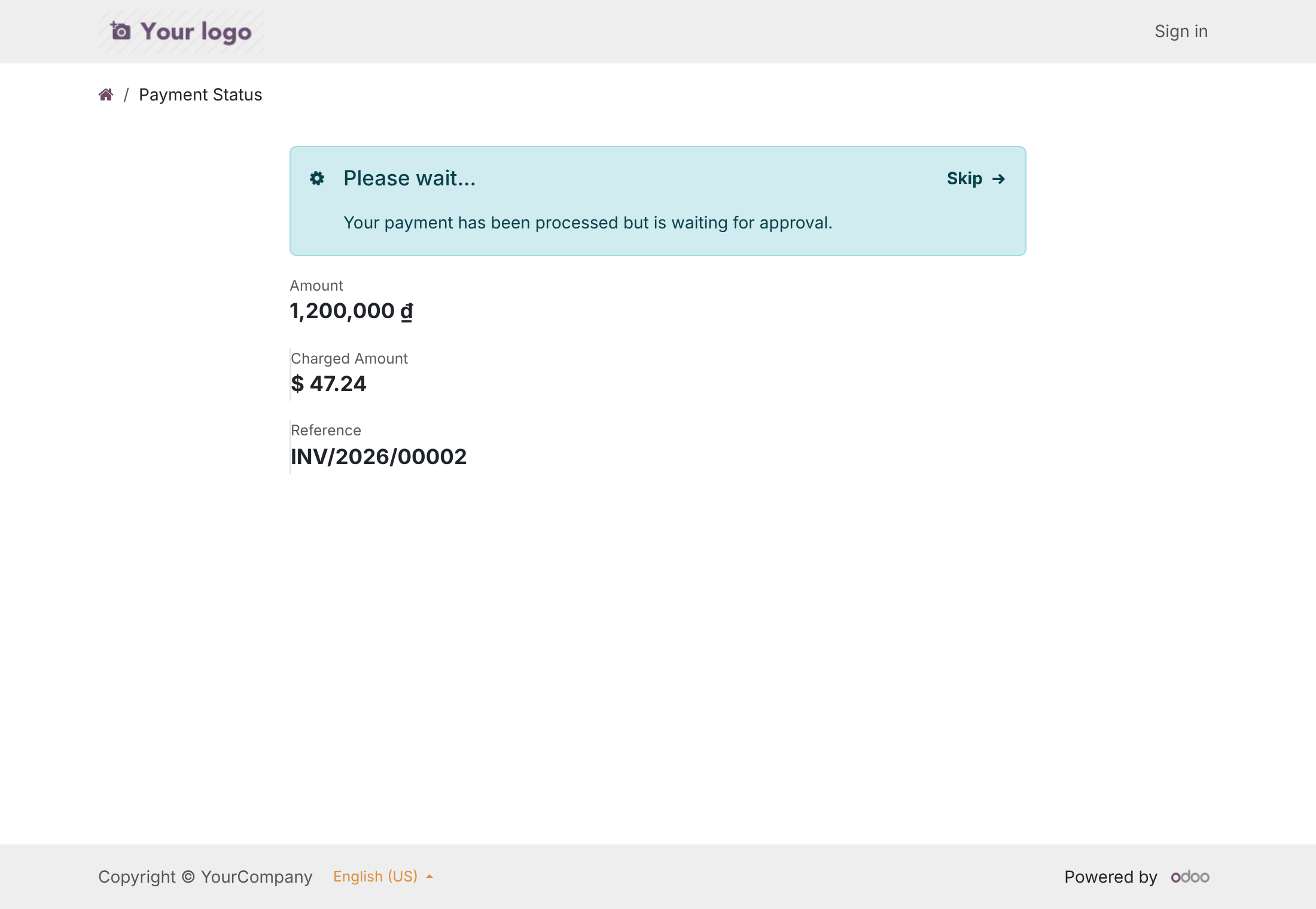
The confirmation must match the charged amount and currency, otherwise the transaction goes to Error instead of being confirmed. The confirmation page shows the Charged Amount next to the document amount.
The payment is recorded
Odoo records the payment in the charged currency for the charged amount and posts any conversion difference on that payment, so the invoice is fully paid. The Accounts Receivable Clerk sees the Charged Amount on the transaction, refunds in the charged currency, and uses the Done without Payment filter to find any confirmed transaction whose payment could not be recorded.
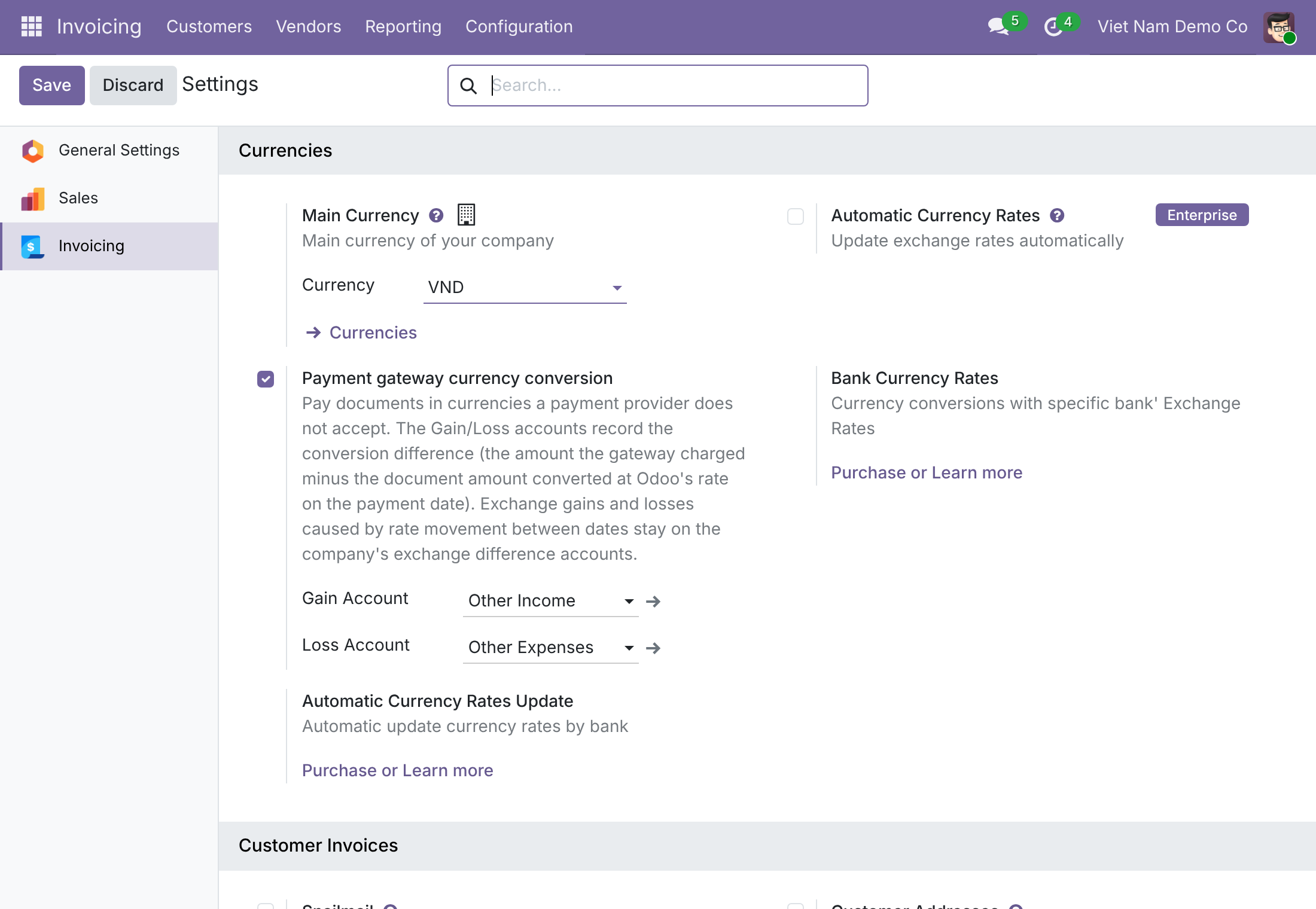
Set up the conversion accounts
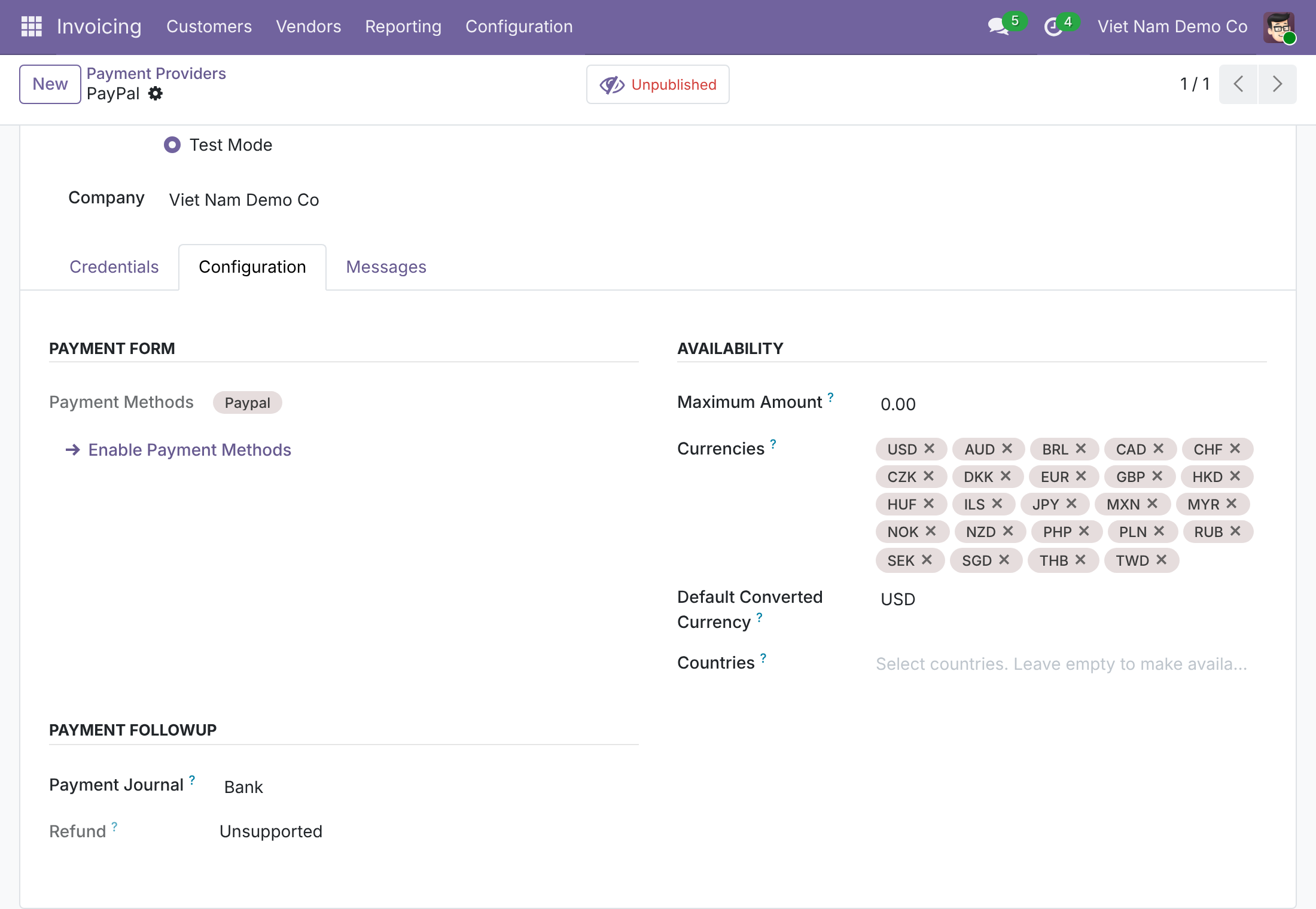
Choose the converted currency on the provider
Which account records what
| Conversion difference | Exchange gain/loss | |
|---|---|---|
| What it measures | The amount the provider charged (or refunded) minus the document amount converted at Odoo's rate on the payment date | The change in value of the foreign-currency invoice between the invoice date and the payment date |
| Where it goes | Gain Account / Loss Account of Payment gateway currency conversion (Accounting Settings) | The company's exchange difference accounts and journal (Default Accounts > Exchange difference entries) |
| Who posts it | This module, as one line on the payment entry | Standard Odoo, when the payment is reconciled with the invoice |
| When there is none | When the charged amount equals the document amount at the payment-date rate | When the invoice is in the company currency, or the rate did not move |
Illustrative example (made-up rates): company currency EUR; a USD 100.00 invoice booked at 0.90 = EUR 90.00; the customer pays through a provider that charges EUR only, priced at 0.92 = EUR 92.00; the payment is recorded the next day, when Odoo's rate is 0.91. The payment is EUR 92.00. Conversion difference: 92.00 - 91.00 = EUR 1.00 gain on the conversion Gain Account. Exchange gain: 91.00 - 90.00 = EUR 1.00 on the company's exchange gain account. Together they equal the cash received minus the invoice's carrying amount, and the invoice is fully paid.
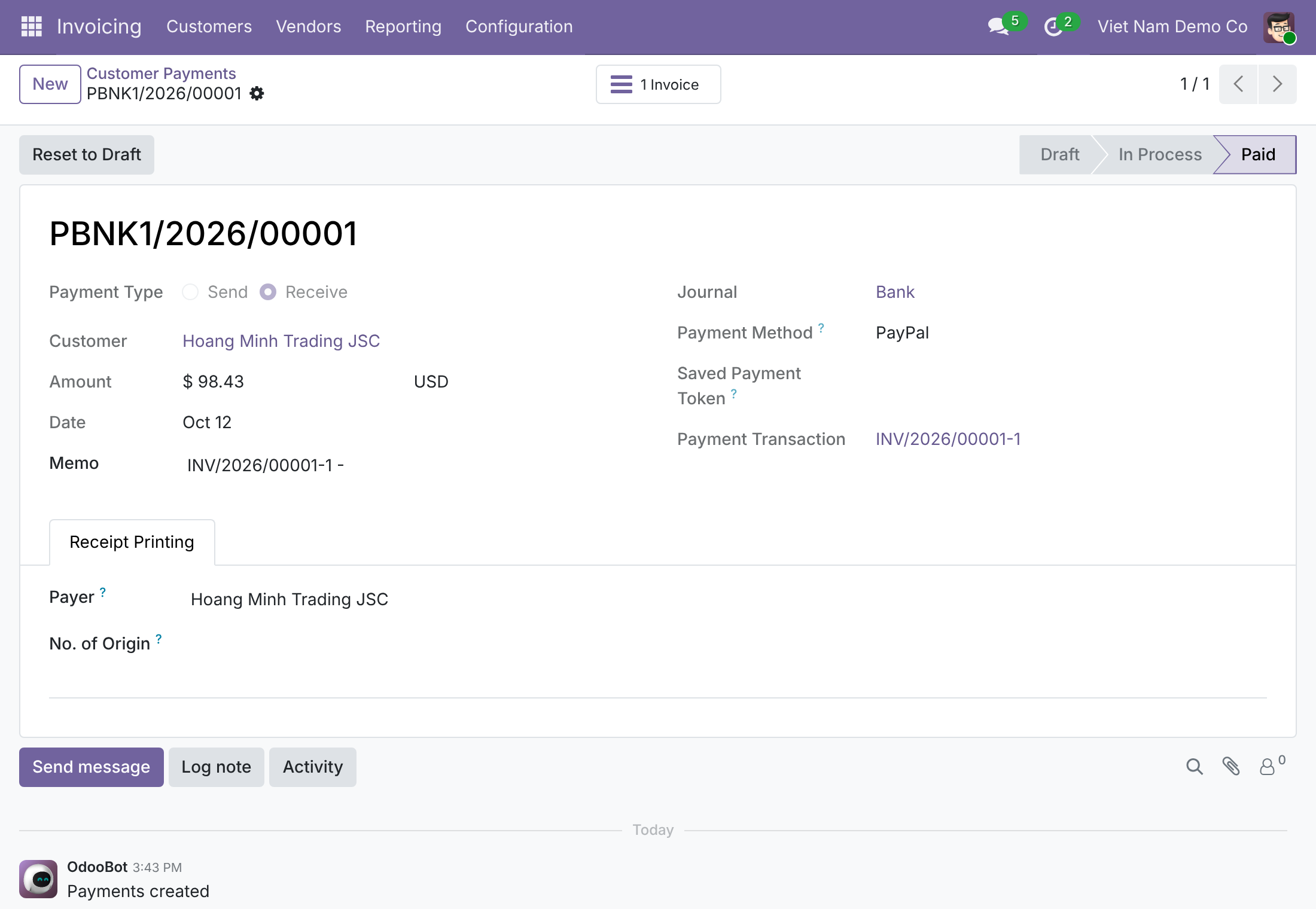
Payment recorded in the charged currency
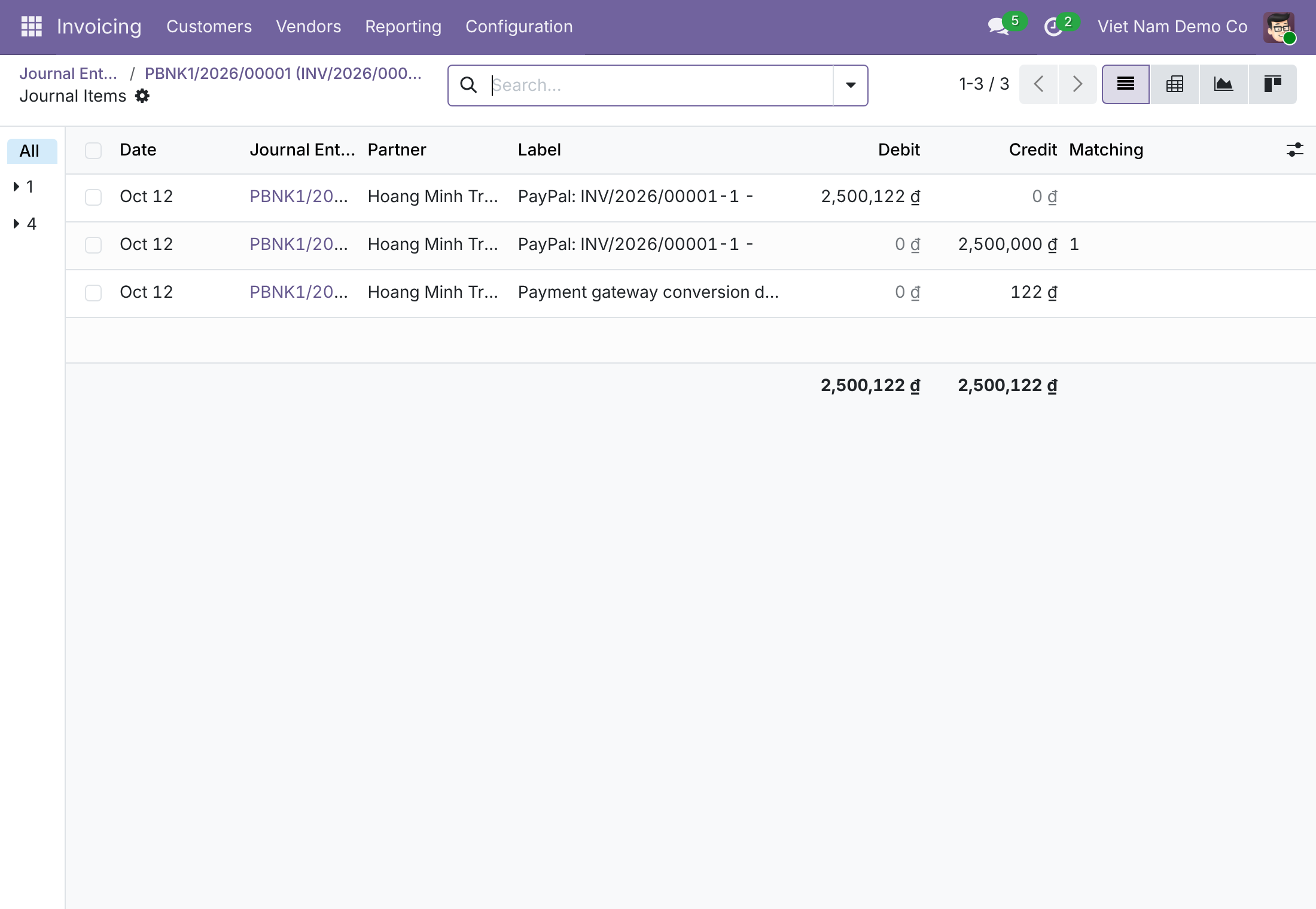
Conversion difference booked on the payment
Key Features
Fallback currency per provider
Let a provider that accepts only some currencies also charge invoices and orders in one fallback currency it does accept.
Providers offered at checkout
A customer can pay an invoice or order in a currency the provider does not accept, and sees the provider and its payment methods offered with the converted amount.
Charged amount shown to the customer
The customer sees the amount the provider will actually charge, in its currency, before confirming - and again on the confirmation page next to the document amount.
Payment recorded as charged
The payment equals what the provider settled, and the conversion difference goes to the Gain or Loss account so the invoice is fully paid.
Refunds in the charged currency
Refund exactly the amount the customer was charged, with the matching share of the document amount booked on the transaction.
Safe setup guard
Enabling a converting provider or removing the conversion accounts is refused until the accounting can record every converted payment.
Who it's for
Finance manager / owner
Pain: customers in other currencies cannot pay online through the providers you already use.
Gain: those invoices and orders are collected online, and each payment equals what the provider settles.
Chief accountant
Pain: payment-versus-invoice gaps closed by hand in one mixed adjustment.
Gain: the conversion difference and exchange gain/loss land on separate accounts by a single, explainable rule.
Accounts Receivable Clerk
Pain: matching provider statements to invoices and booking refunds after the fact.
Gain: payments already in the charged currency, refunds of exactly the charged amount, and one filter for transactions whose payment could not be recorded.
System Administrator
Pain: risk that a half-configured provider takes money Odoo cannot record.
Gain: setup refused with a message naming the missing settings, and conversion switched on only for the providers you choose.
Best for: companies that bill in more than one currency, collect online through providers that accept only some currencies, and need the conversion difference kept apart from exchange gain/loss.
See the charged amount before paying
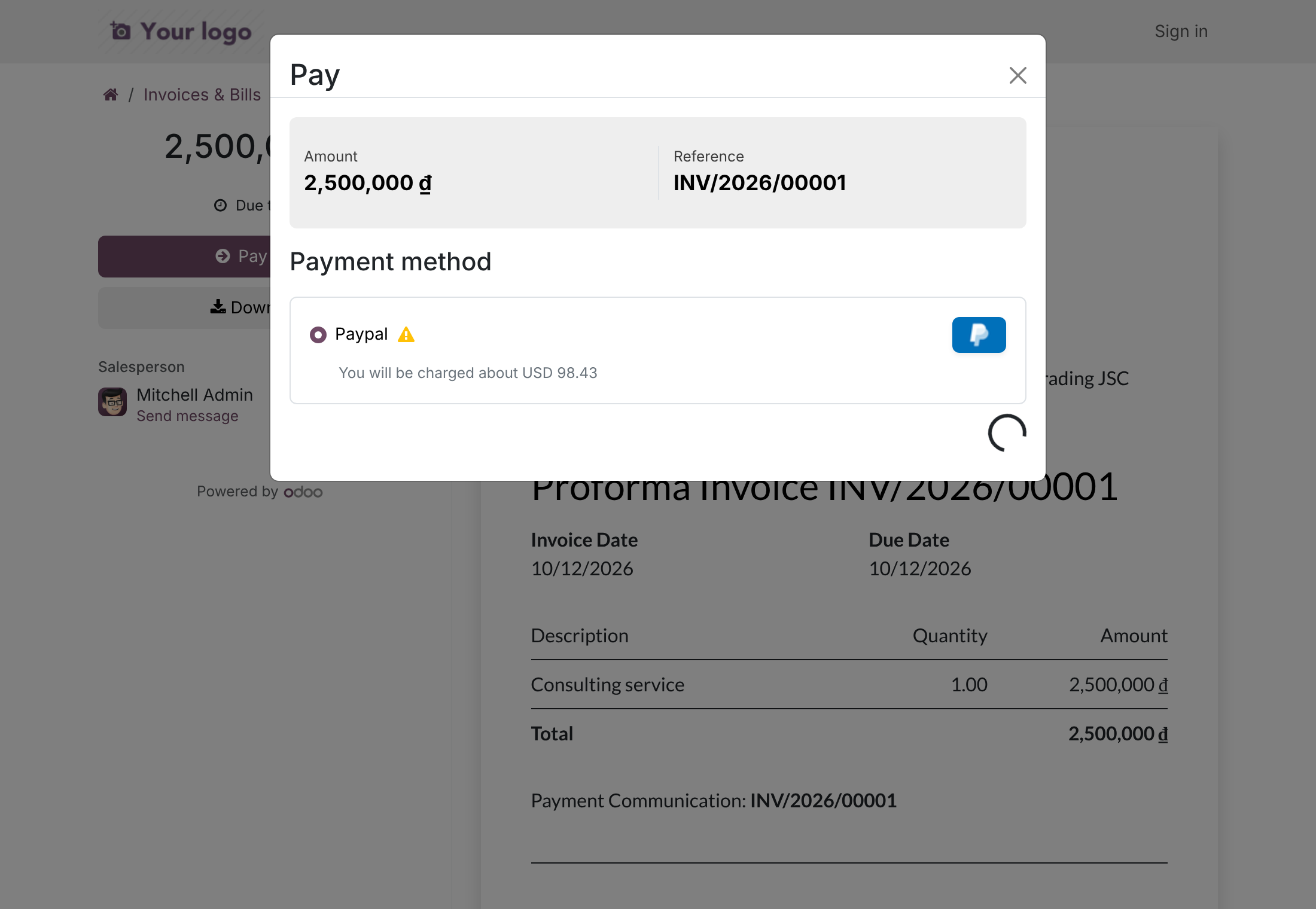
Confirm the charged amount next to the document amount
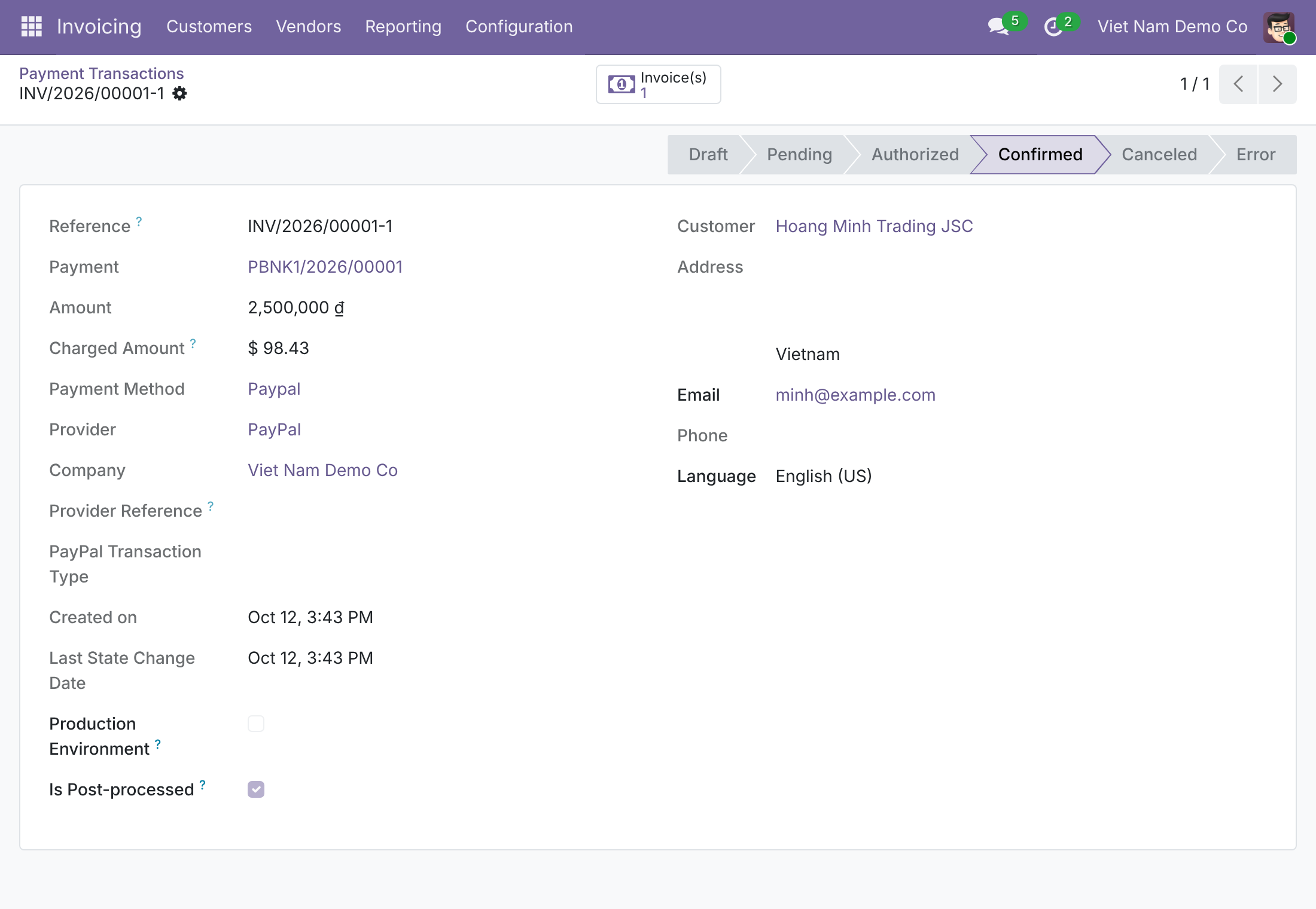
Review the charged amount on the transaction
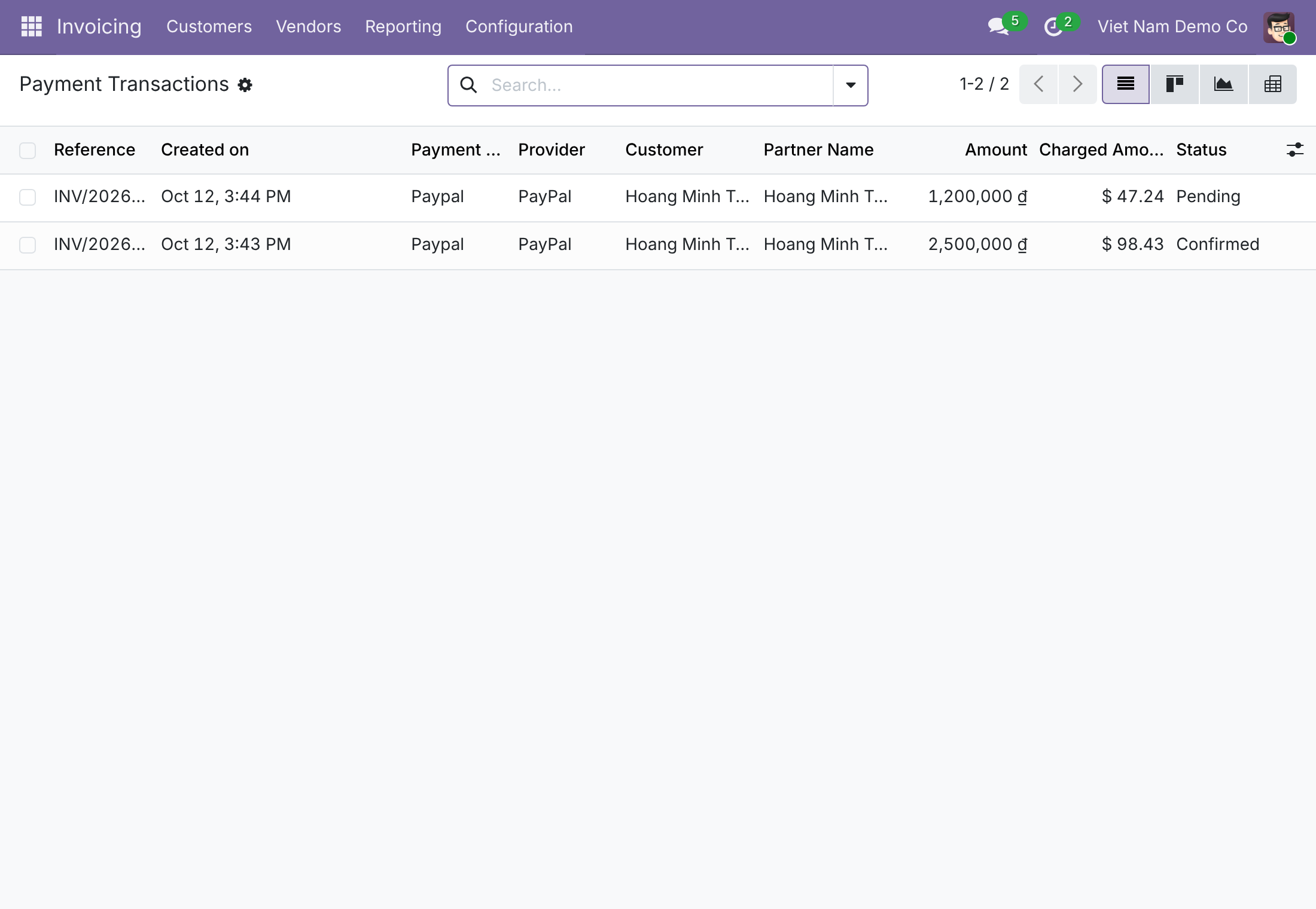
Scan charged amounts across all transactions
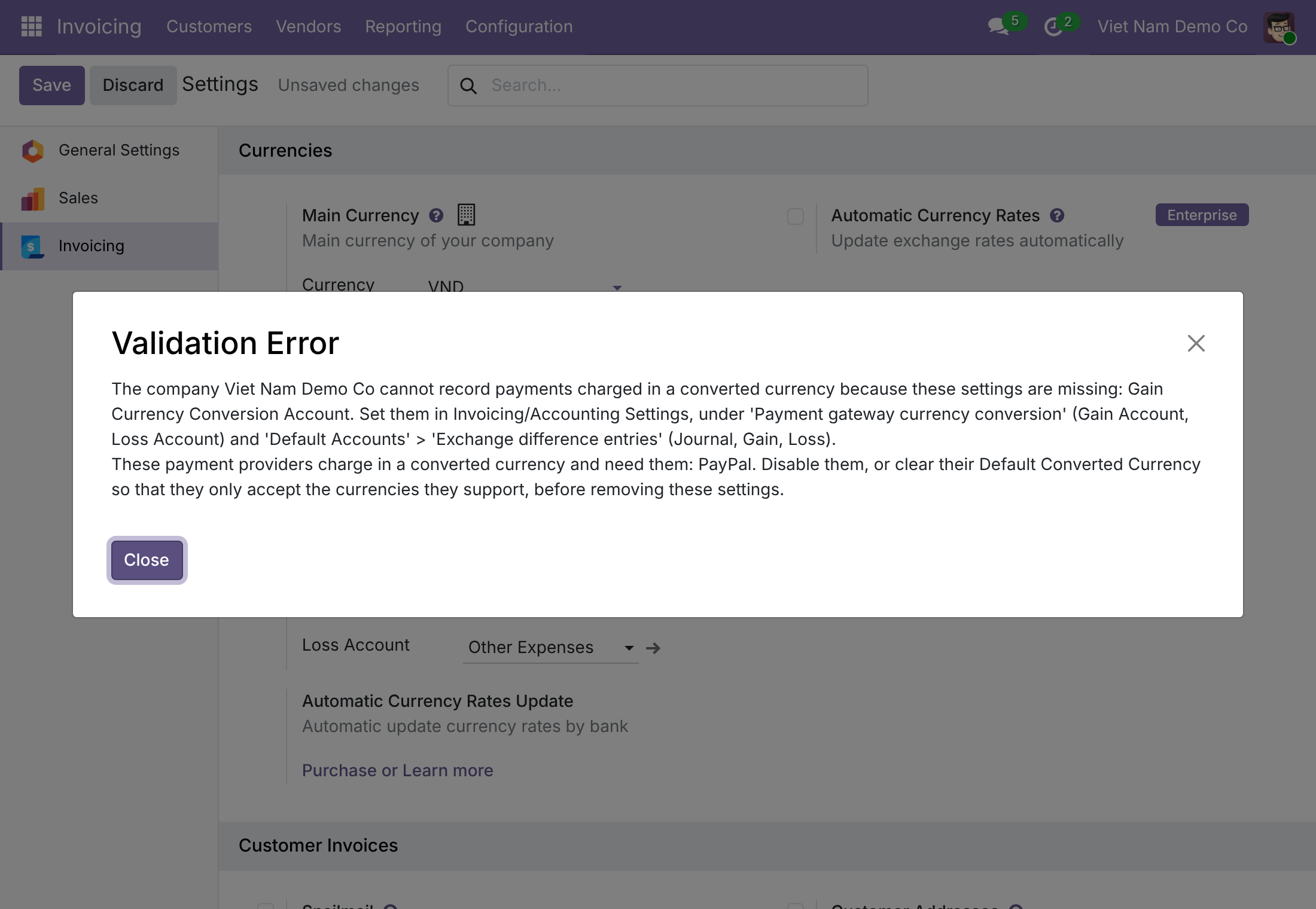
Get refused when the accounting setup is incomplete
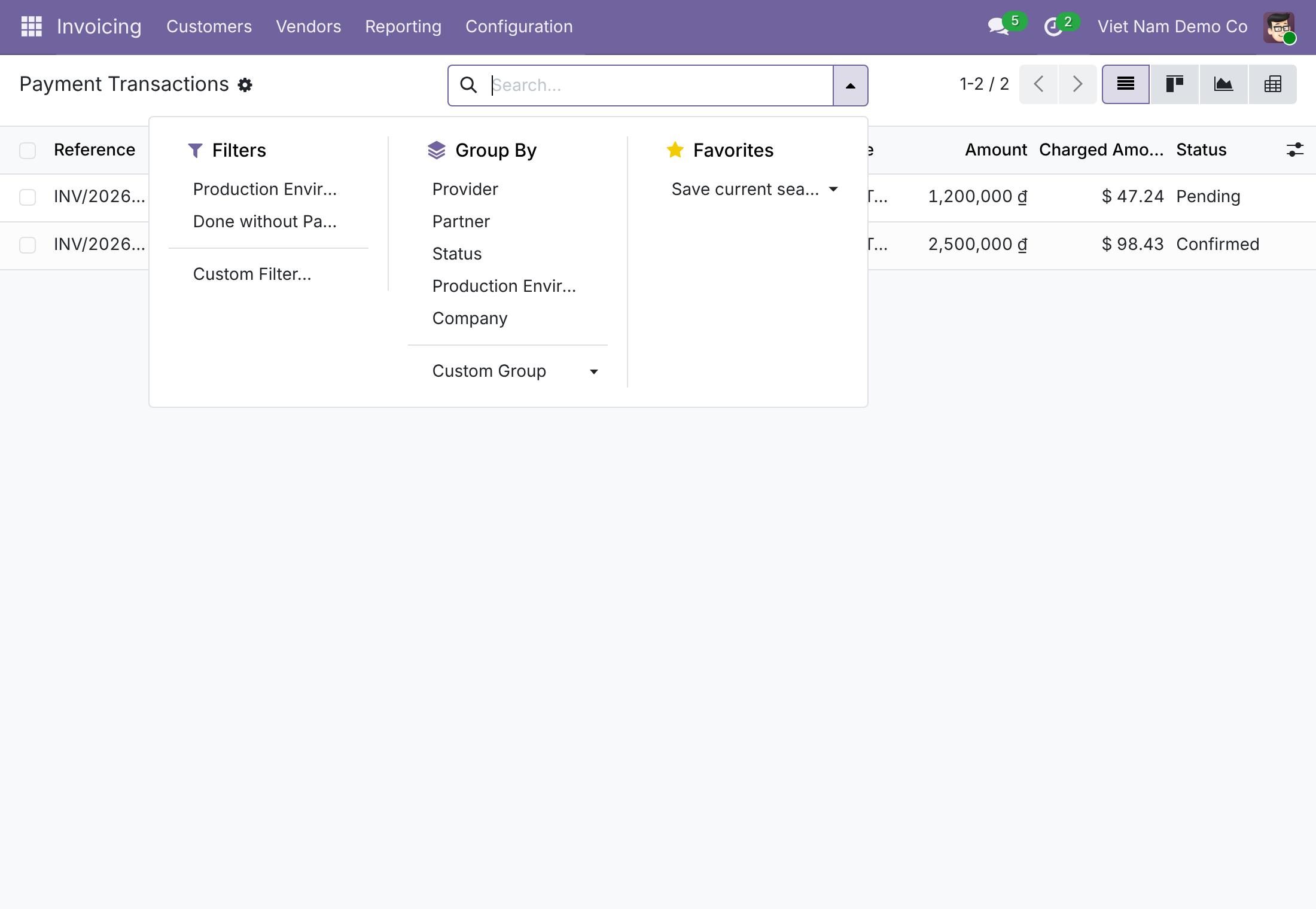
Find confirmed transactions whose payment could not be recorded
Frequently Asked Questions
Will this change how my other payment providers work?
No. Conversion is opt-in per provider. Only a provider with a Default Converted Currency converts, and only for currencies it does not accept. Every other provider, and every payment in an accepted currency, works as standard Odoo.
Which currencies can be converted?
Either the document currency or the provider's Default Converted Currency must be the company currency. A conversion between two foreign currencies is refused: the provider is not offered, and a transaction is not created. The Default Converted Currency must be one of the currencies the provider supports.
Where does the conversion difference go, and where does exchange gain/loss go?
The conversion difference - the charged amount minus the document amount at Odoo's rate on the payment date - is posted on the payment to the Gain Account or Loss Account of Payment gateway currency conversion. The rate movement between the invoice date and the payment date is the standard Odoo exchange difference, on the company's exchange difference accounts. If your auditor prefers a single exchange reading, point the Gain/Loss conversion accounts to your exchange accounts in Settings.
Does the customer know how much they will pay?
Yes. Under the payment method the customer reads "You will be charged about <currency> <amount>", and the confirmation page shows the Charged Amount next to the document amount.
What if the provider confirms a different amount or currency?
The transaction goes to Error instead of being confirmed, and no payment is recorded.
What happens if the accounting setup is incomplete?
A provider with a Default Converted Currency cannot be enabled or put in test mode until the conversion Gain and Loss accounts, the exchange difference journal and the exchange gain and loss accounts are set. Those settings cannot be cleared while such a provider is active. If anything is still missing at payment time, the transaction is refused before the customer is charged. Each message names the missing settings and offers the alternative of clearing the Default Converted Currency.
Are any payment flows refused?
Yes, the ones that could not be recorded correctly: charging a saved payment method from the backend in a currency the provider does not accept (register the payment in an accepted currency instead), point of sale online payments that would need conversion, and conversions between two foreign currencies.
How do refunds work?
For providers that support refunds from Odoo, the refund screen shows the amounts actually charged. The provider refunds exactly the amount you enter, and the transaction side is reduced in proportion; any difference with the document amount at the refund date is posted as a conversion difference.
Are early payment discounts honored?
Yes. When the customer pays the discounted amount on time, the discount is booked as when a payment is registered manually on the invoice, in the charged currency, and the invoice is fully paid.
How do I find a paid transaction without a payment?
Use the Done without Payment filter on payment transactions: it lists confirmed transactions whose payment could not be recorded, so they can be corrected.
What does it need?
Odoo 19.0, Community or Enterprise, with Invoicing (account_payment) and viin_account. License OPL-1.
Need help with Payment Gateway Currency Conversion?
Pre-Sales & Partnership
apps.support@viindoo.comTechnical Support
apps.support@viindoo.comTechnical Requirement
- Odoo version: 19.0
- Editions: Odoo Community, Odoo Enterprise
- Required modules: account_payment, viin_account
- License: OPL-1
Payment Gateway Currency Conversion
Note
Extends viin_account - see its documentation.
Overview
Many payment providers, such as e-wallets and local payment gateways, charge in one currency only. Without this module, a provider like that disappears from checkout as soon as the invoice or the sales order is in another currency. With this module, your customer can still pay that document through the provider:
- the amount is converted into the currency the provider accepts, at the exchange rate stored in your database;
- the customer is told what will be charged before confirming, and is charged exactly that amount;
- the payment is recorded for exactly the amount the provider charged, so it matches the provider's settlement statement;
- the invoice is fully paid, and the small difference caused by the provider's own conversion is booked on a dedicated Gain or Loss account.
The conversion is opt-in per provider: a provider only converts when you choose a Default Converted Currency on it.
How a payment flows through the people involved
- The System Administrator turns the feature on, checks the Gain and Loss accounts and chooses the Default Converted Currency of each provider.
- The customer opens the invoice or order, sees the provider with a note such as "You will be charged about USD 98.43", and pays.
- The provider confirms the payment. Odoo records it automatically, in the currency and for the amount charged.
- The Accounts Receivable Clerk follows the payments, finds any confirmed transaction whose payment could not be recorded, and refunds the charged amount when a customer is repaid.
Who uses this module
| Role | What they do | Access right to assign |
|---|---|---|
| System Administrator | Turns on payment gateway currency conversion, sets the Gain and Loss accounts and the fallback currency of each provider, and enables the providers. | Role / Administrator |
| Accounts Receivable Clerk | Records the payment a provider settled against the invoice, and refunds the charged amount when a customer is repaid. | Accounting / Invoicing |
The two kinds of accounting difference
Paying a document in a foreign currency through a converting provider can create two different differences. They are booked on different accounts, so they are never mixed up.
| Difference | What it measures | Where it is booked |
|---|---|---|
| Conversion difference | The amount the provider actually charged (or refunded) minus the document amount converted at the exchange rate of the payment date. | On the payment itself, on the Gain Account or Loss Account of Payment gateway currency conversion in Settings (Other Income 450000 and Other Expenses 650000 on the generic chart of accounts). |
| Exchange gain or loss | The change in value of the foreign-currency receivable because the exchange rate moved between the invoice date and the payment date. | By the standard Odoo exchange difference entry, on the company's exchange difference journal and accounts. |
Worked example
Your company works in Vietnamese dong (VND). You issue an invoice of USD 100.00 on day 0, when USD 1 = VND 25,000, so the receivable is VND 2,500,000. The customer pays through a Vietnamese gateway that charges in VND. On the day the customer pays (day 1) USD 1 = VND 25,400, so the customer is charged VND 2,540,000.
- Payment recorded the same day (day 1). The payment is VND 2,540,000 and clears the whole receivable. The document is worth exactly VND 2,540,000 at the rate of that day, so there is no conversion difference. The rate moved from 25,000 to 25,400, so Odoo posts an exchange gain of VND 40,000.
- Payment recorded the next rate date (day 2, USD 1 = VND 25,300). The payment is still VND 2,540,000, because that is what the gateway charged. At the rate of day 2 the document is worth VND 2,530,000, so the extra VND 10,000 is a conversion income of VND 10,000, booked on the Gain Account of Payment gateway currency conversion. The rate moved from 25,000 to 25,300, so Odoo posts an exchange gain of VND 30,000.
In both cases the invoice is fully paid, and the two differences together equal the cash received minus the receivable (VND 40,000).
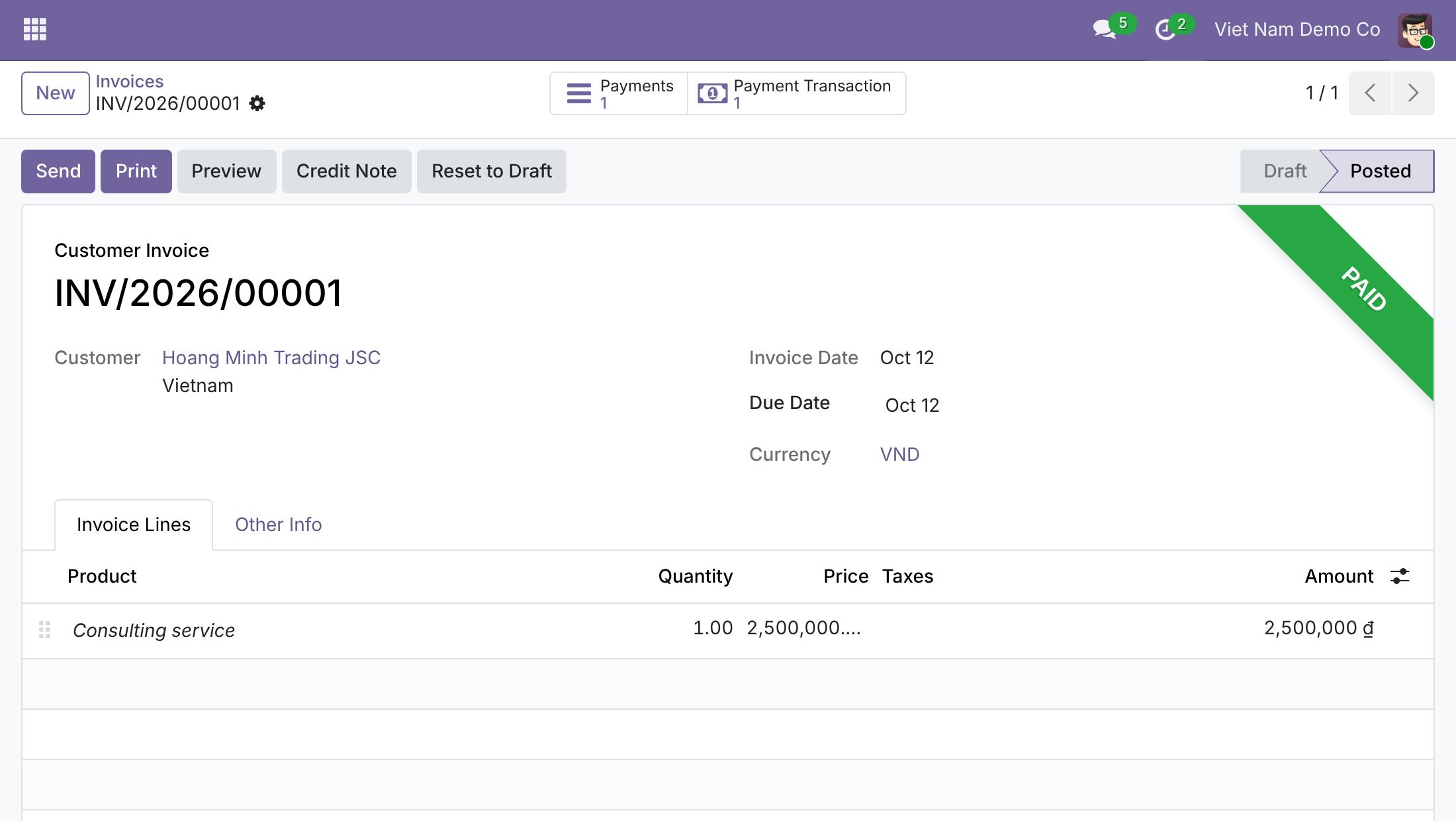
When the document is in your company currency and the provider charges in a foreign currency (for example a VND invoice paid through PayPal in USD), there is no foreign-currency receivable, so there is never an exchange gain or loss on it: the whole difference is a conversion difference. The screens in this guide use that case: a company working in VND, a VND invoice of 2,500,000, a charge of USD 98.43 at USD 1 = VND 25,400, and a conversion income of VND 122 (98.43 x 25,400 = 2,500,122).
Setup (for the System Administrator)
Installation
- Open Apps.
- Remove the Apps filter if needed and search for Payment Gateway Currency Conversion.
- Click Install. The apps it needs (Invoicing and Online Payments) are installed with it.
You can also turn the feature on from the Settings page described below, using the checkbox of Payment gateway currency conversion.
Configuration
Set the conversion accounts
- Open Invoicing ‣ Configuration ‣ Settings.
- In the Currencies block, find Payment gateway currency conversion and make sure it is ticked.
- In Gain Account, choose the account that receives the income when the provider charged more than the document is worth. In Loss Account, choose the account that receives the expense when it charged less.
- Click Save.
If you installed a chart of accounts from the Fiscal Localization block, both accounts are already filled in for you (Other Income 450000 and Other Expenses 650000 on the generic chart of accounts).
The exchange difference journal and its Gain and Loss accounts, used for the standard exchange gain or loss, are also required. They are filled in by the chart of accounts as well. Users with accountant rights can review them under Default Accounts in Settings, in the Exchange difference entries section (Journal, Gain, Loss).
Choose the Default Converted Currency of a provider
- Open Invoicing ‣ Configuration ‣ Online Payments ‣ Payment Providers and open the provider.
- Fill in the provider's credentials and set State (for example Test Mode while you try it out).
- Open the Configuration tab. In the Availability section, the Currencies field lists the currencies the provider accepts.
- In Default Converted Currency, choose the currency the provider will charge for documents in any other currency.
- Click Save.
Rules to know:
- The Default Converted Currency must be one of the currencies in the provider's Currencies list. Otherwise Odoo refuses to save and names the provider and the currency, and asks you to check the provider's full list of supported currencies.
- Leave the field empty to keep the provider as standard Odoo: it is then hidden for documents in a currency it does not accept.
- The provider must be published to appear to portal customers.
- A provider converts only if the company currency is either the document currency or the Default Converted Currency. A document in a third currency (for example a USD invoice in a company working in EUR, paid through a VND gateway) cannot be converted: the provider is simply not offered for it.
- For PayPal, the Default Converted Currency is filled in with USD automatically when the PayPal currency add-on is installed, the company works in a currency PayPal does not accept, and an exchange rate exists. You can still change it yourself.
Enabling a provider that converts, and the setup checks
A provider with a Default Converted Currency cannot be enabled (Test Mode or Enabled) unless the company has everything needed to record the payment later: the Gain Account and Loss Account of Payment gateway currency conversion, and the exchange difference journal with its Gain and Loss accounts. This way a missing account never blocks a payment after the customer has already paid.
- If you try to enable the provider while a setting is missing, Odoo shows "The payment provider ... cannot be enabled while it converts payments into ...", names the missing settings, and suggests either completing them or clearing the Default Converted Currency.
- If you try to clear one of these settings while a provider that converts is enabled, Odoo refuses to save and lists the providers that need them. Disable them, or clear their Default Converted Currency, first.
Assign the access rights
- Open Settings ‣ Users & Companies ‣ Users and open the user.
- Give the System Administrator the access right Role / Administrator.
- Give the Accounts Receivable Clerk the access right Accounting / Invoicing.
- Click Save.
Accounts Receivable Clerk: following payments and refunds
What the customer sees at checkout
When a customer opens an invoice or sales order in a currency the provider does not accept, and pays online, the provider is offered with its payment methods. Under the payment method, a note shows the amount that will be charged:
- The amount is calculated with the exchange rate stored in Odoo when the customer starts the payment, and it is fixed from then on: the amount shown, the amount requested from the provider and the amount recorded are the same.
- Every other rule of the provider (countries, maximum amount, saved payment methods, express checkout) is checked against the converted amount.
- The amount is "about" because the provider may apply its own rate; that small difference is booked as the conversion difference described above.
After the payment, the confirmation page shows the Charged Amount next to the document amount:
Check the transaction and its Charged Amount
- Open Invoicing ‣ Configuration ‣ Online Payments ‣ Payment Transactions. This menu is shown in debug mode.
- In the list, tick Charged Amount in the optional columns menu to see it next to Amount.
- Open a transaction to see both amounts: Amount is in the currency of the invoice or order, Charged Amount is what the provider charged, in its own currency.
If the amount or the currency reported by the provider differs from what was charged, or if the report is incomplete, the transaction ends in the Error state and no payment is recorded.
Review the payment recorded for the invoice
When the provider confirms the payment, Odoo creates the payment automatically and the invoice becomes Paid.
- Open Invoicing ‣ Customers ‣ Payments and open the payment.
- Check that the Amount and its currency are those of the Charged Amount of the transaction, and that the Payment Transaction field points to it.
- Click the Journal Items button of the payment entry to see its lines. The line named Payment gateway conversion difference holds the conversion difference, on the Gain Account (credit) or the Loss Account (debit). There is no such line when the provider charged exactly the document amount at the rate of the day.
Early payment discount
When the invoice has an early payment discount and the customer pays inside the discount period, the customer is charged the discounted amount, converted. The payment entry then contains the discount lines, all in the charged currency, and the invoice is fully paid.
Find confirmed transactions without a payment
A transaction can be confirmed by the provider while its payment could not be recorded (for example because a required account was removed afterwards). Such a case must be fixed by hand, so Odoo gives you a filter for it.
- Open Invoicing ‣ Configuration ‣ Online Payments ‣ Payment Transactions.
- Open the filter menu of the search box and click Done without Payment.
- Open each transaction listed, fix the cause (usually the setup described above, the message of the error names it), then register the payment for the invoice.
The filter lists confirmed transactions that have no payment, are not validation transactions and have not already been refunded or cancelled by a child transaction.
Refund a payment in the charged currency
For providers that support refunds, the Refund button on the payment opens the refund screen. For a converted payment:
- Open Invoicing ‣ Customers ‣ Payments and open the payment.
- Click Refund. The amount shown is in the charged currency, the one the customer was actually charged in (not the currency of the invoice).
- Enter the amount to refund, up to the charged amount, and confirm.
The provider refunds exactly the amount you entered, and the matching share of the document amount is deducted on the transaction in proportion. A full refund uses the exact charged amount.
The amount must be worth at least the smallest unit of the document currency (for example one cent for a USD document). If it is smaller, Odoo refuses with "The refund amount is worth less than the smallest amount of ... Refund at least ...", and tells you the minimum to enter in the charged currency.
A refund is booked in the same way as a payment: the difference between the amount refunded and the document amount at the rate of the day goes to the Gain Account or the Loss Account of Payment gateway currency conversion. Registering the credit note against the original invoice remains an accounting step, done in the usual way.
Some providers, such as PayPal, do not support refunds from Odoo; the Refund field of the provider shows Unsupported. Refund in the provider's own portal, then register the outgoing payment against the credit note.
Troubleshooting
- The provider does not appear at checkout.
- Check that it is in Test Mode or Enabled and published, that its Default Converted Currency is set, and that the company currency is either the document currency or the Default Converted Currency. A document in a third currency is not offered the provider. Also check that the converted amount does not exceed the provider's maximum amount.
- Odoo refuses to enable the provider.
- The message names the missing settings. Fill in the Gain Account and Loss Account of Payment gateway currency conversion, and the exchange difference journal and accounts, or clear the provider's Default Converted Currency.
- Odoo refuses to save the Default Converted Currency.
- The currency is not in the provider's Currencies list. Choose one of the listed currencies.
- Odoo refuses to clear a Gain or Loss Account in Settings.
- An enabled provider still converts payments and needs it. Disable the provider or clear its Default Converted Currency first.
- The customer sees "The payment provider ... does not accept ... and can only convert payments from or into the company currency".
- The document is in a third currency (neither the provider's currency nor the company currency). Ask the customer to pay with another payment method.
- A payment cannot be created with a saved payment method.
- A saved payment method used from the backend cannot be converted. Register the payment in a currency the provider accepts, the message lists them.
- The point of sale refuses the provider.
- Point of sale online payments cannot use a provider that needs to convert the currency. Choose a provider that accepts the currency of the order.
- A transaction is in Error.
- The provider reported an amount or currency that differs from the charge, or no amount at all. Nothing is recorded. Check the transaction message and the provider's statement.
- A transaction is Confirmed but the invoice is not paid.
- Use the Done without Payment filter, fix the cause and register the payment.
- The refund is refused as too small.
- Enter at least the minimum shown in the message.
FAQ
- Does this change the invoice or the sales order?
- No. The transaction stays in the currency of the document, so the invoice and the order see exactly the amount they expect. Only the payment is recorded in the charged currency.
- Which exchange rate is used for the charged amount?
- The rate stored in Odoo on the day the customer starts the payment. It is calculated once and never recalculated.
- Why is the payment not in the currency of the invoice?
- Because the provider settles in its own currency. Recording the payment as charged keeps the reconciliation of the provider's statement simple.
- Is it enabled for every provider?
- No. Only providers with a Default Converted Currency convert. All the others behave as standard Odoo.
- Can several companies use it?
- Yes. Each company has its own Gain and Loss accounts, its own exchange rates, and its own providers.
- What if the provider charges exactly the document amount at the rate of the day?
- No conversion difference line is created.
This software and associated files (the "Software") may only be used (executed, modified, executed after modifications) if you have purchased a valid license from the authors, typically via Odoo Apps, or if you have received a written agreement from the authors of the Software (see the COPYRIGHT file).
You may develop Odoo modules that use the Software as a library (typically by depending on it, importing it and using its resources), but without copying any source code or material from the Software. You may distribute those modules under the license of your choice, provided that this license is compatible with the terms of the Odoo Proprietary License (For example: LGPL, MIT, or proprietary licenses similar to this one).
It is forbidden to publish, distribute, sublicense, or sell copies of the Software or modified copies of the Software.
The above copyright notice and this permission notice must be included in all copies or substantial portions of the Software.
THE SOFTWARE IS PROVIDED "AS IS", WITHOUT WARRANTY OF ANY KIND, EXPRESS OR IMPLIED, INCLUDING BUT NOT LIMITED TO THE WARRANTIES OF MERCHANTABILITY, FITNESS FOR A PARTICULAR PURPOSE AND NONINFRINGEMENT. IN NO EVENT SHALL THE AUTHORS OR COPYRIGHT HOLDERS BE LIABLE FOR ANY CLAIM, DAMAGES OR OTHER LIABILITY, WHETHER IN AN ACTION OF CONTRACT, TORT OR OTHERWISE, ARISING FROM, OUT OF OR IN CONNECTION WITH THE SOFTWARE OR THE USE OR OTHER DEALINGS IN THE SOFTWARE.
