

IoT Manufacturing
by Viindoo
| Lines of Code | 1345 |
| Technical name | viin_iot_mrp |
| License | OPL-1 |
| Website | https://viindoo.com/apps/modules/17.0/viin_iot_mrp |
| Read description for | v 18.0 |
| Required Apps | Manufacturing (mrp) Discuss (mail) Inventory (stock) |
| Included Dependencies | Internet Of Things |
| Extensions | Quality Control IoT for Manufacturing IoT Work Order Tablet |

Work centres with their own label printer, scale and foot switch
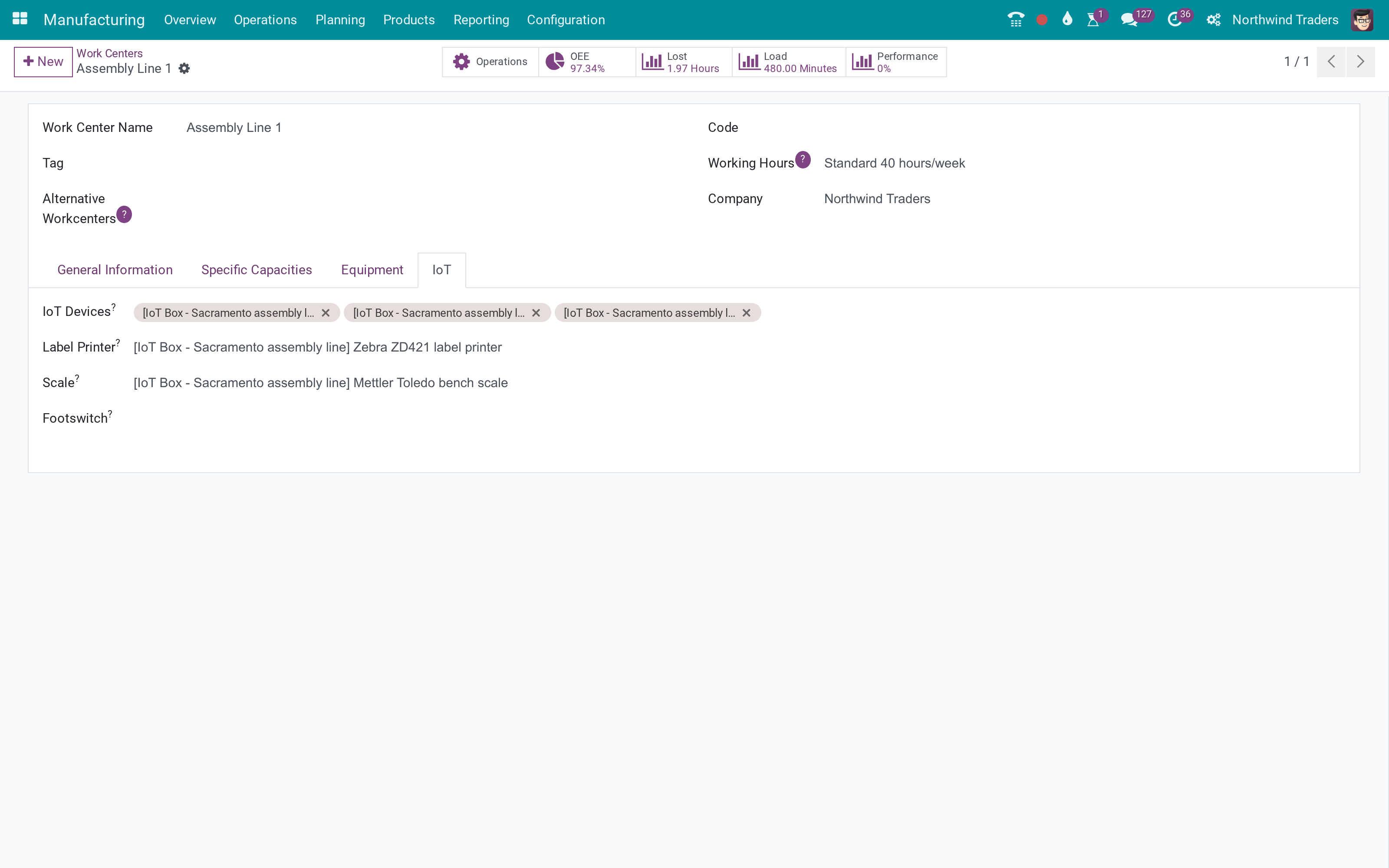
Assign IoT devices to a work centre; work orders print the finished unit's label on that station's printer, read the scale, and react to the foot switch (start, pause, toggle, finish).
IoT Manufacturing (technical name viin_iot_mrp) is an Odoo 17.0 app for Odoo Community and Odoo Enterprise and Viindoo Cloud, built for operator.
At a Glance
The facts of IoT Manufacturing, version 0.1.0, in one place. Published by Viindoo.
How It Works
Set the devices on the work centre.
Work centre
Printer, scale, foot switch.
Work order
Print label, read scale.
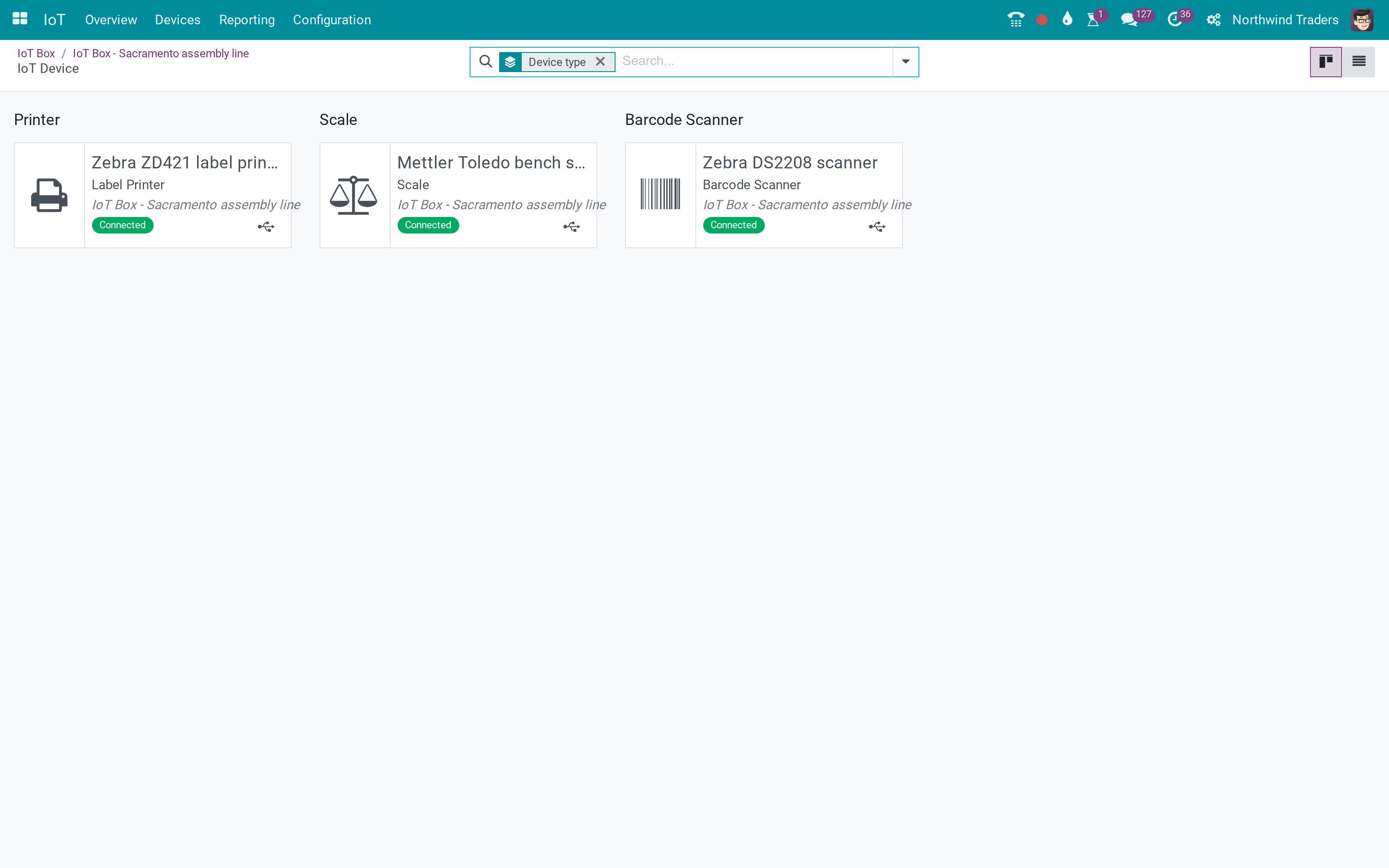
Devices
On the line.
What You Get
Devices per work centre
Label printed at the station
Scale reading on the work order
Foot switch actions
What This App Does Not Do
Read this before you buy. Everything below is something the app deliberately leaves to another app or to you.
Statuses come from the box.
Works Well With
Apps from the same stack, built to fit this one:
Who Should Use IoT Manufacturing?
Operator
Label out of the Zebra next to the line.
Frequently Asked Questions
What does IoT Manufacturing do?
Assign IoT devices to a work centre; work orders print the finished unit's label on that station's printer, read the scale, and react to the foot switch (start, pause, toggle, finish).
What does IoT Manufacturing not do?
Needs the devices connected to the box. Statuses come from the box.
Who is IoT Manufacturing for?
Operator: Label out of the Zebra next to the line.
Which Odoo version and editions does it support?
Odoo 17.0 - Odoo Community, Odoo Enterprise, Viindoo Cloud. Upgrades to a newer Odoo series are a separate purchase for that series.
What does it depend on?
It installs on top of: viin_iot, mrp. Odoo installs them with it.
How do I set it up?
Set the devices on the work centre.
What works well with it?
IoT (viin_iot): Required. IoT - Work Orders (viin_iot_mrp_workorder): Scanner-driven tablet.
Can I try it before buying?
Yes - the Live Preview button at the top of this page opens the module's own screen on a working database.
How do I get support?
Write to apps.support@viindoo.com with your Odoo version and the technical name viin_iot_mrp; pre-sales questions go to sales@viindoo.com.
See IoT Manufacturing in Action
Work centres with their own label printer, scale and foot switch
Need help with IoT Manufacturing?
For questions, implementation support, or consulting services, contact Viindoo.
Pre-Sales & Partnership
sales@viindoo.comWhen contacting us, please include:
- Odoo/Viindoo version (Odoo CE / Viindoo Editions).
- Number of users and business scope.
- Other modules currently in use.
Technical Support
apps.support@viindoo.comFor faster troubleshooting, please provide:
- Order number or app reference.
- Odoo/Viindoo version & edition.
- Steps to reproduce the issue.
- Screenshots/logs if available.
Upgrades to a newer Odoo series are a separate purchase for that series.
Technical Requirement
Changes log
0.1.0 - Latest on the 17.0 line
- Aligned with the 17.0 models and views.
IoT Manufacturing
Note
Extends viin_iot - see its documentation.
IoT Manufacturing lets a production manager attach registered IoT devices - a label printer, a scale, or a footswitch - to a work center. Once attached and nominated, an ordinary Manufacturing operator can print a finished unit's label, weigh a produced quantity, or drive a running work order hands-free, all from the work order screen - with no Point of Sale needed anywhere. A work center that carries no device, and a database without this module installed, behave exactly as before.
Installation
- Open Apps.
- Search for IoT Manufacturing.
- Click Install.
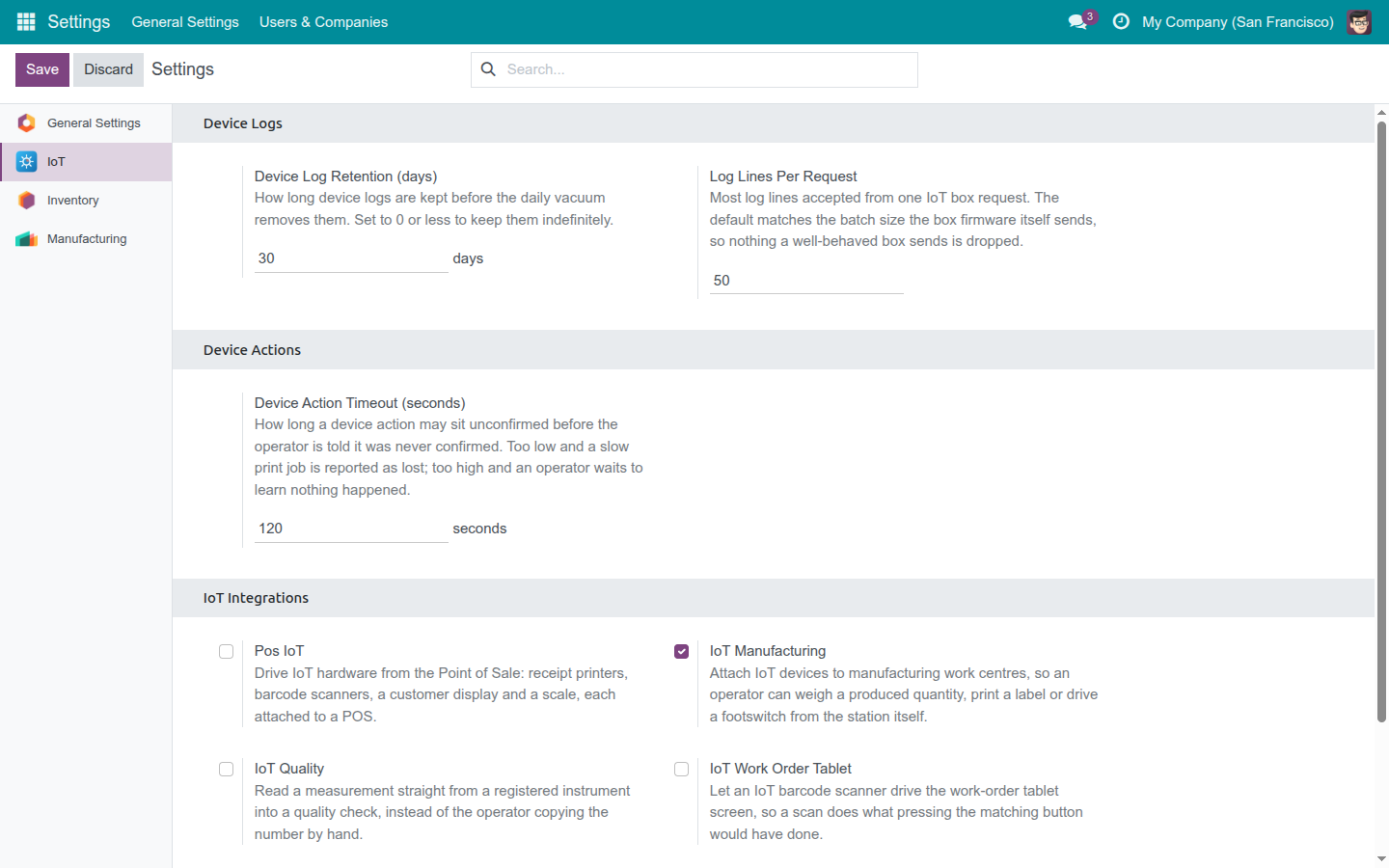
This module also installs itself automatically as soon as both required apps - IoT and Manufacturing - are already installed, so most databases never need the steps above at all. If you do not want it, open Settings ‣ IoT ‣ IoT Integrations and clear the IoT Manufacturing checkbox.
Configuration
Attach IoT devices to a work center
Open Manufacturing ‣ Configuration ‣ Work Centers, open a work center, and go to its IoT page. Add one or more registered devices to the IoT Devices field, then nominate which one is the Label Printer, which one is the Scale, and which one is the Footswitch - a device must already be listed in IoT Devices before it can be nominated for a role. A device belonging to a different company can never be attached here.
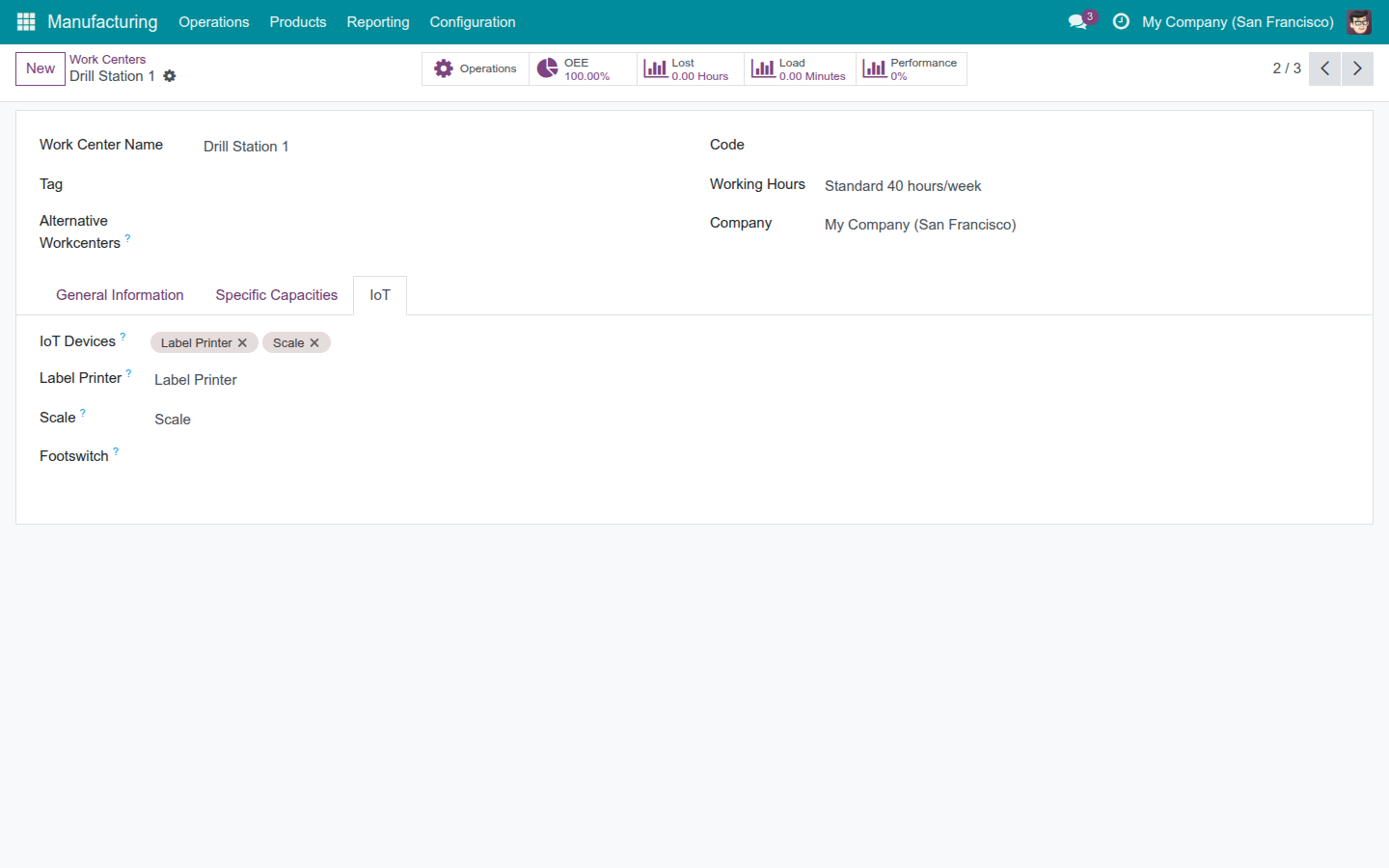
When a Footswitch is nominated, a Footswitch Action field appears next to it, offering Start, Pause, Toggle, or Finish. Left unset, a press of the footswitch does nothing - it never guesses which transition an unconfigured press meant.
Who can attach devices
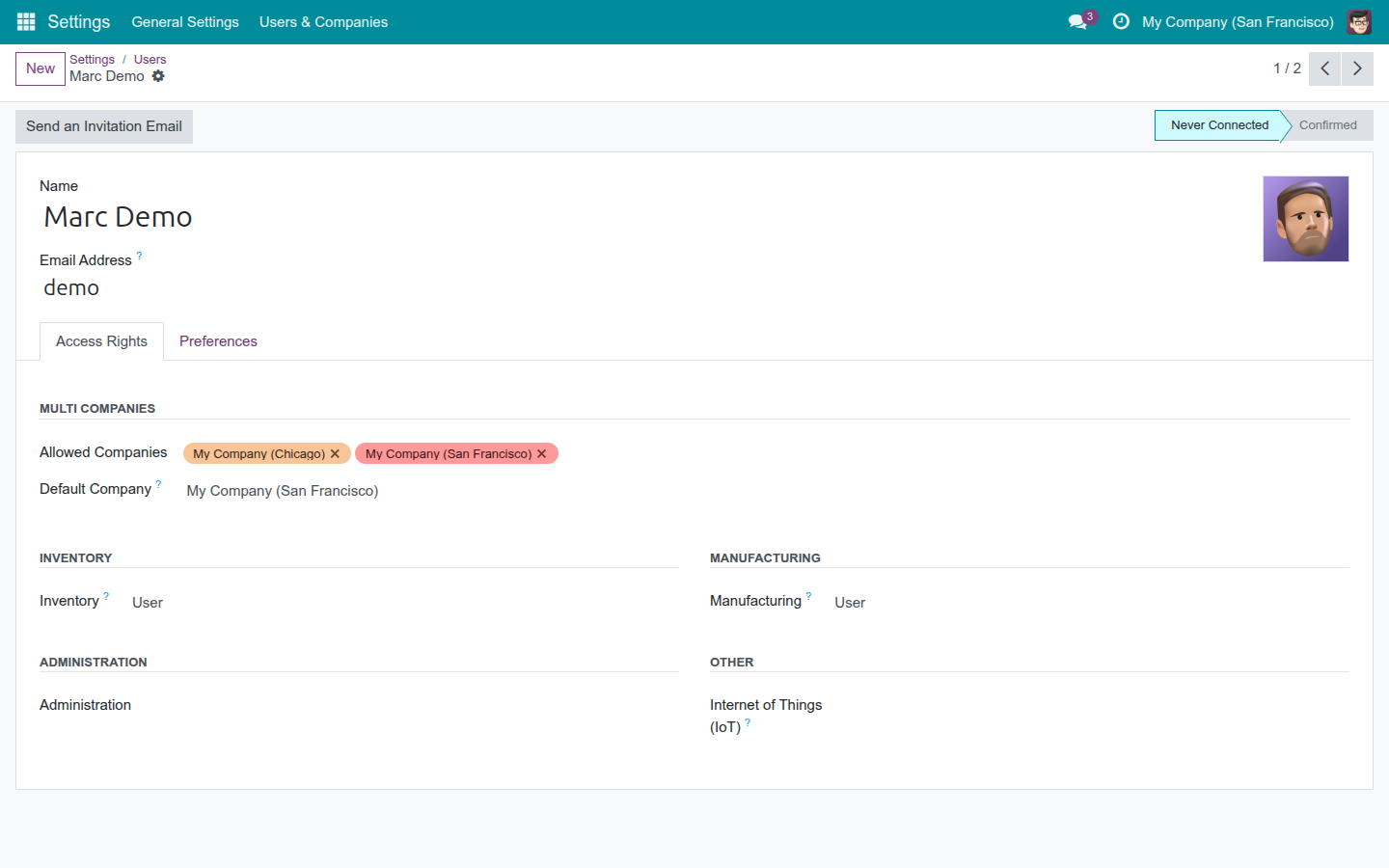
Attaching hardware is a configuration action, so the IoT page only appears to a user whose account holds at least the IoT app's User access level. Open Settings ‣ Users & Companies ‣ Users, open the user, and check the Internet of Things (IoT) field on the Access Rights page - here it is left blank for an ordinary Manufacturing user, who does not need it: printing a label or reading a scale from a work order needs no IoT access level at all, only the ability to open the work order itself.
Usage
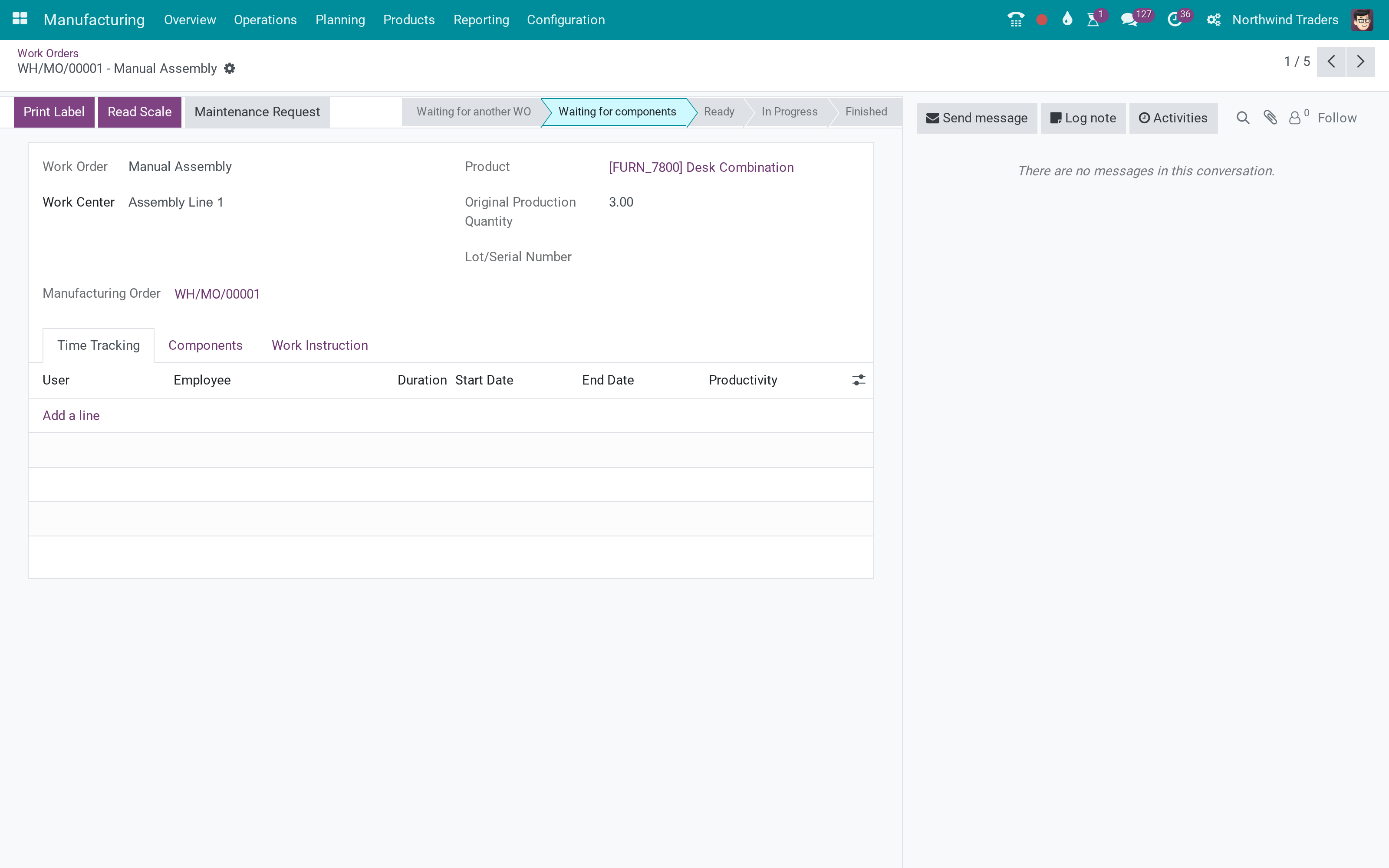
Print the work order's label
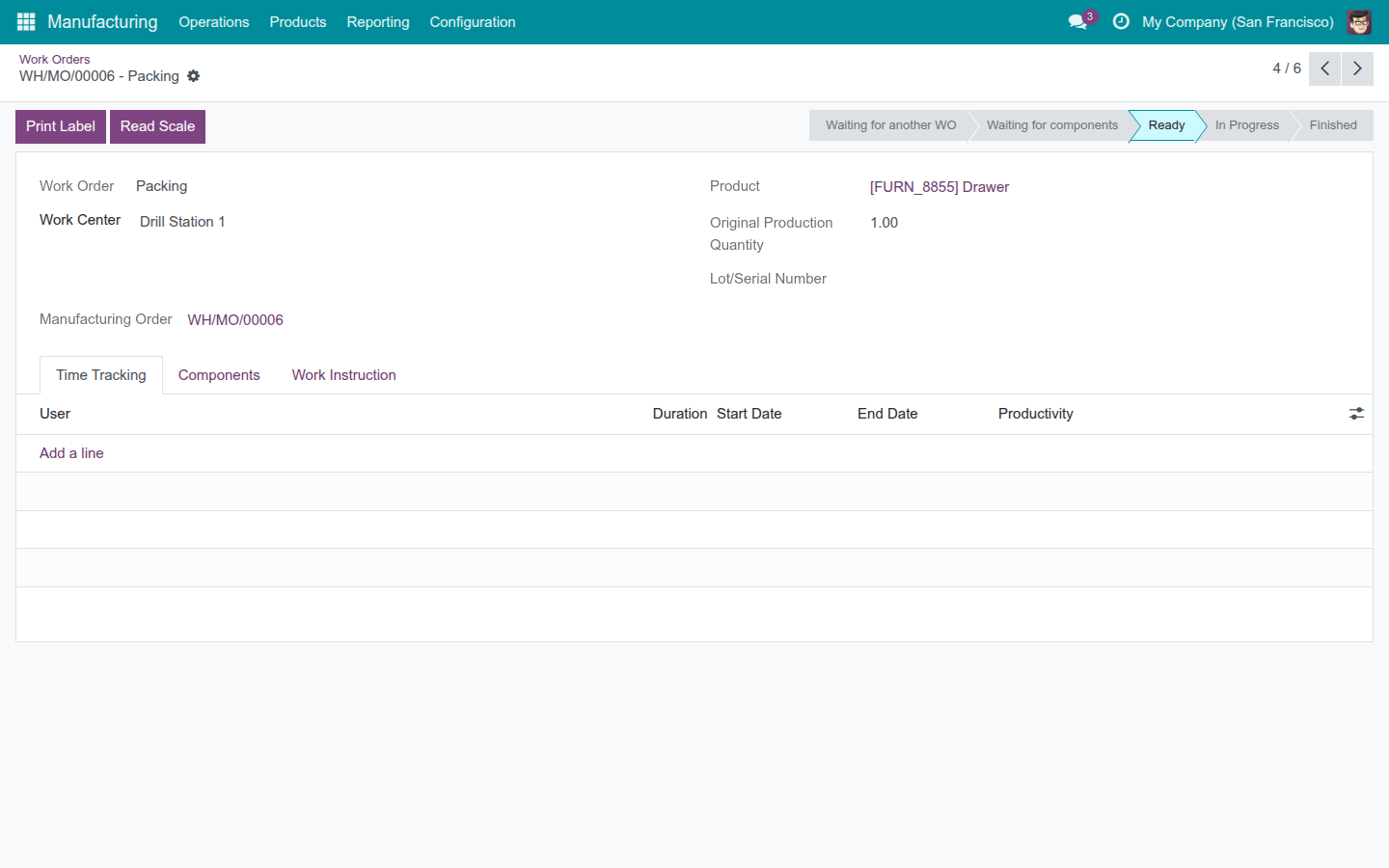
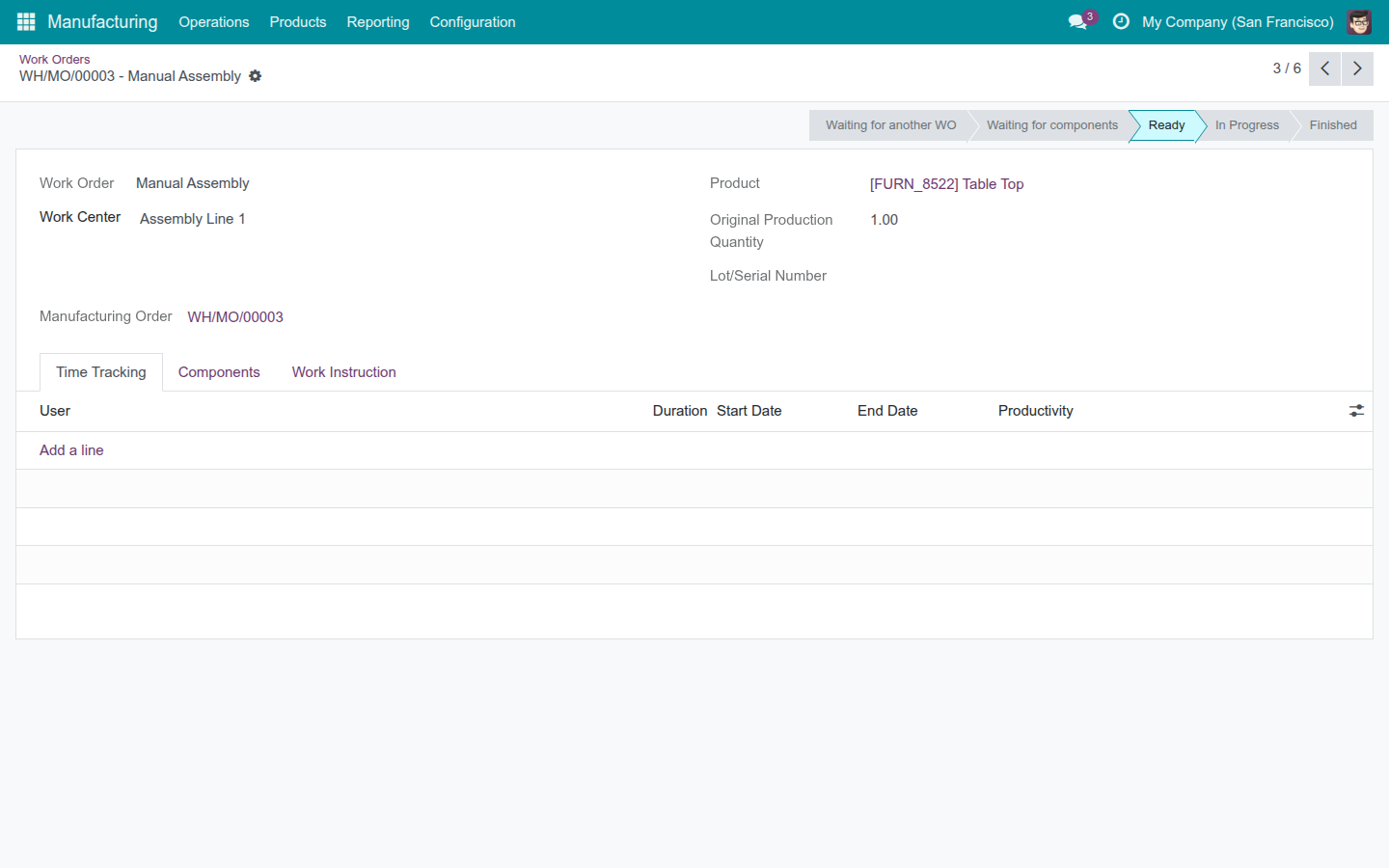
Open Manufacturing ‣ Operations ‣ Work Orders and open a work order at a station carrying a nominated Label Printer. Click Print Label and the finished unit's label is sent straight to that station's own nominated printer - never a box default. If the station has no printer nominated, the button refuses clearly and prints nothing; nominate one under Configuration first.
Request an on-demand scale reading
When the station also carries a nominated Scale, a Read Scale button appears next to Print Label. Click it to ask the scale to answer once - this is needed only for a scale that answers when asked rather than streaming continuously. The weight that comes back fills the order's produced quantity directly, including a genuine zero, which is a real signal that something is wrong with the reading rather than a value to discard. The raw materials the order consumes are scaled to match automatically, the same way they would be if the quantity had been typed in by hand.
Hands-free scale and footswitch
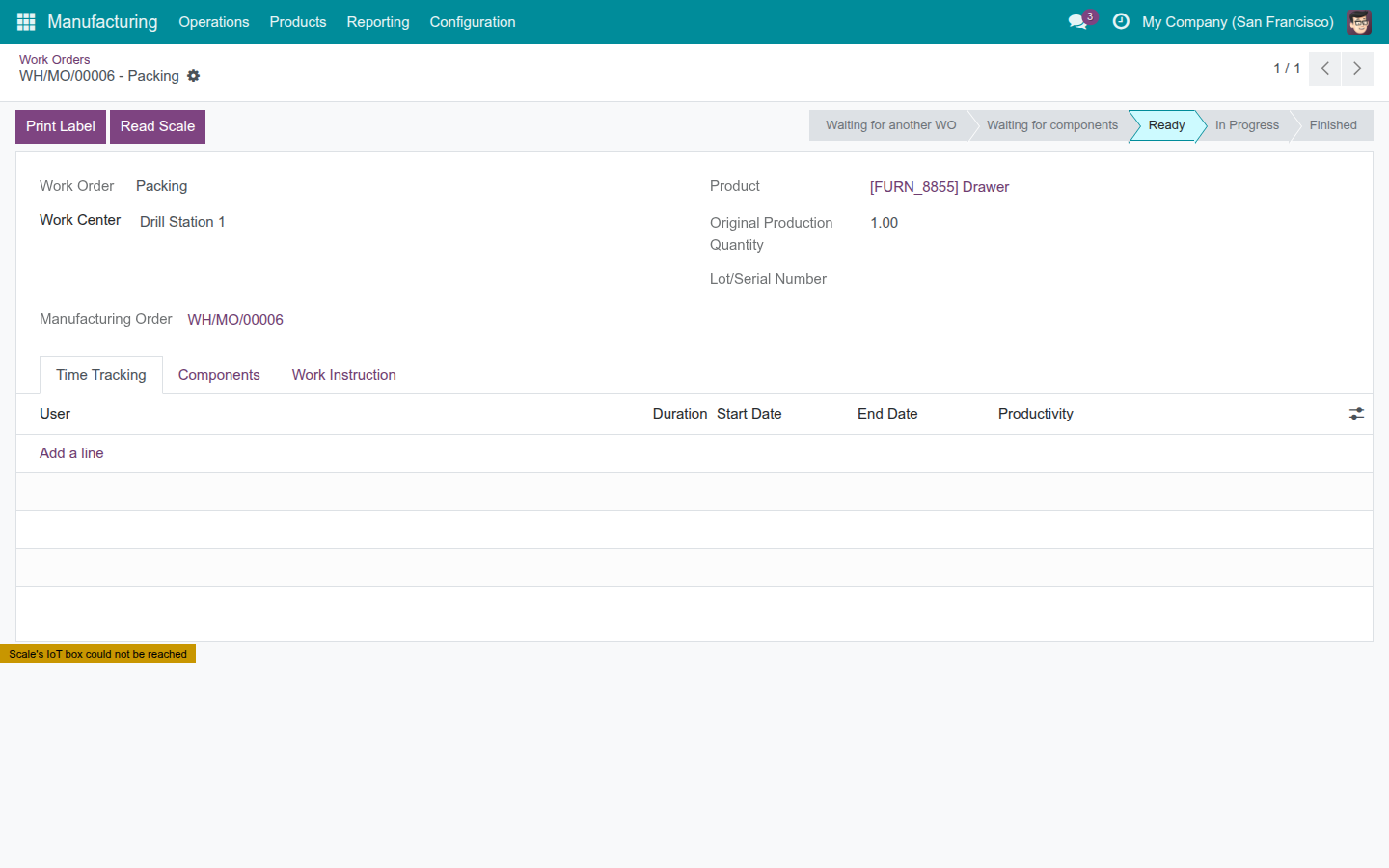
For a scale that streams continuously, or for a nominated footswitch, no button press is needed at all: opening the work order claims the station's scale and footswitch for that screen, and a reading or a footswitch press reaches the order automatically. A press of the footswitch performs whatever Footswitch Action was configured on the work center - starting, pausing, toggling, or finishing the running work order, the same as pressing the matching button by hand. If the device is claimed by another screen, or its IoT box cannot be reached, a small notice appears at the bottom of the work order so the operator is never left guessing why nothing is happening.
The production order's own notice of what happened
Every label print is followed by a note on the manufacturing order's own chatter, so the outcome is never left to guesswork: a confirmed print says the label has printed, and a print that never gets confirmed by the IoT box in time says so plainly instead - it is never mistaken for a success, and it is never silently dropped.
Troubleshooting
The Print Label or Read Scale button does not appear on a work order. The station this work order runs on has no IoT devices attached at all. Attach and nominate a device under Manufacturing ‣ Configuration ‣ Work Centers first - a work order at a station with nothing attached looks, and behaves, exactly as it did before this module was installed.
Clicking Print Label refuses immediately, with a message that no printer is nominated. The station carries devices, but none of them is nominated as the Label Printer. Open the work center's IoT page and nominate one.
Clicking Read Scale refuses immediately, with a message that no scale is nominated. Same cause as above, for the Scale field: nominate a scale on the work center first.
Nothing visible happens after clicking Print Label or Read Scale, and no printout or reading ever arrives. Check that the nominated device is actually connected - an unregistered or offline device is refused before anything is even sent to it, and this particular refusal currently posts no notice anywhere. A device that IS connected but simply does not answer in time instead posts a clear "never confirmed" note on the manufacturing order after the configured waiting window, so the two situations can look similar to an operator even though the module tells them apart internally.
The hands-free scale or footswitch never reacts, but the Print Label and Read Scale buttons still work. The signed-in account most likely does not hold the IoT app's User access level, which the hands-free path needs to read the station's device details. Printing and requesting a reading through the buttons keep working regardless, since neither needs that access level.
FAQ
Does an operator need any special permission to print a label or read a scale? No. Only attaching and nominating devices on a work center needs the IoT app's access level; working an order that already has devices nominated needs nothing beyond the ability to open the work order.
What happens to a work center I never attach any IoT device to? Nothing changes. Its work orders show no new button and behave exactly as they did before this module was ever installed.
Can two devices of the same role be attached to one work center? Yes - IoT Devices accepts more than one device of each type, but only the one actually nominated as Label Printer, Scale, or Footswitch is ever used; the others sit attached but idle until nominated.
How long does the system wait before telling me a print was never confirmed? By default 120 seconds, set under Settings ‣ IoT ‣ Device Actions; an administrator can shorten or lengthen this window for the whole database.
This software and associated files (the "Software") may only be used (executed, modified, executed after modifications) if you have purchased a valid license from the authors, typically via Odoo Apps, or if you have received a written agreement from the authors of the Software (see the COPYRIGHT file).
You may develop Odoo modules that use the Software as a library (typically by depending on it, importing it and using its resources), but without copying any source code or material from the Software. You may distribute those modules under the license of your choice, provided that this license is compatible with the terms of the Odoo Proprietary License (For example: LGPL, MIT, or proprietary licenses similar to this one).
It is forbidden to publish, distribute, sublicense, or sell copies of the Software or modified copies of the Software.
The above copyright notice and this permission notice must be included in all copies or substantial portions of the Software.
THE SOFTWARE IS PROVIDED "AS IS", WITHOUT WARRANTY OF ANY KIND, EXPRESS OR IMPLIED, INCLUDING BUT NOT LIMITED TO THE WARRANTIES OF MERCHANTABILITY, FITNESS FOR A PARTICULAR PURPOSE AND NONINFRINGEMENT. IN NO EVENT SHALL THE AUTHORS OR COPYRIGHT HOLDERS BE LIABLE FOR ANY CLAIM, DAMAGES OR OTHER LIABILITY, WHETHER IN AN ACTION OF CONTRACT, TORT OR OTHERWISE, ARISING FROM, OUT OF OR IN CONNECTION WITH THE SOFTWARE OR THE USE OR OTHER DEALINGS IN THE SOFTWARE.
