Project Customization
by Viindoo
| Lines of Code | 1033 |
| Technical name | viin_project |
| License | OPL-1 |
| Website | https://viindoo.com/apps/modules/19.0/viin_project |
| Read description for | v 16.0 v 17.0 v 18.0 |
| Required Apps | Project (project) Discuss (mail) |
| Extensions | Freight Project & Operations Tasks Project & HR Integration Project Access Rights - Timesheets Account Budget Management - HR Timesheet |

Each project runs on its own stages, and its manager hears when work moves
For teams that run several projects side by side, each with its own manager
Provide some customizations for the project management process.
Odoo 19.0 · Community and Enterprise · OPL-1
What changes for your team
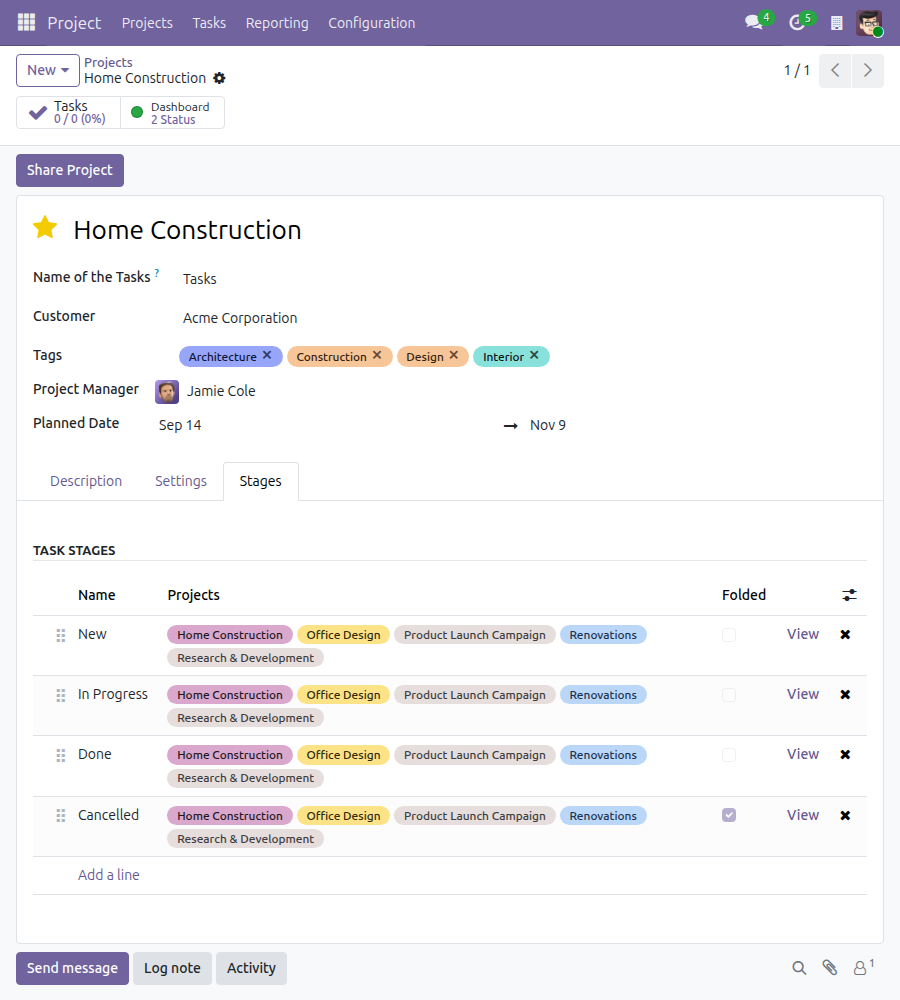
Stages that fit each project, set by its manager
Today, adding a stage for one project means asking a Project administrator.
→ Every project has a Stages tab. The person named Project Manager adds, renames, reorders and removes the stages of that project there.
The stage stays visible however the board is grouped
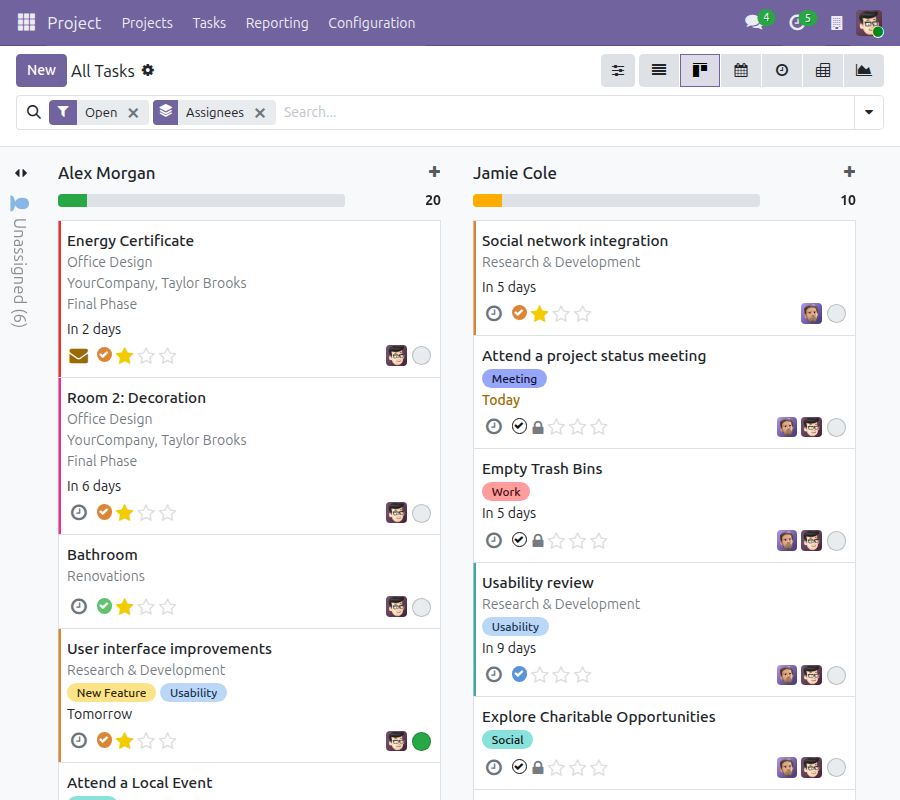
Today, grouping the task board by assignee replaces the stage columns, and the stage of each task drops out of view.
→ Each task card carries a dot in the colour of its stage; hovering it shows the stage name.
The project manager hears about every status change
Today, a task changes status on the board and its manager finds out at the next meeting.
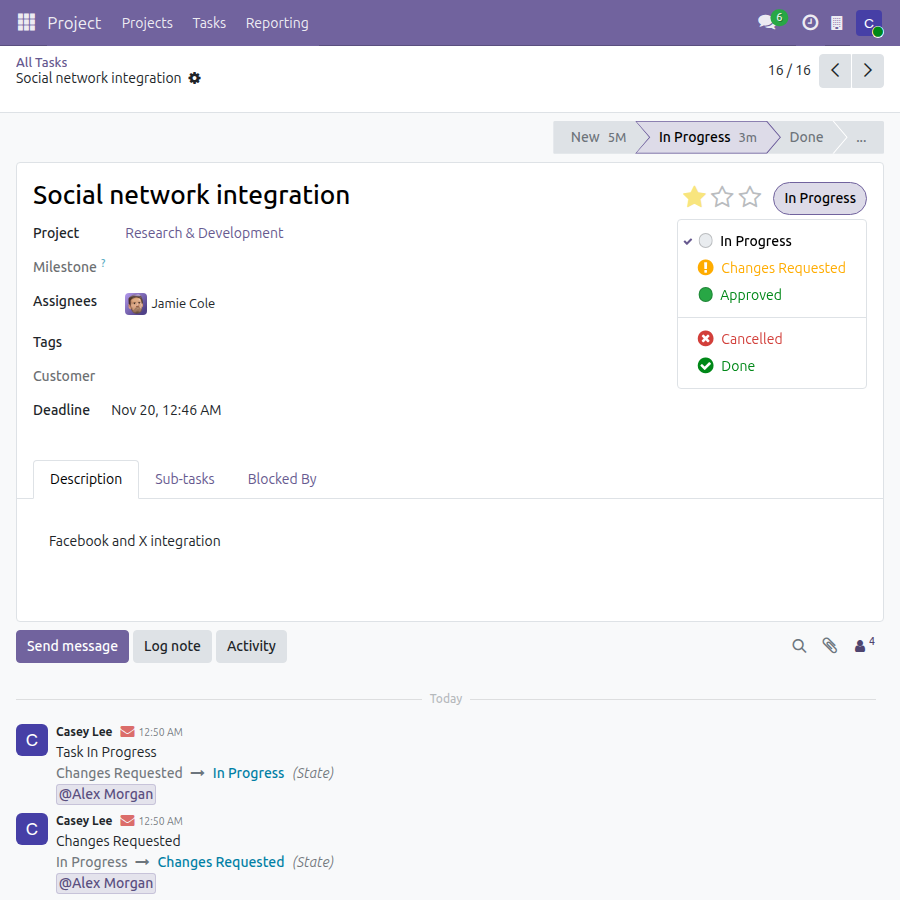
→ When someone else changes the status of a task, or creates a task in the project, the Project Manager is notified; a status change also mentions them in the task discussion. The status notification is one setting per project, on by default.
Ready on day one
Project menu for every employee
Internal users without a Project right open the projects shared with employees and those where they follow a task, read their tasks and change their status.
Managers own their projects
A Project user edits, renames and deletes the projects they manage, with their tasks, without needing accounting rights.
Task hierarchy filters
Parent Tasks, Sub Tasks and Single Task narrow any task list in one click.
Updates in context
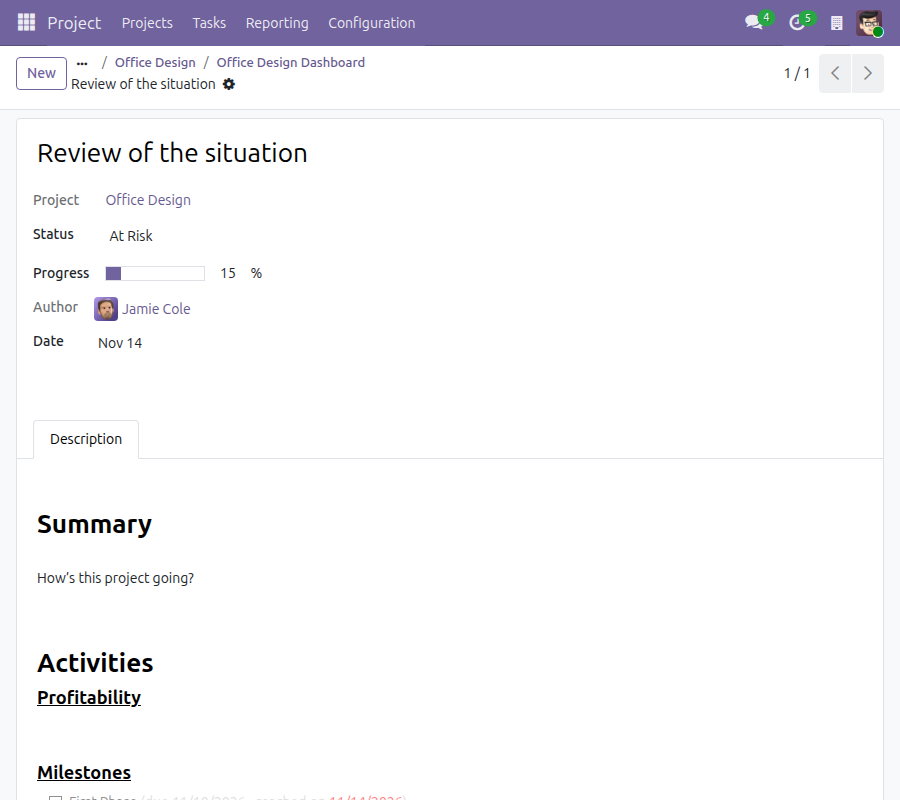
Every project update shows its project, and its description keeps a version history.
The administrator gives each person their Project access right and a colour to each stage; the Documentation tab shows how.
What is included
Everything above works with the Project app alone. The Project settings also list companion features you can activate when you need them.
Optional extensions
Project Access Rights - Timesheets
Timesheets stay visible to their author and to the project manager, nobody else.
Freight Project & Operations Tasks
For freight teams: project tasks and labour costs tied to each shipment.
Project & HR Integration
Projects and tasks carry the department that leads them, with department filters and a timesheet report by department.
Before you decide
Who sees what?
An internal user without a Project right reads the projects shared with employees and those where they follow a task; they read the tasks there and change their status, without editing anything else. A Project user changes only the projects that name them Project Manager. A Project administrator manages every project.
Will managers drown in notifications?
Each project has its own switch for status notifications. A manager is never notified of a change they made themselves.
Where does the data go?
Nowhere outside your database. The module calls no external service.
What does installing or removing it change?
It installs with the Project app and opens the Project menu to internal users. Uninstalling returns the Project menu and project visibility to the Project app's own defaults.
Which languages does it speak?
Its screens ship in English and Vietnamese.
Try it, then ask us
Read the Documentation tab for each role, open the live preview of this listing, or watch the video above.
Pre-sales & partnership
viindoo.com/contactusTechnical support
viindoo.com/ticketTechnical requirements
- Odoo version: 19.0
- Editions: Community, Enterprise
- Required modules: Project
- License: OPL-1
- Languages: English, Vietnamese
Project Customization
Note
Audience: administrators, project managers and project team members who use the Project app.
Overview
Project Customization lets team members follow and move project work forward without waiting for a project administrator, and gives each project manager control over their own projects:
- Each project has its own Stages tab, so its manager sets up the stages without the help of an administrator.
- A coloured pill on every task card shows the stage of the task, also when the board is grouped by assignee or by another criterion.
- Task lists can be narrowed to Parent Tasks, Sub Tasks or Single Task.
- The project manager is notified when the status of a task changes and when somebody else creates a task in the project.
- A project update shows the project it belongs to and keeps a Version History of its description.
- Every internal user sees the Project menu and can change the status of the tasks they can read, and a project user has full control of the projects they manage.
- A Project Add-ons block in the Project settings activates companion modules.
| Role | What they do | Access right to assign |
|---|---|---|
| Administrator | Installs the module, activates companion features and gives people their Project access right | Role: Administrator (Settings) |
| Team member | Follows the tasks they are involved in and reads the boards | Project: No (internal user) |
| Project manager | Runs the projects that name them Project Manager | Project: User |
| Project administrator | Manages every project and the Project configuration | Project: Administrator |
Setup (for the Administrator)
Installation
The module is installed together with the Project app. If it is missing, open Apps, search for Project Customization and click Activate.
Giving people their access right
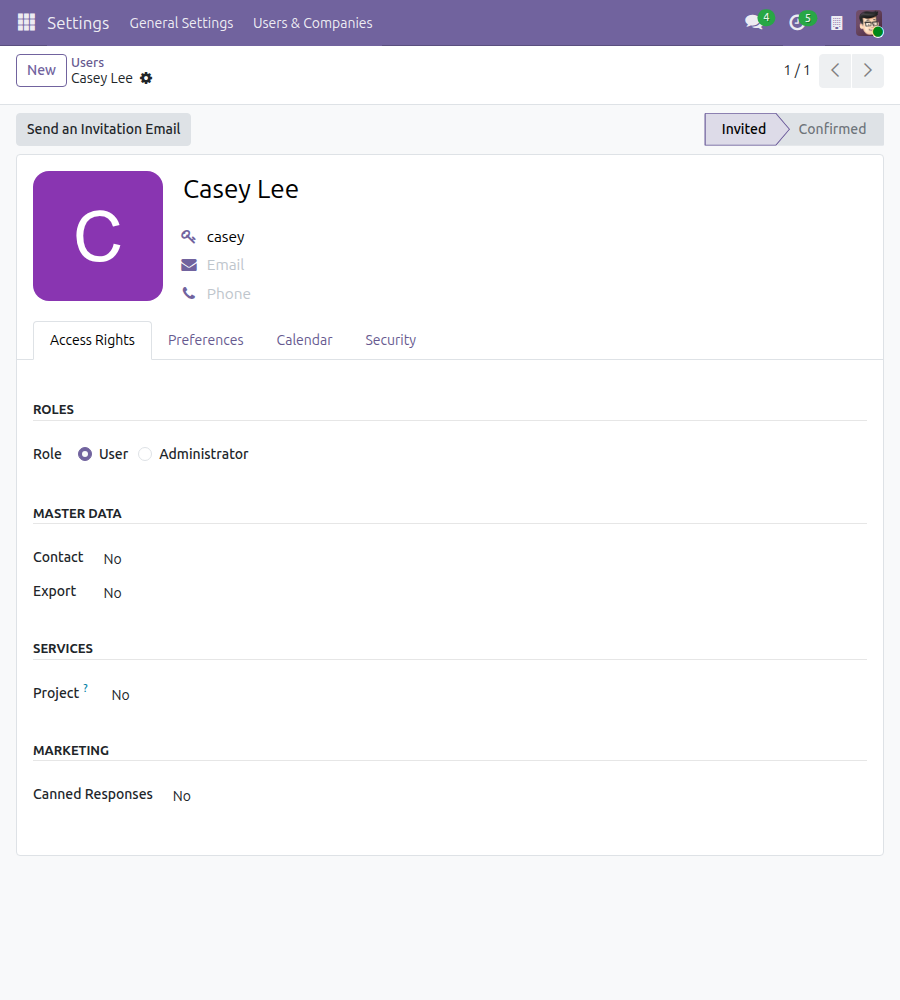
- Open Settings > Users & Companies > Users and open the user.
- In the Access Rights tab, find the Services section.
- Set Project to User to let the person manage the projects that name them Project Manager, or to Administrator for every project and the configuration. Leave it at No for a team member who only follows tasks.
- Save.
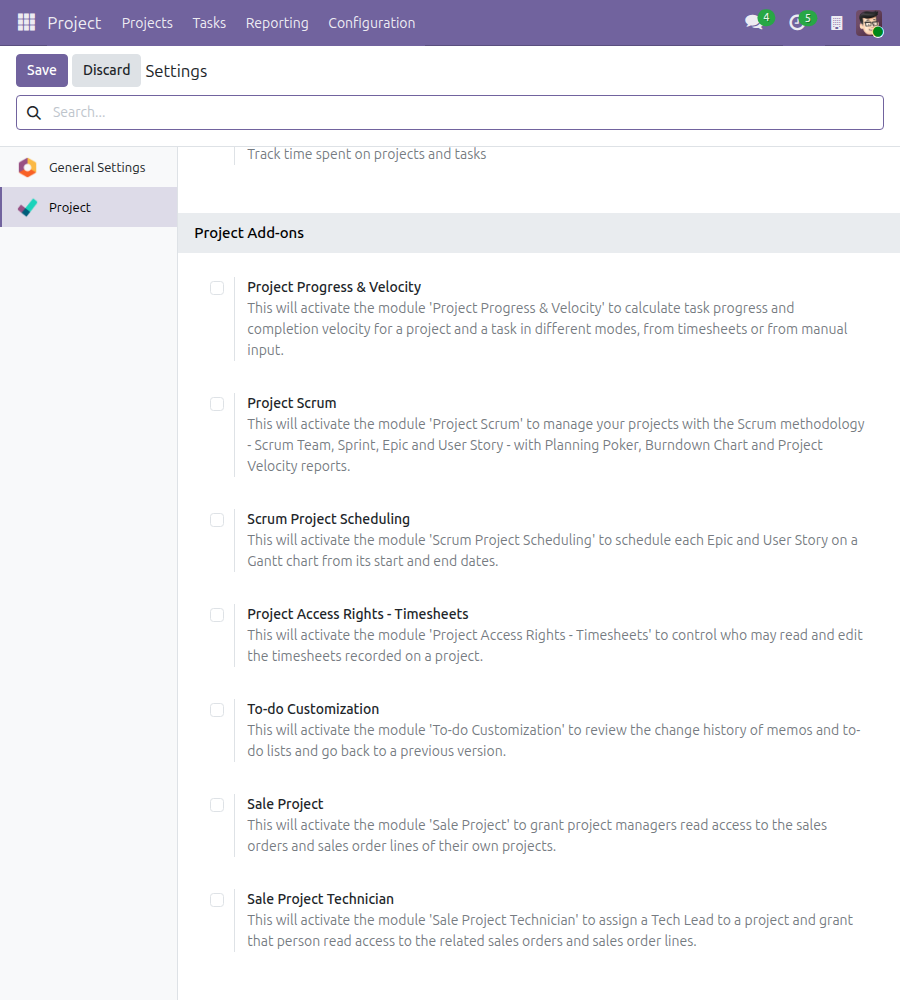
Companion features
Open Project > Configuration > Settings. The block Project Add-ons lists optional companion modules. Tick the one you need and click Save; a module that is not available in your database shows a Purchase or Learn more link instead of a checkbox.
Project manager: run your own project
A user with Project: User manages the projects that name them in the Project Manager field and can open and edit them from Project > Projects.
Set up the stages of a project
- Open Project > Projects and open your project.
- Open the Stages tab. The list Task Stages shows the stages of this project.
- Click Add a line to add a stage, rename a stage in its row, drag the handle to reorder, or click the cross to remove a stage you do not use from the project.
- Save.
Get notified when a task status changes
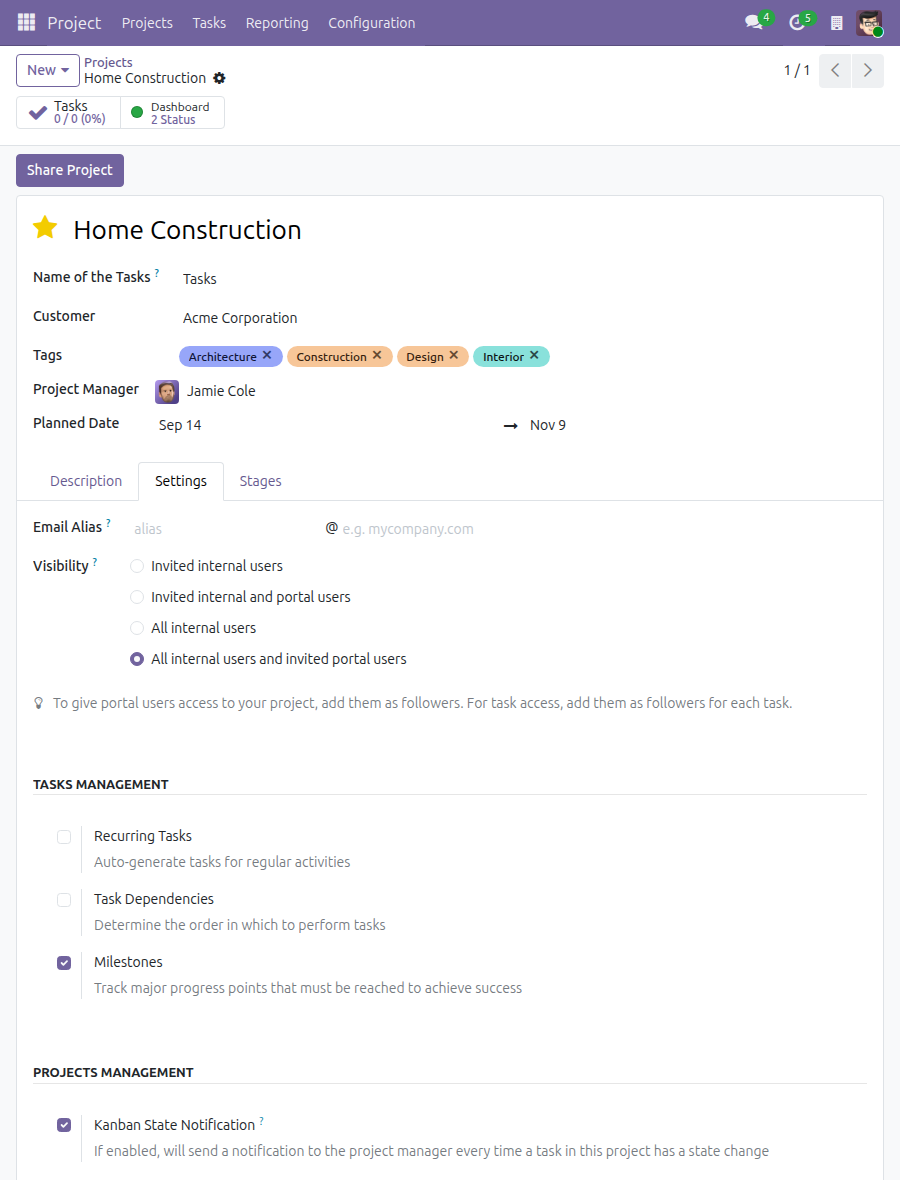
- Open your project and click the Settings tab.
- In the Projects Management group, tick Kanban State Notification. It is ticked by default.
- Save.
From then on, when someone else changes the status of a task of this project, the Project Manager is mentioned in the task's discussion and receives a notification. Clear the box to turn notifications off for the project.
Team member and project manager: read the task board
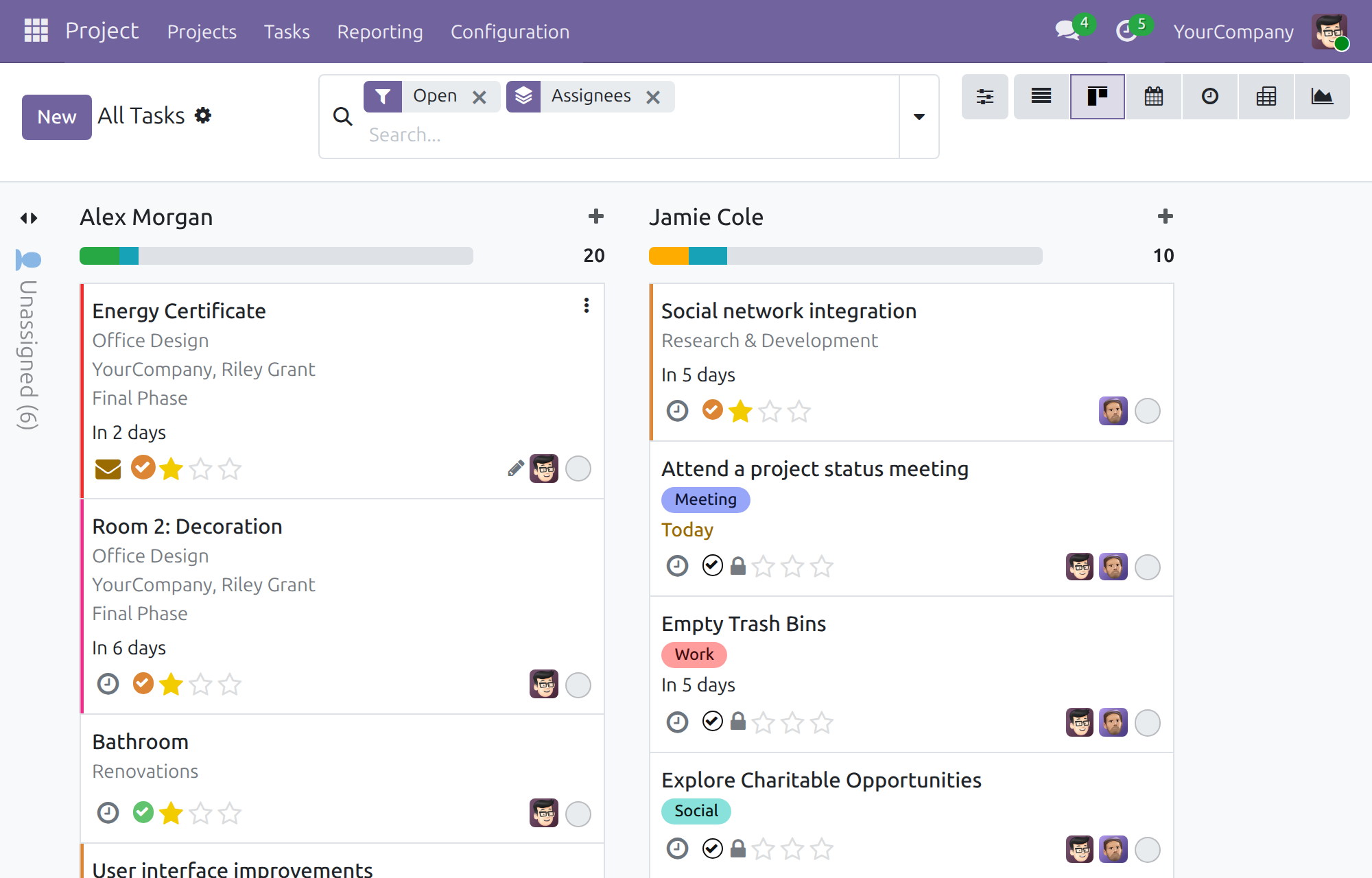
See the stage of a task under any grouping
- Open Project > Tasks and switch to the kanban view.
- Open the search options and, under Group By, choose Assignees (or another criterion).
- Each card carries a coloured pill that shows the stage of the task; hover over the pill to read the stage name. The colour comes from the Color of the stage.
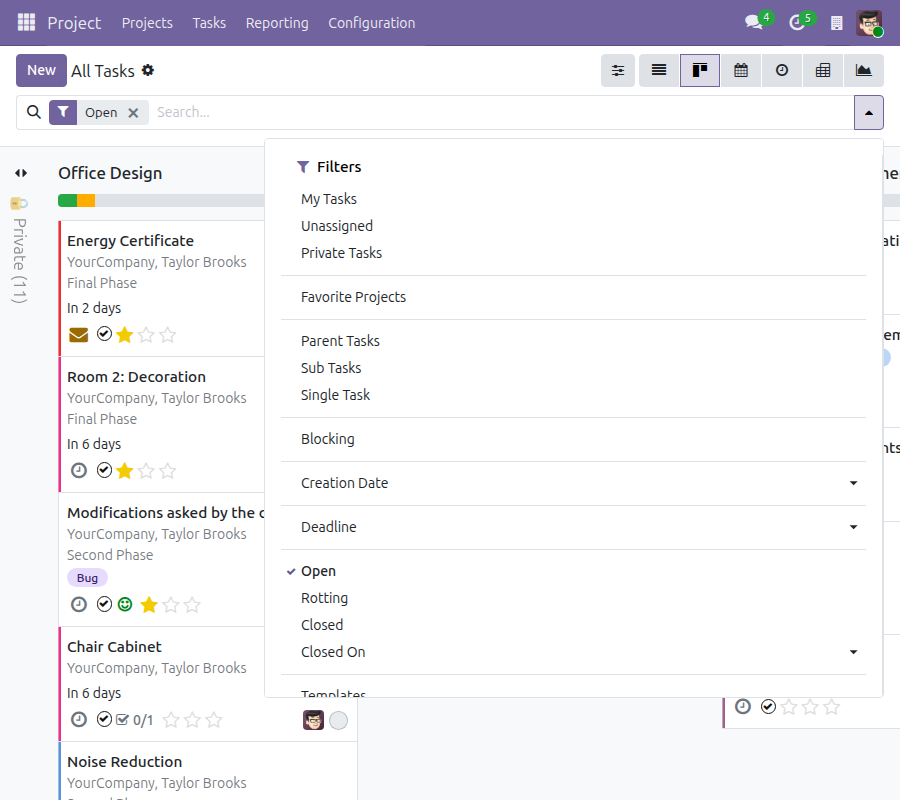
Filter by position in the task hierarchy
Open the search options of Project > Tasks and, under Filters, choose:
- Parent Tasks for tasks that are not sub tasks;
- Sub Tasks for tasks that belong to a parent task;
- Single Task for tasks that have neither a parent nor sub tasks.
Know which project an update belongs to
Open a project, click Dashboard and open an update. The form shows the Project it belongs to. The action menu of the form offers Version History to restore an earlier version of the description.
Team member: follow the tasks you are involved in
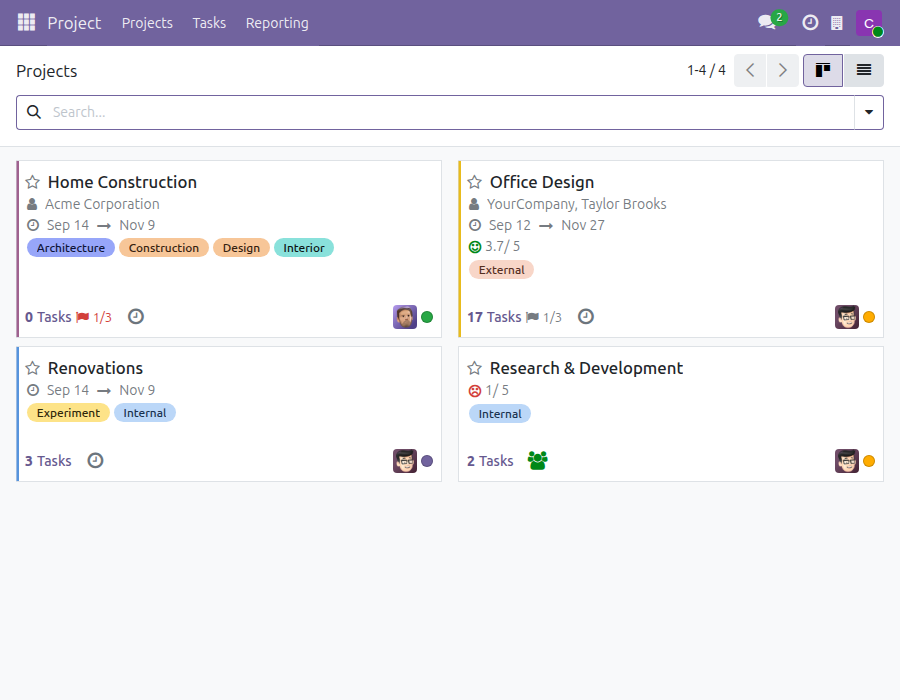
An internal user without a Project access right sees the Project menu with Projects, Tasks and Reporting. The list of projects holds the projects visible to all internal users and the projects in which the person follows a task.
Tasks open for reading, with one exception: the status. On a task card of the kanban view and on the task form, click the status icon and choose In Progress, Changes Requested, Approved, Cancelled or Done. The stage bar, the priority stars, the title and the other fields stay read-only. Each status change is logged in the discussion at the bottom of the task, which mentions the Project Manager and notifies them. The Send message and Log note buttons stay available for messages and notes.
Troubleshooting
- The project cannot be edited: the person needs Project: Administrator, or Project: User and the name in the Project Manager field of the project.
- No Project menu: confirm the user is an internal user, not a portal user.
- No notification: Kanban State Notification is cleared on the project, or the person who changed the status is the Project Manager.
This software and associated files (the "Software") may only be used (executed, modified, executed after modifications) if you have purchased a valid license from the authors, typically via Odoo Apps, or if you have received a written agreement from the authors of the Software (see the COPYRIGHT file).
You may develop Odoo modules that use the Software as a library (typically by depending on it, importing it and using its resources), but without copying any source code or material from the Software. You may distribute those modules under the license of your choice, provided that this license is compatible with the terms of the Odoo Proprietary License (For example: LGPL, MIT, or proprietary licenses similar to this one).
It is forbidden to publish, distribute, sublicense, or sell copies of the Software or modified copies of the Software.
The above copyright notice and this permission notice must be included in all copies or substantial portions of the Software.
THE SOFTWARE IS PROVIDED "AS IS", WITHOUT WARRANTY OF ANY KIND, EXPRESS OR IMPLIED, INCLUDING BUT NOT LIMITED TO THE WARRANTIES OF MERCHANTABILITY, FITNESS FOR A PARTICULAR PURPOSE AND NONINFRINGEMENT. IN NO EVENT SHALL THE AUTHORS OR COPYRIGHT HOLDERS BE LIABLE FOR ANY CLAIM, DAMAGES OR OTHER LIABILITY, WHETHER IN AN ACTION OF CONTRACT, TORT OR OTHERWISE, ARISING FROM, OUT OF OR IN CONNECTION WITH THE SOFTWARE OR THE USE OR OTHER DEALINGS IN THE SOFTWARE.