

Shop Floor Control - Maintenance
| Lines of Code | 1543 |
| Technical name | viin_mrp_workorder_maintenance |
| License | OPL-1 |
| Website | https://viindoo.com/apps/modules/18.0/viin_mrp_workorder_maintenance |
| Read description for | |
| Required Apps | Manufacturing (mrp) Invoicing (account) Discuss (mail) Inventory (stock) Employees (hr) Maintenance (maintenance) |
| Included Dependencies | Advanced MRP Accounting Shop Floor Control Viindoo Manufacturing Maintenance - MRP Viindoo Base Viin Warehouse Web Gantt Viin Warehouse Accounting |
Machine down? One tap stops the station and calls a technician.
Viindoo Shop Floor Control - Maintenance joins Viindoo Shop Floor Control and Viindoo Maintenance - MRP. The operator reports the breakdown on the tablet at the machine - nothing to type, no desktop form - and the downtime is measured from that tap. It installs automatically when both apps are installed.
Extends viin_mrp_workorder - see its documentation.
Extends to_mrp_maintenance - see its documentation.
Why plants choose it
Report a breakdown by touch, at the machine
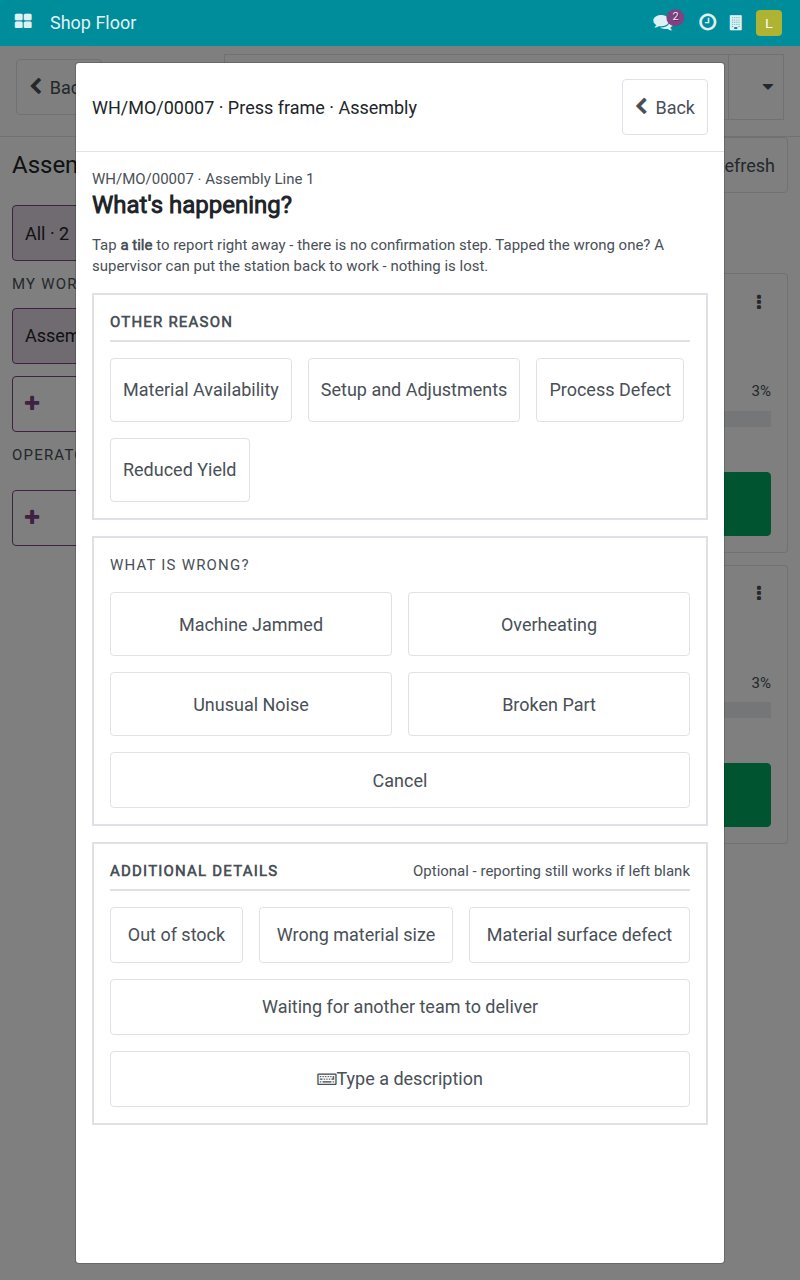
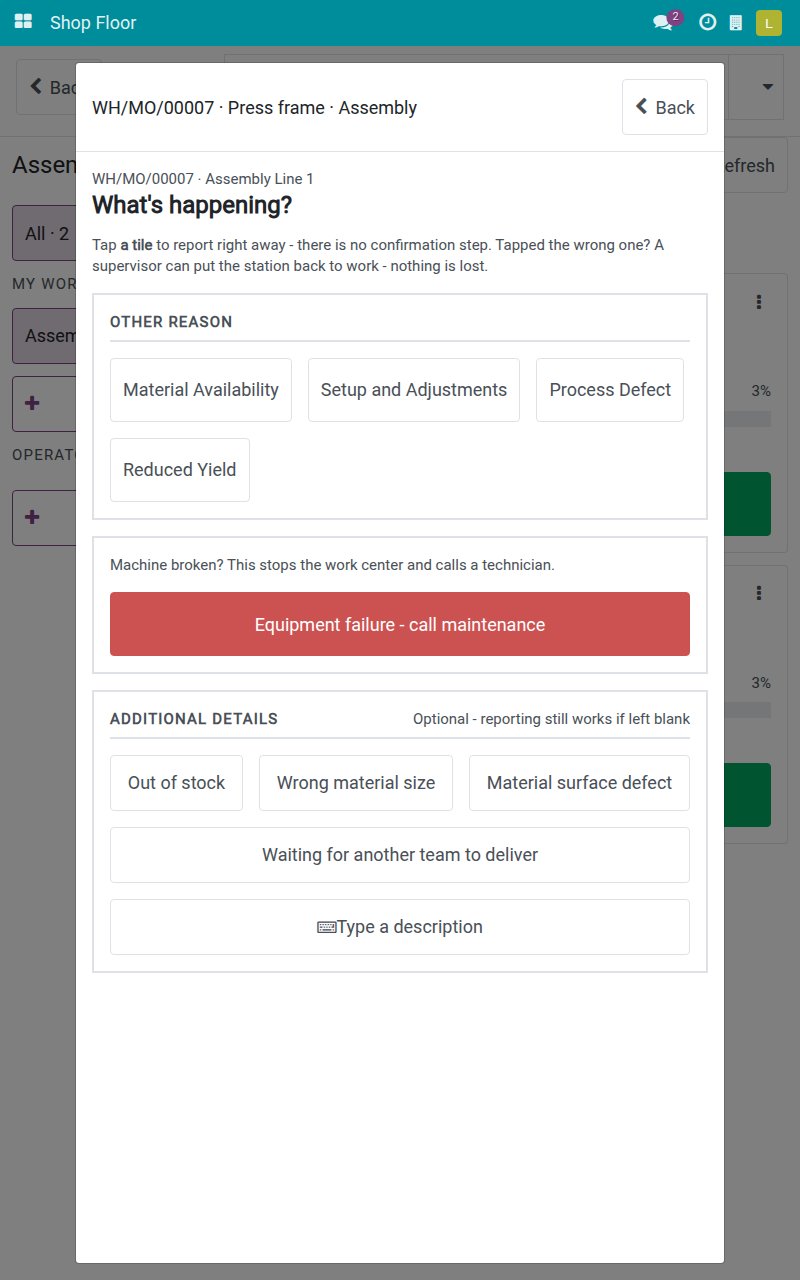
Under Stop machine, the red button "Equipment failure - call maintenance" asks only what the tablet cannot know: which machine, when the work center has several, and what is wrong - Machine Jammed, Overheating, Unusual Noise or Broken Part. That tap is the report: no confirmation step and nothing to type. The stop reason and the request title are filled in for you.
One call per breakdown, no lost downtime
A second operator at the same station is told that a technician has already been called, by whom and when - no duplicate request. A station already stopped for another reason stays stopped and its stop becomes the breakdown, so downtime is never split or lost.
Back to work only when it is safe
The tablet shows "Waiting for maintenance" until the technician closes the request. Closed at a repairing stage such as Repaired, the station runs again and each operator taps Resume operation. Closed at Scrap, it stays stopped until an authorised person restarts it, after a confirmation.
What operators, technicians and production leads get
Stop the station and call the technician in one tap
Tap Stop machine and the red "Equipment failure - call maintenance" button sits right below the plain stop reasons. Tap the machine that broke (the question is skipped when the work center has a single machine), then tap what is wrong. The station stops and a maintenance request, titled for you from the reason and the machine, goes to the technician. A photo of the fault can be added from the tablet camera.
A second operator is told the technician is already called
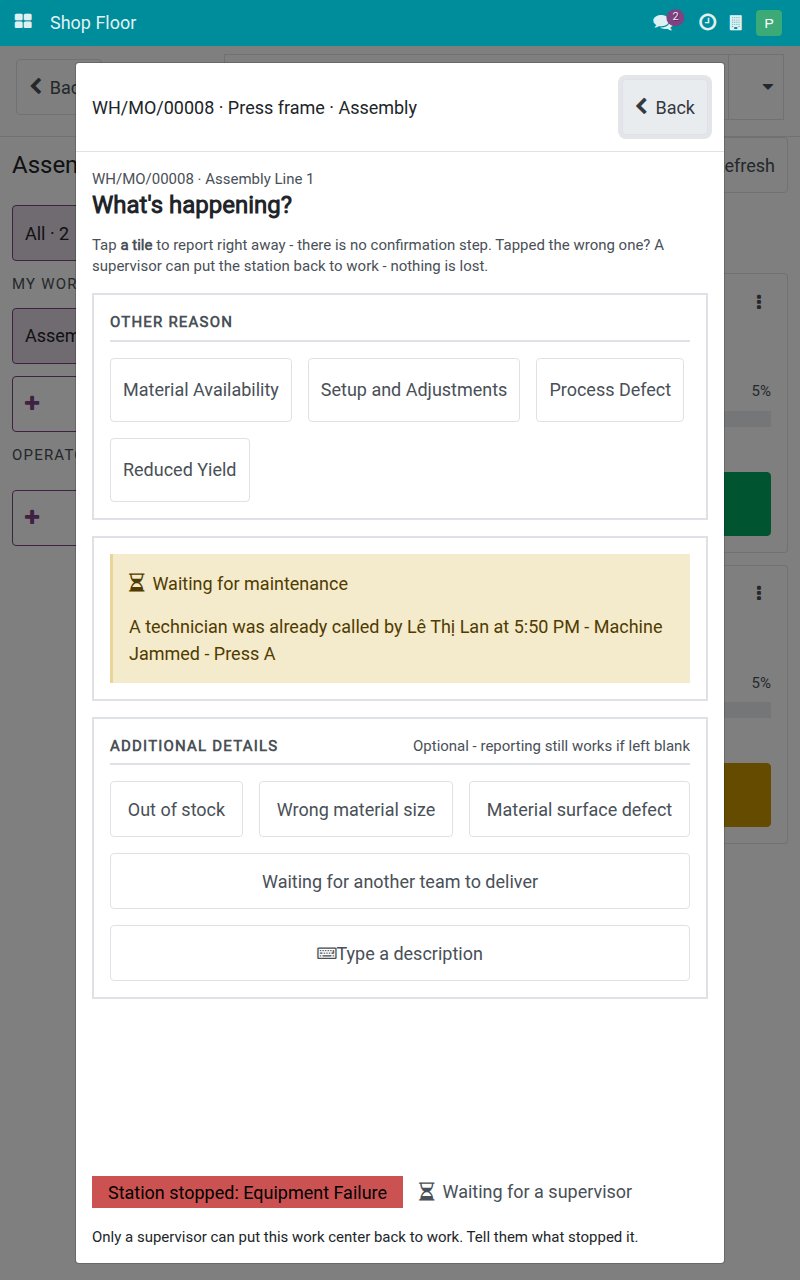
On a second tablet at the same station, the report joins the request already raised. "Waiting for maintenance" says who called the technician and at what time, shown in the viewer's own time zone. No second request is created, the station stays stopped, and a tap retried after a lost connection never raises a duplicate.
Call a technician without stopping production
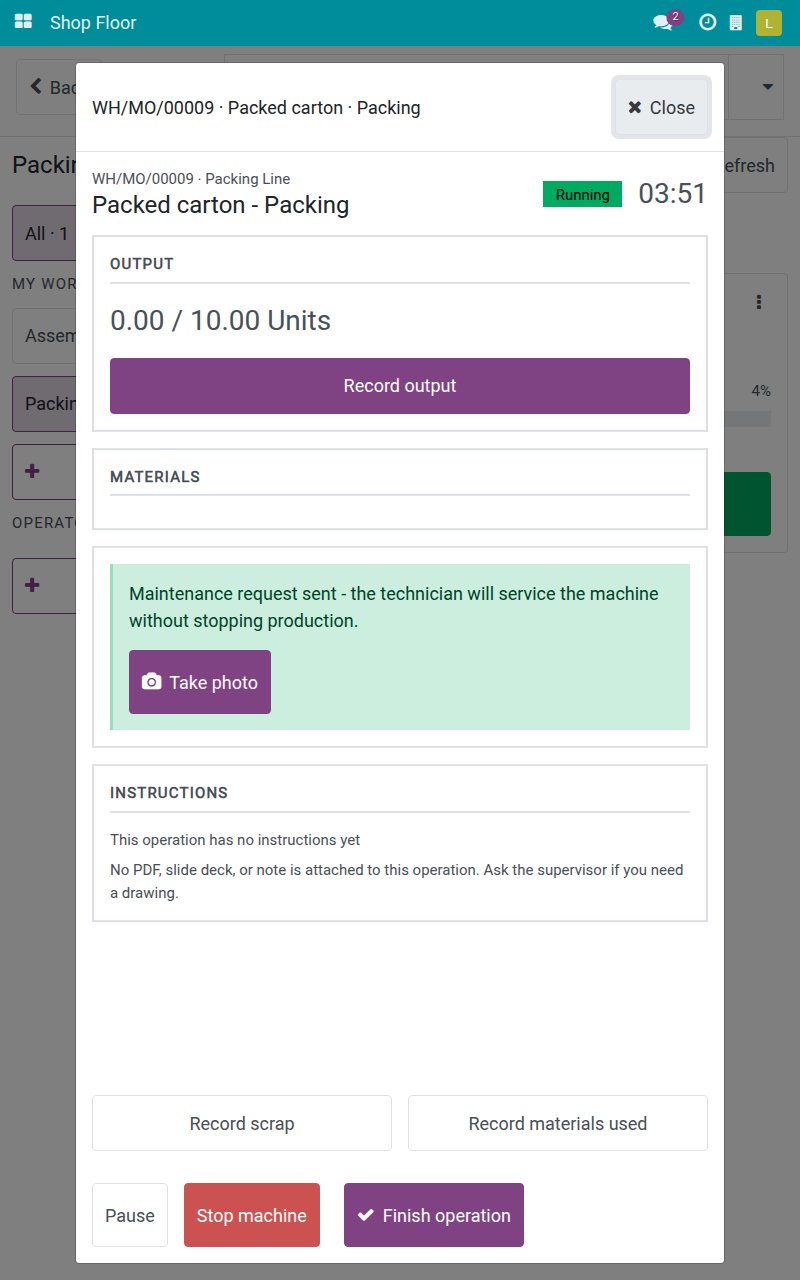
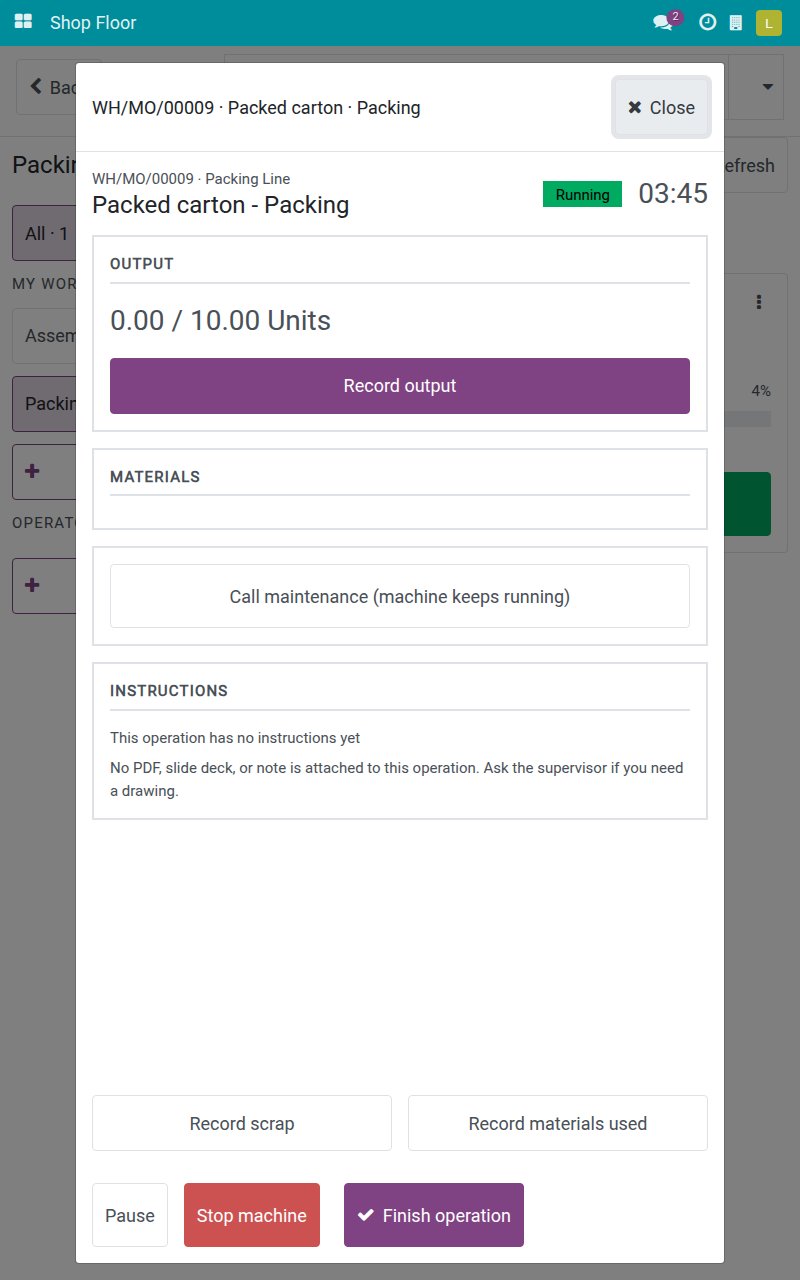
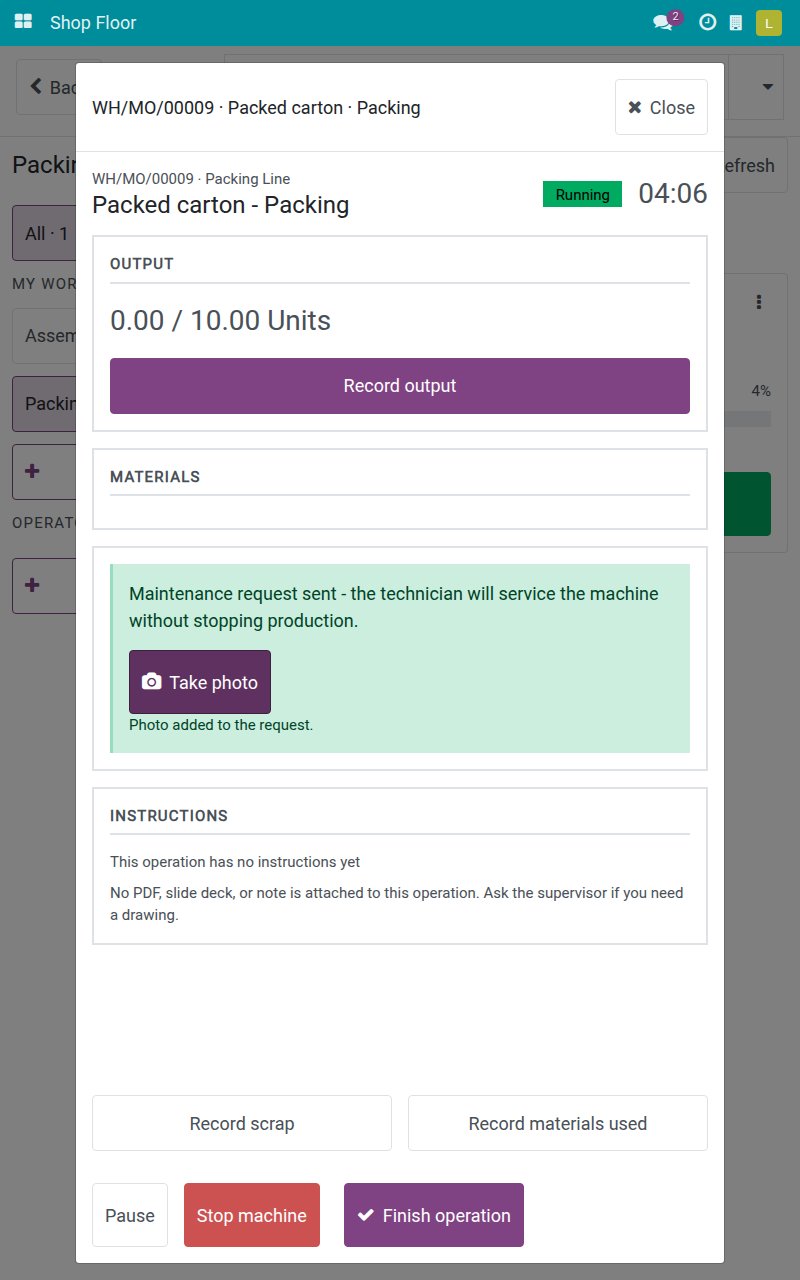
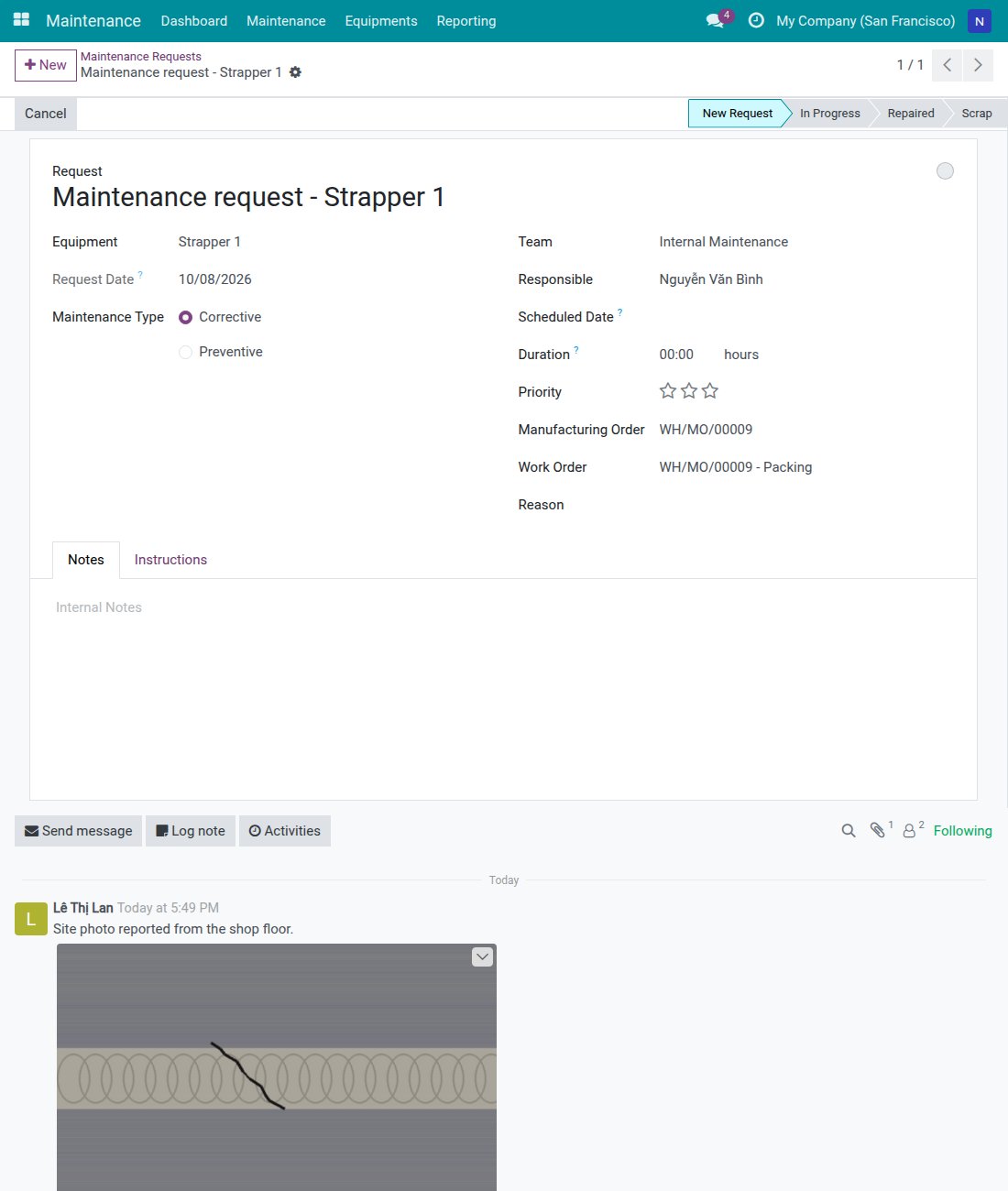
A machine that still runs but rattles gets "Call maintenance (machine keeps running)" on the operation screen. The request reaches the technician with the manufacturing order and the work order filled in, while the job keeps running and the work center is not held. A photo can be added to this request too.
Follow the call from the tablet
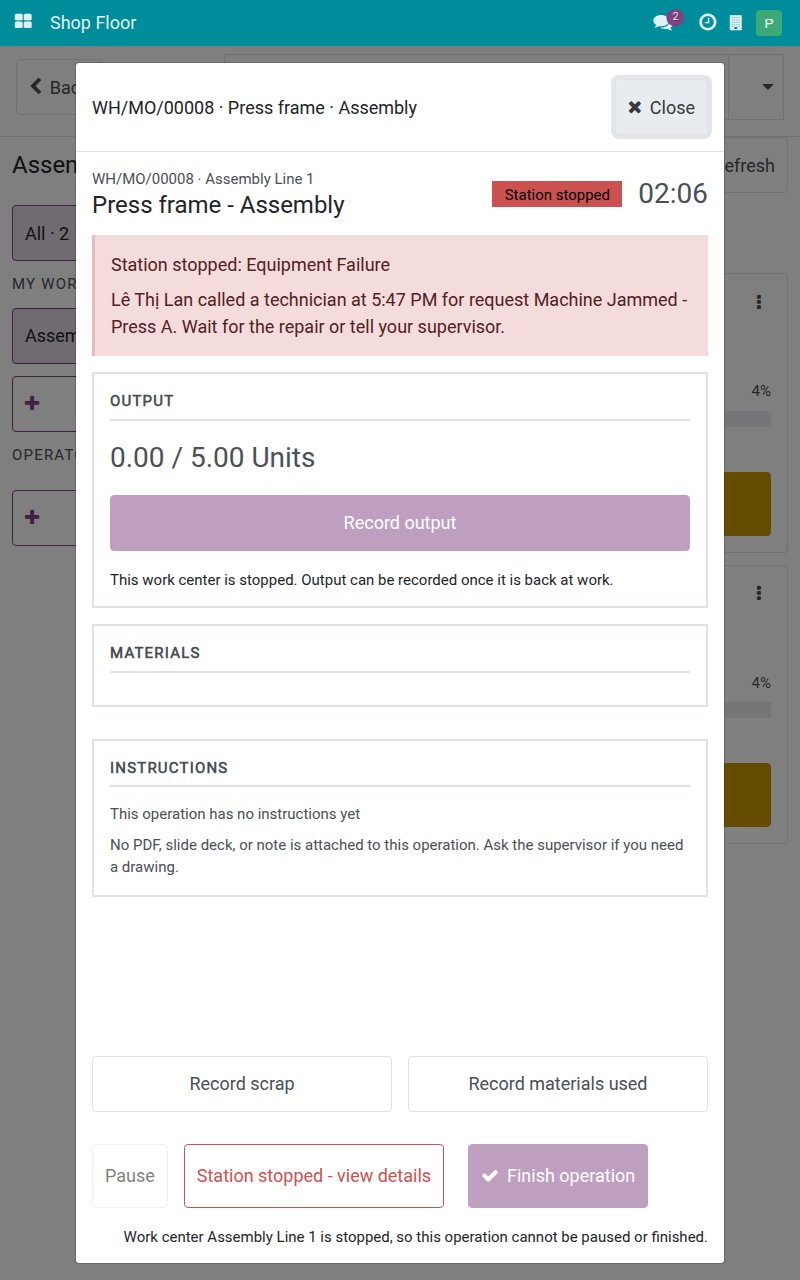
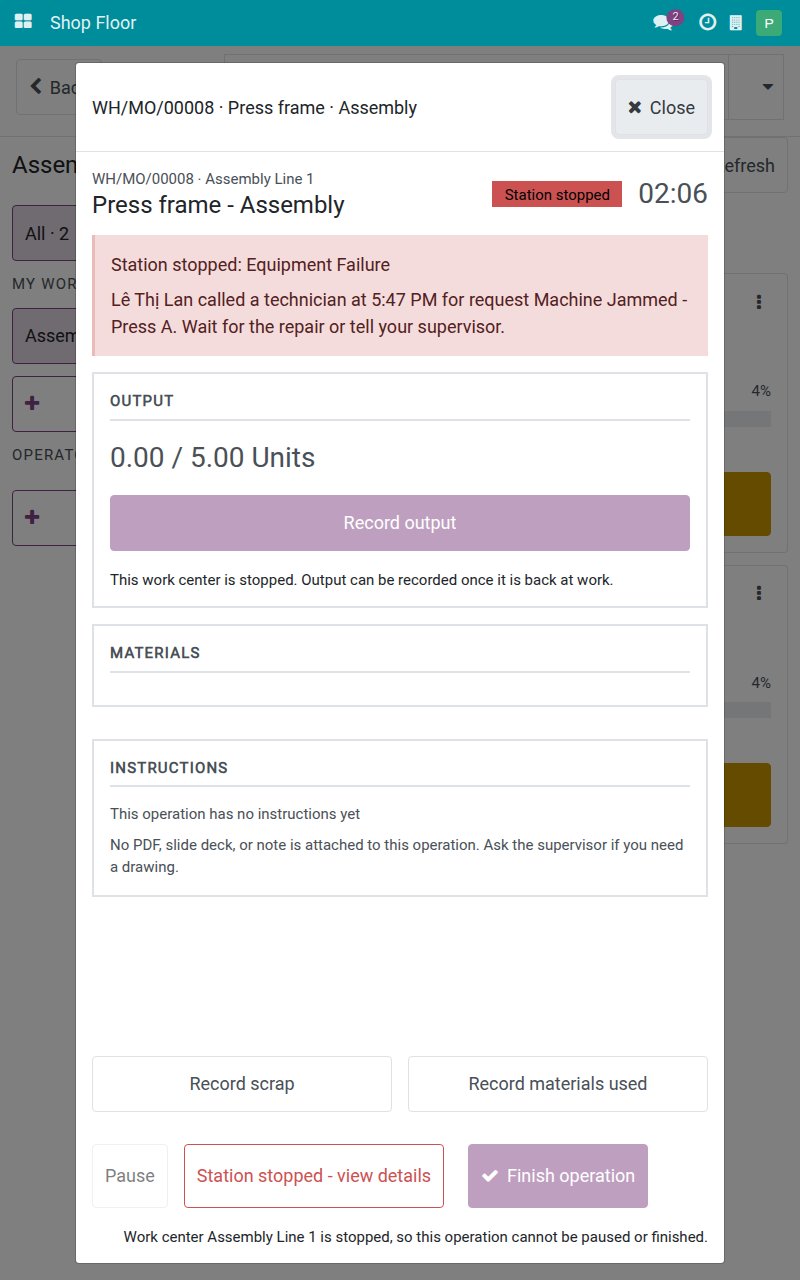
On a stopped station, a red band names who called a technician, when, and for which request: wait for the repair or tell your supervisor. "Waiting for maintenance" stays on screen until maintenance closes the request, and operators are not offered a restart button.
The station runs again when the technician closes the request
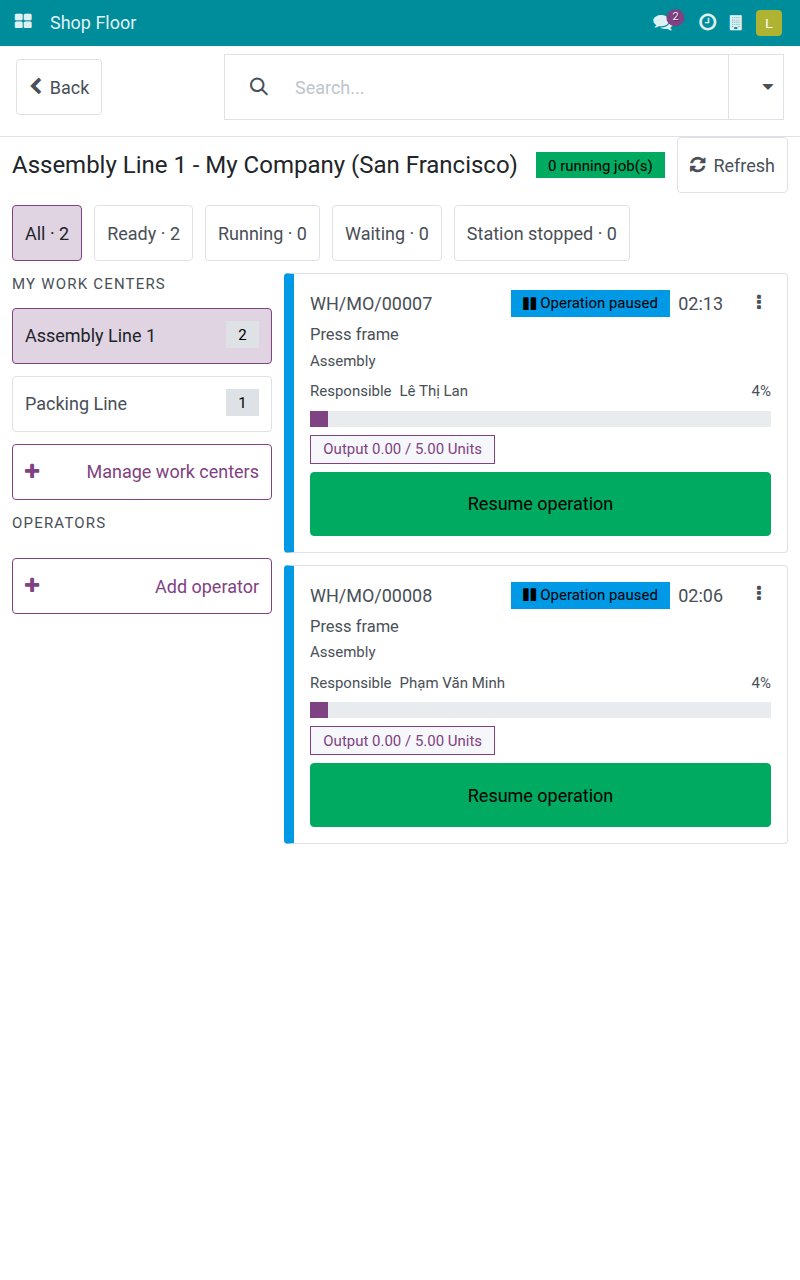
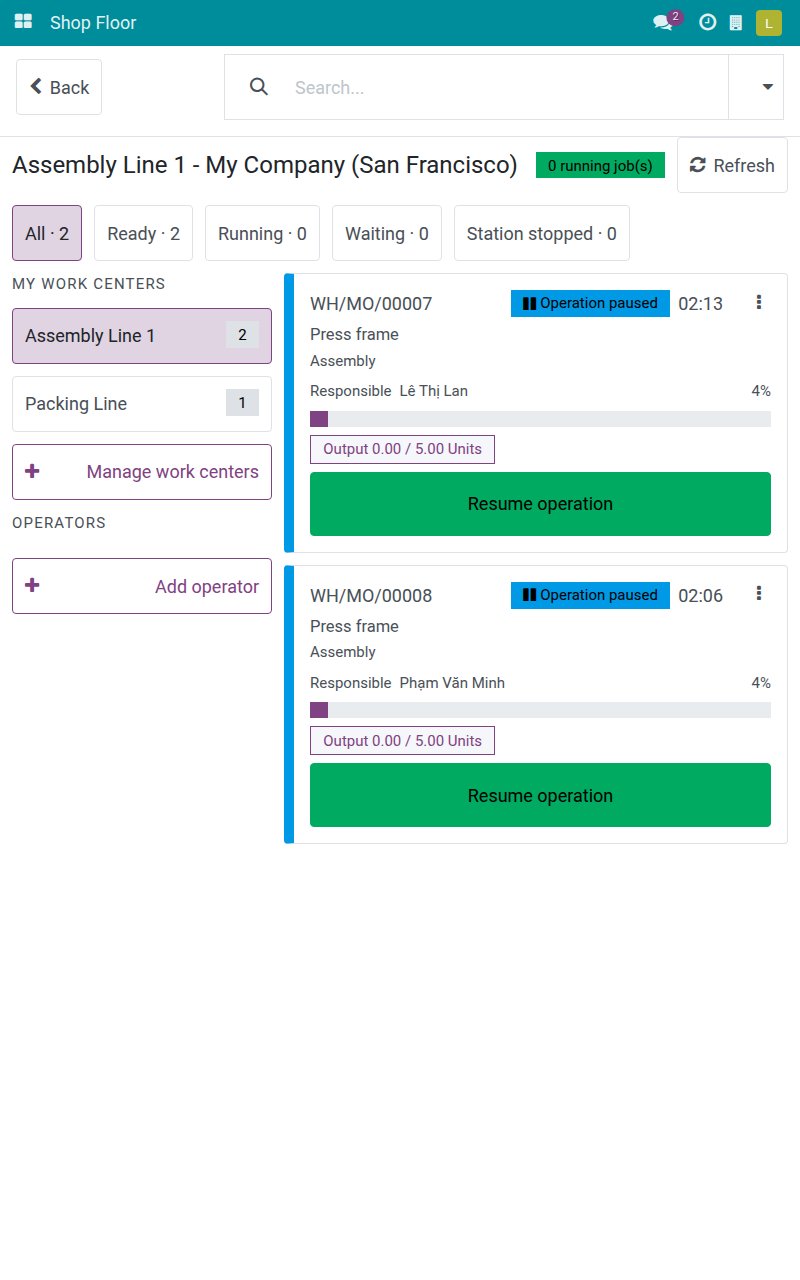
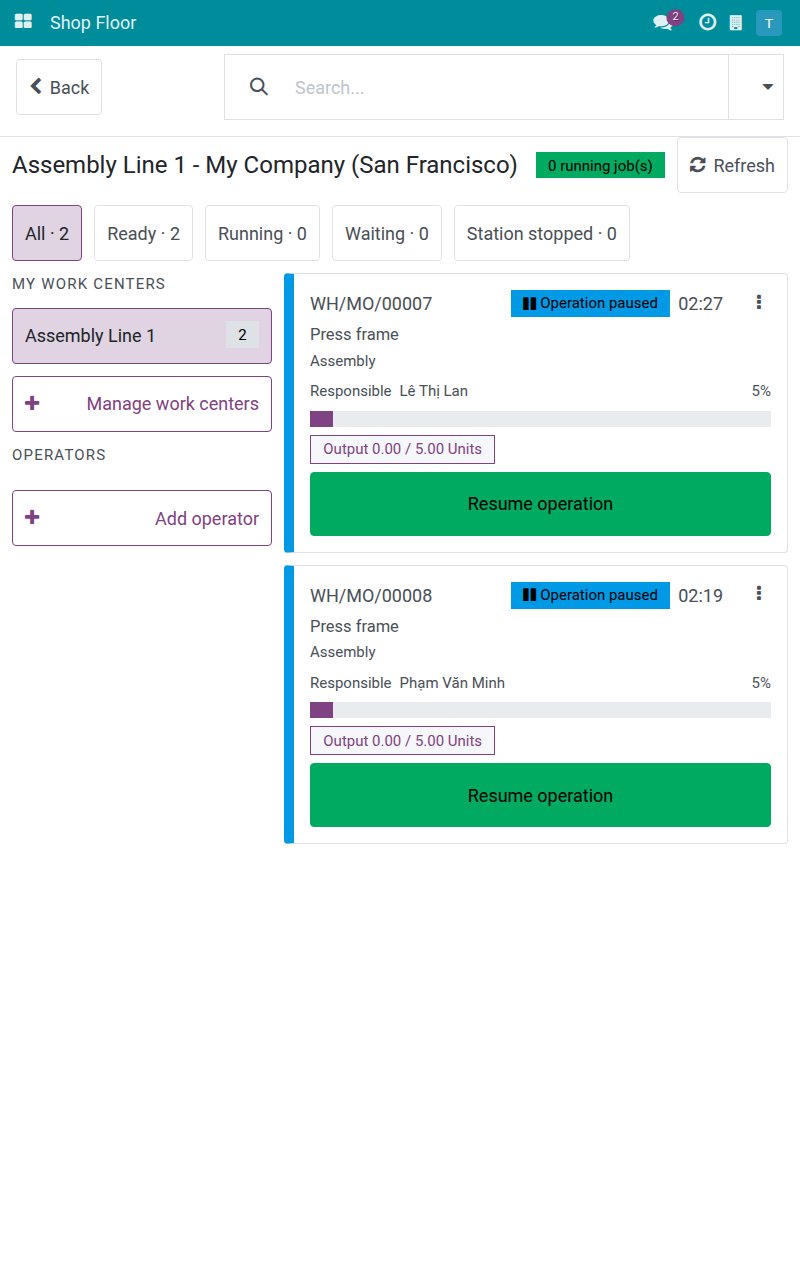
When the technician clicks Repaired, the work center is released at that moment and its downtime ends. On the tablets the jobs show Operation paused after a refresh, and each operator taps Resume operation to carry on.
A scrapped machine stays stopped until an authorised person decides
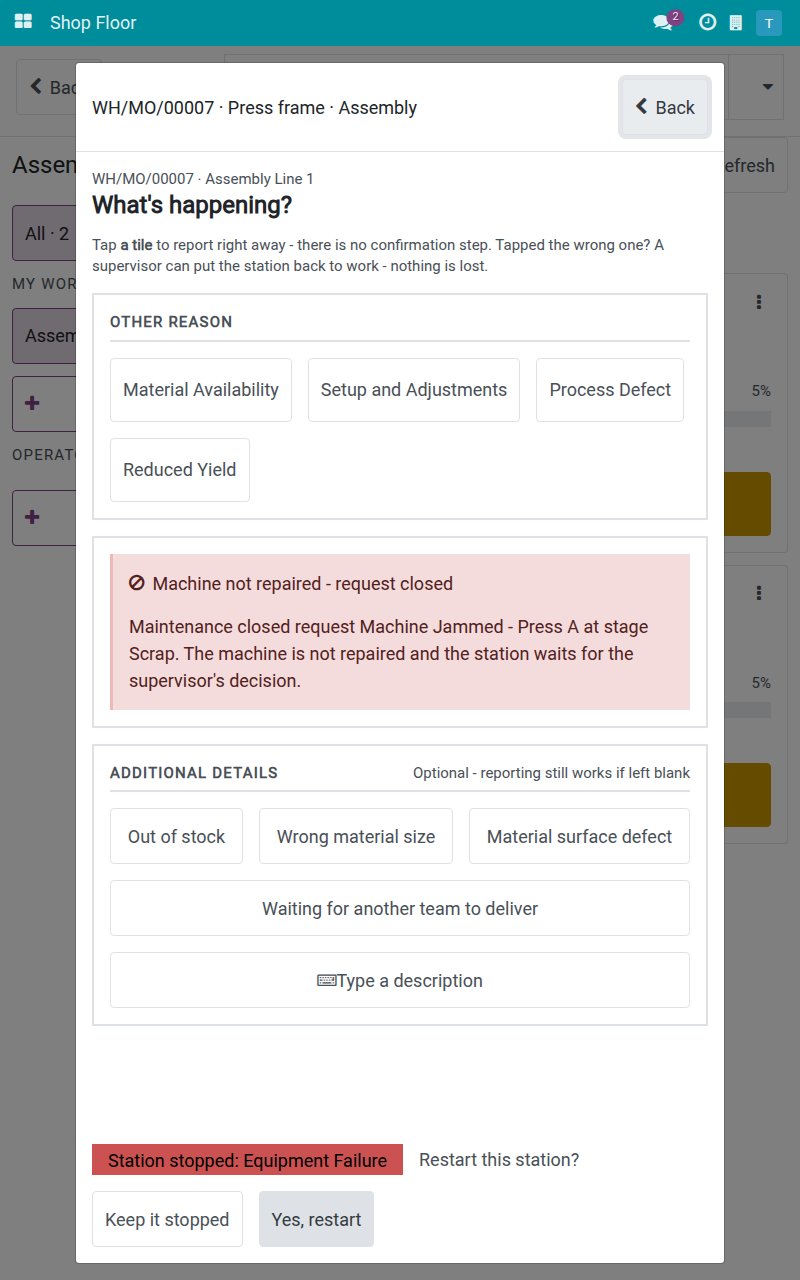
A request closed at Scrap does not release the work center. The tablet reads "Machine not repaired - request closed", and only a production lead or a maintenance manager is offered Restart station. It asks "Restart this station?" first, because the restart frees the work center for everyone, then leaves a note on the request so the technician knows production ran again.
Every call on the record
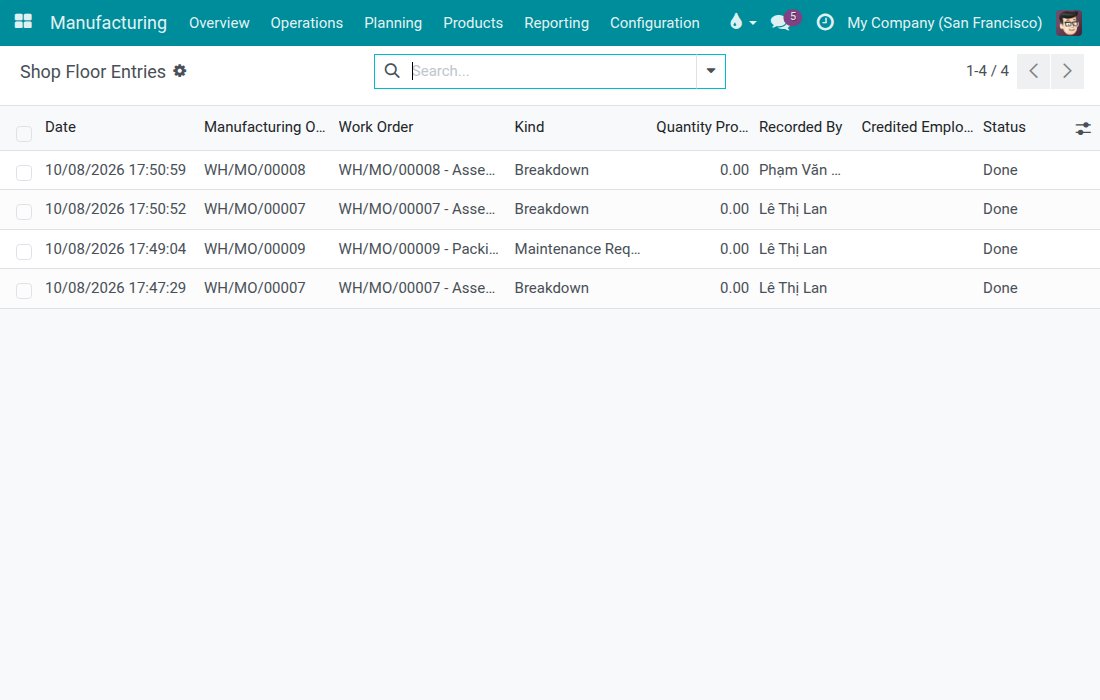
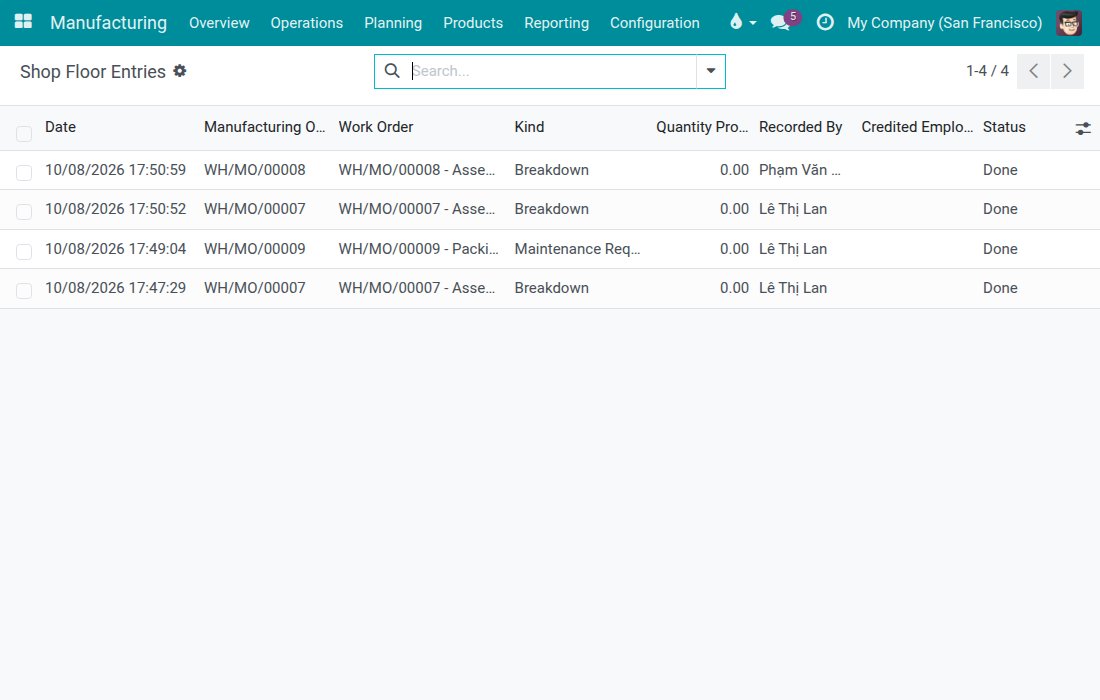
Manufacturing > Reporting > Shop Floor Entries lists each Breakdown and each Maintenance Request raised on the tablet, with the work order and who recorded it - including the tap that returned a colleague's call.
Everything else in the box
Machine picked by tap
The machines linked to the work center are offered as tiles; one machine is picked for you, and a request still goes out when the work center declares none.
Four ready-made reasons
Machine Jammed, Overheating, Unusual Noise and Broken Part come ready to use; the maintenance manager can add more.
A photo of the fault
Take it with the tablet camera; it lands on the request for the technician, and a failed photo never loses the report.
No failure without a call
The Equipment Failure stop reason is kept off the plain stop list, so a machine cannot be stopped for a failure without calling a technician.
Downtime handed over, not lost
A station already stopped for another reason stays stopped and its stop reason becomes the breakdown.
A restart leaves a trace
A manual restart while the request is still open leaves a note on it for the technician; the note notifies nobody.
Questions buyers ask
Do I need to install this module myself?
No. It installs automatically when both Viindoo Shop Floor Control and Viindoo Maintenance - MRP are installed.
Which breakdown reasons are available?
Four come ready to use - Machine Jammed, Overheating, Unusual Noise and Broken Part - and the maintenance manager can set up more.
What if two operators report the same breakdown?
The second report joins the request already open for that work center and shows who called the technician and when; no second request is created.
Can we call a technician without stopping the line?
Yes. "Call maintenance (machine keeps running)" sends a request for a machine that still runs, without stopping the work center.
What if maintenance closes the request without repairing the machine?
Closed at Scrap, the station stays stopped and the tablet says "Machine not repaired - request closed". A production lead or a maintenance manager restarts it after a confirmation.
Who can restart a stopped station by hand?
Users with the Manufacturing / Administrator or Maintenance / Equipment Manager access right. Other workers wait or call their supervisor.
Compatibility
Works with Odoo 18.0 Community Edition.
Requires Viindoo Shop Floor Control and Viindoo Maintenance - MRP; installs automatically when both are installed.
Not supported on Odoo Enterprise.
Call the technician from where the machine stopped.
See an operator report a breakdown in a few taps and a production lead restart the station once it is decided.
Shop Floor Control - Maintenance
Note
Extends viin_mrp_workorder - see its documentation.
Note
Extends to_mrp_maintenance - see its documentation.
Shop Floor Control - Maintenance lets a machine operator report a breakdown on the tablet, at the machine, instead of walking to a desktop. One tap stops the work center and calls a technician. Nothing has to be typed: the machine and the problem are picked from tap lists, and the request is written for you. A photo of the fault can be added from the tablet camera.
This guide is organized by the person who uses it:
- Machine operators report a breakdown, call maintenance for a machine that keeps running and follow the call from the tablet. See "Tasks for machine operators".
- Technicians close the request on the desktop. A closing stage that repairs the machine puts the work center back to work. See "Tasks for the technician".
- Production leads and maintenance managers restart a work center after a machine was scrapped. See "Tasks for production leads and maintenance managers".
The screenshots show a sample plant: Lê Thị Lan is the machine operator, Phạm Văn Minh is a second operator at the same station, Nguyễn Văn Bình is the technician and Trần Thu Hoa is the production lead. Their work center is Assembly Line 1, with two machines, Press A and Press B; Packing Line has one machine, Strapper 1.
Installation
The module installs itself as soon as both Shop Floor Control and Maintenance - MRP are installed. If it is not installed yet:
- Open Apps.
- Search for Shop Floor Control - Maintenance.
- Click Install.
The apps and modules it needs are installed automatically. The module adds no menu of its own: everything happens on the Shop Floor screen and in the Maintenance Requests list.
Configuration
Access rights
- Give each operator the access right Manufacturing / User. Operators see the Shop Floor app, report breakdowns and follow their calls.
- Give each production lead the access right Manufacturing / Administrator. Only they, and the users with the access right Maintenance / Equipment Manager, can restart a stopped work center.
- The technician is any internal user. A technician opens the requests that name them in the field Responsible, and a Maintenance / Equipment Manager opens every request.
- Link the user of each operator to an employee (field Related User of the employee). Without this link the tablet refuses to start or resume a job and says "Your user is not linked to an employee. Ask your manager to link one before starting work from the shop floor." See the Shop Floor Control guide.
- Every user needs an email address on their user record, otherwise saving a request stops with an error.
Machines of each work center
The tablet asks "Which machine?" from the machines linked to the work center.
- Open Maintenance ‣ Equipments ‣ Machines & Tools and open a machine.
- In Work Center, choose the work center the machine belongs to. In Technician, choose the person who repairs it, and in Maintenance Team, choose the team.
- Click Save.
The request created from the tablet names the machine, its team and its technician (the Responsible field of the request). With one machine on the work center, the tablet skips the question. With no machine, the request is sent without one and the technician finds the machine on arrival. The Maintenance - MRP guide describes the machines in detail.
Breakdown reasons and closing stages
- The choices under What is wrong? are the request reasons of Maintenance ‣ Configuration ‣ Request Reasons. Four are ready to use: Machine Jammed, Overheating, Unusual Noise and Broken Part. Each one stops the work center for the stop reason Equipment Failure.
- Equipment Failure is not offered as a plain tile of the stop-machine screen, so nobody can stop a machine for a failure without calling a technician.
- A request closed in the stage Repaired puts the work center back to work. A request closed in the stage Scrap does not. This is the option Returns Machine to Service of the maintenance stage. The Maintenance - MRP guide shows how to read and change it.
Usage
Tasks for machine operators
Report a breakdown: stop the station, call a technician and add a photo
On the home menu, tap Shop Floor, choose your work center and tap Open job board. The job board lists the jobs of your work center.
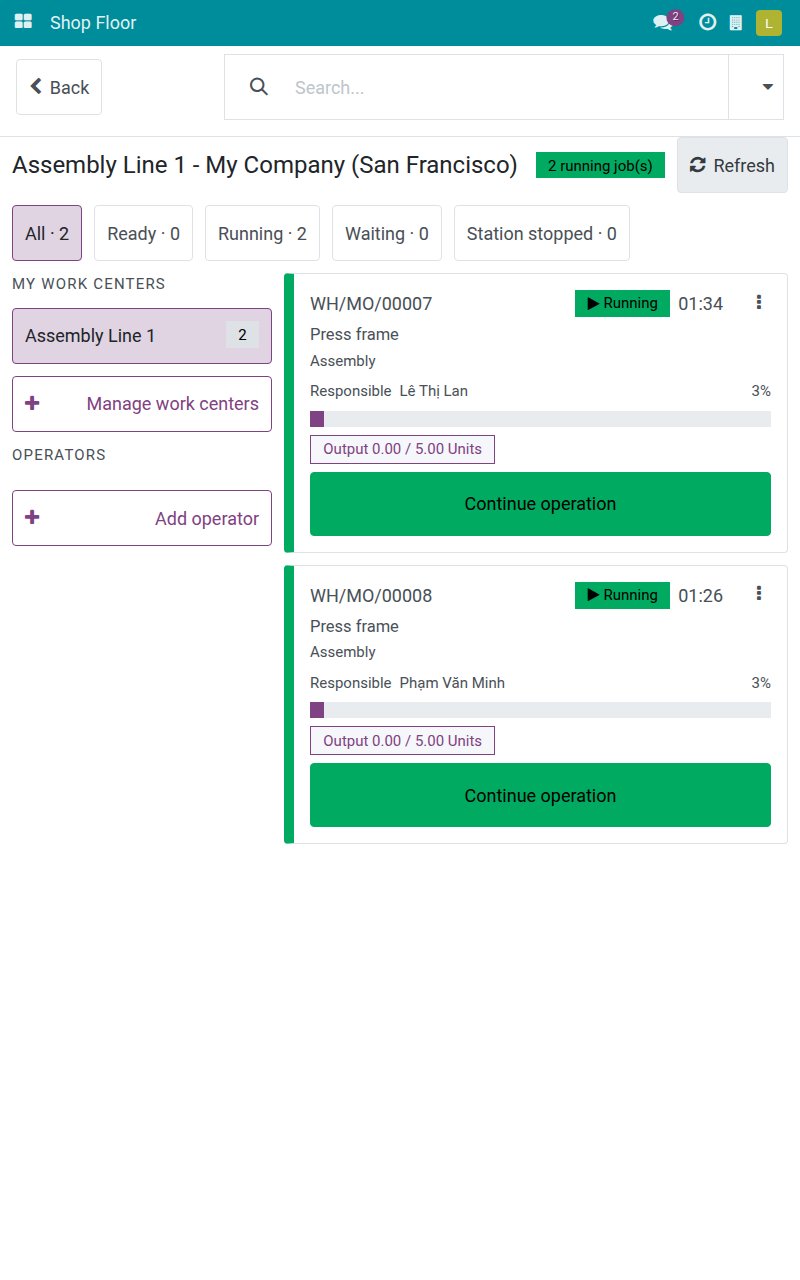
Tap the card of your job, for example Continue operation on WH/MO/00007. The operation screen opens.
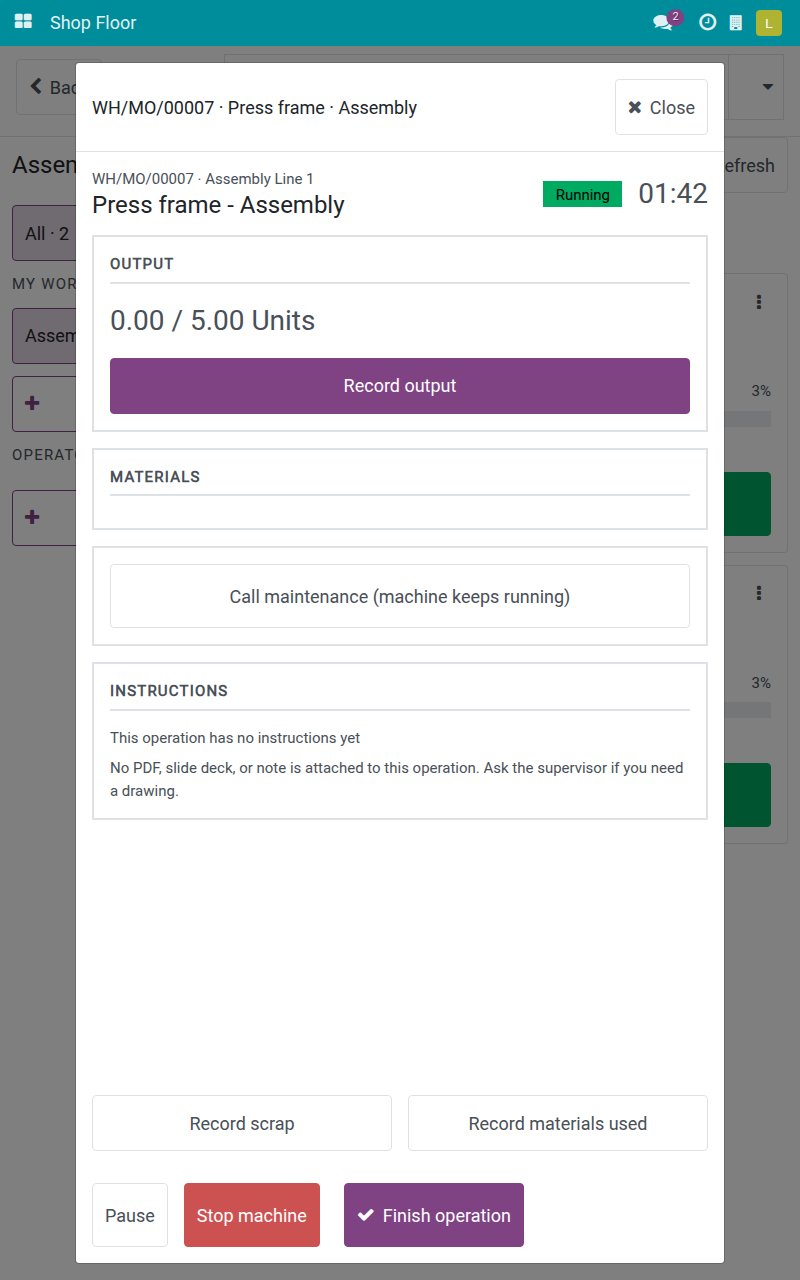
Tap Stop machine. The screen asks "What's happening?". Under OTHER REASON are the plain reasons for a stop. The breakdown is the red button below them: "Machine broken? This stops the work center and calls a technician."
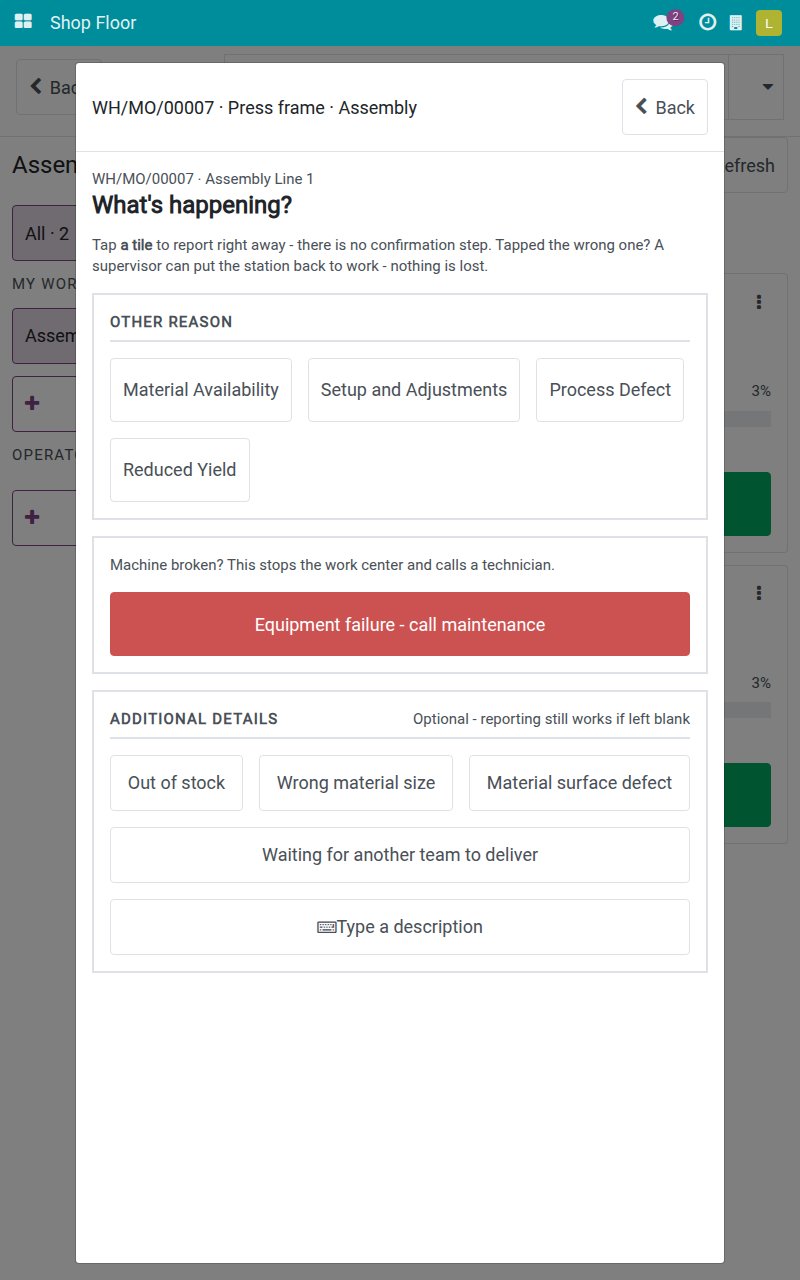
Tap Equipment failure - call maintenance. If the work center has several machines, the question Which machine? appears. Tap the machine that broke, for example Press A. With a single machine, the tablet skips this question and tells you which machine is attached to the request.
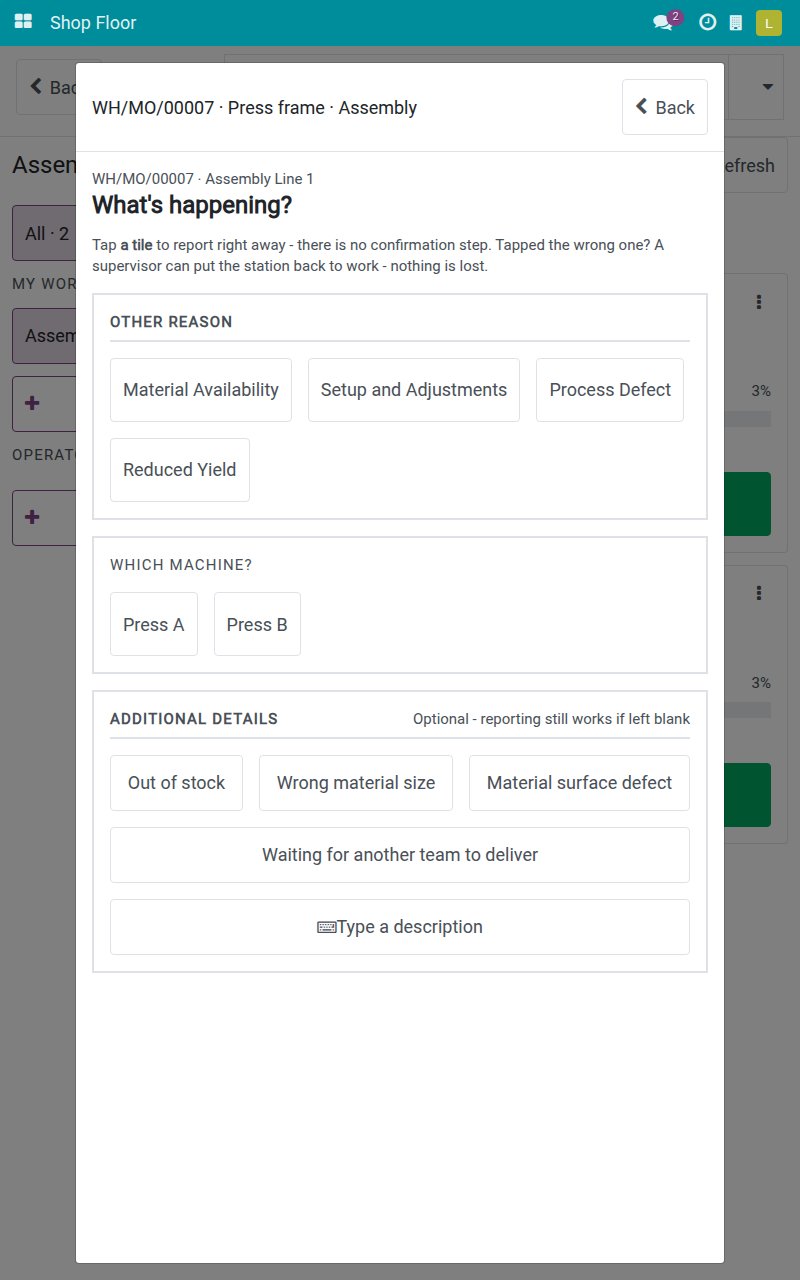
Under What is wrong?, tap the problem, for example Machine Jammed. This tap is the report: there is no confirmation step and nothing to type. Tap Cancel instead if you tapped by mistake.
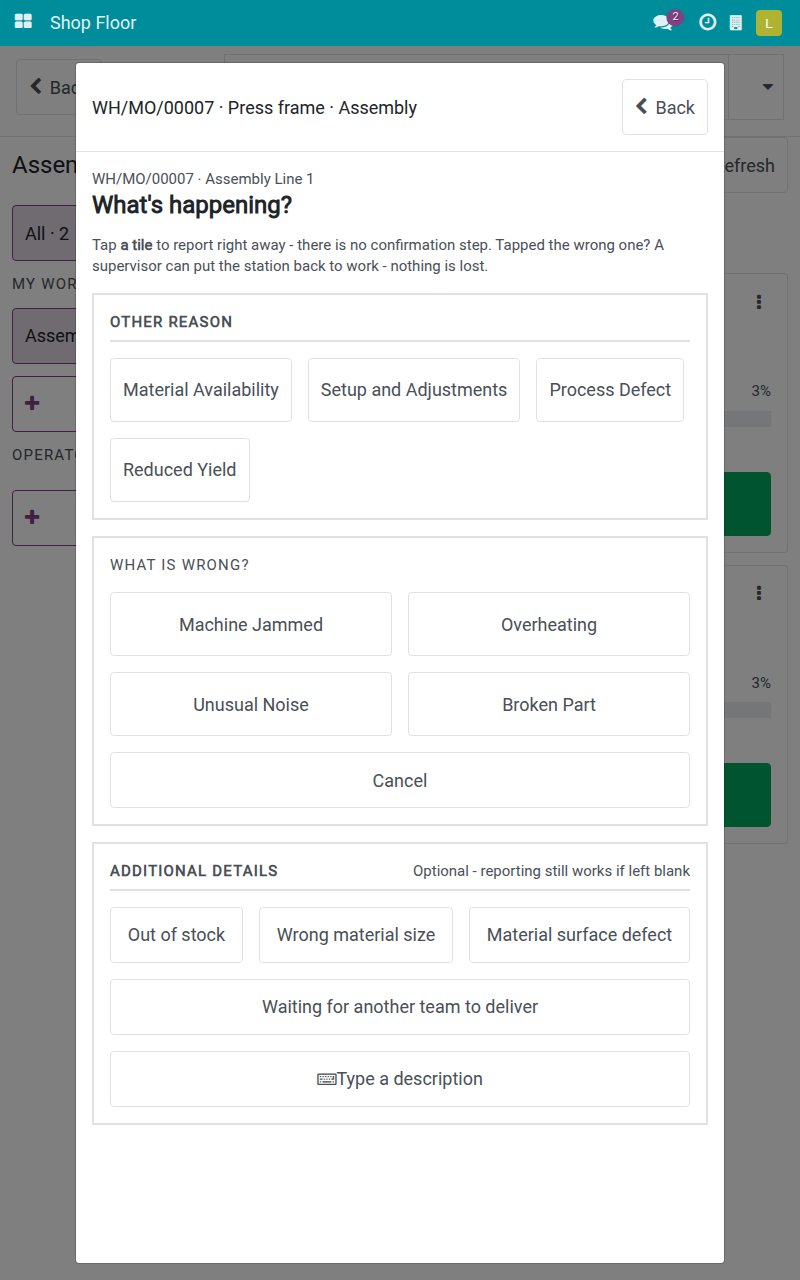
The panel Waiting for maintenance confirms "Breakdown reported - the work center is stopped and a technician has been called." and shows the title of the request, written for you from the reason and the machine, here Machine Jammed - Press A. The bottom of the screen reads Station stopped: Equipment Failure and "Waiting for a supervisor".
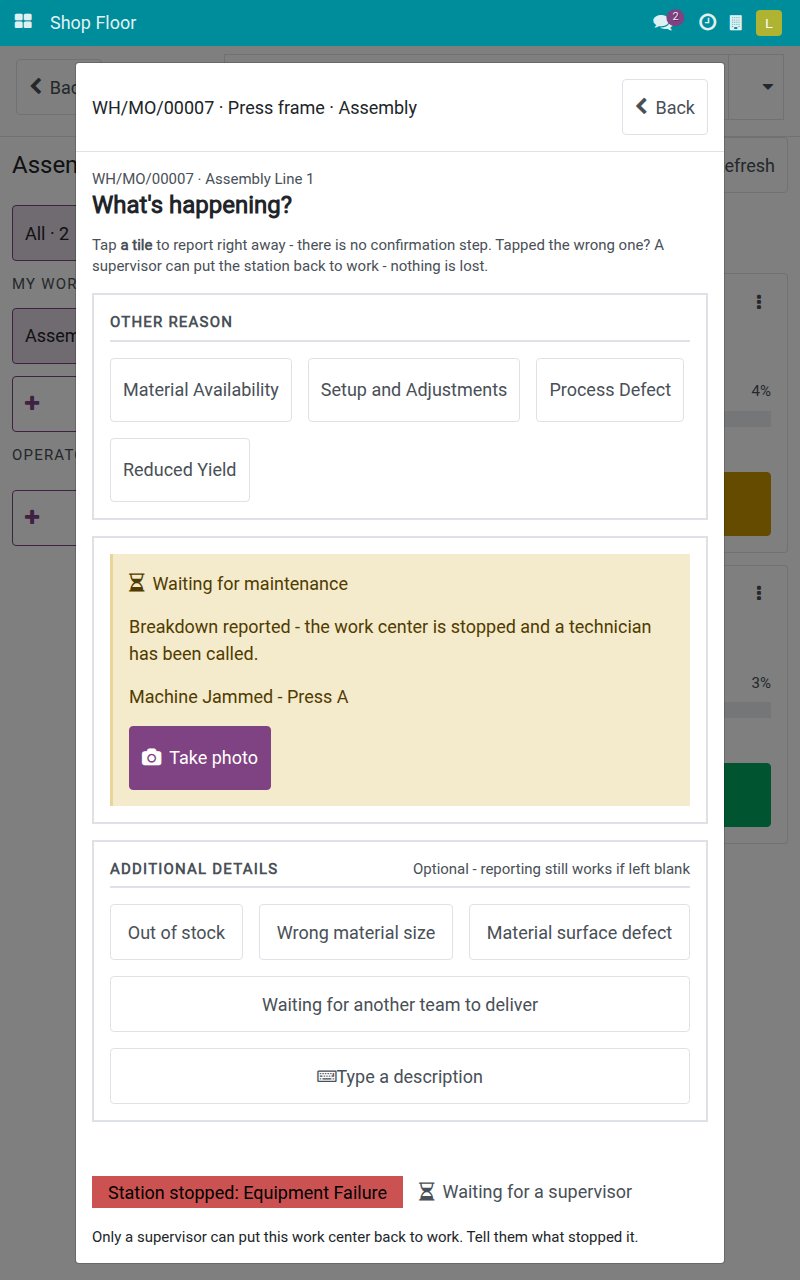
Optional: tap Take photo, photograph the fault with the tablet camera and confirm. The tablet says "Photo added to the request." and the photo is added to the request, where the technician sees it. If the photo cannot be added, the tablet tells you, and the report itself is never lost.
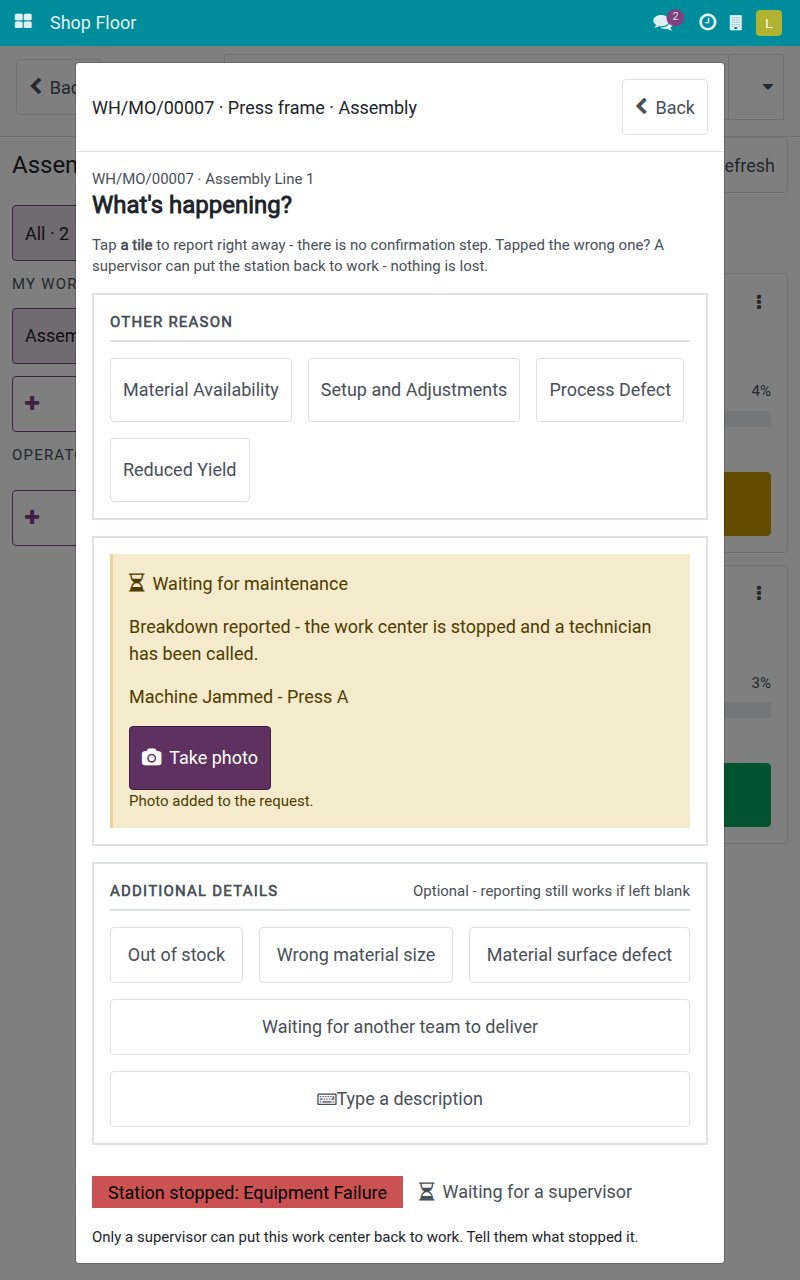
Tap Back to return to the operation screen. A red band reads Station stopped: Equipment Failure and names who called the technician, at what time and for which request. The button Stop machine now reads Station stopped - view details.
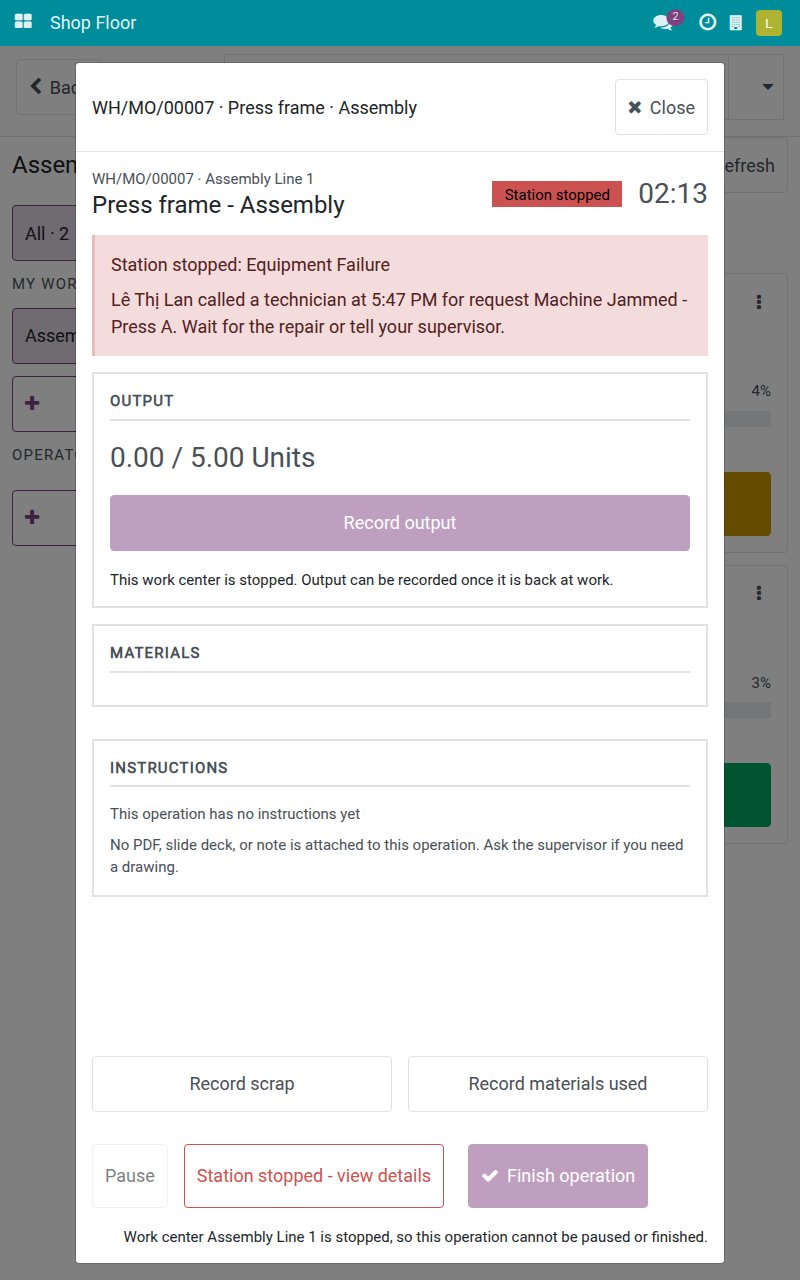
While the work center is stopped, you cannot pause or finish the operation, and the output cannot be recorded until the work center is back at work.
When a colleague has already called the technician
One call is enough for a work center. If another operator at the same station has already called a technician, a second tap does not create a second request.
On a second tablet that was already on the stop-machine screen when the first operator reported, the button Equipment failure - call maintenance is still shown. Tap it, then tap the machine and the problem as for a new report.
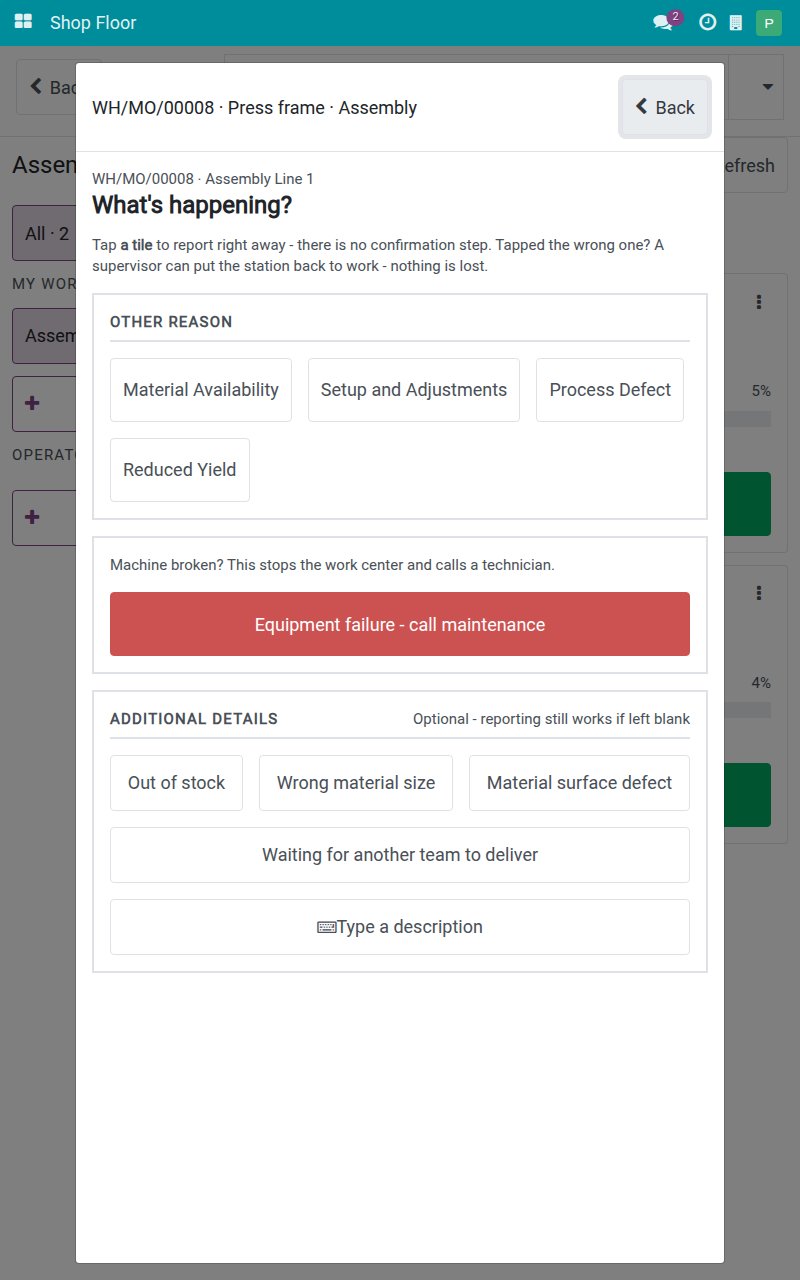
The panel Waiting for maintenance says "A technician was already called by Lê Thị Lan at 5:50 PM - Machine Jammed - Press A". The time is shown in your own time zone. No new request is created, the work center stays stopped, and no Take photo button is offered because you did not create the request.
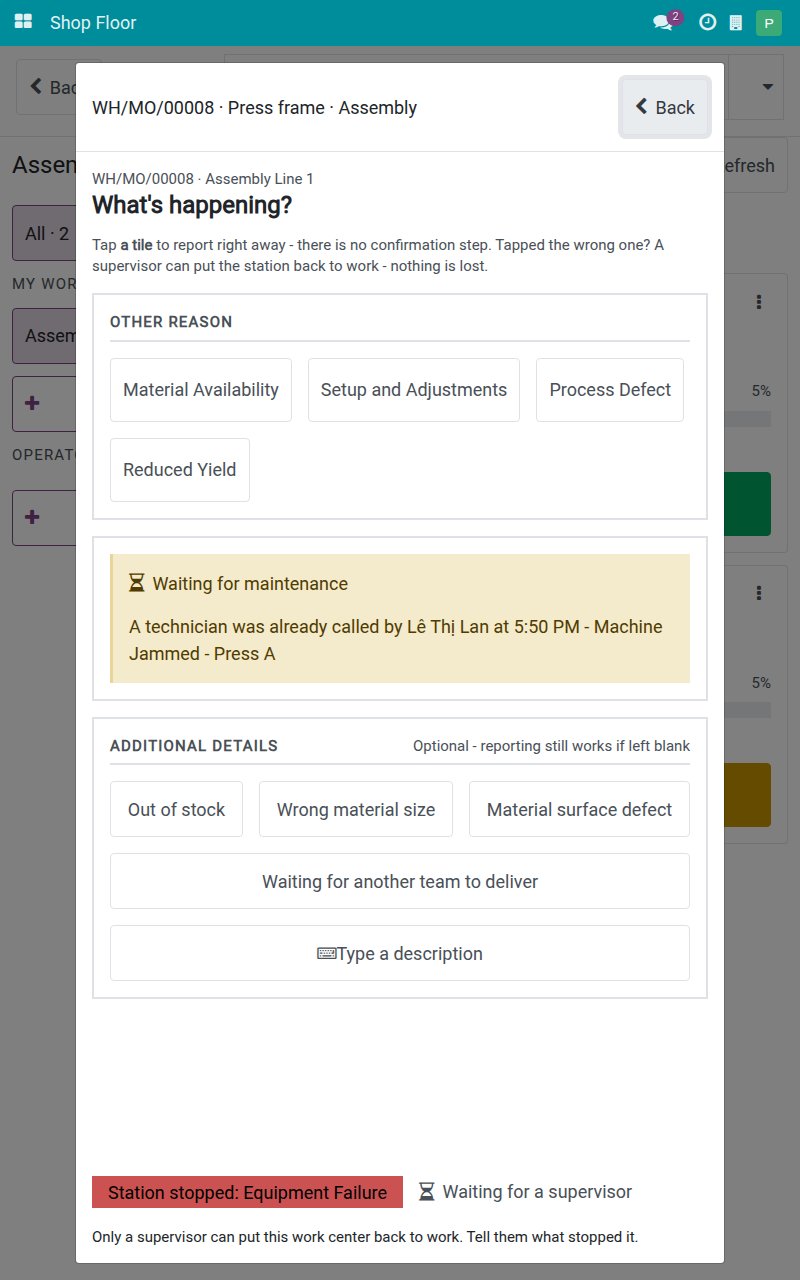
If you open the stop-machine screen after the first report, you see this message straight away. A tap that is retried after a lost connection never creates a second request either.
Call maintenance for a machine that keeps running
Use this when the machine still works but needs servicing, for example it rattles. Production does not stop.
Open your job. While the work center is running, the operation screen offers Call maintenance (machine keeps running). Tap it. If the work center has several machines, tap the machine first.
A green message replaces the button: "Maintenance request sent - the technician will service the machine without stopping production." The job keeps running and the work center is not stopped. If the work center has no machine, the message adds "No machine is declared for this work center - the request was created with no machine attached."
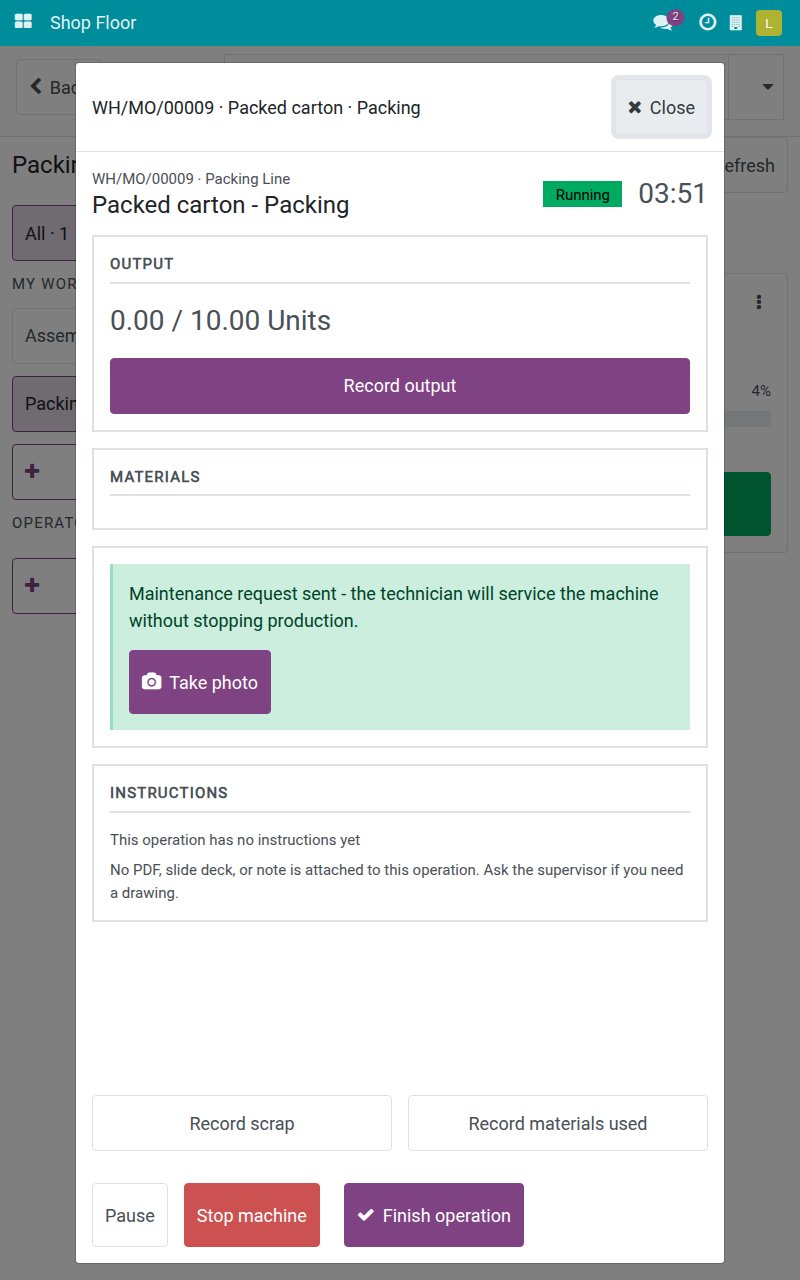
Optional: tap Take photo to add a photo of the problem. The tablet says "Photo added to the request."
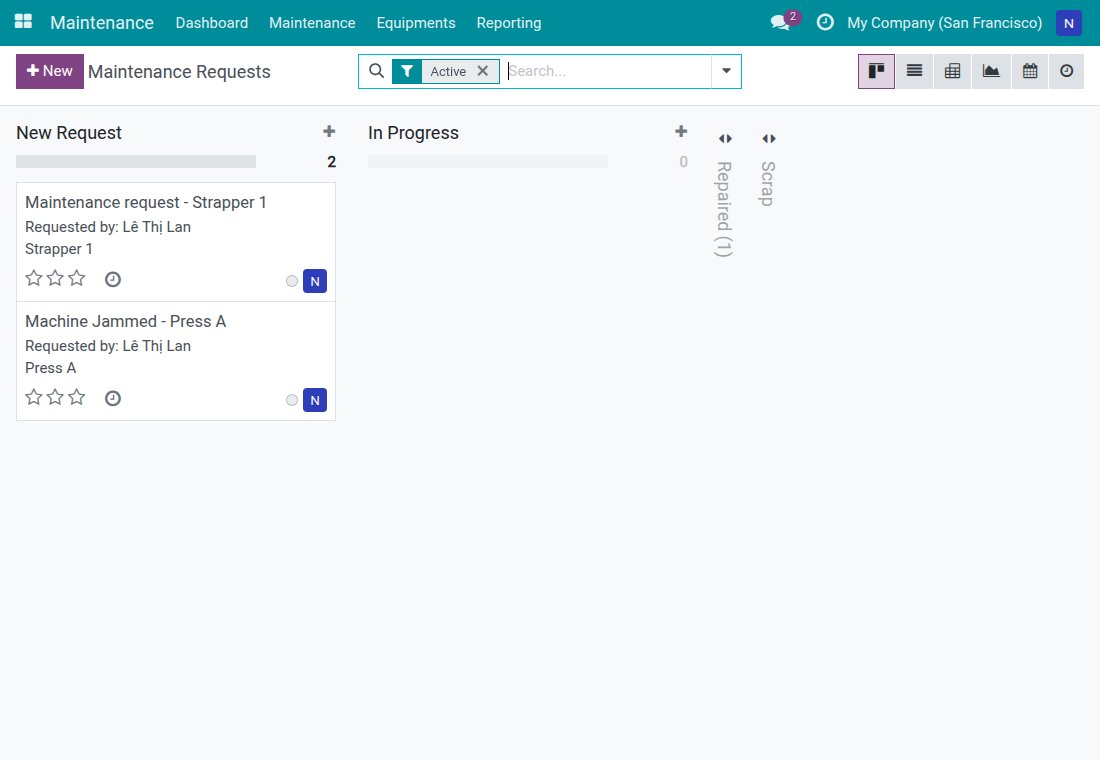
The technician finds the request in Maintenance ‣ Maintenance ‣ Maintenance Requests, titled automatically (here Maintenance request - Strapper 1) with the manufacturing order and the work order filled in. It does not hold the work center.
Follow the call while the station is stopped
Open your job on the stopped work center. The red band reads Station stopped: Equipment Failure and says who called a technician, when, and for which request: "Wait for the repair or tell your supervisor."
Tap Station stopped - view details to see the status of the call. Waiting for maintenance stays on screen until maintenance closes the request. The footer reads "Waiting for a supervisor" and "Only a supervisor can put this work center back to work. Tell them what stopped it." You have no Restart station button.
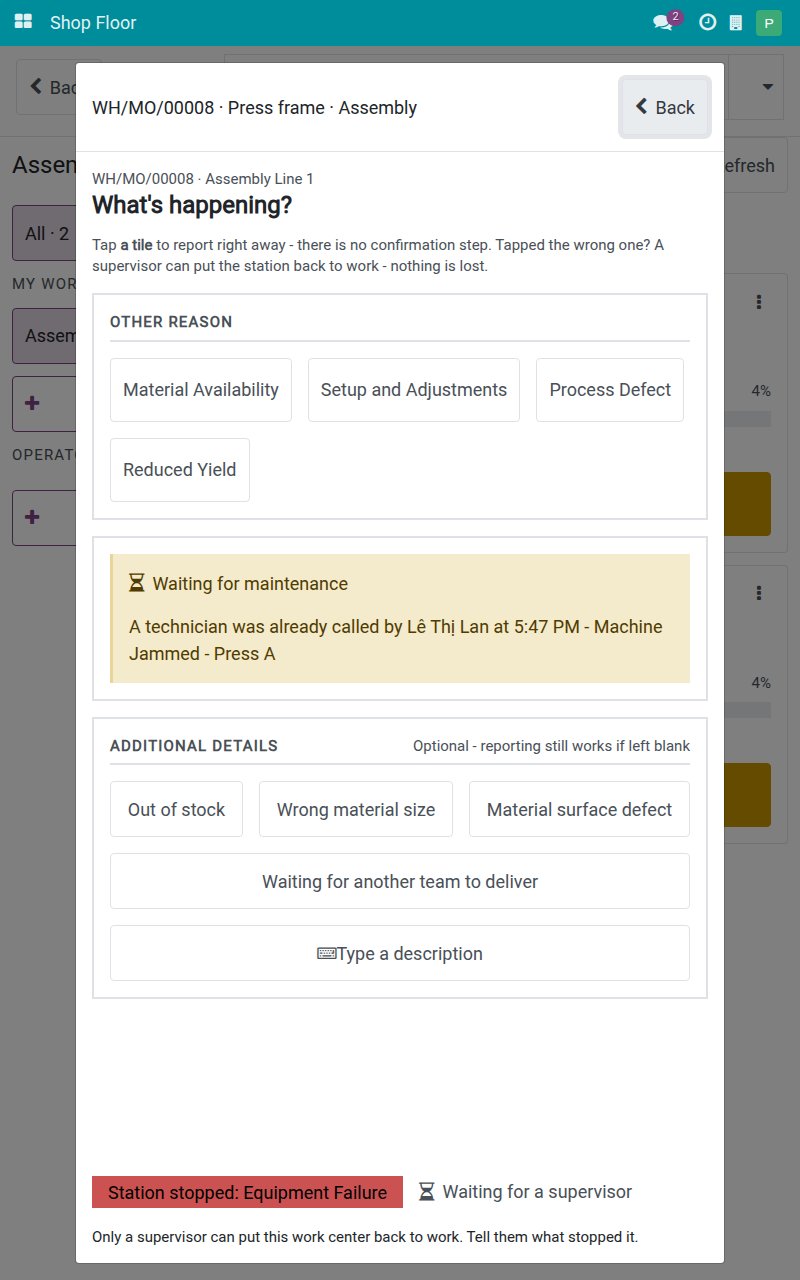
The screen shows what it knew when you opened it. Tap Refresh on the job board to see the latest state of every job.
Tasks for the technician
Close the request: the work center runs again
Open Maintenance ‣ Maintenance ‣ Maintenance Requests. You see the requests that name you in Responsible.
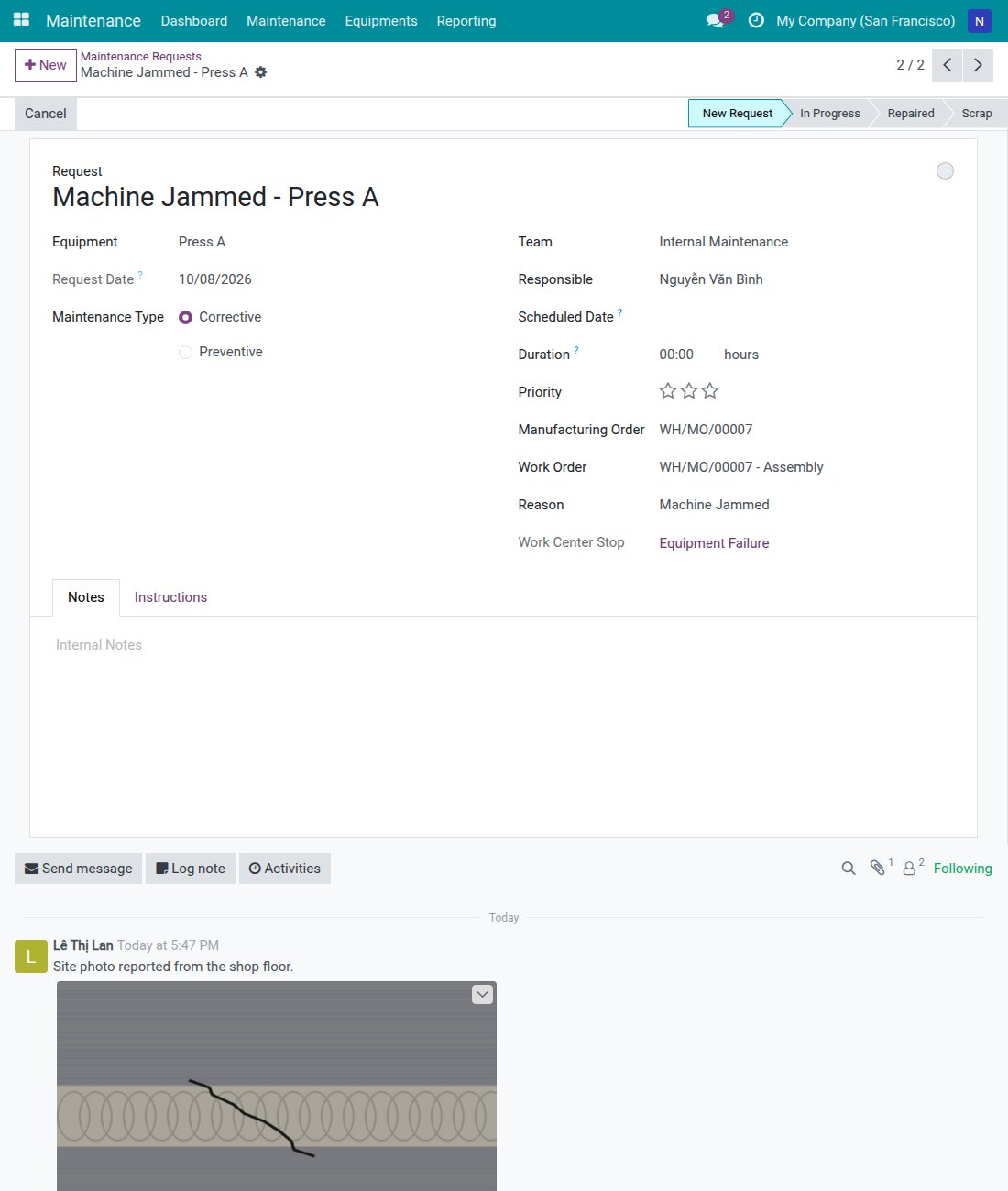
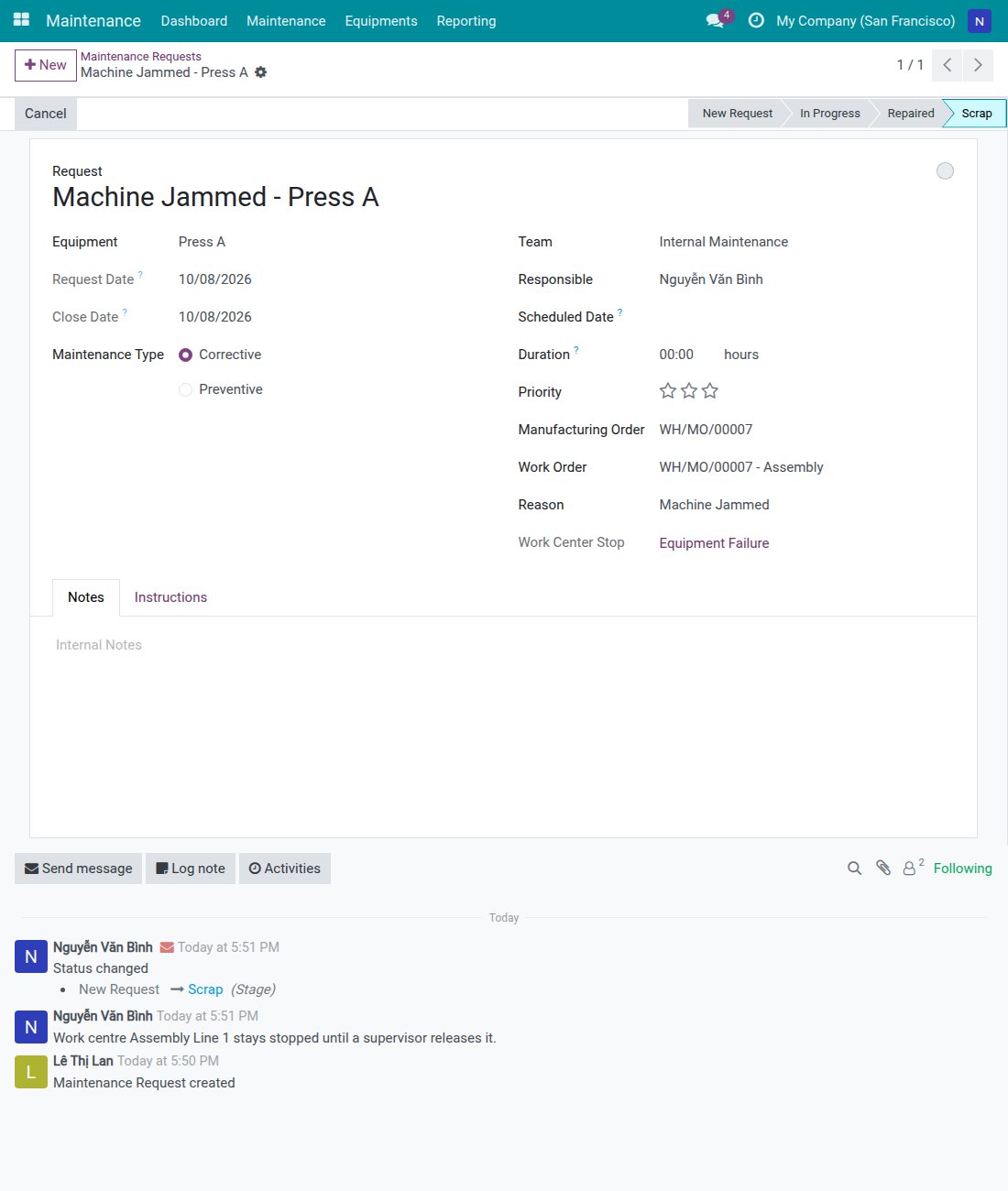
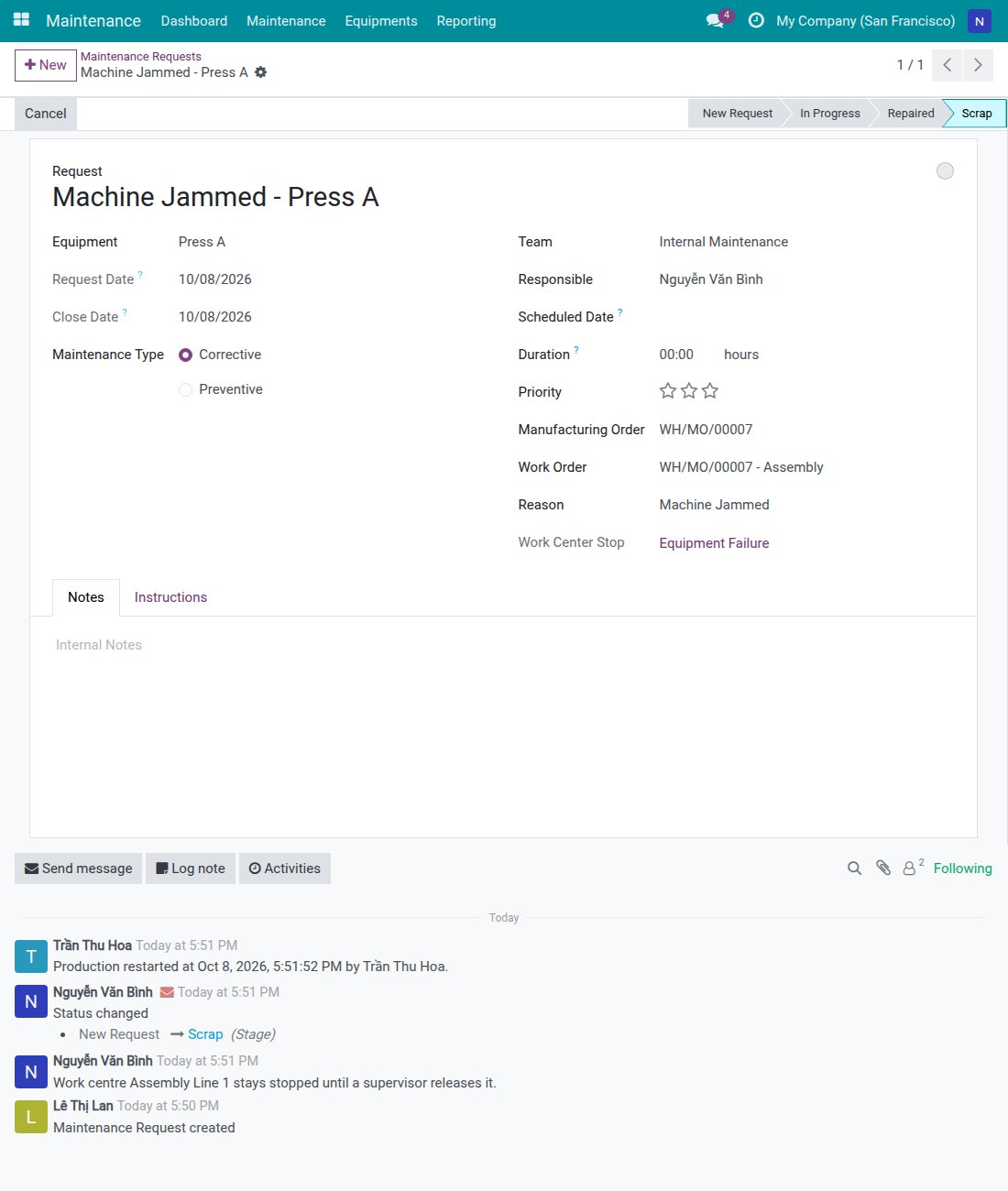
Open the breakdown request, here Machine Jammed - Press A. The form shows the machine, the team, you as Responsible, the Manufacturing Order, the Work Order, the Reason and the Work Center Stop. The photo of the operator is in the chatter below.
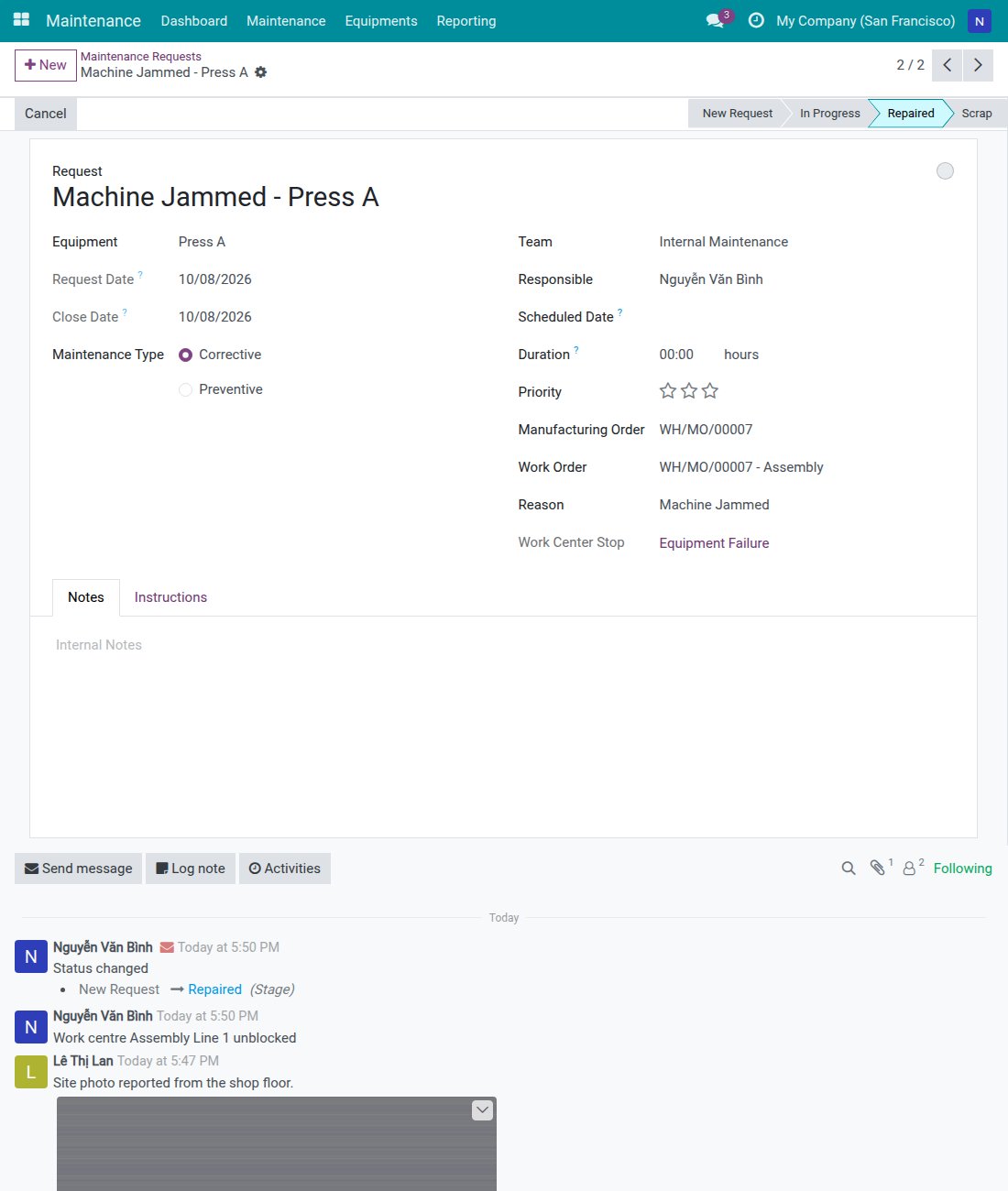
Repair the machine, then click Repaired in the status bar. The chatter logs "Work centre Assembly Line 1 unblocked". The downtime of the work center ends at that moment.
On the tablets, the red band is gone once the screen is refreshed. The jobs show Operation paused: each operator taps Resume operation to carry on.
If the machine cannot be repaired, close the request in the stage Scrap instead. The work center then stays stopped, as described in the next section.
Tasks for production leads and maintenance managers
The tasks below need the access right Manufacturing / Administrator or Maintenance / Equipment Manager.
Restart a work center after the machine was scrapped
The technician closes the request in the stage Scrap. The work center is not released: the chatter of the request says "Work centre Assembly Line 1 stays stopped until a supervisor releases it."
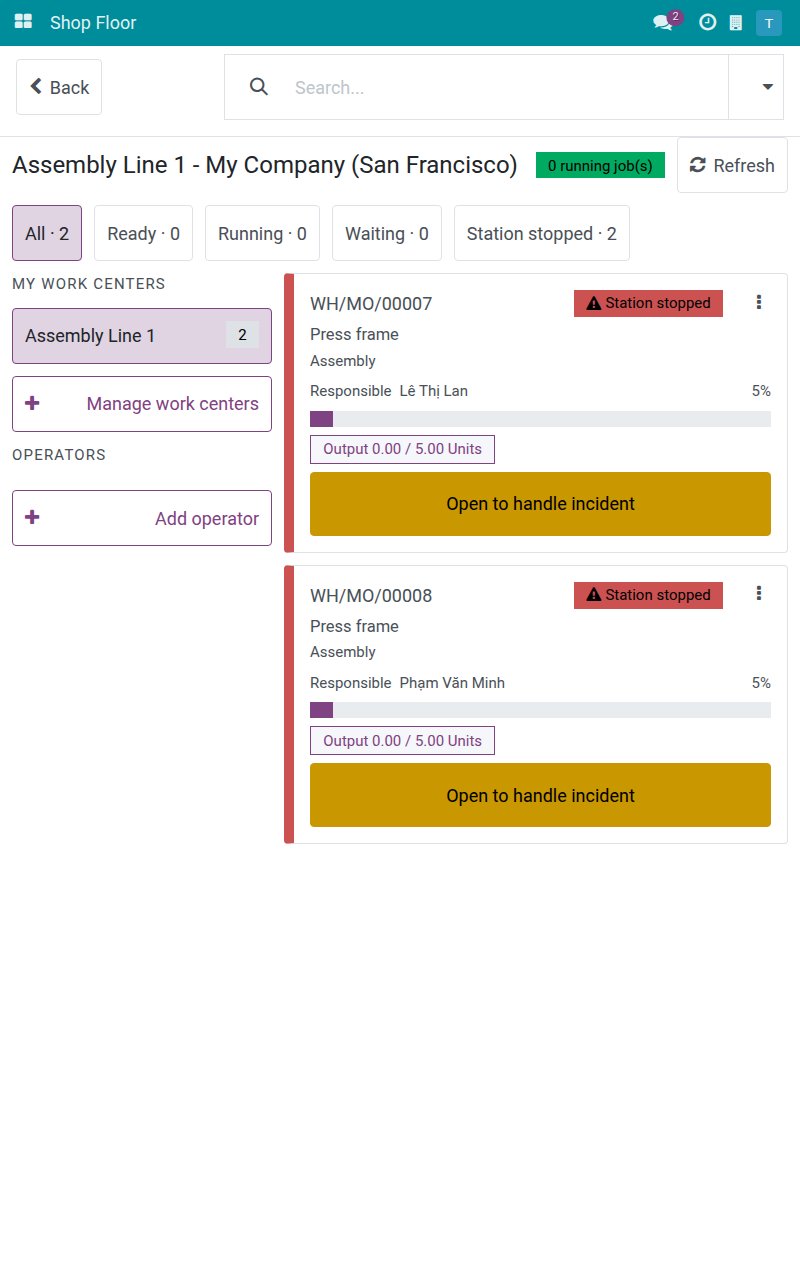
On the tablet, open the Shop Floor. The cards of the work center read Station stopped and their button reads Open to handle incident. Tap it.
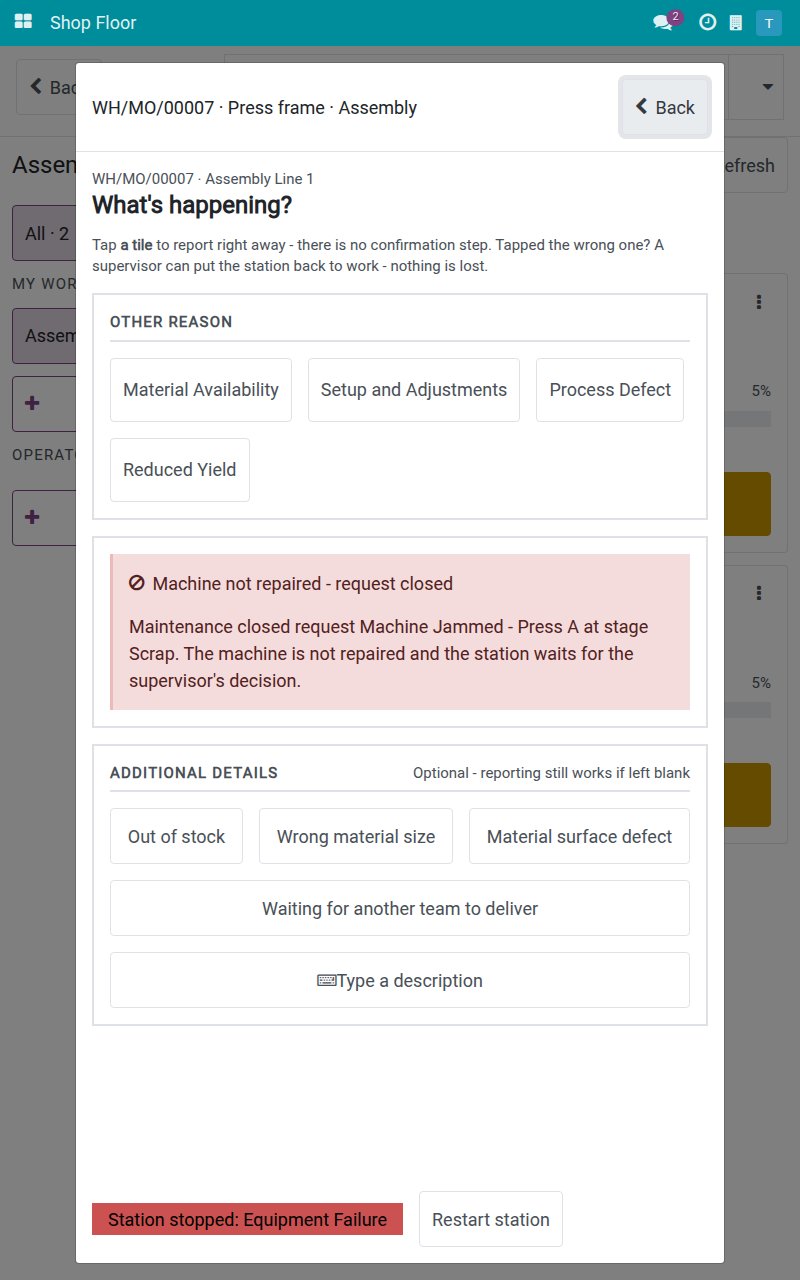
Tap Station stopped - view details. The red notice Machine not repaired - request closed says "Maintenance closed request Machine Jammed - Press A at stage Scrap. The machine is not repaired and the station waits for the supervisor's decision." The button Restart station is offered to you only.
Decide what to do with the machine, then tap Restart station. The question "Restart this station?" appears because the restart releases the work center for everyone. Keep it stopped leaves things as they were.
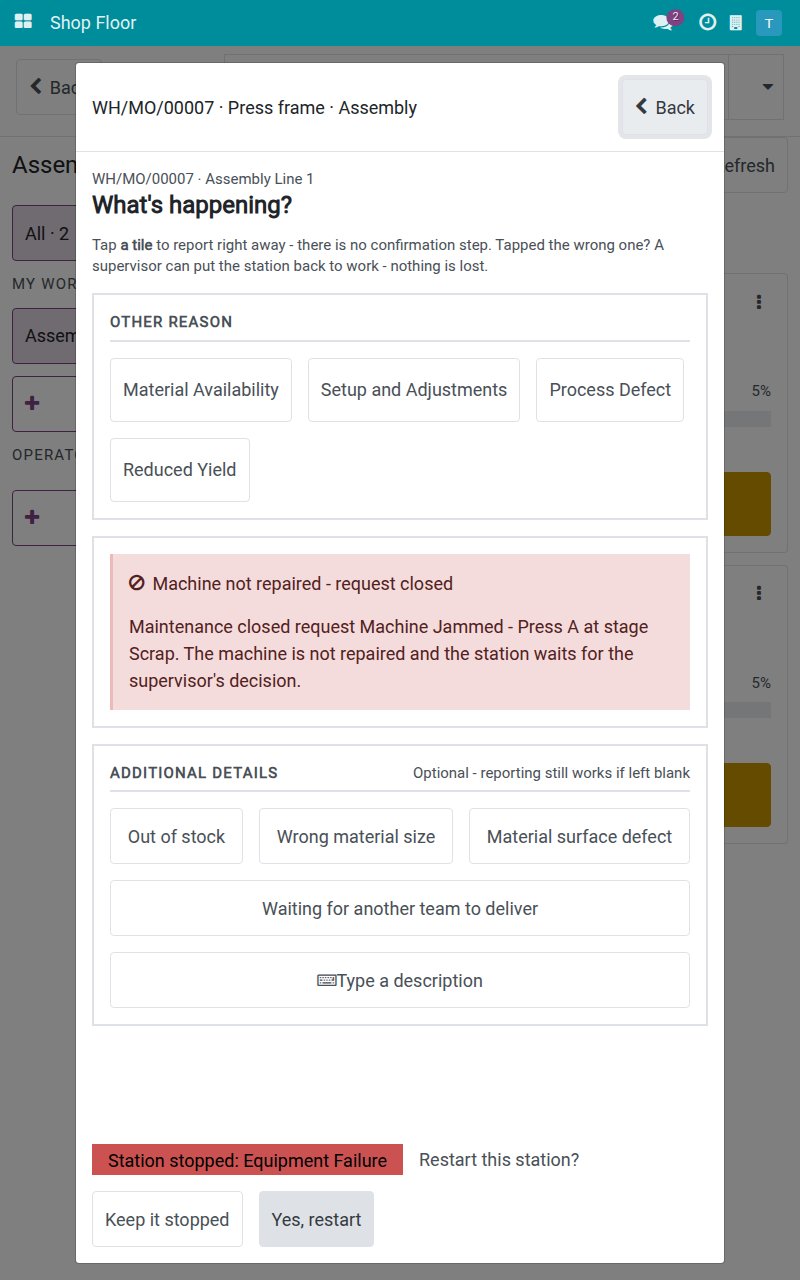
Tap Yes, restart. The work center runs again and the stopped band disappears. The jobs show Operation paused: the operators tap Resume operation to continue.
The chatter of the request gains the note "Production restarted at <time> by <your name>." It notifies nobody. The technician sees that production ran again. A restart while the request is still open leaves the same note.
Check every breakdown call
Every breakdown tap and every maintenance call is recorded in Manufacturing ‣ Reporting ‣ Shop Floor Entries, with the kind Breakdown or Maintenance Request, the work order and who recorded it. A tap that returned the call already made by a colleague is listed too, so you can see who tapped.
Troubleshooting
- I do not see "Equipment failure - call maintenance". The reason of a breakdown is not a plain stop reason. Tap Stop machine on the operation screen. If you still do not see the button, a request already holds the work center: you see Waiting for maintenance instead.
- "No breakdown reasons are configured yet. Ask the maintenance manager to set them up." There is no active request reason. A maintenance manager adds them in Maintenance ‣ Configuration ‣ Request Reasons.
- I do not see "Call maintenance (machine keeps running)". It is offered only while the work center is running. When the work center is stopped, use the call that is already open.
- The request was created without a machine. The work center has no machine. Link the machines to the work center, see "Configuration".
- "Your user is not linked to an employee. Ask your manager to link one before starting work from the shop floor." Your user has no employee. Ask a manager to link it before you start or resume a job from the tablet.
- Maintenance closed the request but the station is still stopped. The request was closed in a stage that does not return the machine to service, for example Scrap. A production lead or a maintenance manager restarts the station, see "Restart a work center after the machine was scrapped".
- The station is repaired but my job still looks stopped. Tap Refresh on the job board, then tap Resume operation.
- My connection dropped while I was reporting. Tap again when the connection is back. A report that is retried is applied once, never twice.
FAQ
Do operators need to type?
No. The machine and the problem are tiles, and the title of the request is written automatically. Only a free description of a stop uses the keyboard, and it is optional.
Can I stop a machine for a failure without calling a technician?
No. Equipment Failure is not offered among the plain stop reasons.
What if the work center was already stopped for another reason?
The breakdown takes over: the work center stays stopped, its stop reason becomes Equipment Failure and the downtime is not lost.
Does a second tap create a second request?
No. The second tap shows who called the technician and when.
Who can restart a stopped work center?
Users with the access right Manufacturing / Administrator or Maintenance / Equipment Manager. Other workers wait or call the supervisor.
Where do I see who reported what?
In Manufacturing ‣ Reporting ‣ Shop Floor Entries.
This software and associated files (the "Software") may only be used (executed, modified, executed after modifications) if you have purchased a valid license from the authors, typically via Odoo Apps, or if you have received a written agreement from the authors of the Software (see the COPYRIGHT file).
You may develop Odoo modules that use the Software as a library (typically by depending on it, importing it and using its resources), but without copying any source code or material from the Software. You may distribute those modules under the license of your choice, provided that this license is compatible with the terms of the Odoo Proprietary License (For example: LGPL, MIT, or proprietary licenses similar to this one).
It is forbidden to publish, distribute, sublicense, or sell copies of the Software or modified copies of the Software.
The above copyright notice and this permission notice must be included in all copies or substantial portions of the Software.
THE SOFTWARE IS PROVIDED "AS IS", WITHOUT WARRANTY OF ANY KIND, EXPRESS OR IMPLIED, INCLUDING BUT NOT LIMITED TO THE WARRANTIES OF MERCHANTABILITY, FITNESS FOR A PARTICULAR PURPOSE AND NONINFRINGEMENT. IN NO EVENT SHALL THE AUTHORS OR COPYRIGHT HOLDERS BE LIABLE FOR ANY CLAIM, DAMAGES OR OTHER LIABILITY, WHETHER IN AN ACTION OF CONTRACT, TORT OR OTHERWISE, ARISING FROM, OUT OF OR IN CONNECTION WITH THE SOFTWARE OR THE USE OR OTHER DEALINGS IN THE SOFTWARE.
