Shop Floor Control - Backdate
| Lines of Code | 386 |
| Technical name | viin_mrp_workorder_backdate |
| License | OPL-1 |
| Website | https://viindoo.com/apps/modules/19.0/viin_mrp_workorder_backdate |
| Read description for | v 18.0 |
| Required Apps | Manufacturing (mrp) Discuss (mail) Inventory (stock) Employees (hr) |
| Included Dependencies | Shop Floor Control Viindoo Manufacturing Inventory Backdate Manufacturing Backdate Backdate Operations Web Gantt |
Real times at the machine, back-dating kept for the desk
For manufacturers whose operators run work orders on a tablet while a few trusted users may back-date
Let users with the back-date right run work orders on the Shop Floor tablet with the real time of every tap, while the desktop keeps asking them for the date.
Community Edition, Viindoo Cloud · OPL-1 · English, Vietnamese
Extends Shop Floor Control and Manufacturing Backdate; their documentation covers the tablet screens and the desktop date windows.
What changes for your team
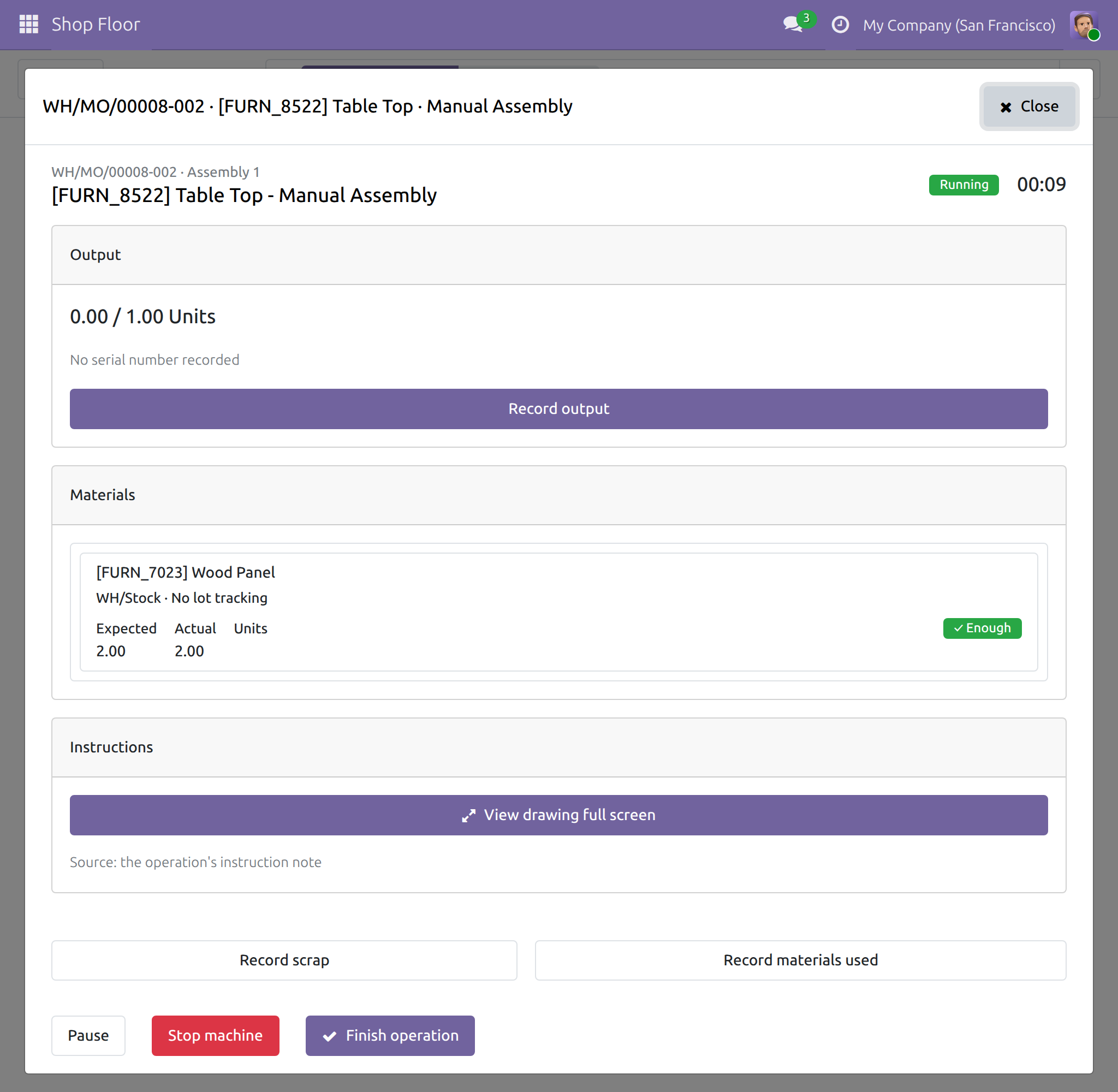
Every tap on the tablet is a real time stamp
A user trusted to back-date meets a date question meant for corrections, even for work that is happening right now.
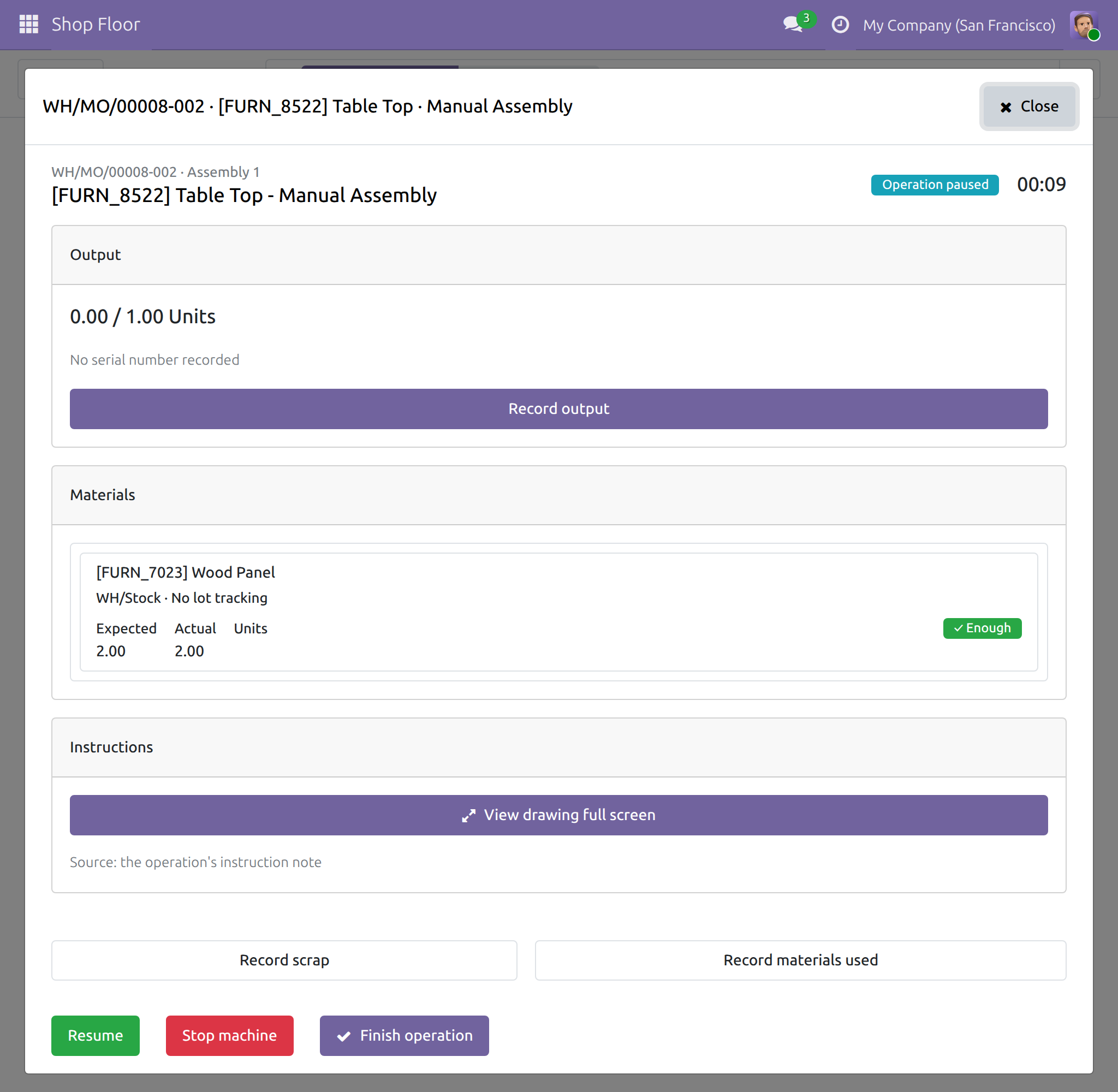
→ Start, Pause, Resume and Finish record the moment of the tap, with no date question, so breaks and changeovers are the real ones.
The order closes at the machine, at the time it really ends
Closing a manufacturing order turns into a date entry for the people who may back-date.
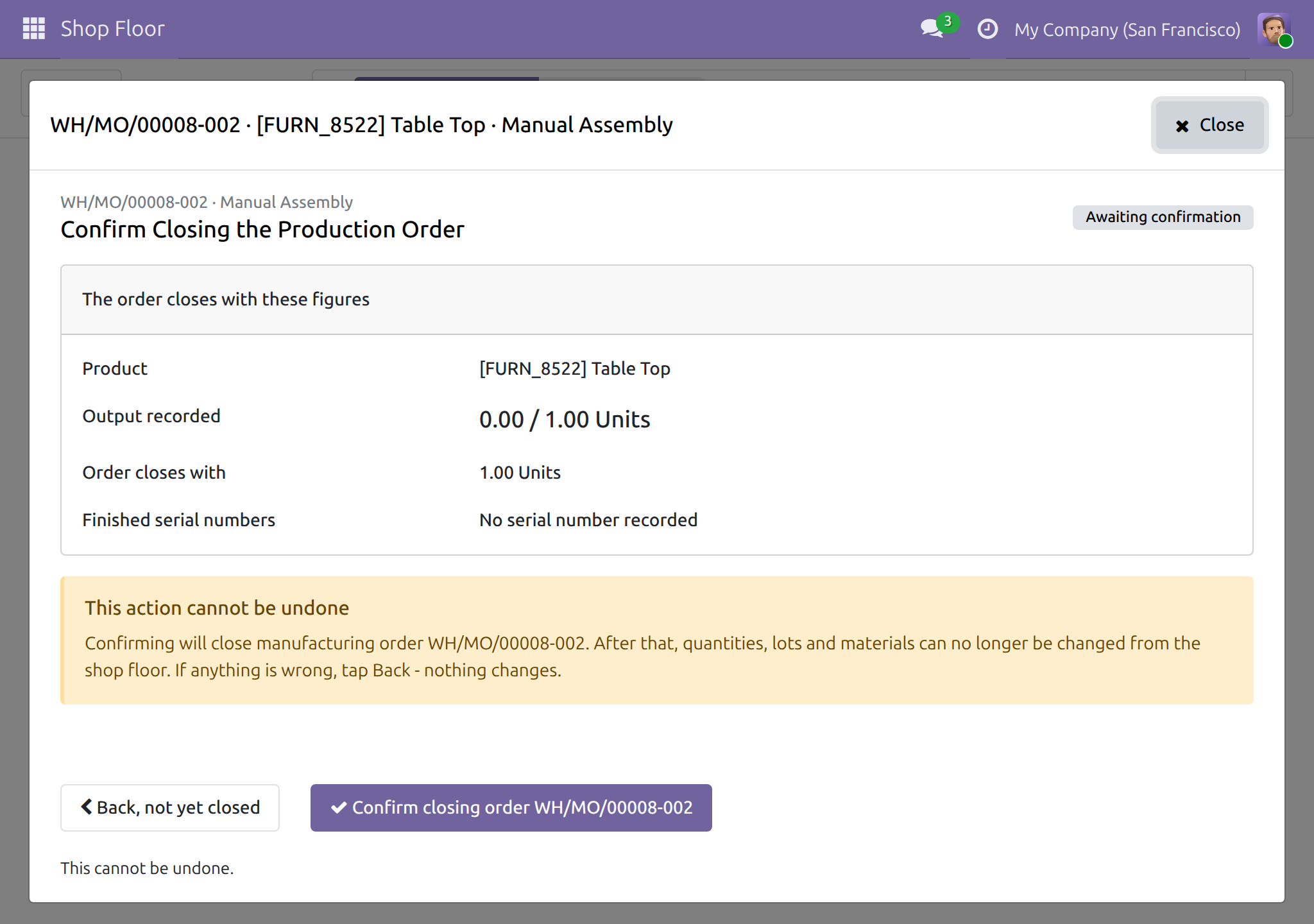
→ The closing screen, marked Waiting to be closed, records the real finish time when the operator confirms it, backorder and consumption questions included. Back, not yet closed leaves the order as it is.
Back-dating stays on the desktop, for the people you trust
A forgotten operation still needs a past date, and only some users should enter one.
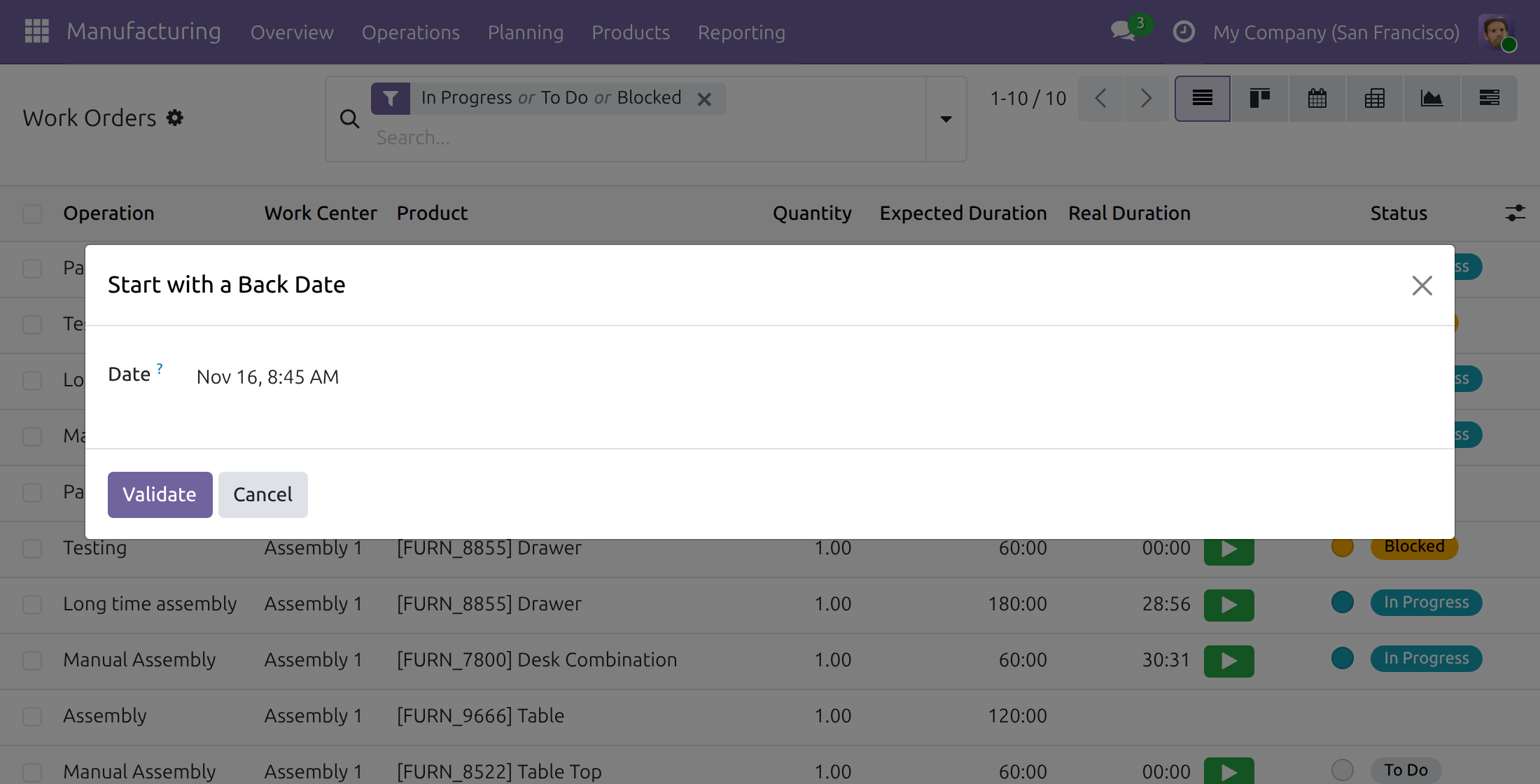
→ On the desktop, the same users are still asked for the date when they start, pause or finish an operation, restart a work center or mark an order done. A tablet tap never switches that question off.
Features
At the machine
- ✓ Start, pause, resume and finish operations at the real time of the tap
- ✓ No date question on the tablet, even for users who may back-date
- ✓ Restart a stopped station; the stop ends at the moment of the tap
Closing the order
- ✓ Close the manufacturing order from the tablet at the real finish time
- ✓ Open the closing screen from the last operation or from Close the order
- ✓ Backorder and consumption questions answered without a date question
- ✓ Back, not yet closed leaves the order unchanged
Corrections on the desktop
- ✓ Start, pause or finish an operation with a past date
- ✓ Restart a work center or mark an order done with a past date
- ✓ A tablet tap never switches the desktop date question off
What stays the same
- ✓ Back-dating only for users given Manufacturing Backdate Operations
- ✓ No new right: who may restart a station is unchanged
- ✓ Output, materials and scrap are recorded as they happen
- ✓ Users without the back-date right see no difference
Ready on day one
Installs by itself
It installs as soon as Shop Floor Control and Manufacturing Backdate are both installed. It adds no data and no setting.
One right to hand out
The administrator sets Manufacturing Backdate to Manufacturing Backdate Operations on each user who may back-date. For everybody else, nothing changes.
Before you decide
Can an operator type a past date on the tablet?
No. The tablet records work happening now. Past dates are entered on the desktop.
Does using the tablet switch off the date question on the desktop?
No. Desktop work by the same user still asks for the date.
Who may restart a stopped station?
Any Manufacturing user, as in Shop Floor Control. The module grants no right; when that user may back-date, the stop simply ends at the moment of the tap.
Does it change how output, materials and scrap are recorded?
No. Those recordings are made as they happen and never ask for a date.
What does it take to run it?
Both required modules and the back-date right on the users who need it. There is nothing else to configure.
Try it, then ask us
The Documentation tab walks through each role step by step, the video above shows the tablet at work, and the live preview of this listing lets you run an operation yourself.
Pre-sales & partnership
viindoo.com/contactusTechnical support
viindoo.com/ticketShop Floor Control - Backdate
Who this guide is for. Machine operators who work on the Shop Floor tablet, shift leads and other people who hold the back-date right and also work on the desktop, and the administrator who gives out that right.
Shop Floor Control - Backdate lets a person who is allowed to back-date manufacturing operations work on the Shop Floor tablet without being asked for a date. Every tap on the tablet records the moment it happened, so the times of your operations are the real ones. On the desktop, the same person is still asked for the date, so a forgotten operation can still be back-dated.
Note
Extends Shop Floor Control - see its documentation for the tablet screens, recording output and materials, and the rules for who may restart a stopped station.
The screenshots show the demo company: Marc Demo is a machine operator who holds the back-date right.
Overview
The right to back-date operations is a separate access right. A person who holds it is asked for a date on the desktop whenever they start, pause or finish a work order, restart a stopped work center, or mark a manufacturing order as done. The same person is never asked on the tablet: there, the operation always happens now.
- On the tablet. The operator starts, pauses, resumes and finishes operations, stops and restarts the station, and closes the manufacturing order. Every tap records the time at which it was made.
- On the desktop. The same person enters the date and time at which a forgotten operation, or the closing of an order, really took place.
| Role | What they do | Access right to assign |
|---|---|---|
| Machine operator or shift lead who may back-date | Runs operations on the tablet with the real time of every tap. Enters a past date for forgotten operations on the desktop. | Manufacturing / User and, under Manufacturing Backdate, Manufacturing Backdate Operations |
| Administrator | Gives the back-date right to the people who need it. | Role / Administrator |
About back-date
Back-date is not meant for routine use. Its purpose is to enter a company's past data during the initial deployment, for example an operation finished last week. Once that work is done, the back-date modules are uninstalled, and this module, which needs Manufacturing Backdate, is removed together with them.
The back-date right is granted to a person, never to a whole role: nobody holds it by default, and the administrator sets Manufacturing Backdate Operations on each user trusted with it, as described in "Give the back-date right". Day-to-day work happens as it occurs, which is why a tap on the tablet always records the present moment.
Setup (for the Administrator)
Installation
- Open Apps.
- Search for Shop Floor Control - Backdate.
- Click Install.
The module needs Shop Floor Control and Manufacturing Backdate. It installs by itself as soon as both of them are installed, so in most cases you have nothing to do.
Give the back-date right
Open Settings ‣ Users & Companies ‣ Users and open the user who may back-date operations.
On the Access Rights tab, under SUPPLY CHAIN, set Manufacturing Backdate to Manufacturing Backdate Operations, then save.
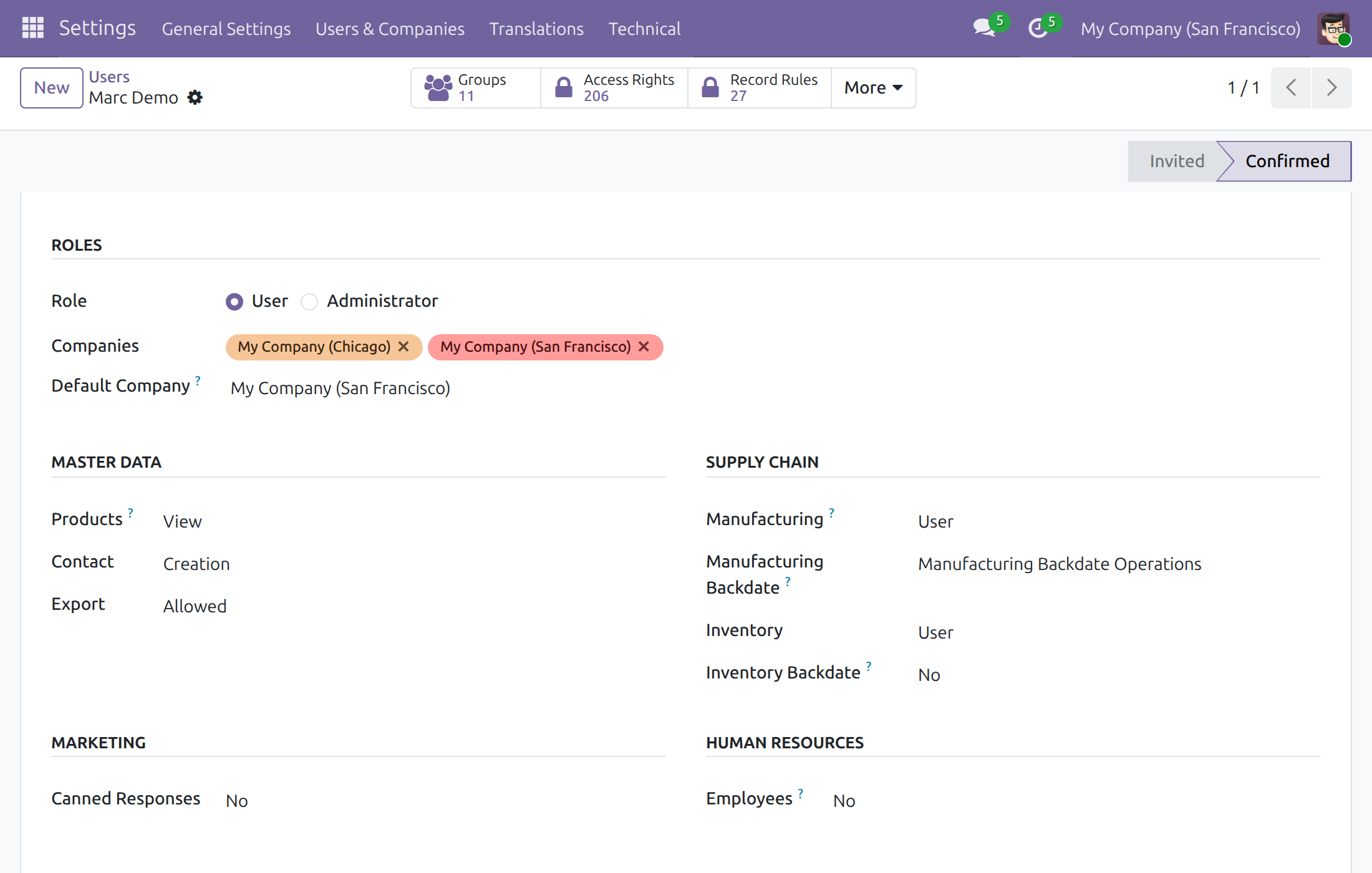
The right includes the access right Manufacturing / User. Give each operator the other access rights described in the Shop Floor Control guide. Only people with the back-date right are asked for a date on the desktop. For everybody else, nothing changes.
Machine operator: run the job on the tablet
Run an operation
On the apps menu, tap Shop Floor and open the board of your work center. Find the job, for example by typing the order reference in the search bar, and tap Open & start.
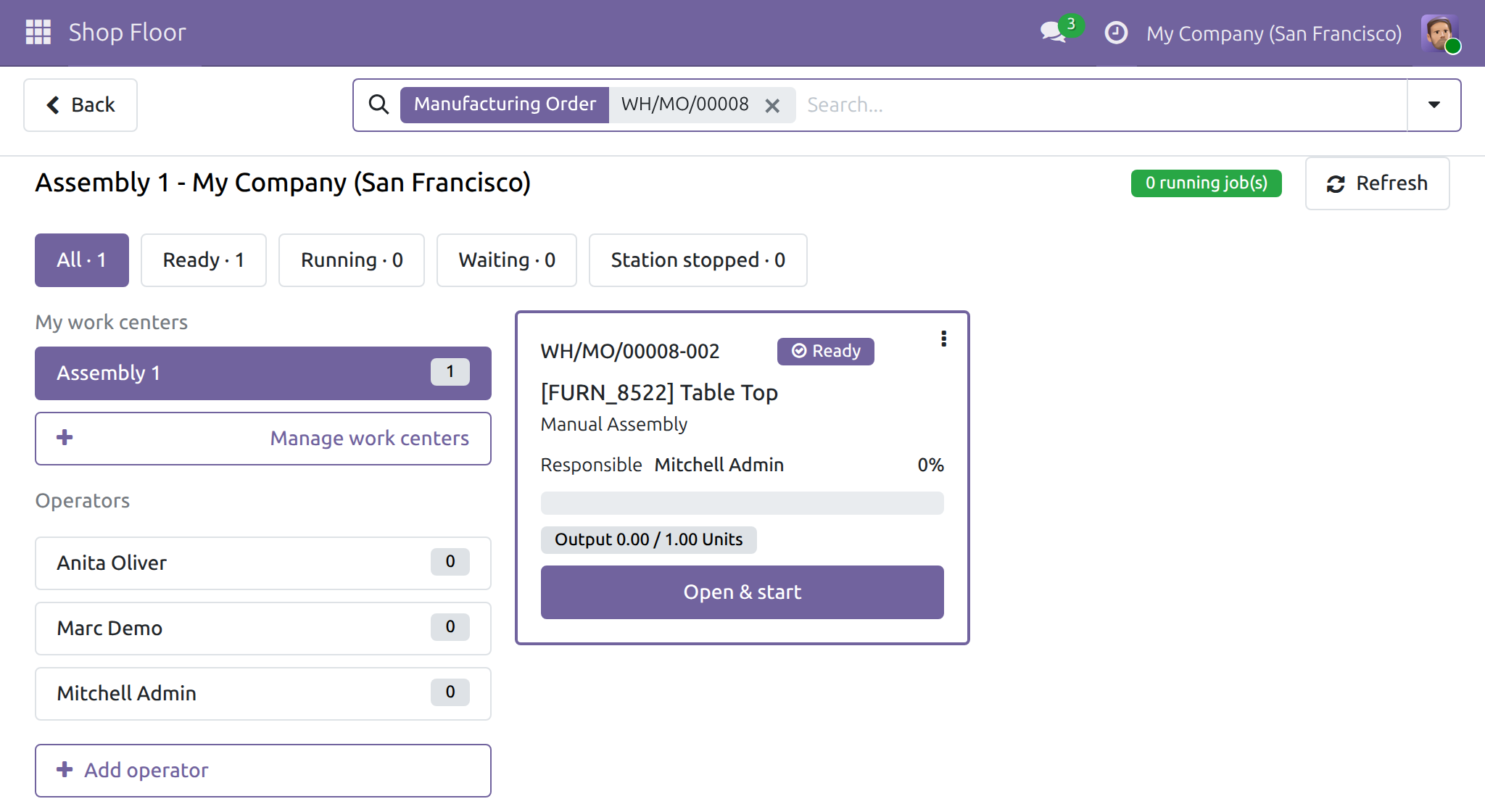
The operation opens and the state is Running at once. No date question appears, even though you hold the back-date right. The timer started at the moment you tapped.
To take a break, tap Pause. The timer stops at the moment of your tap and the state becomes Operation paused.
Tap Resume when you are back. A new timer line starts at the moment of your tap. Record the quantity you make with Record output, as described in the Shop Floor Control guide.
Tap Finish operation. The operation is finished and its timer stops at the moment of your tap, again without any date question. When it is the last operation of the order, the screen Confirm Closing the Production Order opens.
Stop the machine and restart the station
On the operation screen, tap Stop machine and tap the tile of the reason, for example Material Availability. The station is stopped at once. The bar at the bottom reads Station stopped: Material Availability, next to the button Restart station.
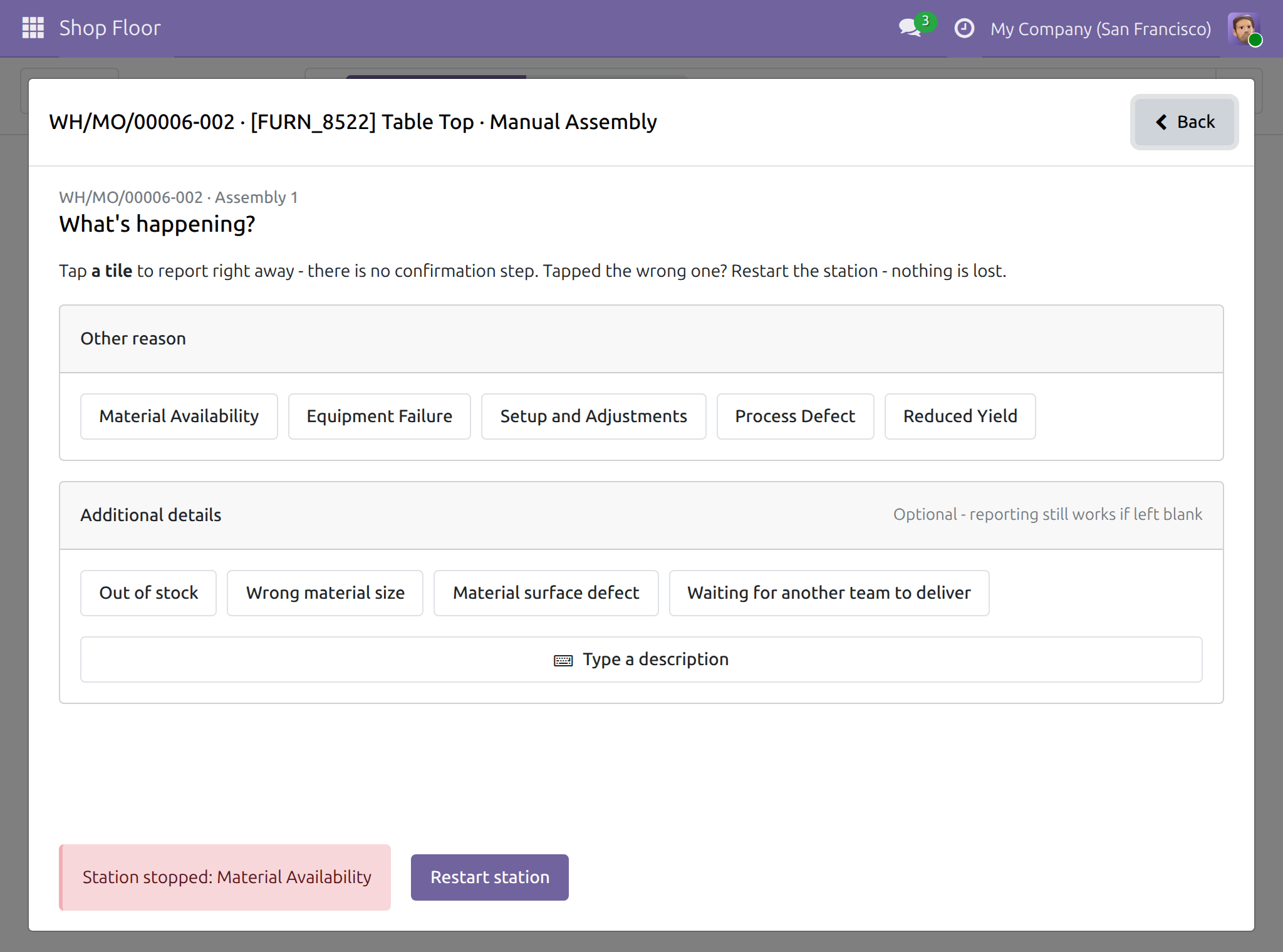
When the cause is fixed, tap Restart station. The question Restart this station? appears. Tap Keep it stopped to change nothing, or Yes, restart.
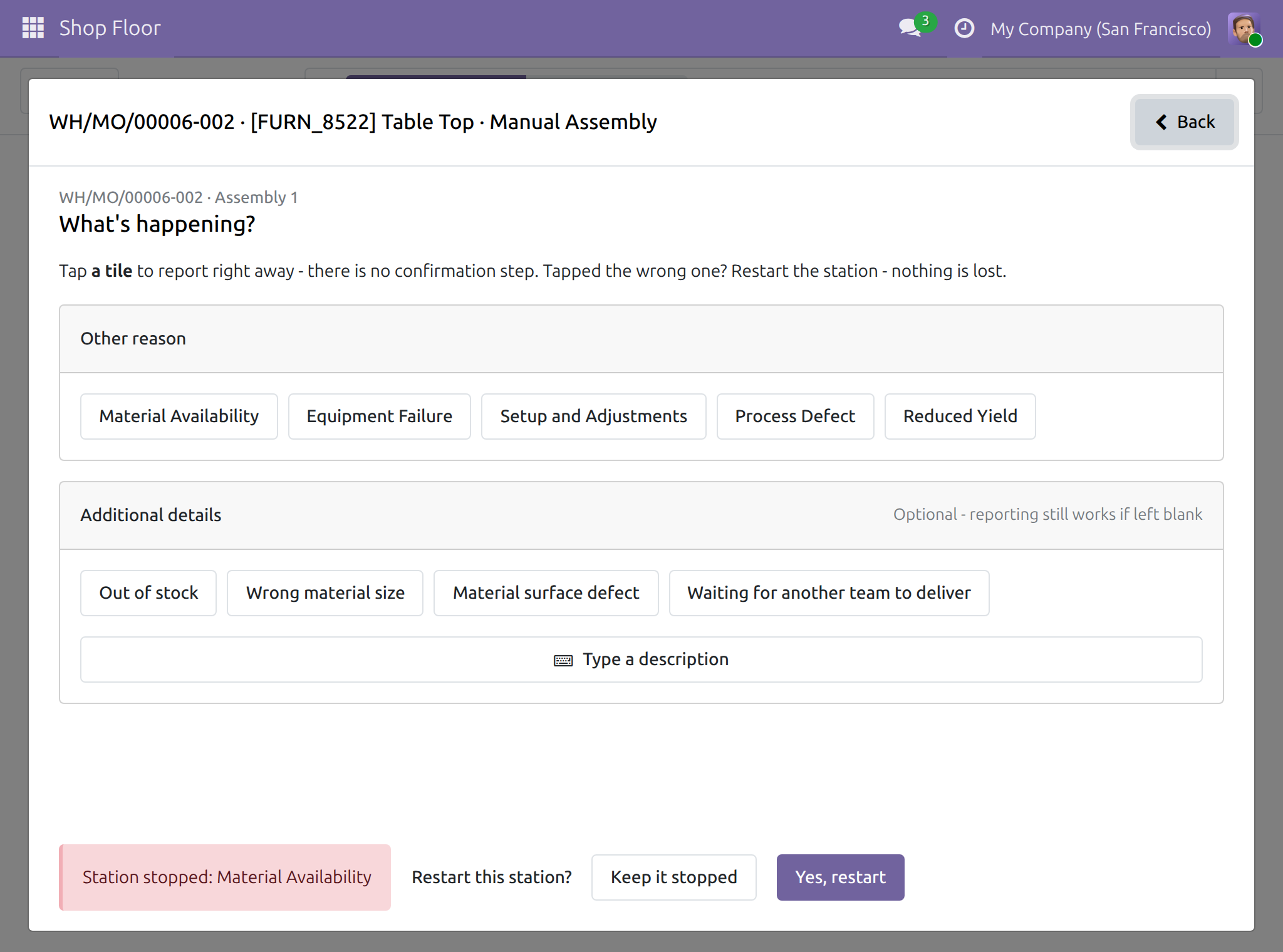
The station works again and the stop ends at the moment of your tap. No date question appears, even though you hold the back-date right. Tap Back to return to the operation, which shows Operation paused, then tap Resume to go on.
Restarting a station is open to any Manufacturing user, as described in the Shop Floor Control guide. The back-date right neither adds to nor takes away from that.
Close the manufacturing order
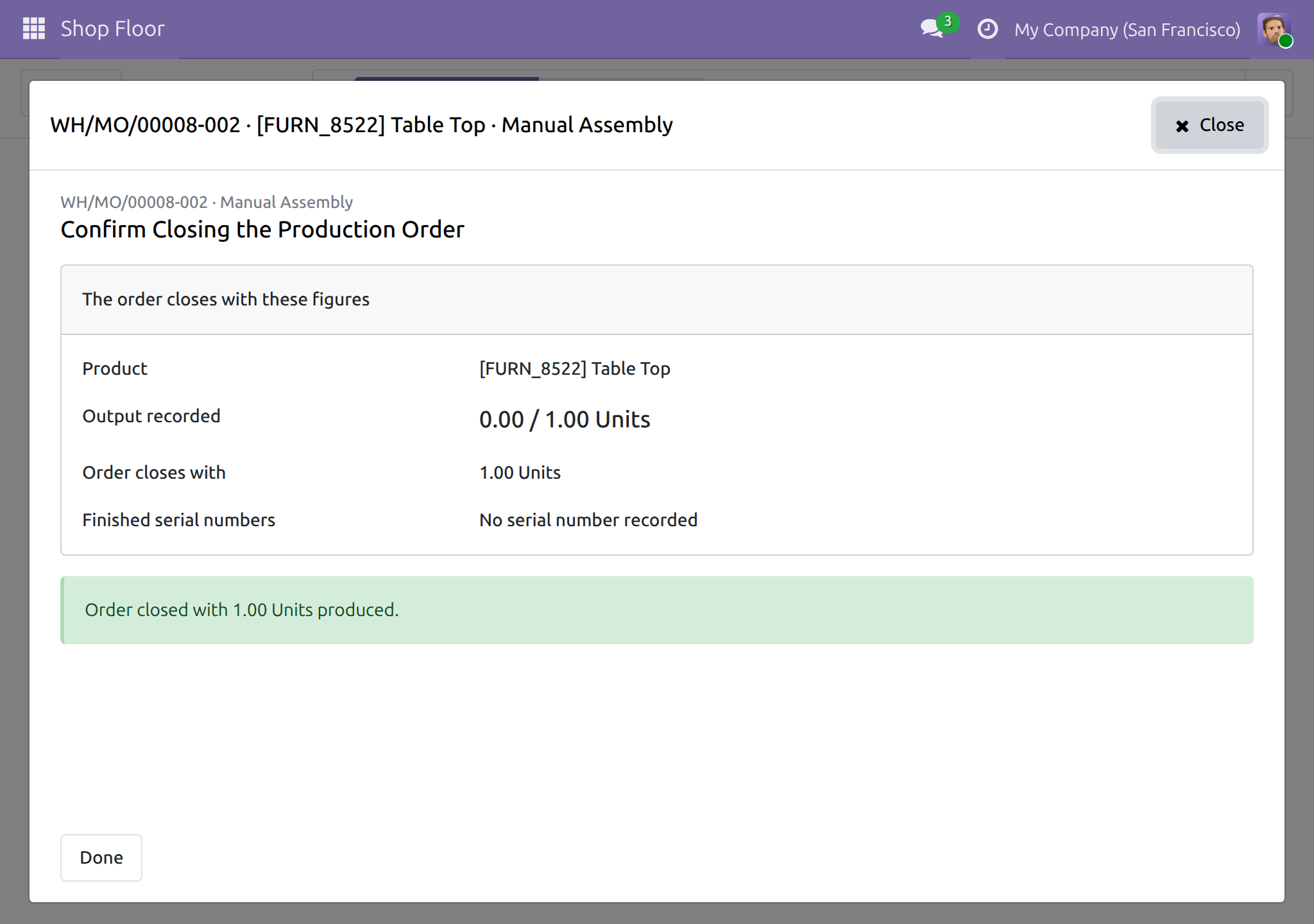
The screen Confirm Closing the Production Order opens when you finish the last operation of the order. It is marked Waiting to be closed. The same screen opens from the job board, where the card of an order that waits to be closed offers Close the order. Check the figures and tap Confirm closing order followed by the order reference. To leave without closing the order, tap Back, not yet closed: nothing changes.
If you made less than the ordered quantity, the screen asks what to do with the rest, as described in the Shop Floor Control guide. The questions about consumption differences are answered the same way. None of them asks for a date.
The screen confirms that the order is closed and shows the quantity produced. The order is closed at the real time of your tap. Tap Done to leave the screen.
Note
Recording output, materials and scrap works exactly as in the Shop Floor Control guide. These recordings are made as they happen and never ask for a date.
Back-date holder: correct the record on the desktop
Back-date an operation
Use this task when an operation was started, paused or finished late, or was never recorded.
Open Manufacturing ‣ Operations ‣ Work Orders. Search for the operation, for example by product. The list needs the Work Orders setting, as described in the Shop Floor Control guide.
On the row of the operation, click the button for what happened, for example the green start button (a triangle).
A small window asks for the Date, titled Start with a Back Date. Enter the date and time at which it really happened and click Validate. The operation changes state at that time.
Note
Pausing an operation, finishing it and restarting a stopped work center open the same kind of window, titled Pause with a Back Date, Finish with a Back Date and Unblock with a Back Date. A tap on the tablet never switches this question off on the desktop.
Back-date the closing of a manufacturing order
Open Manufacturing ‣ Operations ‣ Manufacturing Orders and open the order.
Click Produce All.
A small window titled Mark as Done with a Back Date asks for the Date Done. Enter the date and time at which the production really finished.
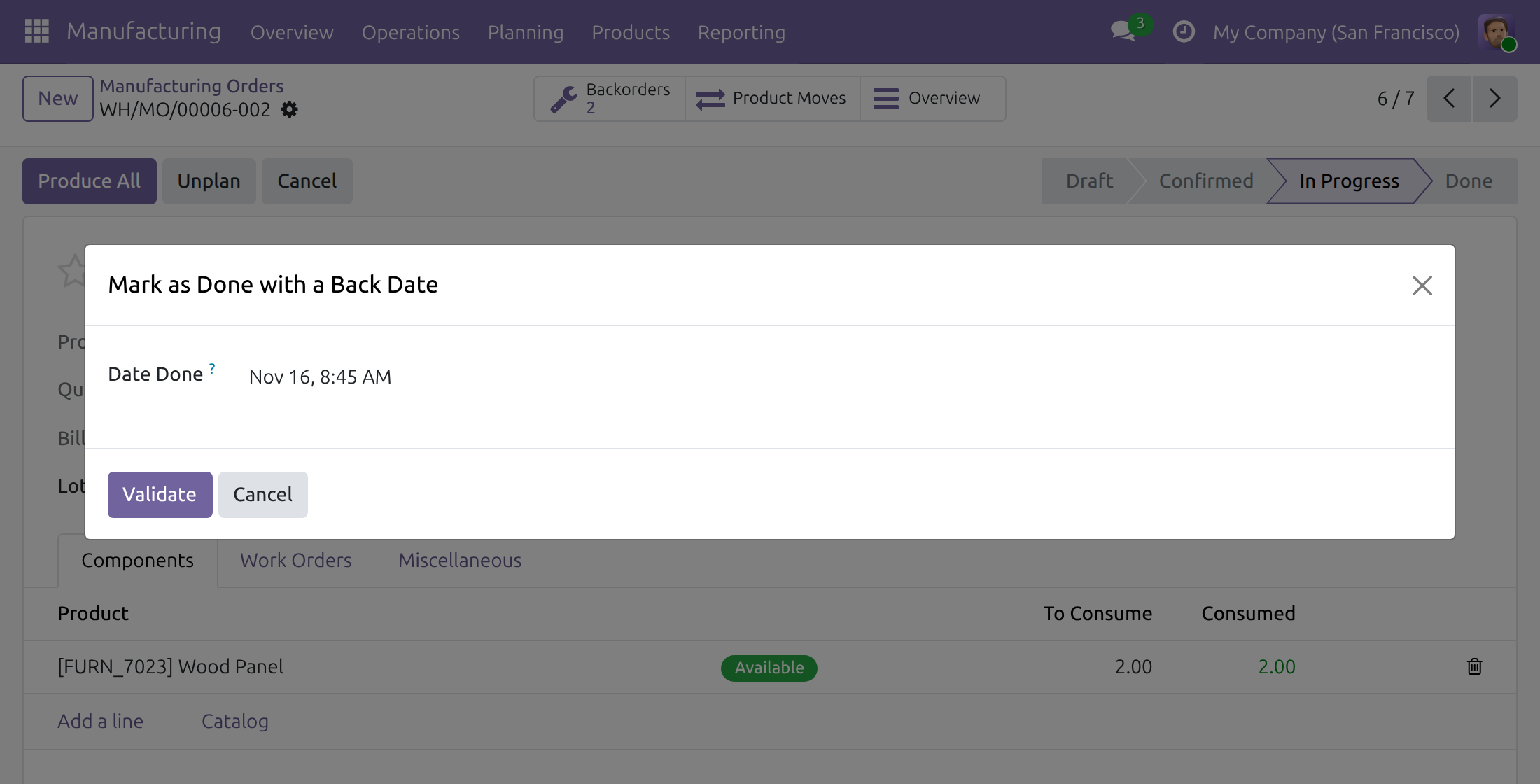
Click Validate. The order is closed with the date you entered.
Troubleshooting
- The tablet does not ask me for a date.
- This is how the module works: a tap on the tablet always records the present moment. To enter a past date, use the desktop as described in "Back-date holder: correct the record on the desktop".
- The desktop does not ask me for a date.
- Check that your user has Manufacturing Backdate Operations set under Manufacturing Backdate, as described in "Give the back-date right". Without this right, the operation is simply recorded now.
FAQ
- Can I type a date on the tablet?
- No. The tablet is made for work happening now, so it never asks. Back-dating stays on the desktop.
- Does the desktop still ask for the date after I used the tablet?
- Yes. Using the tablet never switches the question off for later work on the desktop.
- Who may restart a stopped station?
- Any Manufacturing user, as in the Shop Floor Control guide. When that person also holds the back-date right, the stop ends at the moment of the tap and no date is asked. This module does not widen or narrow who may restart a station.
This software and associated files (the "Software") may only be used (executed, modified, executed after modifications) if you have purchased a valid license from the authors, typically via Odoo Apps, or if you have received a written agreement from the authors of the Software (see the COPYRIGHT file).
You may develop Odoo modules that use the Software as a library (typically by depending on it, importing it and using its resources), but without copying any source code or material from the Software. You may distribute those modules under the license of your choice, provided that this license is compatible with the terms of the Odoo Proprietary License (For example: LGPL, MIT, or proprietary licenses similar to this one).
It is forbidden to publish, distribute, sublicense, or sell copies of the Software or modified copies of the Software.
The above copyright notice and this permission notice must be included in all copies or substantial portions of the Software.
THE SOFTWARE IS PROVIDED "AS IS", WITHOUT WARRANTY OF ANY KIND, EXPRESS OR IMPLIED, INCLUDING BUT NOT LIMITED TO THE WARRANTIES OF MERCHANTABILITY, FITNESS FOR A PARTICULAR PURPOSE AND NONINFRINGEMENT. IN NO EVENT SHALL THE AUTHORS OR COPYRIGHT HOLDERS BE LIABLE FOR ANY CLAIM, DAMAGES OR OTHER LIABILITY, WHETHER IN AN ACTION OF CONTRACT, TORT OR OTHERWISE, ARISING FROM, OUT OF OR IN CONNECTION WITH THE SOFTWARE OR THE USE OR OTHER DEALINGS IN THE SOFTWARE.