


Competency Management
by Viindoo
| Lines of Code | 1690 |
| Technical name | viin_hr_skill_framework |
| License | OPL-1 |
| Website | https://viindoo.com/apps/modules/19.0/viin_hr_skill_framework |
| Read description for | v 13.0 v 14.0 v 15.0 v 16.0 v 17.0 v 18.0 |
| Required Apps | Discuss (mail) Employees (hr) Skills Management (hr_skills) |
| Included Dependencies | Viindoo Base Job Levels & Career Paths |
| Extensions | Employee Training Plans |

Know which skills each job needs, and who is still missing them
For HR managers, CEOs, learning and development leads and Odoo implementers
Skills matrix per job level, skill gap analysis and a competency score for every employee
Is this you?
Nobody can say which skills a Senior Engineer must have: the answer changes with every manager.
Promotions rest on impressions, because nobody can show how far a candidate is from the next level.
The training budget is spread thin: you cannot see which skills the company is really short of.
Skills live in spreadsheets, one per department, and none of them matches the job levels in your HR system.
Managers want to develop their people but cannot see what each one is missing.
What changes
The skills of a job level change with every manager.
→ Define the skills of each job level once: a required level, an optional target level and a weight. Lower levels carry up, so nothing is copied.
Promotions rest on impressions.
→ Read a competency score for every employee, for the current level and for the next one.
Nobody sees where the company is short of skills.
→ Analyse the gaps by employee, department, skill or career level in a list, a pivot and a graph.
Spreadsheets that match no job level.
→ One source of truth: the same requirements serve every employee of the level, and the expected skills of a job position are added on top.
Managers cannot see what their people lack.
→ Line managers open the Skill Gaps of their team from the directory, and employees check their own, with no HR access right.
Key Features
Requirements per job level
Define once which skill at which level a job level needs, with a weight and an optional target. A change keeps the previous requirement as history.
Skill Gap Analysis
See, by employee, department, skill or career level, where your people fall short of the skills their jobs require.
Competency Score
Read on the employee form the share of the required skills each person meets today, and for the next level.
Matching employees
Rank your employees against the requirements of any level to find who fits a promotion or a new position.
Team gaps for managers
Employees see their own skill gaps and line managers those of their team, without any HR access right.
Level descriptions
Describe what each level of each skill means, so ratings are consistent across the company.
Who it is for
CEO and executives
Cannot see where the company is short of skills. Gain a view of the gaps by department and skill.
HR manager
Define job levels without saying which skills they need. Gain requirements per level and a competency score.
Learning and development lead
Spread the training budget on guesses. Gain the list of unmet skills to train on.
Line managers
Cannot see what each team member lacks. Gain the skill gaps of the team in one click.
Employees
Do not know what the next level asks. Gain the requirements and their own gaps.
Odoo implementers
Want a framework that sits on the job levels already in Odoo. Gain a ready add-on with standard HR access rights.
Best for: companies that already define job levels and want to promote, hire internally and train on facts about skills.
Define the skills each job level requires
See where the skill gaps are
Spot which skills the company is short of
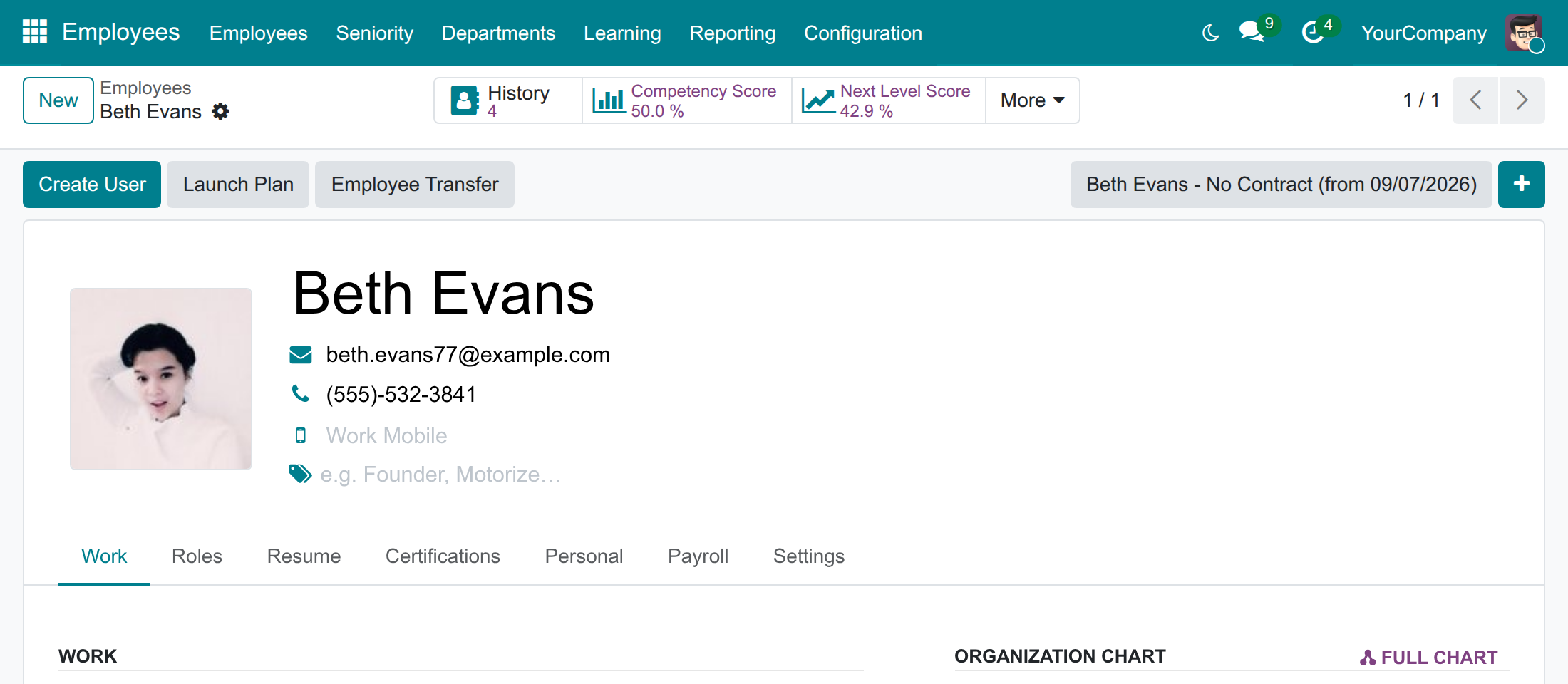
Read the competency score of an employee
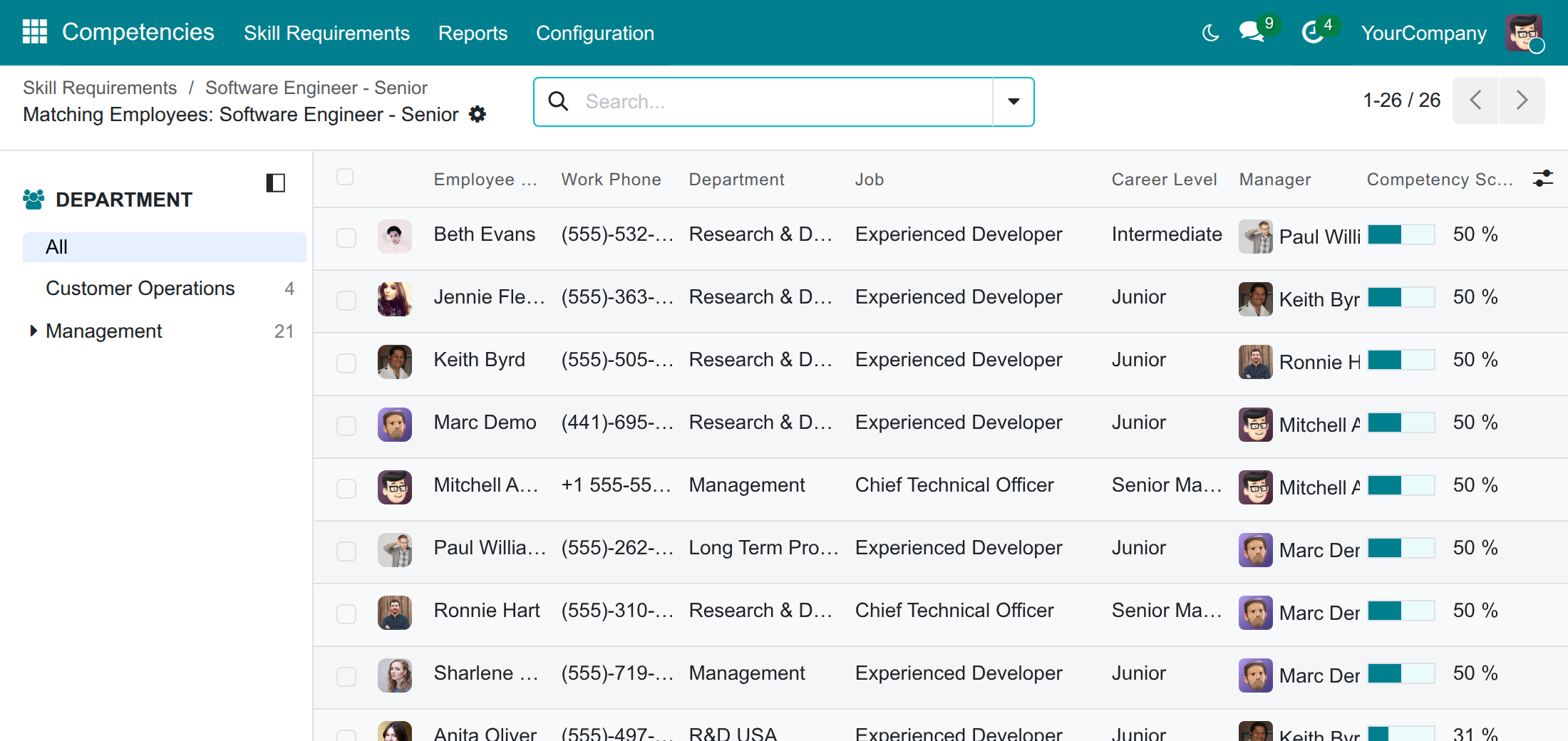
Find the employees who match a level
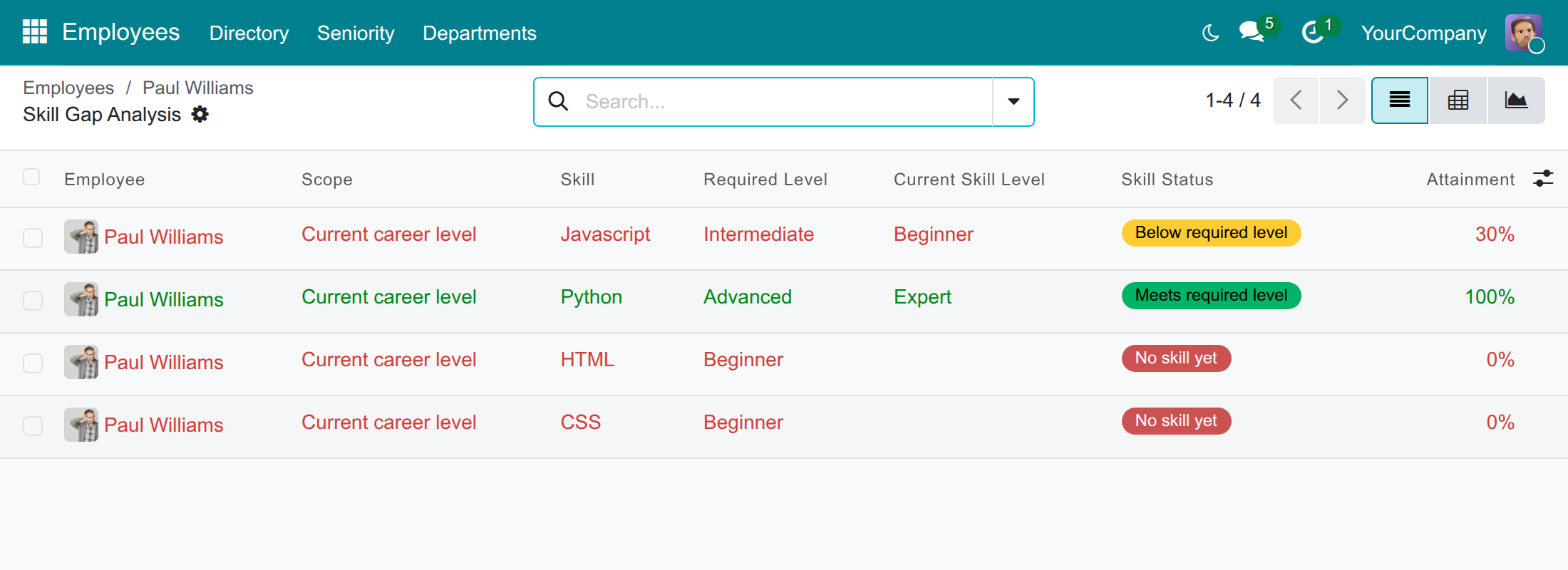
Follow the gaps of your team
Frequently Asked Questions
Do I have to copy the requirements to every employee?
No. You define the requirements once on the job level and every employee of that level, and of the higher levels, follows them. Change a requirement and every score follows.
How is the competency score computed?
For each required skill, the level the employee holds is compared with the required level, capped at 100%. The score is the average of these shares, weighted by the weight of each requirement.
Can a job position add skills?
Yes. The expected skills of the job position are added to the requirements of its employees. When both name a skill, the highest required level applies.
Who sees what?
Employees see their own gaps and the requirements of every level. Line managers also see the gaps of their team. HR officers see the gaps and the competency score of everybody. A Competencies Officer maintains the catalogue and the requirements.
What happens when I change a requirement?
The previous requirement is ended and kept as history instead of being overwritten. Changing only a weight or a target level leaves no history.
What do I need to install first?
Job Levels & Career Paths and Skills Management. The module installs itself as soon as both are installed.
Which Odoo version and editions does it support?
Odoo 19.0, Community and Enterprise editions.
Need help with Competency Management?
For questions, implementation support or a custom feature, contact Viindoo.
Pre-Sales & Partnership
Contact usTechnical Support
Open a support ticketTechnical Requirement
- Odoo version: 19.0
- Editions: Odoo Community, Odoo Enterprise
- Required modules: Job Levels & Career Paths, Skills Management
- License: OPL-1
- Author: Viindoo
- Live demo: v19demo-int.viindoo.com
Competency Management
Who this guide is for: the HR officer, who reads competency scores, analyses skill gaps and finds the employees matching a job level; the learning and development officer, who keeps the skill catalogue and the skills each job level requires; the system administrator, who installs the module and gives people their access right; and every line manager and employee who wants to know which skills are still missing.
Overview
Every job asks for skills, and every employee has some of them. What is rarely written down is which skills each job level requires, and how far each employee is from them. Without it, promotions rest on impressions, training budgets are spread thin and nobody can tell where the company is short of skills.
Competency Management adds a skills matrix and a competency framework on top of the job levels and of the skills of your employees:
- A skill requirement says that a job profile level needs a skill at a required level, optionally with a higher target level, and gives it a weight. You write it once for the level; every employee at that level follows it. Nothing is copied.
- Requirements add up along the career ladder: a level also requires what the lower levels of its job profile require. When two levels ask for the same skill, the highest required level applies.
- The skills an employee has to meet are those of their current job profile level plus the expected skills of their job position, the highest level winning for a skill named by both.
- The Skill Gap Analysis compares the current skills of each employee with these requirements, for the current level and for the next one, and the Competency Score sums it up in one percentage.
- Employees see their own gaps, line managers the gaps of their team, and HR everybody's.
How the module is used, from the setup to the decisions it supports:
| Step | What happens | Who | Hand-off |
|---|---|---|---|
| 1 | The skill catalogue is kept and every level of every skill is described. | Learning and development officer | The catalogue is ready to be required. |
| 2 | Each job profile level gets its skill requirements. | Learning and development officer | Gaps and scores can be computed. |
| 3 | Scores and gaps are read, and employees matching a level are listed. | HR officer | Line managers and employees act on what is missing. |
| 4 | The team's gaps and one's own gaps are followed. | Line manager, employee | Development is planned. |
| Role | What they do | Access right to assign |
|---|---|---|
| System administrator | Installs the module and gives people their access right. | Settings: Administrator |
| Learning and development officer | Maintains skill types, skills, level descriptions and the skill requirements of every job profile level. | Competencies: Officer |
| HR officer | Reads competency scores, analyses the gaps of everybody and finds the employees matching a level. Also maintains everything the learning and development officer maintains. | Employees: Officer: Manage all employees |
| Line manager | Opens the skill gaps of the employees who report to them. | None to add: every internal user has it |
| Employee | Reads what each job level requires and checks their own skill gaps. | None to add: every internal user has it |
Setup (for the Administrator)
Install the module
- Open Apps.
- Remove the default filter, search for Competency Management and press Install.
The module needs Job Levels & Career Paths (where job profiles and their levels are kept) and Skills Management. It installs itself as soon as both are installed, and the Competencies app then appears in the main menu of every internal user.
Give people their access right
- Open Settings ‣ Users & Companies ‣ Users and select the person.
- In the Access Rights tab, section Human Resources, set Competencies to Officer for the learning and development officer, and Employees to Officer: Manage all employees for the HR officer. Save.
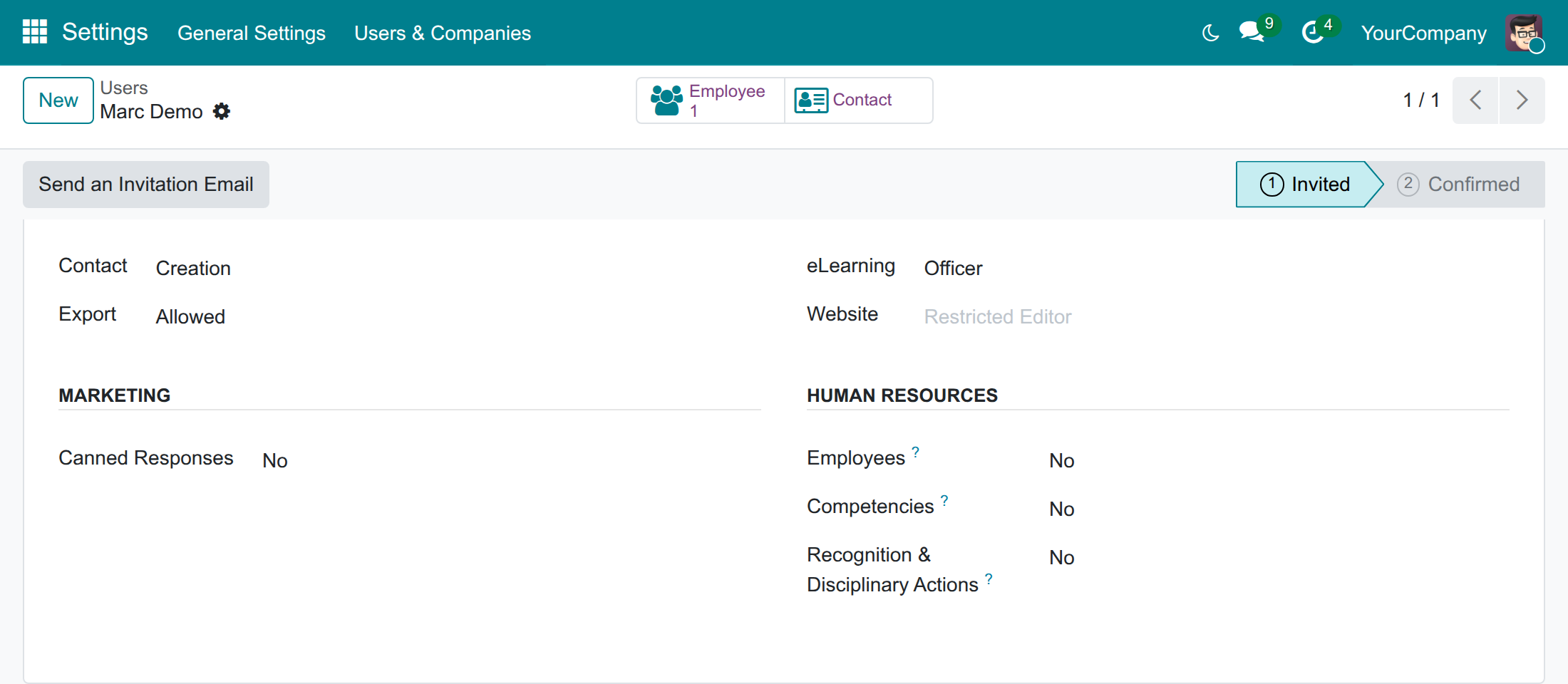
Every other internal user can already read the skill requirements and the level descriptions, and see the gaps of their own skills and of their team: they need nothing more.
Learning and Development Officer: keep the catalogue and the requirements
Keep skill types, skills and levels
A skill type groups skills that are rated on the same scale: Languages rated A1 to C2, Programming Languages rated Beginner to Expert. Each level has a name and a progress from 0% to 100%; the progress is what lets the module compare two levels.
- Open Competencies ‣ Configuration ‣ Skill Types and select a skill type, or press New.
- In the Skills list, add the skills of the type. Give each skill a Code (two skills cannot share one) and a short Description, and switch Active off for a skill you no longer use.
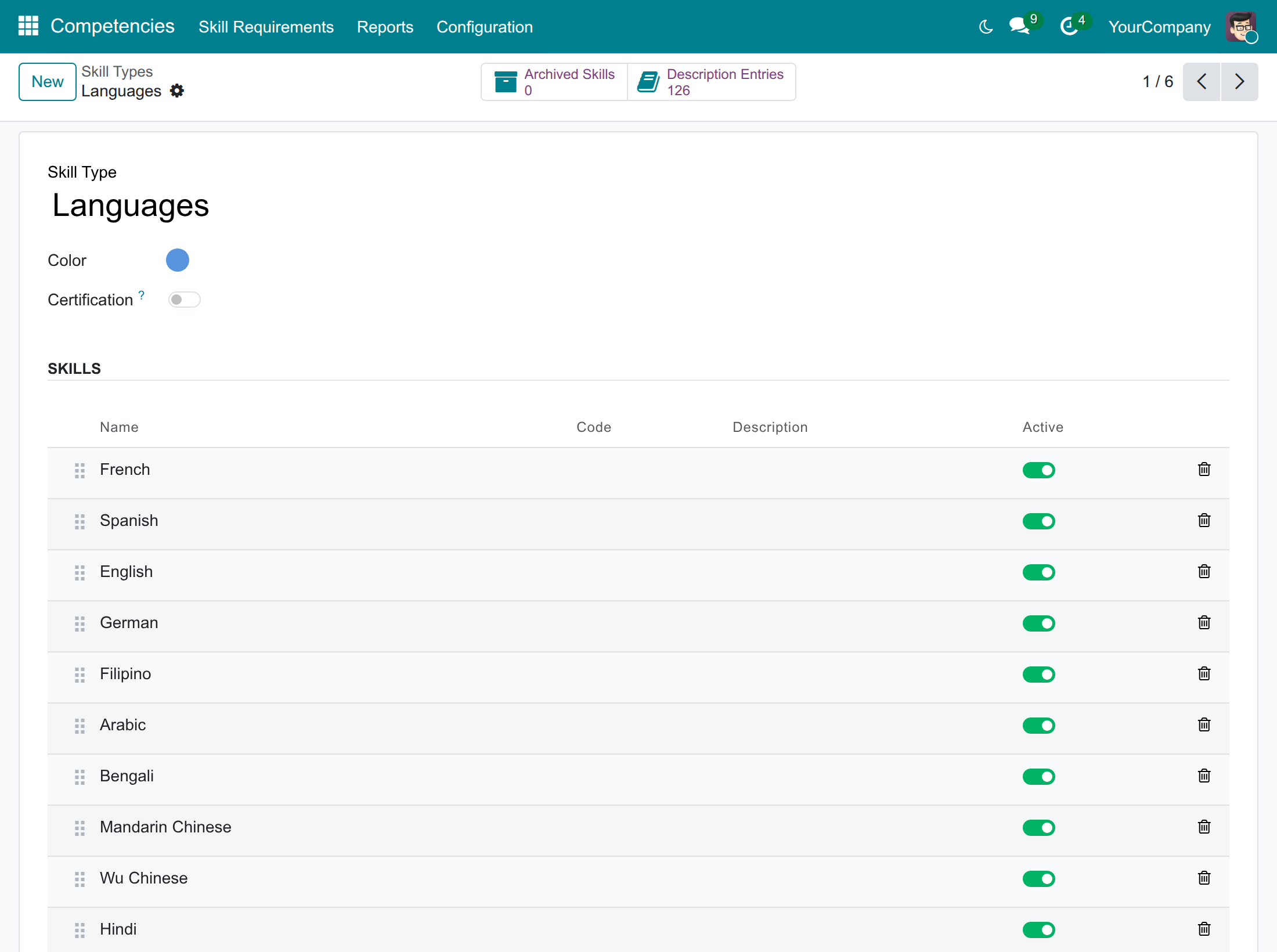
The Archived Skills button lists the skills you switched off, and Description Entries opens the descriptions of the type (next task). An archived skill stops counting as a requirement.
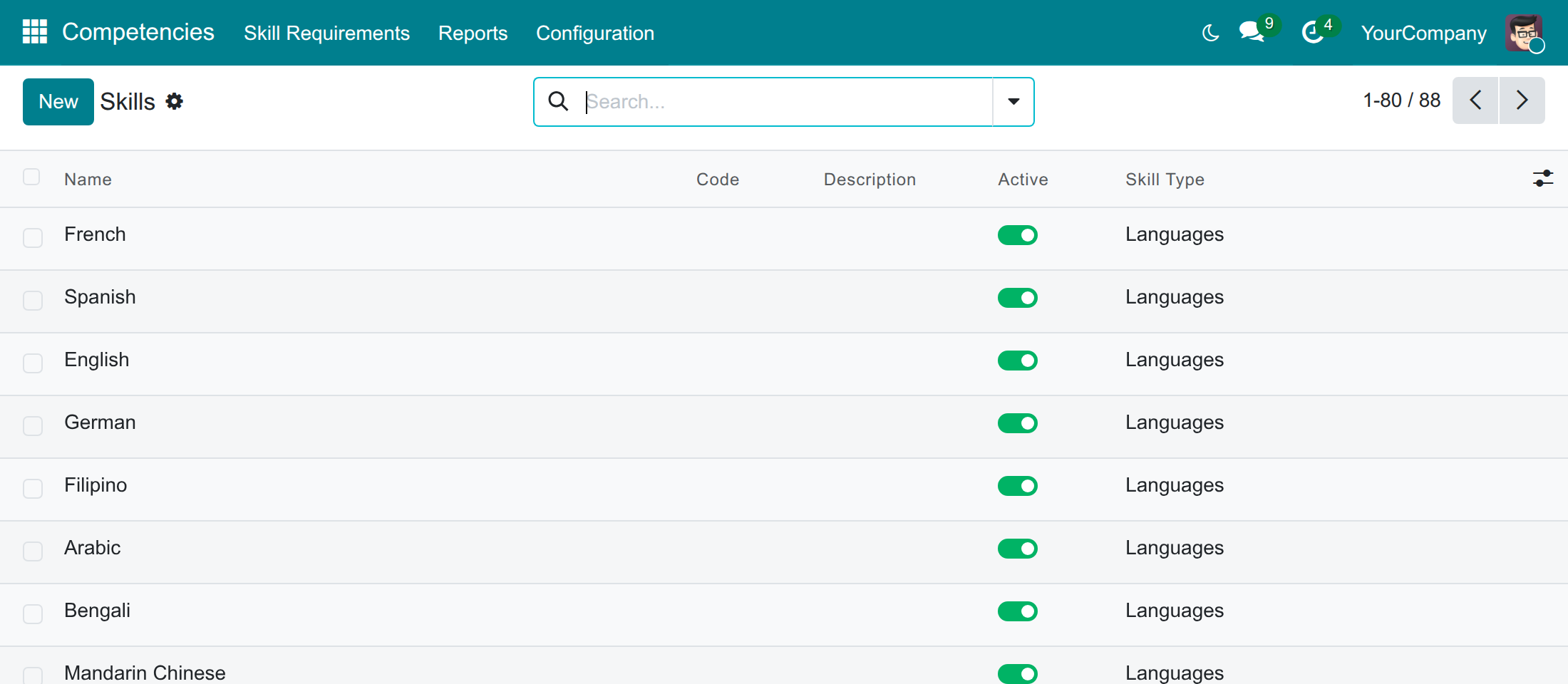
Competencies ‣ Configuration ‣ Skills lists the skills of every type in one place, which is handy to review codes and descriptions.
Describe what each level means
"Advanced" does not mean the same thing to everybody. A skill description writes down what one level of one skill means, and employees read it when they rate their skills.
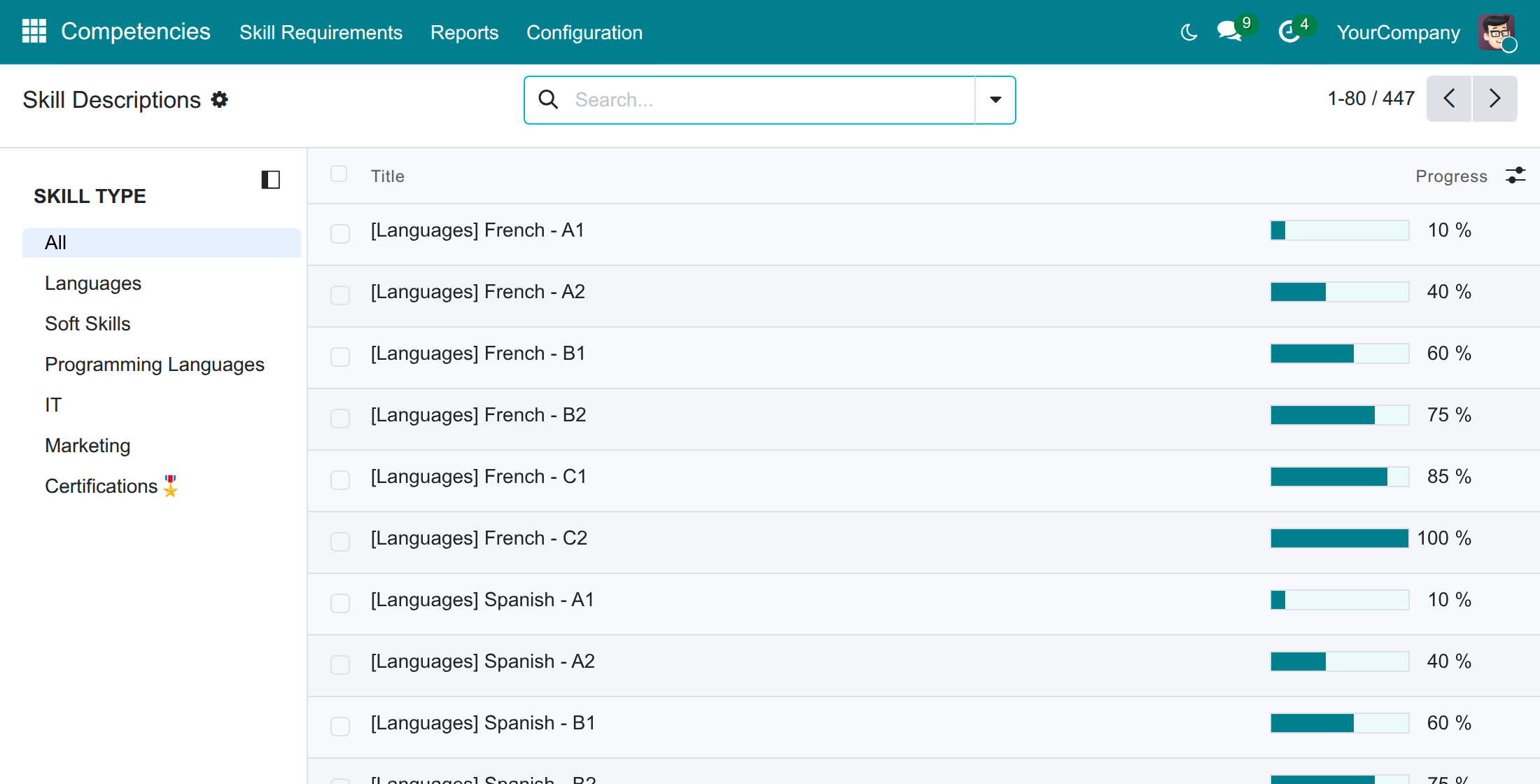
- Open Competencies ‣ Configuration ‣ Skill Descriptions. There is one entry for every skill at every level; they are created for you whenever a skill type is saved.
- Use the Skill Type panel on the left to narrow the list, then open an entry.
- Write the description in the Description tab and save.
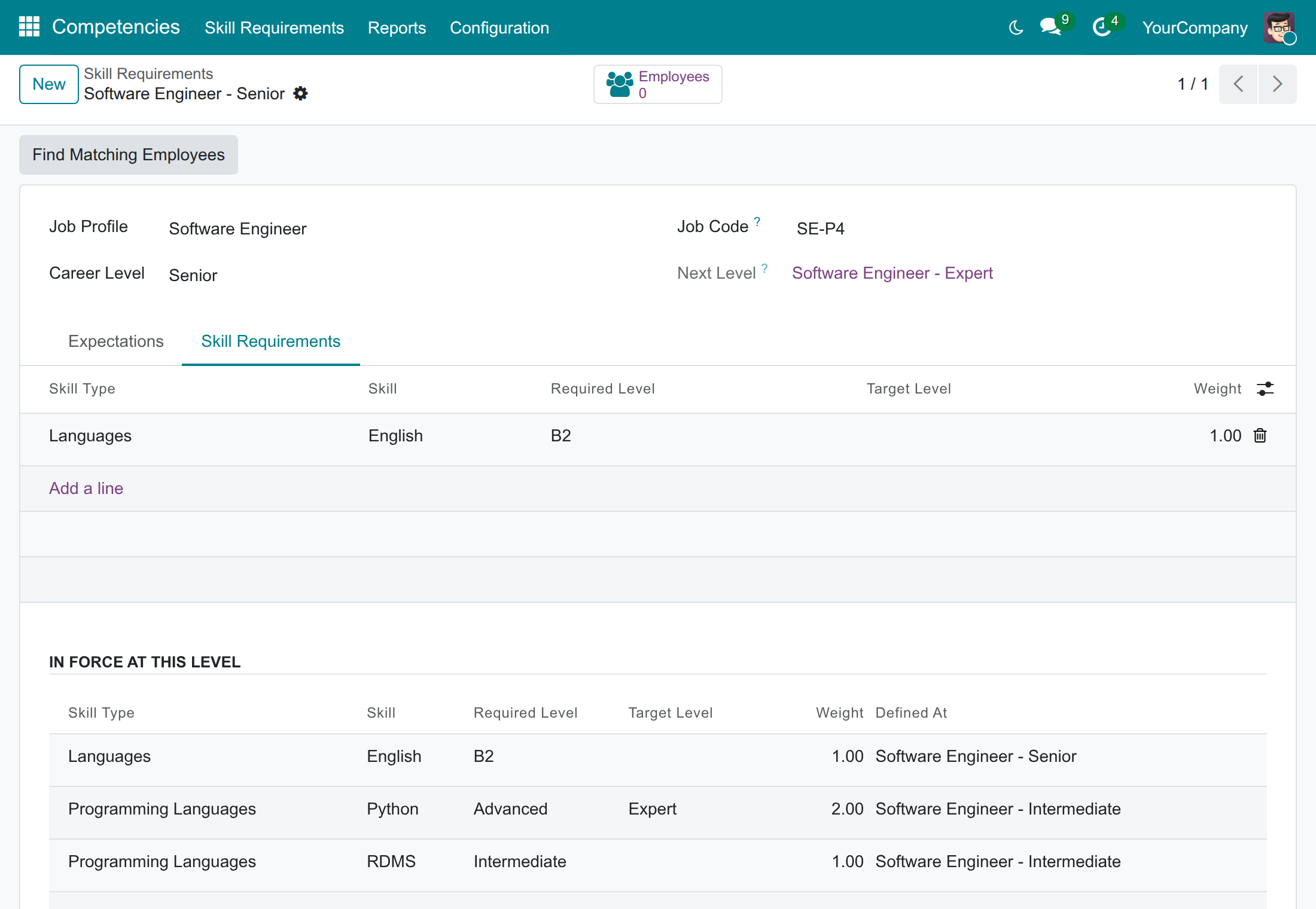
Define the skill requirements of a job level
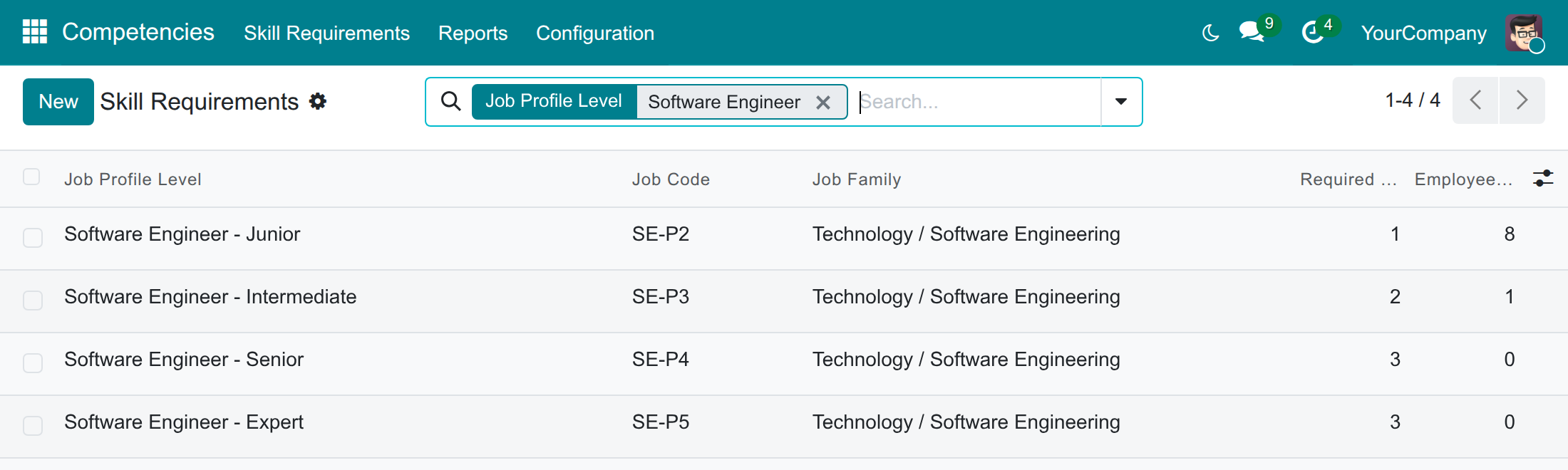
- Open Competencies ‣ Skill Requirements. Each line is a job profile level (a job profile at one career level), with the number of Required Skills it ends up with and its Employee Count.
- Search for the job profile, then open the level you want to describe.
- Open the Skill Requirements tab and press Add a line.
- Choose the Skill Type and the Skill, then the Required Level: the level an employee must hold to meet the requirement.
- Optionally choose a Target Level, the level you encourage employees to reach. It can be equal to the required level, never lower.
- Keep the Weight at 1.00 or raise it for a skill that matters more. A skill of weight 2 counts twice as much as a skill of weight 1 in the competency score. The weight must be greater than zero.
- Save.
The upper table holds what you define at this level. The table In Force at This Level below is read-only and shows what really applies: the requirements of the level plus those of the lower levels of the same profile, one line per skill, the highest required level winning. Defined At tells you which level a requirement comes from. In the picture, a Senior must meet English B2 (defined at Senior) and also Python Advanced and RDMS Intermediate (inherited from Intermediate).
Note
A requirement keeps its history. When you change the required level of a skill, the previous requirement is ended instead of overwritten; deleting a requirement ends it the same way. Changing only the weight or the target level does not create history.
Note
You maintain the requirements of existing levels. Creating a job profile level, or changing its code and career level, is done by the HR officer in Employees ‣ Configuration ‣ Job Profiles (see the documentation of Job Levels & Career Paths). Skills that only one job position needs, such as a language for one desk, are set as Expected Skills on the job position; they are added to the requirements of its employees.
HR Officer: read scores and gaps, find the right people
Read the competency score of an employee
- Open Employees ‣ Employees and select an employee.
- Read the two buttons at the top of the form: Competency Score is the weighted share of the current requirements the employee meets; Next Level Score is the same against the requirements of the next job profile level, so you see how ready the employee is for a promotion.
- Press a button to open the list of skills behind the score.
How the score is computed: for each required skill, the attainment is the progress of the level the employee holds divided by the progress of the required level, capped at 100%. The score is the average of the attainments weighted by the requirement weights. For example, with four requirements of weight 1, an employee who fully meets Python (100%), holds Javascript at 30% of what is asked and has neither HTML nor CSS scores (100% + 30% + 0% + 0%) / 4 = 32.5%.
Only current skills count: a skill whose end date has passed is ignored. A requirement whose required level has a progress of zero is met by everybody. The score stays at 0% until the employee has a job profile level or the job position expects skills. The Next Level Score button only shows when the employee has a next level.
Tip
You can search employees by score: in the Employees list, add a custom filter on Competency Score or Next Level Competency Score.
Analyse the skill gaps
- Open Competencies ‣ Reports ‣ Skill Gap Analysis.
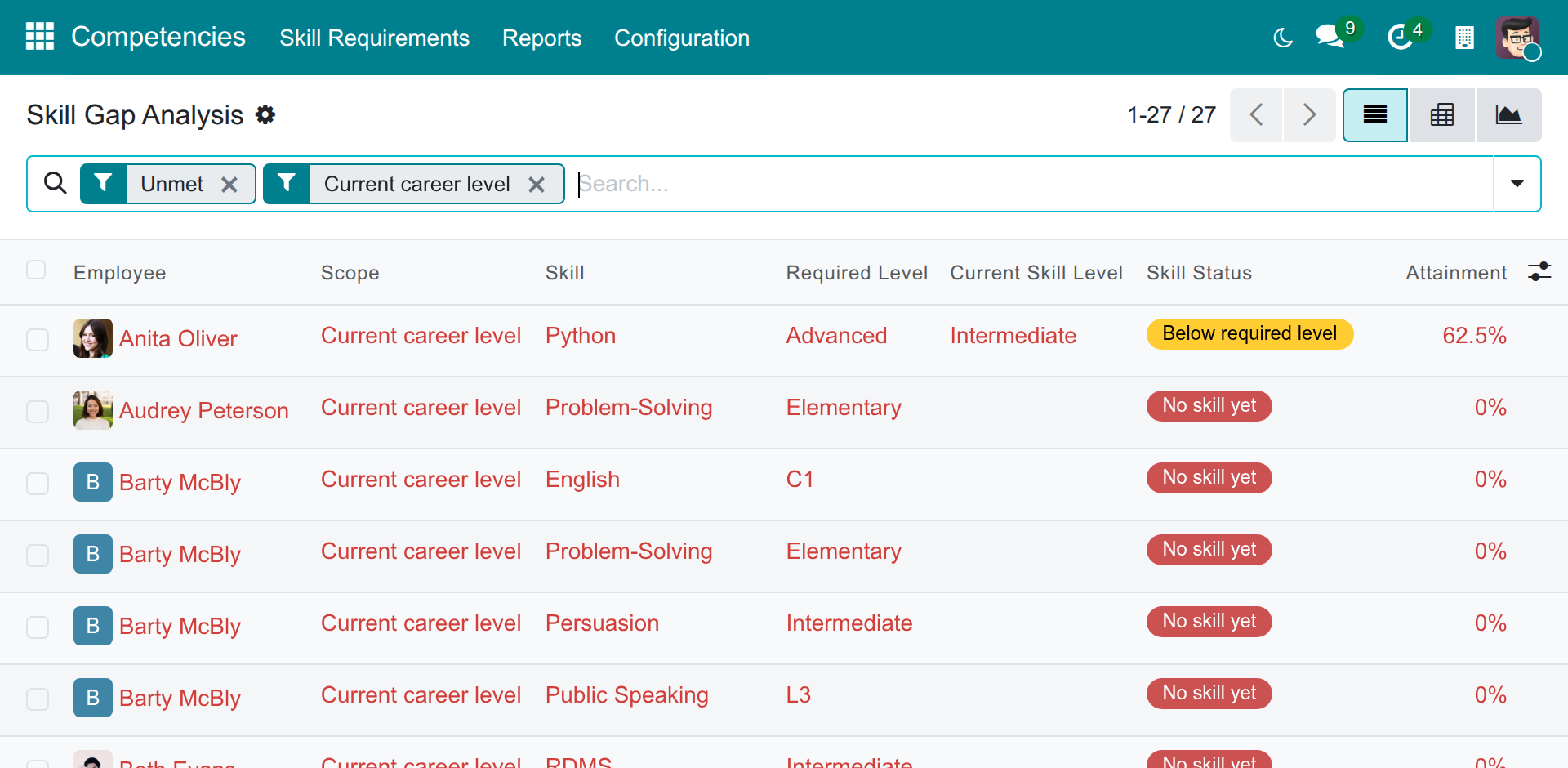
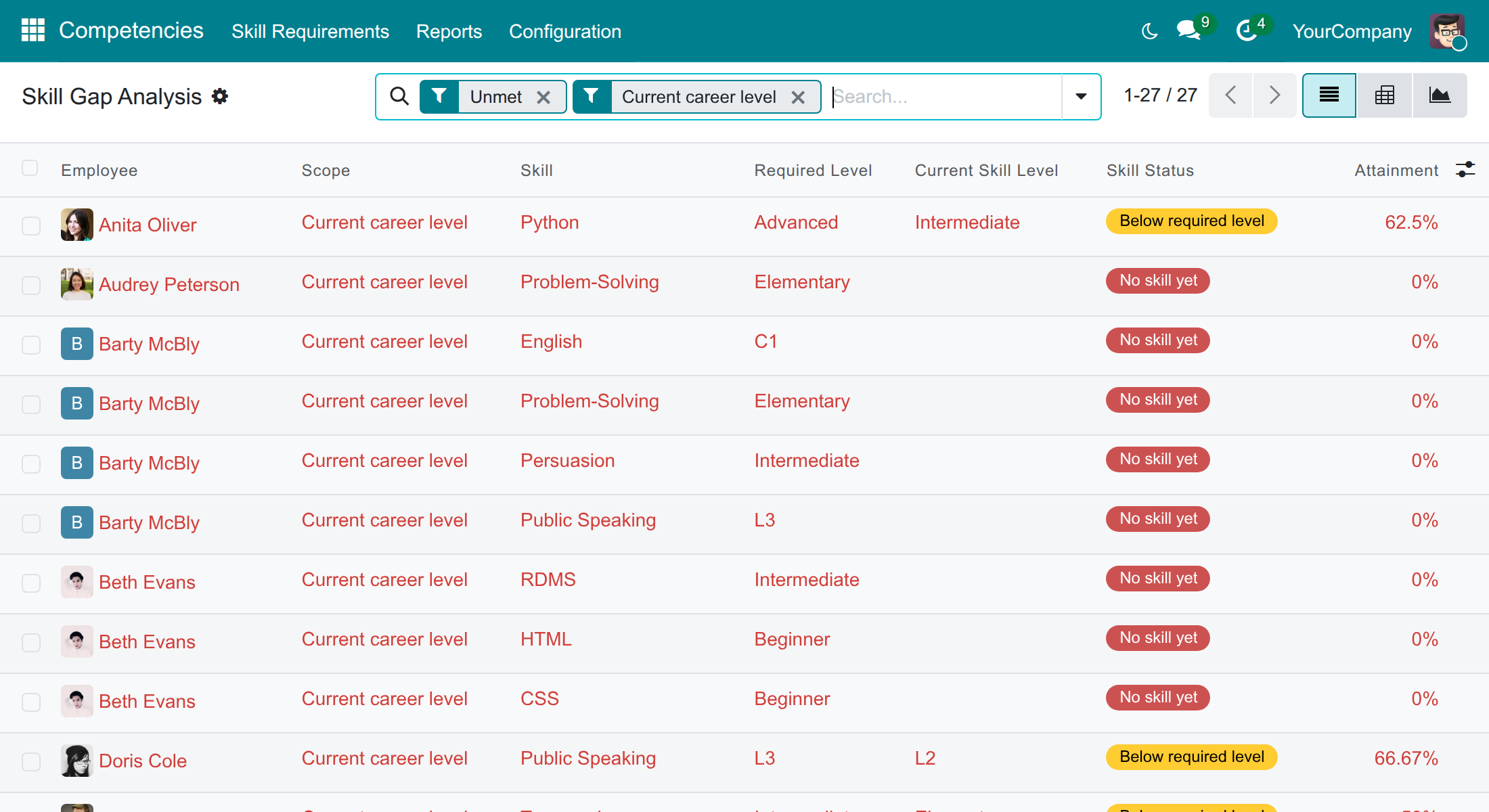
- The list opens on the gaps that matter most: the filters Unmet and Current career level are on. Each line is one required skill of one employee, with the Required Level, the Current Skill Level the employee holds, the Skill Status and the Attainment.
- Read the Skill Status: No skill yet (red), Below required level (yellow) or Meets required level (green).
- Narrow the list with the search bar (employee, department, job position, job profile level, skill, skill type) and the filters Met, Below Target (the employee has not reached the target level), Current career level and Next career level. To see what employees lack for their promotion, remove Current career level and choose Next career level.
- Group the lines by Employee, Department, Skill, Career Level or Scope to see where the company is short of a skill.
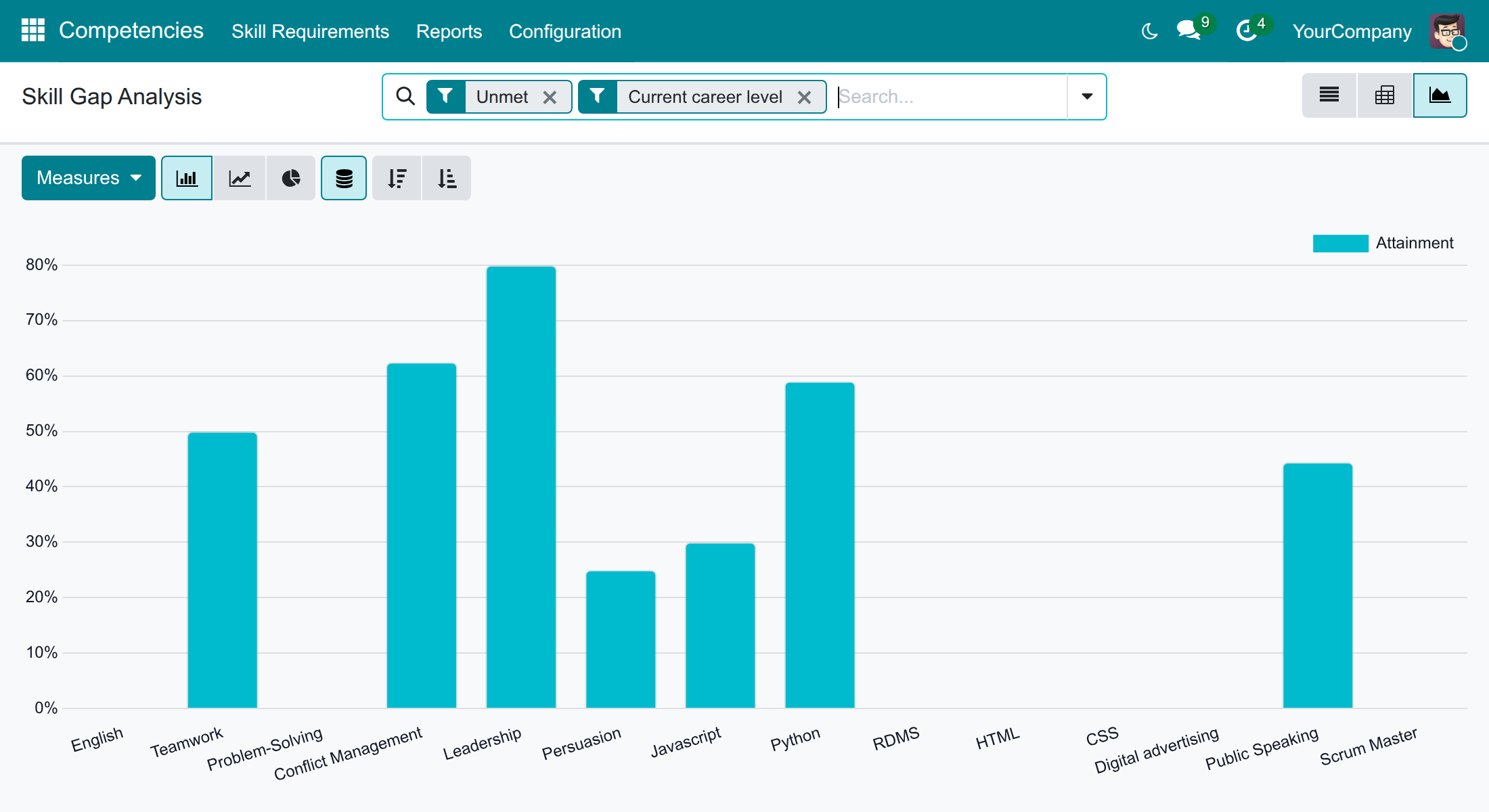
- Switch to the graph or the pivot view with the buttons at the top right. The graph below shows the average attainment per skill.
Optional columns, reached with the control at the right of the header, add Required By (the job profile level, the job position, or both), the Target Level, the Weight and the Department. The analysis is read-only: nobody can change a line, and you only see the companies you work in.
Find the employees matching a job level
Use it to fill a new position or to prepare a promotion: it ranks your employees against the requirements of any level.
- Open Competencies ‣ Skill Requirements and select the job profile level.
- Press Find Matching Employees.
- Read the list, best match first. The Competency Score column is the score of each employee against the requirements of the level you chose, not against their own level. Use the Department panel on the left to narrow the list, then open an employee.
Line Manager: follow the skill gaps of your team
See the gaps of a team member
- Open Employees ‣ Directory and select one of the employees who report to you.
- Press Skill Gaps at the top of the profile.
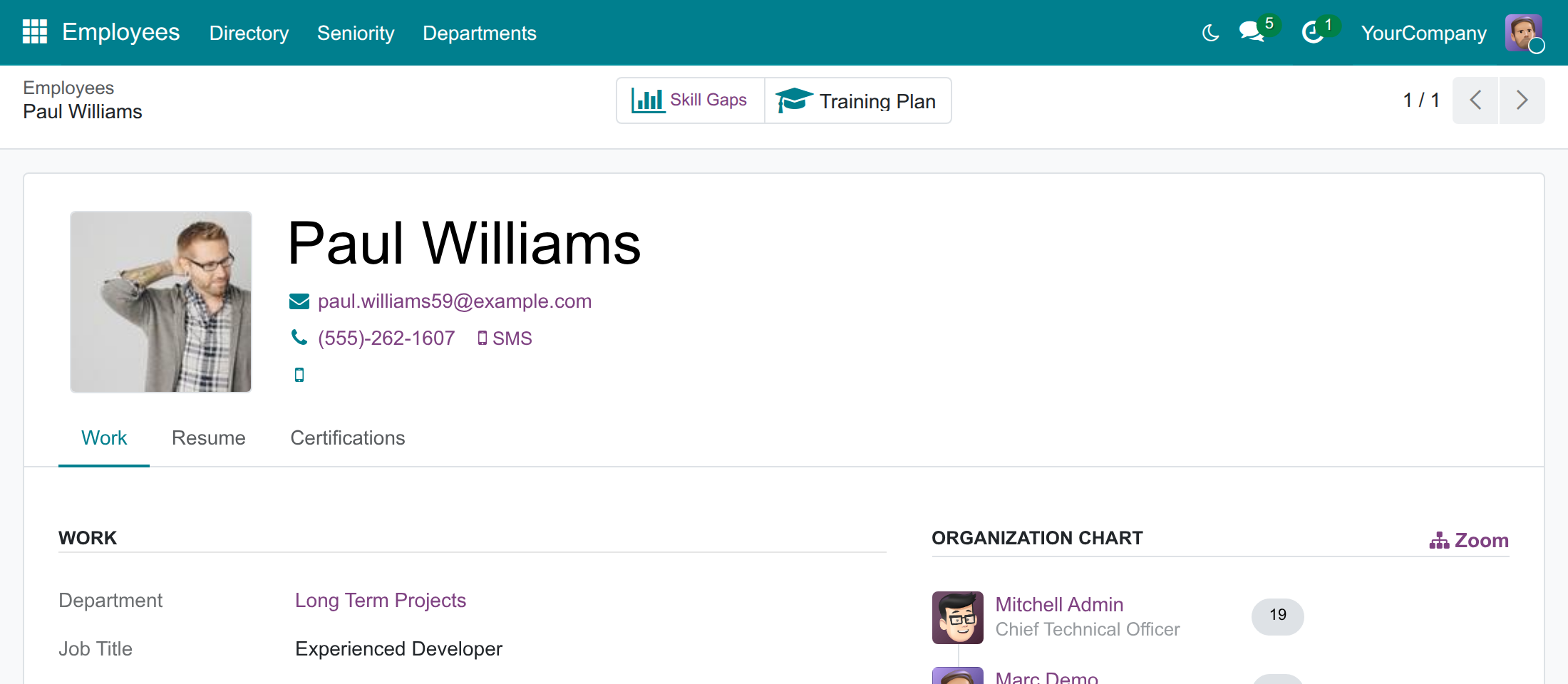
- Read the list: it shows the skills still missing for the current job level and job position of that employee, with the status and the attainment of each.
You see the gaps of the people who report to you, directly or through other managers, and your own. For anybody else the button opens an empty list. The competency score itself is shown to HR only; ask your HR officer for it. The Training Plan button next to Skill Gaps comes from the Employee Training Plans module.
You can also open Competencies ‣ Reports ‣ Skill Gap Analysis to see the gaps of your whole team at once and group them by skill.
Employee: check your own skills
See what is expected and what is missing
- Open Competencies ‣ Skill Requirements, then your job profile level, to read the skills your level requires. You can read, not change, them.
- Open Competencies ‣ Reports ‣ Skill Gap Analysis to see your own gaps, or open your profile in Employees ‣ Directory and press Skill Gaps.
- When you add or update a skill in the Resume tab of your employee form, the description of the level you pick appears in the skill form, so you rate yourself on the same scale as everybody.
Troubleshooting
- The competency score of an employee is 0%.
- The score stays at 0% while the employee has no job profile level and the job position expects no skill, or when the level has no requirement. Choose the job profile level on the employee and define its requirements.
- The Skill Gap Analysis is empty.
- Define the skill requirements of the job profile levels, then record the skills of the employees. An employee without a job profile level and without expected skills on the job position has no line, and neither has an archived employee.
- The Next Level Score button is missing.
- The employee has no next level: they are at the top of the job profile, or have no job profile level.
- A skill of an employee is not counted.
- Check its end date: a skill that has ended no longer counts. A skill or skill type you archived stops being a requirement as well.
- An employee does not see the Competency Score or the Configuration menu.
- The competency scores are shown to people with the HR officer access right, and the Configuration menu to those with the HR officer or the Competencies officer access right. Give it in Settings ‣ Users & Companies ‣ Users.
- I cannot save a requirement.
- The target level cannot be lower than the required level, must belong to the same skill type, and the weight must be greater than zero.
- I need a new job profile level for my requirement.
- The learning and development officer cannot create levels. Ask the HR officer to add the level in Employees ‣ Configuration ‣ Job Profiles.
FAQ
- Is a requirement copied to every employee?
- No. You define it once on the level and every employee of that level, and of the higher levels, follows it at once. Change it and the scores follow.
- What does the weight change?
- Only the competency score: a skill of weight 2 weighs twice a skill of weight 1. It does not change whether a requirement is met.
- Does the target level change the score?
- No. The score uses the required level. The target level is what you encourage employees to reach; it shows in the analysis, where the Below Target filter lists who has not reached it.
- What if the job position and the job level ask for the same skill?
- The skill is required once, at the highest of the two levels. Required By tells you where it comes from.
- What happens to the gaps when an employee is promoted?
- The current gaps follow the new job profile level at once, and the next gaps move to the level after it.
- Can two companies have different requirements?
- Requirements belong to a job profile level. A level shared by all companies applies everywhere, a level kept for one company is only visible there, and the analysis only shows the companies the user works in.
This software and associated files (the "Software") may only be used (executed, modified, executed after modifications) if you have purchased a valid license from the authors, typically via Odoo Apps, or if you have received a written agreement from the authors of the Software (see the COPYRIGHT file).
You may develop Odoo modules that use the Software as a library (typically by depending on it, importing it and using its resources), but without copying any source code or material from the Software. You may distribute those modules under the license of your choice, provided that this license is compatible with the terms of the Odoo Proprietary License (For example: LGPL, MIT, or proprietary licenses similar to this one).
It is forbidden to publish, distribute, sublicense, or sell copies of the Software or modified copies of the Software.
The above copyright notice and this permission notice must be included in all copies or substantial portions of the Software.
THE SOFTWARE IS PROVIDED "AS IS", WITHOUT WARRANTY OF ANY KIND, EXPRESS OR IMPLIED, INCLUDING BUT NOT LIMITED TO THE WARRANTIES OF MERCHANTABILITY, FITNESS FOR A PARTICULAR PURPOSE AND NONINFRINGEMENT. IN NO EVENT SHALL THE AUTHORS OR COPYRIGHT HOLDERS BE LIABLE FOR ANY CLAIM, DAMAGES OR OTHER LIABILITY, WHETHER IN AN ACTION OF CONTRACT, TORT OR OTHERWISE, ARISING FROM, OUT OF OR IN CONNECTION WITH THE SOFTWARE OR THE USE OR OTHER DEALINGS IN THE SOFTWARE.
