

Documents - MRP
by Viindoo
| Lines of Code | 966 |
| Technical name | viin_document_mrp |
| License | OPL-1 |
| Website | https://viindoo.com/apps/modules/19.0/viin_document_mrp |
| Read description for | v 14.0 v 15.0 v 16.0 v 17.0 v 18.0 |
| Required Apps | Manufacturing (mrp) Discuss (mail) Inventory (stock) |
| Included Dependencies | Viindoo Base Documents Management Multilingual Tracking Token Expiration |
Drawings and work instructions that travel with the manufacturing order
Attach a file to any Manufacturing Order and it is filed automatically and ready to find again in one click - no shared drive, no separate folder to build by hand.
Extends viin_document -
see its documentation.
At a Glance
The facts of Documents - MRP in one place. Published by Viindoo.
Key Features
Manufacturing Order Documents smart button
Adds a Documents count button to the standard Manufacturing Order form. Saves opening the Documents app and searching - one click shows only this order's own files.
Auto-filed manufacturing attachments
Any file attached to a Manufacturing Order is automatically turned into a Document record inside the "Manufacturing" workspace. Saves the manual step of re-uploading or re-organizing files that are already on the order.
Ready-made Manufacturing workspace, team and tags
A "Manufacturing" workspace pre-loaded with MRP-relevant tags, plus a dedicated Manufacturing document team, is ready the moment the module is installed. Saves the setup work of building a folder structure and an access model from scratch.
MO Confirmed / Mark as MO In Progress / Done MO actions
Three one-click actions that tag a document with the manufacturing order's current status. Saves retyping or remembering to update status tags by hand - and because each one only changes a tag, there is no side effect to double-check.
Read access without adding a manufacturing group
The Manufacturing document team can be granted read access to manufacturing documents for people who are not members of the Manufacturing app's own user group at all. Saves widening manufacturing permissions just so someone can see a drawing.
Why It Works
Stop hunting for the right file
Attach a drawing, work instruction, or quality record to a Manufacturing Order and it is automatically filed into the Documents app - no separate upload, no manual sorting. The next person working that order finds it without leaving Manufacturing.
Open one order, see only its own documents
A Documents smart button sits right on the Manufacturing Order form and takes you straight to that order's own files - not the whole workspace. One click gets you back to exactly what was attached, however many other orders share the same Manufacturing folder.
Move a document's status with the order - reliably
Three ready-made actions - MO Confirmed, Mark as MO In Progress, Done MO - tag a document to match where the order stands, in one click each. Every one of them does exactly that: it updates the tag and nothing else, so there is nothing to misfire or leave half-done.
Attach the file, as usual
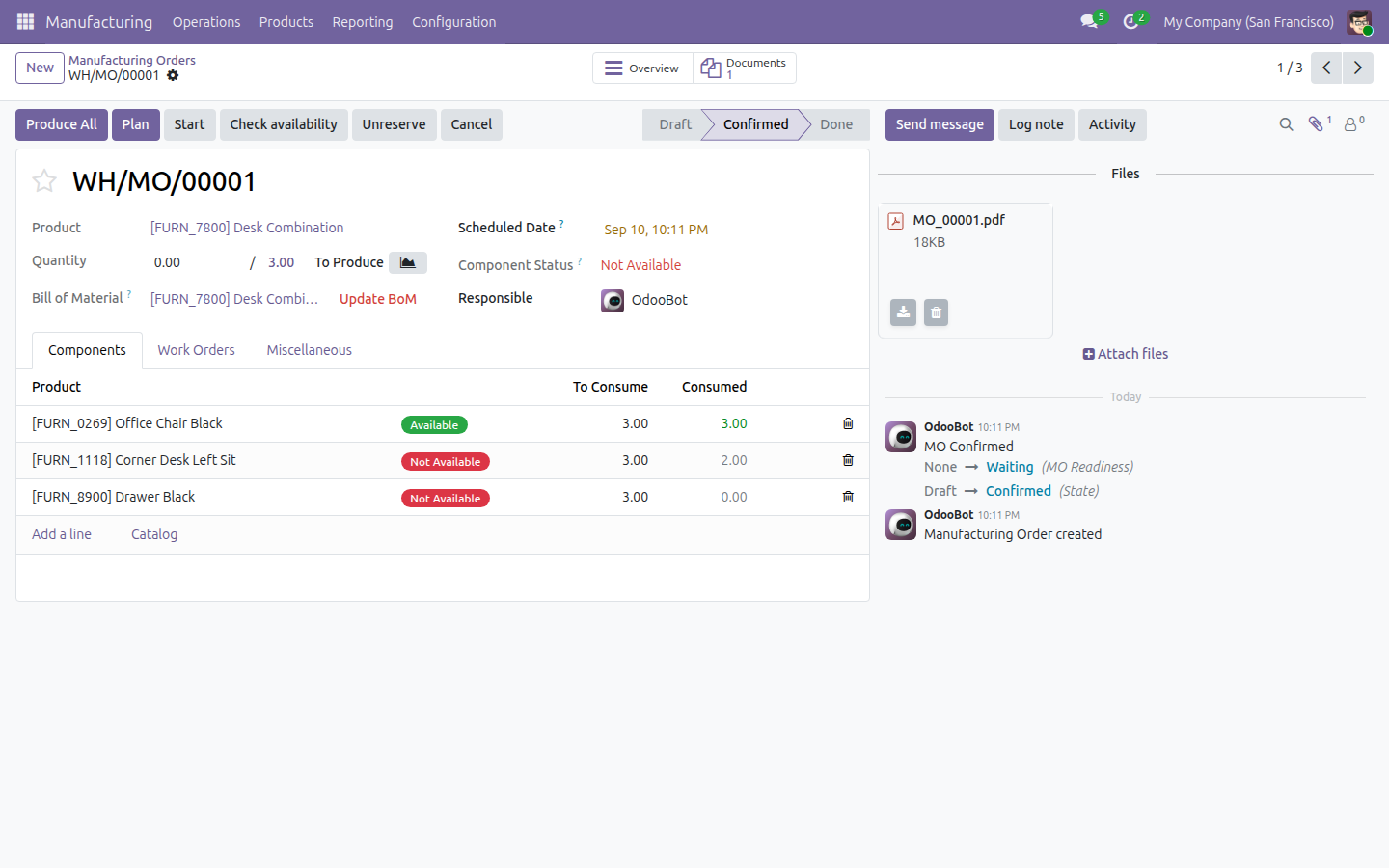
Attach a file to a Manufacturing Order the normal way - through its chatter.
It is filed automatically
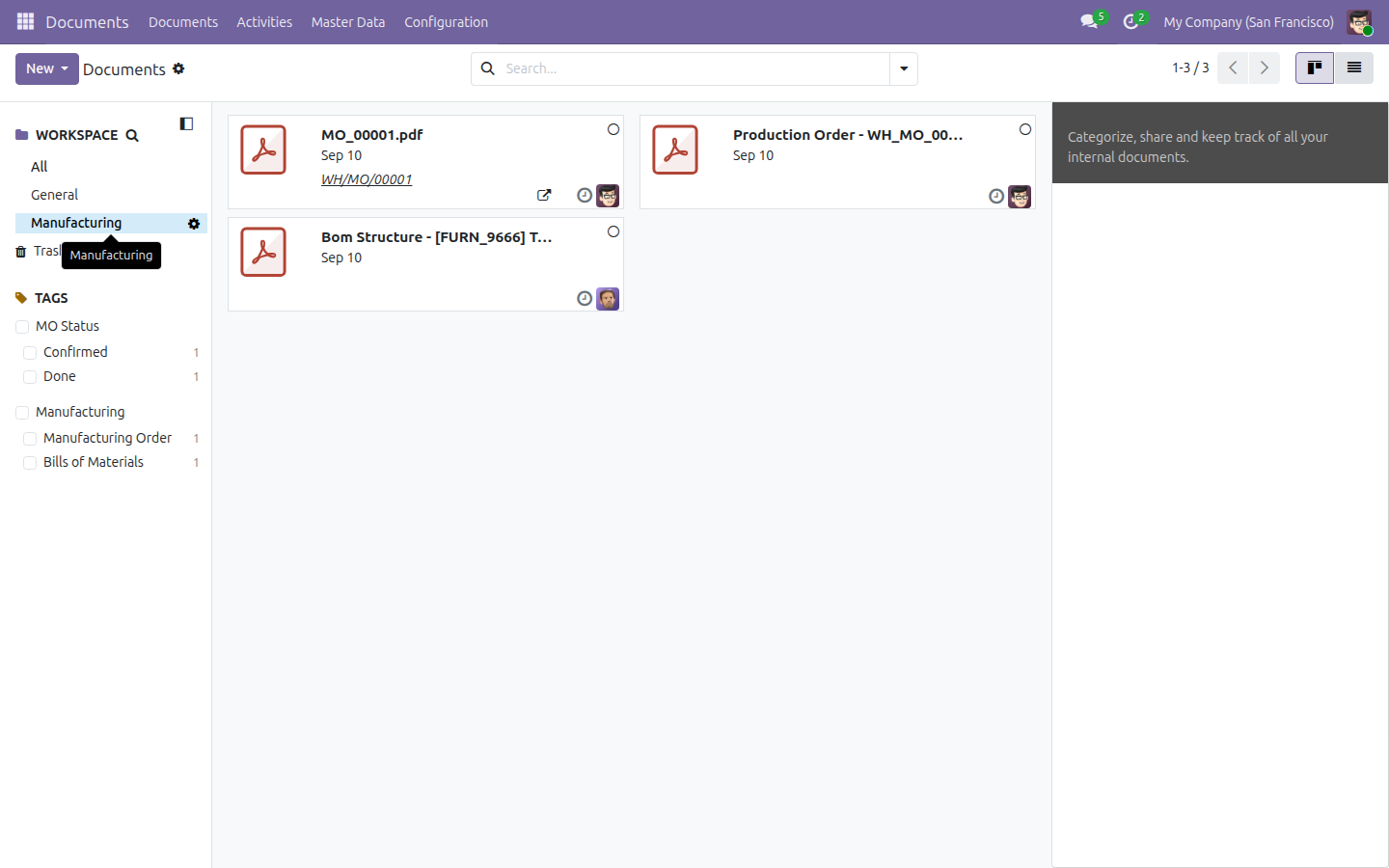
Open the Documents app and filter to the "Manufacturing" workspace: the file is already there as a Document record, with no extra step on your part.
Jump back to that order's own file
Back on the Manufacturing Order form, a Documents smart button - visible once there is at least one file - takes you straight to only this order's documents.
Move its status forward as the order progresses
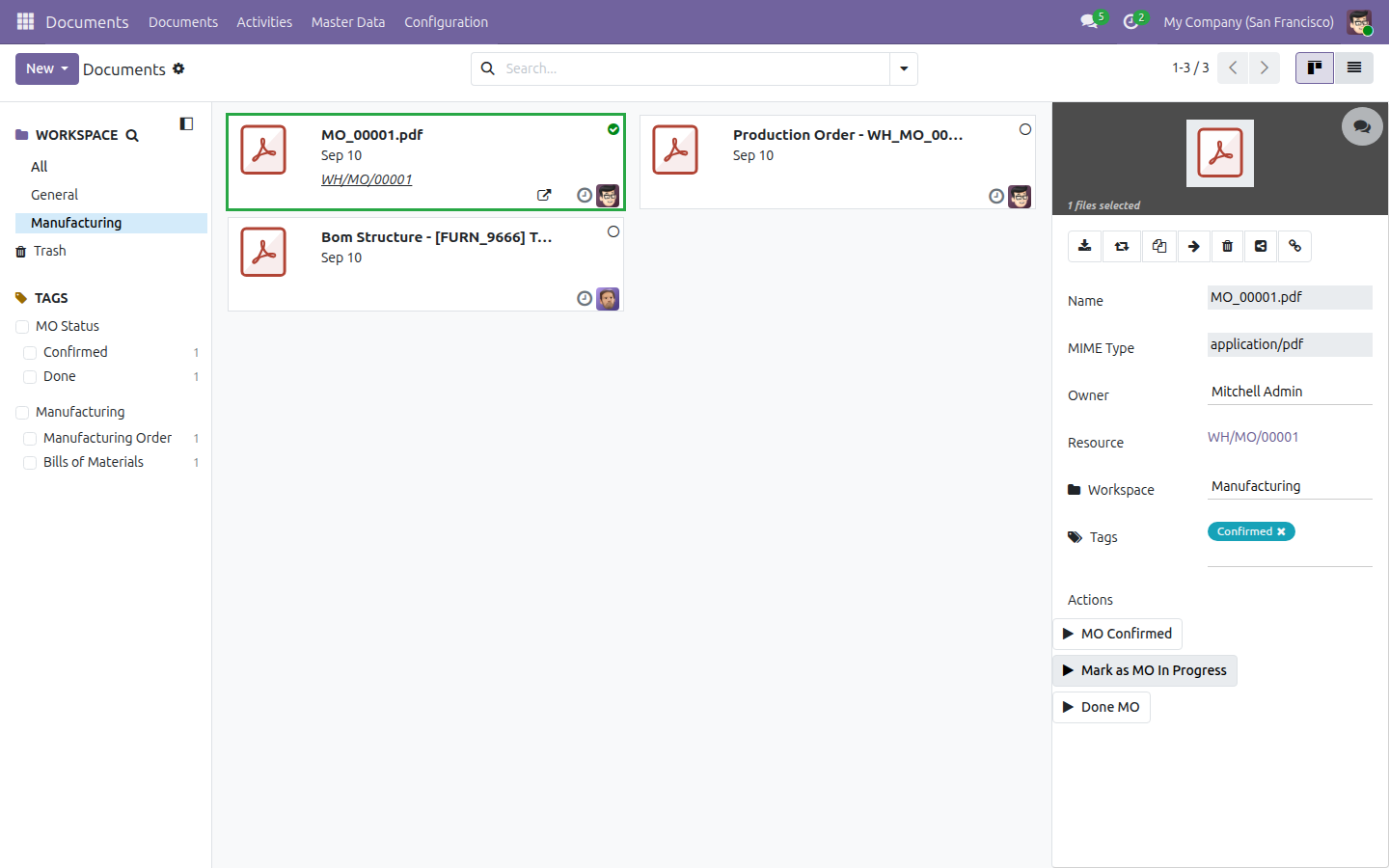
Open the document and use its Actions panel - MO Confirmed, Mark as MO In Progress, Done MO - to tag it in step with the order, one click at a time.
Need help with Documents - MRP?
Technical Requirement
- Odoo version: 19.0
- Editions: Odoo Community, Viindoo SaaS (no Enterprise licence required)
- Required modules: Document Management (
viin_document), Manufacturing (mrp) - License: OPL-1
Frequently Asked Questions
Does this need Odoo Enterprise?
No. Documents - MRP runs on Odoo Community Edition and Viindoo SaaS - no Enterprise licence required.
Will it install itself once Manufacturing is installed?
No. It depends on viin_document and mrp, but you install it
explicitly - it never turns itself on just because Manufacturing is present.
Does every manufacturing order get its own document folder?
No. Every manufacturing order's files are filed into one shared "Manufacturing" workspace. The Documents smart button on the order filters the view down to that order's own files - it does not create a folder per order.
Are files tagged automatically when they're filed?
No. Auto-filed documents arrive untagged. Applying a tag - including through the MO Confirmed / Mark as MO In Progress / Done MO actions - is always a deliberate step.
Do the MO status actions create reminders or activities?
No, by design. All three actions only update the document's status tag. They don't schedule or depend on an activity, so there is nothing else to track and nothing that can silently fail to fire.
Documents - MRP
Note
Extends viin_document - see its documentation: ../../viin_document/doc/index.rst
This app connects the Manufacturing app to the Documents app. Attach a file to a Manufacturing Order and Odoo automatically files it into a ready-made Manufacturing workspace, pre-loaded with tags and three one-click actions for tracking a document's status.
Installation
- Open Apps.
- Search for Documents - MRP.
- Click Activate.
This app depends on Documents and Manufacturing; Odoo installs both automatically if they are not already present.
Configuration
Nothing needs to be set up before you start attaching files - the app ships pre-configured. On install, it automatically creates:
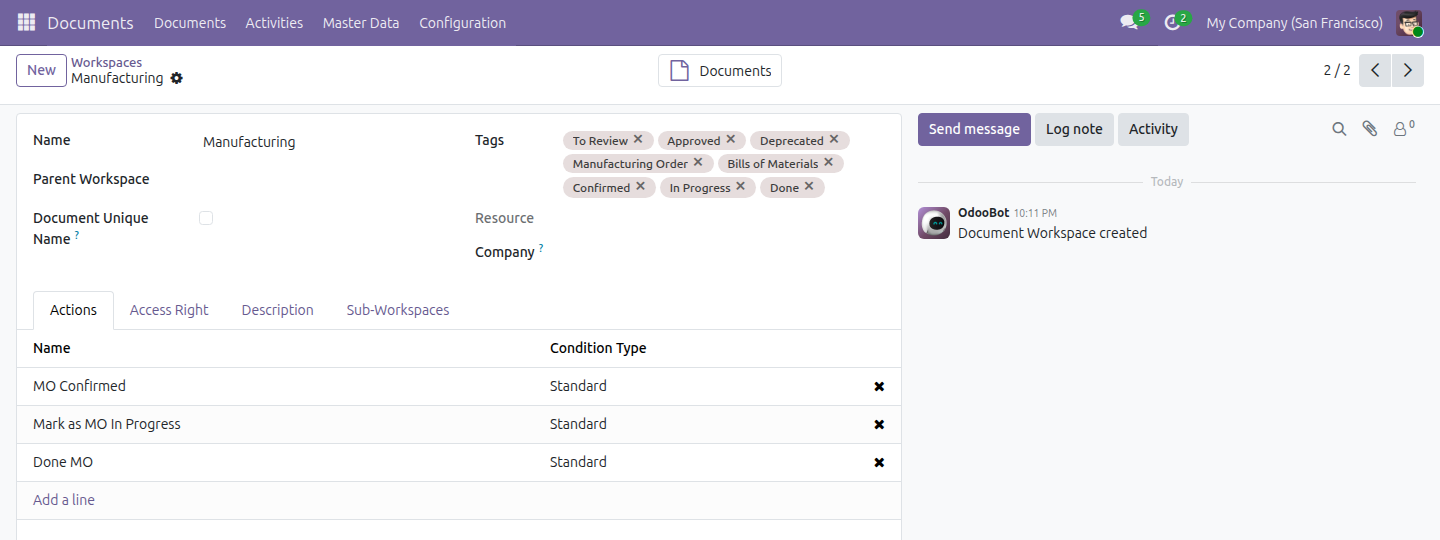
- The Manufacturing workspace at Documents ‣ Master Data ‣ Workspaces, pre-loaded with 8 tags: Manufacturing Order and Bills of Materials (under the Manufacturing tag category), Confirmed, In Progress and Done (under the MO Status tag category), plus To Review, Approved and Deprecated inherited from Documents itself.
- Three ready-made actions attached to that workspace: MO Confirmed, Mark as MO In Progress and Done MO.
- The Manufacturing team at Documents ‣ Master Data ‣ Teams, led by the Administrator user by default.
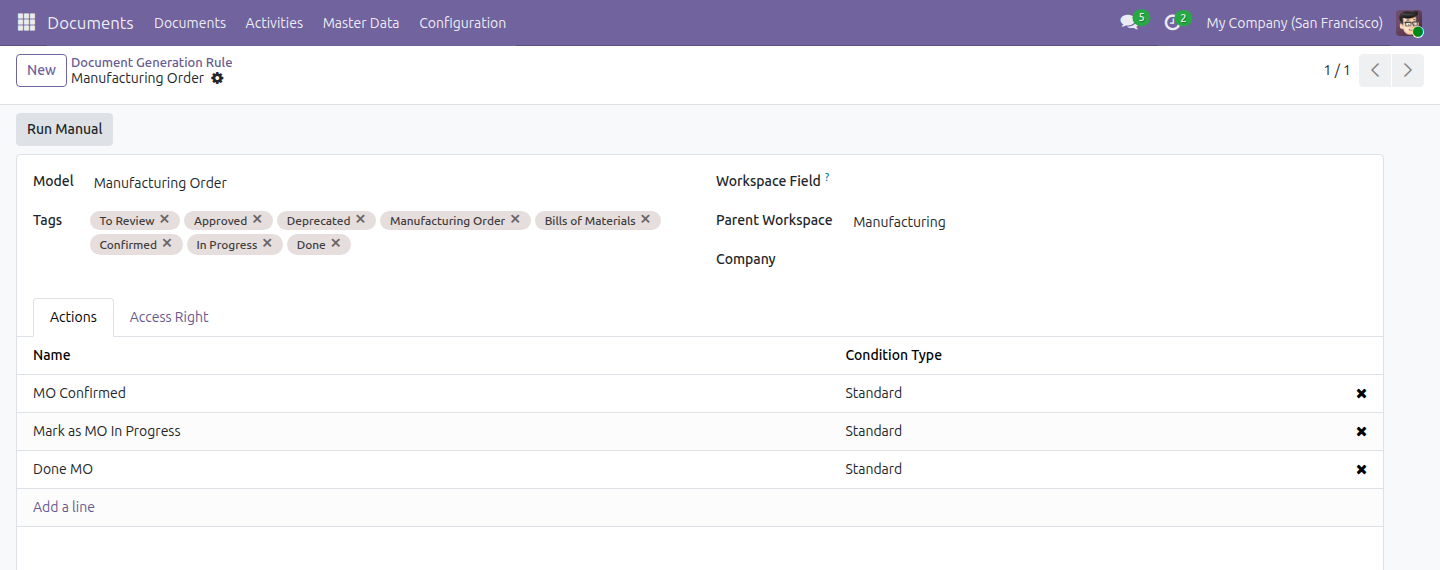
- A filing rule, at Documents ‣ Configuration ‣ Document Generation Rule, that routes every attachment added to a Manufacturing Order into the Manufacturing workspace - both for orders that already existed when the app was installed and for every new attachment added afterward.
Access rights
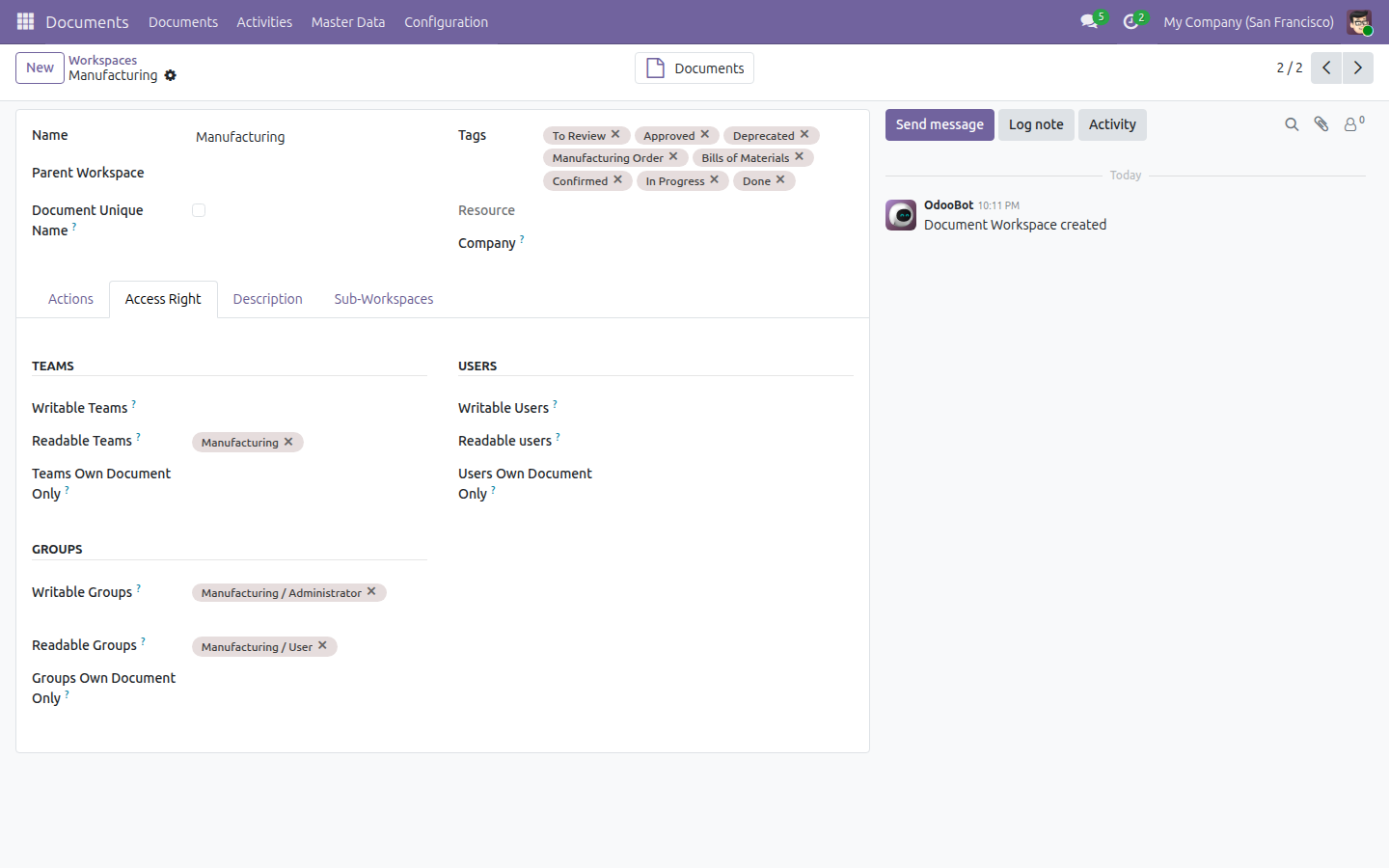
Open the Manufacturing workspace record and click its Access Right tab to see who can use it: the Manufacturing / Administrator group has write access, the Manufacturing / User group has read access, and the Manufacturing team is also granted read access - useful for giving a user outside both groups (for example, someone in Quality) visibility into manufacturing documents without granting them Manufacturing access itself.
The Document Generation Rule
Open Documents ‣ Configuration ‣ Document Generation Rule and select the Manufacturing Order row to see how the filing rule is set up: its Parent Workspace is Manufacturing and its Workspace Field is left empty - so every Manufacturing Order's attachments land directly in the Manufacturing workspace, never in a sub-workspace of their own.
Usage
Attach a file to a Manufacturing Order
- Open Manufacturing ‣ Operations ‣ Manufacturing Orders and select (or create) an order.
- In the chatter on the right, click Attach files and choose a file - for example a blueprint or an assembly guide.
- Odoo takes it from there: the order's own Documents button appears in the button box, and the file now also shows up inside the Manufacturing workspace in the Documents app.
Every file lands in this single, shared Manufacturing workspace - there is no separate folder created per Manufacturing Order.
Jump straight to one order's own documents
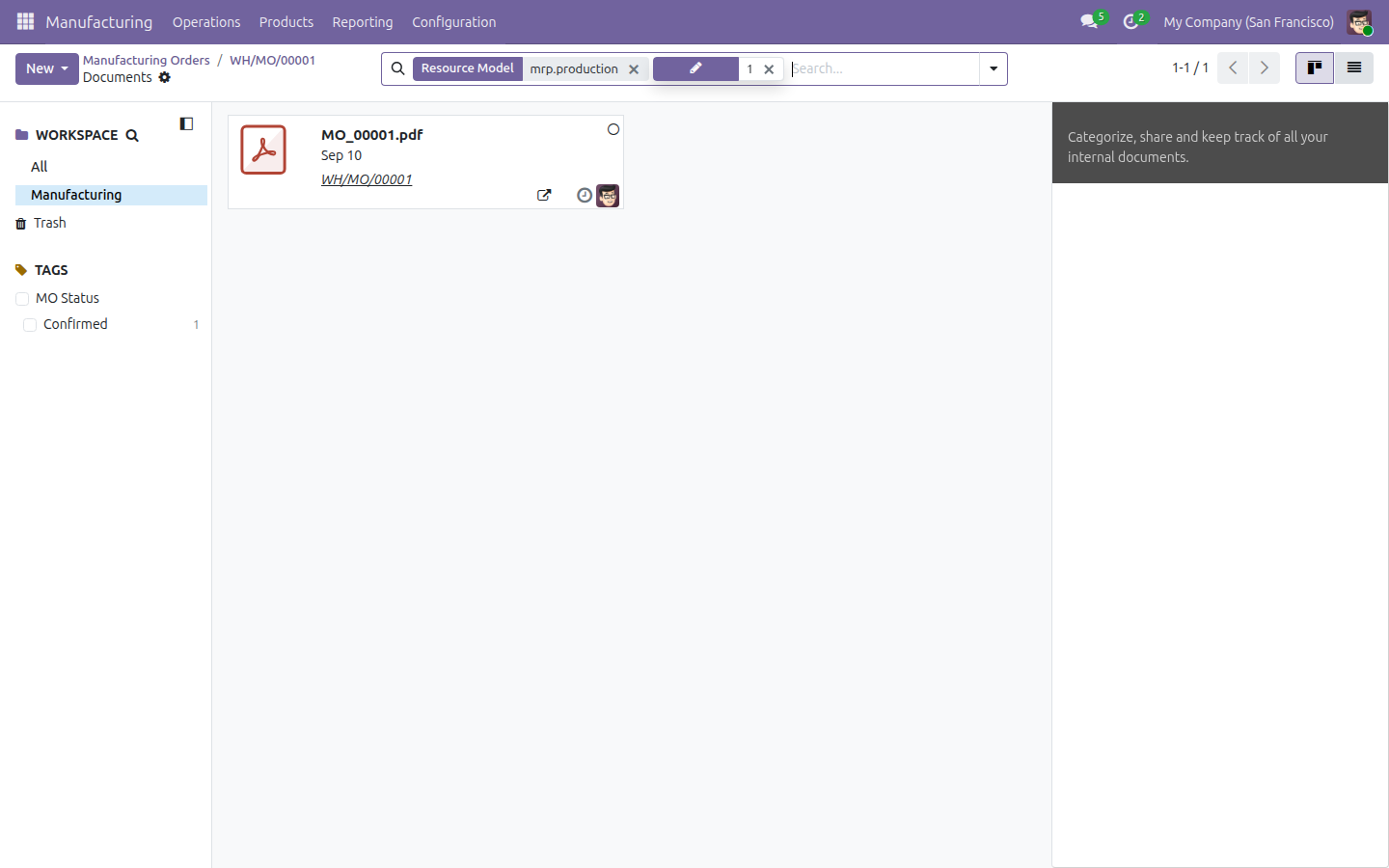
- Open the Manufacturing Order and click its Documents button (in the button box; it only appears once at least one file is attached).
- Odoo opens the Documents app narrowed to just this order's own file or files - even though every one of them still lives inside the same shared Manufacturing workspace.
Track a document's status with the ready-made actions
- Open Documents ‣ Documents and select Manufacturing in the workspace panel on the left.
- Click a document. The panel on the right lists the ready-made actions under Actions: MO Confirmed, Mark as MO In Progress and Done MO.
- Click any one of them. Odoo replaces the document's MO Status tag with the matching value - whichever tag was there before is removed.
None of these three actions schedules a follow-up activity or sends a notification on its own - each one only updates the tag. If your team needs a reminder, schedule one yourself from the document's own Activity button.
Review the Manufacturing workspace and its team
- Open Documents ‣ Master Data ‣ Workspaces and click Manufacturing to see its tags and its three actions.
- Open Documents ‣ Master Data ‣ Teams and click Manufacturing to see who leads it.

The demo database also ships two illustrative documents inside the Manufacturing workspace: a production order file tagged Manufacturing Order and Confirmed, and a bill of materials file tagged Bills of Materials and Done. They are for illustration only - unlike a file you attach yourself, they are not linked back to a real Manufacturing Order or bill of materials, so their Documents smart button and back-link to a source record are not available on them.
Troubleshooting
The Documents button does not appear on the Manufacturing Order form
The button only appears once at least one file has been filed for that order - either through an attachment on the chatter, or uploaded directly into the Manufacturing workspace and linked to that order.
My uploaded file has no tag
Automatic filing applies the workspace, but never a tag - add Manufacturing Order, Bills of Materials or a status tag yourself from the document's Tags field.
I do not see a folder for my specific Manufacturing Order
There is not one. Every Manufacturing Order's files share the single Manufacturing workspace - use the order's own Documents button, or the MO Status tag filter, to narrow the list down instead of looking for a subfolder.
FAQ
Is there a separate folder for each Manufacturing Order?
No. Every order's filed documents land in the single shared Manufacturing workspace; there is no per-order subfolder.
Do the MO status actions (MO Confirmed, Mark as MO In Progress, Done MO) notify anyone or schedule a follow-up?
No. Each one only replaces the document's MO Status tag - nothing else changes.
Do I need to tag a document myself after it is auto-filed?
Yes. Automatic filing applies the workspace, but never a tag.
Can I click Done MO before MO Confirmed?
Yes - the three actions do not enforce an order. Each one simply replaces the MO Status tag with its own value, whatever tag the document carried before.
This software and associated files (the "Software") may only be used (executed, modified, executed after modifications) if you have purchased a valid license from the authors, typically via Odoo Apps, or if you have received a written agreement from the authors of the Software (see the COPYRIGHT file).
You may develop Odoo modules that use the Software as a library (typically by depending on it, importing it and using its resources), but without copying any source code or material from the Software. You may distribute those modules under the license of your choice, provided that this license is compatible with the terms of the Odoo Proprietary License (For example: LGPL, MIT, or proprietary licenses similar to this one).
It is forbidden to publish, distribute, sublicense, or sell copies of the Software or modified copies of the Software.
The above copyright notice and this permission notice must be included in all copies or substantial portions of the Software.
THE SOFTWARE IS PROVIDED "AS IS", WITHOUT WARRANTY OF ANY KIND, EXPRESS OR IMPLIED, INCLUDING BUT NOT LIMITED TO THE WARRANTIES OF MERCHANTABILITY, FITNESS FOR A PARTICULAR PURPOSE AND NONINFRINGEMENT. IN NO EVENT SHALL THE AUTHORS OR COPYRIGHT HOLDERS BE LIABLE FOR ANY CLAIM, DAMAGES OR OTHER LIABILITY, WHETHER IN AN ACTION OF CONTRACT, TORT OR OTHERWISE, ARISING FROM, OUT OF OR IN CONNECTION WITH THE SOFTWARE OR THE USE OR OTHER DEALINGS IN THE SOFTWARE.
