Objectives & Key Results - OKR
| Lines of Code | 4349 |
| Technical name | to_okr |
| License | OPL-1 |
| Website | https://viindoo.com/apps/modules/20.0/to_okr |
| Read description for | v 13.0 v 14.0 v 15.0 v 16.0 v 17.0 v 18.0 v 19.0 |
| Included Dependencies | Advanced HR Management |
| Extensions | OKR & Project Integrator |

Viindoo OKR - Align Strategy. Focus Execution.
Turn your strategy into measurable outcomes with a native Objectives & Key Results (OKR) engine for Odoo/Viindoo. Align company, department, and individual goals in one place, track progress automatically, and keep everyone focused on what truly moves the business.
Measure every key result from a start value to a target, check in every week with a confidence, see at once which OKRs are On Track, At Risk or Off Track against the pace of the period, and report with a health board, an OKR map, burn-up charts and printable scorecards.
At a Glance
The facts of Objectives & Key Results - OKR, version 0.2.2, in one place. Published by Viindoo.
Key Features
A complete OKR cycle inside Odoo: plan, measure, check in, follow the health, report and close the period, with nothing to set up but your objectives.
Structured OKR Hierarchy
Company, department and employee objectives linked into one tree. Each level’s objectives are the key results of the level above, with weights.
Measurable Key Results
Measure a key result by a percentage, a number or an amount from a start value to a target, up or down, by done / not done, or by a manual score. Objectives score themselves.
One-minute Weekly Check-ins
New value, confidence, progress update, blockers and next steps in one dialog. Owners get a reminder when a check-in is due.
Health Against the Pace
Every OKR compares its progress with the time spent in the period: On Track, At Risk, Off Track, then Achieved or Missed. A Not Confident check-in raises the flag early.
Boards, Charts & Scorecards
Health Board, OKR Map, a burn-up chart on every OKR, OKR Analysis, Department Scorecard, Check-in Analysis and a printable OKR Scorecard.
Period Closing & Carry-over
Close a quarter or a year in one click: final scores are locked and unfinished objectives move to the next period. Score key results by project tasks with OKR & Project Integrator.
What’s New in 20.0
Version 0.2.2 · 2026-11-12
- Measurable key results: percentage, number, amount (up or down), done / not done or manual score.
- Check-ins with confidence, progress update, blockers and next steps; check-in reminders.
- Health against the expected pace, Health Board and My OKRs board.
- Burn-up chart on every OKR; OKR Analysis, Department Scorecard, Check-in Analysis; OKR Scorecard (PDF).
- Period closing with carry-over of the unfinished OKRs.
- Explanations on every field, warnings that open the record to fix, demo OKRs of the current quarter.
Benefits
Ensure every team and individual is aligned with a few clear, impactful objectives instead of scattered task lists.
Replace subjective performance discussions with measurable key results and transparent scoring logic.
Give employees clear ownership, visibility on how their work contributes to company goals, and keep focus on outcomes, not just activities.
Implementers reuse a consistent OKR framework across clients with minimal customization, ensuring reliability and lower maintenance.
Measurable Key Results
- Measure a key result by a percentage, a number or an amount, from a start value to a target value.
- A target below the start value is a key result that must go down, e.g. the churn rate.
- Or measure it by done / not done, or by a manual score from 0.0 to 1.0.
- An objective scores itself from the weighted average of its confirmed key results.
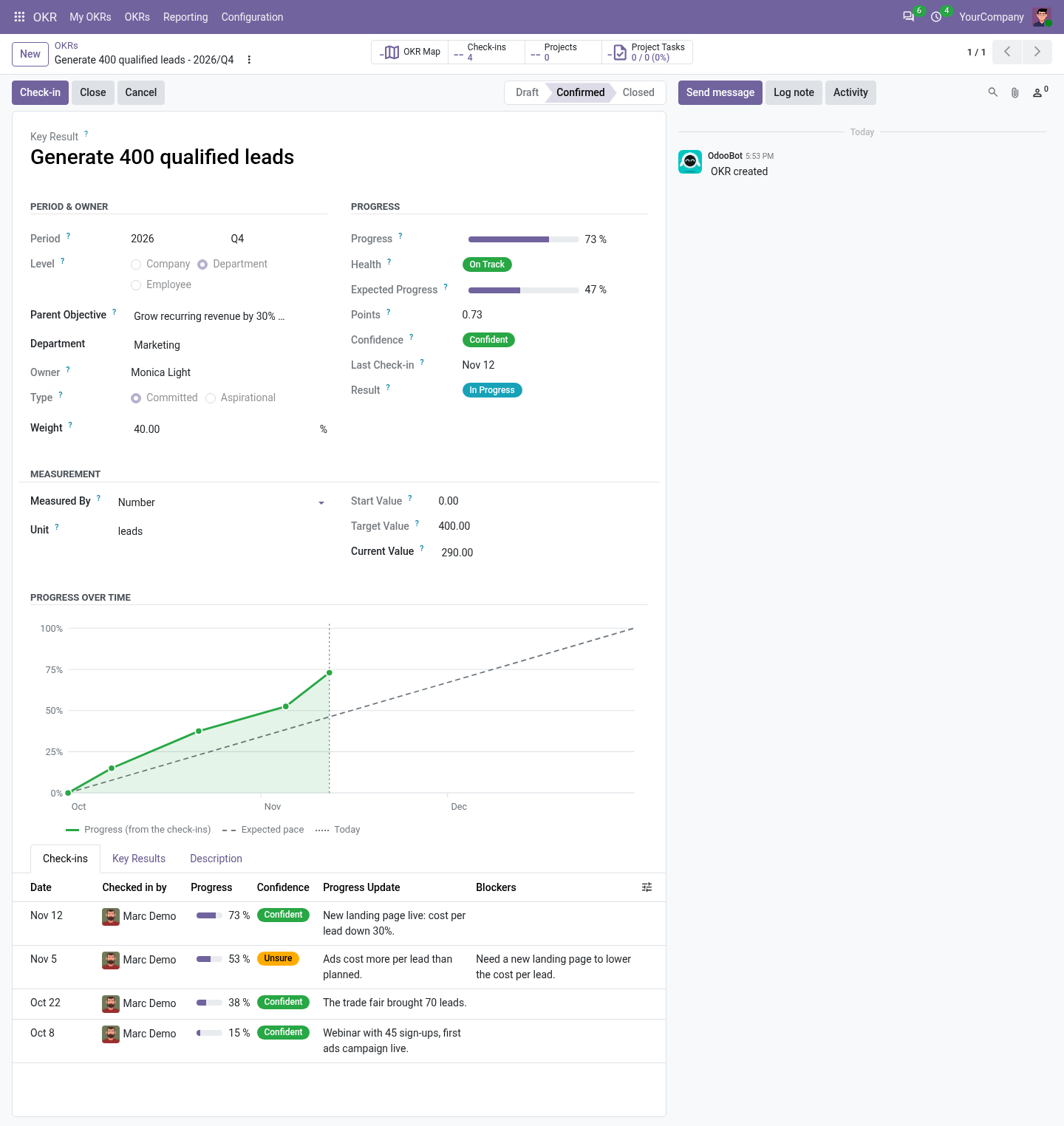
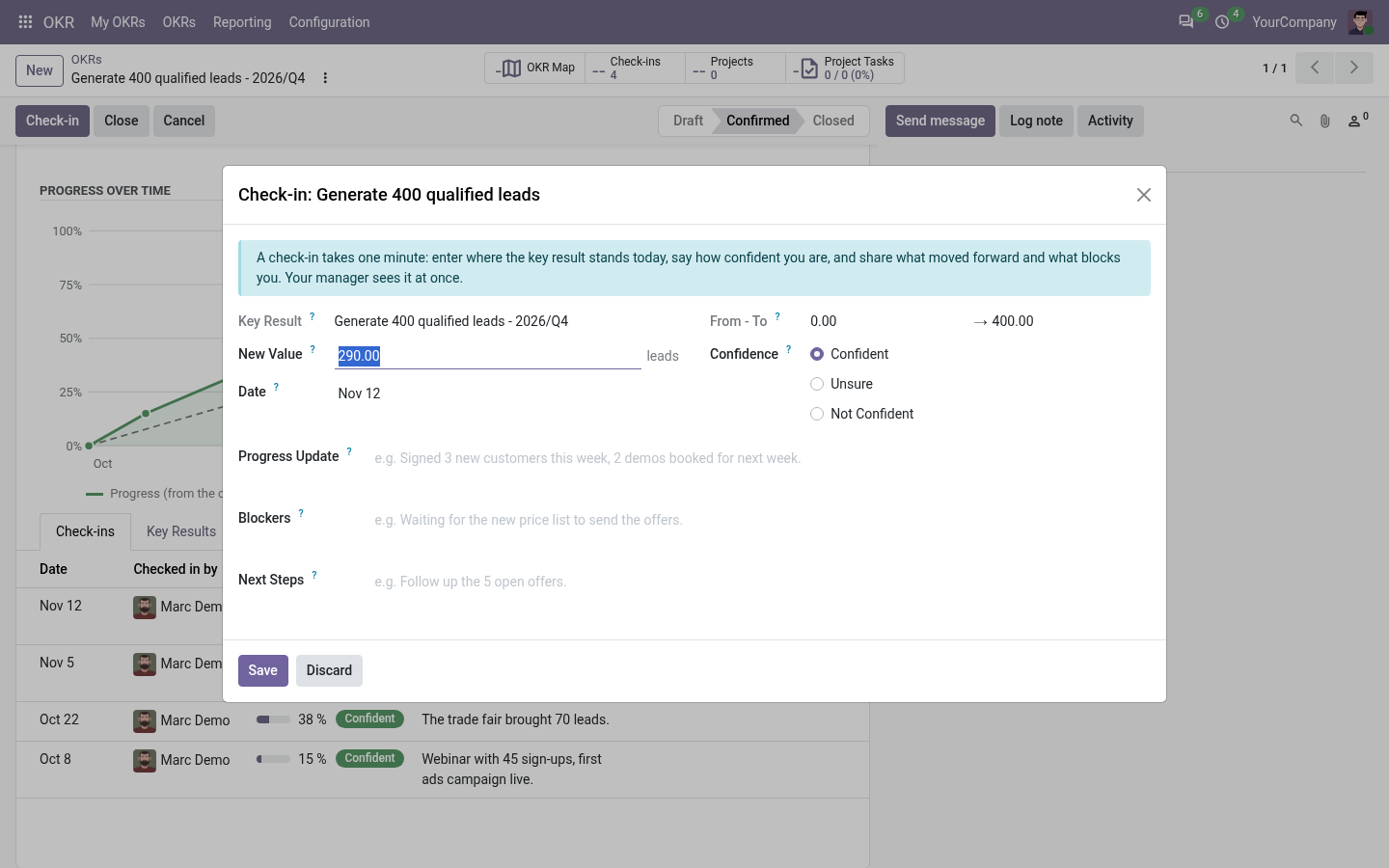
One-minute Weekly Check-ins
- Enter the new value, say how confident you are, share what moved forward, the blockers and the next steps.
- The score, the health and the chart update at once; the history stays on the key result.
- Owners get an activity reminder when a running key result has not been checked in for a week.
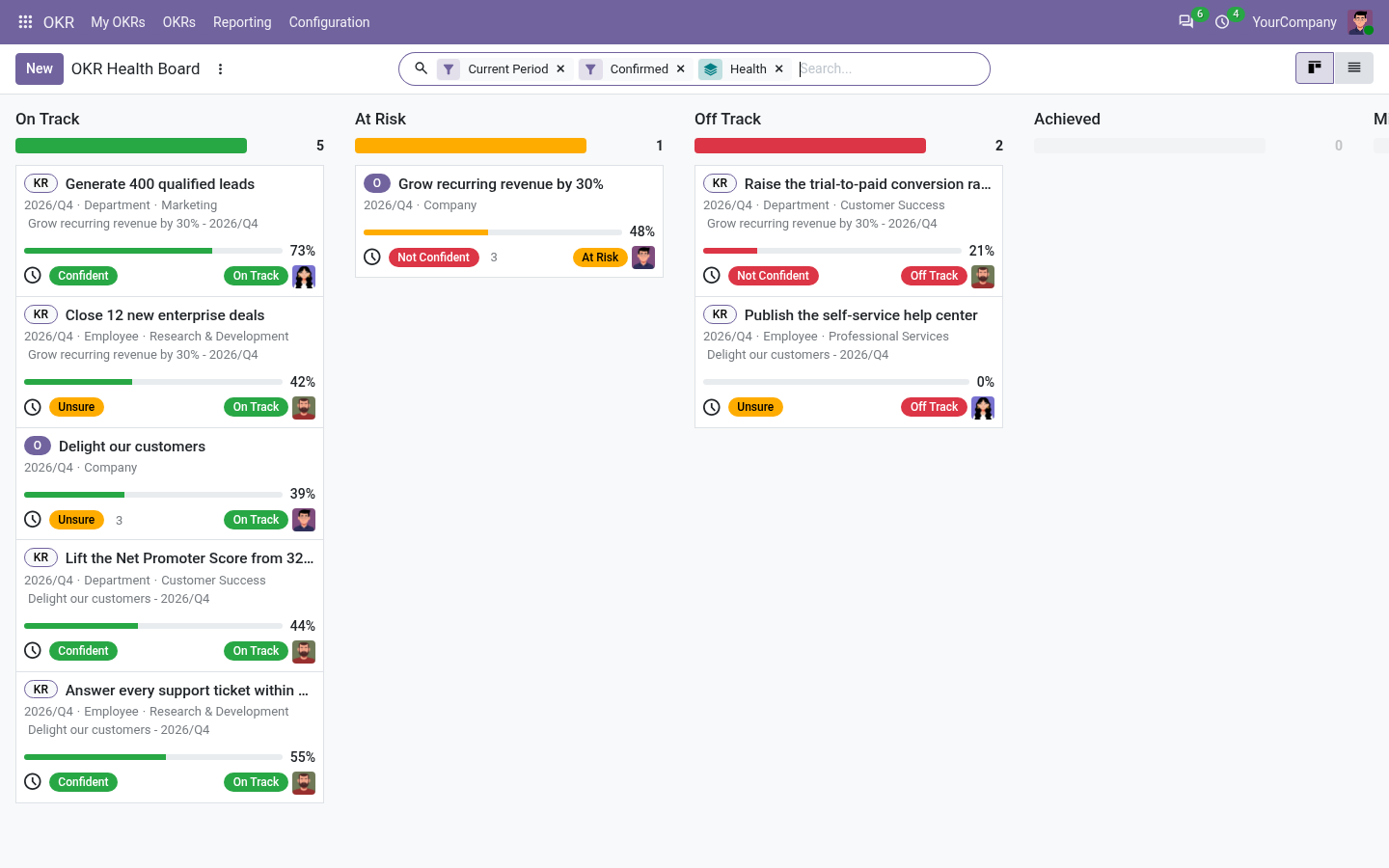
The Health Board
- Every OKR compares its progress with the share of the period already spent.
- On Track, At Risk, Off Track, Achieved, Missed: open the board at the weekly meeting and start with the red ones.
- A Not Confident check-in makes an OKR At Risk before its numbers drop.
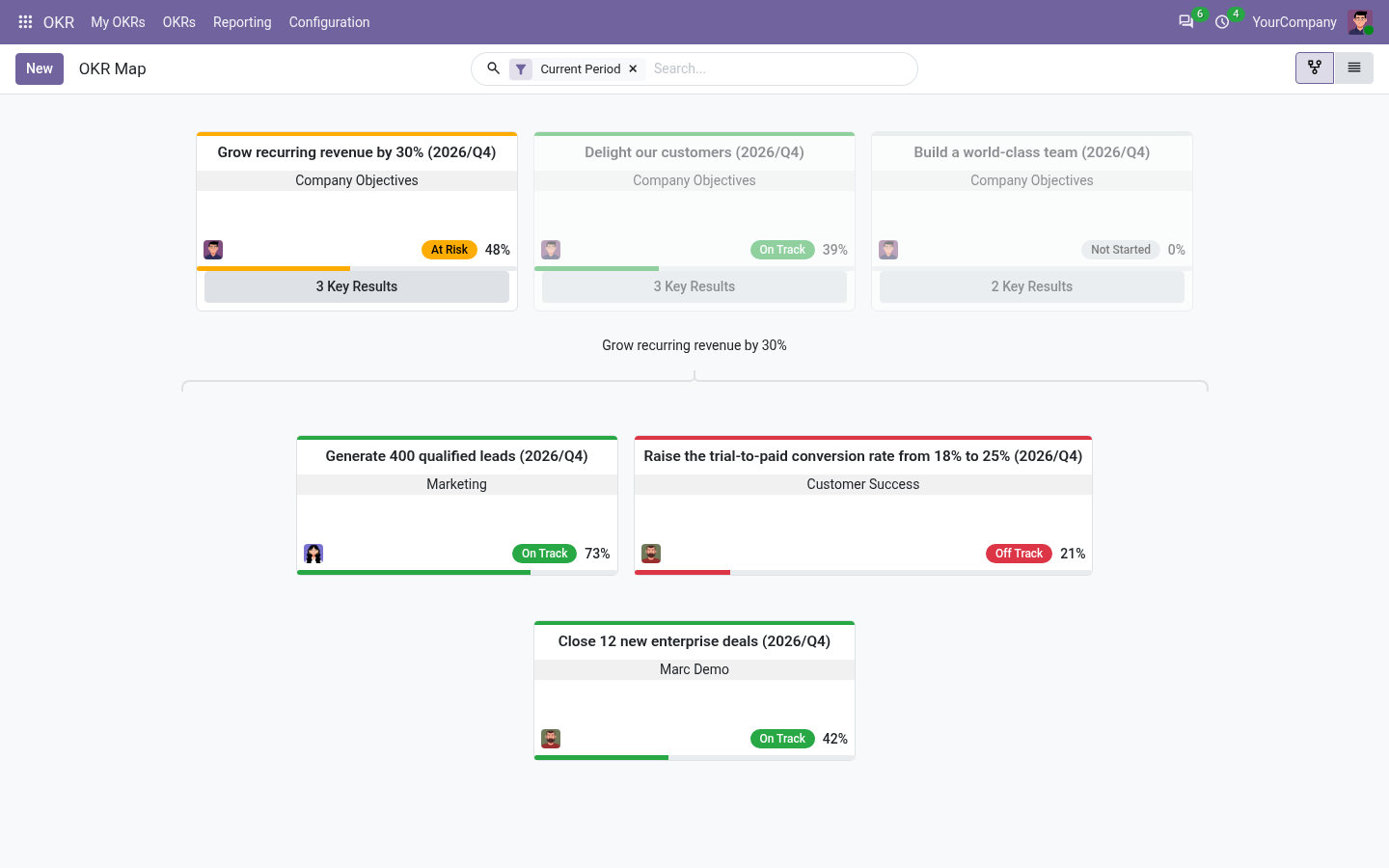
The OKR Map
- The whole tree, from the company objectives to the key results of the employees.
- Every card shows its owner, its progress and its health colour.
- Unfold any objective to see the key results behind it.
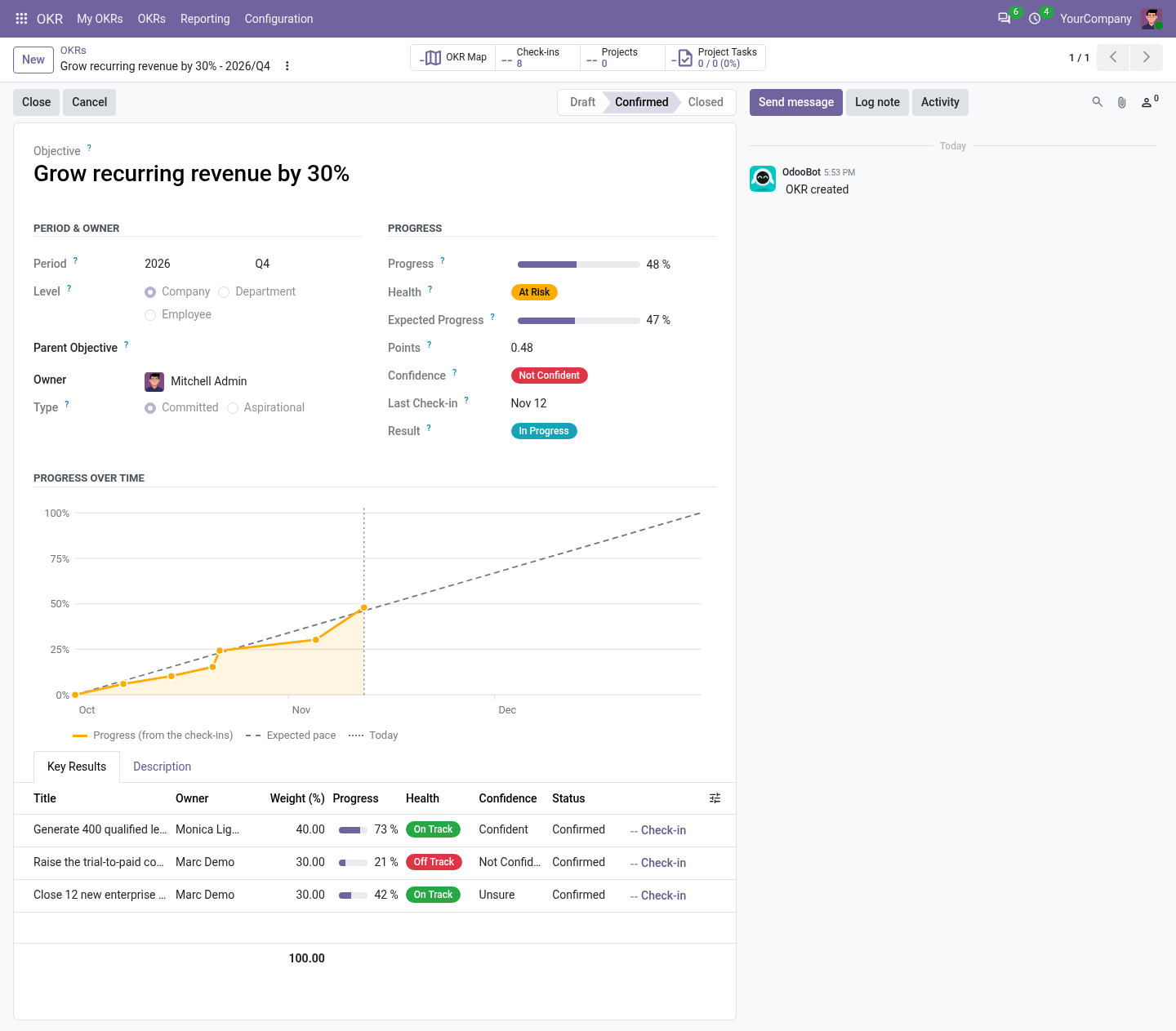
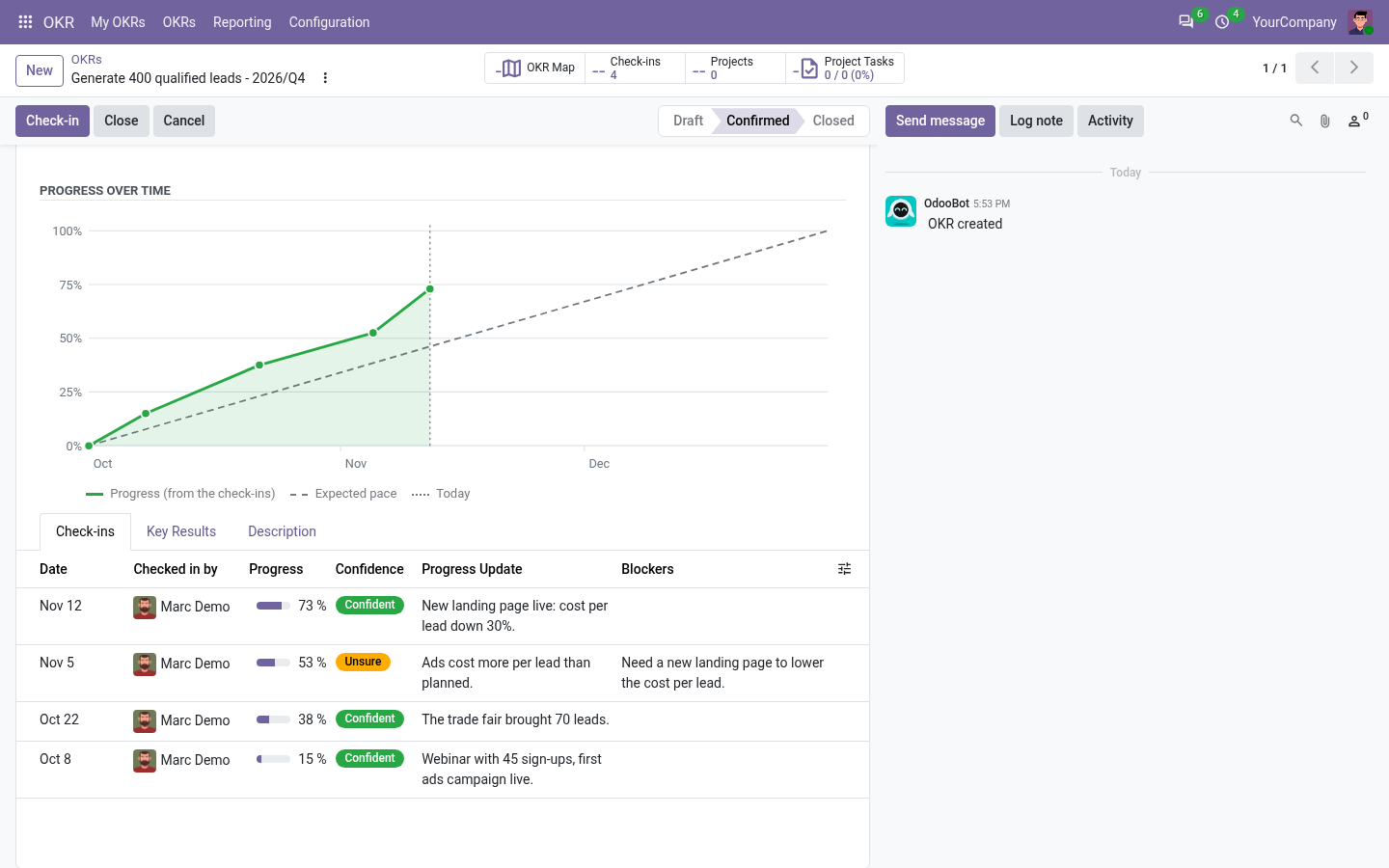
A Burn-up Chart on Every OKR
- The progress over the period, rebuilt from the check-ins of the key results under the OKR.
- Compared with the expected pace and today: you see at a glance whether it keeps up.
Reports & Scorecards
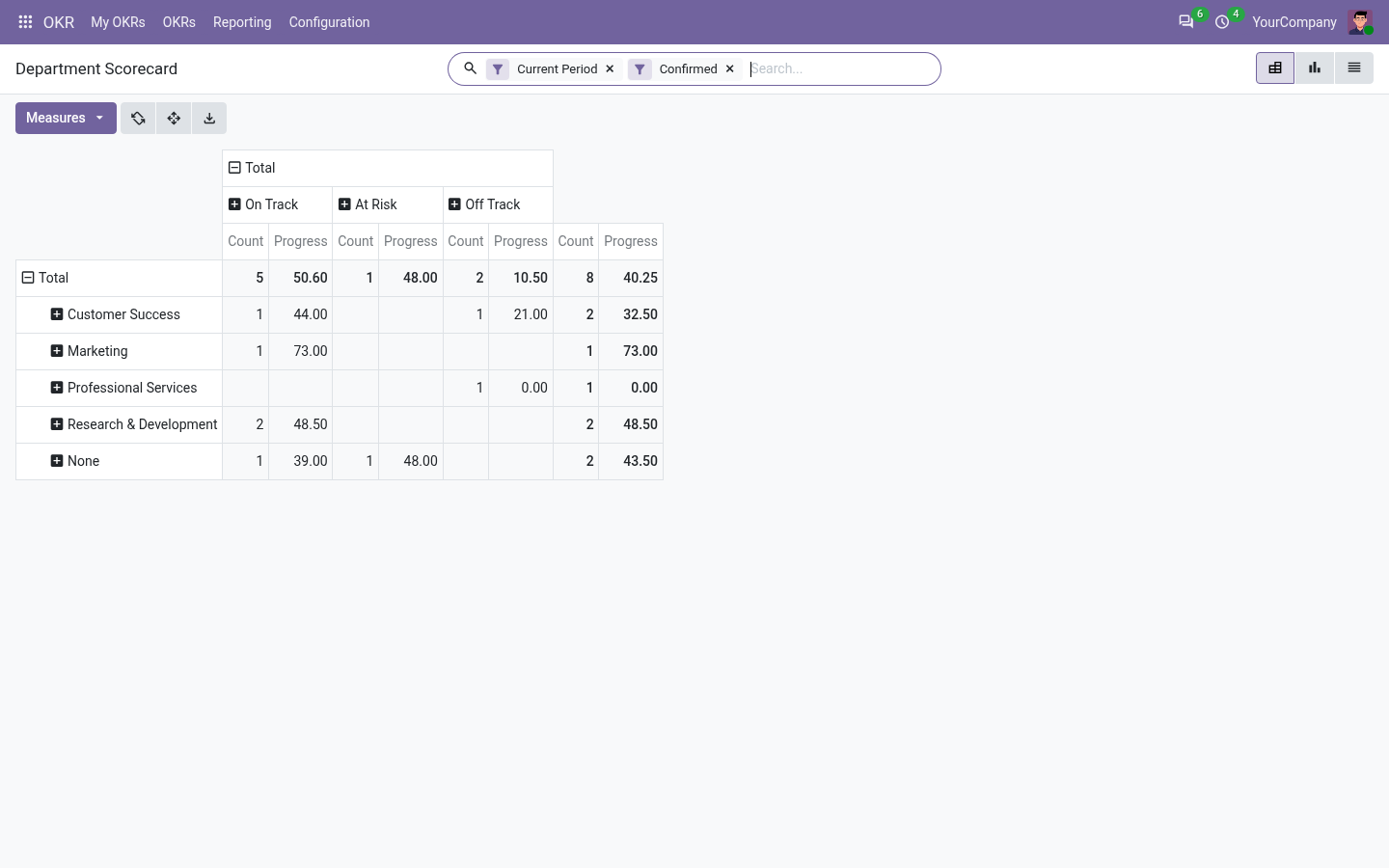
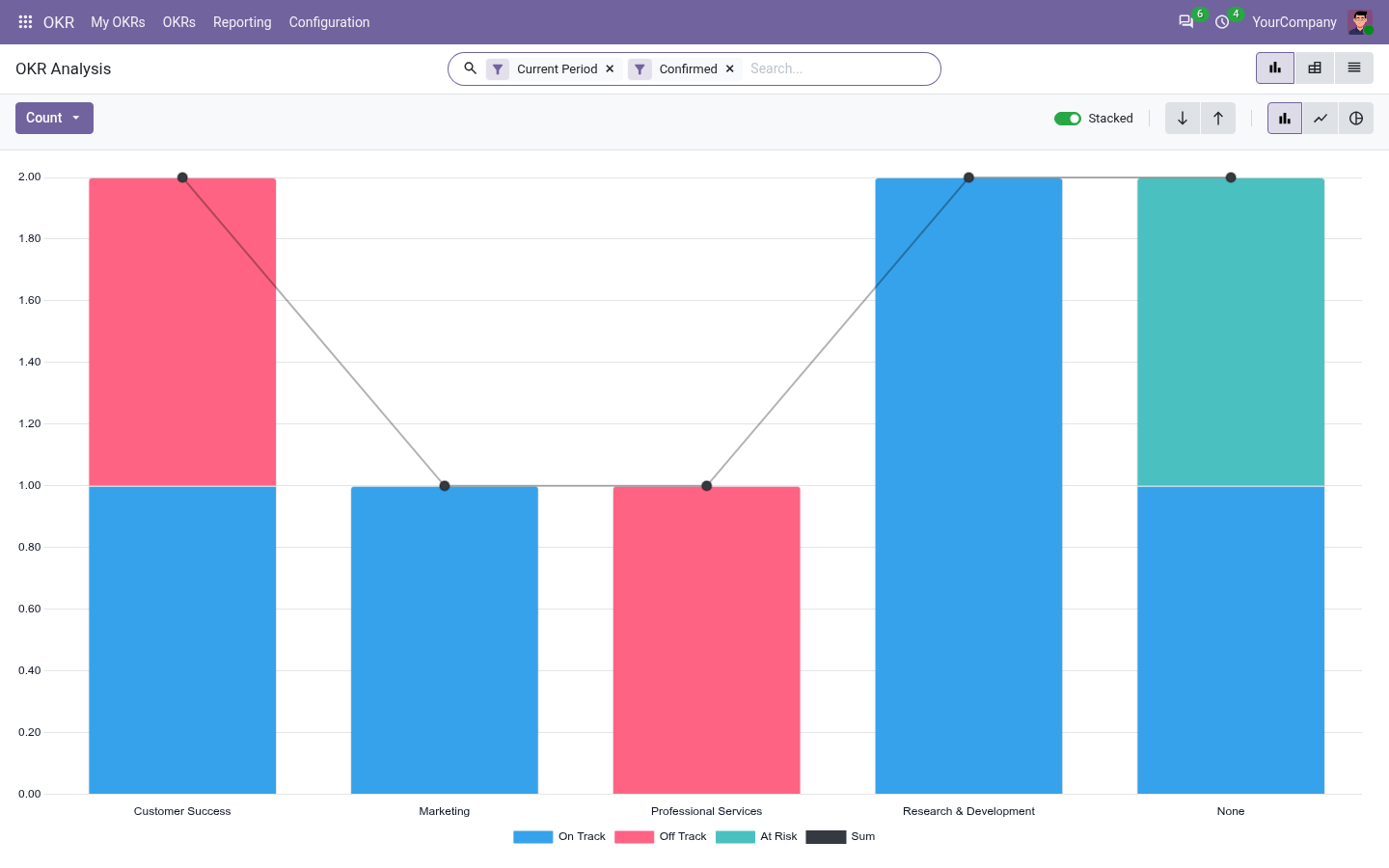
- OKR Analysis: progress and health by department, owner, level or period, in graphs and pivots.
- Department Scorecard and Check-in Analysis: who delivers, who checks in.
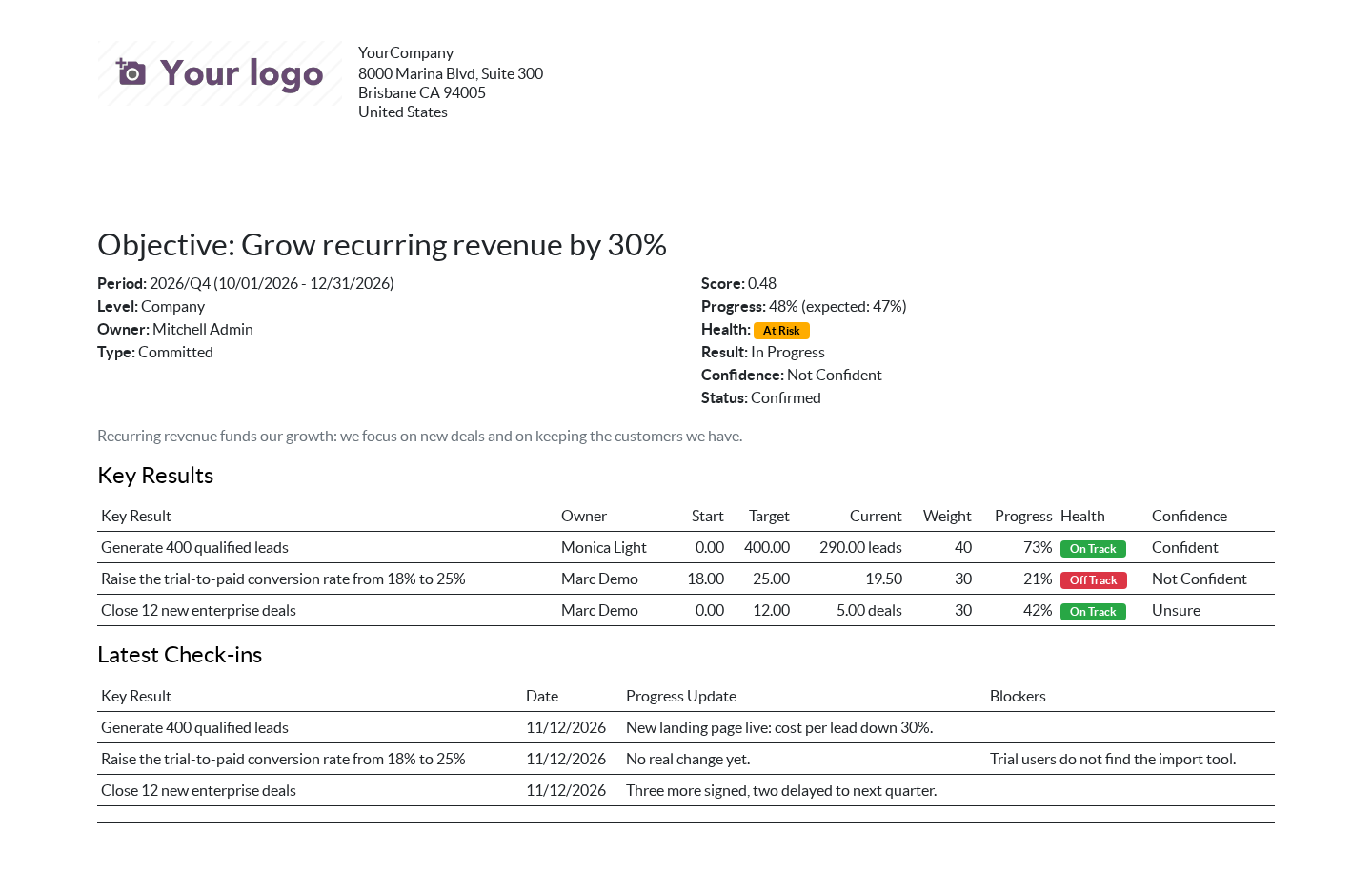
- OKR Scorecard (PDF): an objective with its key results, values, weights, health and latest check-ins.
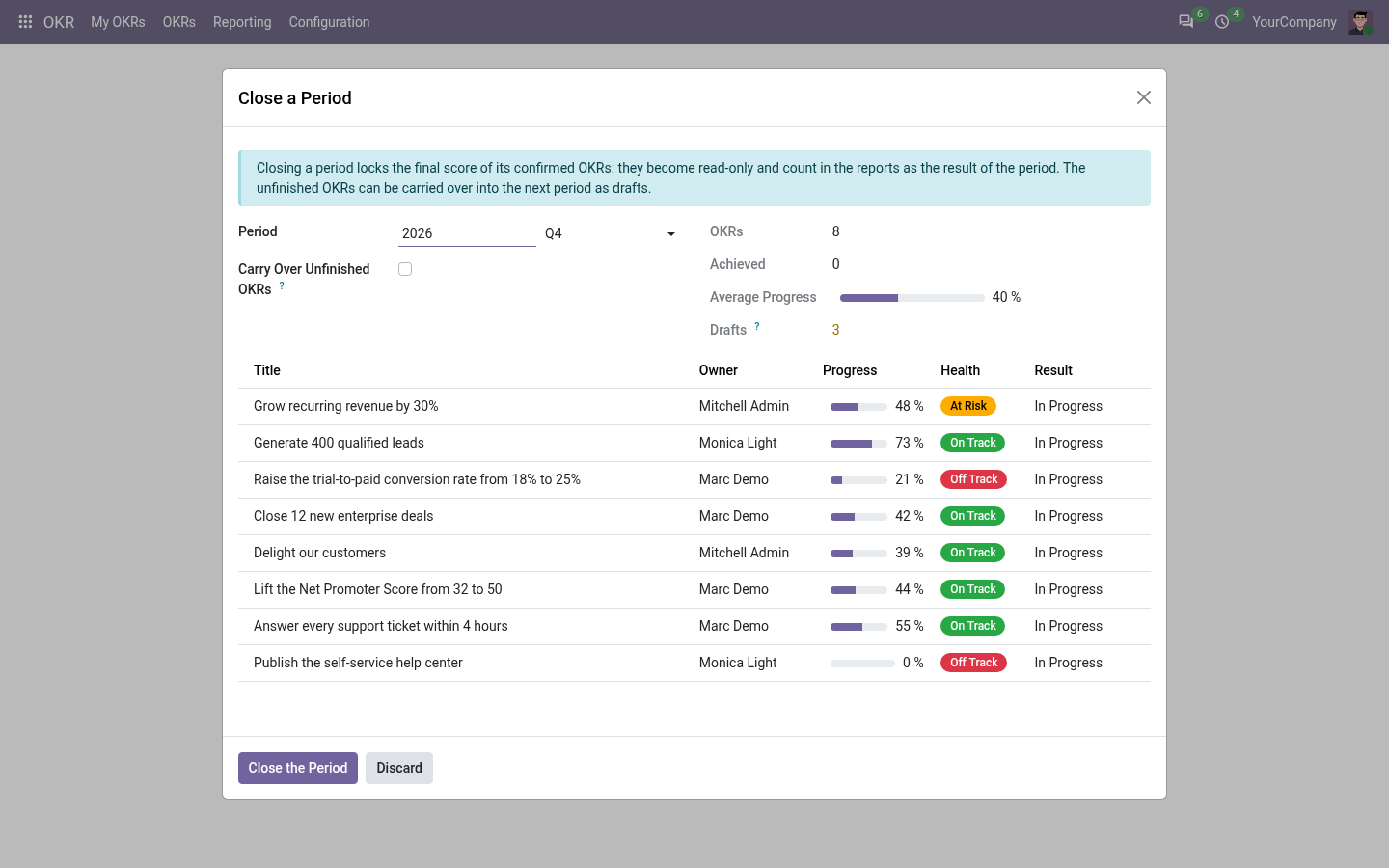
Close the Period
- Lock the final scores of a quarter or a year in one click; closed OKRs can be reopened.
- Carry the unfinished objectives over into the next period, their key results starting again from their current value.
Explore Viindoo OKR in Action
See how leaders define objectives, departments align their key results, and employees track progress in a single OKR workspace.
Need help with Viindoo OKR?
For questions, implementation support, or OKR coaching services, contact Viindoo.
Pre-Sales & Partnership
When contacting us, please include:
- Odoo/Viindoo version (CE/EE).
- Number of users and HR/OKR scope.
- Other modules in use (HR, Project, CRM, etc.).
Technical Support
For faster troubleshooting, please provide:
- Order number or app reference.
- Odoo/Viindoo version & edition.
- Steps to reproduce the issue.
- Screenshots/logs if available.
Technical Requirement
Works Great With These Modules
Extend Viindoo OKR with complementary Viindoo/Odoo modules to connect goals with projects, tasks, time, skills, and performance.
Viindoo Project / Tasks
Link OKRs with projects, tasks to track whether daily execution truly contributes to strategic objectives.
Module to_okr_projectTimesheet & Productivity
Analyze effort spent versus OKR outcomes to refine priorities and resource allocation.
Module to_okr_projectHR & Skills Management
Develop and manage employee competencies that strengthen your team’s ability to achieve OKRs.
Module viin_hr_skill_frameworkGamification / Recognition
Reward teams for achieving key results and sustaining high-impact behaviors.
Who Should Use Viindoo OKR?
Ideal for organizations that want to transform strategy into execution with clarity and discipline, while staying fully integrated with their Odoo/Viindoo ecosystem.
Executives & Founders
Need a simple but rigorous way to align teams with strategic priorities and track outcomes by data.
HR / PMO / Strategy Offices
Manage OKR cycles, facilitate reviews, and integrate OKR insights into performance management.
Department Leaders
Turn functional priorities into measurable key results and keep teams focused on impact.
Fast-Growing SMEs & Startups
Need an execution discipline without complex manual spreadsheets or disconnected tools.
Consulting & Odoo Partners
Deliver OKR-based management frameworks quickly as part of digital transformation projects.
Objectives & Key Results - OKR
Who this guide is for: the executives who set the direction of the company, the managers who turn it into the objectives of their departments, the employees who own key results, the OKR officer (often HR, the PMO or the strategy office) who runs the OKR cycle, and the administrator who installs the app.
Overview
OKR (Objectives & Key Results) is a goal-setting method: an objective says what you want to achieve, in a few inspiring words; its key results say how you know you got there, with numbers.
Objectives & Key Results - OKR runs the whole OKR cycle inside Odoo:
- Plan: objectives for the company, the departments and the employees, linked into one tree, for a year or a quarter.
- Measure: every key result is measured from a start value to a target value (a percentage, a number or an amount, up or down), by done / not done, or by a manual score. The score of an objective is the weighted average of its key results.
- Check in: once a week, the owner of a key result enters its new value, says how confident they are, and shares what moved forward and what blocks them. A reminder comes when a check-in is due.
- Follow the health: every OKR compares its progress with the time already spent in the period and shows On Track, At Risk or Off Track, then Achieved or Missed.
- Report: a health board, an OKR map, a burn-up chart on every OKR, analysis and scorecard reports, and a printable OKR scorecard.
- Close the period: lock the final scores, and carry the unfinished objectives over into the next period.
What changed in 20.0
- Measurable key results: percentage, number, amount (up or down), done / not done, or manual score.
- Check-ins with confidence, progress update, blockers and next steps; check-in reminders.
- Health against the expected pace of the period, with a Health Board and a My OKRs board.
- Burn-up chart on every OKR, OKR Analysis, Department Scorecard, Check-in Analysis and the OKR Scorecard (PDF).
- Period closing with the carry-over of the unfinished OKRs.
- Every field explains itself (hover the question mark next to its label), and the warnings tell which record to fix.
- Demo data: a complete OKR tree of the current quarter with check-ins.
Roles and access rights
Give the access rights in Settings > Users & Companies > Users, section Human Resources > OKR.
| Who | What they can do | Access right |
|---|---|---|
| Every employee | Sees all the OKRs of their companies. Creates, updates and checks in their own OKRs. | (internal user, no OKR right) |
| Manager | Everything an employee can do, plus the OKRs of their department, of the departments below it and of their subordinates. | OKR: User |
| OKR officer | Manages all the OKRs of the company, closes the periods and reopens closed OKRs. | OKR: Officer |
| OKR administrator | Everything an officer can do, plus the success threshold of each aspirational OKR. Opening the OKR settings also needs the Administrator role of the user. | OKR: Administrator |
An OKR always has an owner, who gets the reminders and can update it:
- a company OKR is owned by a highest-ranking manager of the company: an employee with a user and no manager;
- a department OKR is owned by the manager of the department, who must have a user;
- an employee OKR is owned by the employee, who must have a user.
When the owner is missing, the warning tells what to set and offers a button that opens the department or the employee to fix.
Settings
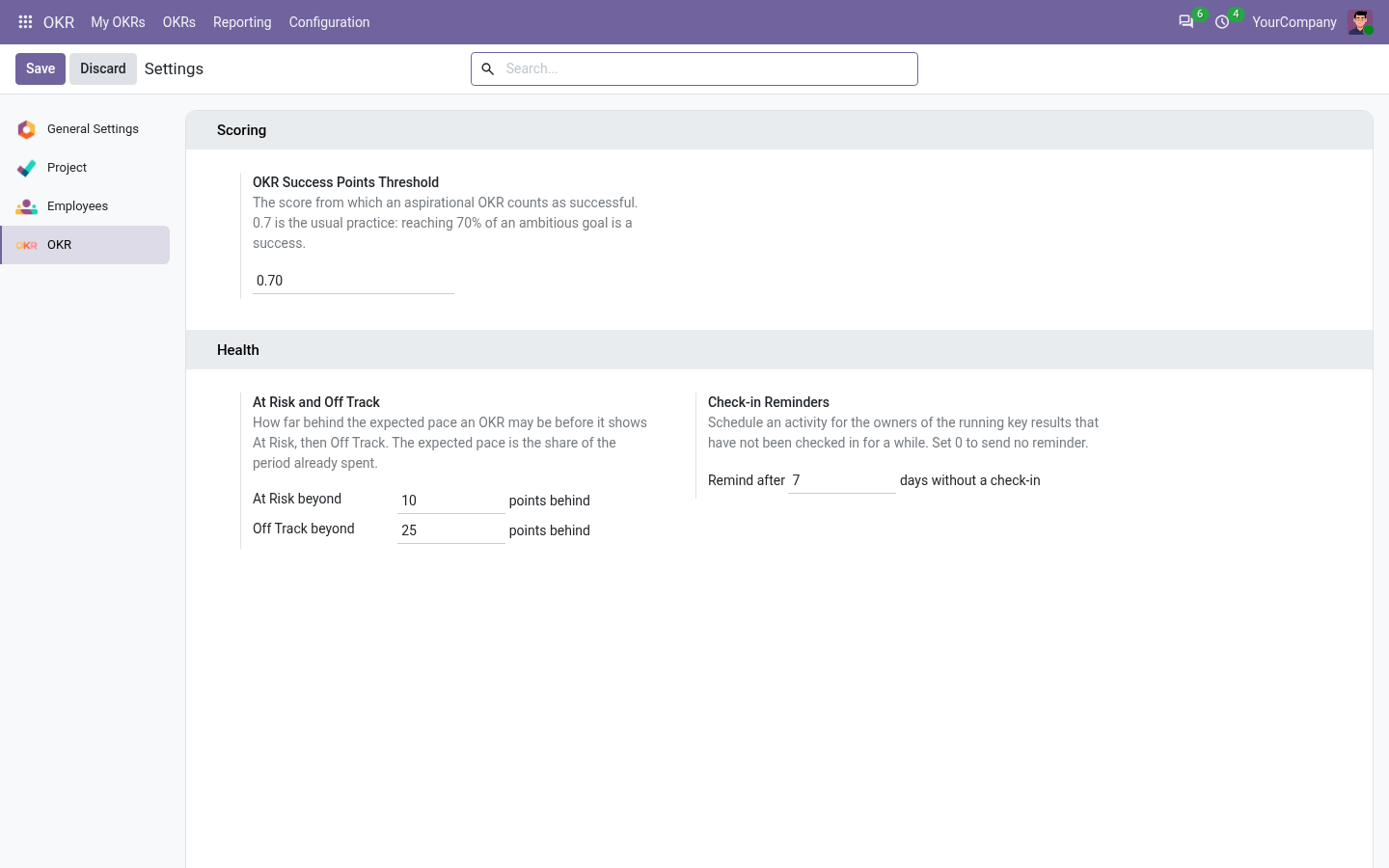
Go to OKR > Configuration > Settings:
- OKR Success Points Threshold (0.7 by default): the score from which an aspirational OKR is a success. Reaching 70% of an ambitious goal is the usual practice.
- At Risk and Off Track: how many points an OKR may be behind the expected pace before it shows At Risk (10 by default), then Off Track (25 by default).
- Check-in Reminders: the number of days without a check-in after which the owner of a running key result gets an activity OKR Check-in (7 by default; 0 sends no reminder).
Key concepts
Level. Company, department or employee: who the OKR belongs to. A department or employee OKR always has a parent objective: it is a key result of an objective one level up. This builds the tree that you see on the OKR Map.
Period. A year, or a quarter of a year. A key result always follows the period of its objective.
Type. A committed OKR must be fully delivered: it succeeds at a score of 1.0. An aspirational (stretch) OKR succeeds from the success threshold, 0.7 by default.
Measured by. How the progress of a key result is measured:
| Measured by | Score | Example |
|---|---|---|
| Percentage | From the start value to the target value | Raise the conversion rate from 18% to 25% |
| Number | From the start value to the target value, with a unit | Generate 400 qualified leads |
| Amount | From the start value to the target value, in the currency of the company | Reach 2,000,000 of recurring revenue |
| Done / Not Done | 1.0 when done, 0.0 otherwise | Publish the self-service help center |
| Manual Score | Entered by the owner, from 0.0 to 1.0 | Improve the onboarding experience |
A target lower than the start value is a key result that must go down, e.g. Cut the churn from 8% to 4%. With OKR & Project Integrator, a key result can also be measured by its Completed Tasks.
Score and progress. The score goes from 0.0 to 1.0, the progress is the same in percent. The score of an objective is the weighted average of its confirmed key results; when no key result has a weight, they all count the same.
Expected progress and health. The expected progress is the share of the period already spent (towards the success threshold for an aspirational OKR). The health compares the progress with it:
- On Track: the progress keeps pace with the time spent;
- At Risk: the progress is behind the pace by more than the At Risk gap, or the owner was Not Confident at the last check-in;
- Off Track: the progress is behind by more than the Off Track gap;
- Achieved / Missed: the OKR succeeded / the period ended without success;
- Not Started: a draft, or a period that has not started yet.
The health and the result are refreshed every day by a scheduled action.
Step by step
1. Set the company objectives
Go to OKR > OKRs > All OKRs and click New. Give the objective a short, inspiring title, choose the Period, the level Company and the Type, and describe why it matters. Start with 3 to 5 company objectives.
2. Break each objective down into key results
In the Key Results tab of the objective, add 2 to 5 key results. A key result of a company objective is usually the objective of a department; a key result of a department objective, the objective of an employee. For each key result, set:
- the Level and the department or the employee who owns it;
- its Weight: how much it counts in the score of its objective;
- in Measurement: how it is measured, the Start Value and the Target Value.
3. Confirm
While an OKR is a Draft, it can still change and does not count in the score of its objective. Click Confirm when the team agrees on it: its draft key results are confirmed with it, the title, the period and the start and target values are then locked, and the owners can check them in.
4. Check in every week
Open a confirmed key result and click Check-in. Enter where the key result stands today, how confident you are that it will be achieved in time, what moved forward, what blocks you and your next steps. The check-in updates the current value and the score at once, and its history stays in the Check-ins tab.
When a running key result has not been checked in for the number of days set in the settings, its owner gets an OKR Check-in activity; the next check-in marks it done. All the check-ins are listed in OKR > OKRs > Check-ins.
5. Follow the health
- OKR > My OKRs: the OKRs that you and your team own in the current period.
- OKR > OKRs > Health Board: all the running OKRs in columns by health. Open it at the weekly meeting and talk about the At Risk and Off Track ones first.
- OKR > OKRs > OKR Map: the tree of the OKRs, each card coloured by its health. Click the button under a card to unfold its key results.
- Filters Needs a Check-in and Needs Attention in every OKR list.
Every OKR shows a burn-up chart: its progress over the period, rebuilt from the check-ins of its key results, against the expected pace (dashed line) and today.
6. Read the reports
In OKR > Reporting:
- OKR Analysis: graph and pivot of the progress and the health by department, owner, level or period;
- Department Scorecard: how many OKRs each department has in each health, and their average progress;
- Check-in Analysis: who checks in, how often and with which confidence, week after week. An owner who stops checking in is the first sign that an OKR is forgotten.
To print the OKR Scorecard of an objective, for a review meeting or an appraisal, open it and use Print > OKR Scorecard in the action menu (the gear icon).
7. Close the period
At the end of the period, an OKR officer goes to OKR > Configuration > Close a Period, chooses the year and the quarter and reviews the summary. Close the Period locks the final score of the confirmed OKRs: they become Closed and read-only. Tick Carry Over Unfinished OKRs to copy the objectives that are not achieved, with their unfinished key results, into the next period as drafts; a key result measured by values starts again from its current value. A closed OKR can be reopened from its form.
Tips for good OKRs
- 3 to 5 objectives per level and per period, 2 to 5 key results per objective: focus.
- An objective inspires, a key result measures. "Delight our customers" is an objective; "Lift the NPS from 32 to 50" is a key result.
- Measure outcomes, not activities: "Close 12 enterprise deals" rather than "Call 300 prospects".
- Mix committed and aspirational OKRs; an aspirational OKR achieved at 70% is a success.
- Check in every week, even when nothing moved: the confidence is the earliest warning.
- Link the key results to project tasks with OKR & Project Integrator to connect the goals with the daily work.
Frequently asked questions
"The department X has no manager" when I save an OKR. A department OKR is owned by the manager of the department. Click Open the department, set a manager who has a user, then save the OKR again.
"No highest-ranking manager for the company was found". A company OKR is owned by an employee who has a user and no manager. Click Open the top managers and link one of them to a user, or remove the manager of the CEO.
The Check-in button does not show. Only a confirmed key result is checked in. An objective that has key results is checked in through its key results.
My objective is At Risk although its progress keeps pace. One of its key results was checked in as Not Confident. The confidence of an objective is the lowest confidence of its key results.
How do the weights work? The score of an objective is the weighted average of the scores of its confirmed key results. Leave all the weights empty to count the key results the same.
Why can I not change the target value? The start and target values are locked once the key result is confirmed, so that everybody measures against the same goal. Cancel it and set it to draft to change them.
When does the health change? At every change of the OKR, and every day through a scheduled action, since it depends on the time spent in the period.
Who sees my OKRs? Every employee of the company sees all the OKRs: transparency is part of the method. Only the owners, their managers and the OKR officers can change them.
This software and associated files (the "Software") may only be used (executed, modified, executed after modifications) if you have purchased a valid license from the authors, typically via Odoo Apps, or if you have received a written agreement from the authors of the Software (see the COPYRIGHT file).
You may develop Odoo modules that use the Software as a library (typically by depending on it, importing it and using its resources), but without copying any source code or material from the Software. You may distribute those modules under the license of your choice, provided that this license is compatible with the terms of the Odoo Proprietary License (For example: LGPL, MIT, or proprietary licenses similar to this one).
It is forbidden to publish, distribute, sublicense, or sell copies of the Software or modified copies of the Software.
The above copyright notice and this permission notice must be included in all copies or substantial portions of the Software.
THE SOFTWARE IS PROVIDED "AS IS", WITHOUT WARRANTY OF ANY KIND, EXPRESS OR IMPLIED, INCLUDING BUT NOT LIMITED TO THE WARRANTIES OF MERCHANTABILITY, FITNESS FOR A PARTICULAR PURPOSE AND NONINFRINGEMENT. IN NO EVENT SHALL THE AUTHORS OR COPYRIGHT HOLDERS BE LIABLE FOR ANY CLAIM, DAMAGES OR OTHER LIABILITY, WHETHER IN AN ACTION OF CONTRACT, TORT OR OTHERWISE, ARISING FROM, OUT OF OR IN CONNECTION WITH THE SOFTWARE OR THE USE OR OTHER DEALINGS IN THE SOFTWARE.