ZKTeco Biometric Attendance - ADMS Push & TCP/UDP

ZKTeco Biometric Attendance - ADMS Push & TCP/UDP
Bring the punches of your ZKTeco fingerprint, face and card machines into Odoo Attendances, from any office, without port forwarding. See which machines are online, turn every punch into a clean attendance, and know who is late, absent or forgot to check out.
Works on Odoo.sh and on your own server. Nothing to install with pip. Guided setup, check-in / check-out rules for face machines, a monthly attendance sheet to print, and a guide that answers every error message.
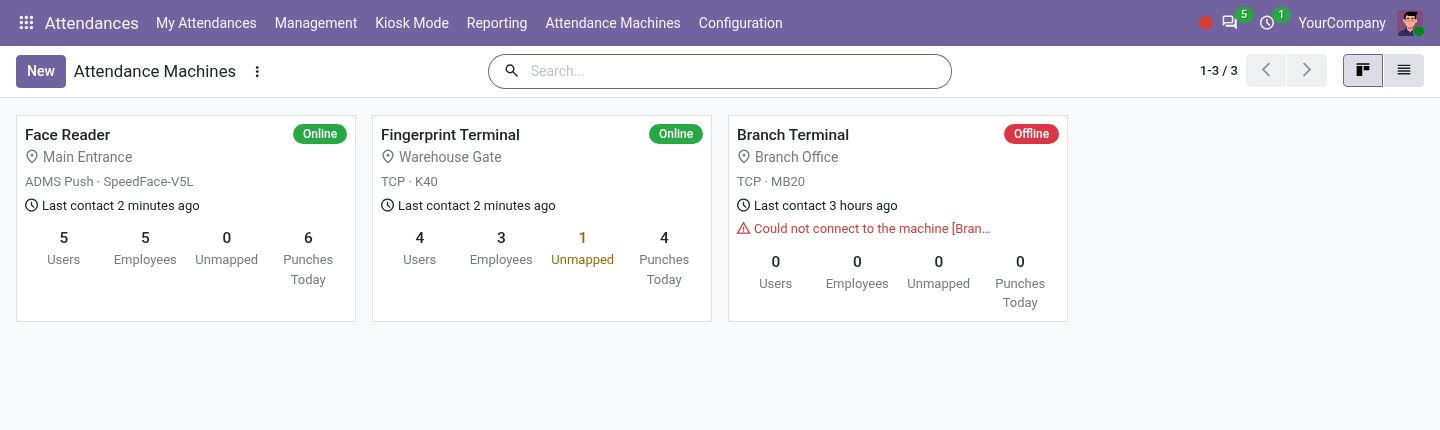
At a Glance
Key Features
ADMS Push, Real Time
The machine calls Odoo and sends every punch as it happens. No port forwarding, no fixed IP, any number of offices. TCP/UDP pull for the older machines.
Guided Setup
A five-step assistant on every machine, the exact values to type on a push machine, and warnings when something keeps the machine from reaching Odoo.
Machines Board & Offline Alerts
Online, Offline or Never Connected at a glance, with the last contact and the error. The technician gets an activity when a machine goes silent.
Users & Employees
Download the users and map them by Badge ID or name, or upload your employees to a new machine with their fingerprint and face templates.
Clean Check-ins & Check-outs
Alternate mode for face machines without state, repeated scans ignored, forgotten check-outs handled, attendances recomputed from the punches at any time.
Reports & Monthly Sheet
Today's board, late / left early / absent / missing check-out day by day against the working schedule, charts, and a monthly attendance sheet to print and sign.
What's New in 20.0
- Machines board with the connection status of every machine, and an offline alert for its technician.
- Setup assistant on the machine form, with the values to type on a push machine and the checks of the server.
- Check-in / check-out rules per machine (Alternate mode, repeated scans, longest shift) and Recompute Attendances of a period.
- Daily Attendance report with the chart of the exceptions by employee, Today board and printable Monthly Attendance Sheet.
- Attendances marked Attendance Machine in Odoo, the real check-out replacing the automatic check-out of Odoo.
- ID Numbers of up to 24 characters, several push machines at one location, clearer menus and help on every field, demo machines with the punches of this month and of the previous one.
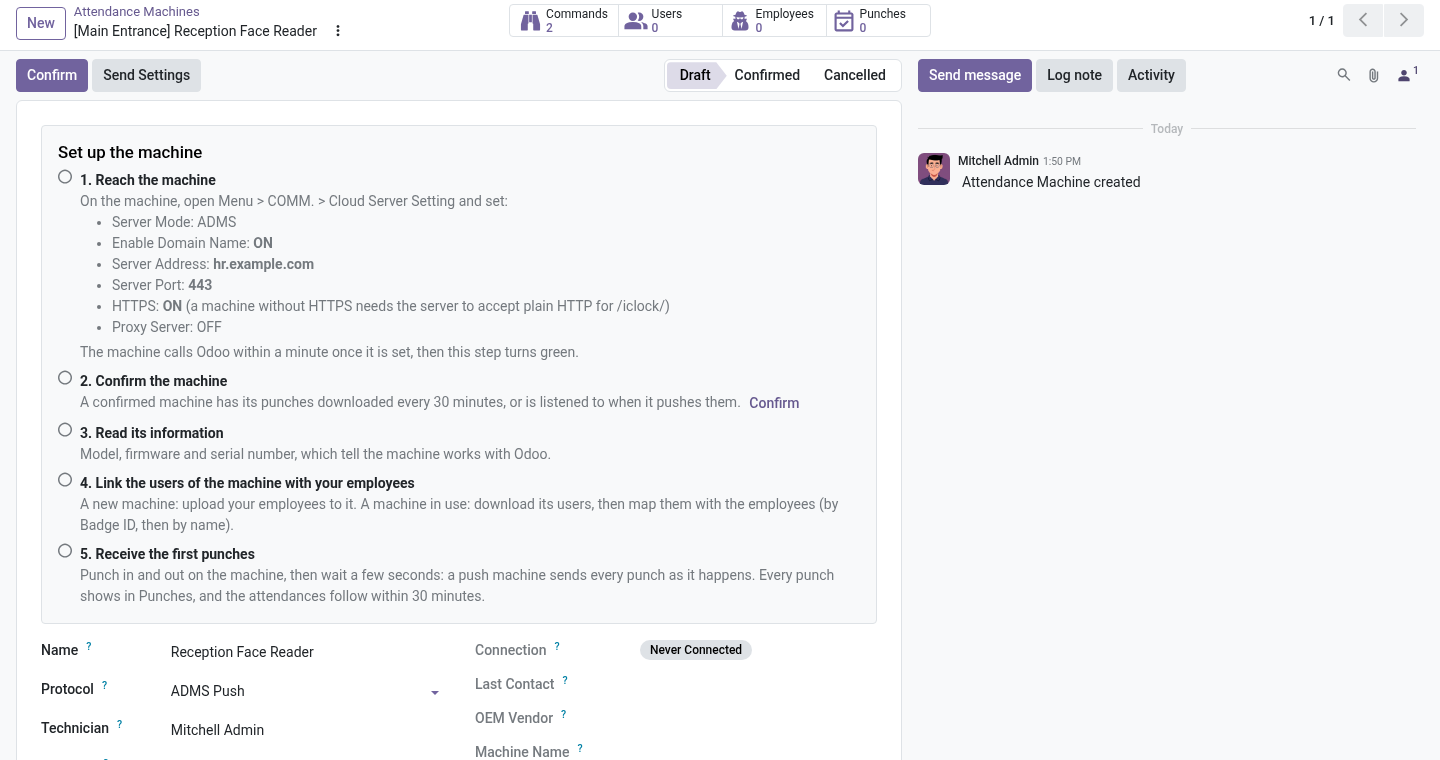
Set a machine up in five steps
Reach the machine, confirm it, read its information, link its users with your employees, receive the first punches: each step ticks itself once done.
For a push machine, the form shows what to type in Menu > COMM. > Cloud Server Setting, taken from the address of your Odoo, and warns you when the server serves several databases or Odoo is reached at a local address.
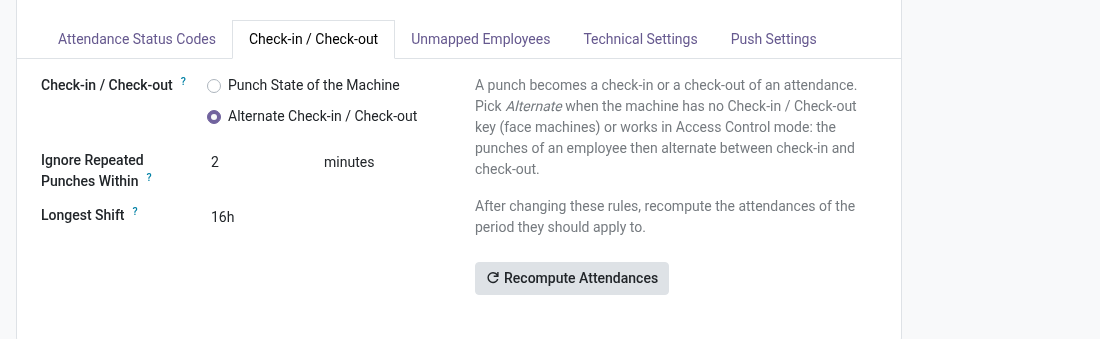
Face machines without check-out? Solved.
Most face machines send every punch without a check-in / check-out state. Switch the machine to Alternate: the punches of an employee alternate between check-in and check-out, a repeated scan is ignored, and a forgotten check-out no longer swallows the check-in of the next day.
Changed a rule, or mapped a user late? Recompute Attendances rebuilds a period from the punches, which Odoo keeps for ever.
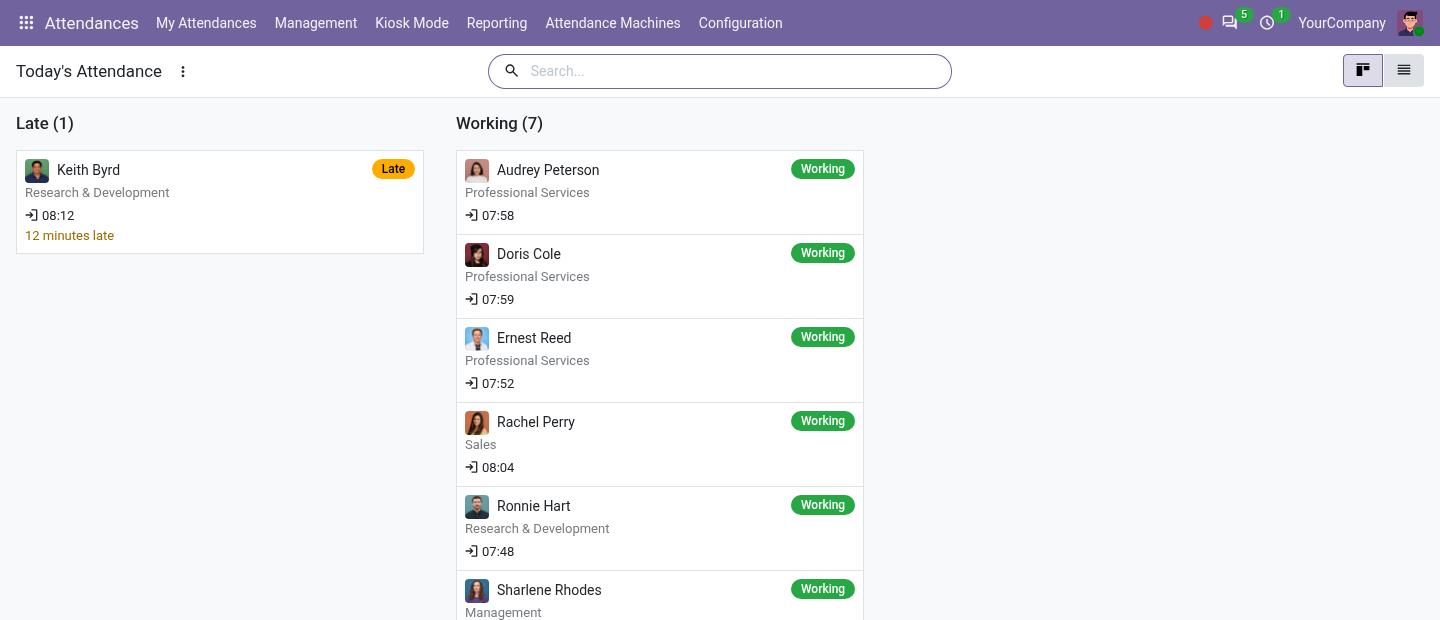
Who is in, who is late, today
The Today board compares the attendances of the day with the working schedule of each employee: on time, late (and by how much), working, not checked in yet.
Every day of every employee, checked
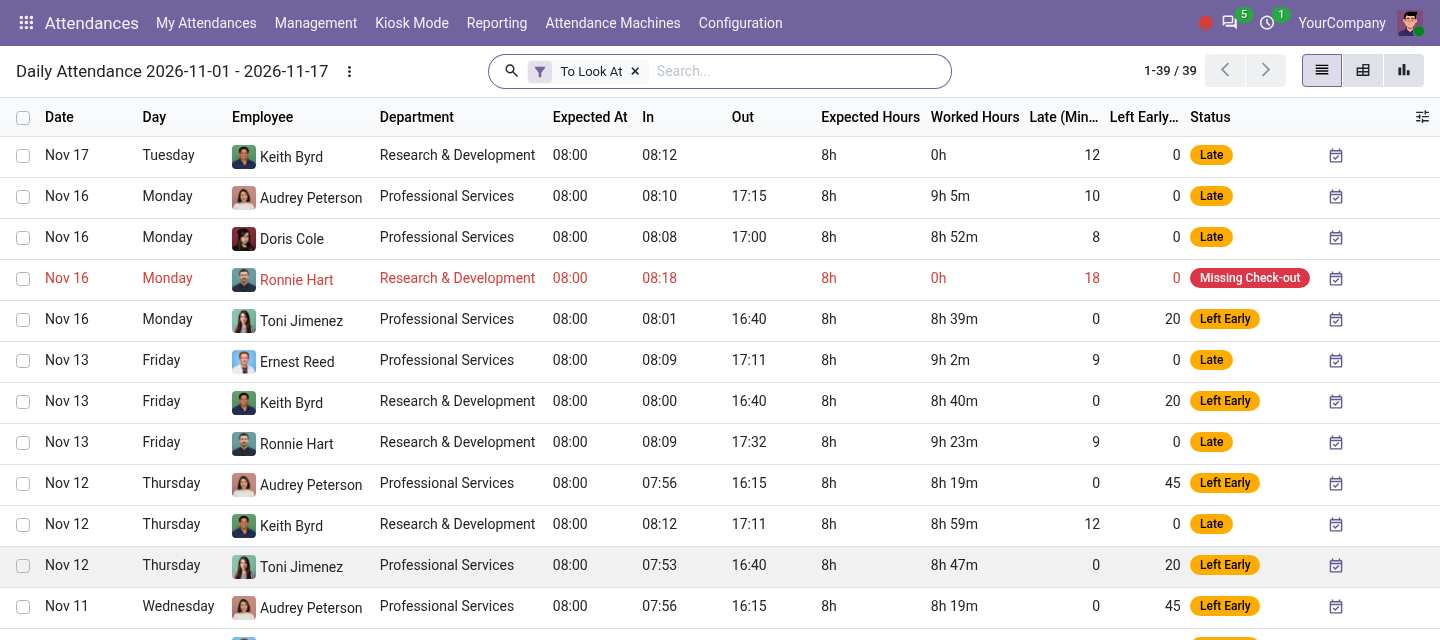
Daily Attendance lists the expected start and hours, the check-in and check-out, the worked hours, the minutes late and left early, and a status: On Time, Late, Left Early, Missing Check-out, Absent, Time Off / Public Holiday, Worked on a Day Off. Time off and public holidays are deducted, a tolerance is applied.
It opens on the exceptions; the pivot and the chart compare the employees and the days.
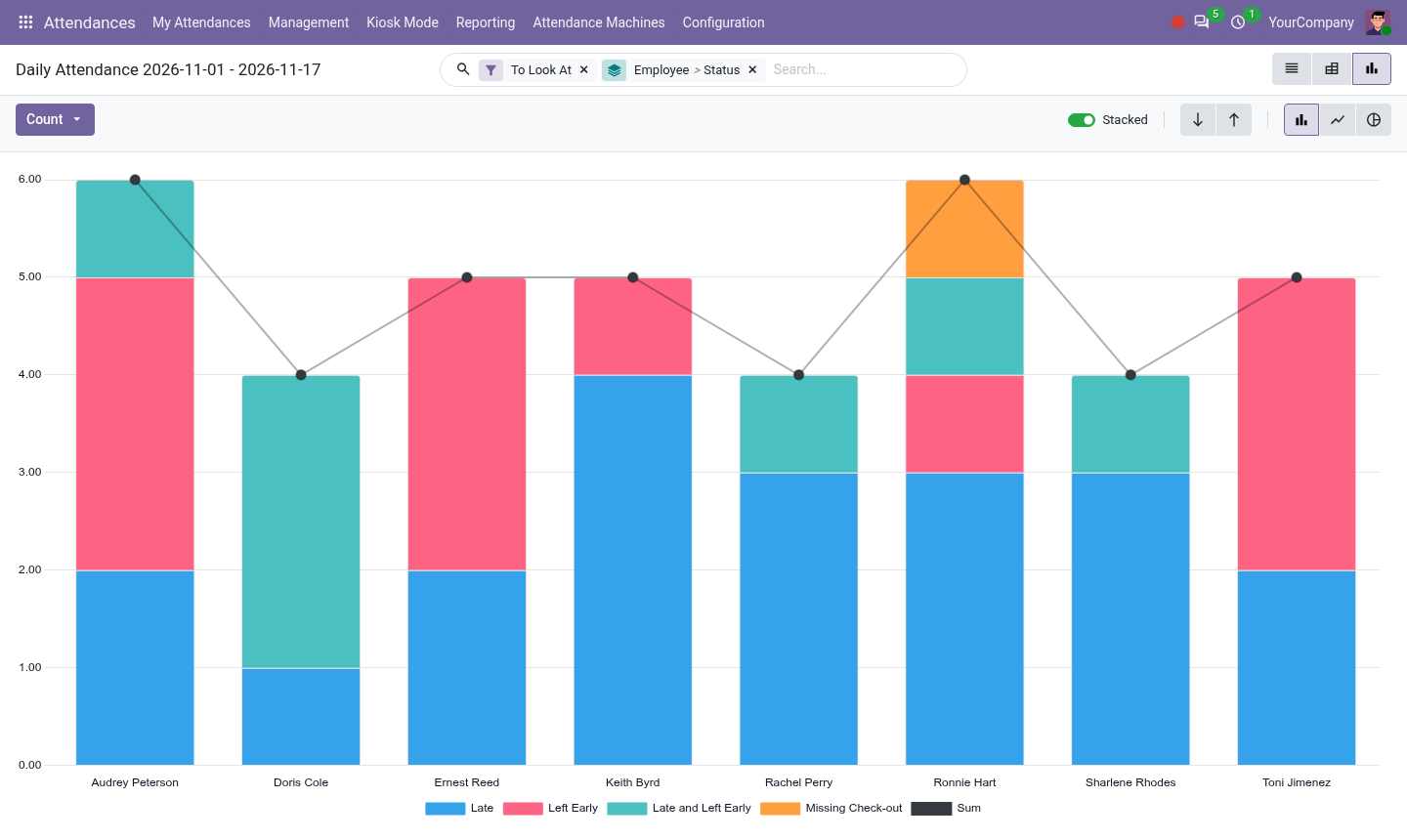
See who is late, at a glance
The chart of the exceptions by employee shows who comes late, leaves early or forgets to check out most often over the period. Group it by department or by week to see the trend.
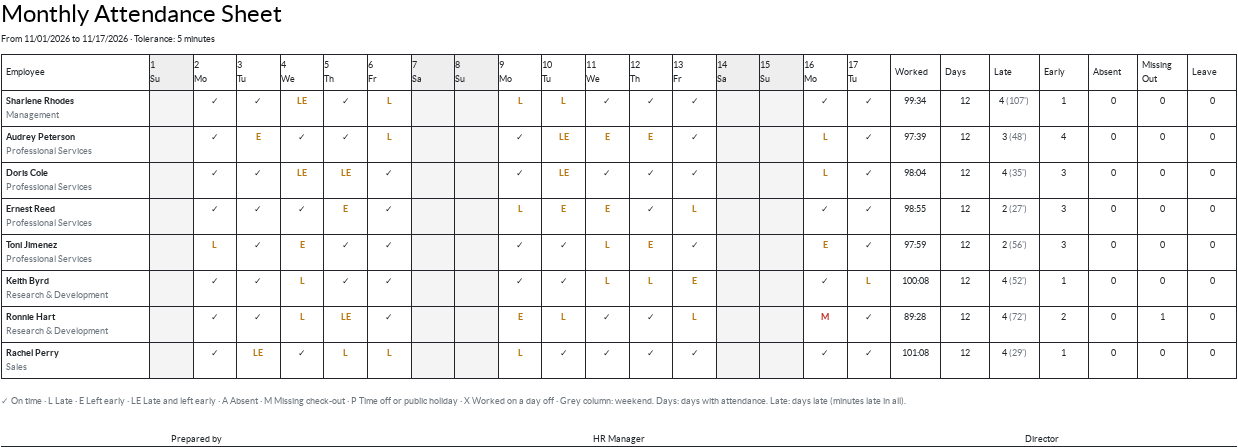
The monthly attendance sheet, ready to sign
One line per employee, one column per day, a letter for each day (on time, late, left early, absent, missing check-out, time off), with the worked hours and the totals of the month: for the month close and the payroll.
ADMS Push or TCP/UDP?
| Your situation | TCP/UDP | ADMS Push |
|---|---|---|
| Odoo in the office, on the network of the machine | Recommended | Possible |
| Odoo in the cloud (Odoo.sh, hosted), the machine in the office | Port forwarding and a fixed IP or dynamic DNS | Recommended: nothing to open |
| Several offices, one Odoo | A forwarded port per office | Recommended |
| Punches must show at once | Every 30 minutes, or on demand | As they happen |
| Old machine without ADMS | Only choice | Not available |
Push machines need the ADMS / Cloud Server menu, found on most ZKTeco machines sold since 2018. Machines without HTTPS are supported: the guide shows the nginx lines to serve the /iclock/ paths over HTTP.
Supported Machines
ZKTeco machines and the machines built on them, in Time Attendance mode (or Access Control mode with the Alternate rule). Not sure about yours? Try it on the free demo first, or ask us with its model and firmware.
Tested by Viindoo
ZKTeco SenseFace 7A, K14, K20, K40, K50, MA300, T4C, G3, U580, F18, F19, MB20, IN0A-1, SpeedFace V5L, SpeedFace H5L(P), VF680, RSP10k1, iFace402/ID, iFace702, iFace800, iClock 700, iClock880-H, iClock3000, Uface 302, Uface 800 (finger and face); Ronald Jack B3-C, iClock260, T8, 1000Plus.
Reported working by customers
SpeedPalm-V5L, SenseFace 2A, 3, 4, 7, SF400, MB series, F21, F22, uFace series, SilkBio series, IN05 and IN05-A, X628-C, U260-C, U300-C, iClock360, iClock680, UA series, WL series, P series, EFace10, and the machines with the ADMS function.
Frequently Asked Questions
My Odoo is on Odoo.sh, the machines are in the office. Do I need a static IP?
No: use ADMS Push. The machine calls Odoo by its domain name over HTTPS; nothing is opened on your network.
Do I need to install a Python library?
No. The communication library comes inside the module.
Our face machine records every punch as a check-in.
Set the machine to Alternate Check-in / Check-out and recompute the attendances: the punches alternate, repeated scans are ignored.
What if the Internet goes down?
The machine keeps the punches and sends them once it is back. The punches stay in Odoo for ever and the attendances can be recomputed at any time.
Several offices in several countries?
Yes: one location per office with its timezone, any number of machines.
Does it compute overtime and payroll?
It produces clean attendances; Odoo computes the overtime with the time rules of Attendances, and the payroll apps read the attendances.
Hikvision, Suprema, Anviz?
Not supported: they use their own protocols. ZKTeco and the brands built on it are.
Documentation & Support
- A complete guide in the Documentation tab: choosing push or pull, setting up step by step, Odoo.sh and nginx, the check-in / check-out rules, the reports, a troubleshooting table by error message, and the limits.
- Help on every field of the app, and empty screens that say how to start.
- Bug fixes for free. Questions the guide does not answer: open a ticket with the model and firmware of your machine.
Biometric Attendance Machines Integration
Who this guide is for: the HR or attendance officer who follows the attendances every day, the IT technician who connects the machines, and the administrator who installs the app. Read it once from top to bottom: it answers the questions of a first setup, and the Troubleshooting section answers the error messages.
Overview
Biometric Attendance Machines Integration brings the punches of your ZKTeco fingerprint, face and card machines (and the machines built on them: Ronald Jack, eSSL, many OEM brands) into the Attendances app of Odoo:
- Connect any number of machines, at several places and in several timezones, in one of two ways:
- TCP/UDP: Odoo connects to the machine, at its IP address or domain name. Best when Odoo runs in the office, or when the router of the office can forward a port to the machine.
- ADMS Push: the machine calls Odoo by itself and sends every punch as it happens. Nothing to open on the network of the office: no port forwarding, no fixed IP. The machine needs the ADMS (Cloud Server) function, which most machines sold since 2018 have.
- Link the users of the machines with your employees: download the users and map them (by Badge ID, then by name), or upload your employees to a new machine, with their fingerprint and face templates.
- Turn the punches into attendances, every 30 minutes, with rules for the machines that send no check-in / check-out state (most face machines).
- Watch the machines: a board tells which machines are online, a machine that goes silent raises an activity for its technician.
- Report: who is in today, who came late, left early, was absent or forgot to check out, day by day, and the monthly attendance sheet to sign.
Everything stays in Odoo: the punches are kept for ever, so the attendances can be computed again at any time.
What changed in 20.0
- Machines board: every machine with its connection status (Online, Offline, Never Connected), last contact, users, unmapped users and punches of the day. An Offline Alert activity tells the technician when a machine goes silent.
- Setup assistant on the machine form: five steps ticked as you go, the exact values to type on a push machine, and warnings about what keeps a machine from reaching Odoo (a local address of Odoo, a server with several databases, a missing serial number).
- Check-in / check-out rules per machine: Alternate mode for the machines without punch state, repeated scans ignored, forgotten check-outs no longer swallowing the check-in of the next day; Recompute Attendances of a period after changing the rules.
- Reports: Today board, Daily Attendance (on time, late, left early, absent, missing check-out, time off) against the working schedule, the printable Monthly Attendance Sheet, the chart of the exceptions by employee, and the Machine Punches analysis.
- The attendances of the machines show Attendance Machine as their mode and the machine as their location; the real check-out of a machine replaces an automatic check-out of Odoo.
- ID Numbers of up to 24 characters; Test Connection works before the machine is confirmed; several push machines at one location.
- Clearer menus, labels and help on every field; demo machines with the punches of this month and of the previous one in the demo data.
Requirements
- Odoo 20.0, Community or Enterprise, on your own server or on Odoo.sh. Odoo Online (SaaS) does not accept third-party apps.
- The Attendances app (installed with this one).
- Nothing to install with pip: the communication library (pyzk) comes inside the module.
- A ZKTeco machine, or a machine of another brand built on ZKTeco: the Supported Machines list of the App Store page names the machines tested and the ones reported working by customers. When in doubt, try your machine with the free demo first.
Install
- Go to Apps and remove the Apps filter.
- Search for to_attendance_device (or Biometric Attendance).
- Click Activate.
Roles and access rights
Give the access rights in Settings > Users & Companies > Users, section Attendances.
| Who | What they can do | Access right |
|---|---|---|
| Attendance administrator | Sets up the machines, maps the users, recomputes the attendances, sees the commands of the push machines. Receives the right Attendance Machine Manager with it. | Administrator |
| Attendance officer | Follows the punches and the attendances, uses the reports (an officer who manages only some employees sees them only). | Officer: Manage attendances |
| Employee | Punches on the machine. Sees their own attendances. | (internal user) |
Choose how the machine connects
| Your situation | TCP/UDP | ADMS Push |
|---|---|---|
| Odoo runs in the office, on the network of the machine | Recommended | Possible |
| Odoo runs in the cloud (Odoo.sh, a hosted server), the machine in the office | Needs a port forwarded by the router of the office, and a fixed IP or a dynamic DNS name | Recommended: nothing to open |
| Several offices, one Odoo | A forwarded port per office | Recommended |
| The punches must show at once | Downloaded every 30 minutes, or on demand | Every punch is sent as it happens |
| Old machine without the ADMS function | Only choice | Not available |
Set up a machine
- Create the place of the machine: Attendances > Configuration > Machine Locations. Give its name (Main Entrance), its work location, and above all its timezone: the machine keeps local times, Odoo reads them in this timezone.
- Go to Attendances > Attendance Machines > Machines and click New.
- Enter the name, the Protocol and the Location:
- TCP/UDP: the IP / Domain Name Odoo reaches the machine at, the Port (4370 unless changed on the machine), and the Password if a communication key (Comm Key) is set on the machine.
- ADMS Push: the Serial Number of the machine (on the machine: Menu > System Info > Device Info).
- Save. The form opens on the setup assistant: follow its five steps, each one ticks itself once done.
Step 1 - Reach the machine
TCP/UDP: click Test Connection. It works before the machine is confirmed. If it fails, see Troubleshooting.
ADMS Push: on the machine, open Menu > COMM. > Cloud Server Setting and type the values the assistant shows, taken from the address of Odoo:
- Server Mode: ADMS
- Enable Domain Name: ON when Odoo is reached by a name (hr.example.com), OFF for an IP address
- Server Address: the name or IP address of Odoo
- Server Port: 443 for HTTPS, 80 for HTTP, or the port of Odoo (8069) on a local server
- HTTPS: ON when the address of Odoo starts with https (see Push machines on the Internet below when the machine has no HTTPS option)
- Proxy Server: OFF
Within a minute the machine calls Odoo, the step turns green, and the machine shows Online on the board.
Step 2 - Confirm the machine
Click Confirm. Odoo downloads the punches of a confirmed TCP/UDP machine every 30 minutes, and accepts the data of a confirmed push machine. A machine in Draft is left alone.
Step 3 - Read its information
Click Get Machine Info: Odoo reads the model, the firmware, the serial number and the vendor. A push machine sends them at its next poll.
Step 4 - Link the users of the machine with your employees
A punch counts for an employee only when the user of the machine who punched is linked to that employee.
- A new, empty machine: click Upload Employees. Your employees become users of the machine under their Badge ID (an employee without one gets a new Badge ID), with the fingerprint and face templates Odoo already has from another machine. They punch without enrolling again.
- A machine already in use: click Download Users, then Map Employees. Odoo links each user to an employee, in this order of confidence: the ID Number equal to the Badge ID of the employee, then the same name, then the same name without accents, then the beginning of the name (machines cut long names). A name that fits several employees is left for you: open Attendances > Attendance Machines > Machine Users, filter Not Linked to an Employee, and set the employee by hand.
The step turns green when every user of the machine is linked. Tick Generate Employees During Mapping in the Technical Settings tab to create an employee for every user left unlinked instead.
Step 5 - Receive the first punches
Punch in and out on the machine. A push machine sends the punches at once; for a TCP/UDP machine, click Download Attendance. The punches show in Attendances > Attendance Machines > Punches, and become attendances within 30 minutes (or at once with Synchronize to Attendances in the action menu of the punches).
Check-in and check-out rules
Every punch carries a punch state, a code the machine gives it: 0 Check-in, 1 Check-out, 2 Break-out, 3 Break-in, 4 Overtime-in, 5 Overtime-out, and 255 when the machine has no state at all. The tab Attendance Status Codes of the machine lists the codes it uses; Attendances > Configuration > Punch States defines whether each code checks in or out, and for which attendance activity (normal attendance, overtime, break). Each activity gets attendances of its own.
The tab Check-in / Check-out of the machine sets how the punches become attendances:
- Punch State of the Machine: the state decides. For the machines with Check-in / Check-out keys, or that set the state by themselves on a schedule.
- Alternate Check-in / Check-out: for the machines that send no usable state, which is the case of most face machines and of any machine in Access Control mode: the first punch of an employee checks them in, the next one checks them out, and so on, all counting for normal attendance. The form warns you when the latest punches of a machine are all check-ins: switch it to this mode.
- Ignore Repeated Punches Within (Alternate mode, 2 minutes by default): the same scan repeated is not a check-out.
- Longest Shift (16 hours by default): an attendance still open that long after its check-in is a forgotten check-out. The next check-in starts a new attendance (it is no longer lost), the next check-out does not close the forgotten attendance (which would last more than a day), and the forgotten attendance stays open for HR to complete. 0 disables the rule.
After changing these rules, or after linking a user to an employee late, use Attendances > Attendance Machines > Recompute Attendances: the attendances the machines created in the period are deleted and created again from the punches, with the rules of now. Corrections made by hand on these attendances are lost; attendances approved by a manager are never touched.
Odoo's Automatic Check Out (Attendances > Configuration > Settings) closes the attendances left open at the end of the day. When the real check-out of the machine comes in later, it replaces the automatic one.
Watch the machines
Attendances > Attendance Machines > Machines opens on a board of the machines:
- Online: the machine was heard from recently. A push machine calls Odoo every few seconds; a TCP/UDP machine answers the download of every 30 minutes.
- Offline: nothing for 10 minutes (a push machine) or two downloads (a TCP/UDP machine), or the last attempt to reach it failed. The form shows the error. With Offline Alert ticked (Technical Settings tab), the Technician of the machine gets a Machine Offline activity, marked as done by itself when the machine is back.
- Never Connected: the server has not been in touch with the machine yet.
The card also counts the users of the machine, the employees mapped, the users not linked to an employee (their punches give no attendance) and the punches of the day.
A push machine cannot be called by Odoo: what Odoo asks it (send its users, upload users and templates, restart) is queued in Attendances > Attendance Machines > Commands and taken by the machine at its next poll, with its answer.
Reports
All the reports read the attendances of every source (machines, kiosk, systray, typed by hand), against the working schedule of each employee, with time off and public holidays deducted. A schedule with fixed hours (08:00 - 12:00, 13:00 - 17:00) tells who is late or leaves early; a schedule of hours per day, or a flexible one, only counts the hours.
Attendances > Reporting > Today: a board of the day by status: Late, Working, Not Checked In Yet...
Attendances > Reporting > Daily Attendance: choose the period, the departments or employees, and the tolerance (5 minutes by default: a check-in at 08:04 is on time). Machine Users Only keeps the employees who punch on a machine (untick for everybody). Analyze lists every day of every employee: expected start and hours, check-in, check-out, worked hours, minutes late and left early, and the status: On Time, Late, Left Early, Late and Left Early, Missing Check-out, Absent, Time Off / Public Holiday, Worked on a Day Off. It opens on the exceptions (To Look At); the pivot and the chart compare the employees and the days.
The chart view grouped by Employee and Status shows who comes late, leaves early or forgets to check out most often:
Print Monthly Sheet (same dialog): the employees by day of the period on A4 landscape, a letter per day (✓ on time, L late, E left early, A absent, M missing check-out, P time off or public holiday, X worked on a day off), with the totals and the signatures, for the month close and payroll.
Attendances > Reporting > Machine Punches: the punches by day, machine, employee or punch state.
Push machines on the Internet
Odoo.sh and hosted servers: use the domain name of Odoo, Enable Domain Name ON, port 443 and HTTPS ON.
A machine without HTTPS can only call a plain HTTP address. Serve the paths /iclock/ over HTTP, without redirecting them to HTTPS. With nginx in front of Odoo, for instance:
location /iclock/ {
    proxy_pass http://127.0.0.1:8069;
    proxy_set_header Host $host;
    proxy_set_header X-Forwarded-For $proxy_add_x_forwarded_for;
}
in the server block listening on port 80, before the redirection to HTTPS.
A server with several databases: the machine sends no database name. Start Odoo with a database filter that selects this database for the address the machine calls (dbfilter = ^%d$ with one domain per database, or db_name). The setup assistant warns you when this is needed.
Restrict the addresses allowed to push data: set the system parameter to_attendance_device.allowed_ips (Settings > Technical > System Parameters) to the public IP addresses or networks of your offices, separated by commas (203.0.113.10, 198.51.100.0/24). Empty: any address.
The machine is recognised by its Serial Number, in confirmed state only.
Scheduled actions
- Attendance Device: Download attendances scheduler (every 30 minutes): downloads the punches of the confirmed TCP/UDP machines.
- User Attendance: Synchronize attendances scheduler (every 30 minutes): turns the new punches into attendances.
- Attendance Device: Check the connection of the machines (every 10 minutes): marks the silent machines offline and raises the alerts.
- Attendance Device: Delete old commands scheduler (every day): deletes the commands of the push machines older than 180 days.
Change their frequency in Settings > Technical > Scheduled Actions (developer mode).
Troubleshooting
| What you see | What to do |
|---|---|
| Could not connect to the machine ... timed out (TCP/UDP) | Odoo cannot reach the IP and port. From a cloud server: forward the port (4370) of the router of the office to the machine, and use the public IP or a dynamic DNS name of the office. On the machine, check the IP, mask and gateway (Menu > COMM. > Ethernet). Or switch to ADMS Push. |
| Connection Unauthorized or no answer although the network works | A communication key (Comm Key) is set on the machine: enter it as the Password. Try UDP instead of TCP on an old machine. |
| [Errno 32] Broken pipe or timeouts while downloading many punches | Lower TCP Max-Size (or UDP Max-Size) in the Technical Settings tab (developer mode). Tick Auto Clear Punches so that the machine keeps fewer punches. |
| A push machine stays Never Connected | Check the values typed on the machine against the setup assistant, and its warnings (local address of Odoo, several databases, missing serial number). The machine must reach the address of Odoo from its network: open it in a browser from a computer of the office. A machine without HTTPS needs /iclock/ over HTTP. |
| The punches arrive but no attendance is created | Open Punches, filter Unmapped User: link these users to employees, then Recompute Attendances. Filter Sync Failed for the punches Odoo gave up on after three attempts: the chatter of the machine says why. |
| Every punch of a face machine is a check-in, nobody checks out | The machine sends no punch state: set Check-in / Check-out to Alternate on the machine, then Recompute Attendances of the period. |
| The times are shifted by some hours | The timezone of the location of the machine is wrong, or the clock of the machine is: fix it, then Recompute Attendances (the punches downloaded keep the wrong time; enter the right ones by hand if needed). |
| unknown attendance status code in the email of the machine | The machine uses a punch state code Odoo does not know: add it in Punch States and in the Attendance Status Codes tab of the machine. |
| A machine is Offline although it works | A push machine set with a long Delay (polling interval) can stay silent between two polls: keep the delay under a few minutes. A TCP/UDP machine is reached by the download scheduler only: check that it is active. |
Frequently asked questions
Does it work with my machine? With the ZKTeco machines and the many brands built on them (Ronald Jack, eSSL, and others using the same protocols): the App Store page lists the machines tested and the ones reported working by customers. A machine with the ADMS or Cloud Server menu works in push mode.
Fingerprint, face, card, palm? The module reads the punches whatever the way the employee identified, and copies the fingerprint and face templates between machines.
Can I use several machines at several offices, in several countries? Yes: one location per place, each with its timezone, any number of machines.
What happens when the Internet is down? The machine keeps its punches and sends them (push) or gives them (TCP/UDP) once the connection is back. Nothing is lost.
Does it compute overtime and the payroll? It produces clean attendances. Odoo computes the overtime from them with the time rules of Attendances; the payroll apps read the attendances.
Can an employee check in from their phone or a kiosk as well? Yes: all the sources of attendance live side by side, and the reports count them all.
Limits
- The machine must be a ZKTeco machine or speak the ZKTeco protocols (pull over TCP/UDP, or ADMS push). Other brands with their own protocols (Hikvision ISAPI, Suprema BioStar, Anviz) are not supported.
- The machine must be in Time Attendance mode, or in Access Control mode with the Alternate rule.
- Face templates of one machine model do not always work on another model: enroll the faces again when you mix models.
- Changing the punches themselves is not possible: they are the record of what the machine said. Correct the attendances instead.
Support
The guide and the in-app help cover the setup and the daily use. For a machine that still does not connect, or a question the guide does not answer, open a ticket at https://viindoo.com/ticket/team/8 with the model and firmware of the machine and the error shown on the machine form.
This software and associated files (the "Software") may only be used (executed, modified, executed after modifications) if you have purchased a valid license from the authors, typically via Odoo Apps, or if you have received a written agreement from the authors of the Software (see the COPYRIGHT file).
You may develop Odoo modules that use the Software as a library (typically by depending on it, importing it and using its resources), but without copying any source code or material from the Software. You may distribute those modules under the license of your choice, provided that this license is compatible with the terms of the Odoo Proprietary License (For example: LGPL, MIT, or proprietary licenses similar to this one).
It is forbidden to publish, distribute, sublicense, or sell copies of the Software or modified copies of the Software.
The above copyright notice and this permission notice must be included in all copies or substantial portions of the Software.
THE SOFTWARE IS PROVIDED "AS IS", WITHOUT WARRANTY OF ANY KIND, EXPRESS OR IMPLIED, INCLUDING BUT NOT LIMITED TO THE WARRANTIES OF MERCHANTABILITY, FITNESS FOR A PARTICULAR PURPOSE AND NONINFRINGEMENT. IN NO EVENT SHALL THE AUTHORS OR COPYRIGHT HOLDERS BE LIABLE FOR ANY CLAIM, DAMAGES OR OTHER LIABILITY, WHETHER IN AN ACTION OF CONTRACT, TORT OR OTHERWISE, ARISING FROM, OUT OF OR IN CONNECTION WITH THE SOFTWARE OR THE USE OR OTHER DEALINGS IN THE SOFTWARE.