Multi-Warehouse Access Control - Sales
| Lines of Code | 595 |
| Technical name | viin_multi_warehouse_access_control_sale |
| License | OPL-1 |
| Website | https://viindoo.com/apps/modules/19.0/viin_multi_warehouse_access_control_sale |
| Read description for | v 10.0 v 11.0 v 12.0 v 13.0 v 14.0 v 15.0 v 16.0 v 17.0 v 18.0 |
| Required Apps | Invoicing (account) Discuss (mail) Inventory (stock) Sales (sale_management) |
| Included Dependencies | Multi Warehouse Access Control Viindoo Base Viin Warehouse Viin Warehouse Accounting |

Each warehouse reads the orders it ships, and selling stays with salespeople
For companies that ship goods from several warehouses in one database
Let warehouse staff read the sales orders of their own warehouses.
Odoo Community and Odoo Enterprise · Odoo Proprietary License v1.0 (OPL-1) · No text of its own to translate: screens follow your Sales and Inventory languages
Builds on Multi Warehouse Access Control: the access levels and the people listed on each warehouse come from there.
What changes for your team
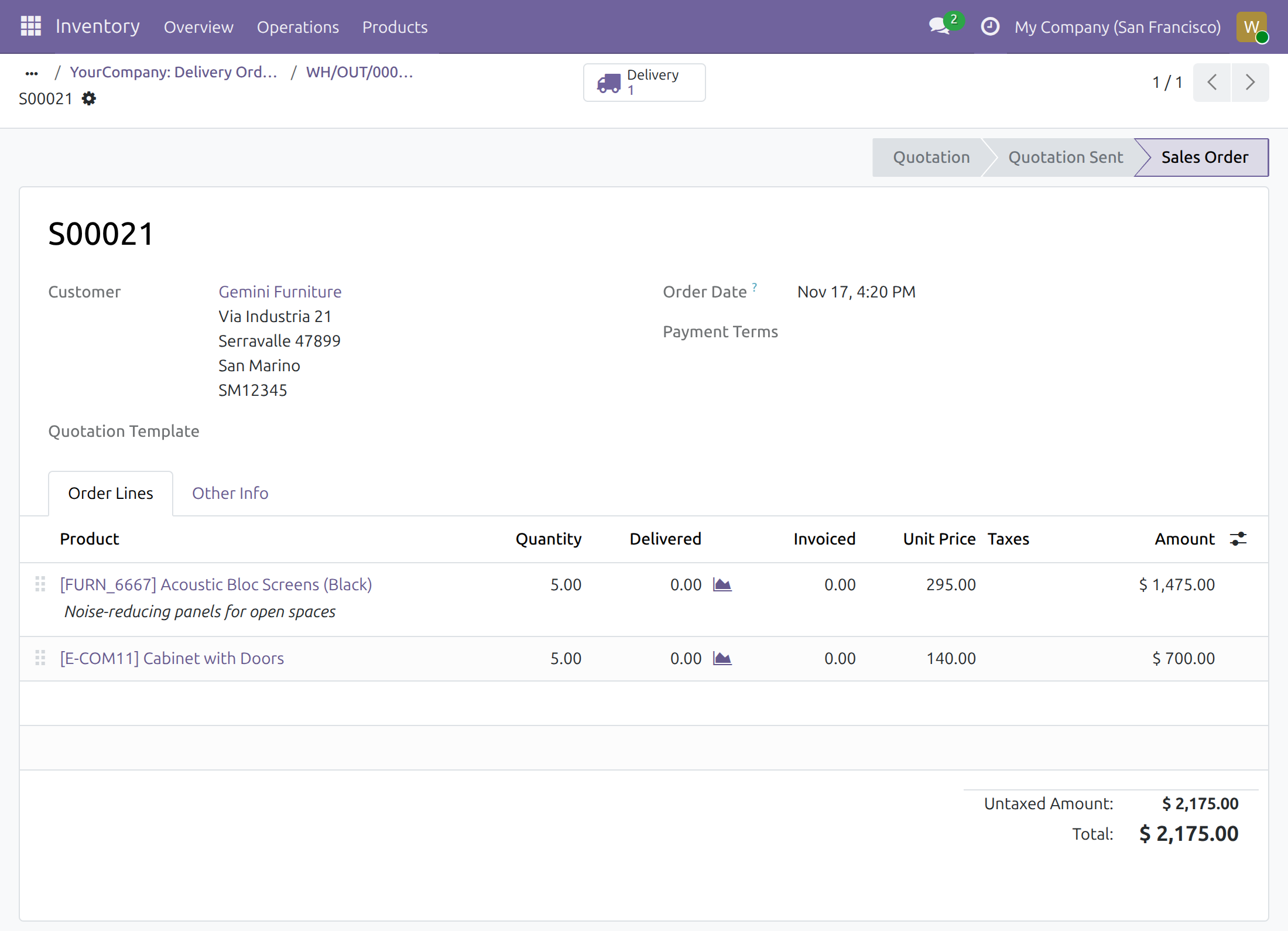
The order behind a delivery is one click away
Today, an operator limited to their warehouse asks a salesperson what the customer ordered, or gets a Sales role that opens every order.
→ At the Users: Own Documents level, the order opens from its delivery for reading, with its lines and their ordered, delivered and invoiced quantities, and no Sales role.
Each warehouse reads its own share of an order
Today, read access to sales orders is all or nothing: every order of every warehouse, or none.
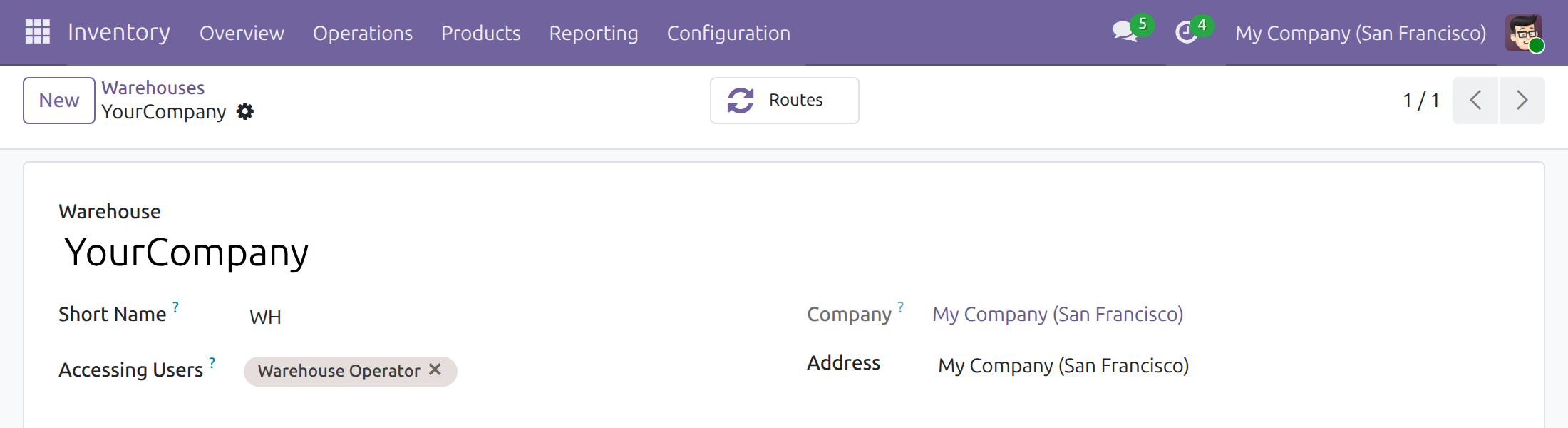
→ An order is read through the warehouses of its lines. A warehouse lists the people who work there; on an order that mixes warehouses, each person sees the lines of their own.
Selling decisions stay with salespeople
Today, a Sales role given to warehouse staff also lets them send, confirm, invoice and cancel orders.
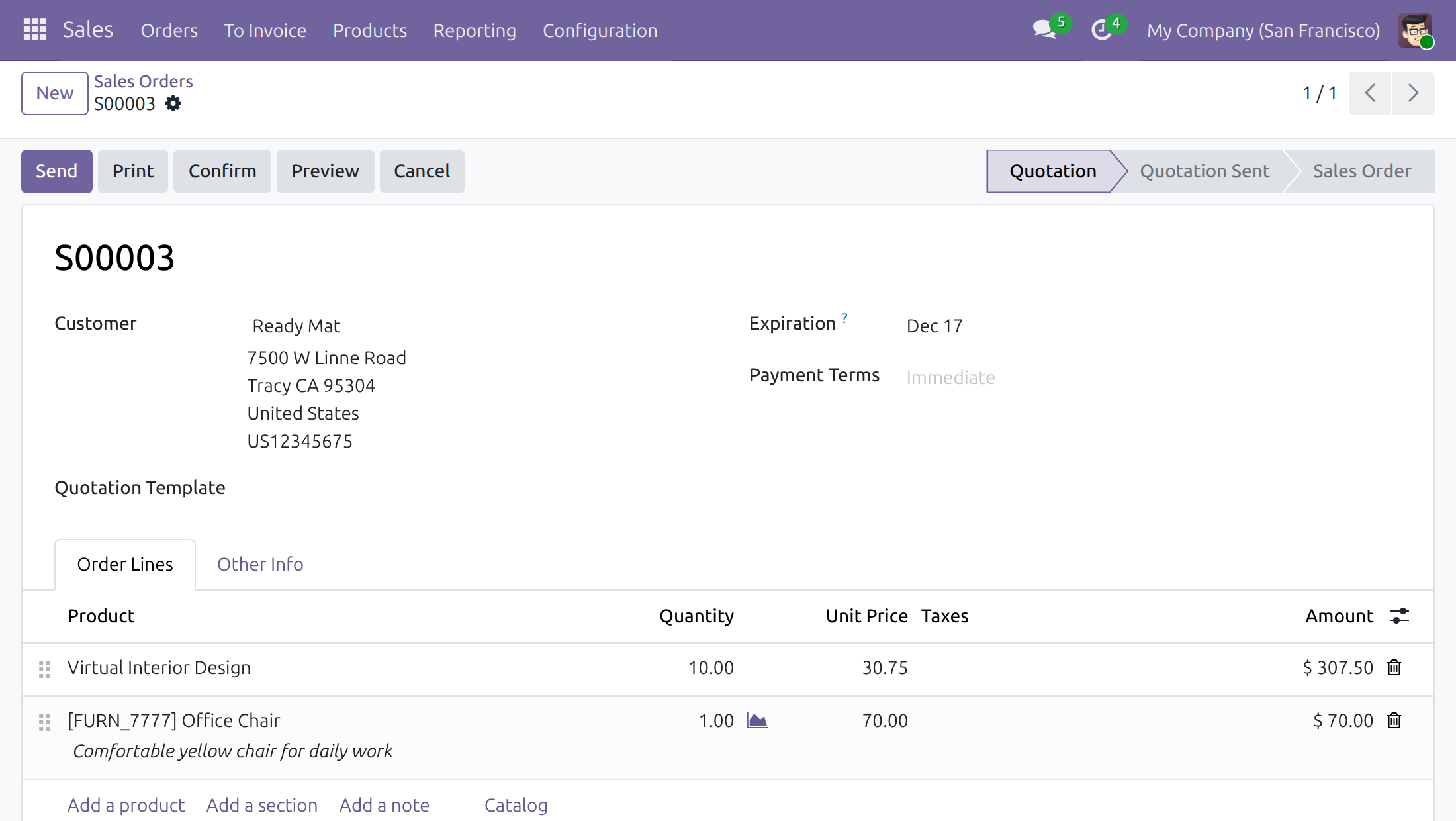
→ Warehouse roles are not offered the controls of the sales flow; salespeople keep every button, whatever the warehouse.
Features
Knowing what to ship
- ✓ Sales orders of assigned and open warehouses, without a Sales role
- ✓ Order lines with ordered, delivered and invoiced quantities
- ✓ On a mixed order, only the lines of your warehouses
- ✓ Invoiced quantities read from the invoice lines of those orders
Preparing the deliveries
- ✓ A delivery opens the order it comes from
- ✓ The Delivery button opens the deliveries of an order
- ✓ Warehouse managers change the orders and lines of their warehouses
- ✓ All Warehouses users read the orders of every warehouse
Selling stays with salespeople
- ✓ Send, confirm, invoice, preview and cancel: salespeople only
- ✓ Pro-forma invoices and payment capture: salespeople only
- ✓ Controls a warehouse role would be refused are not offered
- ✓ Salespeople are never limited by warehouse
Built for daily use
- ✓ The server applies the limits to every list, form and export
- ✓ Warehouse roles never create or delete a sales order
- ✓ Installs by itself when Sales and the base module are present
- ✓ Uninstalling removes the access and the limits it adds
Ready on day one
Rules in place at install
Read access by warehouse and the salesperson-only controls work as soon as the module is installed.
Nothing to set in Sales
Each order follows the warehouses its lines ship from.
What the administrator sets first
An Inventory level for each person and the accessing users of each warehouse, as for the base module.
Before you decide
Can warehouse staff change or create a sales order?
An operator reads only. A warehouse manager may change the existing orders and lines of their warehouses, but never creates or deletes an order.
Which orders does an operator see?
Orders with at least one line shipped from a warehouse that lists them as an accessing user, or lists nobody. An order of other people's warehouses is refused, in every screen and export.
Does anything change for salespeople?
No. A person with a Sales role reads and works by the Sales access rights and keeps every button, whatever Inventory level they also hold.
Does it work alongside the Project app?
With the Project app installed and its Milestones setting on, a person without a Sales role cannot open the sales order form: Project reads a link that only Sales roles may read. With Milestones off, orders open as described.
What does it take to run, or to remove?
No Python package or system program beyond Odoo, and no outside service: data stays in your database. It installs by itself once Sales and the base module are installed; uninstalling removes the access it adds.
Try it, then ask us
Open the live demo of this listing to see a sales order, and read the Documentation tab for each role.
Pre-sales & partnership
viindoo.com/contactusTechnical support
viindoo.com/ticketMulti-Warehouse Access Control - Sales
Who this guide is for: Inventory administrators who give warehouse staff a view of sales orders, the warehouse operators and managers who read those orders, and the salespeople whose work stays unchanged.
Note
Extends Multi Warehouse Access Control - see its documentation for the Inventory access levels and for listing the people who work in a warehouse.
Overview
A warehouse operator who prepares a delivery needs to know what the customer ordered: which products, how many, for which customer. This module lets people who hold an Inventory level of Users: Own Documents or above read the sales orders, their lines and the invoice lines of their own warehouses, without giving them any Sales role. They open the order from its delivery, and from the order they reach its deliveries. They cannot run the sales flow.
| Role | What they do | Access right to assign |
|---|---|---|
| Inventory administrator | Gives each person an Inventory level and lists the accessing users of each warehouse. | Inventory: Administrator |
| Warehouse operator | Reads the sales orders of the assigned warehouses and opens their deliveries. | Inventory: Users: Own Documents |
| Warehouse manager | Does what an operator does, and may also change the orders and lines of the assigned warehouses; never creates or deletes an order. | Inventory: Warehouse Manager |
| Logistics coordinator | Reads the sales orders of every warehouse. | Inventory: All Warehouses User |
| Salesperson | Prepares, sends, confirms, invoices and cancels orders, for every warehouse. | Sales: any Sales role |
A sales order belongs to the warehouses of its lines. A person at the first two levels reads an order when at least one of its lines leaves from a warehouse that lists them in Accessing Users, or from a warehouse whose list is empty. A person who also holds a Sales role is not limited by warehouse: the Sales access rights decide what they read.
Setup (for the Inventory administrator)
Install the module
- Open Apps.
- Search for Multi-Warehouse Access Control - Sales.
- Press Install. The module is installed on its own when Multi Warehouse Access Control and Sales are both installed.
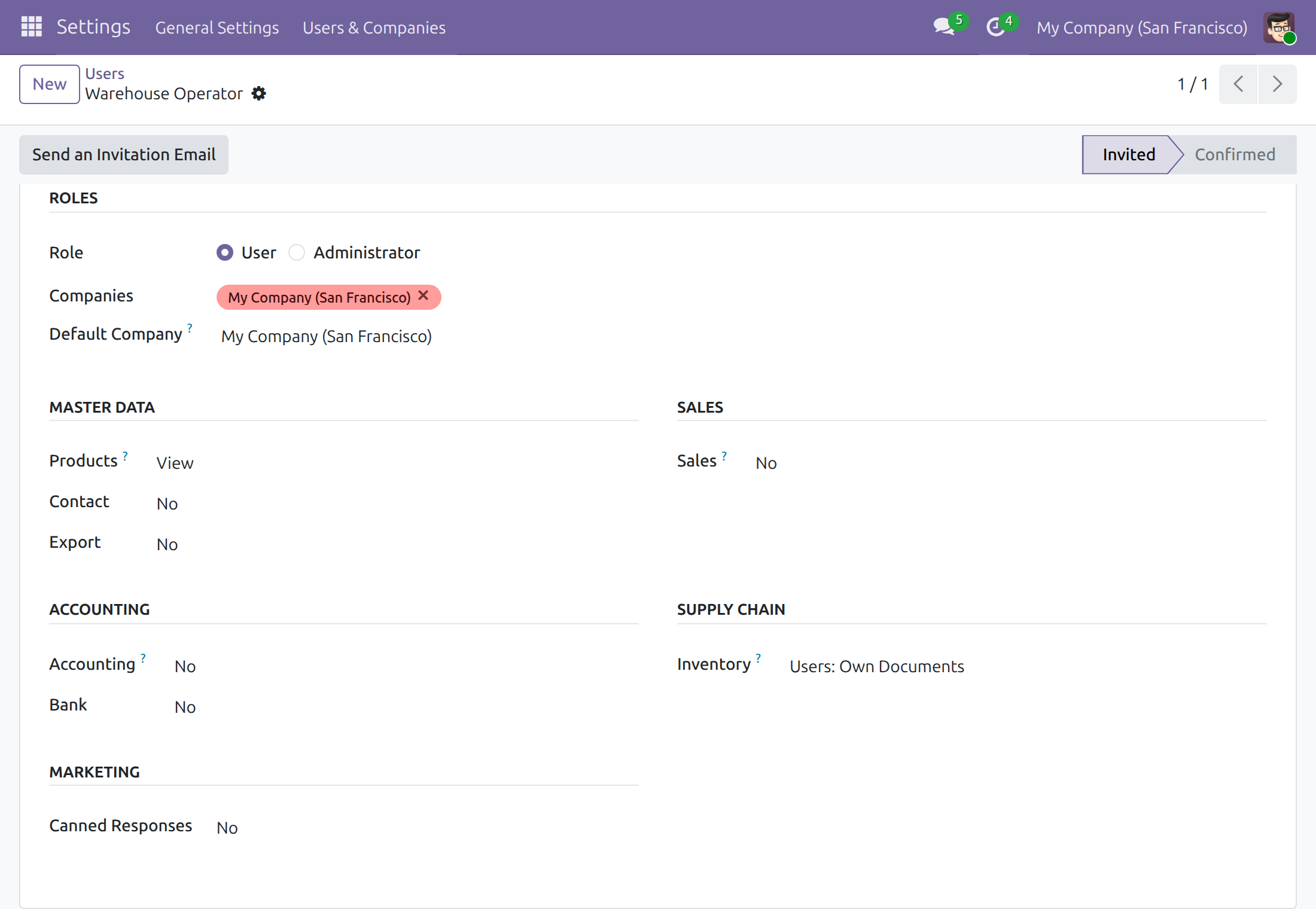
Give each person an Inventory level
- Open Settings > Users & Companies > Users and select the person.
- On the Access Rights tab, set Inventory to Users: Own Documents, Warehouse Manager or All Warehouses User.
- Leave Sales at No for a person who only prepares deliveries.
- Save.
List the people who work in a warehouse
- Open Inventory > Configuration > Warehouses and select the warehouse.
- In Accessing Users, add the people who work there.
- Save.
A warehouse whose list is empty is open to everyone who holds an Inventory level, so its orders are readable by all of them. Once the list names people, the orders of that warehouse are readable by those people, by salespeople and by All Warehouses User only.
Warehouse operator: read the order behind a delivery
The operator does not need the Sales app, and it does not appear in the menu. The order is reached from the delivery.
Open the order of a delivery
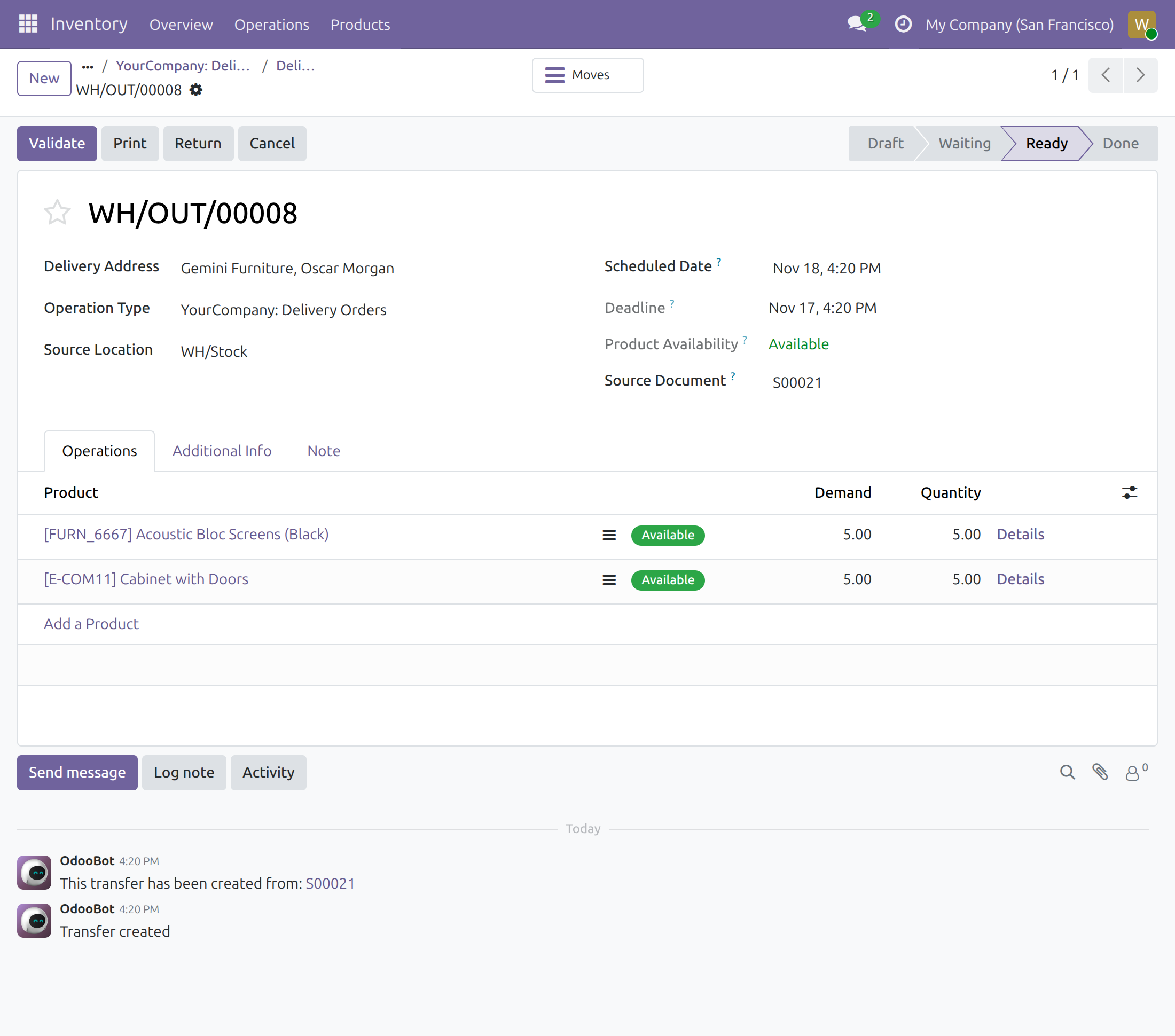
- Open Inventory > Operations and choose Deliveries, then open a delivery.
- In the chatter, the line This transfer has been created from ends with the order reference. Select the reference.
Read the order and reach its deliveries
The order opens for reading: customer, dates, and every product line with its ordered, delivered and invoiced quantities. When some lines of the order leave from other warehouses, only the lines of your warehouses are listed.
- Check the Order Lines tab to prepare the goods.
- Press the Delivery button at the top to open the deliveries of the order. Only the deliveries that your warehouse rights allow open.
The operator cannot edit or delete the order or its lines, and does not see Send, Confirm, Create Invoice, Preview, Cancel, Set to Quotation, the pro-forma invoice buttons or the payment capture and void buttons. The order form offers no field to edit, and the actions menu offers only printing: the entries that send, share or mark a quotation as sent are not listed.
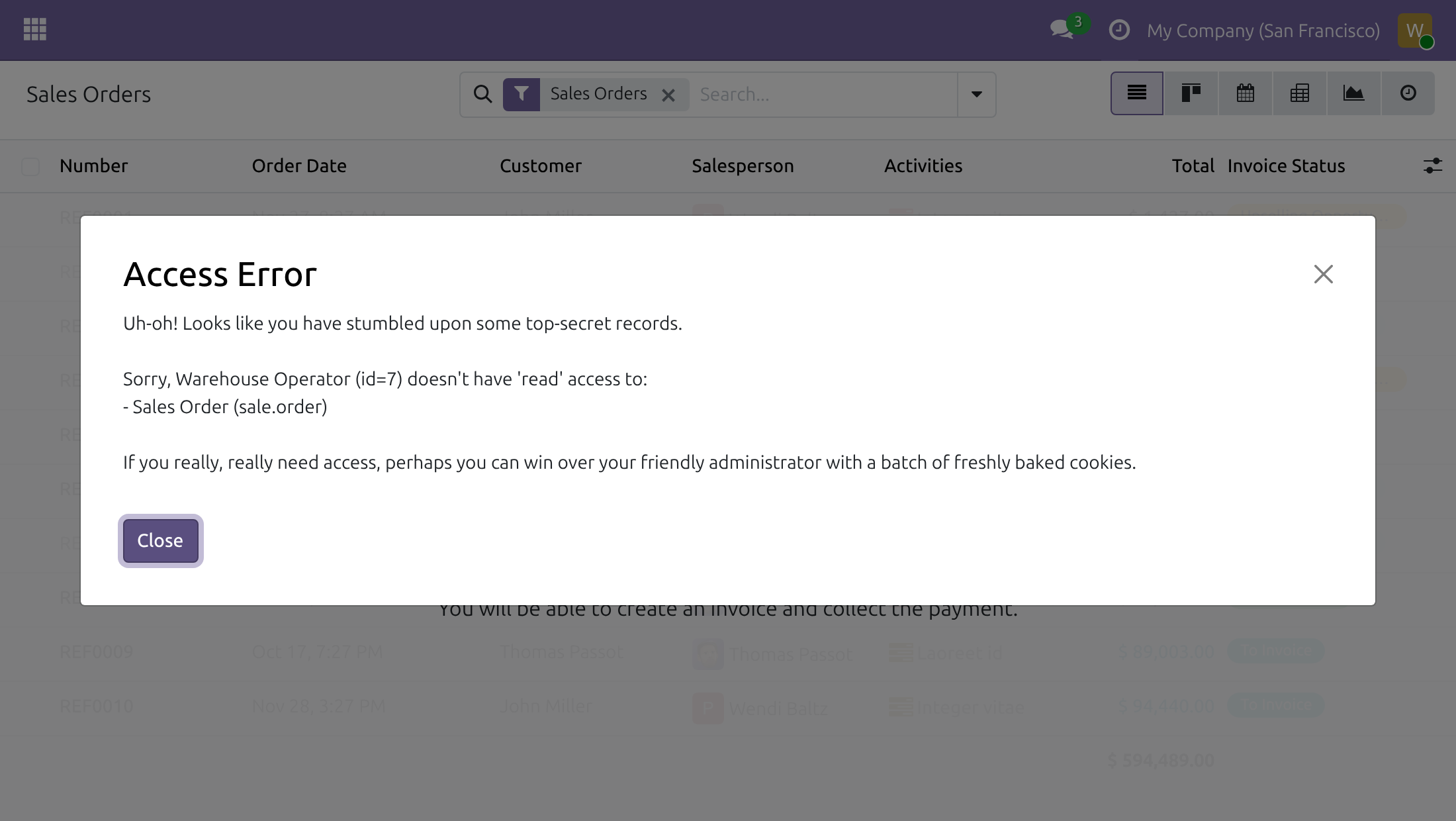
When the order belongs to a warehouse that does not list you
An order whose lines all leave from warehouses that list other people, and not you, is refused. Opening it shows an access error and no content.
Warehouse manager: the change right
A person with Warehouse Manager has everything an operator has, for the warehouses the manager is listed on, and adds the right to change the orders and the order lines of those warehouses. On a quotation, the manager can change the fields of the order, such as the customer and the payment terms, and the quantities and prices of its existing lines; the form offers no line to add. The actions menu also lists Send an email, Mark Quotation as Sent and Share. The manager cannot create or delete a sales order. On a confirmed order, the form shows the same reading screen as for an operator.
Logistics coordinator: every warehouse
A person with All Warehouses User reads the sales orders and order lines of every warehouse, whatever the Accessing Users lists say, without any Sales role. The same buttons are hidden as for the operator.
Salesperson: the sales flow is unchanged
A person with a Sales role keeps every button of the order: Send, Print, Confirm, Preview, Cancel and the rest, and reads orders by the Sales access rights, not by warehouse. Salespeople can also open the deliveries of every warehouse.
Known limits
- Project app with Milestones. When the Project app is installed and its Milestones setting is on, a person without a Sales role cannot open the sales order form: an access error appears and the form does not open. The Project app reads a link between projects and sales orders that only Sales roles may read. Without the Project app, or with Milestones off, the order opens as described above.
- Orders that mix warehouses. Without the Project app, an order that has lines of another warehouse opens and lists only the lines of the person's warehouses. With the Project app installed, such an order raises an access error naming the order lines and does not open.
- Controls of the sales flow. The warehouse levels are not offered the controls they would be refused, such as the shipping and discount buttons under the order lines or the invoicing buttons of the order lists. The Archive, Delete and Duplicate entries of the web client can still be listed for a reader, and a refusal message appears when one is used.
- Orders are reached from the delivery. Warehouse levels have no Sales menu; the order opens from the link in the chatter of its delivery.
Troubleshooting
- A person cannot open an order
- Check Accessing Users on the warehouses of the order lines. If every warehouse of the order lists people and the person is not among them, add them, or give the person the All Warehouses User level.
- A person sees an access error on every order
- See the first two known limits above.
- A person cannot confirm, send or invoice an order
- This is by design. These buttons belong to people holding a Sales role.
FAQ
- Can a warehouse operator create or edit a sales order?
- No. The access is read-only; a warehouse manager may change existing orders and lines of the assigned warehouses, never create or delete them.
- Do operators see the orders of other warehouses?
- Not when the other warehouse lists accessing users that do not include them. Warehouses with an empty list are open.
- Does a salesperson need a warehouse level?
- No. A salesperson reads by the Sales access rights.
This software and associated files (the "Software") may only be used (executed, modified, executed after modifications) if you have purchased a valid license from the authors, typically via Odoo Apps, or if you have received a written agreement from the authors of the Software (see the COPYRIGHT file).
You may develop Odoo modules that use the Software as a library (typically by depending on it, importing it and using its resources), but without copying any source code or material from the Software. You may distribute those modules under the license of your choice, provided that this license is compatible with the terms of the Odoo Proprietary License (For example: LGPL, MIT, or proprietary licenses similar to this one).
It is forbidden to publish, distribute, sublicense, or sell copies of the Software or modified copies of the Software.
The above copyright notice and this permission notice must be included in all copies or substantial portions of the Software.
THE SOFTWARE IS PROVIDED "AS IS", WITHOUT WARRANTY OF ANY KIND, EXPRESS OR IMPLIED, INCLUDING BUT NOT LIMITED TO THE WARRANTIES OF MERCHANTABILITY, FITNESS FOR A PARTICULAR PURPOSE AND NONINFRINGEMENT. IN NO EVENT SHALL THE AUTHORS OR COPYRIGHT HOLDERS BE LIABLE FOR ANY CLAIM, DAMAGES OR OTHER LIABILITY, WHETHER IN AN ACTION OF CONTRACT, TORT OR OTHERWISE, ARISING FROM, OUT OF OR IN CONNECTION WITH THE SOFTWARE OR THE USE OR OTHER DEALINGS IN THE SOFTWARE.