


Employee Seniority
by Viindoo
| Lines of Code | 1296 |
| Technical name | viin_hr_seniority |
| License | OPL-1 |
| Website | https://viindoo.com/apps/modules/19.0/viin_hr_seniority |
| Read description for | v 13.0 v 14.0 v 15.0 v 16.0 v 17.0 v 18.0 |
| Required Apps | Discuss (mail) Employees (hr) |
| Included Dependencies | Viindoo Base HR Contracts (Viindoo) Base Addendum Viindoo Holiday & WorkDay Manager Safe IR Metadata Proxies |

Know how long every employee has been with you, from the contracts you already keep
For HR managers, CEOs and Odoo implementers
Keep track of the hire date, service history and length of service of your employees
Is this you?
We answer "how long has she been here?" by counting months on a calendar.
Years of service sit in a spreadsheet that has drifted away from the contracts.
We cannot tell how much of someone's service was probation.
Nobody can list quickly who joined or left this month, or this year.
Managers ask HR about their team's history, and employees ask about their own.
What changes
We answer "how long has she been here?" by counting months on a calendar.
→ Read the hire date and the length of service in whole years and months on the employee record.
Years of service sit in a spreadsheet that has drifted away from the contracts.
→ Get one figure calculated from the contracts: change a contract date and the service periods follow.
We cannot tell how much of someone's service was probation.
→ See probation as its own row and its own total, next to the service that counts after it.
Nobody can list quickly who joined or left this month, or this year.
→ Filter who was hired or departed this month, last month or this year, and group by hire date.
Managers ask HR about their team's history, and employees ask about their own.
→ Let employees read their own history and line managers their team's, read-only.
Key Features
Seniority
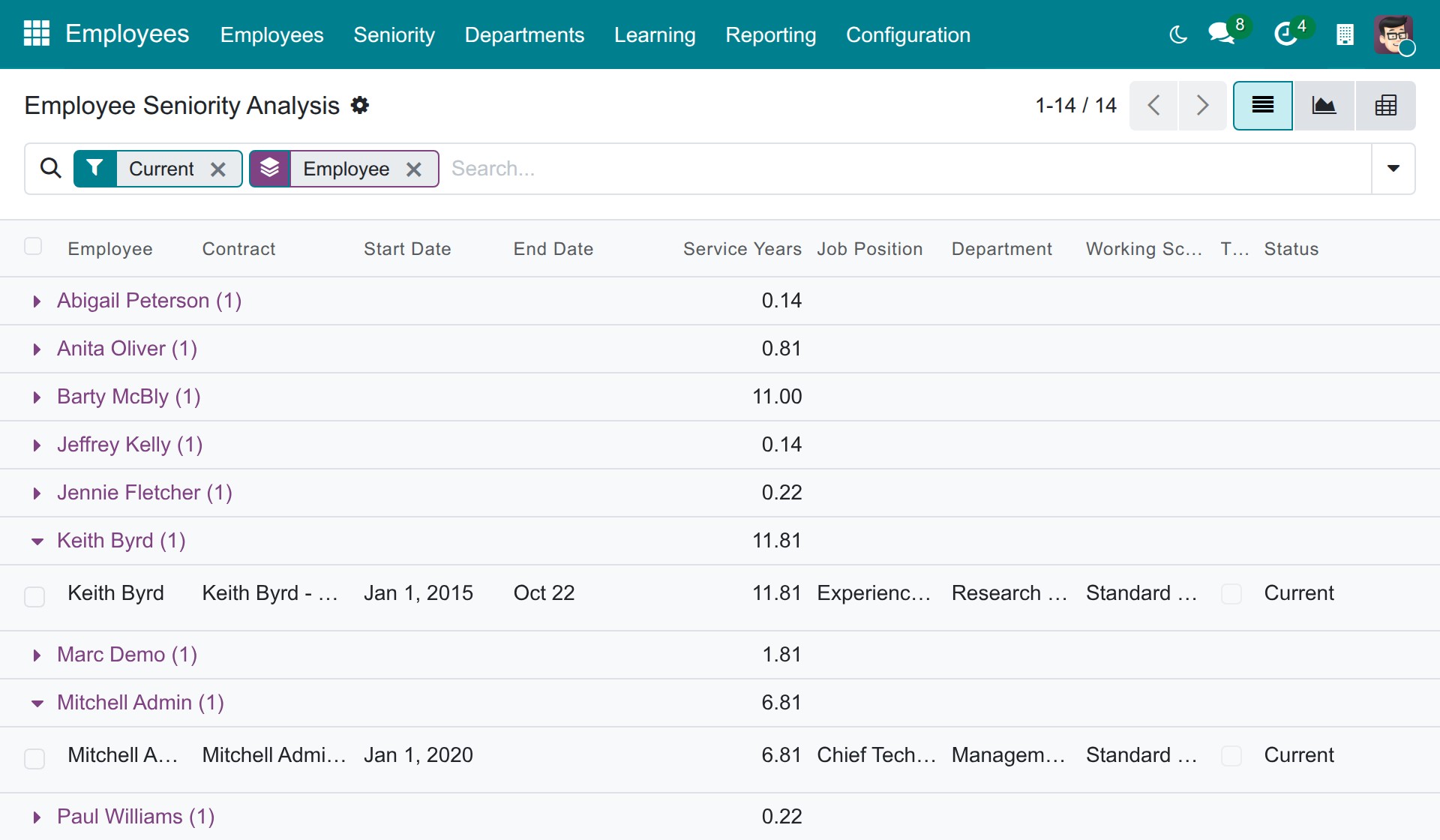
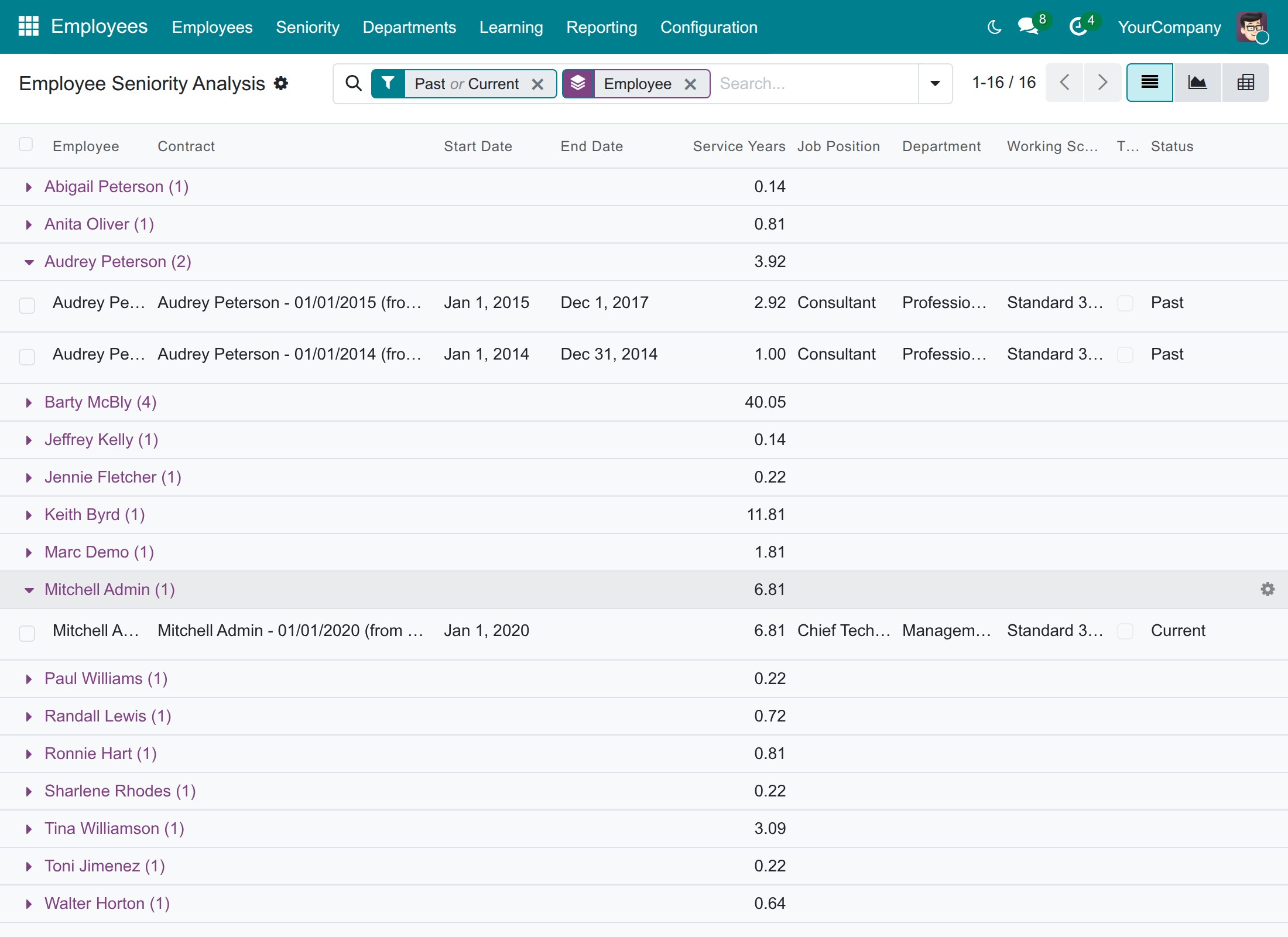
See the service history of employees contract by contract, in list, pivot and graph views, limited to the rows each person may see.
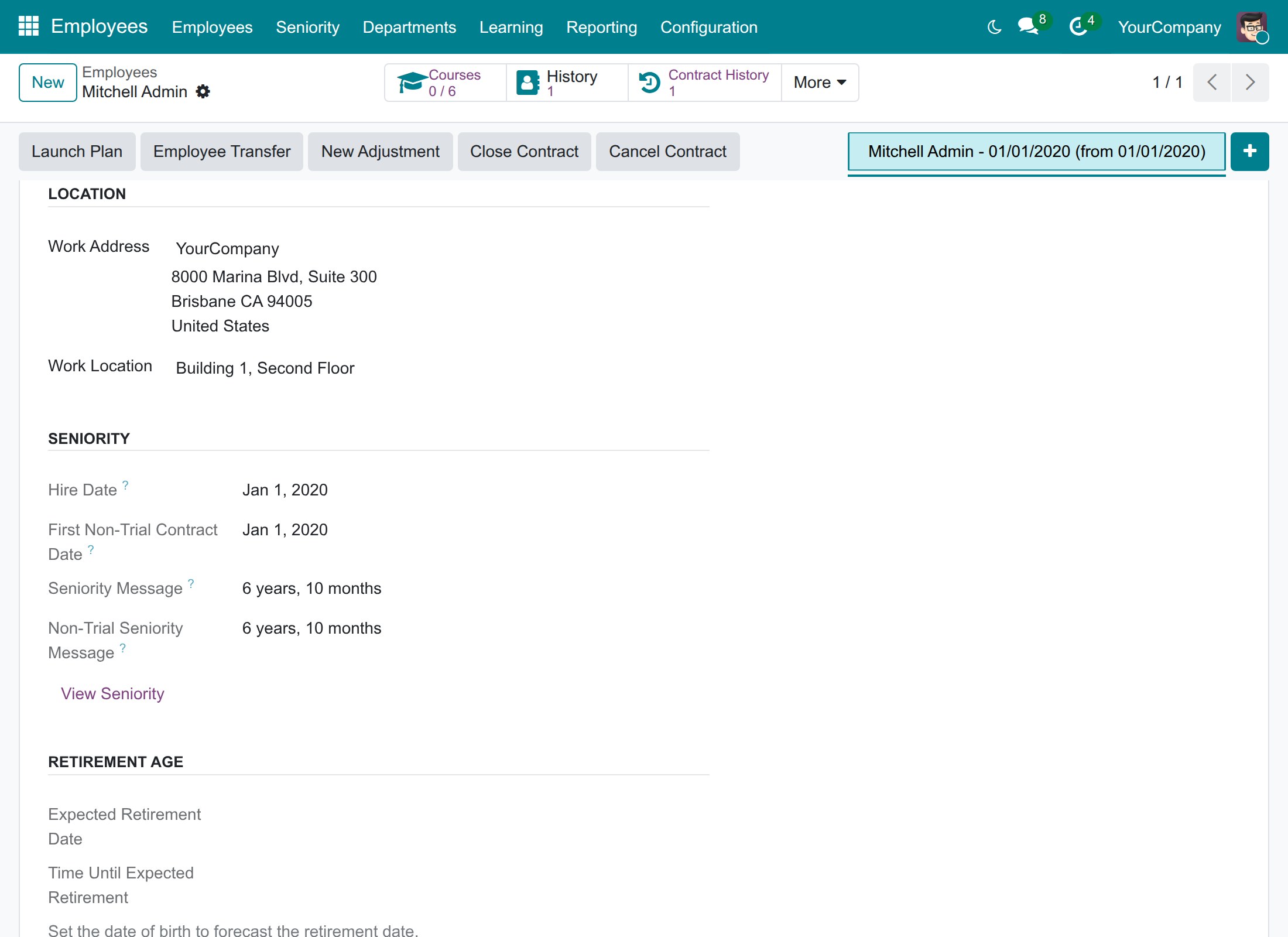
Seniority block on the employee
Read the hire date and the length of service of an employee in whole years and months, with and without the trial period.
View Seniority
Jump from an employee to the service periods behind the seniority text.
Seniority on employee cards and lists
Spot long-serving and new colleagues at a glance and search employees by seniority.
Hired and Departed filters
List who joined or left this month, last month or this year, and group employees by hire date.
Contract Age
See how long each contract has run, in whole years and months.
Who it is for
HR managers and officers
Stop keeping seniority in spreadsheets. Read years of service, probation and contract age straight from the contracts.
CEOs and managing directors
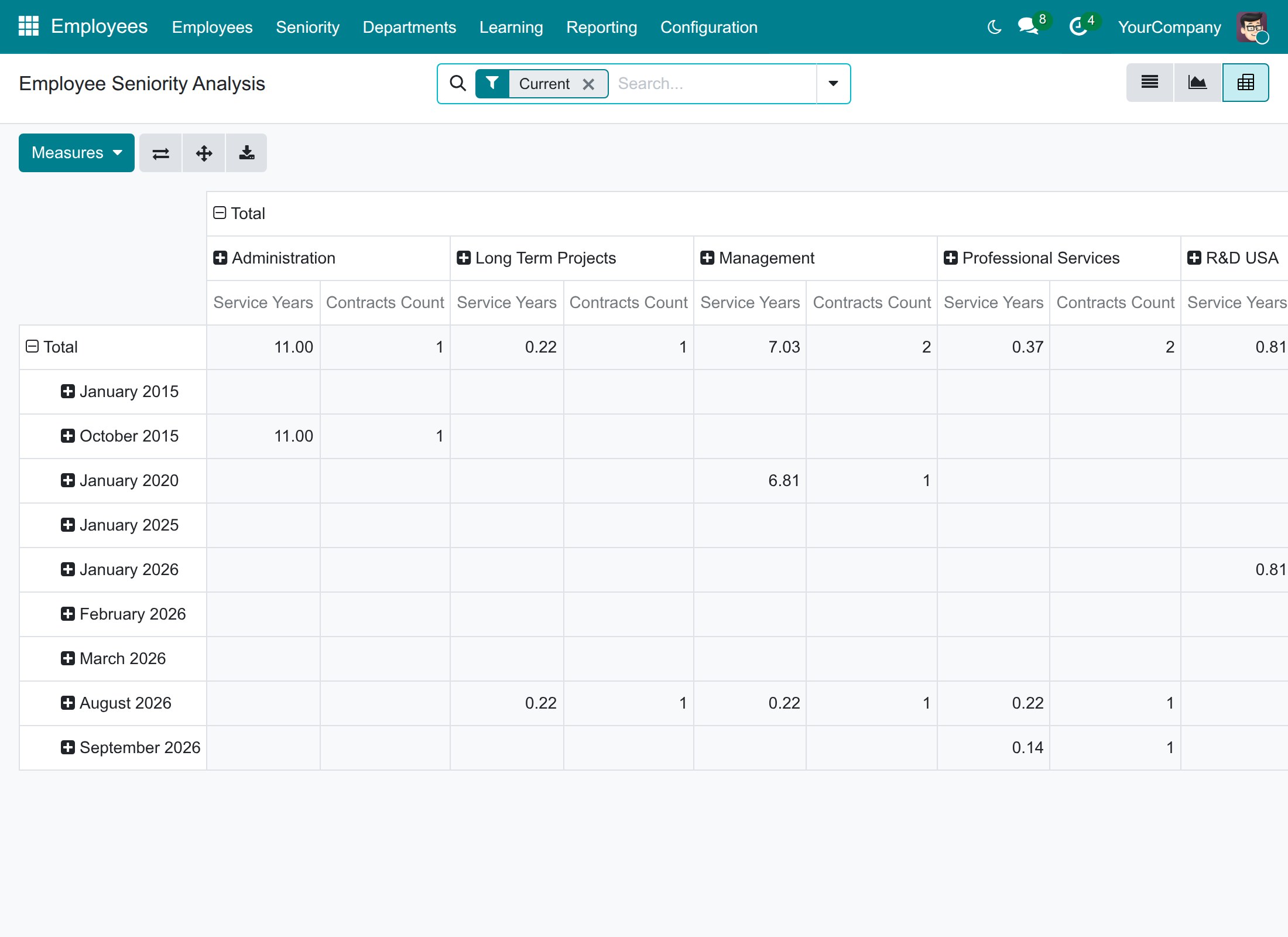
See how long your people stay: service years per department and per month of joining in one pivot table.
Line managers and employees
Read your own and your team's service history, read-only, without asking HR.
Odoo implementers
Nothing to configure. It installs together with HR contracts and shows each person only the rows they may see.
Best for: companies that keep employment contracts in Odoo and want years of service per employee, per team and per department without maintaining a spreadsheet.
Hire date and seniority on the employee record
Every contract of every employee in one report
Seniority by department and by month of joining
Who joined this year, with seniority on each card
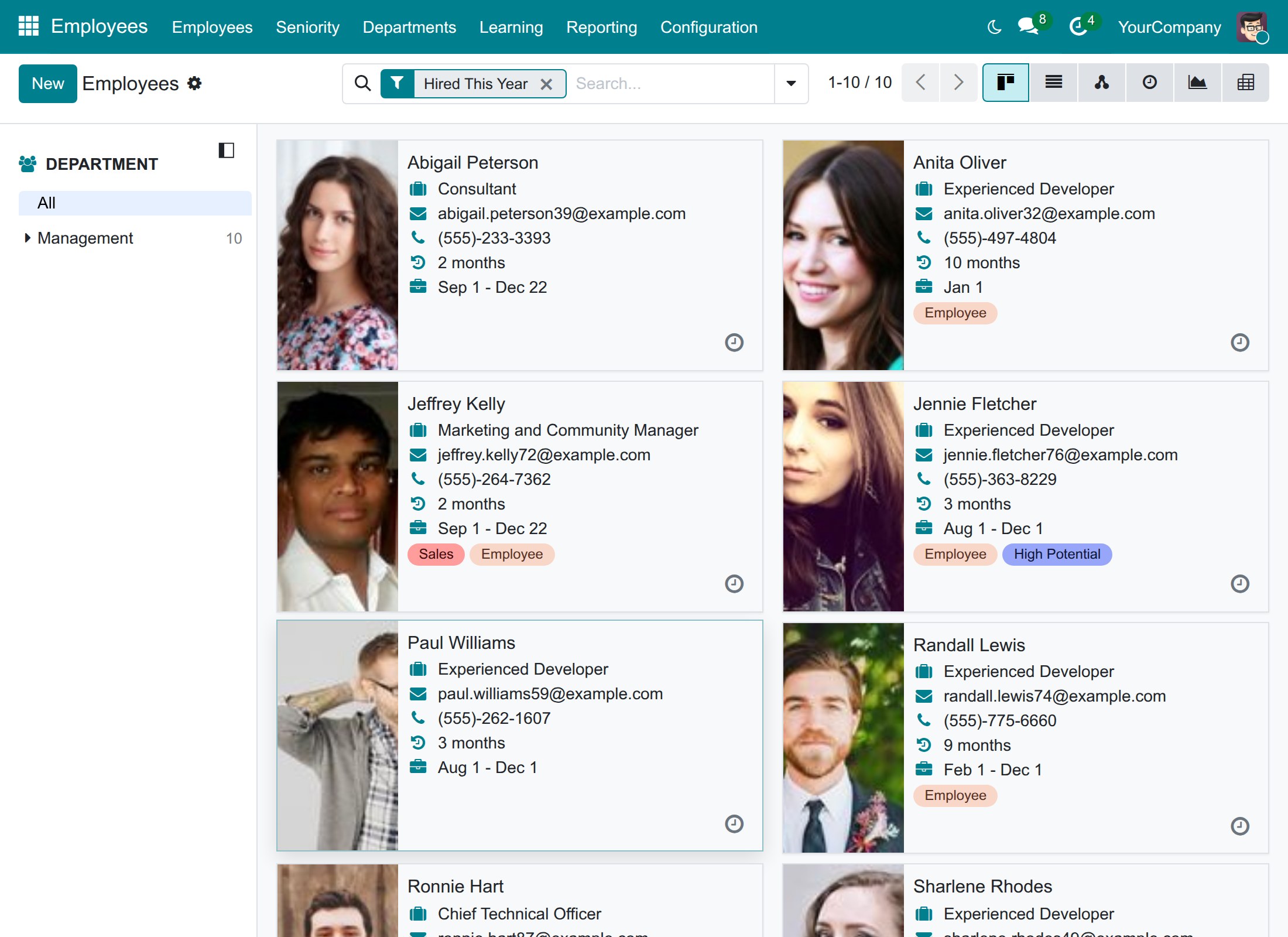
Hired and Departed filters
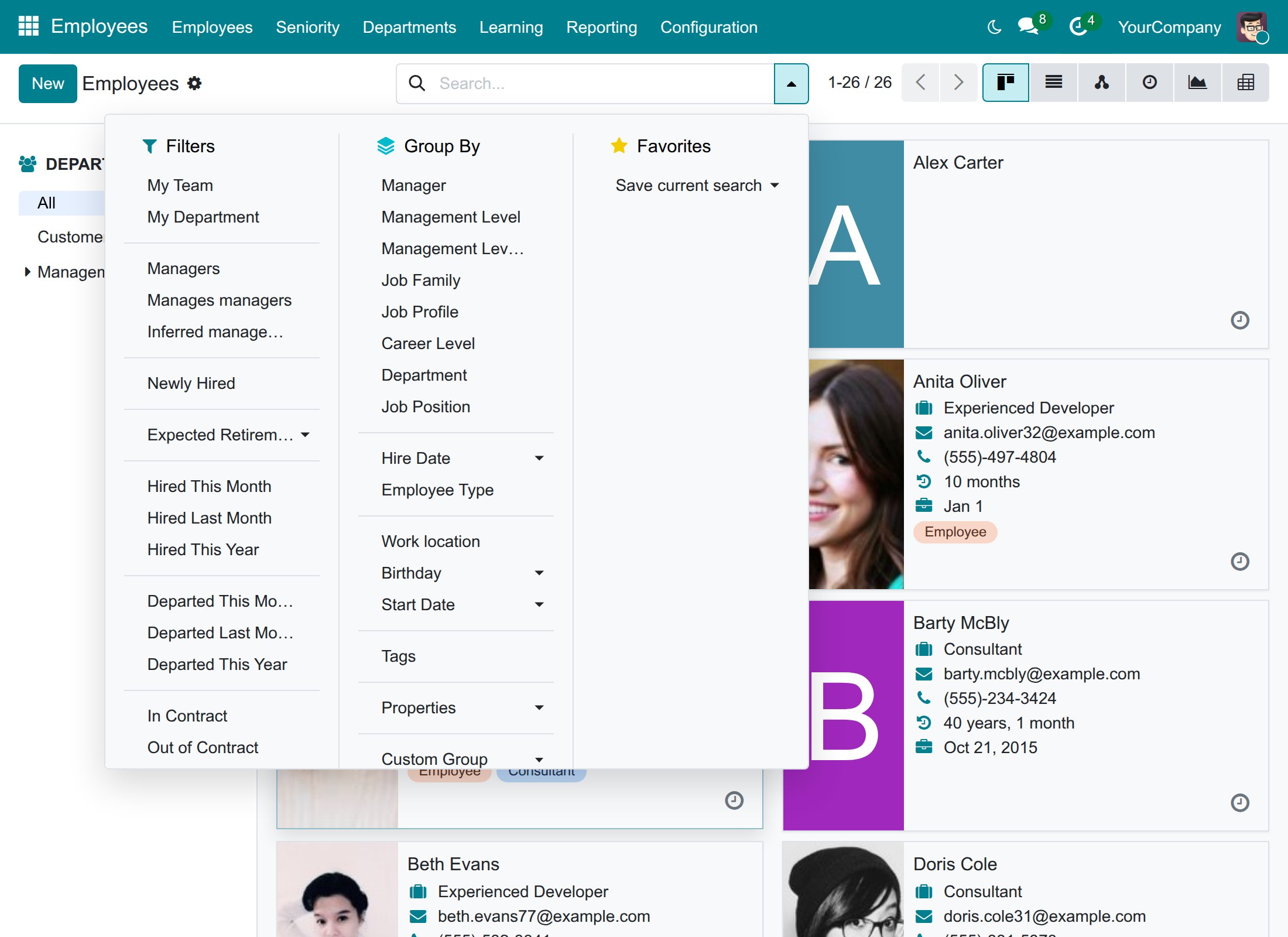
Line managers see their team's service history
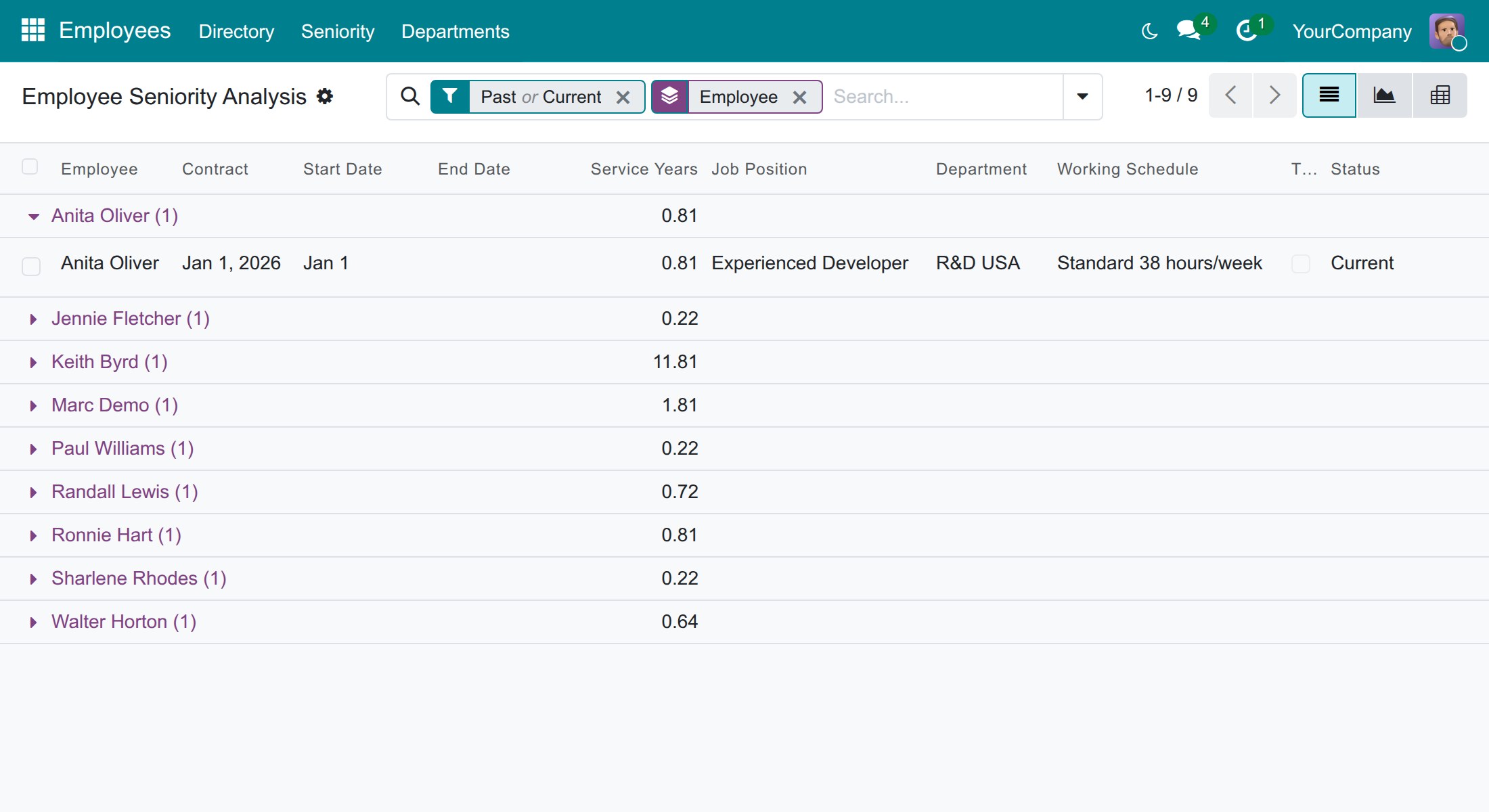
Employees read their own service history
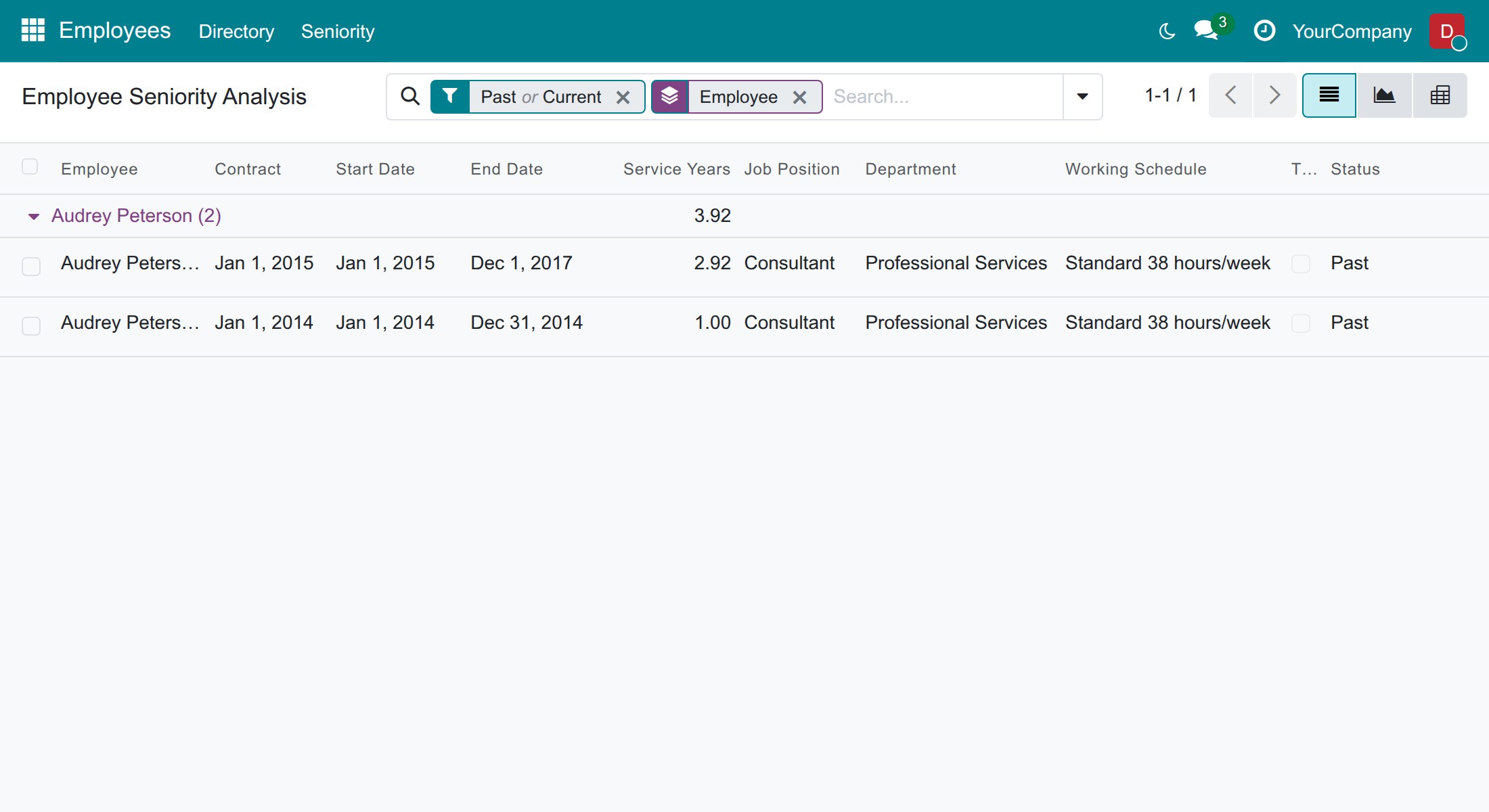
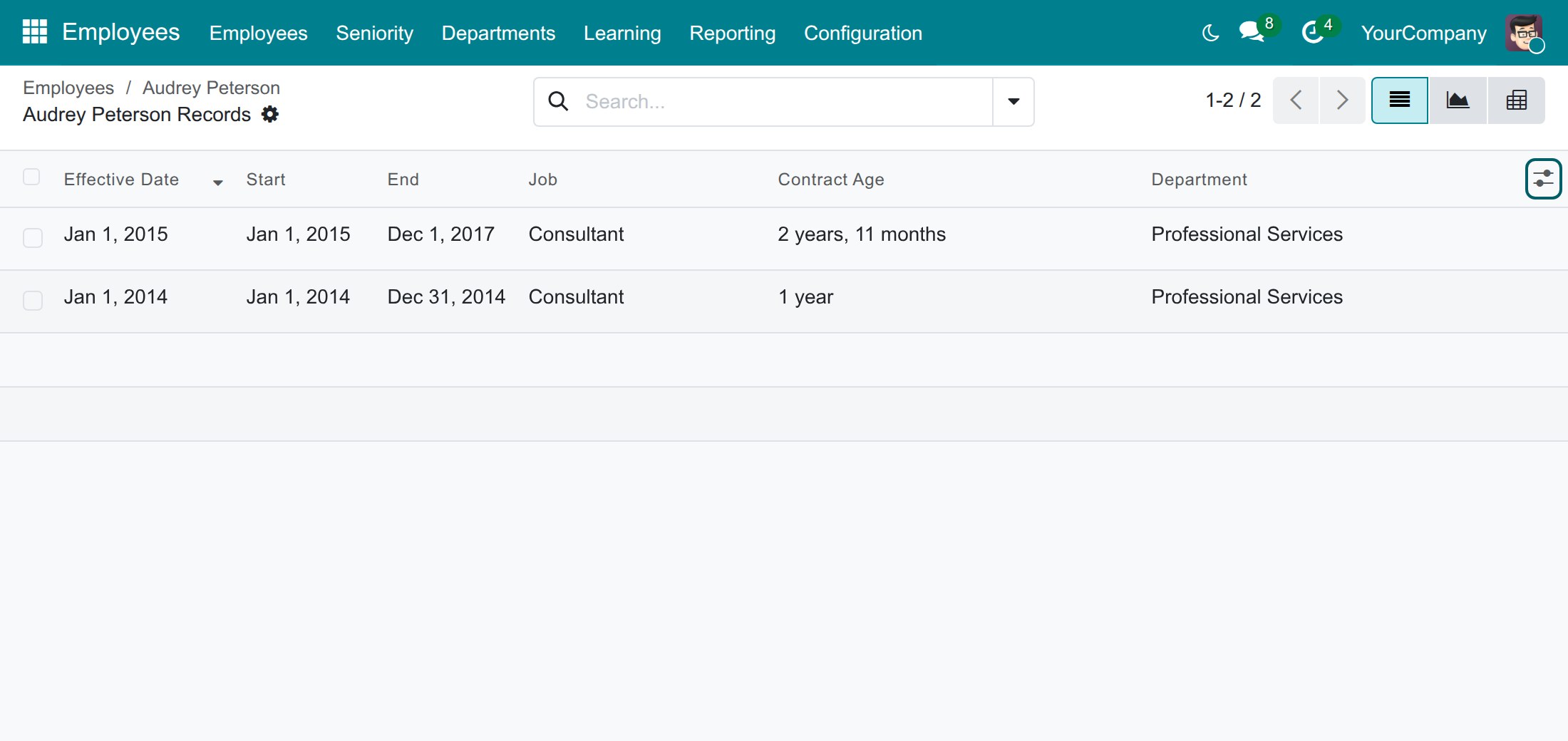
The age of each contract for the HR manager
Frequently Asked Questions
Will the figure disagree with our contracts?
No. Seniority is calculated from the contracts themselves, contract by contract. Change a contract date and the service periods and the totals follow.
Do we have to enter anything new?
No. There is no setting and no extra data to enter. Each employee needs a contract with a start date, and an end date and an end of trial period when they apply.
How is the hire date decided when someone comes back?
The hire date is the start of the first contract of the latest uninterrupted employment. When two contracts are separated by 4 days or more, the later one starts a new employment.
Is the trial period counted?
It is counted in Seniority and left out of Non-Trial Seniority. In the report, a trial period is its own row with its own tick box.
Who can see whose seniority?
Employees see their own rows, line managers see their team, and HR officers see everyone. The report is read-only.
What happens when an employee moves to another company of the group?
The transfer keeps the seniority the employee had up to the transfer date, and a Total Seniority line adds it up when several companies are enabled.
Need help with Employee Seniority?
Pre-Sales & Partnership
Contact usTechnical Support
Open a support ticketTechnical Requirement
- Odoo version: 19.0
- Editions: Odoo Community, Odoo Enterprise
- Required modules: HR Contracts (Viindoo), Viindoo Base
- License: OPL-1
Employee Seniority
Note
Who this guide is for. HR managers and HR officers who follow the length of service of the people in the company, line managers who look at their team, and employees who want to read their own service history. Each chapter says which role it is written for.
Overview
"How long has this person been with us?" is a question that comes back all the time: for service anniversaries, for seniority-based benefits, for planning a succession, for a reference letter. When the answer lives in a spreadsheet, it is never up to date and it disagrees with the contracts.
Employee Seniority answers the question from the contracts you already keep. For every employee it shows the hire date, the length of service in whole years and months, and the same figure without the trial period. A Seniority report lists every period of service contract by contract, and you can analyse it by department, by job position or by month of joining. Each person only sees the rows they are entitled to see: employees their own, line managers their team's, HR officers everyone's.
With the module you can:
- read the hire date and the seniority of an employee on the employee record, and as one line on the employee card;
- see the service periods behind that figure, one row per contract, with the trial period shown separately;
- analyse seniority in a list, a pivot table or a graph;
- find who joined or left this month, last month or this year, and group employees by hire date;
- let employees and line managers read their own and their team's service history;
- keep the seniority an employee had at the moment of a transfer.
The key terms
| Term | Meaning |
|---|---|
| Hire Date | The day the employee joined the company: the start of the first contract of the latest uninterrupted employment. When two contracts are separated by 4 days or more, the later one starts a new employment and the hire date moves to its start. |
| Seniority | The total length of service, counted from the contracts of the employee and shown in whole years and months, for example "6 years, 10 months". |
| Non-Trial Seniority | The same total without the trial periods of the contracts. |
| First Non-Trial Contract Date | The first day of service that is outside a trial period. |
| Service period | One row of the Seniority report: a contract, or the trial part and the remaining part of a contract. Service Years is the length of that period expressed in years. |
| Trial | A period that starts with the contract and ends on the date entered in End of Trial Period on the contract. |
How seniority is counted
- Seniority is added up over all the contracts of the employee, including past ones. A contract that is still running counts up to today.
- The figure is rounded to the nearest whole month and then shown as years and months, so "6 years, 9 months and 20 days" is shown as "6 years, 10 months".
- A contract addendum (a new version of a running contract) does not add a row and does not count twice.
- A contract with an End of Trial Period gives two rows: the trial part, with the Trial box ticked, and the remaining part of the contract. The trial part is left out of Non-Trial Seniority.
Who does what
| Role | What they do | Access right to assign |
|---|---|---|
| Employee and line manager | Read their own service history; a line manager also reads the history of the people in the team. | Role / User |
| HR Officer | Read the hire date and seniority of every employee, analyse seniority, find who joined or left. | Employees: Officer: Manage all employees |
| HR Manager | Everything the HR Officer does, and read the age of each contract. | Employees: Administrator |
Setup (for the Administrator)
Installation
Employee Seniority needs the apps HR Contracts (Viindoo) and Viindoo Base. It installs itself as soon as both are installed. If you want to install it by hand:
- Open Apps.
- Search for Employee Seniority.
- Press Activate.
There is nothing to configure: the module has no setting. Seniority is calculated from the contracts, so make sure each employee has a contract with its Contract Start Date, and its Contract End Date and End of Trial Period when they apply.
Giving people the access right they need
Every internal user can open the Seniority report and sees their own rows. To let someone see more:
- Open Settings ‣ Users & Companies ‣ Users and open the user.
- In the Access Rights tab, set Employees to Officer: Manage all employees to let the person read the seniority of all employees, or to Administrator to add the contract age as well.
- Save.
Employee and line manager: read the service history
Every employee opens Employees ‣ Seniority. The menu is in the top bar of the Employees app, next to Employees.
Read your own service history
- Open Employees ‣ Seniority.
- Press the arrow before your name to open your rows.
- Read, for each contract, the Start Date, the End Date, the Service Years, your Job Position and Department, and the Status: Current for a running contract, Past for a contract that has ended.
The total beside your name is your length of service in years, summed over your contracts.
Read the service history of your team
If you are the manager of other employees, the same report also lists them: the people who report to you directly or through another manager, and, when you head a department, all the employees of that department.
- Open Employees ‣ Seniority.
- Find the employee in the list, or type a name in the search box.
- Open the group of the employee to see the contracts.
The report is read-only: nobody can change a service period from here.
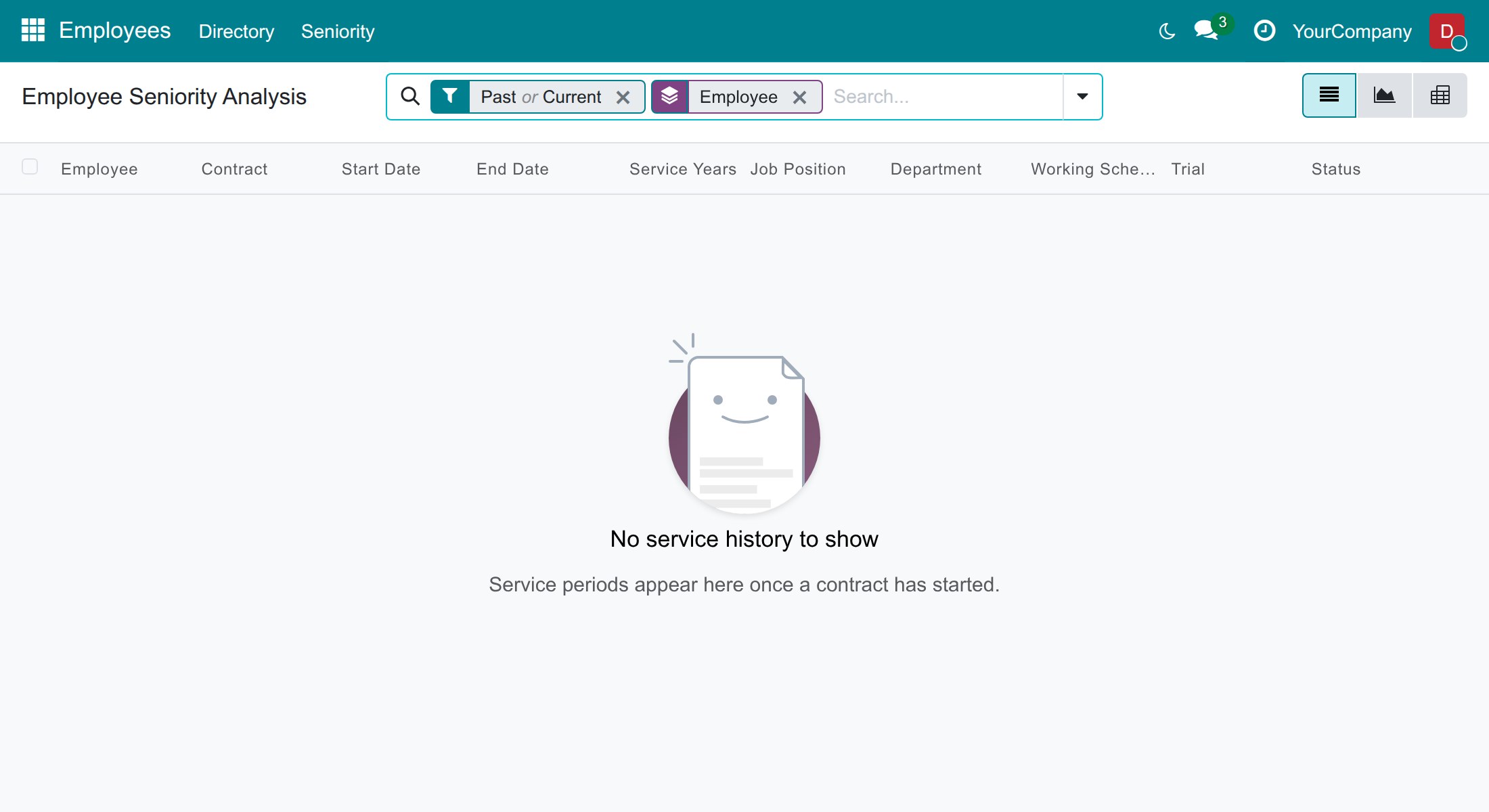
When the report is empty
If you have no contract yet, the report says No service history to show. Service periods appear as soon as a contract has started. Ask your HR officer to check that your contract has a start date.
HR Officer: follow the seniority of the company
This chapter is for people who hold Employees: Officer: Manage all employees. The HR Manager has the same screens.
Check the hire date and the seniority of an employee
- Open Employees ‣ Employees and open an employee.
- In the Work tab, find the Seniority block, under Location.
- Read the Hire Date, the First Non-Trial Contract Date, the Seniority Message and the Non-Trial Seniority Message.
The block appears once the employee has a contract with a start date. Hover the question mark beside a label to read how the figure is calculated. When several companies are enabled, a Total Seniority line adds the seniority the employee had in the companies they were transferred from.
See the service periods behind the figure
- In the Seniority block of the employee, press View Seniority.
- Read one row per contract (or per trial part and remaining part).
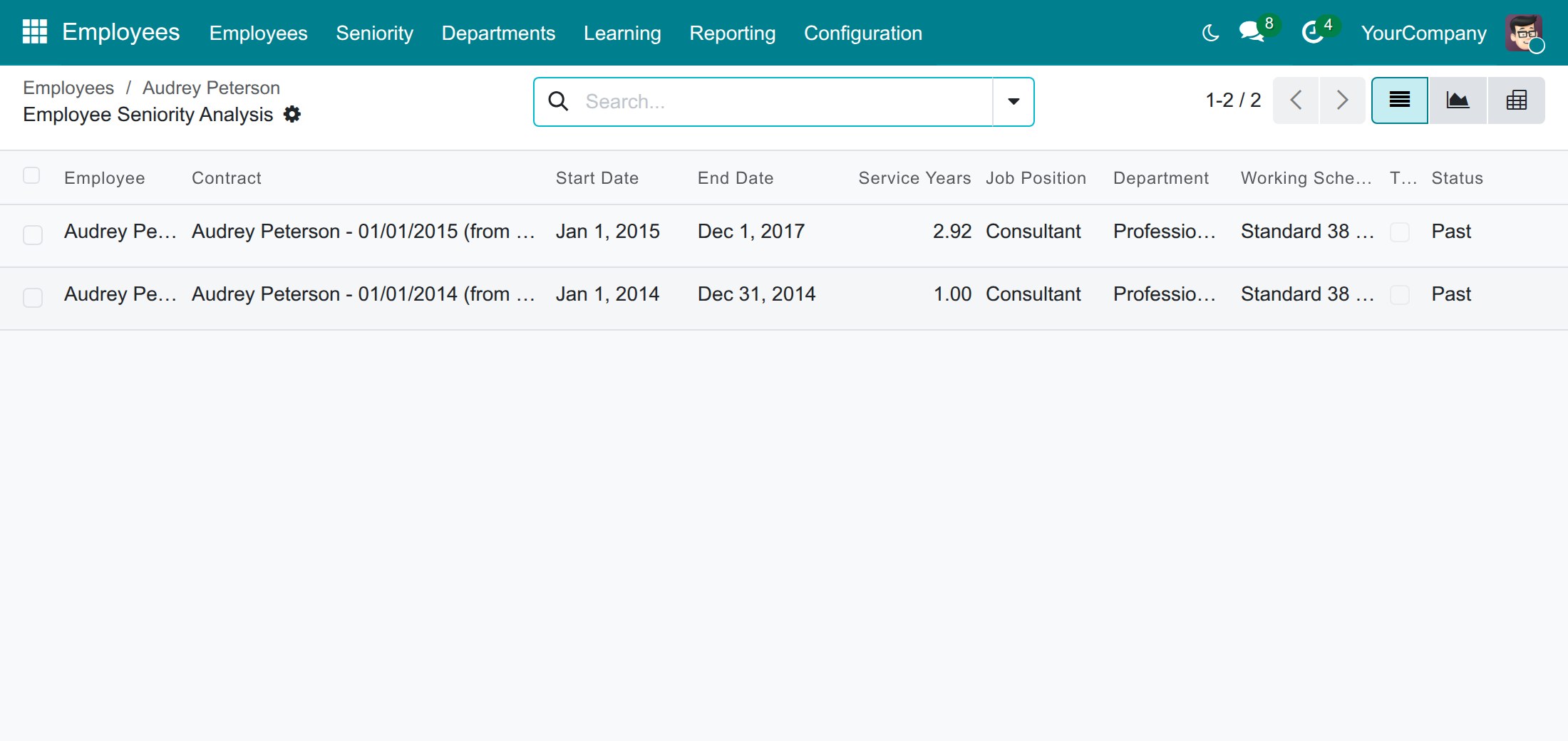
The breadcrumb brings you back to the employee. This view also lists the periods of an archived employee.
Analyse the seniority of all employees
- Open Employees ‣ Seniority. The report lists every period, Past and Current, grouped by employee.
- Open the group of an employee to see the contracts.
- Use the search box and the filters to narrow the list: Current or Past, the employee, the department, the job position, the working schedule or the service years. Group by employee, department, job position, status, company, start date or end date.
Switch to the pivot view (the table icon at the top right) to see the service years and the number of contracts per department and per month of joining. Keep the Current filter to analyse the people who are in the company today.
The graph view (the chart icon next to it) shows the same figures as a chart. Use Measures to choose between Service Years and Contracts Count.
Spot seniority on the employee cards and lists
On Employees ‣ Employees, each card of the kanban view shows the seniority under the phone number, with a history icon, for every employee who has some. In the list view, open the column selector at the right of the header and tick Seniority in years or Seniority Message to add them. You can also search by Seniority in years to find the employees with at least that many years, by Hire Date, or by Departure Date.
Find who joined or left
- Open Employees ‣ Employees.
- Open the filter menu at the right of the search box.
- Choose one of Hired This Month, Hired Last Month, Hired This Year, Departed This Month, Departed Last Month or Departed This Year.
The Hired filters use the Hire Date; the Departed filters use the Departure Date that is recorded when an employee leaves the company. Both also find employees who have been archived. To see the whole company by joining date, group the list by Hire Date.
Keep the seniority of an employee transferred between companies
When you confirm an Employee Transfer, the transfer records the Seniority in years and the Non-Trial Seniority in years the employee had up to the day before the transfer date. Read them on the transfer, where they are hidden while they are zero. They feed the Total Seniority line of the employee.
HR Manager: read the age of a contract
This chapter is for people who hold Employees: Administrator.
Read the age of each contract
- Open Employees ‣ Employees and open an employee.
- Press the History button at the top of the record.
- Read the Contract Age column: the time between the start of the contract and today, or its end date when it has ended, in whole years and months.
Troubleshooting
| What you see | What to check |
|---|---|
| There is no Seniority block on the employee. | The employee has no contract with a start date yet, or you do not hold the Officer access right. |
| The hire date is later than expected. | Two contracts are separated by 4 days or more, so the later contract starts a new employment. Check the end date of the previous contract. |
| Non-Trial Seniority equals Seniority. | The contract has no End of Trial Period, or the trial ended before the contract started. |
| An employee cannot see a colleague in the report. | An employee only sees their own rows. A line manager sees the team; the colleague must report to them, directly or through another manager. |
| The Contract Age column is missing. | The column is for the HR Manager. Add the column from the column selector if it is hidden. |
FAQ
Does a running contract count? Yes. It counts up to today, so the seniority grows every day. A contract that has ended counts up to its end date.
Why does the seniority text not match the Service Years exactly? The report shows Service Years with two decimals and the text rounds to the nearest whole month, so "6.81" years is read as "6 years, 10 months".
Is the trial period part of the seniority? Yes, it is counted in Seniority and left out of Non-Trial Seniority.
Can I correct a service period? Not in the report. Change the contract dates on the contract of the employee and the periods are recalculated.
This software and associated files (the "Software") may only be used (executed, modified, executed after modifications) if you have purchased a valid license from the authors, typically via Odoo Apps, or if you have received a written agreement from the authors of the Software (see the COPYRIGHT file).
You may develop Odoo modules that use the Software as a library (typically by depending on it, importing it and using its resources), but without copying any source code or material from the Software. You may distribute those modules under the license of your choice, provided that this license is compatible with the terms of the Odoo Proprietary License (For example: LGPL, MIT, or proprietary licenses similar to this one).
It is forbidden to publish, distribute, sublicense, or sell copies of the Software or modified copies of the Software.
The above copyright notice and this permission notice must be included in all copies or substantial portions of the Software.
THE SOFTWARE IS PROVIDED "AS IS", WITHOUT WARRANTY OF ANY KIND, EXPRESS OR IMPLIED, INCLUDING BUT NOT LIMITED TO THE WARRANTIES OF MERCHANTABILITY, FITNESS FOR A PARTICULAR PURPOSE AND NONINFRINGEMENT. IN NO EVENT SHALL THE AUTHORS OR COPYRIGHT HOLDERS BE LIABLE FOR ANY CLAIM, DAMAGES OR OTHER LIABILITY, WHETHER IN AN ACTION OF CONTRACT, TORT OR OTHERWISE, ARISING FROM, OUT OF OR IN CONNECTION WITH THE SOFTWARE OR THE USE OR OTHER DEALINGS IN THE SOFTWARE.
