

Overtime - Compensatory Time Off
by Viindoo
| Lines of Code | 1060 |
| Technical name | viin_hr_overtime_hr_holidays |
| License | OPL-1 |
| Website | https://viindoo.com/apps/modules/19.0/viin_hr_overtime_hr_holidays |
| Read description for | v 17.0 v 18.0 |
| Required Apps | Time Off (hr_holidays) Discuss (mail) Employees (hr) Calendar (calendar) |
| Included Dependencies | Viindoo Base Overtime Advanced HR Management HR Contracts (Viindoo) Work Entry Work Entry - Contract Base Addendum Safe IR Metadata Proxies Viindoo Holiday & WorkDay Manager |
| Extensions | Overtime Approval - Compensatory Time Off Overtime Payroll - Compensatory Time Off Overtime - Compensatory Time Off - Attendance |

Overtime hours become time off, sized and kept in step automatically
For HR teams, team leads and employees who give time back for extra hours
Convert overtime hours into compensatory time off that follows the hours actually worked.
Adds compensatory time off to Overtime. The time off earned appears in the Time Off app.
Is this you?
Extra hours are repaid in time off by agreement, and nobody can say exactly how much each person is owed.
HR keeps a private sheet of owed days next to the leave balances that people actually see.
Hours are corrected after the fact, but the days granted stay as they were first worked out.
A plan is edited and time off that an employee has already booked is suddenly in question.
Planning overtime for a whole team means repeating the same choice person by person.
What changes
Extra hours are repaid in time off by agreement, and nobody can say exactly how much each person is owed.
→ Tick Compensatory Time Off on the plan and the employee gets a validated time-off allocation, with no separate request.
HR keeps a private sheet of owed days next to the leave balances that people actually see.
→ The balance lives in the Time Off app as an ordinary allocation, named after the plan that earned it - no second ledger.
Hours are corrected after the fact, but the days granted stay as they were first worked out.
→ The allocation follows the actual hours of the plan, in days of the employee's working schedule, and its chatter says what changed and from what to what.
A plan is edited and time off that an employee has already booked is suddenly in question.
→ Time off already taken is protected: a change that would take it away is refused, naming the time off and the way out.
Planning overtime for a whole team means repeating the same choice person by person.
→ Tick it once in Mass Schedule and every plan generated is converted to time off.
How it works
Set up once
A system administrator picks the time-off type that receives compensatory time off and how long it stays valid.
Overtime planned
A team lead or overtime officer ticks Compensatory Time Off on the plan, or once for a whole batch in Mass Schedule. The allocation is created and the plan links to it.
Time off earned
The employee finds the allocation in My Allocations and requests time off on it like on any other. The employee cannot change or remove it by hand.
Key Features
One tick on the plan
Mark an overtime plan as compensatory time off and its hours become a validated allocation for that employee, with no separate request.
Sized by the employee's working day
The allocation is the actual overtime hours divided by the hours per day of the employee's schedule on the plan date: 4 hours on a 7.6-hour day is 0.53 day.
Stays in step with the hours
Change the date, the period, the employee or the actual hours and the allocation changes with them, in any recognition mode. At zero hours, or when the plan is unmarked or deleted, it is removed.
Time already taken is protected
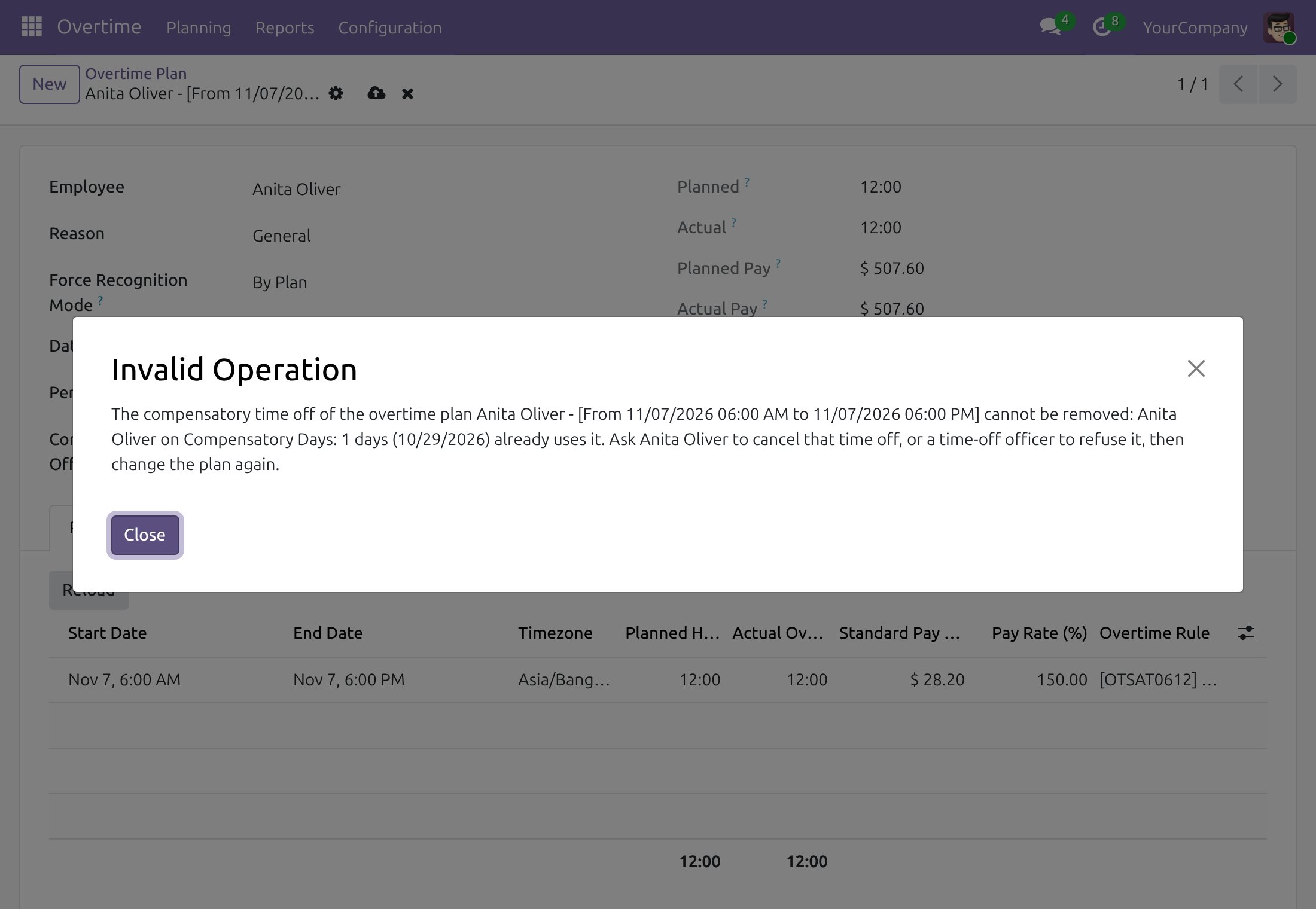
While a validated time off uses the allocation, unmarking or deleting the plan, or cutting its hours below the time taken, is refused. The message names the time off and how to proceed.
Whole teams at once
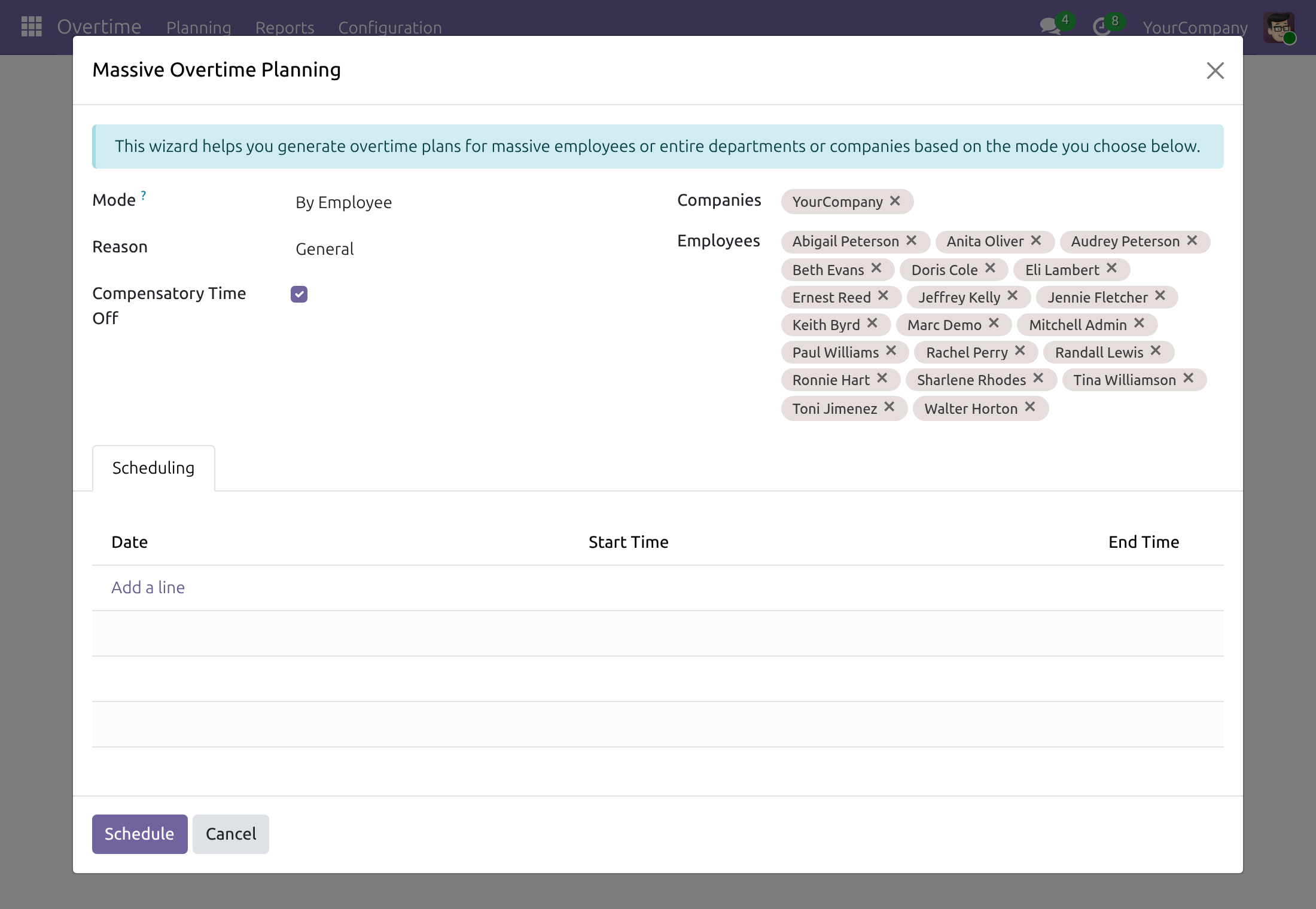
Mass Schedule has the same Compensatory Time Off option, applied to every plan it generates.
Leave type and validity set once
Choose the type from leave types that are granted through allocations, and how many days the time off stays valid, or no end date. Each company chooses its own.
Who it is for
Team leads
Plan overtime for the team and choose time off in return, for one plan or a whole batch.
Overtime officers
Mark and correct compensatory plans of any employee of their companies, without any right in the Time Off app.
Time off officers
Open the allocation behind a plan, and refuse the time off that blocks a change when it has to be undone.
Employees
See the time off they earned among their allocations and request it like any other leave.
Best for: companies that give time off for extra hours and want every day traced to the overtime that earned it.
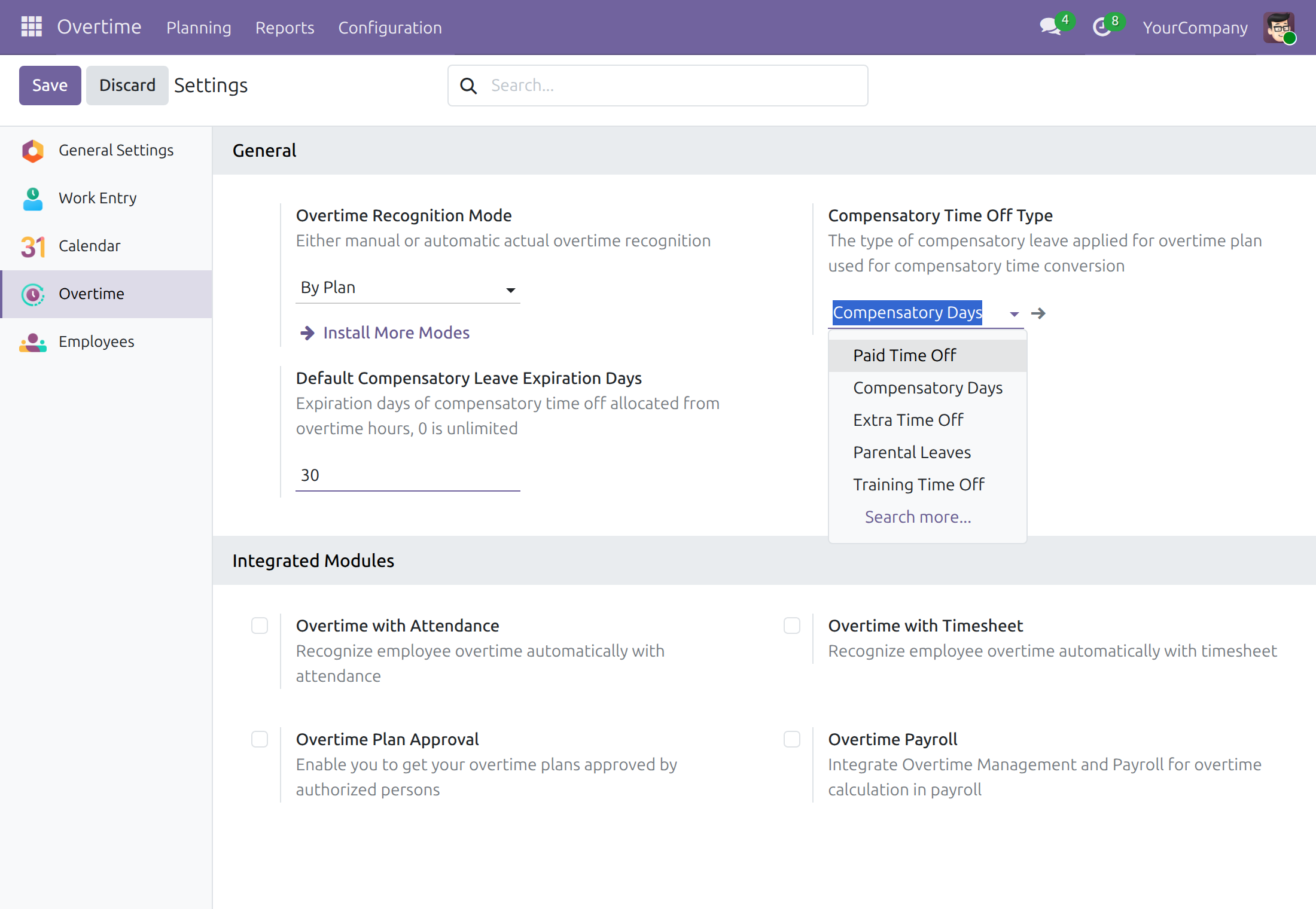
Choose the time-off type and how long it stays valid
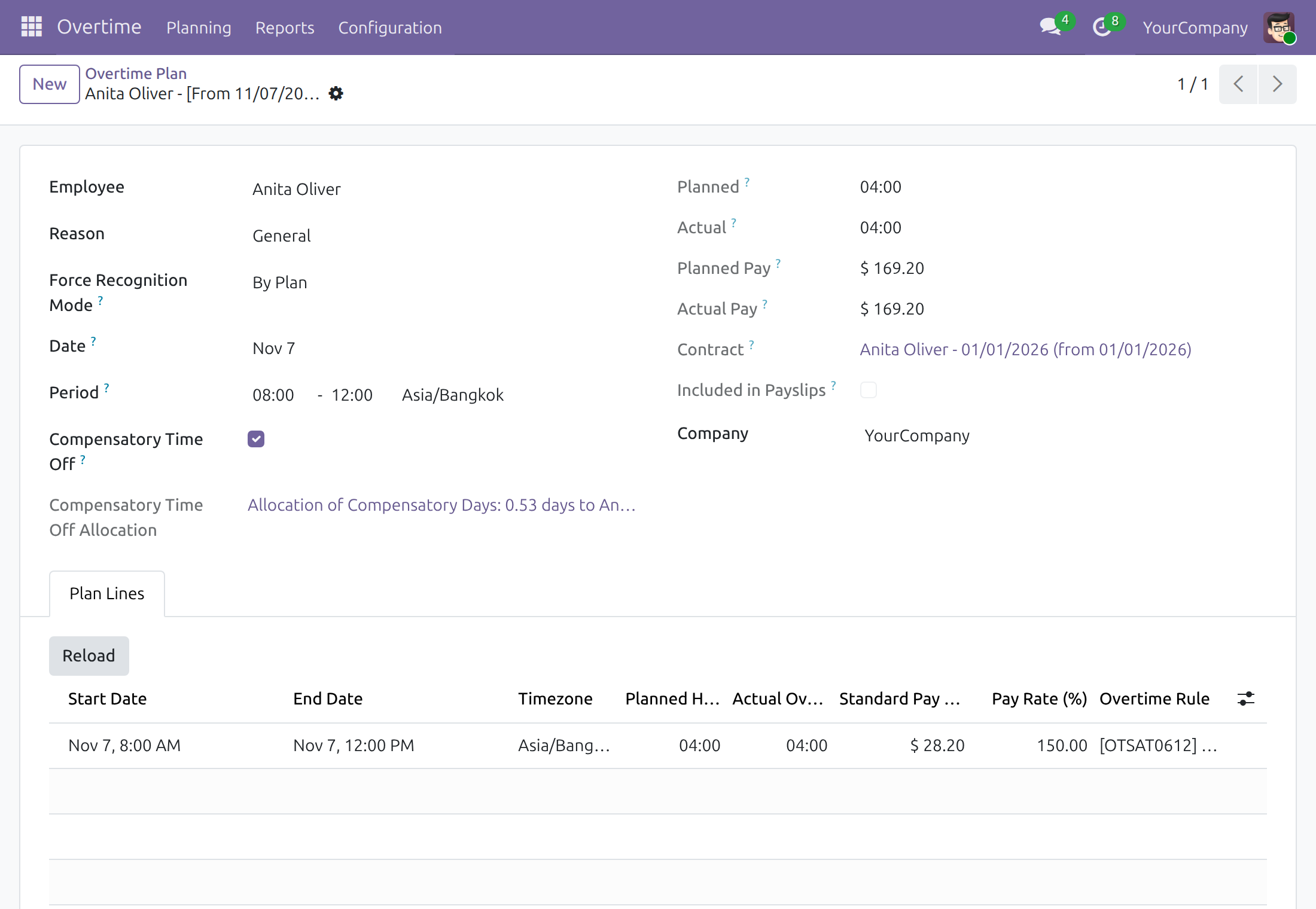
An overtime plan marked as compensatory time off
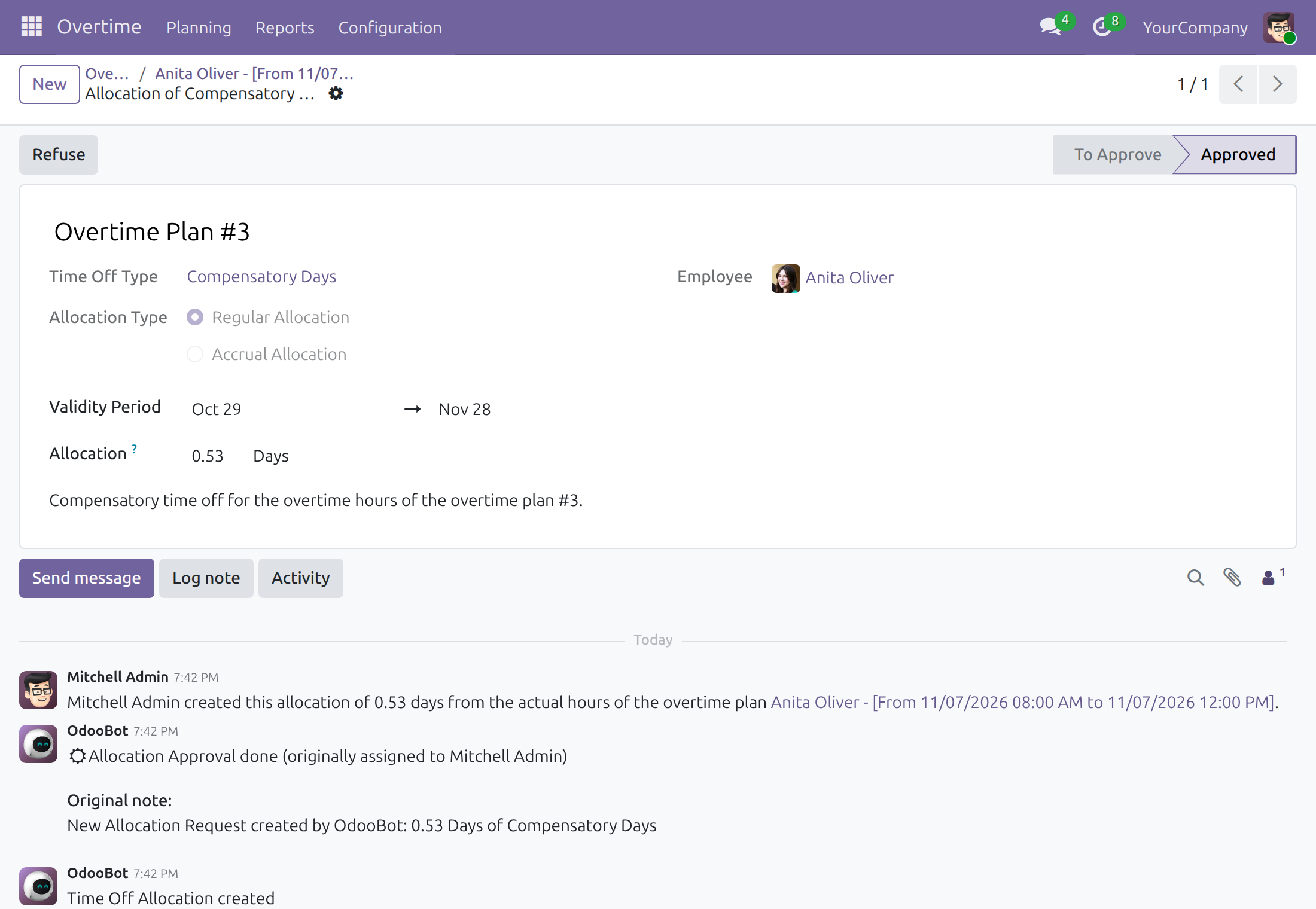
The allocation created for the employee
Compensatory time off for a whole batch in Mass Schedule
Time off already taken is never taken away
Frequently Asked Questions
Does the time off need an approval?
No. The allocation is validated as soon as it is created. With Overtime Approval - Compensatory Time Off installed, a plan that goes through approval earns its time off once the request is approved, and loses it again when the request is refused or cancelled.
How much time off does an overtime hour give?
The allocation equals the actual overtime hours of the plan, expressed in days of the working schedule of the employee on the plan date. When that schedule has no hours per day, an eight-hour day is used.
What happens when the hours of the plan change?
The allocation changes with them, and its chatter records who changed it and from what to what. When the actual hours come from another source such as attendance, the allocation follows each recognition. If the time off already taken is larger than the new hours, the allocation stays as it is and a note is left on the plan.
Can an employee lose time off already taken?
No. Unmarking or deleting the plan, or reducing its hours below the time taken, is refused while a validated time off uses the allocation. The message names that time off. Once the employee cancels it, or a time off officer refuses it, the plan can be changed.
Which leave types can be chosen, and does the time off expire?
Types that are granted through allocations, shared or of the company. You set how many days the time off stays valid, or leave it without an end date. With Overtime - Compensatory Time Off - Attendance installed, leave types that deduct extra attendance hours are left out of the list.
Who can mark a plan as compensatory time off?
Team leads and overtime officers, from the plan or from Mass Schedule; no right in the Time Off app is needed. Employees can read their allocation but cannot change it, and cannot plan compensatory time off for someone else.
Will the same hours also be paid on the payslip?
With Overtime Payroll - Compensatory Time Off installed, the hours of plans converted to time off are left out of the payslip overtime lines.
Which Odoo version and editions are supported?
Odoo 19.0, Community and Enterprise editions.
Need help with Overtime - Compensatory Time Off?
Pre-Sales & Partnership
viindoo.com/contactusTechnical Support
viindoo.com/ticketTechnical Requirement
- Odoo version: 19.0
- Editions: Odoo Community, Odoo Enterprise
- Required modules: Overtime, Time Off
- License: OPL-1
Extend it further
Add approval, payroll and attendance rules when the process needs them.
Overtime Approval - Compensatory Time Off
Time off is earned once the approval request is approved, and taken back when it is refused or cancelled.
Overtime Payroll - Compensatory Time Off
Keep the hours of plans converted to time off out of the payslip overtime lines.
Overtime - Compensatory Time Off - Attendance
Keep leave types that deduct extra attendance hours out of the compensatory time off setting.
This guide is written for overtime administrators, overtime officers, team leads and time off officers: the people who decide how overtime is compensated, plan overtime and follow the time off it earns. Employees find the time off they earned among their allocations.
Note
Extends Overtime - see the documentation of Overtime.
Installation
- Navigate to Apps;
- Search with keyword viin_hr_overtime_hr_holidays;
- Press Install.
The module is installed together with Overtime and Time Off. It lets the hours of an overtime plan be converted into time off.
Instruction
1. Choose the leave type of the compensatory time off
An administrator navigates to Overtime ‣ Configuration ‣ Settings and looks at the General block:
- Compensatory Time Off Type: the leave type that receives the time off earned from overtime. Only leave types that are granted through allocations are offered (for example Compensatory Days or Paid Time Off); a leave type that needs no allocation, such as sick time off or unpaid time off, is not in the list. Each company chooses its own type;
- Default Compensatory Leave Expiration Days: the number of days the earned time off stays valid, counted from the day the plan is marked. Enter 0 for time off that never expires.
Press Save.
2. Convert the overtime of a plan into time off
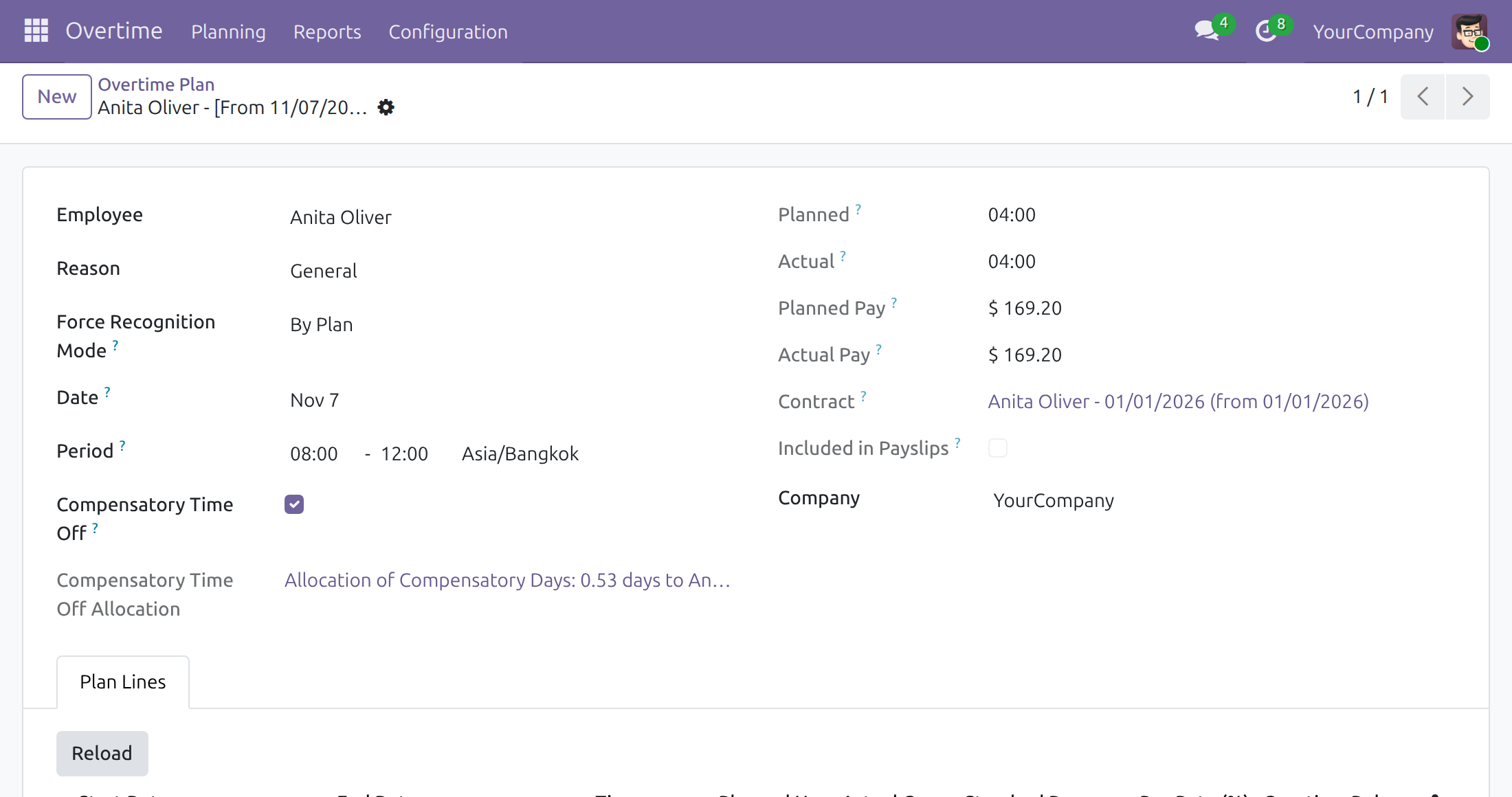
Navigate to Overtime ‣ Planning ‣ Planning and open the overtime plan, or create one. Tick Compensatory Time Off and save:
A time off allocation is created for the employee at once:
- the allocation is of the Compensatory Time Off Type of the company and is validated, no approval is needed;
- its size is the actual overtime hours of the plan, in days of the working schedule of the employee. For example, 4 hours of overtime for an employee whose working day is 7.6 hours give 0.53 day;
- it starts on the day the plan is marked and ends after the expiration days of the settings, or has no end date when they are 0;
- the chatter of the allocation names the person who marked the plan and links the plan.
The field Compensatory Time Off Allocation of the plan, shown to time off officers, opens the allocation:
An employee reads the allocation in Time Off ‣ My Time ‣ My Allocations and requests time off on it like on any other allocation; the employee cannot change or remove it by hand. To list the compensatory plans, use the filter Compensatory Time Off of the plan list; the column of the same name can be shown from the optional columns.
An overtime officer or a team lead marks and unmarks plans without any right on the Time Off application.
Note
To keep the hours of a compensatory plan out of the payslip, install Overtime Payroll - Compensatory Time Off (viin_hr_overtime_payroll_compensatory_time_off).
The allocation follows the plan
The allocation always matches the actual overtime hours of the plan, whatever the overtime recognition mode:
- when the date, the period, the employee or the actual hours of the plan change, the allocation changes with them, and its chatter says who changed it and from what to what;
- when the actual hours come from another source than the plan, for example from attendance or timesheets, the allocation follows each recognition. A recognition that cannot change the allocation, because the time off already taken is larger than the new hours, leaves a note in the chatter of the plan and keeps the allocation as it is;
- when the actual hours fall to 0, or the plan is unmarked or deleted, the allocation is removed.
3. Plan compensatory overtime for several employees
Navigate to Overtime ‣ Planning ‣ Mass Schedule. Besides the mode, the reason and the schedule lines, tick Compensatory Time Off, then press Schedule:
Every plan generated is marked as compensatory time off and gets its allocation.
4. When the time off is already used
Time off that an employee already took from the allocation is never taken away. When a plan is unmarked or deleted, or its hours are cut below the time off taken, while a validated time off uses the allocation, the change is refused. The message names the plan and the time off that uses it:
The way out:
- Ask the employee to cancel that time off, or a time off officer to refuse it in Time Off ‣ Management ‣ Time Off (Refuse);
- Change the overtime plan again: the allocation is now removed or adjusted.
This software and associated files (the "Software") may only be used (executed, modified, executed after modifications) if you have purchased a valid license from the authors, typically via Odoo Apps, or if you have received a written agreement from the authors of the Software (see the COPYRIGHT file).
You may develop Odoo modules that use the Software as a library (typically by depending on it, importing it and using its resources), but without copying any source code or material from the Software. You may distribute those modules under the license of your choice, provided that this license is compatible with the terms of the Odoo Proprietary License (For example: LGPL, MIT, or proprietary licenses similar to this one).
It is forbidden to publish, distribute, sublicense, or sell copies of the Software or modified copies of the Software.
The above copyright notice and this permission notice must be included in all copies or substantial portions of the Software.
THE SOFTWARE IS PROVIDED "AS IS", WITHOUT WARRANTY OF ANY KIND, EXPRESS OR IMPLIED, INCLUDING BUT NOT LIMITED TO THE WARRANTIES OF MERCHANTABILITY, FITNESS FOR A PARTICULAR PURPOSE AND NONINFRINGEMENT. IN NO EVENT SHALL THE AUTHORS OR COPYRIGHT HOLDERS BE LIABLE FOR ANY CLAIM, DAMAGES OR OTHER LIABILITY, WHETHER IN AN ACTION OF CONTRACT, TORT OR OTHERWISE, ARISING FROM, OUT OF OR IN CONNECTION WITH THE SOFTWARE OR THE USE OR OTHER DEALINGS IN THE SOFTWARE.
