

Geography Info
by Viindoo
| Lines of Code | 1784 |
| Technical name | viin_geography_info |
| License | OPL-1 |
| Website | https://viindoo.com/apps/modules/19.0/viin_geography_info |
| Read description for | v 15.0 v 16.0 v 17.0 v 18.0 |
| Required Apps | Discuss (mail) |
| Included Dependencies | Viindoo Base |
| Extensions | Geography Info - World Bank Geography Info - Contact |

Size up every market from the country list you already keep
For teams that choose markets, plan expansion or report by region
Continents, languages, population and income figures on every country
Odoo 19.0 · Odoo Community · Odoo Enterprise · OPL-1
What changes for your team
One record holds what you know about a country
Today: a country is a name and a code; its size, income and languages sit in a spreadsheet next to it.
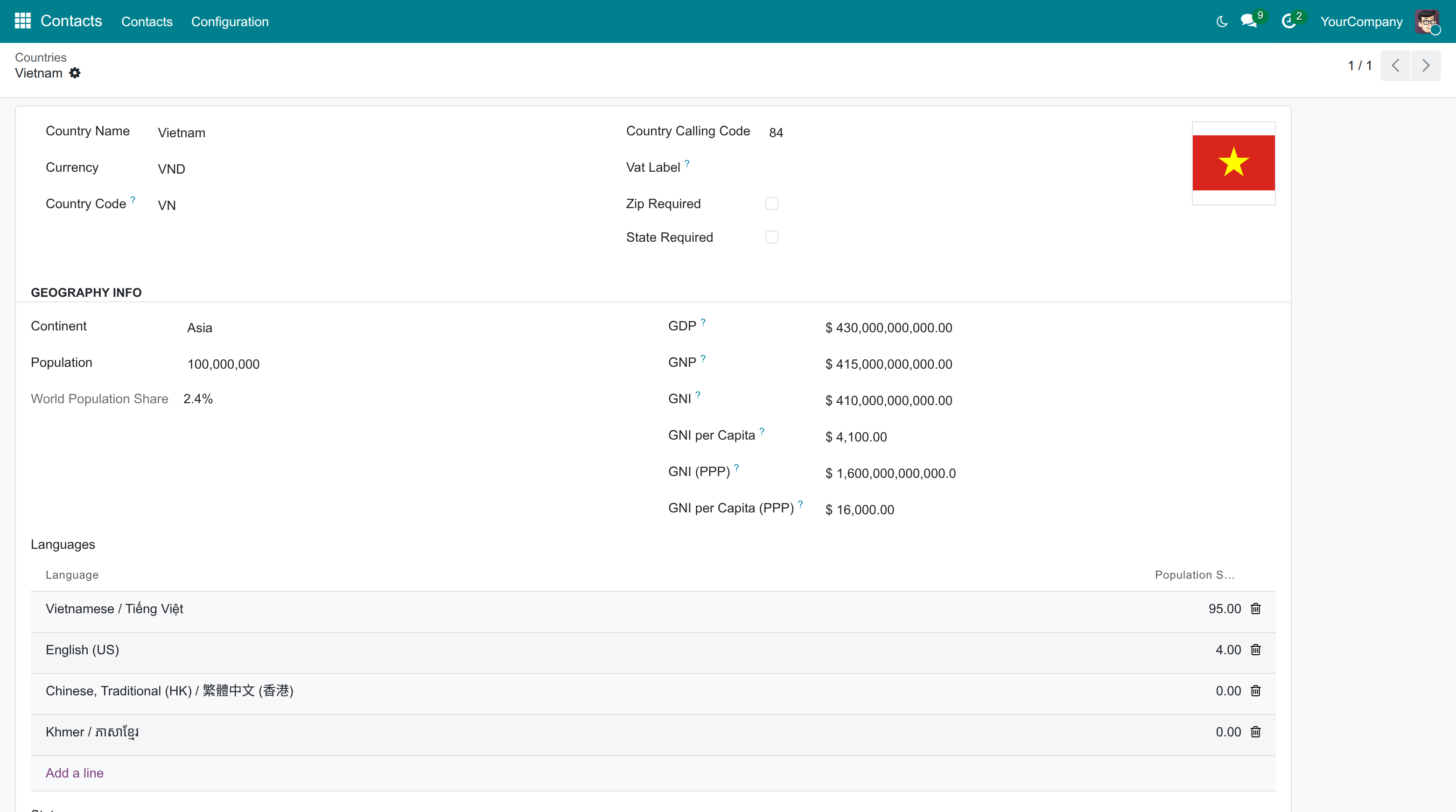
→ Each country carries its continent, population, share of the world population, GDP, GNP, GNI and the per-capita figures in US dollars, plus the languages spoken and the share of people speaking each. The world share and the per-capita figures are calculated; negative figures are refused.
Regions compared in a pivot, not a pasted table
Today: comparing regions means exporting countries and summing them by hand.
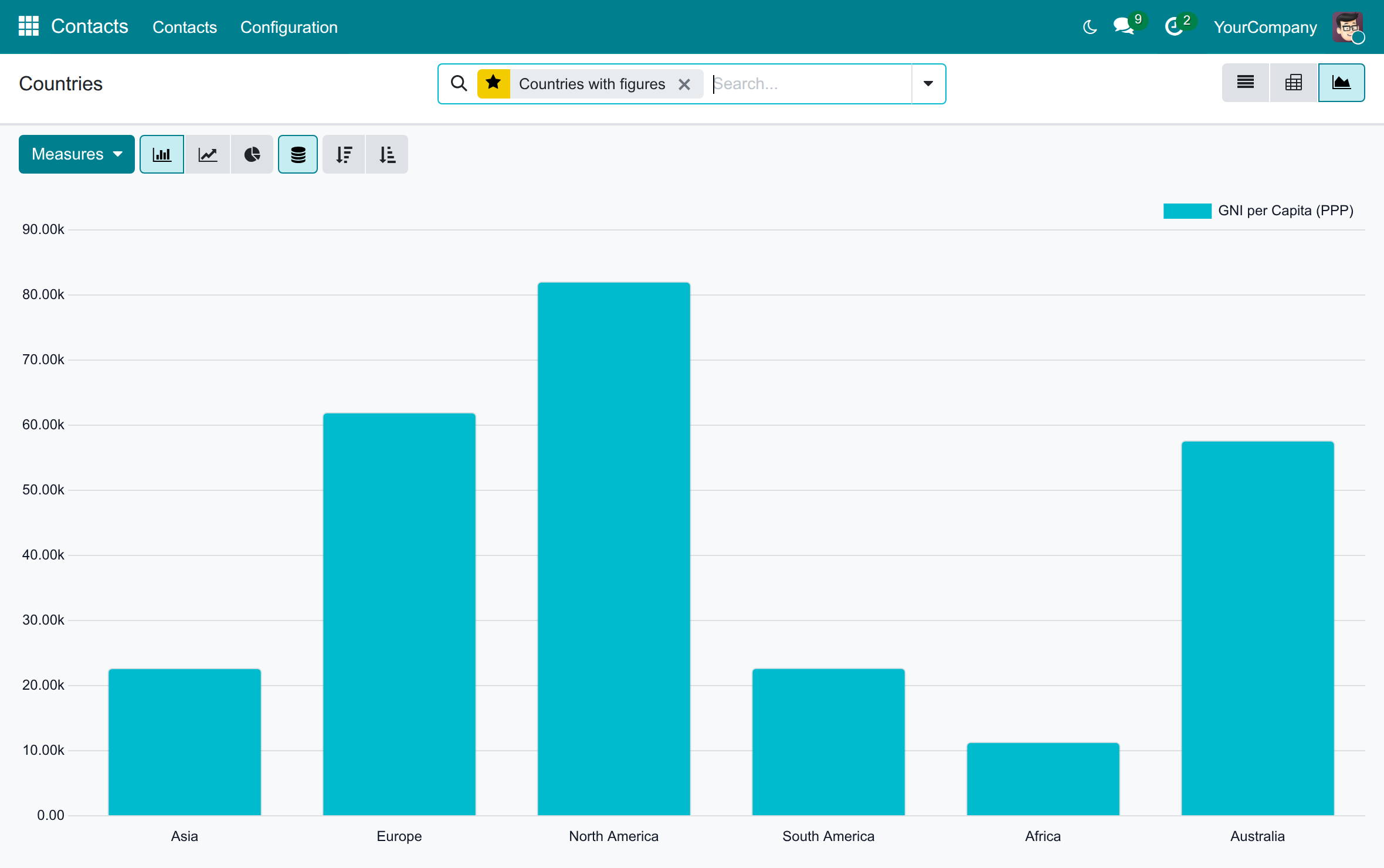
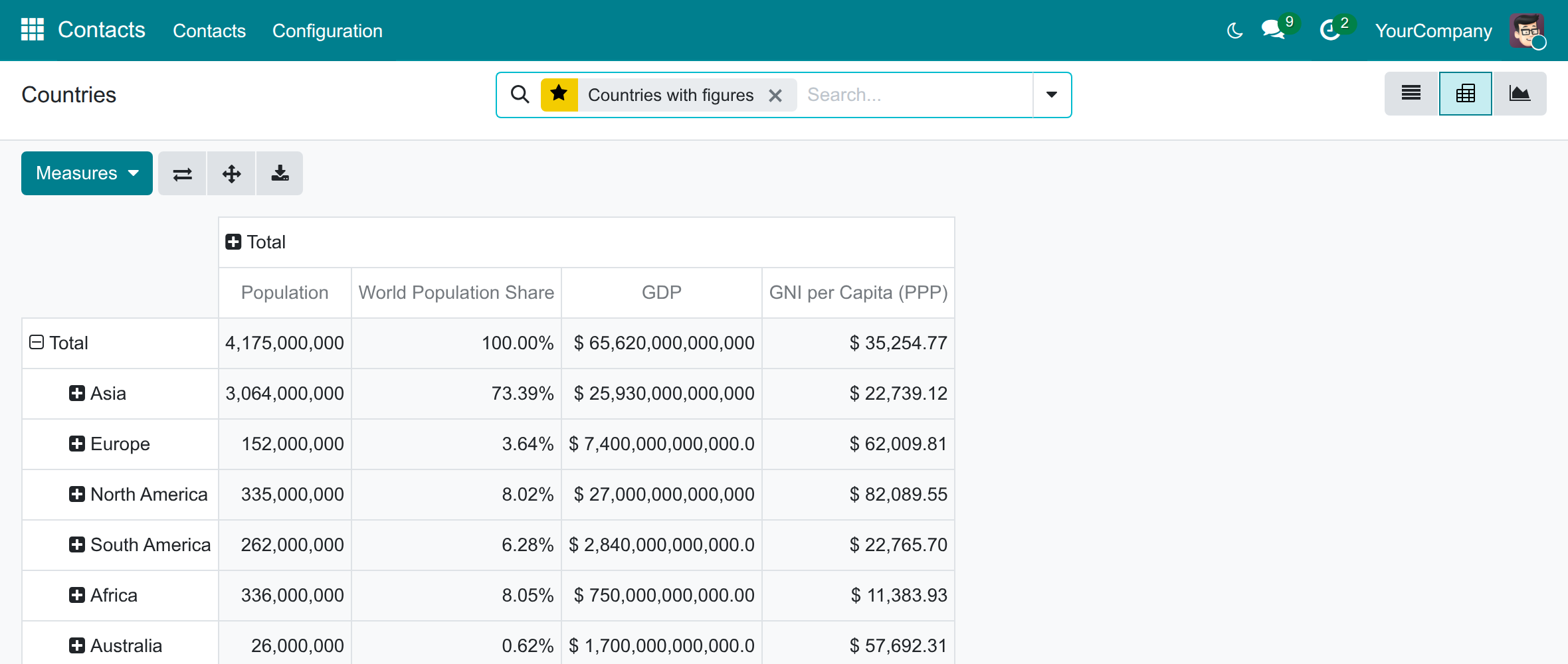
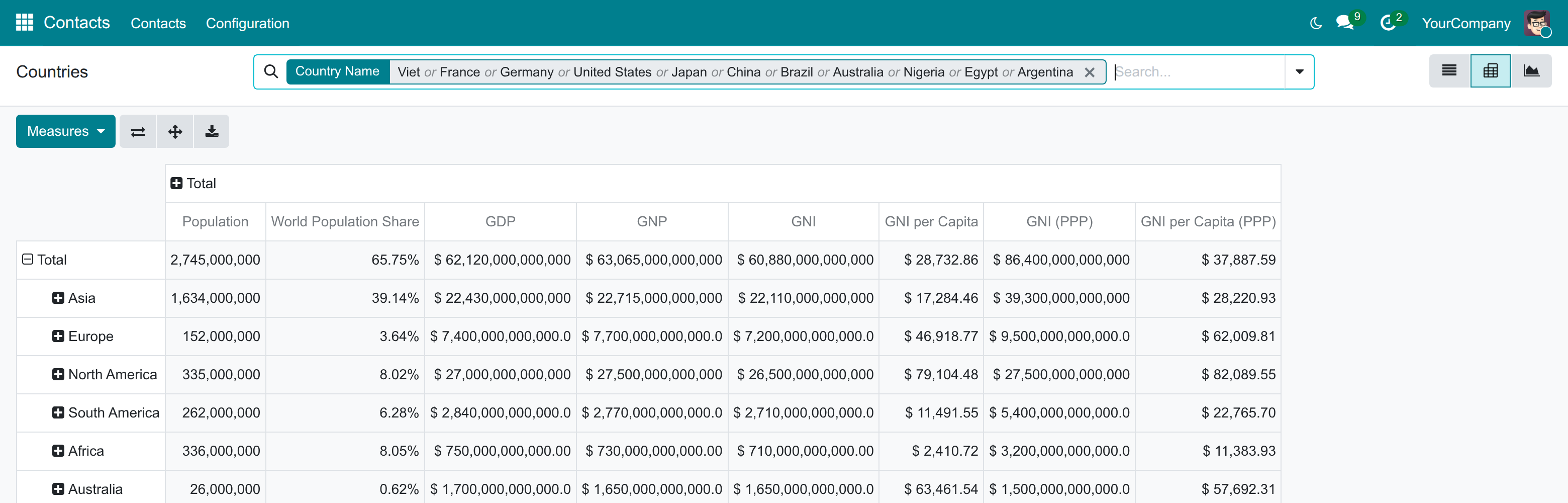
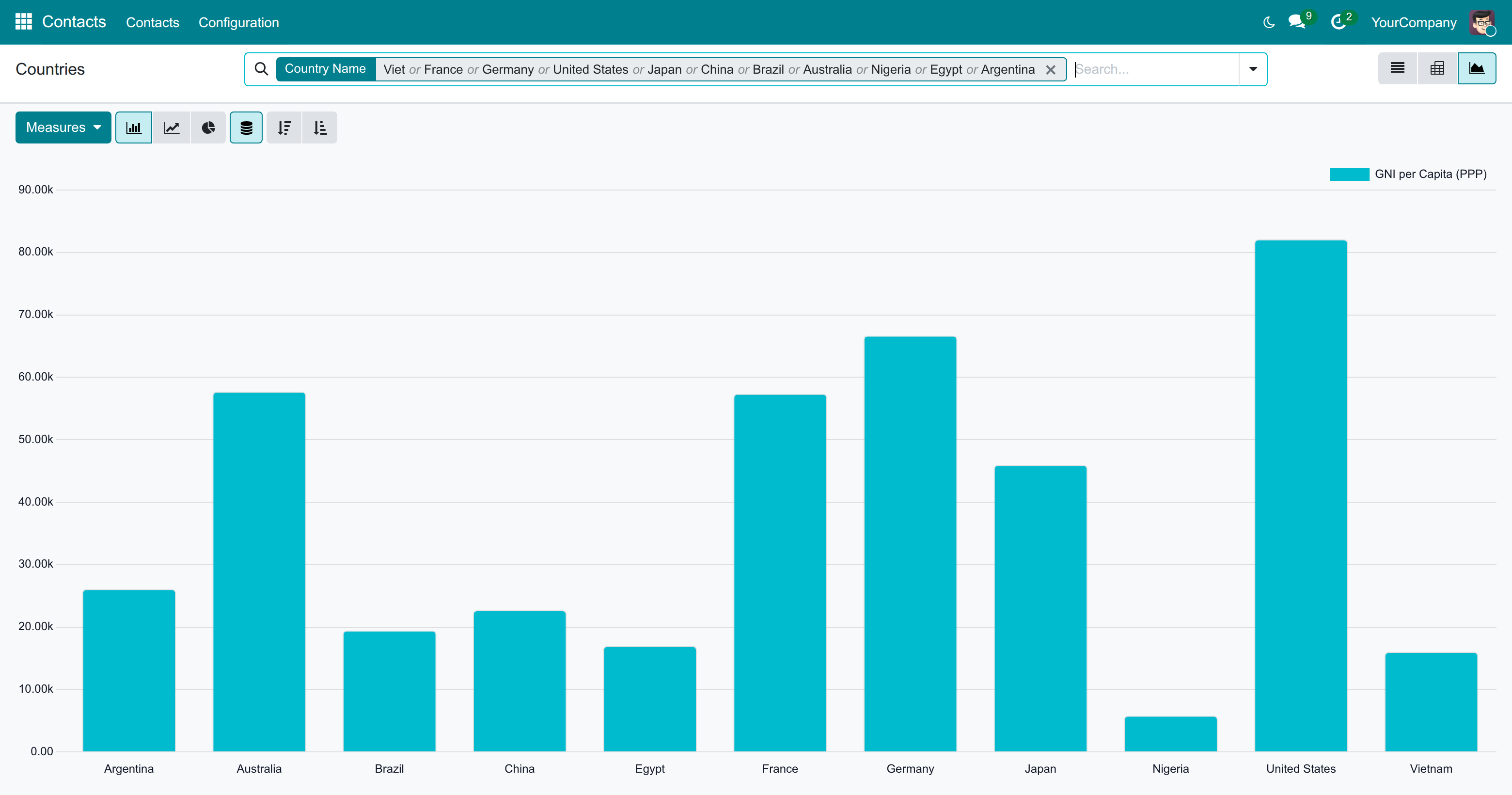
→ The Countries screen gets a pivot table and a bar chart. Group by continent to read population, share of the world population, GDP and income per region, and choose the figures with Measures.
A shortlist of markets in a few clicks
Today: a shortlist of target countries is rebuilt in a document each time someone asks.
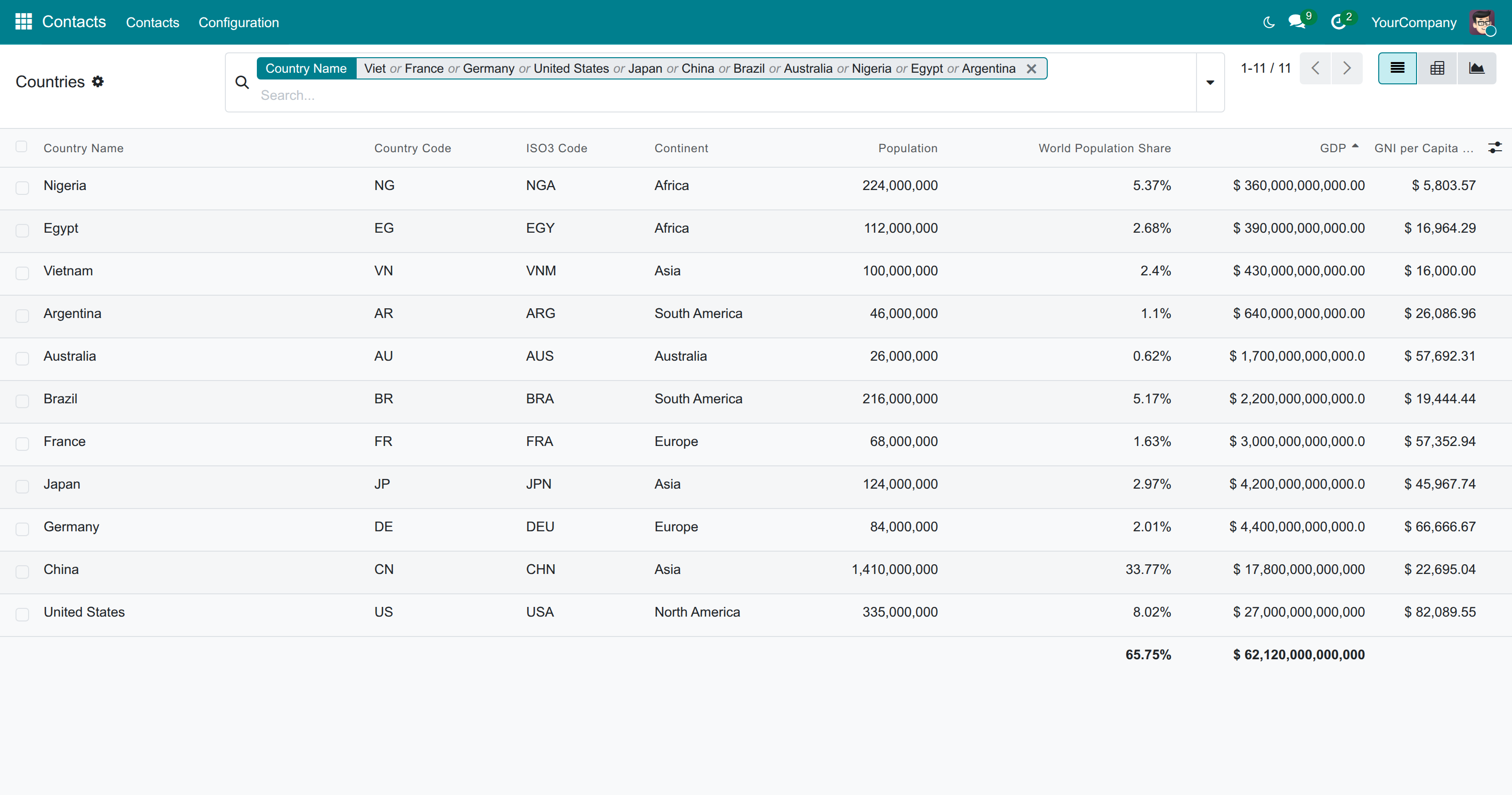
→ The country list shows continent, population, GDP and GNI per capita (PPP); the world share is available from the column selector. Filter or group it by continent and sort by any figure.
Ready on day one
Seven continents
Loaded at install and already set on most countries; add or rename one when your regions differ.
Codes and languages
Most countries arrive with their three-letter ISO code and the languages spoken there.
Figures to fill
Population and the economic figures start at zero: type them, or let the World Bank extension fill them.
What is included
On its own, the module covers the continents, the country figures and languages, and the pivot and chart on the Countries screen.
Extensions
Geography Info - World Bank
Fills population, GDP, GNP and GNI from World Bank data, for the countries you pick or for all of them every three months. It installs automatically with this module.
Geography Info - Contact
Puts the list of continents in the Contacts configuration menu, next to Countries. It installs automatically when Contacts is installed.
Before you decide
Where do the figures come from?
From your team, typed on each country, or from the World Bank through the extension above. This module itself connects to no outside service.
In which currency are the figures?
US dollars, whatever the currency of your company or of the country.
Who can see and change the data?
The country screens sit in the Contacts Configuration menu, which only administrators open; they edit the figures and the continents. Other users can read the data.
What does it take to run, and to remove?
Install it with the Contacts app, which holds the Countries screen; there is nothing to configure. Uninstalling removes the pivot and chart and deletes the figures, languages and continents the module stored.
Which languages does it ship in?
English and Vietnamese.
Try it, then ask us
The Live Preview opens the Countries screen of a demo database, and the Documentation tab walks through each screen.
Pre-sales & partnership
viindoo.com/contactusTechnical support
viindoo.com/ticketTechnical requirements
- Odoo version: 19.0
- Editions: Odoo Community, Odoo Enterprise
- Required modules: Viindoo Base; Contacts to reach the country screens
- License: OPL-1
- Languages: English, Vietnamese
Geography Info
For administrators who keep country reference data up to date, and for people who read it.
Overview
Geography Info adds to every country its continent, an ISO3 code, the languages spoken with their share of the population, the population and the economic figures GDP, GNP and GNI. The list of countries gets a pivot table and a bar chart so you can compare countries and continents.
Typical uses: judging which markets are large enough for a campaign, or reading GDP and income by continent.
Note
The figures are entered by hand, unless the module Geography Info - World Bank is installed: it fills them from the World Bank. The module Geography Info - Contact adds the Continent menu to the Contacts application.
The seven continents and the continent, ISO3 code and languages of most countries are loaded when the module is installed. The population and the economic figures start at zero.
Who does what
| Role | What they do | Access right to assign |
|---|---|---|
| Administrator | Opens the country screens, edits the figures, adds or renames continents | Administration / Settings |
| Other internal user | Reads country data wherever a country is displayed | Internal User (no menu to the geography screens) |
The Configuration menu of the Contacts application, which holds the Countries screen, is reserved to administrators.
Setup (for the Administrator)
- Open Apps, search for Geography Info and press Install.
- Make sure the Contacts application is installed too: the Countries screen lives in its Configuration menu.
- Give the Administration / Settings access right to the people who maintain countries.
Nothing else needs configuring.
Administrator: read and maintain the country data
See the countries and their figures
- Open Contacts ‣ Configuration ‣ Localization ‣ Countries.
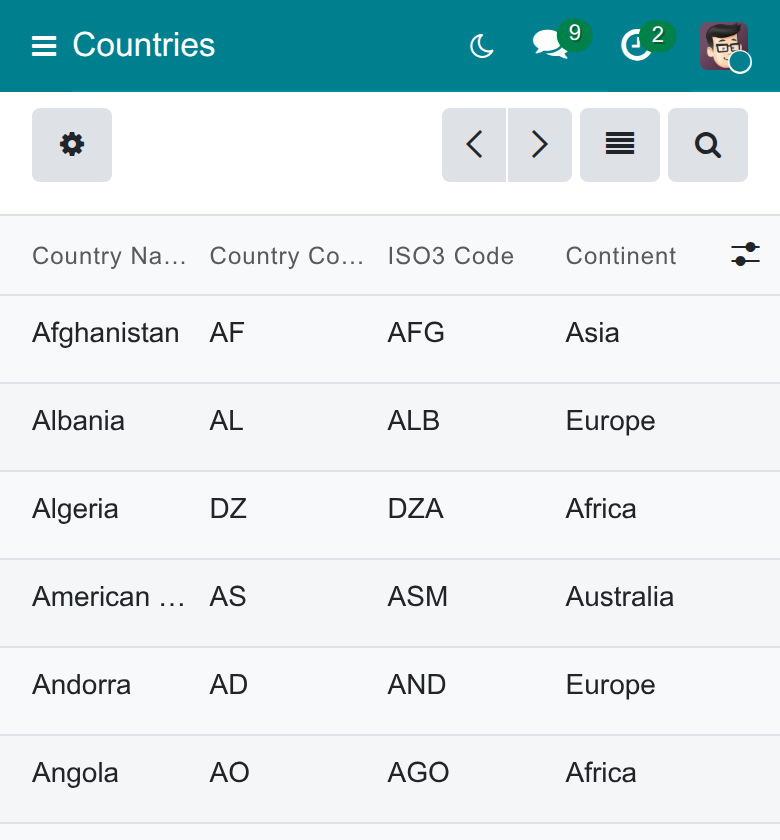
- The list shows Country Name, Country Code, ISO3 Code, Continent, Population, GDP and GNI per Capita (PPP). The columns World Population Share, GNP, GNI, GNI per Capita, GNI (PPP) and Languages are available in the column selector at the right of the header.
- Click a column header such as GDP to sort.
- To show only some countries, type in the search bar. Continent is a search field and a group-by option, so you can also group the list by continent.
The money columns show the figures in US dollars. All money figures are in US dollars.
Edit the geography info of a country
- Open Contacts ‣ Configuration ‣ Localization ‣ Countries and click a country.
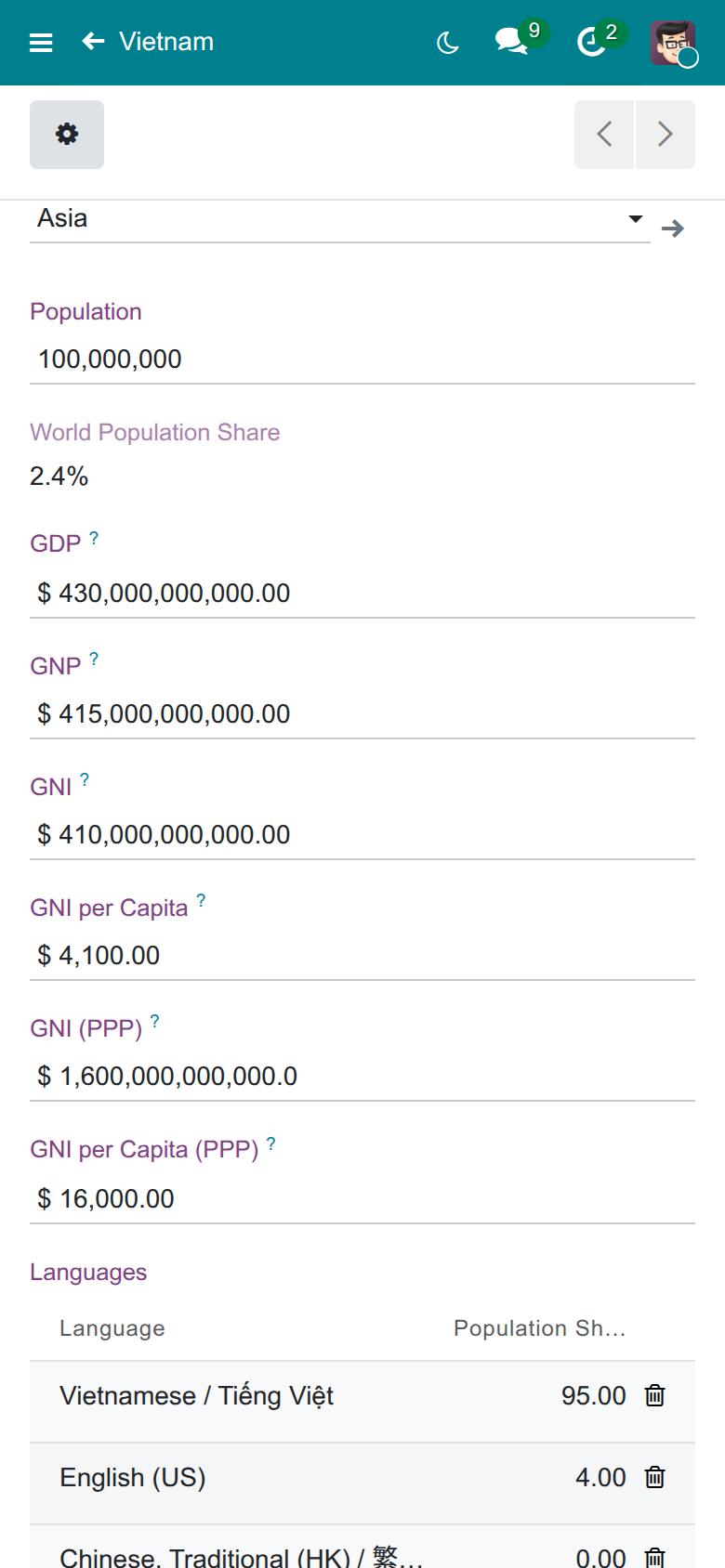
- In the block Geography Info, choose the Continent and type the Population. World Population Share is calculated: it is the country's part of the population of all countries.
- Type the GDP, GNP, GNI and GNI (PPP) in US dollars. The two per-capita figures, GNI per Capita and GNI per Capita (PPP), are calculated when you change the population or the GNI, and you can overwrite them.
- In Languages, press Add a line, choose the Language, type the Population Share (%) and save.
Negative figures are refused. The ISO3 Code is shown on the form in developer mode; it is the code the World Bank module looks countries up with.
Compare countries in the pivot table and the chart
- Open Contacts ‣ Configuration ‣ Localization ‣ Countries.
- Press the pivot button at the top right to see one row per country with population, share, GDP, GNP, GNI and the per-capita figures.
- Click Total in the rows and choose Continent to read the totals per continent. Use Measures to add or remove a figure.
- Press the graph button to see a bar per country for GNI per Capita (PPP).
Use it on a phone
The same screens work on a phone. The list scrolls sideways to reach the figure columns, and the form stacks the fields one under another.
Manage the continents
The module provides the seven continents. Add or rename a continent from the list of continents; with the module Geography Info - Contact it opens from Contacts ‣ Configuration ‣ Localization ‣ Continents. Only administrators can change the list; other users can read it.
Uninstall
Uninstalling the module removes the pivot and graph buttons from the Countries screen and deletes the figures, languages and continents it stored.
This software and associated files (the "Software") may only be used (executed, modified, executed after modifications) if you have purchased a valid license from the authors, typically via Odoo Apps, or if you have received a written agreement from the authors of the Software (see the COPYRIGHT file).
You may develop Odoo modules that use the Software as a library (typically by depending on it, importing it and using its resources), but without copying any source code or material from the Software. You may distribute those modules under the license of your choice, provided that this license is compatible with the terms of the Odoo Proprietary License (For example: LGPL, MIT, or proprietary licenses similar to this one).
It is forbidden to publish, distribute, sublicense, or sell copies of the Software or modified copies of the Software.
The above copyright notice and this permission notice must be included in all copies or substantial portions of the Software.
THE SOFTWARE IS PROVIDED "AS IS", WITHOUT WARRANTY OF ANY KIND, EXPRESS OR IMPLIED, INCLUDING BUT NOT LIMITED TO THE WARRANTIES OF MERCHANTABILITY, FITNESS FOR A PARTICULAR PURPOSE AND NONINFRINGEMENT. IN NO EVENT SHALL THE AUTHORS OR COPYRIGHT HOLDERS BE LIABLE FOR ANY CLAIM, DAMAGES OR OTHER LIABILITY, WHETHER IN AN ACTION OF CONTRACT, TORT OR OTHERWISE, ARISING FROM, OUT OF OR IN CONNECTION WITH THE SOFTWARE OR THE USE OR OTHER DEALINGS IN THE SOFTWARE.
