Purchase and Track Landed Costs
| Lines of Code | 1065 |
| Technical name | to_purchase_landed_cost |
| License | OPL-1 |
| Website | https://viindoo.com/apps/modules/19.0/to_purchase_landed_cost |
| Read description for | v 10.0 v 11.0 v 12.0 v 13.0 v 14.0 v 15.0 v 16.0 v 17.0 v 18.0 |
| Required Apps | Invoicing (account) Purchase (purchase) Discuss (mail) Inventory (stock) |
| Included Dependencies | Viindoo Base Viin Warehouse Viin Warehouse Accounting |
Freight, customs and handling bought with the goods, and traced to the stock value they add
For purchasing teams and cost accountants whose goods arrive with service costs on top
Buy freight, customs and other landed costs with their goods and land them on the receipts
Odoo 19.0 · Community · Enterprise · OPL-1
What changes for your team
The cost items are known before anyone orders
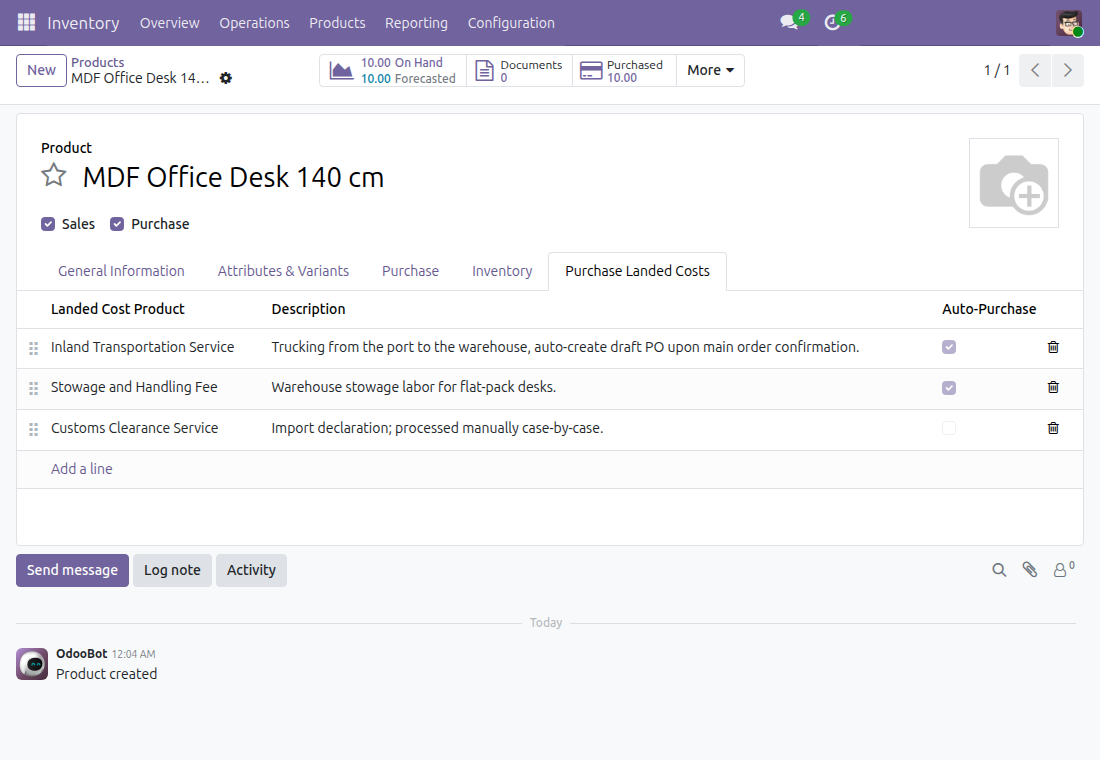
Today the buyer remembers that a product needs freight, customs or handling, and orders those services separately, often after the goods arrive.
→ Each product that tracks inventory lists the cost services usually bought with it. The ones marked Auto-Purchase are added to a purchase order as soon as the product is put on it.
Confirming the goods order orders the services too
Today a second order is typed by hand, and nothing ties it to the goods it pays for.
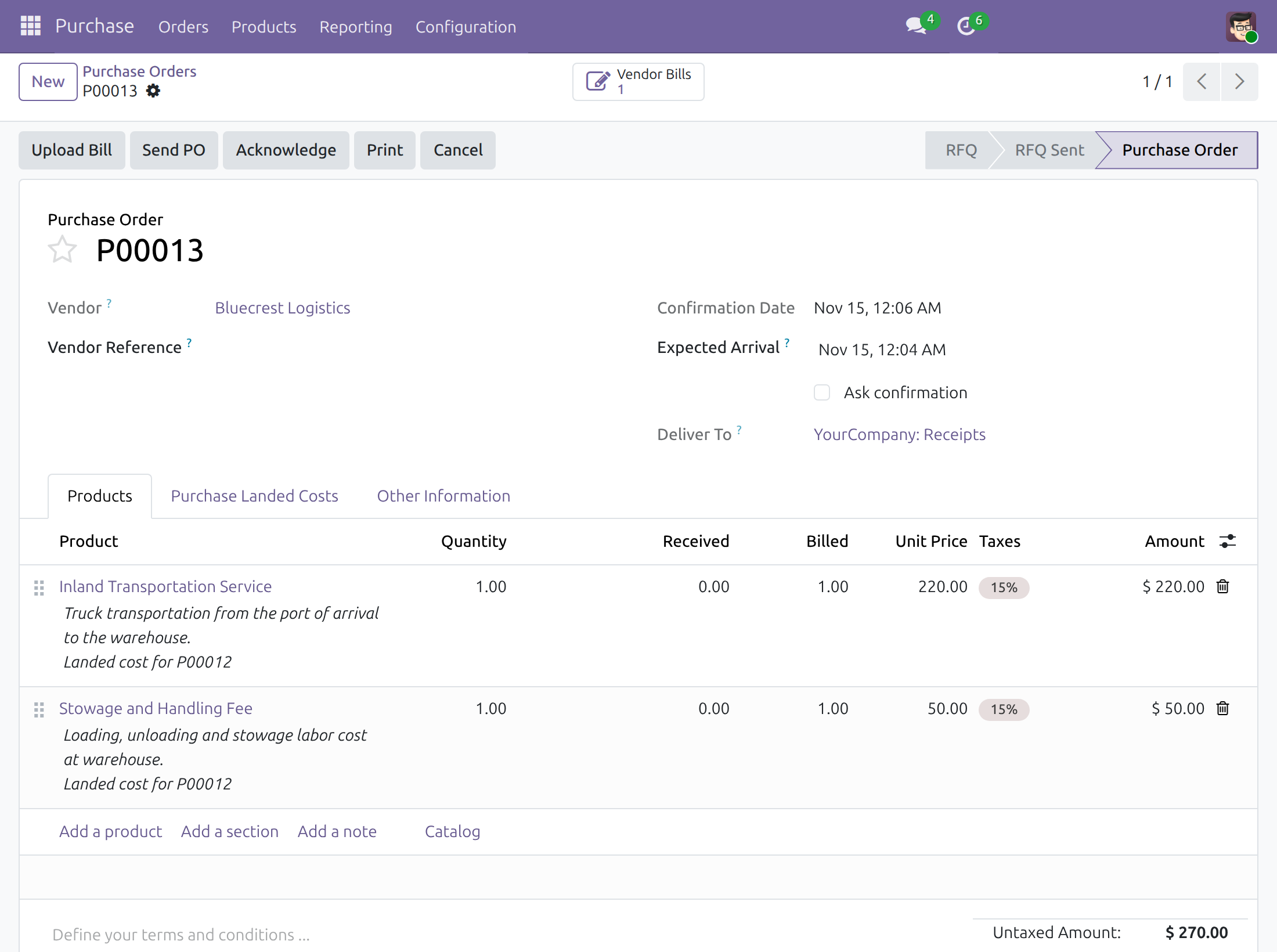
→ Confirming the goods order adds each service to a request for quotation of its vendor - an open one, or a new one - every line marked with the goods order it belongs to.
The service bill becomes the landed cost
Today someone searches for the receipts a freight bill relates to before entering the landed cost.
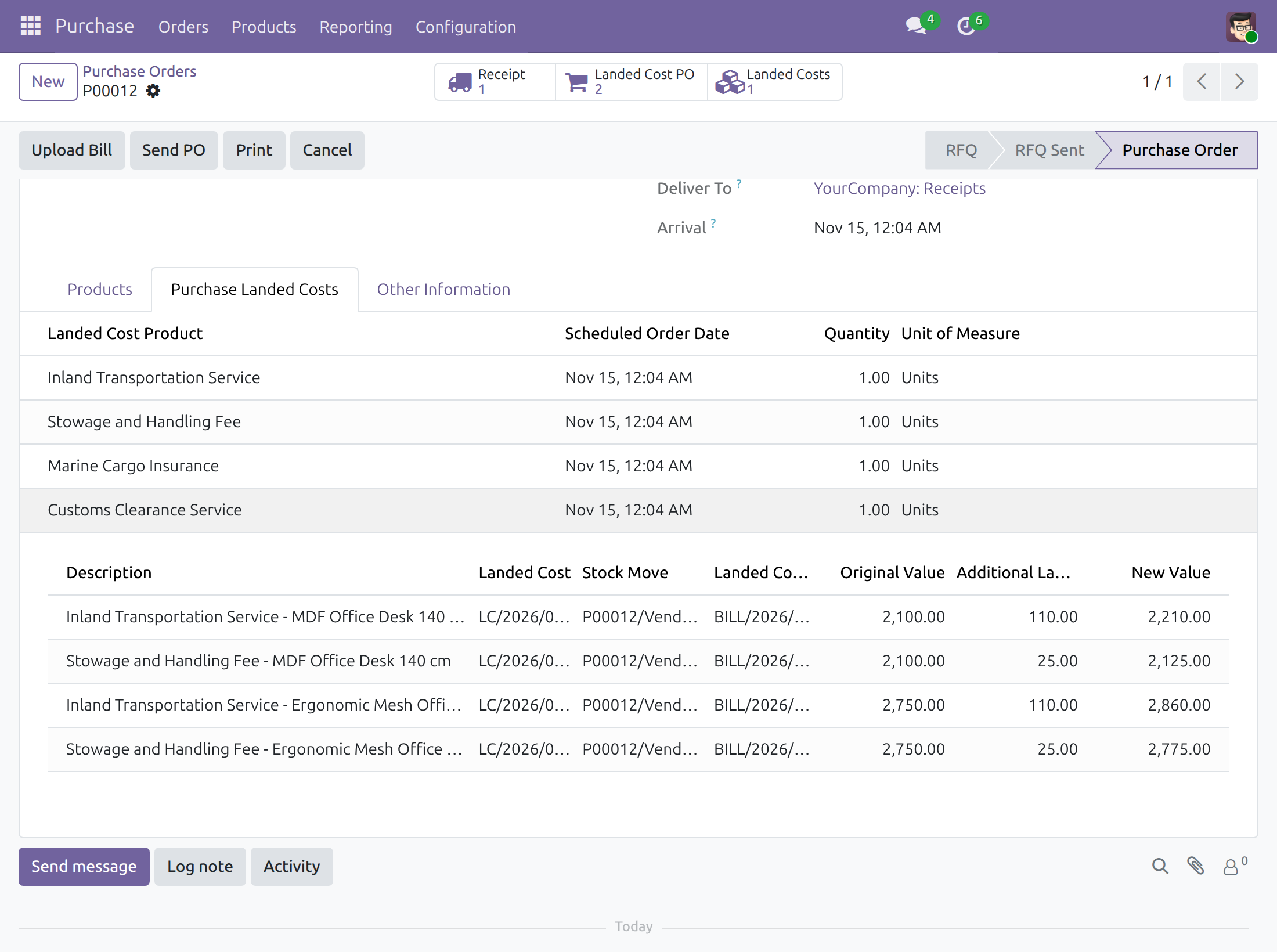
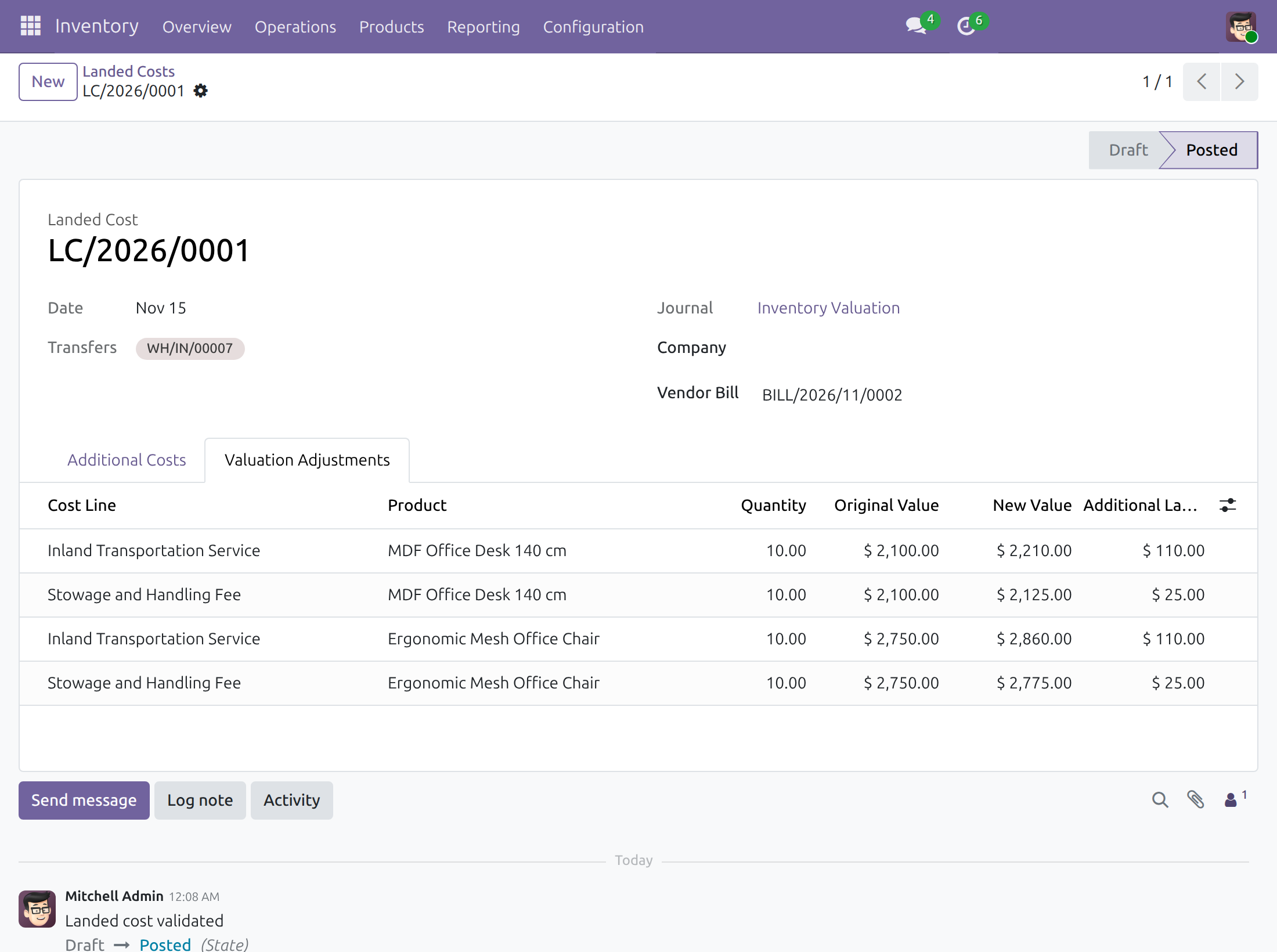
→ On the service bill, Create Landed Costs opens a landed cost that already holds the receipts of the goods orders. While a cost order is not billed yet, a draft landed cost reminds you to bill it first. Once validated, the goods order shows the original value, the cost added and the new value of each item.
Ready on day one
Landed costs on products and orders
A Purchase Landed Costs tab on stored products and on purchase orders, open to buyers with the standard purchase rights.
Cost orders kept apart
The generated orders are ordinary purchase orders, billed and paid as usual; the Landed Cost Orders filter lists them on their own.
What the administrator sets first
Service products marked as landed costs, each with a vendor, and product categories on FIFO or Average Cost. The Documentation tab walks through it.
What is included
The whole loop from the cost items of a product to the revalued receipt, built on the standard landed cost feature of Inventory: proposed cost lines, generated cost orders, landed costs pre-filled from the service bill, a reminder to bill before landing, and the trace back on the goods order and on each bill line.
Before you decide
Does any data leave the database?
No. The module adds no outside connection; everything stays in your purchase, inventory and accounting records.
What if a cost service has no vendor?
Confirmation stops and names the service. Add a vendor to the service, or remove that line from the order before confirming.
What happens when the goods order is cancelled?
Its lines are removed from the cost requests for quotation still in draft, and a request left empty is deleted.
Who can do what?
Purchase / User sets up cost items and confirms orders. Creating a landed cost from a bill needs Inventory / Administrator together with Accounting / Invoicing, as in the standard landed cost feature.
Which products can carry a landed cost?
Stored products whose category uses First In First Out (FIFO) or Average Cost (AVCO); other costing methods are refused. How a cost is split (Equal, By Quantity, By Current Cost, By Weight, By Volume) stays the standard choice.
Try it, then ask us
The Documentation tab of this listing has the step-by-step guide for each role, the Live Preview opens a demo database, and the video above shows the full flow.
Pre-sales & partnership
viindoo.com/contactusTechnical support
viindoo.com/ticketTechnical requirements
- Odoo version: 19.0
- Editions: Community, Enterprise
- Required modules: WMS Landed Costs, Purchase, Purchase Stock, Viin Warehouse Accounting
- License: OPL-1
- Languages: English, Vietnamese
Purchase and Track Landed Costs
For purchasers, warehouse operators, accountants and the administrator who sets the module up.
Freight, customs, insurance and handling are bought as services, often from other vendors than the one who sells the goods. This module lets you order those services together with the goods, then spread their cost over the received goods and trace every step back to the original purchase order.
How it works
- A product carries a list of the landed costs that usually come with it (transport, customs, handling).
- When you confirm a purchase order for that product, the order proposes those costs on its Purchase Landed Costs tab and, on confirmation, creates the purchase orders for the cost services.
- The goods are received.
- The cost services are billed. From the vendor bill you create the landed cost, check how it is split and validate it: the cost is added to the value of the received goods.
- The original purchase order shows the landed cost orders, the bills, the landed costs and the value of the goods before and after.
| Role | What they do | Access right to assign |
|---|---|---|
| Purchaser | Sets up landed costs on products, creates and confirms orders, follows the landed costs on the order | Purchase / User |
| Warehouse operator | Receives the goods the landed cost is spread over | Inventory / User |
| Accountant | Bills the cost services, creates and validates the landed cost | Accounting / Invoicing and Inventory / Administrator |
| Administrator | Installs the module, sets the costing method of the product categories, assigns access rights | Role / Administrator |
Setup (for the Administrator)
Install the module
- Open Apps.
- Remove the Apps filter from the search box, then search for to_purchase_landed_cost.
- Press Activate.
The module requires the Inventory, Purchase and Accounting features; they are installed with it.
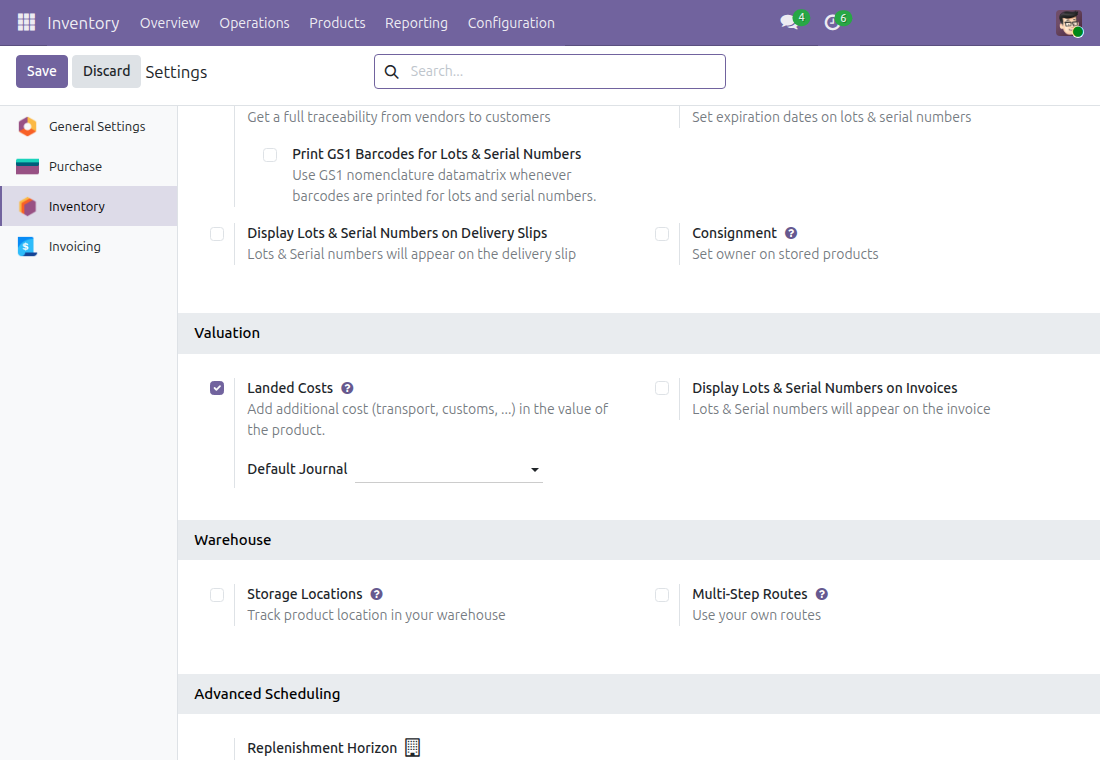
Check that landed costs are enabled
- Open Inventory > Configuration > Settings.
- In the Valuation section, the Landed Costs option is ticked. Tick it and press Save if it is not.
Choose the costing method of the product categories
A landed cost can only be validated on products whose category uses Average Cost (AVCO) or First In First Out (FIFO). With Standard Price, validating the landed cost is refused with the message "Landed costs can only be applied for products with FIFO or average costing method".
- Open Inventory > Configuration > Products > Categories.
- Open the category of the goods that carry landed costs.
- Set Costing Method to Average Cost (AVCO) or First In First Out (FIFO), then save.
Assign the access rights
- Open Settings > Users & Companies > Users and open the user.
- On the Access Rights tab, set the access rights listed in the role table above. The accountant needs both Accounting / Invoicing and Inventory / Administrator: the Create Landed Costs button on the vendor bill is shown to users who hold both.
Purchaser: set up and buy
Mark a service as a landed cost
- Open Inventory > Products > Products and open (or create) the service, for example a transportation service.
- Make sure Product Type is Service.
- On the Purchase tab, add the vendor, the quantity and the price of the service.
- In the Vendor Bills section, tick Is a Landed Cost.
- Choose the Default Split Method: Equal, By Quantity, By Current Cost, By Weight or By Volume. It is the way the cost is spread over the goods when the landed cost is created.
- Save.
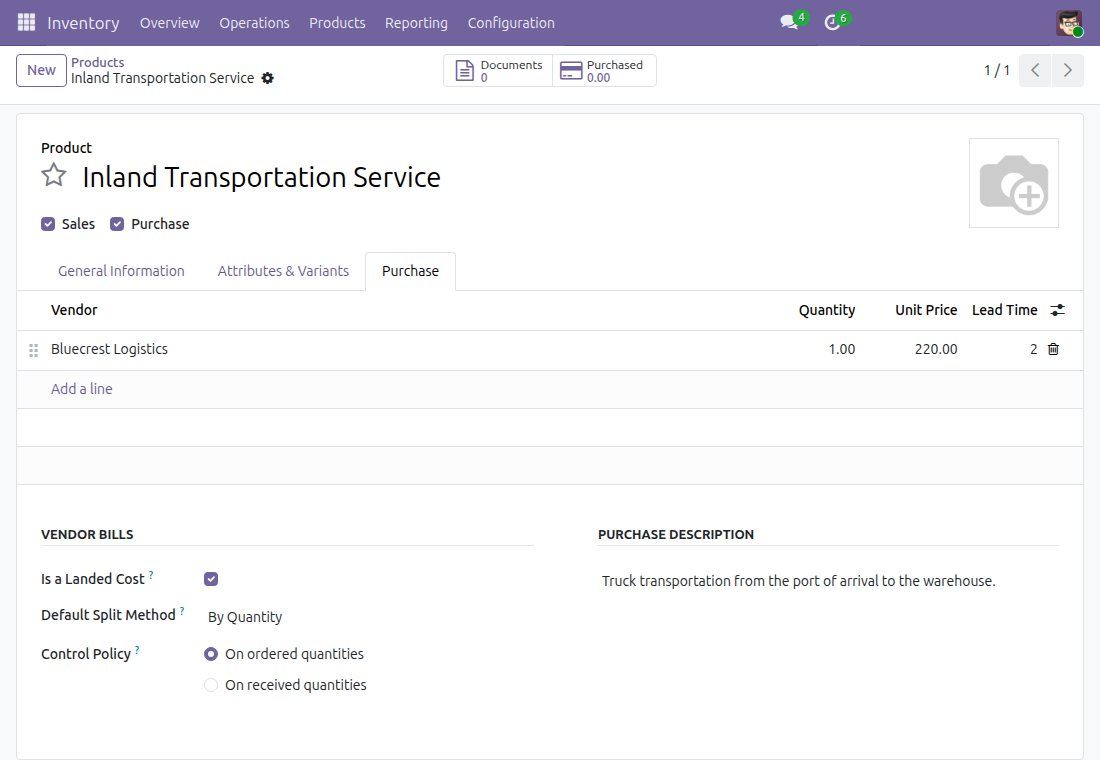
The vendor of the service matters: when the order is confirmed, the order for the service is addressed to the vendor listed on the service product.
List the landed costs of a stored product
- Open the product that is bought and stored (Track Inventory ticked).
- Open the Purchase Landed Costs tab.
- Press Add a line, choose the service in Landed Cost Product and complete the Description if needed.
- Tick Auto-Purchase on the lines that must be added to every order of this product. A line left unticked stays on the list but is not added on its own; you can still add it by hand on an order.
- Save.
The tab is shown on products that track inventory.
Buy the goods with their landed costs
- Open Purchase > Orders > Requests for Quotation and press New.
- Choose the Vendor and add the product with its quantity.
- Open the Purchase Landed Costs tab. The landed costs of the product marked Auto-Purchase are proposed, one line each with the Scheduled Order Date, the Quantity and the Unit of Measure.
- Change the quantity or the date, delete a line, or press Add a line to add another landed cost product (for example the customs service that is not automatic).
- Press Confirm Order.
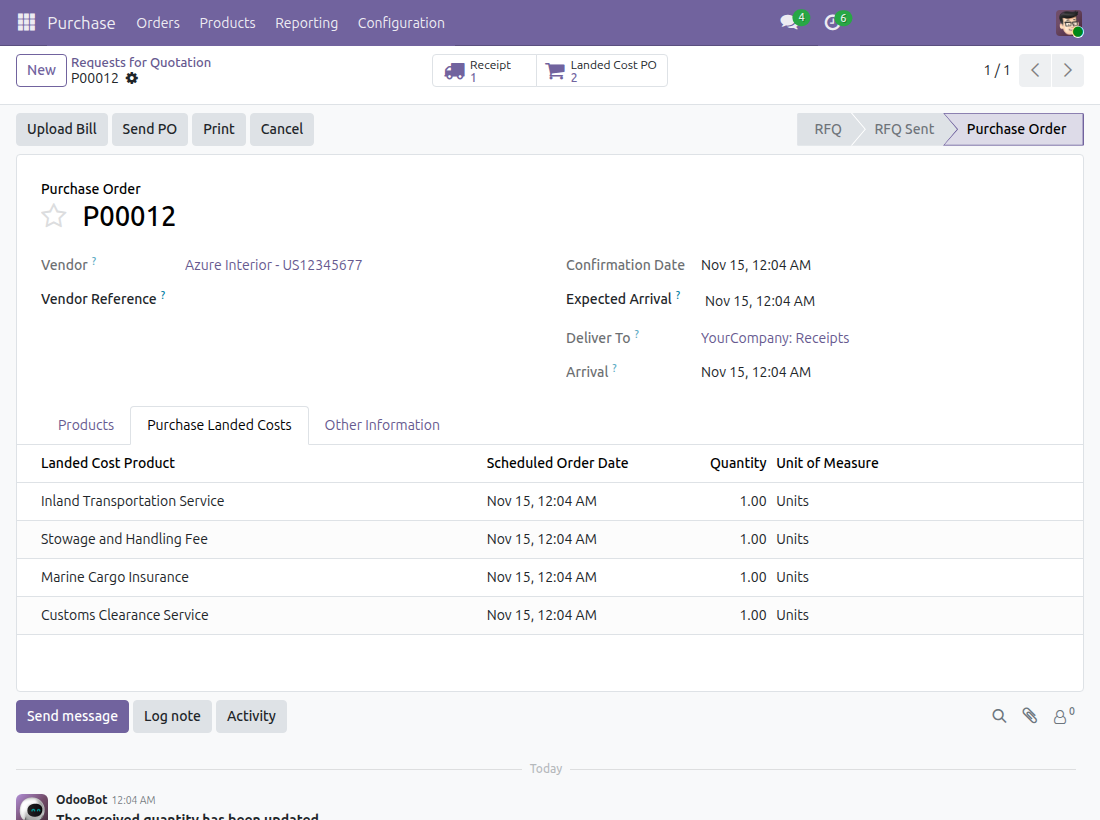
The tab can be edited while the order is a request for quotation. Each landed cost line needs a scheduled order date and a vendor on its product; otherwise the confirmation stops with a message telling which product to fix.
Follow the landed cost orders
On confirmation the module creates the purchase orders for the cost services, one order per vendor. An existing request for quotation of the same vendor, currency and operation type is completed instead of a new one being created. The order shows a Landed Cost PO button at the top: press it to open them.
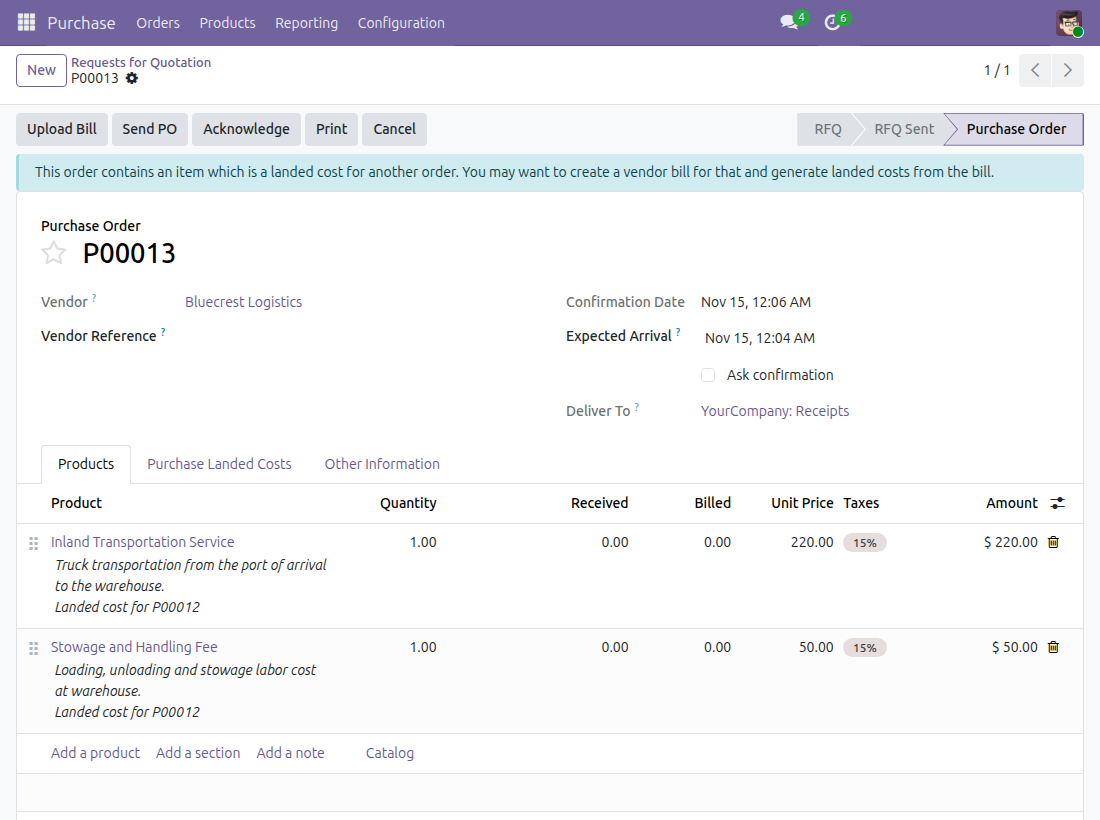
Each generated line is labelled "Landed cost for <order number>". Confirm the order like any purchase order. Once it is confirmed and still to be billed, a notice on it reminds the accountant that it contains an item which is a landed cost for another order and that the landed cost is generated from its bill.
To list only these orders, open Purchase > Orders > Purchase Orders and use the filter Landed Cost Orders. On such an order the Landed Costs for field (Other Information tab) names the goods orders it serves.
If you cancel the goods order, its landed cost lines are removed from the landed cost orders that are still requests for quotation, and the orders left empty are deleted.
Warehouse operator: receive the goods
Receive the goods as usual: open the order, press the Receipt button and Validate the transfer. The landed cost is spread over the goods of this received transfer.
Accountant: bill and spread the cost
Bill the cost services
- Open Purchase > Orders > Purchase Orders, tick the landed cost order and press Create Bills.
- On the bill, enter the Bill Date and press Confirm.
Create the landed cost
On the posted bill, press Create Landed Costs. The landed cost opens with the cost lines of the bill and the received transfers of the goods orders concerned already chosen.
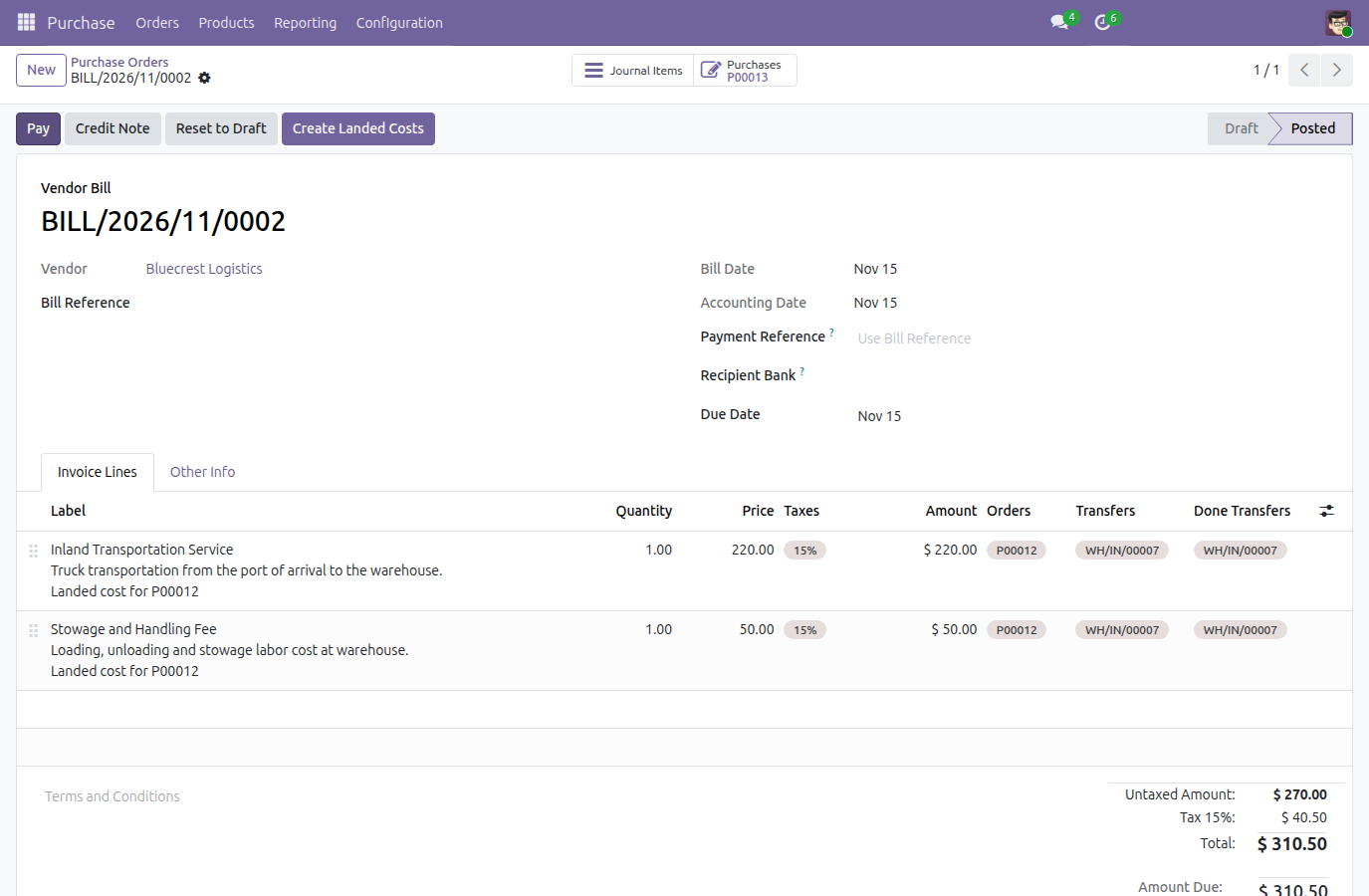
To see which orders and receipts each cost is for, open the column chooser at the right of the Invoice Lines header and tick Orders, Transfers and Done Transfers. These columns are hidden by default. Orders lists the purchase orders whose goods the cost is bought for, Transfers their transfers, and Done Transfers the done transfers the cost can be allocated to.
- Check the Additional Costs tab: each line shows its Split Method, taken from the Default Split Method of the service. Change it on a line if needed.
- Press Compute.
- Open the Valuation Adjustments tab: for each product, Original Value, New Value and Additional Landed Cost show what each cost adds to the goods.
- Press Validate.
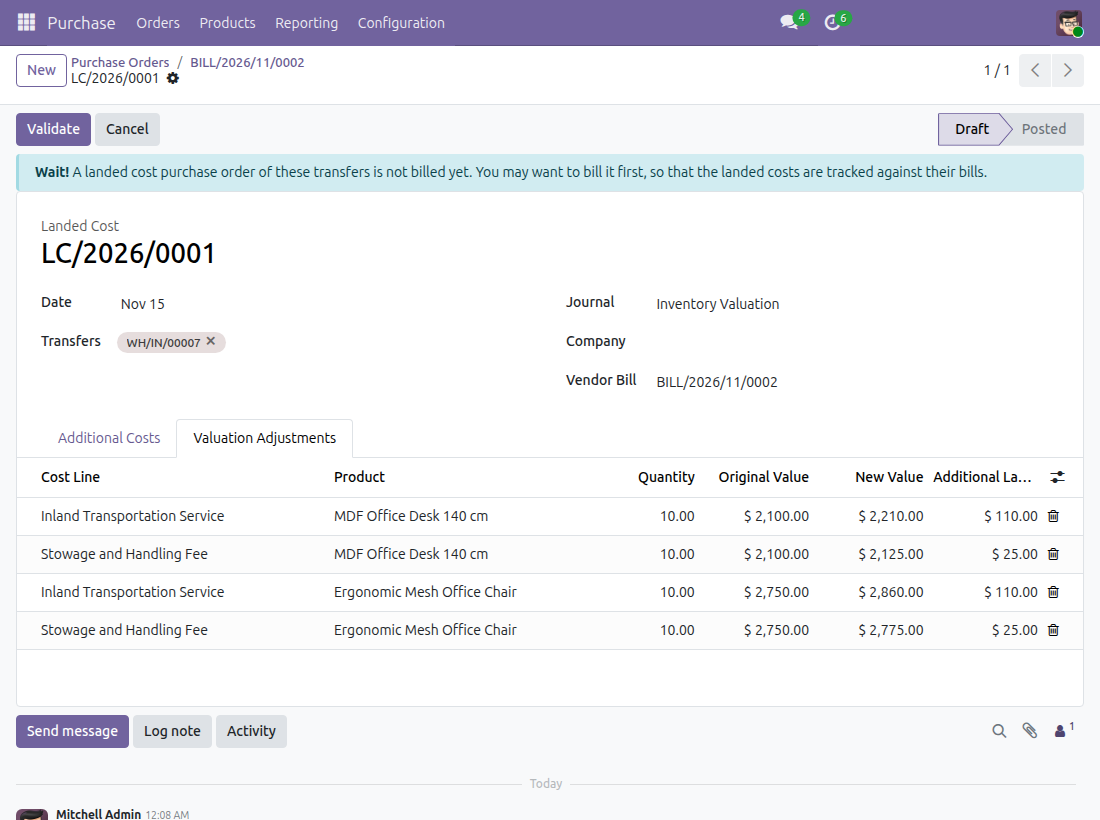
While a landed cost purchase order of the transfers is not fully billed, a Wait! notice at the top of the draft landed cost suggests billing it first, so that the landed costs are tracked against their bills. The notice disappears once all of them are billed.
You find every landed cost in Inventory > Operations > Adjustments > Landed Costs.
Trace the cost from the goods order
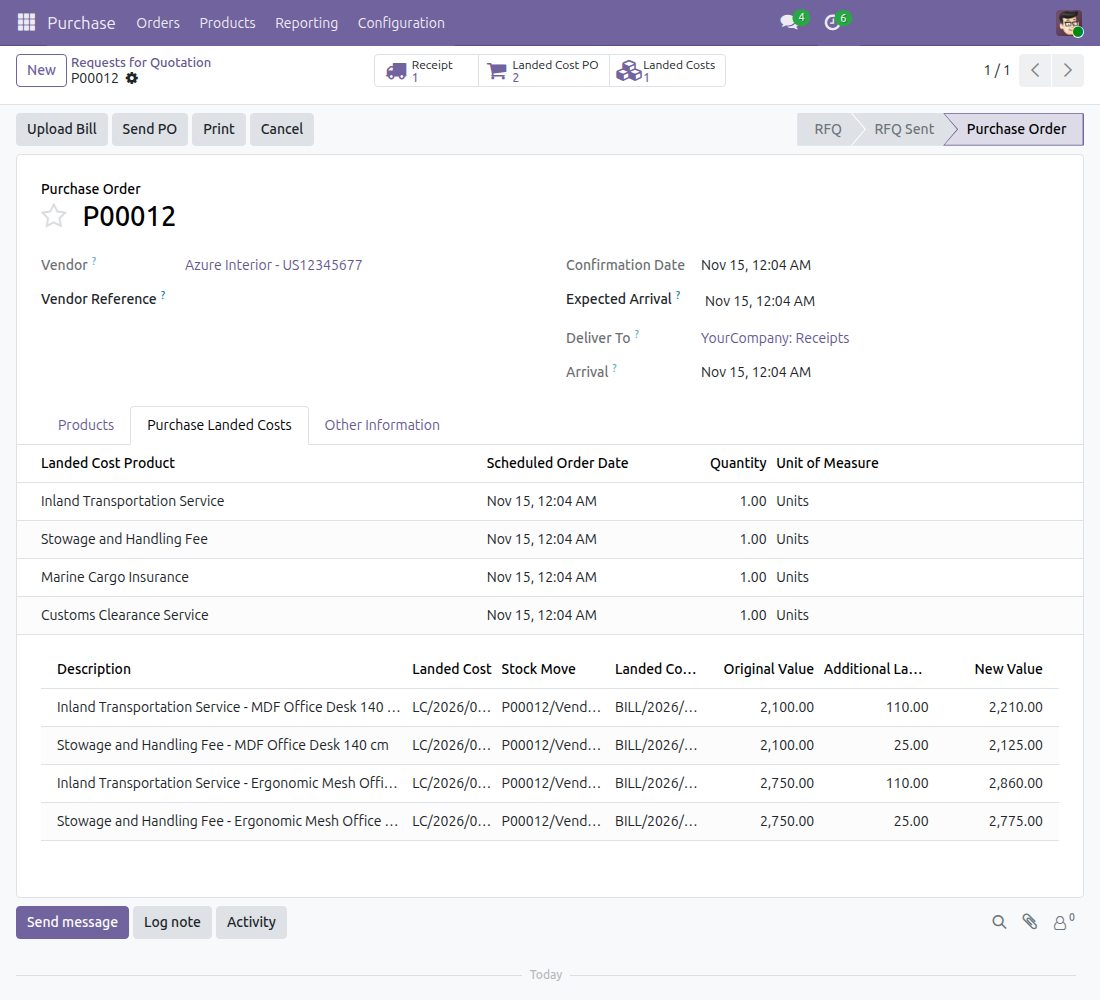
Open the original purchase order. The buttons at the top give access to the Receipt, the Landed Cost PO orders and the Landed Costs. Under Purchase Landed Costs, a table lists for each cost: the Description, the Landed Cost, the Stock Move, the Landed Cost Invoice (the bill), the Original Value, the Additional Landed Cost and the New Value.
This software and associated files (the "Software") may only be used (executed, modified, executed after modifications) if you have purchased a valid license from the authors, typically via Odoo Apps, or if you have received a written agreement from the authors of the Software (see the COPYRIGHT file).
You may develop Odoo modules that use the Software as a library (typically by depending on it, importing it and using its resources), but without copying any source code or material from the Software. You may distribute those modules under the license of your choice, provided that this license is compatible with the terms of the Odoo Proprietary License (For example: LGPL, MIT, or proprietary licenses similar to this one).
It is forbidden to publish, distribute, sublicense, or sell copies of the Software or modified copies of the Software.
The above copyright notice and this permission notice must be included in all copies or substantial portions of the Software.
THE SOFTWARE IS PROVIDED "AS IS", WITHOUT WARRANTY OF ANY KIND, EXPRESS OR IMPLIED, INCLUDING BUT NOT LIMITED TO THE WARRANTIES OF MERCHANTABILITY, FITNESS FOR A PARTICULAR PURPOSE AND NONINFRINGEMENT. IN NO EVENT SHALL THE AUTHORS OR COPYRIGHT HOLDERS BE LIABLE FOR ANY CLAIM, DAMAGES OR OTHER LIABILITY, WHETHER IN AN ACTION OF CONTRACT, TORT OR OTHERWISE, ARISING FROM, OUT OF OR IN CONNECTION WITH THE SOFTWARE OR THE USE OR OTHER DEALINGS IN THE SOFTWARE.