


Employee Training Plans
| Lines of Code | 1175 |
| Technical name | to_hr_training |
| License | OPL-1 |
| Website | https://viindoo.com/apps/modules/19.0/to_hr_training |
| Read description for | v 10.0 v 11.0 v 12.0 v 13.0 v 14.0 v 15.0 v 16.0 v 17.0 v 18.0 |
| Required Apps | eLearning (website_slides) Discuss (mail) Employees (hr) Website (website) Skills Management (hr_skills) |
| Included Dependencies | Viindoo Base Competency Management Job Levels & Career Paths |

Know which courses every employee must take, and who already did
For HR managers, CEOs, learning and development leads and Odoo implementers
Courses attached once to positions and skill levels; finished courses drop out of every plan
Is this you?
Nobody can say which courses a new hire must take: the answer depends on who you ask.
Training is picked course by course, with no link to the job or to the skills it requires.
You cannot tell whether an employee is ready for the next level, or which course would close the gap.
Completion lives in the eLearning platform, so HR keeps its own lists to know who finished what.
Employees are asked to retake courses they finished, or to follow courses they do not need.
What changes
Nobody can say which courses a new hire must take.
→ Attach the mandatory courses once to the job position: every holder of the position gets them in the plan.
Training has no link to the job or its skills.
→ Attach development courses to the skill levels a job requires, and the courses follow the requirement.
You cannot tell who is ready for the next level.
→ Each plan shows the courses for the current level and for the next one, with the skill and level each course helps to reach.
HR keeps its own lists of who finished what.
→ Finished courses are marked from the eLearning platform and drop out of what remains to be done.
Employees retake courses or follow useless ones.
→ A course appears once per employee, and a finished course is never asked again.
How it works
Mandatory courses
The human resources administrator attaches the courses every holder of a position must finish. The position hands them to its employees.
Development courses
The learning and development officer attaches courses to skill levels, from the skill level or from the course. Employees missing the level get them.
Employee follows the plan
The employee opens the plan, follows the courses and finishes them on the eLearning website. Finished courses are marked for the manager.
Manager follows the team
The line manager reads the plan of every team member, direct and indirect reports, before a review or a promotion.
HR analyses
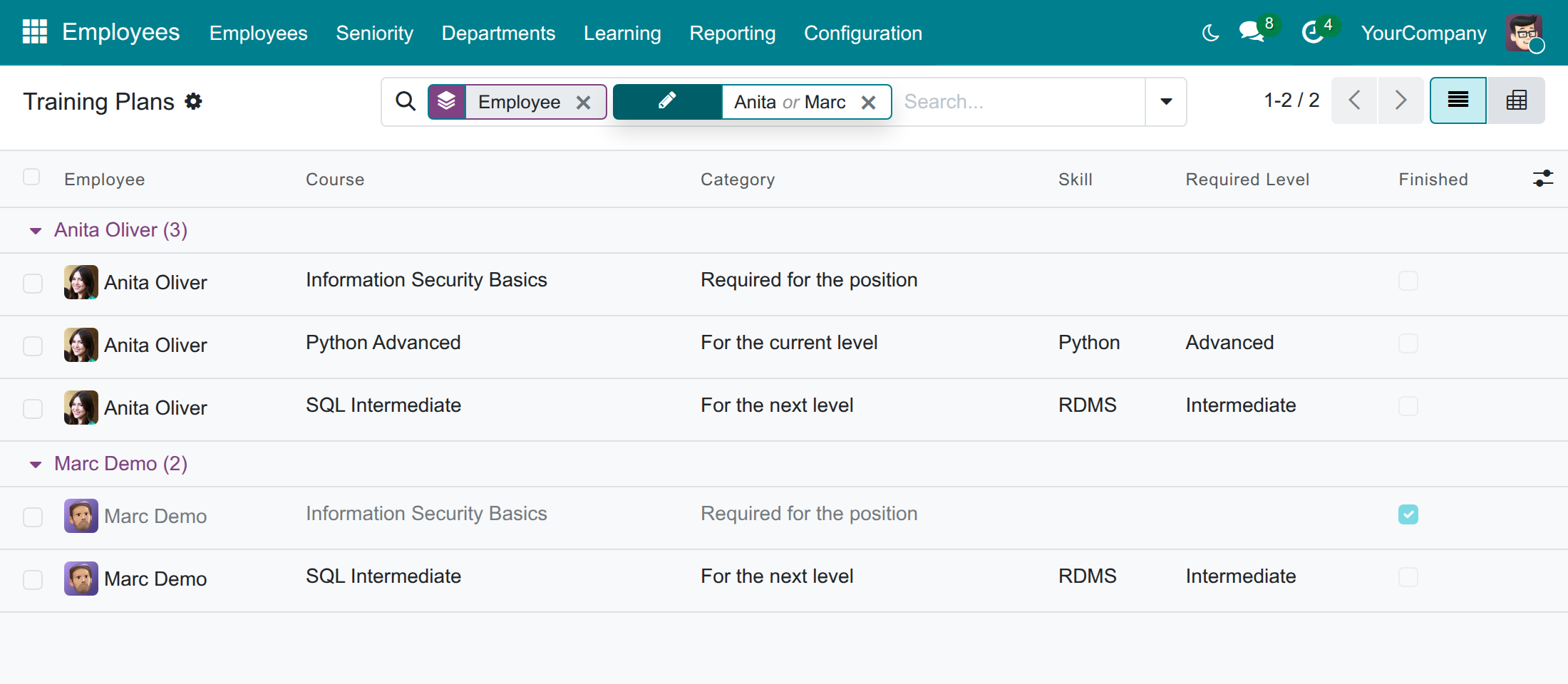
The HR officer reads the plans of everyone, by employee, department, category or course, in a list and a pivot.
Key Features
Mandatory courses per job position
Attach once the courses every holder of a position has to finish, from the position or from the course.
Development courses per skill level
Attach the courses that help to reach a skill level, from the skill level or from the course.
A plan for every employee
Each employee opens a plan of required, current-level and next-level courses. A course appears once and finished courses are marked.
Courses To Do on the profile
HR sees how many courses an employee still has to finish and opens the plan in one click.
The plan of the team
Managers open the plan of each team member from the profile; employees open their own.
Training Plans report
Analyse every plan by employee, department, category or course in a list and a pivot, from the Employees or the eLearning app.
Who it is for
HR managers
You need every employee trained for the position and the next step, without chasing lists. The plan and the report show who still has courses to finish.
CEOs
You want to know whether the team is trained for the job and ready for the next level, with the picture drawn from the courses employees actually finished.
Learning and development leads
You publish courses and want them to reach the right people. Attach a course once and it reaches every employee concerned.
Odoo implementers
Nothing to configure: install it, attach the courses and the plans exist. It builds on eLearning and the competency framework.
Best for: companies that already publish eLearning courses and define job positions and skill levels, and want training to follow the job.
Attach the mandatory courses to a job position

Attach courses to a skill level

Attach a course from the course itself

Give each employee a plan to follow

Follow the plan of your team

See the courses an employee still has to do

Analyse the plans of everyone

Count the courses per employee and category

Frequently Asked Questions
What counts as a finished course?
A course the employee has finished on the eLearning website. A course that is only started stays to do.
Who sees the training plan of an employee?
The employee, the managers above the employee, HR officers and eLearning officers. Other employees see nothing.
Does finishing a course raise the skill level of the employee?
No. The module tells which courses help to reach a level; the skills of the employee are updated as usual once the level is assessed.
Is there anything to configure?
No. Attach courses to positions and skill levels and the plans exist.
What do I need to install first?
Just Employee Training Plans: eLearning and Competency Management are installed with it.
Which Odoo version and editions does it support?
Odoo 19.0, Community and Enterprise editions.
Need help with Employee Training Plans?
For questions, implementation support or a custom feature, contact Viindoo.
Pre-Sales & Partnership
Contact usTechnical Support
Open a support ticketTechnical Requirement
- Odoo version: 19.0
- Editions: Odoo Community, Odoo Enterprise
- Required modules: Competency Management, eLearning
- License: OPL-1
- Author: T.V.T Marine Automation (aka TVTMA), Viindoo
- Live demo: v19demo-int.viindoo.com
Employee Training Plans
Who this guide is for: the human resources administrator, who attaches mandatory courses to job positions; the learning and development officer, who attaches courses to skill levels; the HR officer, who follows the training of everyone; the system administrator, who installs the module and gives people their access right; and every line manager and employee who wants to know which courses are still to follow.
Overview
Companies publish courses, but rarely say who has to take which one, and who already did. Without it, training is chosen course by course, new hires miss the basics and managers cannot tell whether a team is ready for the next step.
Employee Training Plans links your eLearning courses to your job positions and to the skill levels of your competency framework, and builds a training plan for every employee from them:
- Required for the position - the mandatory courses of the employee's job position.
- For the current level - the courses that help to close the skill gaps of the employee's current job profile level.
- For the next level - the courses that prepare the employee for the next job profile level.
A course appears once in a plan, even when several rules name it, and a course the employee has finished is marked Finished and no longer counted as still to do. You attach a course once, to the position or to the skill level, and it reaches every employee concerned.
Note
The plan follows the skill gaps of the Competency Management module, which this module needs. The gaps are read in the Competencies app.
How the module is used, from the setup to the follow-up:
| Step | What happens | Who | Hand-off |
|---|---|---|---|
| 1 | The courses every holder of a job position has to finish are attached to the position. | Human resources administrator | Employees holding the position get these courses in their plan. |
| 2 | The courses that help to reach a skill level are attached to the skill level, from the skill level or from the course. | Learning and development officer | Employees missing the level get these courses in their plan. |
| 3 | Each employee opens the plan, follows the courses and finishes them on the eLearning website. | Employee | Finished courses are marked as such for the manager and for HR. |
| 4 | The manager follows the plan of the team. | Line manager | HR gets the picture of the whole company. |
| 5 | HR follows and analyses the plans of all employees. | HR officer | Courses are added or adjusted where employees stay behind. |
The access right to give to each person:
| Role | What they do | Access right to assign |
|---|---|---|
| System administrator | Installs the module and gives people their access right. | Role / Administrator |
| Human resources administrator | Attaches mandatory courses to job positions. Also does everything the HR officer does. | Employees / Administrator |
| Learning and development officer | Attaches courses to skill levels and, from the course form, to positions. Reads every plan. | Competencies / Officer, and eLearning / Officer |
| HR officer | Follows the plan of every employee, reads the Training Plans report and attaches courses to skill levels. | Employees / Officer: Manage all employees |
| Line manager | Follows the plan of the team, direct and indirect reports. | Role / User, and being the Manager of the employees concerned |
| Employee | Follows the own plan. | Role / User |
Setup (for the Administrator)
Installation
- Open Apps.
- Search for Employee Training Plans.
- Press Install. The eLearning app and the Competency Management module it relies on are installed with it.
The module has no setting to configure. Training plans are available as soon as courses are attached.
Giving people their access right
- Open Settings ‣ Users & Companies ‣ Users and open the user.
- In the Access Rights tab, choose the right of the table in the Overview on the line of the matching app (Employees, eLearning or Competencies).
- Save.
Every internal user already reads his or her own plan and the plan of the team, so employees and line managers need nothing more. A person sees the plan of an employee of another company only when allowed in that company.
Human resources administrator: attach the mandatory courses to a job position
Attach the courses that everyone holding a job position has to finish.
- Open Employees ‣ Configuration ‣ Recruitment ‣ Job Positions and open the job position, for example Experienced Developer.
- Open the Mandatory Courses tab.
- Press Add a line and pick the course. Repeat for every course.
- Save.
From now on every employee holding this position finds the course in the plan under Required for the position. In the list of job positions, show the optional column Mandatory Courses Count to see how many courses each position requires.
Note
The Employees ‣ Configuration menu is reserved to the Employees / Administrator right. An eLearning officer can attach a position from the course form instead - see the next chapter.
With the Recruitment app installed, job positions are edited by users with the Officer right of Recruitment.
Learning and development officer: attach courses to skill levels
A skill level is one level of one skill, for example Python - Advanced. An employee who lacks a skill level the job requires, now or for the next step, gets the courses attached to that level.
Attach a course from the skill level
- Open Competencies ‣ Configuration ‣ Skill Descriptions and open the skill level, for example Python - Advanced.
- Open the Courses tab.
- Press Add a line and pick the course. Repeat for every course that helps to reach this level.
- Save.
The Courses button at the top of the skill level counts the attached courses and opens them. The skill levels themselves, and the requirements of each job level, are kept in the Competencies app.
Attach a course from the course
You can also work from the course, which is handy when you have just published it.
- Open eLearning ‣ Courses ‣ Courses and open the course.
- Open the Training Plans tab.
- In Mandatory for Positions, tag the job positions whose holders have to finish the course.
- In Develops Skill Levels, tag the skill levels the course helps to reach.
- Save.
Both ways write the same links: what you tag on the course appears on the position and on the skill level, and the other way round. An eLearning officer changes the courses he or she is responsible for; an eLearning manager changes every course.
Employee: follow your training plan
Open your plan
- Open Employees and open your own profile.
- Press My Training Plan at the top of the profile.

Note
The button only appears on the profile of an employee linked to your user. If it is missing, ask HR to link your employee record to your user.
Follow your courses
- Read the list. Each line is a course with the Category that explains why it is there - Required for the position, For the current level or For the next level. For a level, the Skill and the Required Level tell which gap the course helps to close.
- Click a line to open the course on the eLearning website in a new tab, and follow it there.
Once you finish a course on the website, its line shows Finished and turns grey. A course you have only started is still to do. Courses already finished are never asked again.
Line manager: follow the plan of your team
- Open Employees and open the profile of a person who reports to you, directly or through another manager.
- Press Training Plan at the top of the profile.
The list has the same columns as the plan of an employee: course, category, skill, required level and whether it is finished. Use it before a review or a promotion to see which courses are still missing. You see the plan of the people reporting to you, never of the other employees.
HR officer: follow the training of everyone
See the courses still to do of one employee
- Open Employees ‣ Employees and open the employee.
- Look at the Courses To Do button, under More when the window is narrow. It counts the courses of the plan the employee has not finished.
- Press it to open the plan, already filtered on the courses still to do. Remove the To Do filter to see the finished ones too.

Analyse the plans of all employees
- Open Employees ‣ Reporting ‣ Training Plans. Learning and development officers find the same report in eLearning ‣ Training Plans.
- The list opens on the courses still to do, grouped by employee. Open a group to read the courses of the employee.
- Narrow the list with the filters To Do, Finished, Mandatory, Current Level and Next Level, or search an employee, department, job position, course or skill.
- Change the grouping to Category, Course or Department to answer a different question, for example which course is still to do most often.
Count with the pivot
Switch to the pivot view to count the courses per employee and per category.
The report is a reading tool: its lines are computed from your courses, positions and skills and cannot be edited. To change a plan, change what is attached to the position or to the skill level.
Troubleshooting
- An employee has no plan, or fewer courses than expected.
- The plan is built from what is attached. Check that the job position of the employee has mandatory courses, that the job profile level of the employee has skill requirements and that the courses are attached to the skill levels required. A course that is archived is left out of every plan, and an employee who is archived has no plan.
- The My Training Plan button is missing.
- The employee record must be linked to the user who looks at it. HR links it from the employee profile.
- A line does not become Finished.
- Only a finished course counts: a course that is joined or in progress stays to do. The course must be finished with the account of the employee on the eLearning website.
- A manager does not see the plan of a team member.
- The employee must have that manager, directly or through other managers, in the Manager field of the profile.
- A course shows under a category I did not expect.
- A course named by several rules is listed once, under the first of Required for the position, For the current level and For the next level.
- An eLearning officer cannot change the Training Plans tab of a course.
- An officer changes the courses he or she is responsible for. Ask an eLearning manager, or become the responsible of the course.
- The Job Positions menu is missing.
- Employees ‣ Configuration needs the Employees / Administrator right. Attach the position from the course form instead.
FAQ
- Does finishing a course raise the skill level of the employee?
- No. The module only tells which courses help to reach a level. Update the skills of the employee as usual once the level is assessed, and the courses of that level leave the plan.
- Can I change or delete a line of a plan?
- No. Plans are computed. Change what is attached to the position, the skill level or the course.
- Can a course be mandatory for several positions?
- Yes. Tag all the positions in Mandatory for Positions on the course, or add the course to each position.
- Who sees the plan of an employee?
- The employee, the managers above the employee, HR officers and eLearning officers. Other employees see nothing.
- Does it work with several companies?
- Yes. A plan is visible to the people allowed in the company of the employee. The Company column of the report can be shown from the column selector.
This software and associated files (the "Software") may only be used (executed, modified, executed after modifications) if you have purchased a valid license from the authors, typically via Odoo Apps, or if you have received a written agreement from the authors of the Software (see the COPYRIGHT file).
You may develop Odoo modules that use the Software as a library (typically by depending on it, importing it and using its resources), but without copying any source code or material from the Software. You may distribute those modules under the license of your choice, provided that this license is compatible with the terms of the Odoo Proprietary License (For example: LGPL, MIT, or proprietary licenses similar to this one).
It is forbidden to publish, distribute, sublicense, or sell copies of the Software or modified copies of the Software.
The above copyright notice and this permission notice must be included in all copies or substantial portions of the Software.
THE SOFTWARE IS PROVIDED "AS IS", WITHOUT WARRANTY OF ANY KIND, EXPRESS OR IMPLIED, INCLUDING BUT NOT LIMITED TO THE WARRANTIES OF MERCHANTABILITY, FITNESS FOR A PARTICULAR PURPOSE AND NONINFRINGEMENT. IN NO EVENT SHALL THE AUTHORS OR COPYRIGHT HOLDERS BE LIABLE FOR ANY CLAIM, DAMAGES OR OTHER LIABILITY, WHETHER IN AN ACTION OF CONTRACT, TORT OR OTHERWISE, ARISING FROM, OUT OF OR IN CONNECTION WITH THE SOFTWARE OR THE USE OR OTHER DEALINGS IN THE SOFTWARE.
