

HR Expense & Payroll Integration
| Lines of Code | 643 |
| Technical name | to_hr_expense_payroll |
| License | OPL-1 |
| Website | https://viindoo.com/apps/modules/19.0/to_hr_expense_payroll |
| Read description for | v 10.0 v 11.0 v 12.0 v 13.0 v 14.0 v 15.0 v 16.0 v 17.0 v 18.0 |
| Required Apps | Expenses (hr_expense) Time Off (hr_holidays) Invoicing (account) Discuss (mail) Calendar (calendar) Employees (hr) |
| Included Dependencies | Payroll HR Payroll Accounting Employee Relatives Viindoo Base Advanced HR Expense Management Accounting Foundation Advanced HR Management HR Contracts (Viindoo) Work Entry HR Accounting Work Entry - Contract Viin Time-Off Viin - Holiday Work Entry Base Addendum Viindoo Holiday & WorkDay Manager Safe IR Metadata Proxies |

Repay employee expenses with the salary, in one payment
For companies whose employees pay work expenses out of their own pocket
Reimburse HR expenses in payroll with payslips.
Works with Advanced HR Expense Management, Payroll Accounting and Expenses.
Is this you?
Employees pay for a taxi or a client lunch themselves, then wait for a separate transfer to get their money back.
Payroll and accounting keep two lists: the salary to pay and the expenses to repay, with the risk of paying the same expense twice.
The payslip does not show what is repaid, so staff ask where the extra amount comes from.
The accountant reconciles two payables by hand for the same person every month.
What changes
Employees wait for a separate transfer
→ Get the expenses back on payday, in the same payment as the salary.
Two lists to pay
→ Pay the salary and the expenses with one payment per payslip.
Payslip does not explain the amount
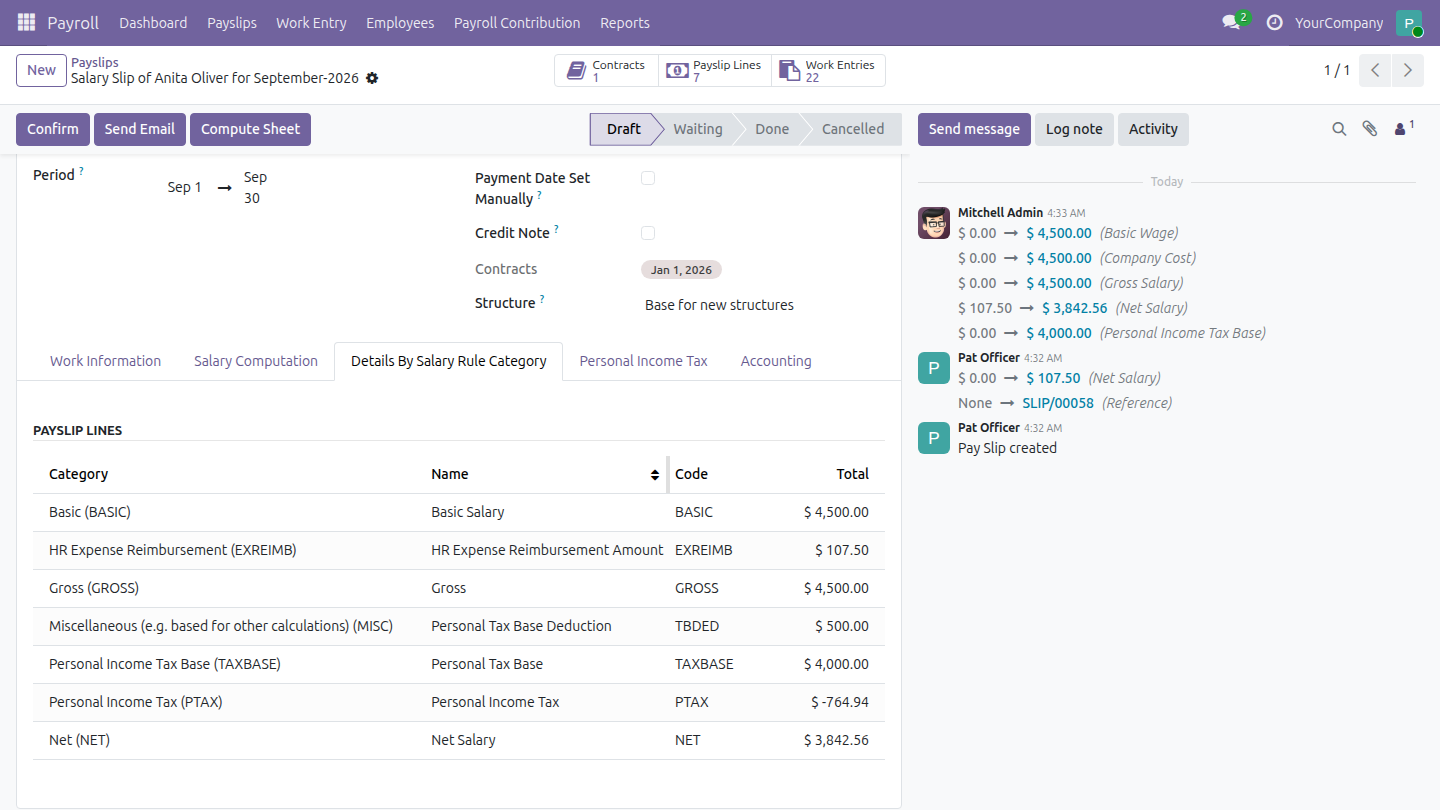
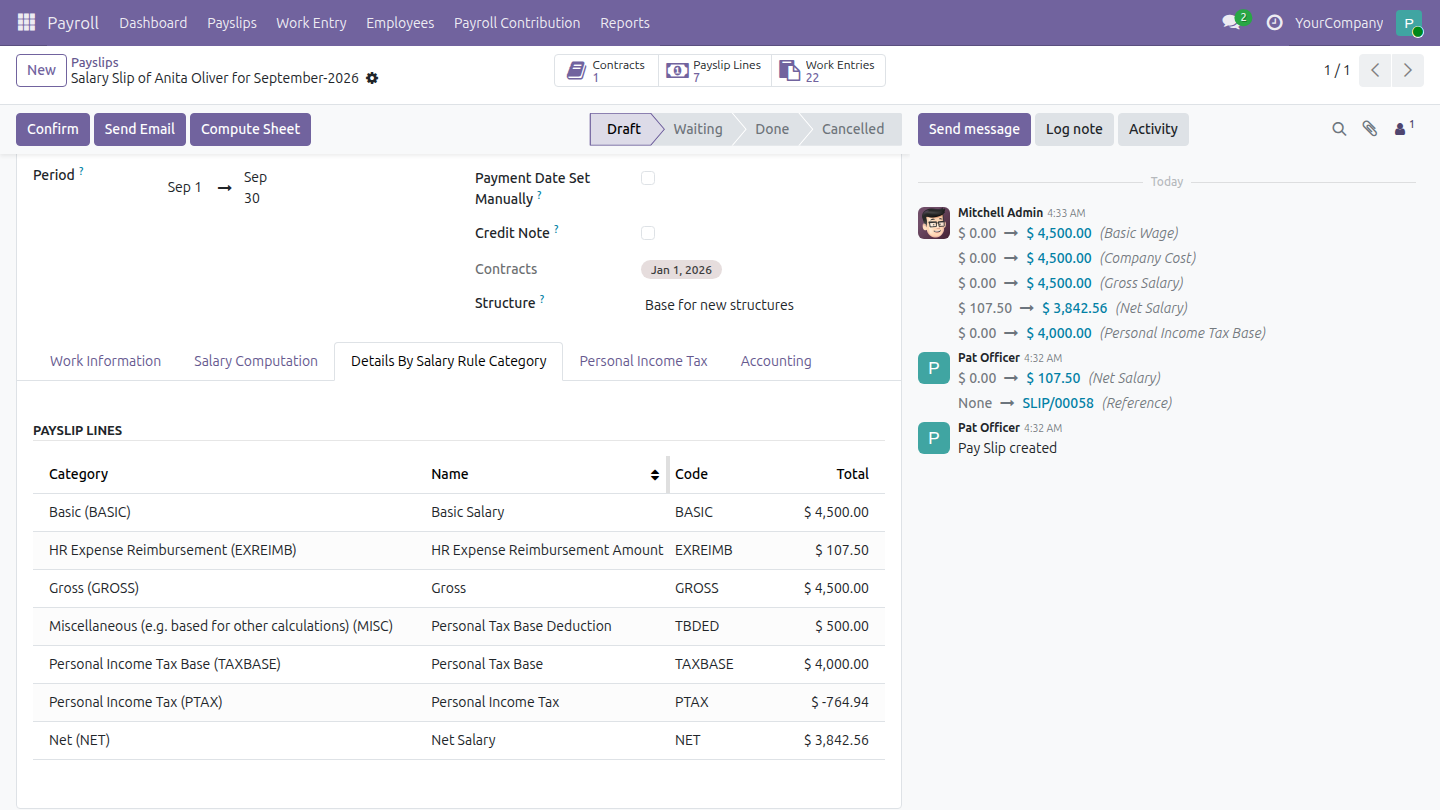
→ See each repaid expense listed on the payslip, with its own line in the net pay.
Manual reconciliation
→ Let the salary payment settle both amounts owed; each expense is marked Paid by itself.
How it works
Ask
The employee ticks that the expense is repaid with the salary and submits it.
Approve
The team approver or expense administrator approves it.
Post
The accountant posts it; it now waits for a payslip, unless it is paid straight from its receipt.
Compute
The payroll officer computes the payslip: the expenses appear and the amount joins the net pay.
Pay
The cashier registers one payment; salary and expenses are Paid.
Key Features
Ask for repayment with the salary
Employees tick one option on an expense they paid themselves and the payslip does the rest.
Expenses listed on the payslip
The payslip lists every expense with a posted journal entry that it repays, so payroll and employee see the same list.
Automatic reimbursement amount
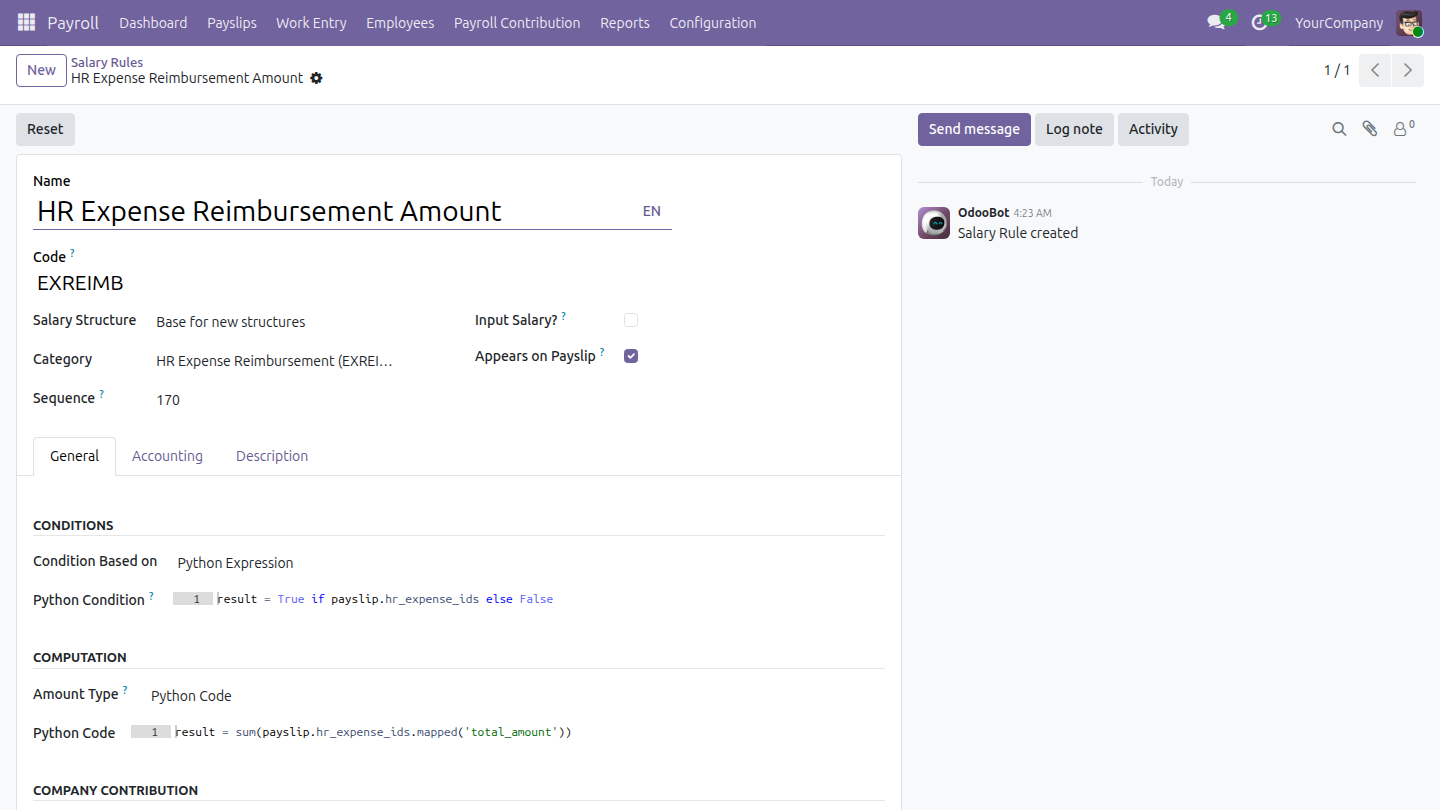
A salary rule adds the total to the net pay and can be adapted to your reimbursement policy.
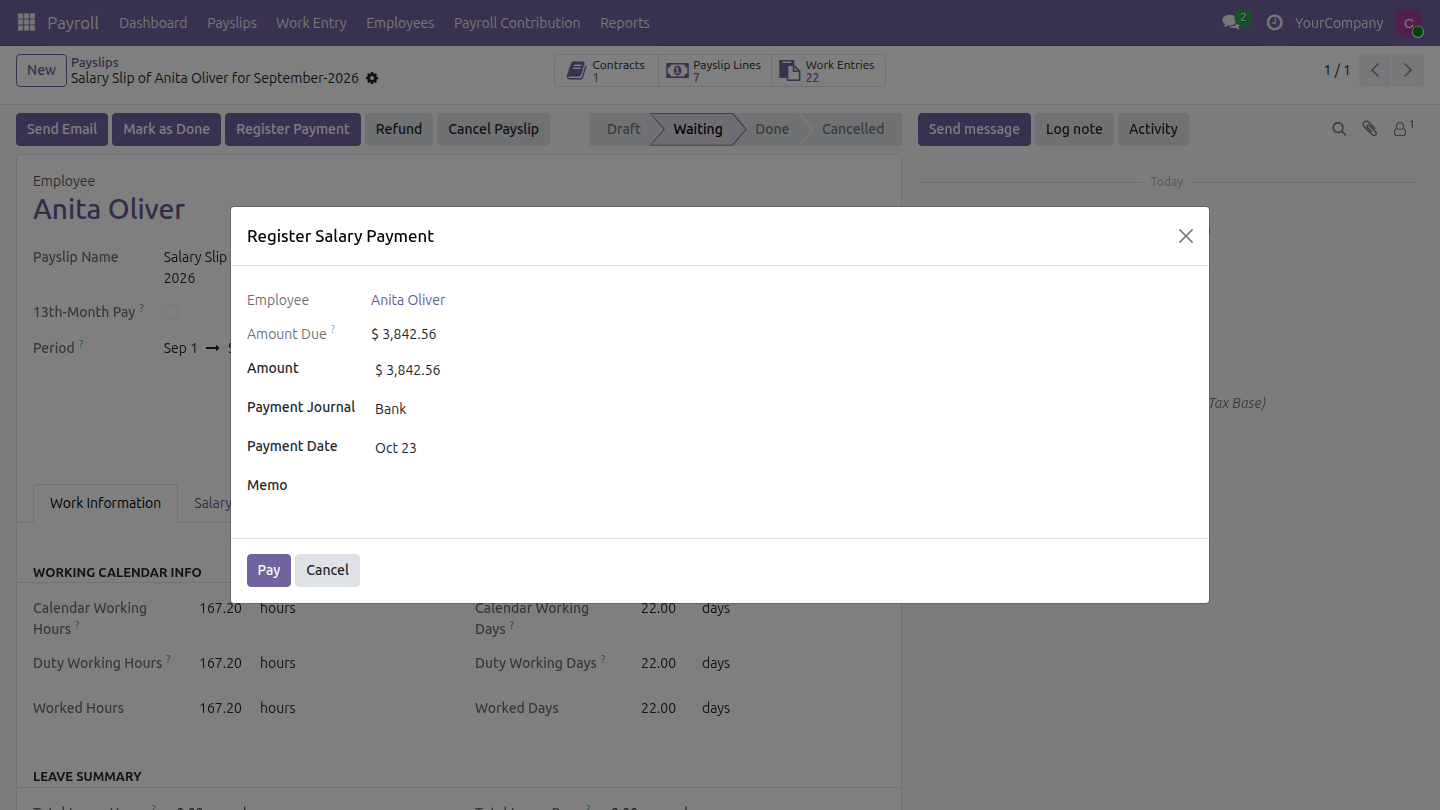
One payment for salary and expenses
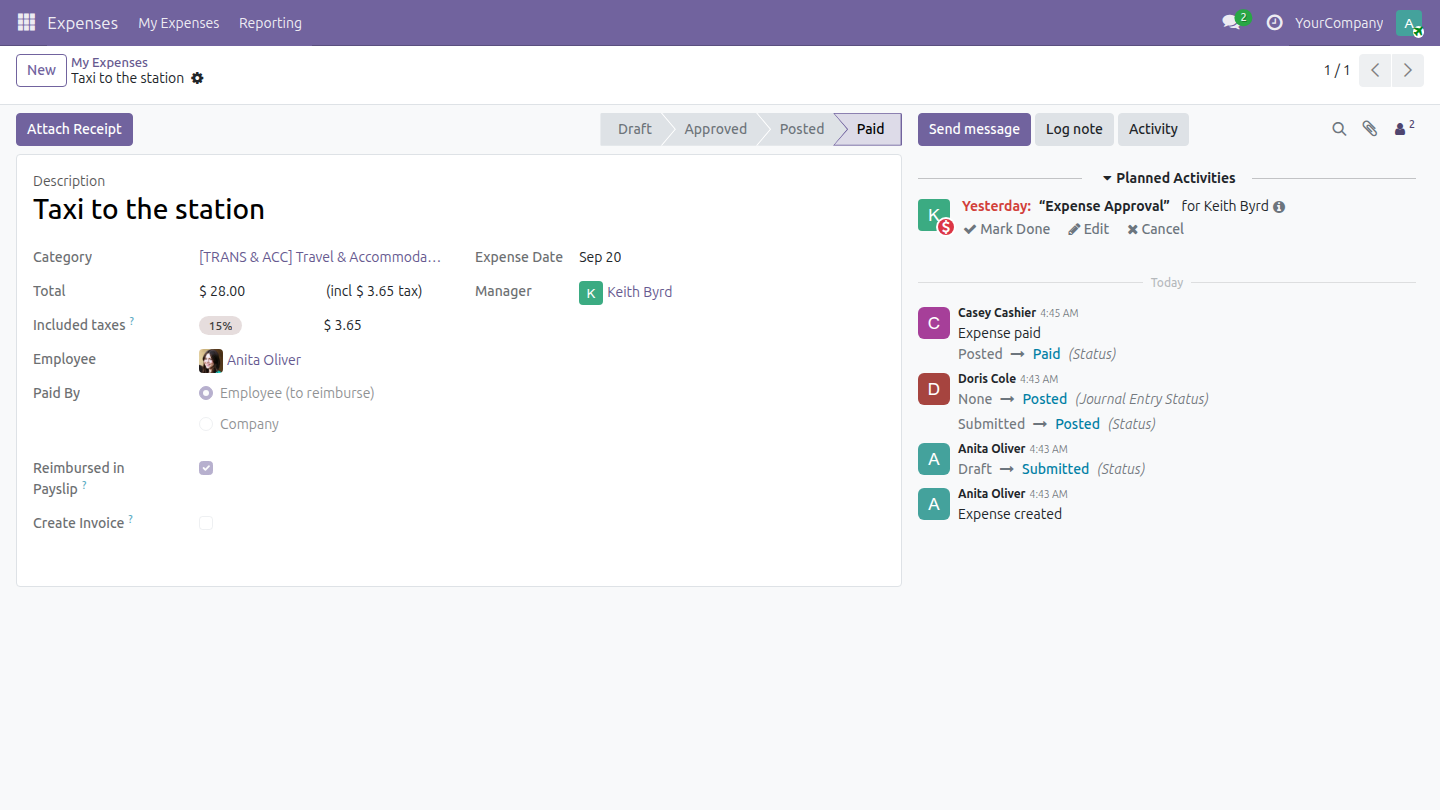
A single salary payment settles both amounts owed, so each expense is paid once.
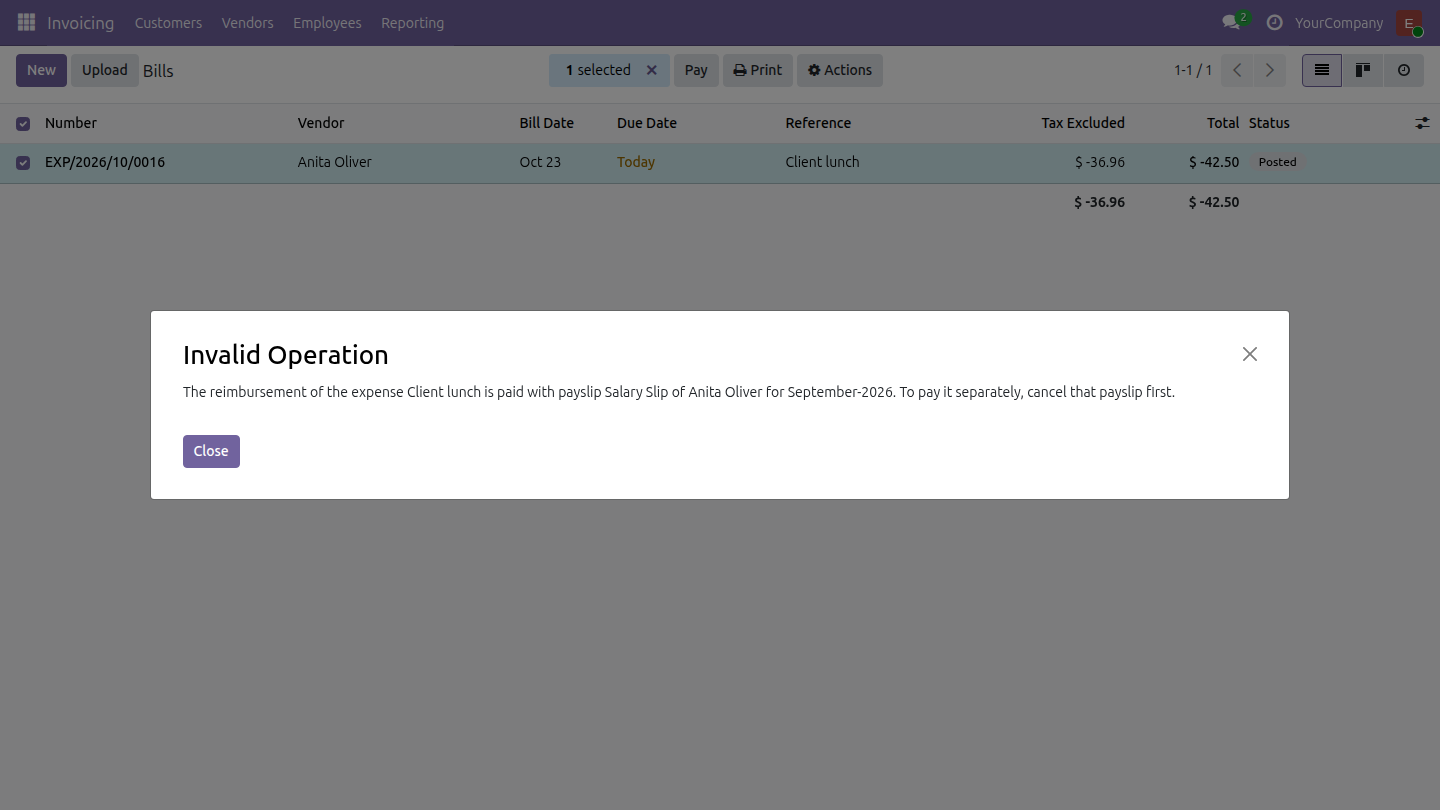
Correct an expense already on a payslip
While a payslip in Waiting or Done state holds an expense, every refusal names the payslip and the way out: the payroll officer cancels the payslip, the receipt is paid or reversed, the expense is corrected and posted again, and the payslip is redone. Reversing a receipt creates a draft credit note; once it is confirmed the expense is Approved again. Refunding a paid payslip releases the unpaid expenses. Accounting users see the payslip that holds an expense in a banner on the expense.
Pay an expense without waiting for payroll
The receipt is paid directly with Accounting: Invoicing only; the expense is Paid and the payslip leaves it out, so it is paid once.
Clear accounting
Expenses repaid in payslips are posted in their own entry, apart from the ones paid directly.
Read-only for the payroll team
The payroll team reads the expenses repaid in payslips but cannot create, change or delete them.
Who it is for
Employees
Tired of chasing a refund; they get their money with the salary.
Payroll officers
Want the expenses on the payslip instead of a side spreadsheet.
Accountants
Want one payment and no double reconciliation.
Finance managers
Want each expense paid exactly once and a clean audit trail.
Best for: companies that already run Expenses and Payroll and want repayments to follow the salary cycle.
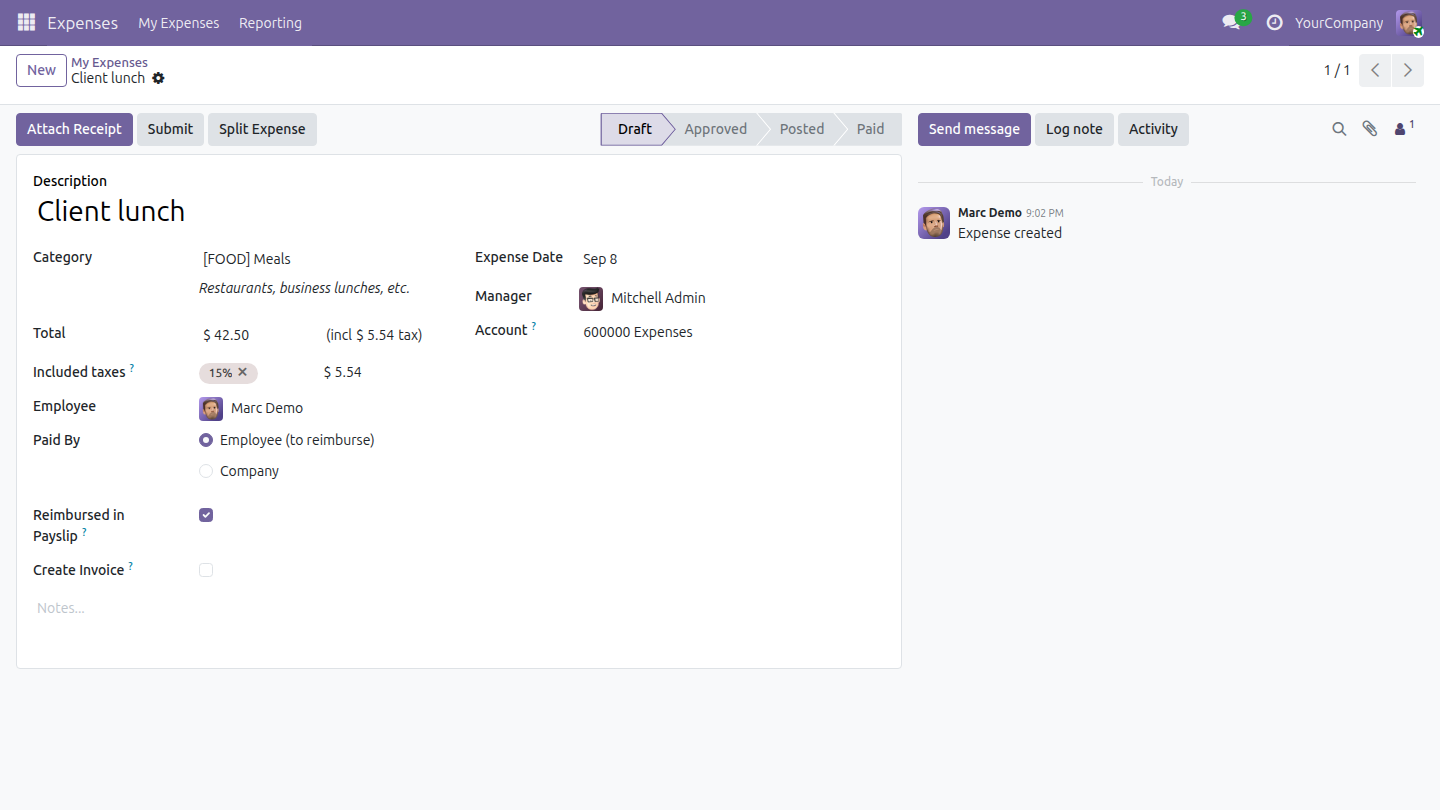
Ask to be repaid with the salary
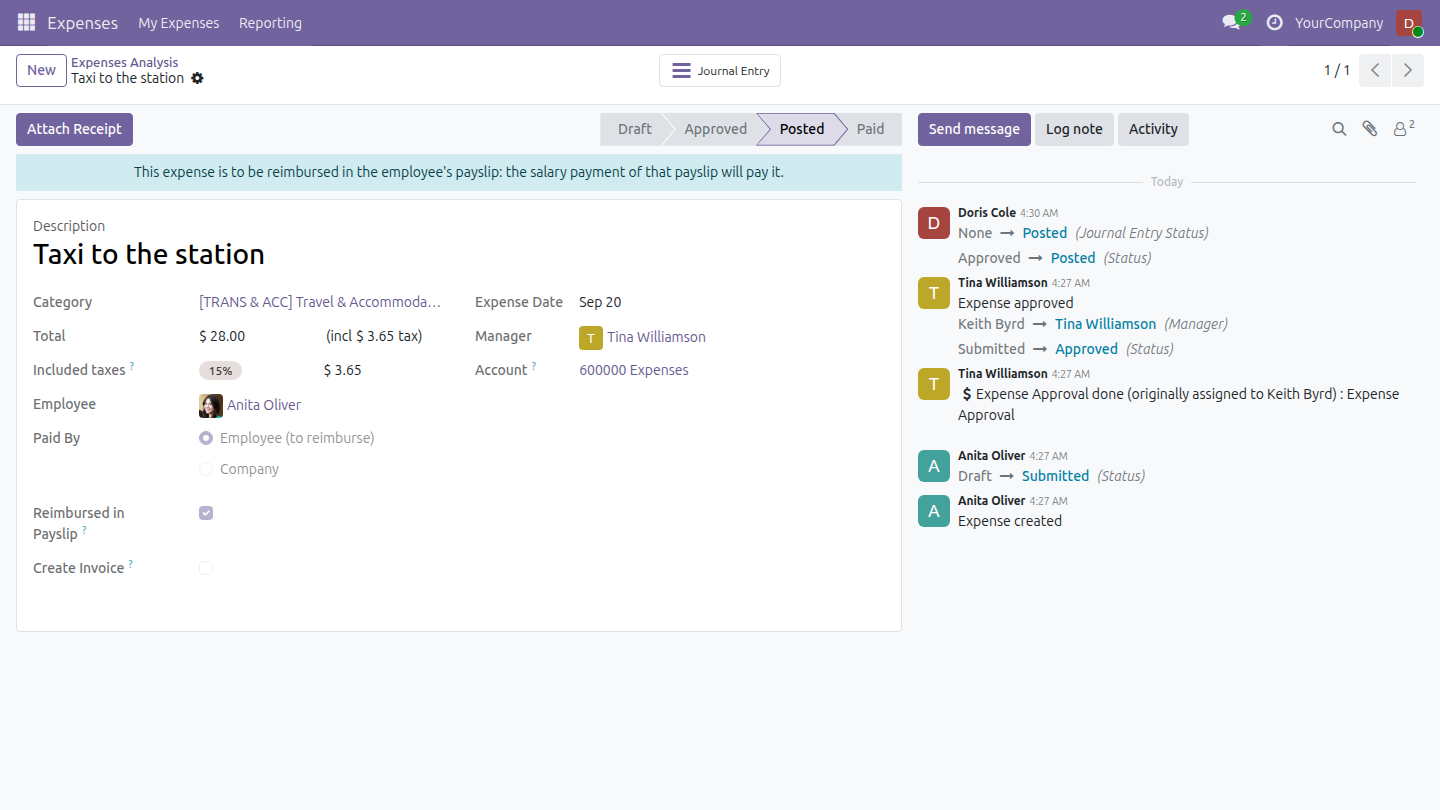
Posted and waiting for the payslip
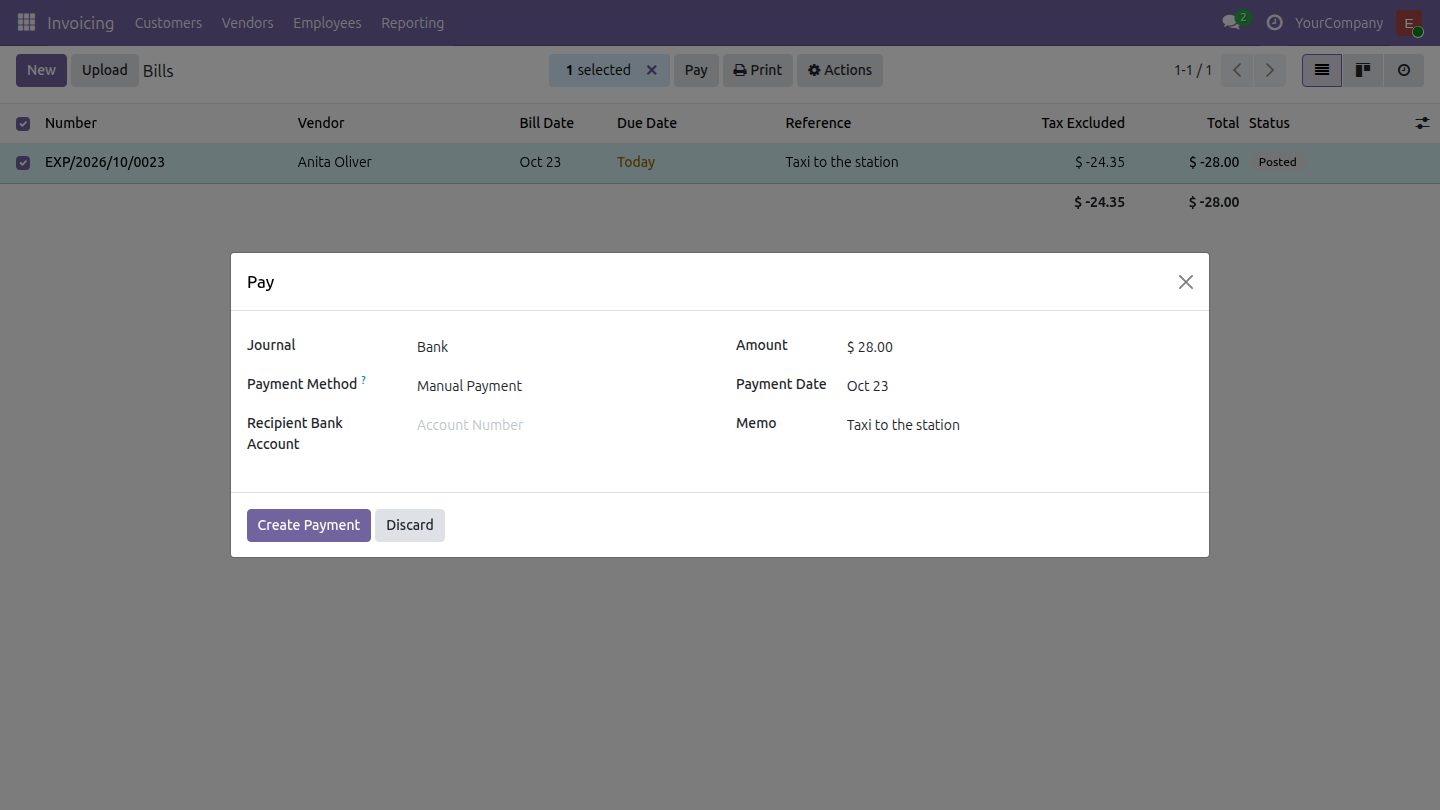
Pay an expense without waiting for payroll
Expenses listed on the payslip
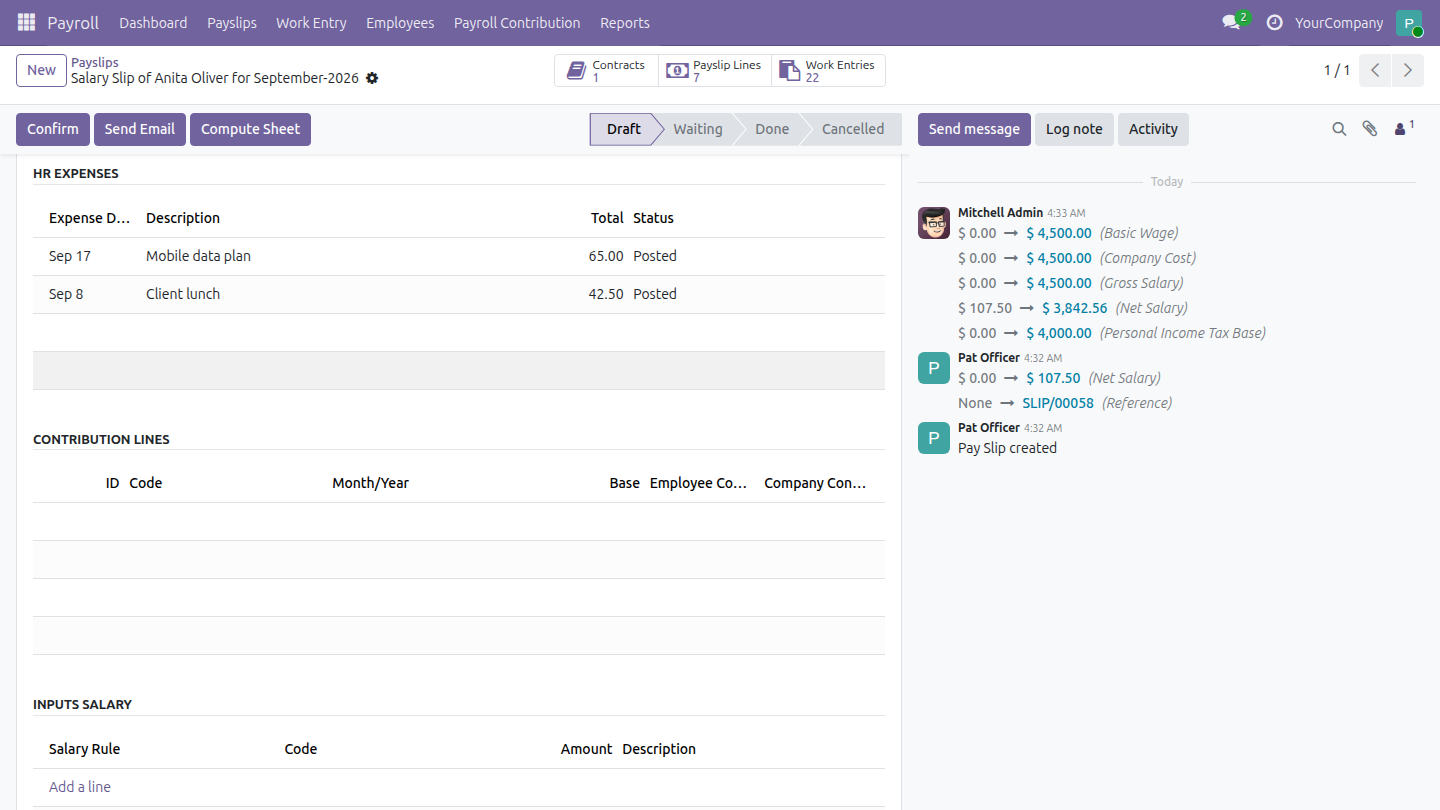
Reimbursement in the net salary
One payment for salary and expenses
Expense marked Paid
Adapt the reimbursement rule
A clear way out when an expense must be corrected
The step-by-step user guide is in the Documentation tab.
See HR Expense & Payroll Integration in Action
Frequently Asked Questions
What does it do?
It lets employees be repaid for expenses they paid themselves with their salary: the payslip lists the expenses, the net pay includes them and one payment settles everything.
Which expenses are picked up?
Expenses paid by the employee, ticked as repaid in the payslip, approved and posted by accounting with a posted journal entry that has no draft reversal waiting, not yet paid and dated up to the end of the payslip period. Company-paid expenses stay outside.
What if an expense is posted after the payslip was computed?
It waits for the next payslip, or press Compute Sheet again on a draft payslip; on a confirmed payslip, the payroll officer cancels it, sets it to draft and computes it again.
Can an expense be paid before the payslip?
Yes. It is paid from its receipt in Accounting, and Accounting: Invoicing is enough. The expense becomes Paid and the payslip leaves it out, so it is never reimbursed twice.
What if an expense must be corrected once it is on a payslip?
While a payslip in Waiting or Done state holds it, paying, reversing, cancelling or resetting its receipt is refused, and the message names the payslip. The payroll officer cancels the payslip (it moves to Cancelled), the receipt is paid or reversed, the expense manager corrects the expense and it is posted again, then the payroll officer redoes the payslip. For a paid payslip, a refund releases the expenses that were not paid.
Who pays the payslip?
A person with a payroll access right and the Accounting: Invoicing right registers the payment on the payslip, once the accounting entry of the payslip is posted. Paying a receipt directly from Accounting needs only the Accounting: Invoicing right.
Which access rights do the roles need?
The payroll officer needs Payroll: Officer together with Time Off: Officer; the cashier also needs Accounting: Invoicing. Posting an expense needs Accounting: Bookkeeper (or higher), or Accounting: Invoicing together with Expenses: All Approver, while paying or reversing a receipt directly needs only Accounting: Invoicing. Payroll and accounting stay separate: accountants do not open payslips and payroll officers do not open journal entries.
What can the payroll team do with the expenses?
They read the expenses ticked as repaid in the payslip, and only those. They cannot create, change or delete them.
Can a posted expense still be changed?
Once an expense is posted, nobody changes its vendor, Create Invoice, bill reference or bill date. To correct them, reverse the bill and reset the expense first. While a payslip holds the expense, the payroll officer cancels the payslip before that.
Are the full accounting features included?
They come with the optional app Accounting & Finance (to_account_accountant): the Account column, the Journal Items tab and the accountant menus.
Can I change how the amount is calculated?
Yes. The payroll manager adapts the salary rule, for example to count only some expense categories.
Which Odoo version and edition does it support?
Odoo 19.0, Community Edition. A newer Odoo series is a separate purchase for that series.
How do I get support?
Open a ticket at viindoo.com/ticket; pre-sales questions go through viindoo.com/contactus.
Need help with HR Expense & Payroll Integration?
Pre-Sales & Partnership
viindoo.com/contactusTechnical Support
viindoo.com/ticketTechnical Requirement
- Odoo version: 19.0
- Editions: Odoo Community
- Required modules: Advanced HR Expense Management (to_hr_expense), Payroll Accounting (to_hr_payroll_account)
- Optional module: Accounting & Finance (to_account_accountant), for the full accounting features
- License: OPL-1
HR Expense & Payroll Integration
Who this guide is for: employees who pay work expenses out of their own pocket, the managers who approve them, the accounting team that posts and pays them, and the payroll team that issues payslips.
Note
Extends Advanced HR Expense Management and Payroll Accounting - see their documentation for the standard expense and payslip flows.
Note
Builds on Expenses - see its documentation for creating and approving expenses.
Overview
An employee who pays a business expense out of their own pocket has to be repaid. With this module the repayment travels with the salary: the employee ticks Reimbursed in Payslip on the expense, and the payslip of the period picks up every approved and posted expense of that employee, adds the total to the net pay, and the one salary payment settles the salary and the expenses together. Each expense is paid once and the expense becomes Paid by itself. An expense that cannot wait for payroll can be paid straight from its receipt in Accounting, before the payslip is computed: the payslip then leaves it out and the expense is paid once.
How an expense travels:
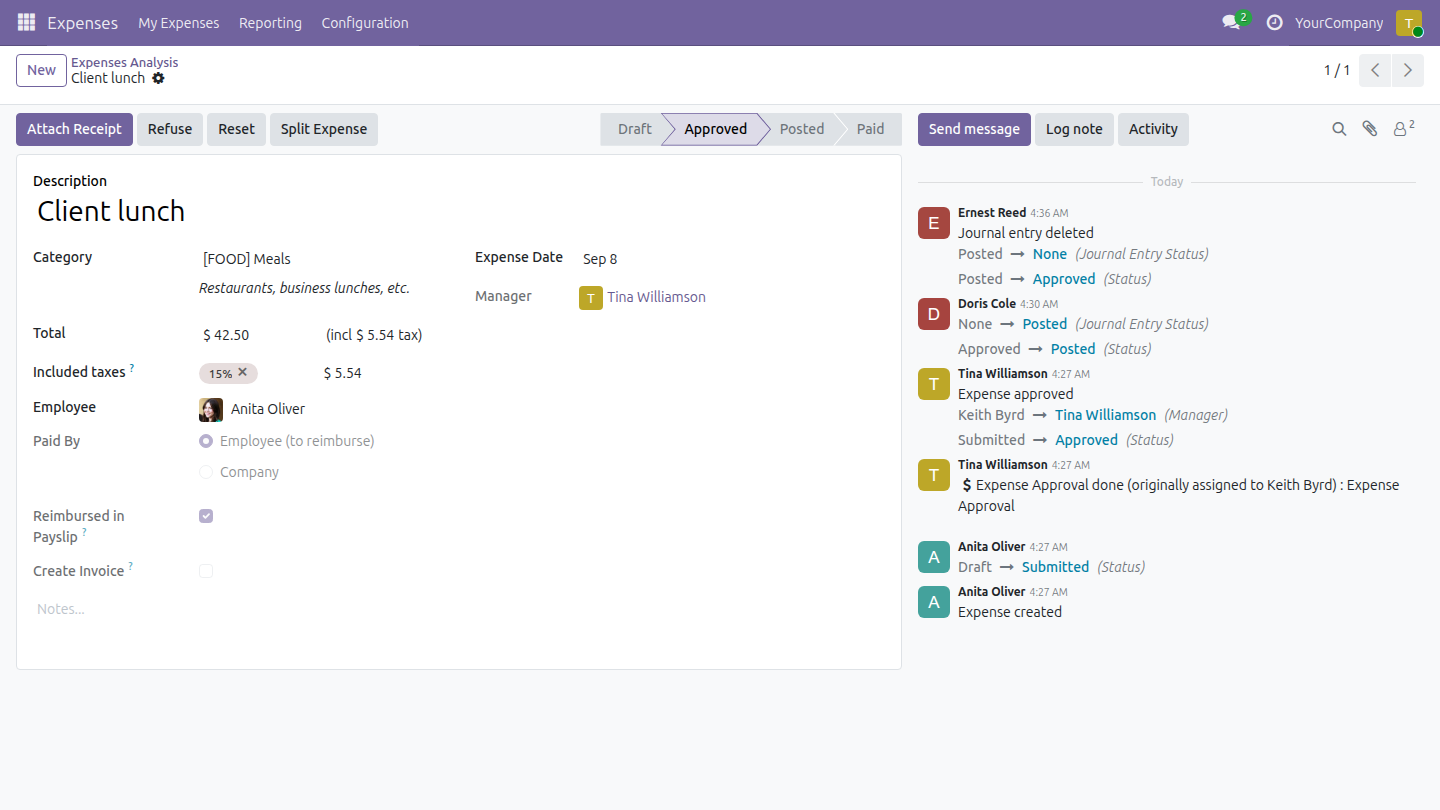
- The employee creates the expense, chooses Paid By: Employee (to reimburse), ticks Reimbursed in Payslip and submits it.
- The team approver or the expense administrator approves it.
- The accountant posts it. The expense then waits for a payslip, unless it is paid directly from its receipt first.
- The payroll officer computes the employee's payslip. The posted expenses appear on it, read-only, and the amount is added to the net pay. The officer confirms the payslip.
- The person who pays salaries presses Register Payment on the confirmed payslip, once the accounting entry of the payslip is posted. One payment covers the whole net pay, including the expenses, and the expenses move to Paid.
| Role | What they do | Access right to assign |
|---|---|---|
| Employee | Records expenses and asks for repayment with the salary. | Employee (every internal user) |
| Team approver | Approves or refuses the expenses of their team. | Expenses: Team Approver |
| Expense administrator | Approves the expenses of any employee. | Expenses: Administrator |
| Accountant | Posts approved expenses. Needs no payroll right and cannot open payslips. | Accounting: Bookkeeper (or higher), or Accounting: Invoicing together with Expenses: All Approver |
| Payer | Pays the receipt of an expense directly when it must not wait for payroll, and reverses the receipt of an expense that must be corrected. Needs no expense right and no payroll right. | Accounting: Invoicing |
| Payroll officer | Computes, confirms and cancels payslips. Reads the expenses repaid in payslips but cannot create, change or delete them. | Payroll: Officer together with Time Off: Officer |
| Payroll cashier | Pays the payslip, including the expenses, and pays receipts directly from Accounting. | Payroll: Officer, Time Off: Officer and Accounting: Invoicing |
| Payroll manager | Maintains the salary rule that calculates the reimbursement. | Payroll: Administrator |
Setup (for the Administrator)
- Open Apps, search for HR Expense & Payroll Integration and press Install. The required apps, Expenses and Payroll with its accounting, are installed with it.
- The salary rule HR Expense Reimbursement Amount is created for every company and added to the net salary. Nothing else has to be configured.
- Open Settings > Users & Companies > Users and give each person the access right of their role, as in the table above. The payroll officer also needs Time Off: Officer, because confirming a payslip reads the time off of the employee. A person who pays payslips needs both a payroll right and Accounting: Invoicing (or higher): without a payroll right the payslip cannot be opened, and without the accounting right the Register Payment button is not shown. Paying a receipt directly from Accounting needs only Accounting: Invoicing, while posting an expense requires seeing it: Accounting: Bookkeeper (or higher), or Accounting: Invoicing together with Expenses: All Approver. Payroll and accounting stay separate: an accountant without a payroll right cannot open payslips, and a payroll officer without an accounting right cannot open journal entries.
- For the full accounting features - the Account column of entries, the Journal Items tab and the accountant menus - install the optional app Accounting & Finance (see its documentation). Without it, the same menus are found under Invoicing.
- Check that each employee has a contract valid for the payslip period and that the expenses are in the currency of the company: an expense in another currency cannot be set to Reimbursed in Payslip.
Employee: ask to be repaid with the salary
- Open Expenses > My Expenses and press New.
- Fill in the Description, the Category, the Total and the Expense Date.
- In Paid By choose Employee (to reimburse). The option Reimbursed in Payslip appears.
- Tick Reimbursed in Payslip and press Submit.
The option can be changed only while the expense is a draft, and it disappears when Paid By is Company. Once the payslip is paid, open the same expense: its status is Paid.
Team approver and expense administrator: approve the expense
Open Expenses > Reporting > Expenses Analysis, filter on Waiting Approval and open the expense. Reimbursed in Payslip is shown ticked and cannot be changed. Press Approve to accept it or Refuse to reject it. The expense administrator does the same for every employee.
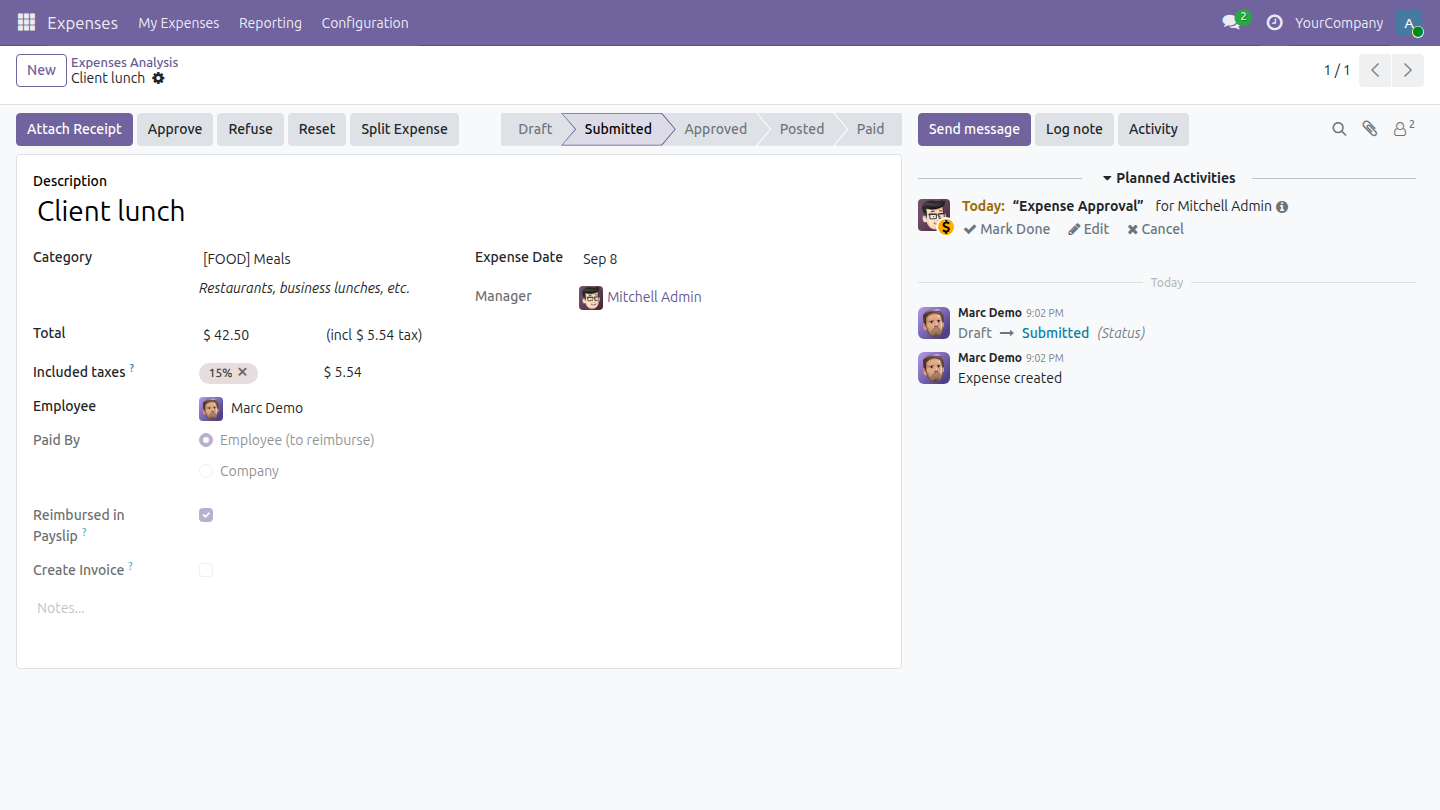
Accountant: post the expense
Open Expenses > Reporting > Expenses Analysis, filter on To Post and open the approved expense. A blue banner at the top of the form tells accounting users that the expense is reimbursed in the employee's payslip. It is shown while the expense is Submitted, Approved or Posted, names the payslip as soon as one holds the expense, and is not shown any more once the expense is Paid. Press Post Journal Entries, check the journal and the accounting date, and press Post Expenses. The journal entry of the expense opens; go back to the expense with the breadcrumb to check its status.
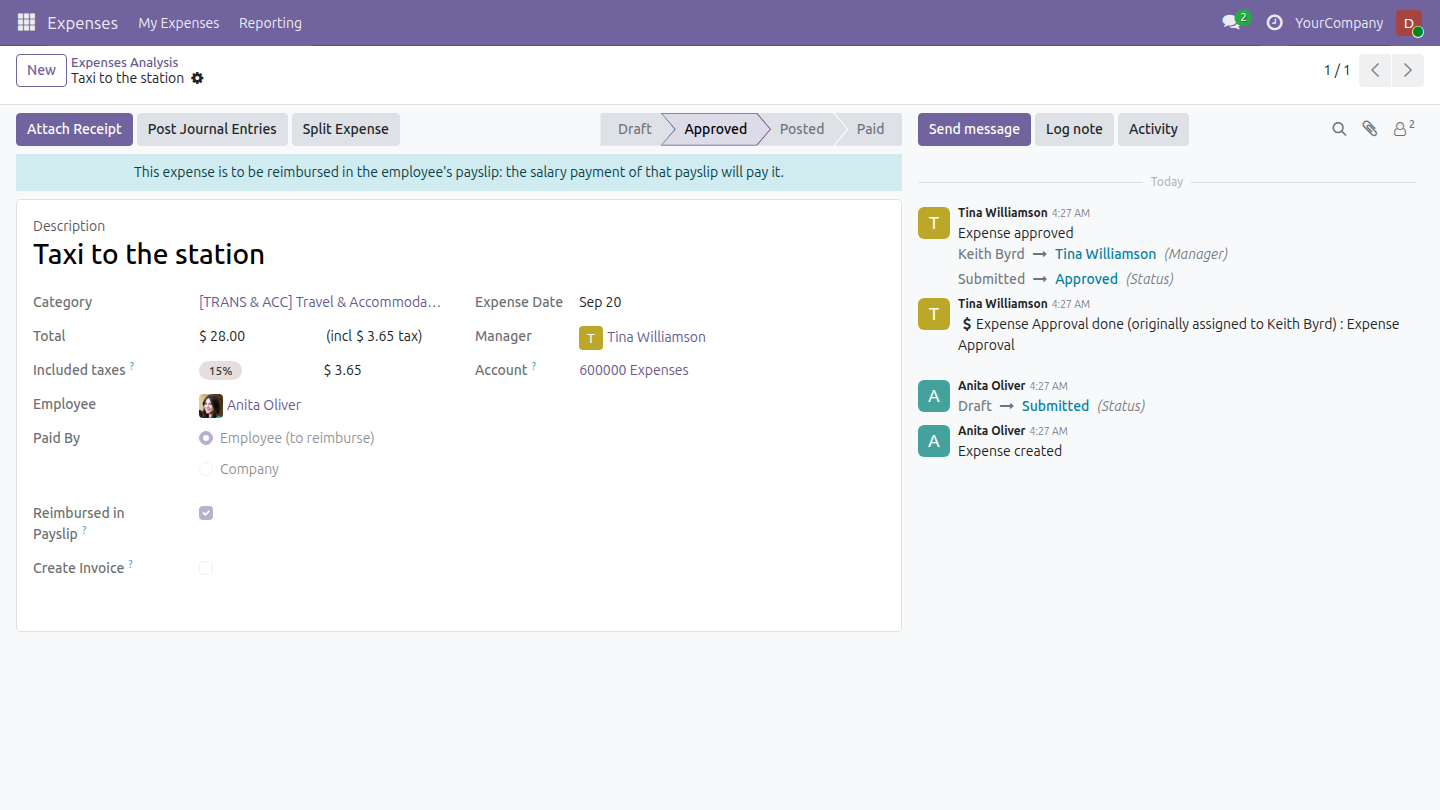
The expense is Posted and waits for a payslip. A payslip takes only expenses whose journal entry is posted, which guarantees that the net pay never includes an amount that cannot be paid yet: an expense is left out while its entry is back in draft or while a reversal of that entry waits in draft to be confirmed.
Once an expense is posted, nobody can change its vendor, Create Invoice, bill reference or bill date. This applies to an expense that is also recorded as a vendor bill, with the fields of Advanced HR Expense Management. To correct them, open the vendor bill with the Journal Entry button of the expense, reverse the bill, then press Reset on the expense, make the correction and submit, approve and post it again. An expense whose payslip is confirmed cannot be reset: see Correct an expense already on a payslip.
Payer: pay an expense directly
An expense does not have to wait for payroll. Before a payslip takes it, its receipt can be paid directly, and Accounting: Invoicing is enough to do it, with no expense right and no payroll right:
- Open Accounting > Vendors > Bills, search for the receipt (its reference is the description of the expense) and tick it.
- Press Pay, choose the Journal, check the Amount and the Payment Date, and press Create Payment.
The expense moves to Paid with its payment, the blue banner is no longer shown and the expense is not reimbursed a second time: the payslip computed afterwards leaves it out, and its net pay does not include it.
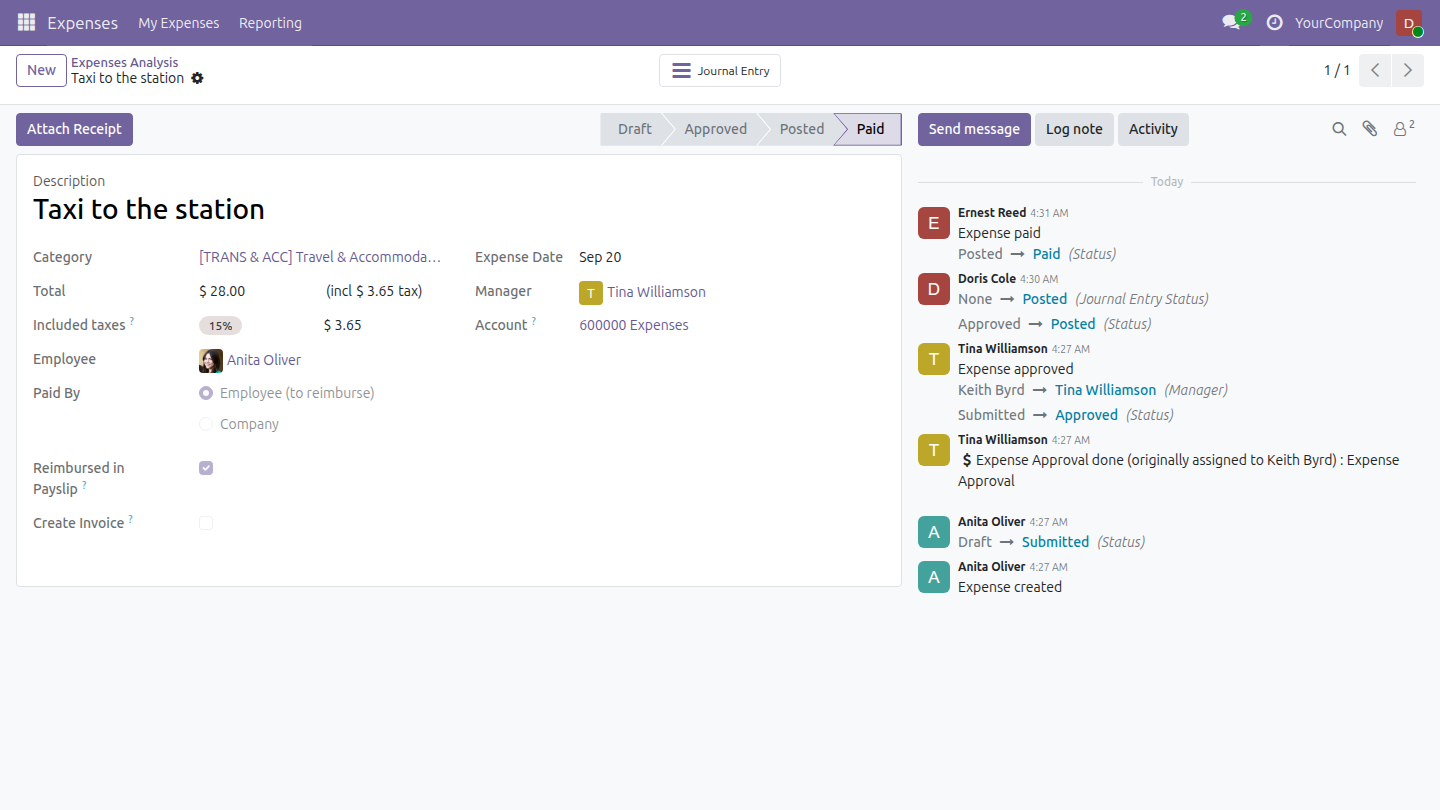
As for any expense, the receipt has to be posted for the employee to be reimbursed. Once a payslip in Waiting or Done state holds the expense, the direct payment is refused: see Correct an expense already on a payslip.
Payroll officer: compute the payslip
Open Payroll > Payslips > Payslips, create the payslip of the employee for the period (or open the existing one) and press Compute Sheet.
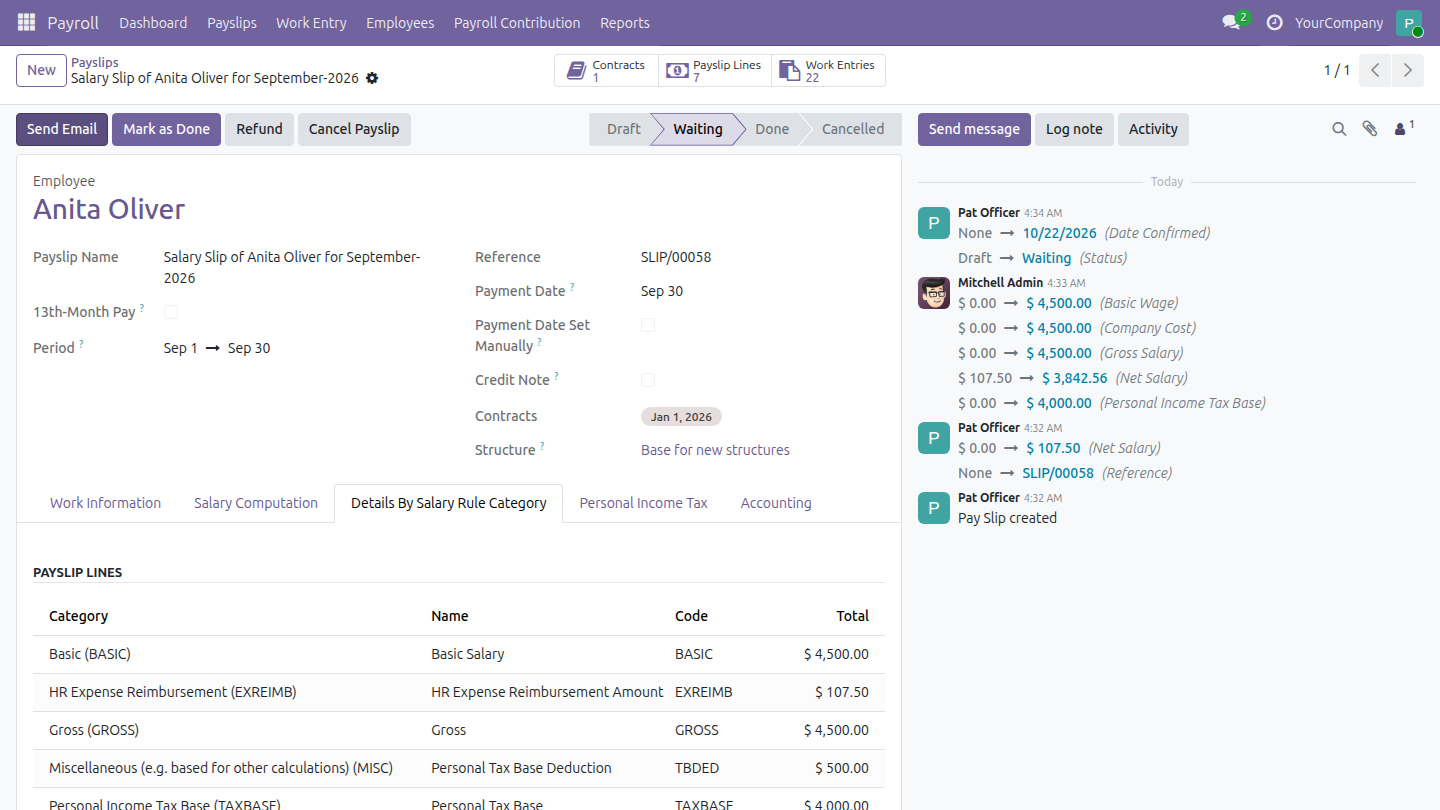
The section HR Expenses lists the expenses of the employee dated up to the end of the period that are posted, with their journal entry posted and no reversal of it waiting in draft, and not yet paid or in another payslip. An expense paid directly from its receipt is not listed.
Open the tab Details By Salary Rule Category. The line HR Expense Reimbursement Amount shows the total of these expenses and is part of Net Salary.
Press Confirm. The payslip is Waiting for its payment. Confirming needs the right Time Off: Officer besides Payroll: Officer.
The payroll officer reads the listed expenses but cannot create, change or delete an expense: opening one shows its form read-only, without approval, posting or payment buttons.
An expense posted after the payslip was computed waits for the next payslip. To bring it in, press Compute Sheet again on a draft payslip; on a confirmed payslip, press Cancel Payslip, then Set to Draft, and compute it again.
Payroll cashier: pay the salary and the expenses
On the confirmed payslip (status Waiting) press Register Payment. The Amount Due is the net pay shown on the payslip, expenses included. Choose the Payment Journal, check the Amount and the Payment Date and press Pay. One payment settles the net salary and the reimbursement of every expense of the payslip. The expenses become Paid.
The payslip journal entry does not book the reimbursement a second time: the amount is already owed to the employee by the expense entry.
The payment can be registered once the accounting entry of the payslip is posted. That entry carries the accounting date of the payslip, by default the last day of its period: for a payslip whose period is not over, Register Payment is refused with the message "Salary payments can only be recorded once the payslip's accounting entry is posted", and works from the accounting date on. The cashier needs both a payroll right and an accounting right; an accountant alone cannot open the payslip, and a payroll officer alone does not see Register Payment. With the accounting right, the cashier can also pay a receipt directly, as described in Payer: pay an expense directly.
Payroll manager: adapt the reimbursement rule
Open Payroll > Configuration > Salary Rules and the rule HR Expense Reimbursement Amount. By default it returns the total of all the expenses of the payslip. Change its Python Code to apply your policy, for example to count only expenses of one category. The rule must stay part of the Net salary rule, otherwise the payment would not cover the expenses. Policy values such as ceilings belong in the rule's data and are maintained by the payroll manager.
Correct an expense already on a payslip
While a payslip in Waiting or Done state holds an expense, its net pay already includes the amount. Nobody can then pay the expense apart, reverse, cancel or reset its journal entry, or reset the expense. Each refusal names the expense and the payslip that holds it, and says to cancel that payslip first. Accounting users see the payslip that holds an expense in the blue banner of the expense form.
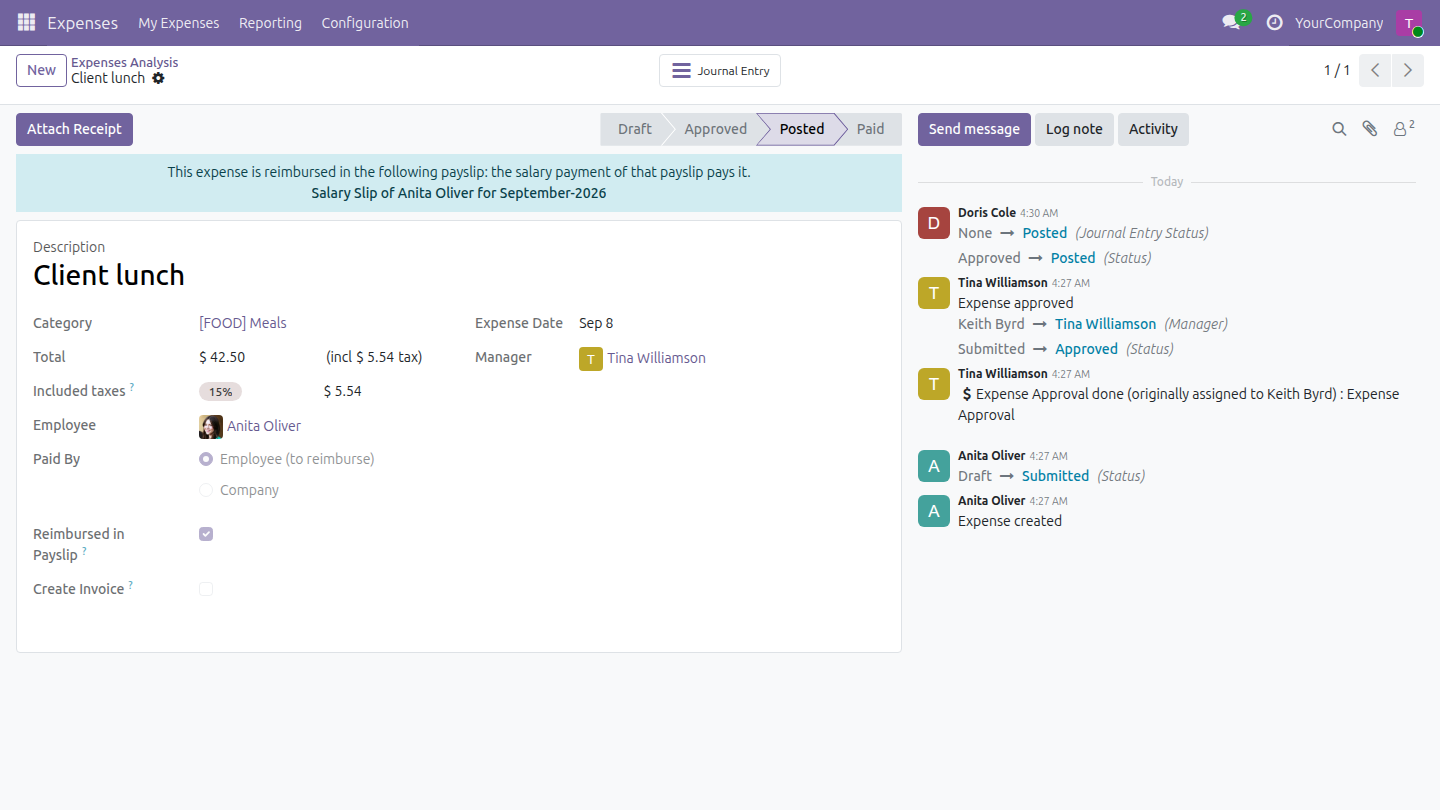
The payer (Accounting: Invoicing) pays the receipt from Accounting > Vendors > Bills (tick it, press Pay): the payment is refused.
The reimbursement of the expense <expense> is paid with payslip <payslip>. To pay it separately, cancel that payslip first.
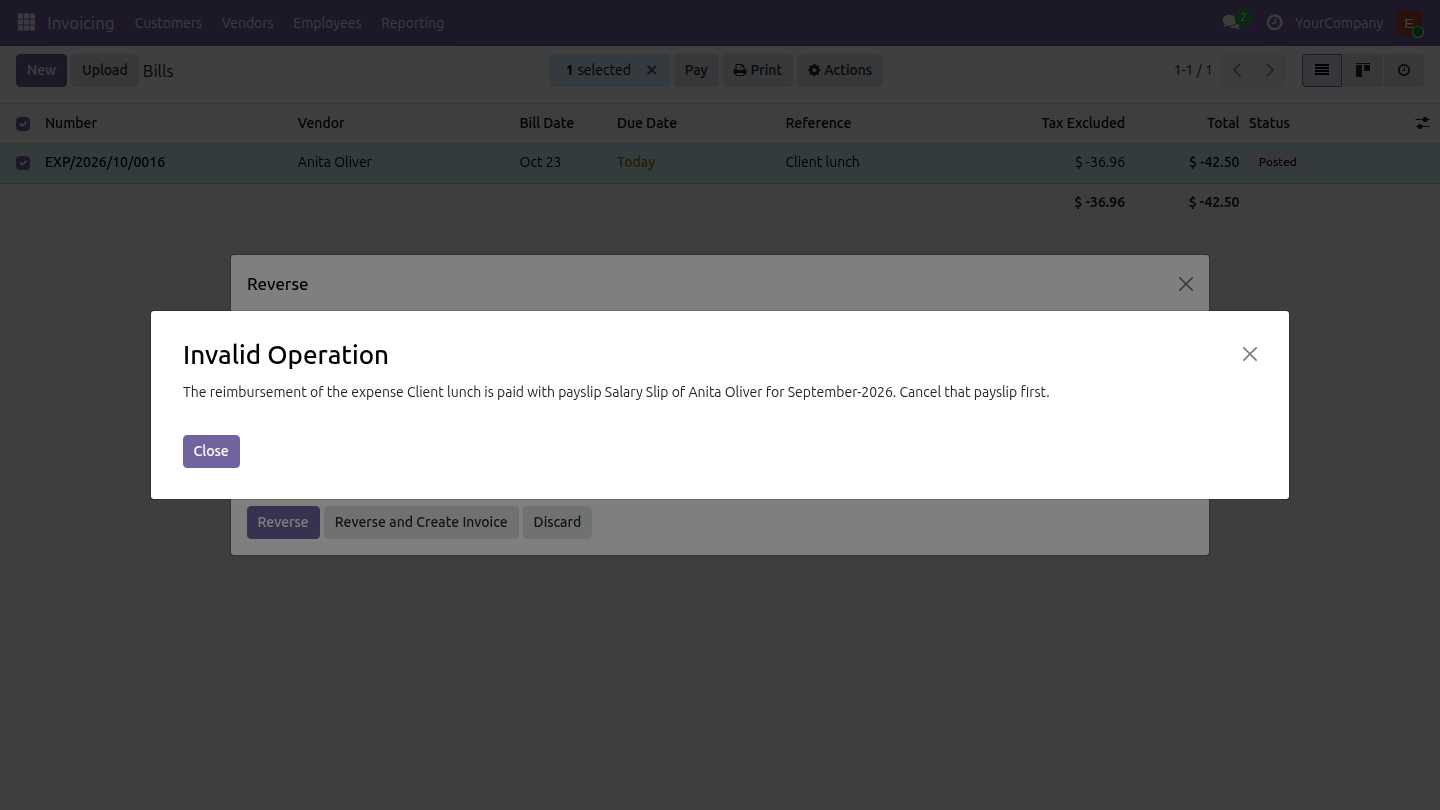
The same payer reverses the receipt (tick it, Actions > Reverse, Reverse): the reversal is refused.
The reimbursement of the expense <expense> is paid with payslip <payslip>. Cancel that payslip first.
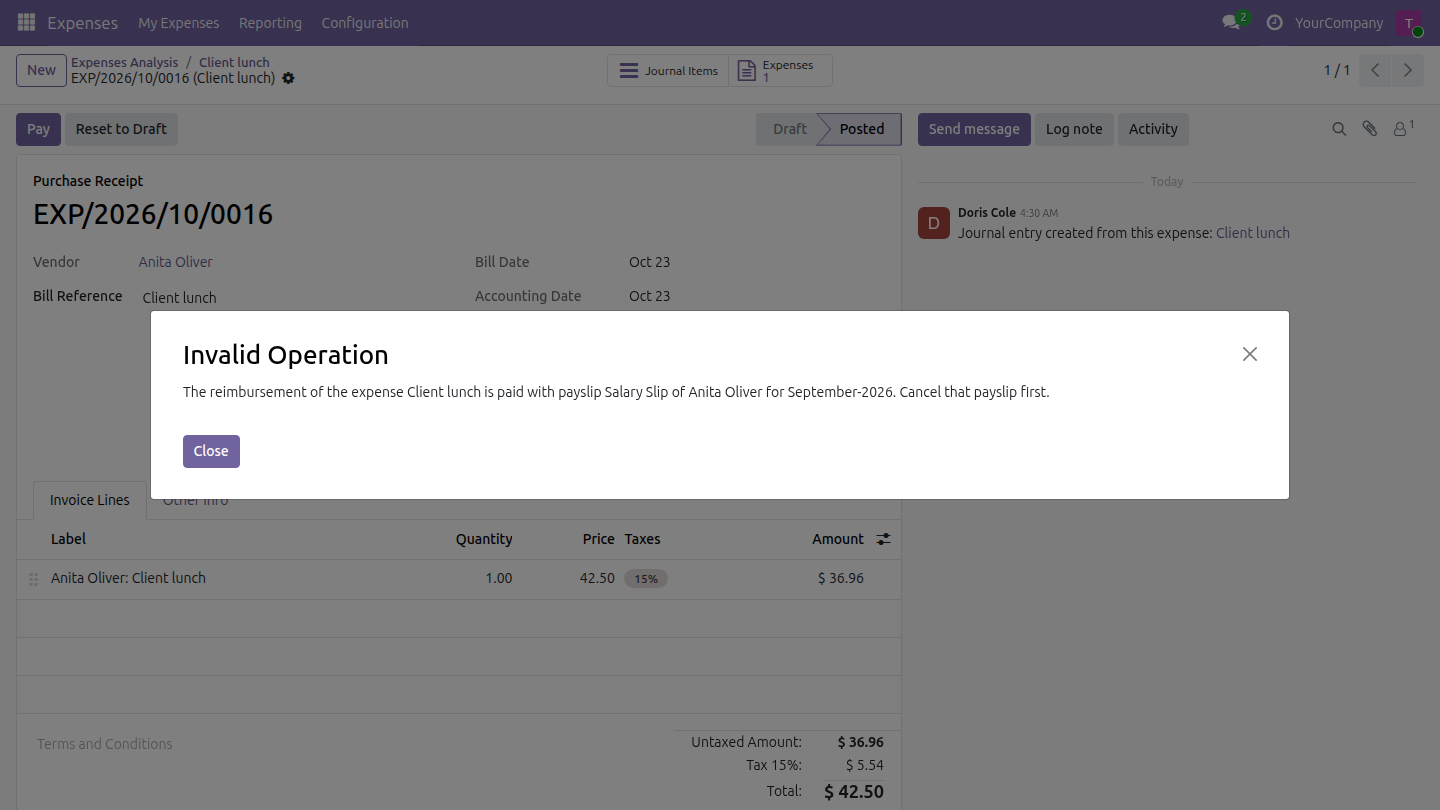
The expense administrator who also holds an accounting right opens the receipt with the Journal Entry button of the expense and presses Reset to Draft: the same refusal as for the reversal is shown, and cancelling the entry is refused the same way.
Without an accounting right, the expense administrator does not see Reset on a posted expense. Resetting an expense that a confirmed payslip holds, from a form opened earlier, is refused with the message The following expenses are reimbursed in confirmed payslips. Cancel those payslips before resetting the expenses, followed by the expense and its payslip.
The way out, in this order:
The payroll officer opens the payslip and presses Cancel Payslip. The payslip moves to Cancelled and releases its expenses.
The payer deals with the receipt. If only the timing is wrong, pay it directly, as described in Payer: pay an expense directly. If the expense itself must be corrected, reverse the receipt: tick it in Accounting > Vendors > Bills, choose Actions > Reverse, press Reverse. The reversal is created as a draft credit note and the expense stays Posted on its entry; open the draft credit note and press Confirm: the entry is settled and the expense returns to Approved. An accountant who holds Accounting: Bookkeeper can instead use Reset to Draft and Cancel on the receipt.
The expense administrator (or the holder of Expenses: All Approver, or the team approver of the employee) opens the expense, which is Approved again, and presses Reset. The expense returns to Draft; correct it, then submit, approve and post it again. The rights and the other cases are those of Advanced HR Expense Management, section Correct a posted expense.
The payroll officer opens the cancelled payslip, presses Set to Draft, Compute Sheet and Confirm. The corrected expense is listed again, and the cashier pays the payslip as usual.
A payslip in Done state blocks the same operations, and Cancel Payslip is available on it too. The other way out is Refund: once the refund payslip is Done, the expenses of the refunded payslip that were not paid at all are released for the next payslip. An expense that was paid, even partly, stays with the payslip that paid it.
Troubleshooting
- "Could not set Reimbursed in Payslip for the expense ..."
- The expense is not in the company currency. Untick the option, or record the expense in the company currency.
- "The following expenses are reimbursed in confirmed payslips. Cancel those payslips before resetting the expenses"
- An expense cannot go back to draft while its payslip is confirmed or done. Cancel the payslip first (payroll officer), as described in Correct an expense already on a payslip.
- "The reimbursement of the expense ... is paid with payslip ..."
- The receipt of an expense held by a payslip in Waiting or Done state cannot be paid apart, reversed (nor can a reversal of it be confirmed), cancelled or reset to draft. Follow Correct an expense already on a payslip: the payroll officer cancels the payslip first.
- An approved expense does not appear on the payslip
- The expense must be Posted with its journal entry posted, paid by the employee, ticked Reimbursed in Payslip, dated up to the end of the period, not already paid, not already in another payslip and without a reversal of its entry waiting in draft. Ask the accountant to post it, then press Compute Sheet again.
- "Salary payments can only be recorded once the payslip's accounting entry is posted"
- The accounting entry of the payslip is dated in the future, by default the last day of the period. Register the payment from that date on.
- Confirming a payslip shows an access error about Time Off
- The payroll officer needs the right Time Off: Officer in addition to Payroll: Officer. Ask the administrator to add it.
- An accountant gets an access error when opening a payslip
- This is expected: payslips are for the payroll team. The person who pays salaries holds both a payroll right and an accounting right.
- The Register Payment button is missing
- The person needs Accounting: Invoicing (or higher) in addition to a payroll right. The payslip must also be confirmed.
- Reimbursing without the payslip
- If the salary payable is reconciled with the bank statement instead of using Register Payment, reconcile the reimbursement payables of the expenses as well.
FAQ
- Can an expense paid by the company be reimbursed in a payslip?
- No. Only expenses with Paid By: Employee (to reimburse) can.
- Are expenses reimbursed in payslips posted with the others?
- They are posted in their own entry, apart from the expenses of the same employee that are paid directly.
- Can an expense be paid before the payslip?
- Yes. Anyone holding Accounting: Invoicing pays it from its receipt in Accounting > Vendors > Bills. The expense becomes Paid, and the payslip leaves it out.
- Who can see the expenses of a payslip?
- The payroll officer reads the expenses ticked Reimbursed in Payslip, and only those, without being able to create, change or delete them. Expenses that are not ticked stay hidden from the payroll team.
- Where do I get help?
- Open a ticket at viindoo.com/ticket.
This software and associated files (the "Software") may only be used (executed, modified, executed after modifications) if you have purchased a valid license from the authors, typically via Odoo Apps, or if you have received a written agreement from the authors of the Software (see the COPYRIGHT file).
You may develop Odoo modules that use the Software as a library (typically by depending on it, importing it and using its resources), but without copying any source code or material from the Software. You may distribute those modules under the license of your choice, provided that this license is compatible with the terms of the Odoo Proprietary License (For example: LGPL, MIT, or proprietary licenses similar to this one).
It is forbidden to publish, distribute, sublicense, or sell copies of the Software or modified copies of the Software.
The above copyright notice and this permission notice must be included in all copies or substantial portions of the Software.
THE SOFTWARE IS PROVIDED "AS IS", WITHOUT WARRANTY OF ANY KIND, EXPRESS OR IMPLIED, INCLUDING BUT NOT LIMITED TO THE WARRANTIES OF MERCHANTABILITY, FITNESS FOR A PARTICULAR PURPOSE AND NONINFRINGEMENT. IN NO EVENT SHALL THE AUTHORS OR COPYRIGHT HOLDERS BE LIABLE FOR ANY CLAIM, DAMAGES OR OTHER LIABILITY, WHETHER IN AN ACTION OF CONTRACT, TORT OR OTHERWISE, ARISING FROM, OUT OF OR IN CONNECTION WITH THE SOFTWARE OR THE USE OR OTHER DEALINGS IN THE SOFTWARE.
