


Google Drive
by Viindoo
| Lines of Code | 4292 |
| Technical name | viin_google_drive |
| License | OPL-1 |
| Website | https://viindoo.com/apps/modules/18.0/viin_google_drive |
| Read description for | v 16.0 v 17.0 |
| Included Dependencies | API Request Logger |
 Google Drive
Your company's documents belong to your company
Google Drive, connected to Odoo through your organisation's own account - not through whichever employee happened to click.
All inside Google's non-sensitive drive.file scope.
At a Glance
The facts of Google Drive, version 0.1.1, in one place. Published by Viindoo.
When a document belongs to a person, it leaves when they do
In Google Drive, whoever creates a file owns it. Connect Drive to your ERP the usual way and every quotation, contract and specification your team generates is filed under a personal account. It works - until somebody changes role, goes on leave, or leaves the company. Then the document your auditor is asking for sits in a mailbox nobody can open.
This app connects Drive to Odoo as the organisation, so the company's work is filed where the company can reach it.
Odoo → the employee who clicked → that employee's own Drive → the employee owns the file
Odoo → the company's own Google account → the company's shared drive → the organisation owns the file
The company connects once. Everyone benefits.
- Connect one Google account for the company and it does the company's Drive work - creating folders, copying templates, filing documents, managing shares.
- Individual users can still connect their own account. That path is fully supported and stays available for teams that prefer it.
- Every connection shows which Google identity it acts as, so nobody has to guess.
- A daily health check watches the connections and tells you when one needs attention, instead of letting it fail in front of a user.
Filing documents into an organisation-owned shared drive is what makes them the organisation's property in Google's own terms. Without a shared drive, files sit in the connected account's Drive - which shrinks the offboarding problem from every employee to one account, but does not move ownership. The app is explicit about this everywhere.
A company that connects its own Google account files the organisation's work as the organisation. A company that has not connected one keeps working exactly as before: each employee connects their own account, and their documents are created as them - asked for at the moment it is first needed, with no setup screen of their own to visit.
A broken connection stops. It does not improvise.
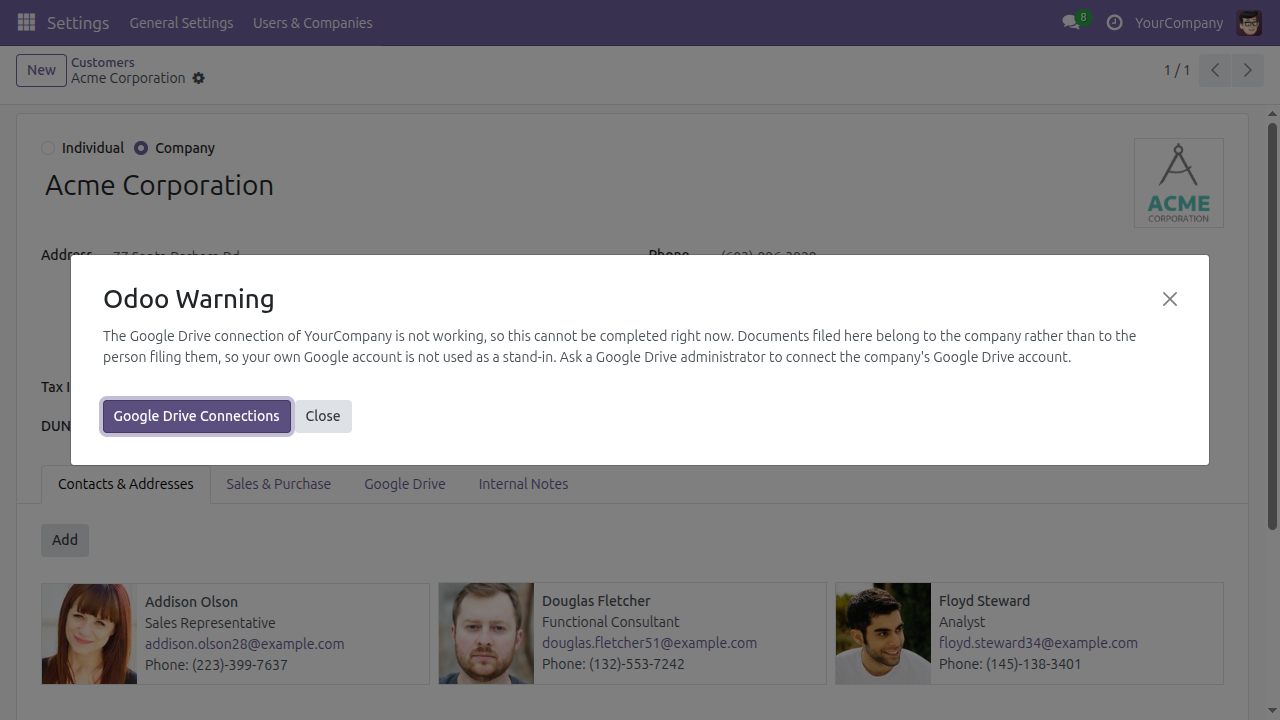
If the company's Google connection stops working, the app refuses the operation and names the company, with a button that takes an administrator straight to the fix.
It deliberately does not fall back to the person clicking. Falling back would not degrade the result - it would invert it, filing the organisation's documents into somebody's private Drive, which is the single thing a company connection exists to prevent.
The cost is honest and stated up front: while a company connection is half-configured, that company's Drive work is paused. The app warns about that window before you open it, so it is never a surprise.
Key Features
One connection for the company
The company connects once and it does the company's Drive work. Individual accounts stay fully supported.
It refuses rather than quietly doing the wrong thing
A broken company connection stops and names the company, instead of filing the organisation's documents into somebody's private Drive.
From template to filed document
One click from a record to a Google document, named after the record and filed in that record's own Drive folder.
Work from the record, not from Drive
Pick a file from Drive, send one up from Odoo, export a Google document back onto its record - all without leaving the record.
Sharing, managed from Odoo
Grant a share, change what it allows, or withdraw it from the Odoo record. Changes reach Google.
Security you can explain to your IT team
The non-sensitive drive.file scope only, and no annual security assessment cycle.
One click from a record to a Google document
- Register your company's Drive templates and the models they belong to.
- Narrow a template to the records it applies to with a saved filter, so a quotation template only offers itself on quotations that qualify.
- Give documents a naming pattern built from the record's own fields, so filing is consistent without anyone thinking about it.
- Creating a document from a template files it in that record's own Drive folder, created on first use and reused afterwards.
Work from the record, not from Drive
- Pick a file from Google Drive and attach it to the record you are looking at.
- Send a file from Odoo up to Drive - choose which attachment goes.
- Export a Google document back onto its record as an Odoo attachment.
- Contacts carry a Google Drive page listing their Drive documents and linking to their folder.
- Search contacts by whether they have Drive documents or not - the shape a compliance sweep actually asks for.
Non-sensitive scope. No annual security assessment.
- The app requests only Google's non-sensitive drive.file scope. It reaches the files it creates and the files a user hands it - nothing else in anyone's Drive.
- Because the scope is non-sensitive, your Google Cloud project does not enter Google's restricted-scope programme, which requires a third-party CASA security assessment repeated every twelve months.
- One company never reaches another company's Drive data. Multi-company is enforced by record rules, not by convention.
- The long-lived credential never leaves the server, and nothing
sensitive is ever written to a log. The Google Picker runs in the browser, so it
receives a short-lived
drive.filetoken of the user's own - never the company's.
- The files it created itself.
- The files a user handed it.
- Everything else in anyone's Drive.
What you need before you install
Every Odoo instance needs one: the Drive API enabled, an OAuth consent screen requesting only drive.file, and this instance's exact redirect address registered. Odoo shows you the exact address to copy. Budget about fifteen minutes. This is unavoidable - there is no shared credential that can work for an arbitrary domain.
If you want documents owned by the organisation rather than by the connected account. See the note above, under The company connects once.
While your Cloud project is still in Testing publishing status, Google expires the connection after seven days. This is the commonest reason a working integration stops working, and the app tells you when it happens rather than leaving you to guess.
Technical Requirement
Powering Your Business Growth
Viindoo
Google Drive
This guide shows how to connect Odoo to your organisation's Google Drive, and then how to create, attach, send and share Google Drive documents straight from an Odoo record.
It is written for two readers. An administrator sets the integration up once - that is the Configuration part, and it comes first because nothing else works until it is done. Everybody else works from a record every day - that is the Usage part, and it can be read on its own.
Before you install
Three things have to be true before this app can do anything. None of them can be skipped, and the first one is the longest.
Your own Google Cloud project
Every Odoo instance needs its own Google Cloud project. This app talks to Google on behalf of your company, using credentials that belong to your company - there is no shared credential that can work for an arbitrary address, and the older flow that used to avoid this was withdrawn by Google in January 2023.
Budget about fifteen minutes. The steps are in the Configuration part below.
A separate paid app
Viindoo API Request Logger is a hard requirement and a separate paid Viindoo app. Odoo will install it along with Google Drive, but it has to be available to your database first.
Installation
- Go to Apps.
- Remove the default Apps filter, search for Google Drive, and click Install on the Google Drive card.
- Odoo installs everything this app is built on at the same time: Base Setup, Google Account and Viindoo API Request Logger.
Configuration
This whole part is for an administrator, and it is done once.
Step 1 - Create your Google Cloud project
This part happens at Google, not in Odoo. The screens belong to Google and change from time to time, so they are described rather than pictured.
- Open the Google Cloud Console and create a project.
- Enable the Google Drive API for that project.
- Configure the OAuth consent screen. Request only the non-sensitive scope https://www.googleapis.com/auth/drive.file. This app never asks for a wider one, and it matters: any broader Drive permission puts you into an annual Google verification and a third-party security assessment before you may serve real users.
- Create an OAuth client ID of type Web application.
- Register the redirect URI. This is your instance's own web address followed by /google_drive/oauth/callback - for example https://example.odoo.com/google_drive/oauth/callback. Odoo shows the exact address to register in Settings > General Settings > Google Drive, under Authorized redirect URI, with a copy button beside it.
Important
Google compares the redirect URI character by character with the one Odoo presents, and refuses the connection if they differ by a single character. This one line is the most common reason a first connection fails. Copy it, do not retype it.
Important
The redirect URI must use HTTPS, unless your instance runs on localhost. A staging instance published over plain http:// under a real hostname is refused by Odoo itself, with a message naming the cause, before your browser ever reaches Google.
Step 2 - Enter the credentials in Odoo
Go to Settings > General Settings and scroll to the Google Drive block, which sits with the other integrations.
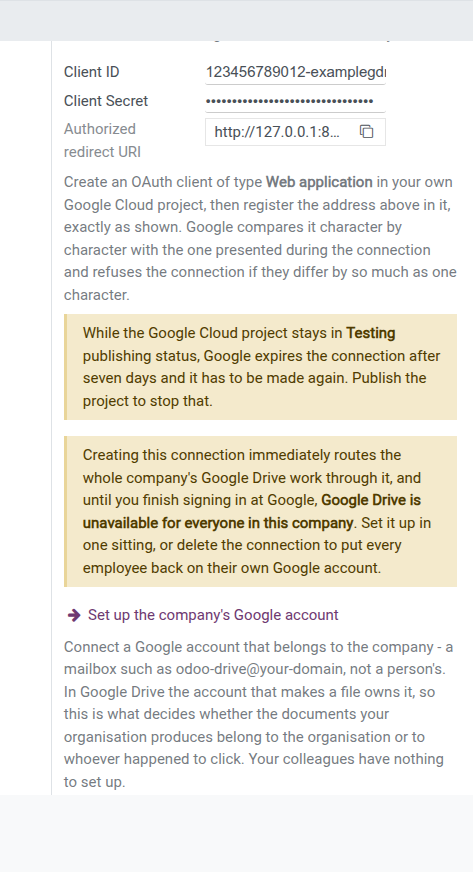
- Paste the Client ID from your OAuth client. It is not a secret - Google puts it in clear in every authorization address.
- Paste the Client Secret. It is stored masked, and this app never displays it, logs it, or sends it back to a browser.
- Click Save.
Warning
While your Google Cloud project stays in Testing publishing status, Google expires every connection after seven days and everybody has to connect again. This is by far the most common reason a working integration suddenly stops working, and it looks like a fault in Odoo when it is not. Publish the project to stop it. Odoo repeats this warning on the settings page and on any connection that has failed.
Step 3 - Say where this company files its documents
This step is optional. An installation that never opens it works.
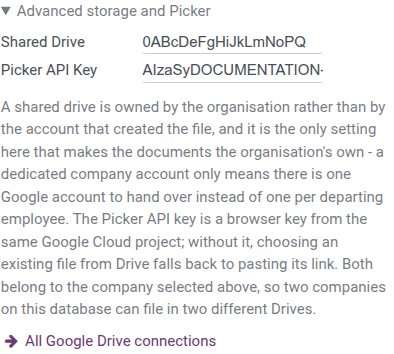
Open Advanced storage and Picker, the folded section under the credentials.
- Shared Drive - the identifier of the Google shared drive documents are filed into. This is the decision that matters. Leave it empty and files land in the connected account's own Drive, which is a supported way to work, not a broken one - it is simply the weaker of the two.
- Picker API Key - the browser key Google's file chooser needs. Not a secret; restrict it by HTTP referrer in your Cloud project. Without it, choosing an existing file from Drive falls back to pasting the file's link.
Both values belong to the company selected above them, so two companies on one database can file into two different Drives.
Note
Odoo does not ask you for a Cloud project number. The project number is the part of your Client ID before the first hyphen, so Odoo reads it from the value you already entered.
Step 4 - Connect a Google account for the company
This step is optional, and the choice is a real one.
- If you connect a company account, everything the organisation does through Odoo is created by that one account, and each company on the database connects its own.
- If you never connect one, every employee connects their own Google account instead and their documents are created as them. That is a deliberate way to work, not an error state, and nothing warns you about it.
!DANGER!
There is a third case, and it is the one to plan around. A company connection that exists but has not been finished blocks every employee of that company. Anyone who tries to create, open or file a Google document is refused - Odoo will not quietly file the organisation's work into an employee's personal Drive instead. So do not start this step unless you can finish it in one sitting, or are willing to delete the half-made connection again.
Odoo says so before you press anything. The warning appears only while no connection exists, because pressing the button is what starts the outage.
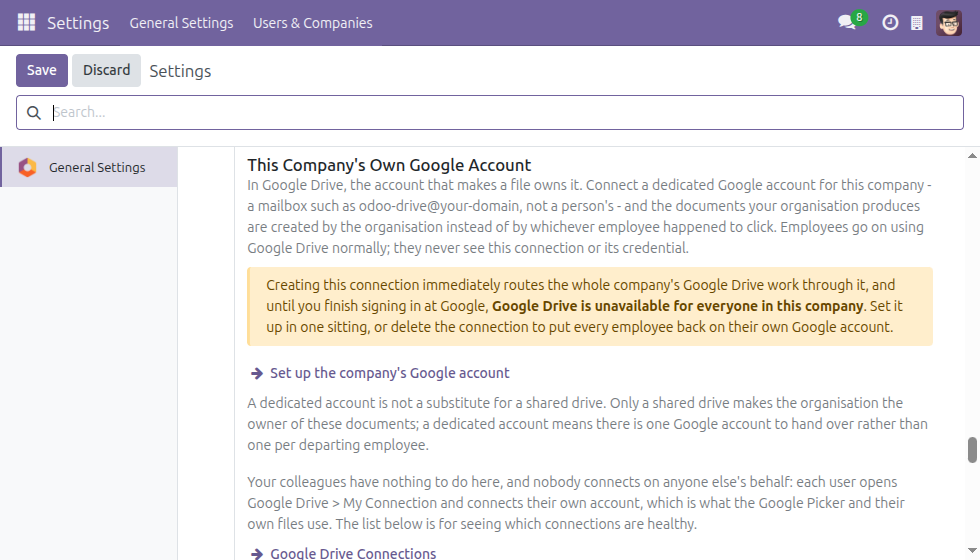
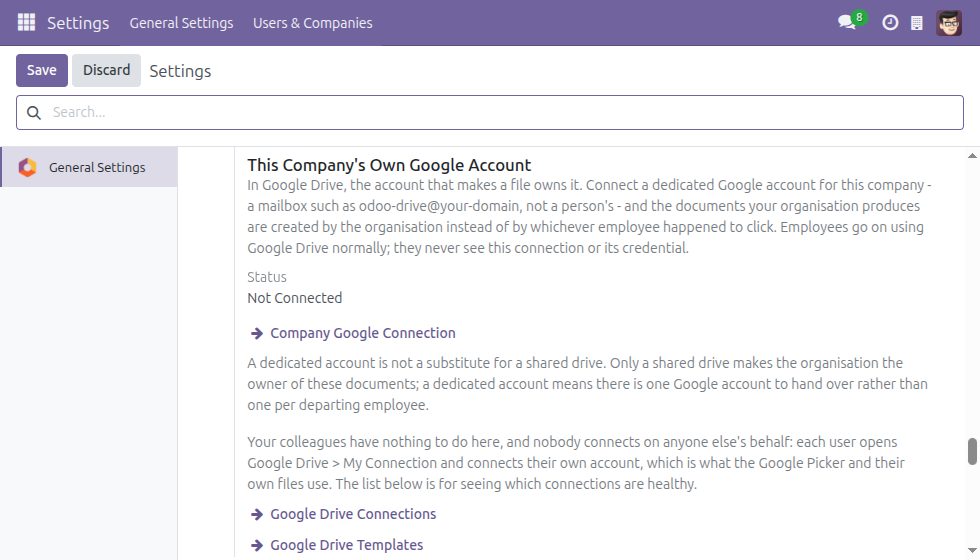
Under This Company's Own Google Account, click Set up the company's Google account. This creates the connection and opens it. It does not send you to Google yet.
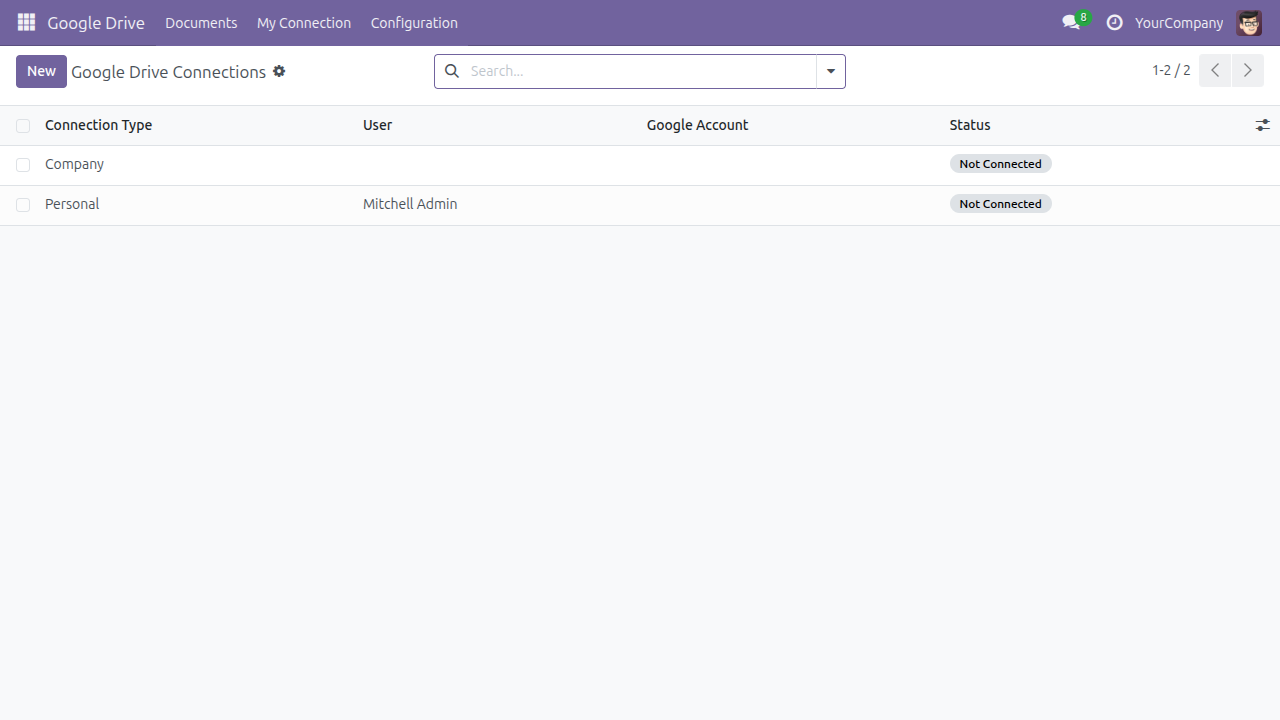
The connection opens with Kind of Connection set to Company, a status bar reading Not Connected, and a red alert naming the outage and both ways out of it. There is no User on a company connection - it belongs to the organisation and to nobody in particular.
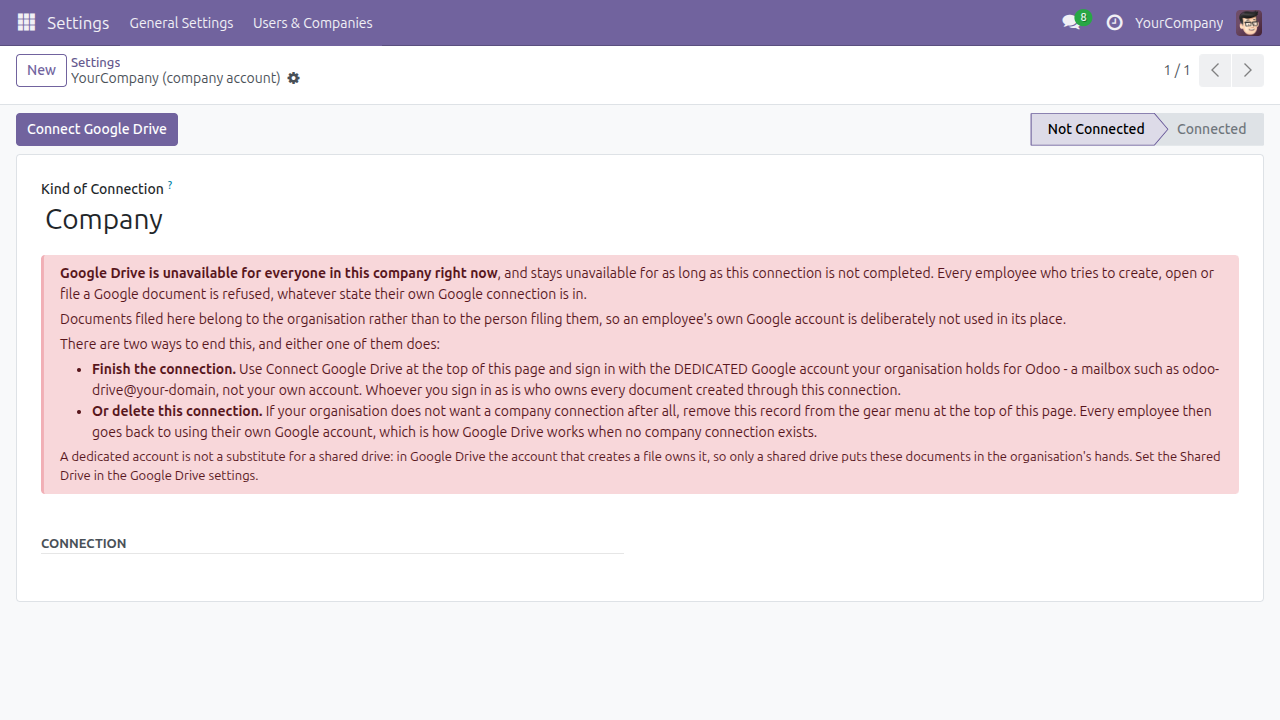
Click Connect Google Drive. Odoo hands you to Google's own sign-in and consent screens. Sign in as the dedicated account, such as odoo-drive@your-domain - never as yourself. Whoever signs in is who owns every document created through this connection.
Google returns you to Odoo. The status bar reads Connected, the Google Account field names the identity, and the red alert is gone.
While the connection is unfinished, this is what everybody in the company meets:
If you decide against a company connection after all, open it and remove it from the gear menu at the top of the page. Every employee immediately goes back to using their own Google account.
Once a connection exists, the settings block replaces the warning with a Status row and a Company Google Connection link, and adds a Connected as row naming the Google identity.
Step 5 - Register your document templates
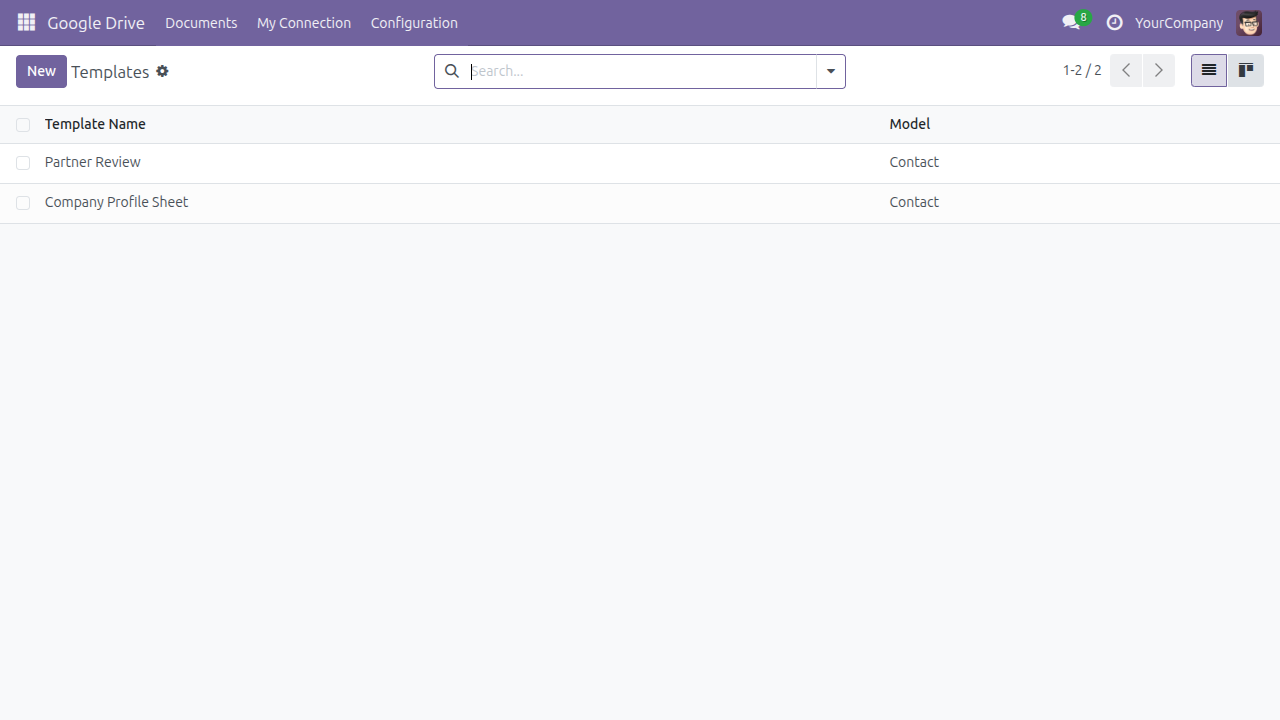
A template turns one of your own Google files into a one-click entry on a record. Go to Google Drive > Configuration > Templates.
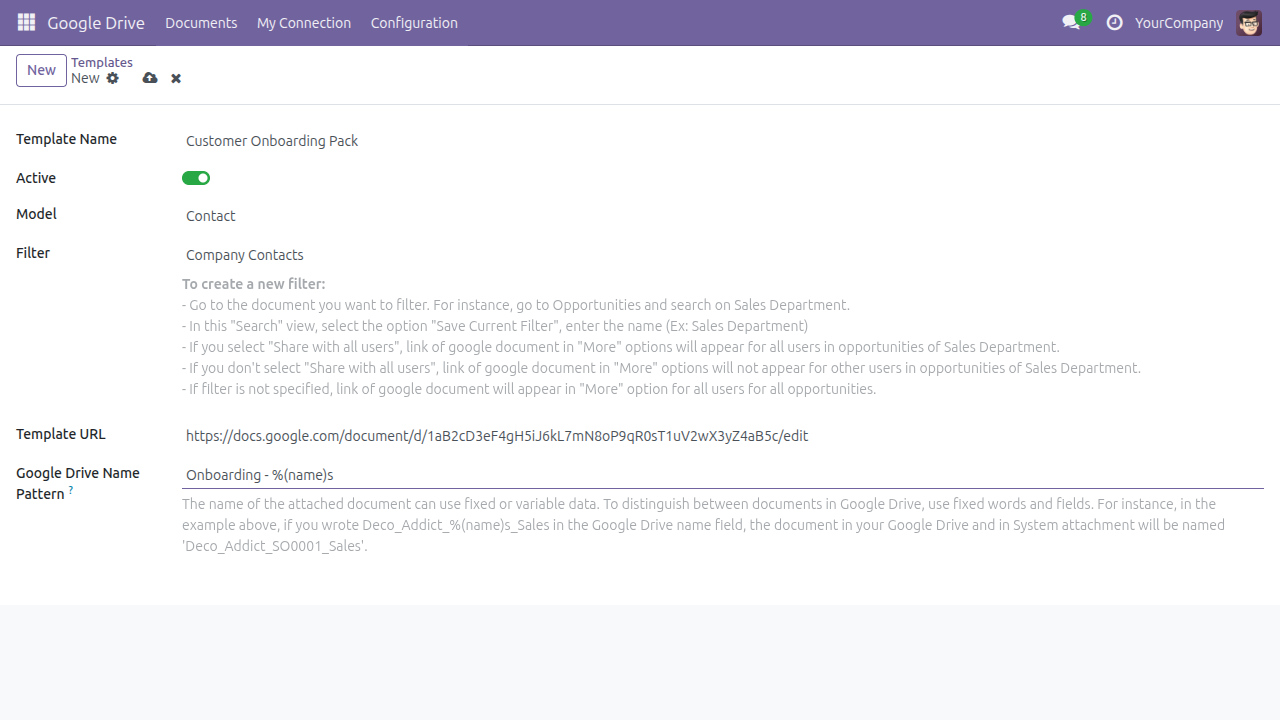
Click New and fill in:
- Template Name - what the entry is called on the record's Actions menu.
- Model - the kind of record this template is offered on. Out of the box that is Contact.
- Filter - optional, and it decides which records the template appears on. The two templates that ship as examples show the difference: one is offered on every contact, the other only on company contacts. The form explains how to create a filter of your own by saving a search.
- Template URL - the address of the Google file to copy. Odoo reads the file identifier out of the address when you save and refuses an address that carries none.
- Google Drive Name Pattern - how each copy is named, so it can be told apart in Drive. Fixed words plus fields of the record, for example Onboarding - %(name)s.
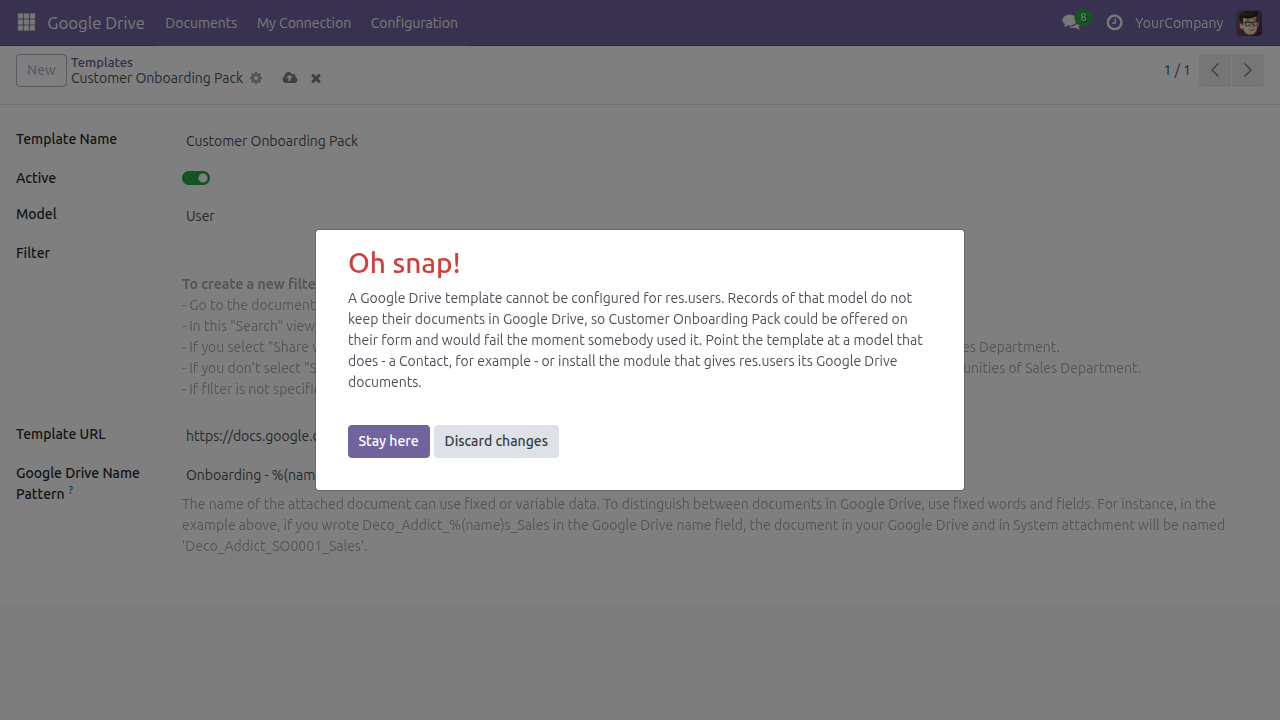
A template can only point at a kind of record that keeps its documents in Google Drive. Point it anywhere else and Odoo refuses to save it, explaining why - so the mistake is caught by the administrator, rather than by an employee meeting a menu entry that fails.
Who can do what
There are two levels and nobody picks them by hand - they are granted automatically.
- Every internal user can use Google Drive: connect their own account, use the templates an administrator registered, and see the documents filed against records they can already read.
- A settings administrator can additionally manage the integration: register templates and see every connection in the company.
- Portal and public users reach none of it - no app, no Google Drive tab on a contact, nothing.
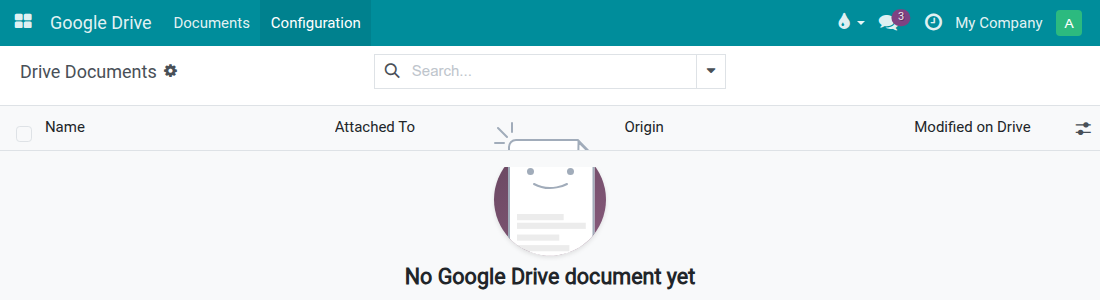
The difference is visible in the app itself. An administrator sees a Configuration menu:
An ordinary employee sees only Documents:
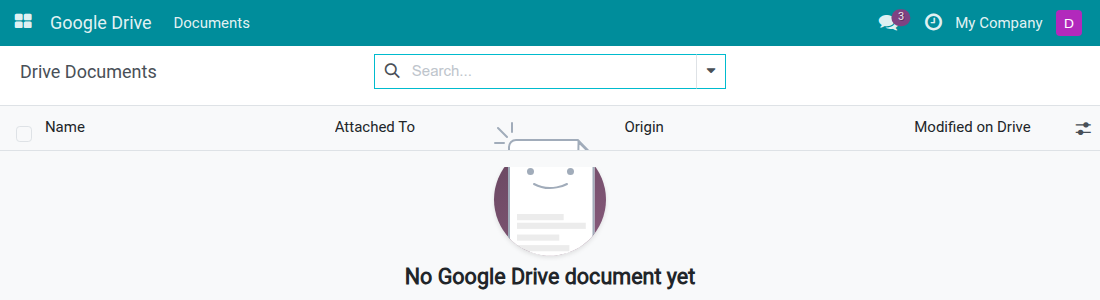
An employee can use the company's connection without being able to read it. The connection itself stays out of their reach, and no credential is ever shown on screen to anybody.
Usage
Connect your own Google account
There is nothing to set up in advance, and no screen to visit. You are asked once, at the moment it first matters, and only if it matters to you at all.
The one thing your own Google account is needed for is picking a file that already exists in your Drive. Google grants access per application, per user and per file, so a file you hand over yourself is readable by you and not by your company's account - which is why this cannot be done on your behalf.
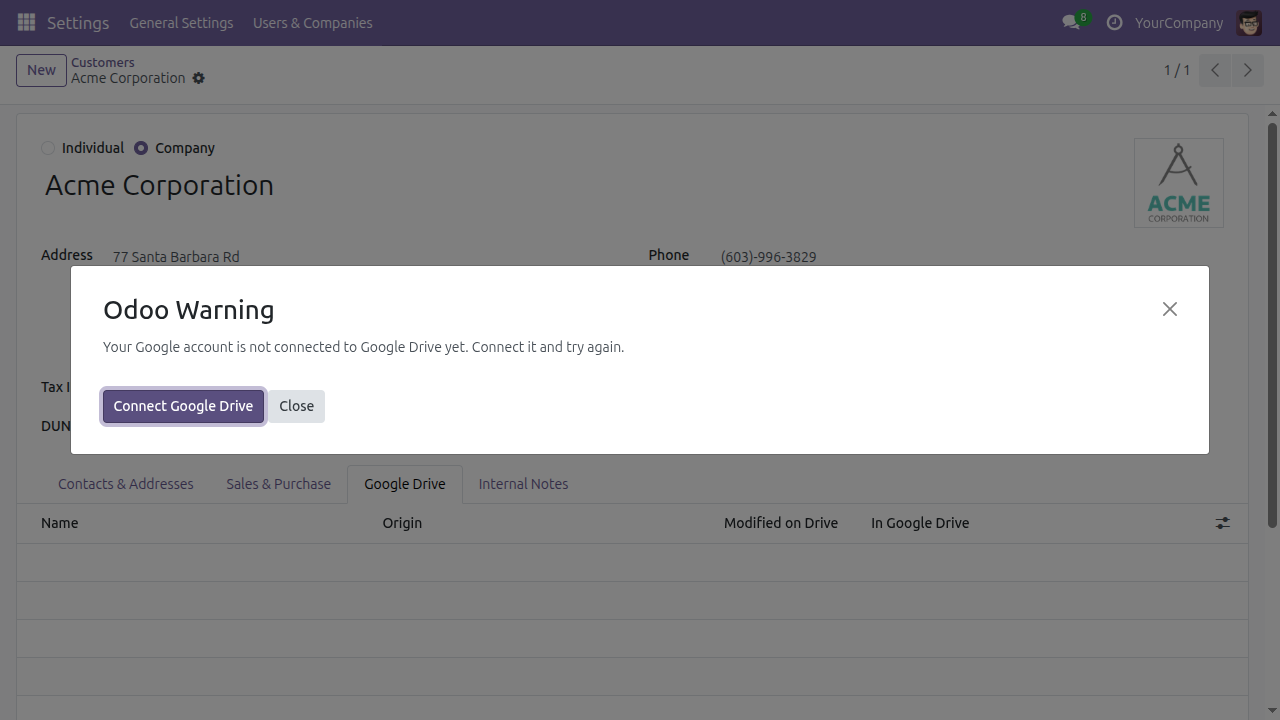
So the first time you choose Pick a file from Google Drive on a record, Odoo says your Google account is not connected yet and offers a Connect Google Drive button. Press it, sign in at Google, and allow this application to work with the files it creates for you - and with nothing else. Google returns you to Odoo and you can pick your file.
If you never pick a file from your own Drive, you are never asked for anything: creating documents from templates, opening them, uploading attachments and sharing all run on the company's connection.
Tip
If you hold more than one Google account, pay attention to which one you sign in as - it decides where your own picked files are read from.
Create a document from a template
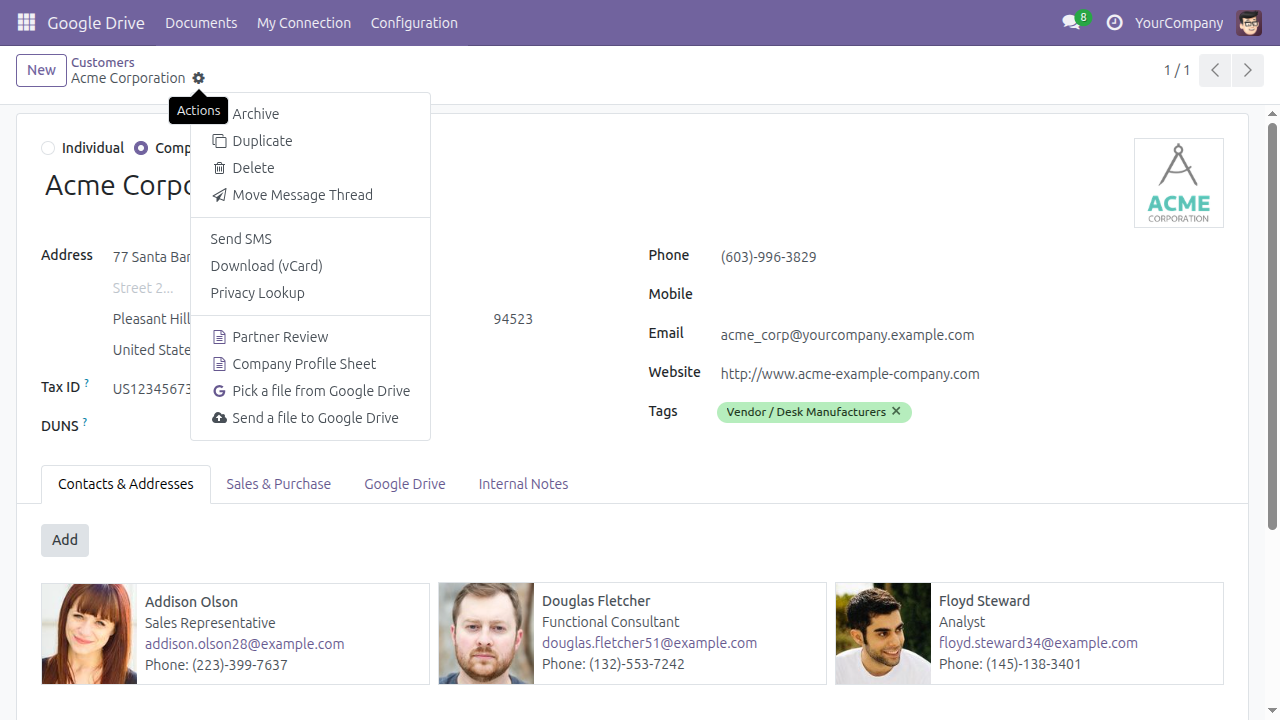
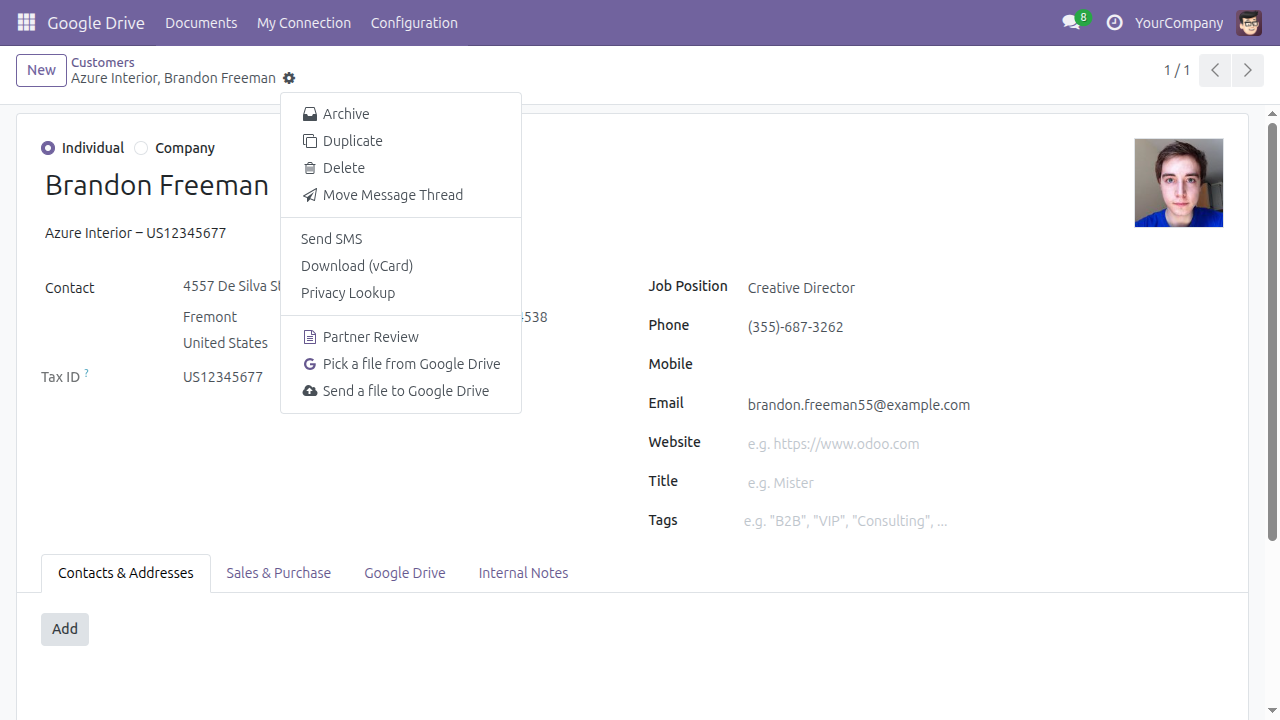
Open any contact and use the Actions menu - the gear beside the record's name. Below the record's own actions sits a Google Drive block.
Choose a template by name. Odoo copies your template into that record's own Google Drive folder, names it after the record, attaches it to the record, and opens it in a new browser tab. The folder is created the first time it is needed and reused afterwards.
A template only appears on the records its filter selects. On an individual contact, the company-only template is simply not there:
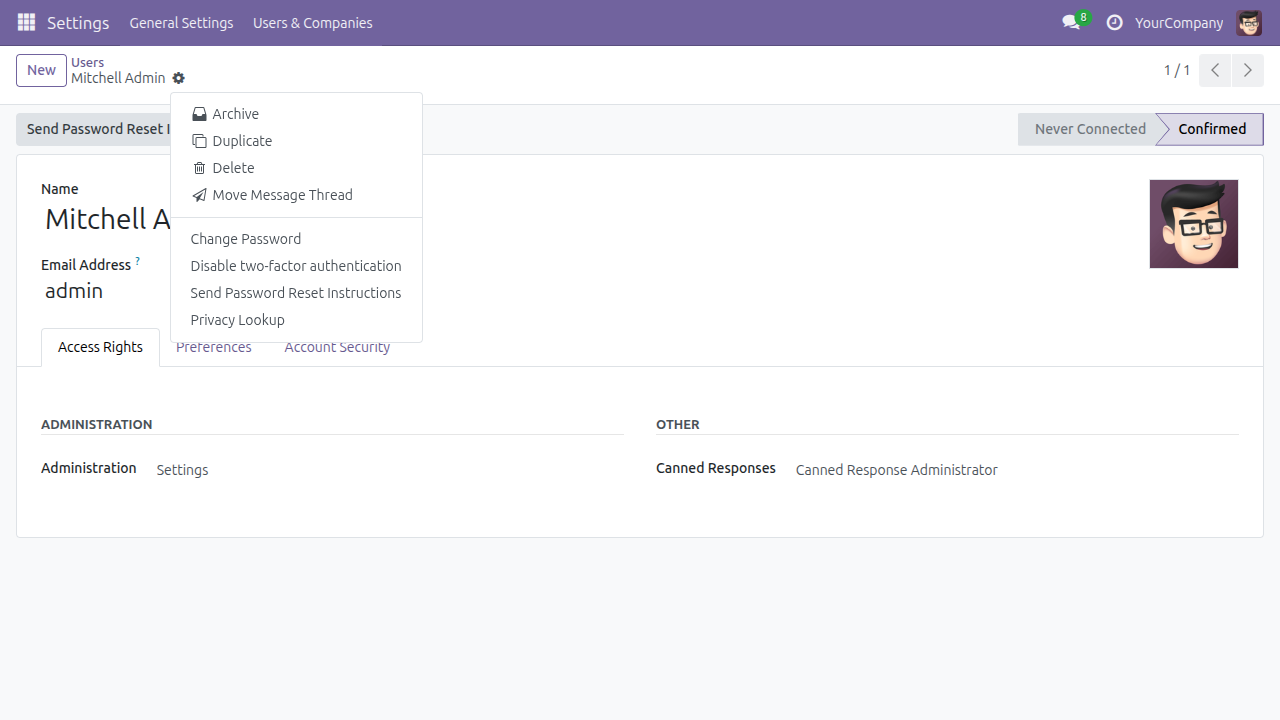
And a kind of record that does not keep its documents in Google Drive gets no Drive entries at all:
If your Google account is not connected yet, Odoo says so and offers a way straight there:
Attach a file that is already in Google Drive
Use Pick a file from Google Drive on the record's Actions menu. Google's own file chooser opens - it is Google's screen, showing your own Drive - and the file you choose is attached to the record.
The file is referenced, not moved. It stays exactly where its owner put it; Odoo does not rearrange somebody's Drive as a side effect of filing a reference against a record.
If your browser cannot reach Google's file chooser - a strict content policy, a blocked address, an offline network - Odoo offers the same thing by hand instead of an error you can do nothing about:
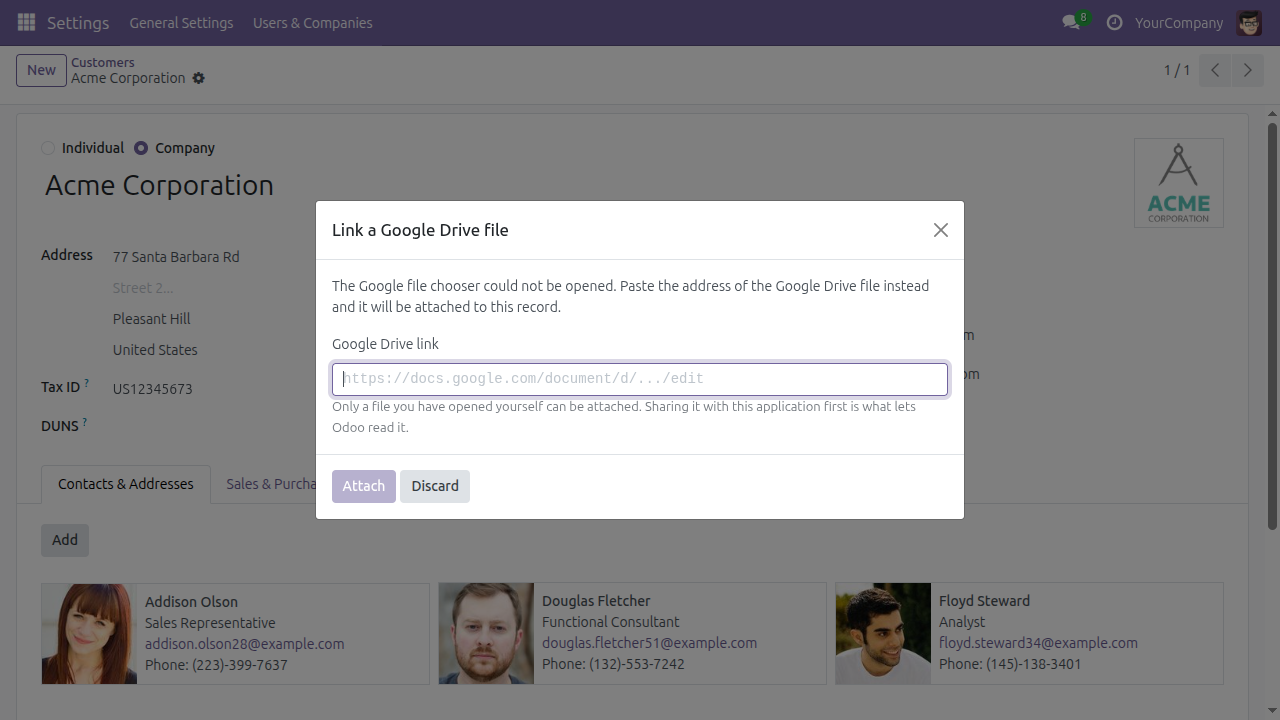
Paste the address the file opens at and click Attach. Anything that is not a Google Drive address is refused straight away, before Odoo contacts Google at all:
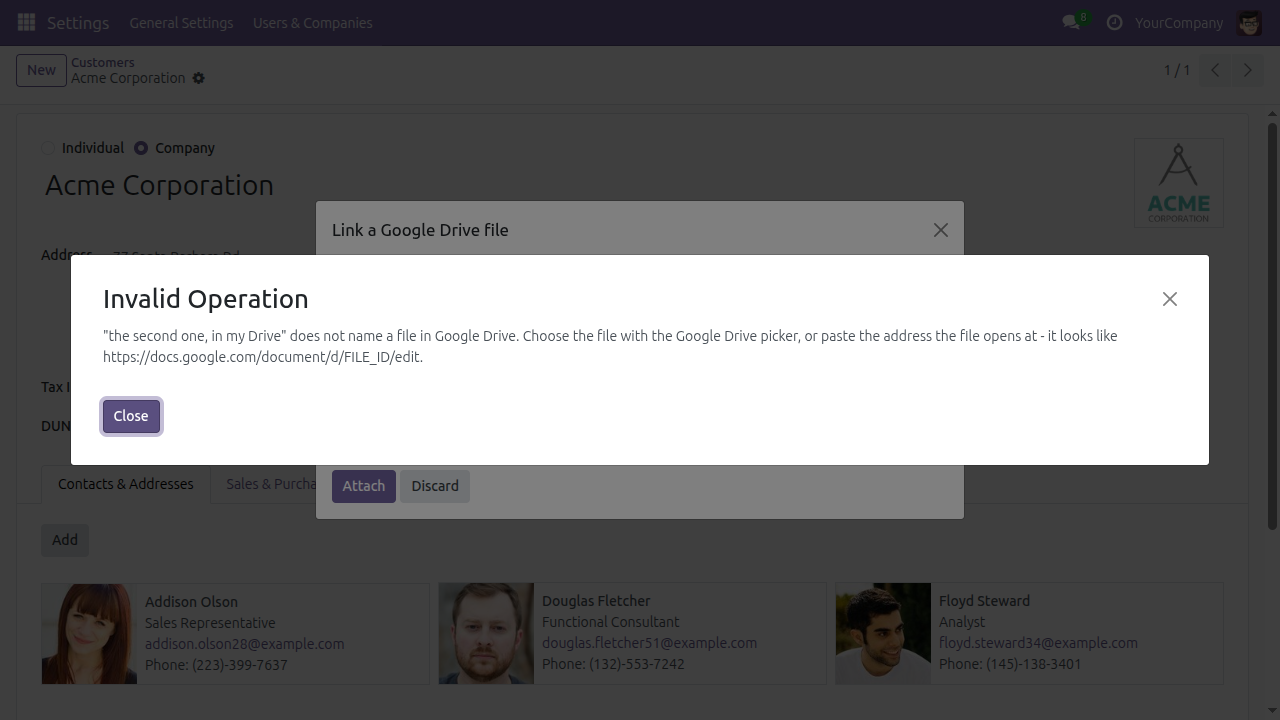
Note
Only a file you have opened yourself can be attached this way. Handing it to this application - by picking it, or by sharing it with the application - is what lets Odoo read it.
Send a file from Odoo up to Google Drive
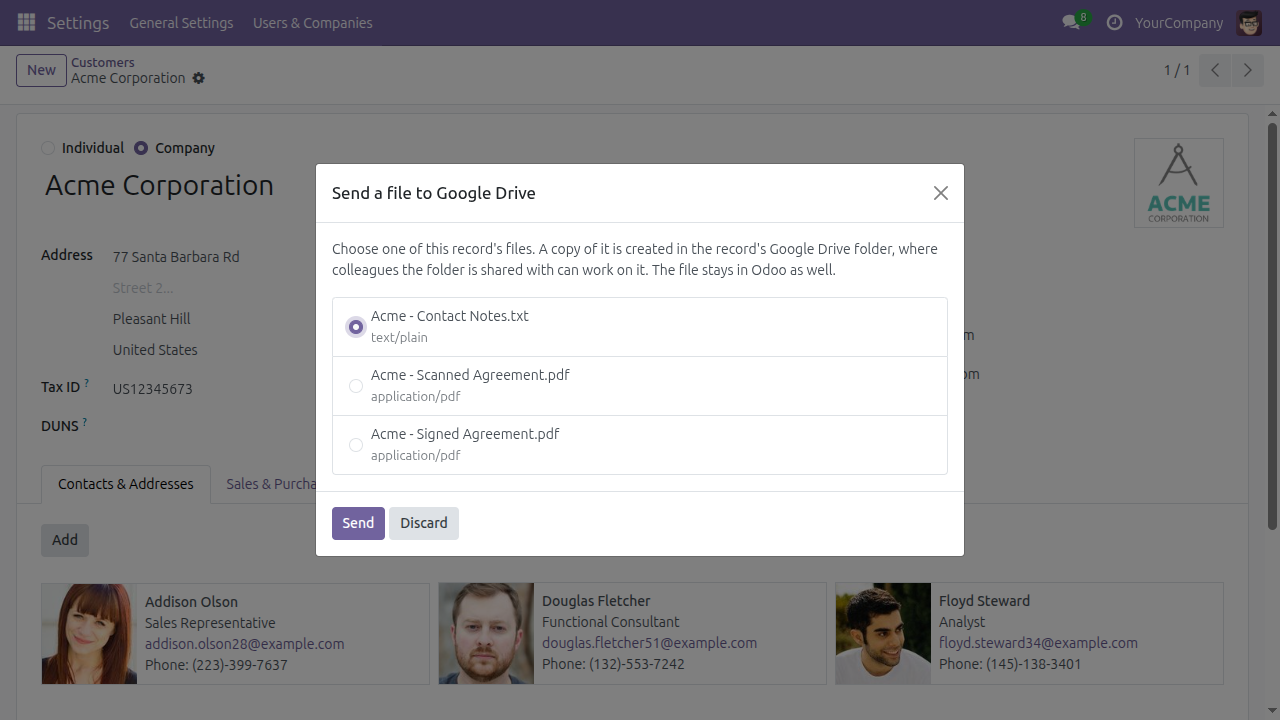
This runs the other way from the two entries above: it takes a file the record already holds and puts a copy in the record's Google Drive folder, where colleagues the folder is shared with can work on it. The file stays in Odoo as well.
Choose Send a file to Google Drive on the record's Actions menu.
Pick one file and click Send. Each row shows the file's name and its kind, because two files on a record often differ only in that, and sending the wrong one puts a file somewhere a colleague can read it.
When there is nothing left to send, the dialog says which of the two situations you are in rather than simply showing an empty box:
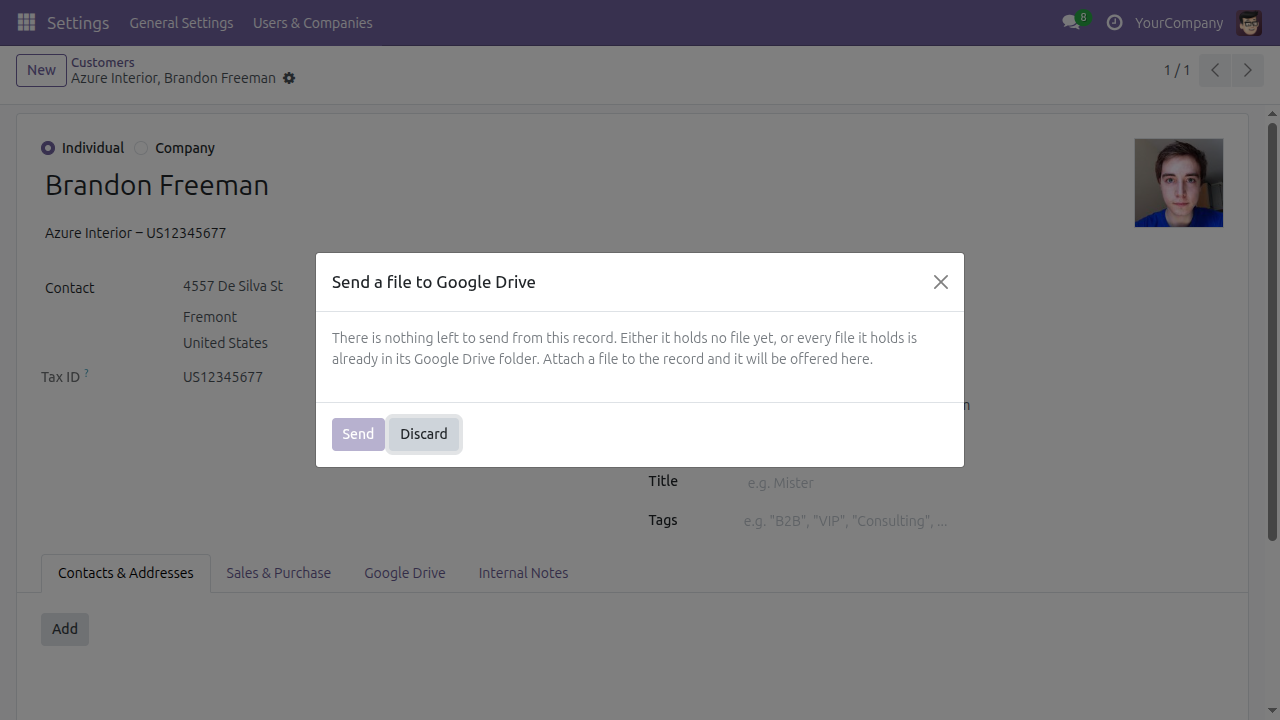
See everything filed against a contact
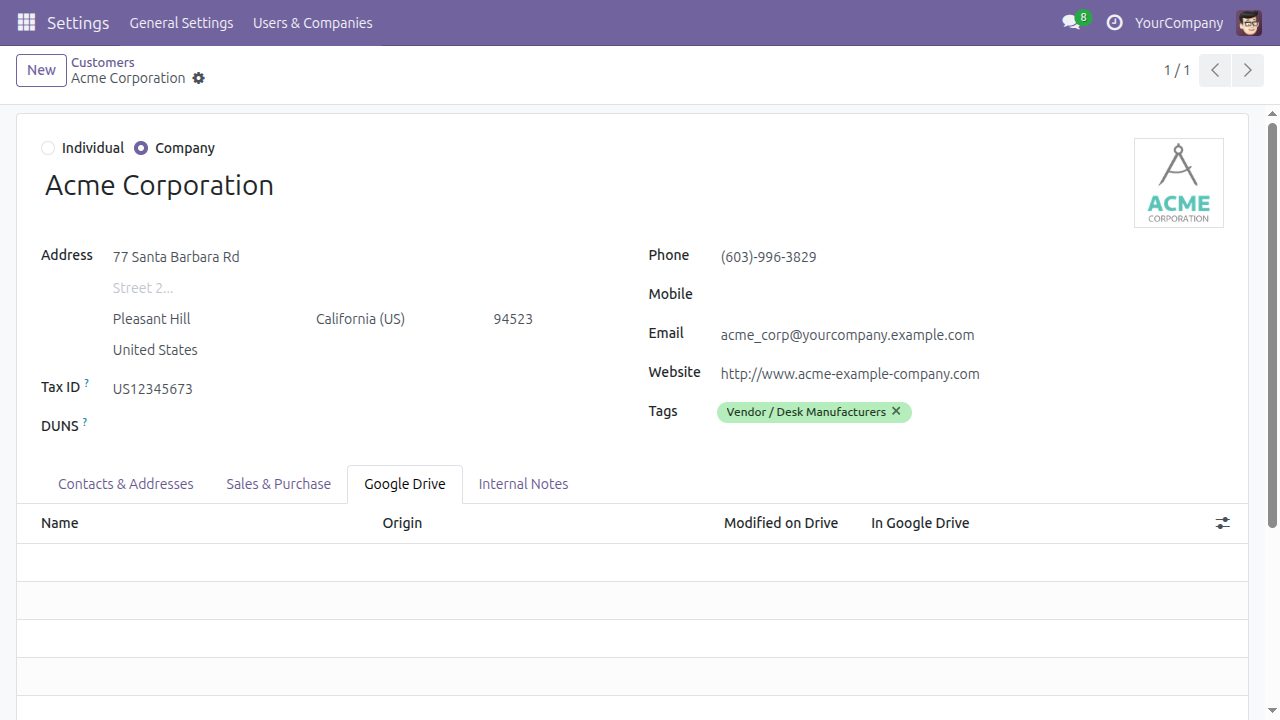
Every contact has a Google Drive tab. It is always there, even before anything has been filed, so you can tell the capability exists before you have used it.
The list shows each document's Name, its Origin - whether it came from a template, was picked from Drive, or was uploaded - when Google last saw it changed, and a link straight to it. Once the record has a folder in Drive, an Open the folder in Google Drive link appears above the list.
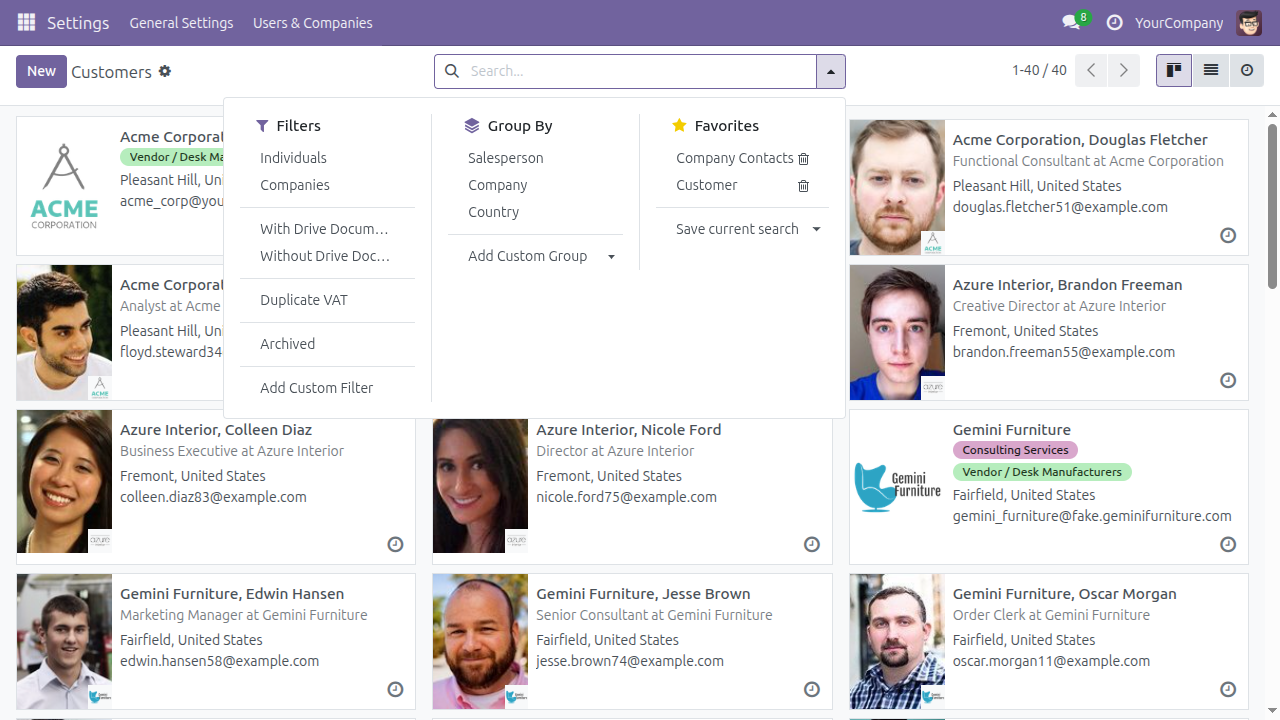
From the contact list itself, two filters answer the question the other way round:
With Drive Documents and Without Drive Documents are both offered on purpose. The second is how you answer "whose paperwork is missing", which is the form the question usually takes. It selects broadly - most contacts have nothing filed - so combine it with another filter.
Find every document in one place
Google Drive > Documents lists every document this app has filed, whichever way it got there, with the record it belongs to.
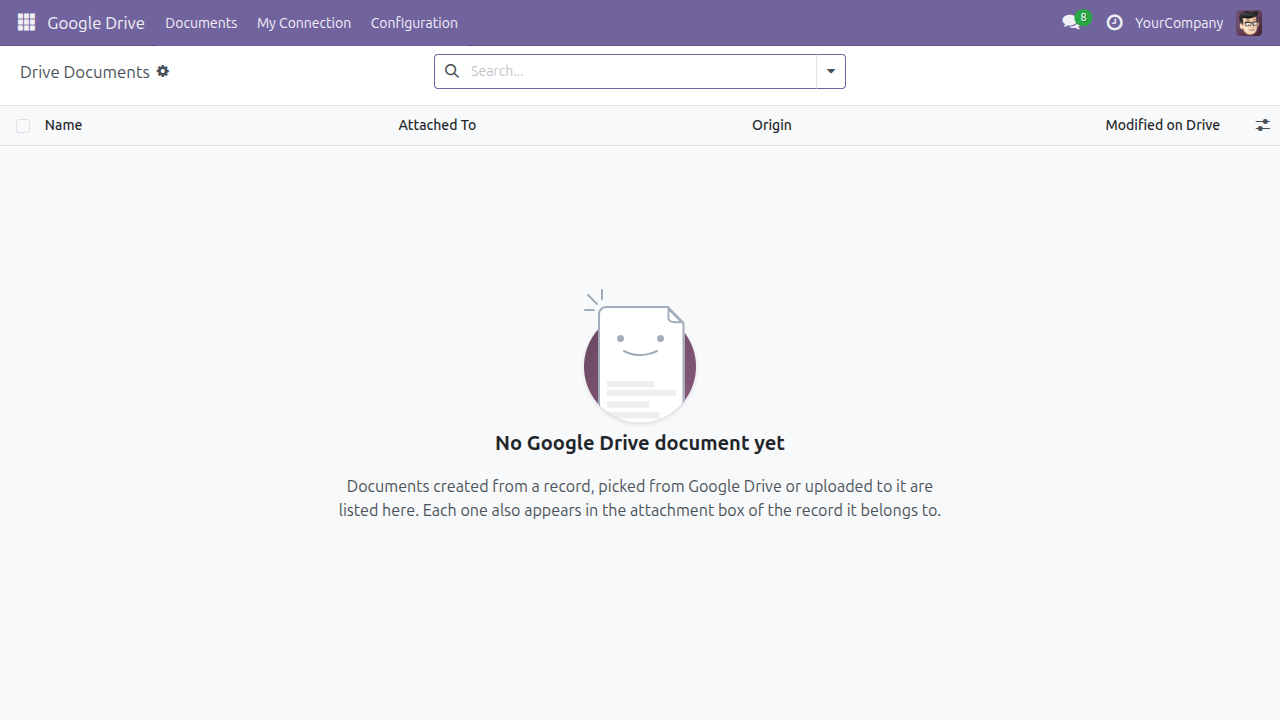
There is no New button here, and that is deliberate: a document can only arrive from a real operation in Google Drive. Every document listed here also appears in the attachment box of the record it belongs to.
Bring a Google document back into Odoo
Open a document from Google Drive > Documents. When it is a Google-native file - a Doc, a Sheet - the header offers Export to This Record and Export as Word. Either one attaches a converted copy to the Odoo record the document belongs to, and tells you which file it attached.
Keeping connections healthy
Open All Google Drive connections from the settings block - inside Advanced storage and Picker - for the whole picture.
The list leads with Connection Type, because the company's connection is one row among many personal ones and it is the one whose health affects everybody. The Status badge reads green for Connected, amber for Expired and red for Revoked. Last Checked On and Last Error are available as extra columns.
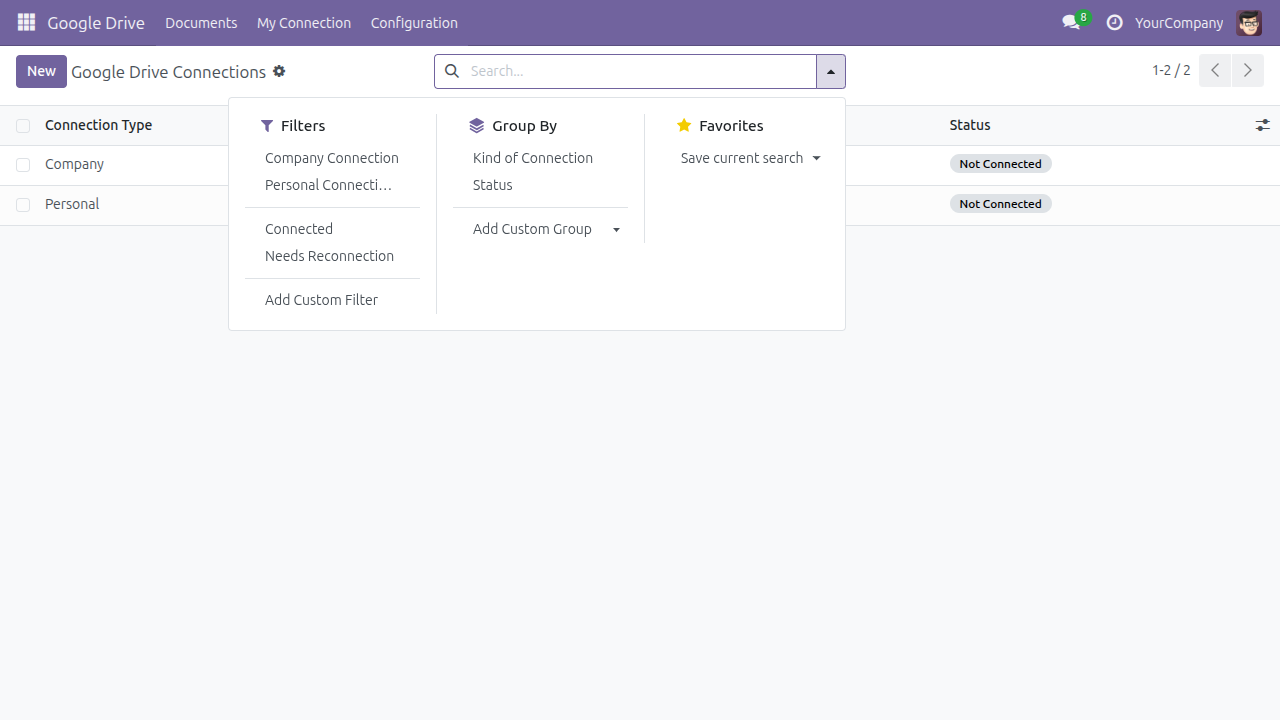
Needs Reconnection selects everything that has expired or been revoked - the one filter worth checking regularly.
Odoo also asks Google about every connection once a day, on its own, so a dead credential is found overnight rather than by an employee halfway through a task. You can see the job at Settings > Technical > Automation > Scheduled Actions, named Google Drive: Check Connected Accounts.
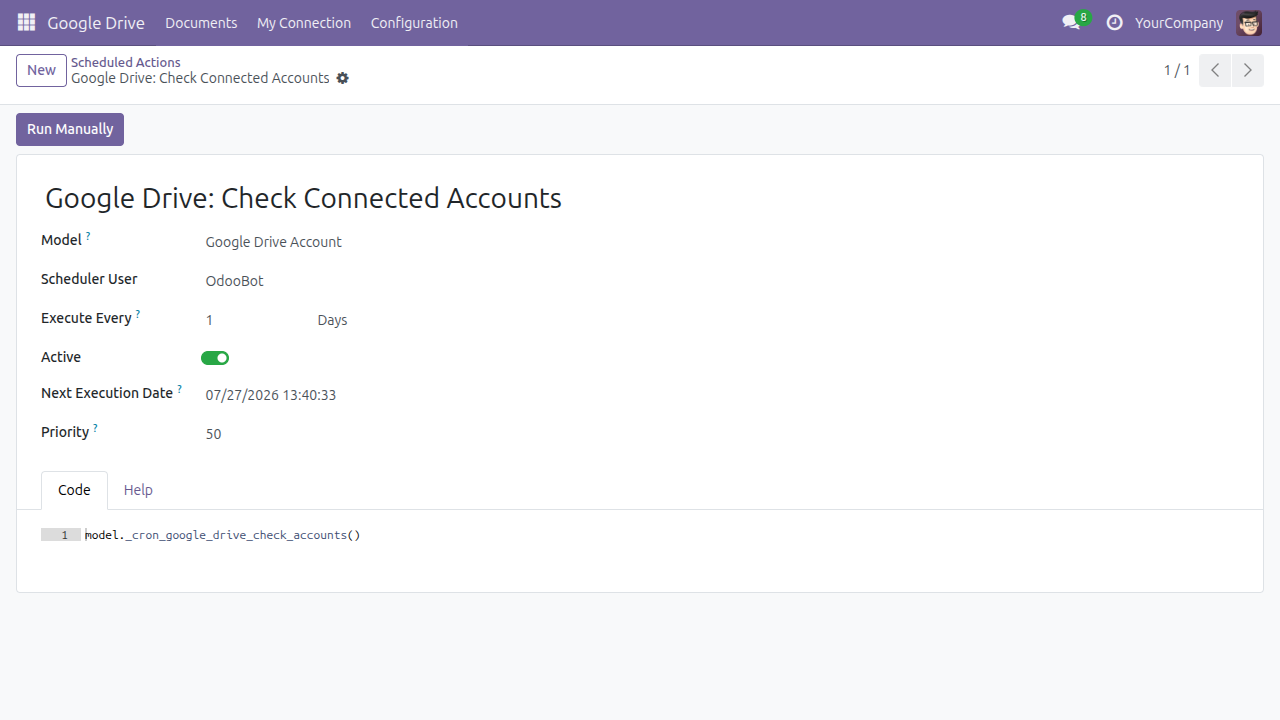
This matters because a connection can be dead while everything stored about it still looks fine: Google withdraws a credential that has gone unused for six months, drops the oldest when one account accumulates a hundred, and expires them after seven days while the Cloud project is still in Testing.
Disconnect, on any connection that holds a credential, forgets what Odoo stored. Documents already in Google Drive are untouched, and you can connect again at any time. Odoo deliberately does not tell Google to forget you - withdrawing the permission is your own decision to take from your Google account page.
Troubleshooting
Nobody in the company can use Google Drive
Check Google Drive > Configuration > Connections for a Company row that is not Connected. A company connection that exists but cannot act blocks everyone, by design - the organisation's documents are not filed into an employee's personal Drive as a fallback. Either finish the connection with the dedicated account, or delete the row, which puts every employee back on their own account.
Google refuses the connection, or reports a redirect mismatch
The redirect address registered in your Google Cloud project does not match the one Odoo presents, exactly. Copy it again from Settings > General Settings > Google Drive, under Authorized redirect URI, and paste it into the OAuth client without editing it. A trailing slash or a different host name is enough to fail.
Odoo refuses to start the connection because the address is not secure
Google accepts only an HTTPS redirect address, except on localhost. Odoo checks this before sending you to Google, so you get a message naming the cause rather than an untranslated Google error page. Set your instance's web address to its HTTPS form and connect again.
Everything works, then stops about a week later
Your Google Cloud project is almost certainly still in Testing publishing status. Google expires the credential of a project in Testing after seven days, so people reconnect on a loop. Publish the project and it stops.
Choosing "Pick a file from Google Drive" seems to do nothing
The file chooser needs your own Google account, and it is per-person even when your company has a connection of its own. If Odoo offers you a Connect Google Drive button, press it and sign in; if it does not, ask your administrator to check that the Picker API Key is filled in under Advanced storage and Picker, since the chooser cannot open without it.
A template cannot be saved
Odoo refuses a template pointed at a kind of record that does not keep its documents in Google Drive, because it would appear on those records and fail the moment somebody used it. Point it at a Contact, or install the module that gives that kind of record its Google Drive documents.
The Google Drive tab on a contact is empty
That is the truthful answer for a record nothing has been filed against yet. The tab is always present so the capability can be found before it is used. Create a document from a template, pick a file from Drive, or send one up, and it will be listed.
A colleague cannot see the connection I made
That is intended. Personal connections are private to the person who made them - nobody browses anybody else's. A Google Drive administrator sees the whole list at Google Drive > Configuration > Connections, but never a stored credential, which is shown to nobody anywhere.
FAQ
Does this give Odoo access to everything in our Google Drive? No. It asks Google for the non-sensitive drive.file permission only, which covers the files this application creates and the files a person explicitly hands it. Everything else in your Drive is out of reach. That is also why the app needs no annual Google verification or third-party security assessment.
Who owns the documents this creates? Whichever Google account was connected when the file was made, because that is how Google Drive works. Connect a shared drive under Settings > General Settings > Google Drive if the documents must belong to the organisation rather than to a person.
What happens if we never connect a company Google account? Everything keeps working. Each person connects their own account and their documents are created as them. That is a supported way to run the app, not a half-finished setup.
Can two companies on one database file into different Drives? Yes. The storage settings and the company connection both belong to a single company, and neither company can reach the other's settings, connections, documents or sharing lists.
Does deleting a document in Odoo delete it in Google Drive? No. It removes Odoo's reference. The file and everybody's access to it carry on in Google Drive.
If somebody picks a file from their Drive, does it move? No. It is referenced where it is. It is also read back with that person's own credential, not the company's, because Google granted the access to them.
Can a template point at a Google file we already have? Yes - a template is registered by pasting the address of an existing Google file. Bear in mind that under the drive.file permission this application reaches only files it created itself and files somebody has handed it, so a file it has never seen may not be reachable the first time a template uses it. If Odoo reports that it cannot open the template, open that file once through Pick a file from Google Drive on any record - that is what tells Google to grant this application access to it - and use the template again.
Where do I see what Odoo actually sent to Google? In the API request log, kept by the Viindoo API Request Logger app. Every Google Drive call this app makes is recorded there, without any credential and without the contents of any document, so support can see what happened without seeing your files. One step is deliberately left out of it: signing in to Google - connecting an account, and renewing a connection that has expired - never reaches this log, because that exchange carries the credential itself. So an empty log is not proof that nothing was sent to Google. When it is the connection that is failing, the message Odoo shows on the connection is the evidence for that step; the request log is the evidence for everything that happens after the sign-in has succeeded.
This software and associated files (the "Software") may only be used (executed, modified, executed after modifications) if you have purchased a valid license from the authors, typically via Odoo Apps, or if you have received a written agreement from the authors of the Software (see the COPYRIGHT file).
You may develop Odoo modules that use the Software as a library (typically by depending on it, importing it and using its resources), but without copying any source code or material from the Software. You may distribute those modules under the license of your choice, provided that this license is compatible with the terms of the Odoo Proprietary License (For example: LGPL, MIT, or proprietary licenses similar to this one).
It is forbidden to publish, distribute, sublicense, or sell copies of the Software or modified copies of the Software.
The above copyright notice and this permission notice must be included in all copies or substantial portions of the Software.
THE SOFTWARE IS PROVIDED "AS IS", WITHOUT WARRANTY OF ANY KIND, EXPRESS OR IMPLIED, INCLUDING BUT NOT LIMITED TO THE WARRANTIES OF MERCHANTABILITY, FITNESS FOR A PARTICULAR PURPOSE AND NONINFRINGEMENT. IN NO EVENT SHALL THE AUTHORS OR COPYRIGHT HOLDERS BE LIABLE FOR ANY CLAIM, DAMAGES OR OTHER LIABILITY, WHETHER IN AN ACTION OF CONTRACT, TORT OR OTHERWISE, ARISING FROM, OUT OF OR IN CONNECTION WITH THE SOFTWARE OR THE USE OR OTHER DEALINGS IN THE SOFTWARE.
