

OmniApproval™ - Employee Advance Management
| Lines of Code | 2982 |
| Technical name | viin_approval_employee_advance |
| License | OPL-1 |
| Website | https://viindoo.com/apps/modules/18.0/viin_approval_employee_advance |
| Read description for | v 10.0 v 11.0 v 12.0 v 13.0 v 14.0 v 15.0 v 16.0 v 17.0 v 19.0 |
| Required Apps | Invoicing (account) Discuss (mail) Employees (hr) |
| Included Dependencies | Viindoo Base OmniApproval™: One platform. Every approval. Accounting Foundation Advanced HR Management OmniApproval™ - Accounting Approvals HR Accounting OmniApproval™ - Analytic Accounting Approvals Safe IR Metadata Proxies |
| Extensions | Expense - Employee Advance |

Cash advances that get approved, paid, and settled - not forgotten
An employee asks for money before the trip, an approver signs it, finance pays it, and the advance is reconciled against what was actually spent. Every step is a record, and the outstanding balance is a number.
OmniApproval™ - Employee Advance Management (technical name viin_approval_employee_advance) is an Odoo 18.0 app for Odoo Community and Odoo Enterprise and Viindoo Cloud, built for employee, manager, cashier or accountant, finance controller.
At a Glance
The facts of OmniApproval™ - Employee Advance Management, version 1.0.11, in one place. Published by Viindoo.
Key Features
The money a company hands out before an expense is the money it most often loses track of. This app makes the advance a document: lines for what the money is for, an approval routed through the OmniApproval engine, payments recorded against it, and a reconciliation that matches the advance to the expenses and to what came back. Because the approval side is a full engine rather than a single checkbox, the routing can be as strict as the amount deserves - a manager for 300, a director for 3,000.
Batch reconciliation
Month-end settlement for a whole department in one screen instead of one advance at a time.
Analysis
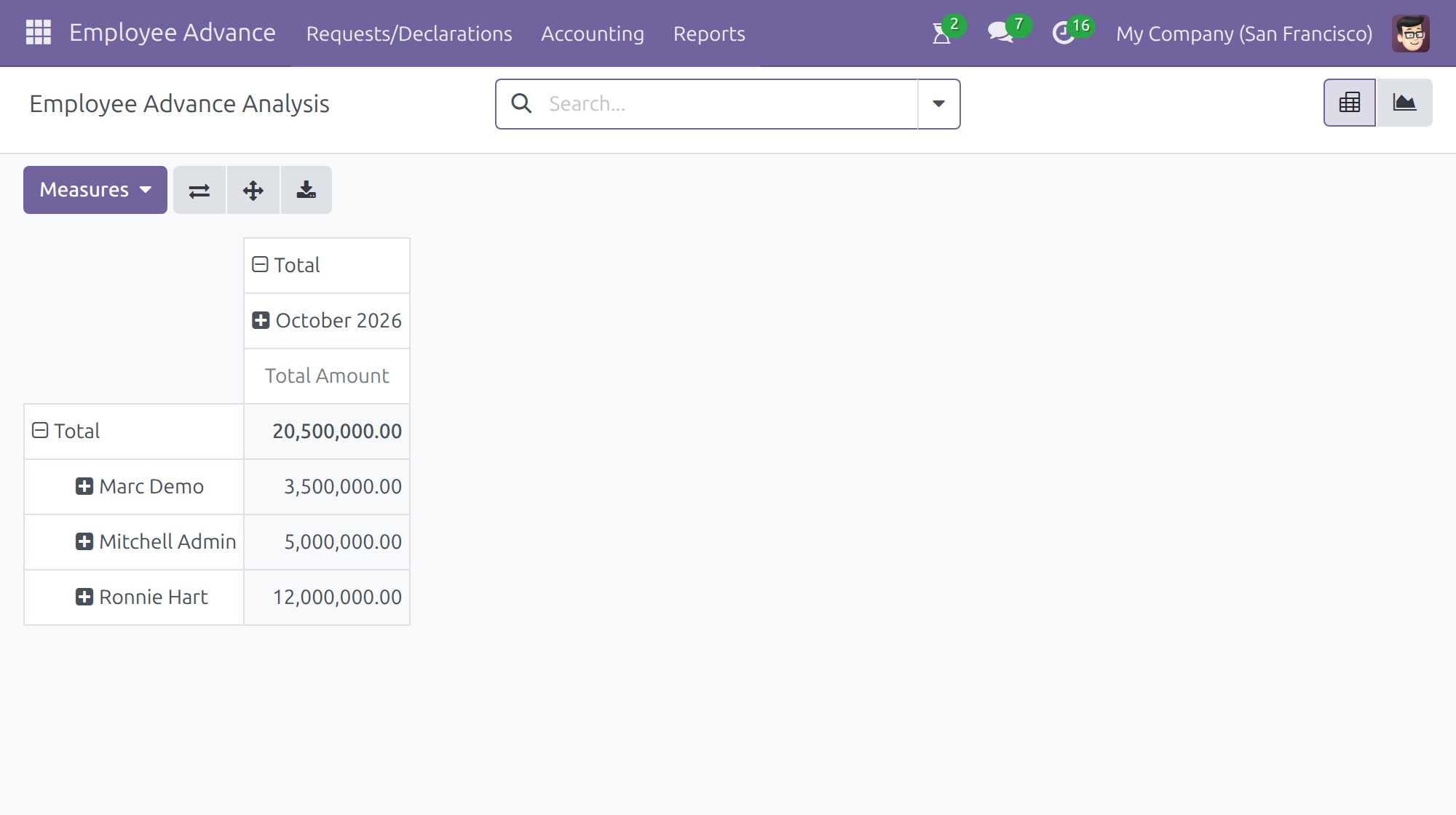
Advances by employee, department and period, so open balances are visible before the audit finds them.
How It Works
Four steps, in the order a real advance actually moves.
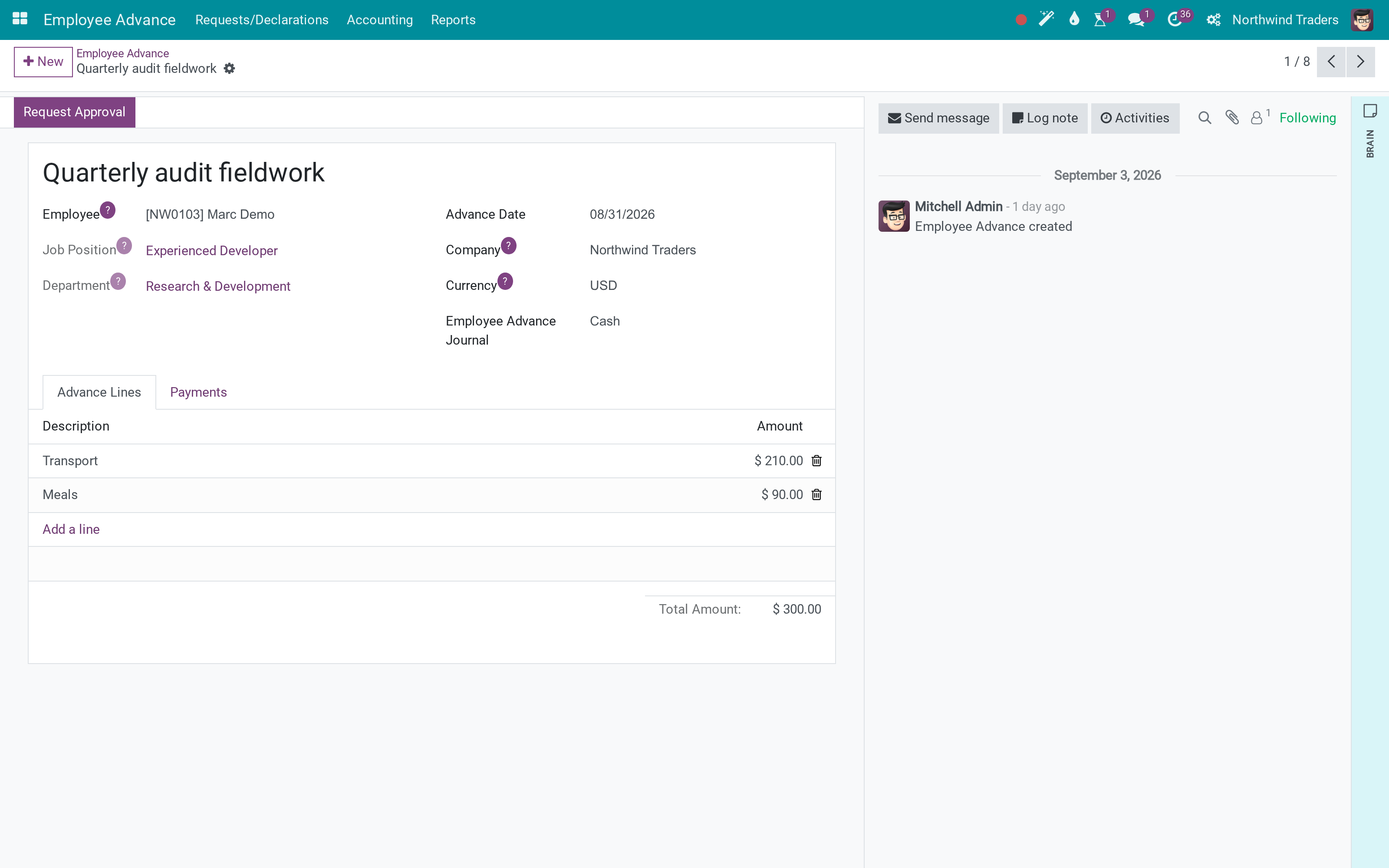
Ask, with a breakdown
The employee, the date, the journal, and the lines that make up the amount. The total is computed, so nobody rounds a trip up to a comfortable number.
Route it to whoever must sign
Request Approval hands the advance to the approval engine. Who signs depends on the type and the amount, and the trail stays on the record - no email chain to reconstruct later.
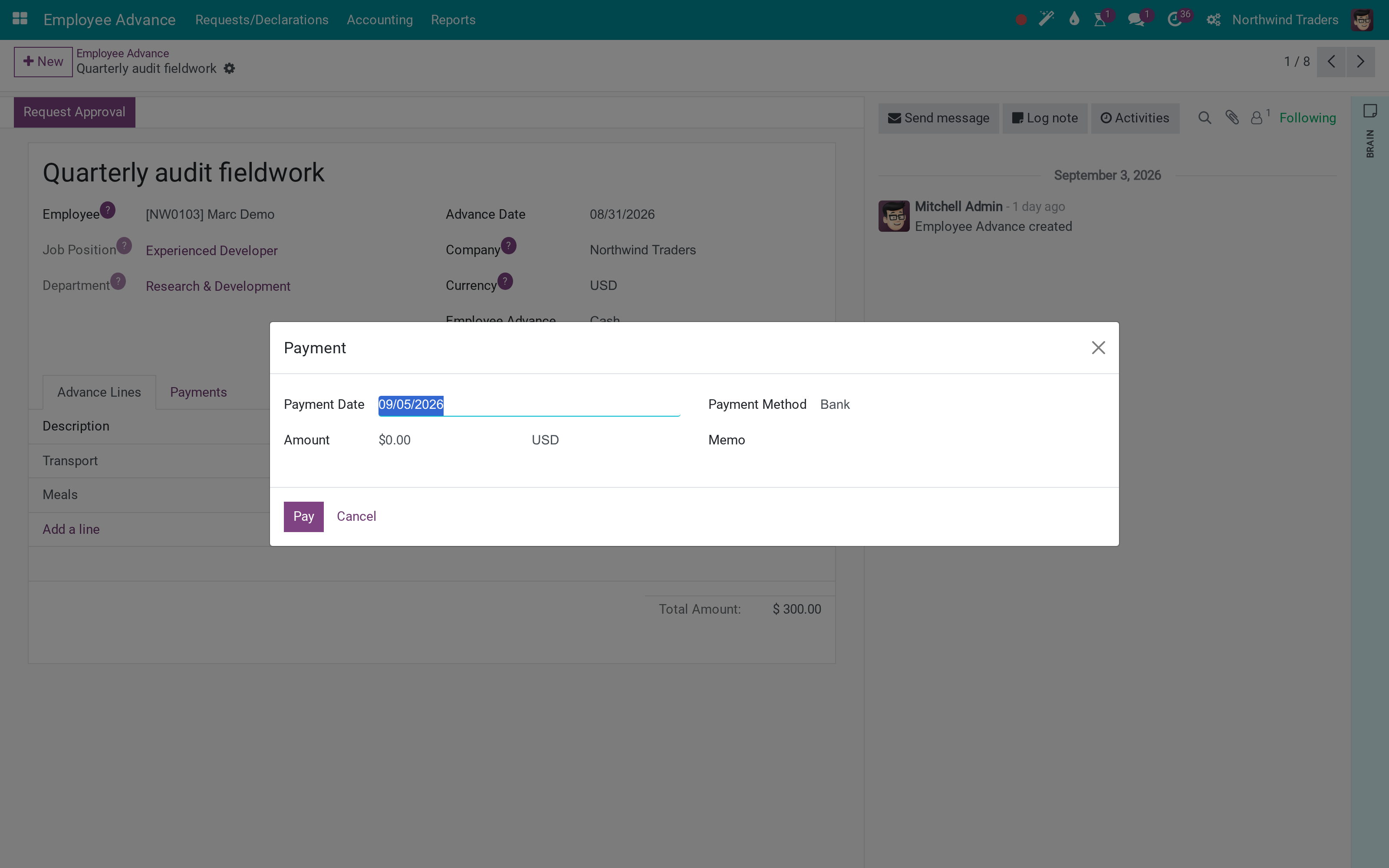
Pay it
Finance registers the payment against the advance on the journal that fits - cash for a per diem, bank for a deposit. The payment state on the advance moves with it.
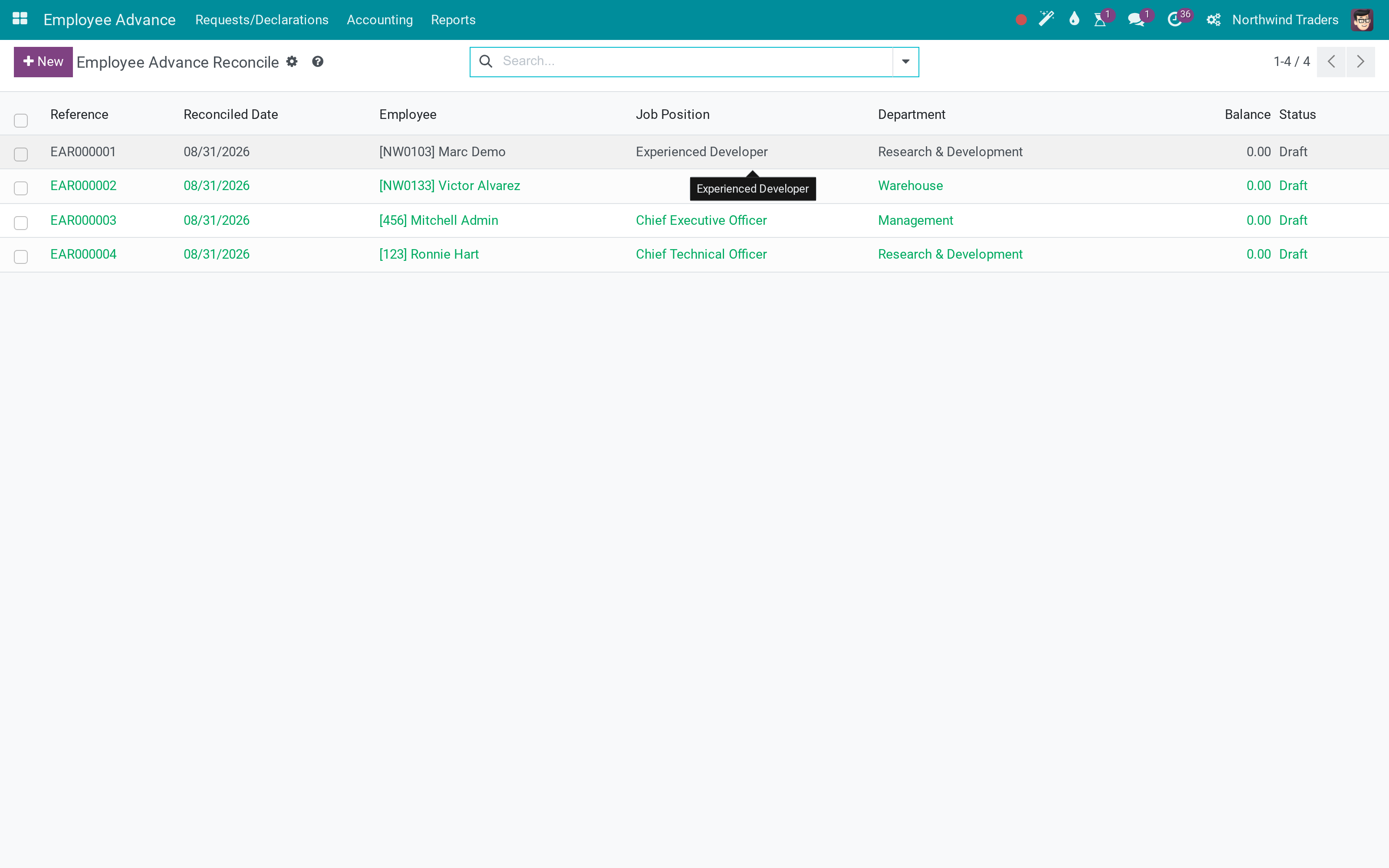
Settle it
When the expenses arrive, the advance is reconciled against them - individually, or in a batch at month end. What is left is a balance the employee owes back or the company still owes.
What You Get
An advance with lines, so the request says transport 210 and meals 90 rather than 'travel 300'
Approval through the OmniApproval engine: sequential approvers, a rule on the amount, an audit trail
Payments recorded against the advance, with the accounting journal chosen per company
Reconciliation between the advance and the expenses actually incurred, one by one or in a batch
An outstanding balance and a warning when an advance was never settled
Analysis by employee, department and period - which is how a finance team spots the person with four open advances
More Screens
Everything below was taken on a database seeded with real business data, on this series - not a mock-up and not a screenshot from an older version.
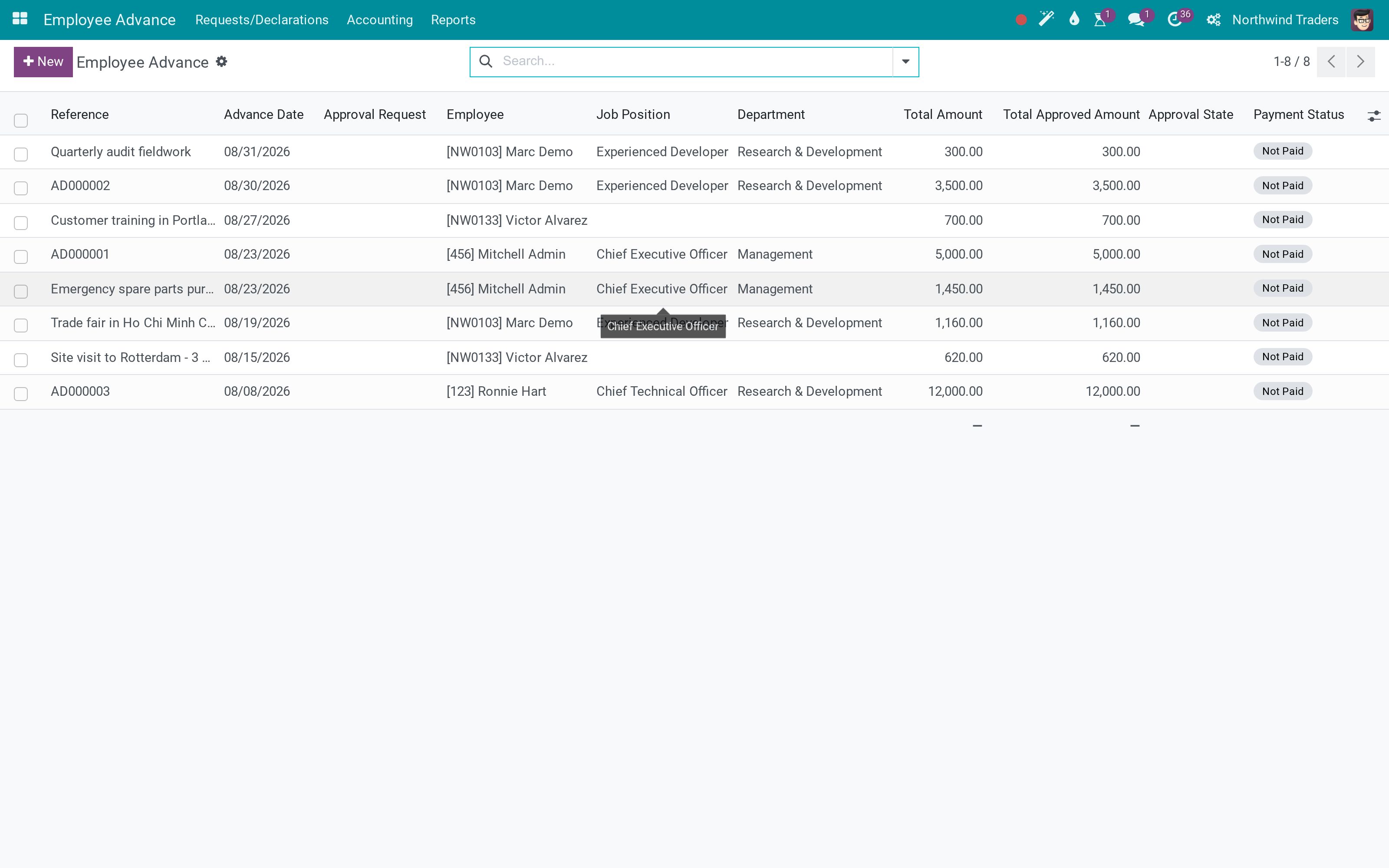
Every advance, with employee, amount and state
Payments against advances
Reconciliation lines
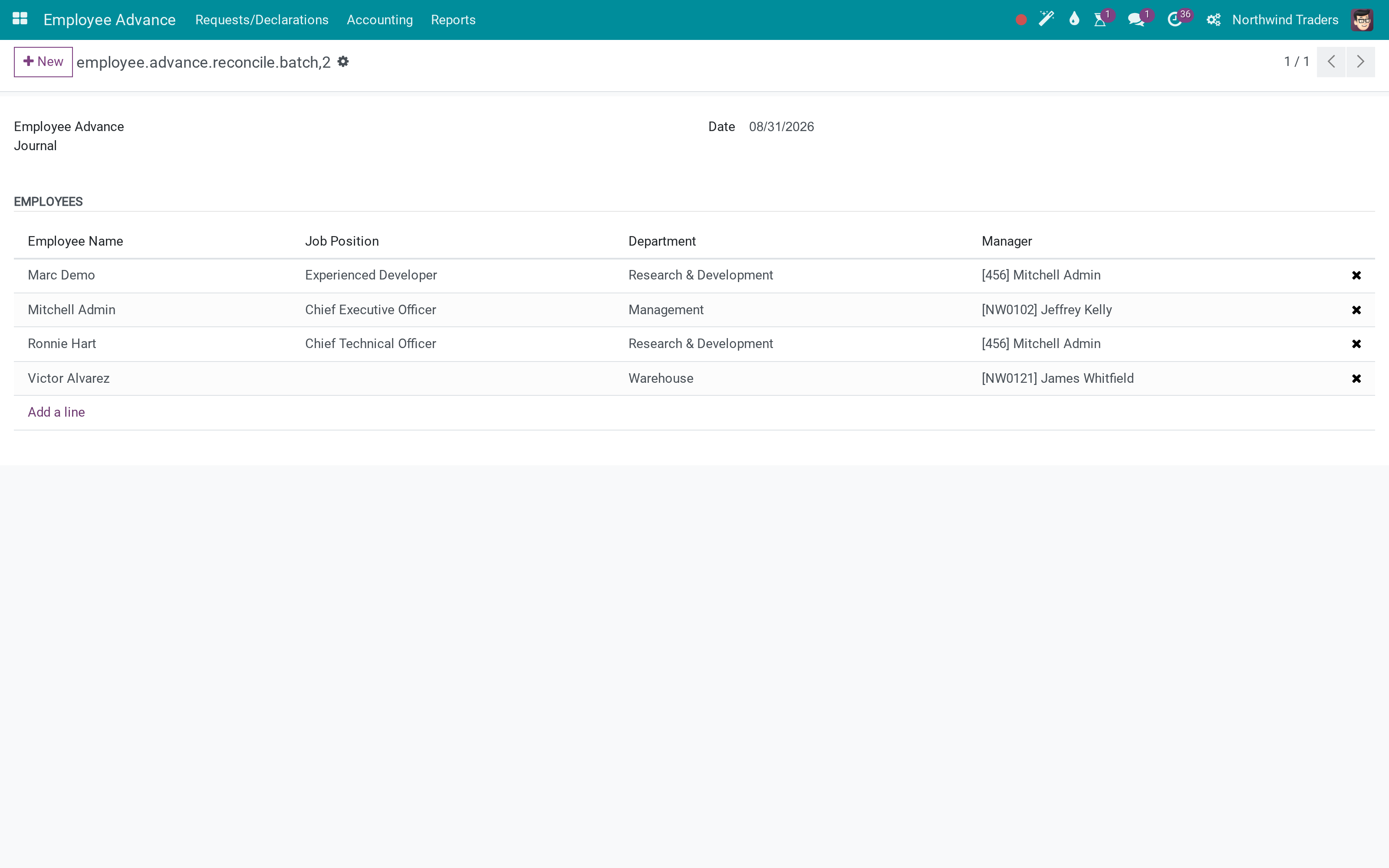
Batch settlement at month end
What This App Does Not Do
Read this before you buy. Everything below is something the app deliberately leaves to another app or to you.
Odoo Expenses records what was spent; this records the money handed out beforehand and reconciles the two.
An unsettled advance is a balance, not a payslip line. Recovering it through salary is a payroll rule you configure there.
This app brings the approval engine with it, and the routing is configured there - which is also why it can be as strict as you need.
An advance taken in one currency and settled in another has to be handled as two records.
Works Well With
Apps from the same stack, built to fit this one:
OmniApproval
The approval engine this app routes through, usable for everything else too.
OmniApproval™: One platform. Every approval.Business Trips
The trip that the advance was taken for, with its itinerary and its costs.
Business TripsWho Should Use OmniApproval™ - Employee Advance Management?
Employee
Asks for the money with a breakdown, and settles it afterwards.
Manager
Approves through the approval engine, with the amount and the reason in front of them.
Cashier or accountant
Pays the approved advance and records it on the right journal.
Finance controller
Reconciles advances against expenses and chases what is still outstanding.
Frequently Asked Questions
What does OmniApproval™ - Employee Advance Management do?
An employee asks for money before the trip, an approver signs it, finance pays it, and the advance is reconciled against what was actually spent. Every step is a record, and the outstanding balance is a number.
What does OmniApproval™ - Employee Advance Management not do?
It is not an expense-report app. Odoo Expenses records what was spent; this records the money handed out beforehand and reconciles the two. It does not deduct from payroll. An unsettled advance is a balance, not a payslip line. Recovering it through salary is a payroll rule you configure there. The approval rules live in OmniApproval. This app brings the approval engine with it, and the routing is configured there - which is also why it can be as strict as you need. One currency per advance. An advance taken in one currency and settled in another has to be handled as two records.
Who is OmniApproval™ - Employee Advance Management for?
Employee: Asks for the money with a breakdown, and settles it afterwards. Manager: Approves through the approval engine, with the amount and the reason in front of them. Cashier or accountant: Pays the approved advance and records it on the right journal. Finance controller: Reconciles advances against expenses and chases what is still outstanding.
Which Odoo version and editions does it support?
Odoo 18.0 - Odoo Community, Odoo Enterprise, Viindoo Cloud. Upgrades to a newer Odoo series are a separate purchase for that series.
What does it depend on?
It installs on top of: viin_hr_account, viin_approval, viin_approval_account, base_automation. Odoo installs them with it.
How do I set it up?
Four steps, in the order a real advance actually moves.
What works well with it?
OmniApproval (viin_approval): The approval engine this app routes through, usable for everything else too. Payroll (to_hr_payroll): When an unsettled advance has to come back through salary. Accounting Foundation (viin_account): Where the advance payments and settlements post. Business Trips (viin_business_trip): The trip that the advance was taken for, with its itinerary and its costs.
Can I try it before buying?
Yes - the Live Preview button at the top of this page opens a working database.
How do I get support?
Write to apps.support@viindoo.com with your Odoo version and the technical name viin_approval_employee_advance; pre-sales questions go to sales@viindoo.com.
See OmniApproval™ - Employee Advance Management in Action
Live demo: v18demo-int.viindoo.com
Need help with OmniApproval™ - Employee Advance Management?
For questions, implementation support or a custom feature, contact Viindoo.
Pre-Sales & Partnership
sales@viindoo.comUpgrades to a newer Odoo series are a separate purchase for that series.
All Viindoo apps: Viindoo Apps
Technical Requirement
Changes log
1.0.10 - Latest on the 17.0 line
- Advances route through the OmniApproval engine, so the approver depends on the amount rather than on one fixed role.
- Payment state and outstanding balance are computed on the advance, with a warning when it is unreconciled.
- Batch reconciliation settles a department's advances in one screen.
- Analytic distribution flows from the advance to the entries it produces.
Employee Advance
For employees who request advances, accountants who pay and reconcile them, approvers, and administrators who set the module up.
Note
Extends Approval and Approval for Accounting - see their documentation for how approval requests, approvers and approval types work.
Overview
An employee asks for money before a business trip or a purchase. The advance goes through approval, the accountant pays it, and once the employee has spent the money the advance is reconciled against the actual expenses.
| Role | What they do | Access right to assign |
|---|---|---|
| Employee | Creates an advance and requests approval, then follows its status. | Internal user (sees only their own advances) |
| Approver | Approves or refuses the approval request. | Set up in the approval module |
| Accountant / Advance user | Pays the advance, reconciles it, and refunds or pays any difference. | Employee Advance: User, or Accounting: Accountant |
| Advance administrator | Has full control of the app, including the Reports menu. | Employee Advance: Administrator |
Setup (for the Administrator)
- Open Apps, search for Employee Advance and press Install. The Approval and Accounting apps it relies on are installed with it.
- Open Settings > Users & Companies > Users, open each person and choose the right access level in the Employee Advance section.
- Make sure each employee has an advance account, in the accounting tab of the employee or in the company accounting configuration. Without it the advance form shows a warning.
Employee: request an advance
Create the advance
- Open Employee Advance > Requests/Declarations > Advances and press New.
- Choose the employee, then add one line per expense in Advance Lines, each with a description and an amount.
- Press Request Approval, then Create Approval Request.
- On the approval request that opens, press Submit. The advance moves to To Approve.
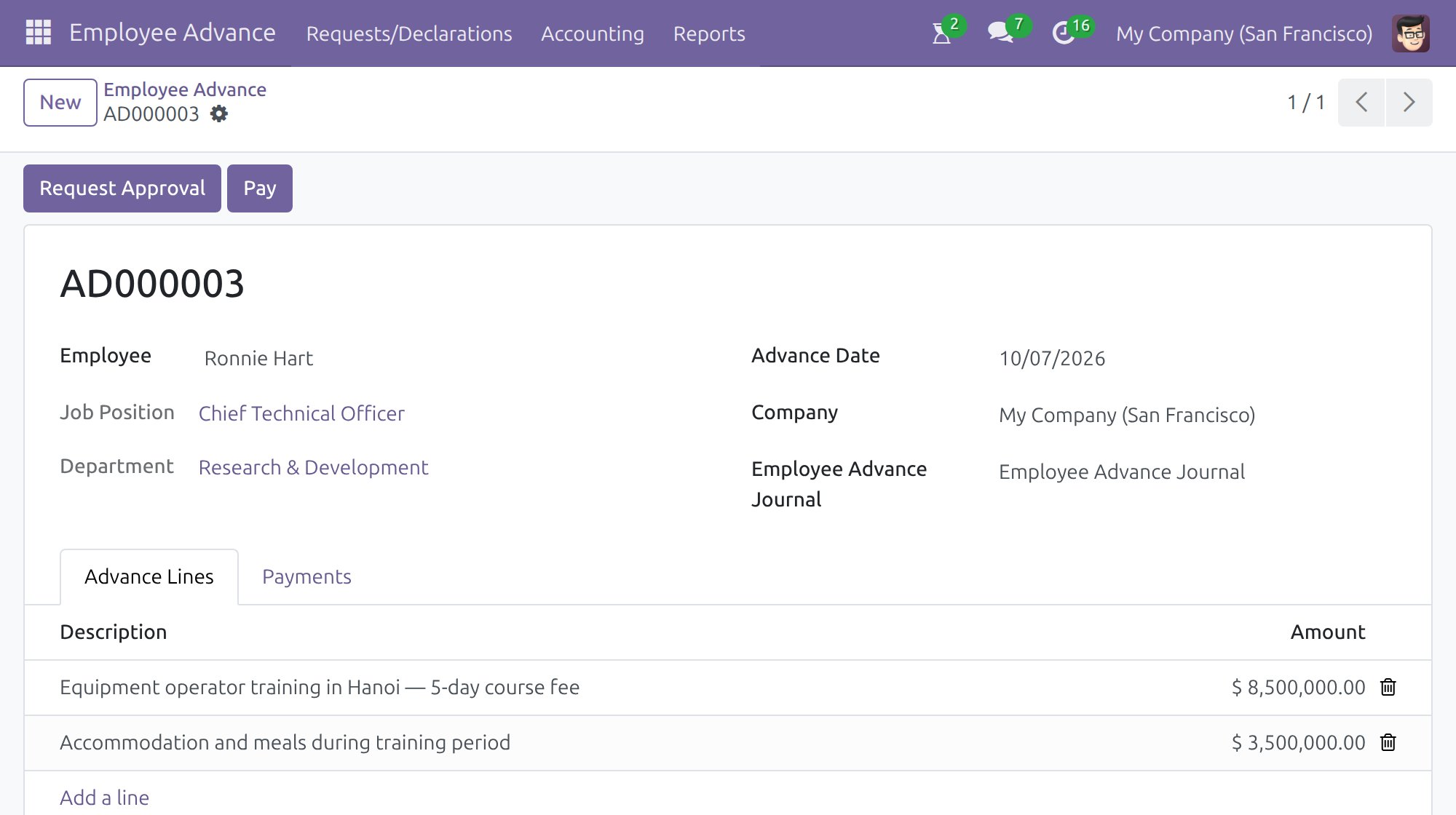
The advance stays editable while it waits for a decision: you can still correct its lines. Once the request is approved, the approved amount is shown on the advance.
Follow the status
Each advance shows two statuses in the list: the approval status (for example To Approve, Approved) and the payment status (Not Paid, Partially Paid, Paid, Reconciled).
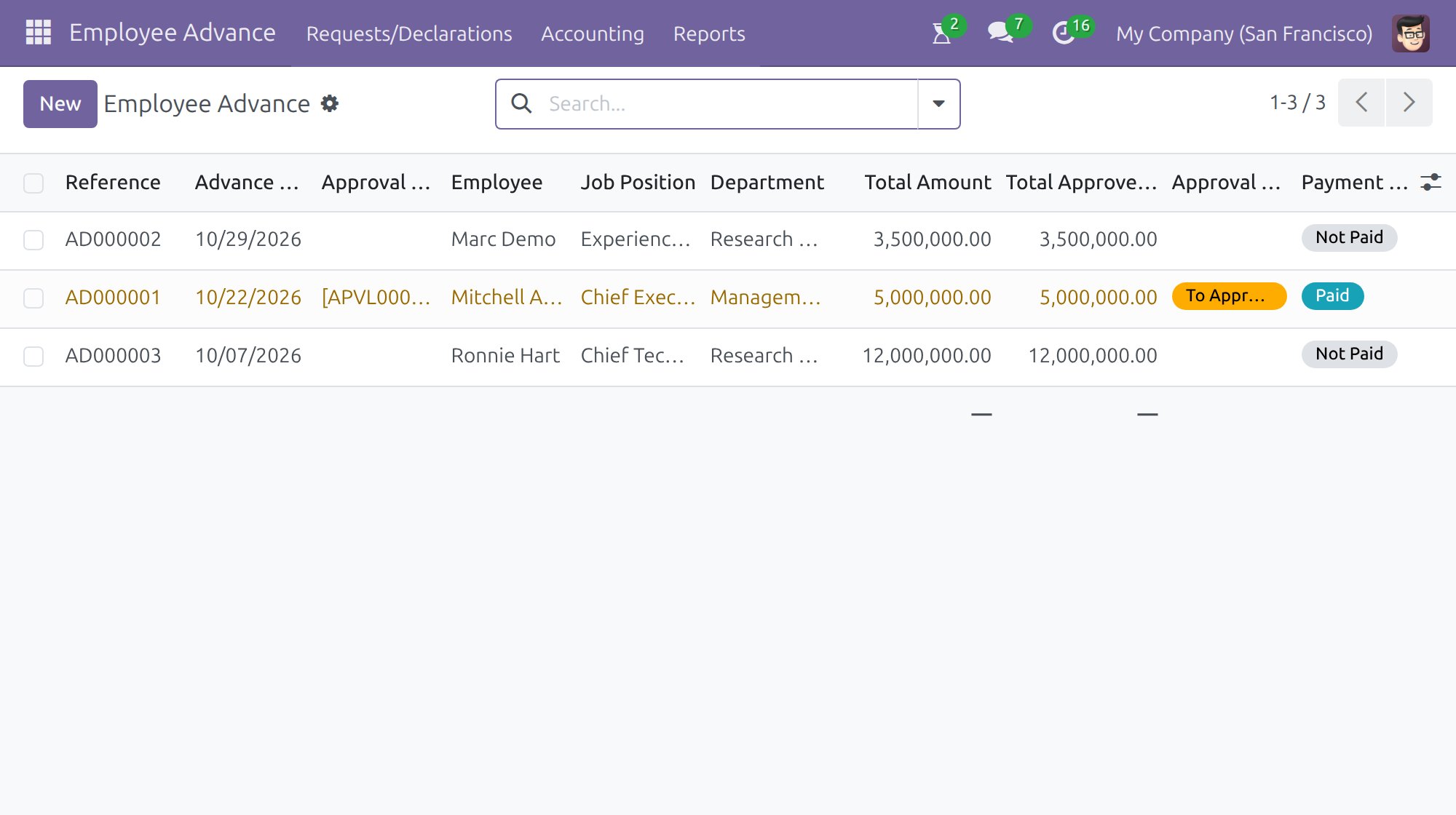
Approver: decide on the request
Open the approval request from the Approval Request field of the advance, check the lines and press Approve or Refuse. Each line can also be refused on its own, in which case the approved amount is the total of the lines you accepted.
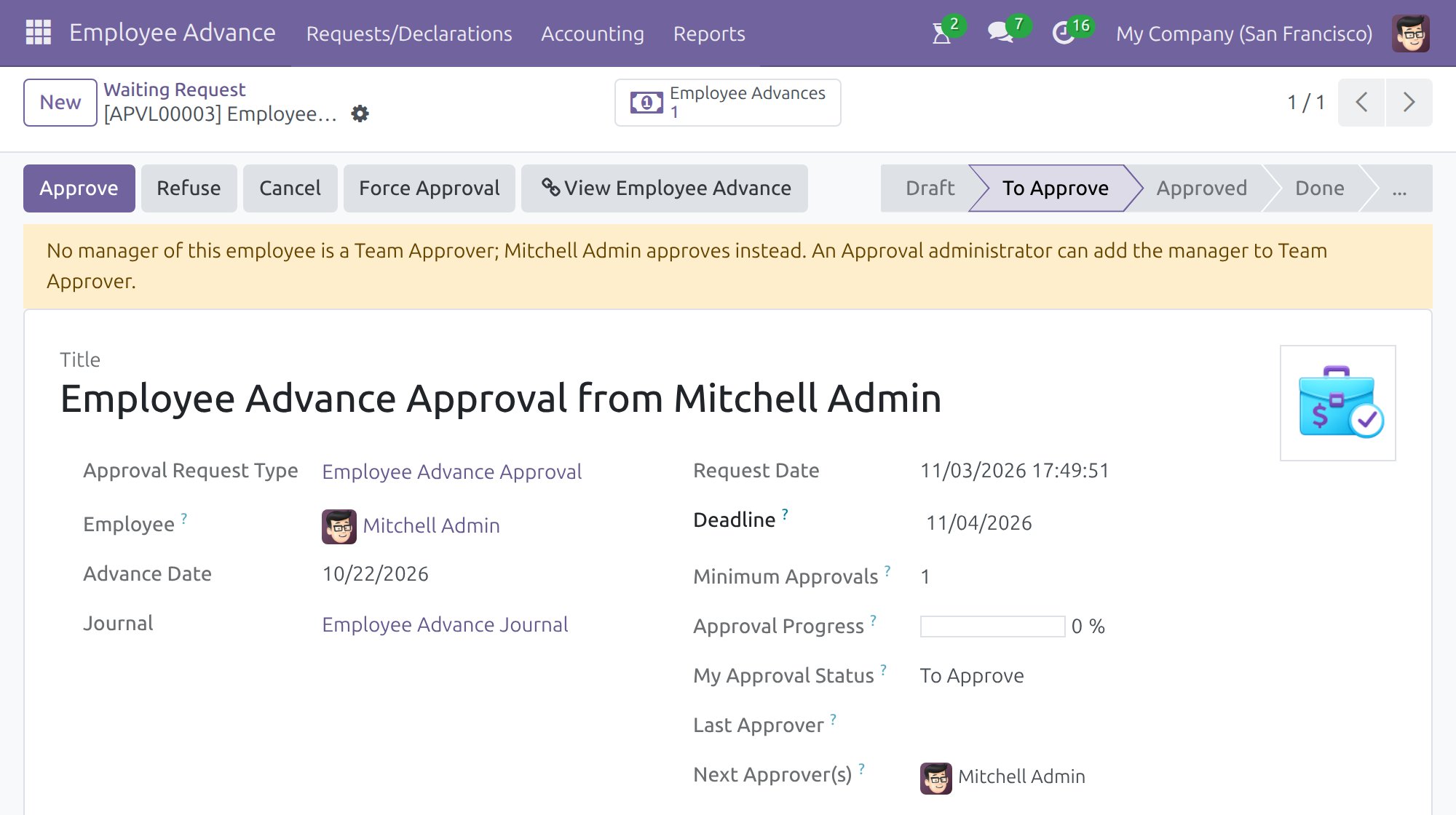
Accountant: pay the advance
Pay as soon as the money is due
The Pay button is available on the advance as long as an amount is still to be paid, including while the approval request is still To Approve. You do not have to wait for the approval to finish.
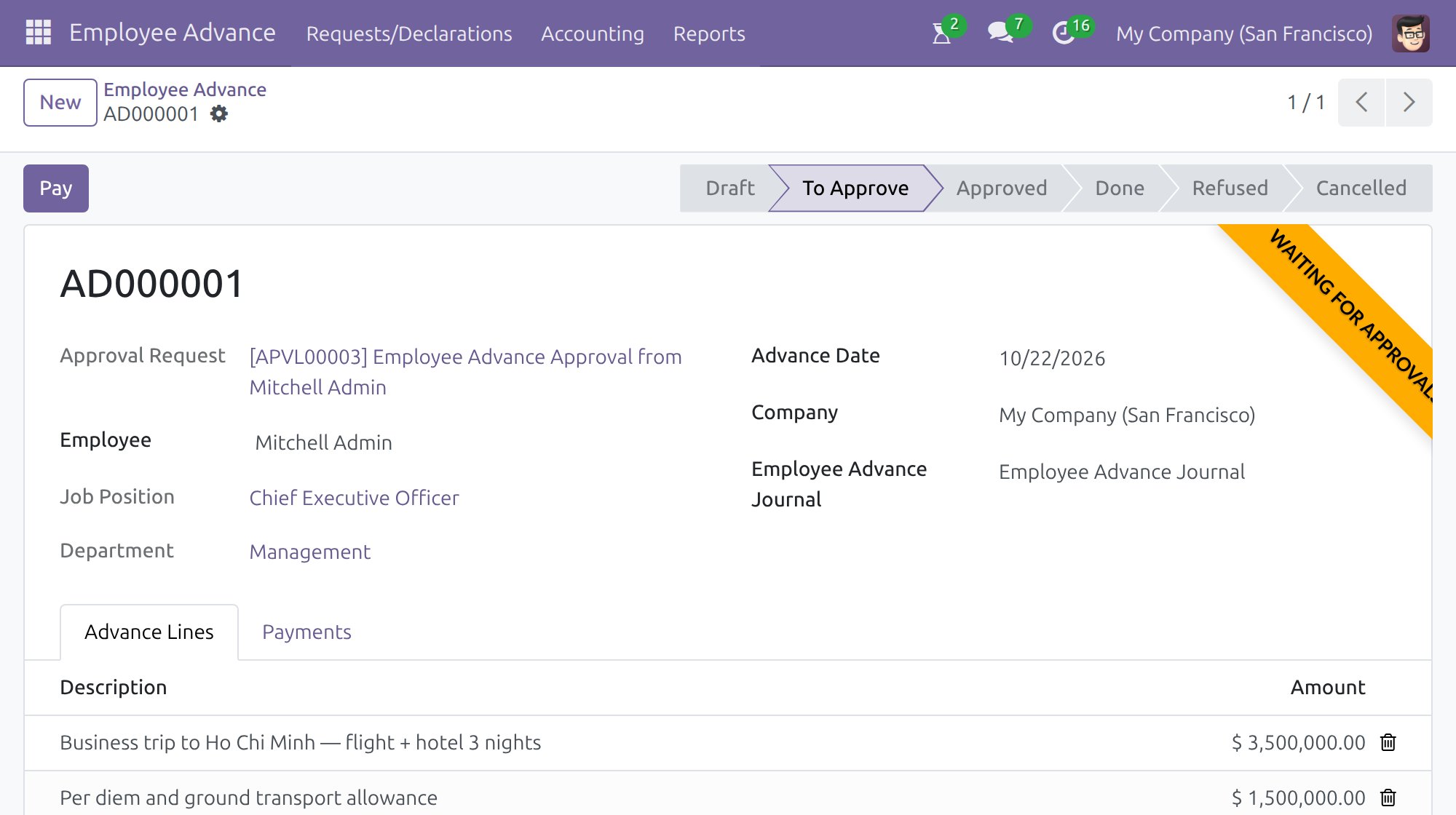
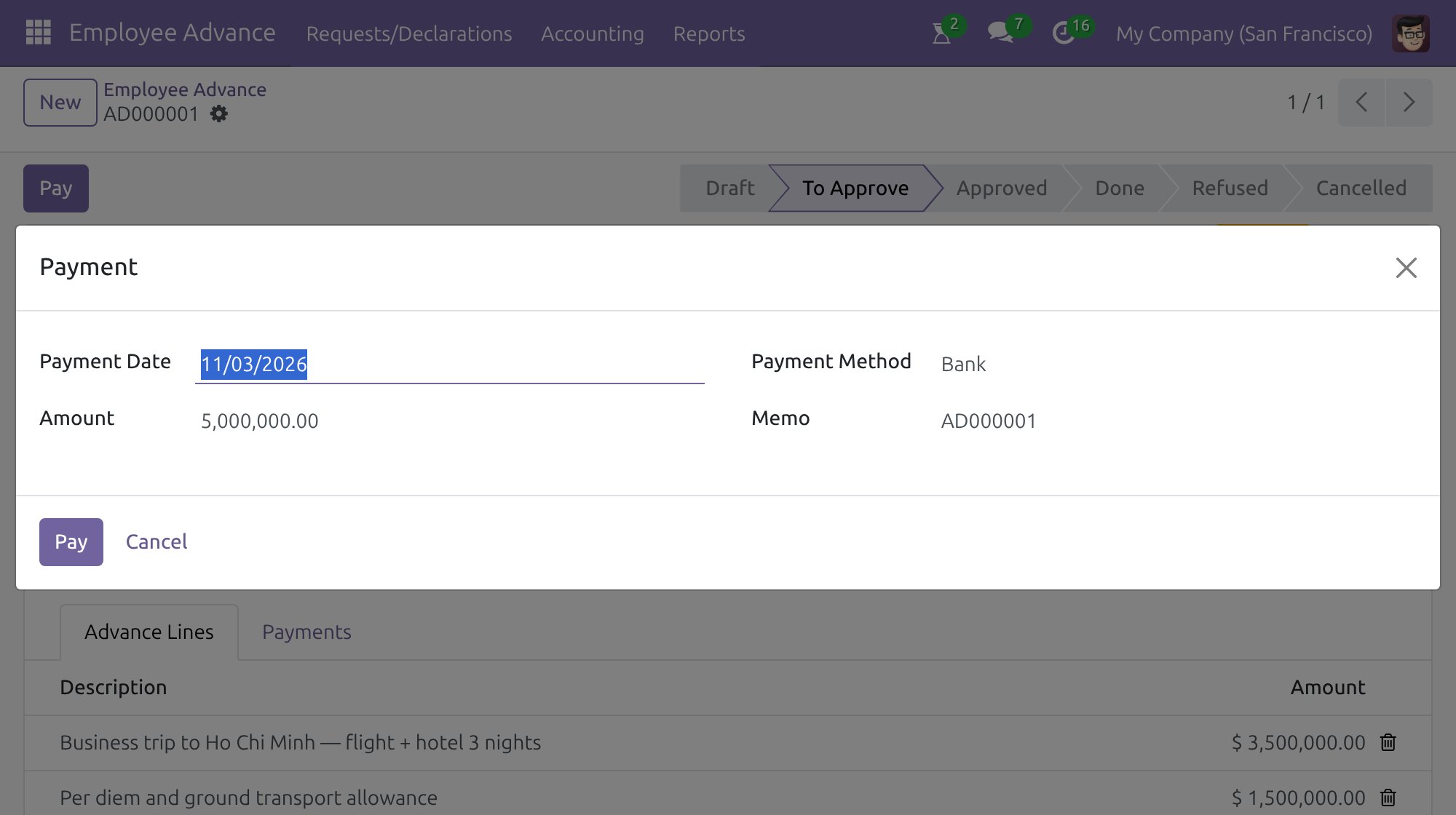
- Open the advance and press Pay.
- Check the payment date, the amount, the payment method and the memo.
- Press Pay.
The amount proposed is the most you can pay: the approved amount once the advance is approved, otherwise the requested amount, minus what was already paid. A higher amount is refused.
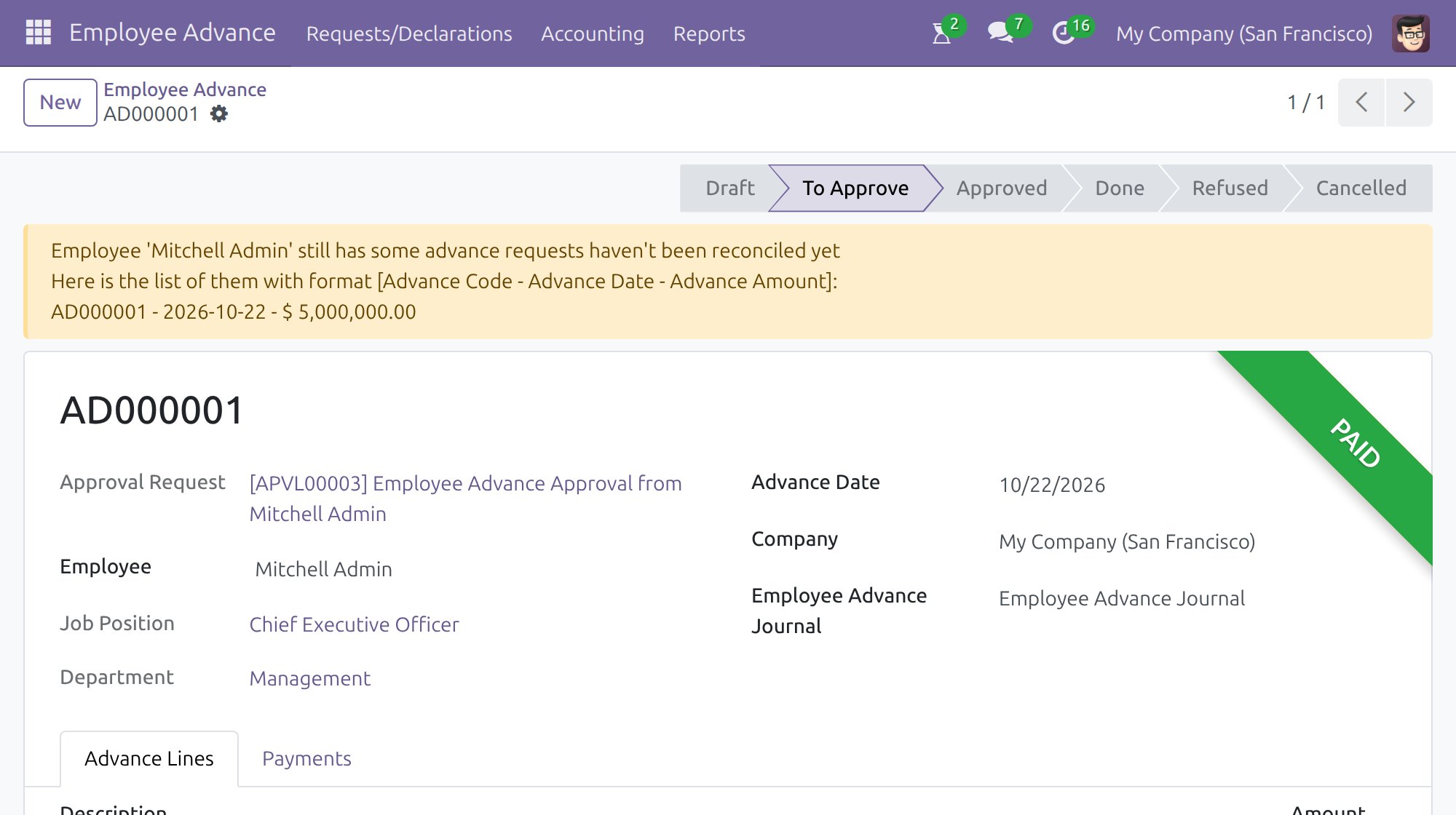
When the advance is fully paid
Once nothing is left to pay, the Pay button disappears and the advance is marked Paid. The Payments tab lists each payment made.
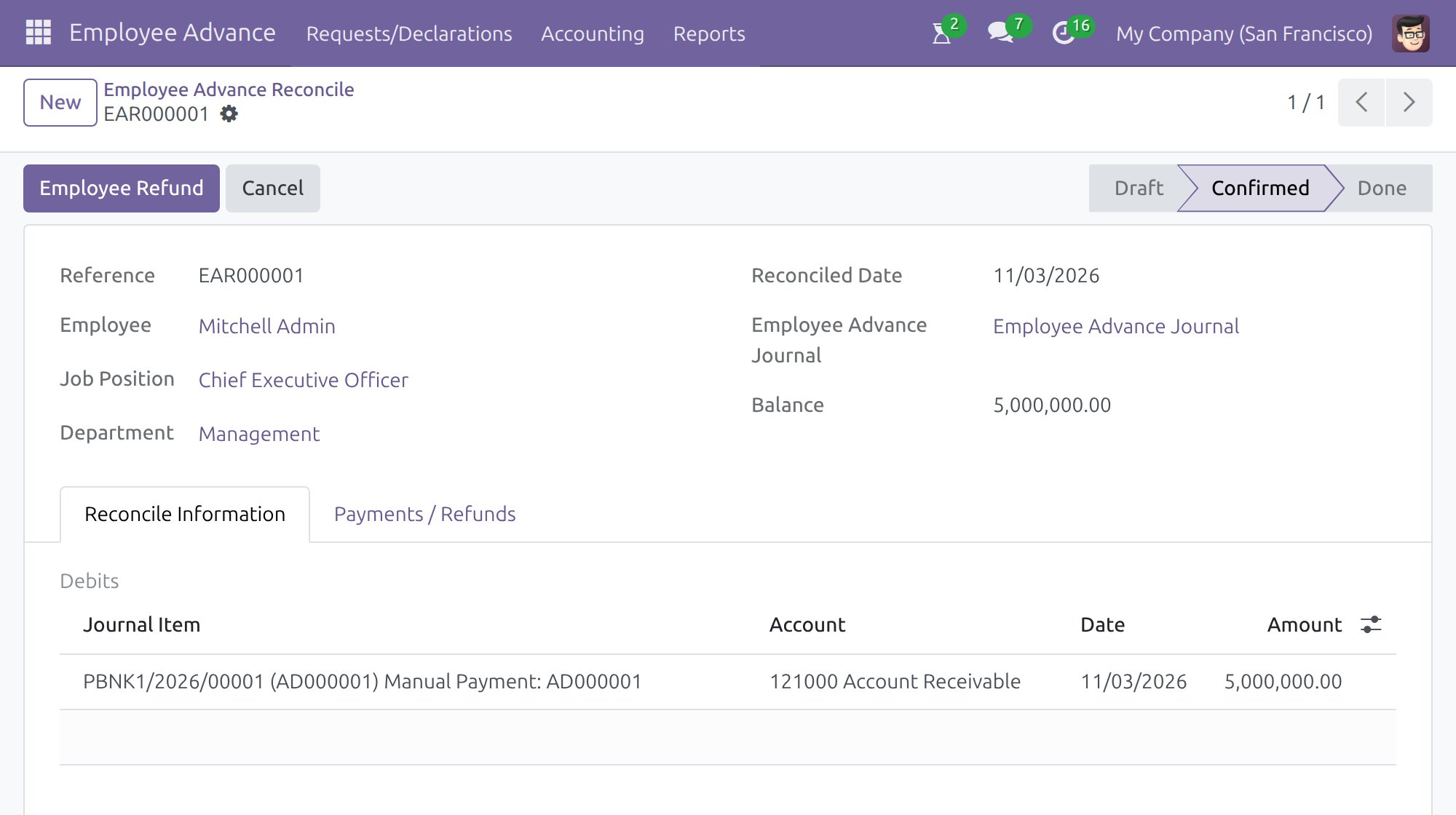
Accountant: reconcile the advance
When the employee has spent the money, reconcile the advance with the actual expenses.
- Open Employee Advance > Accounting > Employee Advance Reconcile and press New.
- Choose the employee. The payments of the advances and the expenses to match are proposed in Reconcile Information; press Compute to refresh them.
- Press Confirm.
If the employee spent less than the advance, the reconcile shows the excess to take back: press Employee Refund to record the money returned by the employee. If the employee spent more, press Pay Employee to pay the difference. Both open the same payment window, with the amount of the difference.
Advance administrator: reports
Open Employee Advance > Reports to analyse the advances by employee and by month, in a pivot table or a graph. Use it, for example, to compare the advance needs of departments or employees over time.
This software and associated files (the "Software") may only be used (executed, modified, executed after modifications) if you have purchased a valid license from the authors, typically via Odoo Apps, or if you have received a written agreement from the authors of the Software (see the COPYRIGHT file).
You may develop Odoo modules that use the Software as a library (typically by depending on it, importing it and using its resources), but without copying any source code or material from the Software. You may distribute those modules under the license of your choice, provided that this license is compatible with the terms of the Odoo Proprietary License (For example: LGPL, MIT, or proprietary licenses similar to this one).
It is forbidden to publish, distribute, sublicense, or sell copies of the Software or modified copies of the Software.
The above copyright notice and this permission notice must be included in all copies or substantial portions of the Software.
THE SOFTWARE IS PROVIDED "AS IS", WITHOUT WARRANTY OF ANY KIND, EXPRESS OR IMPLIED, INCLUDING BUT NOT LIMITED TO THE WARRANTIES OF MERCHANTABILITY, FITNESS FOR A PARTICULAR PURPOSE AND NONINFRINGEMENT. IN NO EVENT SHALL THE AUTHORS OR COPYRIGHT HOLDERS BE LIABLE FOR ANY CLAIM, DAMAGES OR OTHER LIABILITY, WHETHER IN AN ACTION OF CONTRACT, TORT OR OTHERWISE, ARISING FROM, OUT OF OR IN CONNECTION WITH THE SOFTWARE OR THE USE OR OTHER DEALINGS IN THE SOFTWARE.
