Stock Account Backdate
| Lines of Code | 459 |
| Technical name | viin_stock_account_backdate |
| License | OPL-1 |
| Website | https://viindoo.com/apps/modules/18.0/viin_stock_account_backdate |
| Read description for | v 16.0 v 17.0 |
| Required Apps | Invoicing (account) Discuss (mail) Inventory (stock) |
| Included Dependencies | Inventory Backdate Backdate Operations Access Rights |

The accounting date follows the back-dated transfer
A stock operation validated with a past date gets valuation layers on that date - and keeps the real creation moment for the record.
Stock Account Backdate (technical name viin_stock_account_backdate) is an Odoo 18.0 app for Odoo Community and Odoo Enterprise and Viindoo Cloud, built for cost accountant, chief accountant, auditor.
At a Glance
The facts of Stock Account Backdate, version 0.3, in one place. Published by Viindoo.
How It Works
Two screens, one date.
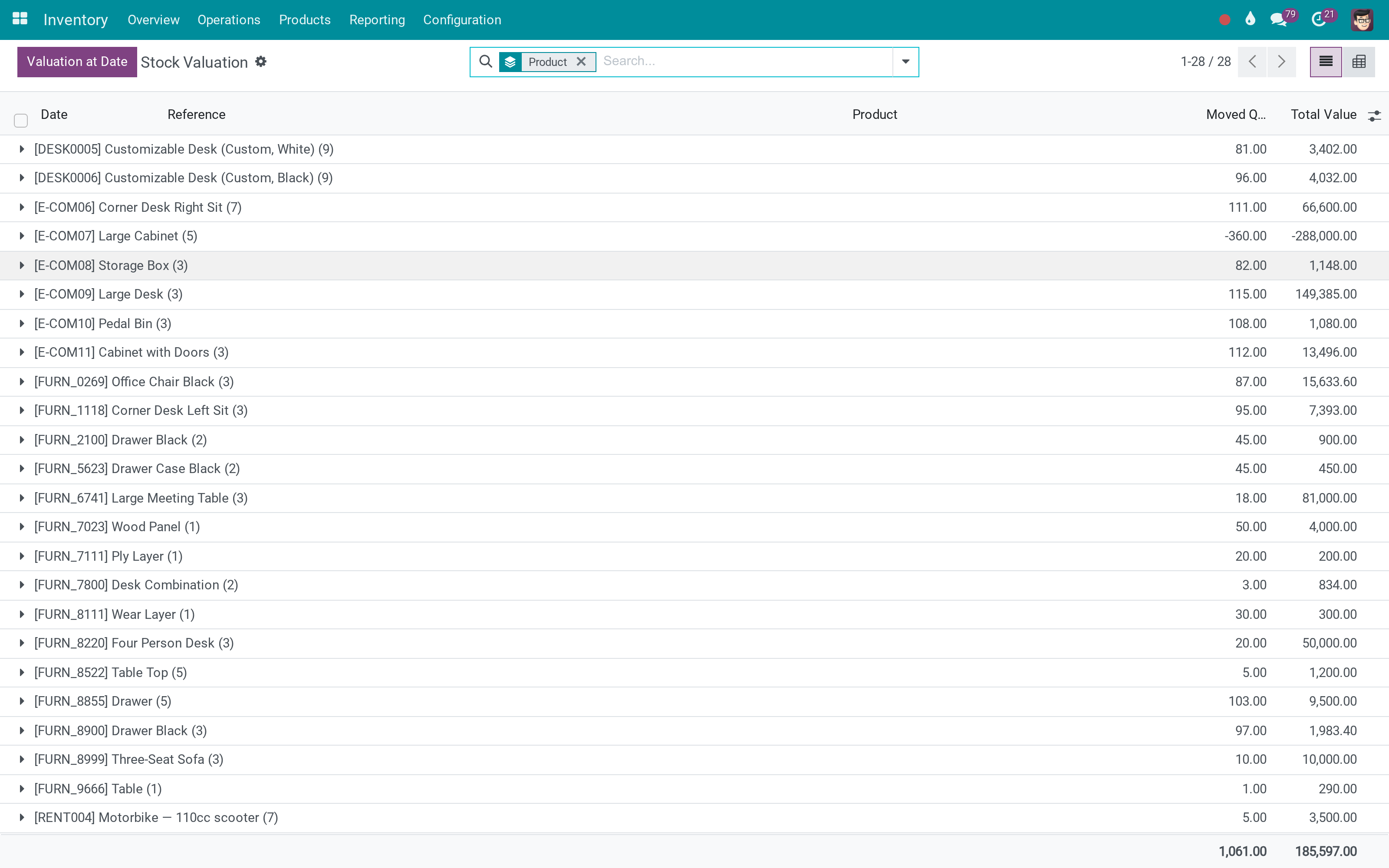
Layers on the operation's own date
The layer belongs to the day the goods moved, not the day somebody typed it in.
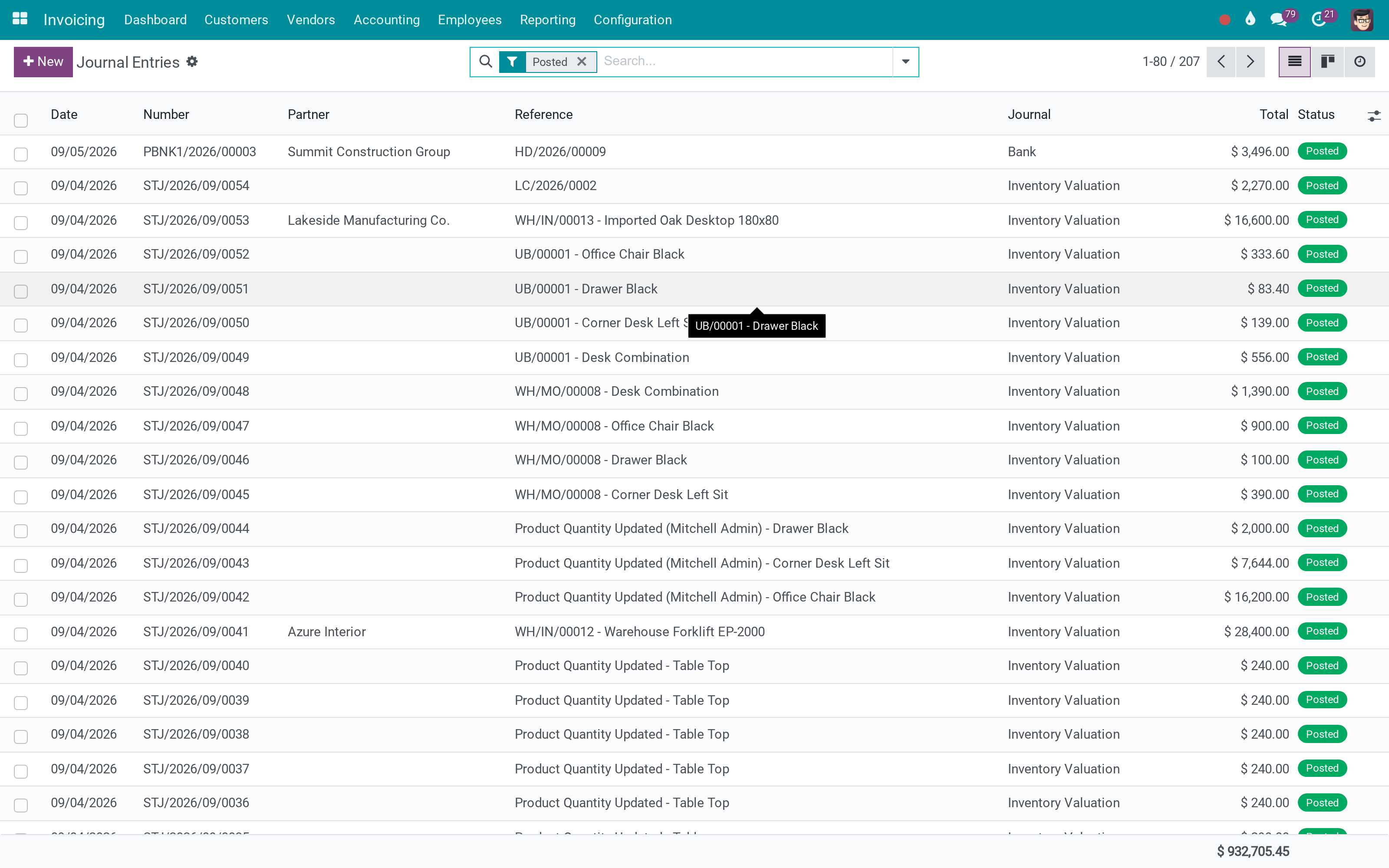
And the entries with them
The accounting behind the movement posts in the same period.
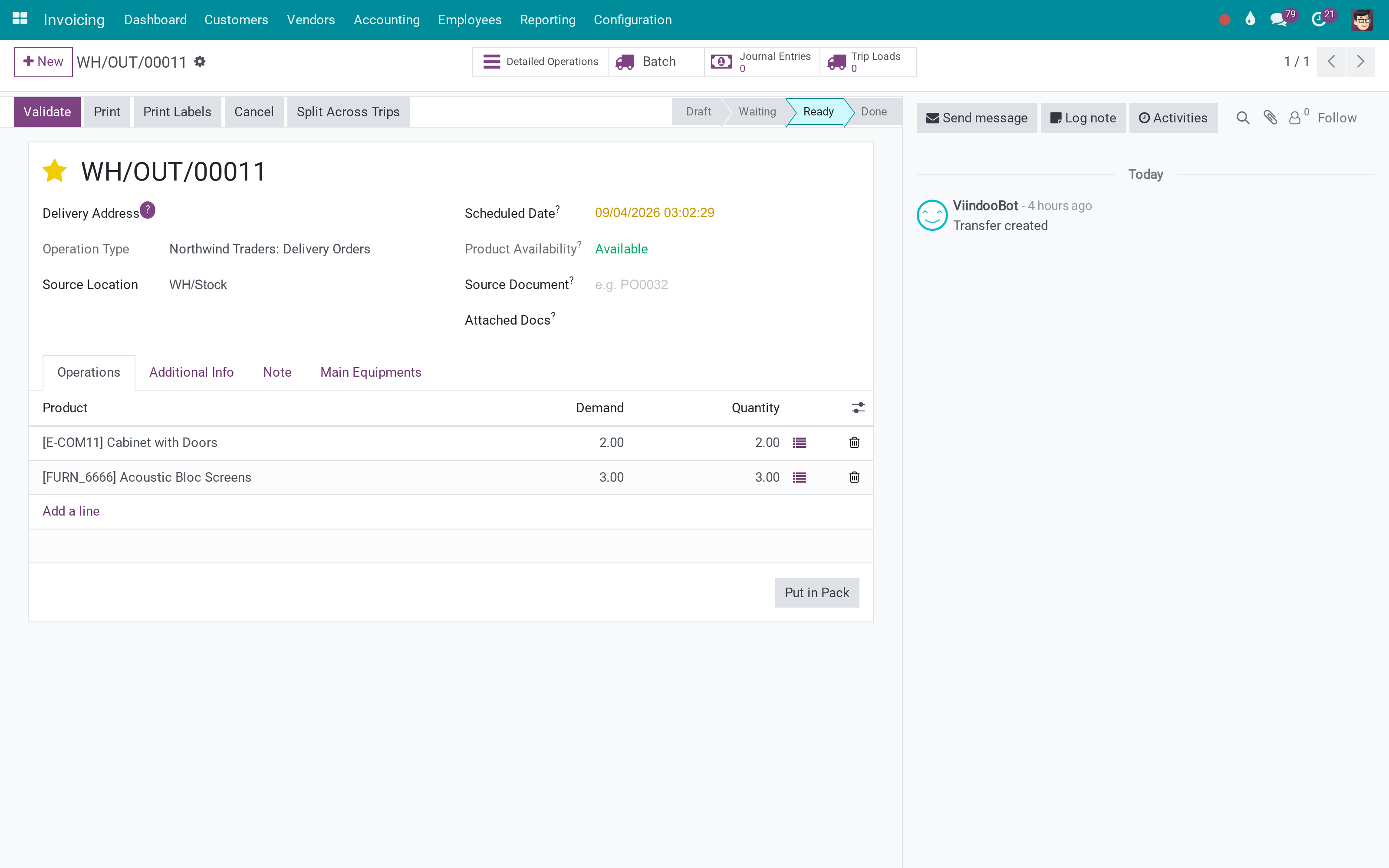
From the transfer that caused it
The back-date is chosen at validation; this module makes the accounting follow it.
What You Get
Valuation layers created with the back-dated date, not the clock
The original creation moment kept in a technical field
Journal entries land in the period the movement belongs to
Applies to transfers, adjustments and scrap that were back-dated
Nothing to configure - it follows the back-date wizard
Valuation reports over a past period become correct
More Screens
Everything below was taken on a database seeded with real business data, on this series - not a mock-up and not a screenshot from an older version.
Journal items
What This App Does Not Do
Read this before you buy. Everything below is something the app deliberately leaves to another app or to you.
It follows the date the inventory back-date wizard supplies.
Odoo's lock date still applies.
It applies to operations validated after it is installed.
There is no new screen - the effect is in the reports you already read.
Works Well With
Apps from the same stack, built to fit this one:
Who Should Use Stock Account Backdate?
Cost accountant
Gets a stock valuation report that matches the period it claims to cover.
Chief accountant
Closes a month knowing late-entered movements landed inside it.
Auditor
Can still see when the record was actually created.
Frequently Asked Questions
What does Stock Account Backdate do?
A stock operation validated with a past date gets valuation layers on that date - and keeps the real creation moment for the record.
What does Stock Account Backdate not do?
It does not back-date anything by itself. It follows the date the inventory back-date wizard supplies. It cannot post into a locked period. Odoo's lock date still applies. It does not rewrite existing layers. It applies to operations validated after it is installed. It is a technical companion. There is no new screen - the effect is in the reports you already read.
Who is Stock Account Backdate for?
Cost accountant: Gets a stock valuation report that matches the period it claims to cover. Chief accountant: Closes a month knowing late-entered movements landed inside it. Auditor: Can still see when the record was actually created.
Which Odoo version and editions does it support?
Odoo 18.0 - Odoo Community, Odoo Enterprise, Viindoo Cloud. Upgrades to a newer Odoo series are a separate purchase for that series.
What does it depend on?
It installs on top of: viin_stock_backdate, stock_account. Odoo installs them with it.
How do I set it up?
Two screens, one date.
What works well with it?
Inventory Backdate (viin_stock_backdate): The wizard that supplies the date - and a dependency. Manufacturing Backdate (to_mrp_backdate): The same for production. Stock & Journal Links (to_stock_account_moves_link): Following those entries back to the transfer.
Can I try it before buying?
Yes - the Live Preview button at the top of this page opens the module's own screen on a working database.
How do I get support?
Write to apps.support@viindoo.com with your Odoo version and the technical name viin_stock_account_backdate; pre-sales questions go to sales@viindoo.com.
See Stock Account Backdate in Action
Live demo: v18demo-int.viindoo.com/web#action=stock_account.stock_valuation_layer_action
Need help with Stock Account Backdate?
For questions, implementation support or a custom feature, contact Viindoo.
Pre-Sales & Partnership
sales@viindoo.comUpgrades to a newer Odoo series are a separate purchase for that series.
All Viindoo apps: apps.odoo.com/apps/modules/browse?author=Viindoo
Technical Requirement
Changes log
0.2 - Latest on the 17.0 line
- The layer's creation date is forced from the back-date context, with the original kept in Origin Create Date.
Installation
- Navigate to Apps.
- Search with keyword to_stock_backdate.
- Press Install.
Instruction
Instruction video: Inventory Backdate
Inventory adjustment for a day in the past
Method 1: Create an inventory adjustment
For inventory management, navigate to Inventory > Operations > Inventory Adjustments, press Create, select a product and add the counted quantity of this product. Press Apply, select an inventory date and accounting date in the past then click Validate.

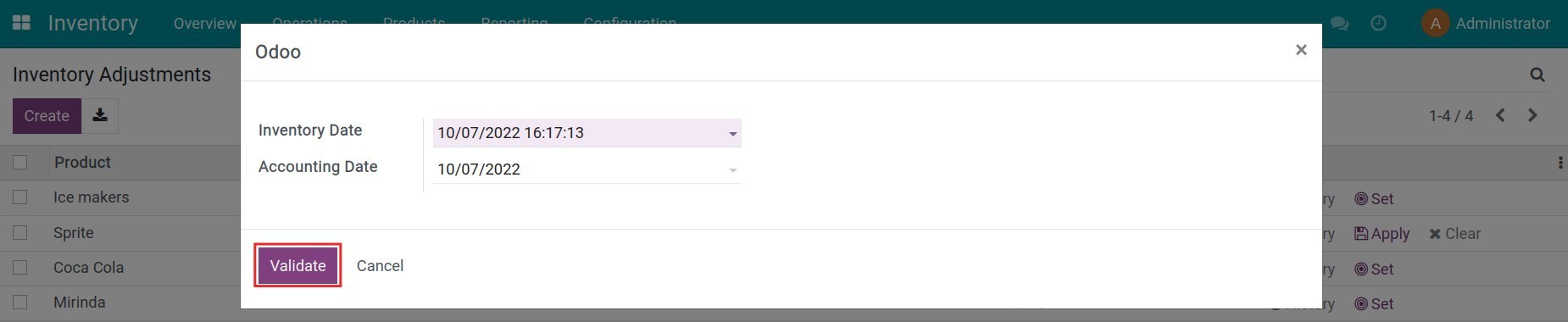
Method 2: Update quantity on product view
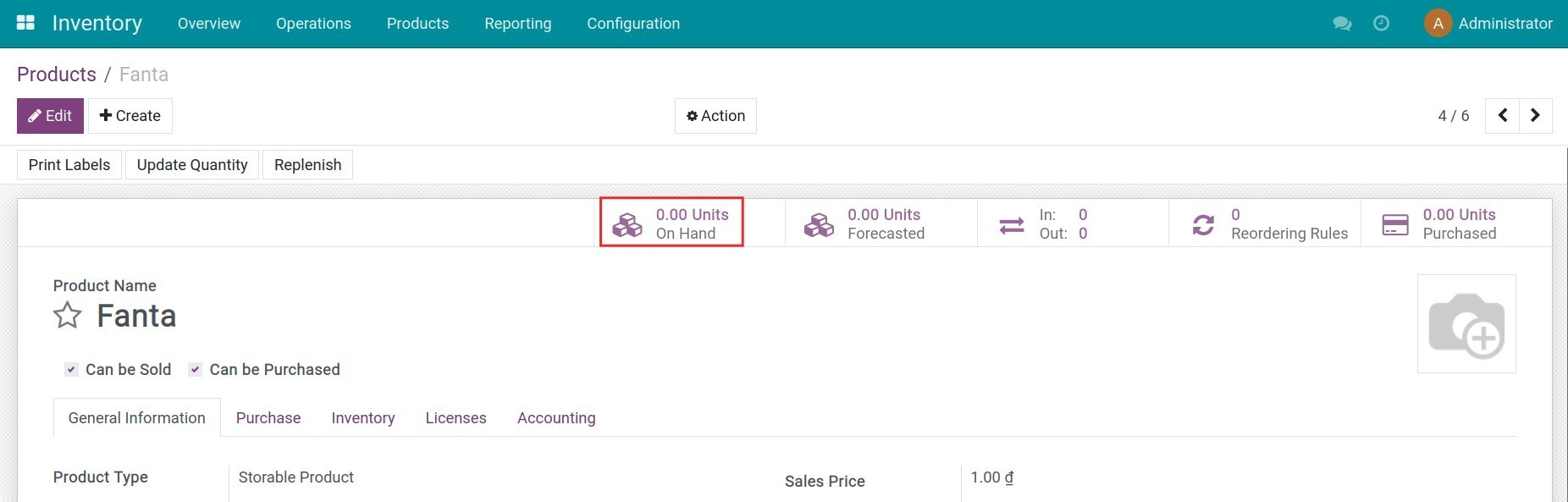
Navigate to Inventory > Products > Products, select a product to adjust the inventory quantity for stock management, press the Units On Hand button to perform the similar inventory steps.
Create a Scrap Order for a day in the past
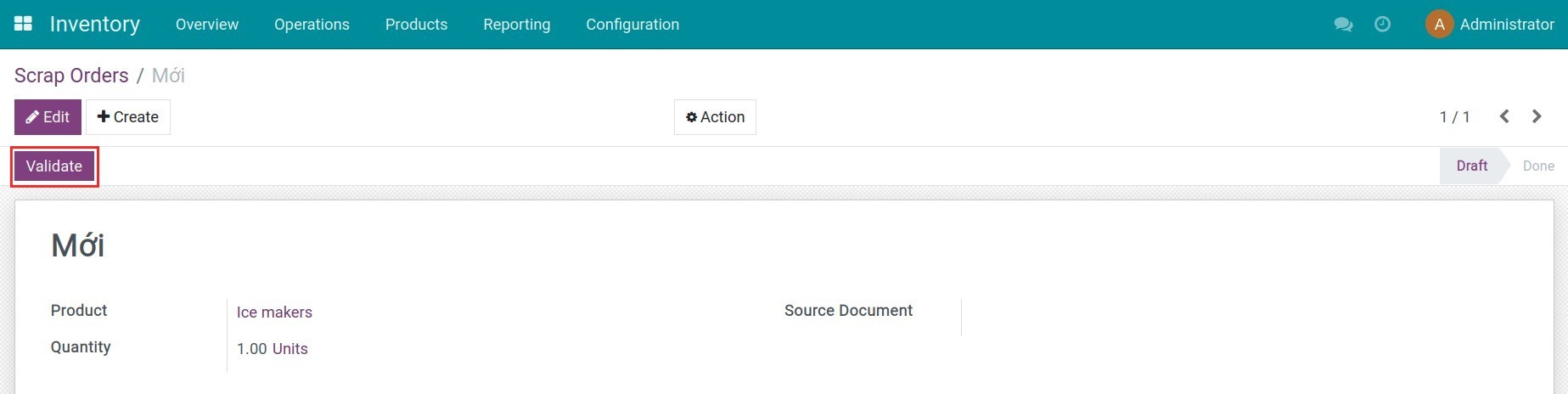
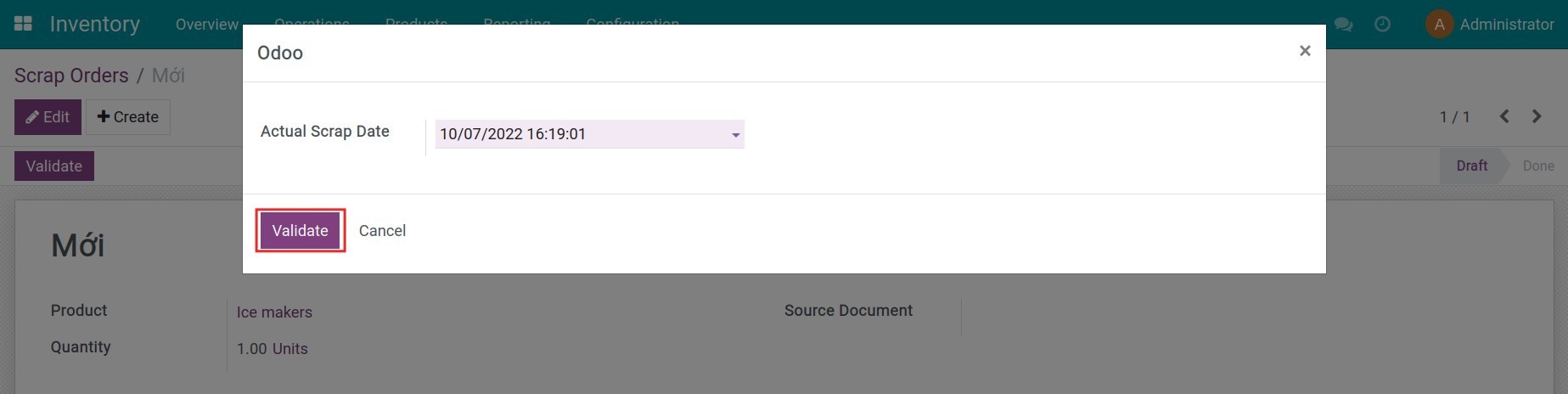
Go to Inventory > Operations > Scrap, press Create for a new scrap order. Click Validate and select the actual scrap date which happened in the past.
This software and associated files (the "Software") may only be used (executed, modified, executed after modifications) if you have purchased a valid license from the authors, typically via Odoo Apps, or if you have received a written agreement from the authors of the Software (see the COPYRIGHT file).
You may develop Odoo modules that use the Software as a library (typically by depending on it, importing it and using its resources), but without copying any source code or material from the Software. You may distribute those modules under the license of your choice, provided that this license is compatible with the terms of the Odoo Proprietary License (For example: LGPL, MIT, or proprietary licenses similar to this one).
It is forbidden to publish, distribute, sublicense, or sell copies of the Software or modified copies of the Software.
The above copyright notice and this permission notice must be included in all copies or substantial portions of the Software.
THE SOFTWARE IS PROVIDED "AS IS", WITHOUT WARRANTY OF ANY KIND, EXPRESS OR IMPLIED, INCLUDING BUT NOT LIMITED TO THE WARRANTIES OF MERCHANTABILITY, FITNESS FOR A PARTICULAR PURPOSE AND NONINFRINGEMENT. IN NO EVENT SHALL THE AUTHORS OR COPYRIGHT HOLDERS BE LIABLE FOR ANY CLAIM, DAMAGES OR OTHER LIABILITY, WHETHER IN AN ACTION OF CONTRACT, TORT OR OTHERWISE, ARISING FROM, OUT OF OR IN CONNECTION WITH THE SOFTWARE OR THE USE OR OTHER DEALINGS IN THE SOFTWARE.