Sales Quotation Template Access
by Viindoo
| Lines of Code | 327 |
| Technical name | viin_sale_quotation_template_access |
| License | OPL-1 |
| Website | https://viindoo.com/apps/modules/19.0/viin_sale_quotation_template_access |
| Read description for | v 13.0 v 14.0 v 15.0 v 16.0 v 17.0 v 18.0 |
| Required Apps | Invoicing (account) Discuss (mail) Sales (sale_management) |
The people who write your quotes keep the templates up to date
For sales teams whose templates are maintained by sales staff, not by the Sales administrator
Let chosen users create and edit quotation templates without the Sales Administrator role.
Odoo 19.0 · Community · Enterprise · OPL-1
What changes for your team
Template upkeep without admin rights
Today only Sales administrators may create or change quotation templates; salespeople can only use them.
→ One access right, Access Quotation Template, lets a user create, edit and delete templates and their lines. It grants no other Sales right.
Templates where the team already works
Today the template list sits in the Sales configuration menu, which only administrators open.
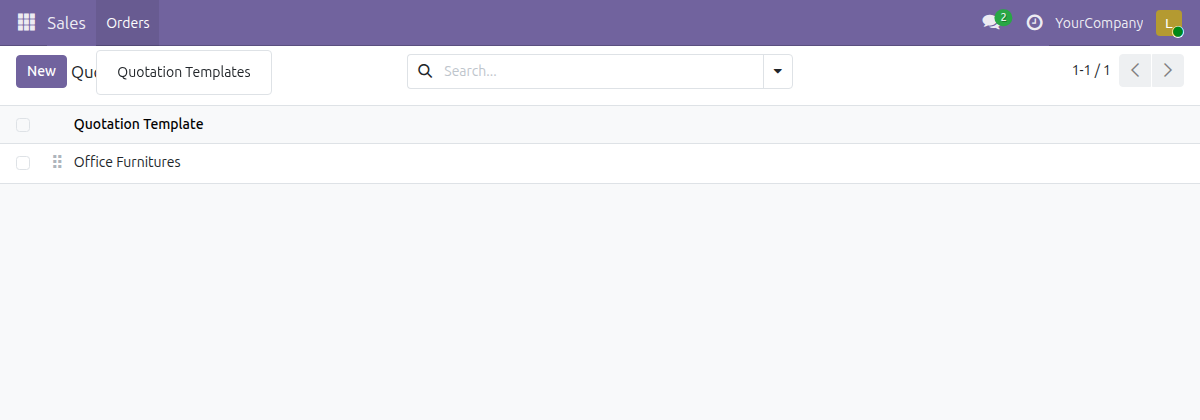
→ Users with the right find Quotation Templates in the Orders menu of the Sales app.
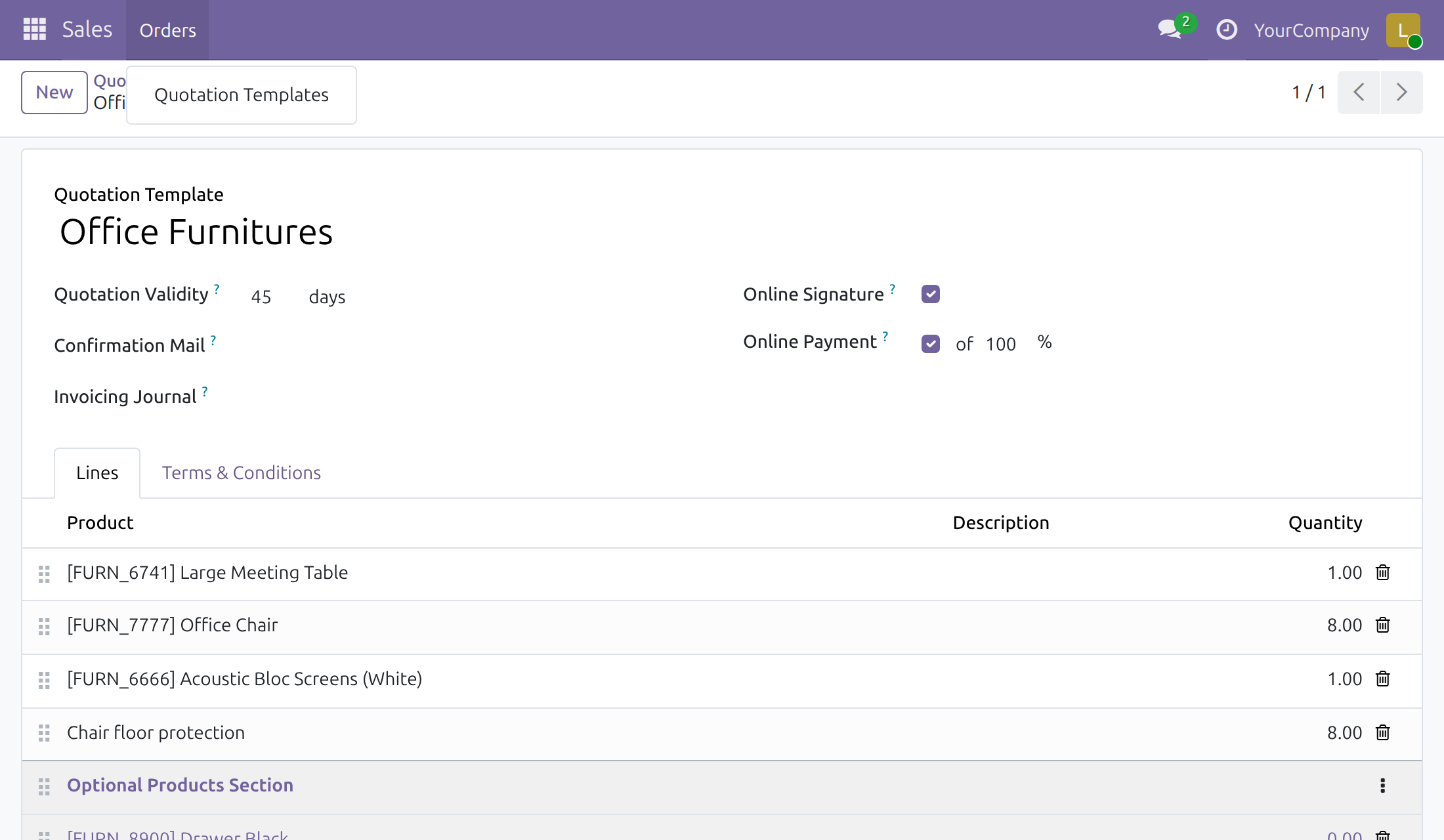
The whole template, not just its name
Today a new product, a changed validity or a revised clause waits until an administrator has time.
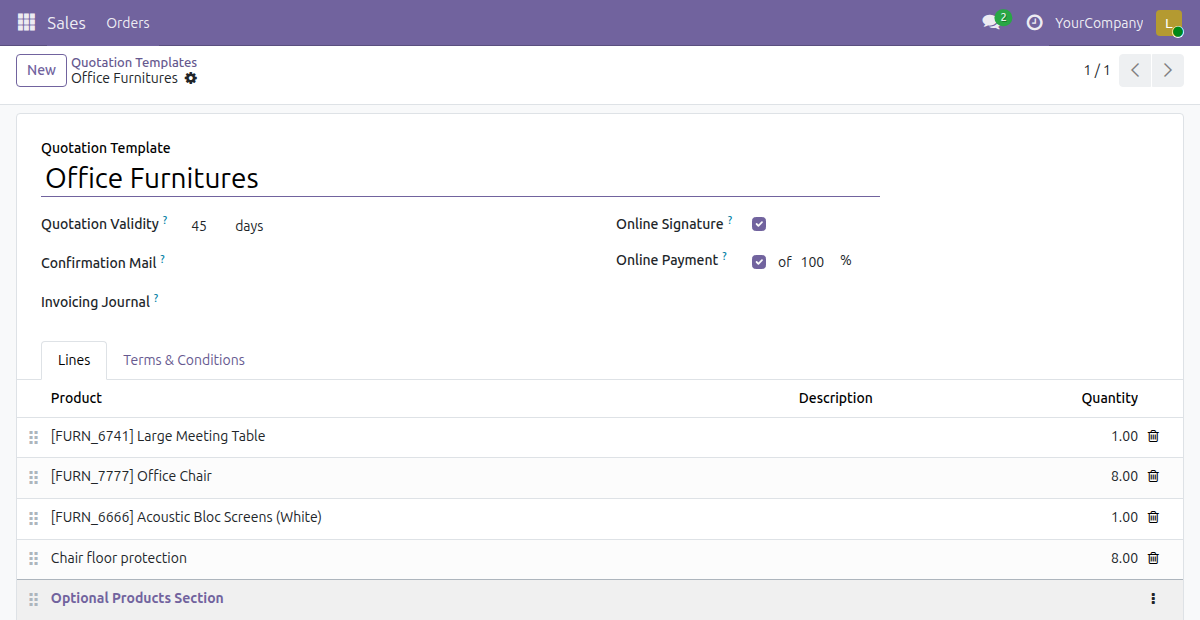
→ The user maintains product, section and note lines, optional products, validity, online signature and payment, and the terms and conditions.
Ready on day one
Installs with the Sales app
The module installs on its own when the Sales app is installed.
Your existing templates
The right opens the templates you already have. There is nothing to migrate or recreate.
One step for the administrator
Tick the right on each user who maintains templates. The Documentation tab shows where.
What is included
The Access Quotation Template right, full create, edit and delete on quotation templates and their lines for its users, and the Quotation Templates entry in the Orders menu of the Sales app.
Before you decide
Does the right make the user a Sales administrator?
No. It grants no other group: Sales settings and configuration stay with administrators.
Can a user with only this right open quotations?
No. The right covers the templates only; give the usual Sales right for quotations and sales orders.
Where does the administrator find the right?
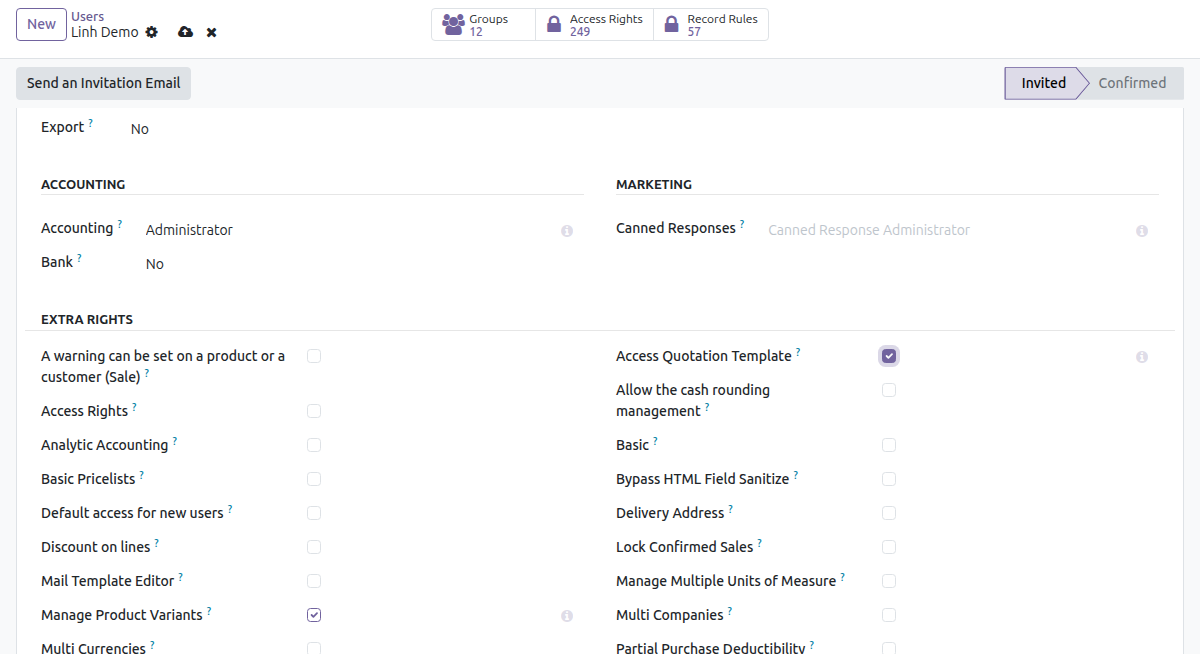
In the Extra Rights of the user's Access Rights tab, which shows in developer mode.
Which languages does it ship?
English and Vietnamese.
Where does our data go?
Nowhere. The module adds an access right and a menu inside your database; no external service is involved.
Try it, then ask us
Read the Documentation tab for the setup and each role, open the live preview of this listing, or watch the video above.
Pre-sales & partnership
viindoo.com/contactusTechnical support
viindoo.com/ticketTechnical requirements
- Odoo version: 19.0
- Editions: Community, Enterprise
- Required modules: Sales (sale_management)
- License: OPL-1
- Languages: English, Vietnamese
Sales Quotation Template Access
Audience: administrators who assign access rights, and sales managers and salespeople who prepare quotation templates.
Overview
Only users with the Administrator role under Sales can create, edit or delete quotation templates (predefined quotation lines, validity, terms and conditions). This module adds the Access Quotation Template right to the Extra Rights of the user form: a chosen user can open the Quotation Templates menu of the Sales app and create, edit or delete quotation templates without being given the Administrator role under Sales.
| Role | What they do | Access right to assign |
|---|---|---|
| Administrator | Gives the access right to the users who maintain quotation templates. | Settings: Administrator (Role) |
| Sales manager or salesperson | Opens Sales > Orders > Quotation Templates, creates, edits and deletes templates, including their lines. | Access Quotation Template (Extra Rights), together with the user's usual Sales right |
Setup (for the Administrator)
Installation
- Open Apps.
- Search for Sales Quotation Template Access.
- Click Activate.
The module requires the Sales app. It is installed automatically when the Sales app is installed.
Give a user the access right
The access right is listed in the Extra Rights section of the user form, which is displayed in developer mode.
- Activate developer mode: Settings > Developer Tools > Activate the developer mode.
- Open Settings > Users & Companies > Users and open the user.
- In the Access Rights tab, scroll to Extra Rights.
- Tick Access Quotation Template.
- Save.
The user keeps the other rights already assigned. A user who only has this right can reach the quotation templates, not the quotations or sales orders themselves: assign the Sales right the user needs for that work as usual.
Sales manager or salesperson: maintain quotation templates
Open the quotation templates
- Open the Sales app.
- Click Orders, then Quotation Templates.
The list shows every quotation template. Use New to create one, or click a template to open it.
Create or edit a template
- Click New, or open an existing template.
- Fill in the Quotation Template name and, if needed, Quotation Validity, Confirmation Mail, Invoicing Journal, Online Signature and Online Payment.
- In the Lines tab, add the products, sections and notes the quotation starts with; tick a line as optional when the customer may choose it.
- In the Terms & Conditions tab, enter the terms printed on quotations that use the template.
- Save. To delete a template, use the Actions (gear) menu of the form, then Delete.
This software and associated files (the "Software") may only be used (executed, modified, executed after modifications) if you have purchased a valid license from the authors, typically via Odoo Apps, or if you have received a written agreement from the authors of the Software (see the COPYRIGHT file).
You may develop Odoo modules that use the Software as a library (typically by depending on it, importing it and using its resources), but without copying any source code or material from the Software. You may distribute those modules under the license of your choice, provided that this license is compatible with the terms of the Odoo Proprietary License (For example: LGPL, MIT, or proprietary licenses similar to this one).
It is forbidden to publish, distribute, sublicense, or sell copies of the Software or modified copies of the Software.
The above copyright notice and this permission notice must be included in all copies or substantial portions of the Software.
THE SOFTWARE IS PROVIDED "AS IS", WITHOUT WARRANTY OF ANY KIND, EXPRESS OR IMPLIED, INCLUDING BUT NOT LIMITED TO THE WARRANTIES OF MERCHANTABILITY, FITNESS FOR A PARTICULAR PURPOSE AND NONINFRINGEMENT. IN NO EVENT SHALL THE AUTHORS OR COPYRIGHT HOLDERS BE LIABLE FOR ANY CLAIM, DAMAGES OR OTHER LIABILITY, WHETHER IN AN ACTION OF CONTRACT, TORT OR OTHERWISE, ARISING FROM, OUT OF OR IN CONNECTION WITH THE SOFTWARE OR THE USE OR OTHER DEALINGS IN THE SOFTWARE.