Project Quality Control
by Viindoo
| Lines of Code | 971 |
| Technical name | viin_quality_project |
| License | OPL-1 |
| Website | https://viindoo.com/apps/modules/19.0/viin_quality_project |
| Required Apps | Project (project) Discuss (mail) |
| Included Dependencies | Quality |

Deliverables graded at the stage where the work is accepted
For service teams that deliver work to customers through project tasks
Check project task deliverables with quality control points at the stage you choose.
Odoo Community Edition · Viindoo Cloud · License OPL-1 · English, Vietnamese
Extends Quality: its control points, scorecards, checks and alerts work on project tasks.
What changes for your team
One acceptance standard, applied where it belongs
Each project manager accepts work in their own way, and some deliverables reach the customer unchecked.
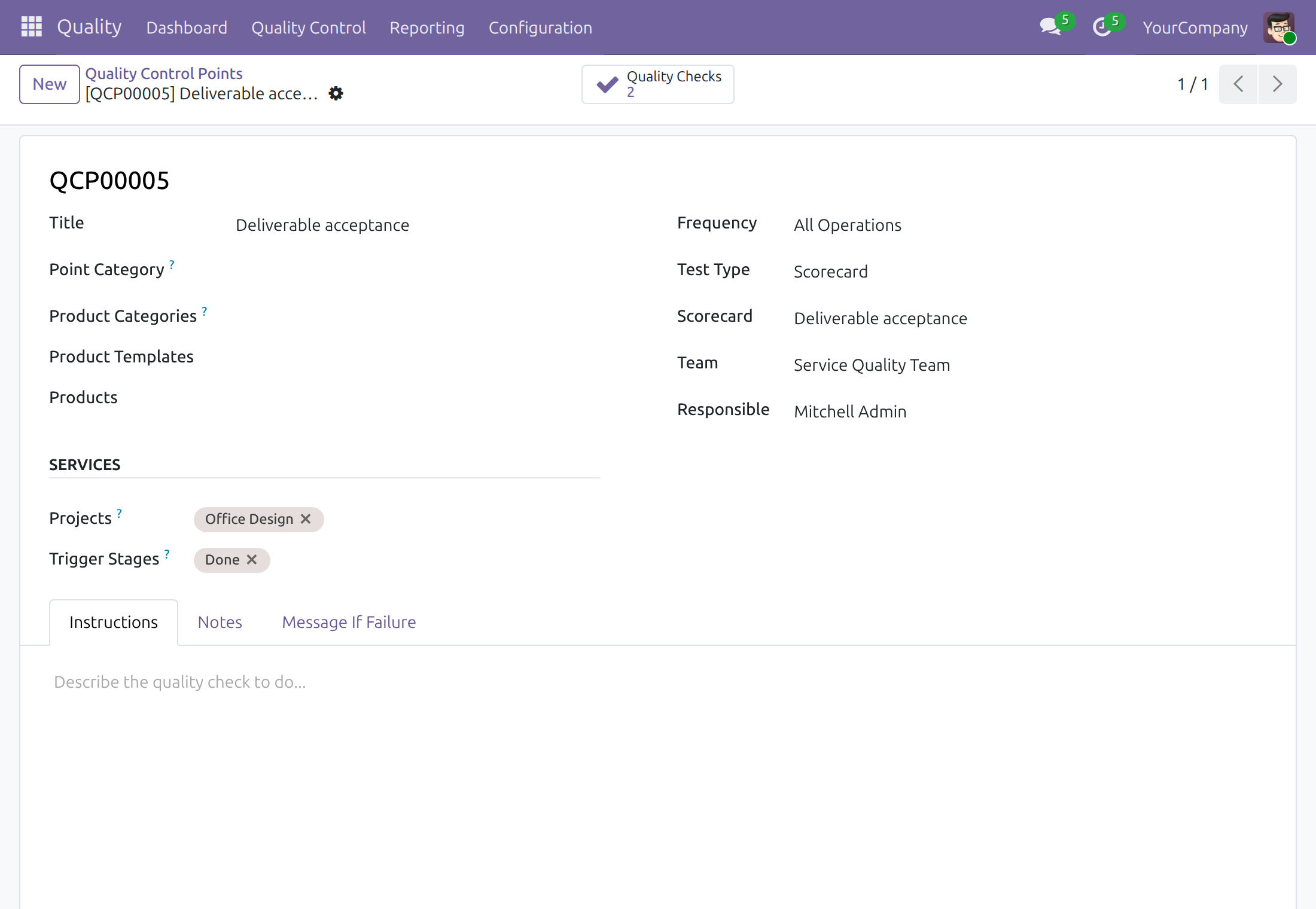
→ A control point names the projects it checks, or every project, and the stages that trigger it. A task entering such a stage gets its check.
Graded by the team, from the task
Acceptance is recorded in a spreadsheet or another tool, far from the task it concerns.
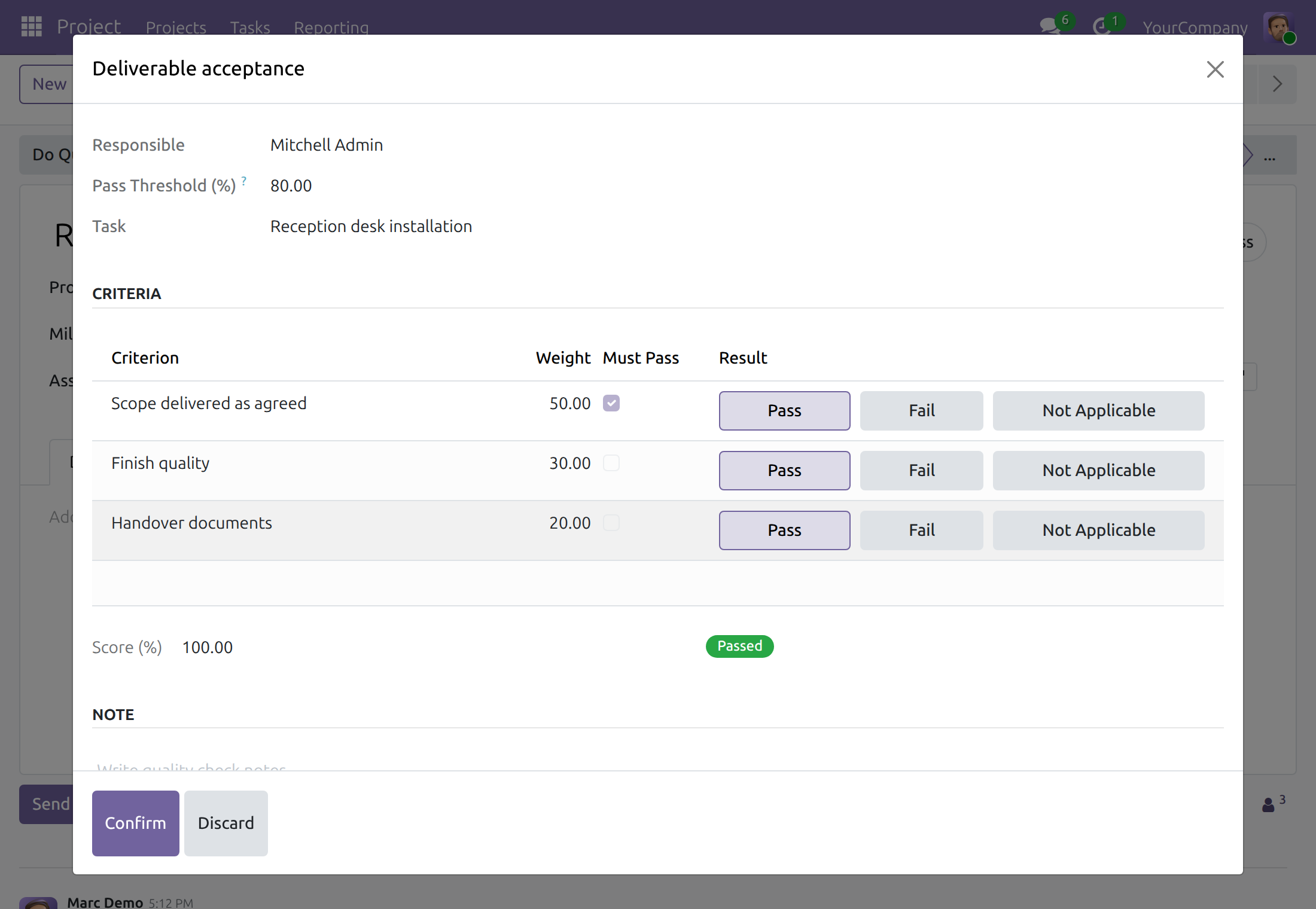
→ Do Quality Checks opens the task's checks one after the other. A scorecard grades weighted criteria against a pass threshold, with the Project access right alone.
Problems followed up, linked to their task
A problem found at handover is reported by chat and lost before anyone acts on it.
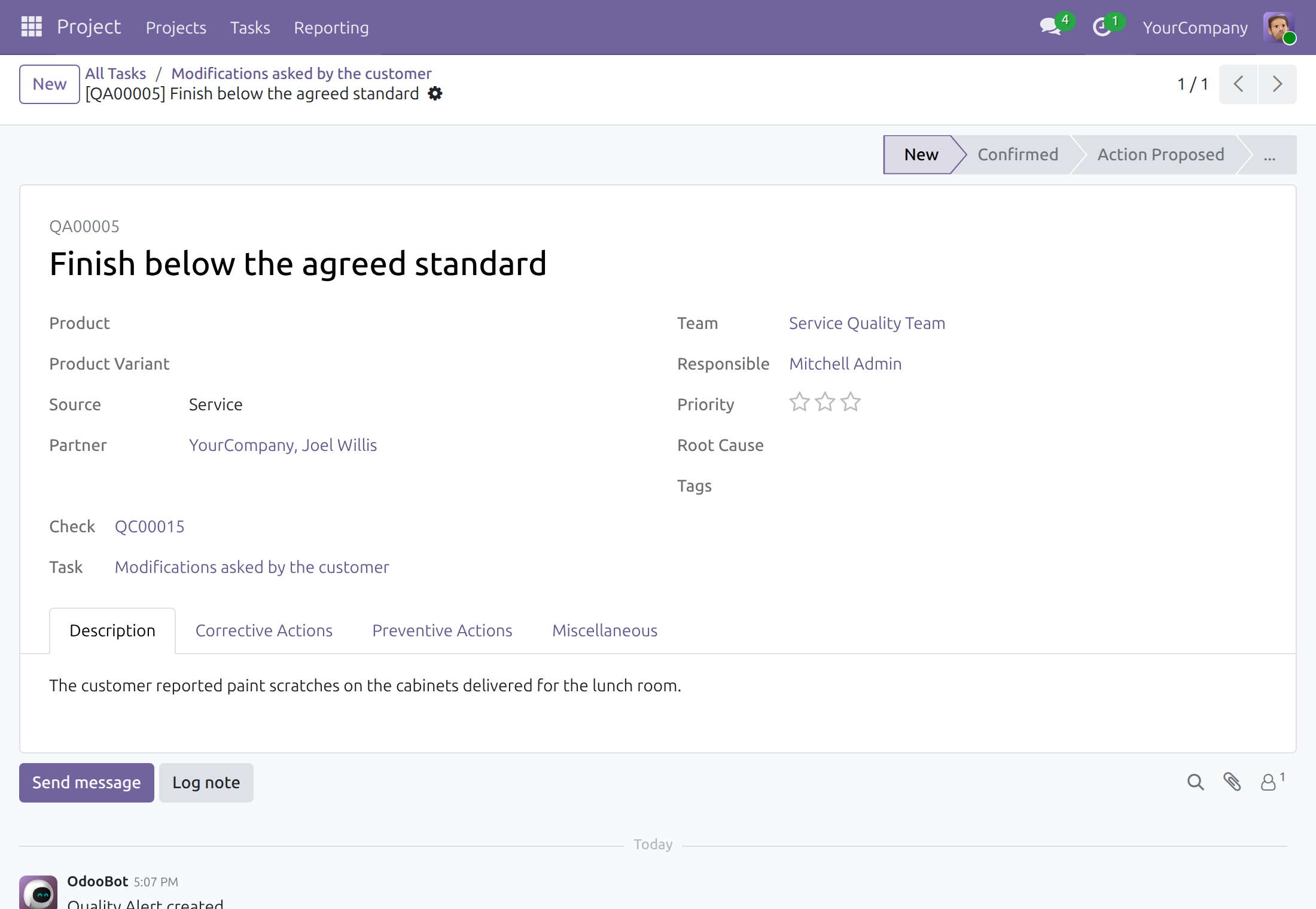
→ Report Quality Issue creates a quality alert with the task, its customer and the Service source filled in, ready for the quality team's corrective actions.
Features
Plan what to check
- ✓ Choose the projects each control point checks, or every project
- ✓ Pick the task stages that trigger a check
- ✓ Any test type of the Quality app, scorecards included
- ✓ Find control points by project or stage, or group them by project
Checks that follow the task
- ✓ A check is created when a task enters a trigger stage
- ✓ Also when a task in a trigger stage moves to another project
- ✓ Frequency of the point: every task, a random share, or periodically
- ✓ No duplicate check to do; a task coming back gets a new one
Work from the task
- ✓ Do Quality Checks records the open checks one after the other
- ✓ Counts of checks, failed checks and alerts, one click away
- ✓ Report Quality Issue fills the alert with the task and its customer
Follow up as a quality team
- ✓ Checks searched and grouped by project and task
- ✓ Alerts linked to their task and searched by task
Built for daily use
- ✓ A check never holds a task: a task with a failed check still closes
- ✓ Project members record checks without a Quality access right
- ✓ They never see checks or alerts of tasks they cannot read
- ✓ Deleting a judged check leaves a note on its task
- ✓ Each company's tasks use that company's control points
Ready on day one
Your projects, unchanged
Tasks keep their stages and their flow; a check appears only where a control point names the project and the stage.
What you set up first
The projects and trigger stages of each control point, the scorecard that grades the deliverable, and each person's access right; the Documentation tab covers each step.
Before you decide
Do project members need a Quality access right?
No. With the Project access right they record the checks of the tasks they can read and read their alerts; they cannot create or delete checks. A Quality User follows the checks and alerts of every task.
Does a failed check stop the task?
No. A task with a failed check still moves and closes; the Failed Checks count stays on the task, and a quality alert carries the follow-up.
Which tasks get a check?
A task that is created in, or moves to, a trigger stage of a project in the control point's scope. Project templates and tasks without a stage get none, and changing a control point creates no check for tasks already in the stage.
Does it run on Odoo Enterprise?
No. It is supported on Odoo Community Edition and Viindoo Cloud.
What does it take to install and run?
Quality and Project; it installs by itself once both are present, with no extra Python package or server program. Results stay in your own database; the module calls no outside service.
Try it, then ask us
Read the Documentation tab above, then try the live demo: v19demo-int.viindoo.com
Pre-sales & partnership
viindoo.com/contactusTechnical support
viindoo.com/ticketProject Quality Control
This guide is for the people who use quality checks on project tasks: the quality administrator who decides which tasks are checked and how, the project team members who work on the tasks and record the checks, and the quality users who follow every check and alert.
Note
Extends Quality - see its documentation for the check dialog, scorecards, decisions, alerts and actions. This guide explains only what the link with project tasks adds.
Overview
A service is delivered through tasks. This module lets a task be inspected like a delivered good: when a task reaches the stage where its work is accepted, it receives the quality checks that the control points call for, the project team records them from the task, and a problem found becomes a quality alert linked to the task and its customer. A quality check never holds the task back: the task moves on and closes whatever the result of its checks.
The process runs in these stages:
- The Quality Administrator chooses, on a control point, the projects it checks and the stages that trigger it.
- When a task of those projects enters a trigger stage, the task receives one quality check for each control point that applies. The Project Team Member who moves the task does nothing more.
- The Project Team Member opens the checks of the task with Do Quality Checks and records the result.
- When something is wrong, the Project Team Member uses Report Quality Issue on the task. The Quality User follows the alert from there, with the tools of the Quality app.
| Role | What they do | Access right to assign |
|---|---|---|
| Quality Administrator | Chooses the projects and the trigger stages of a control point. | Quality: Administrator |
| Project Team Member | Moves tasks through their stages, records the checks of the tasks they can read and reports quality issues about them. | Project: User |
| Quality User | Follows the checks and alerts of every task. | Quality: User |
Setup (for the Administrator)
Install the app
Open Apps and search for Project Quality Control. The app is installed by itself when the Quality app and the Project app are both installed; otherwise click Install.
The app works on Odoo Community Edition. Odoo Enterprise is not supported.
Give people their access right
- Open Settings ‣ Users & Companies ‣ Users and open the user.
- On the Access Rights tab, choose User on the Project line for every person who works on tasks. This is all a project team member needs to record the checks of their tasks.
- Choose User or Administrator on the Quality line for the people who follow every check and alert, or who define the control points.
- Click Save.
Demonstration data
A database with demonstration data comes with a scorecard named Deliverable acceptance, a control point that applies it to the tasks of the Office Design project reaching the Done stage, two checks on tasks of that project (one passed, one failed) and a quality alert about the failed one. The examples of this guide use them.
Quality Administrator: choose which tasks are checked
Open Quality ‣ Quality Control ‣ Control Points and open or create a control point. The control point is described in the guide of the Quality app. When the module is installed the form has a Services group with two fields:
- Projects: the projects whose tasks this control point checks. Leave it empty to check the tasks of every project.
- Trigger Stages: the stages that trigger the check. A task entering one of them gets a check of this control point. When you have chosen projects, the list offers the stages of those projects; otherwise it offers every project stage.
Any test type applies. For a deliverable, the Scorecard test type grades the work against weighted criteria and a pass threshold; create the scorecard under Quality ‣ Configuration ‣ Scorecards and choose it on the control point.
Choose the projects and the stages
- Open the control point, or click New and type its Title.
- Choose the Test Type. For a scorecard, choose the Scorecard.
- In Projects, choose the projects to check, or leave the field empty for every project.
- In Trigger Stages, choose the stages where the work of a task is accepted, for example Done.
- Choose the Frequency, the Team and the Responsible. The Responsible is the person who is expected to record each check; the check takes it from the control point.
- Click Save.
Which tasks receive a check
A control point checks a task when all of the following hold at the moment the task enters a trigger stage:
- The task is in one of the Trigger Stages. The stage itself counts, not its name: a stage of another project that happens to carry the same name does not trigger the control point.
- The task belongs to one of the Projects, or the control point lists none.
- The control point has no company, or its company is the company of the task. The company of the task is the one of the check; for a task without a company it is the company the user works in.
- The task is not a task template and does not belong to a project template.
A task enters a trigger stage when its stage changes, when it is created in that stage, and when it moves to another project while it is in that stage. Sub-tasks that follow their parent into another project are checked in the same way.
The Frequency of the control point decides whether the check is created now. All Operations creates it every time. Randomly creates it for the share of tasks you set. Periodically creates it when the control point has had no check inside the period: when several tasks enter the stage in one operation, only the first of them is checked.
A check that is still to do is never created twice for the same task and control point. A task that comes back to the trigger stage after its check was recorded receives a new check.
Changing a control point creates no check by itself. A task that already sits in a stage you add as a trigger stage receives its check when it enters that stage again.
Find control points by project and stage
In the list of control points the search offers Projects and Trigger Stages, and Group By offers Project. The columns Projects, Hidden Projects and Trigger Stages can be added from the optional columns menu of the list.
Projects you cannot read
The privacy settings of a project decide who reads it. A control point can list projects that you are not allowed to read. The form does not show them: it shows a message with their number and tells you to ask a Project Administrator to see them. They stay in the scope when you save the form and when you copy the control point, and you cannot add a project that you cannot read. Deleting the visible projects from the field never removes the hidden ones.
Project Team Member: work from the task
A project team member needs no Quality access right. The checks of a task are read and recorded by everyone who can read the task. Open a task in Project ‣ Tasks ‣ All Tasks.
Receive the check
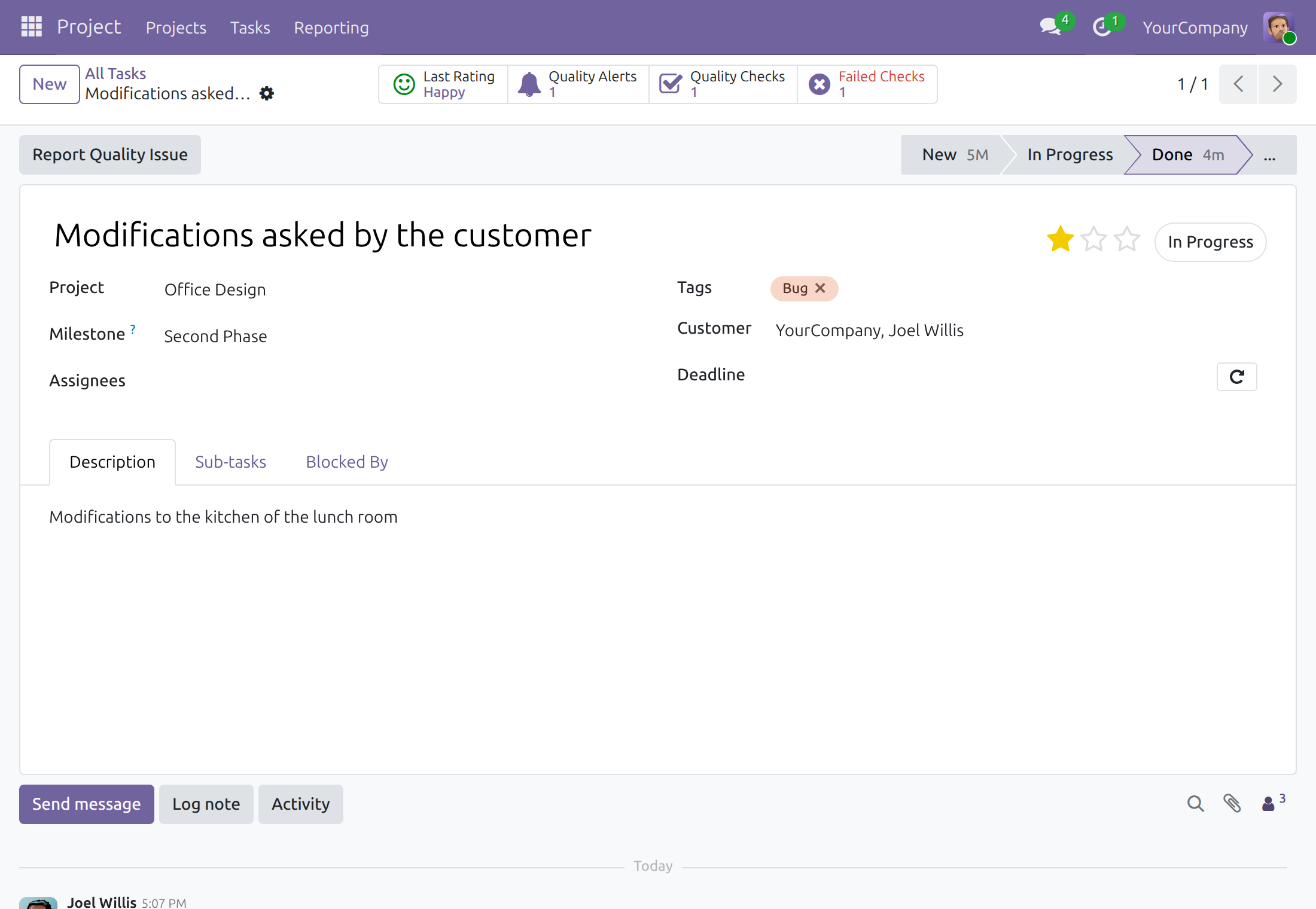
Move the task to a trigger stage by clicking the stage in the status bar, or by dragging the task to the stage in the kanban view. The task receives its checks at that moment. The Quality Checks button and the Do Quality Checks button appear on the task.
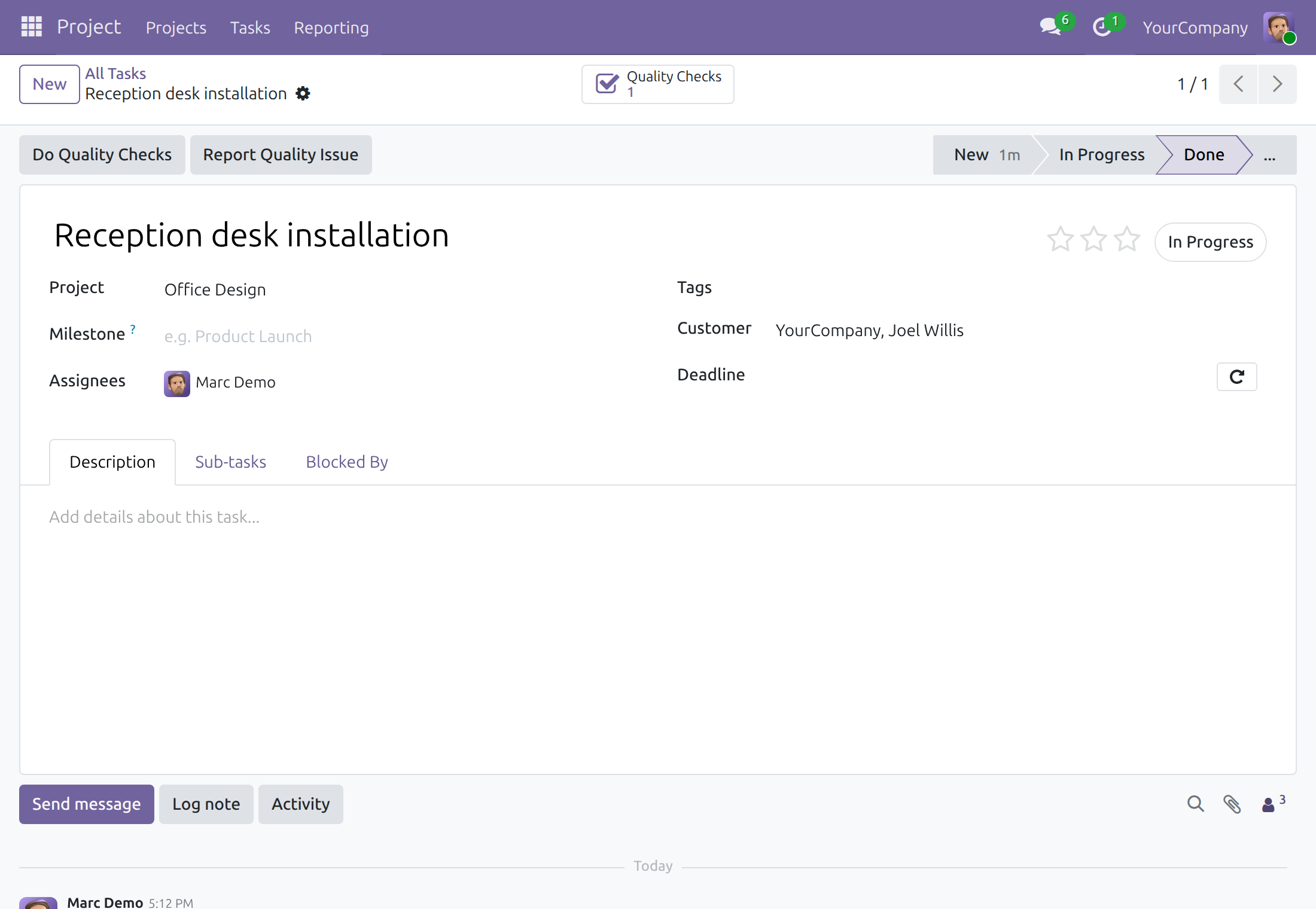
Record the checks
- Open the task and click Do Quality Checks. The dialog of the first check still to do opens.
- For a scorecard, click Pass, Fail or Not Applicable on each criterion. The dialog shows the score and whether it reaches the pass threshold. The Task line tells which task you are grading.
- Add a note if you wish, then click Confirm.
- The dialog moves on to the next check of the task still to do and closes after the last one.
Other test types work as described in the guide of the Quality app. A check that is already recorded is skipped. When no check is left to do, the Do Quality Checks button disappears.
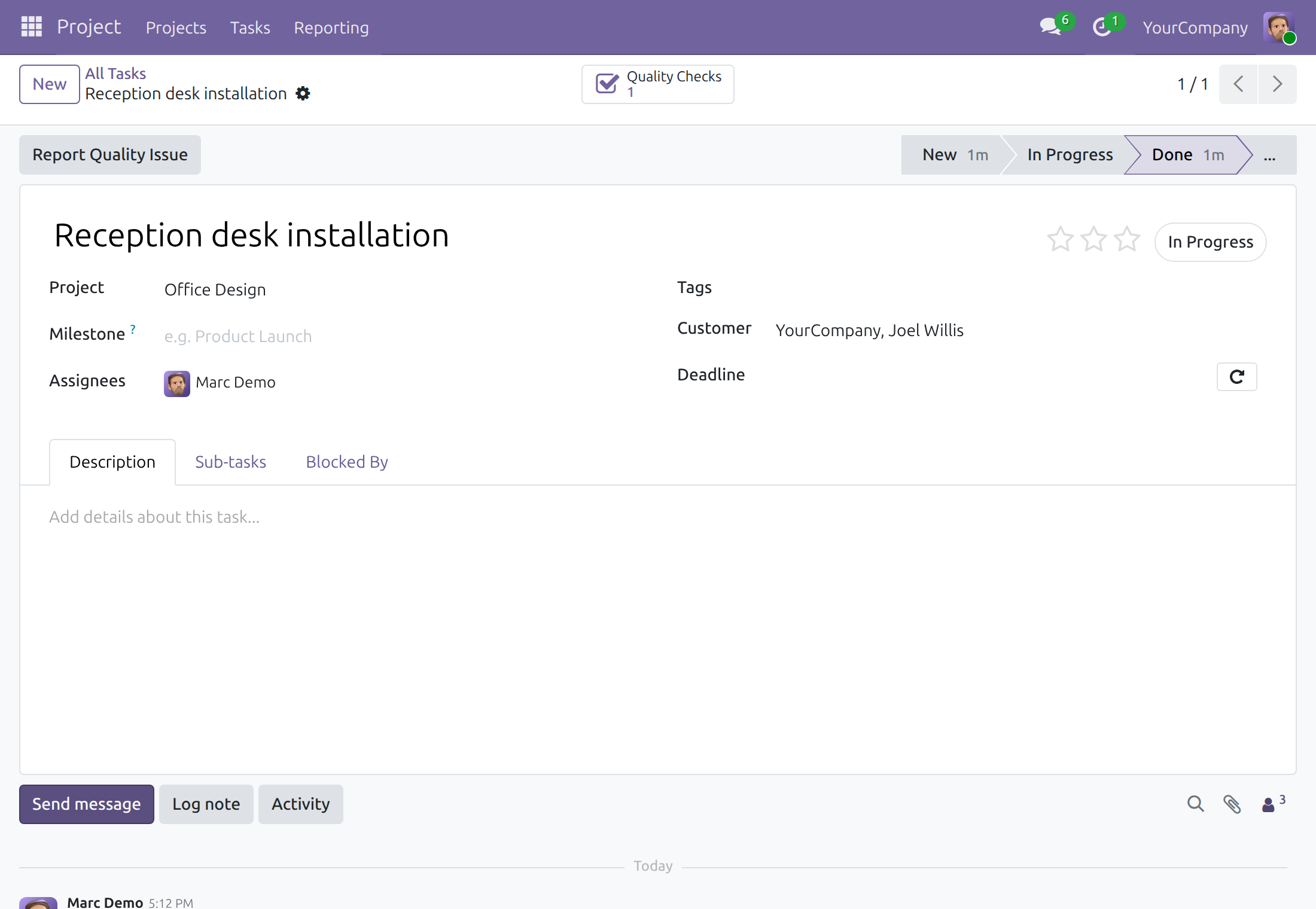
See the checks and alerts of a task
The button box of the task shows three counters. Each one appears only when its number is above zero.
- Quality Alerts: the alerts about the task. One alert opens directly, several open as a list.
- Quality Checks: all the checks of the task.
- Failed Checks (in red): the checks of the task that failed.
Click a counter to open the records. A failed check does not stop anything: the task in the illustration is in the Done stage with a failed check, as a task can be.
Open a check to read its result. The form shows the Task and the Project it belongs to.
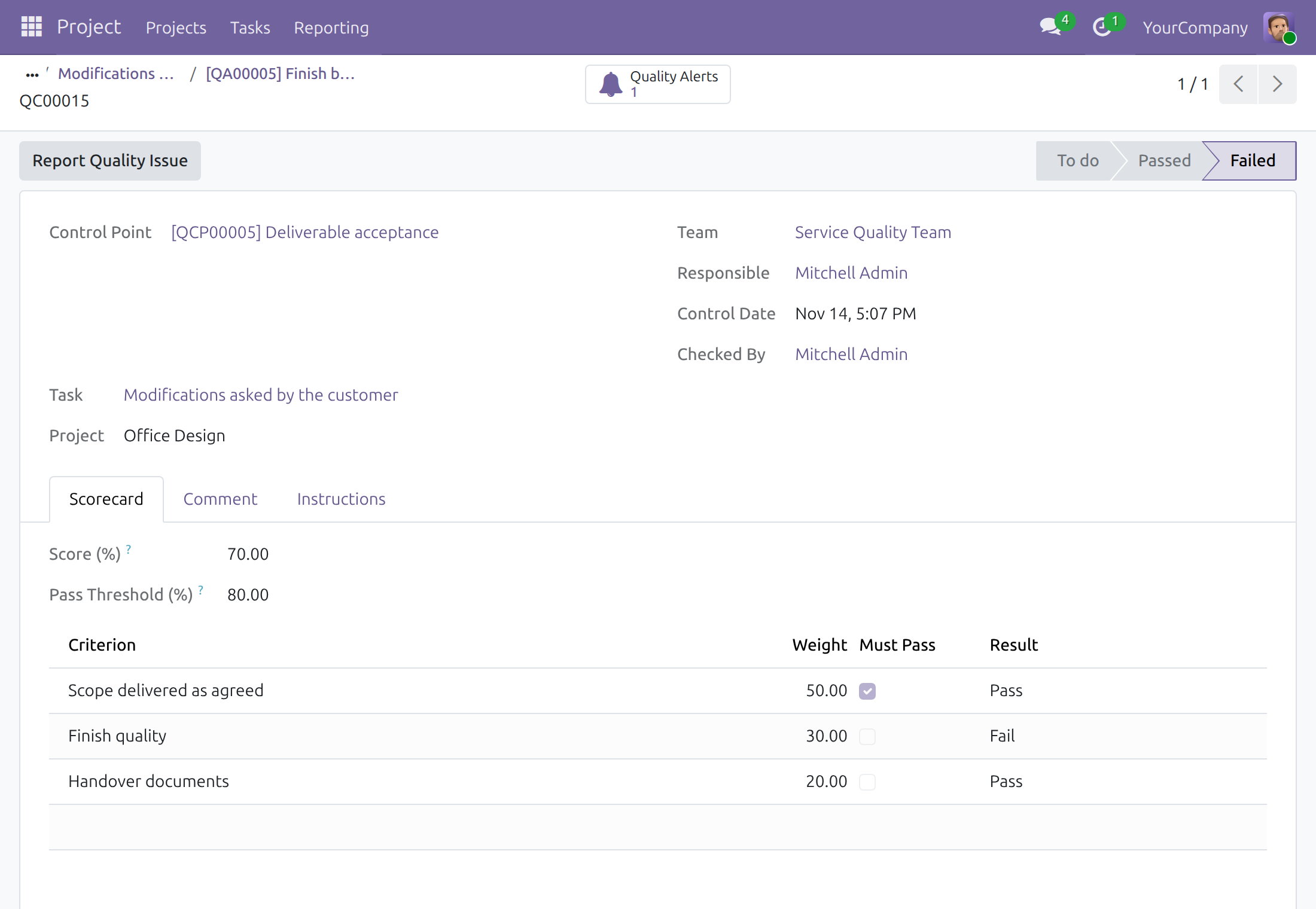
Find the checks of a project
Open Quality ‣ Quality Control ‣ Quality Checks. The list shows the checks assigned to you or followed by you, and the checks of every task you can read. Type a project name in the search box and choose Search Project, or choose Search Task for a task name. In the list view the optional columns Project and Task can be added, and Group By offers Project. In the kanban view each card of a task check shows the task.
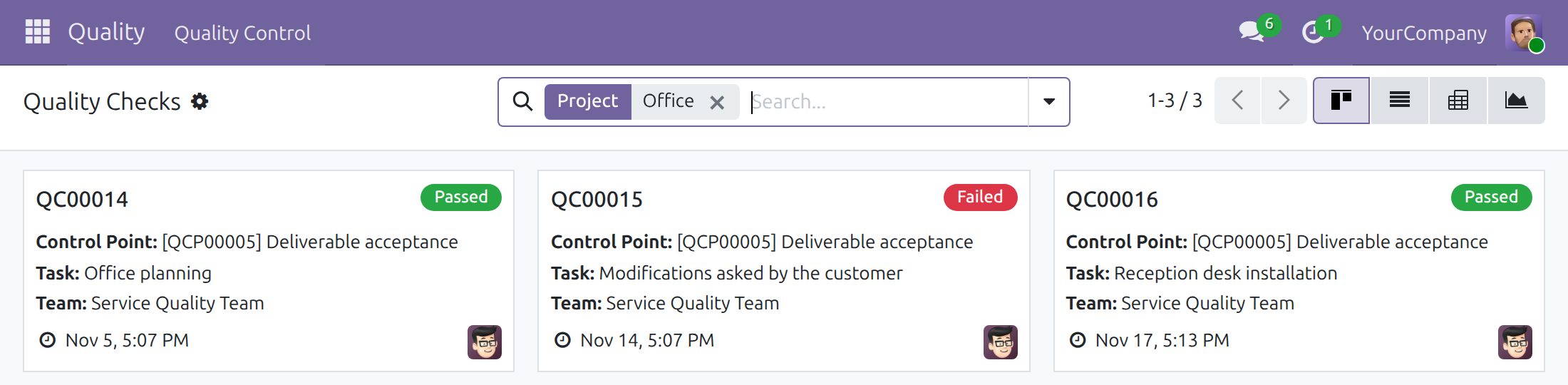
Report a quality issue
Use this when you find a problem about the task, with or without a failed check.
- Open the task and click Report Quality Issue. The button is offered on a task of a project and is not offered on a task template.
- In Summary, say the problem in a few words. The summary is required.
- In Details, add what helps to understand it.
- Click Report. Click Discard instead and nothing is created.
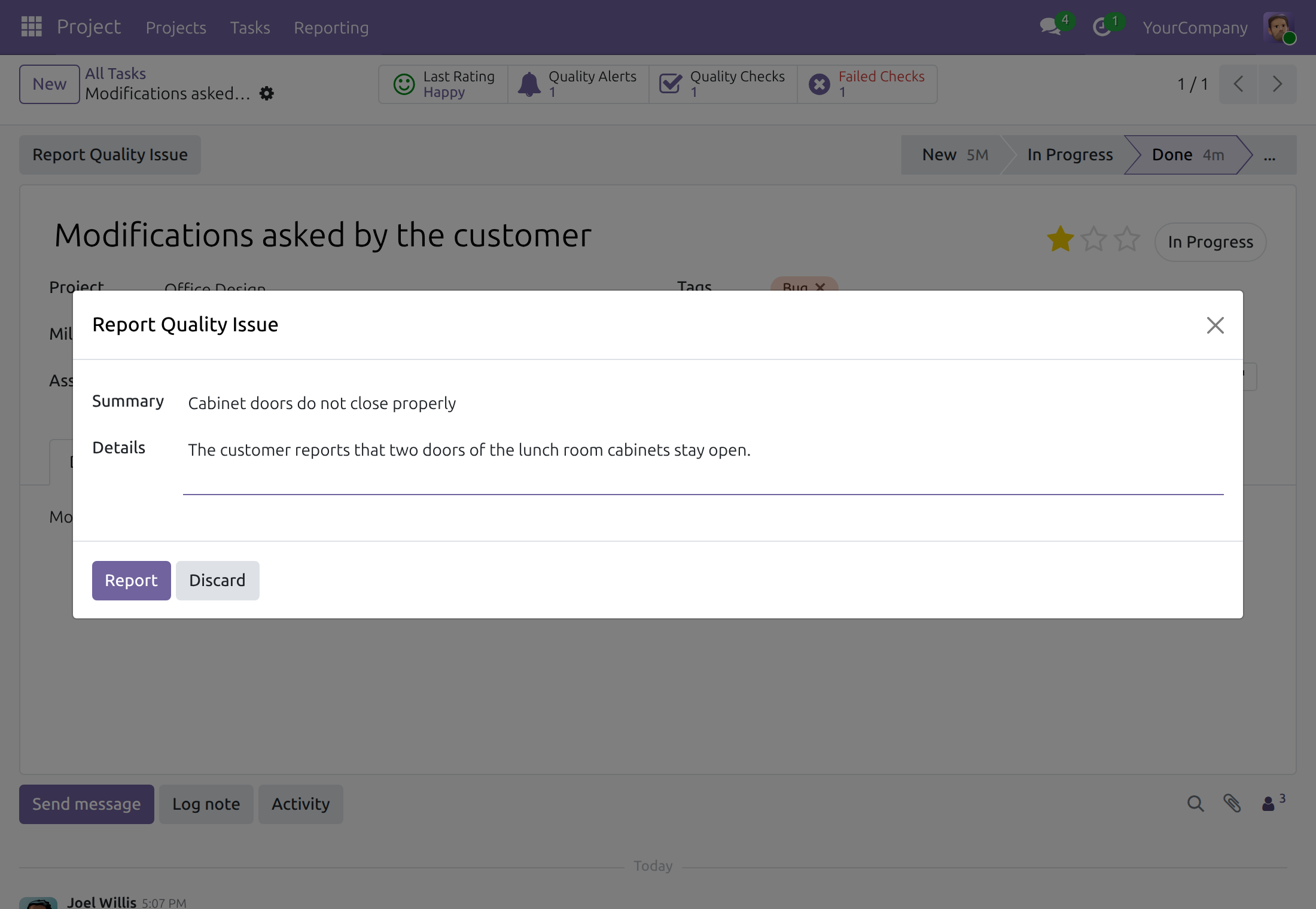
The quality alert is created and opens. Its Source is Service, its Partner is the customer of the task and its Task is the task. The alert belongs to the company of the task. You can read it, discuss it in the chatter and attach files; only a quality user edits it.
What you see
You see the checks and the alerts of the tasks you can read, whatever their status, also when the task is archived. A task of a private project that you are not invited to has no check, no alert and no counter for you. You record the results of the checks and you cannot create or delete a check. Customers who open a task from the portal see nothing of its quality checks.
Quality User: follow every task
A quality user sees every check and every alert, as in the Quality app, and uses the Task and Project fields to search and group them. The Quality app guide explains the decisions on a failed check and the follow-up of an alert.
When a quality user cannot read a task, the check and the alert still show the Task as a name, without a link to open it, and the project of the check as a name. A quality user who reports a quality issue from a check of such a task gets an alert that keeps the link to the task and the Service source; the customer of the task is left empty, because the reporter cannot read the task.
When a judged check is deleted, a note records its name, its control point, its status and the person and date of the deletion. The note is written on the task, where only the people who read the task see it, and on the control point without the name of the task.
Troubleshooting
- I moved the task to the trigger stage and no check appeared.
- Open the control point. Check that the task's project is in Projects (or that the field is empty), that the stage is one of the Trigger Stages, that the control point has no other company than the task, and that the task is not a template. A check still to do for the same control point also prevents a new one. With Randomly or Periodically a check is created only when the frequency calls for it.
- The Do Quality Checks button is missing.
- It appears only when the task has a check still to do.
- The counters of the quality checks are missing on a task.
- Each counter appears when its number is above zero. A portal user never sees them.
- The Report Quality Issue button is missing.
- The task has no project, or it is a task template.
- I cannot edit the alert I reported.
- Without the Quality User access right the alert is read-only. Write in the discussion below the form.
- I cannot see a check that exists for a task.
- You see the checks of the tasks you can read. Ask the project manager to invite you to the project.
- A stage I want is not offered in Trigger Stages.
- With projects chosen, the field offers the stages of those projects. Add the project first.
FAQ
- Does a failed check block the task?
- No. A check never prevents the task from moving to another stage, from being marked done or from being closed. The counters tell what failed.
- Who is the Responsible of the check?
- The Responsible of the control point.
- Does a check exist for a task that was in the stage before the control point was created?
- No. Checks are created when a task enters a trigger stage.
- Can one task have several checks?
- Yes: one for each control point that applies, and a new one each time the task comes back to the stage after its check was recorded.
- Can a Quality User read a task they are not invited to?
- No. The app opens no project to anyone: a person who cannot read a task sees its name on the check and nothing else.
This software and associated files (the "Software") may only be used (executed, modified, executed after modifications) if you have purchased a valid license from the authors, typically via Odoo Apps, or if you have received a written agreement from the authors of the Software (see the COPYRIGHT file).
You may develop Odoo modules that use the Software as a library (typically by depending on it, importing it and using its resources), but without copying any source code or material from the Software. You may distribute those modules under the license of your choice, provided that this license is compatible with the terms of the Odoo Proprietary License (For example: LGPL, MIT, or proprietary licenses similar to this one).
It is forbidden to publish, distribute, sublicense, or sell copies of the Software or modified copies of the Software.
The above copyright notice and this permission notice must be included in all copies or substantial portions of the Software.
THE SOFTWARE IS PROVIDED "AS IS", WITHOUT WARRANTY OF ANY KIND, EXPRESS OR IMPLIED, INCLUDING BUT NOT LIMITED TO THE WARRANTIES OF MERCHANTABILITY, FITNESS FOR A PARTICULAR PURPOSE AND NONINFRINGEMENT. IN NO EVENT SHALL THE AUTHORS OR COPYRIGHT HOLDERS BE LIABLE FOR ANY CLAIM, DAMAGES OR OTHER LIABILITY, WHETHER IN AN ACTION OF CONTRACT, TORT OR OTHERWISE, ARISING FROM, OUT OF OR IN CONNECTION WITH THE SOFTWARE OR THE USE OR OTHER DEALINGS IN THE SOFTWARE.