

Shop Floor Control - Backdate
| Lines of Code | 492 |
| Technical name | viin_mrp_workorder_backdate |
| License | OPL-1 |
| Website | https://viindoo.com/apps/modules/18.0/viin_mrp_workorder_backdate |
| Read description for | |
| Required Apps | Manufacturing (mrp) Invoicing (account) Discuss (mail) Employees (hr) Inventory (stock) |
| Included Dependencies | Advanced MRP Accounting Shop Floor Control Viindoo Manufacturing Viindoo Base Inventory Backdate Viin Warehouse Web Gantt Viin Warehouse Accounting Backdate Operations Access Rights Manufacturing Backdate |
Back-date on the desktop, real time at the machine.
Viindoo Shop Floor Control - Backdate joins Viindoo Shop Floor Control and Viindoo Manufacturing Backdate. Users who hold the back-date right run work orders on the tablet with no date question in the way, and every tap records the moment it happened.
Extends viin_mrp_workorder - see its documentation.
Extends to_mrp_backdate - see its documentation.
Why plants choose it
No date question at the machine
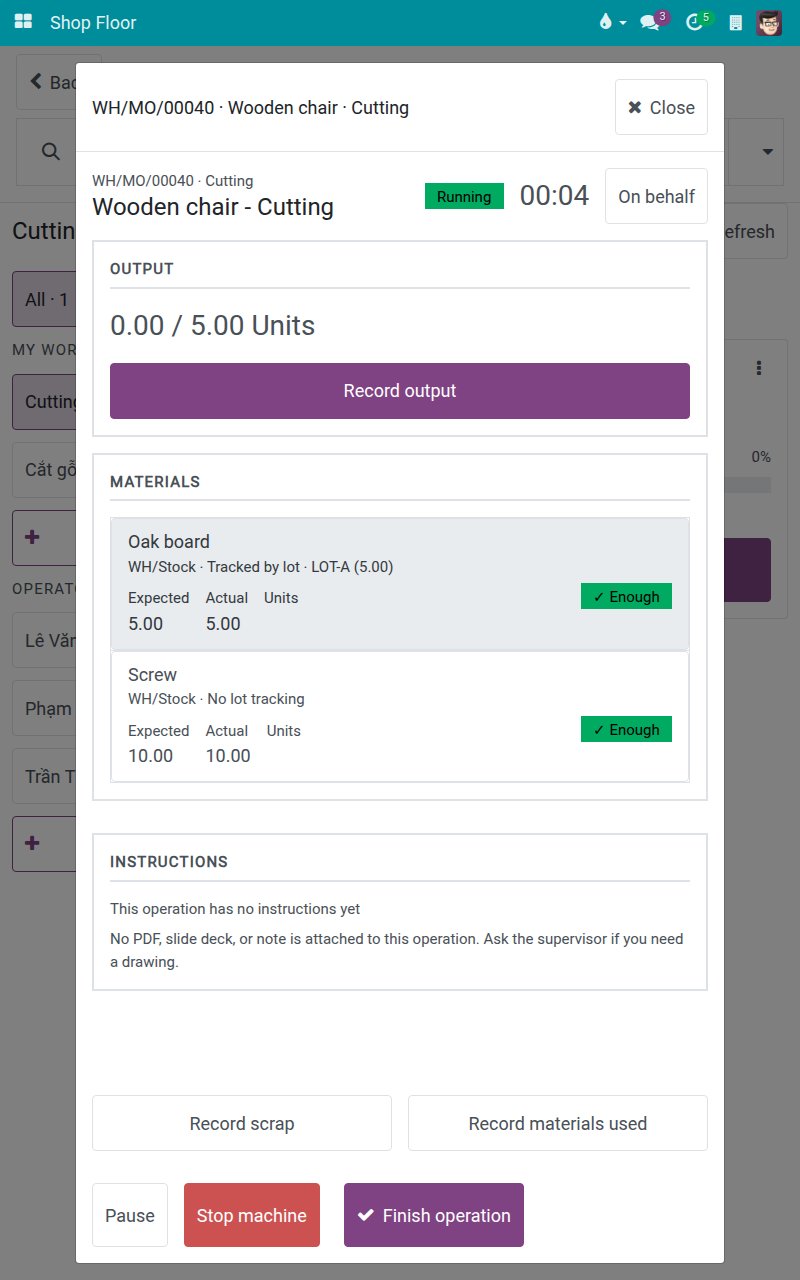
A back-date user taps Start, Pause or Finish and the timer opens or closes at that very moment. Closing the order, including the backorder and consumption questions, records the real finish time instead of asking for a date.
Real times, not times typed from memory
Breaks, changeovers and finish times on the shop floor are the real ones. A manager who also holds the back-date right restarts a stopped station from the tablet and the stop ends now.
Back-dating stays where you control it
The same user is still asked for the date when pressing Pause or Finish on the desktop, and a tablet tap never switches that question off. This module does not change who may restart a station.
What your operators and production leads get
Run the operation by touch, with the real time of every tap
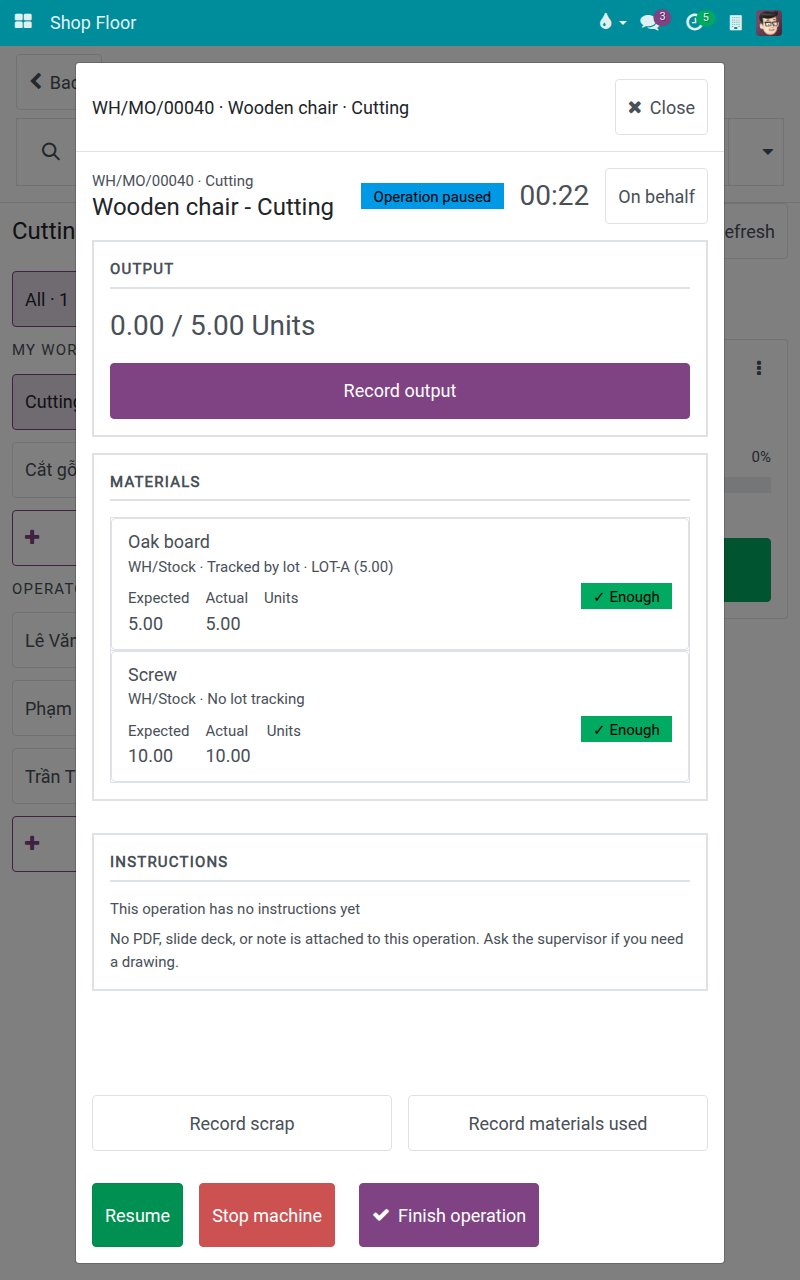
Start, Pause and Finish from the Shop Floor tablet and the timers open and close at the moment of the tap, so breaks and changeovers are the real ones. A manager who also holds the back-date right can restart a stopped station from the tablet too, and the stop ends now.
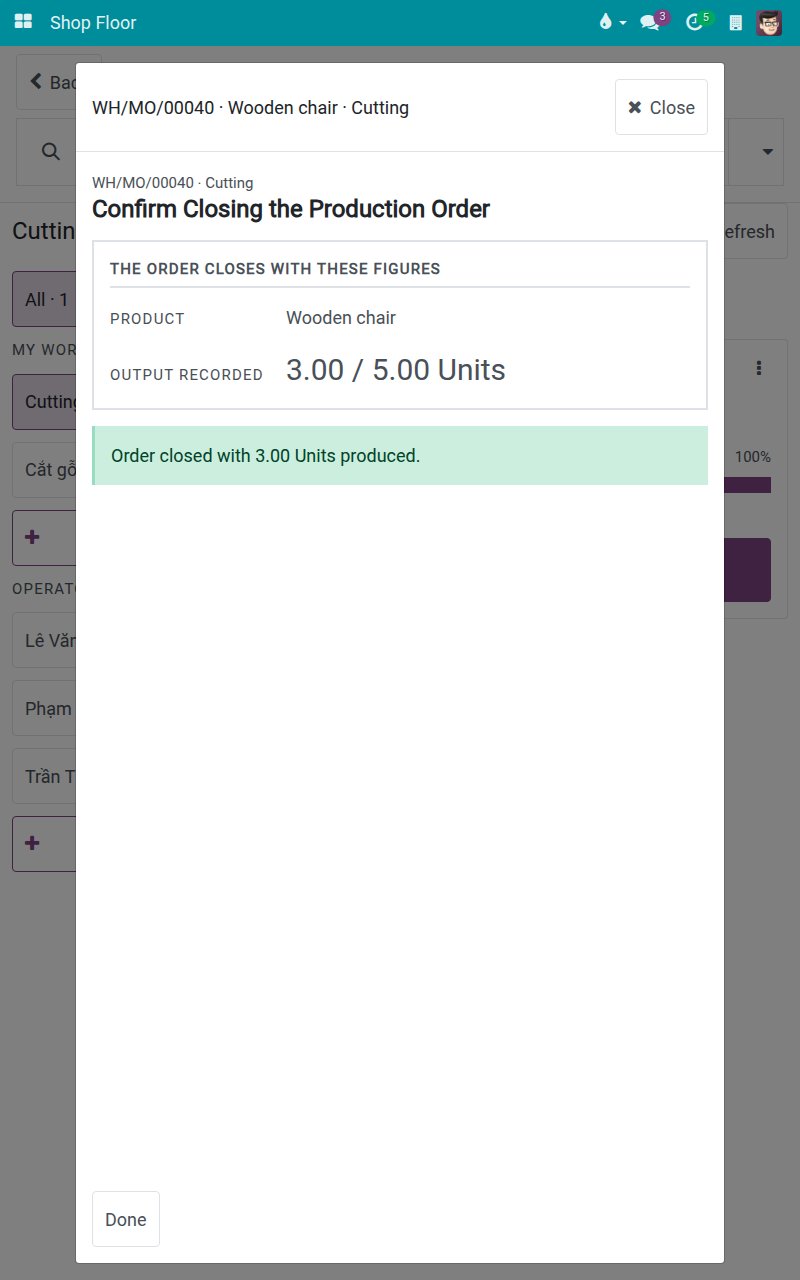
Close the order at the machine, questions included
The closing screen, with its backorder and consumption questions, records the real finish time instead of opening a date question. Confirming a backorder still closes the order now, and the rest of a partial run moves to the backorder.
Each app keeps what it does best
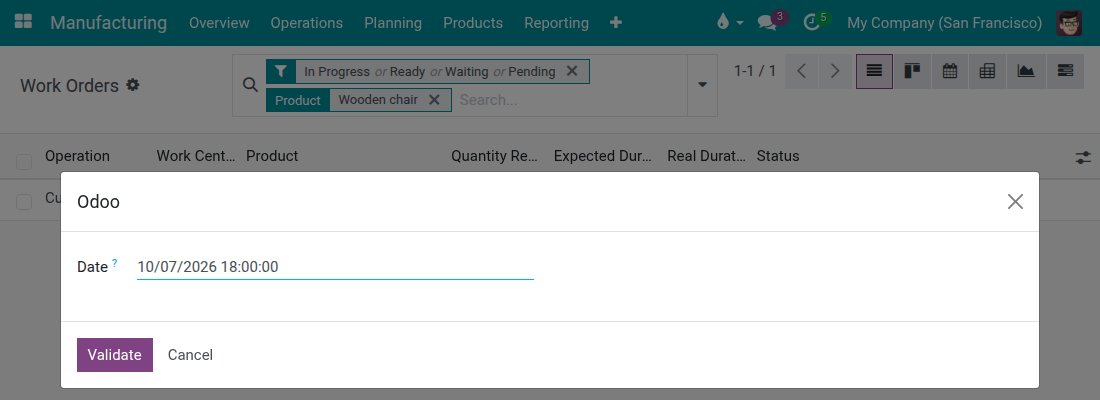
Without this module, a user with the back-date right would meet a date confirmation on the tablet that only the desktop can show. With it, Viindoo Shop Floor Control works the same for everyone at the machine, and Viindoo Manufacturing Backdate keeps its full power on the desktop. When that user presses Pause or Finish on a work order there, a small window still asks for the date. Output and materials recordings are unchanged: they are recorded as they happen in any case.
Closing an order on the desktop still asks for the date
A production lead who closes a manufacturing order from the desktop still enters the date and time at which production really finished. A tablet tap never switches that question off for later desktop work.
Everything in the box
Start an operation at the real time of the tap
A back-date user taps Start at the machine and the timer opens at that very moment, with no date question in the way.
Pause an operation at the real time of the tap
Pausing from the tablet stops the running timer now, so break and changeover times are the real ones.
Finish an operation at the real time of the tap
Finishing an operation from the tablet completes it and closes its timers at the moment of the tap.
Restart a stopped station at the real time of the tap
A manager who also holds the back-date right releases a stopped work center from the tablet and the stop ends now; this module does not widen who may do it.
Close the manufacturing order at the real time of the tap
Closing the order from the closing screen records the real finish time instead of asking for a date.
Answer the backorder and consumption questions at the real time of the tap
Confirming a backorder or a consumption difference on screen still closes the order now, and the rest of a partial run moves to the backorder.
Back-dating stays on the desktop
The same user is still asked for the date when pressing Pause or Finish on the desktop, and a tablet tap never switches that question off for later desktop presses.
Questions buyers ask
Do I need to install this module myself?
No. It installs automatically when both Viindoo Shop Floor Control and Viindoo Manufacturing Backdate are installed.
Who is it for?
Plants that let some users back-date manufacturing operations and also run work orders on Viindoo Shop Floor Control.
Can those users still back-date?
Yes, on the desktop. Pause and Finish there still ask for the date, as before.
Does it change how output and materials are recorded?
No. Output and consumption recordings on the tablet are not affected by this module.
Can a back-date user now restart a stopped station?
Only if they may already do so, as a Manufacturing Manager. This module records the restart at the real time and grants no new right.
Compatibility
Works with Odoo 18.0 Community Edition.
Requires Viindoo Shop Floor Control and Viindoo Manufacturing Backdate; installs automatically when both are installed.
Not supported on Odoo Enterprise.
Keep back-dating for the office and real time for the floor.
See a back-date user start and finish an operation on the tablet, then get the date question on the desktop.
Shop Floor Control - Backdate
Shop Floor Control - Backdate lets a person who is allowed to back-date manufacturing operations work on the Shop Floor tablet without being asked for a date. Every tap on the tablet records the moment it happened, so the times of your operations are the real ones. On the desktop, the same person is still asked for the date, so a forgotten operation can still be back-dated.
Note
Extends viin_mrp_workorder - see its documentation.
This guide is organized by the person who uses it:
- Machine operators who also hold the back-date right run their jobs on the tablet. See "Tasks for machine operators".
- Production leads back-date an operation or the closing of an order from the desktop. See "Tasks for production leads".
The screenshots show the sample plant of the Shop Floor Control guide: the operation Cutting of a manufacturing order for Wooden chair.
Installation
- Open Apps.
- Search for Shop Floor Control - Backdate.
- Click Install.
The module needs Shop Floor Control and Manufacturing Backdate. It installs by itself as soon as both of them are installed, so in most cases you have nothing to do.
Configuration
- Give each operator the access right Manufacturing / User, as described in the Shop Floor Control guide.
- Open Settings ‣ Users & Companies ‣ Users and open the user who may back-date operations.
- With the developer mode on, click the Access Rights tab and tick Mrp Backdate Operations under EXTRA RIGHTS.
Only people with this right are asked for a date on the desktop. For everybody else, nothing changes.
Usage
Tasks for machine operators
Run an operation from the tablet
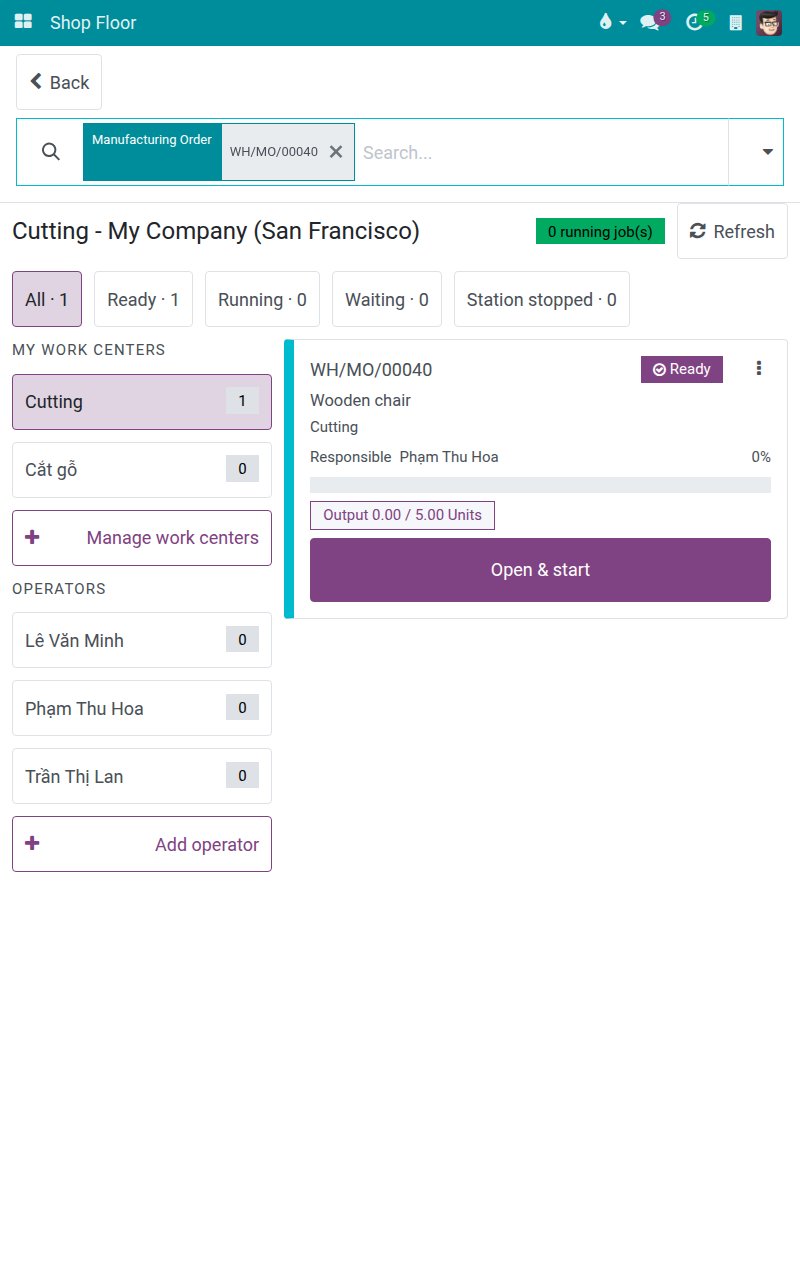
On the home menu, tap Shop Floor and open the job board of your work center. Find the job, for example by typing the order reference in the search bar, and tap Open & start.
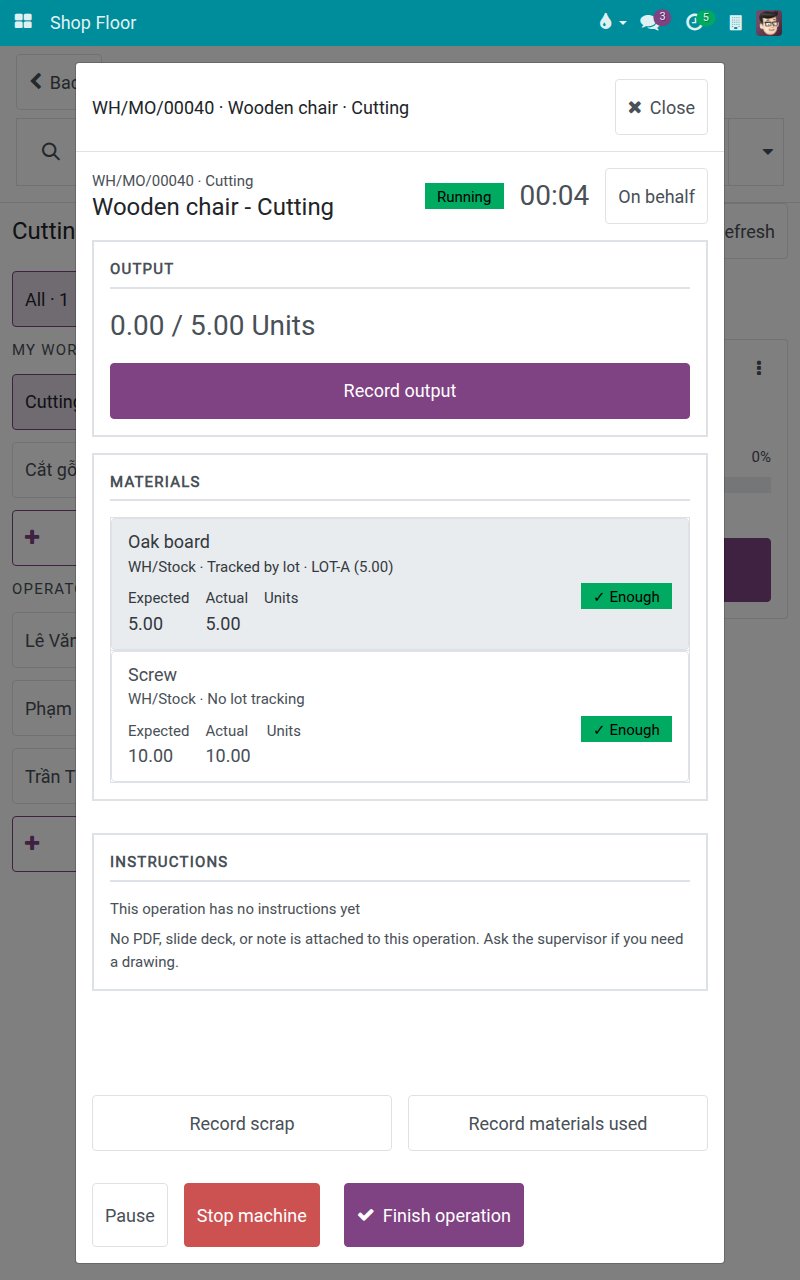
The operation opens and the state is Running at once. No date question appears, even though you hold the back-date right. The clock started at the moment you tapped.
To take a break, tap Pause. The clock stops at the moment of your tap and the state becomes Operation paused.
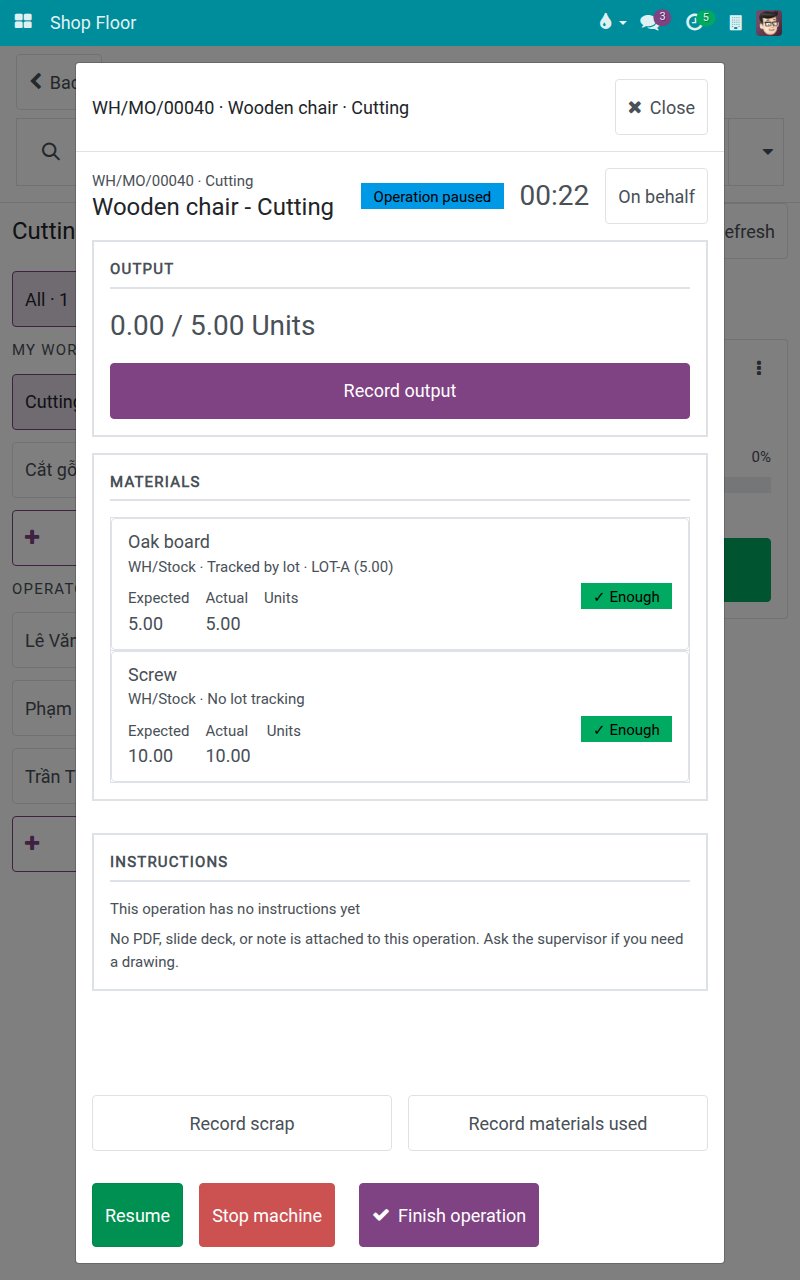
Tap Resume when you are back. A new clock line starts at the moment of your tap. Record the quantity you make with Record output, as described in the Shop Floor Control guide.
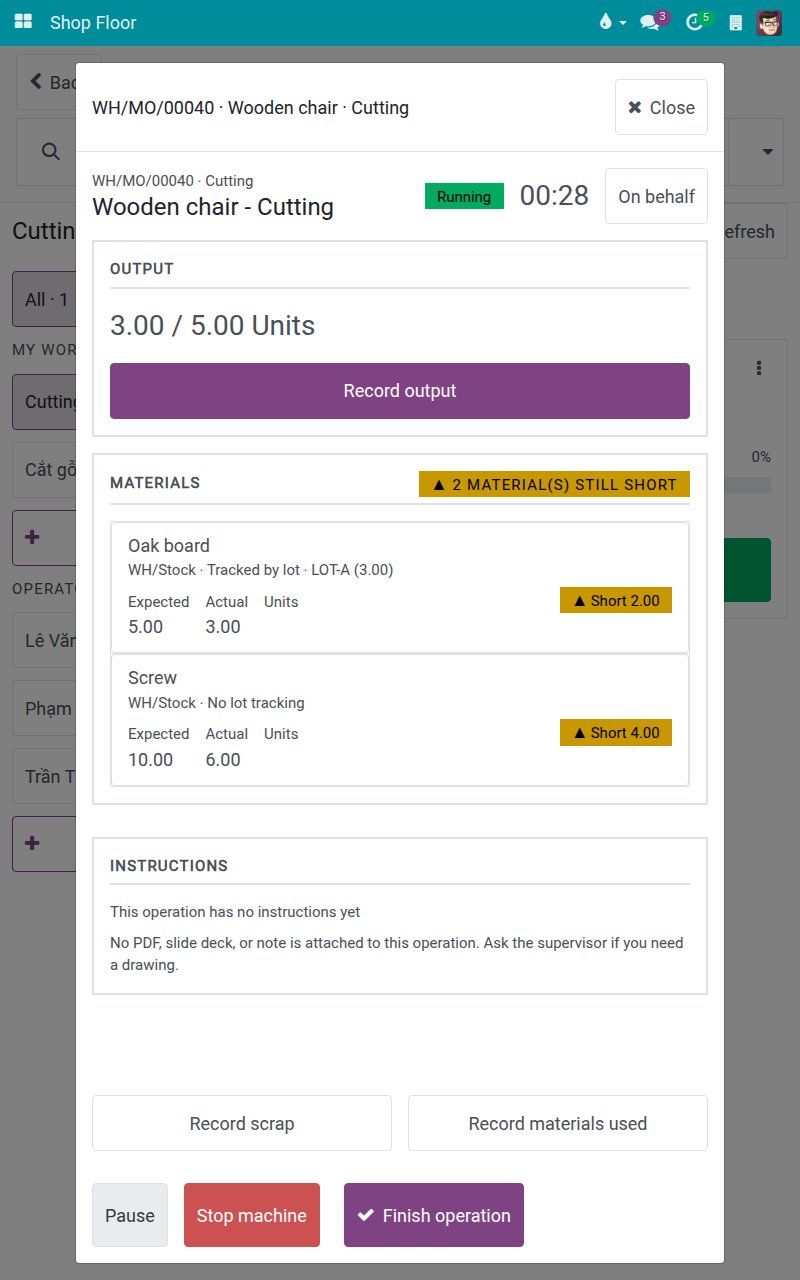
Tap Finish operation. The operation is finished and its clock stops at the moment of your tap, again without any date question. When it is the last operation of the order, the screen Confirm Closing the Production Order opens.
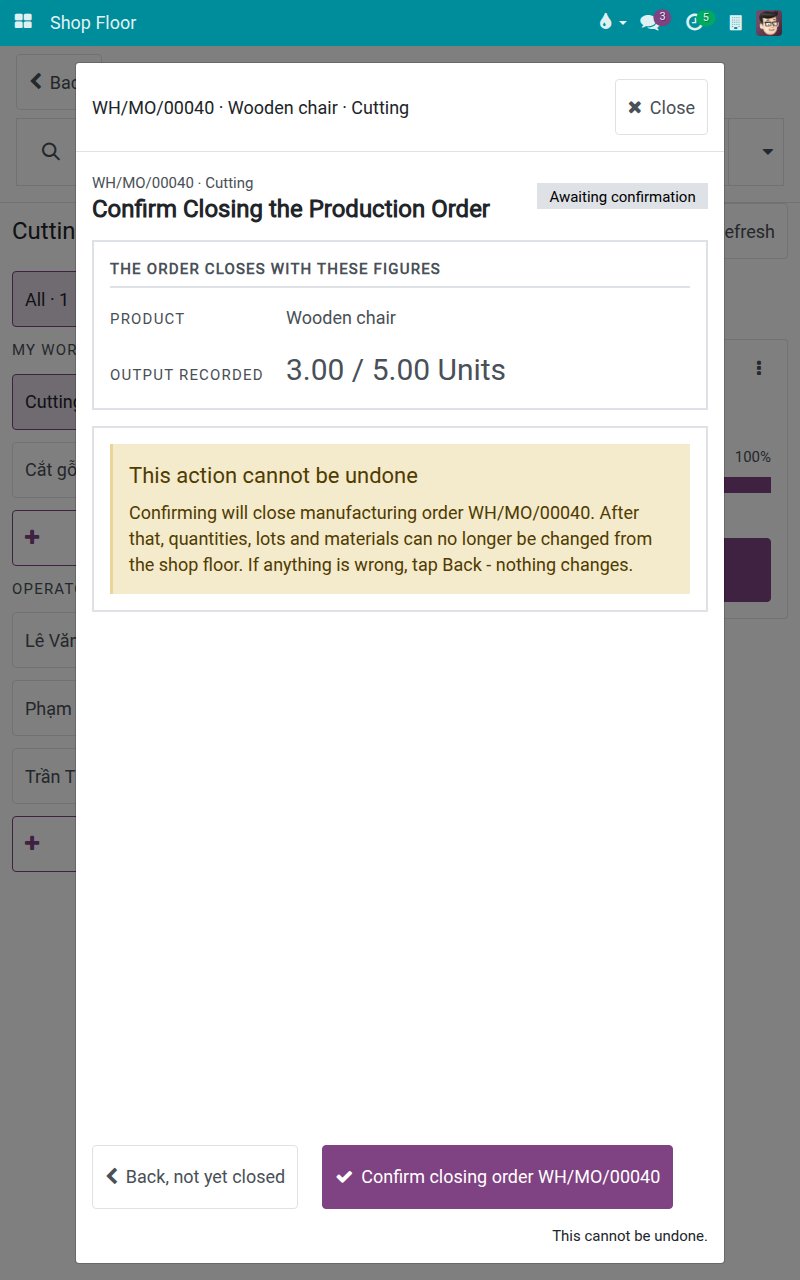
Close the manufacturing order from the tablet
On the screen Confirm Closing the Production Order, check the figures and tap Confirm closing order followed by the order reference.
If you made less than the ordered quantity, the screen asks NOT ALL OF THE ORDERED QUANTITY WAS PRODUCED. Tap Close without backorder to close the order with what you made, or tap the Create a backorder button to keep the missing quantity in a new order.
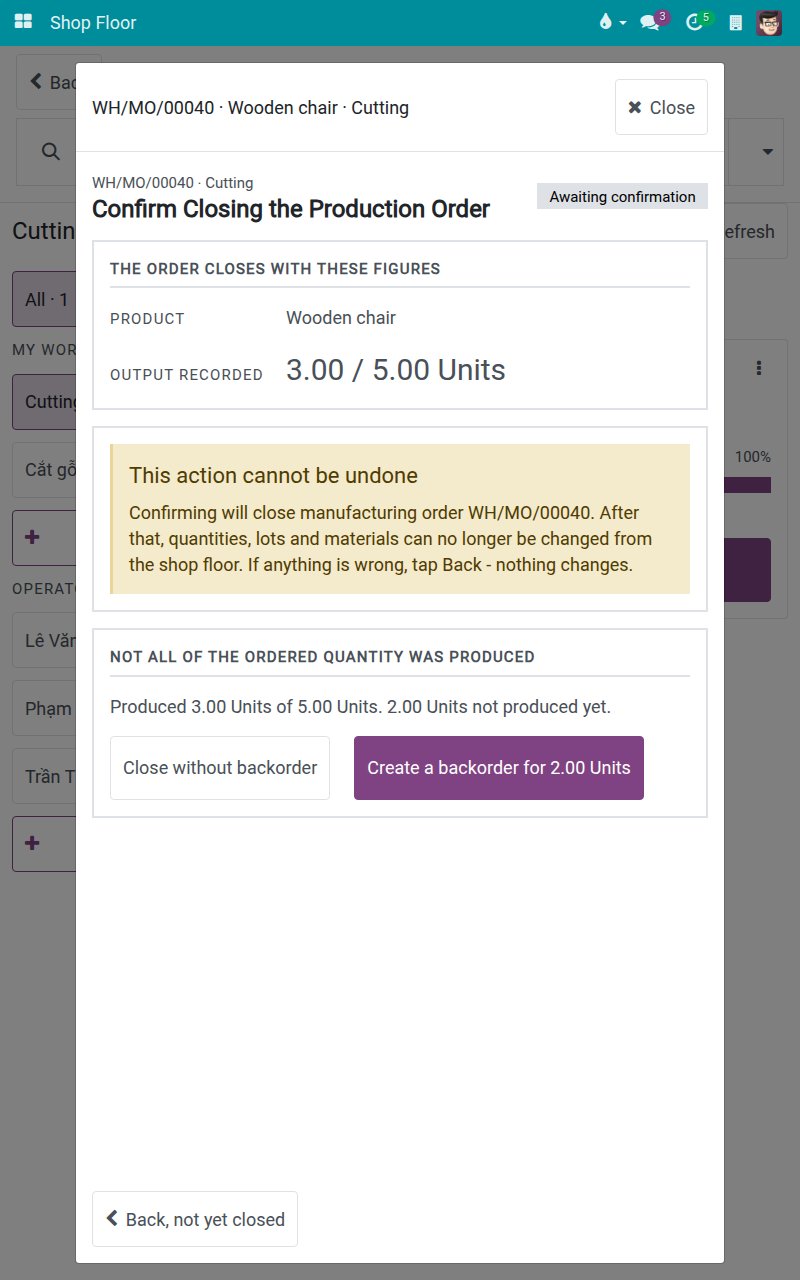
The screen confirms Order closed with the quantity produced. The order is closed with the real time of your tap. Tap Done to leave the screen.
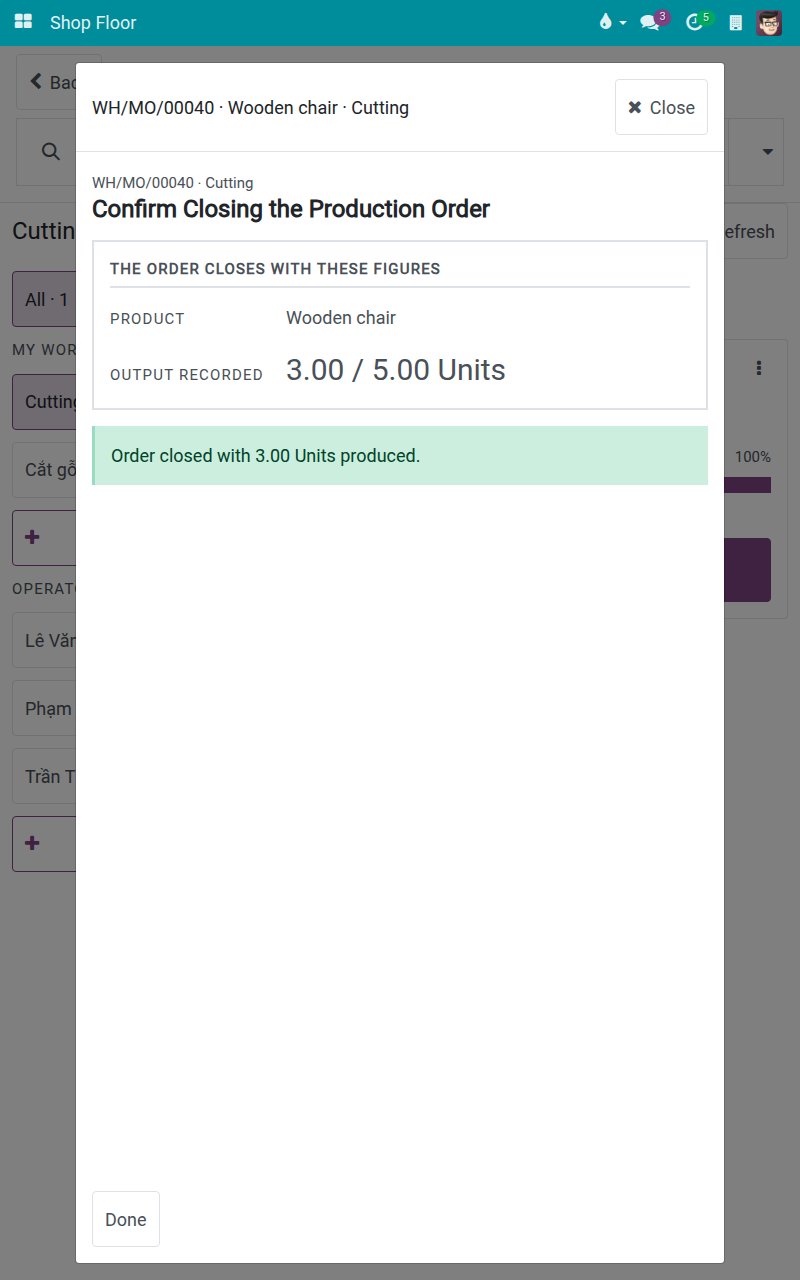
Note
Recording output, materials and scrap works exactly as in the Shop Floor Control guide. These recordings are made as they happen and never ask for a date.
Tasks for production leads
Back-date a forgotten operation
Use this task when an operator forgot to finish an operation and it is still running.
Open Manufacturing ‣ Operations ‣ Work Orders. Search for the operation, for example by product.
On the row of the operation, click the green check button.
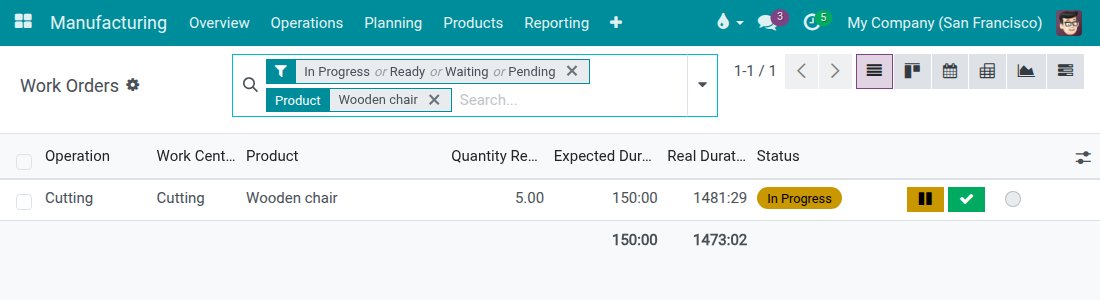
A small window asks for the Date. Enter the date and time at which the operation really ended, for example 10/07/2026 18:00:00, and click Validate. The operation is done and its clock ends at that time.
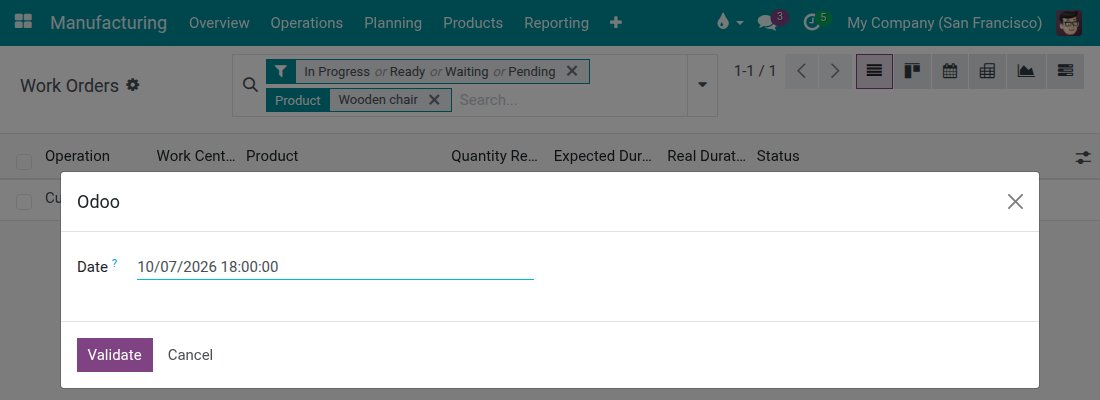
Note
The yellow Pause button next to the check button opens the same window, so you can also back-date a pause. A tap on the tablet never switches this question off on the desktop.
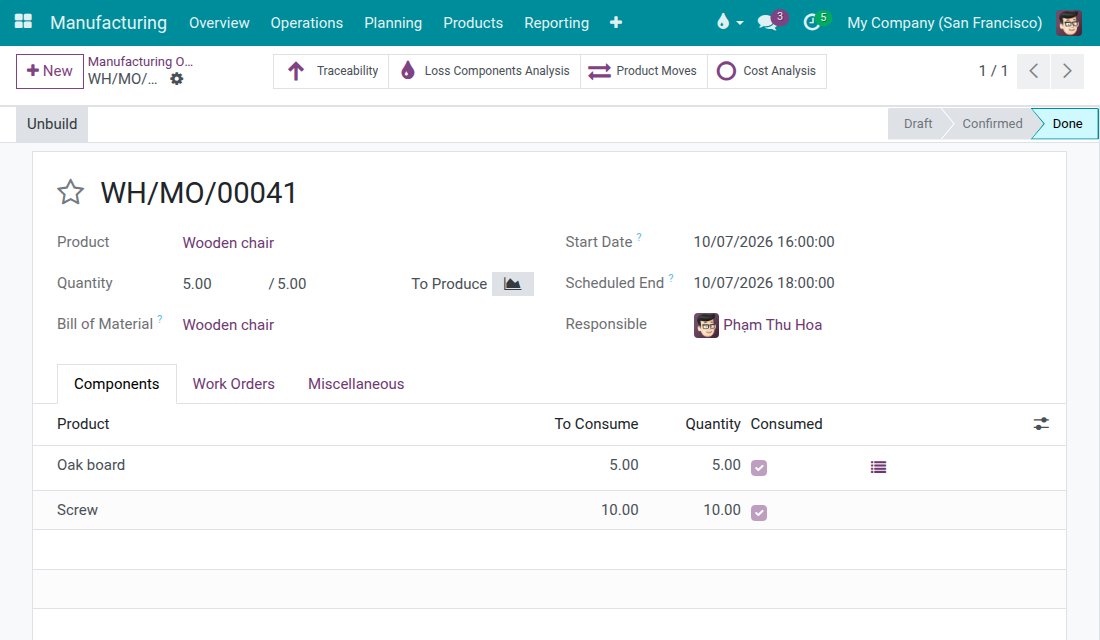
Back-date the closing of a manufacturing order
Open Manufacturing ‣ Operations ‣ Manufacturing Orders and open the order. When all its operations are done, its state is To Close.
Click Produce All.
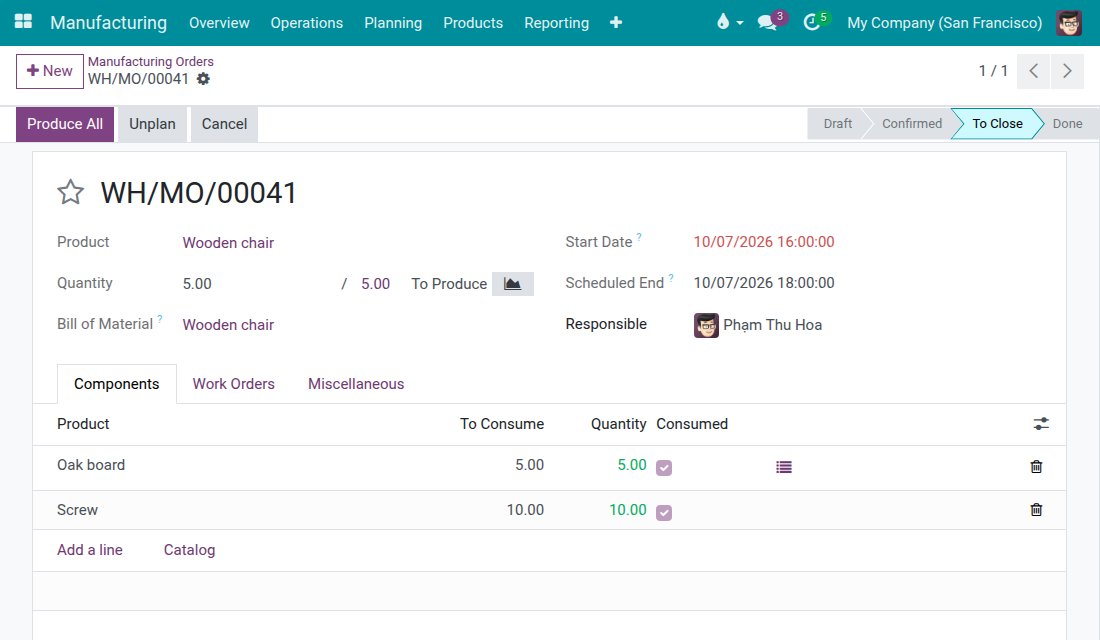
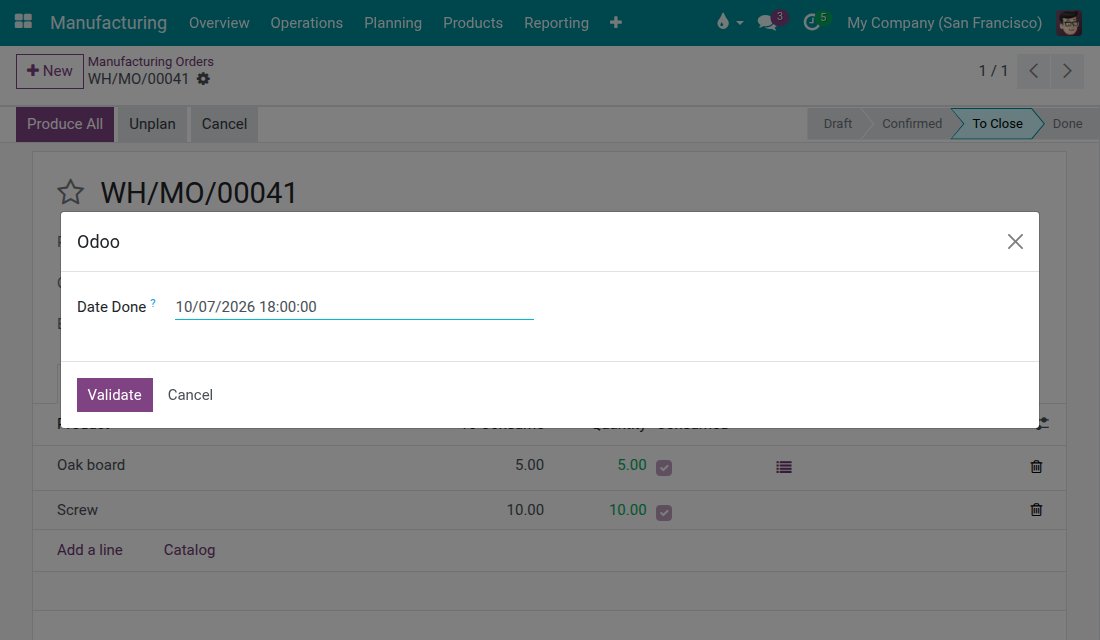
A small window asks for Date Done. Enter the date and time at which the production really finished, for example 10/07/2026 18:00:00.
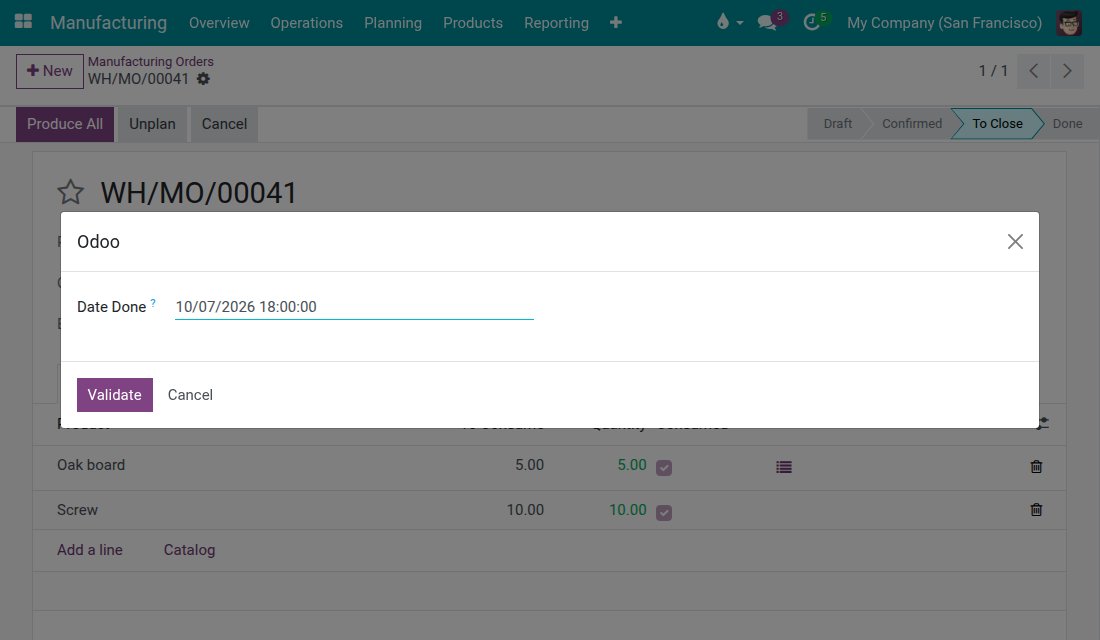
Click Validate. The state becomes Done and the order is closed with the date you entered.
Troubleshooting
- The tablet does not ask me for a date.
- This is how the module works: a tap on the tablet always records the present moment. To enter a past date, use the desktop as described in "Tasks for production leads".
- The desktop does not ask me for a date.
- Check that your user has Mrp Backdate Operations ticked under EXTRA RIGHTS, as described in Configuration. Without this right, the operation is simply done now.
FAQ
- Can I type a date on the tablet?
- No. The tablet is made for work happening now, so it never asks. Back-dating stays on the desktop.
- Does the desktop still ask for the date after I used the tablet?
- Yes. Using the tablet never switches the question off for later work on the desktop.
- Who may restart a stopped station?
- Restarting a stopped station from the tablet is still reserved for Manufacturing Administrators. When such a person also holds the back-date right, the stop ends at the moment of the tap. This module does not widen who may restart a station.
This software and associated files (the "Software") may only be used (executed, modified, executed after modifications) if you have purchased a valid license from the authors, typically via Odoo Apps, or if you have received a written agreement from the authors of the Software (see the COPYRIGHT file).
You may develop Odoo modules that use the Software as a library (typically by depending on it, importing it and using its resources), but without copying any source code or material from the Software. You may distribute those modules under the license of your choice, provided that this license is compatible with the terms of the Odoo Proprietary License (For example: LGPL, MIT, or proprietary licenses similar to this one).
It is forbidden to publish, distribute, sublicense, or sell copies of the Software or modified copies of the Software.
The above copyright notice and this permission notice must be included in all copies or substantial portions of the Software.
THE SOFTWARE IS PROVIDED "AS IS", WITHOUT WARRANTY OF ANY KIND, EXPRESS OR IMPLIED, INCLUDING BUT NOT LIMITED TO THE WARRANTIES OF MERCHANTABILITY, FITNESS FOR A PARTICULAR PURPOSE AND NONINFRINGEMENT. IN NO EVENT SHALL THE AUTHORS OR COPYRIGHT HOLDERS BE LIABLE FOR ANY CLAIM, DAMAGES OR OTHER LIABILITY, WHETHER IN AN ACTION OF CONTRACT, TORT OR OTHERWISE, ARISING FROM, OUT OF OR IN CONNECTION WITH THE SOFTWARE OR THE USE OR OTHER DEALINGS IN THE SOFTWARE.
