Material Consumption Standards
by Viindoo
| Lines of Code | 1021 |
| Technical name | viin_mrp_standard_consumption |
| License | OPL-1 |
| Website | https://viindoo.com/apps/modules/19.0/viin_mrp_standard_consumption |
| Read description for | v 15.0 v 16.0 v 17.0 v 18.0 |
| Required Apps | Manufacturing (mrp) Discuss (mail) Inventory (stock) |
| Included Dependencies | Viindoo Manufacturing Web Gantt |
| Extensions | Standard Quantity in Cost Analysis |

See which materials you lose beyond the loss you planned for
For manufacturers who allow a loss on their materials and want to know where it is exceeded
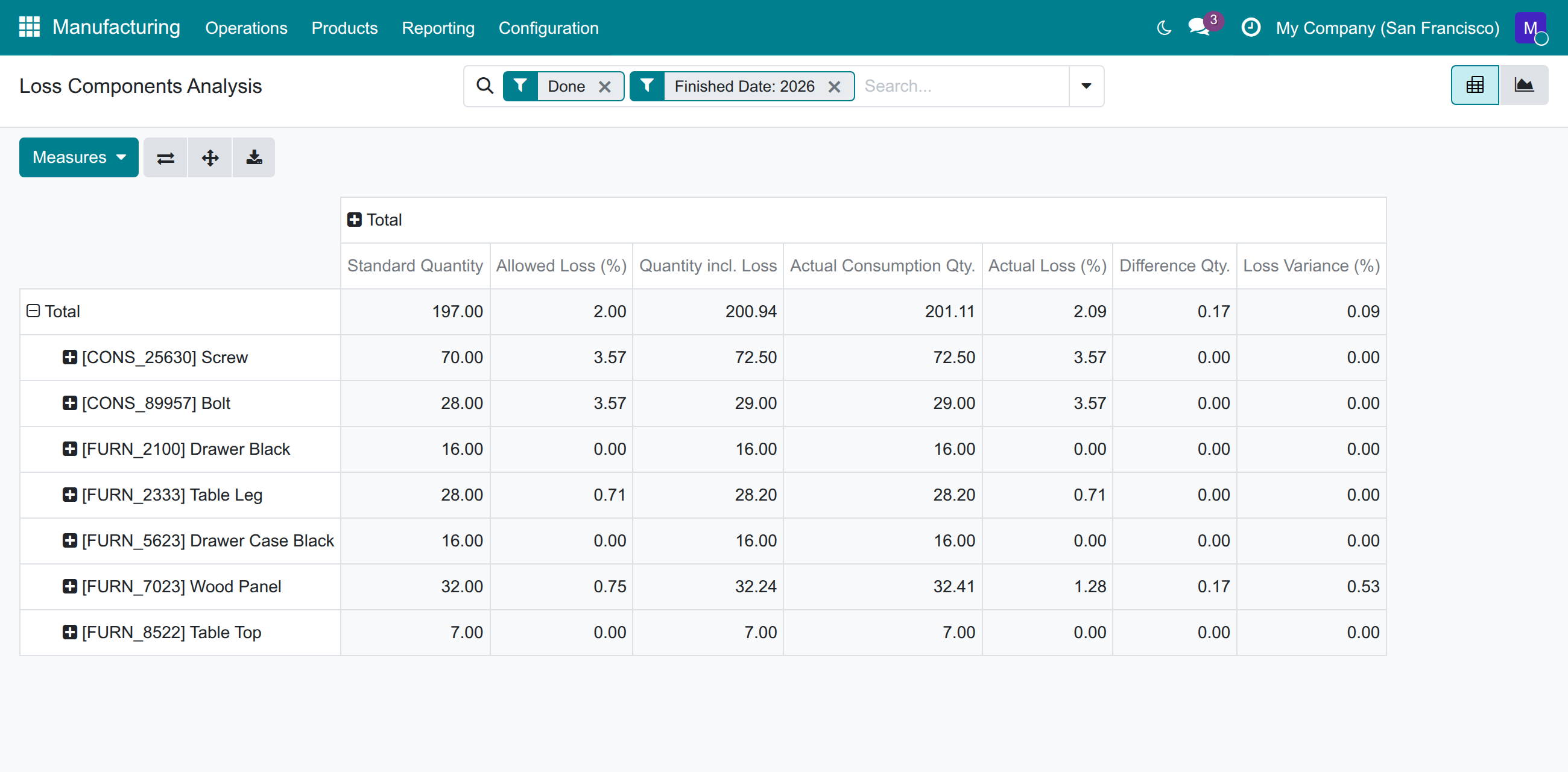
The loss you planned for, next to the loss you got
Community Edition, Viindoo Cloud · OPL-1 · English, Vietnamese
Extends the bills of materials and manufacturing orders of Viindoo Manufacturing.
What changes for your team
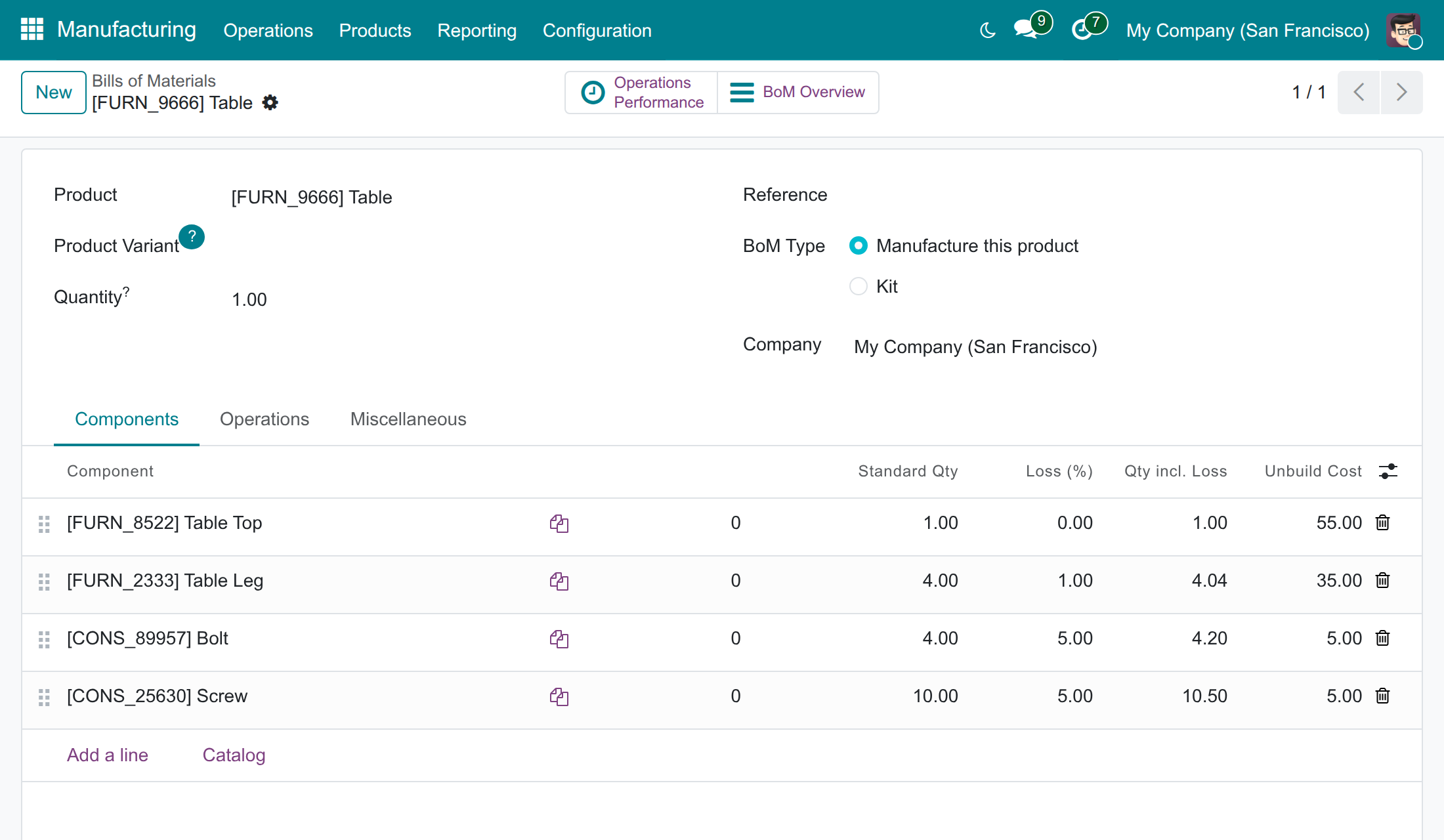
The allowance sits on the bill of materials
Today: the expected loss is added silently into the quantity, or kept in a spreadsheet beside the BoM.
→ Each component line carries its standard quantity and allowed loss; the quantity including loss follows.
Over-consumption comes to you
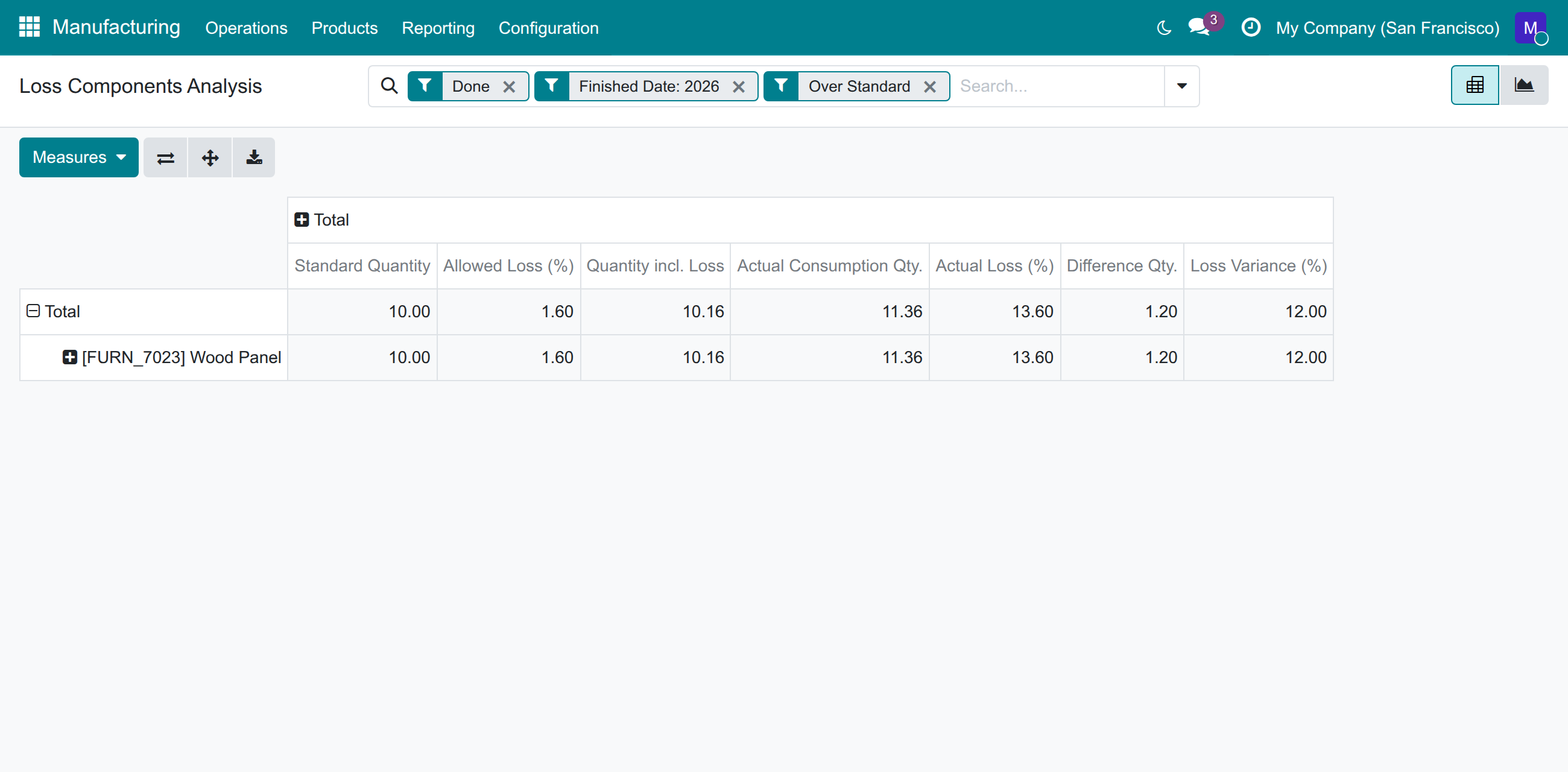
Today: someone compares planned and consumed quantities order by order, when there is time.
→ One filter keeps only the finished orders that consumed more than the BoM allows.
Start from the BoMs you have
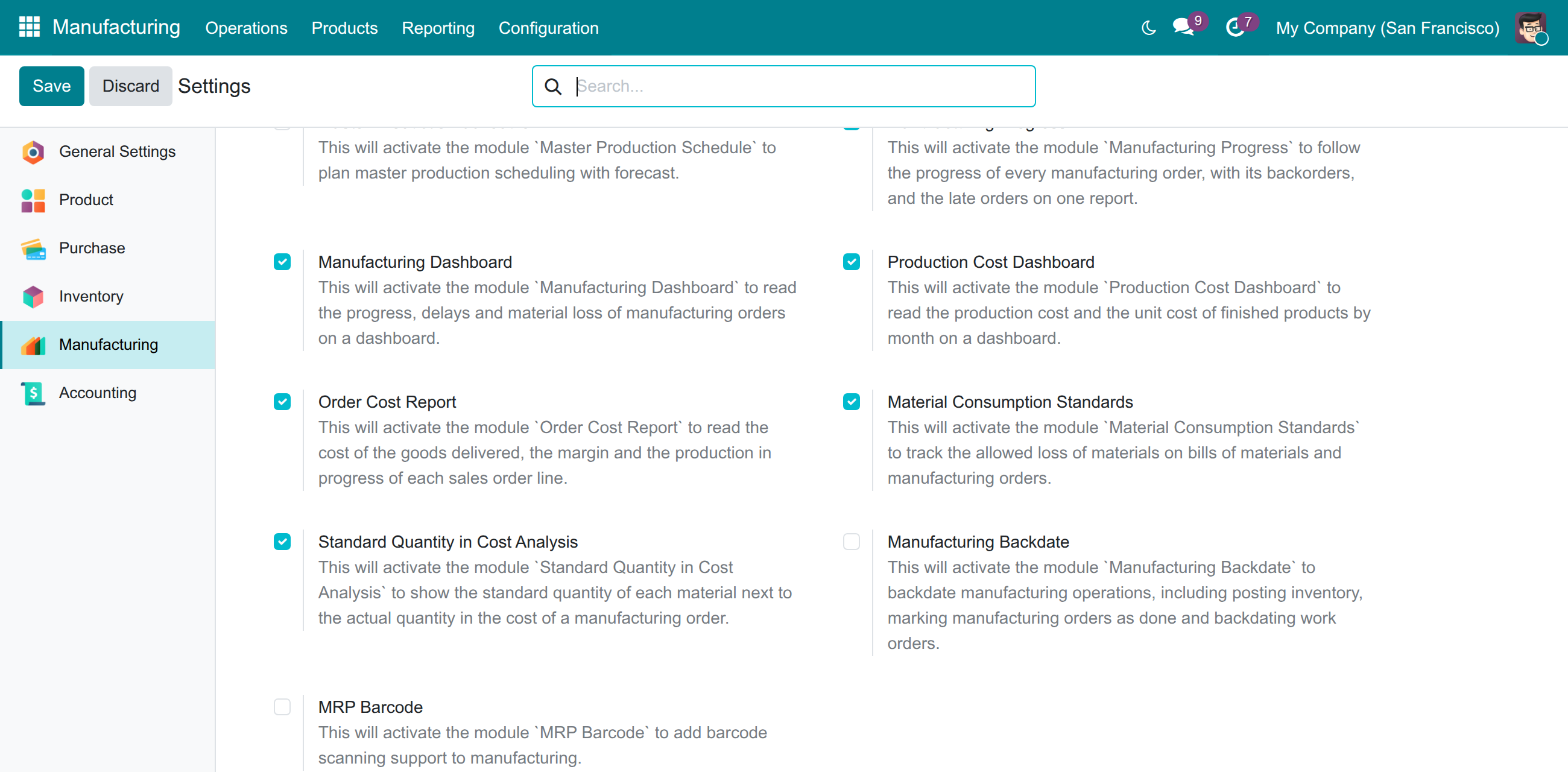
Today: adding a new measure means reworking every bill of materials first.
→ One setting turns the standards on; existing lines take their current quantity as the standard, with no loss.
What you see as a manager
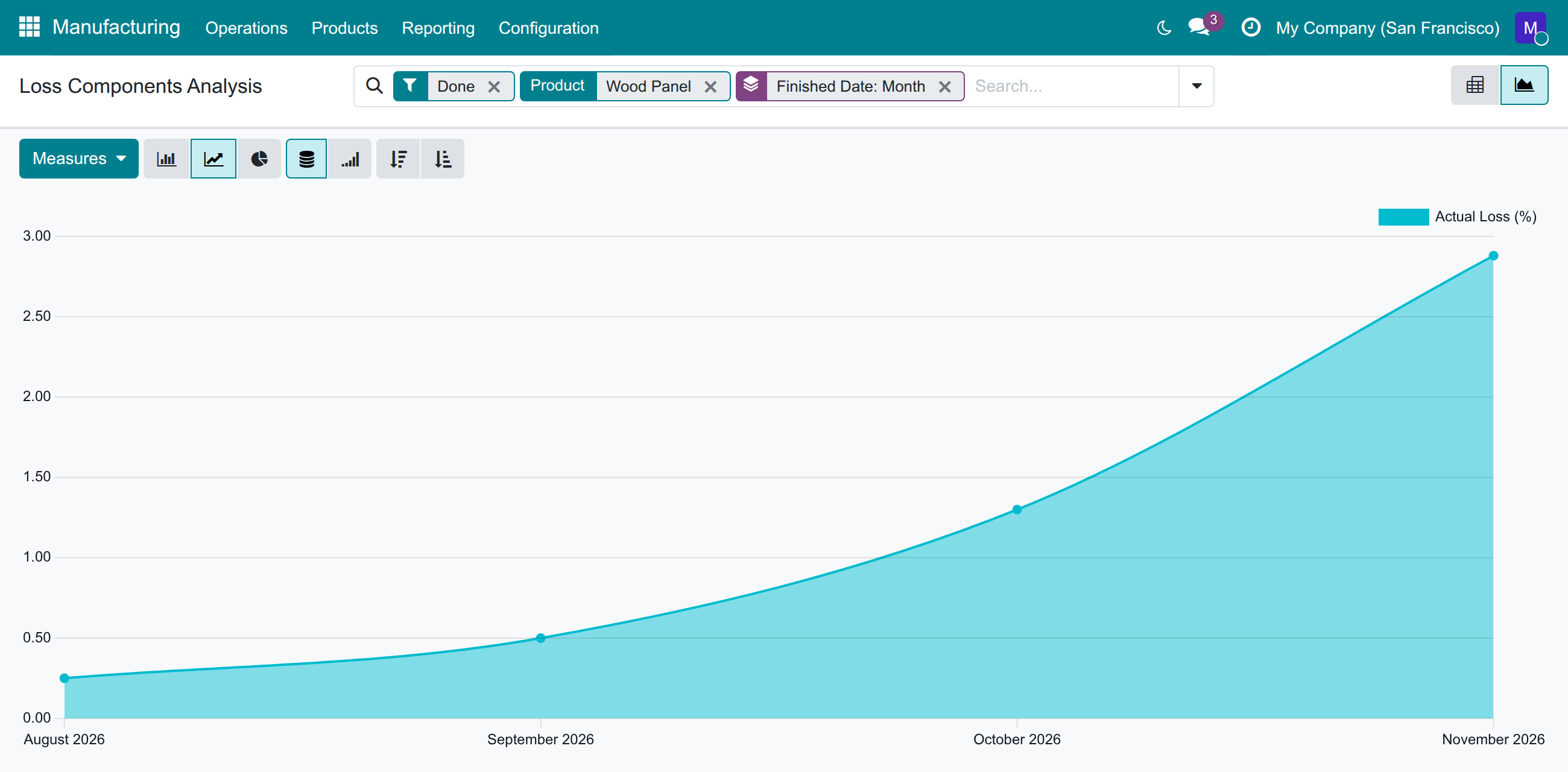
Is the loss on a material creeping up, month after month?
Built from finished manufacturing orders: each component's standard, allowed loss and actual consumption. The same analysis opens as a pivot table.
Features
Setting the standard
- ✓ Standard quantity and allowed loss on every component line
- ✓ The same on by-product lines
- ✓ Quantity including loss follows; edit it and the standard follows back
- ✓ An allowed loss of -100% or lower is refused on save
Following each order
- ✓ Each order keeps the standard and allowance it was confirmed with
- ✓ A later BoM change leaves confirmed orders as they are
- ✓ Components from kits carry the standards of every line on their path
- ✓ Actual loss and loss variance once the order is done
Reading the loss
- ✓ Planned, allowed and actual consumption per component
- ✓ The same comparison for by-products
- ✓ Over Standard and Within Standard filters on finished orders
- ✓ Pivot and graph, by product, order, BoM or finished month
Built for daily use
- ✓ Planners read the standards and the analysis; administrators change the standards
- ✓ Existing BoMs and confirmed orders start with their current quantity as standard
Ready on day one
Your bills of materials, already standardised
Every existing line takes its quantity as the standard with no loss, so you add an allowance only where loss is real.
What the administrator sets first
Material Consumption Standards in the Manufacturing settings, the Manufacturing Administrator right for whoever maintains BoMs, and By-Products when you track them.
Extend it
Standard Quantity in Cost Analysis
Shows how far each material and by-product runs over its standard inside the cost of the manufacturing order.
Before you decide
Does it stop the shop floor from consuming more than the standard?
No. It measures: the order consumes what is recorded, and the analysis shows where that went beyond the allowance.
When are the actual loss figures known?
When the order is done. A component with no standard shows a loss rate of zero.
What happens to our existing BoMs and orders?
Their lines take the current quantity as the standard and an allowed loss of zero; draft orders take their standards when confirmed.
Who sees the standards, and who changes them?
Manufacturing users read the BoMs and the analysis. Only Manufacturing Administrators change a standard or an allowance.
What must be installed, and does it show cost?
Viindoo Manufacturing, installed with it; no extra Python package or server program. It works in quantities and rates; Standard Quantity in Cost Analysis brings them into the order's cost.
Try it, then ask us
The Documentation tab walks the administrator, the BoM engineer and the planner through the standards and the analysis. Live demo: v19demo-int.viindoo.com/odoo/action-viin_mrp_ee.action_mrp_production_consumption_difference_report
Pre-sales & partnership
viindoo.com/contactusTechnical support
viindoo.com/ticketMaterial Consumption Standards
Audience: system administrators, bill of materials engineers and production managers and planners who use Viindoo Manufacturing.
Note
Extends Viindoo Manufacturing - see its documentation: viin_mrp_ee.
Overview
Every production loses some material: cuts, scrap, spills. This module lets you state on a bill of materials (BoM) how much of each component a product really needs and how much loss you accept, then compares that allowance with what each finished manufacturing order actually consumed.
How the work flows:
- The administrator turns the standards on.
- The BoM engineer enters, for each component and by-product, the standard quantity and the allowed loss. The quantity including loss is worked out for them.
- When a manufacturing order is confirmed, it keeps a copy of those figures. Changing the BoM later does not alter orders already confirmed.
- When the order is done, the production manager reads the actual loss and the variance against the allowance, and filters the orders that went over the standard.
| Role | What they do | Access right to assign |
|---|---|---|
| System Administrator | Turns the standards on | Administration / Settings |
| BoM engineer, production manager | Sets the standard quantity and allowed loss on bills of materials | Manufacturing / Administrator |
| Production planner | Reads the standards and the loss analysis | Manufacturing / User |
Setup (for the Administrator)
Installation
- Open Apps, search for Material Consumption Standards and click Install. Viindoo Manufacturing is installed with it if it is not yet there.
Turn the standards on
- Open Manufacturing > Configuration > Settings.
- Tick Material Consumption Standards and click Save.
Bills of materials and orders that exist before the module is installed receive a standard equal to their current quantity and a loss of zero. Loss can be entered on them afterwards.
Give people their access
In Settings > Users & Companies > Users, open the user and set the Manufacturing access right: Administrator for those who edit bills of materials, User for those who only read the analysis.
BoM engineer: set the standard and the allowed loss
Enter the standard on a bill of materials
- Open Manufacturing > Products > Bills of Materials and open a BoM.
- In the Components tab, fill Standard Qty (the quantity the product needs with no loss) and Loss (%) (the share of the standard you accept to lose) on each line.
- Qty incl. Loss is filled in: standard quantity plus the loss share. A standard of 2.00 with a loss of 10 gives 2.20.
- You can also type Qty incl. Loss; the standard quantity is then recalculated from it and the loss.
- Save.
The same three columns appear in the By-products tab when by-products are enabled. A loss of -100% or less is refused: the allowed loss must be greater than -100%. Outside the BoM list the fields carry their full names: Standard Quantity, Allowed Loss (%) and Quantity incl. Loss.
Production manager and planner: read the loss
Compare allowed and actual loss
- Open Manufacturing > Reporting > Loss Components Analysis.
- The table lists, per component: Standard Quantity, Allowed Loss (%), Quantity incl. Loss, Actual Consumption Qty., Actual Loss (%), Difference Qty. and Loss Variance (%). Actual loss and variance are filled once the order is done; the variance is the actual loss minus the allowed loss.
- To read one period, open the search options and choose it under Finished Date.
- Expand a row, or use Measures and the graph view, to look from another angle.
When by-products are enabled, Manufacturing > Reporting > Loss By-products Analysis gives the same comparison for by-products.
Find what went over the standard
- In Loss Components Analysis, open the search options and choose Over Standard: only finished orders that consumed more than the quantity including loss remain.
- Choose Within Standard to see the others (consumption equal to or below the allowance).
- Add a period under Finished Date to keep the orders finished in it.
Good to know
- The figures of an order are copied from the BoM when the order is confirmed; a later change to the BoM does not alter them.
- A component with no standard (standard of zero) shows an actual loss and variance of zero.
- For components that come from a kit, the standard is the technical quantity and the allowed loss is the combined loss along the path from the order's BoM.
This software and associated files (the "Software") may only be used (executed, modified, executed after modifications) if you have purchased a valid license from the authors, typically via Odoo Apps, or if you have received a written agreement from the authors of the Software (see the COPYRIGHT file).
You may develop Odoo modules that use the Software as a library (typically by depending on it, importing it and using its resources), but without copying any source code or material from the Software. You may distribute those modules under the license of your choice, provided that this license is compatible with the terms of the Odoo Proprietary License (For example: LGPL, MIT, or proprietary licenses similar to this one).
It is forbidden to publish, distribute, sublicense, or sell copies of the Software or modified copies of the Software.
The above copyright notice and this permission notice must be included in all copies or substantial portions of the Software.
THE SOFTWARE IS PROVIDED "AS IS", WITHOUT WARRANTY OF ANY KIND, EXPRESS OR IMPLIED, INCLUDING BUT NOT LIMITED TO THE WARRANTIES OF MERCHANTABILITY, FITNESS FOR A PARTICULAR PURPOSE AND NONINFRINGEMENT. IN NO EVENT SHALL THE AUTHORS OR COPYRIGHT HOLDERS BE LIABLE FOR ANY CLAIM, DAMAGES OR OTHER LIABILITY, WHETHER IN AN ACTION OF CONTRACT, TORT OR OTHERWISE, ARISING FROM, OUT OF OR IN CONNECTION WITH THE SOFTWARE OR THE USE OR OTHER DEALINGS IN THE SOFTWARE.