Manufacturing Progress
by Viindoo
| Lines of Code | 1092 |
| Technical name | viin_mrp_progress |
| License | OPL-1 |
| Website | https://viindoo.com/apps/modules/19.0/viin_mrp_progress |
| Read description for | v 16.0 v 17.0 v 18.0 |
| Required Apps | Manufacturing (mrp) Discuss (mail) Inventory (stock) |
| Included Dependencies | Viindoo Manufacturing Web Gantt |
| Extensions | Manufacturing Dashboard |

See which jobs are running late while there is still time to act
For manufacturers whose planners follow many open orders and their backorders
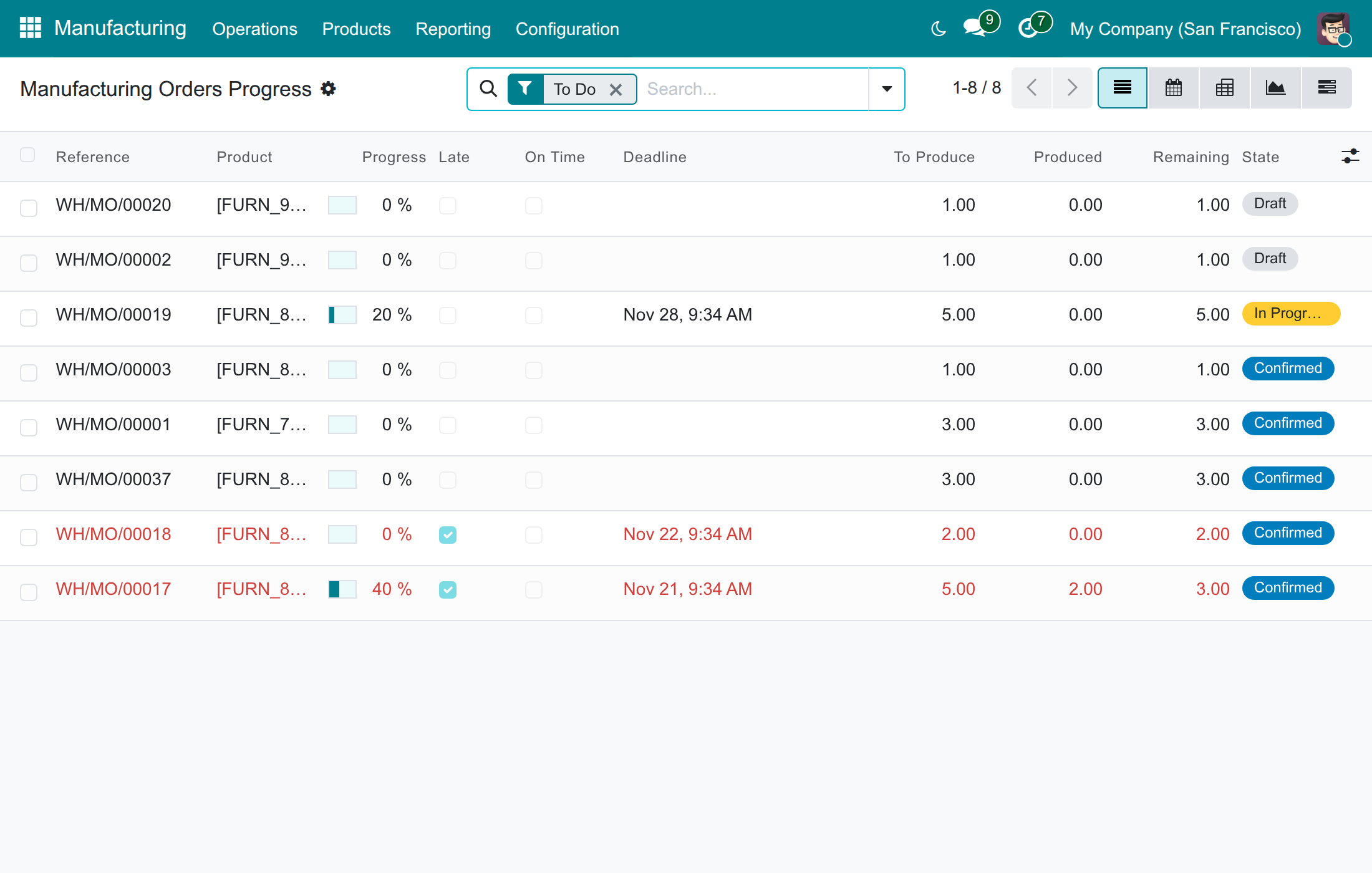
Progress of every manufacturing order with its backorders, and the late orders, on one report.
Community Edition, Viindoo Cloud · OPL-1 · English, Vietnamese
Extends the manufacturing orders of Viindoo Manufacturing.
What changes for your team
Late jobs show up on their own
Today: a delay is noticed when the deadline has passed or when sales asks.
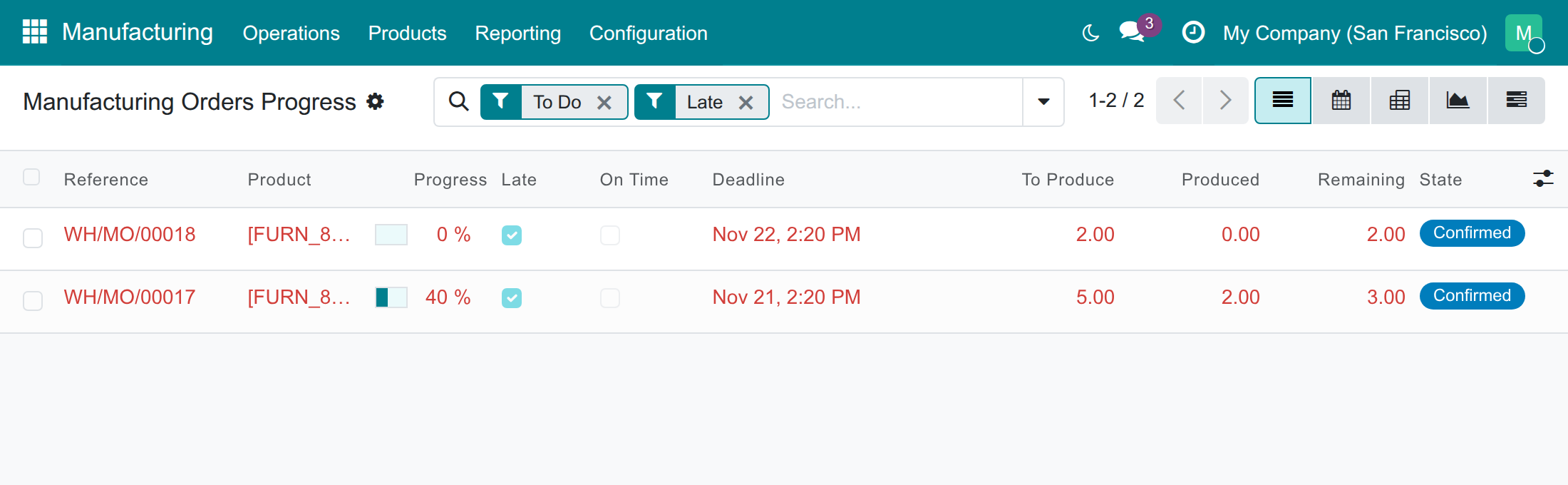
→ One filter lists every job past its deadline or expected to finish after it, in red.
A job and its backorders read as one
Today: the planner opens each backorder and adds the quantities by hand.
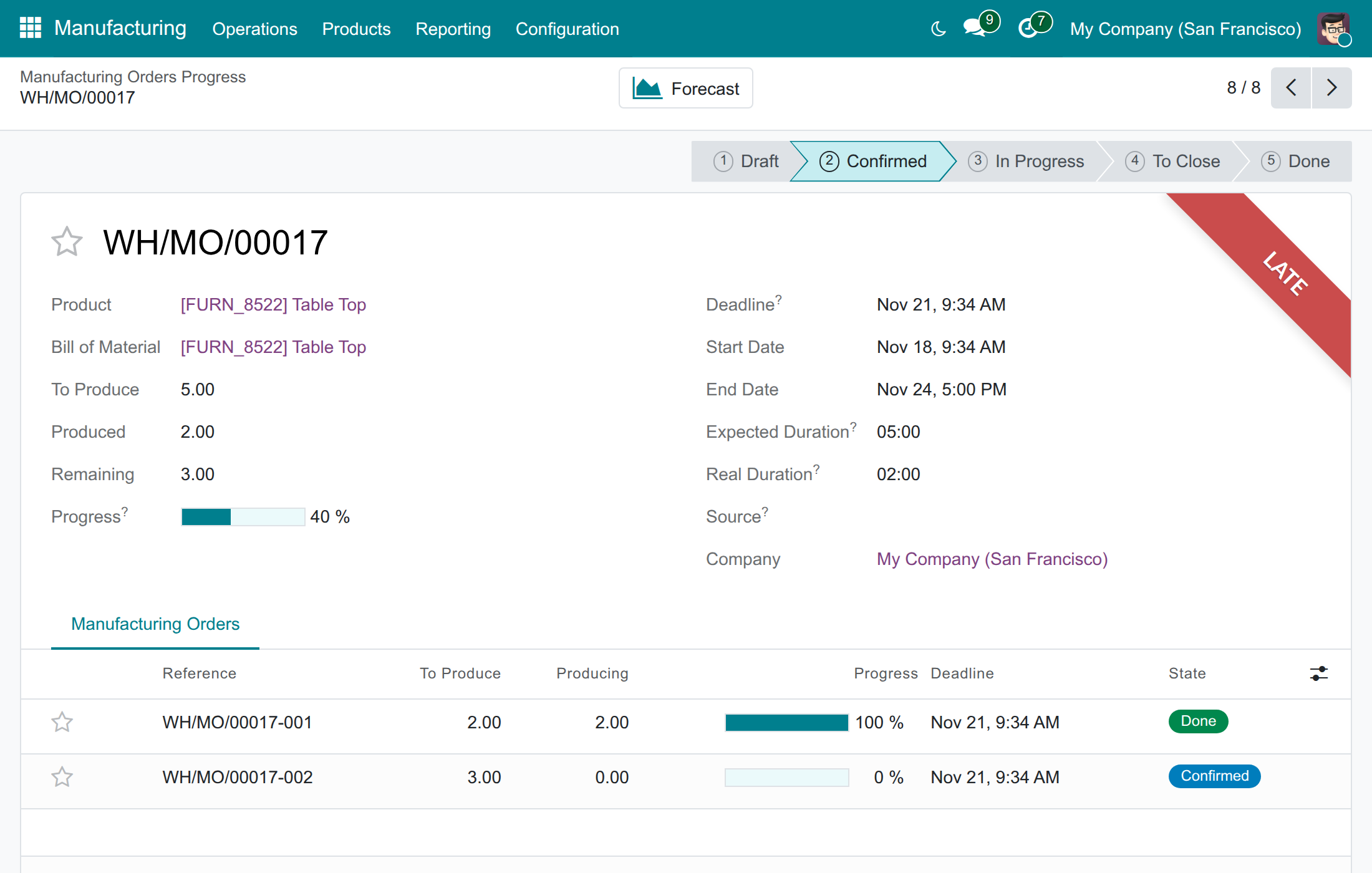
→ One line per job gives what is produced, what remains and how far it is, with each order listed below.
Progress where planners already work
Today: how far an order is stays a guess from the operations ticked done.
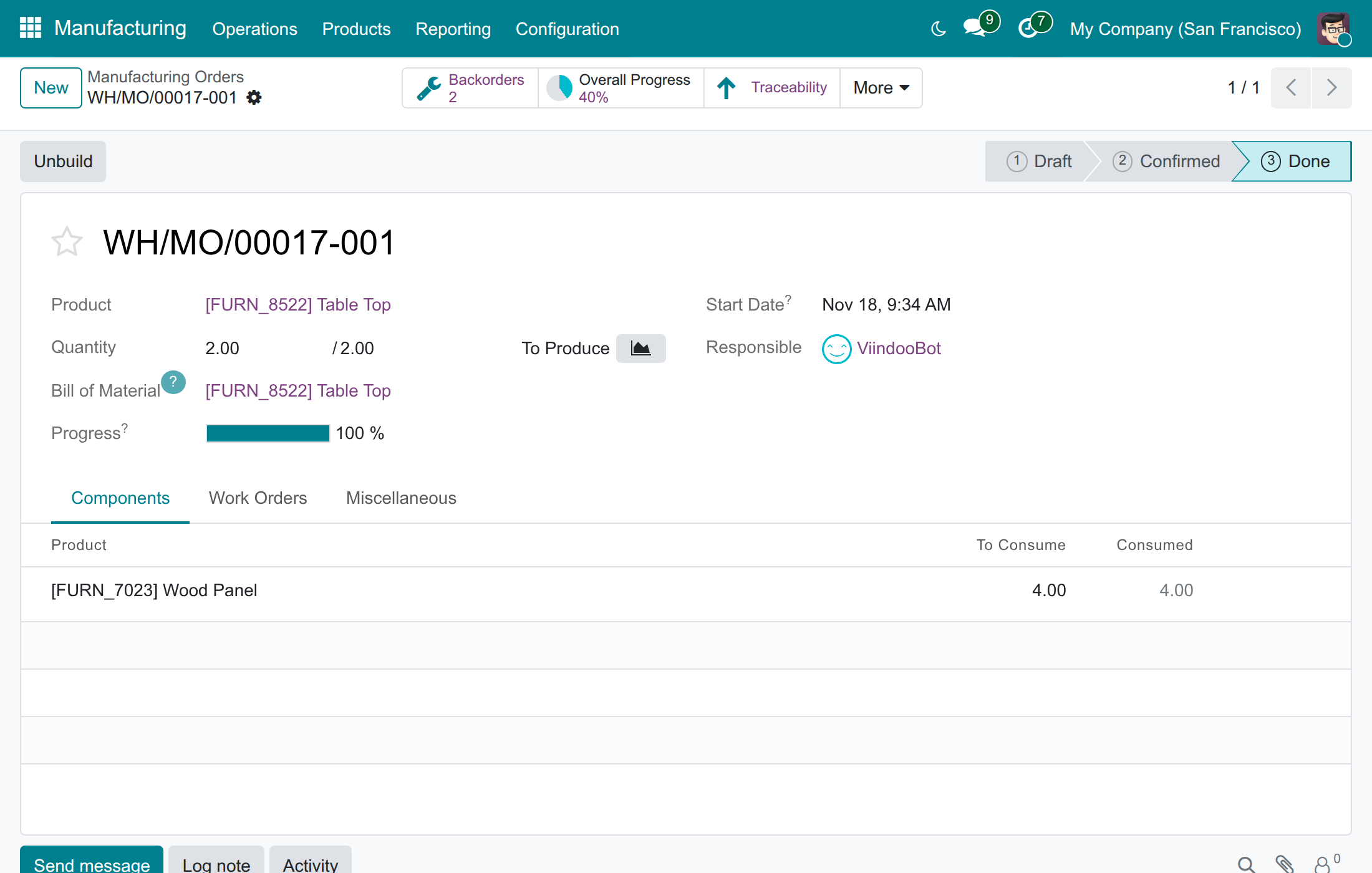
→ Every order carries a Progress bar, and Overall Progress opens the whole job in one click.
What you see as a manager
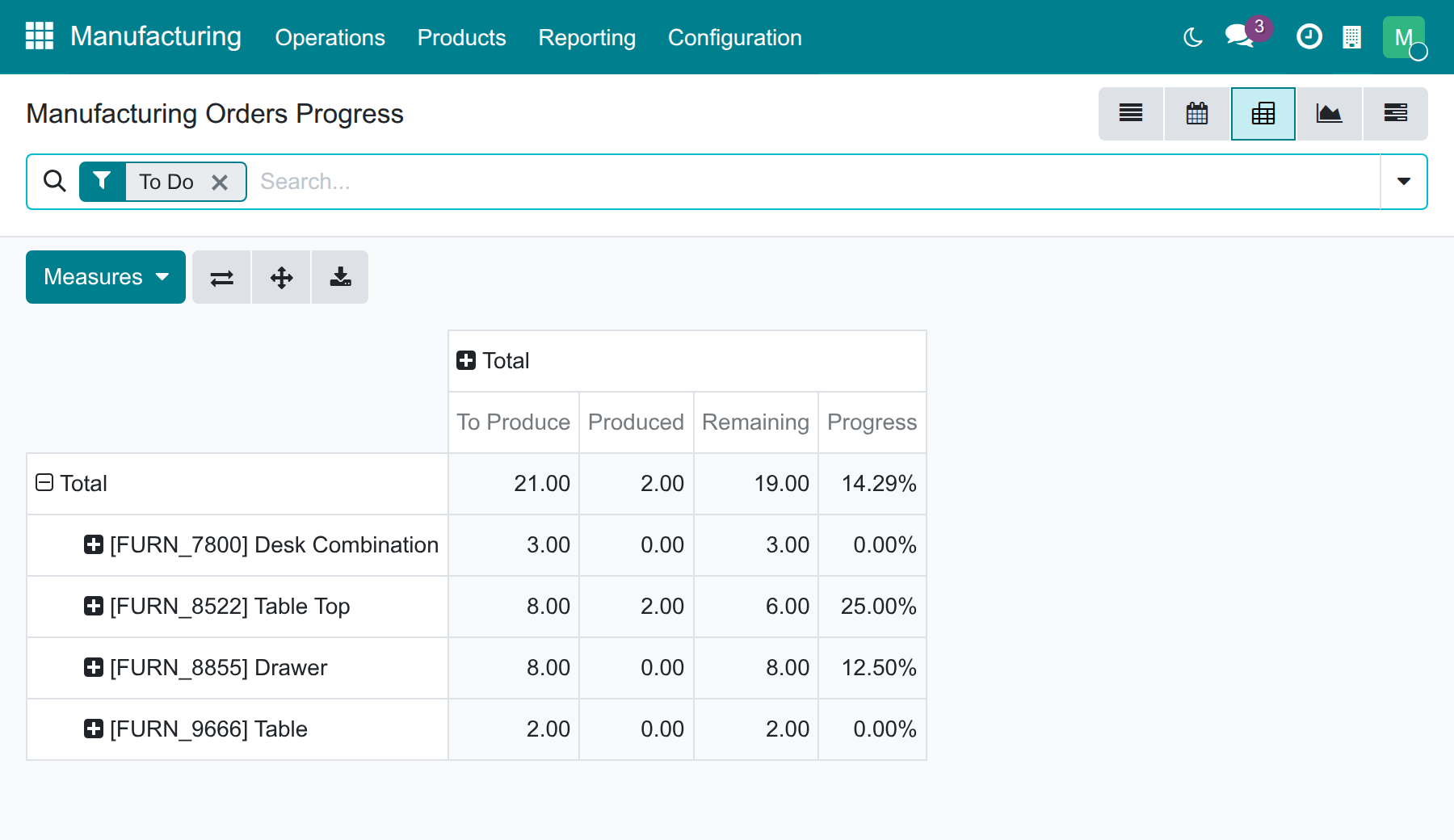
How much work is still open, product by product?
Built from the open orders and their backorders; each product's progress is weighted by its quantities. The same report opens as a list, calendar, graph or Gantt chart.
Features
Measuring progress
- ✓ Without work orders: quantity producing against quantity to produce
- ✓ With work orders: expected time of done operations against all
- ✓ Operations weigh the same when no time is expected
- ✓ Progress bar on order form, kanban cards and Gantt chart
Following jobs
- ✓ One line per order with its backorders and splits
- ✓ To produce, produced, remaining, progress, state and priority
- ✓ Expected and real duration of the job
- ✓ Overall Progress button on each order opens its job
- ✓ Forecast of the product from the job
Finding the delays
- ✓ Late and On Time on every line, late lines in red
- ✓ Filter by state, urgent priority and start date
- ✓ Group by product, source or start month
- ✓ List, calendar, pivot, graph and Gantt views
Built for daily use
- ✓ Each user sees only the orders they may read
- ✓ Read-only report, limited to the user's companies
Ready on day one
The report and the progress bars
They read the manufacturing orders already in your database; there is nothing to build.
What the administrator sets first
The Manufacturing User right for each planner, and Work Orders when the shop floor works by operation.
Extend it
Manufacturing Dashboard
Puts orders done, open and late, the on-time rate and the materials most over their consumption standard on one dashboard.
Before you decide
Does it predict when an order will finish, or reschedule it?
No. It measures what is done and flags what is late; planning and rescheduling stay where they are.
When is a job Late, and when On Time?
Late: an order of the job is not done and its deadline has passed or its expected end is after it. On Time: all its orders are done no later than their deadline. An order without a deadline is neither.
Who sees the report?
Users with the Manufacturing User right. Each sees only the orders they may read, in their own companies, and nobody edits the report.
What does it need from our data?
Quantities recorded on the orders, and work orders when you measure by operation. With work orders, a quantity counts as produced once every operation is done.
What must be installed?
Viindoo Manufacturing, installed with it. No extra Python package or server program.
Try it, then ask us
The Documentation tab walks the planner and the administrator through the report. Live demo: v19demo-int.viindoo.com/odoo/action-viin_mrp_progress.mrp_production_progress_action
Pre-sales & partnership
viindoo.com/contactusTechnical support
viindoo.com/ticketManufacturing Progress
For production planners and production managers who follow manufacturing orders, and for the administrator who sets the app up.
Note
Extends Manufacturing Orders of Viindoo Manufacturing - see its documentation.
Overview
A delay is easiest to manage while the order can still be helped. Manufacturing Progress shows what part of each manufacturing order is done, and which orders are late, on one report.
A manufacturing order that was produced in several rounds has backorders. The report counts an order together with its backorders as one line, so a half-finished job reads as one job.
How the progress of an order is measured:
- An order without work orders: the quantity producing against the quantity to produce.
- An order with work orders: the expected duration of the work orders that are done against the expected duration of all of them. When no duration is expected, each work order weighs the same.
The progress is not capped at 100 %: an order produced beyond its quantity shows more than 100 %.
| Role | What they do | Access right to assign |
|---|---|---|
| System Administrator | Installs the app, turns on Work Orders when the shop floor uses them, gives each person their access right. | Administration / Settings |
| Production Planner | Follows how far each order is done and which are late, to move people to the orders that need them. | Manufacturing / User |
Setup (for the Administrator)
- Open Apps, search for Manufacturing Progress and click Install. The app needs Viindoo Manufacturing, which is installed with it.
- If the shop floor works with operations, open Manufacturing > Configuration > Settings and turn on Work Orders. Orders then measure their progress by the work orders done.
- Open Settings > Users & Companies > Users, open each planner and set Manufacturing to User. Only people with this access right see the report; a person who may read manufacturing orders without it opens them as usual and has no Overall Progress button.
Production Planner: following the progress
Find the orders that are late
- Open Manufacturing > Reporting > Manufacturing Orders Progress. The list opens on the filter To Do: orders not yet done or cancelled.
- Read the Progress bar of each line, with To Produce, Produced and Remaining.
- Click the filter arrow of the search bar and choose Late. A line is late when one of its orders is not done and its deadline has passed or its expected end is after its deadline. Late lines are shown in red. The filter narrows the lines that To Do already selects, so the list keeps the late lines of the orders still open.
- To see the lines whose orders are all done no later than their deadline, remove To Do and choose On Time. An order with no deadline is neither late nor on time.
You can also filter by state, Urgent priority and start date, and group by Product, Source and start date. The report also opens as a calendar, a pivot table, a graph and a Gantt chart with the view buttons at the top right.
The state of a line follows its orders: In Progress as soon as one order has started, else Confirmed, else Draft, then To Close and Done; a line is Cancelled only when all its orders are. The progress of a line is the average of its orders, weighted by their quantity to produce; cancelled orders are left out.
Read one order with its backorders
- In the list, click a line.
- The form gives the quantity to produce, produced and remaining, the progress, the deadline, the start and end dates, the expected and real duration, and the Late or On Time ribbon.
- The Manufacturing Orders tab lists the orders of the line with their own progress and state.
- Click Forecast to open the forecast of the product.
For an order with work orders, the quantity counts as produced only when every work order is done.
Open the progress from a manufacturing order
- Open Manufacturing > Operations > Manufacturing Orders and open an order.
- The Progress bar below the Bill of Material shows how far this order is done. The bar also shows on the kanban cards and the Gantt chart of the orders, and the list can show it as an optional column.
- Click Overall Progress to open the report line of the order with its backorders. The button shows once the order belongs to a line of the report.
Who sees which figures
A person sees only the orders they are allowed to read, and the figures of a line add up only those orders. Two people with different access can therefore see different numbers on the same line. The report is read-only.
Troubleshooting
- The report is missing from the menu. The person does not have the Manufacturing > User access right.
- The Overall Progress button is missing. The order does not belong to a report line yet, or the person lacks the Manufacturing access right.
- The progress stays at 0 % while work is under way. With work orders, the progress moves when a work order is done; a work order in progress does not count.
This software and associated files (the "Software") may only be used (executed, modified, executed after modifications) if you have purchased a valid license from the authors, typically via Odoo Apps, or if you have received a written agreement from the authors of the Software (see the COPYRIGHT file).
You may develop Odoo modules that use the Software as a library (typically by depending on it, importing it and using its resources), but without copying any source code or material from the Software. You may distribute those modules under the license of your choice, provided that this license is compatible with the terms of the Odoo Proprietary License (For example: LGPL, MIT, or proprietary licenses similar to this one).
It is forbidden to publish, distribute, sublicense, or sell copies of the Software or modified copies of the Software.
The above copyright notice and this permission notice must be included in all copies or substantial portions of the Software.
THE SOFTWARE IS PROVIDED "AS IS", WITHOUT WARRANTY OF ANY KIND, EXPRESS OR IMPLIED, INCLUDING BUT NOT LIMITED TO THE WARRANTIES OF MERCHANTABILITY, FITNESS FOR A PARTICULAR PURPOSE AND NONINFRINGEMENT. IN NO EVENT SHALL THE AUTHORS OR COPYRIGHT HOLDERS BE LIABLE FOR ANY CLAIM, DAMAGES OR OTHER LIABILITY, WHETHER IN AN ACTION OF CONTRACT, TORT OR OTHERWISE, ARISING FROM, OUT OF OR IN CONNECTION WITH THE SOFTWARE OR THE USE OR OTHER DEALINGS IN THE SOFTWARE.