Project & HR Integration
by Viindoo
| Lines of Code | 680 |
| Technical name | viin_hr_project |
| License | OPL-1 |
| Website | https://viindoo.com/apps/modules/19.0/viin_hr_project |
| Read description for | v 13.0 v 14.0 v 15.0 v 16.0 v 17.0 v 18.0 |
| Required Apps | Project (project) Discuss (mail) Employees (hr) |
| Included Dependencies | Project Customization Advanced HR Management |

Every project shows the department behind it, and every hour adds up by department
For organisations whose projects draw people from several departments
Integrate the HR module into the Project module
Odoo 19.0 · Community and Enterprise · OPL-1
Extends Project Customization with the departments of your Employees app.
What changes for your team
Each project names the department responsible for it
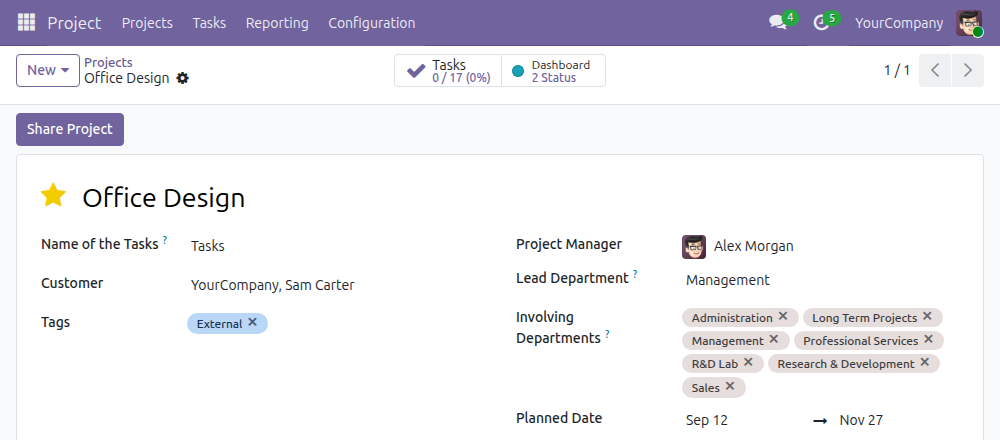
Today, a project names its manager; which department owns it, and which departments work on it, lives in people's heads.
→ The project takes the department of its Project Manager as its Lead Department, which you can change, and lists the Involving Departments whose employees logged time on it or its tasks.
A department head opens the team's tasks in one click
Today, finding the work of one department means filtering the task list assignee by assignee.
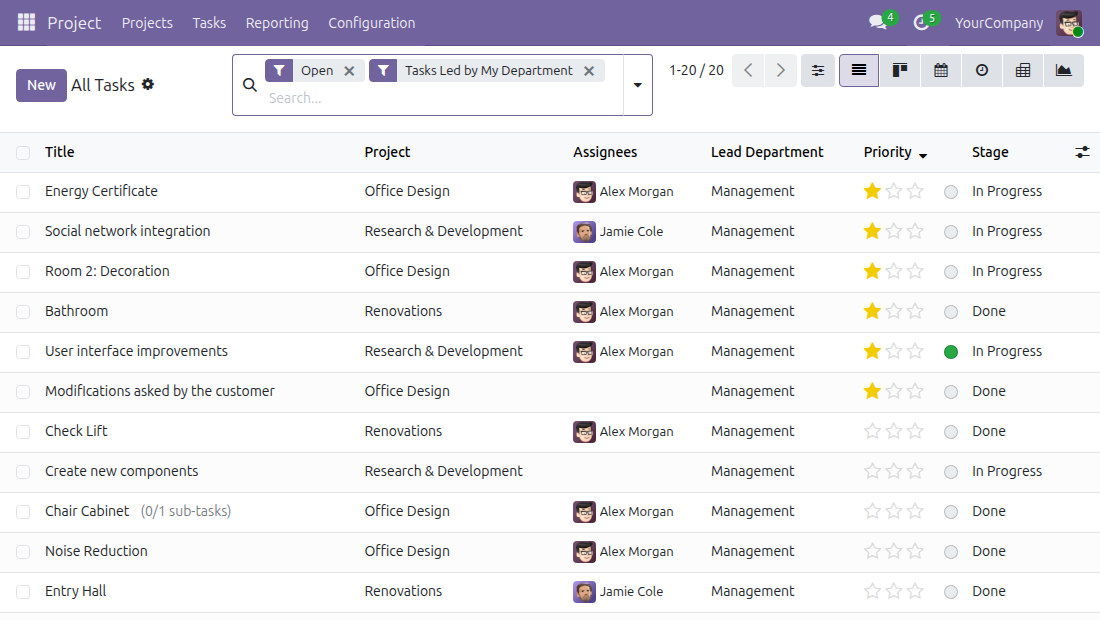
→ Ready-made filters list the tasks led by your department, the tasks it is involved in, and those of your subordinates, direct or indirect. Every task list shows its Lead Department.
Hours read by department, not only by person
Today, department totals come from a timesheet export regrouped by hand against an employee list.
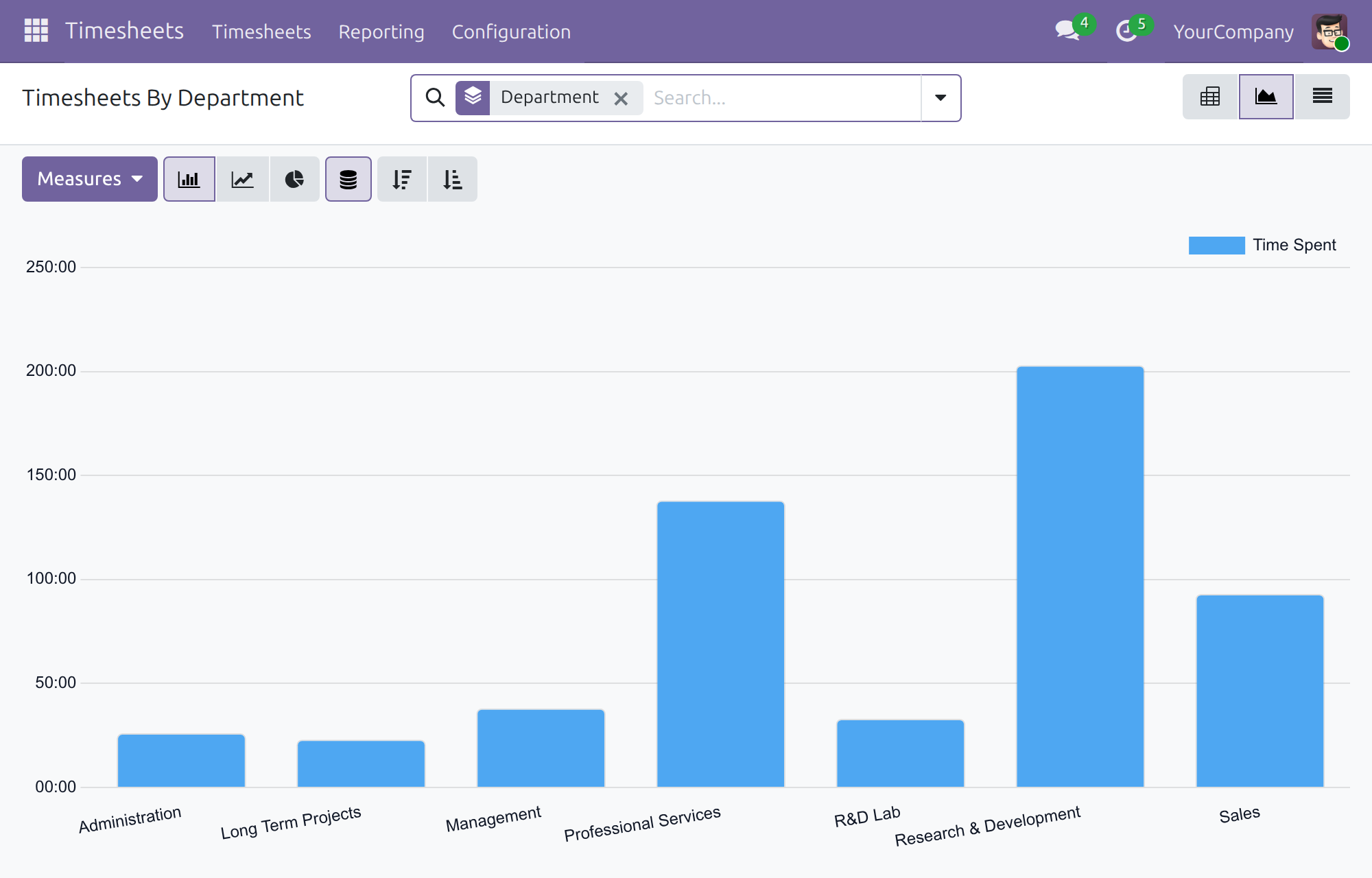
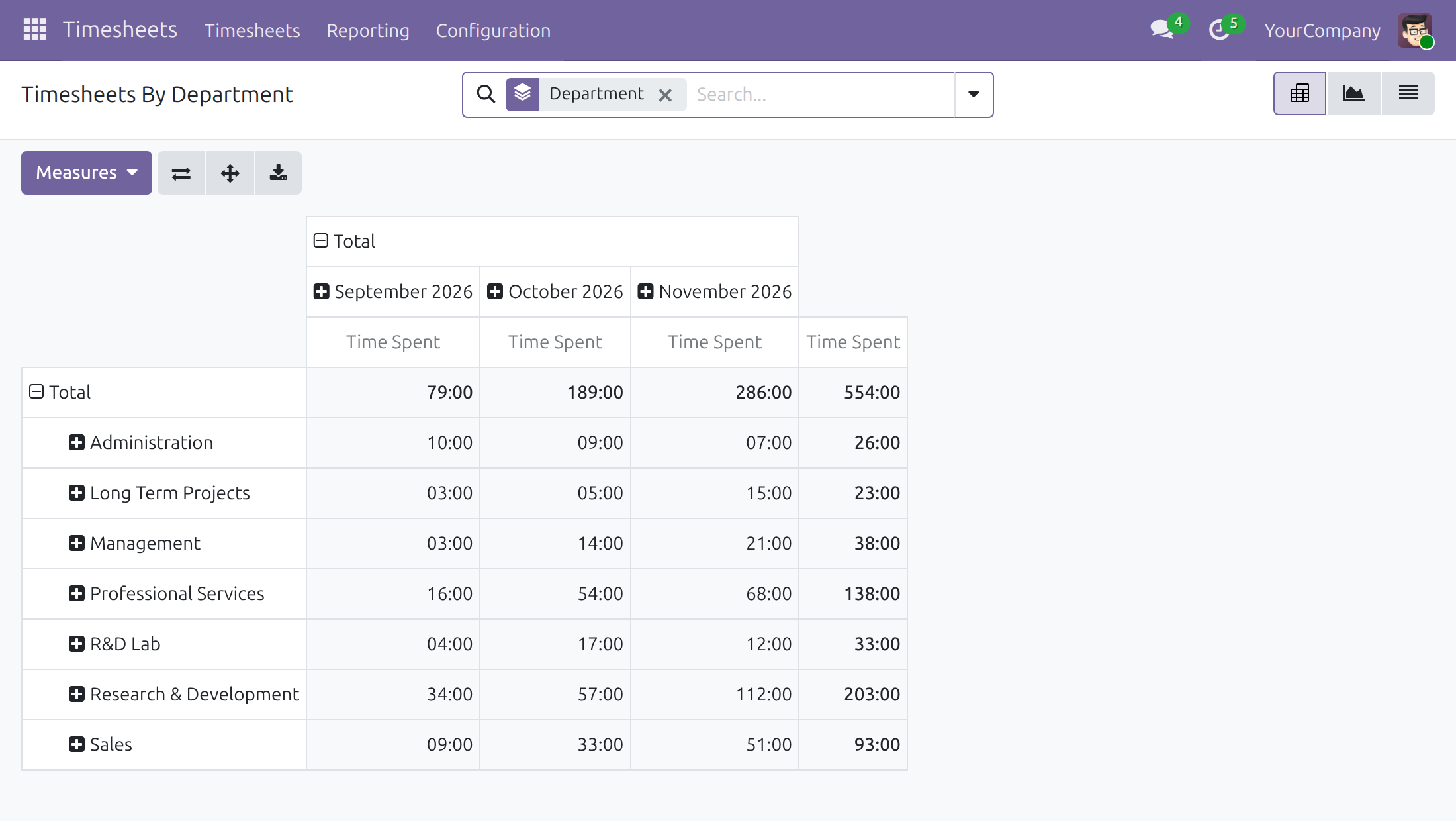
→ The By Department report, under Reporting in the Timesheets app, groups the hours logged on projects by department and month, as a pivot table, a graph or a list.
Ready on day one
Existing projects filled in
At installation, existing projects take the department of their Project Manager and existing tasks that of their project.
Search and group by department
Projects and tasks are searched and grouped by department; tasks also by the employees assigned to them or who logged time on them.
Department in timesheet lists
Any timesheet list can show a Department column, switched on from the column selector.
There is nothing to configure. The administrator keeps each employee's department current and gives department heads the Timesheets right that opens the report; the Documentation tab shows how.
What is included
Everything above ships in this one module. It installs on its own as soon as its required modules are installed, and reads departments from the Employees app and hours from the Timesheets app.
Before you decide
Who sees what?
Every project user sees the Lead Department of a project and the Involving Departments of a task. Fields built from timesheet entries show only to users with a Timesheets right, and the By Department report only to "User: all timesheets" or higher.
Where do the departments come from?
From the employee records. A Project Manager with no employee record or no department leaves the project's Lead Department empty until you set one, and the "my department" filters return nothing for a user without an employee record.
Our database already holds many projects. Is installing safe?
The departments of existing projects and tasks are written in bulk in the database during installation, rather than record by record.
Where does the data go?
Nowhere outside your database. The module calls no external service.
Which languages does it speak?
Its screens ship in English and Vietnamese.
Try it, then ask us
Read the Documentation tab for each role, open the live preview of this listing, or watch the video above.
Pre-sales & partnership
viindoo.com/contactusTechnical support
viindoo.com/ticketTechnical requirements
- Odoo version: 19.0
- Editions: Community, Enterprise
- Required modules: Project Customization, Advanced HR Management, Task Logs
- License: OPL-1
- Languages: English, Vietnamese
Project & HR Integration
Note
Audience: administrators, project managers, HR officers and timesheet users who run projects across departments.
Note
Extends viin_project - see its documentation for the other Project features.
Overview
The Project app tells you who manages a project but not which department stands behind it, and the Timesheets app tells you who logged hours but not how much time each department spent. Project & HR Integration connects the Project app with the departments of the Employees app:
- A project carries the Lead Department responsible for it and, once people log time on it, the Involving Departments whose employees worked on it.
- A task shows the Associated Employees who logged time on it and the Involving Departments of everyone involved.
- Project and task lists can be searched, filtered and grouped by department, and the task search offers ready-made filters for your own department and your subordinates.
- A By Department timesheet report shows the hours logged by each department.
| Role | What they do | Access right to assign |
|---|---|---|
| Administrator | Installs the apps and gives people their access rights | Role: Administrator (Settings) |
| Project manager | Runs projects and sees which departments are responsible and involved | Project: User, Timesheets: User: own timesheets only |
| Department head or HR officer | Reads the timesheet report by department and follows the tasks of a department or of the subordinates | Project: User, Timesheets: User: all timesheets |
Setup (for the Administrator)
Installation
The module needs the Project, Employees and Timesheets apps and is installed automatically as soon as they are all installed. If it is missing, open Apps, search for Project & HR Integration and click Activate. There is nothing to configure.
Departments
Departments come from the Employees app: each employee belongs to a department. The lead department of a project is taken from the employee record of its Project Manager, and the involving departments of a task from the employees who work on it, so keep the Department of every employee up to date.
Giving people their access right
- Open Settings > Users & Companies > Users and open the user.
- In the Access Rights tab, find the Services section.
- Set Project to User for a project manager.
- Set Timesheets to User: own timesheets only for a person who logs time, or to User: all timesheets for a person who reads the timesheet reports.
- Save.
Without a Timesheets access right the user still sees the Lead Department of a project and the Involving Departments of a task, but not the fields that rely on timesheet entries (see the next chapter).
Project manager: see the departments of a project and its tasks
Lead Department and Involving Departments on a project
- Open Project > Projects and open the project.
- Next to Project Manager, read or set the two department fields.
- Lead Department is the department responsible for the project. It is filled in from the department of the Project Manager and follows the Project Manager when you change them. When the Project Manager has no employee record or no department, it stays empty. You can choose another department yourself.
- Involving Departments lists the departments whose employees logged time on the project or on its tasks. It is filled in from the timesheet entries and you can edit it.
The two fields do not always appear:
- Lead Department is always shown on the project form.
- Involving Departments is shown only when the project has at least one timesheet entry, and only to users with a Timesheets access right. A new project, or a project nobody logged time on, does not show it.
Employees and departments on a task
- Open Project > Tasks and open the task.
- Under Assignees, read Associated Employees and Involving Departments.
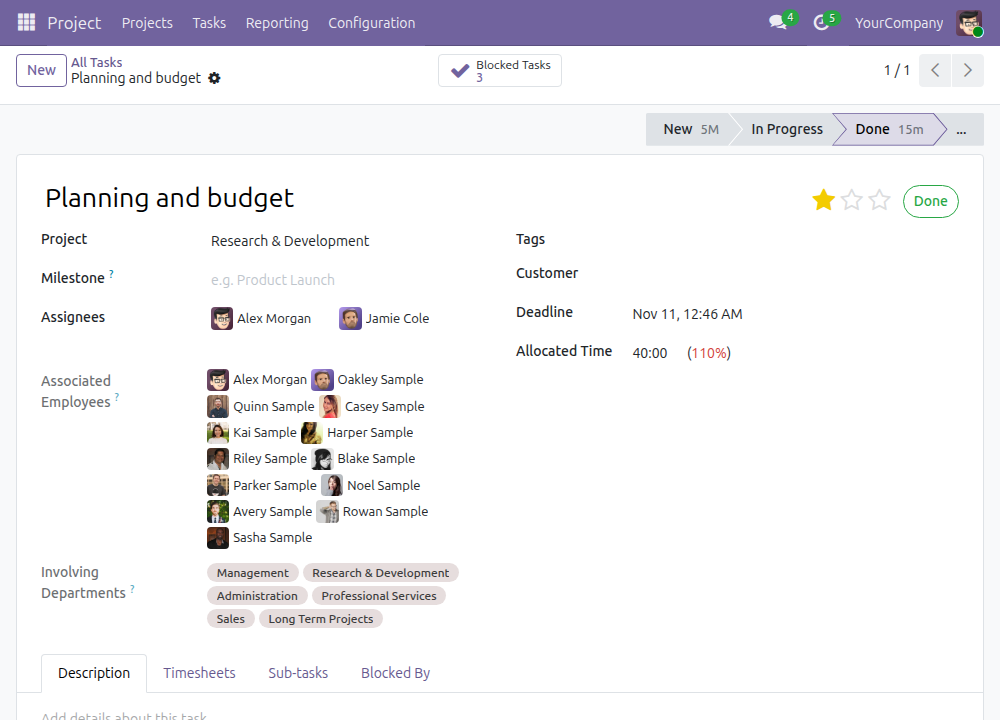
- Associated Employees lists the employees who logged time on the task. It is shown only when the task has timesheet entries and only to users with a Timesheets access right.
- Involving Departments lists the departments of the assignees and of the employees who logged time on the task. It is shown on every task form and is read-only.
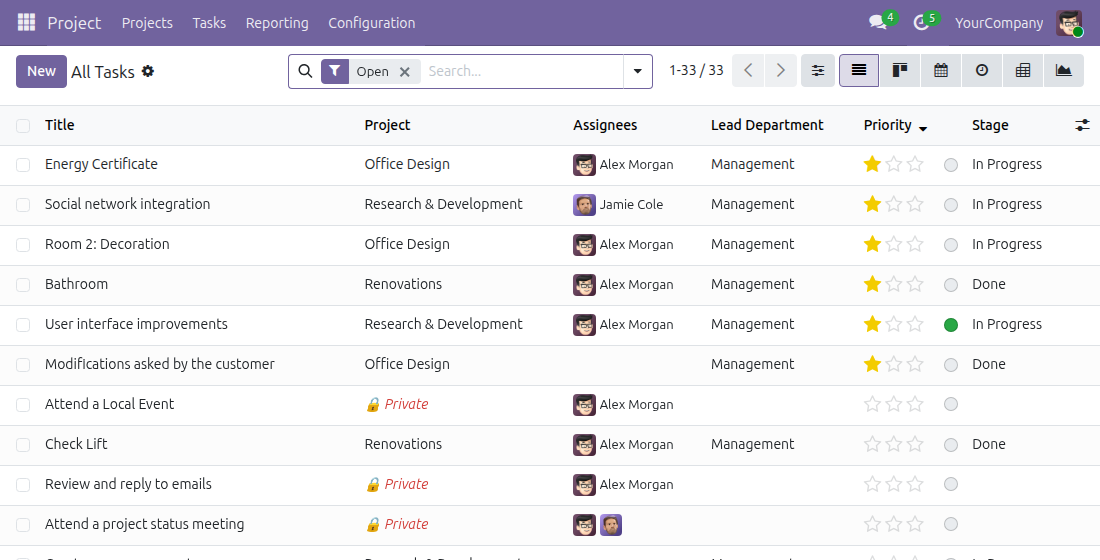
The task form has no lead department of its own: the lead department of a task is the Lead Department of its project, and it appears in the task list as the column Lead Department.
Find projects and tasks of a department
In Project > Projects, type a department in the search bar and pick Lead Department, or open Group By and choose Lead Department.
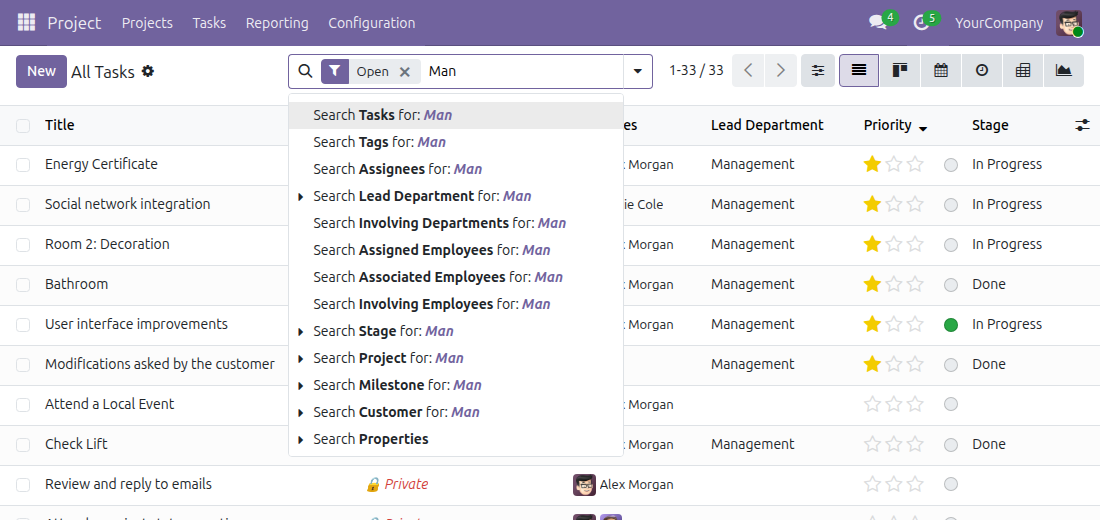
In Project > Tasks > All Tasks, type a word in the search bar: besides the standard choices, the search offers Lead Department, Involving Departments, Assigned Employees (the assignees), Associated Employees (who logged time) and Involving Employees (assigned or logged time). Group By > Lead Department groups the tasks by lead department.
Department head: follow your department and the timesheets
Task filters for you and your team
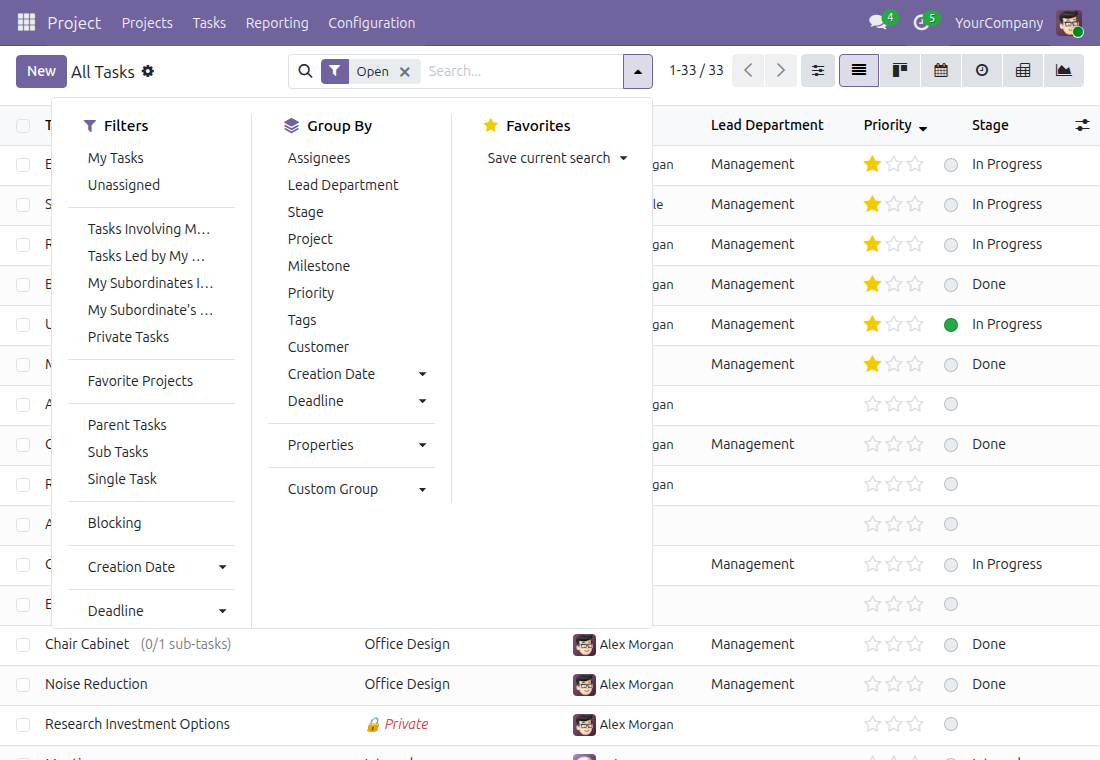
Open Project > Tasks > All Tasks, click the arrow at the right of the search bar and, in the Filters column, pick one of the four filters added for you:
- Tasks Led by My Department - tasks whose lead department is your department or a department you manage.
- Tasks Involving My Department - tasks that involve one of those departments: an assignee or a person who logged time belongs to it.
- My Subordinate's Assigned Tasks - tasks assigned to your subordinates, direct or indirect.
- My Subordinates Involving Tasks - tasks assigned to your subordinates or on which they logged time.
Your department and your subordinates come from your employee record in the Employees app. A user without an employee record gets filters that return nothing.
Timesheets by department
Open Timesheets > Reporting > Timesheets > By Department. The menu is shown to users with User: all timesheets or higher.
The report lists the hours logged on projects, grouped by Department, as a pivot table by month. Switch to the graph or the list with the buttons at the top right, and use the search bar to narrow it down by project, employee or period.
In any timesheet list, the optional column Department can be switched on from the column selector at the right of the header.
This software and associated files (the "Software") may only be used (executed, modified, executed after modifications) if you have purchased a valid license from the authors, typically via Odoo Apps, or if you have received a written agreement from the authors of the Software (see the COPYRIGHT file).
You may develop Odoo modules that use the Software as a library (typically by depending on it, importing it and using its resources), but without copying any source code or material from the Software. You may distribute those modules under the license of your choice, provided that this license is compatible with the terms of the Odoo Proprietary License (For example: LGPL, MIT, or proprietary licenses similar to this one).
It is forbidden to publish, distribute, sublicense, or sell copies of the Software or modified copies of the Software.
The above copyright notice and this permission notice must be included in all copies or substantial portions of the Software.
THE SOFTWARE IS PROVIDED "AS IS", WITHOUT WARRANTY OF ANY KIND, EXPRESS OR IMPLIED, INCLUDING BUT NOT LIMITED TO THE WARRANTIES OF MERCHANTABILITY, FITNESS FOR A PARTICULAR PURPOSE AND NONINFRINGEMENT. IN NO EVENT SHALL THE AUTHORS OR COPYRIGHT HOLDERS BE LIABLE FOR ANY CLAIM, DAMAGES OR OTHER LIABILITY, WHETHER IN AN ACTION OF CONTRACT, TORT OR OTHERWISE, ARISING FROM, OUT OF OR IN CONNECTION WITH THE SOFTWARE OR THE USE OR OTHER DEALINGS IN THE SOFTWARE.