

Documents - Purchase
by Viindoo
| Lines of Code | 993 |
| Technical name | viin_document_purchase |
| License | OPL-1 |
| Website | https://viindoo.com/apps/modules/19.0/viin_document_purchase |
| Read description for | v 14.0 v 15.0 v 16.0 v 17.0 v 18.0 |
| Required Apps | Invoicing (account) Purchase (purchase) Discuss (mail) |
| Included Dependencies | Viindoo Base Documents Management Multilingual Tracking Token Expiration |
Find any purchase order’s paperwork without leaving the order
viin_document_purchase automatically files every quote, signed PO and supplier attachment into the Documents app, and puts them one click away from the order they belong to - not buried in someone’s mailbox.
Extends viin_document -
see its documentation.
At a Glance
The facts of Documents - Purchase, version 0.1.0, in one place. Published by Viindoo.
Key Features
A Dedicated Purchase Workspace
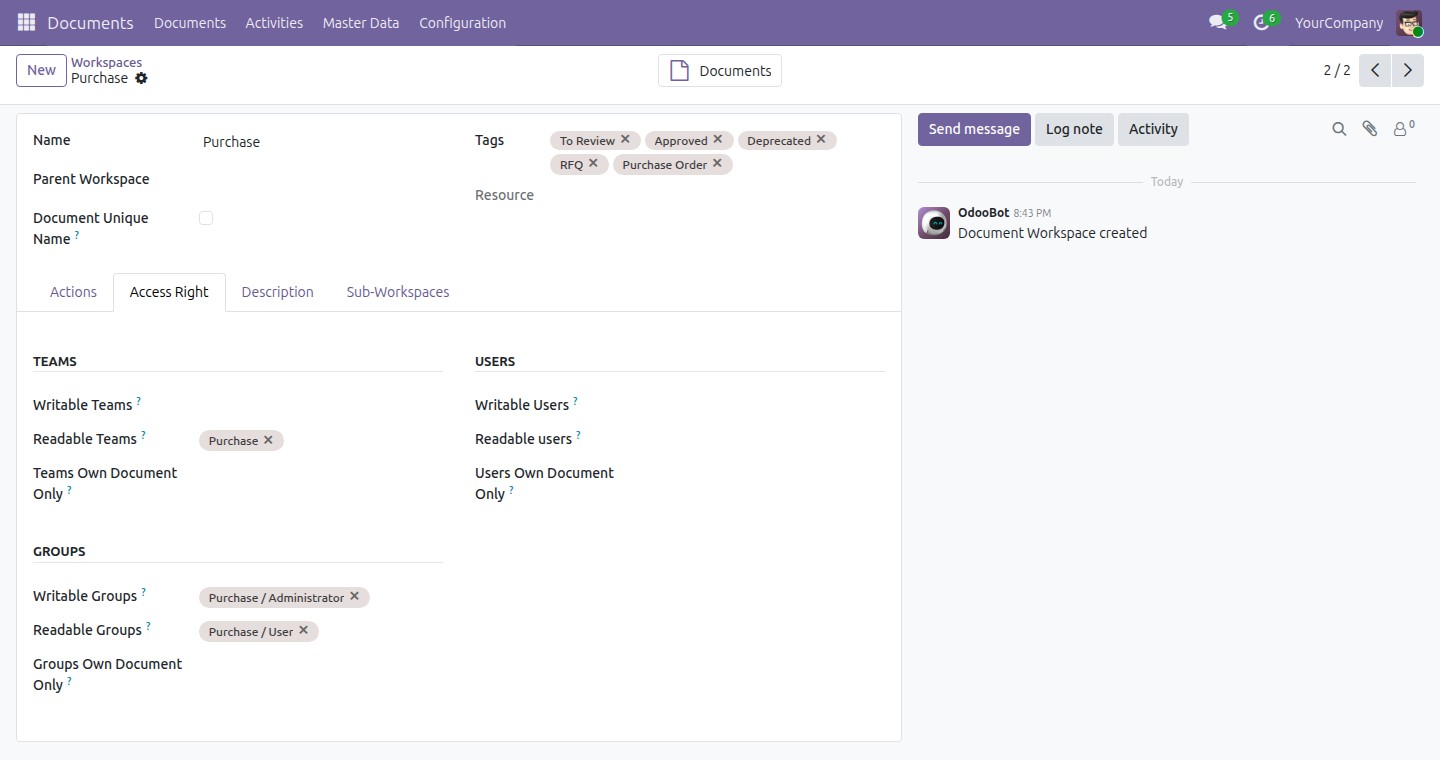
A shared “Purchase” folder in the Documents app, pre-wired with the RFQ and Purchase Order tags and pre-assigned to purchase managers (edit) and purchase users (view) - ready before the first file ever lands.
Documents Smart Button on Every Order
The moment a file is filed against a Purchase Order or RFQ, its form shows a Documents button already filtered to just that order’s files.
Auto-Filing That Never Stops
Attach a vendor quote or a signed PO to any RFQ or Purchase Order and it becomes a filed Document by itself - for new orders, and for existing ones thanks to a one-time backfill run at install.
Ask to Review / Approve, Wired End to End
“Ask to Review” opens a follow-up task; “Approve” closes that same task - so marking a document approved genuinely clears the work instead of just relabelling the file.
Wider Visibility Without Extra Access
A dedicated “Purchase” document team gives colleagues outside the purchasing group read-only visibility into filed paperwork - without handing them edit rights on it.
Benefits
See only what belongs to this order. Open a Purchase Order or RFQ that already has a file and click Documents to see just the vendor quote, signed PO and packing list that belong to it - the filter runs on its own, so nobody has to remember which file goes with which order.
Keep filing running, not a one-time import. Every file attached to an order from installation onward gets filed automatically, and orders that existed before the module went in are backfilled the moment it does - nothing from before the switch gets left out.
Close reviews for real. “Ask to Review” and “Approve” share the same follow-up activity, so approving a document genuinely clears the task instead of leaving a stale reminder open.
A Purchase Workspace, Ready on Day One
The Purchase workspace ships pre-wired with the RFQ and Purchase Order tags, and access already granted to purchase managers and purchase users - no folder, tags or access rules to set up by hand.
Attach It the Way You Always Do
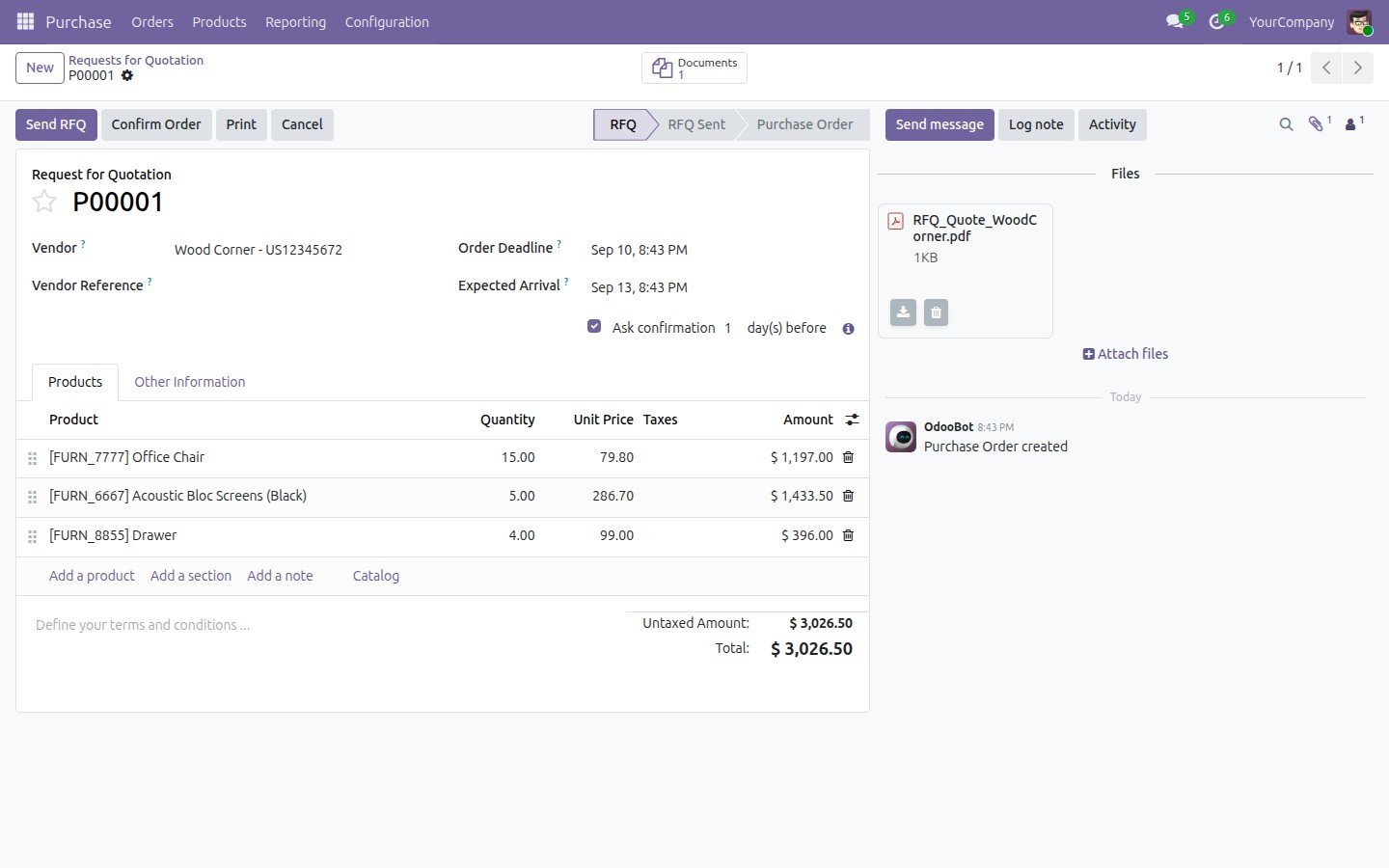
A buyer uploads a vendor’s quote straight onto an RFQ’s chatter, the same way they already attach any file in Odoo.
It Files Itself in the Documents App
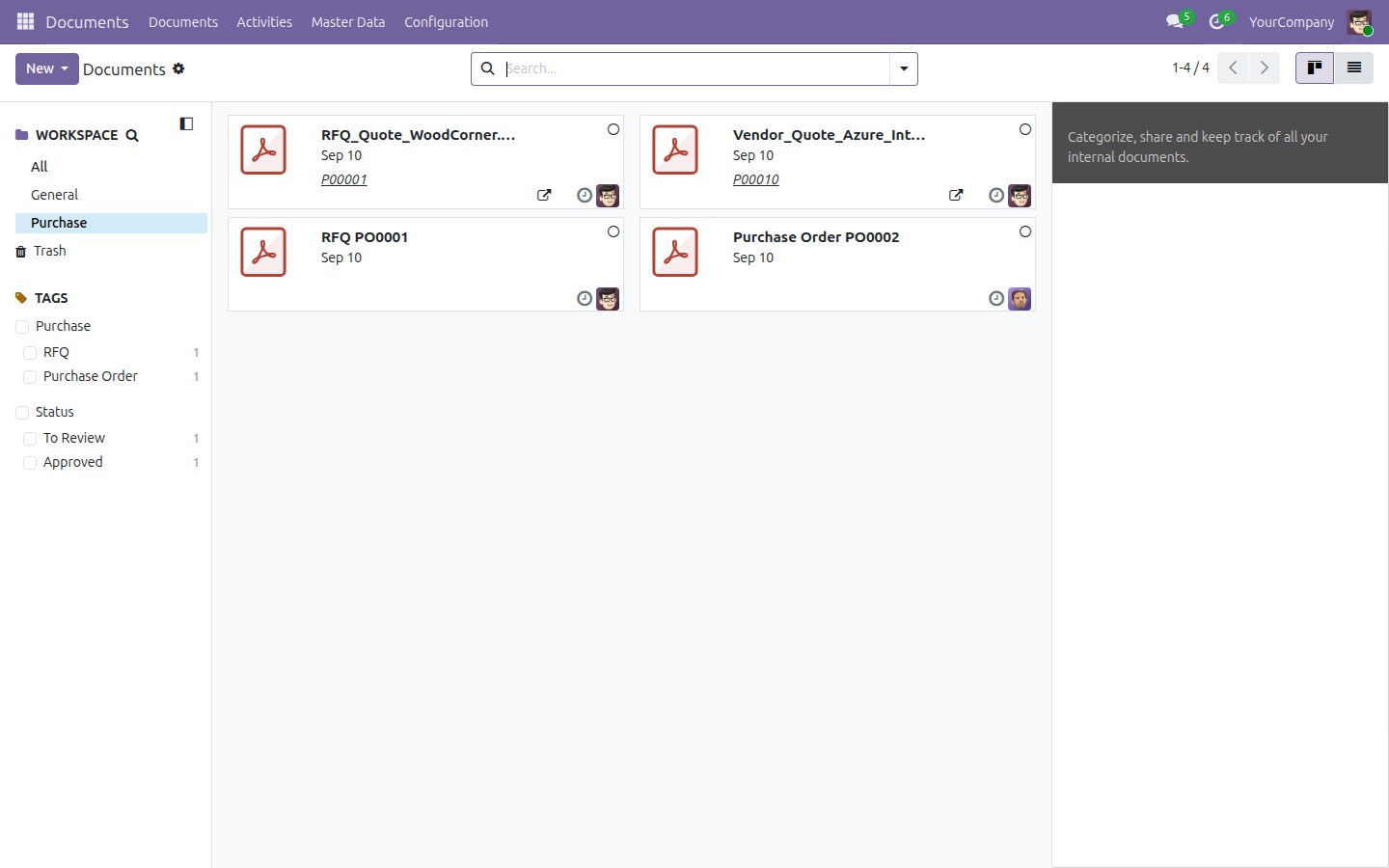
Switch to Documents, filter to the Purchase workspace, and the file is already there as a new card - no manual filing step.
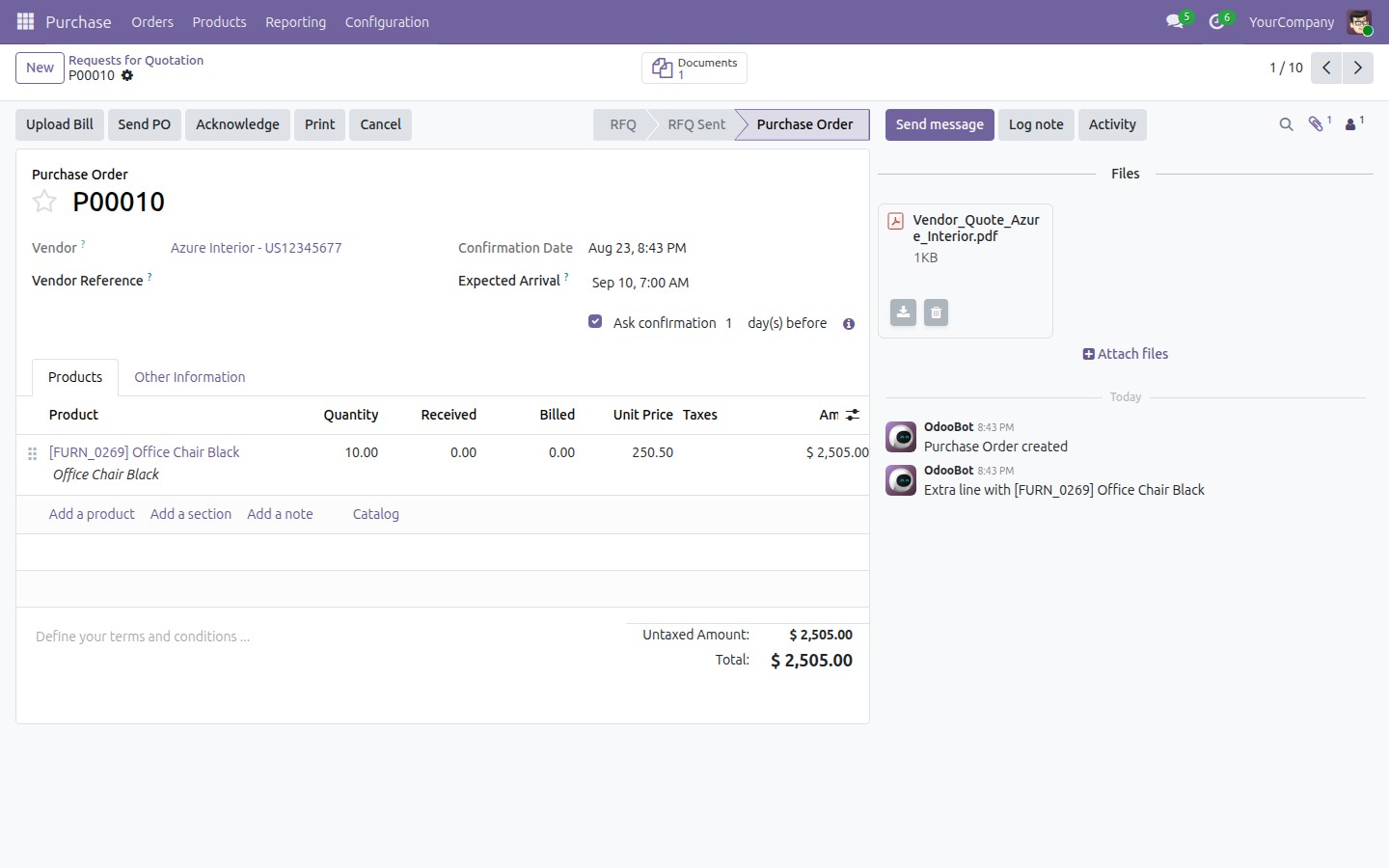
The Order’s Paperwork, One Click Away
Once a file is filed against that order, its form shows a Documents smart button - click it, and only that order’s files open, never the whole shared folder.
Send It for Review, Then Approve It
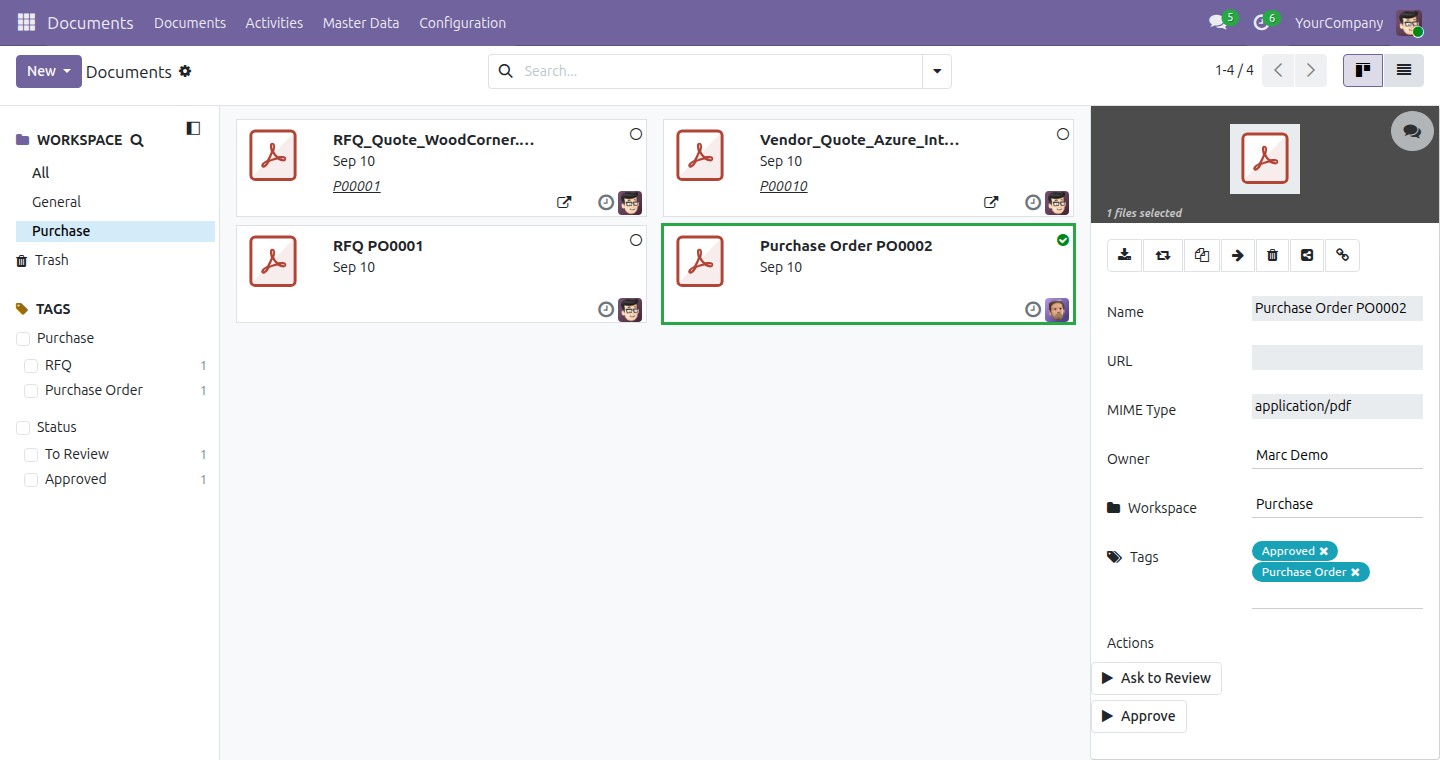
Run “Ask to Review” on a filed document to schedule a follow-up, and “Approve” once it checks out - closing that same follow-up automatically.
See Documents - Purchase in Action
Need help with Documents - Purchase?
Pre-Sales & Support
Questions before you install, or help once you have - one address for both.
apps.support@viindoo.comTechnical Requirement
- Odoo version: 19.0
- Editions: Odoo Community, Viindoo SaaS
- Required modules: viin_document, purchase
- License: OPL-1
Frequently Asked Questions
Does this need Odoo Enterprise, or any paid app?
No. viin_document_purchase runs on Odoo Community and Viindoo SaaS - no Enterprise licence required.
What does it depend on, and does it turn itself on?
It depends on the root viin_document app (the Documents app itself) and core
purchase. It does not activate on its own when you install those - you install
viin_document_purchase deliberately, from Apps.
Does each purchase order get its own folder?
No, by design. Every order’s files land in one shared “Purchase” workspace, and the Documents smart button on each order’s form filters to just that order’s files - so you get the same practical result (only your order’s paperwork, never someone else’s) without a folder tree to manage.
Is the auto-filing a one-time import, or does it keep working?
It keeps working. A one-time step at installation backfills documents for orders that already existed; from then on, every new file attached to a Purchase Order or RFQ is filed the same way, automatically, for as long as the module stays installed.
Do I need demo data for it to work?
No. The module works fully without it. With demo data enabled, it also ships two sample documents (a sample RFQ and a sample PO, already tagged) so you can see how filed paperwork looks before attaching your own.
Who Should Use This Module?
Purchasing Team
Buyers who attach vendor quotes and signed POs, and want them to end up somewhere without a manual filing step.
Purchase Managers & Reviewers
People who run “Ask to Review” and “Approve”, and want closing a review to actually close the follow-up task it raised.
Finance & Operations Colleagues
Staff outside purchasing who need to see filed purchase paperwork without being handed edit rights on it.
Documents - Purchase
Note
Extends viin_document - see its documentation: ../../viin_document/doc/index.rst
This guide walks you through filing and reviewing purchase paperwork - requests for quotation and purchase orders - once this app is installed. It adds a ready-made Purchase folder and tags to the Documents app, a filing rule that routes attachments there automatically, and a Documents shortcut on every purchase order's own form.
Installation
- Go to Apps.
- Search for viin_document_purchase.
- Click Activate.
Installing this app also installs its two requirements, Documents Management and Purchase, if they are not already installed.
Configuration
Nothing needs to be set up before you start filing documents. On install, this app automatically creates:
- The Purchase folder in the Documents app, pre-tagged with RFQ, Purchase Order, To Review, Approved and Deprecated - one shared folder for the whole purchasing team, not a separate folder per order.
- A Purchase tag category with the RFQ and Purchase Order tags, for telling request-for-quotation paperwork apart from confirmed order paperwork.
- The Purchase team, so a user without Purchase access - for example a storekeeper - can still be granted visibility into purchase-related documents.
- A filing rule that routes every attachment added to a request for quotation or purchase order into the Purchase folder - both for orders that already existed when the app was installed (a one-time pass) and for every new attachment added afterward.
See "Review how the Purchase folder is organized and secured" below for exactly what got created and who can see or edit it.
Usage
The scenarios below use two real orders in this database - a draft request for quotation and a confirmed purchase order - plus the two sample documents that ship only when demo data is enabled at install.
File a vendor quote from a request for quotation
- Go to Purchase ‣ Orders ‣ Requests for Quotation.
- Open the request for quotation you want to attach a file to.
- In the chatter, click Attach files and pick the vendor's quote (PDF, image, or any other file).
- Open Documents and select Purchase in the workspace list. The file you just attached shows up there as a new card - no manual filing step needed.
The new document arrives without any tag; adding one afterward, from the Documents app, is a manual step. This keeps working for every attachment you add after install, not only the ones that existed when it was installed.
Reopen a purchase order's own filed documents
- Go to Purchase ‣ Orders ‣ Purchase Orders.
- Open a confirmed order that already has at least one filed document.
- Click the Documents button in the button box - it only appears once the order has at least one filed document.
Odoo opens the Documents app pre-filtered to that one order, so you never have to search through the whole shared Purchase folder to find your own order's paperwork.
Review how the Purchase folder is organized and secured
- Go to Documents ‣ Master Data ‣ Workspaces, then open Purchase.
- Open the Access Right tab to check who can read or write documents filed here.
The Purchase folder ships with its Writable Groups set to Purchase / Administrator and its Readable Groups set to Purchase / User, plus Purchase in Readable Teams.
Whether you can act on a document you did not file yourself - clicking Ask to Review or Approve, for example - depends on the document, not on a single access right:
- A document that shows a value in its Resource field (see the two orders above) was filed from a real request for quotation or purchase order. Anyone who can already edit that order can act on the document, whether or not they hold Purchase / Administrator access to the folder itself.
- A document with no Resource value only follows the folder's own Writable/Readable Groups above, which for the shipped Purchase folder means Purchase / Administrator access. The two demo documents in the next scenario are of this kind.
See the demo Purchase documents (demo data only)
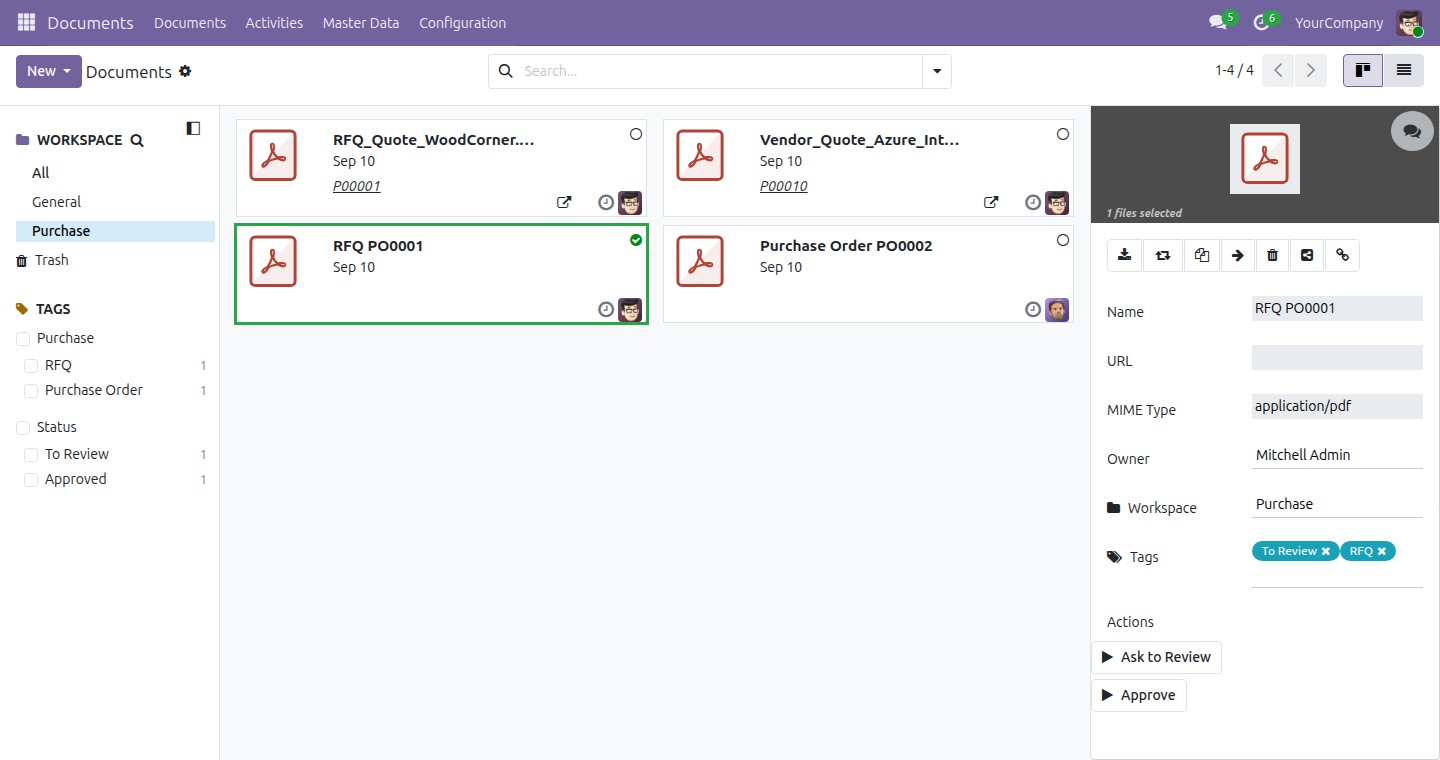
This scenario only works when demo data was enabled at install. It uses the two sample documents this app ships - RFQ PO0001 and Purchase Order PO0002 - which are standalone files, not linked to any real order, so they never show up on an order's own Documents button (above); you only find them by browsing the folder directly.
- Go to Documents and select Purchase in the workspace list.
- Click the RFQ PO0001 card to open its detail panel.
Its Tags field reads RFQ and To Review; the companion sample, Purchase Order PO0002, is tagged Purchase Order and Approved.
Ask for a document to be reviewed
- Go to Documents and select Purchase in the workspace list.
- Click an untagged document - for example the file you attached above.
- In the right-hand panel, under Actions, click Ask to Review.
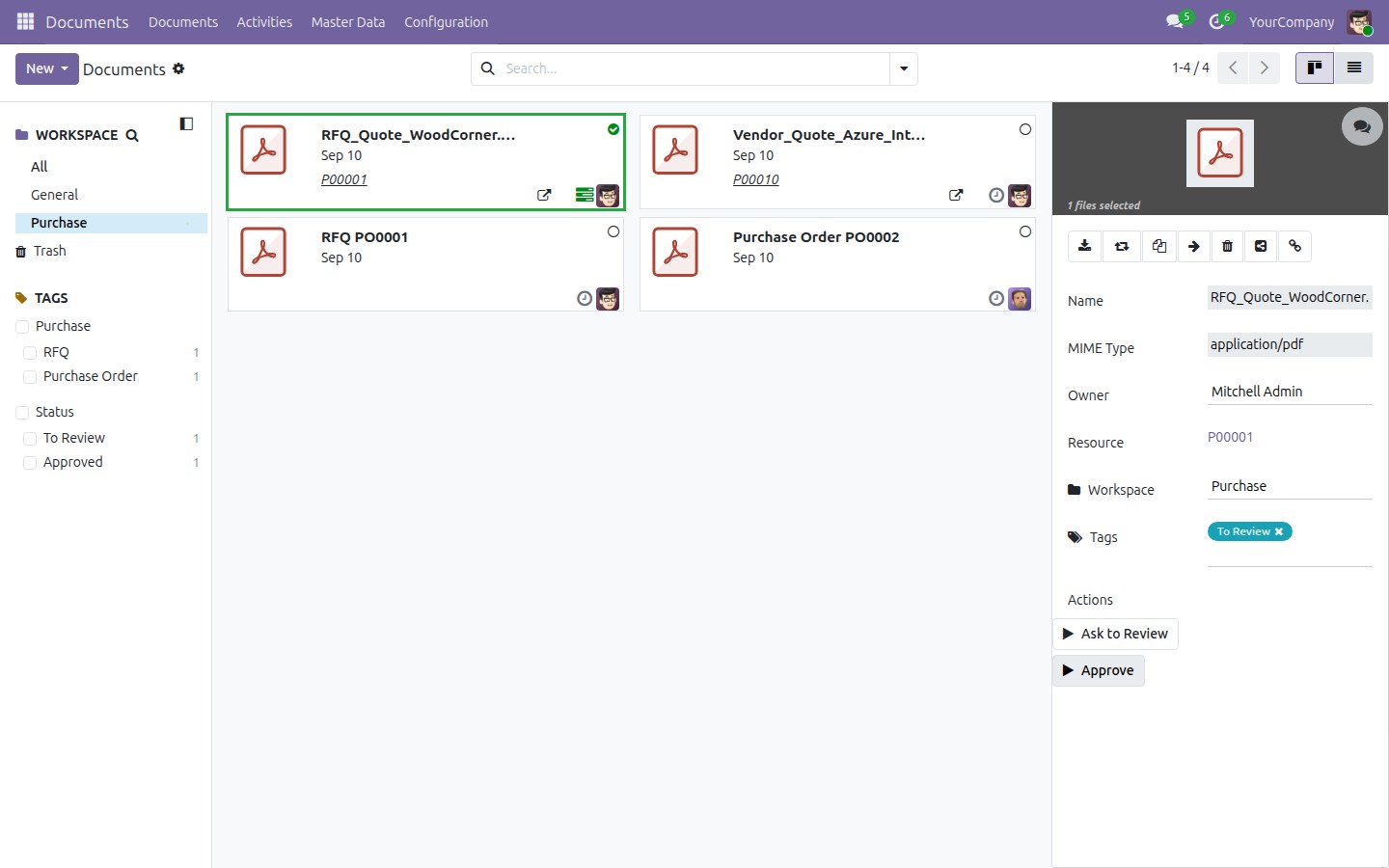
The document is retagged To Review, and a follow-up activity - due the next day and assigned to the Administrator - is scheduled on it.
- Go to Documents ‣ Activities to see it listed.
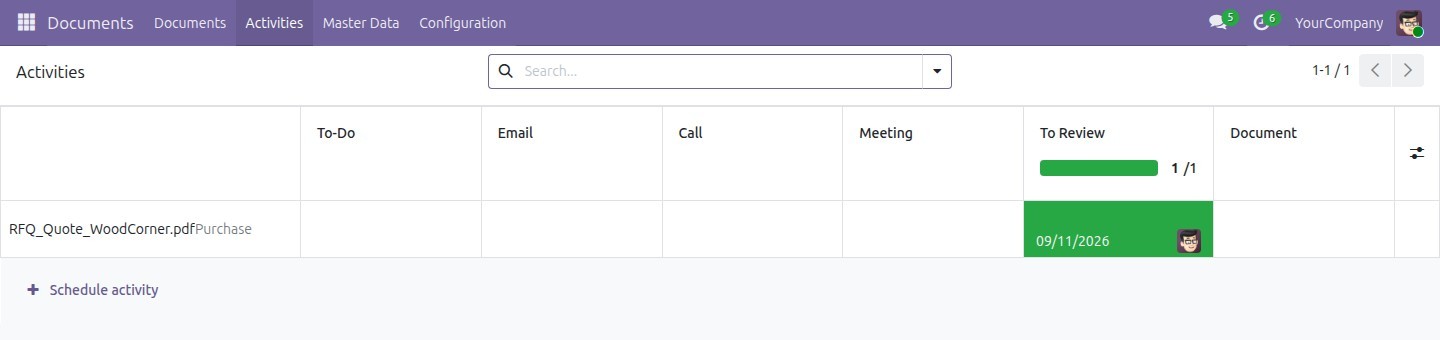
Approve a reviewed document
- Go back to Documents, select Purchase, and click the document tagged To Review.
- In the right-hand panel, under Actions, click Approve.
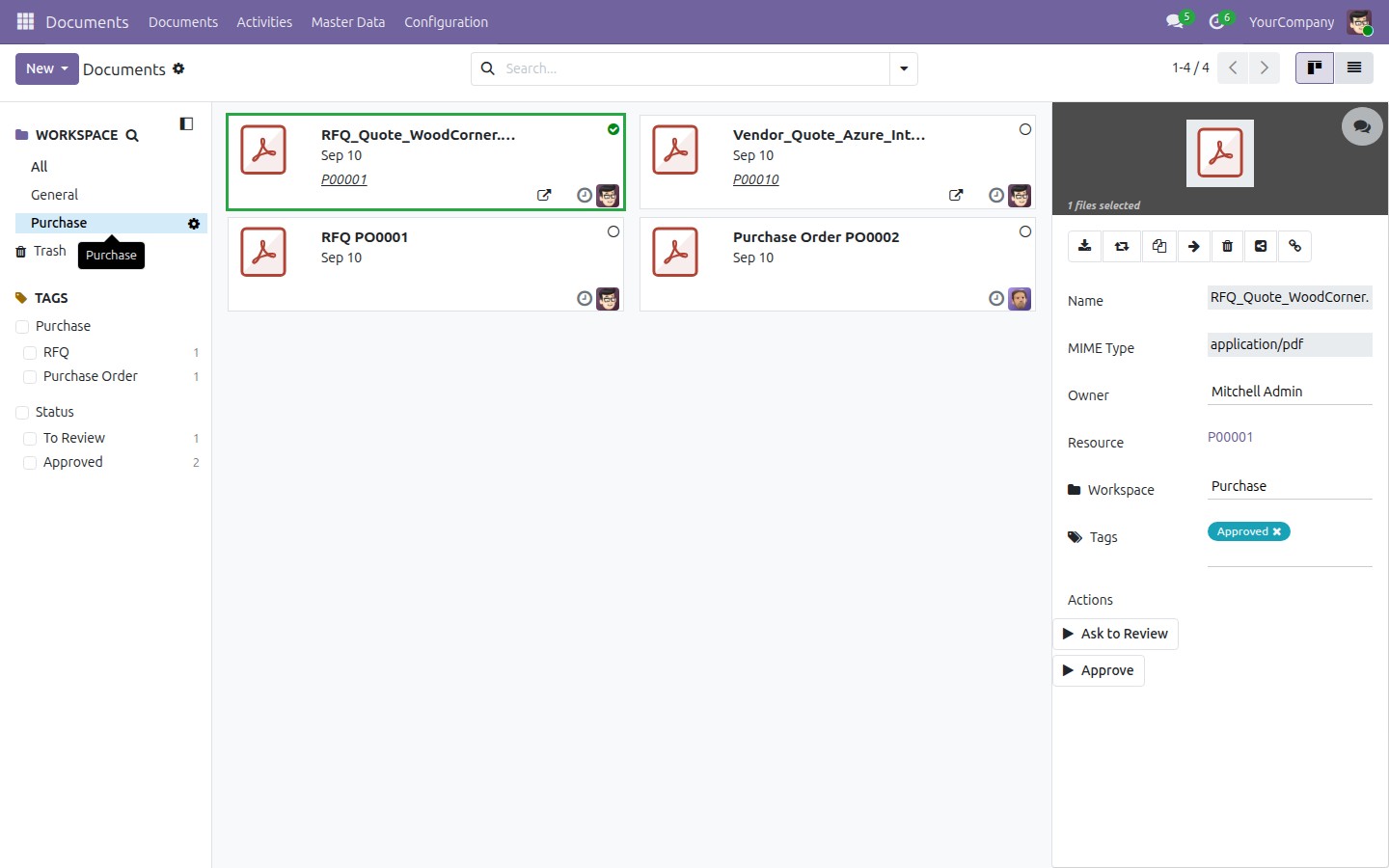
The tag switches from To Review to Approved, and the pending activity from the step above is closed - both actions use the same To Review activity type, so Approve always closes what Ask to Review opened.
Troubleshooting
- The Documents button is missing from an order. It only appears once at least one document has been filed for that order - attach a file first, as shown above.
- A purchase order does not get its own folder. This is expected: every purchase document lands in the one shared Purchase folder, not a separate folder per order.
- A tag you applied does not show as a colored chip on the card. A tag needs a color assigned to it to appear on the card face; a tag with no color still works for filtering and search, it is simply invisible on the card. Open the tag from Documents ‣ Master Data ‣ Tags and give it a color.
- You cannot run Ask to Review or Approve on a document. This depends on how the document got there - see "Review how the Purchase folder is organized and secured" above for the two cases.
- Approve did not close an activity you expected it to. Only an activity of the same type Ask to Review raises gets closed by Approve. A follow-up you scheduled yourself through a different, custom action is not affected.
FAQ
Do I need to configure anything before filing my first document?
No. The folder, tags, team and filing rule are all created automatically when this app is installed.
Are documents filed automatically also tagged automatically?
No. Only the destination folder is chosen automatically; applying a tag is a manual step, done from the Documents app.
What happens to attachments that existed before I installed this app?
They are filed retroactively in a one-time pass when the app is installed; every attachment added afterward is filed as it comes in, not only the ones that existed at install time.
Does each purchase order get its own folder?
No - every order's paperwork lands in the one shared Purchase folder; the Documents button on the order form filters that shared folder down to just that order's own files.
Do I need demo data for this app to work?
No. Demo data only adds two sample documents used to illustrate tagging; filing and the review actions work the same with or without it.
Instruction video
This software and associated files (the "Software") may only be used (executed, modified, executed after modifications) if you have purchased a valid license from the authors, typically via Odoo Apps, or if you have received a written agreement from the authors of the Software (see the COPYRIGHT file).
You may develop Odoo modules that use the Software as a library (typically by depending on it, importing it and using its resources), but without copying any source code or material from the Software. You may distribute those modules under the license of your choice, provided that this license is compatible with the terms of the Odoo Proprietary License (For example: LGPL, MIT, or proprietary licenses similar to this one).
It is forbidden to publish, distribute, sublicense, or sell copies of the Software or modified copies of the Software.
The above copyright notice and this permission notice must be included in all copies or substantial portions of the Software.
THE SOFTWARE IS PROVIDED "AS IS", WITHOUT WARRANTY OF ANY KIND, EXPRESS OR IMPLIED, INCLUDING BUT NOT LIMITED TO THE WARRANTIES OF MERCHANTABILITY, FITNESS FOR A PARTICULAR PURPOSE AND NONINFRINGEMENT. IN NO EVENT SHALL THE AUTHORS OR COPYRIGHT HOLDERS BE LIABLE FOR ANY CLAIM, DAMAGES OR OTHER LIABILITY, WHETHER IN AN ACTION OF CONTRACT, TORT OR OTHERWISE, ARISING FROM, OUT OF OR IN CONNECTION WITH THE SOFTWARE OR THE USE OR OTHER DEALINGS IN THE SOFTWARE.
