Stock Equipment Bom Kit
| Lines of Code | 496 |
| Technical name | to_stock_equipment_bom_kit |
| License | OPL-1 |
| Website | https://viindoo.com/apps/modules/19.0/to_stock_equipment_bom_kit |
| Read description for | v 11.0 v 12.0 v 13.0 v 14.0 v 15.0 v 16.0 v 17.0 v 18.0 |
| Required Apps | Manufacturing (mrp) Invoicing (account) Purchase (purchase) Discuss (mail) Employees (hr) Inventory (stock) Maintenance (maintenance) |
| Included Dependencies | Stock Equipment Equipment & Parts |
A kit you buy becomes one piece of equipment, with its parts attached
For warehouse and maintenance teams that buy equipment in kits and maintain each part
Receive a kit and its components as equipment: one main equipment per kit, with the equipment of its components linked under it.
Odoo 19.0 · Community · Enterprise · OPL-1
Extends Stock Equipment, which creates one equipment for each serial number received.
What changes for your team
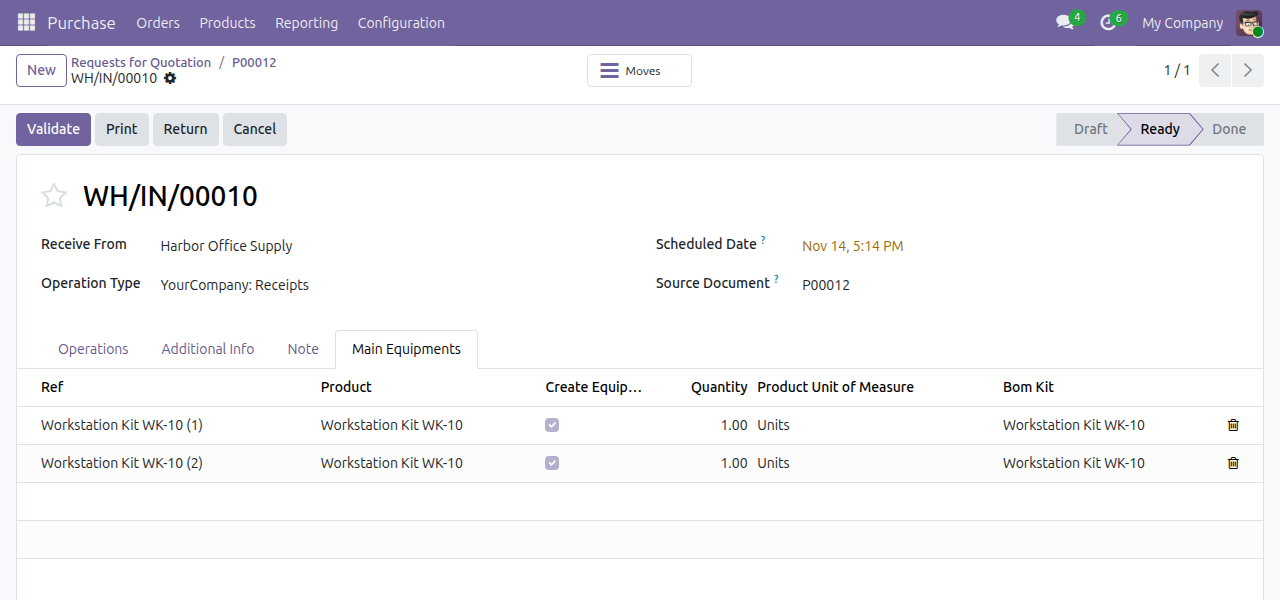
The receipt sees the kits, not only the parts
Today the receipt lists monitors and keyboards, and nobody records which ones were delivered together.
→ The receipt of a purchase order lists one line per complete kit received, ready to become equipment. The operator unticks a kit that must not.
Every part knows the kit it came in
Today someone opens each part after the receipt and attaches it to a kit record by hand.
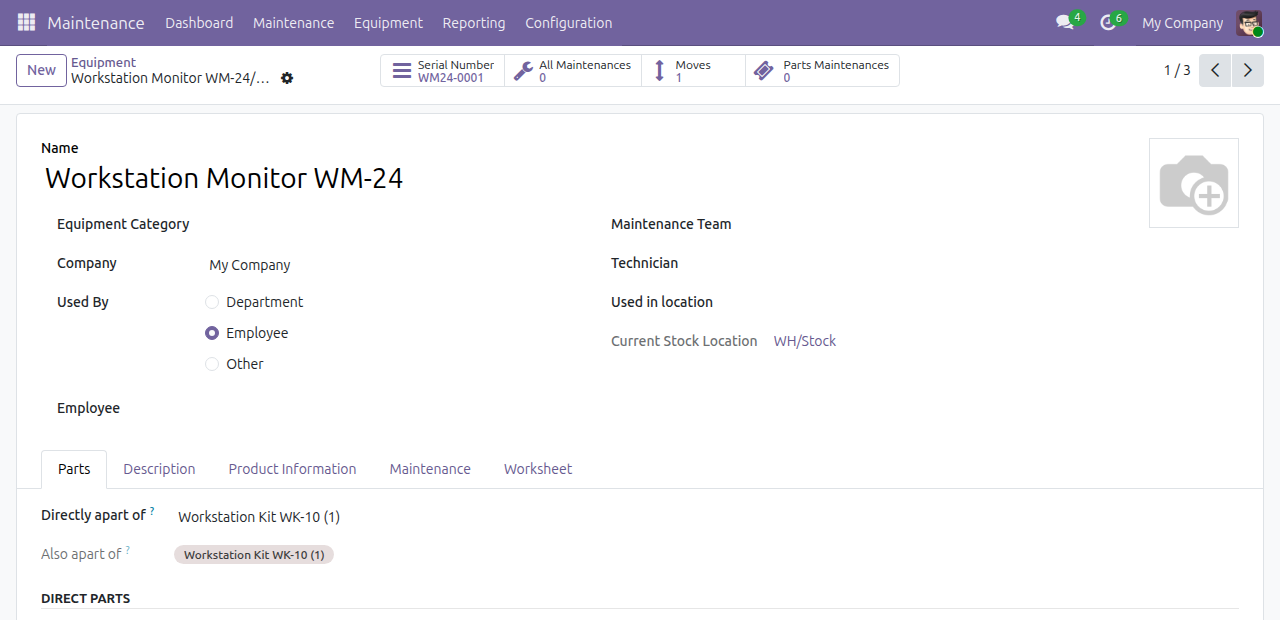
→ Validating the receipt creates one main equipment per complete kit, named after the kit product with its number (for example "Table (1)"), and attaches the equipment of its parts to it. Parts that arrive later in a back order join the kit already created.
Kits are one click away in Maintenance
Today finding the parts of one workstation means searching serial numbers.
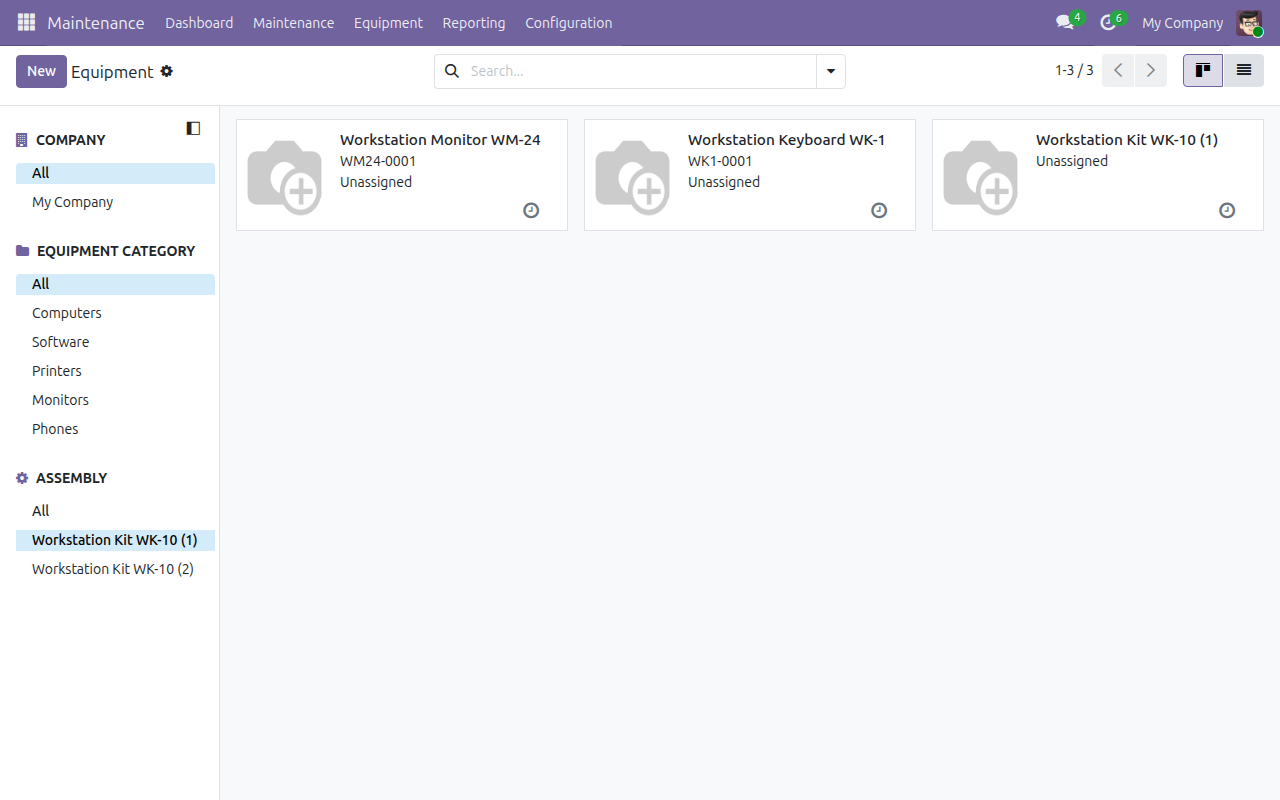
→ The equipment list shows each kit in its Assembly panel: select a kit to see it together with its parts.
Ready on day one
Installs with its neighbours
The module installs itself when Stock Equipment, Equipment & Parts and Purchase and MRP Management are present.
No extra step at the receipt
Kit lines appear as the quantities are entered; the warehouse validates the receipt as usual.
What the administrator sets first
Mark the kit and its parts as equipment products and give the kit a bill of materials of type Kit. The Documentation tab walks through it.
What is included
The link between a kit bought on a purchase order and the equipment of its parts: the kit lines on the receipt, the kit equipment created at validation, and the link from each part to its kit.
Before you decide
Does any data leave the database?
No. The module adds no outside connection; everything stays in your purchase, inventory and maintenance records.
Which kits become equipment?
A kit bought on a purchase order, with a bill of materials of type Kit, set up as an equipment product. Its parts must be equipment products tracked by serial number: without part equipment, no kit equipment is created.
What does the kit equipment carry?
Its name and its parts. It has no serial number or stock location of its own; the category, maintenance team and technician are set in the Maintenance app.
Who can do what?
Inventory users see the kit lines and validate the receipt; the kit equipment is created even when they have no maintenance rights. Equipment Managers follow kits and parts in Maintenance.
What if a kit arrives in several deliveries?
Each delivery lists the kits that are complete in it, and parts received later in a back order are attached to the kit equipment already created.
Try it, then ask us
The Documentation tab of this listing has the step-by-step guide for each role, the Live Preview opens a demo database, and the video above shows the full flow.
Pre-sales & partnership
viindoo.com/contactusTechnical support
viindoo.com/ticketTechnical requirements
- Odoo version: 19.0
- Editions: Community, Enterprise
- Required modules: Stock Equipment, Equipment & Parts, Purchase and MRP Management
- License: OPL-1
- Languages: English, Vietnamese
Stock Equipment Bom Kit
Audience: purchasers, warehouse operators, equipment managers and the administrators who set the module up.
Overview
A kit is a product that is sold or bought as one item but is made of several parts: a workstation kit made of a monitor and a keyboard, for example. When the parts are equipment, each part has its own equipment record in the Maintenance app. This module adds the kit itself: when a kit bought on a purchase order is received, the receipt shows one Main Equipments line per kit unit, and validating the receipt creates one equipment for each kit unit and attaches to it the equipment of its parts. The parts stay linked to the kit they came in, so nobody has to link them by hand.
It builds on Stock Equipment, which creates one equipment for each serial number received. Read that guide first for the equipment products, the Can create equipment operation type and the Create Equipment column of a receipt. The module is installed automatically when Stock Equipment, Maintenance and Purchase with Manufacturing are present.
| Role | What they do | Access right to assign |
|---|---|---|
| Administrator | Marks the kit and its parts as equipment products and defines the kit bill of materials. | Inventory: Administrator and access to the Manufacturing app |
| Purchaser | Orders the kit from a vendor. | Purchase: User (Supply Chain section) |
| Warehouse operator | Receives the kit, enters the serial numbers of its parts and validates the receipt. | Inventory: User (Supply Chain section) |
| Equipment manager | Follows the kit equipment and its parts in the Maintenance app. | Maintenance: Equipment Manager (Supply Chain section) |
Setup (for the Administrator)
Installation
- Open Apps.
- Search for Stock Equipment Bom Kit.
- Click Activate.
Prepare the kit and its parts
- Create each part as an equipment product: Product Type Goods, Create on Receipt Equipment, tracked By Unique Serial Number (see the Stock Equipment guide).
- Create the kit the same way: Product Type Goods and Create on Receipt Equipment. The kit is only given its own equipment when it is an equipment product.
- Open Manufacturing > Products > Bills of Materials and create a bill of materials for the kit product. Set BoM Type to Kit and list the parts in the Components tab with their quantities.
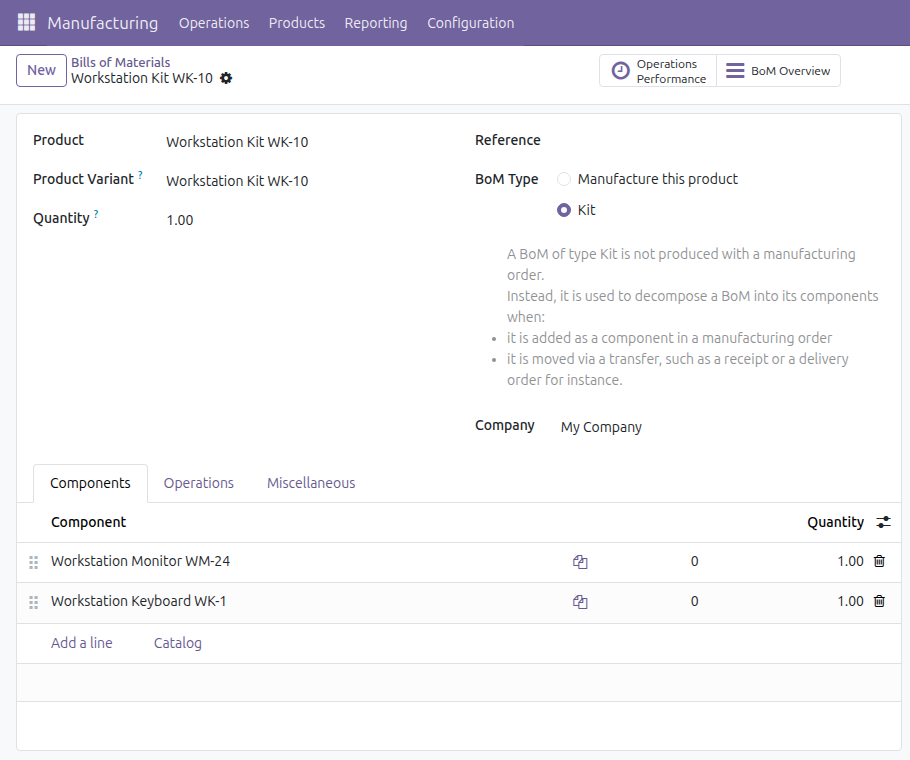
Also check that the receiving operation type of the purchase has Can create equipment ticked (Inventory > Configuration > Warehouse Management > Operations Types, see the Stock Equipment guide).
Purchaser: order the kit
- Open Purchase > Orders > Purchase Orders and create an order.
- Add the kit product with the quantity wanted, then confirm the order.
The vendor delivers the parts of the kit. The receipt of the order lists the parts, not the kit.
Warehouse operator: receive the kit
On the purchase order, click the Receipt button. The Operations tab lists each part of the kit with the quantity to receive.
For each part, click Details and enter one serial number per unit, as in the Stock Equipment guide. Create Equipment is ticked by default on each line.
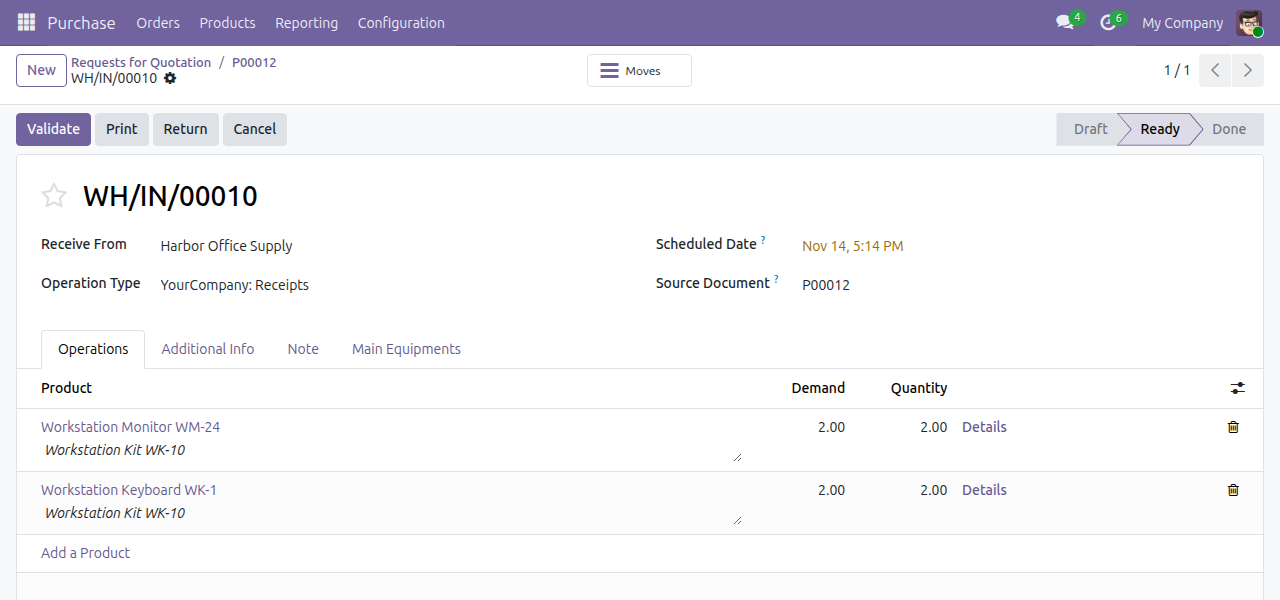
Open the Main Equipments tab. It has one line per kit unit received: its Ref (the kit name followed by a number), the Product (the kit), Create Equipment, Quantity, Product Unit of Measure and Bom Kit. Create Equipment is ticked when the kit is an equipment product and the operation type can create equipment.
Untick Create Equipment on a line whose kit must not get an equipment record. Its parts still get their own equipment, but are not attached to a kit.
Click Validate.
A line appears in Main Equipments for each complete kit: one unit of every part of the bill of materials must be on the receipt with a quantity. The list is built again whenever the quantities of the receipt change, so set Create Equipment on the lines after the quantities are final. When a kit is received in several deliveries, each delivery adds the kits that are complete in it, and parts that arrive later in a back order are attached to the kit equipment already created.
After the validation the receipt is Done, the Main Equipments tab can no longer be changed, and the Equipments Count button shows the number of part equipment generated. A warehouse operator who does not have the Equipment Manager right can validate the receipt: the equipment is created all the same, but the operator does not see the equipment button.
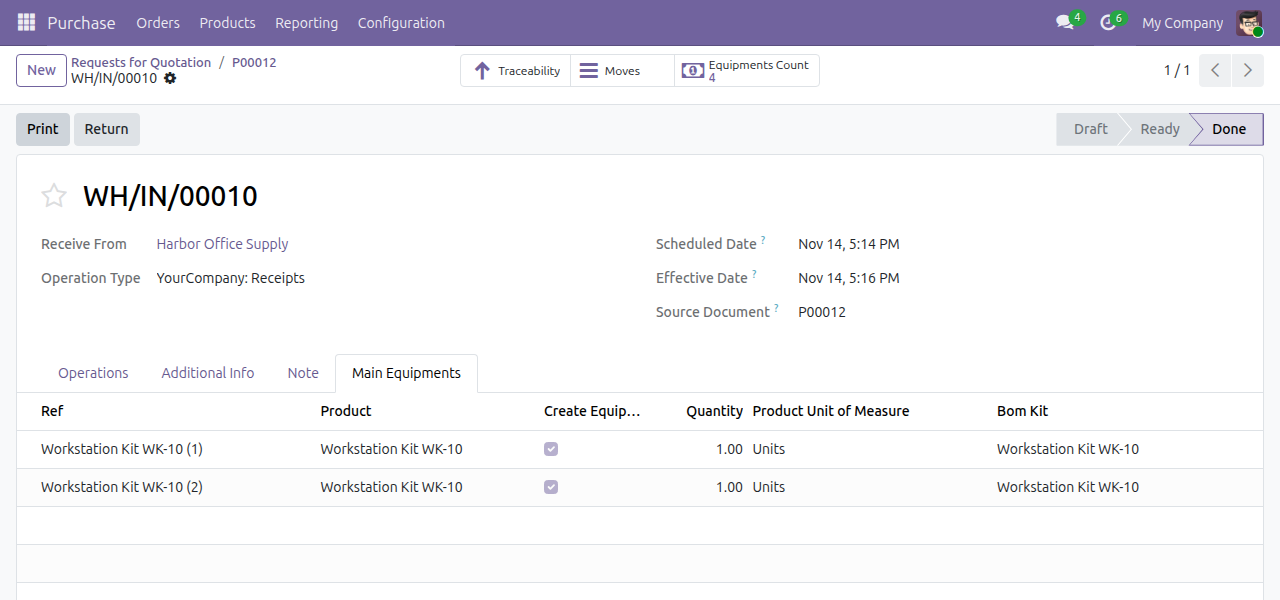
Click Equipments Count to list the part equipment of the receipt, one for each serial number received.
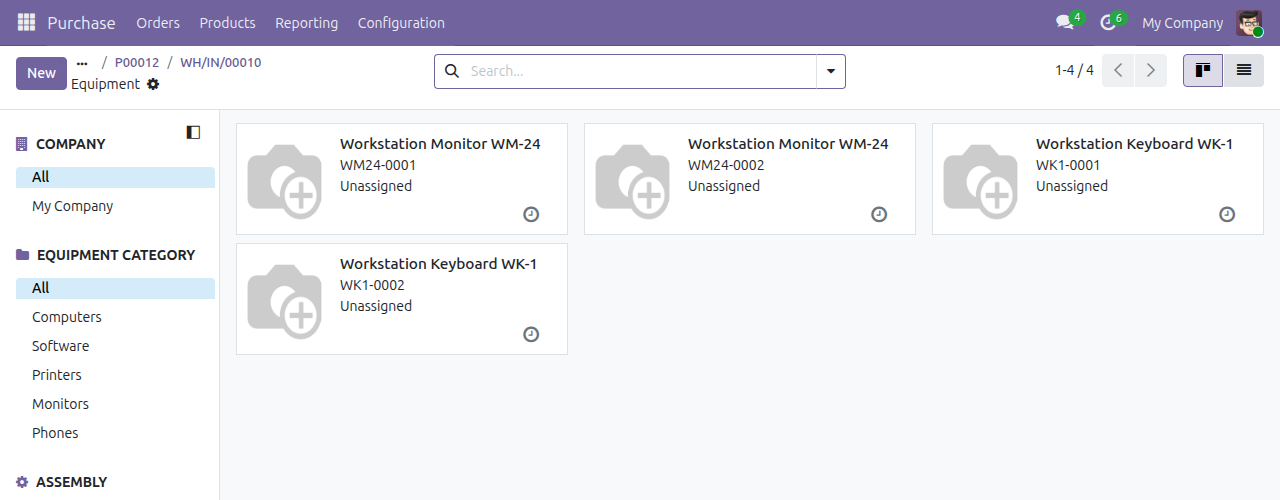
Equipment manager: follow the kit equipment
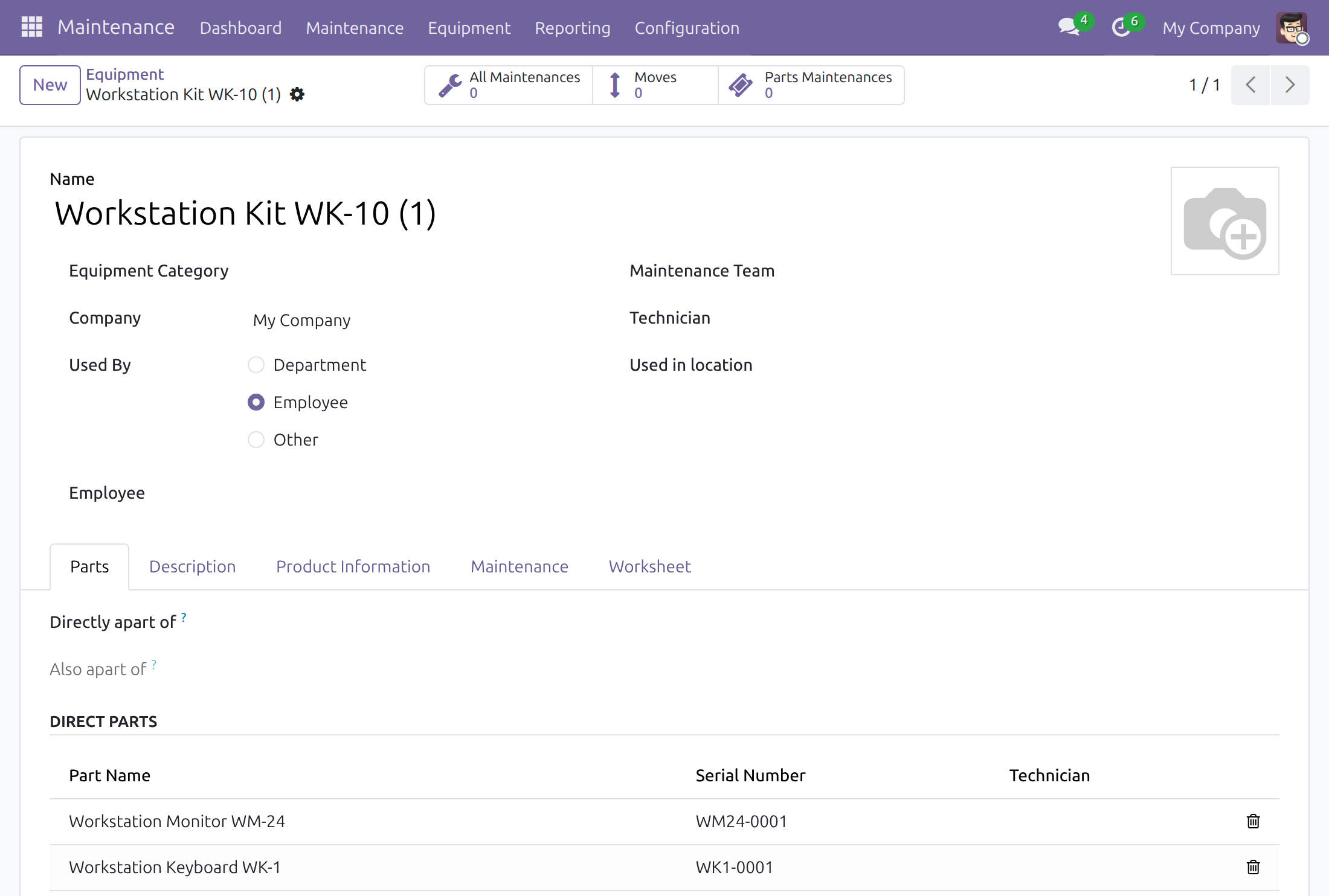
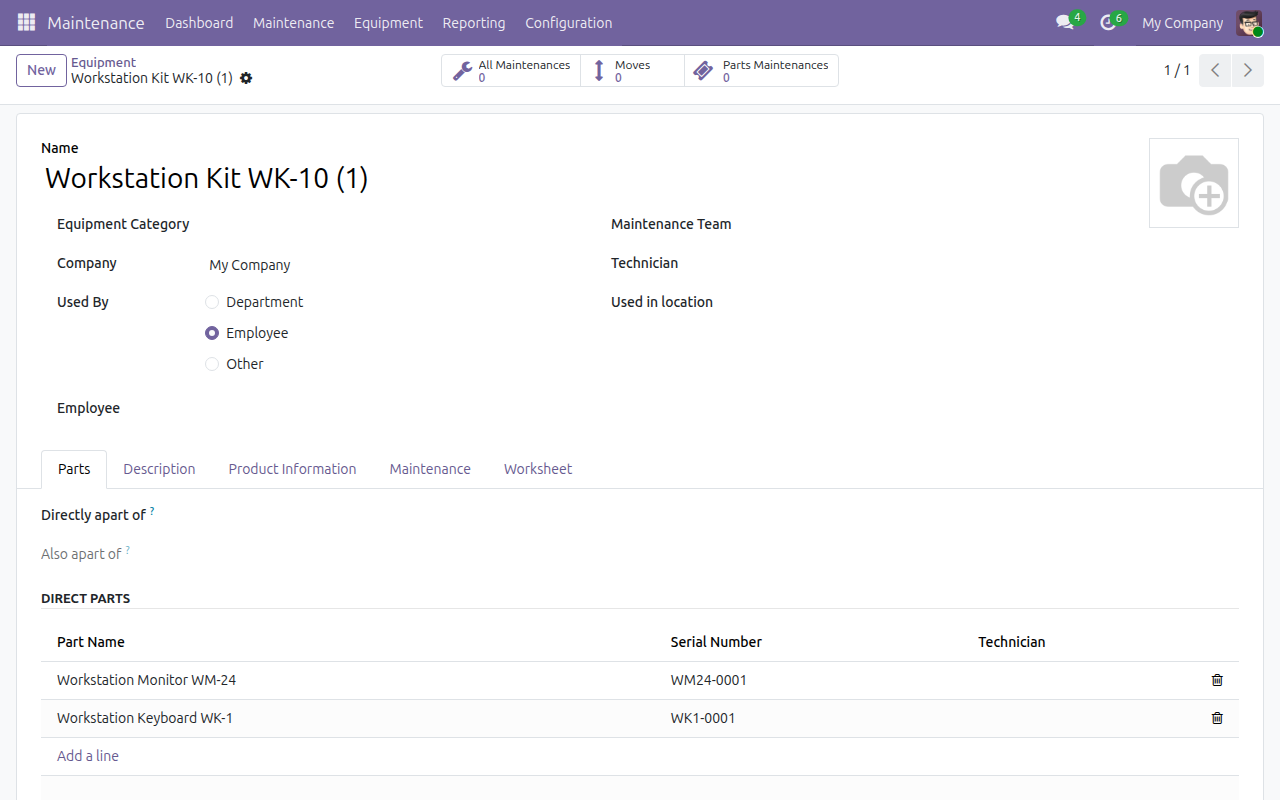
Each kit unit has an equipment named after its line in Main Equipments, for example Workstation Kit WK-10 (1). Only its name is filled in: set its category, maintenance team and technician in the Maintenance app. It has no serial number and no stock location of its own; the stock location is shown on each part.
Open Maintenance > Equipment. The Assembly panel on the left lists the kit equipment. Click one to list the kit and its parts.
Open the equipment of a part and go to the Parts tab: Directly apart of shows the kit it was received in.
Open the kit equipment and go to the Parts tab: Direct Parts lists the equipment of its parts with their serial numbers.
When the parts are not equipment tracked by serial number, no part equipment exists and no kit equipment is created.
This software and associated files (the "Software") may only be used (executed, modified, executed after modifications) if you have purchased a valid license from the authors, typically via Odoo Apps, or if you have received a written agreement from the authors of the Software (see the COPYRIGHT file).
You may develop Odoo modules that use the Software as a library (typically by depending on it, importing it and using its resources), but without copying any source code or material from the Software. You may distribute those modules under the license of your choice, provided that this license is compatible with the terms of the Odoo Proprietary License (For example: LGPL, MIT, or proprietary licenses similar to this one).
It is forbidden to publish, distribute, sublicense, or sell copies of the Software or modified copies of the Software.
The above copyright notice and this permission notice must be included in all copies or substantial portions of the Software.
THE SOFTWARE IS PROVIDED "AS IS", WITHOUT WARRANTY OF ANY KIND, EXPRESS OR IMPLIED, INCLUDING BUT NOT LIMITED TO THE WARRANTIES OF MERCHANTABILITY, FITNESS FOR A PARTICULAR PURPOSE AND NONINFRINGEMENT. IN NO EVENT SHALL THE AUTHORS OR COPYRIGHT HOLDERS BE LIABLE FOR ANY CLAIM, DAMAGES OR OTHER LIABILITY, WHETHER IN AN ACTION OF CONTRACT, TORT OR OTHERWISE, ARISING FROM, OUT OF OR IN CONNECTION WITH THE SOFTWARE OR THE USE OR OTHER DEALINGS IN THE SOFTWARE.