Sale Delivery Schedule
Every delivery date you promise, planned and measured
For sales and warehouse teams that ship stocked goods on agreed dates
Expected delivery date for sales order lines.
Odoo 19.0 · Community and Enterprise · OPL-1
What changes for your team
A promise per line, checked against reality
Today the date agreed with the customer sits in an email, or one date covers the whole order.
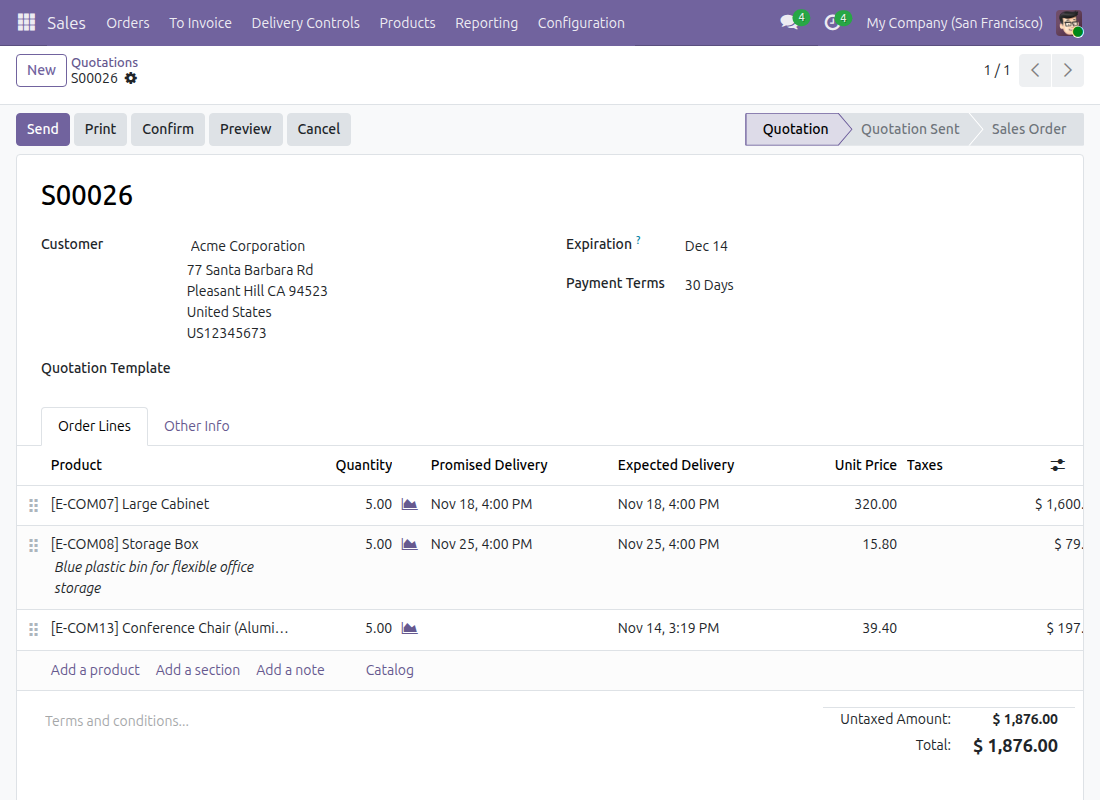
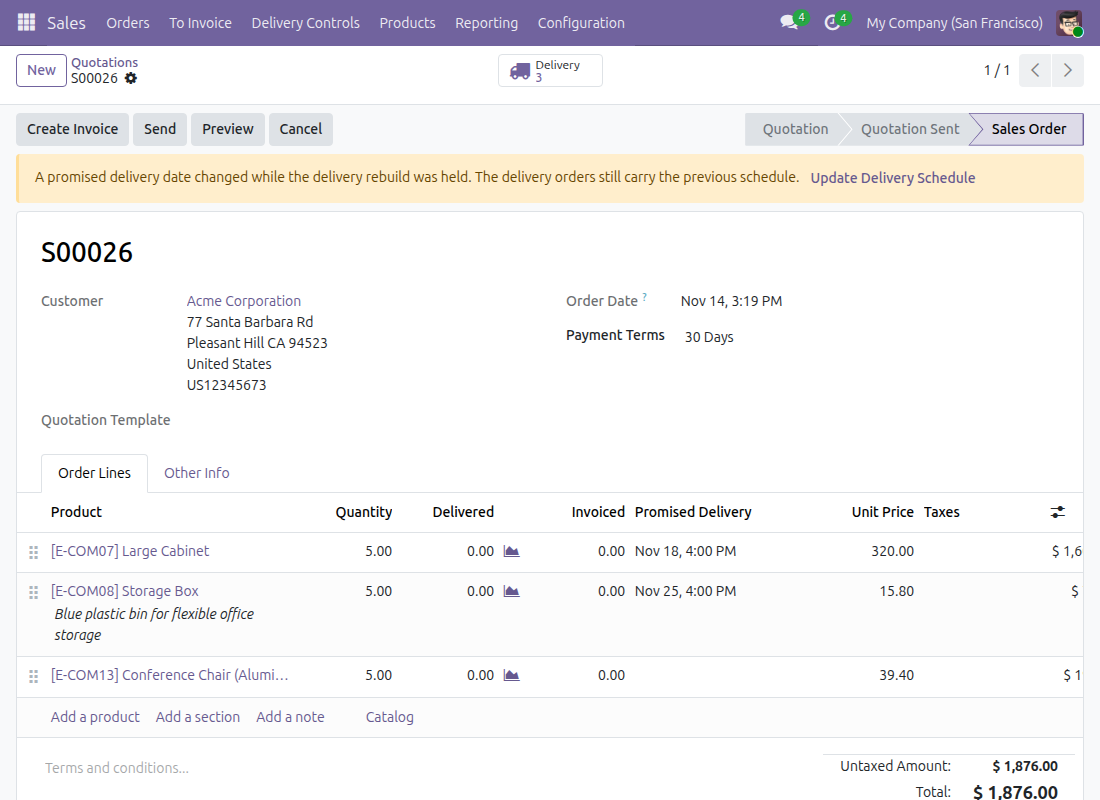
→ Each quotation line carries its own Promised Delivery date, next to the Expected Delivery date the line can realistically meet from its lead time. A gap between the two shows a promise drifting out of reach before you confirm.
Goods promised for different days leave separately
Today one transfer holds every line, and someone splits it by hand.
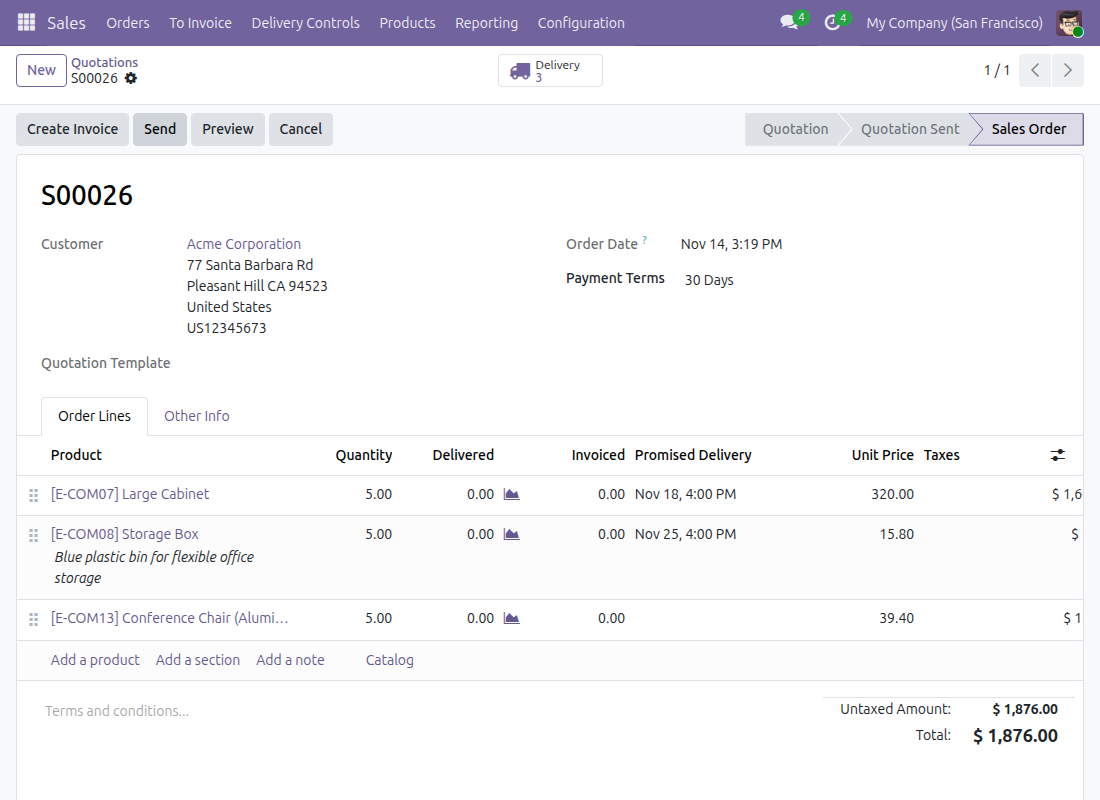
→ Confirming the order creates one delivery per promised day. When a promise moves later, the transfers are re-dated and goods move between them, with a note on each transfer; one already printed, being picked or done keeps its date and says so.
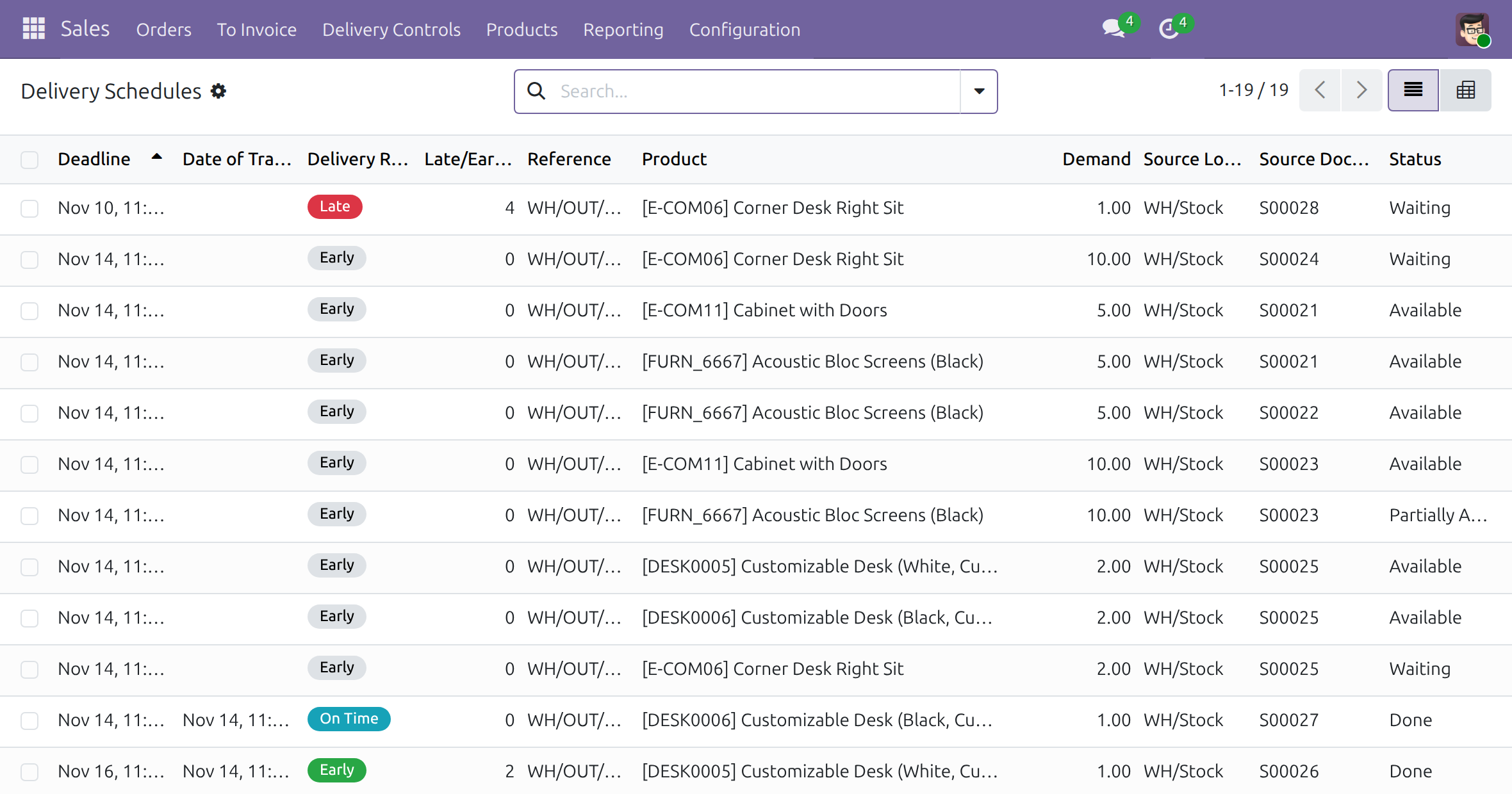
Early, on time or late, at a glance
Today on-time performance is rebuilt from transfer dates in a spreadsheet.
→ Delivery Schedules lists every customer delivery with its deadline, the date it shipped, a Late, On Time or Early result and the days of difference. Filter by result or group by order.
Ready on day one
Two date columns on order lines
Promised and expected dates appear on every quotation, with no setting to turn on.
A Delivery Controls menu
Delivery Schedules opens on the deliveries still to do, with filters for each result.
What the administrator sets
The usual Sales and Inventory access rights. Split deliveries follow the order's shipping policy "As soon as possible".
What is included
Line-level promised dates, one delivery per promised day, re-planning of open transfers when a promise changes, and the Delivery Schedules list with its results. It works on top of the standard Sales and Inventory apps and needs no other module.
Before you decide
Where does the data go?
Nowhere outside your database. The dates are stored on the order lines and the stock moves of your own transfers.
Can a re-plan move goods the warehouse is already handling?
No. A transfer that is printed, being picked, done or cancelled keeps its date, and a note on it tells the operator the promise changed.
Who sees the delivery results?
Every user with a Sales access right sees the Delivery Controls menu. Warehouse staff keep validating transfers with their usual Inventory right.
What if an order has a single delivery date?
An order-level Delivery Date applies to all its lines, and the line promise becomes read only. Orders set to ship when all products are ready also get a single transfer.
Which languages does it ship?
English and Vietnamese. Results are counted in calendar days in each user's time zone.
Try it, then ask us
Read the Documentation tab for the role-by-role guide, open the live demo linked from this listing, or watch the video above.
Pre-sales & partnership
viindoo.com/contactusTechnical support
viindoo.com/ticketTechnical requirements
- Odoo version: 19.0
- Editions: Community, Enterprise
- Required modules: Sales and Warehouse Management; the Sales menu comes with the Sales app
- License: OPL-1
- Languages: English, Vietnamese
Sale Delivery Schedule
For salespeople, warehouse operators and the administrator who set up delivery dates on sales orders.
Overview
Customers are promised a delivery date, but the warehouse works from its own schedule. This module puts the promised date on every sales order line, shows the date the line can realistically be met, creates one delivery per promised date when the order is confirmed, and gives the sales team a list that compares each delivery with its deadline (early, on time or late).
| Role | What they do | Access right to assign |
|---|---|---|
| Salesperson | Types the promised date on each order line, confirms the order, follows deliveries in Delivery Schedules. | Users form, Sales: User: Own Documents Only |
| Warehouse operator | Validates the delivery transfers once the goods leave. | Users form, Inventory: User |
| Administrator | Installs the module and assigns the access rights. | Users form, Role: Administrator |
The process runs in this order: the salesperson quotes with promised dates and confirms the order; the warehouse operator validates each delivery; the salesperson monitors the results and, when an order is flagged, brings its deliveries into line with the new dates.
Setup (for the Administrator)
- Open Apps, search for Sale Delivery Schedule and press Activate. The Sales and Inventory features it relies on are installed with it.
- The Delivery Controls menu sits inside the Sales menu, which an app such as Sales turns on. When your database shows no Sales menu, install the Sales app as well.
- Open Settings > Users & Companies > Users, open each user, go to the Access Rights tab and set the right of the role in the table above (the Sales and Inventory fields, or Role for the administrator). The Delivery Controls menu is visible to every user whose Sales right is User: Own Documents Only or higher.
Salesperson: promise and confirm delivery dates
Enter the promised dates on a quotation
- Open Sales > Orders > Quotations and open or create a quotation.
- On the Order Lines tab, fill Promised Delivery with the date you commit to the customer for each line. Leave it empty on a line you have not committed a date for.
- Read Expected Delivery next to it. It is the date the line can realistically be met if the order were confirmed now, worked out from the product's lead time. It keeps moving while the quotation ages, so a gap opening between the two columns tells you a promise is drifting out of reach. You cannot type in it.
- If the order has a Delivery Date set at order level, that date applies and Promised Delivery is read only.
Confirm the order
- Press Confirm.
- Expected Delivery disappears from the lines: from this point the promise is the plan.
- Press the Delivery smart button to see the transfers. For storable goods, one transfer is created for each distinct delivery day on the order, so goods promised for different days leave in separate transfers. A line without a promised date uses its expected date. A single transfer is created when all lines fall on the same day or when the order's shipping policy waits for all products.
Follow deliveries in Delivery Schedules
- Open Sales > Delivery Controls > Delivery Schedules. The list opens with the To Do filter, showing deliveries that still need to be processed (confirmed, waiting or ready); done and cancelled ones are hidden.
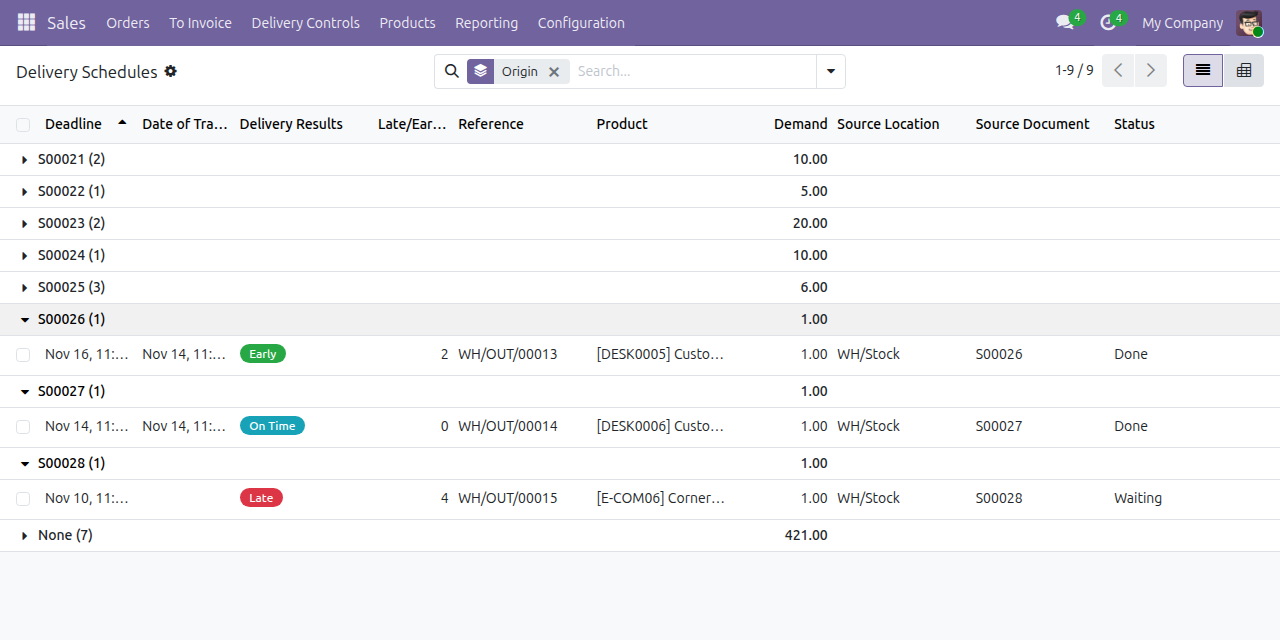
- Read the columns: Deadline (the promised date), Date of Transfer (when the delivery was completed), Delivery Results and Late/Early(day) (how many days away from the deadline).
- Use the search filters Ready, To Do, Done, Today, Late, On Time, Early and No Deadline, or search by reference, product, location or partner.
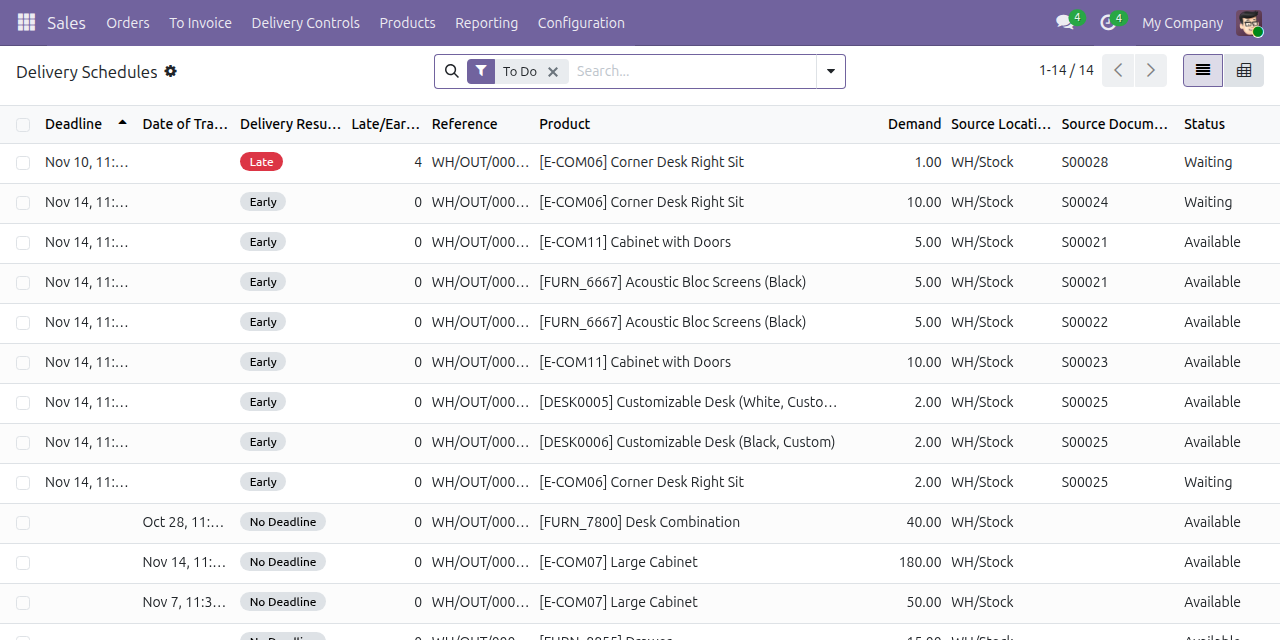
To see every delivery of one order, remove the To Do filter and group by Origin (search options, Group By).
Delivery Results has these values:
- Early - the delivery was completed on a day before the deadline. For a delivery not yet done, the deadline is today or later.
- On Time - the delivery was completed on the deadline day.
- Late - the delivery was completed after the deadline day, or is still open and its deadline day has passed.
- No Deadline - the stock move has no deadline.
Days are counted in your own time zone.
When the delivery schedule is out of date
After a bulk change that moves several promised dates and holds back the recalculation, a confirmed order shows a yellow banner: the delivery orders still carry the previous schedule.
- Open the order and press Update Delivery Schedule in the banner.
- The existing transfers are re-dated to the new promises and goods are moved between transfers when they now belong to a different day; each transfer keeps its reference and history, and a note on each affected transfer says what changed. A transfer left empty is removed.
- A transfer that is already delivered, cancelled, printed or being picked keeps its date; a note on it says so.
Warehouse operator: validate the delivery
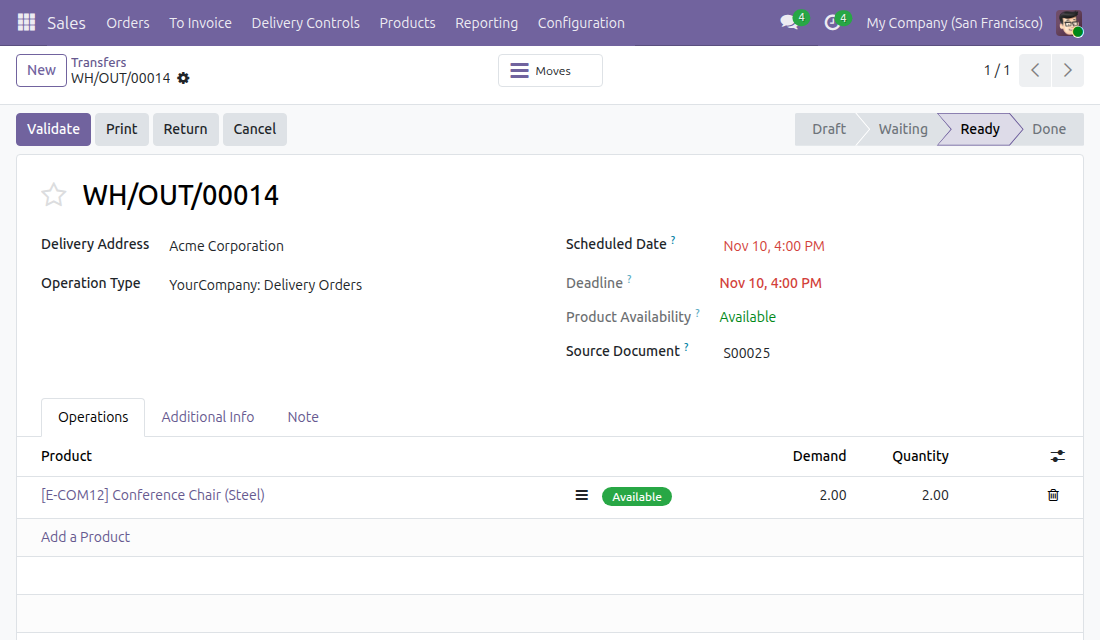
- Press the Delivery smart button of the order and open the transfer.
- Press Validate once the goods have left.
- The delivery now counts in Delivery Schedules with its Date of Transfer and result.
This software and associated files (the "Software") may only be used (executed, modified, executed after modifications) if you have purchased a valid license from the authors, typically via Odoo Apps, or if you have received a written agreement from the authors of the Software (see the COPYRIGHT file).
You may develop Odoo modules that use the Software as a library (typically by depending on it, importing it and using its resources), but without copying any source code or material from the Software. You may distribute those modules under the license of your choice, provided that this license is compatible with the terms of the Odoo Proprietary License (For example: LGPL, MIT, or proprietary licenses similar to this one).
It is forbidden to publish, distribute, sublicense, or sell copies of the Software or modified copies of the Software.
The above copyright notice and this permission notice must be included in all copies or substantial portions of the Software.
THE SOFTWARE IS PROVIDED "AS IS", WITHOUT WARRANTY OF ANY KIND, EXPRESS OR IMPLIED, INCLUDING BUT NOT LIMITED TO THE WARRANTIES OF MERCHANTABILITY, FITNESS FOR A PARTICULAR PURPOSE AND NONINFRINGEMENT. IN NO EVENT SHALL THE AUTHORS OR COPYRIGHT HOLDERS BE LIABLE FOR ANY CLAIM, DAMAGES OR OTHER LIABILITY, WHETHER IN AN ACTION OF CONTRACT, TORT OR OTHERWISE, ARISING FROM, OUT OF OR IN CONNECTION WITH THE SOFTWARE OR THE USE OR OTHER DEALINGS IN THE SOFTWARE.